
Normal view

There are new articles available, click to refresh the page.
Before yesterdayCombined | Arts and Tech

How QuickLook provides thumbnails and previews

By: hoakley
18 May 2026 at 14:30

Throughout macOS, objects like files, folders and apps are displayed as icons, which are managed and delivered by Icon Services. Although many of those are generic to that class of object, the Finder and many apps use thumbnail images to represent specific objects. Zip archives and Installer packages are denoted by type-specific icons, images by individual thumbnails, and text files can use either depending on their context. In addition to those, the Finder and some apps can display the rendered contents of some types of file in previews, providing more detail and features such as annotation and text recognition.

Custom thumbnails and previews are the product of the QuickLook subsystem, and this article explains how they’re provided to Icon Services, here for use by the Finder, although the same mechanisms are available to other apps.

Caches

The success of Icon Services depends on speed of delivery as well as providing icons that are as faithful as possible for their size. Speed is achieved by maintaining a Thumbnail Cache containing those icons most likely to be needed, the primary purpose of iconservicesd. That cache is divided between memory and multiple locations on disk. The latter include a main store locked away from all access at /Library/Caches/com.apple.iconservices.store, and com.apple.iconservices and com.apple.dock.iconcache databases in private/var/folders/[2 chars]/…/C/, where … is a long alphanumeric name.

Generation

Fidelity of custom thumbnails and previews is ensured by many generators specific to the types of data to be rendered. There are currently a total of 19 bundled in macOS, in /System/Library/QuickLook, each of which will generate both thumbnails and previews. Data types are specified by UTI, thus PDF files with the UTI of com.adobe.pdf are handled by PDF.qlgenerator, while iWork.qlgenerator handles 15 different UTI types for documents written by Keynote, Numbers and Pages.

Custom UTI types that aren’t handled by any of those bundled qlgenerators can be turned into thumbnails and previews by appexes supplied by third-party app bundles. For example, Scapple documents with the UTI com.literatureandlatte.scapple.scap can have thumbnails generated by ScappleThumbnail.appex, while ScapplePreview.appex will generate previews for them. Both appexes are supplied in the Scapple app’s PlugIns folder inside the app’s bundle, as has been expected in recent macOS.

Selection of generator takes advantage of the hierarchical structure of UTIs. QuickLook’s dictionary of UTIs supported by generators normally contains no entry for the UTI public.jpeg, the most specific UTI for JPEG images, but it does for public.image, the more general type that public.jpeg conforms to. In the absence of a more specific generator, QuickLook uses Image.qlgenerator to produce thumbnails for JPEG images. This allows a third party to implement a better generator for JPEG images using their public.jpeg UTI, rather than public.image. The same is used by PreviewCode to generate thumbnails and previews of Swift source code using its specific UTI of public.swift-source, while the macOS Text.qlgenerator goes no more specific than public.plain-text, to which public.swift-source conforms.

QuickLook offers two strategies for generating thumbnails:

  • Best possible quality, which may take significant time to create large thumbnail images from large original files.
  • Multiple resolutions, which creates low resolution images quickly, then replaces them with higher resolution when it can.

You can see the latter in action sometimes when thumbnails are being generated for large Gallery view windows in the Finder.

App and bundle thumbnails

In contrast to files, app- and bundle-specific icons aren’t generated from file data, but taken from an icon located in the bundle’s Resources. When first viewed in a Finder window, if app icons haven’t already been cached, they will initially be displayed using placeholder icons. Each app is then looked up by LaunchServices in its records, and Icon Services adds its icon to the app icon section of the Thumbnail Cache.

Placeholder icons

When there’s a delay in generating or fetching a file’s specific icon, a placeholder icon is used by Icon Services instead. These are specific to the UTI type of that file, and will remain if no more specific icon can be generated.

Placeholders are used permanently for file types which don’t have specific content-based thumbnails generated for them, such as Apple Archives with the extension aar, with a UTI of com.apple.archive. The icon displayed is then based on that for public.archive, with the letters AAR added to indicate they’re Apple Archives.

Placeholders are also used in other circumstances. A common example is for text files listed in a Finder Column view, where all files with the UTI of public.plain-text are displayed using a generic icon, although they’re shown in the Preview pane as a fully rendered preview. The same applies to Rich Text files with a UTI of public.rtf, which use the same Text.qlgenerator, but not for PDF files.

QuickLook providing a thumbnail

To cover the range of actions more fully, this account is a composite based on what happens when you open a folder in the Finder’s column view, extending to cover the principles for the display of contents in a Preview pane.

The initial request from the Finder is to retrieve the icon from the Thumbnail Cache. If it’s not found there, what happens next depends on what the icon represents.

For app and similar bundle icons, LaunchServices searches app records, the icon is found, and Icon Services add it as a new indexed store entry.

For files, if it already has a placeholder image, as a type icon, and its contents can be rendered into a thumbnail, QuickLook UI will create and load a QLPreviewDocument such as a QLTextDisplayBundle, for the Finder to display in the Preview pane.

Otherwise the Thumbnailing Daemon queues a thumbnail request. First the memory cache is checked, then the disk cache. If the thumbnail can’t be found in those, then a new thumbnail is generated locally for that file. The first step in that process is for QuickLook Support to check the file’s UTI, and ascend through the UTIs that conforms to, as its more generic types. This determines which generator will be called to generate the thumbnail image. If that fails to generate an image, the Thumbnailing Daemon will generate that deemed ‘most representative’, usually a placeholder icon.

The generated icon is then added as a new store entry and indexed by Icon Services, and that’s written from the memory cache to the disk cache.

This is summarised in the following diagram.
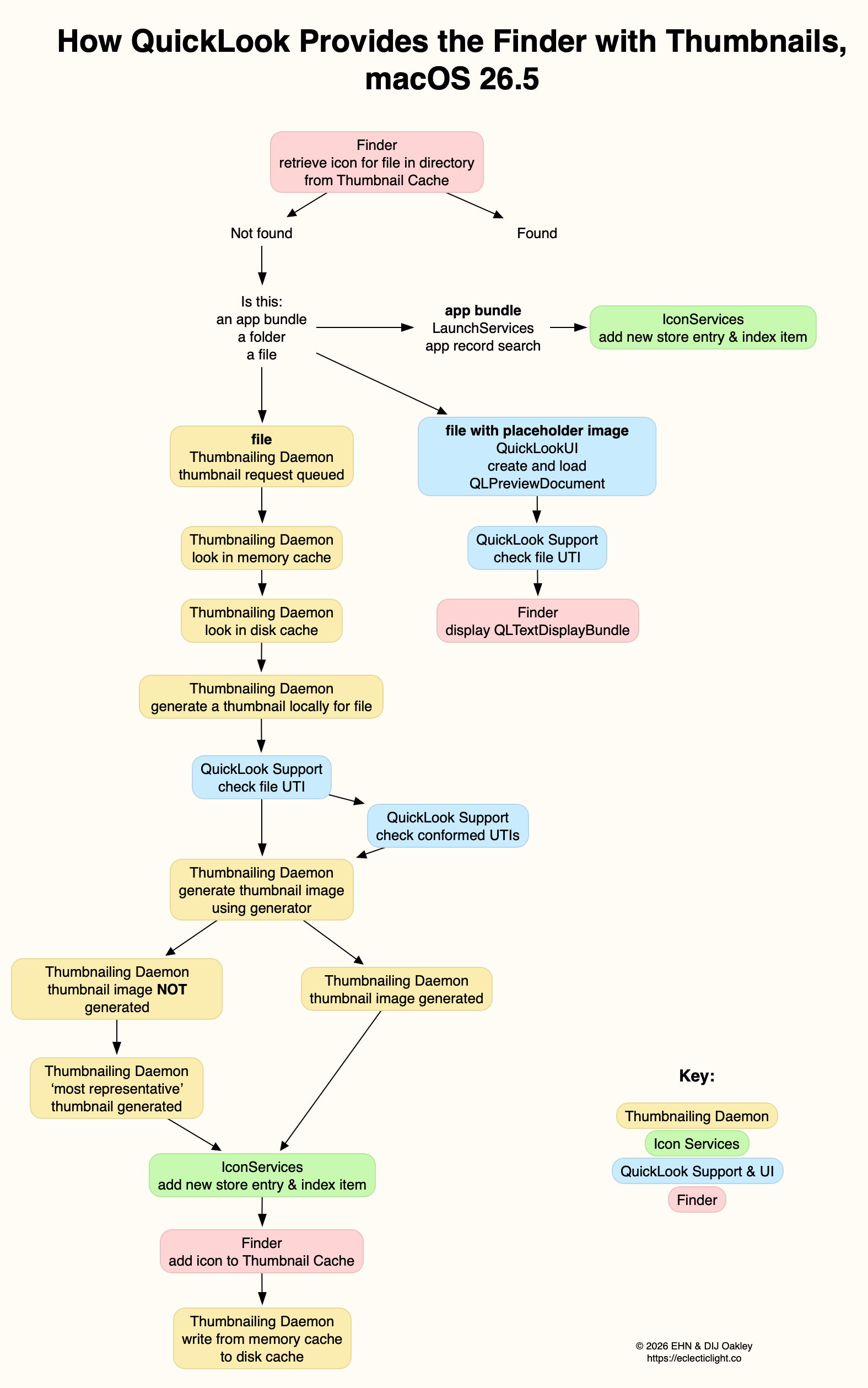
available here as a PDF: QuickLook265a

References

Apple’s developer docs on QuickLook thumbnailing.
Apple’s developer docs on QuickLook preview generation
Apple’s Developer docs on QuickLook UI and previews

Explainer: QuickLook

By: hoakley
16 May 2026 at 15:00

QuickLook, or Quick Look, is the part of macOS responsible for generating custom Thumbnails and Previews of items in the Finder and elsewhere. Although it was only introduced in 2007, with Mac OS X 10.5 Leopard, its origins go back to 1988-91 when image Thumbnails could be saved in a file’s ICN# resource. A similar system arrived in Mac OS X, and was replaced by the first version of QuickLook in 2007, which has recently undergone revision, over the period 2019-25.

Resource-based Thumbnails in Classic Mac OS were relatively straightforward. Each type of file had its own icon, an association made in the hidden Desktop database. Image and video files often overrode that default by providing their own Thumbnail image as a resource, and had to update those when the file’s data was changed. Amazingly that’s still supported in modern macOS 35 years later.

QuickLook took on the task of generating Thumbnail images, and added larger Previews in which the whole document can be inspected without opening it in an app. This came with built-in Thumbnail and Preview generation for a wide range of common document types, extending to QuickTime media including audio and video. Apps are different, though, as they use icon image (icns) files stored in their bundle’s Resources folder, harking back to Classic icon resources.

Display of Thumbnails used the QuickLook framework documented here. This enabled third-parties to extend coverage to their own document types using QuickLook generators with the extension qlgenerator. Initially, they were installed into /Library/QuickLook from each app bundle.

Unlike Spotlight indexes and document versions, QuickLook stores all its files in the current Data volume, rather than locally on individual volumes. Normally, when QuickLook generated a Thumbnail or Preview, that was stored in its cache database kept in a temporary directory in the path C/com.apple.QuickLook.thumbnailcache/. Those could give revealing insights into images and other documents accessed recently, and Wojciech Regula and Patrick Wardle discovered that, in High Sierra and earlier, it was easy for malicious software to examine that cache. Apple addressed that in macOS 10.14 Mojave by making that cache completely inaccessible.

In-memory caching of Thumbnails has also proved controversial in more recent versions of macOS. To deliver smooth scrolling of Thumbnails in the Finder’s Gallery views in particular, the Finder has taken to caching them in memory for up to two days, sometimes using several GB in the process.

I described how QuickLook Thumbnails worked in early 2019, in the days before the SSV.

getdocicon01

When you selected a document in the Finder, a dialog, or somewhere else where you expect its icon to be shown, the Finder passed details of the document path and its type (UTI) to IconServices, to fetch the appropriate icon. This called on its main service, iconservicesd in /System/Library/CoreServices, to check its icon cache.

Although the main icon store is locked away in /Library/Caches/com.apple.iconservices.store, there was additional data in a folder on a path based on /private/var/folders/…/C/com.apple.iconservices, where … is an unreadable alphanumeric name. For icons used in the Dock, their cache was at /private/var/folders/…/C/com.apple.dock.iconcache. If the icon should be replaced by a QuickLook Thumbnail, such as in a Finder column view, QuickLook is asked to provide that thumbnail. That in turn may be cached in its protected cache at /private/var/folders/…/C/com.apple.QuickLook.thumbnailcache.

QuickLook then relied on there being an appropriate qlgenerator to create a thumbnail of that document type; if the qlgenerator was flawed or could’t cope with the document’s contents, that could easily fall over. For example, if you renamed a text file with a .jpeg extension so that macOS considered it was a JPEG image, the bundled qlgenerator might have simply resulted in the display of a busy spinner, rather than resolving to a generic JPEG document icon. IconServices should then deliver the appropriate icon back to the Finder to display it.

In macOS 10.15 Catalina (2019), Apple started replacing this system with a new framework named QuickLook Thumbnailing, documented here. That replaces qlgenerators with QuickLook preview extensions, in particular Thumbnail Extensions, as explained to developers at WWDC in 2019.

macOS 15.0 Sequoia finally removed support for third-party qlgenerators, resulting in the unfortunate loss of custom Thumbnails and Previews for document types of apps that are still reliant on qlgenerators, and haven’t yet got round to providing equivalent app extensions.

When you now select a file in a view which should result in the display of its thumbnail in the Preview pane in that window, the Finder requests it from the QuickLookThumbnailingDaemon. That queues the request until the daemon can look for the image in its memory cache. If it can’t find it there it then looks in the disk cache, first at low quality 20 x 20 icon mode. If it still can’t find it, it queues a request for a fresh thumbnail to be generated. That uses the file data together with the appropriate code to create a Thumbnail, which is then returned and cached.

There’s at least one exception to this, the directory at ~/Library/Messages/Attachments/. For files inside that, and any others for which a Thumbnail can’t be generated, a generic icon is returned as the “most representative thumbnail”.

While third parties have been replacing their old qlgenerators with modern Thumbnail and Preview extensions (appexes), macOS still provides its standard qlgenerators in /System/Library/QuickLook. Third party appexes normally come in PlugIns folders in app bundles. Mints can provide a full listing of those installed. If a document type isn’t being thumbnailed as you’d expect, the first task is to discover its type as a UTI. You can then look up which qlgenerator or appex should be responsible for generating Thumbnails or Previews of that document type using Mints. By far the most common cause at present is an old third-party qlgenerator that hasn’t been replaced by an appex.

How to preserve versions, and how to create versioned PDFs

By: hoakley
13 May 2026 at 14:30

Keeping previous versions of a document you’re working on can be a great timesaver. Although I seldom restore files from backups, it’s far more frequent that I look back in a file’s versions to recover changed or removed contents. In most cases, those had changed so rapidly that even hourly backups didn’t capture them. Had those versions not been saved automatically by macOS, I would have wasted time trying to recreate them from scratch.

Although a great many apps now come with built-in version support, macOS doesn’t preserve those versions as well as it could. Duplicate a document with versions, save it as another document, or move it to a different volume, and all its versions are blown away. As I explained yesterday, versions don’t transfer in iCloud Drive either. This article explains how you can work around all those, how to ensure versions get backed up, and how you can create PDF documents with versions.

How versions work

Opening the version browser from the File menu.

Many apps now have built-in support to automatically save versions of documents you edit with them. The tell-tale sign is when the app has a Revert To command in its File menu, which opens the current document in a version browser resembling the Time Machine app.

revisions1

Each time you save a document in those apps, the existing document is saved to a hidden and locked-down database at the root level of that volume, in the .DocumentRevisions-V100 folder. When you use the Revert To command to browse all versions, you can look back at all the versions of that document saved to that volume. You can then revert to an older version, or copy contents from an older version to the current one. As long as that document remains in its current volume, those versions will remain accessible. However, if that document is moved to a different volume, even on the same disk, those versions don’t move with it, but will be retained in the original volume until it’s deleted from there.

If you’ve been editing a document in your Documents folder and move it into iCloud Drive, which is actually a folder inside your Home Library folder, its versions will be preserved when you access it from the same Mac. However, other Macs connected to the same iCloud account won’t see those versions, as they remain on the original Mac and don’t get synced to iCloud Drive.

How to extend versions

Apps can’t access stored versions directly, but have to do that via macOS. The most compatible way for them to do that is to fetch previous versions from the volume version database. They can then save each version as a separate file, and reconstitute a document complete with its versions by adding those files back to a document’s versions in the volume’s database. That’s exactly what my free utilities Versatility and Revisionist do. Versatility is the simpler of the two to use here, while Revisionist adds more features including checking documents to see how many versions they already have stored in their volume database.

Archive versions

Simply drag and drop a file with saved versions onto Versatility’s window, and it will extract all its versions and save them as a series of numbered files in a folder. You can then copy or move that folder to any other location, where you can reconstitute the original document with all its versions intact.

Unarchive versions

Simply drag and drop a folder containing archived version files onto Versatility’s window, and it will reconstitute the original document with all its previous versions.

Versions in iCloud Drive

To preserve all versions in iCloud Drive and make them available to all that connect to that folder, move the document from its existing location in your Home folder, to the correct folder in iCloud Drive. Once it’s there:

  1. Perform any editing necessary.
  2. Archive. Drop the document onto Versatility’s window, and save that archive folder to the same location.
  3. Move the original document elsewhere.

When you want to edit that document, particularly on another Mac, on that Mac:

  1. Unarchive. Drop the archive folder onto Versatility’s window, and save the document to the same location.
  2. Edit the document, saving whenever you want to create a new version.
  3. When you’ve finished, save for the last time, and close the document.
  4. Archive. Drop the document onto Versatility’s window, and save that archive folder to the same location.
  5. Tidy up old archive folders and files.

That leaves the most recent archive folder, with composite versions written in the correct order, with the right timestamps, ready to be unarchived on the next Mac to edit that document. This may appear complicated, but once you have tried it out, it’s really a simple sequence to unarchive-edit-save-archive and hand over to the next editor.

Backing up versions

I’m not aware of any backup utility for macOS, including Time Machine, that backs up and preserves versions, although they are stored in local volume snapshots. However, all you have to do is archive the versions of important files into folders using Versatility, and back up those folders. When you want to restore the original document with all its versions, simply unarchive that folder using Versatility.

PDF versions

One of the lesser-known features of the PDF format are incremental updates, which can provide a primitive form of versioning within a single file. In practice it catches users out when they publish a PDF containing old edited content they thought had been removed.

Few PDF editors and viewers support the macOS version system, but Preview does, and Versatility can be used to assemble a PDF document with versions.

For my example, rather than edit a PDF, I generated a series from an archived RTF, converting each file into a consecutively numbered PDF, starting from 000.pdf and rising to 010.pdf. I then dropped that folder onto Versatility’s window and it unarchived those into a single PDF document with all those versions.

Key points

  • Archive a file with saved versions to a folder by dropping it onto Versatility’s window.
  • Unarchive a folder containing version files to a file with saved versions by dropping it onto Versatility’s window.
  • In iCloud Drive, unarchive-edit-save-archive to preserve versions for the next editor.
  • Wherever you want to preserve versions, archive the file using Versatility.

❌
❌