
Normal view

There are new articles available, click to refresh the page.
Today — 20 December 2025Main stream

Explainer: Storage settings

By: hoakley
20 December 2025 at 16:00

Storage information provided in macOS has a chequered history. While that provided in Disk Utility has remained a benchmark, a separate Storage feature introduced some years ago in About This Mac quickly became notorious for its fragility and inaccuracy, with many reporting huge discrepancies. Over the last couple of years, and with its transfer to System Settings > General > Storage, it has become more reliable and useful. This article explains where it has reached in macOS Tahoe 26.2.
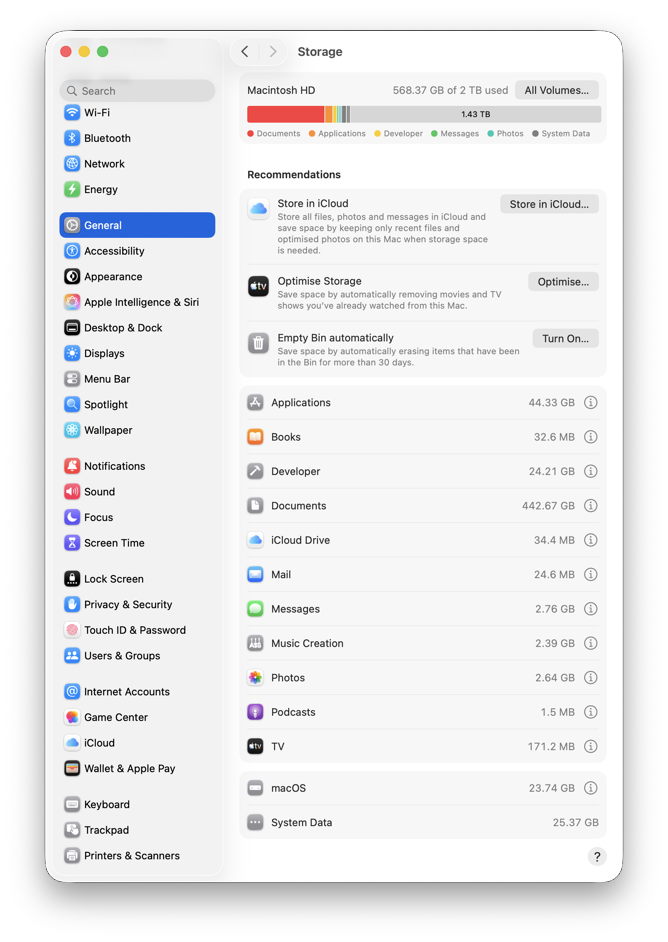
Its view has three sections.

At the top, the Storage Bar shows a breakdown of space used on the boot disk into categories, total used, and total free space that now correlate better with figures shown in Disk Utility. The All Volumes button extends that to cover other disks, but as no detailed information is provided for them, you’re still better off checking in Disk Utility.
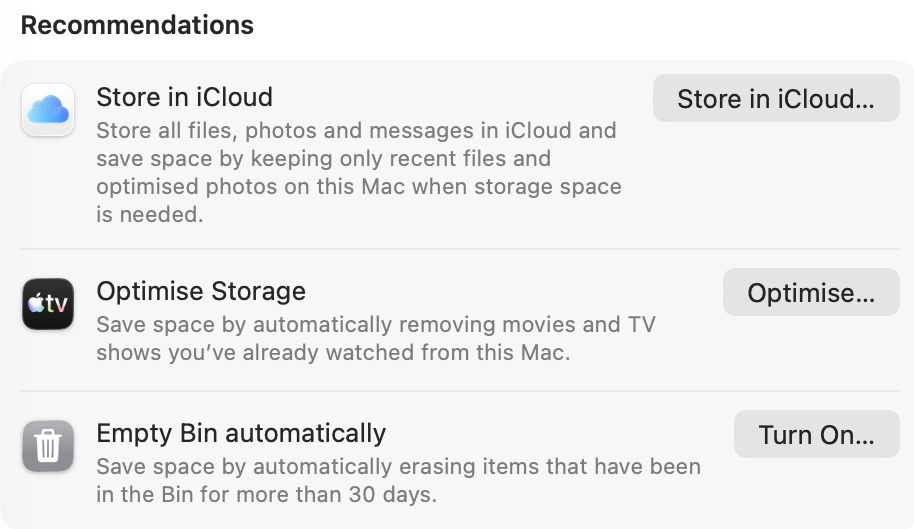
Recommendations

Below the Storage Bar comes a series of actions you could take to free up space. These operate across more than one category, but have limited usefulness:

  • Store in iCloud includes standard options such as putting your Desktop and Documents folders into iCloud Drive, and enabling iCloud Photo Library, which you’ve probably already decided on.
  • Optimise Storage isn’t the same as the Optimise Mac Storage option in iCloud Drive. What it does is remove the TV content that you’ve already watched from local storage.
  • Empty Trash Automatically simply deletes anything left in the Trash after a period of 30 days, an option also offered in the Finder’s Settings. Some love it, others manage by themselves.

Categories

The remainder of the view is devoted to individual categories, most of which are used to label segments of the Storage Bar. For most there’s an ⓘ Info button at the right, and in some cases that offers useful tools.
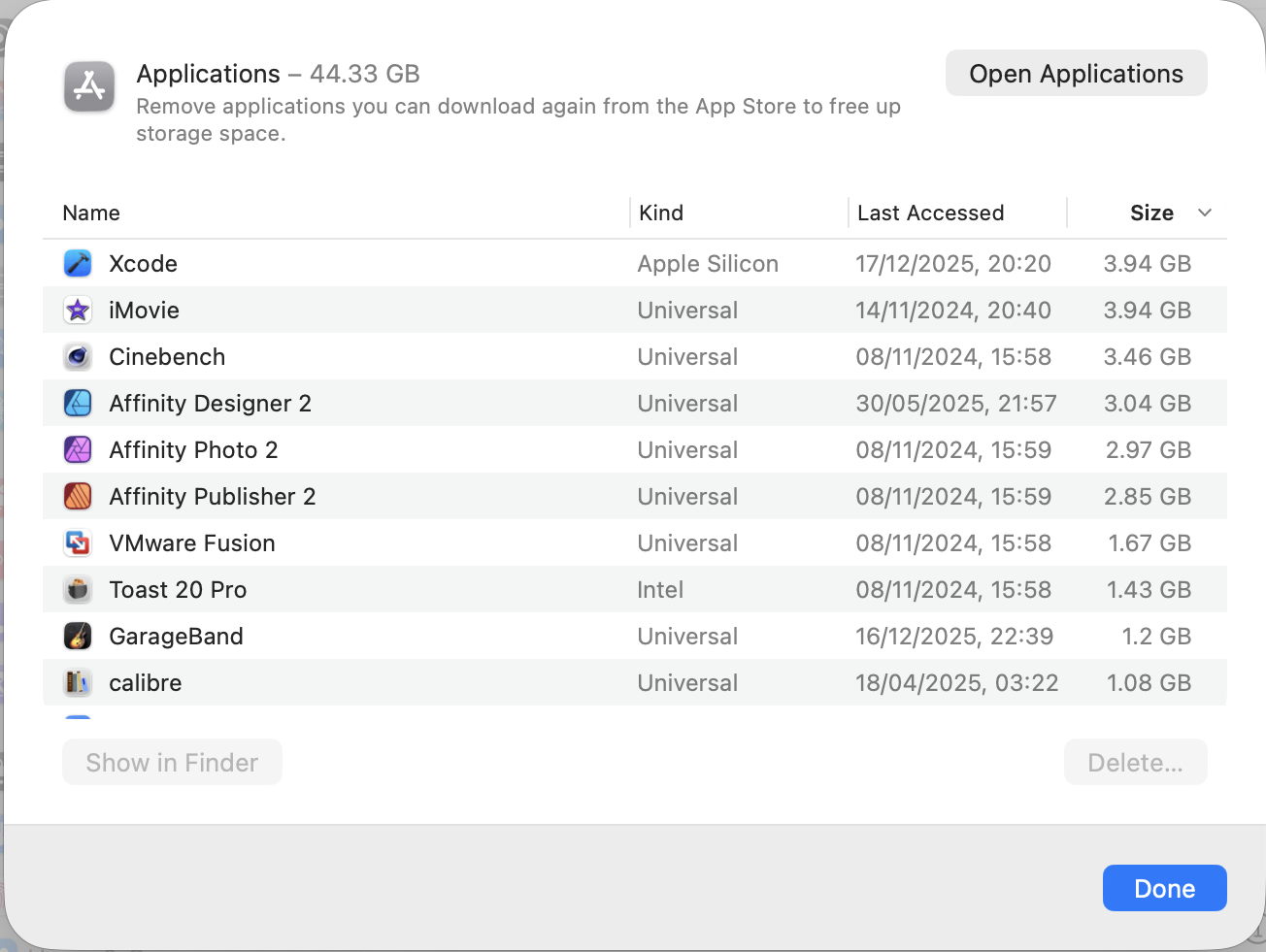
Applications can be listed by size or date of last access, making it easy to remove them. The total size given, and this list, excludes those apps bundled in the SSV, as they can’t be tampered with.

Books, Music, Music Creation and TV each let you delete local copies of content you have licensed, allowing you to download them later when you wish.
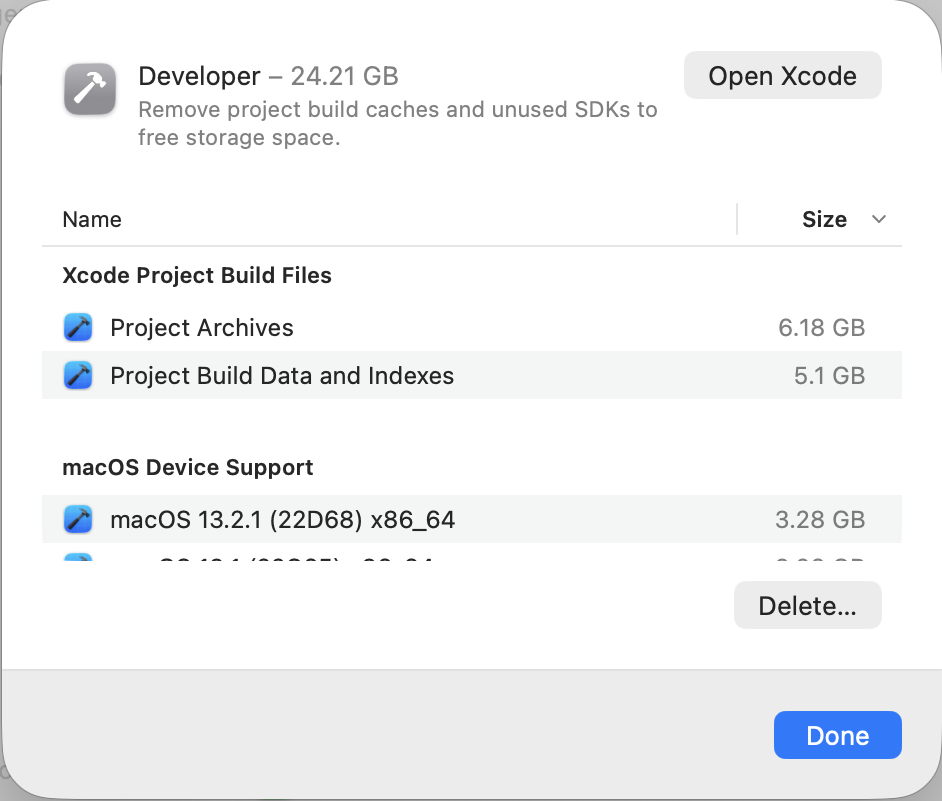
Developer can clean up some of the potentially redundant build and device support files accumulated by Xcode.
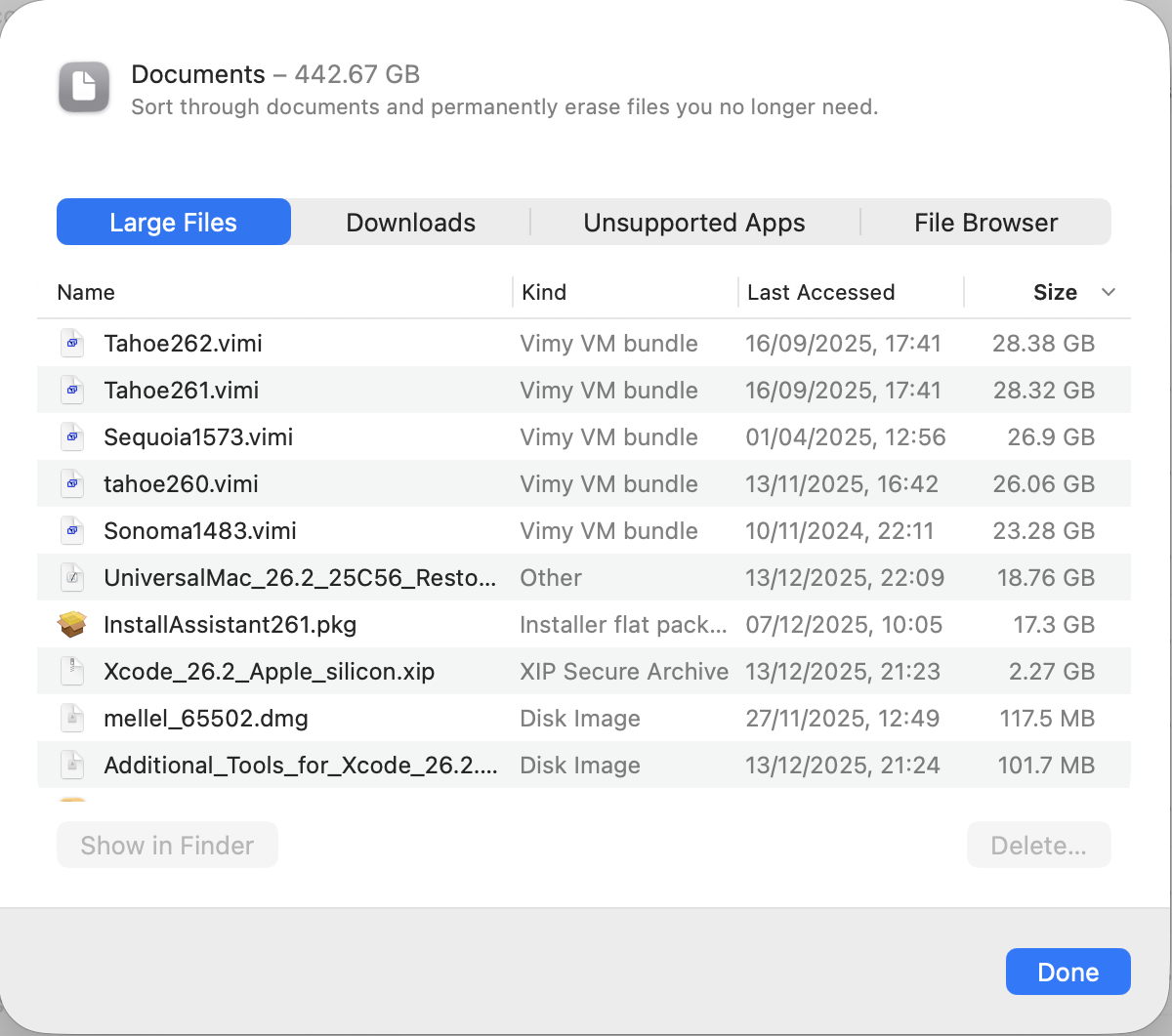
Documents offers lists of documents to show largest files, older downloads, unsupported 32-bit apps, and a file browser using column view sorting files by size. If you don’t want to use one of the third-party products that do this better, you may find this helpful, but it’s inferior to the likes of DaisyDisk and GrandPerspective.

Info offered for other categories includes:

  • iCloud Drive to enable Desktop and Documents in iCloud, also offered in numerous other places.
  • iOS files to remove unwanted device backups and firmware if you sync them with your Mac.
  • Mail adds nothing.
  • Messages is frustrating, as it lists large attachments, but when you try to preview them in the Finder, QuickLook refuses to oblige, so you can’t see what each is.
  • Photos can enable iCloud Photos, as offered elsewhere. Note that, as far as this category is concerned, the size given is that of the current System Photo Library, and excludes all other Photos Libraries and images in the Pictures folder.
  • Podcasts adds nothing.
  • Trash (or localised equivalents) lists items there for you to delete them, much as the Trash itself does.
  • Other Users & Shared covers Home folders of other users and any shared files.
  • macOS reveals how much space is being used by components supporting AI.
  • System Data is the one category that desperately needs further information, but doesn’t have a button. It’s discussed below.

Throughout these, Storage shows space actually taken on disk, rather than the nominal size. So a 100 GB VM stored as a sparse file might be shown as occupying only 62 GB, for example.

System Data

Storage appears to total all other categories up and account for the remainder of storage used in the category System Data. That doesn’t include the size of the System volume, or its snapshot, but can include temporary files like caches, snapshots, and anything else it can’t account for elsewhere.

In this case, System Data is by far the largest of all the categories, and accounts for half the space used on this SSD. This remains the greatest weakness in Storage settings, as the only way to discover and recover any of that space is to return to Disk Utility for its greater accuracy, its listing of snapshots, and of purgeable space. Even then, identifying what is using all that free space may end up as a process of elimination.

Let’s hope that Apple continues to improve Storage settings and provides more help to deal with System Data.

Before yesterdayMain stream

Explainer: Preferences

By: hoakley
1 November 2025 at 16:00

When you run a command tool you invoke its options in the command you enter. Those options are supplied each time you run the tool, and don’t persist. Apps are different, in having a GUI that usually offers the user options, and in relying on information that persists until you next run that app. Those are its preferences, settings or defaults, depending on how you look at them.

In traditional Unix, persistent preferences may be implemented as configurations, defined in a plain text config file. In classic Mac OS window settings and a great deal more were saved as resources, in the resource fork of the app or its documents. This resulted in one neat feature that’s seldom seen in macOS today, saving a document’s window settings to its file, so they will be reused the next time that document is opened.

One of the innovations in NeXTSTEP was the human-readable property list used to store serialised objects such as preferences. These consist of designated variables used by the app that are converted into a representation that can be expressed in text. For example, if an app lets the user decide whether to use US or metric units of measurement, that could be stored in memory as a Boolean variable, true or false, and serialised as the word true or false in a property list used to store the app’s preferences.

Contents

Accommodating all the preferences needed by an app usually requires a dictionary of those serialised values, each given a key for identification, and having an explicit or implicit data type. Thus, that user option might become
key: metricUnits
value: true, a Boolean with two possible values.

Mac OS X replaced the old NeXTSTEP format for property lists with two formatting schemes, XML and JSON, with XML the standard for app preferences. This is a file containing dictionaries of key-value pairs representing the serialised data:
<dict>
<key>metricUnits</key>
<true/>
<key>filePrefix</key>
<string>MyFile</string>
</dict>

Initially, all property lists were stored as plain text, but that’s woefully inefficient, so between Mac OS X 10.2 and 10.4 a more compact binary format replaced that, and remains the standard today, as implemented in the UserDefaults API.

cfprefsd

Although developers can handle their app’s defaults/preferences with their own code if they wish, macOS provides the defaults server cfprefsd, and that convenient API that is used by the great majority of apps. Under that, early in an app’s initialisation cfprefsd automatically opens that app’s preferences, then loads its key-value pairs to make them available to the app as it’s setting itself up.

cfprefsd is transparent to the developer, whose code simply accesses key-value pairs as they are required. cfprefsd may opt to keep the whole preference file in memory, and manage it however it sees fit. Thus the property list’s contents on disk may not represent those held in memory for the app, and any changes to the property list file may be overwritten when cfprefsd saves changed values from memory.

For a simple app, working with cfprefsd should also be straightforward. The app’s preference property list is opened by cfprefsd shortly after the app is launched, and the app’s code works through UserDefaults to make any changes to key-value pairs while the app is running. As the app is shut down, cfprefsd updates the preference file, and the user is once again free to change or delete that property list as they wish. However, there’s ample scope for that to become more complicated, or to misuse it.

Problems

Many apps today aren’t that simple in their structure, and use helper apps and other executable code that may still be running with access to the app’s preferences even though the main app is shut down. When the user thinks it’s safe to modify the contents of that property list, it may still be in the care of cfprefsd. The preferred approach then is to use the defaults command tool, which should work with cfprefsd rather than competing with it.

In the past, UserDefaults and cfprefsd weren’t always reliable, and some developers worked around their problems with a combination of the official API and performing their own direct manipulation of preference files. Those dangerous practices should have died out now.

Because an app’s preferences are accessed early as it’s being launched, any bugs or incompatibilities in those key-value pairs can have fatal effects before the app is fully open. For example, if a new version of an app reuses an existing preference key with a different data type, if it reads an old version of its preferences, that will throw an error. If that’s not handled well, that can cause the new version of the app to crash when launched.

Fortunately, all apps have to be able to create their own preference file for when they’re first run. There’s scope for further bugs there, when the file created isn’t updated to work with changed key-value pairs in a newer version of the app. That may result in an app that crashes when launched even when there’s no existing preference file saved, a problem for which there’s no workaround.

Finally, many apps have multiple preference files. If they run in a sandbox, the copy they use normally is in the Data/Library/Preferences folder in their container, in ~/Library/Containers. But they may also have a different property list in ~/Library/Preferences, and sometimes a master copy in /Library/Preferences as well. While I’m sure cfprefsd knows which to access, you may need to check by inspecting each file’s timestamps.

UserDefaults have improved significantly with SwiftUI, further integrating persistent storage of preferences. Although they can still trip up the unwary, provided you understand how they work and don’t try fighting the system, they should seldom cause substantial problems.

Further reading

UserDefaults (Apple)
Preferences and Settings Programming Guide (Apple) from 2013
Thomas Tempelmann’s Prefs Editor works with cfprefsd

❌
❌