Normal view

There are new articles available, click to refresh the page.
Before yesterdayMain stream

Archive webpages using textClippings

By: hoakley
7 January 2026 at 15:30

I first looked in detail at how to archive webpages in Safari over three years ago, when I concluded that exporting to PDF was best, and confirmed that when I revisited the question a couple of months ago. One of the snags with those methods is that they not only save the article you want to preserve, but along with it comes all the furniture, including menus, search, lists of archives, tags and more. Rather than making a replica with all that overhead, why not select just the article we want to save?

There are currently two ways to do that in Safari, either using a textClipping or Gildas Lormeau’s extension SingleFile for Safari, from the App Store. Here I explain how you can do that using this page as my example.
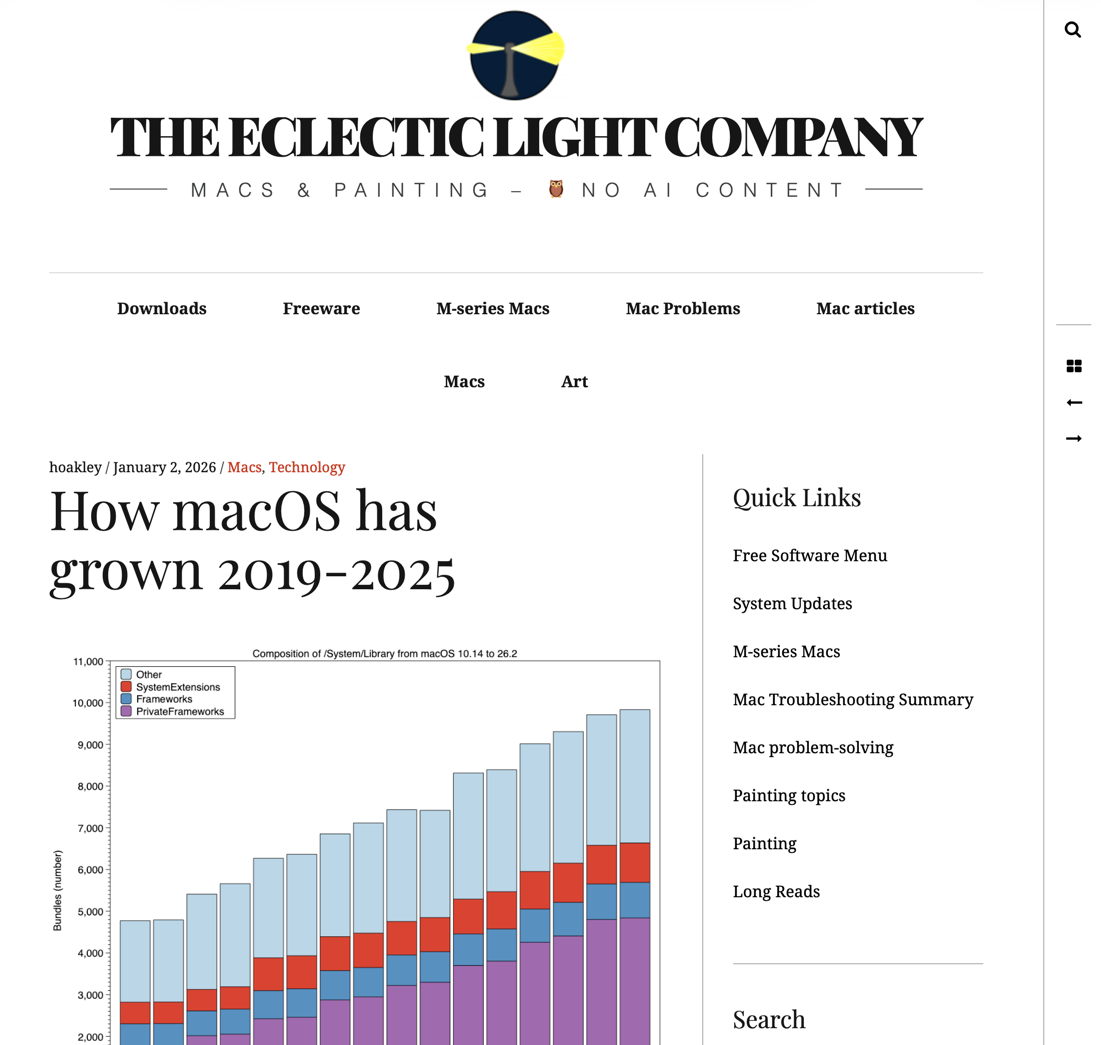
All the options built into Safari – Save As Web Archive, Save As Page Source, Save As PNG, and Export to PDF – include the page’s furniture, and some have other limitations, as explored previously. A full WebArchive file, including all the images, amounts to 2.7 MB, while a PDF is only 544 KB.

Now select just the contents of the article, by clicking just before the first letter of its title and dragging the selection down to the end. If you already have SingleFile installed, you can use the Save selection command in its menu to save that selection to a single 1.1 MB HTML file. That preserves its original layout faithfully, including its limited column width, but without any furniture.

Drag the selection to the Desktop to create a textClipping file there, ready to extract its contents in different formats using Disclipper. That textClipping file weighs in at 3.5 MB.

It’s worth noting that this method of saving the article contents overcomes one of the problems that can affect whole page options. The latter are prone to omit images from the later part of the article unless you scroll through it before saving or exporting, as Safari loads those lazily. When you select the whole of the article contents, that automatically forces Safari to load its whole contents, so none will be omitted from the textClipping file.

Directly accessing that textClipping is disappointing. TextEdit, which is capable of opening WebArchive format, will open it only as an RTFD file, complete with its embedded images, but its font and layout are largely lost.
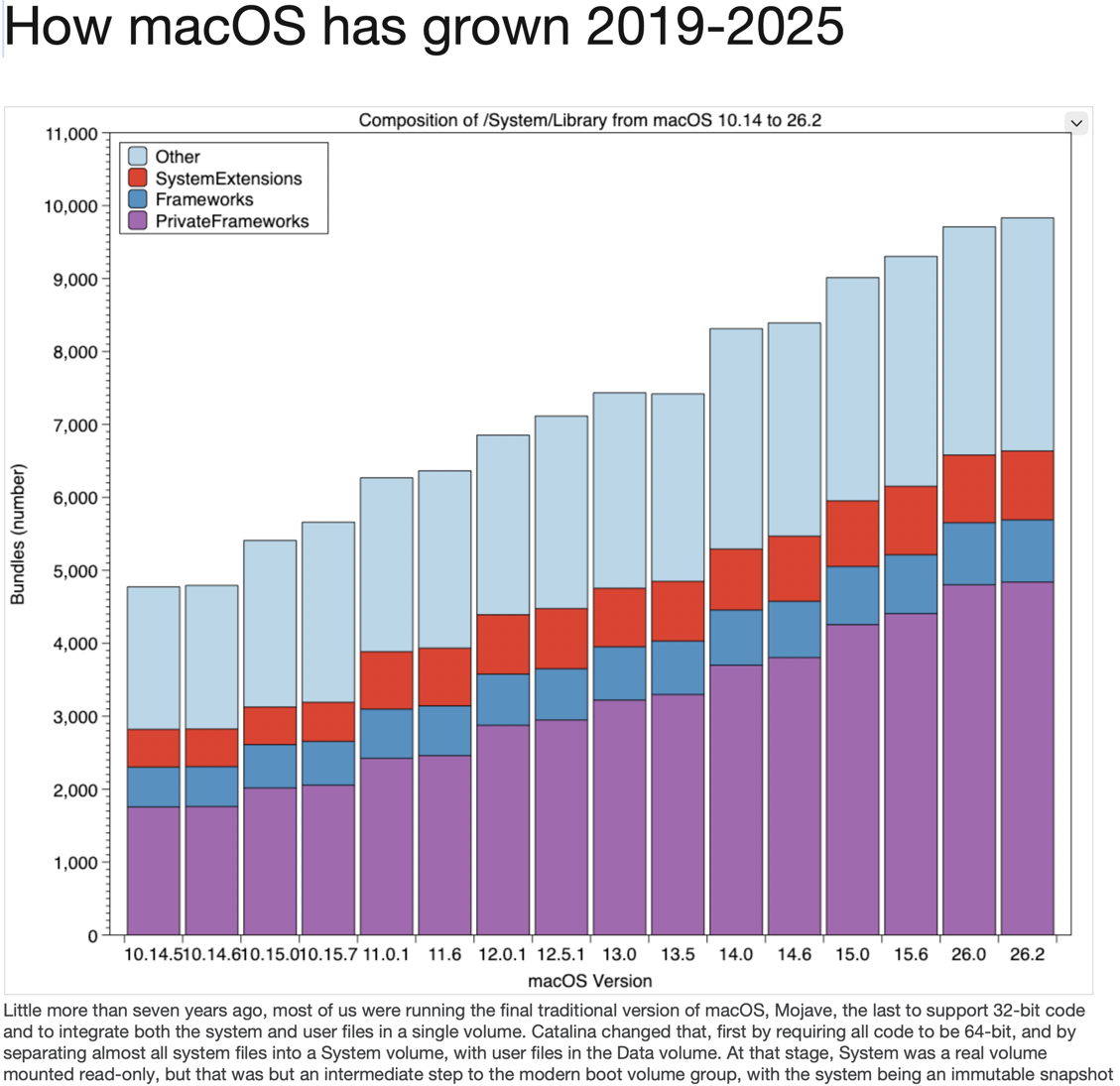
Surprisingly, Safari doesn’t appear to open textClipping files, despite creating them with WebArchive data inside.
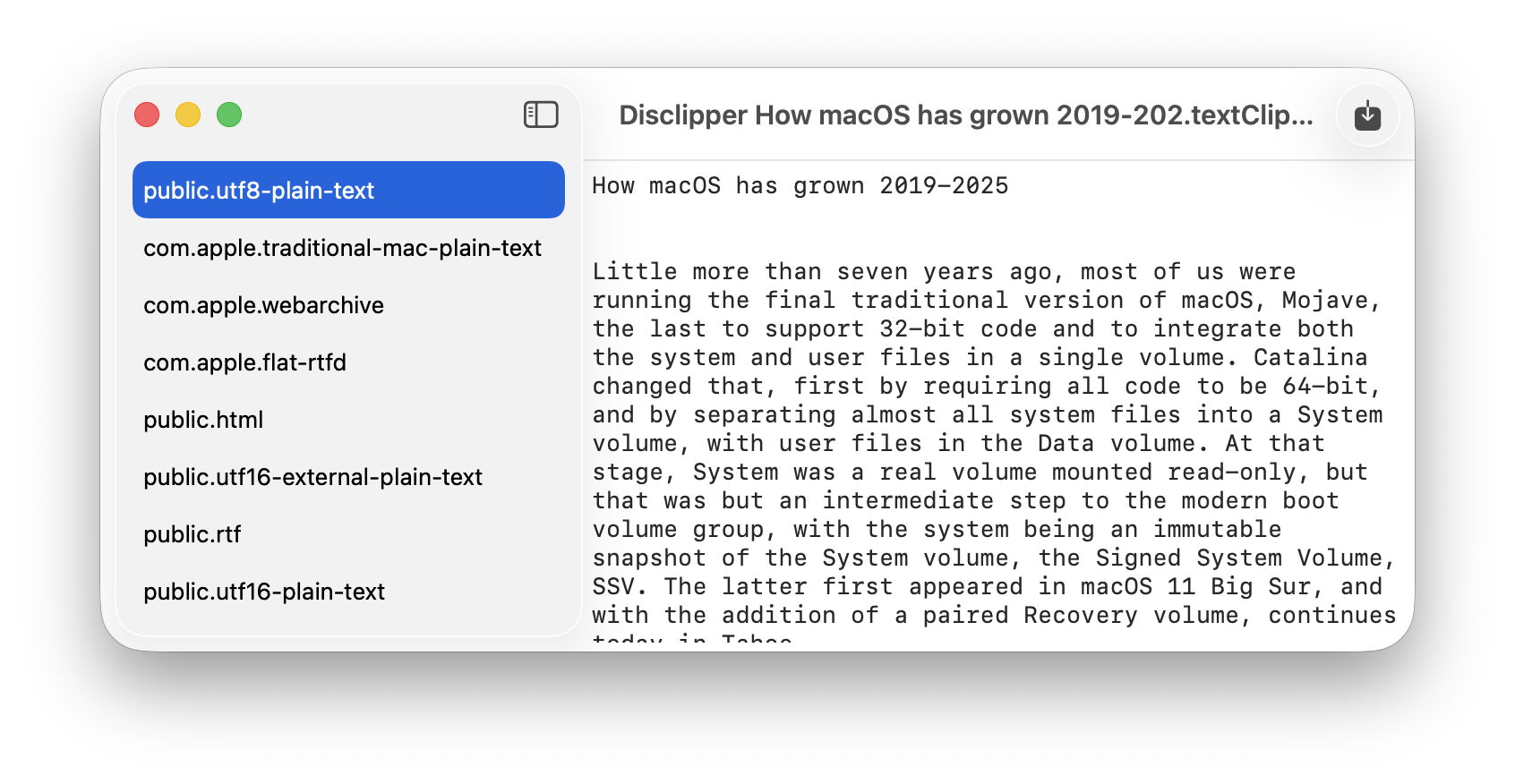
Drop that textClipping file onto Disclipper’s window, and you’ll have the option to save its contents in several formats including WebArchive, RTFD and HTML. Try each of those:

  • Open the WebArchive in Safari, where it has changed styles but is complete with all images. This is 1.3 MB in size.
  • Open the RTFD in TextEdit, where it’s the same as opening the textClipping, and complete with images. This is only 272 KB.
  • Open the HTML in Safari, which then downloads its images from this website, so it isn’t suitable as a lasting archive, but is only 147 KB.
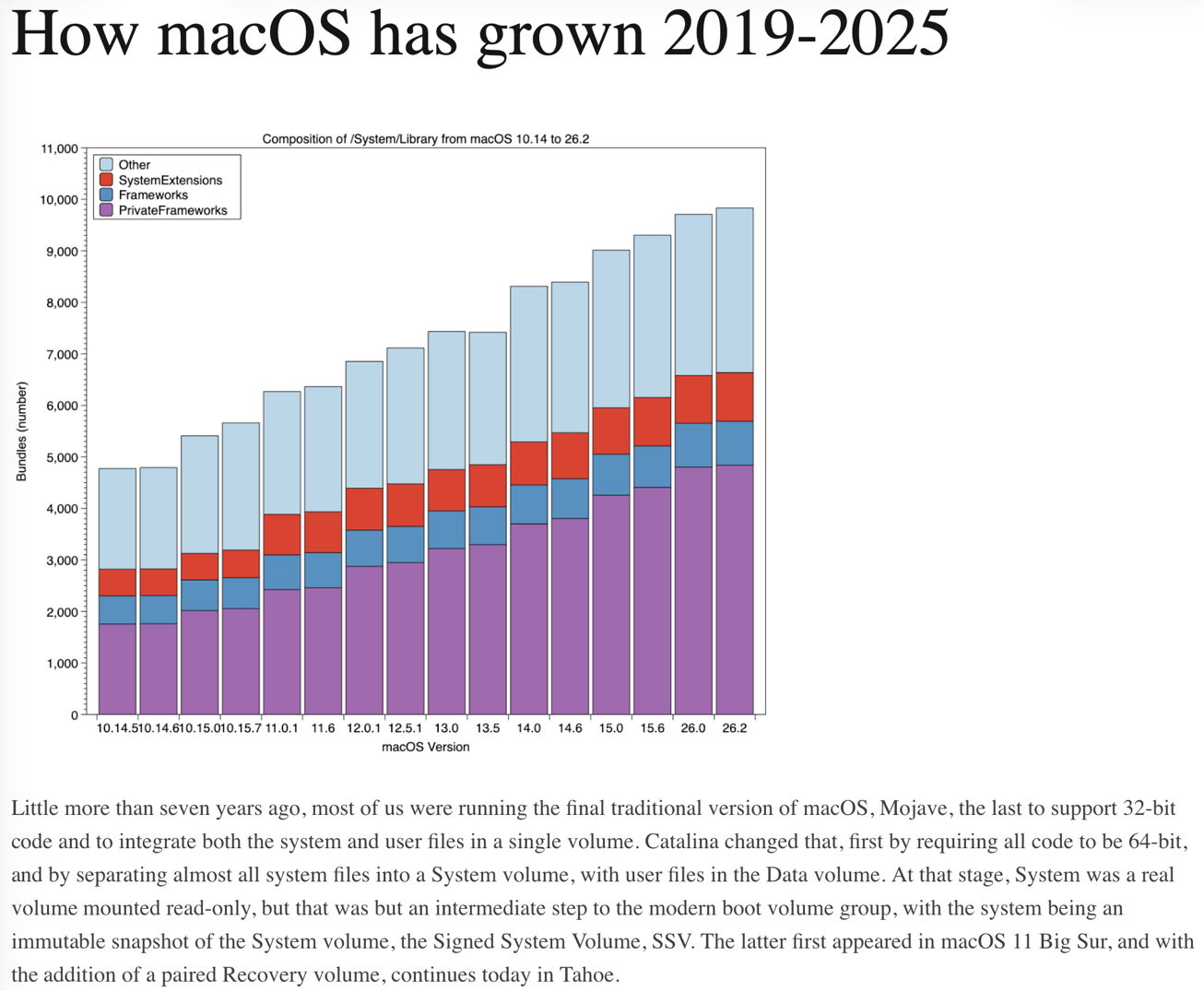
In this case, my preference is with the WebArchive version saved by Disclipper, although the similar RTFD version is a fifth of the size.

Should you want to extract just the text from the article, then using a textClipping should prove better than extracting it using Textovert, as the text saved to a textClipping should be that converted directly by Safari when it builds its transferrable data formats for a drag operation.

TextClipping files can thus be a useful intermediate when saving extracts of documents.

Open up Finder clippings with Disclipper, and a Providable update

By: hoakley
5 January 2026 at 15:30

To start this week I have a new app, Disclipper, and an update to Providable that’s recommended for anyone who reads its Help book.

Disclipper 1.0

If you have been following my recent series of articles about the Finder’s clipping files, you’ll be expecting this first release for macOS 14.6 or later.

This app analyses, displays and gives direct access to the contents of clipping files, including textClipping, pictClipping, webloc and mailloc files. It doesn’t work with their oldest versions, as they only contain information in their resources, but works with more recent clipping files from about 2015 that also store their data in the main body of the clipping file.

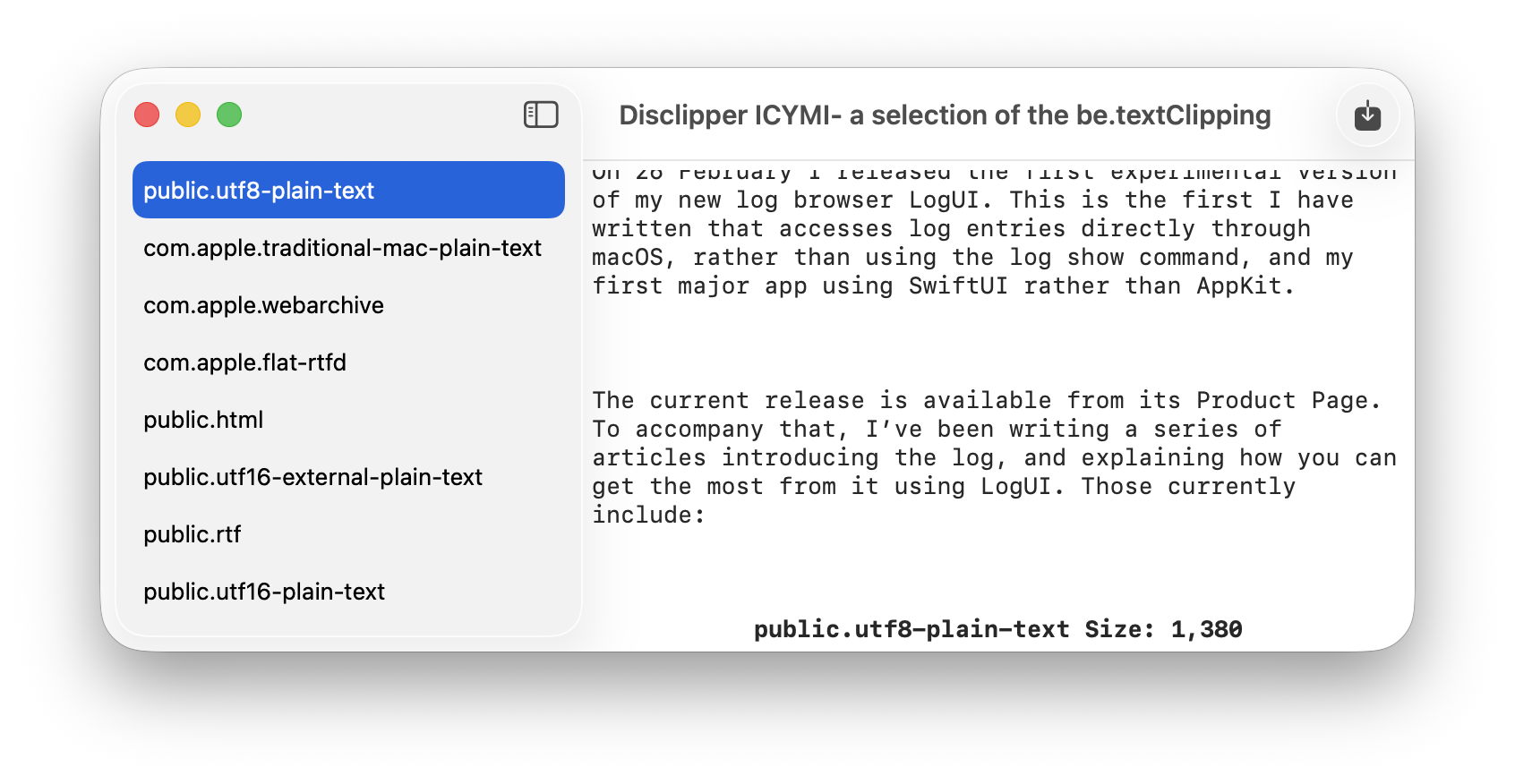
Simply drag and drop one of those clipping files onto its window, and Disclipper lists the data types it contains in its sidebar. Select one of those, and if it’s text-based the contents will be displayed in the main view in the window. If you only want to copy text, use the Copy command to do that, and you can paste the text into another document.

Where Disclipper comes into its own is saving files containing those types. textClippings made from a webpage in Safari, for example, normally offer at least WebArchive and RTFD, together with HTML and RTF. With the chosen type selected in the sidebar, click on the Write Clip to File tool and Disclipper creates a new WebArchive, RTFD, HTML or RTF document ready to open in another app.

There are only two shortcomings that I’m aware of in this version. I would have liked to display a preview of non-text types, but that appears to require saving them first before QuickLook can do that. I would also have liked to support multiple windows, but there seems to be something fragile in SwiftUI in that respect, I think in its current implementation of the NavigationSplitView used for the sidebar. That may change in a future release of the APIs used.

Disclipper currently supports all 12 data types that I have come across in clipping files, from simple link URLs to WebArchives and TIFF images.

Disclipper version 1.0 is now available from here: disclipper10
but only from this page until I’m satisfied that it’s working properly.

Providable 1.1

I released version 1.0 on Christmas Day, and haven’t had any reports of problems with it. However, its Help book repeatedly confuddles provenance with providence in a way that could confuse. This update puts that right, so you’ll no longer think it’s in the capital city of Rhode Island when it should be in a Napa Valley vineyard.

Providable version 1.1 is now available from here: providable11
and only from this page for the time being.

Last Week on My Mac: Drag, drop, clipping

By: hoakley
4 January 2026 at 16:00

Many of the features we take for granted in macOS today have long histories. For the last week I’ve been looking at drag and drop using the Finder’s clipping files. Thanks to comments by theam27 and joethewalrus, we know this goes back over thirty years to the heady days of System 7. Before that, transfer of information between apps relied on the even older mechanism of copy and paste, one of the original features of the Mac in 1984.

Since System 7 Pro (7.1.1) and more generally in System 7.5 in September 1994, we’ve been able to drag text and other contents from open documents and drop them into the Finder to save them in a clipping file. That in turn can be dropped into a document to insert its contents there. It became highly popular in subsequent years, and different types of clippings proliferated. theam27 has identified four general types, with a further ten for internet location clippings.

Clipping files have proved long-term survivors. In Classic Mac OS their data was stored as resources in the resource fork of a file with an empty data fork. That survived the transition to Mac OS X, where it eventually became the com.apple.ResourceFork extended attribute. Since around 2015 clippings have also been written to the file’s main data as a binary property list. Although those changes have orphaned some old clipping files, drag, drop and clippings are still flourishing in macOS Tahoe, where the Finder supports them as well as ever. There’s excellent support built into SwiftUI as well as traditional AppKit APIs. Those are of course also required for drag and drop more generally, in addition to the Finder’s clipping files.

Sequoia and Tahoe now offer at least two types of general clippings, in textClipping and pictClipping, and two internet location types webloc and mailloc. My first task was to discover their structure, which I reported here for both resource and data formats. Although Apple has long since retired its Carbon API support for accessing what were formerly resource forks, opening up property list data is relatively straightforward, and the goal of my new app Disclipper, coming tomorrow.

Although similar to copy and paste, and often implemented alongside them, drag and drop works separately. For content in a document to be draggable, the app has to declare it so, and provide its data in one or more transferable formats. Those are generally standard representations, such as UTF-8 text, although an app can also use its own formats. Each is labelled with its UTI, to enable the drop destination app to know how to handle them.

The user selects the content they wish to drag, then drags and drops it onto the Desktop or inside a location in a Finder window. The textClipping or pictClipping is then assembled from all the transferable formats, and built into a binary property list (as well as a com.apple.ResourceFork extended attribute). The key for each of those is the UTI of the transfer format, with the content as its value, normally as either a String for text, or Data.

For example, when you drag rich text from my editor DelightEd, the textClipping file generated by the Finder contains its data represented as:

  • public.utf8-plain-text, the content as a UTF-8 string
  • public.utf16-plain-text and public.utf16-external-plain-text, two variants of UTF-16 as Data
  • com.apple.traditional-mac-plain-text, an old predecessor to UTF-8, probably Mac OS Roman, based on extended ASCII, but often truncated
  • public.rtf, the content as rich text, thus containing font and other styling information.

The Finder then uses those to provide previews and, in the case of plain and rich text, its own reader window.

When you drag that textClipping into another document to paste its contents there, the receiver app is given the choice of transferable formats from the file, and should pick the richest of those to convert into its own content and insert into the document. You can check the fidelity of the process in an app with both drag and drop support by dragging a textClipping from it, then dropping that back into a new empty document, and comparing that with the original.

Other types of content use different clipping files, with further references to the history of macOS. Select an area from a PNG image in GraphicConverter and drag it out to turn it into a clipping with the extension .pictClipping and both its com.apple.ResourceFork xattr and data fork contain complete PICT and TIFF versions of the original image. In the data fork, the latter appear as the values for the UTI-Data key, under the UTI keys of com.apple.pict and public.tiff. PICT is a long-dead graphics file format for Classic Mac OS QuickDraw graphics, but lives on in clippings and apps like GraphicConverter.

The receiver app decides which format to accept from the clipping file. Create a textClipping from a webpage in Safari, and it should contain representations of that page as a WebArchive and rich text in an RTFD, but drop that into TextEdit and it will probably choose the latter. You don’t get the option to use the WebArchive format. Disclipper changes that by saving the WebArchive version for you to use when you wish.

One type of view that currently doesn’t appear to be supported by textClipping or pictClipping files is PDF, perhaps because its format isn’t really suitable for this approach to its content.

Apple’s SF Symbols app is another interesting example, as its textClippings use private Unicode code points that are rendered as custom icons only when using one of the SF fonts normally only installed by developers. Those can substitute for what might otherwise be displayed using vector graphics.

If you already use clipping files, you should find Disclipper handy; if you don’t use them yet, they could be a fine New Year’s resolution.

Further reading

Clippings 7 years ago
Current use
Formats

Data formats used in textClipping, webloc and mailloc files 1994-2025

By: hoakley
30 December 2025 at 15:30

Last week, I explained how the three clipping services, textClipping, webloc and mailloc, work in modern macOS. This article provides a summary of the file formats used by each, from Mac OS 9 (and presumably when they were first introduced in System 7.5) to macOS 26.2.

Resource forks or com.apple.ResourceFork xattrs

The key resource is a ‘drag’ with a number of 128. This contains a table of contents, giving the OSType and number of each resource in the clipping. For example, the entry
$"7574 7874 0000 0100 0000 0000 0000 0000"
is that for a ‘utxt’ resource number 256.

A minimal Resource fork might thus consist of the ‘drag’ table and a single ‘TEXT’ resource containing its text:
'drag' (128) {
$"0000 0001 0000 0004 0000 0000 0000 0002"
$"5445 5854 0000 0100 0000 0000 0000 0000"
};
'TEXT' (256) {
$"7468 6520 6D61 7472 6978 2062 6C72 200D"
};

Data types supported in textClippings include the following resources:

  • ‘TEXT’, containing text content in Classic Mac format
  • ‘utf8’, UTF-8 text content
  • ‘ut16’, UTF-16 text content, with a byte-order mark prefacing the text
  • ‘utxt’, UTF-16 text content, without a byte-order mark
  • ‘styl’, text styling to be applied the contents of ‘TEXT’
  • ‘HTML’, HTML content
  • ‘RTF ‘, RTF content
  • ‘weba’, a WebArchive binary property list
  • ‘url ‘, URL content (webloc, mailloc)

Also encountered are ‘icns’ containing a custom icon to be used for the textClipping, and ‘kwst’ whose function escapes me.

Weblocs and maillocs are much simpler, and only contain a ‘drag’ table of contents, and the URL given as strings in both ‘TEXT’ and ‘url ‘ resources.

Although there have been bugs that could have affected the generation of com.apple.ResourceFork xattrs, in general these have been used since the introduction of clipping formats last century, and continue to be created today.

Data formats

These were introduced in about 2015, as an addition to the com.apple.ResourceFork extended attribute. They are binary property lists (bplist), and when represented in text form they consist of a single dictionary, in textClippings with the key UTI-Data, containing a single dictionary of data types with keys named from the UTI of each data type. Those can include the following as binary data:

  • com.apple.traditional-mac-plain-text = ‘TEXT’
  • public.utf16-plain-text = ‘utxt’
  • public.utf16-external-plain-text = ‘ut16’
  • com.apple.webarchive = ‘weba’
  • public.html = ‘HTML’

The following are given as strings:

  • public.utf8-plain-text = ‘utf8’
  • public.rtf = ‘RTF ‘

Older versions of the bplist could also contain an OSType-Data dictionary containing style and ustl key-value pairs, but those appear to have died out since macOS Mojave.

With this format, there’s no need for a table of contents equivalent to the ‘drag’ resource. Styled text is now only represented as RTF, and there doesn’t appear to be any use of attributed strings as a data type.

Once again, weblocs and maillocs are far simpler, and contain a single dictionary with the key URL, with a value containing the URL given as a string.

Known bugs

Firefox has used an inetloc file similar in content, and in Mojave this caused problems when trying to open them.

Safari 12.1.1 in macOS 10.14.4-10.14.6 produced malformed data in the weblocs it saved. macOS Ventura 13.2 fixed a bug that could result in weblocs being opened by a browser other than the default.

Other clipping file types

These have been popular in the past, but are seldom encountered now, and include a pictClipping containing a PICT QuickDraw image and its TIFF equivalent, both in the com.apple.ResourceFork xattr and in the file data.

Summary

The table below summaries the different representations of data types seen in clippings.


Use and access clipping files: textClippings, weblocs, and maillocs

By: hoakley
27 December 2025 at 16:00

At some time late in the last century, probably around 1999 in Mac OS 9, Apple introduced the textClipping, a small document normally created on the Desktop, containing a chunk of styled text that had been dragged from a selection in a document. These developed into three types according to their contents:

  • webloc, containing the link to a webpage in the form of a URL string like https://developer.apple.com,
  • mailloc, containing an email address in the form of a URL string like mailto:name@domain.com,
  • textClipping, containing text in one or more formats with general content.

In those days, before the arrival of Mac OS X, their type was set using four-character OSType codes, but they have since gained their own filename extensions and UTIs:

  • extension webloc, OSType ilht, UTI com.apple.web-internet-location, conforming to com.apple.internet-location
  • mailloc, ilma, com.apple.mail-internet-location, com.apple.internet-location
  • textClipping, clpt, com.apple.finder.textclipping, com.apple.finder.clipping.

Note that these textClippings are distinct and different from the Clipboard, although Clipboard items are sometimes referred to as clippings.

History

Although Mac OS X was only just over the horizon at the time, these were implemented using the Resource fork. As a result, early textClipping files contained no data, and all their content was stored in the Resource fork, which was soon to become the com.apple.ResourceFork xattr in Mac OS X.

When released in 2001, Mac OS X continued to support the three clipping formats, which remained undocumented and proprietary. At some stage their content was also saved to the file data, apparently in the form of a property list, and most recently as a binary property list, bplist. Those with libraries of clippings started to report problems accessing clippings made before about 2015, most probably because those from before that date had no file data, although in some cases this may be confounded by inadvertent removal of the old Resource fork, leaving the file devoid of all content.

Use in current macOS

To create any of these three file types, select the text you want to include in the clipping, drag it to a Finder window or the Desktop and drop it there. If the text contains an email address or web link, it will be saved automatically as a mailloc or webloc. Otherwise it will be saved as a textClipping titled using the first few words of its contents.

Clippings can be previewed in QuickLook by selecting them and pressing the Space bar. Although weblocs should open the page they link to, that may not work with existing weblocs in macOS Tahoe, although they can still be opened in Safari. Clippings can also be dragged and dropped into apps, particularly TextEdit, which should handle those created since 2015, and some from before that.

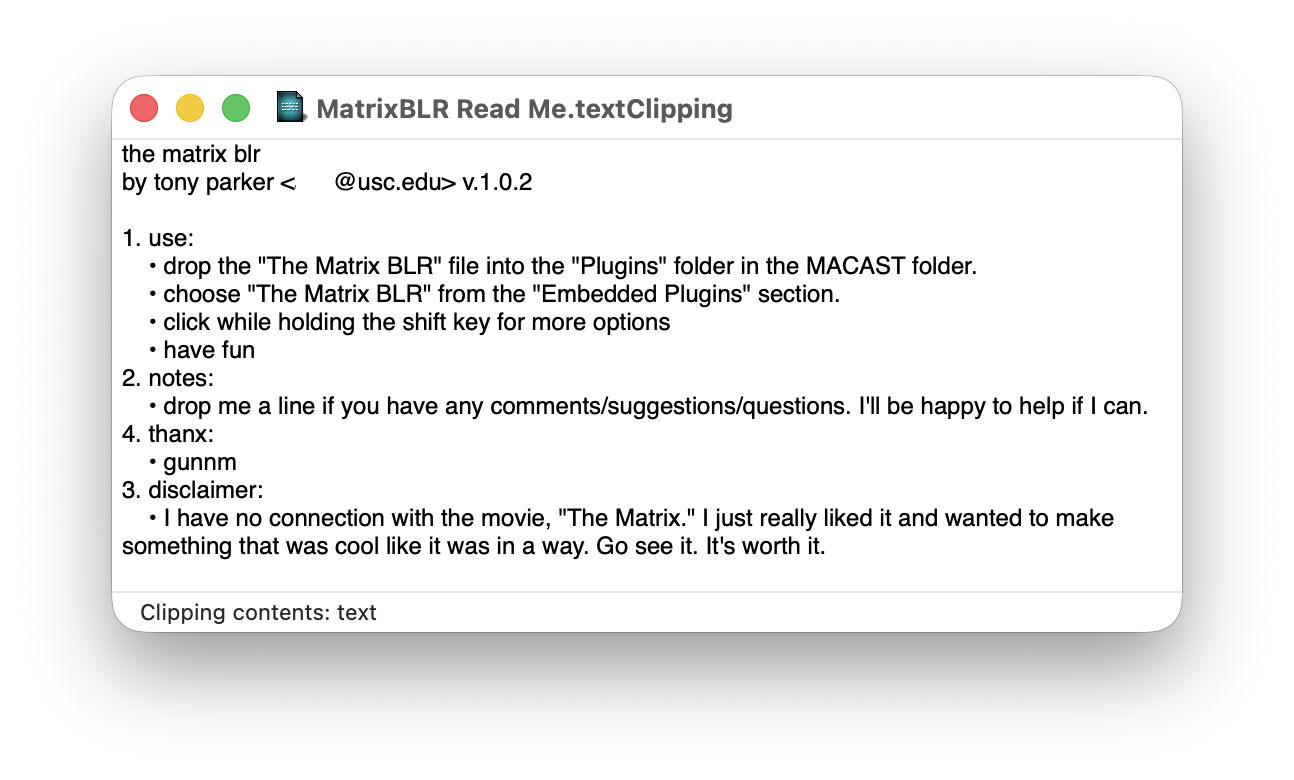
Perhaps the most curious way to access textClippings is in the Finder’s dedicated window, opened using its Open command or from the button of a QuickLook preview. This is useful in revealing the type of data contained in the textClipping, but can only be used to select and copy text from the textClipping, and can’t change it in any way.

Troubleshooting

Old clippings created before their contents were also saved in the file data (before 2015) are the most troublesome. Before going any further, check that they do still contain contents using the Finder’s Get Info dialog. By longstanding tradition, although file size excludes other extended attributes, it does include the size of any com.apple.ResourceFork xattr (formerly the Resource fork). If the current size of the clipping file is 0 bytes, then it no longer has any contents and can’t be recovered.

Clippings files that do still contain some contents should then be inspected to determined whether this is confined to the com.apple.ResourceFork xattr, indicating that they are old and recovery may be difficult. One way to do this is to drag and drop them onto my free Precize, which breaks down their contents into data and a total for extended attributes.

The following methods can be used to recover the contents of clippings:

  • Select in the Finder, QuickLook preview using the Space bar, and Open to view in the Finder.
  • Drag and drop into an empty document window in TextEdit.
  • Open in BBEdit, or another good text editor.

If nothing else works, it’s still possible to recover contents of a com.apple.ResourceFork xattr using the DeRez command tool installed as part of Xcode. Download and install Xcode from the App Store first. To dump the entire contents of that xattr to a text file, use a command like
DeRez filename > outputfile.txt
or, to just dump contents stored as text, use
DeRez filename -only TEXT > outputfile.txt
where filename is the full path and name of the clipping file, and outputfile.txt is the destination for the contents. The text output isn’t pretty and requires extensive editing, but should recover the contents.

As with any other file in macOS, access to their contents may also be limited by Privacy & Security, through TCC and extended attributes including com.apple.macl.

Preventing problems

Collections of clippings containing items created before about 2015 should be revisited, and older items converted into the new format by dropping them into a new document, selecting their text, and dragging that out to create a new textClipping, webloc or mailloc that isn’t reliant on the com.apple.ResourceFork xattr.

I’m grateful to Sam for raising these questions.

❌
❌