Normal view

There are new articles available, click to refresh the page.
Before yesterdayMain stream

Explainer: Copy and paste, drag and drop

By: hoakley
10 January 2026 at 16:00

These are two of the defining features of the Macintosh, pioneered in the Xerox Palo Alto Research Center, and first offered to the general public in implementations by Larry Tesler (1945-2020), Jef Raskin (1943-2005), Bill Atkinson (1951-2025), Andy Hertzfeld and others at Apple.

What they do

Copy and paste is the older of the two, and less demanding to implement on slower hardware. Some of the contents of a document open in the source app are selected by the user, copied as discrete data to a clipboard intermediary, then pasted from that into a chosen location in a document opened in the receiver app, which could be the same document and app as the source.

Drag and drop is similar in many respects, but doesn’t require a clipboard. Some of the contents of a document open in the source app are selected by the user, then that selection is dragged to a chosen location in a document opened in the receiver app, which could be the same document and app as the source. Although in most cases, dropping inserts the dragged contents into a document, it can also insert them into a new file, for example in the Finder, where it becomes a clipping. The full interface for this wasn’t implemented in macOS until System 7.1.1/7.5 in 1993-94, almost a decade after the release of copy and paste.

Thus, copy and paste is primarily driven by the keyboard, and requires a clipboard intermediary, while drag and drop is direct manipulation using a mouse or trackpad without intermediary storage. They have common requirements.

Roles

The source app for both copy and drag is responsible for providing the selected contents in formats that can be accessed by other apps, in SwiftUI normally requiring that they are transferable. Each format is identified by its Uniform Type Indicator (UTI), so plain text might be provided as a string of UTF-8 text with the UTI of public.plain-text. Apps can use custom types, enabling better transfers within that app and others that support that type. AppKit’s approach is more traditional, and has standard Pasteboard types such as HTML and RTF.

The receiver app is responsible for obtaining the transferred contents in a format that it can access, again relying on its UTI or Pasteboard type. It then inserts the dropped or pasted contents into the chosen location within a document.

Copy and paste rely on what the user knows as the Clipboard to act as an intermediary, storing items that have been copied or cut, and providing them to receiver apps. Unfortunately Apple’s terminology waxes historical in referring to this Clipboard as a pasteboard server, which is shared by all running apps. AppKit apps interface with that server using NSPasteboard objects, but Apple has updated this for SwiftUI, which uses the same server under the Clipboard name.

How they work

To understand how these work together, I’ll take the example of a selected paragraph of styled text being copied from one app and pasted into another, features that are built into AppKit APIs, so they can be supported without the developer having to write a line of code for them.

The source app extracts plain and rich text versions of the selected string to be copied. Those are passed to the Clipboard (pasteboard server) as public.plain-text and public.rtf. From those the Clipboard might make available several presentations of the text, including

  • public.utf8-plain-text encoded using UTF-8
  • public.utf16-plain-text and public.utf16-external-plain-text encoded using UTF-16
  • public.rtf encoded as a regular rich text file, complete with its font and styling information.

The user then switches to the receiver app with an open document, places the text cursor where they want the pasted text to go, and tells the app to paste what’s in the Clipboard there. The receiver app is then given the contents of the Clipboard in the type of its choice. Normally it will check which are available and read that as a string, a property list or a keyed archive, as appropriate. In this case the receiver can handle public.rtf, so it converts that to its internal representation of styled text, such as Attributed Text, and inserts it into the document’s data in the correct place.

Drag and drop is essentially similar, but without the Clipboard acting as its intermediary. You can see this in what cut and paste can’t do, create clipping files, the result of dropping transferred contents onto the Finder.

Transferable types

The main limitation of these services lies in the contents they can transfer. While different presentations of text are readily supported by both sources and receivers, PDF is one of the most widely used types that presents greater problems. These result from its underlying object-based format, where what appears to be a single block of text can consist of many objects, and a page can contain dozens or even hundreds. Unpacking a selection and presenting its contents in a transferable type isn’t offered in the PDF API, and few apps have risen to the challenge to provide their own, even though PDF is one of the listed Pasteboard types.

Future

Despite their ancient origins, both copy and paste, and drag and drop are flourishing in macOS, and are thoroughly supported in Apple’s most recent SwiftUI. Maybe they’ll even make it to the Mac’s fiftieth anniversary?

Further reading

NSPasteboard, the AppKit API for copy and paste
Clipboard, the SwiftUI API for copy and paste
Drag sources and drop targets, the AppKit API for drag and drop
Drag and drop, the SwiftUI API for drag and drop

Last Year on My Mac: Look back in disbelief

By: hoakley
28 December 2025 at 16:00

If someone had told me 12 months ago what was going to happen this past year, I wouldn’t have believed them. Skipping swiftly past all the political, economic and social turmoil, I come to the interface changes brought in macOS Tahoe with Liquid Glass. After three months of strong feedback during beta-testing, I was disappointed when Tahoe was released on 15 September to see how little had been addressed. When 26.1 followed on 3 November it had only regressed, and 26.2 has done nothing. Here I summarise my opinions on where Tahoe’s overhaul has gone wrong.

What goes round

Almost all the content displayed in windows is best suited to rectangular views. Images, video, webpages and other text crave areas bounded by right angles. Gentle rounding on the corners, as in Sequoia, is fine, but the significantly increased radius enforced in Tahoe is a misfit. This either leads to cropping of contents, or reduction in size of the view and wasted space.

Cropping is misleading, as seen in this enlarged view of a thumbnail image in the Finder’s Gallery view, compared to the larger version shown below. The thumbnail misrepresents what’s in the original.

Among Apple’s claims for this new look is greater consistency. But two windows in the same app, both created using SwiftUI, can’t even share a common radius, as shown below in Providable running in macOS 26.2.

Out of control

Tahoe has also increased the size of its controls, without using that to improve their clarity. The best way to see that is in my Mallyshag demo app.

This looks good in Sequoia above, but becomes a mess in Tahoe (below) because of its changed control dimensions.

Those three buttons are significantly wider, so now overlap one another and are wider than the text box below. The user sees no benefit to this, though, as the text within the controls is identical.

Iconoclasm

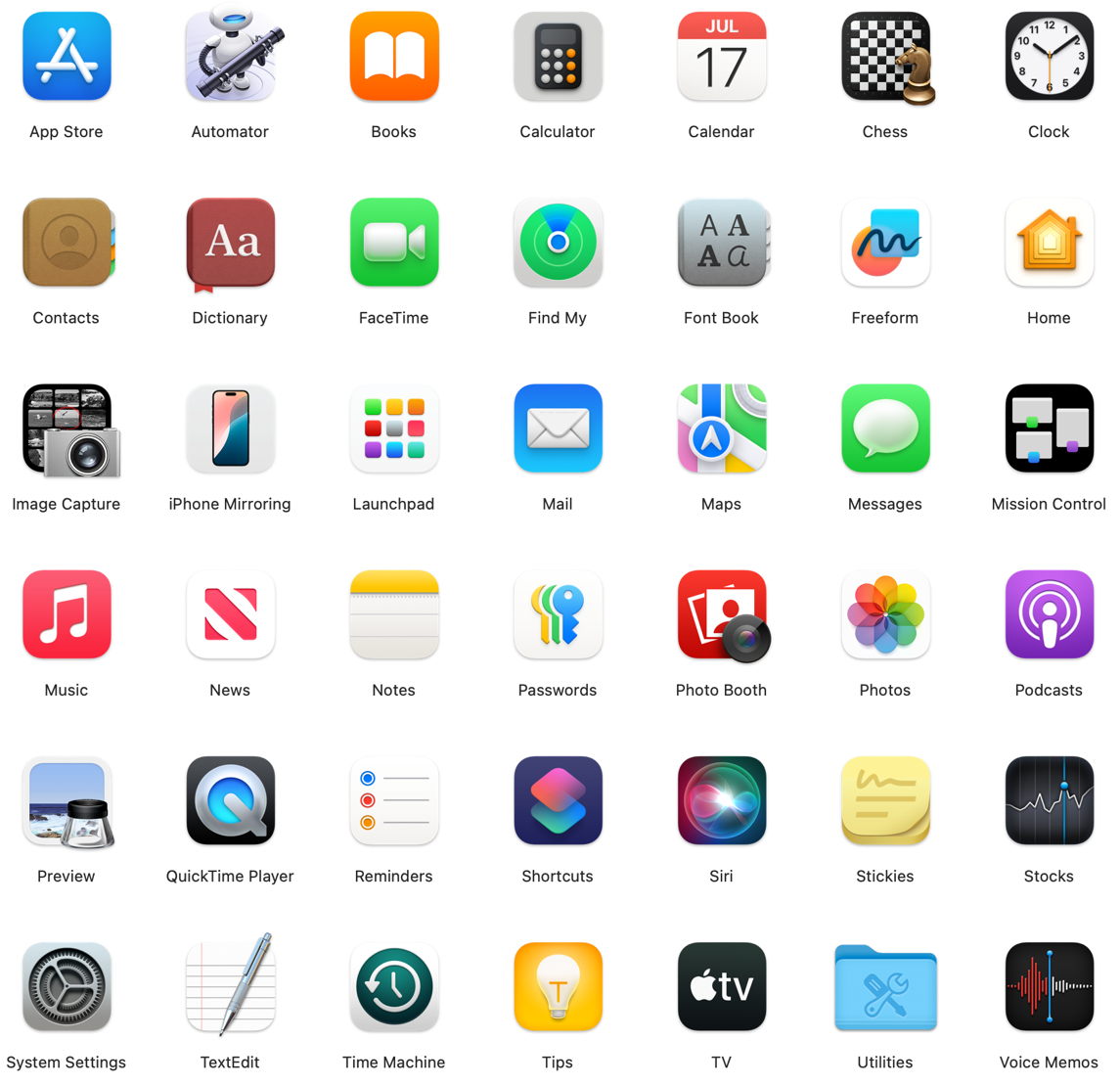
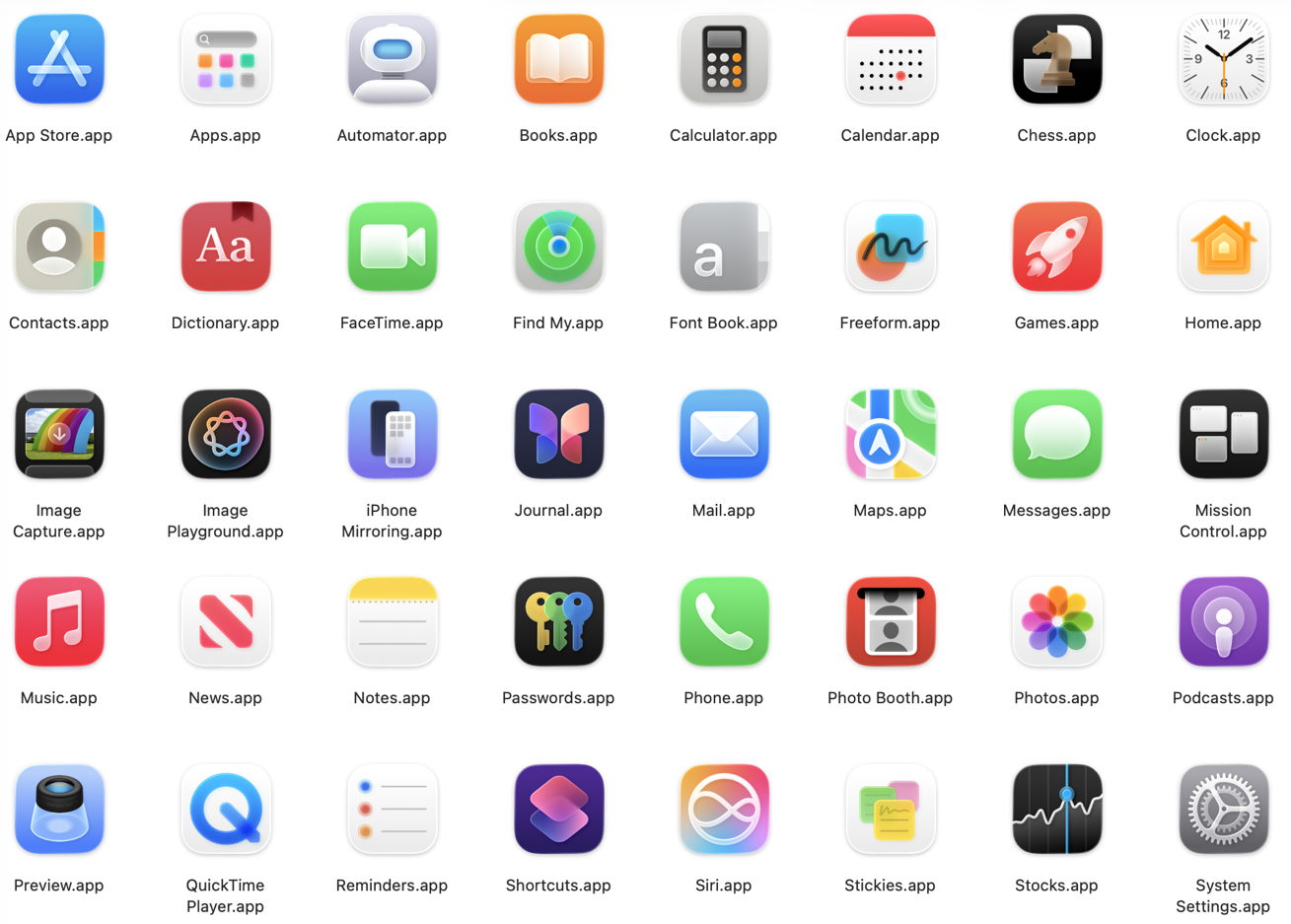
App icons need to be both distinguishable and readily recalled. The first ensures that we can tell one from another, and relies on all the visual cues we can muster, including colours, form and content. Tahoe enforces a rule that everything in the icon must be fitted inside its uniform square with rounded corners, so restricting cues to colours and contents. As a result, the icons of many bundled and other Apple apps have become harder to distinguish in a crowded Dock. Some, including Apple’s Developer app and the App Store, are indistinguishable, while others have degenerated into vague blotches.

Above are most of the apps bundled in Sequoia, and below are those in Tahoe.

Whiteout

In real life, whiteouts are dangerous because they’re so disorienting. There’s no horizon, no features in the landscape, and no clues to navigation. We see and work best in visual environments that are rich in colour and tonal contrasts. Tahoe has continued a trend for Light Mode to be bleached-out white, and Dark Mode to be a moonless night. Seeing where controls, views and contents start and end is difficult, and leaves them suspended in the whiteout.

In light mode, with default transparency, tool icons and text are clearly distinguished tonally, as are some controls including buttons and checkboxes. However, text entry fields are indistinguishable from the background, and there’s a general lack of demarcation, particularly between controls and the list view below.

Wet-on-wet

This technique is used in watercolours to merge layers of colour diffusely, and the best description of some of the results of transparency in Liquid Glass. My examples speak for themselves, and are drawn first from Apple’s own design for System Settings.

Transparency of the Search box at the top of the sidebar on the left renders it incomprehensible when it’s underlaid by scrolled navigational content.

Although the view title Keyboard remains readable, bleed-through of underlying colours is confusing, distracting and aesthetically upsetting.

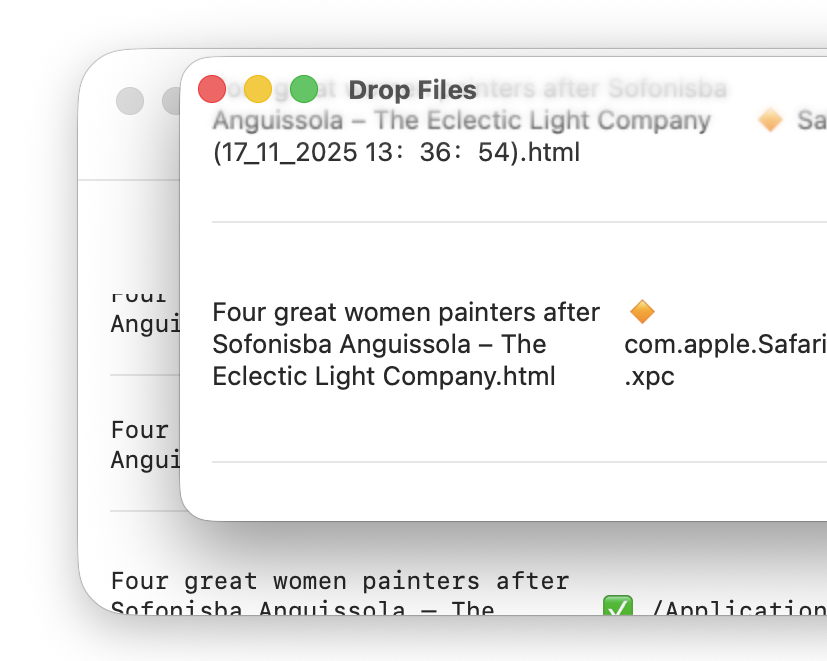
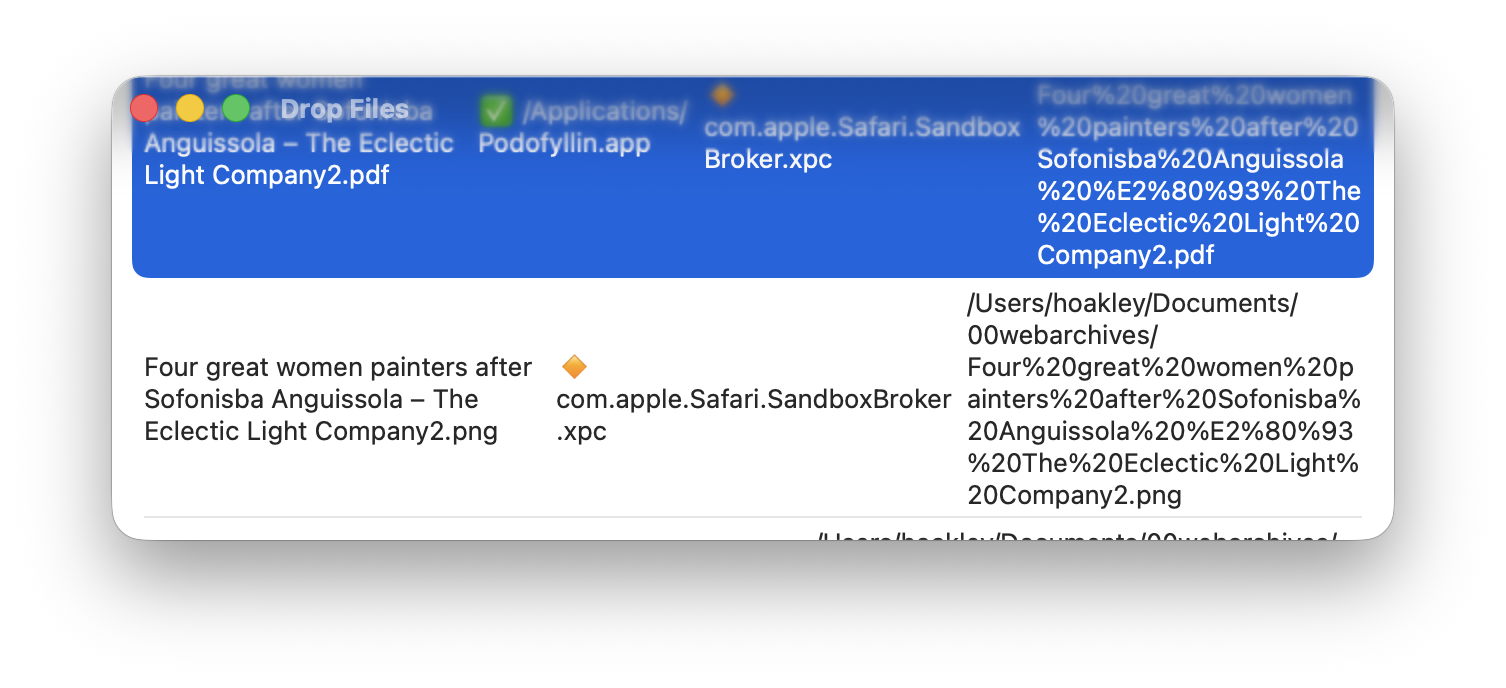
My next examples show the same window in Providable with a selected list row being scrolled up behind what used to be a window title bar.

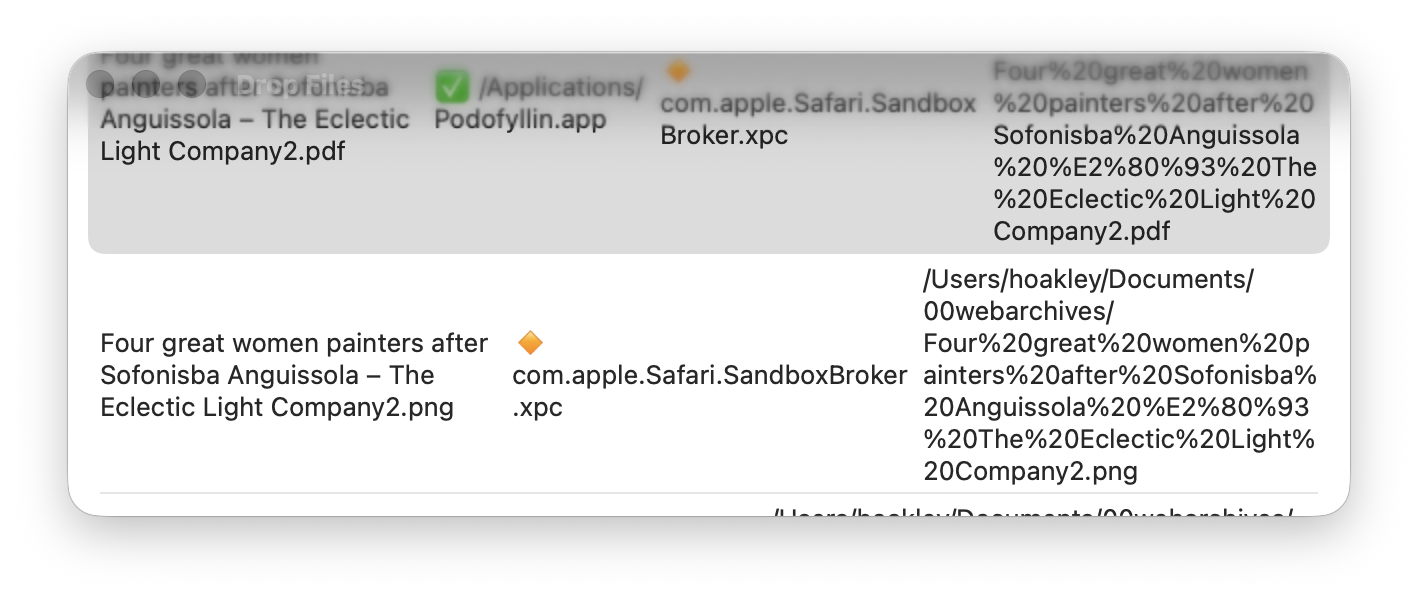
With the window in focus, the selection colour overwhelms the traffic light controls and window title, which should read Drop Files. This also draws attention to the limited width necessary to accommodate rectangular content in a window with excessively rounded corners.

Out of focus the selected row is less overwhelming, but traffic lights and title have dissipated in grey blur.

I’m sure that, in the right place and time, transparency effects of Liquid Glass can be visually pleasing. Not only is this the wrong time and place, but those with visual impairment can no longer remove or even reduce these effects, as the Reduce Transparency control in Accessibility settings no longer reduces transparency in any useful way. That was one of the regressions in 26.1 that hasn’t been addressed in 26.2.

Summary

macOS Tahoe’s visual interface:

  • Fits largely rectangular contents into windows with excessively rounded corners.
  • Enlarges controls without any functional benefit.
  • Results in app icons being more uniform, thus less distinguishable and memorable.
  • Fails to distinguish tools, controls and other interface elements using differences in tone, so making them harder to use.
  • Makes a mess where transparent layers are superimposed, and won’t reduce transparency when that’s needed to render its interface more accessible.

Maybe this is because I’m getting older, but that gives me the benefit of having experienced Apple’s older interfaces, with their exceptional quality and functionality.

icloud20142

That was little more than a decade ago, in 2014. Not that I want to turn the clock back, but it would be really helpful if I could read clearly what’s on my display once again.

❌
❌