Normal view

There are new articles available, click to refresh the page.
Before yesterdayMain stream

Explainer: I/O throttling

By: hoakley
28 March 2026 at 16:00

Input and output have long been key factors in computer performance, and capable of bringing everything to a crawl unless carefully managed. This is most obvious when foreground and background processes contend for common resources such as disk storage. A popular solution has been to impose delays on I/O performed for intensive background tasks, like backing up, so giving more important tasks preferential access to I/O. This policy is known as I/O throttling, and has come to determine hardware choice.

For example, folk wisdom is that there’s little point in wasting a faster drive to store your Time Machine backups, because when those backups are made, their write speed is throttled by macOS.

I/O Throttling

Documentation of I/O policy is in the man page for the getiopolicy_np() call in the Standard C Library, last revised in 2019, and prevailing settings are in sysctl’s debug.lowpri_throttle_* values. Those draw a distinction between I/O to local disks, being “I/O sent to the media without going through a network”, such as I/O “to internal and external hard drives, optical media in internal and external drives, flash drives, floppy disks, ram disks, and mounted disk images which reside on these media”, and those to “remote volumes” “that require network activity to complete the operation”. The latter are “currently only supported for remote volumes mounted by SMB or AFP.”

Inclusion of remote volumes is a relatively recent change, as in the previous version of this man page from 2006, they were explicitly excluded as “remote volumes mounted through networks (AFP, SMB, NFS, etc) or disk images residing on remote volumes.”

Five policy levels are supported for IOPOL_TYPE_DISK:

  • IOPOL_IMPORTANT, the default, where I/O is critical to system responsiveness.
  • IOPOL_STANDARD, which may be delayed slightly to allow IOPOL_IMPORTANT to complete quickly, and presumably referred to in sysctl as Tier 1.
  • IOPOL_UTILITY, for brief background threads that may be throttled to prevent impact on higher policy levels, in Tier 2.
  • IOPOL_THROTTLE, for “long-running I/O intensive background work, such as backups, search indexing, or file synchronization”, that will be throttled to prevent impact on higher policy levels, in Tier 3.
  • IOPOL_PASSIVE, for mounting files from disk images, and the like, intended more for server situations so that lower policy levels aren’t slowed by them.

However, the idea that throttled I/O is intentionally slowed at all times isn’t supported by the explanation of how throttling works: “If a throttleable request occurs within a small time window of a request of higher priority, the thread that issued the throttleable I/O is forced to a sleep for a short period. This slows down the thread that issues the throttleable I/O so that higher-priority I/Os can complete with low-latency and receive a greater share of the disk bandwidth.”

Settings in sysctl for Tier 3 give the window duration as 500 milliseconds, and the sleep period as 200 ms, except for SSDs, whose sleep period is considerably shorter at just 25 ms. Those also set a maximum size for I/O at 131,072 bytes. You can view those settings in the debug section of Mints’ sysctl viewer.

Some years ago it was discovered that the user can globally disable IOPOL_THROTTLE and presumably all other IOPOL_TYPE_DISK policy with the command
sudo sysctl debug.lowpri_throttle_enabled=0
although that doesn’t persist across restarts, and isn’t documented in the man page for sysctl. This is provided in an option in St. Clair Software’s App Tamer, to “Accelerate Time Machine backups”, for those who’d rather avoid the command line.

Apple silicon Macs

Since the man page for getiopolicy_np() was last revised, Apple silicon Macs have changed I/O. Most is now handled in some way through specialised Arm cores within the chip, and CPU cores come in two (now three) types, Efficiency and Performance (and Super in the M5 family). Background threads such as those performing the work associated with IOPOL_THROTTLE are now most likely to be running on Efficiency (or M5 Performance) CPU cores.

If you wanted to do away with all throttling, you not only have to change the debug.lowpri_throttle_enabled setting, but you’d need to move those background threads to run them on Performance (M5 Super) CPU cores, which isn’t possible unless you have control over the code. There is evidence that macOS may do this anyway when performing the first full Time Machine backup, which achieves significantly faster speeds than subsequent incremental backups.

Dangers

The big disadvantage of completely disabling I/O throttling policy is this can only be applied globally, so including I/O for Spotlight indexing, file synchronisation, and other background tasks, as well as those needing high-priority access to I/O. Leaving the policy disabled in normal circumstances could readily lead to adverse side-effects, allowing Spotlight indexing threads to swamp important user storage access, for example.

Conclusions

Even when Macs were simpler and all CPU cores were the same, disabling I/O throttling was at best experimental, and ran the risk of compromising higher priority I/O. In Apple silicon Macs, relocating threads from E to P cores isn’t possible, except when running them in a virtual machine. Without that, there seems little if any benefit from disabling I/O throttling. However, the claim that there’s no performance benefit to be obtained from faster backup storage media is demonstrably false. Perhaps it’s time to return I/O throttling to the obscurity it deserves.

Investigate a past event in the log

By: hoakley
25 February 2026 at 15:30

We don’t always notice something is wrong within a few hours of the event that caused a problem. Sometimes it can take days or weeks before we realise that we need to check something in the log. By that time all trace has vanished, as the active log will have rolled those log entries long before we go looking for them. This article shows how to recover and analyse events from the more distant past, using a Time Machine backup and my free utilities LogUI and Logistician. My target is the macOS 26.3 Tahoe update installed on my Mac mini M4 Pro on 11 February, and I performed this analysis 11 days later, on 22 February.

When was the event?

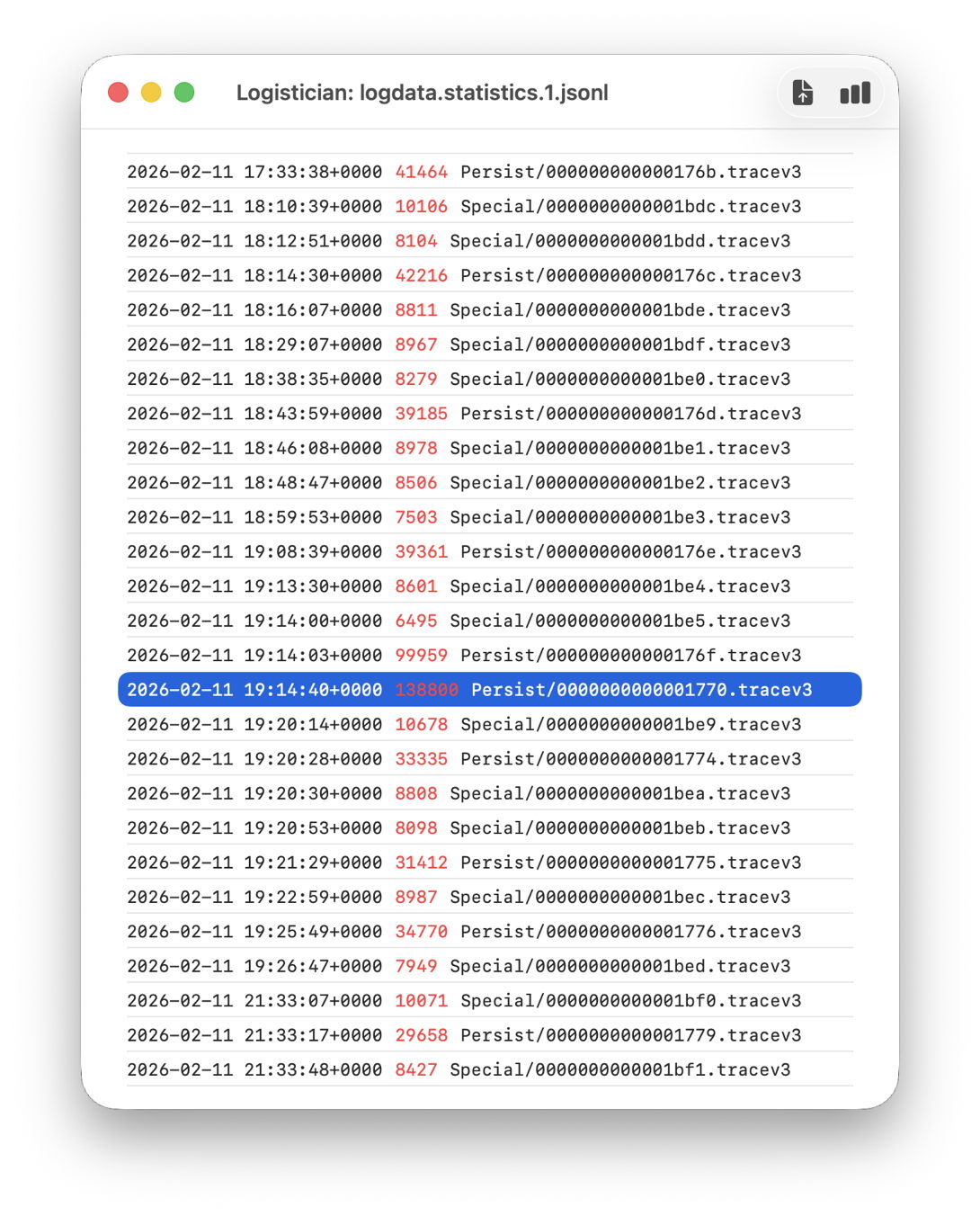
In this case I remember updating at around 18:30-19:30 on 11 February, but I don’t even need to recall the date. I first copied the logdata.statistics.1.jsonl file from my active log in /var/db/diagnostics to a working folder in ~/Documents, then opened it using Logistician.

The log file listing between 18:10:39 and 19:26:47 on 11 February 2026 shows a remarkably rapid turnover of log files that’s an obvious marker of that update. Highlighted here is a Persist file that’s exceptionally large at 139 MB of log entries for a collection period of just 37 seconds, although like other tracev3 log files in the Persist folder that only takes 10.5 MB of disk space.

Retrieve the log

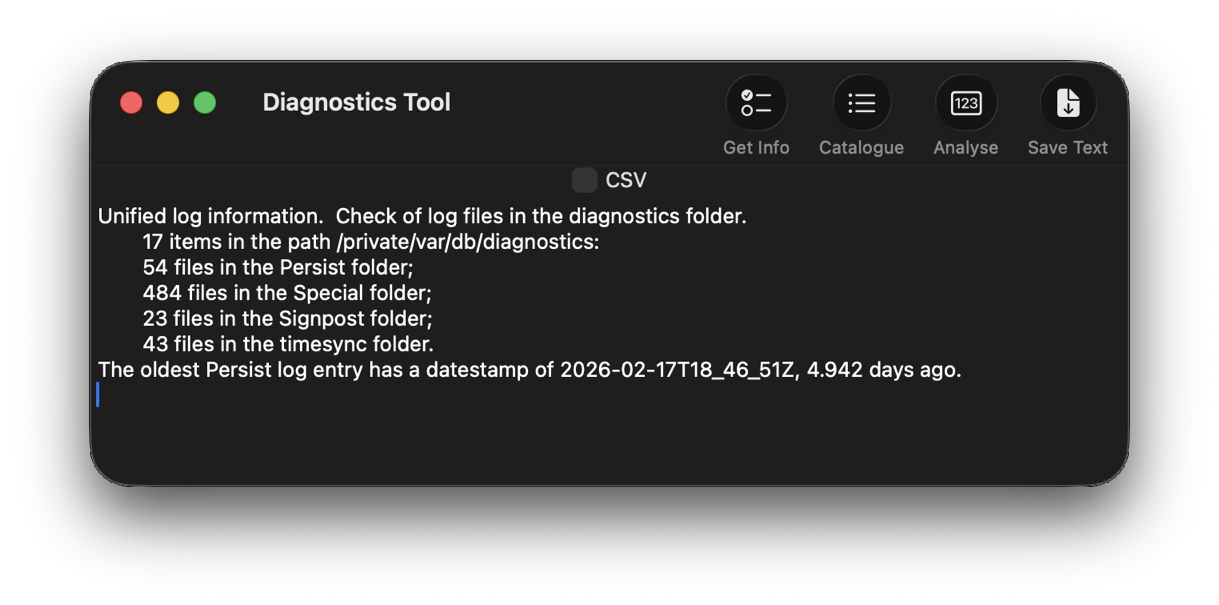
Although I’m confident those logs were removed many days ago, I open LogUI, then select its Diagnostics Tool from the Window menu. I click the Get Info tool and select my active log in /var/db/diagnostics. That tells me that the oldest log entry there dates from 17 February, so there’s no point in trying to find those entries in that log.

Like all good backup utilities, Time Machine also backs up the whole of the log folders, and I can use those to create a logarchive file for analysis. I therefore locate the next backup made after those log entries were written, on 12 February, and copy the /var/db/diagnostics and /var/db/uuidtext folders into a new folder in my working folder, ready to turn them into a logarchive.

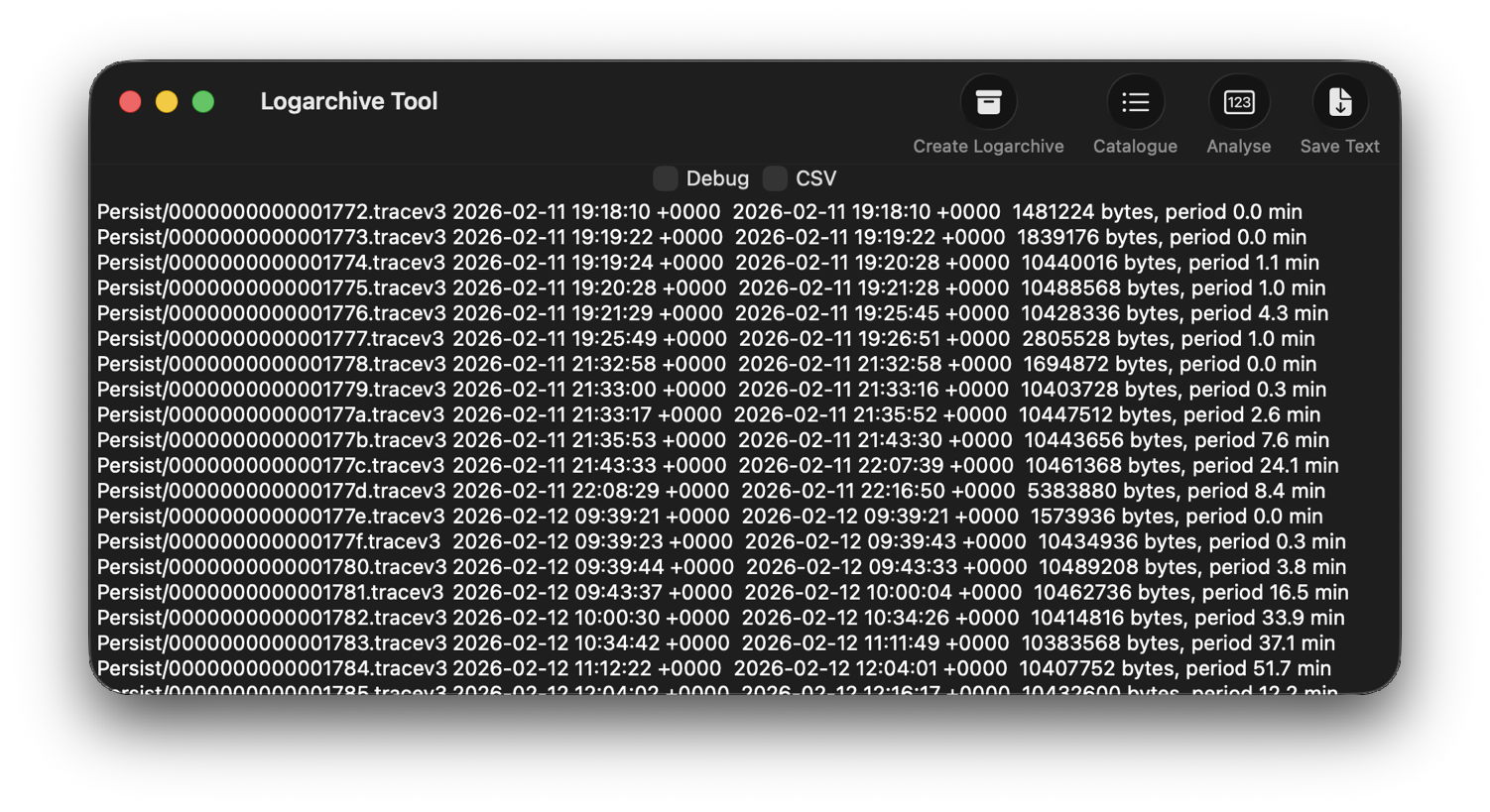
In LogUI, I open its Logarchive Tool from the Window menu and use that to turn those folders into a logarchive I can access using LogUI. I check that freshly created logarchive using the Catalogue tool to confirm that it contains the log files I want to browse.

Identify the event

With the historical log safely preserved in a logarchive and a defined time of interest, my next task is to identify the event I want to investigate. In this case, I could probably go straight ahead and look at all entries for a few seconds, but in other circumstances you may need to know which entries to look for.

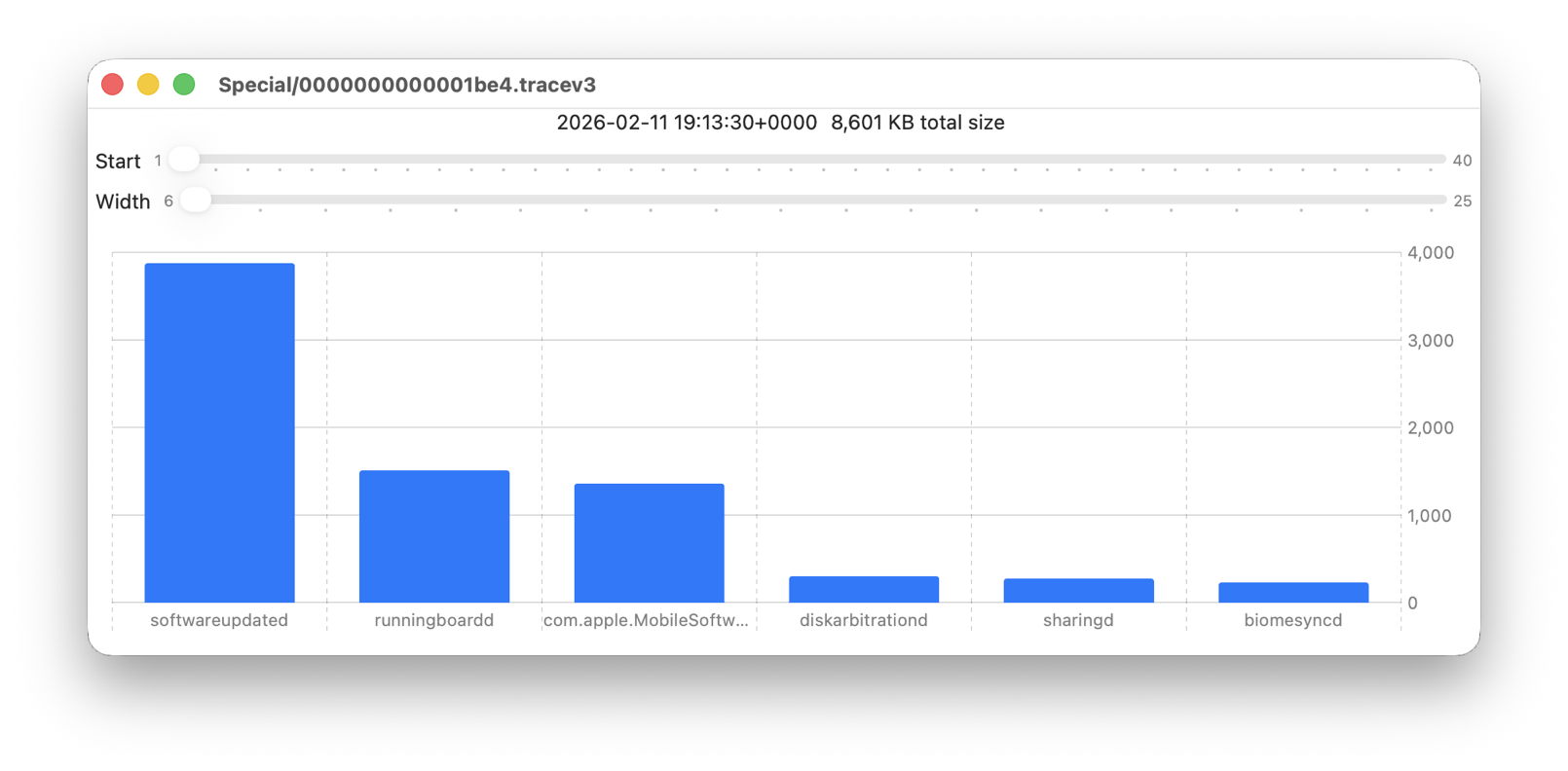
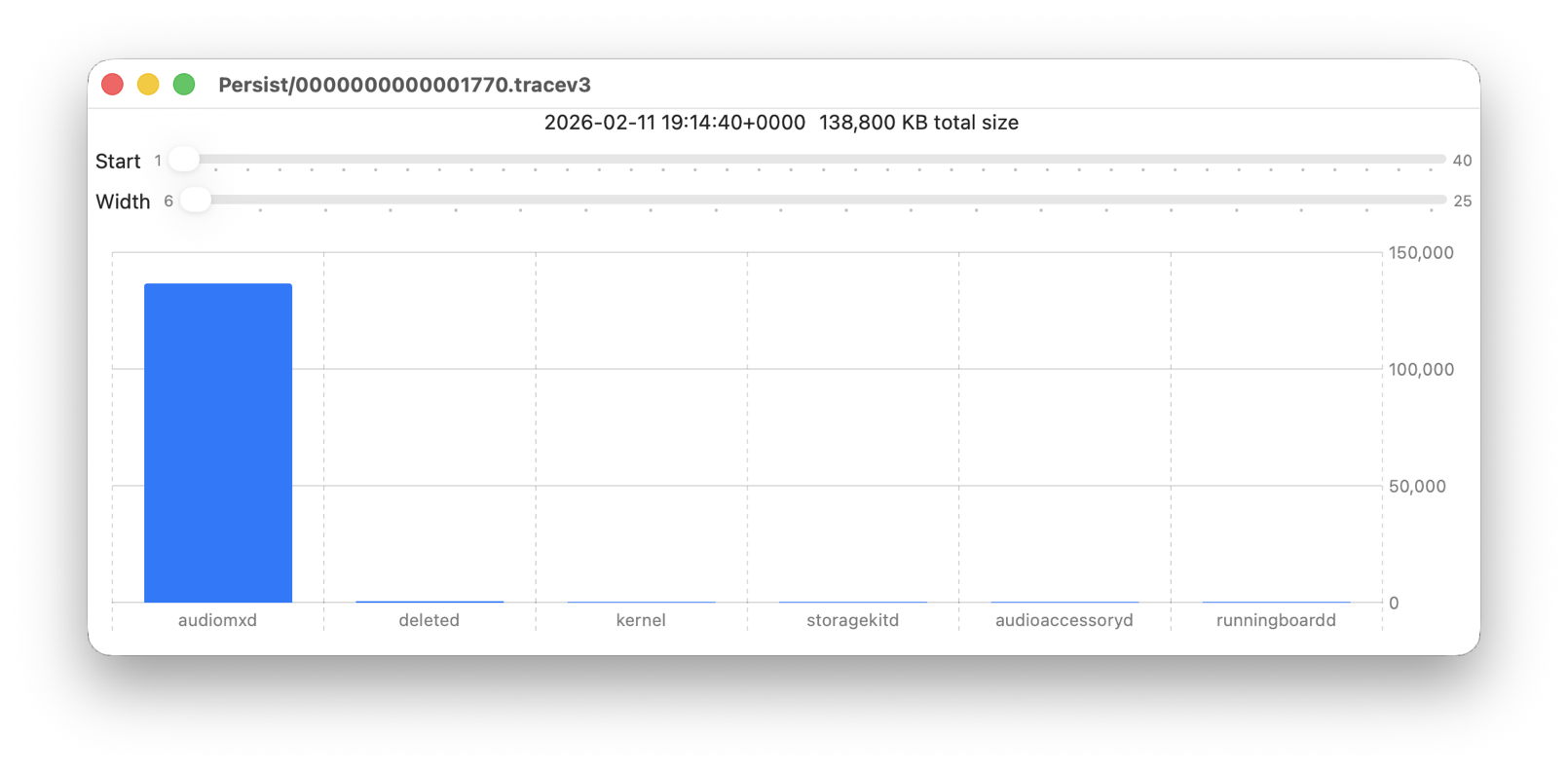
Back in Logistician, I select that extraordinary Persist log file and view it in a Chart. Most of the other log files over this period look like this:

with large quantities of entries from softwareupdated, com.apple.MobileSoftwareUpdate and similar processes. But the huge Persist file that filled in only 37 seconds is exceptional.

Almost all its entries are from audiomxd, and all other entries are dwarfed by its size.

Browse the event

By default when you click on LogUI’s Get Log tool it will fetch those log entries from the active log. To switch that source to my logarchive file, I click on the Use Logarchive tool and select the logarchive I just created in my Documents folder. To remind me that it’s no longer looking in the active log, that window then displays a red-letter caution of !! Logarchive to the left of the Start control. That also reminds me to use dates and times within the range covered by that logarchive.

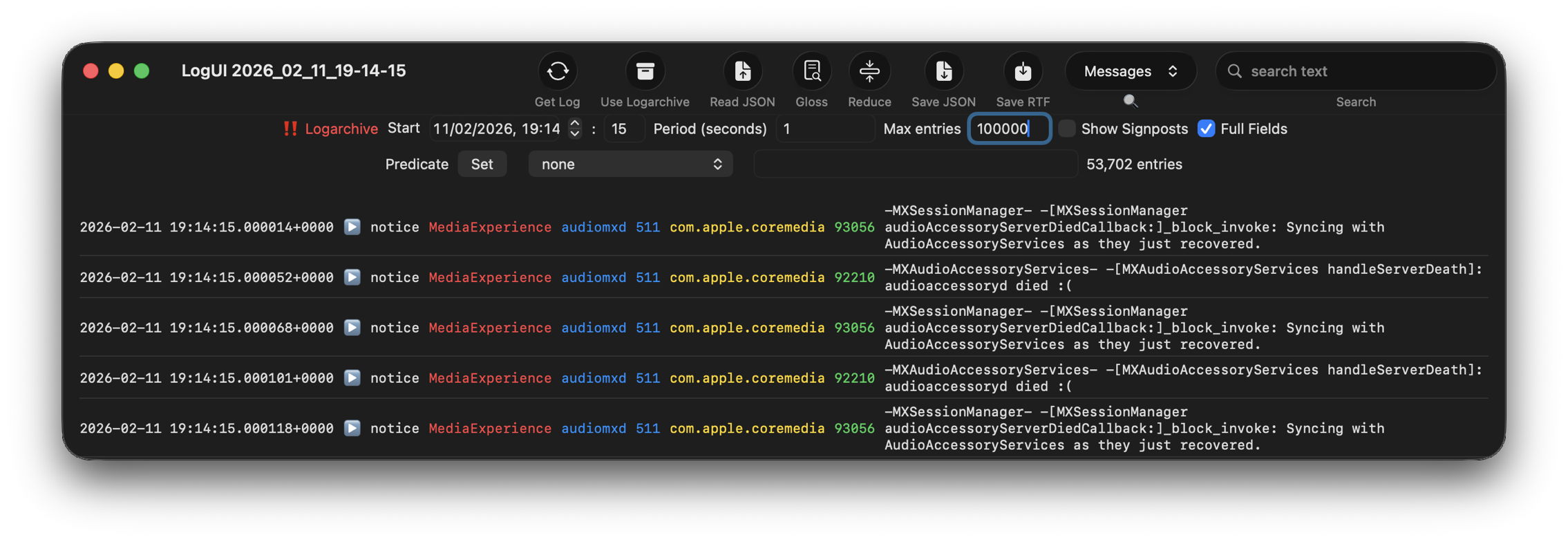
I set the Start to ten seconds into the collection period of that large Persist file, a period of 1 second, and the maximum number of entries to 100,000, then click on the Get Log tool.

This is one of the most remarkable log extracts I have ever seen: in this 1 second period, the audiomxd process in com.apple.coremedia wrote about 53,000 entries to the log. Over the 37 seconds of log records in that single Persist file, audiomxd must have written at least 1.5 million log entries. These are all apparently the result of the ‘death’ of the AudioAccessory service audioaccessoryd, and its recovery after updating macOS.

Summary

  1. Identify approximate time of event from /var/db/diagnostics/logdata.statistics.1.jsonl using Logistician.
  2. Check in LogUI whether that falls within the period of the active log.
  3. If not, retrieve /var/db/diagnostics and /var/db/uuidtext from the next backup made after the event.
  4. Convert those folders into a logarchive using LogUI’s Logarchive tool, and check it contains the period of the event.
  5. Identify the processes involved using Logistician’s chart.
  6. Set LogUI to use that logarchive, enter the correct date and time, and get log entries for the required processes.

In the background: software update, backup & XProtect Remediator

By: hoakley
12 February 2026 at 15:30

Among the other activities you may see shortly after you’ve logged in to macOS Tahoe are a check for system software updates available from Apple’s servers, an initial Time Machine backup, and sometimes a set of XProtect Remediator scans. This article explains how those are dispatched by Duet Activity Scheduler and Centralised Task Scheduling, the DAS-CTS system.

DAS

Shortly after user login, DAS starts gathering its budgets enabling it to score activities, including thermal policies, shared memory and energy. It then loads saved activities by group, and solicits activities for resubmission and inclusion in its lists to be dispatched and run. It then periodically evaluates the activities in those lists, to determine which should and should not be run at that time.

In the early minutes after login, it may only have around 126 candidates in its lists, some of which it identifies as ‘passengers’, and doesn’t evaluate for the time being. For those activities it does evaluate, it arrives at a score between 0 and 1, and decides which it should dispatch next.

SoftwareUpdate

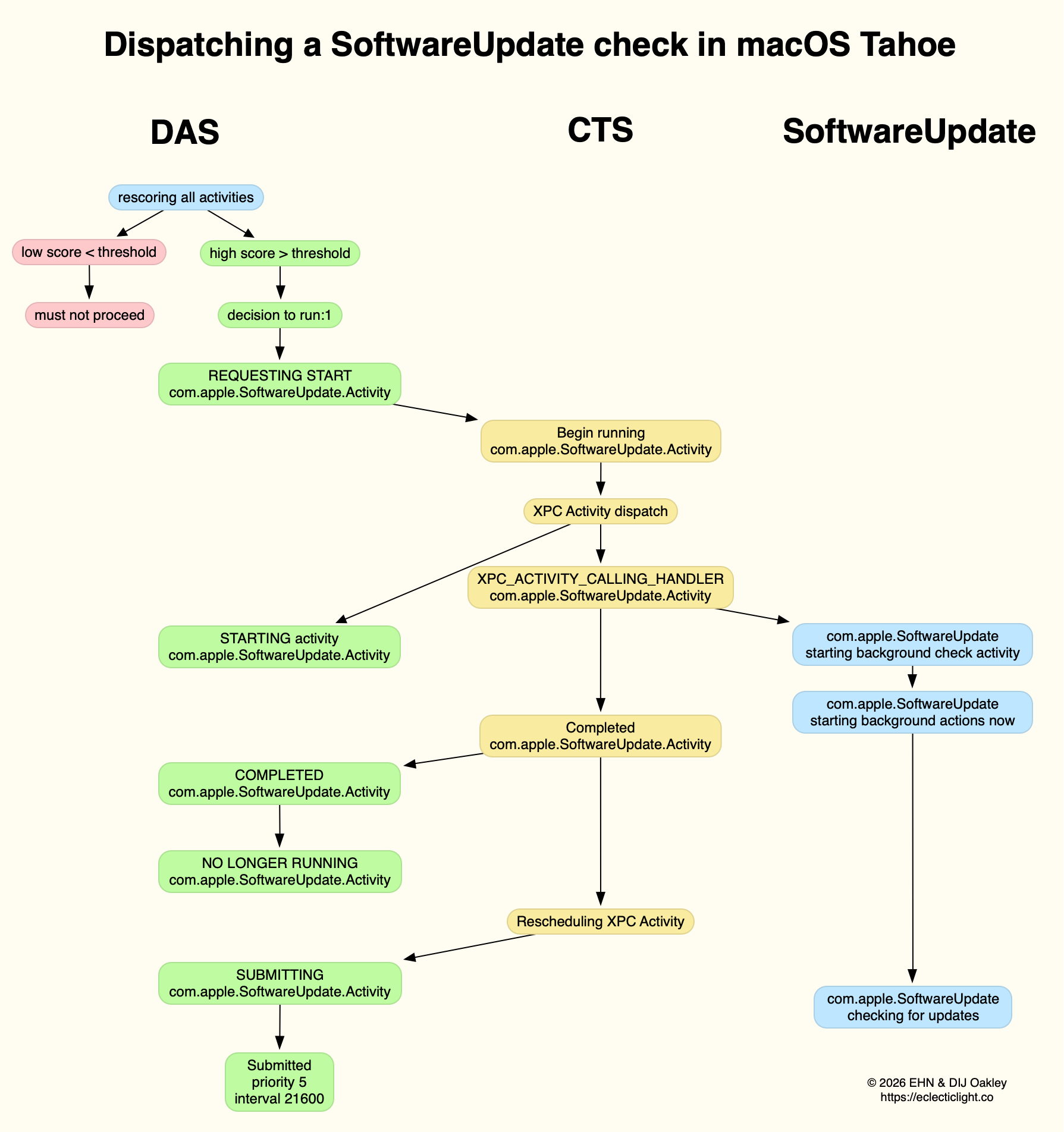
This normally reaches a score sufficient to be dispatched in the first few minutes after user login. That DecisionToRun is recorded in the log, and DAS requests CTS to start com.apple.SoftwareUpdate.Activity as root via XPC. This starts a dialogue between DAS and CTS, leading to the handler com.apple.SoftwareUpdate being called. That in turn starts its background check, and proceeds to check for updates.

CTS considers that activity is completed, and informs DAS of the fact. The activity is then rescheduled with DAS, in this case with a priority of 5, at an interval of 21,600 seconds, or 6 hours. Thus, SoftwareUpdate should check for new system updates approximately every 6 hours when your Mac is running, although the exact time of its dispatch by DAS will vary according to other activities and general conditions such as temperature and resource availability.

This is summarised in the diagram below.

In practice, the time between DAS deciding to run SoftwareUpdate and it running is likely to be less than 0.1 second, and online checks should be initiated within a further 0.1 second.

Time Machine backup

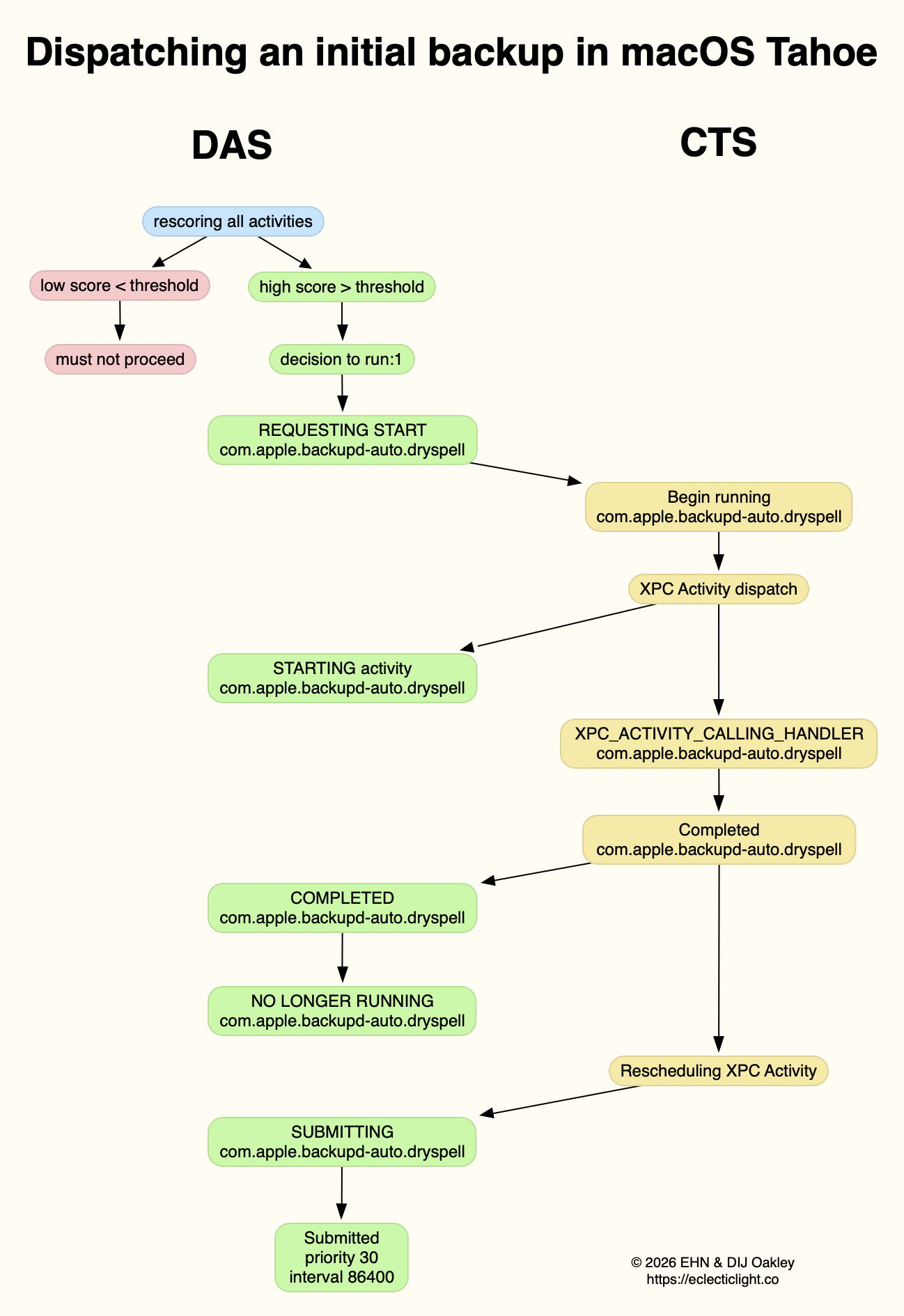
Automatic backups are normally delayed for the first 5 minutes after startup, and during that time DAS should decide not to proceed to dispatch them. When it does give them the go ahead, the activity dispatched is known as com.apple.backupd-auto.dryspell, indicating that it’s the initial backup made after startup. This too is run as root.

A similar dialogue between DAS and CTS is established, as shown in the diagram below.

What is distinctive here is that com.apple.backupd-auto.dryspell doesn’t result in the immediate initiation of a backup, but instead runs backupd-helper, and that can be delayed significantly before backupd itself is run to perform the backup. Although backupd-helper should be running within 0.2 seconds of DAS deciding to run the sequence, it may be a further 10 seconds before backupd itself is actively backing up. This is presumably because of other sustained and intense activities competing for resources at that time.

Dispatch of com.apple.backupd-auto.dryspell thus differs from the diagram below, showing dispatch of an ordinary automatic backup after the initial one, in macOS Sequoia.

com.apple.backupd-auto.dryspell is rescheduled by DAS at a priority of 30, and an interval of 86,400 seconds, or 24 hours, so it should work neatly for Macs that are powered up each day.

XProtect Remediator

Dispatch of a set of XPR scans is less predictable, as they’re likely to occur at roughly 24 hour intervals, but only when the Mac is running on mains power, and when it’s otherwise lightly loaded. If that happens to be the period of relative calm ten minutes or more after logging in, then background activity will be prolonged as the set of XPR scans is run.

By the time XPR was ready to scan here, DAS had a total of 600 pending activities, of which 254 were considered to be ‘passengers’. It therefore evaluated 74 activities, two of which were com.apple.XProtect.PluginService.daemon.scan, to be run as root, and com.apple.XProtect.PluginService.agent.scan as user. On some occasions, DAS will hold one of those from dispatch until the other is complete, but in this case it approved both to run simultaneously. Those went through a similar dialog between DAS and CTS, resulting in com.apple.XProtectFramework starting both as timed scans with standard priority, within less than 0.2 seconds of the decision by DAS to dispatch them.

As those were both timed scans, when XPR’s timers expired they were cancelled before fully completing. However, once a week XPR scans should be run without that timer, allowing them to finish all their scans.

XPC Activity states

If you follow CTS log entries for XPC activity, you’ll come across numeric states ranging between 0-5, such as
32.474139 com.apple.xpc.activity _xpc_activity_set_state: com.apple.SoftwareUpdate.Activity (0xb8ac3a080), 2
Those are documented in Apple’s source code as:

  • 0 XPC_ACTIVITY_STATE_CHECK_IN, check-in has been completed;
  • 1 XPC_ACTIVITY_STATE_WAIT, waiting to be dispatched and run;
  • 2 XPC_ACTIVITY_STATE_RUN, now eligible to be run;
  • 3 XPC_ACTIVITY_STATE_DEFER, to be placed back in its wait state with unchanged times;
  • 4 XPC_ACTIVITY_STATE_CONTINUE, will continue its operation beyond the return of its handler block, and used to extend an activity to include asynchronous operations;
  • 5 XPC_ACTIVITY_STATE_DONE, the activity has completed.

I hope this had given insight into what your Mac is up to during the first few minutes after you log in, why Apple silicon Macs show such high CPU % for their Efficiency cores, and how this results from important background activities.

Related

Explainer: XPC
In the background: Spotlight indexing

macOS Tahoe no longer fully supports Time Capsules

By: hoakley
11 February 2026 at 15:30

Despite rumours that Time Capsules had lost support in macOS Tahoe, those still backing up to them have discovered they continue to work, at least to existing backup stores. I’m very grateful to Michael for telling me that Tahoe no longer lets you start a new backup on a Time Capsule, nor it appears to any other store requiring HFS+ (Mac Extended) format.

Time Capsule support is expected to end with macOS 26 Tahoe, as macOS 27 is unlikely to support AFP any more, so those Intel Macs compatible with Tahoe can continue backing up to Time Capsules until they’re replaced. Apple remains intentionally vague about this, stating only that AFP “won’t be supported in a future version of macOS”, and has been even less clear about support for backup stores on HFS+.

Apple’s documentation implies that has been dropped already. Since Big Sur, it has stated: “APFS or APFS Encrypted disks are the preferred format for a Time Machine backup disk. If you select a new backup disk that’s not already formatted as an APFS disk, you get the option to erase and reformat it. If the disk is a Mac OS Extended format disk that contains an existing Time Machine backup, you aren’t asked to erase and reformat the disk.” However, “Time Machine still supports backups on Mac OS Extended format (Journalled), Mac OS Extended (Case-sensitive, Journalled), and Xsan formatted disks.”

Other support documents are even less helpful. This one doesn’t even mention HFS+, while another, dated 5 December 2025 and detailing backup disks you can use with Time Machine, concentrates on AFP and implies that HFS+ remains fully supported on Time Capsules.

Unfortunately, in macOS Tahoe, the moment you erase your Time Capsule to start a fresh backup series, Time Machine considers that’s a new backup disk, and wants it to be in APFS format. As that’s not possible, it refuses, stating “Time Machine can only be used if it contains existing Time Machine backups for this Mac.”

Michael found an ingenious workaround on his MacBook Air M2, by installing Sequoia in its own container, starting up from that, and then creating the new backup store on his Time Capsule. When he restarted his Mac in Tahoe, Time Machine was perfectly happy to start a new backup set, as it already existed.

From this we can only conclude that macOS Tahoe:

  • fully supports Time Machine backups using AFP,
  • fully supports Time Machine backups to Time Capsules with backup stores already formatted in HFS+,
  • but refuses to create a new backup store on a Time Capsule,
  • also refuses to create a new backup store on local storage formatted in HFS+, but insists on reformatting that to APFS.

I don’t believe for a moment this behaviour is a bug, but is an intentional limitation that Apple hasn’t documented. While I have been warning since July 2021 that you should replace any Time Capsules, as they won’t be supported for much longer, this abrupt change is unwarranted.

If you’ve upgraded to macOS Tahoe and erase your Time Capsule’s backups, you’ll be unable to store any new backups on it, unless you revert to Sequoia. This is yet another compelling reason not to upgrade to macOS 26.

Which snapshots could you delete?

By: hoakley
2 February 2026 at 15:30

In last week’s Explainer on snapshots, I stated that “you can safely remove all Time Machine snapshots from that volume except the most recent, which is also the smallest.” This article explains the reasoning behind that.

Why delete snapshots?

Time Machine and other backup utilities make local snapshots on the volumes they back up in addition to copying all changes to backup storage, normally on a different device like an external disk. Because of that, local snapshots are a bonus not a backup. When a volume being backed up is running short of free space, one good method of freeing up space is therefore to delete some of those local snapshots.

Sometimes deleting just one snapshot can free up a lot of space, but estimating the amount likely to be returned is complicated, and to a degree not always readily predictable. If you know one of those snapshots has retained a very large file like a VM or macOS update, you may be able to get away with just deleting the single snapshot, but it’s more usual to need to delete as many as possible, typically just keeping one.

If you are going to retain one snapshot, then by far the smallest is likely to be the most recent, as that almost invariably contains the fewest changes from the current contents of the volume. The oldest snapshot is almost certain to contain much greater changes, so deleting it normally returns the greatest free space. So in terms of meeting your goal of freeing up space, the best strategy is to delete all snapshots except the most recent.

Why keep snapshots?

Although a bonus, a local snapshot is valuable if something goes wrong with a volume and its backup isn’t readily available, either because it’s in a different location or there’s a problem with backup storage. In those circumstances you’re most likely to want that snapshot to be the most recent made, rather than the oldest. So in terms of justifying the retention of any snapshot, the best strategy is to retain the most recent.

What does Time Machine use snapshots for?

Before APFS, Time Machine made the closest it could come to snapshots in HFS+ only when it was unable to perform a scheduled backup. That typically happened on Macs remote from their backup storage, and was intended as the best possible substitute for a proper backup. When Apple introduced APFS in macOS High Sierra, it explicitly stated how its snapshot feature would spare Time Machine from having to run its own code to imitate that.

In High Sierra and Mojave, Time Machine relied on snapshots to determine what needed to be backed up from an APFS volume. It made a snapshot at the start of each backup, and compared that with the snapshot made with the previous backup, a process known as snapshot diffing, and used those differences to determine what should be backed up. That relies on keeping the snapshot made at the time of the last backup; if that’s unavailable, Time Machine has to use another method, and in many cases ends up backing up a lot more than is necessary.

One major disadvantage of snapshot diffing is that it requires the snapshot made for the last backup to be retained until the next backup can be made. When backups are made regularly every hour, that was acceptable, but a Mac that couldn’t back up for several days could end up with an old snapshot occupying tens of GB. Since macOS Catalina Time Machine has therefore been relying on an older method, introduced with HFS+, using the FSEvents database maintained on each volume. That doesn’t require snapshots at all.

Currently, Time Machine will therefore use FSEvents to determine what needs to be backed up from each volume, but there are occasions when that isn’t possible, for example when that database becomes damaged. If that happens, and the snapshot made at the time of the last backup is available, then Time Machine may decide to use snapshot diffing. If that’s not possible, it may fall back to performing a much larger backup than is necessary.

To enable snapshot diffing to take place if needed, Macs that make regular hourly backups should retain their most recent local snapshot.

That becomes complicated and unpredictable in the case of Macs that may skip regular backups, so some snapshots match backups but others don’t. This is confounded by the rule applied for automatic deletion of local snapshots when they are more than 24 hours old, unless that snapshot is the last on that volume. Without matching each snapshot to its backup (or lack of backup), you can’t know which might need to be retained in case Time Machine needs to use snapshot diffing to determine what should be backed up in the future. Whatever you decide to do, if you delete any local snapshots there’s a risk that might result in the next backup being larger than necessary. But the chances are that Time Machine will still be able to use FSEvents rather than snapshot diffing.

Other backup utilities

Time Machine appears to be the only backup utility that can use snapshot diffing to determine what should be backed up. You should therefore be able to delete local snapshots made by other backup utilities without any penalty. If in any doubt, consult their documentation.

Conclusion

If you need to delete local snapshots to free up space in a volume, you can safely delete all except the most recent snapshot, when each snapshot is accompanied by a backup. Where some backups may have been skipped, that is still likely to prove the best overall strategy.

Explainer: snapshots

By: hoakley
31 January 2026 at 16:00

Snapshots are a simple concept that only becomes complex when you dig into the detail. One of the fundamental features introduced in APFS, they are now used extensively, to form the System volume for all versions of macOS since Big Sur, and in many backup systems including Time Machine.

As the name implies, a snapshot is a preserved copy of a volume at a moment in time. Creating one is both simple and lightning quick: APFS makes a copy of the file system metadata for that volume, and retains with it all the data of its files. From then on, the working copy of the file system metadata changes as files are modified, created and deleted. But all the original file data at the time the snapshot was made is retained. That enables you to roll back the live volume to the exact state it was in when the snapshot was made. The snapshot itself (its file system metadata) is kept in the same container as the live volume, and their file data overlaps.

Snapshots rely on another fundamental feature of APFS, a scheme called copy on write. When a file is changed, the data for that file isn’t changed in place in the same storage blocks, but written out to new blocks. This enables the snapshot to retain all the original data for its files, while the live volume consists of a mixture of old unchanged data, and replacements for those blocks that have changed since the snapshot was made.

Size

This leads to the biggest disadvantage of snapshots: when first made, the only additional storage space they require is for their copy of the file system metadata, which is relatively small. Over time, though, as more data blocks are changed in the live volume, the size of the data the snapshot must retain grows, and can after a few weeks become enormous, depending on how active the file system is in that volume. What was initially measured in MB quickly becomes GB, and if you forget about that snapshot, it will become hundreds of GB in size.

Management

While some operating systems allow users to create their own snapshots and maintain them, macOS doesn’t: apps that have the restricted entitlement to create snapshots are required by Apple to maintain them as well. That’s why apps that make snapshots are backup utilities, and are required to have a mechanism for automatically deleting their old snapshots to prevent them overwhelming storage.

Creating a snapshot is almost instantaneous, but deleting one is more complex and time-consuming. This is because the file system has to identify all the old retained data blocks that are no longer required, and allow them to be freed up for re-use. When that’s performed across the millions of files that could be in the snapshot’s file system metadata, it will inevitably take time. It’s also not entirely predictable, particularly when there may be multiple snapshots for that volume.

APFS snapshots are always of whole volumes, although some file systems can make snapshots of directory trees within a volume. Unlike Time Machine’s backup exclusions, each snapshot it makes of a volume it’s backing up contains every file in that volume. If you have large database or VM files, although Time Machine and other backup utilities can exclude them from taking up space in their backups, they can’t exclude them from their snapshots. If you do want to keep such large files, it’s usually better to put them in a volume that doesn’t get snapshots made of it.

Snapshots are also read-only, and once one is made, it can’t be changed. This is beneficial, as it ensures nothing can change the old files and their data. However, it also means that if something goes wrong in a snapshot and it starts throwing errors, you effectively can’t repair it. At present, you also can’t copy a snapshot, which makes it impossible to make a copy of your Time Machine backup storage, as that’s composed of snapshots.

Purposes

Your Mac uses snapshots in three ways:

  • local snapshots, typically made by Time Machine and its equivalents on the volumes they back up. Time Machine only keeps those for 24 hours before automatically deleting them for you, although third-party utilities are usually more flexible. You can normally access these, or roll back to them, by mounting the snapshot as a volume.
  • backup snapshots, only created by Time Machine and used to store each backup on your Mac’s backup storage. These are created during the backup process by assembling a copy of the local snapshot together with its changed data into a synthetic snapshot, which is how Time Machine makes its backups now.
  • the Signed System Volume, created during installation and updating of macOS on the System volume of your boot volume group. This is a snapshot of that System volume, and is mounted and used as the macOS system. Unlike all other snapshots, this has a tree of cryptographic hashes added to it, to verify and seal the SSV. If a single bit is changed in that snapshot, then that change propagates to the top of the tree, macOS will detect it, and invalidate that SSV.

Utilities

In addition to features provided by third-party backup utilities, you can manage snapshots using Disk Utility. Open its View menu and first enable Show All Devices, then Show APFS Snapshots. Select the Data or Macintosh HD – Data volume in the left of the window, and you’ll see a list of all APFS snapshots for that volume, together with an indication of the size of each.

diskutil14

To delete a snapshot in Disk Utility’s list, select it and use the Delete… command from the contextual menu (Control-click). Be careful, though, as there’s no undo. You can safely remove all Time Machine snapshots from that volume except the most recent, which is also the smallest. That latest snapshot is needed when that volume is next backed up by Time Machine. If you remove that too, then the next backup could be a full backup of everything on that Data volume, something best avoided if possible.

Can you slim macOS down?

By: hoakley
21 January 2026 at 15:30

Open Activity Monitor when your Mac isn’t doing a great deal and you’ll see hundreds of processes listed there. Even in a virtual machine with a minimum of services there are at least 500, and in a vanilla setup with no apps open a real Mac can exceed 700. Clearly some of those like WindowServer are essential, but aren’t there plenty we could do without? That’s a question I’m asked repeatedly, which this article tries to answer.

One of the first problems when trying to identify which processes we could do without is knowing what each does, and how they’re interrelated. I doubt whether any individual in Apple knows them all, and trying to establish what some do would be a challenge. If we assume that we need to identify just 500 candidates, and each takes an average of one week to research, that would take over 10 person-years, by which time they would all have changed again. Studying 500 targets that are ever-changing simply isn’t practical.

When problems get difficult, it’s often best to cheat, so I’m going to go for the low-hanging fruit and consider a well-known group of processes, those making Time Machine backups. I’ve been following these since macOS Sierra, and frequently study them in the log. They’re also good candidates for removal, as many folk don’t back up using Time Machine but use one of its alternatives. So some already have good reason to want to be rid of backupd and its relatives. They’re also relatively discrete: although they depend on other processes to function, I don’t know of any other subsystems that require Time Machine, making it potentially disposable.

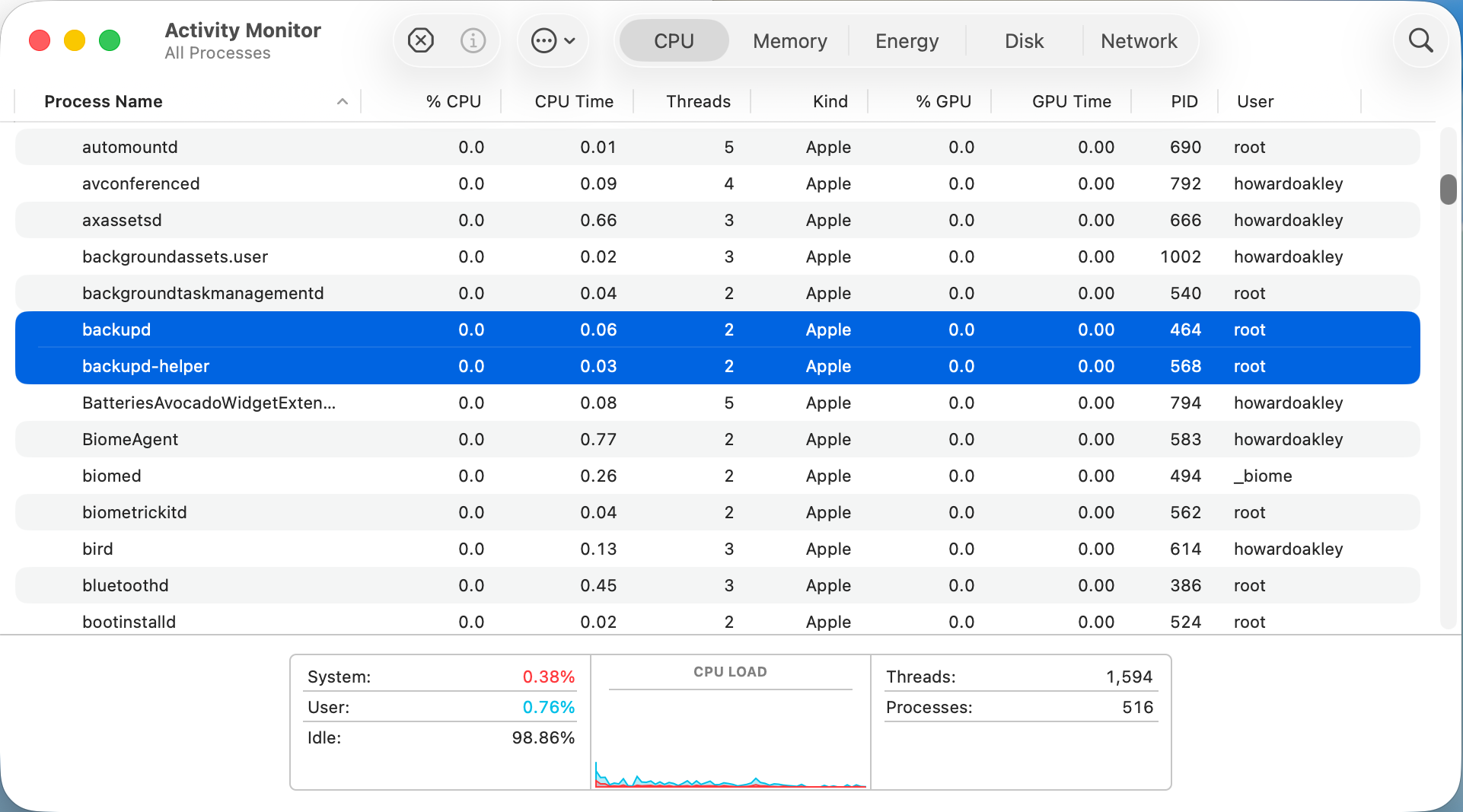
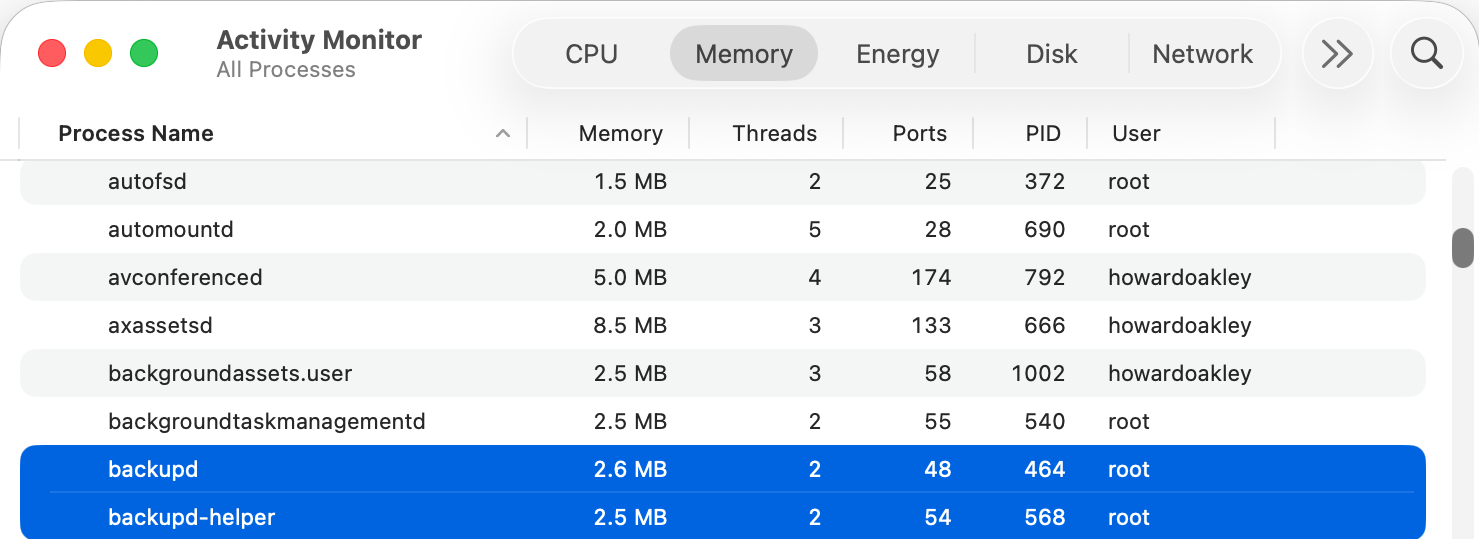
Set up a basic VM in maOS 26.2 and, even though Time Machine has never been enabled, you’ll see its processes listed in Activity Monitor.

Here are backupd and backupd-helper showing they still take a little % CPU even when Time Machine is completely disabled.

They also take a little memory, here a total of 5.1 MB. While that isn’t much, added up over 500 processes it becomes worth caring about.

Those two processes are controlled by LaunchDaemons stored in /System/Library/LaunchDaemons, in property lists named com.apple.backupd-helper.plist and com.apple.backupd.plist. Here’s our first problem, as those are located in the Signed System Volume (SSV), so we can’t change them in any way. The same applies to the other 417 LaunchDaemons and 460 LaunchAgents that account for most of the processes listed by Activity Monitor. In the days before the SSV it was possible to edit their property lists to prevent them from being launched, but that isn’t possible any more when running modern macOS.

If we can’t stop the backupd-auto process from being run, is there any other way we could block it? To answer that we need to understand how it’s scheduled and dispatched.

Until macOS Sierra, Time Machine backups were run from launchd as timed events, but since then their scheduling and dispatch has been performed jointly by Duet Activity Scheduler (DAS) and Centralised Task Scheduling (CTS), using lightweight inter-process communication (XPC). DAS manages a huge list of activities including com.apple.backupd-auto, and decides when to dispatch it to CTS to run. For example, it won’t do that for the first five minutes after a Mac starts up, to allow other processes to run first.

Once that time is up, DAS decides to run the backup:
38.738 DAS 0:com.apple.backupd-auto:2052A3, Decision: CP Score: 0.949374}
38.738 DAS '0:com.apple.backupd-auto:2052A3' CurrentScore: 0.949374, ThresholdScore: 0.068531 DecisionToRun:1
38.762 DAS REQUESTING START: 0:com.apple.backupd-auto:2052A3

CTS then proceeds with the dispatch via XPC:
38.762 CTS-XPC DAS told us to run com.apple.backupd-auto (0xb671bcc80)
38.844 CTS-XPC Initiating: com.apple.backupd-auto (0xb671bcc80)
38.846 CTS-XPC _xpc_activity_dispatch: beginning dispatch, activity name com.apple.backupd-auto, seqno 0
38.846 CTS-XPC _xpc_activity_begin_running: com.apple.backupd-auto (0x7a9014280) seqno: 0.
38.878 CTS-XPC Running (PID 537): com.apple.backupd-auto (0xb671bcc80)
38.879 DAS STARTING <_DASActivity: "0:com.apple.backupd-auto:2052A3", Utility, 60s, [1/19/26, 8:50:43 PM - 1/19/26, 9:10:43 PM], Started at 1/19/26, 9:10:38 PM, Group: com.apple.dasd.default, PID: 537>

This is in a VM with Time Machine disabled, though, so Time Machine reports:
38.879 Time Machine Skipping scheduled Time Machine backup: Automatic backups disabled

However, com.apple.backupd-auto has now completed, and that’s passed back through CTS-XPC:
38.879 CTS-XPC _xpc_activity_set_state: send new state to CTS: com.apple.backupd-auto (0x7a9014280), 5
38.880 CTS-XPC Completed: com.apple.backupd-auto (0xb671bcc80)

The next run is then scheduled in DAS following an interval of at least 30 minutes, and ideally in about an hour:
38.881 CTS-XPC Rescheduling: com.apple.backupd-auto (0xb671bcc80)
38.881 DAS SUBMITTING: 0:com.apple.backupd-auto:B293AE
38.882 DAS Submitted: 0:com.apple.backupd-auto:B293AE at priority 30 with interval 1800 (Mon Jan 19 21:25:38 2026 - Mon Jan 19 21:40:43 2026)

So, even with Time Machine disabled in a VM, DAS-CTS continues to schedule automatic runs of Time Machine at hourly intervals. And, because DAS-CTS is isolated from all user controls, there’s nothing we can do to prevent that scheduling and dispatch. Does that matter, though? This whole sequence was completed in 0.144 seconds, using lightweight inter-process communication with negligible use of resources, and only repeats hourly.

To the Unix purist, this might appear wasteful and unnecessary, but macOS isn’t, and never has been, Unix. It’s a closed-source proprietary operating system designed for use by millions of consumers and regular users. Rather than configuring it using config files or its thousands of property lists, its controls are largely exposed in System Settings, with a few settings hidden away and only accessible through the defaults command.

macos914

Classic Mac OS was more modular, with optional installs that the user could pick and choose, as shown above in Mac OS 9.1. These days with the SSV, choice is more limited from the start, with the only real options being whether to install the cryptexes used in AI, and the x86 code translator Rosetta 2. The latter is transient, though, and likely to go away next year.

Like it or not, modern macOS isn’t designed or implemented to give the user much choice in which processes it runs, and architectural features including the SSV and DAS-CTS prevent you from paring its processes down to any significant degree.

How Time Machine backups can fail silently

By: hoakley
15 January 2026 at 15:30

If anyone claims they have engineered something so you can set it and forget it, remind them of the third step in that process, where you come to regret it. Without attentive monitoring, any system is likely to fail without your being aware. Time Machine is a good example, and this article illustrates how it can fail almost totally without you being aware that anything has changed.

Scenario

I’ve recently been testing a security product on my Mac mini M4 Pro. One of its more novel features is device control similar to Apple’s Accessory Security for Apple silicon Mac laptops. I’m sure I’m not the only person who has wondered why that feature hasn’t been incorporated into desktop models, and here is a third-party developer doing just that and more. For their implementation lets you specify precisely which peripherals can be connected, down to the serial number of each SSD.

When I installed and went through the onboarding of this product, I naturally assumed that my Time Machine backup storage, an external SSD, would be allowed by this control, as it was connected at the time. At that time I was offered no option to manually allow it, and as its three volumes remained listed in the Finder’s Locations I didn’t check its settings.

When I started that Mac up the following day, I discovered that I had lost access to that external SSD. Its three volumes were still there in the Finder, but any attempt to open them failed with an error. I quickly disabled the device control feature, just in time to allow Time Machine to make its first hourly backup since 12:35 the previous day, just after I had installed the security software. Time Machine had happily gone that long without backing up or warning me that it had no backup storage.

Compare that with what would have happened with any other backup utility, such as Carbon Copy Cloner, which would have informed me of the error in terms loud and clear. I think this results from Time Machine’s set and forget trait, and its widespread use by laptop Macs that are often disconnected from their backup storage. Thankfully I hadn’t come to regret it, this time.

Evidence

Not only does Time Machine not draw the attention of the user to this error, but it can be hard to discover from the log. Run T2M2, for example, and the evidence is subtle:
Times taken for each auto backup were 4.3, 0.5, 0.6, 10.5, 2.5, 0.8, 0.9, 0.7, 0.6 minutes,
intervals between the start of each auto backup were 86.6, 29.3, 1197.7, 55.5, 60.3, 60.1, 60.1, 60.3 minutes.

(Emphasis added.)

A gap of almost 20 hours between backups far exceeds the nine hours it was shut down overnight. But at the end, T2M2 reports
✅No error messages found.

I know from the security software’s log that it had blocked access to the backup storage after Time Machine had completed the last of its hourly backups at around 12:35. This is what the next attempt to back up reported:
13:23:54.382 Failed to find any mounted disk matching volume UUIDs: {("A3A3DADA-D88E-499B-8175-CC826E0E3DE4")}
13:23:54.382 Skipping scheduled Time Machine backup: No destinations are potentially available
13:23:54.487 attrVolumeWithMountPoint 'file:///Volumes/VMbackups/' failed, error: Error Domain=NSPOSIXErrorDomain Code=1 "Operation not permitted"
13:23:54.488 attrVolumeWithMountPoint 'file:///Volumes/OWCenvoyProSX2tb/' failed, error: Error Domain=NSPOSIXErrorDomain Code=1 "Operation not permitted"
13:23:54.489 attrVolumeWithMountPoint 'file:///Volumes/Backups%20of%20MacStudio%20(7)/' failed, error: Error Domain=NSPOSIXErrorDomain Code=1 "Operation not permitted"
13:23:59.103 attrVolumeWithMountPoint 'file:///Volumes/VMbackups/' failed, error: Error Domain=NSPOSIXErrorDomain Code=1 "Operation not permitted"
13:23:59.104 attrVolumeWithMountPoint 'file:///Volumes/OWCenvoyProSX2tb/' failed, error: Error Domain=NSPOSIXErrorDomain Code=1 "Operation not permitted"
13:23:59.104 attrVolumeWithMountPoint 'file:///Volumes/Backups%20of%20MacStudio%20(7)/' failed, error: Error Domain=NSPOSIXErrorDomain Code=1 "Operation not permitted"

Time Machine then fell back to what it has long been intended to do in such circumstances, making a local snapshot of the volume it should have backed up. This starts with a full sync of buffers to disk storage,
13:23:59.876 FULLFSYNC succeeded for '/System/Volumes/Data'
in preparation for that snapshot
13:24:00.024 Created Time Machine local snapshot with name 'com.apple.TimeMachine.2026-01-12-132359.local' on disk '/System/Volumes/Data'

These were repeated at 14:24:06.638, and hourly thereafter until the Mac was shut down. Accompanying those few entries were tens of thousands of errors from APFS and Time Machine.

The only clue as to the cause was a single log entry
14:24:06.805543 EndpointSecurity ES_AUTH_RESULT_DENY: event 1
in which Endpoint Security is logging the event that access to the external device was denied.

Lesson

If you do just set it and forget it, you will come to regret it. Attentive monitoring is essential, and when anything does go wrong, don’t pass over it in silence.

❌
❌