Apple has just released its regular weekly update to XProtect, bringing it to version 5336. As usual it doesn’t release information about what security issues this update might address.
This version adds two new rules for MACOS.WANNABEWALLABY.IMA and MACOS.WANNABEWALLABY.STA, amends rules for MACOS.TIMELYTURTLE.DYHEOC, MACOS.SOMA.MAENA, and MACOS.SOMA.MAENB, and changes some rule UUIDs. In the Osascript rules in XPScripts.yr, it amends the rule for MACOS.OSASCRIPT.SYPR.
You can check whether this update has been installed by opening System Information via About This Mac, and selecting the Installations item under Software.
A full listing of security data file versions is given by SilentKnight and SystHist for El Capitan to Tahoe available from their product page. If your Mac hasn’t yet installed this update, you can force it using SilentKnight or at the command line.
If you want to install this as a named update in SilentKnight, its label is XProtectPlistConfigData_10_15-5336
Sequoia and Tahoe systems only
This update hasn’t yet been released for Sequoia and Tahoe via iCloud. If you want to check it manually, use the Terminal command sudo xprotect check
then enter your admin password. If that returns version 5336 but your Mac still reports an older version is installed, you should be able to force the update using sudo xprotect update
For those working with Rich Text without embedded images, my free editor DelightEd offers a suite of unique features. I wrote it when macOS Mojave introduced Dark appearance mode, with the primary purpose of composing Rich Text documents that work independent of appearance. For that it can set styled text on a background that ensures perfect readability in both Light and Dark modes.
Since then it has gained other unique features, including support for creating interlinear text, in which different translations or versions of the same document are interleaved line by line. It will also open PDF documents and automatically extract all their text content.
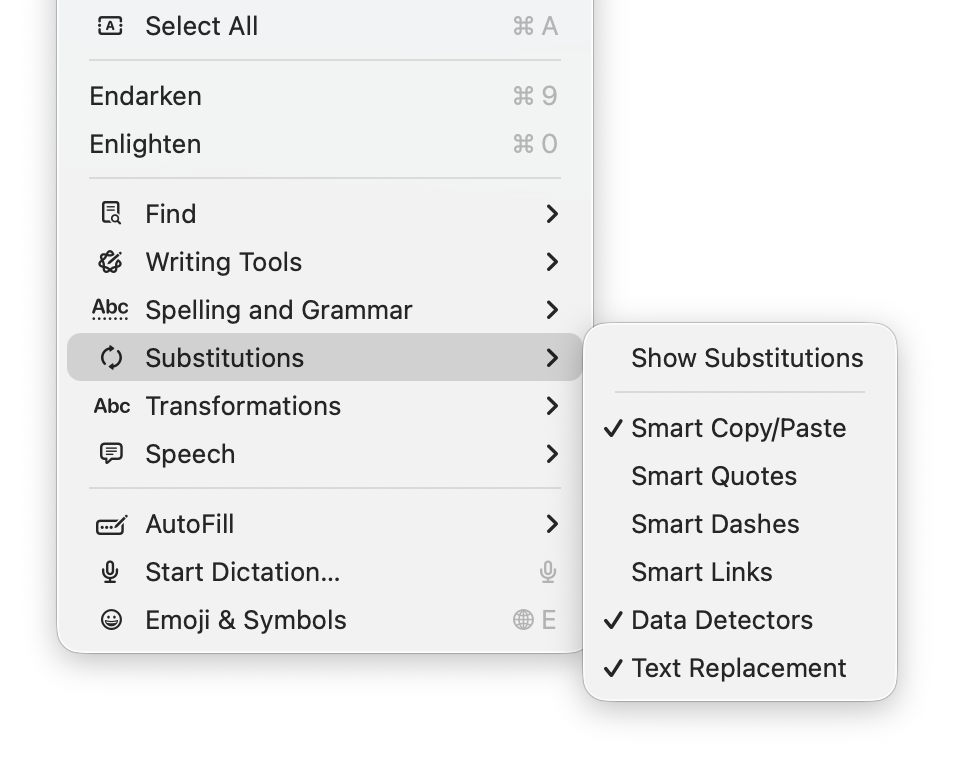
General features supported include Writing Tools (Apple silicon Macs), case transformations, and a full suite of substitutions. However, until this new version of DelightEd, substitution settings haven’t been saved in DelightEd’s app settings. Version 2.5 now puts that right: to set the app’s default substitutions, set them up using the Substitution command in its Edit menu, for instance enabling Smart Links.
Then save those to its settings using the Save Defaults command in the app’s menu. Each time you open DelightEd after that, its substitutions will start from those saved defaults.
DelightEd version 2.5 for macOS 11.5 Big Sur and later, including Tahoe, is now available from here: delighted25
from Downloads above, from its Product Page, and through its auto-update mechanism.
I’m very grateful to Manuel for asking for this to be fixed.
Apple has just released its regular weekly update to XProtect, bringing it to version 5335. As usual it doesn’t release information about what security issues this update might address.
This version adds two new Yara rules for MACOS.TIMELYTURTLE.OBDR and MACOS.SOMA.MAENB, and amends the existing rule for MACOS.SOMA.BYTE.SEQUENCE.B. In the Osascript rules in XPScripts.yr, it relocates those for TABUPA, REBUPA, DUVAST, DUCUHA and DUSTCO.
You can check whether this update has been installed by opening System Information via About This Mac, and selecting the Installations item under Software.
A full listing of security data file versions is given by SilentKnight and SystHist for El Capitan to Tahoe available from their product page. If your Mac hasn’t yet installed this update, you can force it using SilentKnight or at the command line.
If you want to install this as a named update in SilentKnight, its label is XProtectPlistConfigData_10_15-5335
Sequoia and Tahoe systems only
This update has already been released for Sequoia and Tahoe via iCloud. If you want to check it manually, use the Terminal command sudo xprotect check
then enter your admin password. If that returns version 5335 but your Mac still reports an older version is installed, you should be able to force the update using sudo xprotect update
The update to bring macOS Tahoe up to version 26.4 is hefty at around 7.15 GB (more than double that if you’re unlucky), and reflects a great deal of bug fixes and improvements in almost every subsystem. Apple provides three good sets of release notes:
General release notes include the addition of an option to use compact tabs in Safari, Freeform’s new Creator Studio enhancements, and a facility for Purchase Sharing in Family Sharing. Oh, and the requisite eight new emoji.
Security release notes list over 70 fixes, many of which are significant, but none are reported as being known to be exploited in the wild at present.
The new build number of 26.4 is 25E246. The Darwin Kernel version is 25.4.0, and XNU 12377.101.15~1.
Apple silicon firmware is updated to a completely different version numbering system, and is now reported as mBoot version 18000.101.7. If you’re running SilentKnight older than version 2.14 (71), then it’s likely that it will crash as a result of this change in firmware version. Please use version 2.14 from here.
Firmware in Intel Macs with T2 chips remains with the previous system, and is updated from 2094.80.5.0.0 (iBridge 23.16.13120.0.0,0) to 2103.100.6.0.0 (iBridge 23.16.14242.0.0,0).
Looking through the bundled apps and /System/Library, there are a great many increments in build numbers reflecting the extensive changes made. Here are a few of the more substantial changes found.
In bundled apps:
Books goes from version 8.1 to 8.4
Freeform, version 4.3 to 4.4
iPhone Mirroring, version 1.5 to 1.6
Music, version 1.6.3 to 1.6.4
Safari, version 26.3.1 (21623.2.7.111.2) in BSI (a) to 26.4 (21624.1.16.11.4)
TV, version 1.6.3 to 1.6.4
Audio MIDI Setup, version 3.7 to 3.8
Digital Color Meter, version 6.10 to 6.11
Screen Sharing, version 6.2 (758.1) to 6.1 (760.4), note the reduction in version number.
In /System/Library:
AGX kernel extensions all have build increments
AppleDiskImages2 kext has a build increment
AppleEmbeddedAudio kext and its plugin kexts have build increments
AppleIntel Graphics kexts have version increments
AppleStorageDrivers kext and its plugin kexts have build increments
APFS is updated from 2632.80.1 to 2811.101.1, suggesting a substantial change has been made
new private frameworks include ASMExclaveSupport, AccelerateOpt, AlwaysOnExclavesDaemon, AnteroAgent, AppRemoteAssets, AudioPasscodeDSP, BNNSOdieDelegate, CookingData, CoreTransparency, DynamicPrefetching, InAppFeedback, NanoPassKit, PartnerVisualSearch, a whole family of Unilog frameworks, and a group of iCloudWeb frameworks
mdimporters updated include those for Application, CoreMedia, Mail, Office, iWork but not RichText.
After seeing the new CookingData private framework, I looked out for RecipeKit, but was disappointed not to see it.
This is probably going to be the last such substantial update to macOS Tahoe, as much of Apple’s engineering effort is transferring to make macOS 27 ready for release as a beta at WWDC in early June.
Freeform joins Creator Studio, with advanced tools and a premium content library
Purchase Sharing in Family Sharing
and eight new emoji.
Security release notes for 26.4 list over 70 fixes, those for Sequoia 15.7.5 list about 56, and those for Sonoma 14.8.5 list about 50. None are reported as being known to be exploited in the wild at present.
Firmware in Apple silicon Macs is updated to a new mBoot firmware version numbering system, with the current version given as 18000.101.7. The macOS build number is 25E246, and Safari is version 26.4 (21624.1.16.11.4). Firmware in Intel Macs with T2 chips is updated from 2094.80.5.0.0 (iBridge 23.16.13120.0.0,0) to 2103.100.6.0.0 (iBridge 23.16.14242.0.0,0).
If you’re running SilentKnight older than version 2.14 (71), then it’s likely that it will crash as a result of the change in firmware version. Please use version 2.14 from here.
I’ll be posting an analysis of what has changed later today.
Updated 09:15 25 March 2026 with firmware details for Intel Macs.
Apple has just released its first public Background Security Improvement (BSI) for macOS 26.3.1 Tahoe, labelled as BSI (a)-25D771280a. Once installed, macOS will identify itself as version 26.3.1 (a), with a build number of 25D771280a.
You can install this through Privacy & Security Settings, in the Background Security Improvements section. It doesn’t appear listed in Software Update, although SilentKnight will offer it. Please don’t try to use SilentKnight to install this, though, as it will download successfully but fail to install unless you then use the BSI section in Privacy & Security settings, which will finish the job off.
Apple has now released details of the single vulnerability that this fixes, in WebKit. As a result it updates Safari from 26.3.1 (21623.2.7.11.7) to 26.3.1 (21623.2.7.111.2).
Following installation, your Mac will need to restart for the BSI to be applied.
Apple has just released its regular weekly update to XProtect, bringing it to version 5334. As usual it doesn’t release information about what security issues this update might address.
This version makes no changes to its main Yara rules. Changes to the OSASCRIPT rules in XPScripts.yr include amendments to more than a dozen of them, and two new rules are added for MACOS.OSASCRIPT.GEPEPA and MACOS.OSASCRIPT.TAPEPA. Several rules that previously added the property wide to their text now have wide ascii instead.
You can check whether this update has been installed by opening System Information via About This Mac, and selecting the Installations item under Software.
A full listing of security data file versions is given by SilentKnight and SystHist for El Capitan to Tahoe available from their product page. If your Mac hasn’t yet installed this update, you can force it using SilentKnight or at the command line.
If you want to install this as a named update in SilentKnight, its label is XProtectPlistConfigData_10_15-5334
Sequoia and Tahoe systems only
This update has now been released for Sequoia and Tahoe via iCloud. If you want to check it manually, use the Terminal command sudo xprotect check
then enter your admin password. If that returns version 5334 but your Mac still reports an older version is installed, you should be able to force the update using sudo xprotect update
Apple silicon Macs are about to undergo change to the numbering of their firmware versions. Accounts from beta-testing of the next minor update to macOS 26 Tahoe, version 26.4, indicate that future firmware will no longer be numbered as iBoot 13822.101.6, but as mBoot 18000.101.6 instead. This has major consequences for my free utility SilentKnight, which checks and reports the version of firmware installed. Version 2.14 should address that change in readiness for the release of the 26.4 update, and is particularly recommended for use on Apple silicon Macs.
This change was first reported in macOS 26.4 beta 2, and has apparently been sustained in the two subsequent beta releases, confirming that it’s an intended change, and not a bug.
There are currently two places in System Information that report a Mac’s firmware version, either the main Hardware section (also accessible in system_profiler SPHardwareDataType), or the Controller item within that section (or system_profiler SPiBridgeDataType).
Intel Macs without a T2 chip don’t report anything for their Controller, but those with T2 or Apple silicon chips reveal that they have a T2 or give an iBoot firmware version there. All three types of Mac also give a System Firmware Version in the Hardware overview.
This can get more confusing if you update or install macOS to an external disk. That will normally update the Mac’s firmware if the version of macOS installed on the external disk comes with more recent firmware. For example, if your Apple silicon Mac is currently running macOS Tahoe 26.3.1, it should have an iBoot firmware version of 13822.81.10. If you were to install Tahoe 26.4 to an external disk, as that has a more recent version of iBoot firmware, that should update the version installed in your Mac, and that remains so even when you start it up from its internal SSD.
As far as I can tell at present, this can result in internally inconsistent reporting. When running 26.3.1 from its internal SSD, that Mac will report its old iBoot version in the Controller section, but its new mBoot version in the Hardware section. Although that could change by 26.4 release, it might remain in all older versions, so providing lasting confusion.
As Apple hasn’t documented this change, I don’t know whether this will apply to all Apple silicon Macs updated to macOS 26.4, or to those updated to the matching versions of Sequoia or Sonoma. Therefore this new version of SilentKnight doesn’t attempt to check these new mBoot versions, and merely reports those found as well as it can. Once I know more, I will endeavour to interpret the results.
SilentKnight version 2.14 for macOS 11.5 and later is now available from here: silentknight214
from Downloads above, from its Product Page, and via its auto-update mechanism.
Please let me know how you get on with these new firmware version numbers.
Note: version 2.14 now fixes a bug that failed to recognise T2 Macs correctly in certain localisations including German. Thanks to Jan for reporting this so promptly.
Apple has just released its regular weekly update to XProtect, bringing it to version 5333. As usual it doesn’t release information about what security issues this update might address.
This version changes the rules named InstallImitatorC to XProtect_MACOS_INSTALLIMITATOR_C, XProtect_snowdrift to XProtect_MACOS_SNOWDRIFT, and XProtect_MACOS_ADLOAD_INTRIN to XProtect_MACOS_ADLOAD_IN, and adds one new Yara rule for MACOS.SOMA.MAENA.
Changes to the OSASCRIPT rules in XPScripts.yr include the amendment of 9 existing rules by adding the property wide to their text, and the addition of one new rule for MACOS.OSASCRIPT.TABUPA.
You can check whether this update has been installed by opening System Information via About This Mac, and selecting the Installations item under Software.
A full listing of security data file versions is given by SilentKnight and SystHist for El Capitan to Tahoe available from their product page. If your Mac hasn’t yet installed this update, you can force it using SilentKnight or at the command line.
If you want to install this as a named update in SilentKnight, its label is XProtectPlistConfigData_10_15-5333
Sequoia and Tahoe systems only
This update has now been released for Sequoia and Tahoe via iCloud. If you want to check it manually, use the Terminal command sudo xprotect check
then enter your admin password. If that returns version 5333 but your Mac still reports an older version is installed, you should be able to force the update using sudo xprotect update
Overnight, Apple released an update to XProtect, bringing it to version 5332. As usual, it doesn’t release information about what security issues this update might address.
This version adds one new Yara rule for MACOS.OSB and makes no changes to the OSASCRIPT rules in XPScripts.yr.
You can check whether this update has been installed by opening System Information via About This Mac, and selecting the Installations item under Software.
A full listing of security data file versions is given by SilentKnight and SystHist for El Capitan to Tahoe available from their product page. If your Mac hasn’t yet installed this update, you can force it using SilentKnight or at the command line.
If you want to install this as a named update in SilentKnight, its label is XProtectPlistConfigData_10_15-5332
Sequoia and Tahoe systems only
This update has already been released for Sequoia and Tahoe via iCloud. If you want to check it manually, use the Terminal command sudo xprotect check
then enter your admin password. If that returns version 5332 but your Mac still reports an older version is installed, you should be able to force the update using sudo xprotect update
Apple has released an update to macOS Tahoe bringing it to version 26.3.1. This adds support for its new Studio Display announced earlier this week. It’s also claimed to contain “bug fixes”, although none are detailed.
Download size for Apple silicon Macs is around 3 GB.
There are no published CVE entries for this update, so no publicly known security vulnerabilities are claimed to have been addressed.
This version has a build number of 25D2128, and there’s no change in iBoot firmware, which remains at 13822.81.10.
Looking at changes in bundled apps, there’s only one small increment in build and version numbers, in Passwords, which rises from version 2.3 to 2.3.1. Safari goes up a single build increment from 26.3 (21623.2.7.11.6) to 26.3.1 (21623.2.7.11.7).
In /System/Library, almost all the changes are in kernel extensions added to support the new Studio Displays. These include:
AGXFirmwareKextG17PRTBuddy and AGXFirmwareKextG17XRTBuddy, AGXG17P and AGXG17X, AGXMetalG17P and AGXMetalG17X
nine new AppleT6050 kexts, and an AppleT8080SOCTuner
three additional AppleT8140 kexts
an additional T6050TypeCPhy plugin to AppleTypeCPhy kext
AppleVL822FirmwareUpdater
AppleXHCFFirmwareDriver
WLANDriver kext
there’s an additional plugin to AppleEmbeddedAudio.
There’s also a new app in CoreServices, Medical Imaging Calibrator, and new DriverExtensions AppleCentauriAlpha, AppleCentauriBeta and AppleCentauriControl. Several private frameworks have been added, and others updated, presumably to provide access to the features of the new displays.
Clearly, Apple’s internal name for these new displays is Centauri.
If you are testing beta-releases of macOS Tahoe 26.4 and use SilentKnight, you will be aware that betas 2 and 3 cause it to crash on launch, on Apple silicon Macs. This is because the firmware version returned by these betas is completely different from all others for Apple silicon Macs for the last five years. As a result of that, SilentKnight doesn’t recognise them as Apple silicon Macs, and tries to obtain their firmware versions in a way that’s only compatible with older Intel Macs.
I’m very grateful to all those beta-testers who informed me of this problem, and those who sent me crash logs.
I have now incorporated a workaround into a new build of this version. Although this doesn’t attempt to interpret the new firmware version number, which will be reported as requiring updating, this has been tested against beta 3 and does now recognise Apple silicon Macs, and shouldn’t crash. Although this should also be compatible with all other Macs and macOS that support SilentKnight version 2.12 build 59, it’s only required on 26.4 beta 2 and later. It also won’t be offered through SilentKnight’s auto-update mechanism, so if you want it, please download build 61 from here: silentknight212v61
As Apple has never documented firmware version numbers, despite revealing them in System Information, I have absolutely no idea whether this change is intentional, whether it will be used in 26.4 release, or whether it’s simply a bug. I’m hoping the last of those, because changing firmware version numbering is a sure way to create havoc, as Apple should have learned from the past.
If you’re still struggling to find your way around the log, or not even prepared to try, I have a new version of my log statistics and navigation utility Logistician that should help. This enhances its list of log files by adding further details, and adds a completely new graphical view to help identify periods of unusual log activity.
Log list
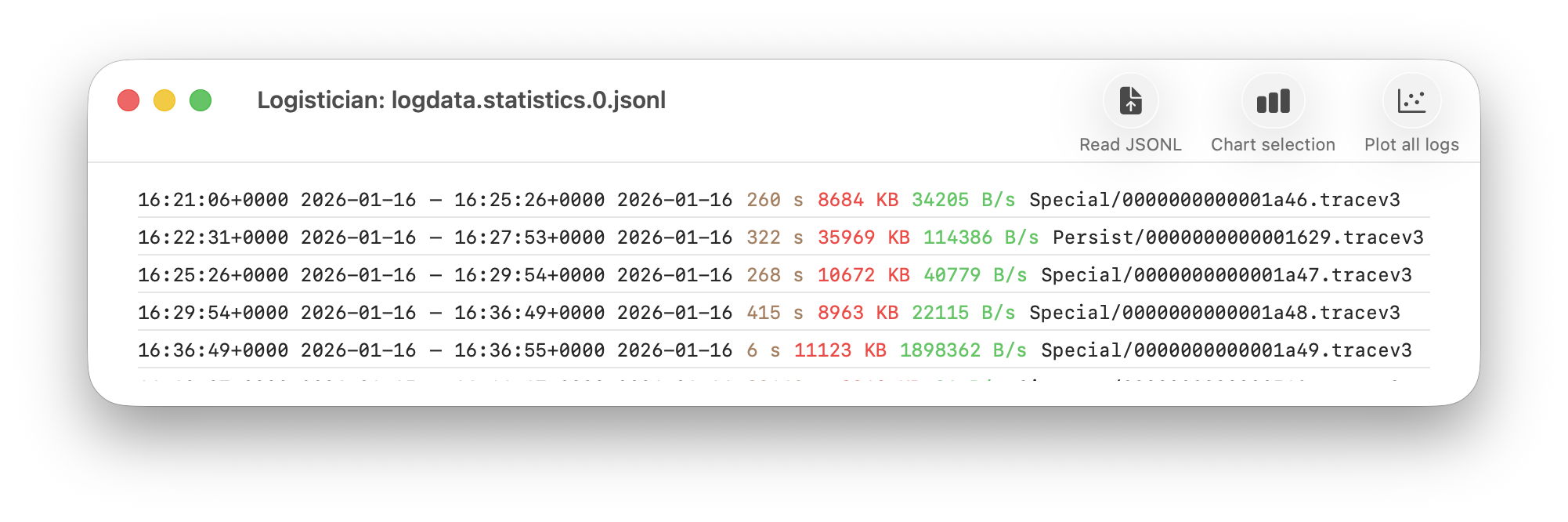
As I showed here a couple of days ago, Logistician opens the JSONL statistics files maintained by logd in /var/db/diagnostics, alongside folders containing the tracev3 log files. The list of those originally gave a minimum of information, and that has been increased to contain:
the start date and time of each file, in addition to the date and time it was closed
the period during which that file had entries added to it, in seconds
the size of log data within the file, in KB
the average rate at which log data was written to that file, in B/s
the path to that file, which reveals whether its type is Persist, Special or Signpost, hence the nature of its contents.
Start date and time are taken from those for the closing of its predecessor, so can’t be given for the first file of each type. They can also span a period during which the Mac was shut down, although that’s usually obvious from the low rate at which log data was written.
Point plot
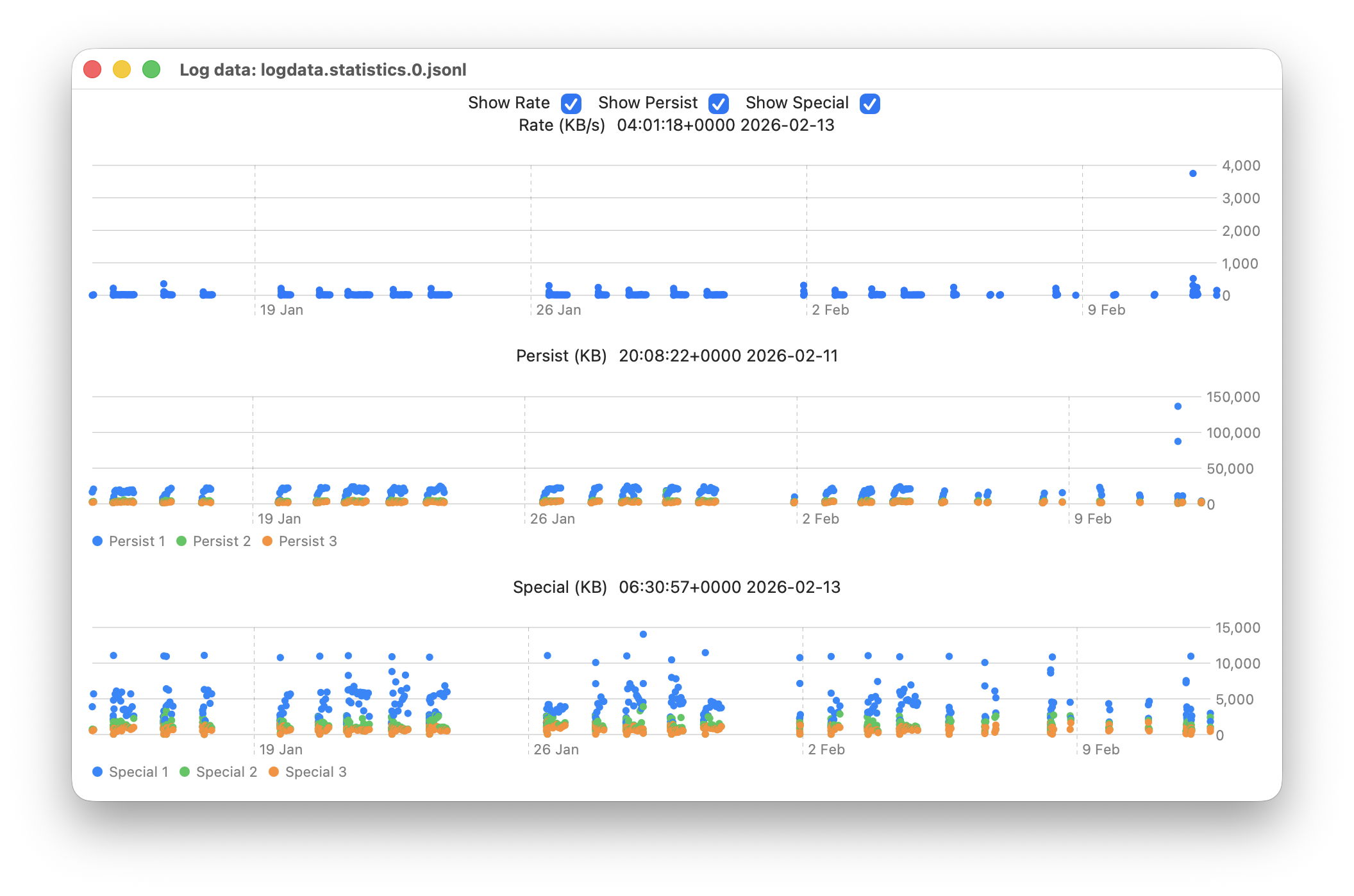
The new window available plots point values for the whole series of log files in the current list.
This displays any of three different plots:
rate of log data written to Persist log files over the period for which log files are listed, in B/s;
amount of log data written to Persist log files over that period, in KB;
amount of log data written to Special log files over that period, in KB.
For the latter two, quantities shown are for the three processes that entered the largest data in that period. I have looked at identifying the processes concerned, but that’s far too complex to do here.
Signpost log files contain special types of entry intended to be used to assess performance, and contribute little to other analyses, so are excluded from these plots. Regular log entries are either saved to Persist or Special types, although it’s unclear as to which entries go to each. Some processes only appear to use one, although the entries for many processes can be saved to either. Although there are similarities in the patterns of Persist and Special files, they also differ in other respects. These three plots appear most suitable when looking for anomalies in the log.
Although these plots make it easy to identify the date of an anomaly such as the high outliers at the far right, for 11 February, they can’t tell you the time of the file you should analyse. For that, Logistician reports the time and date of the location that the pointer is hovering over. Place the pointer over the high rate value, for example, and you’ll see it occurred at about 20:14:00. This helps you identify which of the listed log files has that high peak rate, hence the time period to inspect using LogUI.
Traditionally, the moment you move the pointer from a chart area, hover information like that is removed. If that were done here, it would make it infuriatingly hard to refer to the list of log files. So these dates and times show those at the last moment the pointer was over that point plot. The knack is to hover over the point of interest, then move the pointer off that chart vertically, so as not to alter the time indicated. I’m looking at alternative methods of locking the time shown, to make that easier, but that presents more complex coding challenges, as do methods of zooming in on smaller periods of time.
In case you’re wondering, the overall period covered by these point plots, divided across the two log statistics files maintained, is approximately 6 weeks, as indicated by the X scales shown here.
Logistician version 1.1 is now available for Sonoma and later from here: logistician11a
and will shortly be getting its place in a Product Page and other listings here.
Enjoy!
Update: thanks to Jake for finding a divide by zero bug that could crash Logistician when opening a JSONL file. I have fixed this in build 14, now available above. Please download that and replace copies of the original build 12, so you shouldn’t encounter that crash. My apologies.
Apple has just released an update to XProtect, bringing it to version 5331. As usual, it doesn’t release information about what security issues this update might address.
This version adds two new Yara rules for additional SOMA/AMOS variants, MACOS.SOMA.FEENA and MACOS.SOMA.FEENB, and adds two more OSASCRIPT rules to XPScripts.yr, bringing its total to 19.
You can check whether this update has been installed by opening System Information via About This Mac, and selecting the Installations item under Software.
A full listing of security data file versions is given by SilentKnight and SystHist for El Capitan to Tahoe available from their product page. If your Mac hasn’t yet installed this update, you can force it using SilentKnight or at the command line.
If you want to install this as a named update in SilentKnight, its label is XProtectPlistConfigData_10_15-5331
Sequoia and Tahoe systems only
This update has already been released for Sequoia and Tahoe via iCloud. If you want to check it manually, use the Terminal command sudo xprotect check
then enter your admin password. If that returns version 5331 but your Mac still reports an older version is installed, you should be able to force the update using sudo xprotect update
Finally, for those testing macOS 26.4 beta 2, I am aware that SilentKnight currently crashes on launch, thanks to several of you who have been kind enough to email me. I can’t find an explanation for this in my code, so am hoping it will resolve in beta 3.
Most recently, I have learned of a shocking error in the beta 2 build that may well account for this. If you’re running beta 2, try checking the iBoot version in System Information, and you may be in for a big surprise!
If you don’t know exactly what you’re looking for, and when it happened, the log has been a hostile place. Doom-scrolling through tens of thousands of log entries in the hope of stumbling across a clue is tedious, and the odds have been stacked against you. So last week I’ve been doing something to redress the balance and shorten those odds, and I’m delighted to offer its first version in Logistician. This has nothing to do with logistics, but is all about log statistics.
Alongside folders containing your Mac’s Unified log files, in /var/db/diagnostics, you’ll see files with names starting with logdata.statistics. A couple are text files that only go back a day or two, and others have the extension jsonl. If you were privileged to test some beta-releases of macOS Tahoe, you may have some database files as well, but here it’s those jsonl files I’m concerned with.
Inside them are basic statistical summaries of every log file that’s been saved in your Mac for the last few weeks or months. Even though the original log files have long since been deleted, summaries of their contents are still available in files like logdata.statistics.1.jsonl, and those are opened up by Logistician.
As the files in /var/db/diagnostics are still live, and may be changed as logd does its housekeeping, copy those jsonl files to somewhere in your Home folder, like a folder in ~/Documents. Open Logistician, click on its Read JSONL tool, select one of those copies and open it.
Logistician’s window displays the file’s contents in a list, with the oldest at the top. It gives the date and time that file was saved, just after the last log entry was written to it, its size in KB, whether it was a Persist (regular log), Special (longer supplementary log entries) or Signpost (performance measurements) collection, and the name of the file.
Select one of those file entries and click on the Chart selection tool at the top right to see its data plotted out in the Chart view.
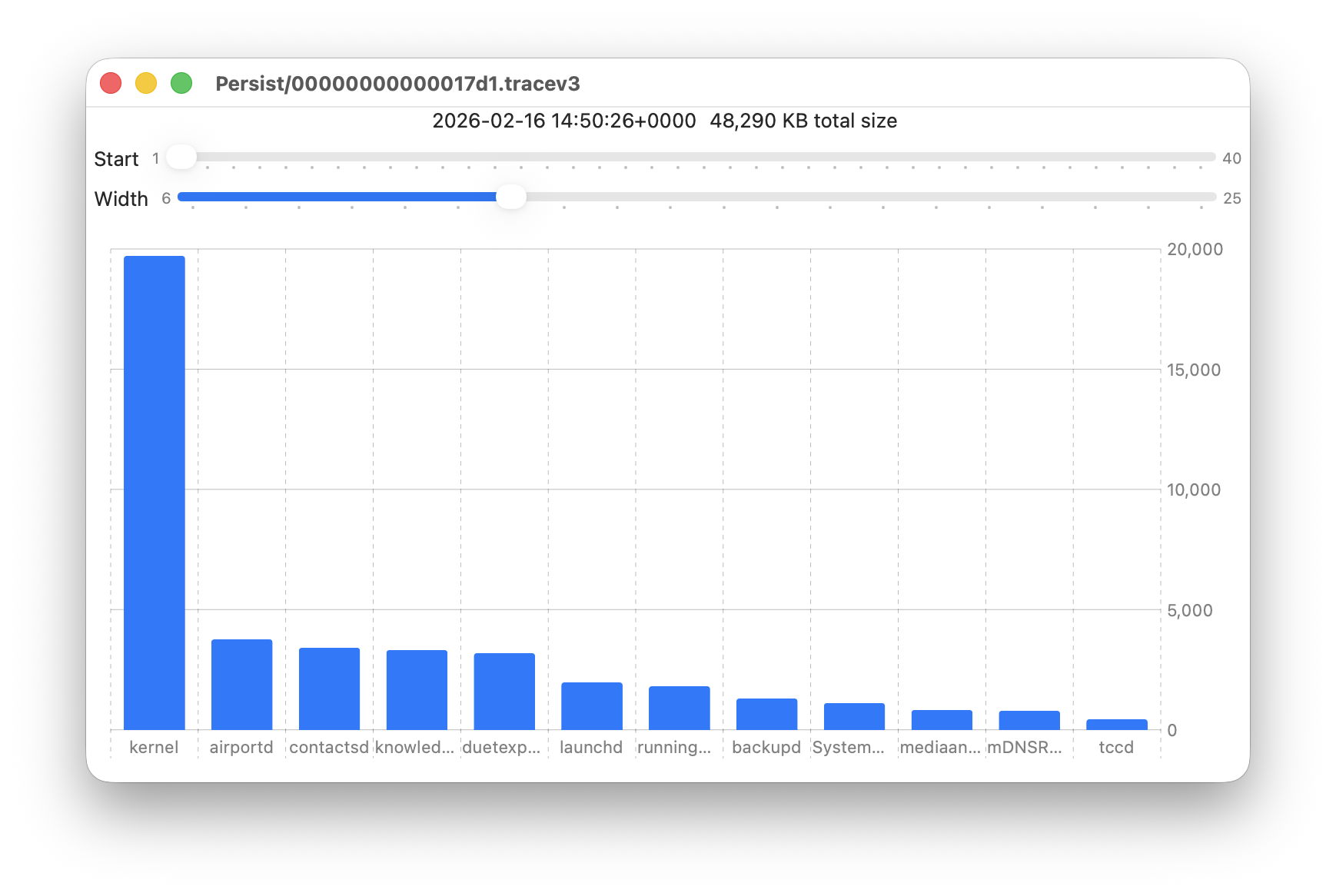
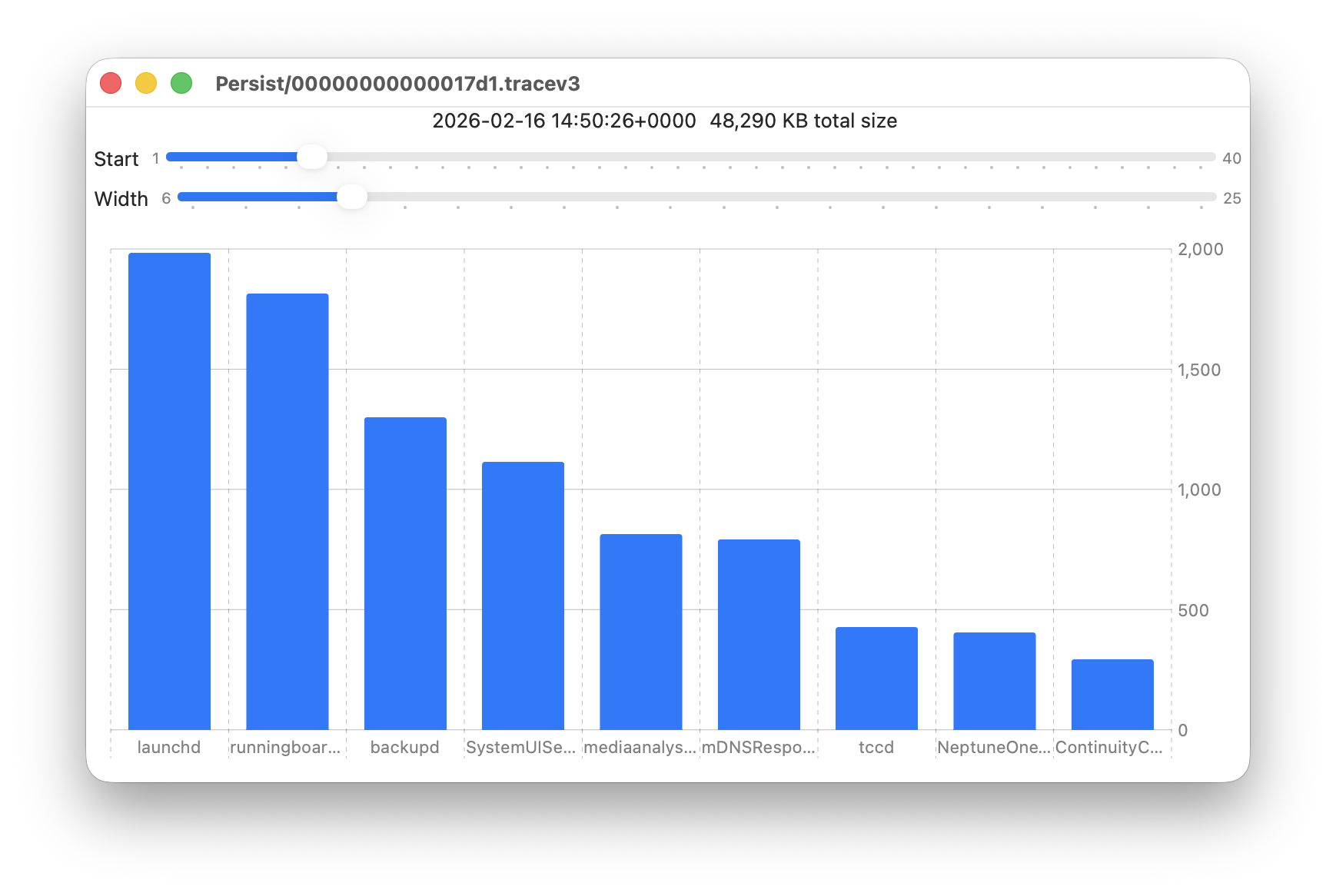
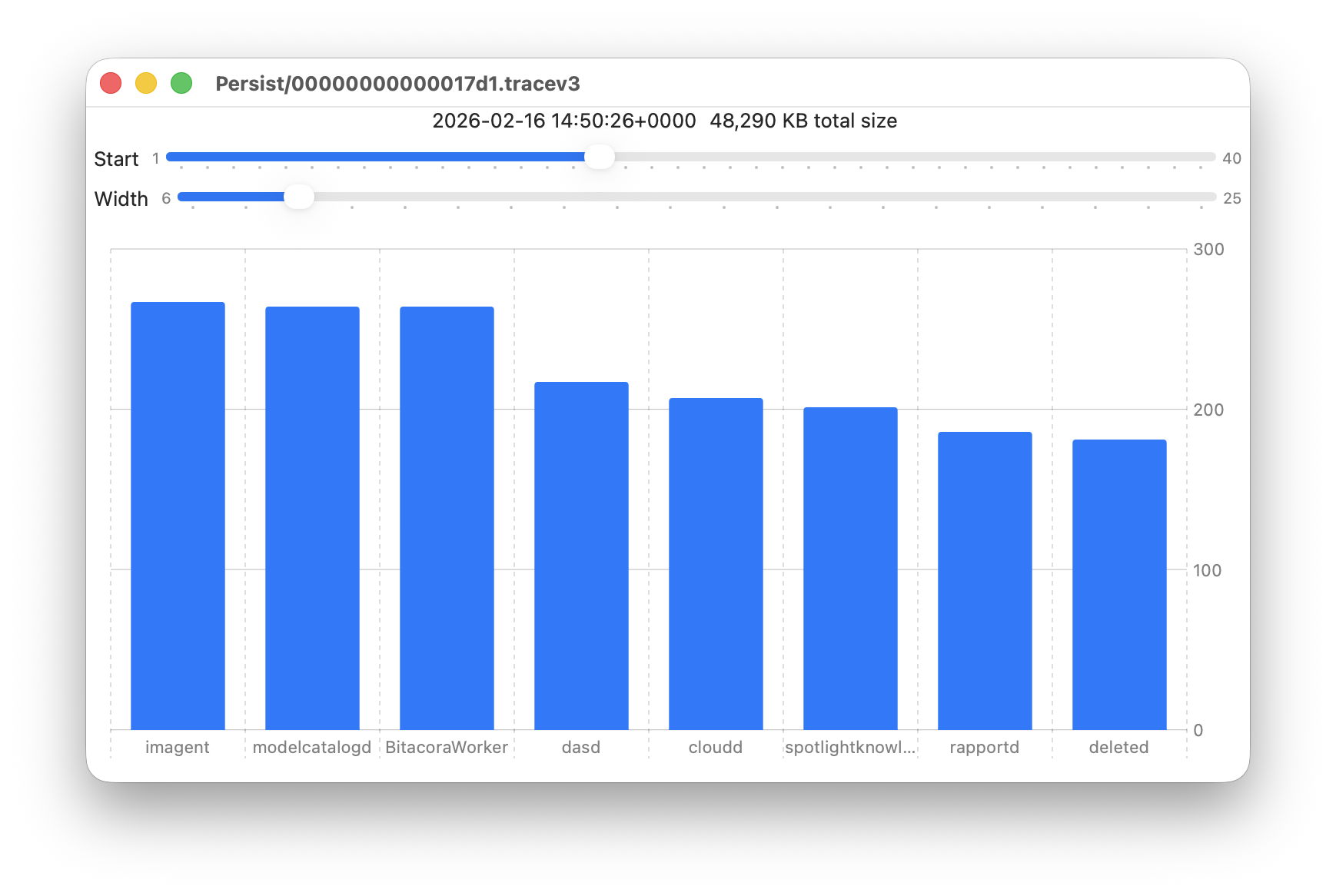
Data provided for each log file listed includes a breakdown of the total size of log entries from that process or subsystem, and Logistician’s Chart view displays those data as a bar chart. The height of each bar represents the total size in KB of log entries made by that process in that specific log file. As there are a 50 bars available, two sliders set the size and location of that window on the data:
Start sets the number of the first bar on the left, beginning at 1 for the greatest size, usually the kernel, and increasing to 40 for a process with very few log entries, just ten from the smallest.
Width sets the number of bars to display, ranging from 6 to 25. The more shown, the harder it is to read the names of processes at the foot of each bar, and the less precisely you can read the size of their log data at the right.
These sliders are set to show 9 bars from number 6 at the left (the sixth highest log data, written by launchd) to number 14 at the right (14th highest, written by ContinuityCaptureAgent). Of interest here are around 400 KB of log entries from NeptuneOneWallpaper.
Here are 8 bars from 17 to 24, with smaller quantities written to the log of around 200 KB each. They include the DAS service dasd and cloudd for iCloud.
It’s easy to flip quickly through a series of log files: click on the next file you want to view in the main list, click on the Chart selection tool and values will be displayed immediately.
Fascinating though that might be, it doesn’t in itself answer many questions. Add a log browser like LogUI, though, and the combination helps you locate and identify unusual activity, problems, and specific events.
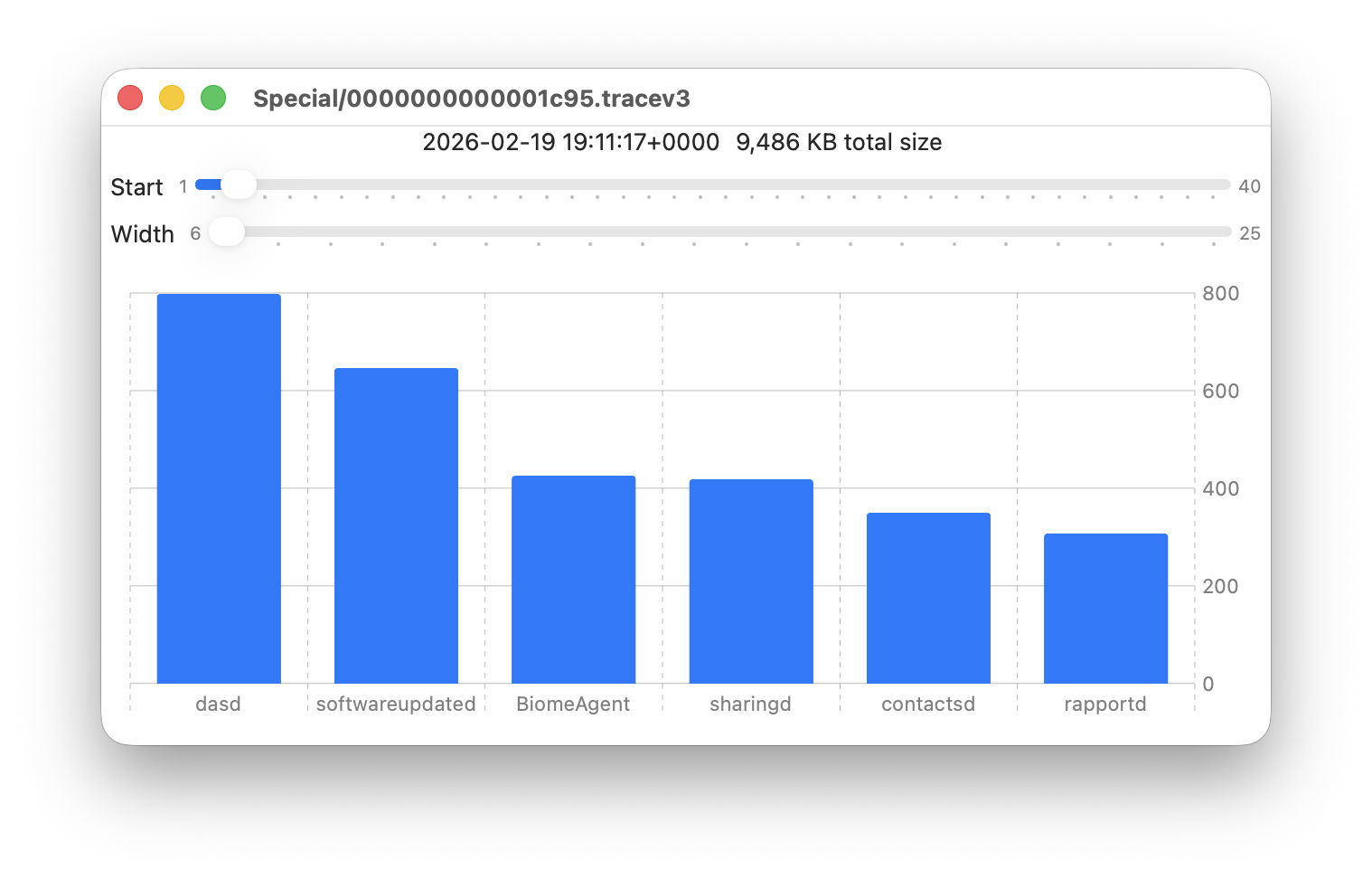
I happened to notice one Special log file that was closed at 19:11:17 on 19 February has high log data from softwareupdated. The previous Special log file was closed at 18:20:04, so somewhere between those times my Mac checked for software updates.
To ensure the full entries were still available in the log, I opened LogUI’s Diagnostics Tool to confirm that its earliest entries were a couple of days earlier.
I then set LogUI to a Start time of 18:20:04 with a Period of 600 seconds, and a Predicate set to a processImagePath of softwareupdated, to look for entries from that process. My first check located all the softwareupdated entries around 18:29:25, when I had apparently run SilentKnight. As a bonus, I discovered from those that SilentKnight was stuck in app translocation, so have been able to fix that (again).
Logistician version 1.0 build 7 for macOS Sonoma and later is now available from here: logistician106
I will add it to other pages here when I’m more confident that this initial version is stable and does what it claims in its detailed Help book.
Apple has just released updates to XProtect for all supported versions of macOS, bringing it to version 5330, and to XProtect Remediator for all macOS from Catalina onwards, to version 157. As usual, Apple doesn’t release information about what security issues these updates might add or change.
Yara definitions in this version of XProtect add two new detection rules for MACOS.BONZAI.RECO and MACOS.BONZAI.FAGOBNCO. The XPScripts.yr scripting rules make several amendments to the criteria for MACOS.OSASCRIPT.DUST.
XProtect Remediator doesn’t change the list of scanner modules.
The Bastion rules appear to correct a group of typos in the definition for bastion-common-system-binary, but don’t have any other changes.
You can check whether these updates have been installed by opening System Information via About This Mac, and selecting the Installations item under Software.
A full listing of security data file versions is given by SilentKnight and SystHist for El Capitan to Tahoe available from their product page. If your Mac hasn’t yet installed this update, you can force it using SilentKnight or at the command line.
If you want to install these as named updates in SilentKnight, their labels are XProtectPayloads_10_15-157 and XProtectPlistConfigData_10_15-5330.
Sequoia and Tahoe systems only
This XProtect update has now been released for Sequoia and Tahoe via iCloud. If you want to check it manually, use the Terminal command sudo xprotect check
then enter your admin password. If that returns version 5330 but your Mac still reports an older version is installed, you should be able to force the update using sudo xprotect update
For once, Apple’s bland statement that “this update provides important bug fixes and security updates” may be the best overview of what has changed in macOS Tahoe 26.3. There are few version changes that stand out, but a lot of smallish build increments that suggest some bugs, at least, have been fixed.
Security is another matter, with around 52 vulnerabilities addressed and listed here. Those include one that Apple reports has been exploited in a sophisticated attack against an older version of iOS. For that alone, this update is compelling if you’ve already upgraded to Tahoe.
There are three entries in Apple’s release notes for enterprise, although none should affect those outside enterprise environments.
What Apple doesn’t reveal is that it has improved, if not fixed, the shortcomings in Accessibility’s Reduced Transparency setting. When that’s enabled, at least some of the visual mess resulting from Liquid Glass, for example in the Search box in System Settings, is now cleaned up, as the sidebar header is now opaque. It’s a small step, but does address one of the most glaring faults in 26.2.
The build number of the release version of 26.3 is 25D125. There are firmware updates all round, bringing iBoot to 13822.81.10, and Intel T2 firmware to 2094.80.5.0.0 with iBridge 23.16.13120.0.0,0.
Significant version increments in bundled applications include:
Freeform from 4.2 (630.61.2) to 4.3 (630.81.1)
Music from 1.6.2 to 1.6.3
Passwords from 2.2 (21623.1.14.11.9) to 2.3 (21623.2.7.11.6)
Safari from 26.2 (21623.1.14.11.9) to 26.3 (21623.2.7.11.6)
TV from 1.6.2 to 1.6.3.
Significant changes seen in /System/Library include:
PosterBoard app has been removed from CoreServices
Kernel extensions in the AGX family have substantial changes in build numbers
AppleT6022CLPCServer has been added as a new kext
There are two new kexts to support Thunderbolt, AppleThunderboltUSBType2DownAdapter and AppleThunderboltUSBType2UpAdapter, perhaps to support new hardware features in future M5 models?
APFS from version 2632.40.17 to 2632.80.1
MPSHost, a new framework for Metal performance shaders, has been added
New private frameworks include BinaryAssetTag
Spotlight mdimporters updated to new build numbers include Application, Automator, CoreMedia and Mail, but not RichText.
I look forward to hearing of any fixes or improvements you find.
Postscript:
I’m grateful to @Remo_Pr0 for drawing my attention to the fact that the updated version of OpenSSH included writes a scary warning about post-quantum key exchange algorithms when a connection is made to a system that doesn’t support post-quantum methods.
Apple has released updates to macOS, to bring Tahoe to version 26.3, and security updates for Sequoia to version 15.7.4, and Sonoma to 14.8.4.
The Tahoe update downloads in around 3.7 GB for an Apple silicon Mac, and 2.5 GB for an Intel Mac.
Apple seems to have forgotten what 26.3 fixes or improves, writing just “this update provides important bug fixes and security updates”.
Security release notes for Tahoe 26.3 are here, and list around 52 vulnerabilities addressed, including one that has been previously used in an attack on iOS. Sequoia 15.7.4 has about 30 fixes listed here, and Sonoma 14.8.4 has about 36 listed here.
The build number of 26.3 is 25D125, and iBoot firmware is updated to version 13822.81.10. Safari is version 26.3 (21623.2.7.11.6).
I’ll update this post with further information as I get it. and will later provide details of significant changes in version numbers.
Apple has just released an update to XProtect, bringing it to version 5327. As usual, it doesn’t release information about what security issues this update might address.
This version makes no change to the main Yara rules. However, the recent XPScripts.yr file has been extensively revised, and appears to have come of age. This uses a new private rule OSACompiled, and adds 12 new OSASCRIPT rules to make a total of 14.
You can check whether this update has been installed by opening System Information via About This Mac, and selecting the Installations item under Software.
A full listing of security data file versions is given by SilentKnight and SystHist for El Capitan to Tahoe available from their product page. If your Mac hasn’t yet installed this update, you can force it using SilentKnight or at the command line.
If you want to install this as a named update in SilentKnight, its label is XProtectPlistConfigData_10_15-5327
Sequoia and Tahoe systems only
This update has now been released for Sequoia and Tahoe via iCloud. If you want to check it manually, use the Terminal command sudo xprotect check
then enter your admin password. If that returns version 5327 but your Mac still reports an older version is installed, you should be able to force the update using sudo xprotect update
Apple has just released an update to XProtect, bringing it to version 5326. As usual, it doesn’t release information about what security issues this update might add or change.
This version adds 15 new Yara rules, for MACOS.ADLOAD.BL, MACOS.COMPLIANTPIRATE.A, MACOS.COMPLIANTPIRATE.B, MACOS.SOMA.DECLA, MACOS.SOMA.DECLB, MACOS.SOMA.BRLA, MACOS.SOMA.CROPA, MACOS.SOMA.PTRA, MACOS.SOMA.CSELA, MACOS.SOMA.CSELB, MACOS.SOMA.SCKA, MACOS.SOMA.JAENA, MACOS.SOMA.JAPEENA, MACOS.SOMA.JAPEENB, and MACOS.SOMA.GOBAJAA. Most of those are for variants of the SOMA/AMOS family of stealers. There are no changes to the recent Yara scripts file, though.
You can check whether this update has been installed by opening System Information via About This Mac, and selecting the Installations item under Software.
A full listing of security data file versions is given by SilentKnight and SystHist for El Capitan to Tahoe available from their product page. If your Mac hasn’t yet installed this update, you can force it using SilentKnight or at the command line.
If you want to install this as a named update in SilentKnight, its label is XProtectPlistConfigData_10_15-5326
Sequoia and Tahoe systems only
This update has already been released for Sequoia and Tahoe via iCloud, to replace version 5324 at last. If you want to check it manually, use the Terminal command sudo xprotect check
then enter your admin password. If that returns version 5326 but your Mac still reports an older version is installed, you should be able to force the update using sudo xprotect update
If you have been trying to use my free utility Providable on a non-English system and have been unable to get it to list apps installed there, you will want to download and use this new version 1.2, which should address that problem.
It’s available from here: providable12 and will shortly be getting its own place in a Product Page, and in Downloads above.
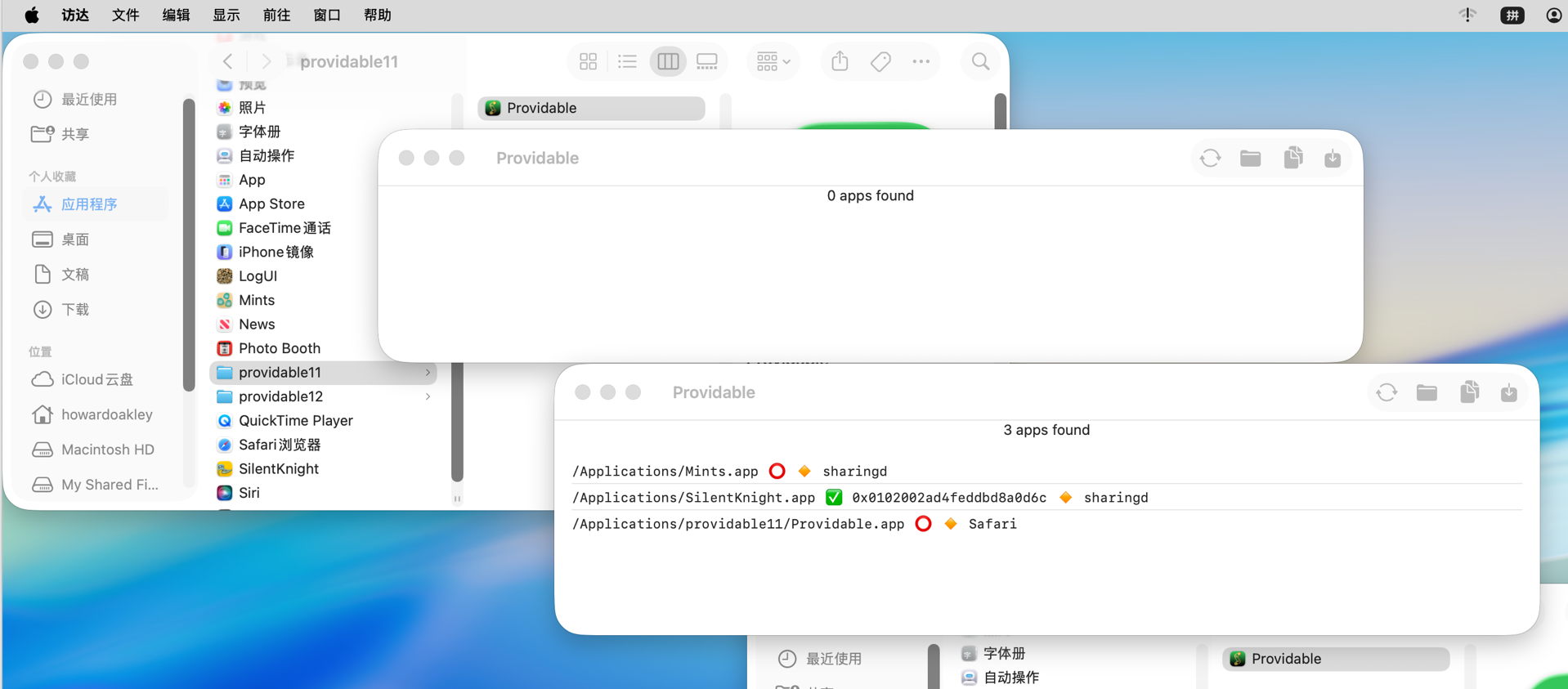
Just to demonstrate that Providable 1.2 does list apps correctly in non-English systems, here’s a screenshot of version 1.1 in the upper left showing no apps found, and 1.2 in the lower right with the three apps it should have identified. That’s in Tahoe 26.2 with Chinese set as the primary language.
The rest of this article explains why previous versions failed to list installed apps on non-English systems, why that has more general significance, and how it’s bad behaviour.
Listing apps
It’s curiously difficult to obtain a comprehensive list of apps installed on a Mac. If you look at proposed solutions, many involve iterating through popular locations such as Applications folders, or other time-consuming schemes. This turns out to be duplicated effort, as Spotlight already does that when indexing, and provides indexes you can search far more quickly.
The common recommendation is to use the mdfind command in the form mdfind "kMDItemKind == 'Application'" which should find all items that Spotlight has indexed as being of the kind Application. There’s an equivalent available in the Finder’s Find window that demonstrates how well this can work.
As Apple doesn’t appear to explain any further about how Spotlight classifies items into these ‘kinds’, it’s reasonable to assume they are categories with standard names, although that proves to be incorrect when you try the same on a non-English system. You then realise that a ‘kind’ is just an arbitrary string that may be localised. Run that command in macOS localised to Chinese, and you won’t find any Application at all, and when localised to Italian you’ll need to use Applicazione instead.
The textbook solution to localisation problems like this is to provide a set of localised strings, and to pick the correct one depending on the current localisation setting. That may work when you have specialist teams, and can achieve comprehensive cover of all the possibilities, but here it’s impractical, as it would be when writing a script that uses that search command. It’s much better to cheat.
The most obvious way around this is to use a criterion that’s localisation-invariant such as a UTI. You can then search for .app bundles with the UTI of com.apple.application-bundle. I was disappointed to discover that too isn’t as simple as it could be, as UTIs are available in kMDItemContentType, but according to current documentation that returns a complete UTI ‘pedigree’, for an app something like com.apple.application-bundle/com.apple.application/com.apple.localizable-name-bundle/com.apple.package. That may not be correct, though, as using mdls to list metadata shows that the full pedigree is given in kMDItemContentTypeTree rather than kMDItemContentType.
Preparing for both cases, the correct search command should then be mdfind "kMDItemContentType == 'com.apple.application-bundle*'"
And that is exactly what Providable 1.2 does now.
Does Spotlight reindex when changing localisation?
My next question is what Spotlight actually indexes for kMDItemKind: is the string localised or not? As we don’t have direct access to those indexes, the closest we can come to inspecting them is by dumping metadata using mdls. Using Italian and English as my examples, when running with English as the primary language, kMDItemKind for an app is given as Application, but with Italian primary, it’s given as Applicazione instead.
This is the only metadata that appears localisation-dependent in this way, so either mdls is lying by returning a localised string, or Spotlight is rebuilding its index for kMDItemKind when the primary language changes. Neither behaviour is documented or expected.
Localisation overreach
This isn’t the first time that I’ve run into problems with localisation in command tools. If you use SilentKnight on Apple silicon Macs running non-English systems, you’ll be only too aware of my previous and apparently insoluble issue, where a major command tool can only return strings in localised form, effectively making their interpretation impossible. In that case it’s one of the many modules in system_profiler, returning key information about an Apple silicon Mac’s security status that isn’t readily available anywhere else.
Localisation is wonderful, and vital for many of us using macOS, but in some cases is now being applied too early. I wonder how anyone scripting with mdfind can possibly make use of kMDItemKind across different localisations. If its kinds were drawn from a set of non-localised strings, there would be no such problems. It makes good sense to localise the strings used in its GUI equivalent, but not for the command tool.
There are many examples of where localisation doesn’t take place, for example in UTIs, and in filename extensions. Can you imagine the consequences of localising the latter?
I’m very grateful to Hill-98 for helping me uncover these problems.

 Login
Login