Apple has just released its regular weekly update to XProtect, bringing it to version 5336. As usual it doesn’t release information about what security issues this update might address.
This version adds two new rules for MACOS.WANNABEWALLABY.IMA and MACOS.WANNABEWALLABY.STA, amends rules for MACOS.TIMELYTURTLE.DYHEOC, MACOS.SOMA.MAENA, and MACOS.SOMA.MAENB, and changes some rule UUIDs. In the Osascript rules in XPScripts.yr, it amends the rule for MACOS.OSASCRIPT.SYPR.
You can check whether this update has been installed by opening System Information via About This Mac, and selecting the Installations item under Software.
A full listing of security data file versions is given by SilentKnight and SystHist for El Capitan to Tahoe available from their product page. If your Mac hasn’t yet installed this update, you can force it using SilentKnight or at the command line.
If you want to install this as a named update in SilentKnight, its label is XProtectPlistConfigData_10_15-5336
Sequoia and Tahoe systems only
This update hasn’t yet been released for Sequoia and Tahoe via iCloud. If you want to check it manually, use the Terminal command sudo xprotect check
then enter your admin password. If that returns version 5336 but your Mac still reports an older version is installed, you should be able to force the update using sudo xprotect update
Apple has just released its regular weekly update to XProtect, bringing it to version 5335. As usual it doesn’t release information about what security issues this update might address.
This version adds two new Yara rules for MACOS.TIMELYTURTLE.OBDR and MACOS.SOMA.MAENB, and amends the existing rule for MACOS.SOMA.BYTE.SEQUENCE.B. In the Osascript rules in XPScripts.yr, it relocates those for TABUPA, REBUPA, DUVAST, DUCUHA and DUSTCO.
You can check whether this update has been installed by opening System Information via About This Mac, and selecting the Installations item under Software.
A full listing of security data file versions is given by SilentKnight and SystHist for El Capitan to Tahoe available from their product page. If your Mac hasn’t yet installed this update, you can force it using SilentKnight or at the command line.
If you want to install this as a named update in SilentKnight, its label is XProtectPlistConfigData_10_15-5335
Sequoia and Tahoe systems only
This update has already been released for Sequoia and Tahoe via iCloud. If you want to check it manually, use the Terminal command sudo xprotect check
then enter your admin password. If that returns version 5335 but your Mac still reports an older version is installed, you should be able to force the update using sudo xprotect update
Apple has just released its regular weekly update to XProtect, bringing it to version 5334. As usual it doesn’t release information about what security issues this update might address.
This version makes no changes to its main Yara rules. Changes to the OSASCRIPT rules in XPScripts.yr include amendments to more than a dozen of them, and two new rules are added for MACOS.OSASCRIPT.GEPEPA and MACOS.OSASCRIPT.TAPEPA. Several rules that previously added the property wide to their text now have wide ascii instead.
You can check whether this update has been installed by opening System Information via About This Mac, and selecting the Installations item under Software.
A full listing of security data file versions is given by SilentKnight and SystHist for El Capitan to Tahoe available from their product page. If your Mac hasn’t yet installed this update, you can force it using SilentKnight or at the command line.
If you want to install this as a named update in SilentKnight, its label is XProtectPlistConfigData_10_15-5334
Sequoia and Tahoe systems only
This update has now been released for Sequoia and Tahoe via iCloud. If you want to check it manually, use the Terminal command sudo xprotect check
then enter your admin password. If that returns version 5334 but your Mac still reports an older version is installed, you should be able to force the update using sudo xprotect update
Apple has just released its regular weekly update to XProtect, bringing it to version 5333. As usual it doesn’t release information about what security issues this update might address.
This version changes the rules named InstallImitatorC to XProtect_MACOS_INSTALLIMITATOR_C, XProtect_snowdrift to XProtect_MACOS_SNOWDRIFT, and XProtect_MACOS_ADLOAD_INTRIN to XProtect_MACOS_ADLOAD_IN, and adds one new Yara rule for MACOS.SOMA.MAENA.
Changes to the OSASCRIPT rules in XPScripts.yr include the amendment of 9 existing rules by adding the property wide to their text, and the addition of one new rule for MACOS.OSASCRIPT.TABUPA.
You can check whether this update has been installed by opening System Information via About This Mac, and selecting the Installations item under Software.
A full listing of security data file versions is given by SilentKnight and SystHist for El Capitan to Tahoe available from their product page. If your Mac hasn’t yet installed this update, you can force it using SilentKnight or at the command line.
If you want to install this as a named update in SilentKnight, its label is XProtectPlistConfigData_10_15-5333
Sequoia and Tahoe systems only
This update has now been released for Sequoia and Tahoe via iCloud. If you want to check it manually, use the Terminal command sudo xprotect check
then enter your admin password. If that returns version 5333 but your Mac still reports an older version is installed, you should be able to force the update using sudo xprotect update
Not too long ago, macOS usually only checked for system software updates once a day. If your Mac’s routines didn’t coincide with Apple’s release of updates, they might arrive a day or two late, and sometimes they were left a lot longer. When I started writing this blog over 11 years ago, one of my goals was to spread information about those updates, so we could all have confidence that our Macs were as well protected as possible and got bugs fixed promptly. In those days, those mostly involved vulnerabilities in Java and Adobe Flash Player.
At first, this was all about what Apple has always been worst at, communicating. In spite of the unsung efforts of its engineers, Apple has chosen to remain as silent as possible about bugs and security. The only time I’m aware that its silence was broken was back in July 2019, when it released an update to its Malware Removal Tool MRT to remove a hidden web server installed by Zoom’s installer, and even then the information was passed on furtively.
Just before Christmas 2016, I released the first version of LockRattler to check and report on security systems, among them the installed version of XProtect. That was widened to include firmware version checks in EFIcientC in July 2019, which quickly turned into SilentKnight.
SilentKnight, and its more basic cousin Skint, compare versions of security data installed on your Mac with lists of those current, a simple task until you realise that Apple doesn’t provide any list of current versions of XProtect and others, nor of Mac firmware. Instead of being able to check with Apple, SilentKnight has to look these up in databases that I maintain on my Github.
For example, the most active of those is XProtect, currently updated most weeks. I keep a watch on the availability of its updates using the same tools that you have: SilentKnight, and the xprotect command in Terminal. Rather than running them once a day, I do this whenever I suspect an update is imminent. Some days I only check once, just to be sure a surprise update hasn’t appeared, but when I think we’re due for an update, I may run them every hour or more frequently.
When SilentKnight strikes gold, I first install the update here, and analyse what it changes. This is straightforward for XProtect, which holds its content in five files in the Resources folder inside its bundle. Using BBEdit, I compare the contents of the update with the previous version, and summarise those. This is a little more complex with XProtect Remediator, as that not only contains executable binary scanning modules, but a set of Bastion rules used by the Behavioural XProtect.
Since the release of macOS Tahoe, XProtect has been installed in two locations, the newer of which is updated separately over an iCloud connection, so I now have to check the version available from there.
Once I know that new version is available, I update the skint1 and sysupdates property lists on Github, so your SilentKnight and Skint will know about the update when they next check. I then put together an article announcing the update with the details of what has changed, post it here, and announce that on X (formerly Twitter).
The last step is to add that information to the list of updates on SilentKnight’s product page, and my main page listing all updates, and update version numbers in separate pages for those still using LockRattler, which can’t check my databases.
How quickly that all happens depends on how quickly I can identify the update, and when I can download and analyse it. If Apple releases the update after I have gone to bed, I’m afraid I won’t be able to do that until the following morning, as happened earlier this week. But if you thought my system was run automatically from some database maintained by Apple, I’m afraid that’s not the case, as it’s all down to SilentKnight and me.
If your Mac installs an update before I have updated my databases, SilentKnight will inevitably expect your Mac still to be using the older version, as that’s what’s listed in the database. When it discovers that it’s using a newer version, it will report that as an error. Please bear with it, as I shouldn’t take long to install and analyse the update, and correct the version number in the database.
Checking firmware versions and updates is more complicated again, as I have to maintain separate lists of the latest versions for each model. You can see those in my Github as well.
Is it worth all this effort? If you want to ensure that your Mac is running the current version of its security data such as XProtect, I don’t know of any alternative. If you know, then please tell me, as it could save me and SilentKnight a lot of effort.
Finally, my Github data is open to all. If you want to use it in your own tools, then feel free. However, if you intend using it commercially, thus to make money from my labour, please discuss it with me first.
Overnight, Apple released an update to XProtect, bringing it to version 5332. As usual, it doesn’t release information about what security issues this update might address.
This version adds one new Yara rule for MACOS.OSB and makes no changes to the OSASCRIPT rules in XPScripts.yr.
You can check whether this update has been installed by opening System Information via About This Mac, and selecting the Installations item under Software.
A full listing of security data file versions is given by SilentKnight and SystHist for El Capitan to Tahoe available from their product page. If your Mac hasn’t yet installed this update, you can force it using SilentKnight or at the command line.
If you want to install this as a named update in SilentKnight, its label is XProtectPlistConfigData_10_15-5332
Sequoia and Tahoe systems only
This update has already been released for Sequoia and Tahoe via iCloud. If you want to check it manually, use the Terminal command sudo xprotect check
then enter your admin password. If that returns version 5332 but your Mac still reports an older version is installed, you should be able to force the update using sudo xprotect update
Last week Apple released the second beta of macOS 26.4 to developers, and almost immediately I was receiving reports that SilentKnight crashed on launch in that new beta. Given how unusual that has been in previous versions, I was grateful to hear so quickly, and for so many of you to provide crash reports. As usual they don’t point to anything specific, but led me to wonder whether something might have broken in AppKit in that beta.
But there’s a strange observation reported by SilentKnight’s old predecessor LockRattler, which continues to work normally in 26.4 beta 2: that reports a bizarre iBoot firmware version number from Apple silicon Macs. Instead of a number like 13822.101.2 that I might have expected, LockRattler gives “mBoot-18000.100.10.0.1”, which is random nonsense. Yet it’s listed in a mammoth compilation of iBoot version numbers in the Apple Wiki as an occasional fault.
“mBoot-18000.100.10.0.1” is a problem for SilentKnight, as it tries to make comparisons between firmware version numbers to see whether that installed in your Mac is older or more recent that the version number it expects. If it didn’t do that, every beta-tester would be driven crazy by its persistent reports that their Mac’s firmware is out of date, when in fact it’s that for the next version.
Comparing numbers is of course simple, but I’ve been unable to find anywhere in the API that returns numbers for firmware versions. Wherever they’re available, they’re reported as strings of arbitrary characters, leaving SilentKnight the task of recovering three integers (in the case of iBoot) from what in this case turns out to be rubbish. This is further complicated by the fact that different architectures return strings with different structures: for plain Intel Macs, they should look like “2094.80.5.0.0”, those with T2 chips extend to “2094.80.5.0.0 (23.16.13120.0.0,0)”, and Apple silicon is simpler again with “13822.81.10”. What could have been a simple task is turned into lots of additional code.
It also raises the question of how any beta-release could be put in the hands of external testers when it can’t even report its firmware version correctly. Most of us draw clear distinctions between alpha and beta releases, and this strongly suggests that Apple doesn’t undertake any purposeful alpha testing before release as a beta. Either that or it’s well aware of significant bugs that it doesn’t inform beta-testers about. I fear the answer could be both, and I’m wondering whether trying to make sense of reported firmware versions is too fraught to be reliable.
My main use of SilentKnight here is to check for updates released for the security tools in macOS, primarily XProtect and XProtect Remediator. You may recall that Apple’s last update to XProtect Remediator on 17 February, bringing it to version 157, contained a strange change, which I reported as “the Bastion rules appear to correct a group of typos in the definition for bastion-common-system-binary”.
There were six typos in all, in a definition for bastion-common-system-binary introduced back in version 153 six months ago, on 5 August last year. I shouldn’t need to point out the errors in the original definition: (define bastion-common-system-binary
(require-all
(process-attribute is-platform-binary)
(require-not
(require-any
(signing-identifier "com.apple.osascript")
(signing-identifier "com.apple.zsh")
(signing-identifier "com.apple.bash")
(signing-identifier "com.apple.sh")
(signing-identifier "com.apple.ksh")
(signing-identifier "com.apple.osacompile")
(signing-identifier "com.apple.python2")
(signing-identifier "python3")
(signing-identifier "ccom.apple.pbcopy")
(signing-identifier "ccom.apple.pbpaste")
(signing-identifier "ccom.apple.cat")
(signing-identifier "ccom.apple.curl")
(signing-identifier "ccom.apple.dd")
(signing-identifier "ccom.apple.cp")
(signing-identifier "com.apple.perl")))))
Instead of “ccom.apple.pbcopy”, it should of course have read “com.apple.pbcopy”, and the same for the other five signing-identifiers below that.
I’m delighted that Arnaud Abbati has explained eloquently the consequences of those typos in a wonderful article in his blog. I won’t steal his thunder here, but agree with his conclusion: “Six months of security updates, and nobody noticed. It missed engineering. It missed testing. It missed code review. It missed QA. It missed whatever metrics pipeline is supposed to validate that the rules actually match real binaries.”
There are times when I wonder what really does go on in Apple. When it releases a beta that can’t even tell what its firmware version is, and its security intelligence tool is broken for six months because of obvious typos, it does make you wonder.
Apple has just released an update to XProtect, bringing it to version 5331. As usual, it doesn’t release information about what security issues this update might address.
This version adds two new Yara rules for additional SOMA/AMOS variants, MACOS.SOMA.FEENA and MACOS.SOMA.FEENB, and adds two more OSASCRIPT rules to XPScripts.yr, bringing its total to 19.
You can check whether this update has been installed by opening System Information via About This Mac, and selecting the Installations item under Software.
A full listing of security data file versions is given by SilentKnight and SystHist for El Capitan to Tahoe available from their product page. If your Mac hasn’t yet installed this update, you can force it using SilentKnight or at the command line.
If you want to install this as a named update in SilentKnight, its label is XProtectPlistConfigData_10_15-5331
Sequoia and Tahoe systems only
This update has already been released for Sequoia and Tahoe via iCloud. If you want to check it manually, use the Terminal command sudo xprotect check
then enter your admin password. If that returns version 5331 but your Mac still reports an older version is installed, you should be able to force the update using sudo xprotect update
Finally, for those testing macOS 26.4 beta 2, I am aware that SilentKnight currently crashes on launch, thanks to several of you who have been kind enough to email me. I can’t find an explanation for this in my code, so am hoping it will resolve in beta 3.
Most recently, I have learned of a shocking error in the beta 2 build that may well account for this. If you’re running beta 2, try checking the iBoot version in System Information, and you may be in for a big surprise!
Apple has just released updates to XProtect for all supported versions of macOS, bringing it to version 5330, and to XProtect Remediator for all macOS from Catalina onwards, to version 157. As usual, Apple doesn’t release information about what security issues these updates might add or change.
Yara definitions in this version of XProtect add two new detection rules for MACOS.BONZAI.RECO and MACOS.BONZAI.FAGOBNCO. The XPScripts.yr scripting rules make several amendments to the criteria for MACOS.OSASCRIPT.DUST.
XProtect Remediator doesn’t change the list of scanner modules.
The Bastion rules appear to correct a group of typos in the definition for bastion-common-system-binary, but don’t have any other changes.
You can check whether these updates have been installed by opening System Information via About This Mac, and selecting the Installations item under Software.
A full listing of security data file versions is given by SilentKnight and SystHist for El Capitan to Tahoe available from their product page. If your Mac hasn’t yet installed this update, you can force it using SilentKnight or at the command line.
If you want to install these as named updates in SilentKnight, their labels are XProtectPayloads_10_15-157 and XProtectPlistConfigData_10_15-5330.
Sequoia and Tahoe systems only
This XProtect update has now been released for Sequoia and Tahoe via iCloud. If you want to check it manually, use the Terminal command sudo xprotect check
then enter your admin password. If that returns version 5330 but your Mac still reports an older version is installed, you should be able to force the update using sudo xprotect update
Among the other activities you may see shortly after you’ve logged in to macOS Tahoe are a check for system software updates available from Apple’s servers, an initial Time Machine backup, and sometimes a set of XProtect Remediator scans. This article explains how those are dispatched by Duet Activity Scheduler and Centralised Task Scheduling, the DAS-CTS system.
DAS
Shortly after user login, DAS starts gathering its budgets enabling it to score activities, including thermal policies, shared memory and energy. It then loads saved activities by group, and solicits activities for resubmission and inclusion in its lists to be dispatched and run. It then periodically evaluates the activities in those lists, to determine which should and should not be run at that time.
In the early minutes after login, it may only have around 126 candidates in its lists, some of which it identifies as ‘passengers’, and doesn’t evaluate for the time being. For those activities it does evaluate, it arrives at a score between 0 and 1, and decides which it should dispatch next.
SoftwareUpdate
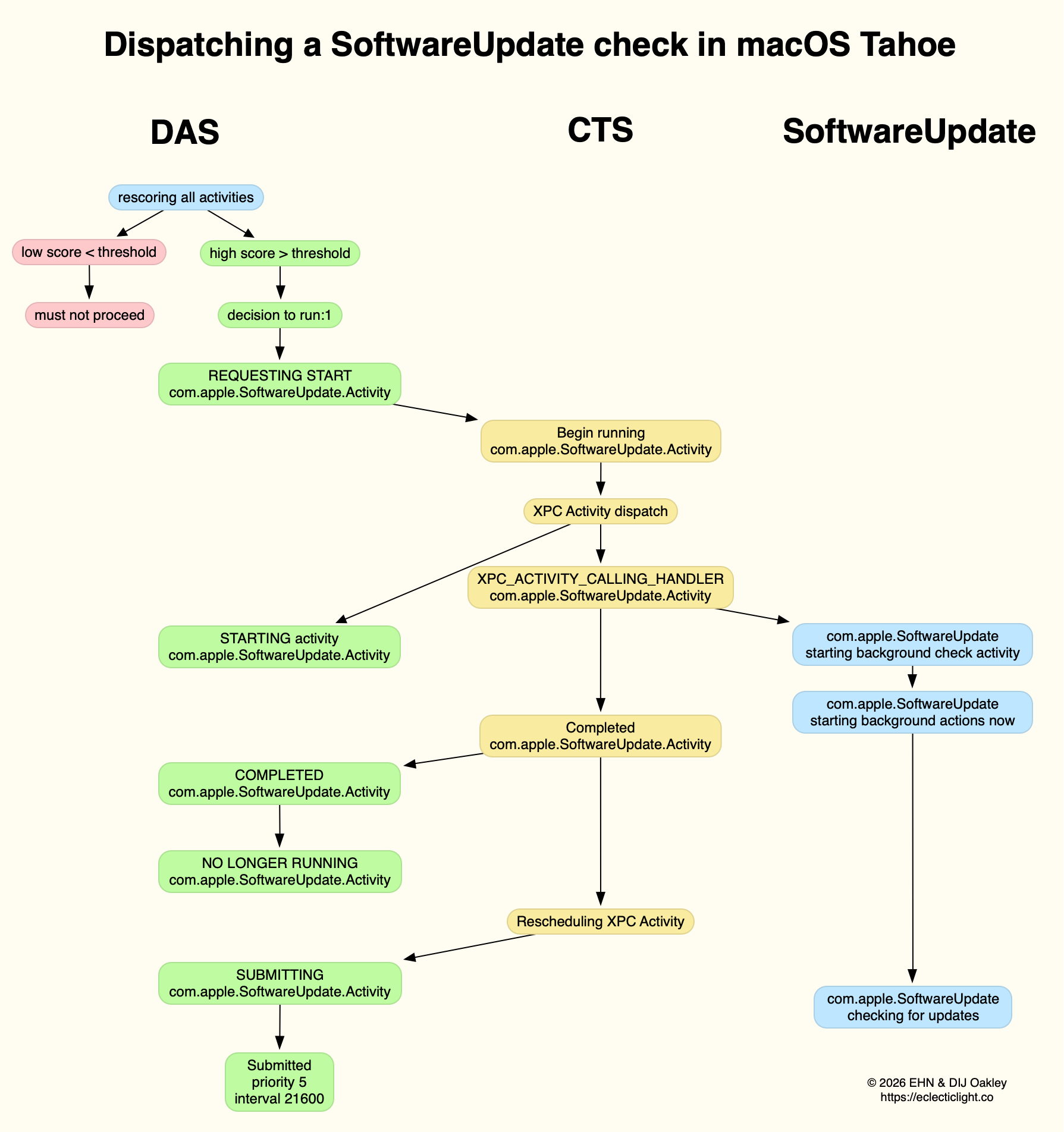
This normally reaches a score sufficient to be dispatched in the first few minutes after user login. That DecisionToRun is recorded in the log, and DAS requests CTS to start com.apple.SoftwareUpdate.Activity as root via XPC. This starts a dialogue between DAS and CTS, leading to the handler com.apple.SoftwareUpdate being called. That in turn starts its background check, and proceeds to check for updates.
CTS considers that activity is completed, and informs DAS of the fact. The activity is then rescheduled with DAS, in this case with a priority of 5, at an interval of 21,600 seconds, or 6 hours. Thus, SoftwareUpdate should check for new system updates approximately every 6 hours when your Mac is running, although the exact time of its dispatch by DAS will vary according to other activities and general conditions such as temperature and resource availability.
This is summarised in the diagram below.
In practice, the time between DAS deciding to run SoftwareUpdate and it running is likely to be less than 0.1 second, and online checks should be initiated within a further 0.1 second.
Time Machine backup
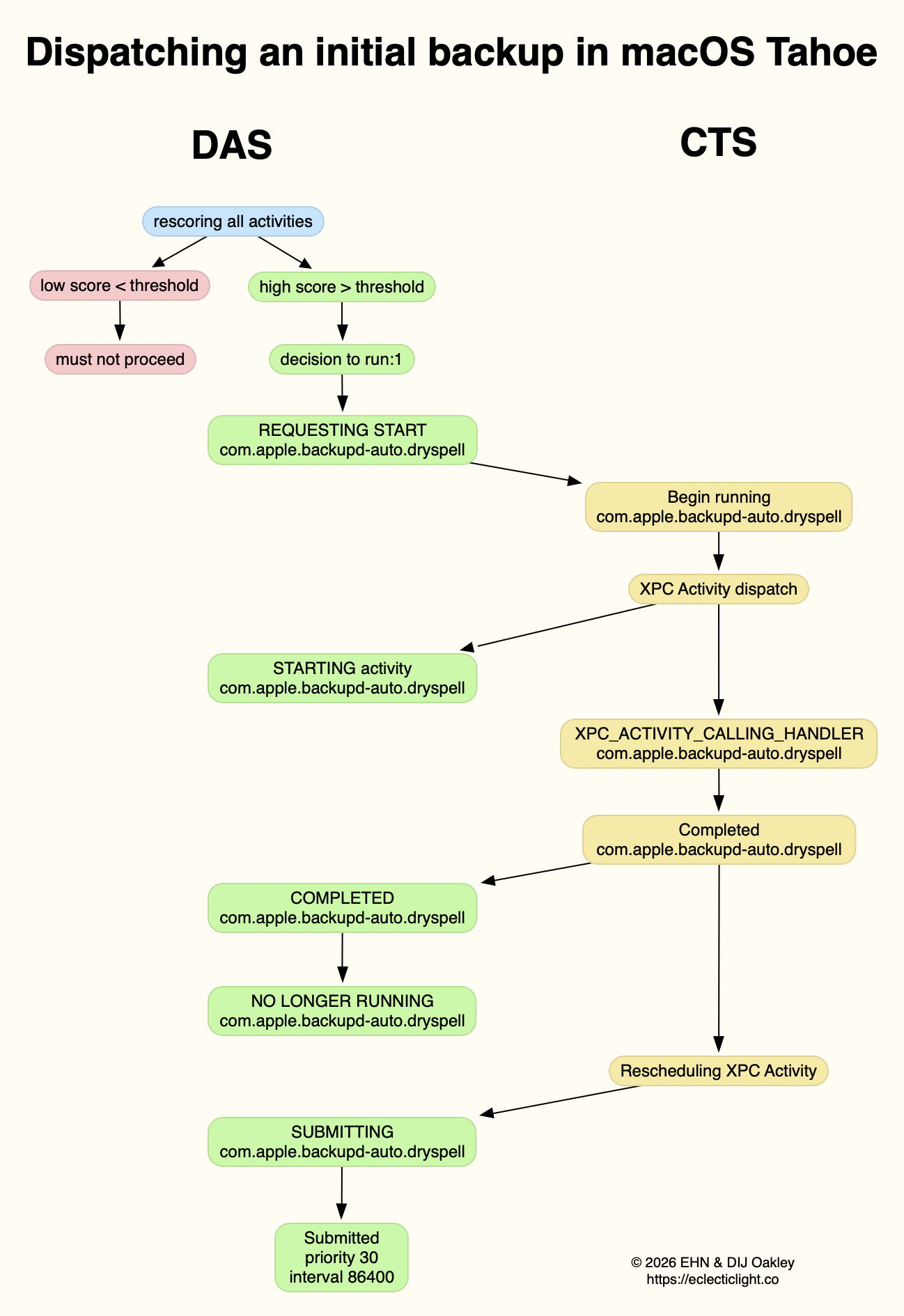
Automatic backups are normally delayed for the first 5 minutes after startup, and during that time DAS should decide not to proceed to dispatch them. When it does give them the go ahead, the activity dispatched is known as com.apple.backupd-auto.dryspell, indicating that it’s the initial backup made after startup. This too is run as root.
A similar dialogue between DAS and CTS is established, as shown in the diagram below.
What is distinctive here is that com.apple.backupd-auto.dryspell doesn’t result in the immediate initiation of a backup, but instead runs backupd-helper, and that can be delayed significantly before backupd itself is run to perform the backup. Although backupd-helper should be running within 0.2 seconds of DAS deciding to run the sequence, it may be a further 10 seconds before backupd itself is actively backing up. This is presumably because of other sustained and intense activities competing for resources at that time.
Dispatch of com.apple.backupd-auto.dryspell thus differs from the diagram below, showing dispatch of an ordinary automatic backup after the initial one, in macOS Sequoia.
com.apple.backupd-auto.dryspell is rescheduled by DAS at a priority of 30, and an interval of 86,400 seconds, or 24 hours, so it should work neatly for Macs that are powered up each day.
XProtect Remediator
Dispatch of a set of XPR scans is less predictable, as they’re likely to occur at roughly 24 hour intervals, but only when the Mac is running on mains power, and when it’s otherwise lightly loaded. If that happens to be the period of relative calm ten minutes or more after logging in, then background activity will be prolonged as the set of XPR scans is run.
By the time XPR was ready to scan here, DAS had a total of 600 pending activities, of which 254 were considered to be ‘passengers’. It therefore evaluated 74 activities, two of which were com.apple.XProtect.PluginService.daemon.scan, to be run as root, and com.apple.XProtect.PluginService.agent.scan as user. On some occasions, DAS will hold one of those from dispatch until the other is complete, but in this case it approved both to run simultaneously. Those went through a similar dialog between DAS and CTS, resulting in com.apple.XProtectFramework starting both as timed scans with standard priority, within less than 0.2 seconds of the decision by DAS to dispatch them.
As those were both timed scans, when XPR’s timers expired they were cancelled before fully completing. However, once a week XPR scans should be run without that timer, allowing them to finish all their scans.
XPC Activity states
If you follow CTS log entries for XPC activity, you’ll come across numeric states ranging between 0-5, such as 32.474139 com.apple.xpc.activity _xpc_activity_set_state: com.apple.SoftwareUpdate.Activity (0xb8ac3a080), 2
Those are documented in Apple’s source code as:
0 XPC_ACTIVITY_STATE_CHECK_IN, check-in has been completed;
1 XPC_ACTIVITY_STATE_WAIT, waiting to be dispatched and run;
2 XPC_ACTIVITY_STATE_RUN, now eligible to be run;
3 XPC_ACTIVITY_STATE_DEFER, to be placed back in its wait state with unchanged times;
4 XPC_ACTIVITY_STATE_CONTINUE, will continue its operation beyond the return of its handler block, and used to extend an activity to include asynchronous operations;
5 XPC_ACTIVITY_STATE_DONE, the activity has completed.
I hope this had given insight into what your Mac is up to during the first few minutes after you log in, why Apple silicon Macs show such high CPU % for their Efficiency cores, and how this results from important background activities.
Apple has just released an update to XProtect, bringing it to version 5329, from the previous release of 5327. As usual, it doesn’t release information about what security issues this update might address.
This version adds one new Yara rule for MACOS.SOMA.CLBIFEA, yet another SOMA/AMOS variant, and adds three more OSASCRIPT rules to XPScripts.yr, bringing its total to 17.
You can check whether this update has been installed by opening System Information via About This Mac, and selecting the Installations item under Software.
A full listing of security data file versions is given by SilentKnight and SystHist for El Capitan to Tahoe available from their product page. If your Mac hasn’t yet installed this update, you can force it using SilentKnight or at the command line.
If you want to install this as a named update in SilentKnight, its label is XProtectPlistConfigData_10_15-5329
Sequoia and Tahoe systems only
This update has now been released for Sequoia and Tahoe via iCloud. If you want to check it manually, use the Terminal command sudo xprotect check
then enter your admin password. If that returns version 5329 but your Mac still reports an older version is installed, you should be able to force the update using sudo xprotect update
When I started writing this blog over 11 years ago, there was plenty of malware around, but unless you failed to update Flash or Java, or downloaded ‘warez’, you were most unlikely to come across any in the wild. Over the last couple of months we have been running into AMOS/SOMA stealers in poisoned search results, ready to trap the most innocent. Apple’s security engineers are being kept busy, and earlier this week updated XProtect to version 5327.
That XProtect update was unusual, as its main set of malware detection rules didn’t change, but a relatively new component underwent major revision, a file named XPScripts.yr. This checks for OSAScript contents including AppleScript, and was only introduced in XProtect 5322 on 4 November 2025. At that time it had two rules, one looking for browser names and the other for cryptocurrency and related tools identified in scripts. XProtect 5327 now has a total of 14 OSAScript rules looking for a wide range of contents typical of known malware. Checks against the rules in XPScripts.yr are called off separately from those in the main Yara rules, when the Open Scripting framework is preparing to run an OSAScript.
It might seem odd that this latest malware starts by the unsuspecting user running an obfuscated and malicious command in Terminal, then relies on OSAScript, but this lightweight approach has been proving highly effective, apparently. The best way to penetrate macOS security protection is to get the user to do it for you.
In the recent past, malicious apps coached the user through bypassing the requirement for notarization by showing them how to do it. These stealers step you through running the script they need to get started, by downloading their payload using curl, to ensure that it doesn’t get put in quarantine.
What happens next has been detailed by Stuart Ashenbrenner and Jonathan Semon of Huntress. What you’d download is a malicious bash script that runs a series of commands hosted from Terminal. This first obtains the current user’s name, then prompts them to enter their password. This is the second key stage in the attack, and it will keep trying if you fob it off with anything other than the admin user’s valid password, so it can use that to sudo its next stage into place, and start using a mixture of OSAScript scripts and a single-file Mach-O executable in a hidden file at the top level of your Home folder. Those are tucked away alongside its copy of your username and password for when it needs them next. That executable is only ad-hoc signed, though.
The malware also installs a LaunchDaemon to ensure its code is loaded during startup, and then runs its checks every second, looping all the time in the background. According to analysis of its Mach-O executable, it exfiltrates all the SmartCard data, cryptocurrency wallets, saved browser passwords, contents of keychains, and other secrets it can get its hands on.
This malware and its method of attack change rapidly as it’s detected and taken down by those inadvertently hosting it. Late last year it was exploiting ChatGPT and other AI conversations. This year it has been using articles in Medium, and will continue popping up wherever and whenever it can. Its shell scripts and OSAScripts are quick to change to evade static detection. Even its Mach-O executable is altered frequently: when Ashenbrenner and Semon saw it last year, that was named .helper. The attack seen from Medium changed that to .mainhelper, and I’m sure it has already changed identities again.
There does appear to be one unintended consequence of XProtect’s new-found skills at checking OSAScripts: you may find that XProtect Remediator’s scans run out of time more readily, and report PluginCanceled with a status code of 30 more often now. But at least once a week it should extend the period allowed for its scans long enough to complete them all.
Let’s hope that XProtect’s new checks stem the tide of this malware.
Apple has just released an update to XProtect, bringing it to version 5327. As usual, it doesn’t release information about what security issues this update might address.
This version makes no change to the main Yara rules. However, the recent XPScripts.yr file has been extensively revised, and appears to have come of age. This uses a new private rule OSACompiled, and adds 12 new OSASCRIPT rules to make a total of 14.
You can check whether this update has been installed by opening System Information via About This Mac, and selecting the Installations item under Software.
A full listing of security data file versions is given by SilentKnight and SystHist for El Capitan to Tahoe available from their product page. If your Mac hasn’t yet installed this update, you can force it using SilentKnight or at the command line.
If you want to install this as a named update in SilentKnight, its label is XProtectPlistConfigData_10_15-5327
Sequoia and Tahoe systems only
This update has now been released for Sequoia and Tahoe via iCloud. If you want to check it manually, use the Terminal command sudo xprotect check
then enter your admin password. If that returns version 5327 but your Mac still reports an older version is installed, you should be able to force the update using sudo xprotect update
Apple has just released an update to XProtect, bringing it to version 5326. As usual, it doesn’t release information about what security issues this update might add or change.
This version adds 15 new Yara rules, for MACOS.ADLOAD.BL, MACOS.COMPLIANTPIRATE.A, MACOS.COMPLIANTPIRATE.B, MACOS.SOMA.DECLA, MACOS.SOMA.DECLB, MACOS.SOMA.BRLA, MACOS.SOMA.CROPA, MACOS.SOMA.PTRA, MACOS.SOMA.CSELA, MACOS.SOMA.CSELB, MACOS.SOMA.SCKA, MACOS.SOMA.JAENA, MACOS.SOMA.JAPEENA, MACOS.SOMA.JAPEENB, and MACOS.SOMA.GOBAJAA. Most of those are for variants of the SOMA/AMOS family of stealers. There are no changes to the recent Yara scripts file, though.
You can check whether this update has been installed by opening System Information via About This Mac, and selecting the Installations item under Software.
A full listing of security data file versions is given by SilentKnight and SystHist for El Capitan to Tahoe available from their product page. If your Mac hasn’t yet installed this update, you can force it using SilentKnight or at the command line.
If you want to install this as a named update in SilentKnight, its label is XProtectPlistConfigData_10_15-5326
Sequoia and Tahoe systems only
This update has already been released for Sequoia and Tahoe via iCloud, to replace version 5324 at last. If you want to check it manually, use the Terminal command sudo xprotect check
then enter your admin password. If that returns version 5326 but your Mac still reports an older version is installed, you should be able to force the update using sudo xprotect update

 Login
Login