Normal view

There are new articles available, click to refresh the page.
Before yesterdayMain stream

How to survive the loss of Rosetta

By: hoakley
14 March 2026 at 16:00

One of the new features coming in the next update to Tahoe, taking it to macOS 26.4, is a Rosetta warning. When you run Intel code on an Apple silicon Mac, macOS will start warning you that you won’t be able to do that in the future. At first, those will be infrequent, but as time passes their cadence will increase. This article explains why, and what you can do about it.

Virtualisation, emulation and translation

Although we’d all love to be able to run only native apps on Apple silicon, that isn’t always possible. Sometimes the app we need to use is only available for another platform, most commonly Intel. You can’t run code for a different processor in a virtual machine, though. VMs run at near-native speed only because the instructions they’re running are for the same processor. What they’re virtualising are the operating system calls, which are passed through to the host.

The traditional way to run code on a different processor is by emulation in a software engine that converts from one instruction set to another. That’s comparatively slow even on modern high-speed processors, so Rosetta 2 opts for a different approach that proved highly successful in the transition from PowerPC to Intel processors from 2006: it translates the code before running it natively. Rosetta 2 does this so well that the translated code often runs almost as fast as it would on the original processor.

Problems

One of the most common reasons for still requiring to run Intel code on Apple silicon stems from the fact that you can’t mix Arm and Intel code in the same process. Although an app might be Universal, and can run entirely on Arm, if it needs to load code modules that are still only available for Intel, then the whole app must be run for Intel, and be translated by Rosetta.

There are also two no-go areas that can’t be addressed by Rosetta: kernel extensions, and virtual machines running an operating systems for a different architecture. If you wanted to run an Intel version of Windows or Linux on your Apple silicon Macs, then you’d have to use emulation. Although this has been done for older Intel-only versions of macOS, it’s painfully slow and fragile.

One less common limitation of Rosetta 2 is that it doesn’t support AVX512 vector instructions, although it does support AVX and AVX2 instructions; that should affect very few apps.

Timescale

To help in forward planning, Apple has already set out its intentions:

  • Fall 2026, just 6 months away now, macOS 27 will run only on Apple silicon Macs, but will continue to enjoy full Rosetta 2 support. Security-only support will continue for Sequoia and Tahoe.
  • Fall 2027, macOS 28 will lose full Rosetta 2 support, although it will retain “a subset of Rosetta functionality aimed at supporting older unmaintained gaming titles, that rely on Intel-based frameworks”. Security-only support will continue for Tahoe.
  • Fall 2028, all support will cease for Intel versions of macOS.

Running Intel code in the future

If you do still depend on running Intel code, the best solution will be to replace that with an update that will run native on Arm. Apple’s increasing Rosetta warnings are intended to nudge us, and the few developers who haven’t yet produced Universal versions of apps, plug-ins, etc., to do so.

The most intractable problems are with code from developers who either can’t or won’t support Apple silicon. If their code is tied to hardware products that may never be addressed, and you may find the only solution is to keep some Intel Macs in service. But for most other situations, you should be able to continue running Intel code in a macOS virtual machine.

You can test this now using your favourite virtualisation app. Set up a suitable VM and install your app in it. In this example I opted to run my utility Mints using Rosetta rather than natively.
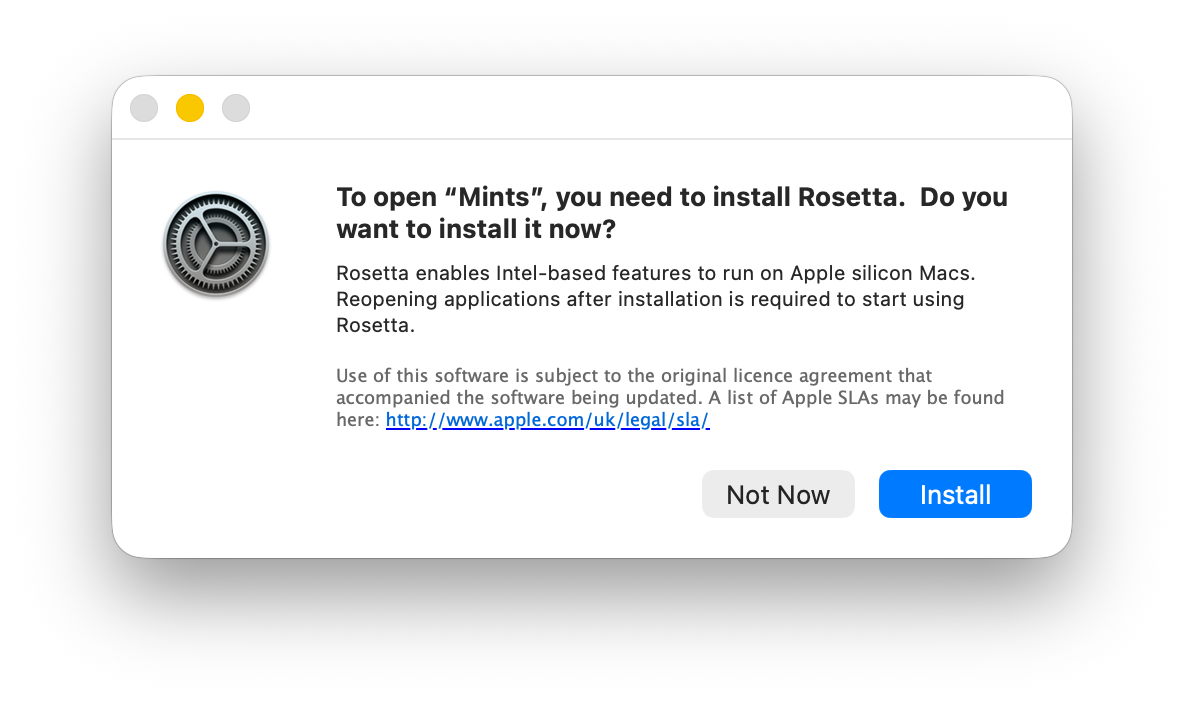
Just as in the host, when you first try to run the app, Rosetta will intervene and offer to translate it for you. The first time you do that, Rosetta will need to be downloaded first.
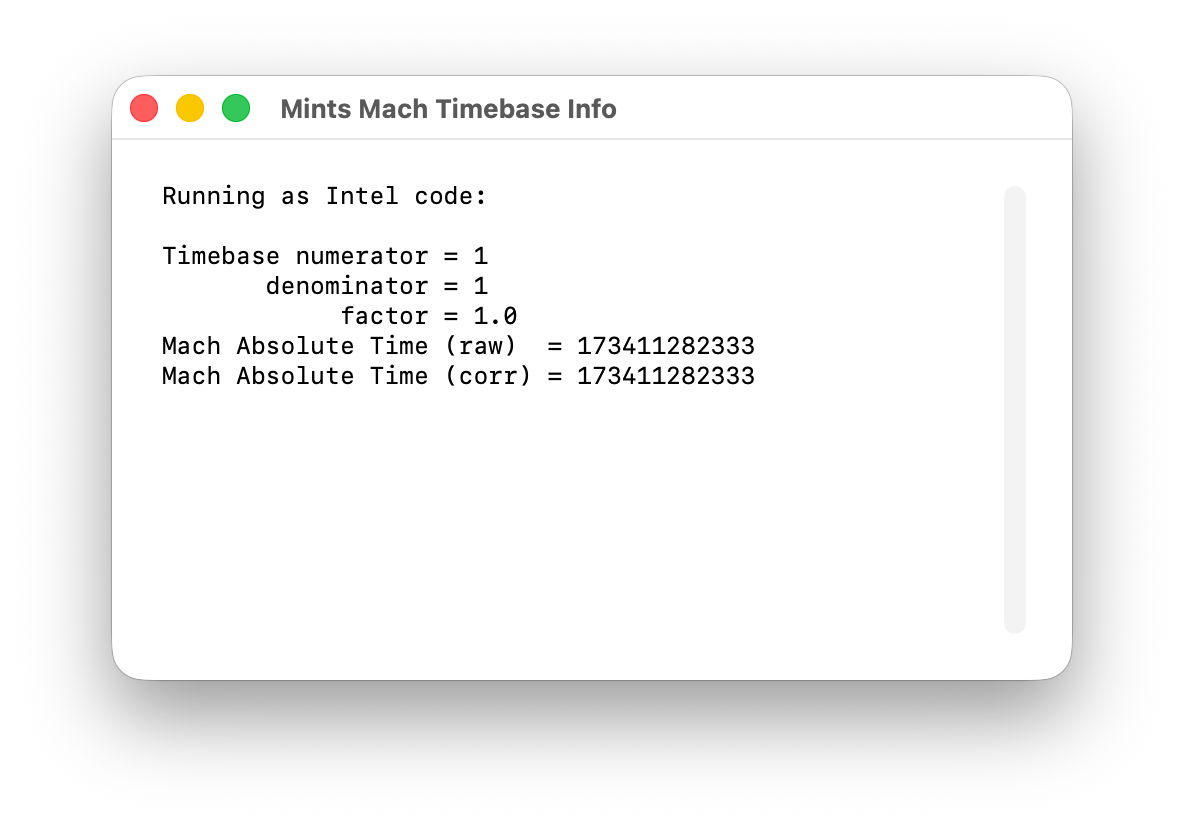
I chose Mints for this demonstration, as its Mach Absolute Time feature runs in Intel mode when Mints has been translated by Rosetta, as shown here.

Virtualising earlier versions of macOS doesn’t offer as wide a range of features, but if you can run your Intel-only app in Sonoma or later, using Rosetta translation, it should run very well in a VM of the same version of macOS, on a host running macOS 28 after full Rosetta support has been removed. And that should continue to work until a future version of macOS is no longer able to run such an old VM. Hopefully that will be long after 2028, but now is the time to try it.

What can you do when Software Update can’t?

By: hoakley
5 March 2026 at 15:30

What can you do when you know there’s an update available, but your Mac is pretending there isn’t? I’m here referring to those delivered through Software Update, so come from Apple’s software update servers. Although there are several ways to talk to it, all such updates rely on the softwareupdated service, giving you a choice of solutions.

Check the obvious

Before going any further, check that updates aren’t being blocked because there’s insufficient free space on your Mac’s startup disk, and a laptop has ample charge in its battery or is running on mains power.

Restart

Sometimes softwareupdated seems to lapse into a coma, and the best way to wake it up is to restart your Mac. Don’t expect it to jump into action as soon as you’ve logged in, but give it five minutes first.

Safe mode

If a standard restart doesn’t do the trick, start your Mac up in Safe mode, leave it five minutes, and try again. Although Apple no longer includes this as one of the purposes of Safe mode, by disabling third-party extensions it gives softwareupdated every opportunity to do what it’s there for.

SilentKnight

If you haven’t been using my free SilentKnight to check for updates, this is a good time to do so. Because it calls softwareupdated with an undocumented option, that sometimes kicks it into action. If all you want to do is download the latest XProtect or other security data update, SilentKnight can do that for you, even if you don’t want to update macOS.

While you can download and install macOS updates in SilentKnight, that doesn’t display a progress bar and lacks other features found in Software Update in System Settings. If SilentKnight’s checks find a macOS update you want to install, you’re therefore better off opening Software Update and obtaining the update from there.

Where it comes into its own is in dealing with concurrent macOS updates and security data updates, as it makes it easy for you to download and install single updates and leave others alone. That’s explained here.

XProtect in Sequoia and Tahoe

These most recent versions of macOS have to update two copies of XProtect, and inconveniently use different mechanisms for each. Their primary copy relies on the xprotect command tool, whose command
sudo xprotect update
should obtain a copy via iCloud and install it in the right place, provided that Apple has released it through iCloud. Their secondary copy is updated in the normal way by SilentKnight, Software Update or softwareupdate.

softwareupdate

This command tool is the most direct interface to softwareupdated, and that used by SilentKnight, but you need to know its secret options if you’re going to get the best out of it.

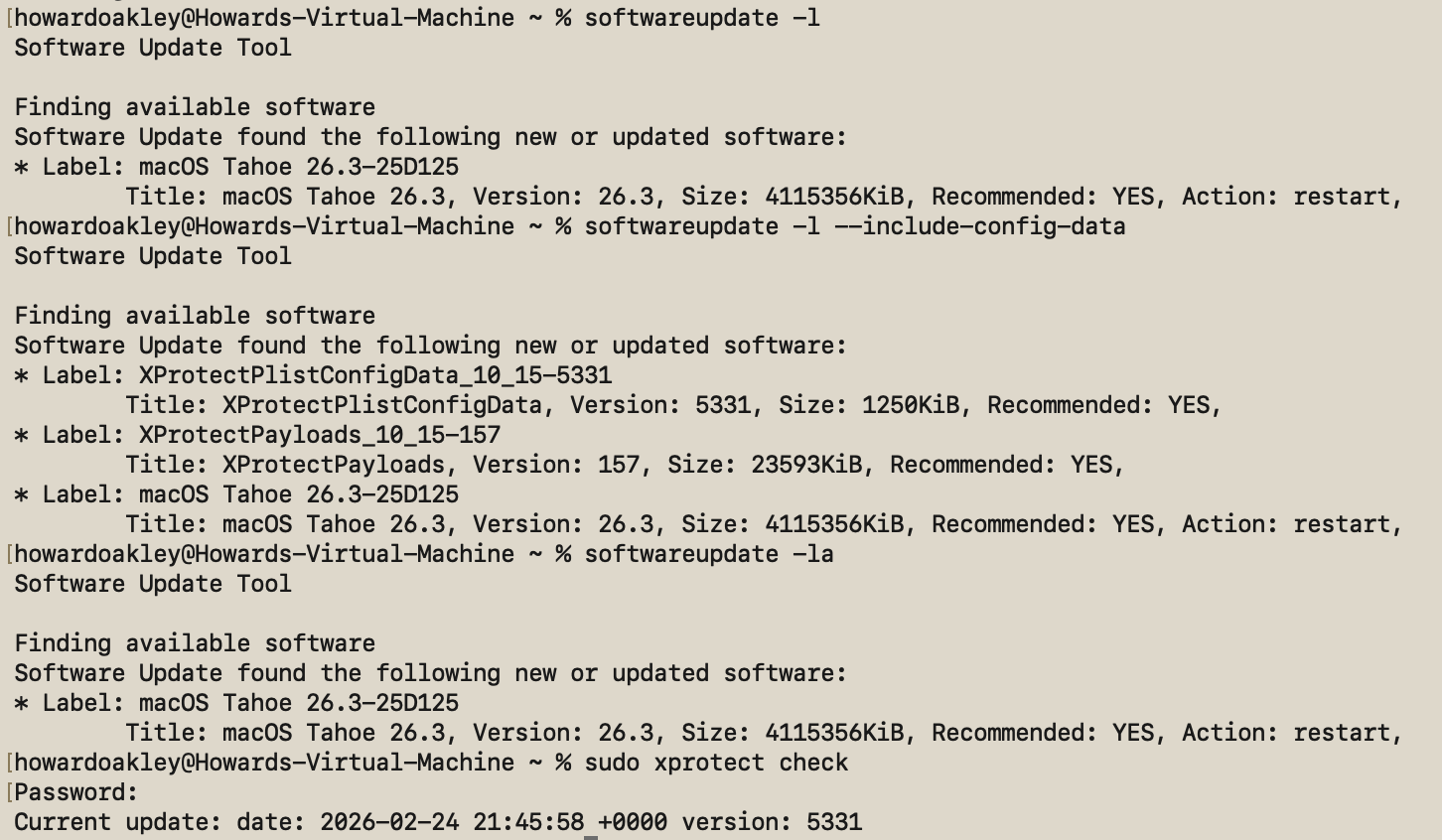
If all you want is a list of available macOS updates,
softwareupdate -l
works fine, and using -la does much the same. Neither will display security data updates like those for XProtect or XProtect Remediator, though. To see those, use the undocumented option
softwareupdate -l --include-config-data
and that should provide the full list. As you’ll probably want to download them individually, use the command
softwareupdate -i --include-config-data updatename
where updatename is the word given as the Label in the listing.

Another invaluable feature of softwareupdate is its list of full installers available for direct download. That’s generated by
softwareupdate --list-full-installers

The current list includes:

  • Tahoe 26.1, 26.2, 26.3
  • Sequoia 15.7.2, 15.7.3, 15.7.4
  • Sonoma 14.8.2, 14.8.3, 14.8.4
  • Ventura 13.7.8
  • Monterey 12.7.4, 12.7.6
  • Big Sur 11.7.10, 11.7.11
  • Catalina 10.15.6, 10.15.7 builds 19H2, 19H15
  • Mojave 10.14.6
  • High Sierra 10.13.6

but that given will include only those compatible with the Mac used to obtain the list. When you want to download one of them, use the command
sudo softwareupdate --fetch-full-installer --full-installer-version 11.7.11
giving the version you want. If you want a different version, then check with one of the sites that provides links to a fuller list, such as Mr. Macintosh.

Avoid using the option to download but not install updates, based on softwareupdate -d, as downloads can go missing from /Library/Updates where you’d expect them, and this doesn’t work at all for macOS updates.

On Apple silicon Macs only, you can use the command
sudo softwareupdate --install-rosetta --agree-to-license
to download and install Rosetta 2 and avoid its normal installation dialog.

Checklist

  • Check free space and (in laptops) power.
  • Restart and try again.
  • Start up in Safe mode and try there.
  • Try SilentKnight.
  • In Sequoia and Tahoe, XProtect also needs separate xprotect command.
  • softwareupdate -l --include-config-data
  • To install individual update softwareupdate -i --include-config-data updatename

Can you still run old App Store apps?

By: hoakley
22 January 2026 at 15:30

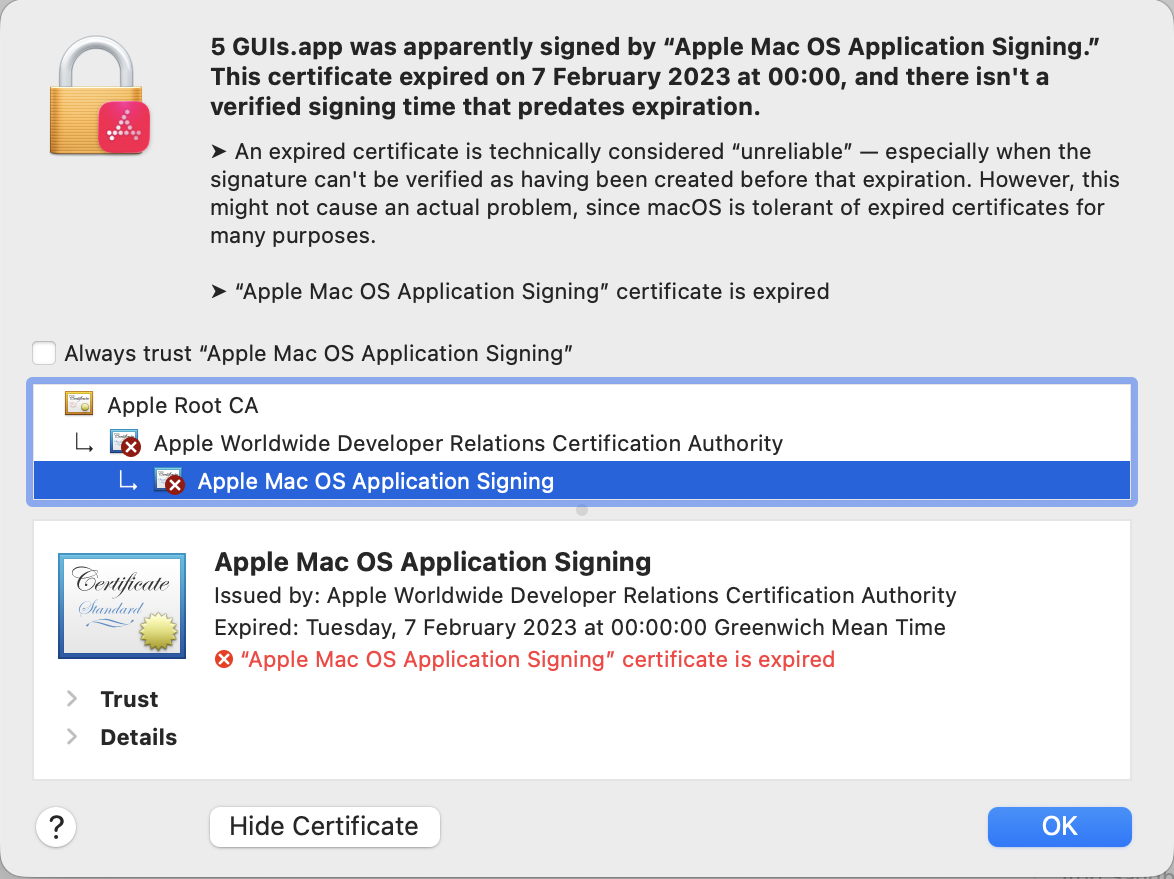
In my review of apps and the validity of certificates used to sign them, I dodged the thorny issue of those apps delivered from the App Store, writing that “their signatures will remain valid as long as the developer remains a member of its Developer Program.” If you care to take a look at some of those apps using Apparency, you’ll discover that many of them have certificates that expired on 7 February 2023 at 00:00:00 GMT. This article explains why, how they should still run, but may not in the future.

As I explained, the general rule for certificates is that, once they have expired by date, they’re no longer valid. However, to ensure that third-party apps and installers can still be used after their expiry, Apple usually includes a trusted timestamp in their signature. Provided the certificate was valid at the time the app or installer was signed, then macOS should accept it as still being valid, as long as it hasn’t been revoked. But App Store apps are different again.

For reasons unknown, Apple doesn’t sign App Store apps with trusted timestamps. As a result, when its certificate expires, that app’s signature should no longer be valid, and macOS should refuse to run it on that basis. What happens in practice is that it turns a blind eye to the certificate expiry, and runs the app regardless.

What you see in the log demonstrates that. At the start of its security checks by Apple Mobile File Integrity (AMFI), securityd discovers that its certificates no longer have “temporal validity”, and fail trust evaluation:
00.701706 com.apple.securityd cert[0]: TemporalValidity =(leaf)[]> 0
00.701753 com.apple.securityd cert[1]: TemporalValidity =(leaf)[]> 0
00.703344 com.apple.securityd Trust evaluate failure: [leaf TemporalValidity] [ca1 TemporalValidity]

Those entries are repeated multiply every time that app’s trust is evaluated, including by TCC. Despite that, the app passes its Gatekeeper evaluation “due to migration”:
00.718197 com.apple.syspolicy.exec GK evaluateScanResult: 2, PST: (path: c97bd5e74b98ed79), (team: 4GXF3JAMM4), (id: (null)), (bundle_id: (null)), 0, 0, 1, 0, 9, 0, 0
00.718213 com.apple.syspolicy.exec Allowing evaluation due to migration: PST: (path: c97bd5e74b98ed79), (team: 4GXF3JAMM4), (id: (null)), (bundle_id: (null))
00.718218 com.apple.syspolicy.exec Updating flags: [private], 513

As with all other apps, a ‘ticket check’ is performed on its CDHashes, first against the local ticket cache, then against records in the CKTicketStore via CloudKit. As App Store apps aren’t normally notarised as well, looking up their ticket in the CKTicketStore should be unsuccessful. In macOS Tahoe at least, there should be no XProtect scan or further checks, and the app should proceed to launch normally.

App Store apps are signed using an Apple Mac OS Application Signing certificate, relying on the intermediate Apple Worldwide Developer Relations Certification Authority, and back to the Apple Root CA. While the latter should expire on 9 February 2035, both the signing certificate and its intermediate have shorter lifetimes:

  • Older App Store apps should have an intermediate expiry of 7 February 2023, as explained here by Apple, and more recent apps that is likely to be 10 December 2030.
  • Older App Store apps are likely to have been signed with a certificate that expired on 7 February 2023, while more recent apps are likely to expire on 12 August 2026.

None of this should affect Intel Macs, although we’re likely to see increasing numbers of App Store apps that are Arm-only and won’t run on Intel systems. However, this will become more complicated with the retirement of Rosetta 2 next year.

Apple has stated its intention that full Rosetta translation support will end with macOS 27, although it intends to retain “a subset of Rosetta functionality aimed at supporting older unmaintained gaming titles” beyond that. In practice, that means most x86 apps and command tools will stop working in macOS 28, in the autumn/fall of 2027. Apple silicon Macs will therefore continue to run Intel-only App Store apps until they are upgraded to macOS 28.

Their fallback then is to run Intel-only code in a VM running macOS 27 or earlier, as that will still be able to provide full Rosetta 2 support. Given the performance of code translated by Rosetta, and that of VMs, that’s far better than might appear. There’s one remaining problem with that, though: some App Store apps can’t run in virtualisation, as it doesn’t support connections to the App Store. Some can, and as a matter of interest the five that I used in these tests all do, although not always reliably, but others can’t. I don’t know of any reliable way of testing this other than trying it out.

Summary

  • macOS security checks ignore the expiry of certificates (including intermediates) used to sign App Store apps, and allow the app to run regardless.
  • Many App Store apps have expired certificates.
  • This shouldn’t affect Intel Macs in the future.
  • Running Intel-only App Store apps is unlikely to be supported from macOS 28 onwards, except for a limited range of unmaintained gaming titles.
  • Some Intel-only App Store apps might not run in a VM with Rosetta 2 support either.

❌
❌