Normal view

There are new articles available, click to refresh the page.
Before yesterdayMain stream

Last Week on My Mac: Intel Macs will be stuck with bugs

By: hoakley
24 May 2026 at 15:00

Just over six months ago a series of weird bugs came to light in Spotlight indexing. The first report was that plain text files beginning with the characters LG are never indexed, so their contents can never be found by Spotlight search. The mystery deepened when the same was discovered for text files beginning with the characters NPA or Draw. It was appropriately Drew who worked out the common factor behind this apparently bizarre connected behaviour: all three files are identified as not being text by the old Unix utility file(1), used to recognise file types by ‘sniffing’ their contents.

You can verify that by creating a plain text file with any of those three sets of characters at its start, then running the command file on that file. In the case of one beginning with Draw, file will identify it as RISC OS Draw file data, even though the file has an extension of txt or text and a UTI of public.plain-text. At that the RichText mdimporter, which analyses all text-based files for metadata to enter into Spotlight’s indexes, throws its hands up in horror and refuses to index the file’s contents. Change those opening characters in that file, perhaps by adding a leading space, and all of a sudden the mdimporter works as expected.

Following our collaborative effort here, particularly Drew’s insight, we realised this bug has been silently blocking the indexing of seemingly random text files for the last three years or more. What remained unanswered at the time was what that mdimporter was doing running file(1) on files whose UTI made it clear that they were in plain text, not some long-forgotten binary vector graphics format from 1989. I believe I now have an answer, thanks to my recent work on QuickLook’s qlgenerators.

QuickLook’s generators take advantage of the hierarchical structure of UTIs. Rather than accepting the most specific UTIs such as public.jpeg, Image.qlgenerator works with all files whose UTI conforms to the generic UTI of public.image, and then undertakes its own format detection. This enables it to generate correct thumbnails and previews of HEIC images that have been given the incorrect extension of jpg, for instance.

Similarly, a Swift source-code file with the extension of swift and the UTI of public.swift-source is handled by the Text.qlgenerator because public.swift-source conforms to public.plain-text, the UTI required for use of that generator.

What if Spotlight’s mdimporters were to work the same?

We know the built-in RichText.mdimporter is used to extract metadata for a wide range of files containing text, which all conform to the generic UTI of public.text. It then classifies them on the basis of their contents to work out what to index. What if that’s performed using file(1), so rejecting perfectly valid text files as ancient binary vector graphics files, and so on?

We can’t get the same direct evidence from the log that I obtained for QuickLook, as Spotlight is far less informative in its log entries. We can get clues from looking at output from mdimport and mdls, though. While a non-deviant text file contains a metadata attribute extracted by its importer as kMDItemTextContent containing the text in the file’s data, that’s missing from a text file starting with any of the three known triggers. In turn that’s associated with the attribute _kMDItemPrimaryTextEmbedding containing ‘vec_data’ listed by mdls, which is also missing for the deviant files.

There is hope that a third party might be able to undercut RichText.mdimporter by providing a bug-free importer for public.plain-text, but that relies on the built-in importer targeting public.text rather than public.plain-text. The best solution would be for Apple to fix the identification of text files instead of relying on file(1), which dates from 1973. Given that these deviant files work perfectly with QuickLook’s generator, it appears Apple has already solved this problem there. So I suspect this bug in RichText.mdimporter will never be fixed in Sequoia or Tahoe.

With the first beta-release of macOS 27 just a couple of weeks away, this leaves those using the last Intel Macs stuck with Spotlight indexing that will never work on some text files, assuming that at some point in the not too distant future this bug is finally fixed in an Arm-only macOS. This is all sadly familiar from the loss of 32-bit support in the transition from Mojave to Catalina, when little if any effort was devoted to making Mojave as free of bugs as possible before it was abandoned in the rush forward to 64-bit.

It would have been far better to be able to look back in fondness with macOS that worked better, than looking back in anger at what never got fixed.

One last thing to remember is that, when Apple does fix this bug, you’ll have to force Spotlight indexes to be rebuilt on each of your Mac’s volumes to ensure that the contents of these files are incorporated. We learned that last time there was a serious bug in the same importer, which failed to index the contents of RTF files.

What has changed in macOS Tahoe 26.5?

By: hoakley
12 May 2026 at 04:27

The update bringing macOS Tahoe to version 26.5 is modest in size and, apart from its security fixes, seems largely routine maintenance.

The only release notes worth reading are those listing vulnerabilities fixed, available here. Among the 69 listed there are 9 in the kernel, which must be the highest number in any recent macOS update. I wonder whether those have been swelled by AI, and one of the kernel bugs is credited to a researcher “with Claude and Anthropic Research”. There could of course be fixes resulting from early use of Mythos, but they’re unlikely to appear in a public list. None of the fixes listed are reported as being known to exist in the wild.

The new build number for 26.5 is 25F71. Apple silicon Macs have a firmware update bringing them to mBoot 18000.120.36, and Intel Macs with T2 chips are updated to 2103.100.6.0.0 (iBridge 23.16.15067.0.0,0).

Bundled apps have routine increments in version numbers:

  • Books, from version 8.4 to 8.5
  • Freeform, 4.4 to 4.5
  • Music, 1.6.4 to 1.6.5
  • News, 11.4 to 11.5
  • Passwords, 2.4 to 2.5
  • Safari, 26.4 (21624.1.16.11.4) to 26.5 (21624.2.5.11.4)
  • Stocks, 8.4 to 8.5
  • TV, 1.6.4 to 1.6.5.

Although there are abundant increments in build numbers reflecting routine maintenance, there are few substantial changes apparent in /System/Library, including:

  • In kernel extensions, the whole AGX series has a substantial change in version, as does AppleUSBAudio, and smbfs is updated to version 6.0.1
  • APFS is incremented to version 2811.120.14
  • There’s a new AppleAccountTransparency in private frameworks.

How macOS can ignore and hide metadata

By: hoakley
6 May 2026 at 14:30

When I was researching yesterday’s article about storing and managing metadata, I encountered some unexpected behaviour that merited deeper investigation. This article explains how that can lead to macOS ignoring and hiding metadata.

Spotlight is about more than just search, as it runs the metadata services for macOS. Those ingest information about files, contents of their extended attributes, metadata extracted from file data such as EXIF in images, and indexed text content. When the Finder needs to populate the fields of a Get Info dialog, or those shown in a Preview pane, it calls on Spotlight’s volume indexes to provide the data. The process of analysing and extracting metadata is thus important to a wider range of features beyond search, and it’s concerning when metadata known to be present is unexpectedly missing.

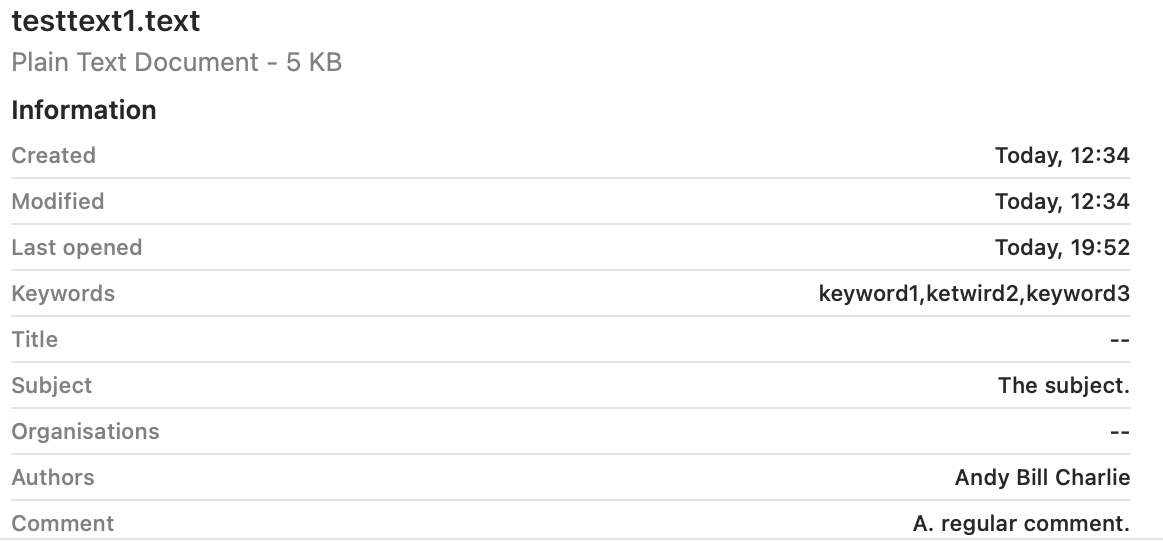
To determine what might be going wrong, I took six test files in macOS 26.4.1:

  • two plain text files, indexed by /System/Library/Spotlight/RichText.mdimporter
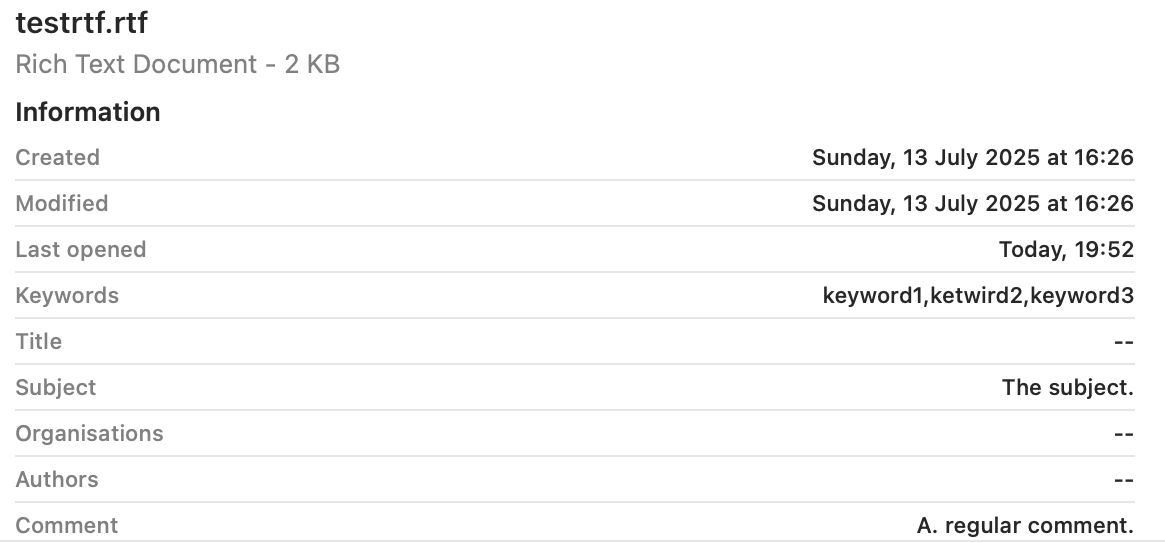
  • one RTF file, indexed by /System/Library/Spotlight/RichText.mdimporter
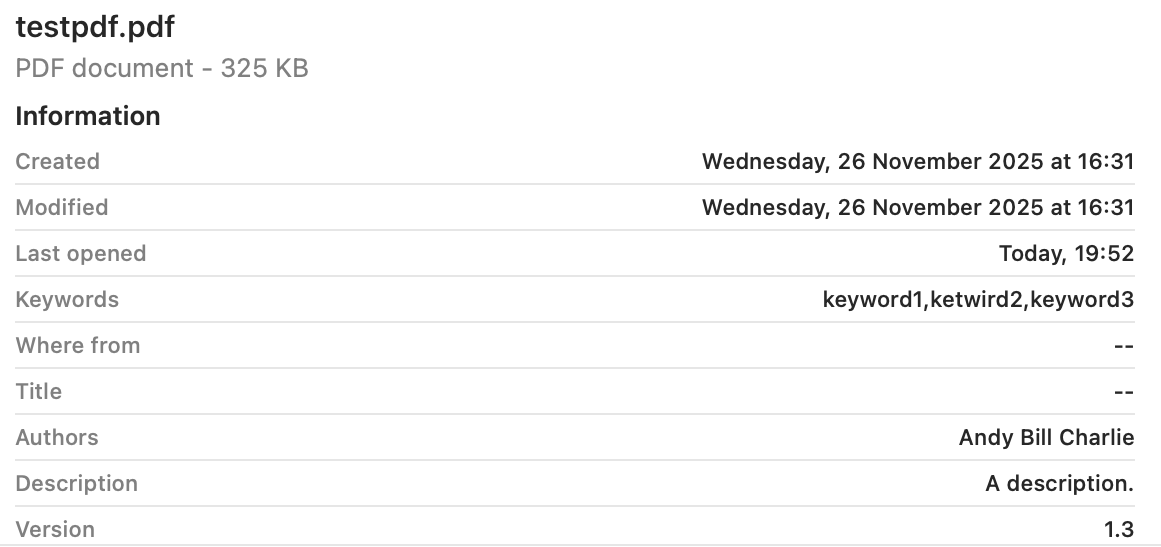
  • one PDF file, indexed by /System/Library/Spotlight/PDF.mdimporter
  • one JPEG and one PNG screenshot, indexed by /System/Library/Spotlight/Image.mdimporter.

To each I attached five xattrs containing distinctive test text:

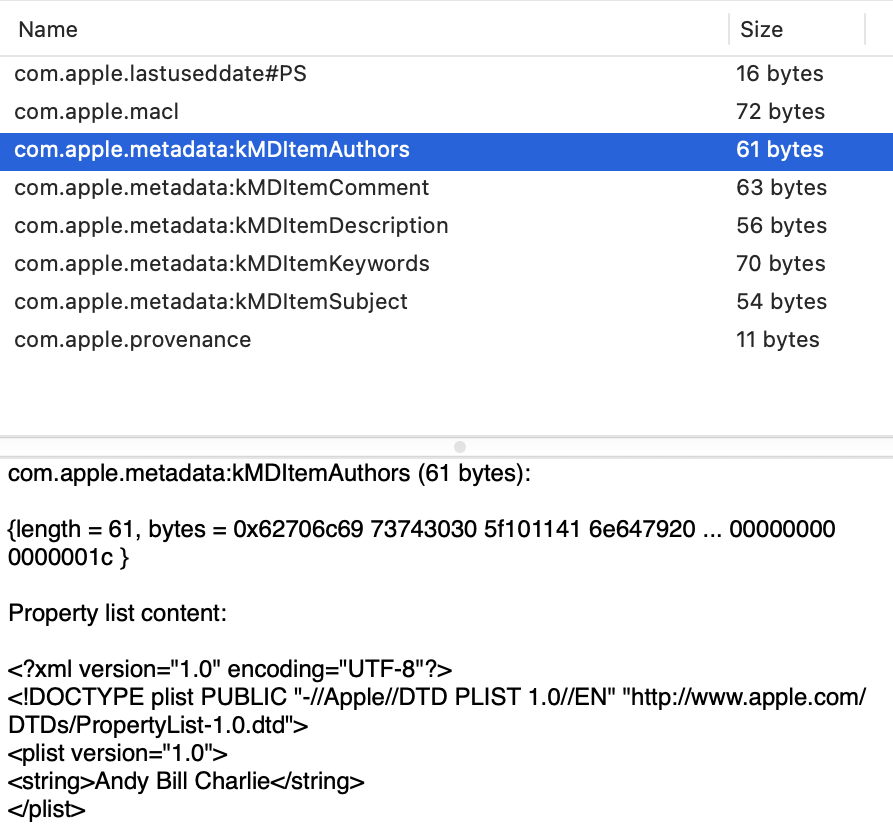
  • com.apple.metadata:kMDItemAuthors, known in the Finder’s Find search terms as Authors;
  • com.apple.metadata:kMDItemComment, known as Comment, and distinct from Finder or Spotlight Comment;
  • com.apple.metadata:kMDItemDescription, known as Description;
  • com.apple.metadata:kMDItemKeywords, known as Keywords;
  • com.apple.metadata:kMDItemSubject, known as Subject of this item.

I then used the Finder’s Find window to search for part of the contents of each of the extended attributes for each of the test files. I also viewed each file in a Preview pane, with maximal display of information, as described here, and in a Get Info dialog.

For each file, I ran the following two commands:
mdimport -t -d2 filename
to list all its known metadata recognised by mdimporter. That crashed for both the image files, a bug that has been long present. I also ran
mdls filename
to list indexed metadata, which didn’t crash.

Search results

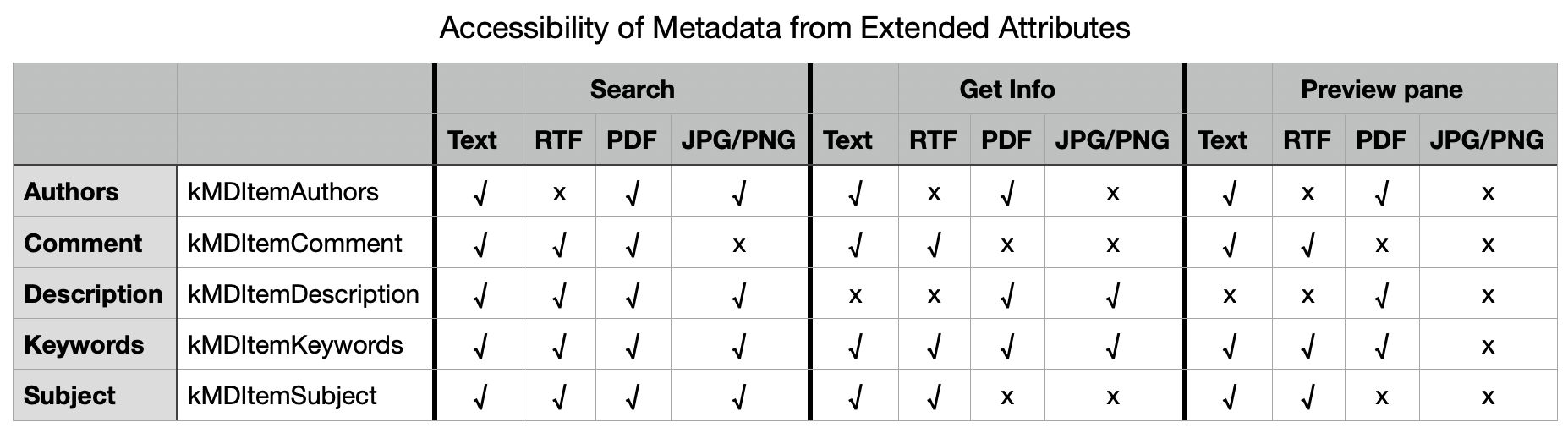
Search worked as expected and proved successful for all files with Description, Keywords and Subject. However, I was unable to find Authors metadata for the RTF file, and Comment metadata couldn’t be found for the JPEG or PNG images.

Finder preview pane

The two image formats displayed none of the metadata used. Otherwise Keywords was shown in each, Subject and Comment were omitted from PDF, and Authors and Description omitted from RTF.


These are summarised in the table below.

There are two serious failures shown here, failure to index Authors metadata correctly in the RTF file, and failure to index Comment metadata correctly in the JPG and PNG files. Otherwise all failures appear to be the result of design decisions over which types of metadata should be displayed in the Finder.

Failure to index Authors in RTF

From the mdimport listings, all five xattrs were recognised correctly and should have been indexed. However, there were additional [null] listings for four of them, including Authors, presumably derived from the absent RTF Info section, an optional feature in the format and often absent. Separate testing revealed that, for the Authors metadata alone, the content extracted from the Info section of the RTF overrode that obtained from the xattr, even when it was null. Adding the authors to the Author (note the singular) entry in Info restored its indexing and search, but using the text in RTF Info rather than the xattr.

There are thus two related bugs here:

  • The Author field from RTF Info metadata should be indexed into its own field, to avoid conflict with any com.apple.metadata:kMDItemAuthors xattr present.
  • Only com.apple.metadata:kMDItemAuthors xattr content should be indexed into Authors.

Failure to index Comment in JPG/PNG

No mdimport listing was available for these image files because of the tool crashing persistently. However, it’s clear that the contents of Comment was taken not from the xattr, but from the EXIF UserComment, which had been set by macOS to Screenshot when that screenshot had been made. That metadata should surely have been indexed into a separate category such as a new kMDItemUserComment to avoid such collisions.

There are again two related bugs:

  • The UserComment field from EXIF metadata shouldn’t be indexed into Comment, but into its own field.
  • Only com.apple.metadata:kMDItemComment xattr content should be indexed into Comment.

Conclusions

  • There appear to be indexing bugs in /System/Library/Spotlight/RichText.mdimporter and /System/Library/Spotlight/Image.mdimporter. This is the third bug I have investigated in RichText.mdimporter.
  • Those can lead to incorrect indexing in kMDItemAuthors (Authors) and kMDItemComment (Comment) respectively.
  • They limit significantly the usefulness of those xattrs as metadata in macOS.
  • Of the five metadata xattrs tested here, only one, kMDItemKeywords (Keywords), appears both reliable for search and displayed generally in the Finder.
  • kMDItemDescription or Description, and kMDItemSubject or Subject are reliable for search, but aren’t displayed well in the Finder.
  • Aside from these bugs, poor display coverage in the Finder limits the usefulness of these xattrs.
  • Investigating bugs in Spotlight mdimporters can be challenging, particularly when mdimport is so prone to crash.

Five months later and the Clock app still has an obvious bug

By: hoakley
17 April 2026 at 14:30

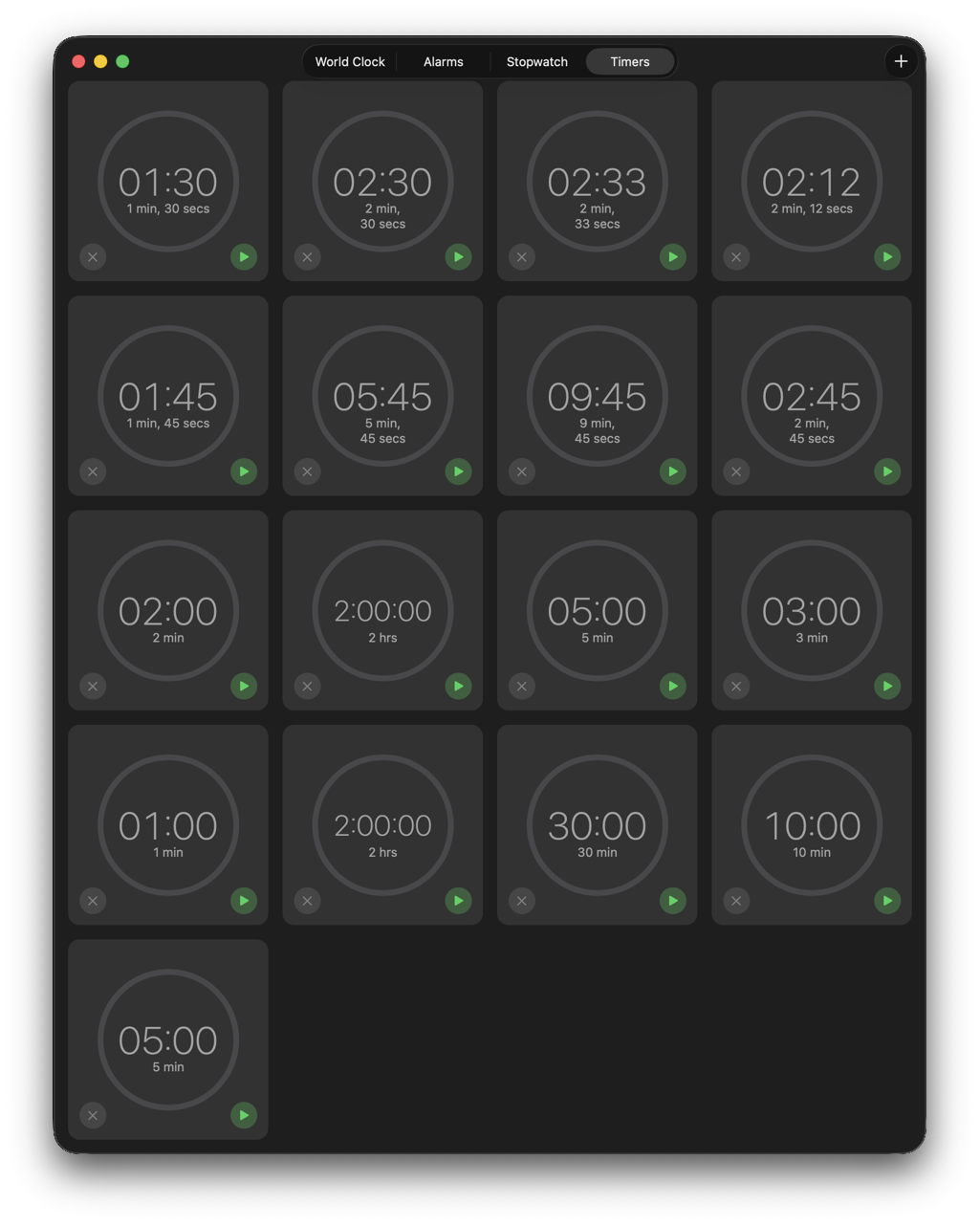
In November last year, I reported that there was a bug in the bundled Clock app that results in its Timers feature failing. Thanks to the persistent work of Michele, we were able to establish its most likely cause was excessive accumulation of old Timer data in its preferences file. This article reports what has happened with this bug over the five updates to macOS Tahoe since: in a word, nothing. The bug is still present and operates the same as it did in macOS 26.1.

Michele used to use the Timers feature in the bundled Clock app frequently, but found it had become increasingly temperamental, and failed to display the contents of that view. Working extensively with Apple Support brought no resolution, except to use Timers from a different user account, which was of no help. One suggestion that did work was to delete its preferences file, com.apple.mobiletimerd.plist in ~/Library/Preferences, but over time the same problem returned and Timers stopped working again.

Using log extracts from Michele’s Mac, we discovered the cause of failure in Timers was termination of the mobiletimerd service when it was trying to start up, because it immediately ran out of memory. The reason for that was the size of com.apple.mobiletimerd.plist, which instead of being a few KB had reached nearly 7 MB, because it was full of a great many old MTTimer settings from previous timers.

Oddly, those many MTTimers weren’t reflected in those offered in the Timers window, nor those in the Start Recent Timer item in its File menu. Those both remained modest in size, although the two lists didn’t match, in that those offered in the menu were a small selection of those shown in the Timers window.

Back in macOS 26.1:

  • Each time a new timer was created, its settings were written as a new MTTimer to com.apple.mobiletimerd.plist.
  • As that property list never removed old or duplicate MTTimers, it grew steadily in size.
  • When the property list was several MB, it caused the mobiletimerd service to run out of memory, and to be terminated.
  • Without the mobiletimerd service running, the Timers feature was unable to function.

I have now repeated testing of Timers in macOS 26.4.1, and confirmed that this behaviour hasn’t changed in the slightest.

Before using Timers to test this, the com.apple.mobiletimerd.plist settings contained 15 MTTimers all dating from my previous testing last November. After a couple of hours running a succession of timers, there were 43 MTTimers in that file, still dating back to November. Among those were 7 for a duration of 60 seconds and there were many other duplicates.

However, of those saved MTTimers only 17 were offered for re-use in the Timers window.

Just one of those durations was duplicated, for 5 minutes, indicating that the Clock app was making a nearly successful attempt to eliminate duplicates in this list.

The only workaround for those who use timers often is to periodically quit the Clock app and remove ~/Library/Preferences/com.apple.mobiletimerd.plist and so restore normal timer function. Although some of the solutions recommended to Michele would unintentionally have achieved that, they would only have been temporary, as the number of MTTimers would immediately have started to rise again.

It will be interesting to see whether this bug persists into the first beta-release of macOS 27 when it’s released to developers in early June. I have a suspicion that it will remain.

Why you can’t trust Privacy & Security

By: hoakley
10 April 2026 at 14:30

In this Friday’s magic demonstration, I’m going to show how what you see in Privacy & Security settings can be misleading, when it tells you that an app doesn’t have access to a protected folder, but it really does.

Although it appears you can achieve this using several ordinary apps, to make things simpler and clearer I’ve written a little app for this purpose, Insent, available from here: insent11

I’m working in macOS Tahoe 26.4, but I suspect you should see much the same in any version from macOS 13.5 onwards, as supported by Insent.

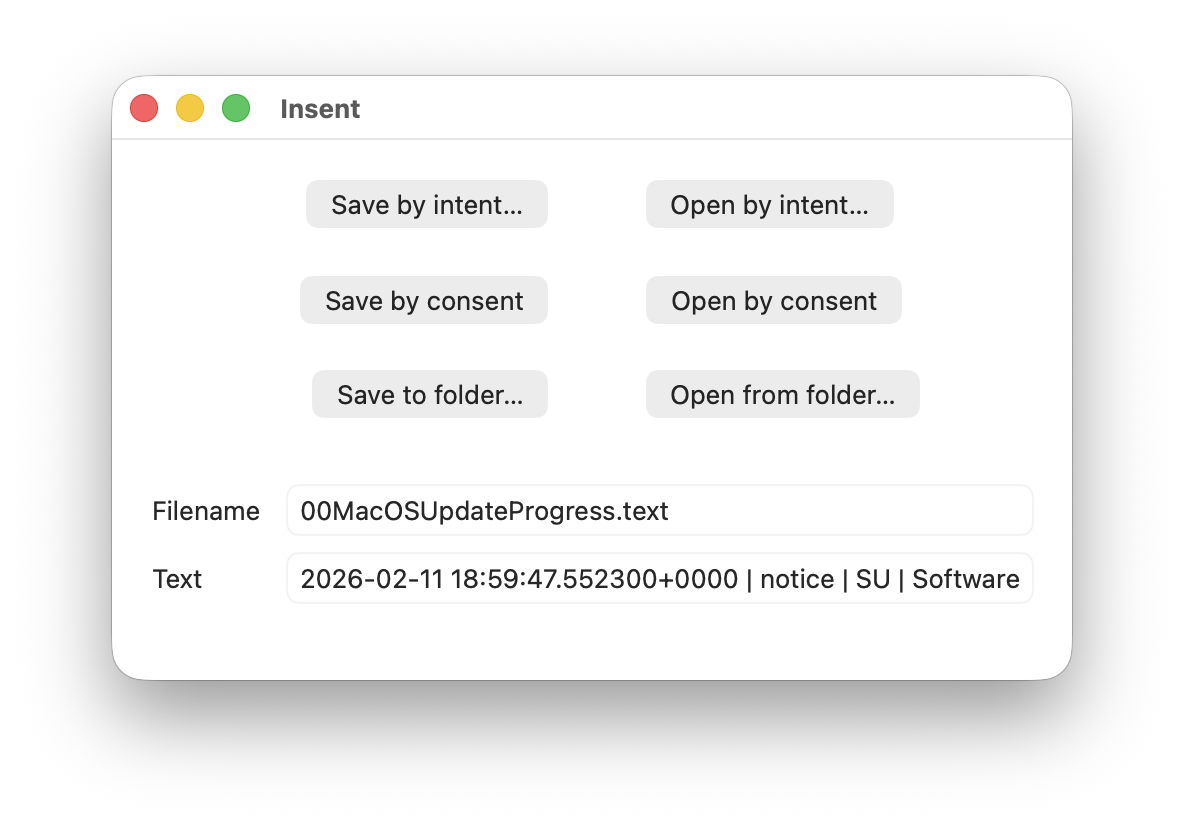
For this magic demo, I’m only going to use two of Insent’s six buttons:

  • Open by consent, which results in Insent choosing a random text file from the top level of your Documents folder, and displaying its name and the start of its contents below. As it does this without involving the user in the process, the macOS privacy system TCC requires it to obtain the user’s consent to list and access the contents of that protected folder.
  • Open from folder, which opens an Open and Save Panel where you select a folder. Insent then picks a random text file from the top level of that folder, and displays its name and the start of its contents below. Because you expressed your intent to access that protected folder, TCC considers that is good enough to give access without requiring any consent.

Demonstration

Once you have downloaded Insent, extracted it from its archive, and dragged the app from that folder into one of your Applications folders, follow this sequence of actions:

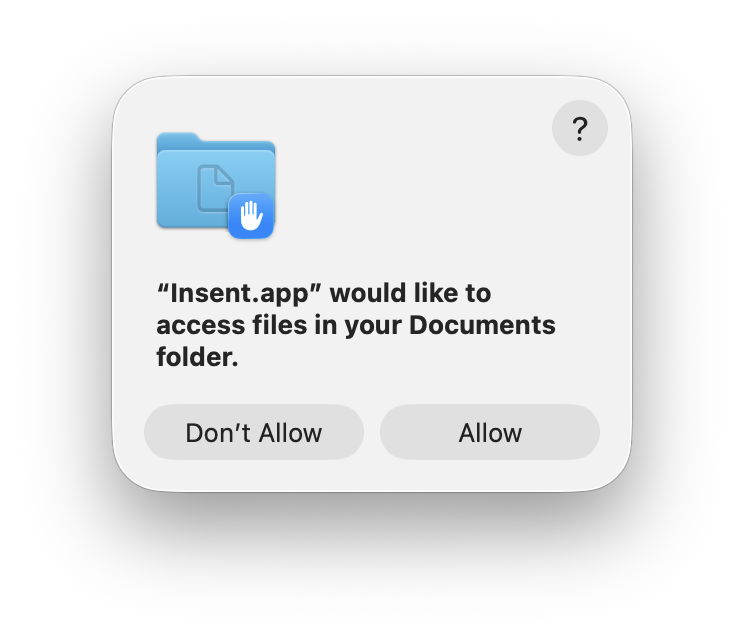
  1. Open Insent, click on Open by consent, and consent to the prompt to allow it to access your Documents folder. Shortly afterwards, Insent will display the opening of one of the text files in Documents. Quit Insent.
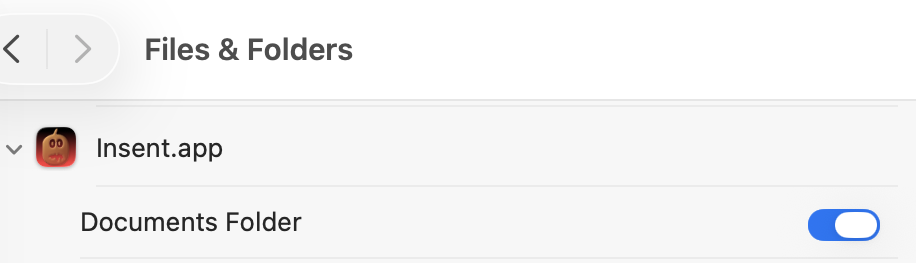
  2. Open Privacy & Security settings, select Files & Folders, and confirm that Insent has been given access to Documents.
  3. Open Insent, click on Open by consent, and confirm it now gains access to a text file without asking for consent. Quit Insent.
  4. Open Privacy & Security settings, select Files & Folders, and disable Documents access in Insent’s entry there using the toggle.
  5. Open Insent, click on Open by consent, and confirm that it can no longer open a text file, but displays [Couldn't get contents of Documents folder].
  6. Click on Open from folder and select your Documents folder there. Confirm that works as expected and displays the name and contents of one of the text files in Documents.
  7. Click on Open by consent, and confirm that now works again.
  8. Confirm that Documents access for Insent is still disabled in Files & Folders.
  9. Whatever you do now, the app retains full access to Documents, no matter what is shown or set in Files & Folders.

Indeed, the only way you can protect your Documents folder from access by Insent is to run the following command in Terminal:
tccutil reset All co.eclecticlight.Insent
then restart your Mac. That should set Insent’s privacy settings back to their default.

You can also demonstrate that this behaviour is specific to one protected folder at a time. If you select a different protected folder like Desktop or Downloads using the Open from folder button, then Insent still won’t be able to list the contents of the Documents folder, as its TCC settings will function as expected.

How does this work?

Insent is an ordinary notarised app, and doesn’t run in a sandbox or pull any clever tricks. When System Integrity Protection (SIP) is enabled some of its operations are sandboxed, though, including attempts to list or access the contents of locations that are protected by TCC.

When you click on its Open by consent button, sandboxd intercepts the File Manager call to list the contents of Documents, as a protected folder. It then requests approval for that from TCC, as seen in the following log entries:
1.204592 Insent sendAction:
1.205160 Insent: trying to list files in ~/Documents
1.205828 sandboxd request approval
1.205919 sandboxd tcc_send_request_authorization() IPC

TCC doesn’t have authorisation for that access by Insent, either by Full Disk Access or specific access to Documents, so it prompts the user for their consent. If that’s given, the following log entries show that being passed back to the sandbox, and the change being notified to com.apple.chrono, followed by Insent actioning the original request:
3.798770 com.apple.sandbox kTCCServiceSystemPolicyDocumentsFolder granted by TCC for Insent
3.802225 com.apple.chrono appAuth:co.eclecticlight.Insent] tcc authorization(s) changed
3.809558 Insent: trying to look in ~/Documents for text files
3.809691 Insent: trying to read from: /Users/hoakley/Documents/asHelp.text
3.842101 Insent: read from: /Users/hoakley/Documents/asHelp.text

If you then disable Insent’s access to Documents in Privacy & Security settings, TCC denies access to Documents, and Insent can’t get the list of its contents:
1.093533 com.apple.TCC AUTHREQ_RESULT: msgID=440.109, authValue=0, authReason=4, authVersion=1, desired_auth=0, error=(null),
1.093669 com.apple.sandbox kTCCServiceSystemPolicyDocumentsFolder denied by TCC for Insent
1.094007 Insent: couldn't get contents of ~/Documents

If you then access Documents by intent through the Open and Save Panel, sandboxd no longer intercepts the request, and TCC therefore doesn’t grant or deny access:
0.897244 Insent sendAction:
0.897318 Insent: trying to list files in ~/Documents
0.900828 Insent: trying to look in ~/Documents for text files
0.901112 Insent: trying to read from: /Users/hoakley/Documents/T2M2_2026-01-06_13_03_00.text
0.904101 Insent: read from: /Users/hoakley/Documents/T2M2_2026-01-06_13_03_00.text

Thus, access to a protected folder by user intent, such as through the Open and Save Panel, changes the sandboxing applied to the caller by removing its constraint to that specific protected folder. As the sandboxing isn’t controlled by or reflected in Privacy & Security settings, that allows TCC, in Files & Folders, to continue showing access restrictions that aren’t applied because the sandbox isn’t applied.

Conclusion

Access restrictions shown in Privacy & Security settings, specifically those to protected locations in Files & Folders, aren’t an accurate or trustworthy reflection of those that are actually applied. It’s possible for an app to have unrestricted access to one or more protected folders while its listing in Files & Folders shows it being blocked from access, or for it to have no entry at all in that list.

Is this likely to occur?

Most apps that want access to protected folders like Documents appear to seek that during their initialisation, and before any user interaction that could result in intent overriding the need for consent. However, many users report that apps appear to have access to Documents but aren’t listed in Files & Folders, suggesting that at some time that sequence of events does occur.

To be effectively exploited this would need careful sequencing, and for the user to select the protected folder in an Open and Save Panel, so drawing attention to the manoeuvre.

Most concerning is the apparent permanence of the access granted, requiring an arcane command in Terminal and a restart in order to reset the app’s privacy settings. It’s hard to believe that this was intended to trap the user into surrendering control over access to protected locations. But it can do.

I’m very grateful to Richard for drawing my attention to this.

Why the macOS 26.4 update appears to freeze

By: hoakley
30 March 2026 at 14:30

Many discovered how long 5 minutes could last when they updated from macOS 26.3.1 to 26.4. Right at the end of its Preparation phase, Software Update showed there were only 5 minutes remaining for far longer. This article reveals what went wrong with that update.

My observations come from a Mac mini M4 Pro running a vanilla installation of macOS Tahoe, being updated from 26.3.1 (a) with the BSI installed, to 26.4. Times and details are taken from log extracts covering the final 14 minutes of the update, immediately prior to the reboot for its installation.

Preparation

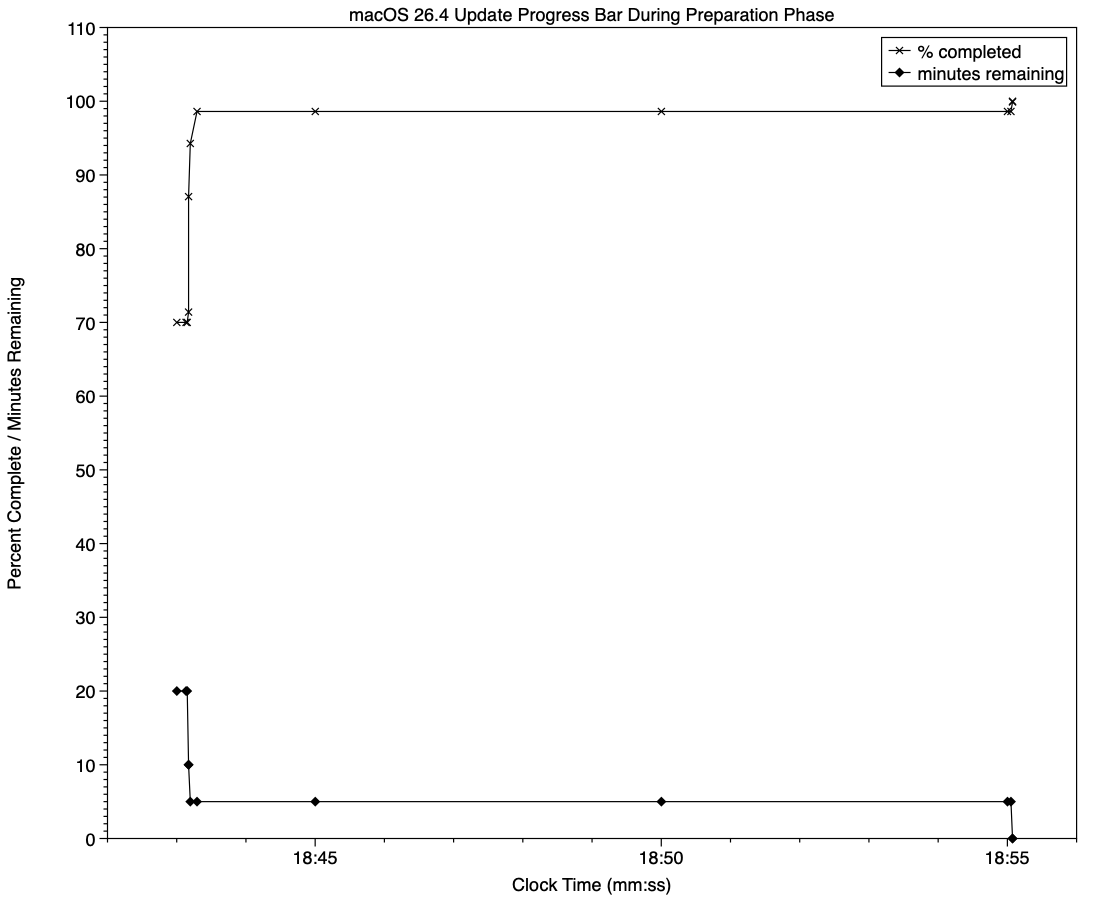
At almost exactly 18:43:00, softwareupdated reported that the PREPARING_UPDATE phase was in progress, with 70% complete on the progress bar, and 20 minutes remaining. Periodic preparation activities were then reported in the log, mainly verifying components to be installed as part of the update. One of the longest of those, /usr/standalone/i386/Firmware.scap, took nearly 6.5 minutes alone, although you might wonder why that’s required on an Apple silicon Mac!

Eleven seconds later, softwareupdated changed the progress bar to display 10 minutes remaining, with 71% completed. Just 1.5 seconds later that changed again to display 5 minutes remaining with 94% complete. Six seconds after that, with 5 minutes still displayed, the log records 98.6% was complete.

The log and progress bar then remained stuck at 5 minutes remaining and 98.6% complete for the next 11 minutes and 47 seconds, before changing to 99.9% complete and no time remaining.

These are plotted in the chart below.

The final 5 minute period started at 18:43:12, and lasted until 18:55:04, as reflected in the long period of 98.6% completion (upper line) and 5 minutes remaining (lower line).

The “5 minutes” remaining actually took 12 minutes and 7 seconds, although log entries make it clear that preparation continued throughout that time, with further verifications and “Preparing system volume…”. Those details were reported as ActionText for progress monitoring, but curiously aren’t accessible to the user at the time.

Log entries record softwareupdated keeping detailed records of progress over this period, though. For example:
18:51:32.924688 softwareupdated PrepareUpdate PROGRESS (Continue) | state:{
ActionText = "Preparing system volume...";
ElapsedTime = 490;
ExpectedTime = 1335505;
PercentBytesComplete = "48.05373989419242";
PercentComplete = "4.701870471432042";
}

But those aren’t reflected in the progress bar.

Once the update had completed that preparation phase, extensive checks were performed to ensure it was correctly configured, and components were moved into place in the ‘stash’ to be used during installation. One second after successful completion, softwareupdated locked the controller state and waited for the reboot to start installation. Rebooting followed less than two minutes later.

What went wrong?

The macOS 26.4 update for Apple silicon Macs was large, and the work required to verify its contents and complete its preparation was incorrectly reported in both percent completion and time remaining. Even in smaller updates, some form of progress needs to be shown in the progress bar during these later stages of preparation, or users may be mislead into thinking the update has frozen or failed, and could for example restart their Mac to try updating again.

What should the user do?

When an update claims there’s only 5 minutes left, that could readily extend to longer, possibly on slower Macs as long as 30 minutes or more. Unless there’s evidence that the update has gone wrong at this stage, you should leave your Mac to complete it, as it almost certainly will. If you’re still in doubt and want to confirm that the update hasn’t frozen, open Activity Monitor and look for around 100% CPU from softwareupdated or related processes, and disk activity.

Unfortunately, there’s nothing the user can do to accelerate macOS updates.

What has changed in macOS Tahoe 26.4?

By: hoakley
25 March 2026 at 06:04

The update to bring macOS Tahoe up to version 26.4 is hefty at around 7.15 GB (more than double that if you’re unlucky), and reflects a great deal of bug fixes and improvements in almost every subsystem. Apple provides three good sets of release notes:

  • General release notes include the addition of an option to use compact tabs in Safari, Freeform’s new Creator Studio enhancements, and a facility for Purchase Sharing in Family Sharing. Oh, and the requisite eight new emoji.
  • Enterprise release notes are extensive, but contain little for the non-enterprise user.
  • Security release notes list over 70 fixes, many of which are significant, but none are reported as being known to be exploited in the wild at present.

The new build number of 26.4 is 25E246. The Darwin Kernel version is 25.4.0, and XNU 12377.101.15~1.

Apple silicon firmware is updated to a completely different version numbering system, and is now reported as mBoot version 18000.101.7. If you’re running SilentKnight older than version 2.14 (71), then it’s likely that it will crash as a result of this change in firmware version. Please use version 2.14 from here.

Firmware in Intel Macs with T2 chips remains with the previous system, and is updated from 2094.80.5.0.0 (iBridge 23.16.13120.0.0,0) to 2103.100.6.0.0 (iBridge 23.16.14242.0.0,0).

Looking through the bundled apps and /System/Library, there are a great many increments in build numbers reflecting the extensive changes made. Here are a few of the more substantial changes found.

In bundled apps:

  • Books goes from version 8.1 to 8.4
  • Freeform, version 4.3 to 4.4
  • iPhone Mirroring, version 1.5 to 1.6
  • Music, version 1.6.3 to 1.6.4
  • Safari, version 26.3.1 (21623.2.7.111.2) in BSI (a) to 26.4 (21624.1.16.11.4)
  • TV, version 1.6.3 to 1.6.4
  • Audio MIDI Setup, version 3.7 to 3.8
  • Digital Color Meter, version 6.10 to 6.11
  • Screen Sharing, version 6.2 (758.1) to 6.1 (760.4), note the reduction in version number.

In /System/Library:

  • AGX kernel extensions all have build increments
  • AppleDiskImages2 kext has a build increment
  • AppleEmbeddedAudio kext and its plugin kexts have build increments
  • AppleIntel Graphics kexts have version increments
  • AppleStorageDrivers kext and its plugin kexts have build increments
  • APFS is updated from 2632.80.1 to 2811.101.1, suggesting a substantial change has been made
  • new private frameworks include ASMExclaveSupport, AccelerateOpt, AlwaysOnExclavesDaemon, AnteroAgent, AppRemoteAssets, AudioPasscodeDSP, BNNSOdieDelegate, CookingData, CoreTransparency, DynamicPrefetching, InAppFeedback, NanoPassKit, PartnerVisualSearch, a whole family of Unilog frameworks, and a group of iCloudWeb frameworks
  • mdimporters updated include those for Application, CoreMedia, Mail, Office, iWork but not RichText.

After seeing the new CookingData private framework, I looked out for RecipeKit, but was disappointed not to see it.

This is probably going to be the last such substantial update to macOS Tahoe, as much of Apple’s engineering effort is transferring to make macOS 27 ready for release as a beta at WWDC in early June.

How localisation confused SilentKnight 2.13

By: hoakley
16 March 2026 at 15:30

I’d like to apologise to those of you who ended last week downloading two new versions of SilentKnight, instead of the one that I had intended. This article explains how the second came about.

SilentKnight is heavily dependent on discovering key facts about the Mac that it’s running on. One of the first it needs to know is whether it’s looking at a plain Intel Mac, one with a T2 chip, or an Apple silicon Mac, as that determines how it should go about checking which version of firmware it’s running, and much else.

Over the last five years, SilentKnight has relied on the command-line equivalent of the System Information app, system_profiler. Surprisingly that doesn’t have a single field that draws a clear distinction between those types of Mac. The closest it comes to doing that is the information shown for the Controller item, or
system_profiler SPiBridgeDataType
in Terminal:

  • Intel Macs without a T2 chip return no information, as they’re not considered to have a controller in this sense.
  • Those with T2 chips return a Model Name of Apple T2 Security Chip.
  • Apple silicon Macs give the iBoot (or, from 26.4, mBoot) firmware version number.

While that has worked for five years, for SilentKnight version 2.13 I decided to slightly extend the text it looks for, to ” T2 ” to reduce the chance of false positives now that Apple silicon results are becoming more diverse. That worked fine on my two Intel Macs with T2 chips, but broke weirdly in a MacBook Pro tested by Jan, to whom I’m deeply grateful for the early report of this problem. Jan’s MacBook Pro was thoroughly confused, found and reported the correct T2 firmware but told them it should be running a more recent version of iBoot, for Apple silicon Macs.

It turned out that Jan’s MacBook Pro is running German as its primary language, so instead of reporting Apple T2 Security Chip in system_profiler it returned Apple T2-Sicherheits-Chip, and ” T2 ” couldn’t be found to confirm it wasn’t an Apple silicon Mac. The simple fix was to remove the trailing blank from the search term, which becomes ” T2″.

Although system_profiler can return its information in plain text, JSON or XML formats, its content is the same in all three, with localised text that’s dependent on that Mac’s primary language setting. Besides, its XML is exceptionally verbose, squeezing a few lines of information into 262. I was surprised by this five years ago, when I first came across it when trying to parse the list of Apple silicon security settings.

locales01

Here you can see those for a Mac using Dutch localisation. Instead of responses like
Secure Boot: Full Security
using Dutch for your Mac’s primary language turns that into
Secure Boot: Volledige beveiliging
When SilentKnight tries to work out whether your Mac is set to Full Security, that means it would have to look up the response in a dictionary containing every possible language.

Not only that, but these localised responses vary between different sections and data types.

locales02

The above responses to system_profiler with French set as the primary language demonstrate that has no effect on Hardware data, where core types are given in English, but changes those in Controller’s Boot Policy. To discover which change, you have to test with many different language settings, as none of this is documented, of course.

At that time I spent several days trying to get an unlocalised response by running system_profiler in an English environment, but that had no effect, and there was no way to bypass this localisation. As this language dependency limits the usefulness of the command tool, I argued that its output shouldn’t be localised at all.

Now, five years later, I have been bitten again, and apologise for putting you through two updates to SilentKnight when there should only have been one.

Previously

Bad design makes macOS a Tower of Babel

Emscripten Fetch 接口的一个潜在内存泄漏问题

7 May 2025 at 18:04

近日发现了一个非常刁钻的可能引起基于 Emscripten 编译的 WASM 程序内存泄漏的问题。Emscripten 工具链提供了 Fetch 功能模块,这个模块允许我们调用浏览器的 fetch 接口来进行网络访问。

一个使用 fetch 接口的简单例子是:

1
2
3
4
5
6
7
8
9
10
11
12
13
14
15
16
17
18
19
20
21
22
23
24
#include <stdio.h>
#include <string.h>
#include <emscripten/fetch.h>

void downloadSucceeded(emscripten_fetch_t *fetch) {
printf("Finished downloading %llu bytes from URL %s.\n", fetch->numBytes, fetch->url);
// The data is now available at fetch->data[0] through fetch->data[fetch->numBytes-1];
emscripten_fetch_close(fetch); // Free data associated with the fetch.
}

void downloadFailed(emscripten_fetch_t *fetch) {
printf("Downloading %s failed, HTTP failure status code: %d.\n", fetch->url, fetch->status);
emscripten_fetch_close(fetch); // Also free data on failure.
}

int main() {
emscripten_fetch_attr_t attr;
emscripten_fetch_attr_init(&attr);
strcpy(attr.requestMethod, "GET");
attr.attributes = EMSCRIPTEN_FETCH_LOAD_TO_MEMORY;
attr.onsuccess = downloadSucceeded;
attr.onerror = downloadFailed;
emscripten_fetch(&attr, "myfile.dat");
}

Fetch API 提供了一些比较高阶的功能,一种一个比较重要的功能是,他可以将下载的内容缓存到 IndexDB 中,这个缓存机制能够突破浏览器自身的缓存大小的限制(一般超过 50MB 的文件浏览器的自动缓存机制会拒绝缓存)。但是这个缓存机制会导致内存泄漏。

1 泄漏产生的过程

在开头的例子中,我们需要再 onerror 和 onsuccess 回调中调用 emscripten_fetch_close 接口来关闭 fetch 指针代表的请求。在关闭过程中,fetch 使用的数据缓存区将会被回收。这个过程如下:

1
2
3
4
5
6
7
8
9
10
11
12
13
14
15
16
17
18
19
20
21
22
23
EMSCRIPTEN_RESULT emscripten_fetch_close(emscripten_fetch_t* fetch) {
if (!fetch) {
return EMSCRIPTEN_RESULT_SUCCESS; // Closing null pointer is ok, same as with free().
}

// This function frees the fetch pointer so that it is invalid to access it anymore.
// Use a few key fields as an integrity check that we are being passed a good pointer to a valid
// fetch structure, which has not been yet closed. (double close is an error)
if (fetch->id == 0 || fetch->readyState > STATE_MAX) {
return EMSCRIPTEN_RESULT_INVALID_PARAM;
}

// This fetch is aborted. Call the error handler if the fetch was still in progress and was
// canceled in flight.
if (fetch->readyState != STATE_DONE && fetch->__attributes.onerror) {
fetch->status = (unsigned short)-1;
strcpy(fetch->statusText, "aborted with emscripten_fetch_close()");
fetch->__attributes.onerror(fetch);
}

fetch_free(fetch);
return EMSCRIPTEN_RESULT_SUCCESS;
}

可以看到,回收并非总会发生, emscripten_fetch_close 函数会对 fetch 的部分状态进行检查,如果检查失败,则会返回一个 EMSCRIPTEN_RESULT_INVALID_PARAM 的错误码,并且不会执行后续的清理过程(`fetch_free)。被检查的两属性中,fetch->id 是我们需要关注的对象。fetch->id 这个属性作为 fetch 的唯一标识符,是用来建立起 C++ 端的请求对象和 JS 端的请求对象的映射的。id 的值在 JS 端分配。查看源码中的 Fetch.js 文件,

1
2
3
4
5
6
7
8
9
10
11
12
function fetchXHR(fetch, onsuccess, onerror, onprogress, onreadystatechange) {
// ...

var id = Fetch.xhrs.allocate(xhr);
#if FETCH_DEBUG
dbg(`fetch: id=${id}`);
#endif
{{{ makeSetValue('fetch', C_STRUCTS.emscripten_fetch_t.id, 'id', 'u32') }}};

// ...

}

这是唯一的一处 id 复制。这段代码位于 fetchXHR 函数中,这意味着只有发起了 XHR 请求时,id 才会被分配。那么,如果缓存存在呢?这时不会调用 fetchXHR 函数(而是调用 fetchLoadCachedData 函数)。这意味着回调函数中我们试图调用 emscripten_fetch_close 函数来关闭请求并回收资源时,这个回收过程无法进行,这导致了内存泄漏。

2 怎么解决这个问题

要解决这个问题我们只需要强行让 fetch->id == 0 的检查无法通过即可,我们可以在 emscripten_fetch_close 调用前,强行设置 fetch->id 为一个非零值。那么什么值合适呢?如果我们取值和已有的请求的 id 相同,那么 emscripten_fetch_close 可能将那个请求关闭。研究 id 分配的过程(即 Fetch.xhrs.allocate 的实现)

1
2
3
4
5
6
// libcore.js
allocate(handle) {
var id = this.freelist.pop() || this.allocated.length;
this.allocated[id] = handle;
return id;
}

可以看到,id 是顺序分配的,且使用过的 id 会被回收使用(freelist)。因此我们可以设置一个较大的值,只要同一时间最大的并发请求数量不超过这个值,那就是安全的。我一般选择设置为 0xffff。 那么,正确的关闭请求的方式是:

1
2
3
4
if (fetch->id == 0) {
fetch->id = 0xffff;
}
emscripten_fetch_close(fetch);
❌
❌