Reading view

There are new articles available, click to refresh the page.

Get more from your Mac’s log by extending its duration

For many, the log is like an insurance policy: you only use it when you need to, and that was normally rare until Apple introduced XProtect Remediator, XPR. Because that writes the results of its malware scans to the log, where they can be checked, you now want to have good logs with entries going back at least a day.

Traditional log systems retain old log records by the calendar, normally for around five days. During the early hours of the morning, daily housekeeping routines remove time-expired logs, leaving sufficient for you to look back those few days. But the macOS Unified log doesn’t work that way. Instead, its log maintainer logd sits in the background all the time and removes old log entries to keep the size of the log to just over 50 tracev3 files in the Persist folder, a total of a little more than 500 MB, regardless of how brief a period that might cover.

When you then go to check the last XPR scans, you’re told there aren’t any records of them in the log, because logd has removed all except those for the last few hours. How can you extend the period covered by your Mac’s log records?

Cheat

There are several good ways you can cheat those log records to ensure they catch XPR scans. The simplest is to shut your Mac down overnight, rather than leaving it running all the time. Letting it sleep instead can actually shorten the period covered by the log if your Mac keeps waking, as waking up can write even more log entries. But long periods of unbroken sleep can be a help when they occur.

You can also adjust the time you check XPR. To do that you first need to get a better idea of how long your Mac’s log entries last. This is available in XProCheck, Mints or LogUI. To use the last of those:

  1. Open the Diagnostics Tool using the command in the Window menu.
  2. Click on the Get Info tool at the left end of the window’s toolbar.
  3. In the Open dialog, select the /var/db/diagnostics folder for that Mac’s active log.
  4. Confirm there are at least 50 files in the Persist folder, forming the main log record.
  5. Make a note of the time period given in the last line, for the oldest Persist log entry.

Rarely, this highlights a different problem, in which log files don’t appear at all, or are drastically reduced in number. The most common cause of those is using a housekeeping utility that gleefully deletes your Mac’s log files. Please don’t do that, as those log files are indispensable.
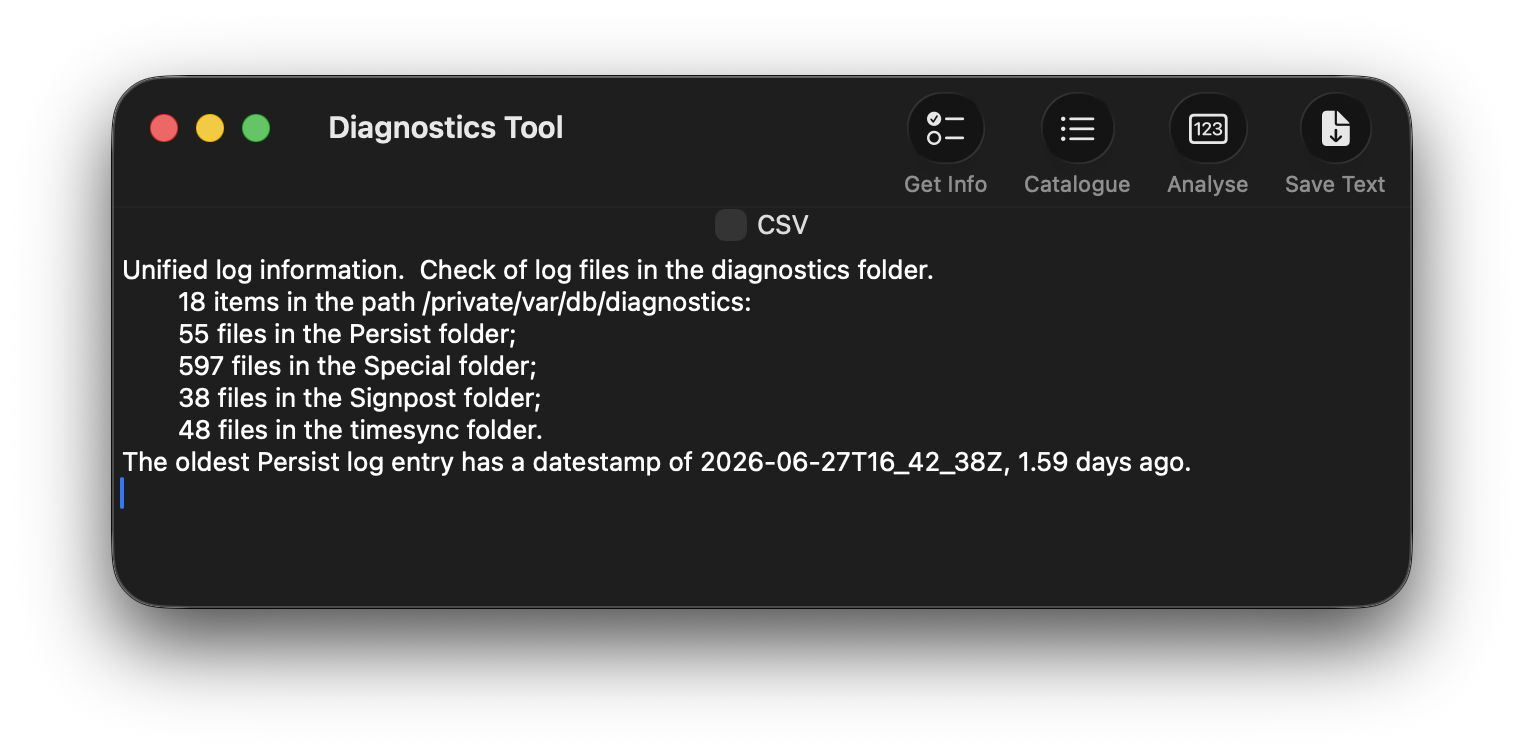
XPR scans tend to be run at roughly the same time of day, provided the Mac is using mains power not battery, is awake and lightly loaded. If the time period given for log entries is 6 hours, check every 4-5 hours using XProCheck until you catch a set of scans. Then run your XPR checks so that time is covered by their log records. If your Mac is a laptop, XProtect Remediator scans will only be run it’s connected to its mains power adaptor, as they draw a lot of power while they’re running.

Discover log crises

Discovering why your logs are filling so quickly is more challenging, but the first thing to do is identify any periods when there are vast numbers of entries from some sort of crisis. If you can work out why those are happening, you may then be able to do something to stop further crises occurring. The best way to do that is to look at the log statistical summaries written by logd as part of its maintenance, using Logistician.

First create a new folder somewhere like ~/Documents, then show hidden files in the Finder with Command-Shift-. [period or stop] and navigate your way into log storage in /var/db/diagnostics. You’ll see typically four files containing log statistics, named logdata.statistics.0.jsonl and logdata.statistics.1.jsonl and a text twin of each. Copy all the jsonl files into the folder you just made in ~/Documents.

Open Logistician and click on its Read JSONL tool at the left end of its toolbar, then navigate to the folder in ~/Documents containing those jsonl statistics files. Of the two, logdata.statistics.0.jsonl is normally the smaller and more recently active, so select that to read into Logistician.
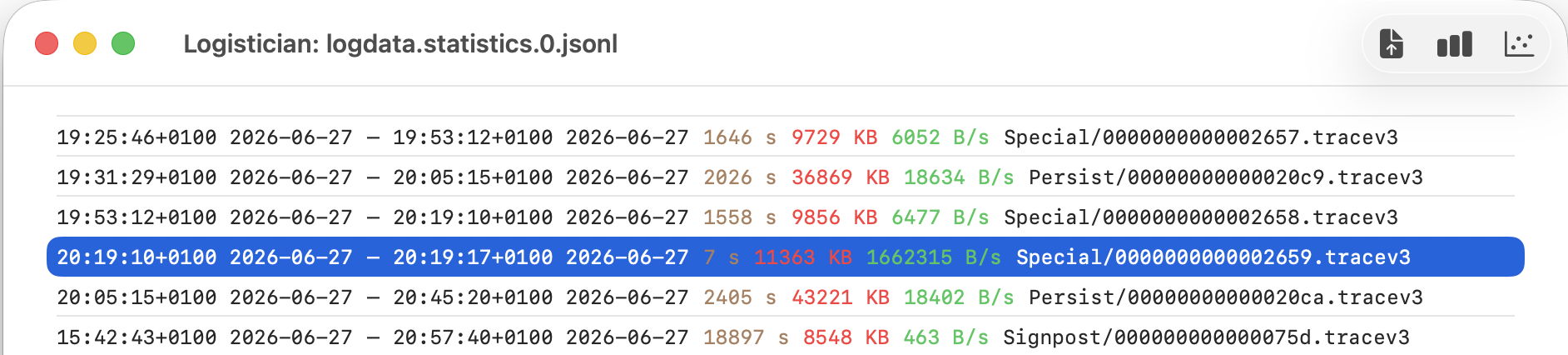
The app will then list all the log tracev3 files it has processed recently, normally over the last 36 hours or more. Ignore Signpost files listed there, and concentrate on Persist, containing the main body of log entries, and Special, usually longer additions. They’re listed in chronological order, with the oldest at the top, and the most recent at the bottom. Shown in brown are the time periods covered by each log file in seconds, and in green the number of bytes written per second to form that log file. So a log file with an entry like
20:19:10+0100 2026-06-27 20:19:17+0100 2026-06-27 7 s 11363 KB 1662315 B/s Special/00000000000002659.traccev3
is a Special file that was written between those two times, containing 11 MB of log data written over a period of only 7 seconds, at a rate of 1.7 MB/s. That does appear to have been a crisis, so merits further investigation. To do that, select that entry in the list and click on the Chart selection tool.

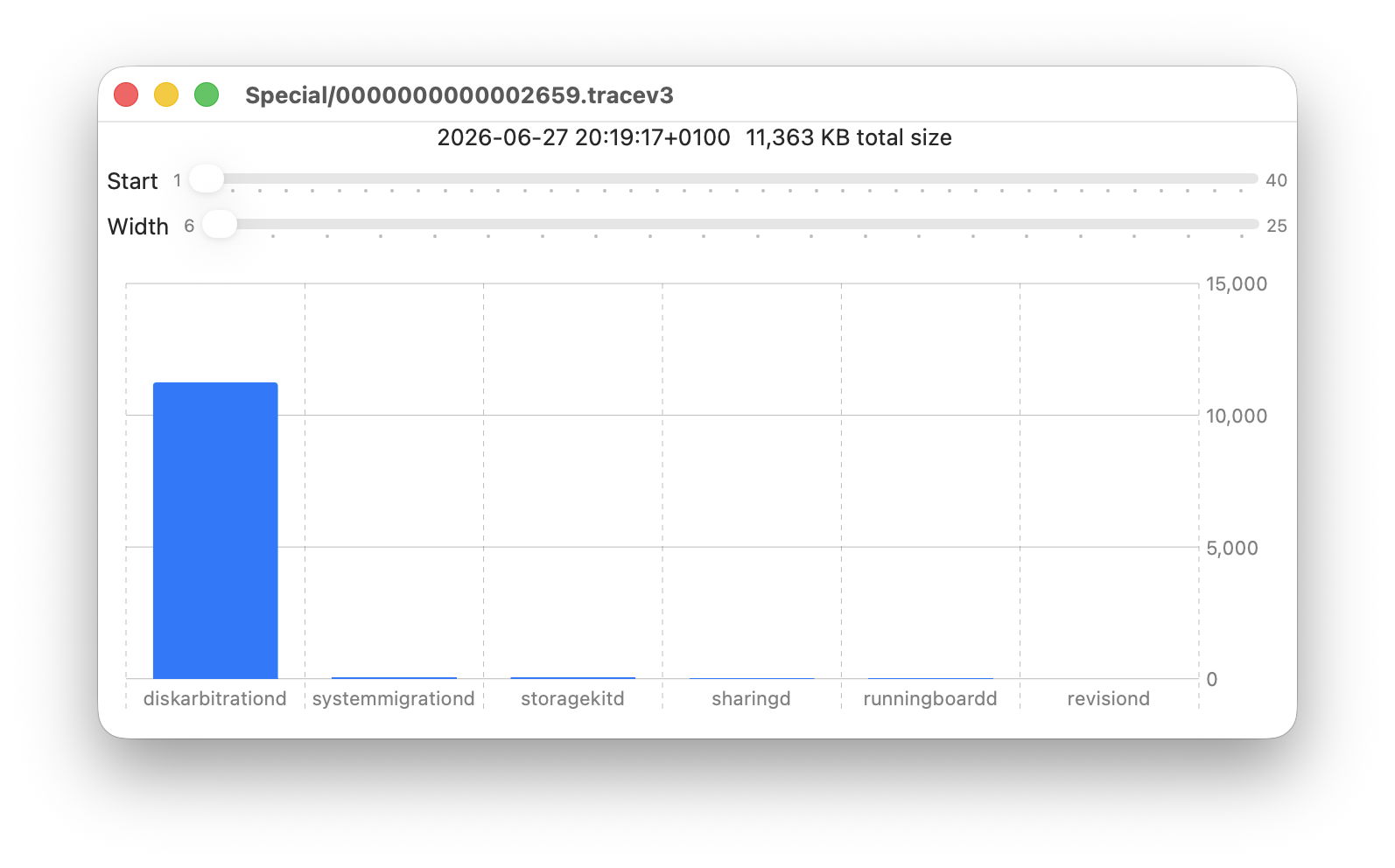
This opens a bar chart showing the amount of log data written over that period, broken down by the process associated with each. In this case, the great majority came from diskarbitrationd, suggesting there might have been a problem with files at that time.
Because data in these statistics files can be retained for many weeks or months, this particular log file may have been removed already. If it has been retained you can point LogUI at that 7 second interval and browse the entries for clues as to why this might have occurred.
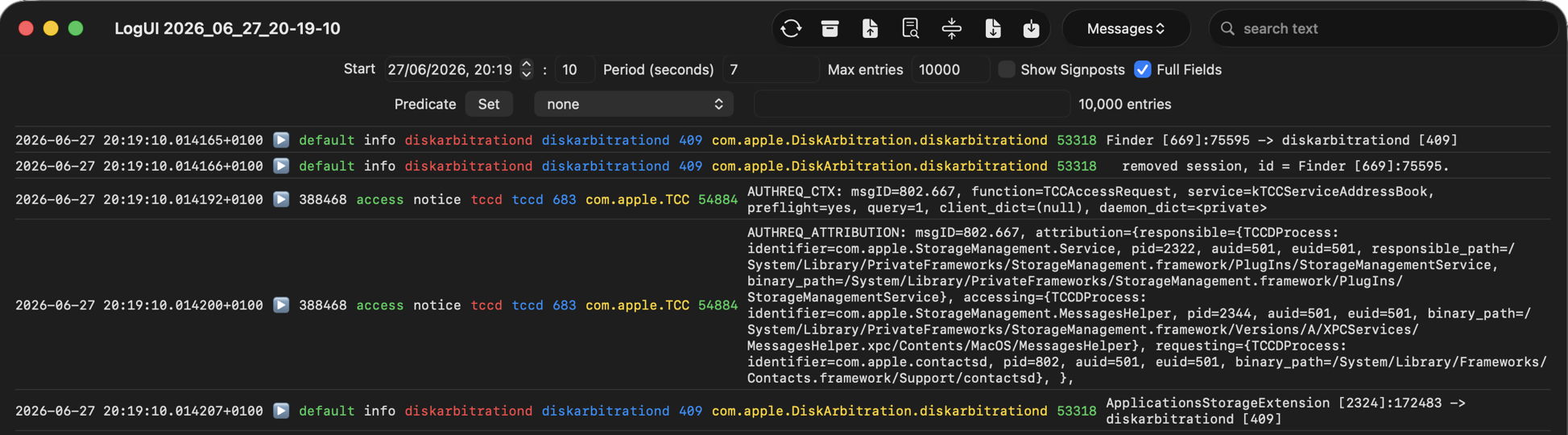
Yes, that confirms intensive log entries from diskarbitrationd, but there’s no obvious cause.

Discover patterns

Logistician’s other charts give you a broader view over all the log files analysed in the one statistics file. To see them click the Plot all logs tool at the right end of the toolbar.
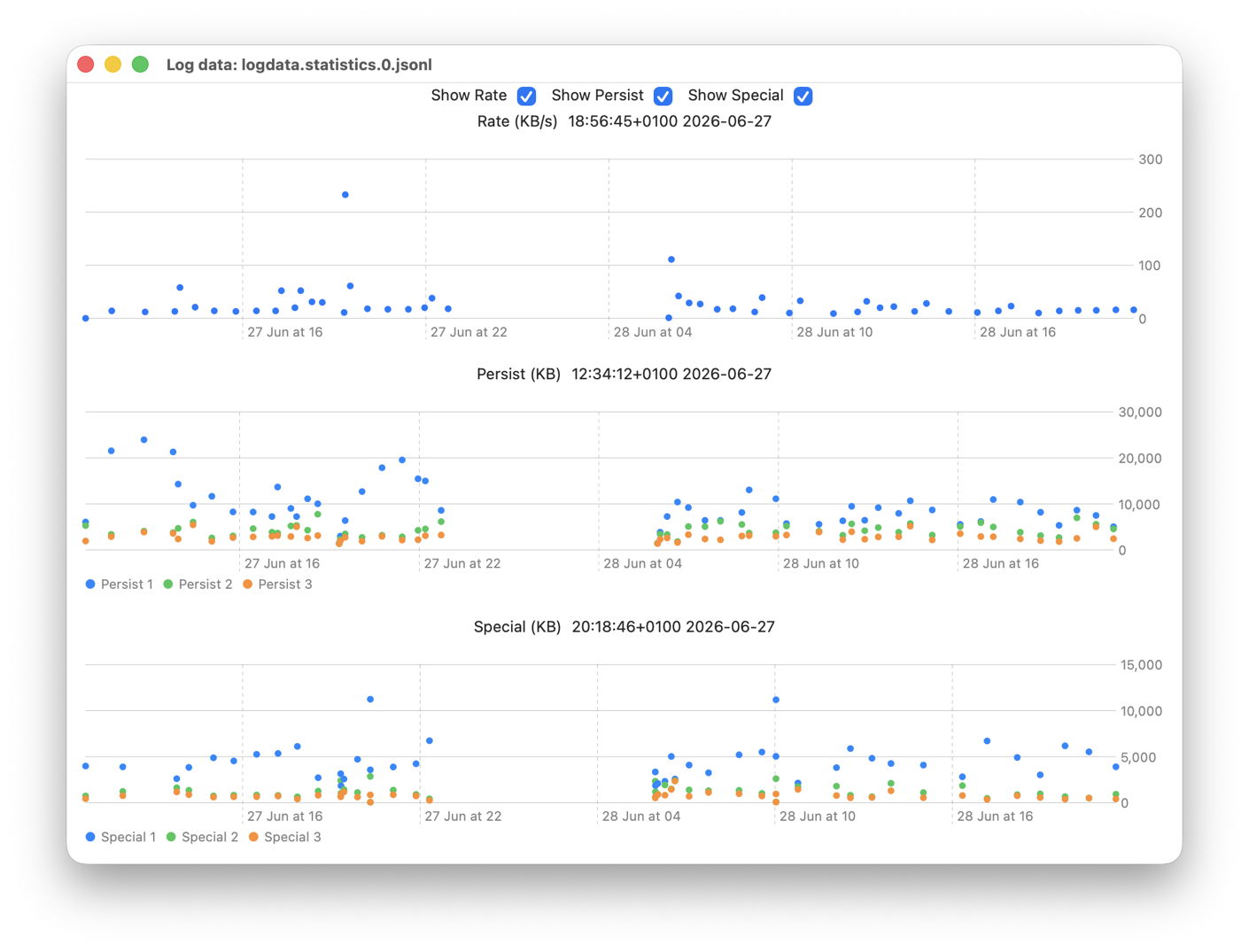
Looking through each of the log files listed by Logistician and trying to decide which merit further examination in a bar chart is time-consuming. These point plots help you choose which log files you should focus on. This window has three plots, from the top:

  1. Rate shows the average rate of log data written in each Persistent file. As in the other two plots, peaks are easy to identify by hovering the pointer over the dot. The text above will then give you the time and date to look at.
  2. Persist shows the average rates for the three processes that wrote the most data in each Persist file. Those processes are likely to differ between the points shown, but this can highlight files where there are big differences between first and second, for instance, as well as those where a lot of log data was written.
  3. Special shows the same for Special log files.

You may also see patterns in heavy log use appearing during each day, and may want to import the other, larger jsonl statistics file logdata.statistics.1.jsonl to see if that has similar patterns during its longer coverage. While logdata.statistics.0.jsonl usually only covers the last 36 hours or so, logdata.statistics.1.jsonl can extend back well over a month into the past, and in some Macs can cover as long as a year.

Treat causes

Although not simple, you can adjust which log entries are retained in the log, as explained in detail here. However, that’s treating the symptom rather than the cause, and its benefits are usually limited.

The most common causes you control are third-party software, particularly those listed in Login Items & Extensions in System Settings. A critical review of apps in your main Applications folder may reveal some that are old and should either be updated or removed. As those may include extensions, they can remain active even when you don’t use them. One frequent culprit is old printer support software that has been migrated from a previous Mac, even though you no longer use that printer.

Don’t expect to see major improvement in the period of log entries available, but keep at it, as the end result will be better not just for the log but for your whole Mac.

What happens in the log when an app crashes as it starts up?

In yesterday’s guide to dealing with apps that crash immediately you open them, I carefully avoided mentioning what you might find in the log. This article puts that right.

The list of common causes I gave is:

  • macOS intentionally crashed the app because of an error in code signing, or another serious security failure;
  • the app failed because it was in translocation;
  • the app couldn’t open a damaged or incompatible document;
  • the app had a problem with its Preferences.

Investigating these in the log is among the simplest tasks for those learning to access it, providing the app crashes reliably. Show the seconds value in the menu bar clock, and open the Applications folder containing the app. Select it as the seconds reach about 45, to allow time for its icon to be displayed, then double-click the app to run it as the seconds reach 00, but not a moment earlier. Don’t touch the mouse/trackpad or keyboard for at least 5 seconds, by which time the crash should have occurred and the notification or crash log should have been displayed.

Then open LogUI (or a substitute), and set it to extract and display all the entries for 5 seconds from 00 seconds. If you open a new window in LogUI the start time will be preset to the time you opened the app, all ready to get the log extract.

The double-click is easy to spot in the log, as it’s marked by four almost identical Activity entries with a yellow 🥎 softball emoji, each reading something like
AppKit Finder sendAction:
short entries that are quick to locate. Entries following the fourth of those then report what happened next.

Code signing errors

These are normally easy to recognise, as they start with a call to verify the signature,
00.940943 Finder sendAction:
00.963228 syspolicyd SecTrustEvaluateIfNecessary
00.963982 trustd SecKeyVerifySignature

that’s followed by an error that’s repeated many times,
00.981296 lsd com.apple.securityd MacOS error: -67030

Follow those down a bit further and you’ll see this reported in other subsystems
01.013084 com.apple.launchservices Error -67030 validating the signing information for [private], error=Error Domain=NSOSStatusErrorDomain Code=-67030 "(null)" UserInfo={SecCSArchitecture=arm64}

Normally, this will be checked again by AMFI (Apple Mobile File Integrity)
01.030162 amfid Entering OSX path for /Users/hoakley/Documents/000aa/DelightEd.app/Contents/MacOS/DelightEd
01.031629 amfid SecKeyVerifySignature
01.036291 amfid com.apple.securityd MacOS error: -67030
01.048491 error amfid com.apple.MobileFileIntegrity.framework Code failed basic validity check (error: -67030): Error Domain=NSOSStatusErrorDomain Code=-67030 UserInfo={SecCSArchitecture=[private]}
01.048857 amfid /Users/hoakley/Documents/000aa/DelightEd.app/Contents/MacOS/DelightEd not valid: Error Domain=AppleMobileFileIntegrityError Code=-420 "The signature on the file is invalid" UserInfo={NSURL=file:///Users/hoakley/Documents/
000aa/DelightEd.app/Contents/MacOS/DelightEd, NSLocalizedDescription=The signature on the file is invalid}

That’s confirmed and actioned by the kernel
01.048950 kernel AMFI: code signature validation failed.
01.052968 amfid com.apple.MobileFileIntegrity [private]: Broken signature with Team ID fatal.
01.053043 kernel AMFI: When validating /Users/hoakley/Documents/000aa/DelightEd.app/Contents/MacOS/DelightEd: The code contains a Team ID, but validating its signature failed. Please check your system log.
01.053052 kernel mac_vnode_check_signature: /Users/hoakley/Documents/000aa/DelightEd.app/Contents/MacOS/DelightEd: code signature validation failed fatally: When validating /Users/hoakley/Documents/000aa/DelightEd.app/Contents/MacOS/DelightEd: The code contains a Team ID, but validating its signature failed. Please check your system log.
01.053059 kernel validation of code signature failed through MACF policy: 1
01.053061 kernel check_signature[pid: 2718]: error = 1
01.053066 kernel proc 2718: load code signature error 4 for file "DelightEd"
01.053461 kernel AMFI: hook..execve() killing xpcproxy (pid 2718): Attempt to execute completely unsigned code (must be at least ad-hoc signed).
01.053624 kernel ASP: Sleep interrupted: ref 29, signal 0x100, pid: 2718

with the conclusion
01.053627 kernel ASP: Security policy would not allow process: 2718, /Users/hoakley/Documents/000aa/DelightEd.app/Contents/MacOS/DelightEd

You’re not likely to miss those.

Common error codes from signature validation include:

  • -2147409652 CSSMERR_TP_CERT_REVOKED, the certificate has been revoked
  • -67007 resource envelope is obsolete (version 1 signature)
  • -67008 unsealed contents present in the root directory of an embedded framework
  • -67013 resource envelope is obsolete (custom omit rules)
  • -67021 nested code is modified or invalid
  • -67023 invalid resource directory (directory or signature have been modified)
  • -67030 invalid Info.plist (plist or signature have been modified)
  • -67054 a sealed resource is missing or invalid
  • -67056 code has no resources but signature indicates they must be present
  • -67061 invalid signature (code or signature have been modified)
  • -67062 code object is not signed at all, which is by far the most common.

In this case, I had changed a single character in the app’s Info.plist, which broke its CDHashes, and resulted in the correct error code of -67030.

App translocation

In this case, you’re looking for two related pieces of evidence, that a process mentions the act of translocation, and that the app is run from a translocation location. Again, these normally aren’t hard to find.

Shortly after the double-click,
00.968186 Finder sendAction:
you should see mention of the creation of the translocation directory
01.040587 lsd com.apple.securityd SecTranslocateCreateSecureDirectoryForURL: created /private/var/folders/x4/
x00kny5x0_5dsnmmxhtw6hc80000gn/T/AppTranslocation/B9651238-6B8C-4750-BFAC-E0D1A327768C/d/DelightEd.app

A little further down the log you’ll see the app being referenced in that long path
01.069877 amfid Entering OSX path for /private/var/folders/x4/x00kny5x0_5dsnmmxhtw6hc80000gn/T/AppTranslocation/
B9651238-6B8C-4750-BFAC-E0D1A327768C/d/DelightEd.app/Contents/MacOS/DelightEd
01.090927 com.apple.runningboard _executablePath = /private/var/folders/x4/x00kny5x0_5dsnmmxhtw6hc80000gn/T/AppTranslocation/
B9651238-6B8C-4750-BFAC-E0D1A327768C/d/DelightEd.app/Contents/MacOS/DelightEd

and so on.

If you’re struggling to find those, select the Messages item at the right end of the toolbar in LogUI, type the app name into the search box there and press Return, to filter entries.

Failed to open document

Of the four common causes of early app crashes, these are hardest to find evidence in the log. This is because the only process likely to know what went wrong is the app itself, and few third-party apps write anything useful to the log. You might find a useful entry or two by setting that menu at the right end of LogUI’s toolbar to Processes, entering the app name into the search box, and pressing Return. However, in many cases there will be little or no useful information.

Preference file problems

My previous article referred only to standard preferences that are handled by cfprefsd. Some apps run their own preferences using their own code, and neither cfprefsd nor the defaults command covers them. If they have a problem when accessing those custom files, it’s most unlikely to be recorded in the log.

In other apps, you should look for evidence that the crash happened shortly after the cfprefsd service is connected to the app, to support the standard features.

Starting once again with the double-click
01.579559 Finder sendAction:
it may take some time for the opening stages to complete. You should then see the XPC connection between the app and cfprefsd being set up for both root and the user
01.638428 DelightEd com.apple.xpc [0x102cf6980] activating connection: mach=true listener=false peer=false name=com.apple.cfprefsd.daemon
01.638504 DelightEd com.apple.xpc [0x102cf7960] activating connection: mach=true listener=false peer=false name=com.apple.cfprefsd.agent
01.638563 cfprefsd com.apple.xpc [0xa252bdb00] activating connection: mach=false listener=false peer=true name=com.apple.cfprefsd.daemon.peer[2910].0xa252bdb00
01.638659 cfprefsd com.apple.xpc [0x86f2d3600] activating connection: mach=false listener=false peer=true name=com.apple.cfprefsd.agent.peer[2910].0x86f2d3600

The app will normally crash during or shortly after the loading of preferences, marked by entries like
01.641152 DelightEd Loading Preferences From User CFPrefsD
01.706158 DelightEd Loading Preferences From System CFPrefsD

These too can be found more easily by setting the menu at the right end of LogUI’s toolbar to Processes, entering the app name into the search box, and pressing Return.

Happy hunting!

Tackle QuickLook problems

With an understanding of how QuickLook provides thumbnails and previews, you can be systematic when tackling its problems, although thankfully those are infrequent if not rare.

Generic icon

By far the most common problem with QuickLook thumbnailing is when a file’s specific thumbnail isn’t shown, but a generic icon for that type of file appears instead. This has been particularly common since the release of macOS Sequoia, as that ended support for older third-party generators in qlgenerators. To be able to extend the range of types supported by thumbnailing, third-party generators must now be supplied as appexes stored in an app bundle’s PlugIns folder or similar.

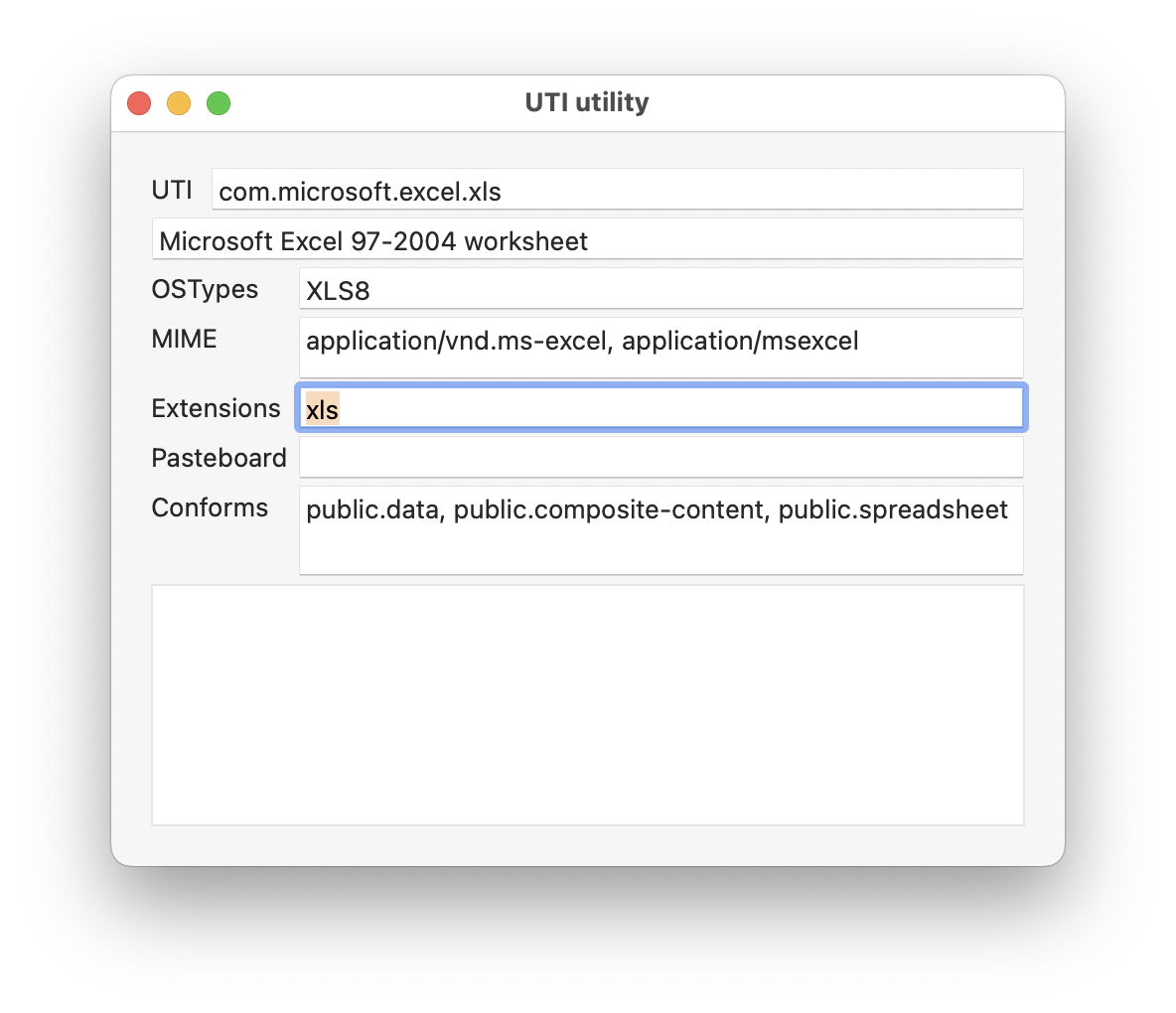
To pin this down, you’ll first need to discover the UTI of the files whose icons can no longer be turned into specific thumbnails. One easy way to do that is in my free UTIutility. Type in the file’s extension, press Return and the app will tell you that file’s UTI and those it conforms to.

utilutil121

You next need to discover which generator handles those UTIs. The official way to do that is using the command
qlmanage -m
but that now only lists qlgenerators supplied in macOS, as qlgenerators. To see listings of others as well, open my free Mints and click on its QuickLook button.

mints1202

For qlgenerators, you’re given the file UTI, the path to the qlgenerator file, and (when available) its version number, e.g.
com.adobe.pdf 👉/System/Library/QuickLook/PDF.qlgenerator (1002.2.3)

App extensions are divided into two, first those providing Previews, and second those for Thumbnails, e.g.
com.apple.applescript.text 👉/Applications/PreviewCode.app/Contents/PlugIns/Code Previewer.appex

If no generator handles the file’s UTI, ascend the list of UTIs it conforms with to discover which generator should attempt to. If you think an old qlgenerator is the problem now, contact the app’s developer and ask whether they intend supporting macOS with an appex replacement.

Occasionally you may come across an extension conflict, in which the same extension is used for another UTI, resulting in the wrong generator trying to create a thumbnail.

The nuclear option for any QuickLook problem is to reset its caches, using the command
qlmanage -r

Although its effects might be to slow thumbnail generation for a while, it’s unlikely to prove any more damaging.

Digging deeper

If you have to go any deeper than that, you’re going to need to capture good log extracts to enable diagnosis. As far as Icon Services, QuickLook and related features are concerned, it’s essential to disable log privacy before going any further, or you’ll be driven crazy by all those messages gutted and rendered meaningless by censorship.

Even then, log entries refer to key items such as files and folders using references that may appear opaque. Some abbreviate file names and directories as ‘B{14}1.jpg’ for BeltedGalloways1.jpg, and ‘t{5}s’ for testims, as well as referring to them by hex numbers like 0xBBDBEFDB0. Another common habit in log entries is to refer to files by their inode number, either as an ino, or in a full URL such as file:///.file/id=6571367.243284. The use of UUIDs is also common, for example as uuid:0AD8986E-6325-4FF1-92FD-9FD3C15D57EA.

Example thumbnail generation

This was initiated by a mouse click, following which a thumbnail isn’t immediately available from cache.

01.008113 Finder sendAction:
01.012218 com.apple.Finder | ThumbnailCache (0xbbe43cfd8, kIconified) -- Retrieve: 'B{14}1.jpg' (0xBBDBEFDB0), Container: 't{5}s' (0xBBD6F1C00), found: no
01.015014 QuickLookThumbnailingDaemon com.apple.quicklook | Enqueuing thumbnail request: <QLTGeneratorThumbnailRequest: <QLThumbnailGenerationRequest:0xc34e526c0 uuid:0AD8986E-6325-4FF1-92FD-9FD3C15D57EA BeltedGalloways1.jpg (fi:<fi:<QLCacheBasicFileIdentifier:0xc35297760 ino:243284> (version: <QLThumbnailVersion m:2019-01-28 12:36:40 +0000 s:656575 vi:{length = 12, bytes = 0x54b603000000000002000000} ino:3b654 g:com.apple.MobileQuickLook-1>)>) (rt:2) {16,16} (icon mode, variant 0) (badge 1) - Not started>, url: (null), item: (null), ht:0 bt:0 (low quality) client:com.apple.finder>
01.015016 QuickLookThumbnailingDaemon Cache Lookup

Following that are entries for memory and disk cache lookup, also resulting in failure, so the thumbnail has to be generated.

01.015626 QuickLookThumbnailingDaemon com.apple.quicklook | Enqueuing thumbnail request: <QLTGeneratorThumbnailRequest: <QLThumbnailGenerationRequest:0xc34e526c0 uuid:0AD8986E-6325-4FF1-92FD-9FD3C15D57EA BeltedGalloways1.jpg (fi:<fi:<QLCacheBasicFileIdentifier:0xc35297760 ino:243284> (version: <QLThumbnailVersion m:2019-01-28 12:36:40 +0000 s:656575 vi:{length = 12, bytes = 0x54b603000000000002000000} ino:3b654 g:com.apple.quicklook.thumbnail.ImageExtension-1>)>) (rt:2) {16,16} (icon mode, variant 0) (badge 1) - Not started>, url: (null), item: (null), ht:0 bt:0 (low quality) client:com.apple.finder>
01.017045 QuickLookThumbnailingDaemon com.apple.quicklook | <QLTGeneratorThumbnailRequest: <QLThumbnailGenerationRequest:0xc34e526c0 uuid:0AD8986E-6325-4FF1-92FD-9FD3C15D57EA BeltedGalloways1.jpg (fi:<fi:<QLCacheBasicFileIdentifier:0xc35297760 ino:243284> (version: <QLThumbnailVersion m:2019-01-28 12:36:40 +0000 s:656575 vi:{length = 12, bytes = 0x54b603000000000002000000} ino:3b654 g:com.apple.quicklook.thumbnail.ImageExtension-1>)>) (rt:2) {16,16} (icon mode, variant 0) (badge 1) - Not started>, url: file:///Users/howardoakley/Documents/testims/BeltedGalloways1.jpg, item: (null), ht:0 bt:0 (low quality) client:com.apple.finder> is downloaded. Trying to generate a thumbnail locally
01.017054 QuickLookThumbnailingDaemon com.apple.quicklook | About to generate a thumbnail locally from URL: file:///Users/howardoakley/Documents/testims/BeltedGalloways1.jpg

This leads to the file’s UTI type being looked up in the dictionary of those known to be handled by bundled qlgenerators. These are the log entries most important to those hunting generator problems.

01.017971 QuickLookSupport com.apple.quicklook | No exact match found in type dictionary 0xc352a7ae0 for 'public.jpeg' #UTI
01.018010 QuickLookSupport com.apple.quicklook | Getting 5 for 'icon flavor' from UTI 'public.image' #UTI
01.018012 QuickLookSupport com.apple.quicklook | Getting 5 for 'icon flavor' from UTI 'public.jpeg' #UTI
01.018765 QuickLookThumbnailingDaemon com.apple.quicklook | Generating thumbnail for <QLThumbnailItem: 0xc351c36c0> (size (16.0, 16.0)) with badge type 1 with extension <QLThumbnailExtension: 0xc354ec540>

That thumbnail is then entered into the store and its index.

01.036504 IconServices com.apple.iconservices | ADDING_NEW_STORE_ENTRY with UUID: FEE02B54-EE08-3F1F-90BD-8A8105536419
01.037902 iconservicesagent com.apple.iconservices | ADDED_INDEX_ITEM: B1F5E967-57DC-3A3E-9459-8DE0C14862C3
01.118704 QuickLookThumbnailingDaemon com.apple.quicklook | completing thumbnail request <QLTGeneratorThumbnailRequest: <QLThumbnailGenerationRequest:0xc34e526c0 uuid:0AD8986E-6325-4FF1-92FD-9FD3C15D57EA BeltedGalloways1.jpg (fi:<fi:<QLCacheBasicFileIdentifier:0xc35297760 ino:243284> (version: <QLThumbnailVersion m:2019-01-28 12:36:40 +0000 s:656575 vi:{length = 12, bytes = 0x54b603000000000002000000} ino:3b654 g:com.apple.quicklook.thumbnail.ImageExtension-1>)>) (rt:2) {16,16} (icon mode, variant 0) (badge 1) - Not started>, url: file:///Users/howardoakley/Documents/testims/BeltedGalloways1.jpg, item: (null), ht:0 bt:0 (low quality) client:com.apple.finder> in addImageData

Full details are given of the thumbnail, here 32 x 32 pixels in size, as it was for a Column view entry.

01.118961 Finder com.apple.quicklook | Received thumbnail for <QLThumbnailGenerationRequest:0xbbbafc280 uuid:0AD8986E-6325-4FF1-92FD-9FD3C15D57EA BeltedGalloways1.jpg (fi:<fi:<QLCacheBasicFileIdentifier:0xbbe83fd80 ino:243284> (version: <QLThumbnailVersion m:2019-01-28 12:36:40 +0000 s:656575 vi:{length = 12, bytes = 0x54b603000000000002000000} ino:3b654 g:com.apple.MobileQuickLook-1>)>) (rt:2) {16,16} (icon mode, variant 0) (badge 1) - Running>: data of length 16384, bitmap format <QLTBitmapFormat 0xbbb8c0000 s=(32, 32) bpc=8 bpp=32 bpr=128 i=8194>, error (null), image <CGImage 0xbbeb25cc0> (DP)
<<CGColorSpace 0x101cf85c0> (kCGColorSpaceICCBased; kCGColorSpaceModelRGB; sRGB IEC61966-2.1)>
headroom = 1.000000
width = 32, height = 32, bpc = 8, bpp = 32, row bytes = 128,
kCGImageAlphaPremultipliedFirst | kCGImageByteOrder32Little | kCGImagePixelFormatPacked
is mask? No, has masking color? No, has soft mask? No, has matte? No, should interpolate? Yes
01.119034 QuickLookThumbnailing com.apple.quicklook | Calling request completionBlock for <QLThumbnailGenerationRequest:0xbbbafc280 uuid:0AD8986E-6325-4FF1-92FD-9FD3C15D57EA BeltedGalloways1.jpg (fi:<fi:<QLCacheBasicFileIdentifier:0xbbe83fd80 ino:243284> (version: <QLThumbnailVersion m:2019-01-28 12:36:40 +0000 s:656575 vi:{length = 12, bytes = 0x54b603000000000002000000} ino:3b654 g:com.apple.MobileQuickLook-1>)>) (rt:2) {16,16} (icon mode, variant 0) (badge 1) - Finished> without error.

01.119873 QuickLookThumbnailing com.apple.quicklook | Thumbnail generation duration of 0.106 for <QLThumbnailGenerationRequest:0xbbbafc280 uuid:0AD8986E-6325-4FF1-92FD-9FD3C15D57EA BeltedGalloways1.jpg (fi:<fi:<QLCacheBasicFileIdentifier:0xbbe83fd80 ino:243284> (version: <QLThumbnailVersion m:2019-01-28 12:36:40 +0000 s:656575 vi:{length = 12, bytes = 0x54b603000000000002000000} ino:3b654 g:com.apple.MobileQuickLook-1>)>) (rt:2) {16,16} (icon mode, variant 0) (badge 1) - Finished>. Most representative thumbnail generated: <QLThumbnailRepresentation:0xbbea1c120 type: Thumbnail; properties=inlinePreviewMode: 1; baseline 9223372036854775807; props = {
}>

01.124730 QuickLookThumbnailingDaemon com.apple.quicklook | Thumbnail extension generated thumbnail for <QLFileThumbnailRequest:0xc352d6210 maximumSize=(16.00, 16.00) minimumSize=(0.00,0.00) scale=2.0 item=<QLThumbnailItem: 0xc351c3940>>: reply = <QLThumbnailReply: 0xc351e4600> type:0, error = (null)
01.124744 QuickLookThumbnailingDaemon com.apple.quicklook | Operation did finish for <QLFileThumbnailRequest:0xc352d6210 maximumSize=(16.00, 16.00) minimumSize=(0.00,0.00) scale=2.0 item=<QLThumbnailItem: 0xc351c3940>>
01.124784 QuickLookSupport com.apple.quicklook | Getting 5 for 'icon flavor' from UTI 'public.jpeg' #UTI

Once in the Thumbnail Cache, loading should be very quick, typically around 0.0001 seconds from start to the thumbnail being set as displayable.

Example missing generator

This shows some of the salient log entries made when a file type doesn’t have a generator available, in this case for an IconComposer icon file.

This is most obvious from UTI dictionary lookup

00.690352 QuickLookThumbnailingDaemon com.apple.quicklook | About to generate a thumbnail locally from URL: file:///Users/howardoakley/Documents/mints%20icon/Mints.icon/
00.690897 QuickLookSupport com.apple.quicklook | No exact match found in type dictionary 0xb933cfce0 for 'com.apple.iconcomposer.icon' #UTI
00.690957 QuickLookSupport com.apple.quicklook | No exact match found in type dictionary 0xb933cfce0 for 'com.apple.package' #UTI
00.691040 QuickLookSupport com.apple.quicklook | No exact match found in type dictionary 0xb933cfce0 for 'public.directory' #UTI
00.691092 QuickLookSupport com.apple.quicklook | No exact match found in type dictionary 0xb933cfce0 for 'public.item' #UTI
00.691098 QuickLookSupport com.apple.quicklook | Caching NSNULL as icon flavor for 'public.item' #UTI
00.691100 QuickLookSupport com.apple.quicklook | Caching NSNULL as icon flavor for 'public.directory' #UTI
00.691101 QuickLookSupport com.apple.quicklook | Caching NSNULL as icon flavor for 'com.apple.package' #UTI
00.691102 QuickLookSupport com.apple.quicklook | Caching NSNULL as icon flavor for 'com.apple.iconcomposer.icon' #UTI
00.691797 QuickLookThumbnailingDaemon com.apple.quicklook | Generating thumbnail for <QLThumbnailItem: 0xb92e10500> (size (16.0, 16.0)) with badge type 1 with extension <QLThumbnailExtension: 0xb934000e0>

The resulting error refers to the missing generator, not the file whose thumbnail is being generated.

00.769110 error QuickLookThumbnailing com.apple.quicklook | Generation error for request <QLFileThumbnailRequest:0x8cb0a8140 maximumSize=(16.00, 16.00) minimumSize=(0.00,0.00) scale=2.0 item=<QLThumbnailItem: 0x8cb014dc0>> : Error Domain=NSCocoaErrorDomain Code=260 "The file couldn’t be opened because it doesn’t exist."

The solution is to generate a placeholder icon as the ‘most representative’.

00.771382 QuickLookThumbnailing com.apple.quicklook | Thumbnail generation duration of 0.093 for <QLThumbnailGenerationRequest:0xbce54aa80 uuid:E33D448A-849E-4CCA-8543-5F6B9DB532D9 Mints.icon (fi:<fi:<QLCacheBasicFileIdentifier:0xbcf48dc60 ino:254169> (version: <QLThumbnailVersion m:2025-06-17 12:42:50 +0000 s:0 vi:{length = 12, bytes = 0xd9e003000000000003000000} ino:3e0d9 g:com.apple.MobileQuickLook-1>)>) (rt:2) {16,16} (icon mode, variant 0) (badge 1) - Finished>. Most representative thumbnail generated: (null)

When that is accessed later for use in the Preview pane, that’s made clear.

02.773702 Finder com.apple.AppKit | ISImage reported a placeholder, image rep is providing a placeholder image for <ISBundleIcon 0xbd0165d10> Bundle URL: file:///System/Library/CoreServices/Finder.app/ type: (null) tag: (null) tag class: (null) digest:96BABFB5-FBB5-0662-25FA-99CA1A147F30

Once the generator has been made available, in this case by running the IconComposer app for the first time, it can be used to generate a thumbnail and preview. Note this requires the appex to be launched first.

02.409348 QuickLookSupport com.apple.quicklook | No exact match found in type dictionary 0xbd01fcf00 for 'com.apple.iconcomposer.icon' #UTI
02.409406 QuickLookSupport com.apple.quicklook | Getting <QLGenerator Package.qlgenerator> for 'Generator' from UTI 'com.apple.package' #UTI
02.409408 QuickLookSupport com.apple.quicklook | Getting <QLGenerator Package.qlgenerator> for 'Generator' from UTI 'com.apple.iconcomposer.icon' #UTI
02.676198 ExtensionFoundation com.apple.extensionkit | Extension `/Applications/Icon Composer.app/Contents/PlugIns/Icon Composer QuickLook Preview.appex/Contents/MacOS/Icon Composer QuickLook Preview` of type: `` launched.

To see almost all these log entries if you’re using LogUI, fetch all the entries for the period in question, then use its Search feature to display only those with a subsystem of com.apple.quicklook.

Control what gets written to the log

One of the first things that strikes you when you look at a log extract from a Mac, is the number of entries that have some or all of their contents censored with <private>. Another is the sheer number of entries; even when your Mac is doing little, there’s a constant stream of them. This article explains how you can get control of both.

Logging preferences

The keys to controlling what gets written to the log in macOS are property lists stored inside /Library/Preferences/Logging. By default you’re likely to see few files there, which may include a high-level policy in com.apple.system.logging.plist. If present, that’s likely to set just two keys, Enable-Logging to true, and Locked to true as well. But that property list doesn’t tell the whole story.

To discover full top-level policy, you need to enter the command
sudo log config --status
which is likely to return
System mode = INFO

Step one down from there with
sudo log config --status --subsystem com.apple.system.logging
and that might report
INFO PERSIST_DEFAULT
or could extend to include
SIGNPOST_PERSISTED_OFF SIGNPOST_ENABLED_ON SIGNPOST_BACKTRACE_ENABLED_OFF OVERSIZE_ENABLED_OFF
as well.

Now try a more specific subsystem with
sudo log config --status --subsystem com.apple.network
and you’re likely to see something similar, unless there’s a property listed named com.apple.network.plist in the Subsystems folder there, in which case it should reflect the settings in that.

Those settings largely concern two features:

  • Levels of log entry recorded, set as default, info or debug. The first of those includes all entries of default or higher level, the second of info, default or higher, and the third of debug, info, default or higher. Default global level is normally info, so that debug entries don’t appear in the log.
  • Whether the entries are saved to persistent storage (disk), using the same hierarchy of levels.

Thus INFO PERSIST_DEFAULT means that all log entries of info level and above, but not debug, will be collected, and the default setting is used to determine which get written to disk.

Apple explains those basic settings in man log, and its documentation for developers.

Signpost and Oversize settings aren’t explained there, but are in man 5 os_log. Signpost log entries are intended for use by developers to assess performance, and are rarely of any use to others. Oversize log entries can be many pages long, and are stored separately when enabled.

Controlling logging preferences

There are three ways to control logging preferences, which all converge on those same property lists:

  • The log config command, as used above. This is quick and simple, but limited, and perhaps best used to check effective settings for individual subsystems and processes.
  • Write your own property lists and install them in the appropriate folder in /Library/Preferences/Logging. Although this is powerful, as there’s limited guidance on what can be included, you’ll probably want to start from existing property lists. There’s further information in Peter Steinberger’s post and man 5 os_log.
  • Install a custom log profile, which you can also use as a model to develop your own property lists and profiles.

Custom logging preferences take effect almost immediately, and don’t require restarting, but they only apply to log entries written once they have been applied, never retrospectively.

Limiting log entries by level

As the Unified log discards old log entries to constrain the space occupied by the logs, the only way to extend the period covered by stored log entries is to limit the rate at which fresh entries are added to the log. You can do this by careful assessment of which subsystems are writing most entries, and changing their logging preferences.

However, that only applies when there’s an excess of log entries at debug or info levels. When there is, adding or modifying the preferences for that subsystem to store entries at a level of default or info should extend the period they cover. Be cautious, though: that excess of entries could reflect a problem, and by excluding them you may well conceal its cause and extent.

Custom log profiles

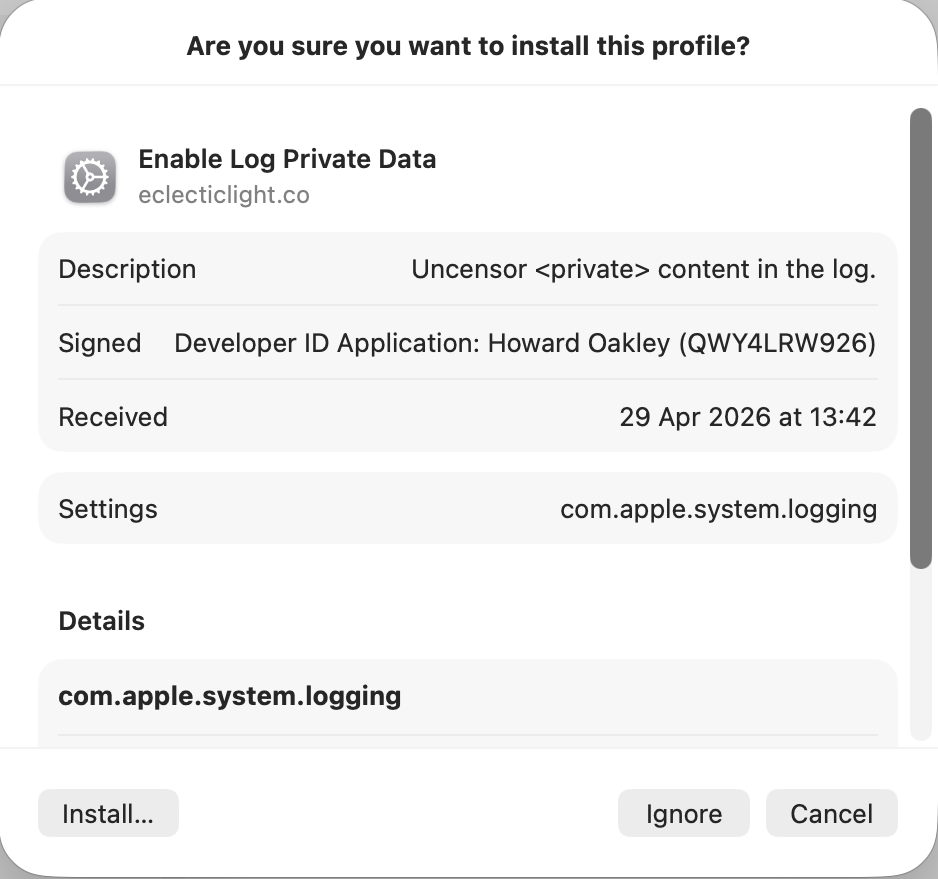
The simplest alternative is to install a Configuration Profile containing the saved settings to be applied to the property lists in /Library/Preferences/Logging. I provide a signed profile to remove all that <private> censorship in enablelogprivatedata.

To install the profile unzip the archive into a convenient folder and double-click it. You’ll be prompted to review the profile to install it.

Open System Settings > General & Device Management, and inspect it by double-clicking the profile there.

Click on the Install button to accept and install the profile.

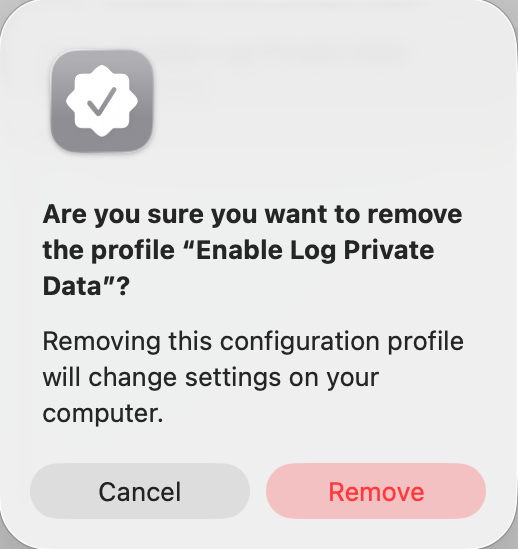
To remove it, select the profile and click the – tool below.

If you watch the contents of com.apple.system.logging.plist in /Library/Preferences/Logging you’ll see that change, with the setting of the key Enable-Private-Data to true. If you then run
sudo log config --status
with that profile installed, it should report something like
System mode = INFO PRIVATE_DATA
to confirm that private data is being shown in log entries, and that’s the best way to gain access to their full contents. Remember to remove the profile as soon as you’re done, or your log will continue to leak sensitive data.

There’s a collection of custom log profiles to gather log extracts about specific features in macOS (and Apple’s other OSes). Although they’re listed here, you can only download them if you have a developer (or equivalent) account with Apple. What’s more, Apple describes these as confidential, and explicitly forbids their use or disclosure without its permission. So much as I’d love to explain the undocumented features they use, I regret that I can’t.

Why you can’t trust Privacy & Security

In this Friday’s magic demonstration, I’m going to show how what you see in Privacy & Security settings can be misleading, when it tells you that an app doesn’t have access to a protected folder, but it really does.

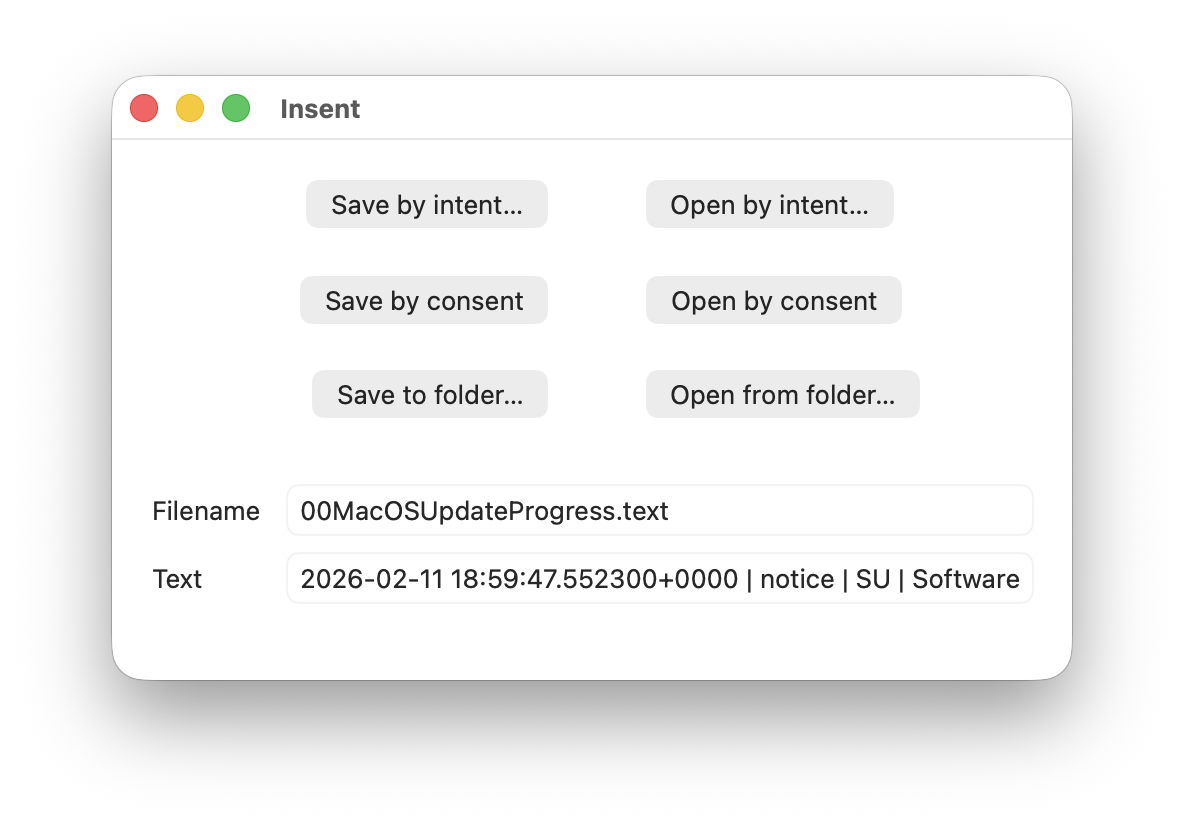
Although it appears you can achieve this using several ordinary apps, to make things simpler and clearer I’ve written a little app for this purpose, Insent, available from here: insent11

I’m working in macOS Tahoe 26.4, but I suspect you should see much the same in any version from macOS 13.5 onwards, as supported by Insent.

For this magic demo, I’m only going to use two of Insent’s six buttons:

  • Open by consent, which results in Insent choosing a random text file from the top level of your Documents folder, and displaying its name and the start of its contents below. As it does this without involving the user in the process, the macOS privacy system TCC requires it to obtain the user’s consent to list and access the contents of that protected folder.
  • Open from folder, which opens an Open and Save Panel where you select a folder. Insent then picks a random text file from the top level of that folder, and displays its name and the start of its contents below. Because you expressed your intent to access that protected folder, TCC considers that is good enough to give access without requiring any consent.

Demonstration

Once you have downloaded Insent, extracted it from its archive, and dragged the app from that folder into one of your Applications folders, follow this sequence of actions:

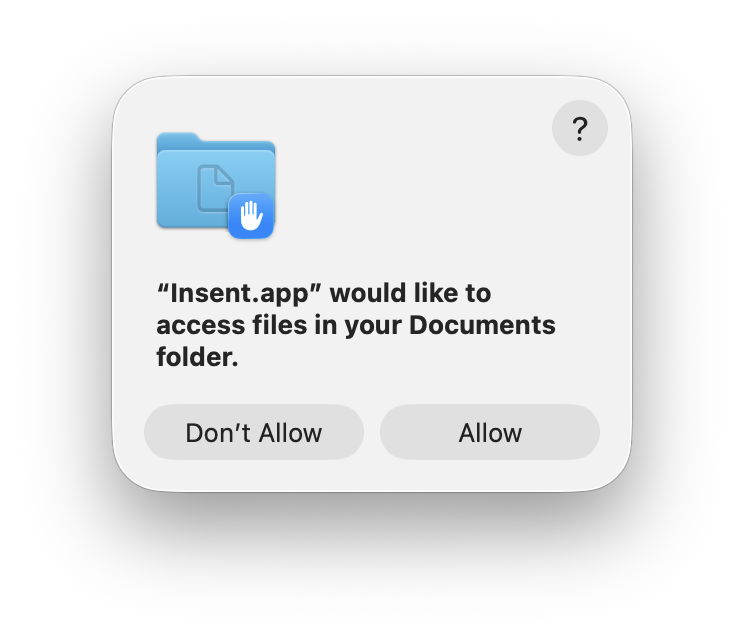
  1. Open Insent, click on Open by consent, and consent to the prompt to allow it to access your Documents folder. Shortly afterwards, Insent will display the opening of one of the text files in Documents. Quit Insent.
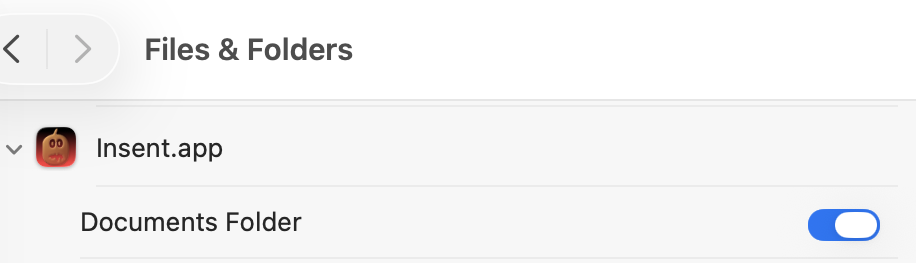
  2. Open Privacy & Security settings, select Files & Folders, and confirm that Insent has been given access to Documents.
  3. Open Insent, click on Open by consent, and confirm it now gains access to a text file without asking for consent. Quit Insent.
  4. Open Privacy & Security settings, select Files & Folders, and disable Documents access in Insent’s entry there using the toggle.
  5. Open Insent, click on Open by consent, and confirm that it can no longer open a text file, but displays [Couldn't get contents of Documents folder].
  6. Click on Open from folder and select your Documents folder there. Confirm that works as expected and displays the name and contents of one of the text files in Documents.
  7. Click on Open by consent, and confirm that now works again.
  8. Confirm that Documents access for Insent is still disabled in Files & Folders.
  9. Whatever you do now, the app retains full access to Documents, no matter what is shown or set in Files & Folders.

Indeed, the only way you can protect your Documents folder from access by Insent is to run the following command in Terminal:
tccutil reset All co.eclecticlight.Insent
then restart your Mac. That should set Insent’s privacy settings back to their default.

You can also demonstrate that this behaviour is specific to one protected folder at a time. If you select a different protected folder like Desktop or Downloads using the Open from folder button, then Insent still won’t be able to list the contents of the Documents folder, as its TCC settings will function as expected.

How does this work?

Insent is an ordinary notarised app, and doesn’t run in a sandbox or pull any clever tricks. When System Integrity Protection (SIP) is enabled some of its operations are sandboxed, though, including attempts to list or access the contents of locations that are protected by TCC.

When you click on its Open by consent button, sandboxd intercepts the File Manager call to list the contents of Documents, as a protected folder. It then requests approval for that from TCC, as seen in the following log entries:
1.204592 Insent sendAction:
1.205160 Insent: trying to list files in ~/Documents
1.205828 sandboxd request approval
1.205919 sandboxd tcc_send_request_authorization() IPC

TCC doesn’t have authorisation for that access by Insent, either by Full Disk Access or specific access to Documents, so it prompts the user for their consent. If that’s given, the following log entries show that being passed back to the sandbox, and the change being notified to com.apple.chrono, followed by Insent actioning the original request:
3.798770 com.apple.sandbox kTCCServiceSystemPolicyDocumentsFolder granted by TCC for Insent
3.802225 com.apple.chrono appAuth:co.eclecticlight.Insent] tcc authorization(s) changed
3.809558 Insent: trying to look in ~/Documents for text files
3.809691 Insent: trying to read from: /Users/hoakley/Documents/asHelp.text
3.842101 Insent: read from: /Users/hoakley/Documents/asHelp.text

If you then disable Insent’s access to Documents in Privacy & Security settings, TCC denies access to Documents, and Insent can’t get the list of its contents:
1.093533 com.apple.TCC AUTHREQ_RESULT: msgID=440.109, authValue=0, authReason=4, authVersion=1, desired_auth=0, error=(null),
1.093669 com.apple.sandbox kTCCServiceSystemPolicyDocumentsFolder denied by TCC for Insent
1.094007 Insent: couldn't get contents of ~/Documents

If you then access Documents by intent through the Open and Save Panel, sandboxd no longer intercepts the request, and TCC therefore doesn’t grant or deny access:
0.897244 Insent sendAction:
0.897318 Insent: trying to list files in ~/Documents
0.900828 Insent: trying to look in ~/Documents for text files
0.901112 Insent: trying to read from: /Users/hoakley/Documents/T2M2_2026-01-06_13_03_00.text
0.904101 Insent: read from: /Users/hoakley/Documents/T2M2_2026-01-06_13_03_00.text

Thus, access to a protected folder by user intent, such as through the Open and Save Panel, changes the sandboxing applied to the caller by removing its constraint to that specific protected folder. As the sandboxing isn’t controlled by or reflected in Privacy & Security settings, that allows TCC, in Files & Folders, to continue showing access restrictions that aren’t applied because the sandbox isn’t applied.

Conclusion

Access restrictions shown in Privacy & Security settings, specifically those to protected locations in Files & Folders, aren’t an accurate or trustworthy reflection of those that are actually applied. It’s possible for an app to have unrestricted access to one or more protected folders while its listing in Files & Folders shows it being blocked from access, or for it to have no entry at all in that list.

Is this likely to occur?

Most apps that want access to protected folders like Documents appear to seek that during their initialisation, and before any user interaction that could result in intent overriding the need for consent. However, many users report that apps appear to have access to Documents but aren’t listed in Files & Folders, suggesting that at some time that sequence of events does occur.

To be effectively exploited this would need careful sequencing, and for the user to select the protected folder in an Open and Save Panel, so drawing attention to the manoeuvre.

Most concerning is the apparent permanence of the access granted, requiring an arcane command in Terminal and a restart in order to reset the app’s privacy settings. It’s hard to believe that this was intended to trap the user into surrendering control over access to protected locations. But it can do.

I’m very grateful to Richard for drawing my attention to this.

Privacy: Files & Folders or Full Disk Access?

Alongside RunningBoard, TCC and privacy protection are among the greatest contributors to the Unified log, although they’ve been a little less loquacious more recently. This article sheds light on what they do when an app tries to access the contents of a protected folder. Log extracts were obtained from Insent 1.1 running in macOS 26.4 on a Mac mini M4 Pro, and concentrate on what happens when Insent tries to ‘open by consent’, first listing the contents of ~/Documents, then picking a text file at random and displaying some of its contents.

Relevant entries from the log are given in the Appendix at the end of this article.

Accessing ~/Documents by consent

When the Open by consent button is clicked, Insent first tries to obtain a listing of the Documents folder. That request is considered to be sandboxed, so the sandbox service requests authorisation to proceed from TCC.

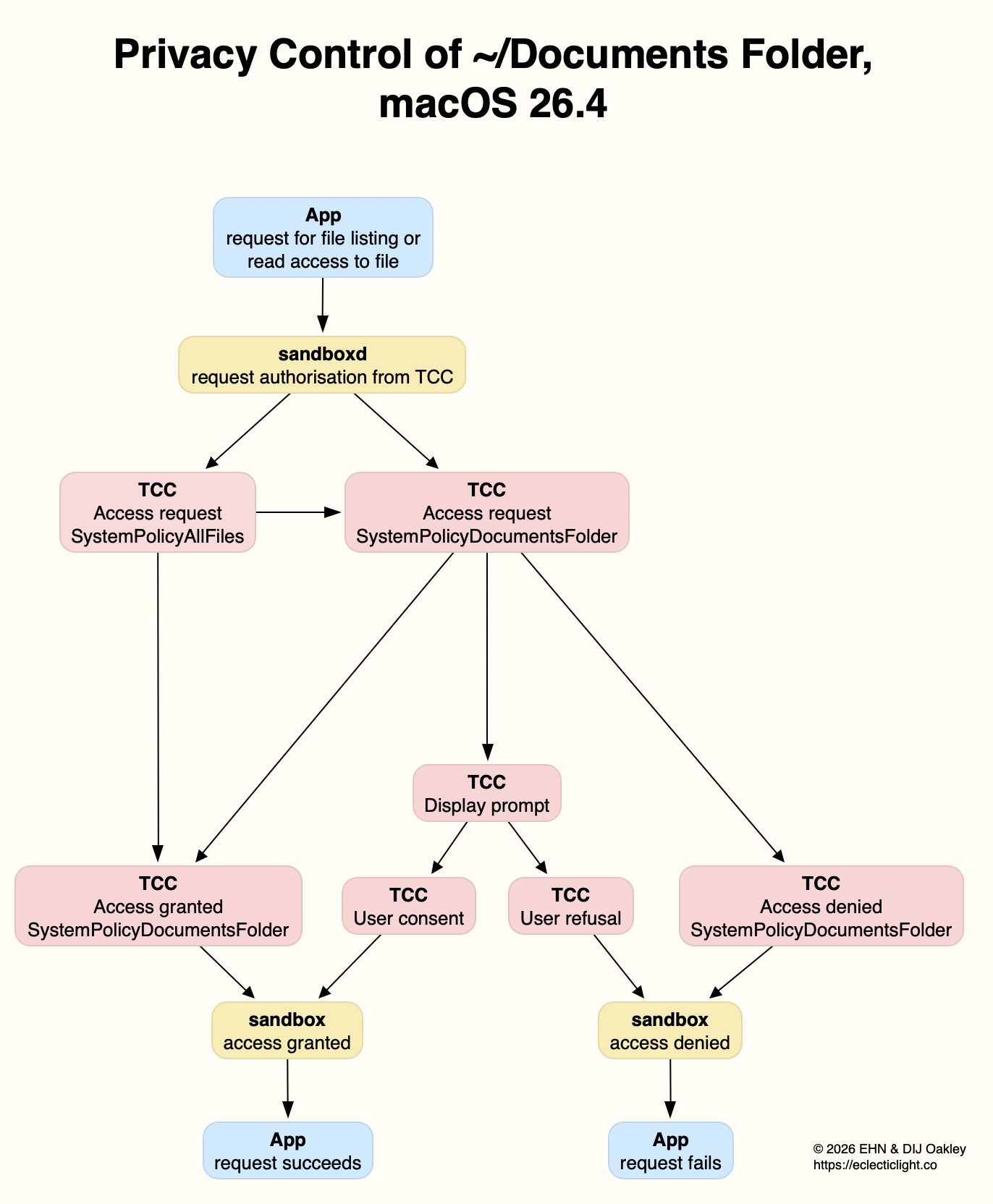
When it receives that request from sandboxd, TCC first checks whether the requesting app has been granted Full Disk Access, formally the kTCCServiceSystemPolicyAllFiles service. An early step in that sequence is to establish the attribution chain, so TCC can check the correct process, in this case Insent’s executable code.

A second check is then started, to determine whether the requesting app has been granted the more restricted service of kTCCServiceSystemPolicyDocumentsFolder. Those requests are followed by many validation checks on the Insent executable.

The simplest outcome is that Insent has kTCCServiceSystemPolicyAllFiles, in which case access is granted to the sandbox, and the Documents folder is listed as requested.

If Insent doesn’t have that, TCC considers kTCCServiceSystemPolicyDocumentsFolder:

  • if that has already been granted, TCC tells the sandbox to grant access;
  • if that has neither been granted nor denied, TCC displays the dialog requesting user consent, and acts accordingly;
  • if that had been granted but has been disabled (denied) in Privacy & Security, TCC denies access without seeking any consent.

This demonstrates an important difference in the behaviour of Full Disk Access (kTCCServiceSystemPolicyAllFiles) and locations protected by Files & Folders (here kTCCServiceSystemPolicyDocumentsFolder). Disabling Full Disk Access doesn’t deny access, it just doesn’t enable it. Disabling a specific protected location in Files & Folders will deny that app access to that location.

If you want to return an app’s Files & Folders settings to the default, so you will be prompted to consent for access, you therefore need to remove that app’s entry from Files & Folders, and might also need to log out and back in, or restart, to ensure that’s put into effect.

These are summarised in the diagram above. For the sake of simplicity, access granted under SystemPolicyAllFiles isn’t shown separately, but merged with that under SystemPolicyDocumentsFolder.

Interactions between Full Disk Access and individual access in Files & Folders can appear complicated, even random at times, but are actually the result of logical decisions. They are also reflected faithfully in Privacy & Security settings. For example:

  • Remove all settings for Insent from both Files & Folders and Full Disk Access.
  • Open Insent, click on Open by consent, and agree to add the app to Files & Folders with Documents access.
  • Quit Insent, and disable its Documents access in Files & Folders but don’t remove it. Then add Insent to the Full Disk Access list.
  • Confirm that Open by consent still functions correctly, because its Full Disk Access setting overrides Files & Folders, as shown in the latter settings. Quit Insent.
  • Remove Insent from the Full Disk Access list, and it will be listed in Files & Folders with access to Documents disabled once again.

Summary

  • If the app at the head of the attribution chain has been given Full Disk Access, access to list and read files will be given.
  • If not, then location-specific access in Files & Folders will be applied.
  • If there’s no setting for that app and location, the user is asked for consent.
  • If that app has already been given consent for that location, access to list and read files will be given.
  • If that app has consent denied or disabled, access to list and read files will be denied.
  • None of these controls apply to access by user intent in a File Open dialog, or to writing files.

Open and Save Panel access

As I have made clear, when a user expresses their intent to open a file by selecting it using the Open and Save Panel, that doesn’t trigger the same system of access rules. However, the request is still considered by TCC, this time using the Attribution Chain to examine the app rather than that panel service.

When looking briefly at log entries for that sequence, I noticed something odd: instead of the TCC access request being made for a location-related policy such as SystemPolicyDocumentsFolder, it’s recorded as kTCCServiceScreenCapture. Whether that’s a bug or intended behaviour, the request was authorised, and access proceeded.

The first time I saw that, I was so surprised that I repeated the test using Insent to confirm that I wasn’t misunderstanding the log entries. Exactly the same happened a second time, despite Insent having nothing whatsoever to do with making screenshots.

Previously

Consent, intent and privacy
Privacy: protected folders

Appendix: Log Extracts

Each entry is prefaced with the clock time in seconds.

Request, dialog and approval:

In this case, Insent hadn’t made any prior request to access the Documents folder in that session, so had no entry in Privacy & Security settings. When its access dialog was displayed, consent was granted, allowing access to proceed. As with other extracts, this starts with the event marking the button click in Insent.

1.204592 Insent sendAction:
1.205160 Insent: trying to list files in ~/Documents
1.205828 sandboxd request approval
1.205919 sandboxd tcc_send_request_authorization() IPC
1.206291 com.apple.TCC SEND: 0/7 synchronous to com.apple.tccd.system: request: msgID=440.94, function=TCCAccessRequest, service=kTCCServiceSystemPolicyAllFiles,
1.207414 com.apple.TCC AttributionChain: accessing={TCCDProcess: identifier=co.eclecticlight.Insent, pid=2232, auid=501, euid=501, binary_path=/Applications/Insent.app/Contents/MacOS/Insent}, requesting={TCCDProcess: identifier=com.apple.sandboxd, pid=440, auid=0, euid=0, binary_path=/usr/libexec/sandboxd},
1.235893 com.apple.TCC SEND: 0/7 synchronous to com.apple.tccd: request: msgID=440.95, function=TCCAccessRequest, service=kTCCServiceSystemPolicyDocumentsFolder,

[TCC then makes various checks on Insent]
1.261591 com.apple.TCC AUTHREQ_PROMPTING: msgID=440.95, service=kTCCServiceSystemPolicyDocumentsFolder, subject=Sub:{co.eclecticlight.Insent}Resp:{TCCDProcess: identifier=co.eclecticlight.Insent, pid=2232, auid=501, euid=501, binary_path=/Applications/Insent.app/Contents/MacOS/Insent},
1.265001 com.apple.TCC No usage string found (key:NSDocumentsFolderUsageDescription) for client[2232] in bundle:[private]
1.265006 com.apple.TCC display_prompt: called for [private] for service kTCCServiceSystemPolicyDocumentsFolder

[The access dialog is displayed, and consent given]
3.798770 com.apple.sandbox kTCCServiceSystemPolicyDocumentsFolder granted by TCC for Insent
3.802225 com.apple.chrono appAuth:co.eclecticlight.Insent] tcc authorization(s) changed
3.809558 Insent: trying to look in ~/Documents for text files
3.809691 Insent: trying to read from: /Users/hoakley/Documents/asHelp.text
3.842101 Insent: read from: /Users/hoakley/Documents/asHelp.text

Request after approval:

In this case, Insent had already been granted consent to access the Documents folder, as recorded in Privacy & Security settings.

0.911529 Insent sendAction:
0.912220 Insent: trying to list files in ~/Documents
0.913379 sandboxd request approval
0.913482 sandboxd tcc_send_request_authorization() IPC
0.913953 com.apple.TCC SEND: 0/7 synchronous to com.apple.tccd.system: request: msgID=440.100, function=TCCAccessRequest, service=kTCCServiceSystemPolicyAllFiles,
0.915394 com.apple.TCC AttributionChain: accessing={TCCDProcess: identifier=co.eclecticlight.Insent, pid=2255, auid=501, euid=501, binary_path=/Applications/Insent.app/Contents/MacOS/Insent}, requesting={TCCDProcess: identifier=com.apple.sandboxd, pid=440, auid=0, euid=0, binary_path=/usr/libexec/sandboxd},
0.949736 com.apple.TCC SEND: 0/7 synchronous to com.apple.tccd: request: msgID=440.101, function=TCCAccessRequest, service=kTCCServiceSystemPolicyDocumentsFolder,

[TCC then makes various checks on Insent]
0.970955 com.apple.TCC AUTHREQ_RESULT: msgID=440.101, authValue=2, authReason=2, authVersion=1, desired_auth=0, error=(null),
0.971072 com.apple.sandbox kTCCServiceSystemPolicyDocumentsFolder granted by TCC for Insent
0.973350 Insent: trying to look in ~/Documents for text files
0.973532 Insent: trying to read from: /Users/hoakley/Documents/piklisting.text
1.035508 Insent: read from: /Users/hoakley/Documents/piklisting.text

Request denied:

In this case, Insent had previously been given access to the Documents folder, but that was then disabled.

1.033344 Insent sendAction:
1.034069 Insent: trying to list files in ~/Documents
1.035189 sandboxd request approval
1.035299 sandboxd tcc_send_request_authorization() IPC
1.035820 com.apple.TCC SEND: 0/7 synchronous to com.apple.tccd.system: request: msgID=440.108, function=TCCAccessRequest, service=kTCCServiceSystemPolicyAllFiles,
1.037404 com.apple.TCC AttributionChain: accessing={TCCDProcess: identifier=co.eclecticlight.Insent, pid=2303, auid=501, euid=501, binary_path=/Applications/Insent.app/Contents/MacOS/Insent}, requesting={TCCDProcess: identifier=com.apple.sandboxd, pid=440, auid=0, euid=0, binary_path=/usr/libexec/sandboxd},
1.071652 com.apple.TCC SEND: 0/7 synchronous to com.apple.tccd: request: msgID=440.109, function=TCCAccessRequest, service=kTCCServiceSystemPolicyDocumentsFolder,

[TCC then makes various checks on Insent]
1.093533 com.apple.TCC AUTHREQ_RESULT: msgID=440.109, authValue=0, authReason=4, authVersion=1, desired_auth=0, error=(null),
1.093669 com.apple.sandbox kTCCServiceSystemPolicyDocumentsFolder denied by TCC for Insent
1.094007 Insent: couldn't get contents of ~/Documents

Open and Save Panel Oddity:

In this case, the Open from folder button in Insent was used to select the Documents folder, ready to allow the app access by intent. This extract shows what happened after the button in the Open and Save Panel was clicked.

8.800555 com.apple.appkit.xpc.openAndSavePanelService trackMouse send action on mouseUp
8.802062 com.apple.appkit.xpc.openAndSavePanelService tcc_send_request_authorization() IPC
8.802140 com.apple.TCC SEND: 0/7 synchronous to com.apple.tccd.system: request: msgID=2259.2, function=TCCAccessRequest, service=kTCCServiceScreenCapture,
8.802469 com.apple.TCC AttributionChain: responsible={TCCDProcess: identifier=co.eclecticlight.Insent, pid=2255, auid=501, euid=501, responsible_path=/Applications/Insent.app/Contents/MacOS/Insent, binary_path=/Applications/Insent.app/Contents/MacOS/Insent}, requesting={TCCDProcess: identifier=com.apple.appkit.xpc.openAndSavePanelService, pid=2259, auid=501, euid=501, binary_path=/System/Library/Frameworks/AppKit.framework/Versions/C/XPCServices/com.apple.appkit.xpc.openAndSavePanelService.xpc/Contents/MacOS/com.apple.appkit.xpc.openAndSavePanelService},
8.809596 com.apple.TCC Handling access request to kTCCServiceScreenCapture, from Sub:{co.eclecticlight.Insent}Resp:{TCCDProcess: identifier=co.eclecticlight.Insent, pid=2255, auid=501, euid=501, responsible_path=/Applications/Insent.app/Contents/MacOS/Insent, binary_path=/Applications/Insent.app/Contents/MacOS/Insent}, ReqResult(Auth Right: Unknown (None), promptType: 1,DB Action:None, UpdateVerifierData)
8.809609 com.apple.TCC AUTHREQ_RESULT: msgID=2259.2, authValue=1, authReason=5, authVersion=1, desired_auth=0, error=(null),

Privacy: protected folders

On Sunday I introduced some of the principles involved in the protection of folders, to preserve your privacy, and provided a small test app, Insent. This article follows on with additional concepts, details, and a new version of Insent that writes diagnostic information to the log. This article refers to privacy protection as implemented in macOS Tahoe 26.4.

The macOS privacy system is more formally known as Transparency, Consent and Control (TCC), and is built around its manager tccd, working alongside the security system and the sandbox service sandboxd. The last might surprise those who thought that sandboxing was only required for apps provided in the App Store, but this sandbox is different.

How it works

When an app makes certain types of request of the file system, including those seeking a list of files (e.g. with FileManager’s contentsOfDirectory() method), or opening a file for read access, that request is passed to sandboxd for approval. That in turn queries TCC to discover whether that app should be authorised for that access. Depending on the path to be accessed, TCC checks in its database of policy approvals, runs various safety checks on the app’s signature and other properties, then tells sandboxd whether the request should be approved or denied.

As I revealed in the previous article, TCC’s controls over folders only apply to reading their directory and file contents. If an app wants to write a file to one of those protected locations, privacy restrictions don’t apply, only conventional Posix permissions. This is easily verified using the Save buttons on the left side of Insent’s window, which can write test files wherever you as a user have sufficient privileges. This is an important distinction, and a consequence of TCC’s purposes.

Reading directory listings and file contents is also different when it’s a user intent. This is most characteristically performed using the File Open dialog, where only the user gets to see the lists of files, and has complete control over which file is opened. This is handled by a separate XPC process, the Open and Save Panel Service, which has automatic approval. The same mechanism applies to the Open Recent command, drag-and-drop, double-clicking the document, and using the Finder’s Open command.

Attribution

The Open and Save Panel Service is also an example of another fundamental concept in macOS privacy protection, that of the attribution chain.

This is often encountered when considering how privacy protection can be applied to command tools that lack a GUI that could support TCC’s dialogs. Ultimately, each process has a GUI app responsible for it, and it’s that app which TCC uses as the front-end. In the case of most command tools that are run from Terminal, the attribution chain ends in Terminal.

If you want your command tools to have Full Disk Access, you thus add the Terminal app to the list in Privacy & Security settings. The disadvantage of this design is that it gives Full Disk Access to all command tools run in Terminal’s shell, and could get you into trouble if one turns out to be flawed or malicious. This can be exploited by ClickFix attackers, which trick you into pasting malicious commands into Terminal, and is a good reason for not leaving Terminal with Full Disk Access any longer than is necessary.

Daemons or services, whose name normally ends in d, are seldom run from Terminal, and when they require Full Disk Access can be added as individual binaries, although they can’t normally be given access to individual Files & Folders.

Protected folders

I’ve been unable to discover a comprehensive and up-to-date official list of protected folders and locations, but the following appear to be those most frequently used:

  • ~/Documents
  • ~/Downloads
  • ~/Desktop
  • removable volumes
  • iCloud Drive
  • third-party cloud storage
  • network volumes
  • Time Machine backups.

The first three are by far the most common in most Macs, with Removable Volumes close behind. Others are more dependent on your hardware configuration, for example whether you use network shares or third-party cloud services.

Purpose

The overriding principle in privacy protection is to minimise access given to potentially sensitive files.

Apps that are intended to access files anywhere or everywhere, such as backup apps and those used to detect duplicate files, should normally be given Full Disk Access, as should be advised in their documentation. That requires you to put trust in them not to abuse their privilege, and in their supplier to ensure they aren’t the victim of a supply-chain attack. If you have any doubts whatsoever, don’t install that app, and certainly don’t give it Full Disk Access.

Other apps should only be given access to Files & Folders when you’re invited to give your consent in one of TCC’s dialogs, and then only if you consider the app has a sufficiently good reason to be given that access, and can be trusted not to abuse it. All this should be explained in the app’s documentation, and better apps cover it in their onboarding sequence.

The Files & Folders list is different from Full Disk Access. You pick and choose which apps to give Full Disk Access to, and can leave an app listed there but with access disabled, to ensure it will remain blocked. TCC decides which apps are offered for inclusion in the Files & Folders list on the strength of their making a request of the file system that triggers sandboxd to ask TCC if it has been approved for such access. You can’t add apps of your choice, but you can disable an access that has already been granted, and remove that app from the list.

In the next article I’ll show what happens in the log when sandboxd and TCC are in action. This has been made much easier in a new version of Insent which writes detailed entries in the log. If you want to study those, Insent 1.1 is now available from here: insent11
For those who don’t want to dive that deep, version 1.0 is the same in all other respects, and is available from here: insent10

❌