Login
LoginKimi for Coding 用量查询 Raycast 插件

📟
Kimi for Coding 用量查询 Raycast 插件
On this page

Anthropic 官方维护的插件目录,包含 TypeScript LSP 等多个插件。
Loading preview...# 安装方法
/plugin install {plugin-name}@claude-plugin-directory
# 或者通过 Discover 浏览
/plugin > Discover基于 AST(抽象语法树)的代码搜索工具,比传统的 grep 更强大,能够理解代码结构。
Loading preview...# 前置条件:安装 ast-grep CLI
brew install ast-grep # macOS
npm install -g @ast-grep/cli # npm
cargo install ast-grep # cargo
# 添加 marketplace
/plugin marketplace add ast-grep/claude-skill
# 安装插件
/plugin install ast-grepWarp 终端的官方集成插件,提供原生通知功能。当 Claude Code 完成任务或需要用户输入时,会通过 Warp 的通知中心发送系统通知。
Loading preview...# 前置条件:安装 jq
brew install jq # macOS
# 添加 marketplace
/plugin marketplace add warpdotdev/claude-code-warp
# 安装插件
/plugin install warp@claude-code-warp
# 重启 Claude Code 以激活通知这些 Skills 可以通过 npx skills 命令安装。
Vercel 维护的 React 和 Next.js 性能优化指南,包含 40+ 条规则,分为 8 个优先级类别。
Loading preview...npx skills add vercel-labs/agent-skills --skill react-best-practicesVercel 的 Web 界面设计指南,涵盖键盘可访问性、表单行为、导航、用户体验等方面。
Loading preview...npx skills add vercel-labs/agent-skills --skill web-design-guidelinesSupabase 维护的 PostgreSQL 最佳实践指南,涵盖查询性能、连接管理、安全性、Schema 设计等。
Loading preview...npx skills add supabase/agent-skills --skill supabase-postgres-best-practices在使用 Tailscale 网络进行 Hysteria 或其他基于 quic-go 的 QUIC 数据流传输时,您可能会遇到连接不稳定甚至无法传输的问题。这种情况与 Tailscale 的 MTU(最大传输单元)设置密切相关。本文将讨论如何通过调整 MTU 来解决这些问题。
Tailscale 默认使用 1280 字节的 MTU,这是一个适用于 IPv6 最小开销和隧道场景的保守选择。QUIC 协议对 MTU 也有一定的要求,其中最低未分片 MTU 为 1200 字节,这意味着 QUIC 必须至少能够支持 1200 字节的传输才可以正常工作。然而,由于 Tailscale 默认的 MTU 与 QUIC 最小未分片的 MTU 相差无几,这可能会导致一些基于 QUIC 的应用在传输过程中出现问题。
在 GitHub issue #8219 中,有用户提到,通过调整 Tailscale 的 MTU 可以改善这种不稳定情况。而在另一则讨论 #2633 中,也有人解释了 Tailscale 默认的 MTU 与 QUIC 最小要求之间的关系。
为了确保 QUIC 数据流能够顺利地在 Tailscale 网络中传输,您可以尝试将 Tailscale 的 MTU 适度调大。例如,将 MTU 设置为 1350,在实际操作中已经证明可以正常工作。
具体步骤如下:
/etc/default/tailscaled 文件,新增以下行以将 MTU 设置为 1350:TS_DEBUG_MTU=1350sudo systemctl restart tailscaledsudo journalctl -eu tailscaled | grep MTU | tail -n1在调整 MTU 时,请根据您具体的网络环境进行测试,因为不同网络设备和链路可能对 MTU 的支持情况有所不同。过大的 MTU 可能导致数据包分片,反而降低传输效率。因此,找到适合自己网络的 MTU 数值至关重要。
Tailscale 默认的 1280 MTU 值在某些基于 QUIC 协议的数据流传输中可能表现不佳。通过适度增加 MTU,如设置为 1350,可以有效地解决传输不稳定的问题。希望这篇简短的技术博客能帮助您解决在 Tailscale 网络下使用 QUIC 的困扰。
如果您有类似的情况,建议参考以上方法进行尝试,并根据您的具体环境调试最合适的 MTU 值。
















Surge 和 Tailscale 因为同为网络工具存在互相冲突的情况,一直以来我都不得不关闭 Tailscale 的某些功能使其工作。这篇文章试图使用一些特殊方法绕过限制,让 Tailscale MagicDNS 和 Surge 共存。
<machine name>.<tailnet name>.ts.net 域名,如果你想省略 <tailnet name> 可以继续往下读。Tailscale can automatically assign DNS names for devices in your network when you use the MagicDNS feature.
Tailnet 内的设备会被分配一个唯一的 100.64.0.0/10 地址。你可以直接访问这个 IP 地址,但是正如直接使用 IP 网上冲浪是个坏主意,直接使用 IP 也不是个好主意。所以 Tailscale 会为每个 IP 也分配一个 ts.net 的地址。
这个域名并非公网 DNS 能够解析,而是由 Tailnet 内 100.100.100.100 这个 DNS 服务器解析的。这一 DNS 服务名叫 MagicDNS。

如图,你只需要记得 machine name,并且开启 Tailscale MagicDNS,在浏览器中输入 https://monitoring 就相当于访问 https://onitoring.yak-bebop.ts.net:443 。
当 Tailscale 启动时它会在路由表中写入下面的内容,告诉系统遇到这些 IP 的请求就交给 Tailscale 的 utun 接口。
Destination        Gateway            Flags               Netif Expire
100.64/10          link#37            UCS                 utun9
100.100.100.100    link#37            UHWIi               utun9
然而当 Surge 的高级模式开启时,Surge 处于某种原因无法将 DNS 查询的数据包发往 utun9,即便你在规则中写了这样的规则。
[Proxy]
Tailscale = DIRECT, interface = utun9

[Host]
*.ts.net = server:100.100.100.100

[Rule]
IP-CIDR,100.64.0.0/10,Tailscale,no-resolve
这个限制似乎并不发生在 TCP 请求,因为后面的解决方案无需加入这些的规则。
我在浏览 Tailscale 文档时发现,他们提供了 API 接口来获取所有的实例名称和地址,这样就能自己实现一个 DNS 解析。下面是脚本内容。
const TENANT_ID = "TENANT_ID";
const TAILNET_NAME = "<NAME>.ts.net";
const ACCESS_KEY = "YOU_KEY";

(async () => {
  $httpClient.get(
    {
      url: `https://api.tailscale.com/api/v2/tailnet/${TENANT_ID}/devices?fields=default`,
      headers: {
        Authorization: `Bearer ${ACCESS_KEY}`,
      },
    },
    function (error, response, data) {
      if (error) {
        $done({});
        return;
      }

      data = JSON.parse(data);

      for (const device of data.devices) {
        const { addresses, name } = device;

        if (
          name === $domain ||
          name.replace(TAILNET_NAME, "ts.net") === $domain
        ) {
          return $done({ addresses, ttl: 2629746 });
        }
      }

      $done({});
    }
  );
})();
使用脚本之前,你需要准备三个字段:
TENANT_ID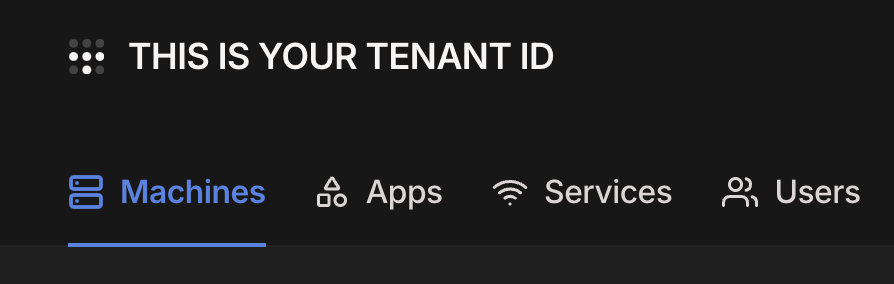
[Host]
*.<tailnet name>.ts.net = server:100.100.100.100
*.ts.net = script:tailscale-dns

[Script]
tailscale-dns = script-path=tailscale-dns.js,type=dns,debug=false,engine=jsc
接下来你便可以使用 <machine name>.ts.net 来连接对应的主机实例。
这个方案无法实现 search domains 所以你至少需要写上 ts.net。由于我不考虑多个 Tailnet 的情况,也不需要记住你 Tailnet 的名称。
脚本的 Key 只有 90 天有效期,你需要定期更新
每次访问 *.ts.net 只要域名解析未过期都会发起一次请求,通常这不是问题,如果你遇到了问题可以在评论中告诉我
自从 Ponte 上线以来,我就一直用它来实现外网访问内网的隧道。这个方案稳定,适应不同类型的宽带网络,无论是 NAT 网络还是公网 IP 都能无感回家。最近无意发现一直以来使用的配置有一个微小的缺陷所以用这篇文章来记录优化的过程。
**2024-06-02 Update: **经 @Blankwonder 指点,后面更新了更简单的办法。
我家的网段是 192.168.114.0/24 ,Surge 的配置中有这样一段:
IP-CIDR,192.168.114.0/24,DEVICE:PYCELLE这样即便身处内网连接也会通过设备 PYCELLE 转发。我家的大部分网络服务都位于这台设备上,但同时也有 NAS 和路由器。一般情况下这么写都没问题,但如果遇到 Mac mini 升级我的 Surge 就完全无法访问内网,电脑使用 NAS 备份也会先经过一次 PYCELLE 再去到 NAS,略显低效。
**2024-06-01 Update: **我为了方便好记给家里的网络设备分配了域名,这些域名能够被公网的 DNS 正常解析。如果你使用 IP 地址访问内网设备那就不存在这篇文章所述的问题。
[Proxy Group]
Ponte Link = subnet, default = DEVICE:PYCELLE, SSID:Wintefell = DIRECT, ROUTER:192.168.114.1 = DIRECT

[Rule]
# 放在靠近末尾的地方
IP-CIDR,192.168.114.0/24,Ponte Link
新的办法借助 Subnet Group 实现了近似的功能。需要注意的是因为不能写更复杂的逻辑判断,所以只要网关地址是 192.168.114.1 就直连。考虑到这个网段不常见,就不再深入推敲了。
解决的思路很简单,在家时直连 192.168.114.0/24 ,在外面时先隧道连接 PYCELLE 再去到目标的地址。Surge 提供 Rule 类型的脚本,能够很容易解决这个问题。
(() => {
  const isHomeWiFi = $network.wifi?.ssid === "Winterfell";
  const isConnectedToLAN = $network.wifi?.ssid === null;
  const isHomeLAN = $network.v4?.primaryRouter === "192.168.114.1";
  const isHome = isHomeWiFi || (isConnectedToLAN && isHomeLAN);
  const { dnsResult } = $request;

  if (!dnsResult || isHome) {
    return $done({ matched: false });
  }

  const isRequestingHomeNetwork = dnsResult.v4Addresses.some((add) =>
    add.includes("192.168.114")
  );

  if (isRequestingHomeNetwork) {
    return $done({ matched: true });
  }

  $done({ matched: false });
})();
是的,我家所有联网的设备都以 GOT 角色或者城市命名了。
这个脚本主要的判断依据有三点:
是否连接了家里的 WiFi 热点
有线连接的设备是否使用 192.168.114.1 作为网关
连接的目的地是否位于 192.168.114.0/24
另外为了使这个脚本生效,你还要在配置中引入它:
[Rule]
#...
#...

# 放在靠近末尾的地方
SCRIPT,home-network,DEVICE:PYCELLE,requires-resolve

[Script]
home-network = script-path=home-network.js,type=rule,debug=false,engine=jsc前不久从 Grover 租了个 SONOS Beam Gen 2,在配置 Dolby Atmos 时遇到了点小问题,在这里记录一下最终的配置方法。

SONOS Beam 是一款很实惠并且支持 Dolby Atmos 的回音壁。最近德国 Grover 黒五给出了很实惠的价格我就果断下手了。本来是想租 Arc 的,但苦于我家电视无法壁挂,不能给 Arc 流出足够空间,只能退一步要了 Beam。
这篇文章虽然是关于 Dolby Atmos 的配置,但我想提一下解决另一个有趣的问题。LG C2 的底座高度非常矮,根本无法在不改造底座的情况下容下任何回音壁。我在 Reddit 上意外碰到有个老兄给电视垫了一个 Ikea LACK 书柜架,完美留出一个 Beam 的高度,这才解决了不凿墙使用回音壁的问题。
这款书架的高度是 5 厘米,长和宽非常适合 LG C 系列的底座。书架和底座的高度之和约为 11 厘米。
https://www.reddit.com/r/LGOLED/comments/qeffeo/lg_c1_on_ikea_lack_shelves/
](https://royli.dev/blog/2023/apple-tv-lg-c2-sonos-beam-dolby-atmos-configuration/resources/805f34e0.png)
好了,进入正题。
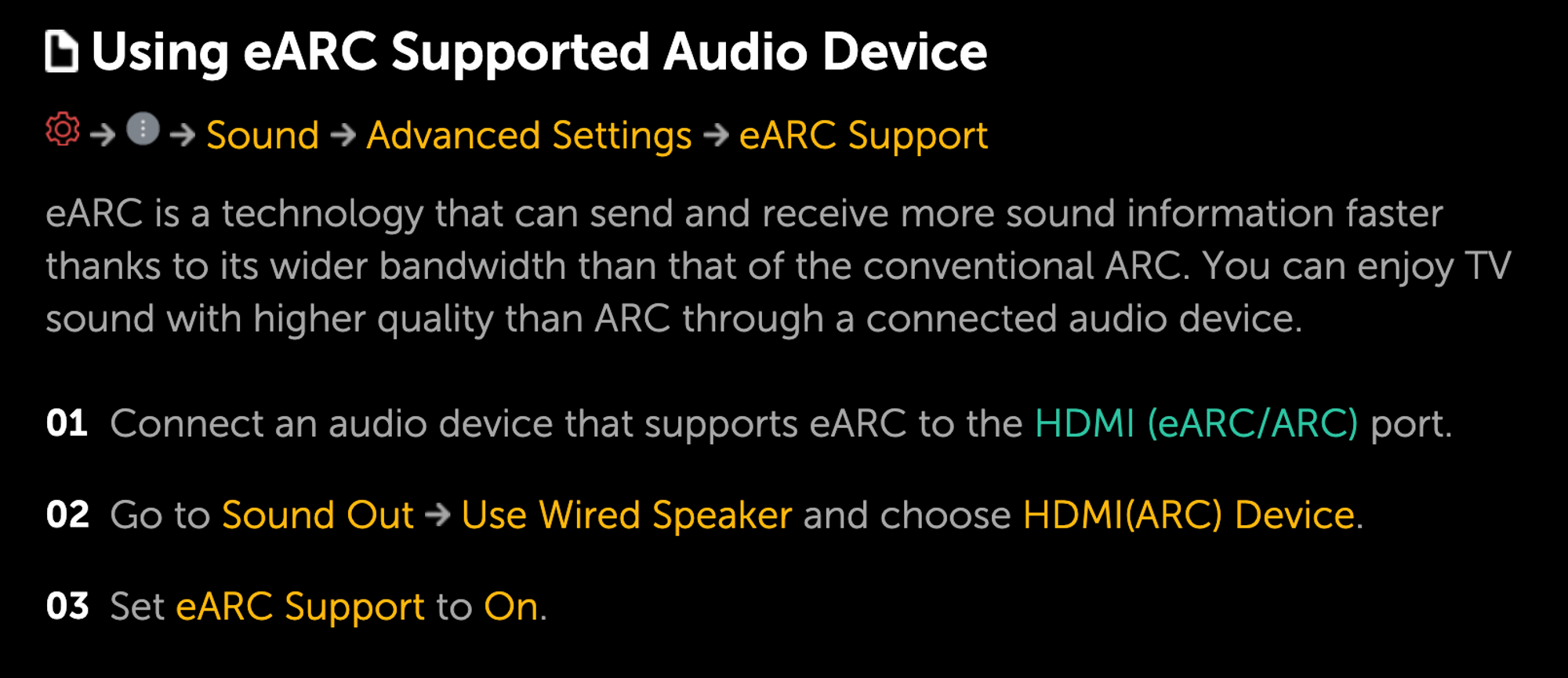
注意你需要把回音壁连接至电视的 eARC 接口。LG C2 的 HDMI 2 是 eARC 接口。
「音频 Sound」-「音频输出 Sound Out」-「使用有线扬声器 Use Wired Speaker」,选择「HDMI(ARC) Device」
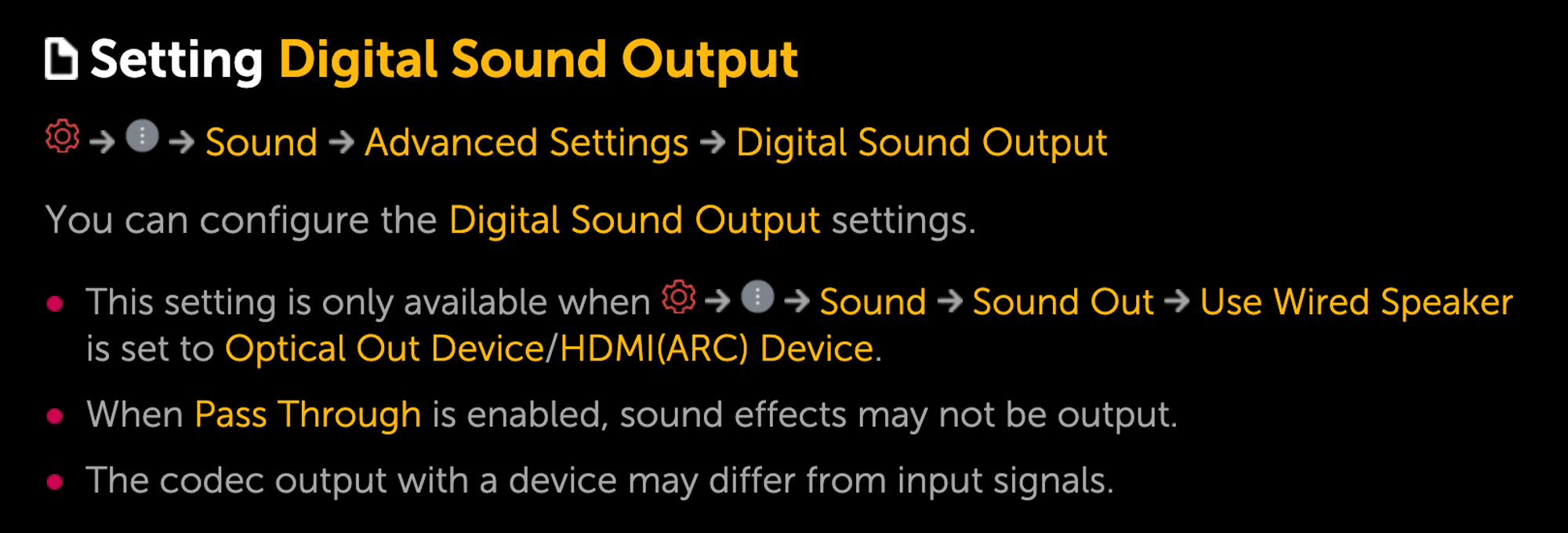
「音频 Sound」- 「高级设定 Advanced Settings」-「选择 HDMI 输入音频格式」,选择「比特流 Bitstream」
「音频 Sound」- 「高级设定 Advanced Settings」-「DTV 音频设定 DTV Audio Settings」,选择「自动 Auto」
「音频 Sound」- 「高级设定 Advanced Settings」-「eARC 支持」,选择「开启 On」
「音频 Sound」- 「高级设定 Advanced Settings」-「数字音频输出 Digital Sound Output」,选择「自动 Auto」
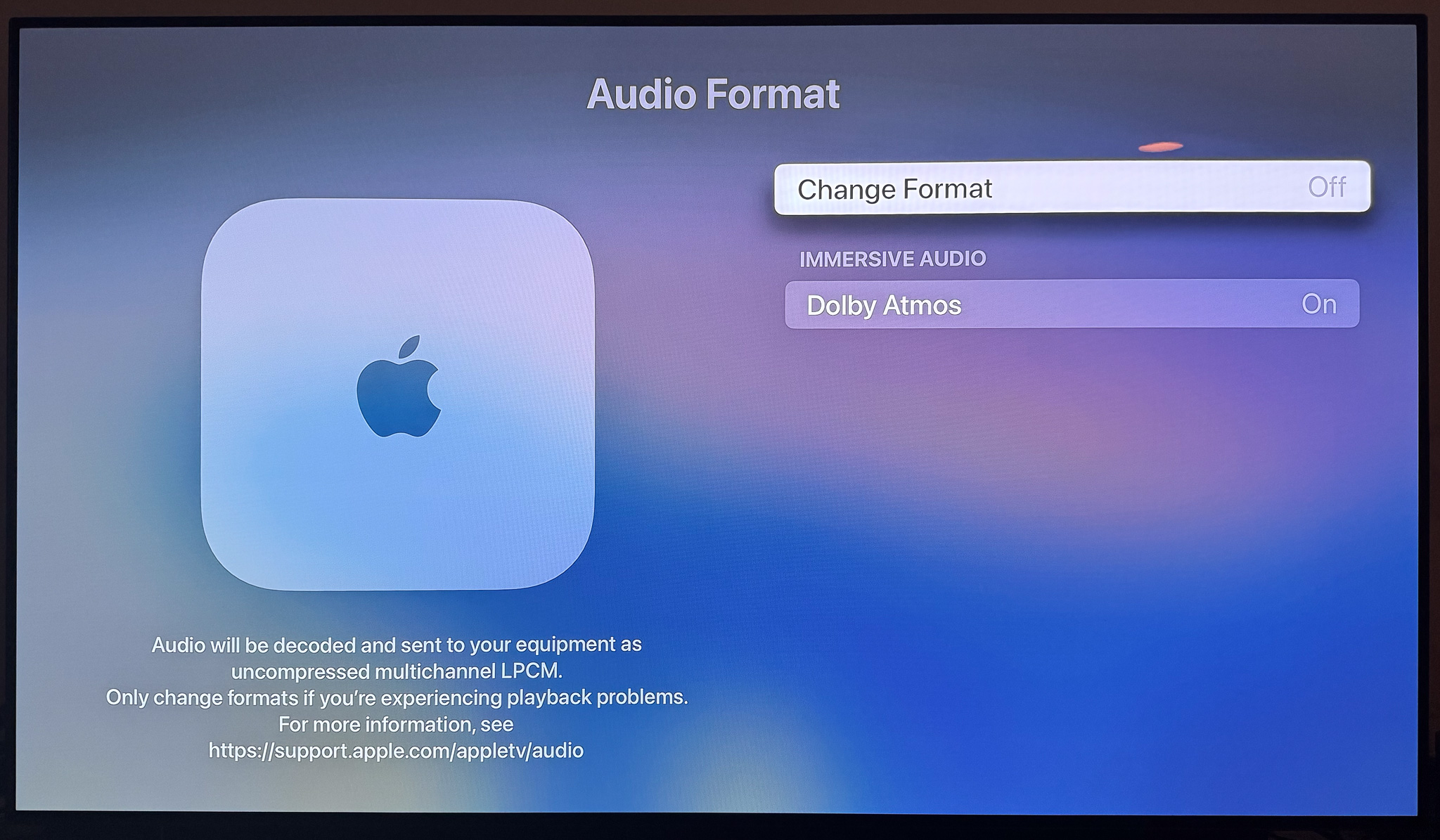
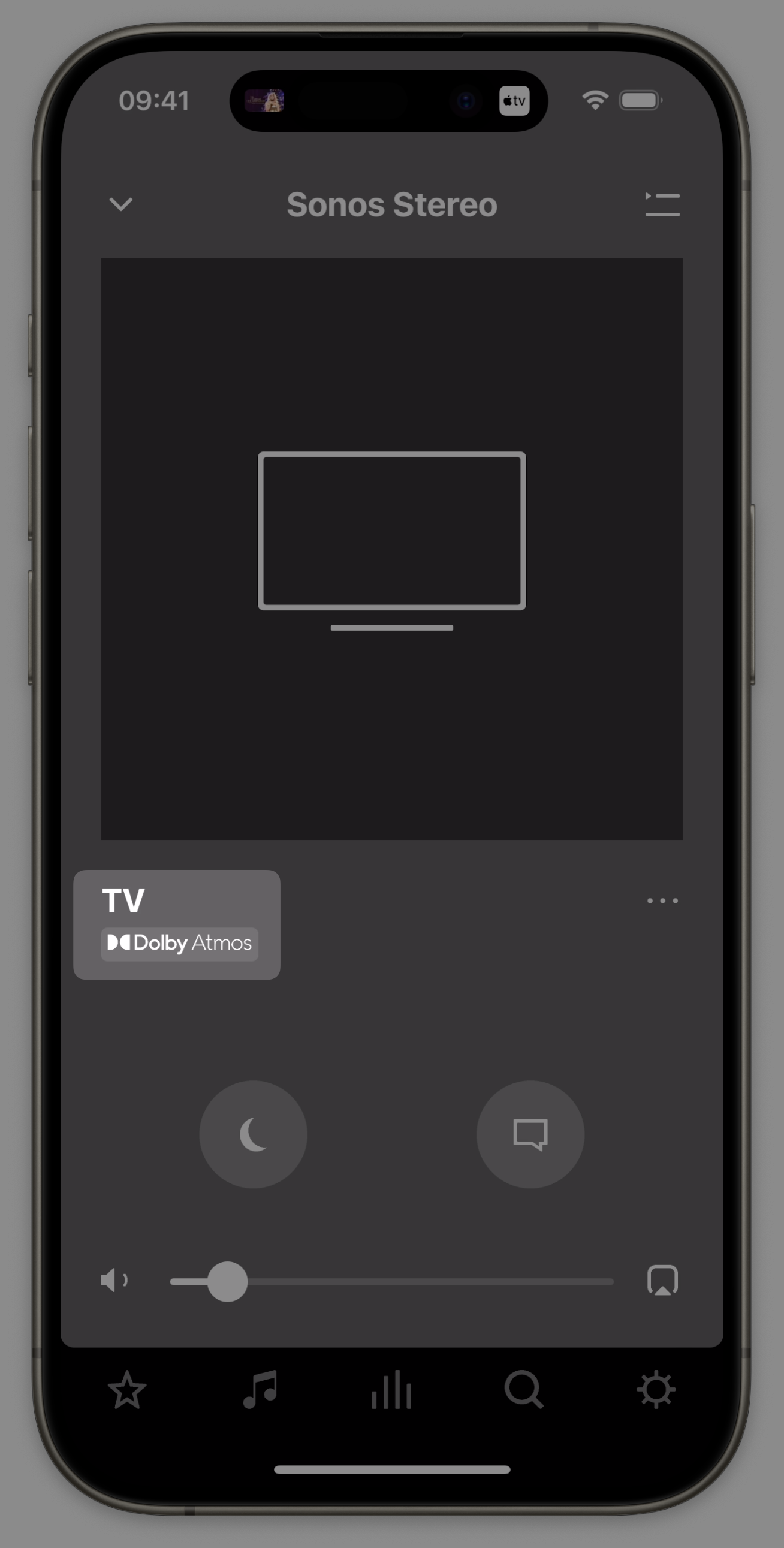
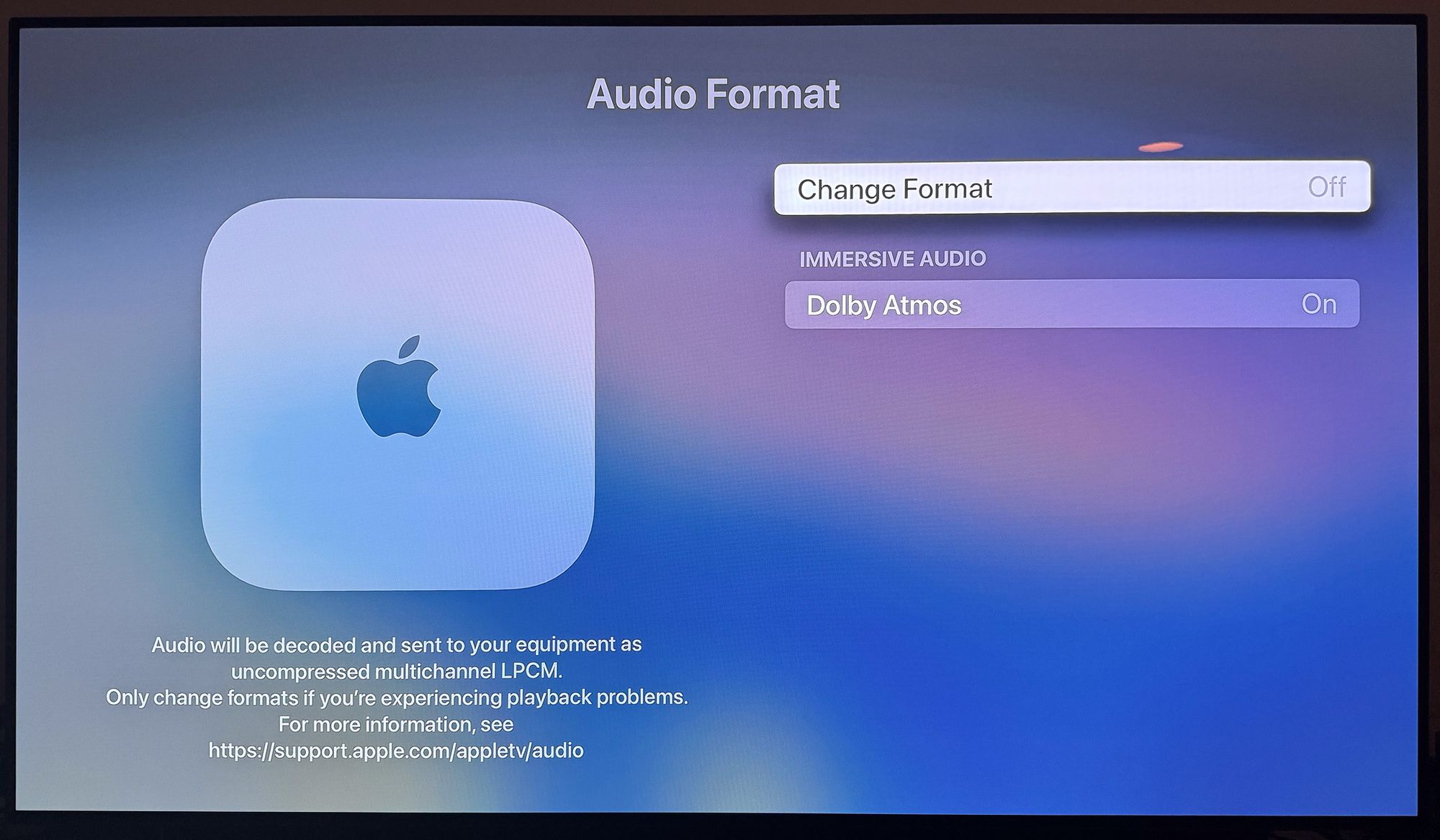
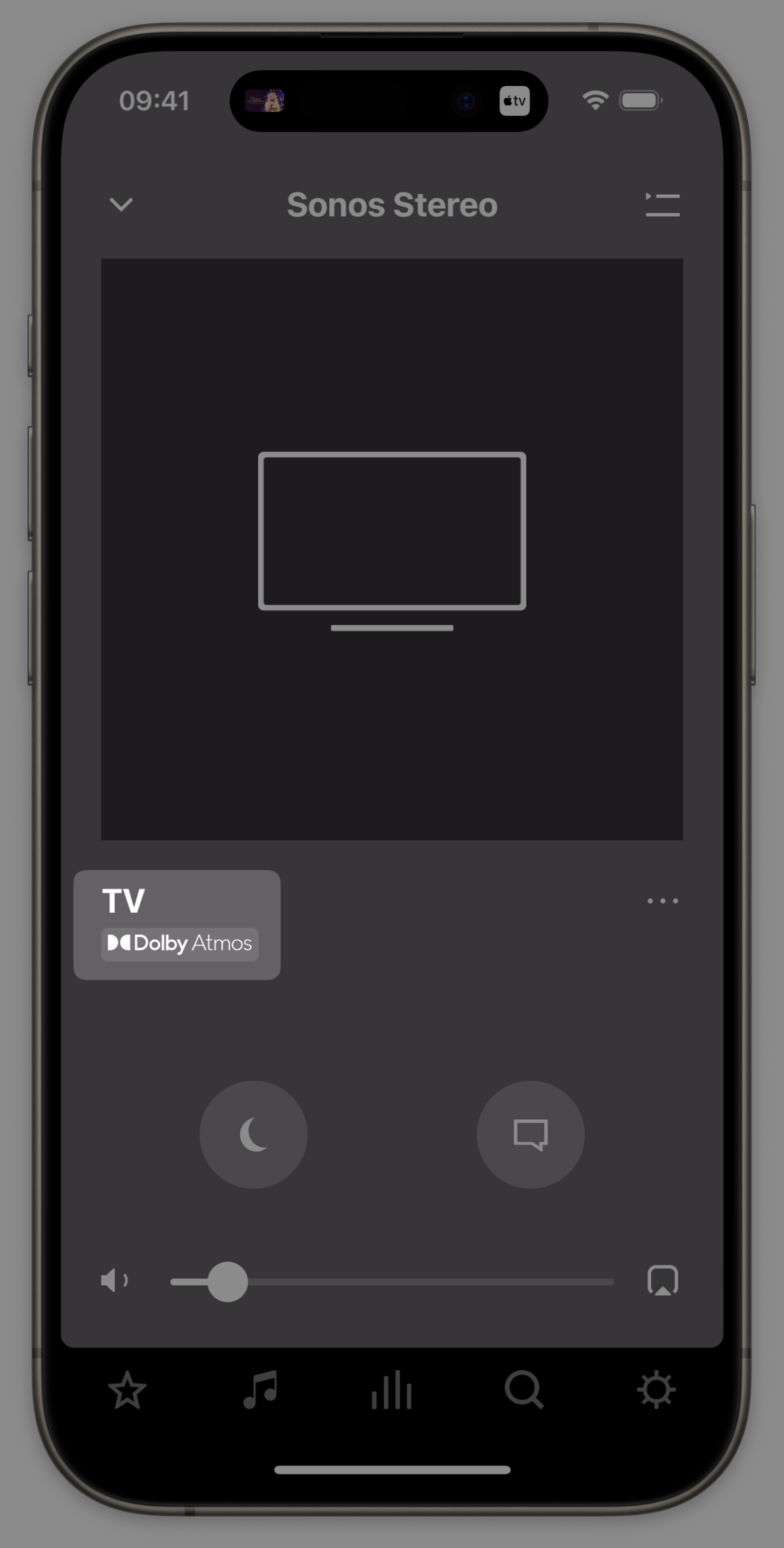
如果你能在「设置」-「视频和音频」-「音频格式」中看到如截图所示的样子,「沉浸式音频」处于「开」的状态,则说明设置成功。
随便找一部支持 Dolby Atmos 的电影,如果你能在 SONOS 应用中看到标识则说明音频流被正确识别。
奥本海默已上映,这篇文章将帮助你寻找最适合自己的 IMAX 影厅,并顺便分享一些网络上找到和奥本海默有关的视频。
首先是 橙红 Iris** **带来的影厅选择指南。视频客观对比了 IMAX 和杜比影院的硬件数据和实际体验,我觉得对身在海外的朋友们非常有用。
片中她分享了 **Arvin **老师 整理的全球 IMAX 影厅的 specifications,数据之详尽可以让 nerd 们原地下跪。
https://docs.qq.com/sheet/DQ3FEUUZJdklNSWJP?tab=lxy0hx
下面是一些和奥本海默相关的视频。
IMAX 70mm 胶片如何拼接
如何放映 IMAX 70mm 胶片(南半球唯一一家能够放映 15/70 胶片的影院)
I’ve been using Typlog as my blogging platform for the past few years. It’s been an excellent product for many reasons — extremely low friction editing experience, easy-to-use dashboard, reliability. I have to admit that I don’t write very often, but when I do, it doesn’t give me a hard time. However, an idea has been keeping bugging me for the past few months.
Typlog and other blogging platforms, like Ghost.org (paid version), promise a user-friendly experience, but they’ve rarely used “customization” as a selling point. Typlog supports code injections, custom header/footer, custom HTML contents, etc, which are already better than many blogging platforms (some of the features need the Pro plan). However, customizing a component on the website is still very hard. For example, preview links like Notion.
Another reason that made me really think about migrating to somewhere else was that engineering a dynamic personal website isn’t really different from engineering a product. It’s a great opportunity to learn and experiment stuff. If you look at Brian Lovin’s personal website, it literally has everything you could think of.
https://brianlovin.com/writing/how-my-website-works
It’s funny that before I moved to Typlog, I was using the self-host Ghost and now it’s become an option again. Developing a custom theme for a Ghost blog is tremendous work, not to mention adapting to the big yearly update. Many third-party packages like the S3 storage package haven’t been updated for years. It takes time to keep your instance and theme updated.
The paid service is good, however, it’s not cheap as I’m not a regular blogger, I also don’t need the subscription management feature.
Static Site Generation (SSG) is a quite enticing option as it can be very flexible in styling and other customization aspects. It’s now much easier to generate the website in an automated way, such as using GitHub Actions, as compared to the old way, doing everything locally.
This solution (Gatsby, Hugo, Hexo…) satisfies my current needs. However, if I want to add dynamic content in the future it’d be difficult for the following reasons:
The solutions don’t include a running service, which means I’d need another service to output the dynamic content.
Generating happens in build time, the time consumed only grows over time.
Notion is more than capable of being a CMS, and it’s free! The problem left is how to render the content to a browser, like a blog. There are quite a few cool services doing so.
However, I don’t want to spend more than 10 bucks a month on this 😈.
Spencer first introduced his idea back in 2021, which uses Next.js as the renderer. It got my eyes.
https://spencerwoo.com/blog/nextjs-blog-notion
Next.js probably is one of the coolest projects in the React community. It’s made by Vercel, which probably is one of the coolest companies out there.
Next.js gives different ways to deliver your content.
Server-Side Rendering (SSR)
Static Site Generation (SSG)
Client-side Rendering (CSR)
The last one is what I want to talk about.
If you’ve ever used the SSG before, you know everything hosted on your server is rendered at build-time, meaning if you want to add or change content, you need to build again. ISR, however, doesn’t require the subsequent building. A page would be built when someone accesses the URL. Pages that have already been built can also be updated upon new requests once become expired. How cool is that?
Since it essentially is a Next.js service, it’s up to you to decide which parts are dynamic and which aren’t.
In order to render blocks from Notion, you’ve got two options.
Notion has its official API now. You can query your database, search content and many stuff through the API.
https://developers.notion.com/
react-notion-x consists of two essential parts:
notion-client - A wrapper of the Notion private API used by their clients.
react-notion-x- A collection of React components that transform the raw data into actual pages with Notion-like styling.
Yes, it uses private APIs. The author published another package notion-compat to make it possible to use the official API, but it has a few drawbacks (see the link).
https://github.com/NotionX/react-notion-x/blob/master/packages/notion-compat/readme.md
You’d be amazed by how much react-notion-x can do out of the box. Kudos to Travis Fischer.
What you are seeing right now is the recharged blog that results from my days of work. I have to say “thank you” to Spencer because I copied a lot of things from this blog so that I could have this MVP this fast. I strongly recommend you to read these posts about his website if you are interested in the idea (promise me you will come back).
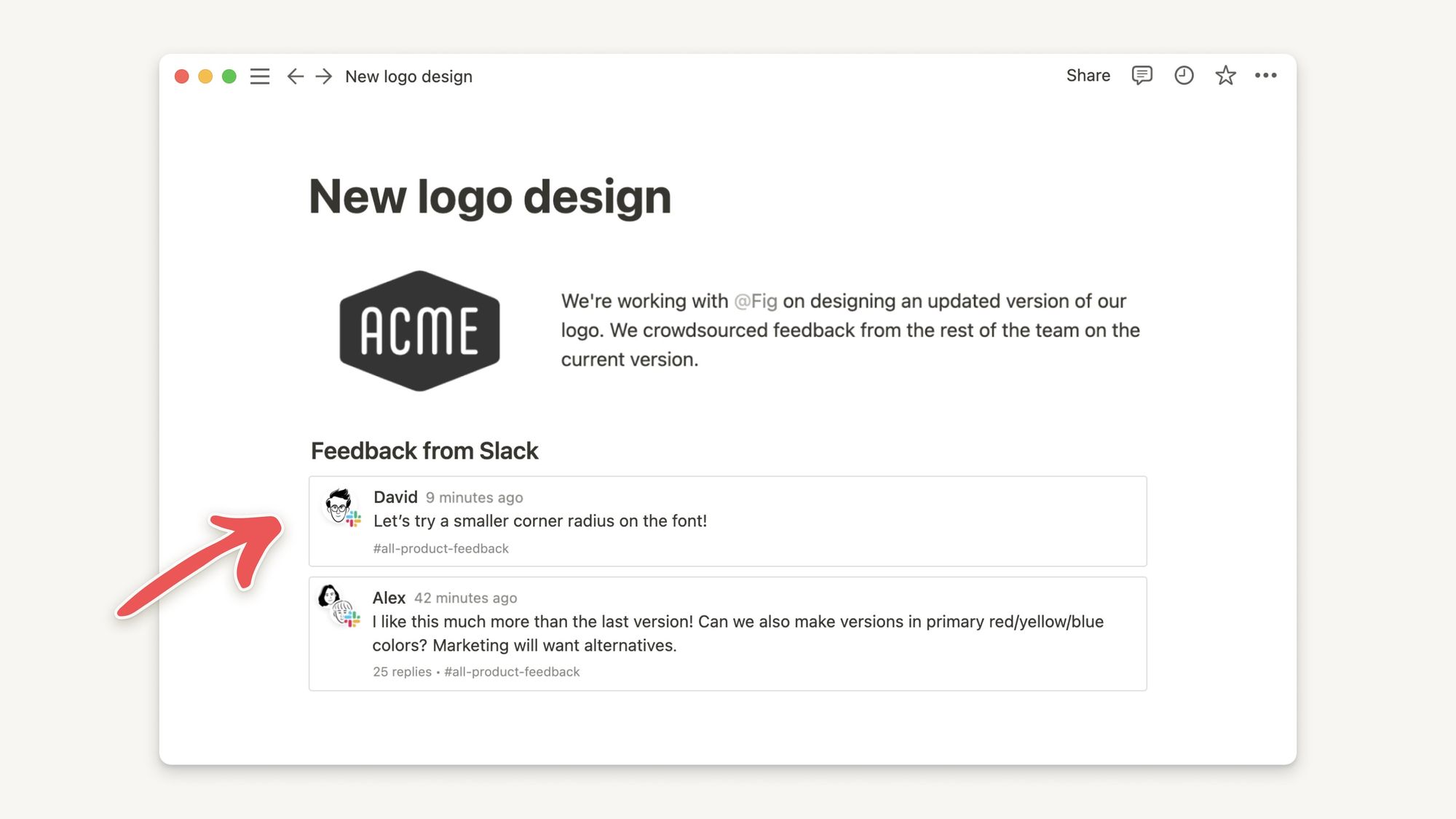
Loading preview... Loading preview...My blog uses both the official and the private API because the former one handles Collections better and the latter one handles rendering better.
Loading preview...Apart from copying things from Spencer’s website, I tried to solve the problems Spencer mentioned in his post.
Notion stores images (and other assets) on the S3 service. The image URLs you get from Notion’s API, either the private or the public, are signed. They are short-lived instead of permanent. There’s a chance that the page generated by Next.js is still valid but the URLs are expired, and the viewer gets a bunch of 400 errors.
Loading preview...Introducing the Resource Proxy (I know, I’m bad at naming). What it does is shown below.
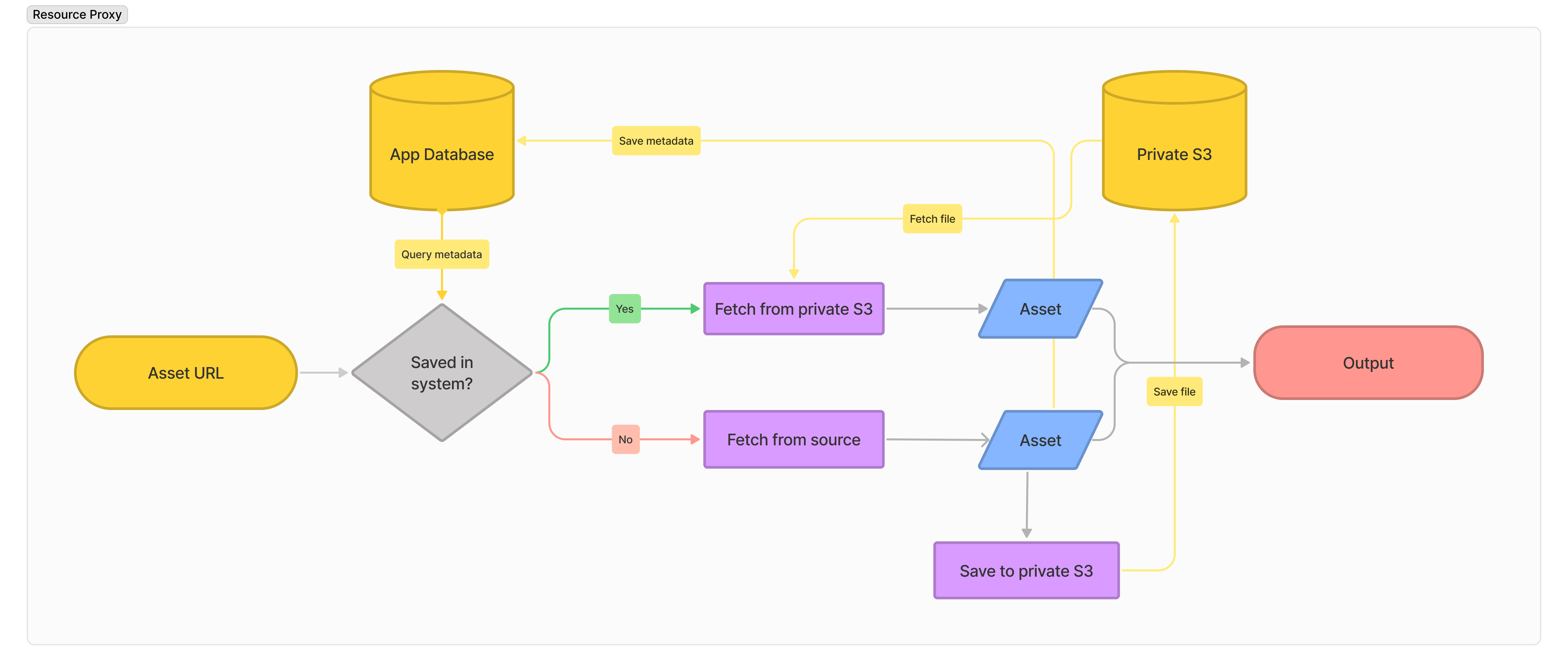
The key used for indexing each asset is calculated based on the identifier. When the same identifier is requested, no matter what the signature is, the Resource Proxy always point to the same file in the private S3 bucket.

Unlike the Notion S3 bucket, which takes permission very seriously, we don’t need to react if the author changes the permission. Once the asset is saved, it’s there forever.
The Resource Proxy takes care of the dimension as well. It saves the image in a temporary place, probes the dimension using https://github.com/nodeca/probe-image-size, then saves the metadata to the database. The metadata makes it possible to use next/image.
If you have subscribed to my blog, the feed still works, just without the main content. Generating the body content in an RSS feed is not easy as Next.js only allows outputting HTML content unless you fiddle with _server.ts.
https://nextjs.org/docs/advanced-features/custom-server
Will be available soon.
I really enjoyed the process of building this website, especially when I could control almost everything however I’d like.
/etc/default/tailscaled 文件,新增以下行以将 MTU 设置为 1350:


<machine name>.<tailnet name>.ts.net 域名,如果你想省略 <tailnet name> 可以继续往下读。Tailscale can automatically assign DNS names for devices in your network when you use the MagicDNS feature.
100.64.0.0/10 地址。你可以直接访问这个 IP 地址,但是正如直接使用 IP 网上冲浪是个坏主意,直接使用 IP 也不是个好主意。所以 Tailscale 会为每个 IP 也分配一个 ts.net 的地址。100.100.100.100 这个 DNS 服务器解析的。这一 DNS 服务名叫 MagicDNS。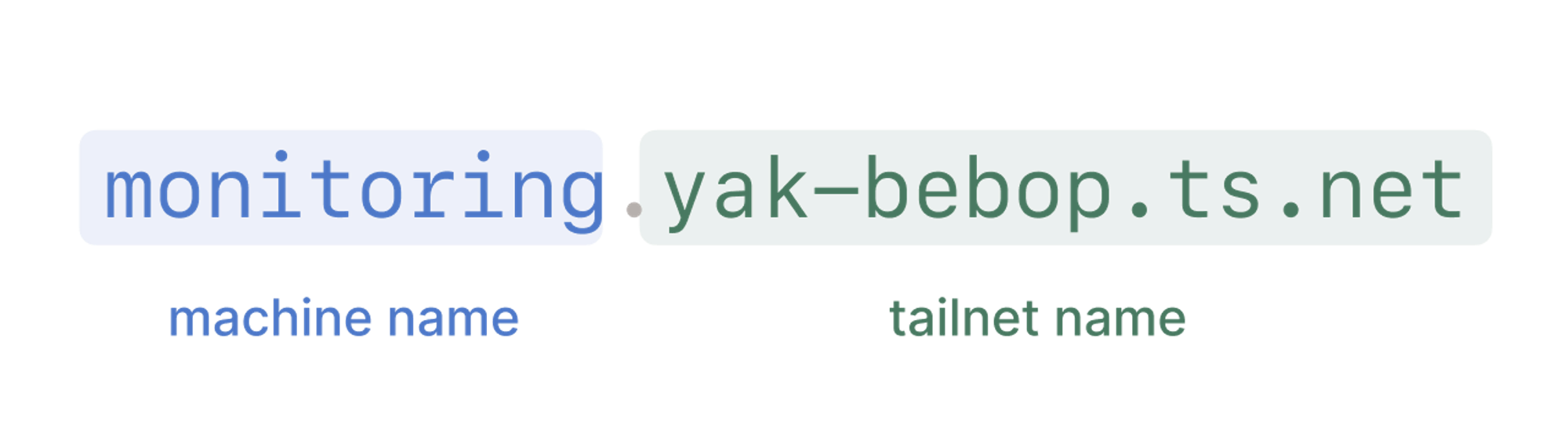
https://monitoring 就相当于访问 https://onitoring.yak-bebop.ts.net:443 。TENANT_ID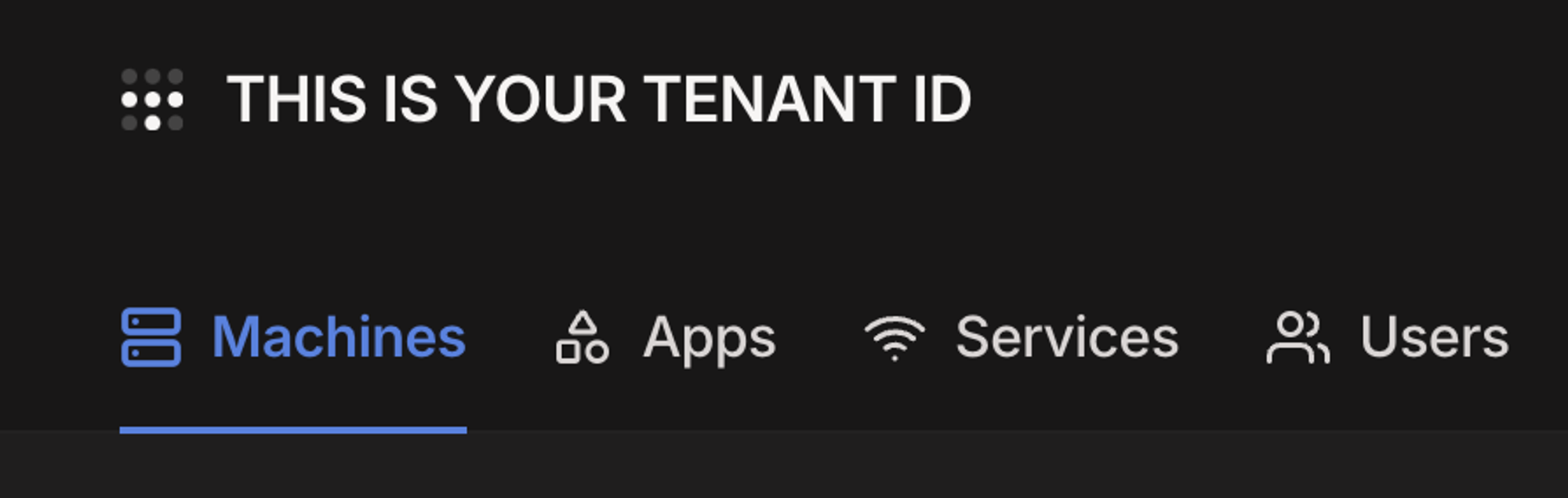
TAILNET_NAME - 你可以在 这里 找到,填入包含 ts.net 的名称ACCESS_KEY - 你可以在 这里 申请 API access tokens,有效期最长 90 天<machine name>.ts.net 来连接对应的主机实例。ts.net。由于我不考虑多个 Tailnet 的情况,也不需要记住你 Tailnet 的名称。*.ts.net 只要域名解析未过期都会发起一次请求,通常这不是问题,如果你遇到了问题可以在评论中告诉我192.168.114.0/24 ,Surge 的配置中有这样一段:192.168.114.0/24 ,在外面时先隧道连接 PYCELLE 再去到目标的地址。Surge 提供 Rule 类型的脚本,能够很容易解决这个问题。192.168.114.1 作为网关192.168.114.0/24String.prototype.includes ,假设你家的内网有多个网段可能需要下面的函数来判断子网。




notion-client - A wrapper of the Notion private API used by their clients.react-notion-x- A collection of React components that transform the raw data into actual pages with Notion-like styling.notion-compat to make it possible to use the official API, but it has a few drawbacks (see the link).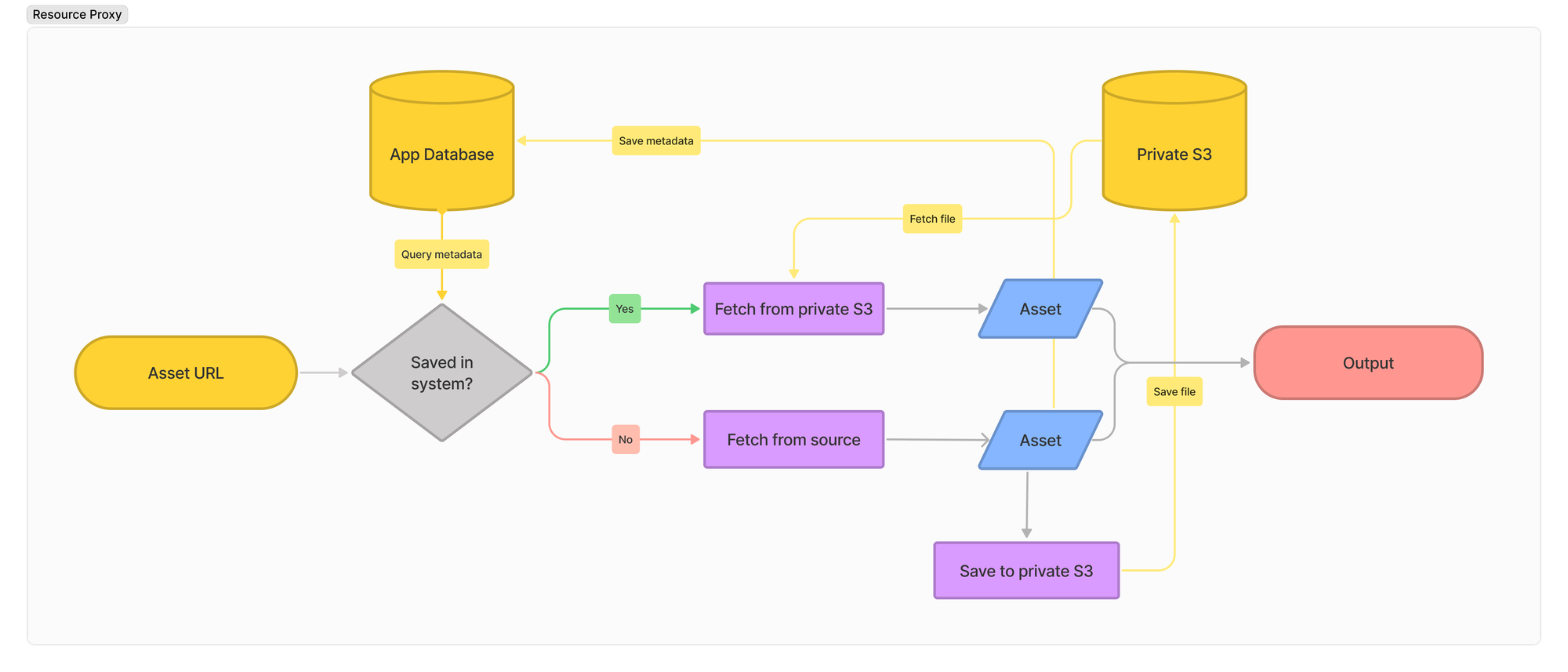

next/image._server.ts.-wal 文件,然后再将这些页面复制回主数据库文件。这让 SQLite 提供了安全的原子事务,因为如果一个事务被回滚,它可以简单地删除 WAL。如果页面直接写入数据库文件,那么在回滚时就没有办法取回原始的页面数据。WAL 也允许读事务在事务开始时有自己的数据库快照视图,因为同一数据库页面可以有多个实例分布在数据库文件和 WAL 中。然而,WAL 不断增长,所以最终页面必须被移回数据库文件,以便 WAL 可以重新开始记录。这个过程被称为 检查点,只有在没有事务的情况下才能进行。这就是 Litestream 复制 SQLite 的关键所在。上面一段翻译自 Litestream 文档

/etc/litestream.yml。
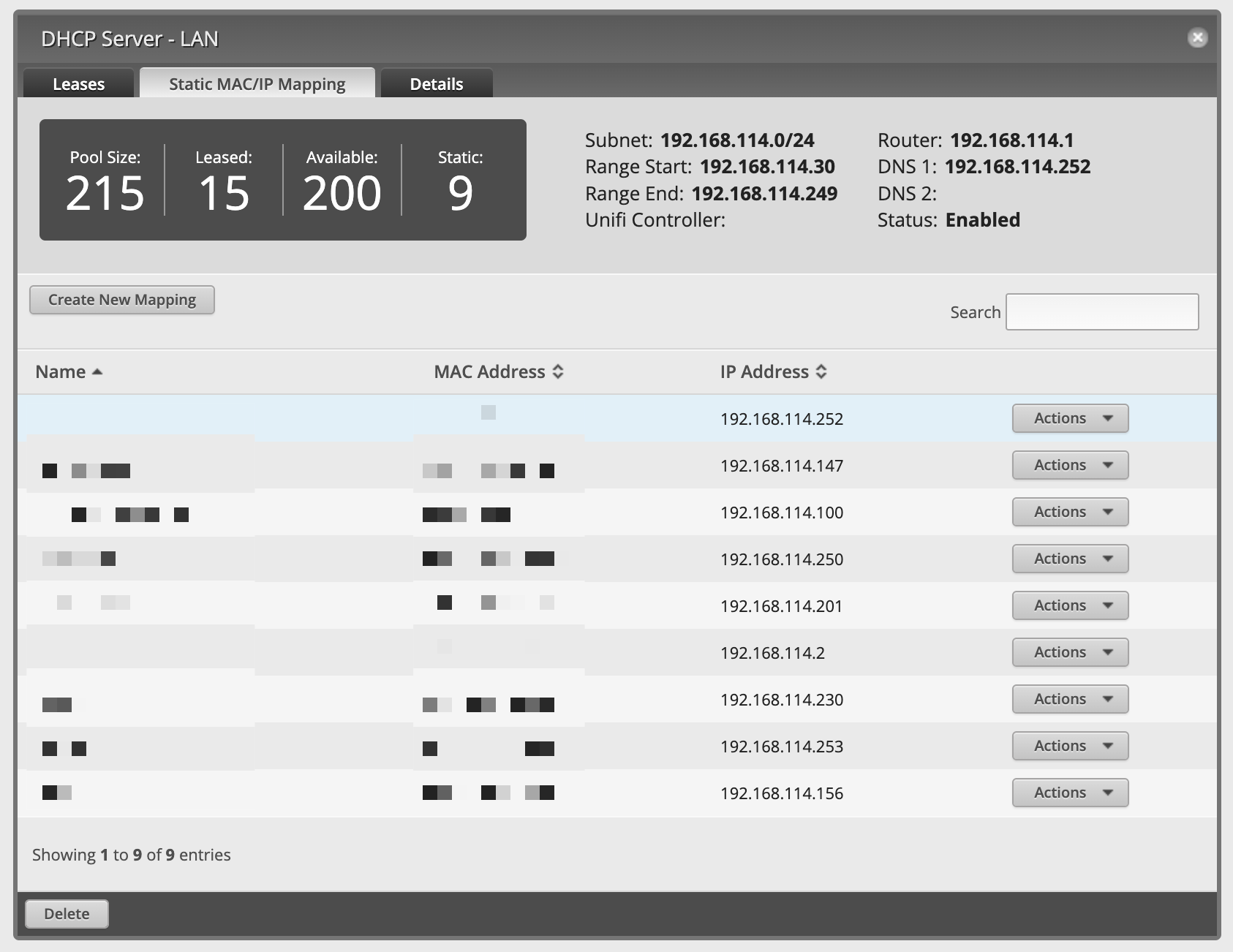
service / dhcp-server / shared-network-name / LAN / subnet / 192.168.114.0/24 / static-mapping 下找到你要配置的设备。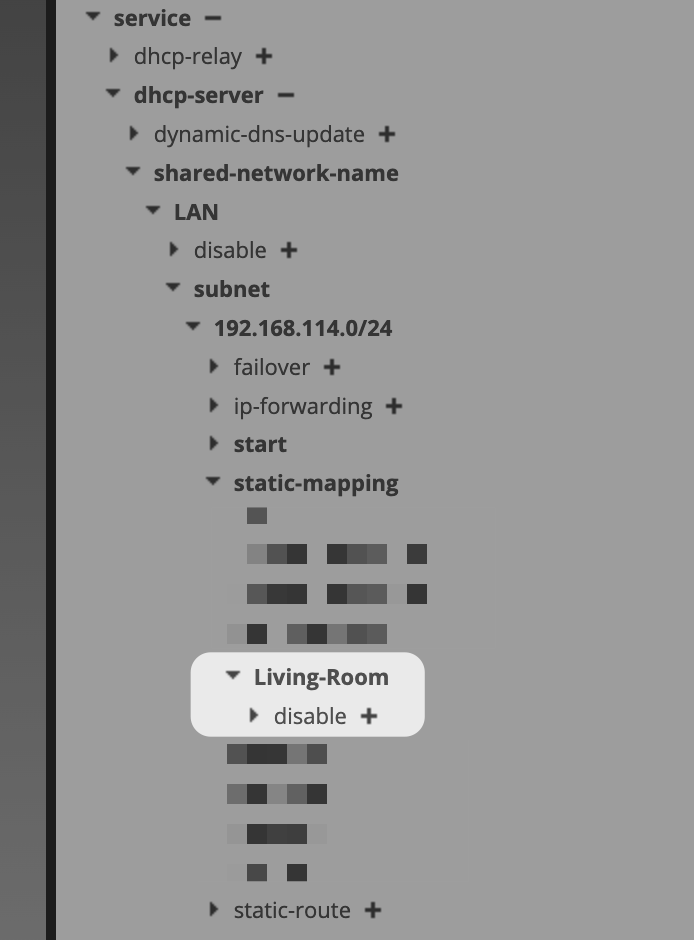
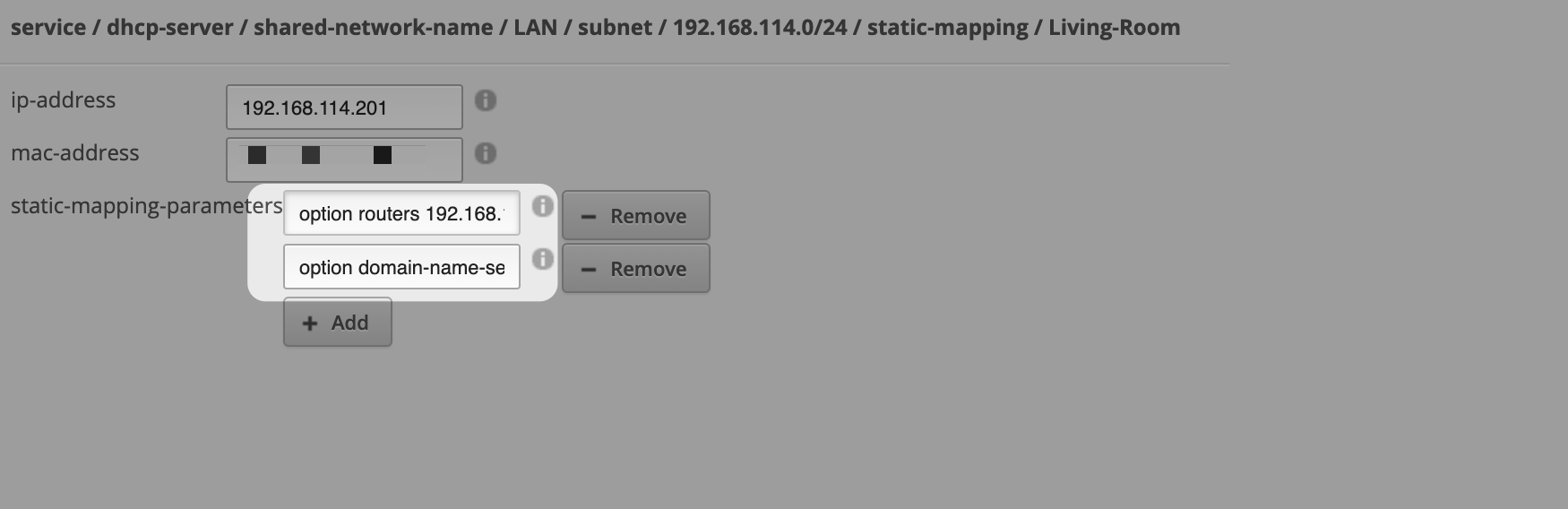
ip-address 和 mac-address 已经被预先填入,你需要做的就是增加两项 static-mapping-parameters。假如你的 Surge 网管地址是 192.168.114.10 则你需要在两个输入框内填入下面的字段。v2.0.9-hotfix.2。其面板中提供的 UPnP 选项为旧版本的 UPnP,若要配置 UPnP2 则需在 Config Tree 或命令行中完成。


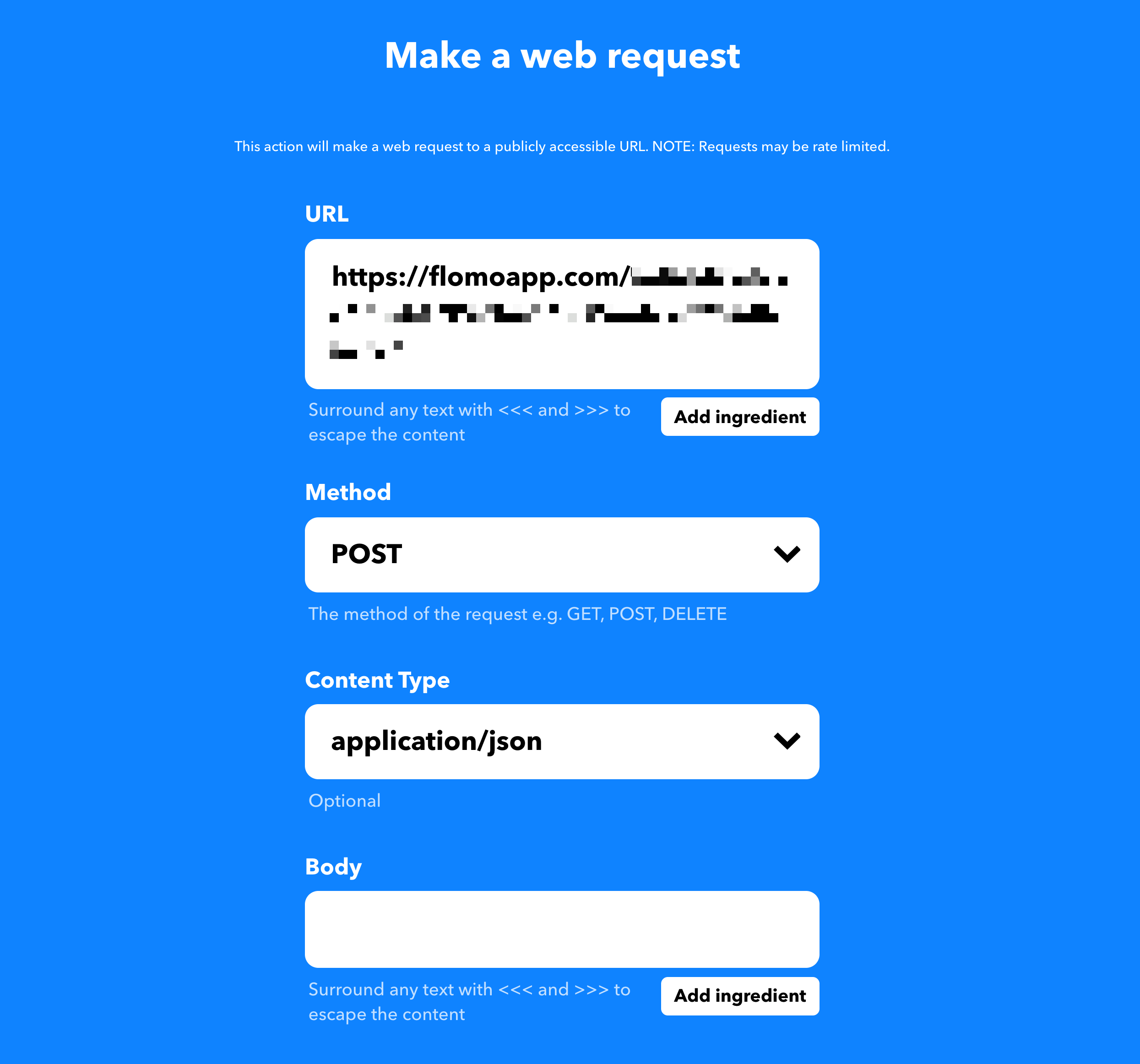
<<< 和 >>> 包裹,不然将无法调用 API。