Reading view

There are new articles available, click to refresh the page.

Textovert 1.1 can now convert PDF files to other formats

As promised last week, I have now produced a new version of Textovert that can extract text from PDF files and convert that to any of the nine formats supported by the app. Testing here suggests this could be generally useful, as the quality of output files appears good, and worth the small effort in conversion.

This new version offers the same conversions as the first, using textutil, but handles PDF files with a .pdf extension (case-insensitive) differently. When converting them to plain text, it loads the PDF and uses Quartz 2D’s PDF engine to extract the text for saving as a text file. When the output format is set to Rich Text (RTF), it uses the same engine to extract styled text and saves that as an RTF file. Note that doesn’t include layout information, but is generally a fairly faithful representation of the styles used in the original.

For the seven other output formats, Textovert first extracts styled text into a temporary RTF file, then hands that over to textutil to convert it to the selected output format.

Each PDF conversion is handled in a separate thread running at a high QoS in the background, to avoid blocking the main thread. As large conversions can take many seconds or even minutes to complete, Textovert’s window tracks how many are running at the moment. That’s most useful when converting batches of PDFs, when it’s easy to forget the last one or two that are still in progress.

Because each conversion gets its own thread, multiple simultaneous conversions will occupy as many CPU cores as are available, as shown in this CPU History for my seven heavyweight test PDFs. At the left of each chart the CPU % rises rapidly as all seven conversion threads are active. As those complete, the bursts of CPU activity diminish until they are from the single thread converting the largest of the PDFs.

Among those test PDFs are:

  • A 527-page book of 10.9 MB
  • A 5,754-page ISA reference of 14.7 MB
  • An 867-page book of 18 MB
  • A 141-page software manual of 24.4 MB
  • A 12,940-page reference manual created using FrameMaker 2019 and Adobe Acrobat Distiller 23.0 on Windows of 76.6 MB size, © 2013-2023 Arm Limited.

To give you an idea of the quality of output, this is a tiny excerpt of the last of those in its original PDF:

And this is the webarchive output from Textovert viewed in Safari:

Converting PDFs does require significantly more memory than those performed by textutil alone. For most documents of more modest size, 100-500 MB is usual, but my monster test PDFs usually rise toward 5 GB during their conversion. I have checked this version for memory leaks, and although it can hold onto some memory longer than I would have expected, that doesn’t continue to rise, and no leak is apparent.

Because PDF conversions are more intricate, I have added extensive error-reporting. For example, if you try to convert a PDF containing scanned images without any recognised text, that won’t have any recoverable text available, as will be reported in the main window. Once conversion is complete, Textovert tries to delete the intermediate RTF file from temporary storage, and if that fails, you’ll be warned.

Textovert version 1.1 for macOS 14.6 and later is now available from here: textovert11
from Downloads above, and from its Product Page.

I hope you find it useful.

Textovert 1.0: a convenient wrapper for text conversion

Yesterday I sang the praises of the little-known command tool textutil for converting text content between nine different formats. As I promised, today I offer a small wrapper app to make those conversions more convenient: Textovert.

textutil provides three features: general document information, text format conversion, and document concatenation. The first of those is probably best left to editors, and the last requires a document layout editor, so I chickened out of those for the time being. Textovert version 1.0 runs commands of the form
textutil -convert format filename1 -output filename2
where format is the format of the output file, filename1 is the input, and filename2 the output file.

You select the output format from the nine options in the window’s dropdown menu, before dropping any files onto that window. If you want to perform multiple conversions at the same time, you can open two or more windows and set each to its own output format.

Then drag and drop files to be converted onto the window. This version of Textovert only accepts files (and document bundles like RTFD), not folders, as they present several problems I’d rather not go into just yet. Textovert will then work through all the files one at a time and prompt you to select a filename and location for the converted file to be saved. For those converting just one or a handful of files at a time, this gives you fine control.

For those who have just dropped a batch of dozens of files onto the window, Textovert’s default behaviour is to save the converted files in the same location as the originals, with the same filename but the new extension. Thus, converting ~/Documents/Project/Meeting.doc to RTF will default to saving that converted file as ~/Documents/Project/Meeting.rtf. If you’re happy with that, you can click your way through saving each document without checking further.

As each converted file is saved, Textovert writes a simple one-line report to its window, giving the original filename, ✅ to mark success, and the converted file’s extension. You can select and copy those from its window if you want to keep a record.

That screenshot was taken during testing, and shows two unsuccessful conversions, marked with a red exclamation mark. Hopefully you won’t encounter any of those.

You should be able to convert pretty well any file, although how much text will be recovered depends on textutil‘s skills, not mine. The app comes with its own short Help book, accessible through the Help menu, and provided separately as well. It requires a minimum of Sonoma 14.6 to support its SwiftUI interface.

Textovert 1.0 is now available from here: textovert10
from Downloads above, and from its Product Page.

Enjoy!

Apple has released an update to XProtect for all macOS

Apple has just released its regular weekly update to XProtect, bringing it to version 5323. As usual, it doesn’t release information about what security issues this update might add or change.

This version adds five new Yara rules in its TIMELYTURTLE series, for MACOS.TIMELYTURTLE.DYCASWOC, MACOS.TIMELYTURTLE.DYCASWOCB, MACOS.TIMELYTURTLE.LELINO, MACOS.TIMELYTURTLE.TRNO, MACOS.TIMELYTURTLE.DYHEOC, and a single new rule for MACOS.REALSTAR.VO, which appears to be a new genus of malware.

You can check whether this update has been installed by opening System Information via About This Mac, and selecting the Installations item under Software.

A full listing of security data file versions is given by SilentKnight and SystHist for El Capitan to Tahoe available from their product page. If your Mac hasn’t yet installed this update, you can force it using SilentKnight or at the command line.

If you want to install this as a named update in SilentKnight, its label is XProtectPlistConfigData_10_15-5323

Sequoia and Tahoe systems only

This update has at last been released for Sequoia and Tahoe via iCloud. If you want to check it manually, use the Terminal command
sudo xprotect check
then enter your admin password. If that returns version 5323 but your Mac still reports an older version is installed, you should be able to force the update using
sudo xprotect update

Update

As of 22:00 GMT on 11 November, the update to 5323 has reappeared for download to the traditional location via Software Update or SilentKnight, and is available through the iCloud connection for Sequoia and Tahoe.

How to install security updates without upgrading to Tahoe

macOS gives you the choice of upgrading to the latest version, but each year makes it easier to upgrade by mistake. For those wanting to stick with macOS 15 Sequoia this has become even harder to get right. This article shows how you can install security updates without risking the upgrade, using my free utility SilentKnight. If you prefer you can do essentially the same thing from the command line.

Check for updates

Run the latest version of SilentKnight (2.12) and it will show you all the updates waiting for your Mac, including the Tahoe upgrade. Don’t, whatever you do, click on the Install all updates button at this stage, or try installing individual updates. Quit SilentKnight and open Software Update in System Settings to install the security update to Sequoia first.

Update macOS

Although you can download and install macOS updates using SilentKnight, it’s far better if you use Software Update to do that. Open that in System Settings and read what it offers very carefully.

Although you know you don’t want to click on Upgrade Now, you should also avoid clicking on Update Now in the expectation that it will update Sequoia to 15.7.2. Instead, click on the ⓘ button next to it to ensure that you only update what you intend.

In this window, uncheck the Tahoe upgrade, and tick macOS Sequoia 15.7.2 and Safari, then click on Update Now. Make a mental note of the large size of the Tahoe upgrade, and when the download starts, check that isn’t being downloaded. If it is, cancel it if you can, quit all other open apps, and shut your Mac down. Leave it a few seconds before starting it up and trying again.

Once the Sequoia security update has been installed and your Mac restarts into 15.7.2, open SilentKnight and let it check for updates again.

Install remaining security updates

In most cases, almost all the outstanding security updates such as XPR should now be installed as part of that macOS update. However, the one you’re likely to have to install manually is XProtect, and you also want to change SilentKnight so it doesn’t put you at risk of inadvertently upgrading to Tahoe.

Open SilentKnight’s Settings and uncheck Allow Install All Updates. That removes the button from its main window that you could click accidentally and initiate an upgrade.

Now open Terminal to install the outstanding XProtect update. Type the following command
sudo xprotect update
press Return and enter your admin password. That update should then be installed from iCloud. Check that by opening SilentKnight one last time.

SilentKnight confirms that all your security updates have been installed successfully. Although the Tahoe upgrade is still waiting there to catch you unawares, there’s now no Install all updates button. When you want to install individual updates such as XProtect, use the Install Named Update… command in the File menu. Paste in the Label of the update, such as XProtectPlistConfigData_10_15-5323, check that it isn’t the Tahoe upgrade, and click the Install Named Update button for each security update you want to install.

skseq3

There’s one final trick you need to remember. When macOS keeps notifying you of the Tahoe upgrade, click on that notification away from its buttons to open Software Update, then close that window. That should ensure that macOS doesn’t try upgrading your Mac on the sly. If it does start downloading the Tahoe upgrade, quit all open apps and shut down. After a few seconds start up again and that upgrade should be forgotten. For a while, at least.

How Tahoe 26.1 has enabled automatic security updates

If you have updated your Mac to Tahoe 26.1, you may be blissfully unaware that it will now automatically download and install some security updates, regardless of its Software Update settings. Open Privacy & Security settings, scroll down to the end and you’ll see a new item, Background Security Improvements, that Apple has kindly turned on for you. There are matching new settings in iOS and iPadOS 26.1 that are also enabled by default.

Apple seemingly forgot to mention these when listing the changes in 26.1, and its documentation of these Background Security Improvements (BSI) is sketchy to say the least. However, the description there as “lightweight security releases for components such as the Safari browser, WebKit framework stack and other system libraries” is so similar to that for RSRs as “improvements to the Safari web browser, the WebKit framework stack, and other critical system libraries” that we can only conclude the BSI is a rebranded RSR.

What is an RSR/BSI?

Although almost all of macOS is contained in the System volume, turned into a snapshot that’s protected by a tree of hashes with a signature, then mounted as the Signed System Volume, there are additional components that are delivered in separate cryptex files. These are also heavily protected with signatures to verify their contents, and are mounted well after the kernel has booted. APFS then grafts them into the root file system so their contents appear in the correct places. There are currently two main cryptexes common to all Macs, one containing Safari and its WebKit components, the other with dyld caches supporting frameworks. Apple silicon Macs additionally have many smaller cryptexes to support AI and related features.

Because those cryptexes are separate from the SSV, they can be unloaded, replaced with updated versions, and reloaded without necessarily having to reboot the kernel, or go through any of the complex procedures to update macOS itself. Apple first tested this new type of update, a Rapid Security Response (RSR), in beta-releases of macOS 13 Ventura, and the first was publicly released for Ventura 13.3.1 on 1 May 2023.

How do RSRs work?

RSRs have been released using the regular Software Update mechanism, controlled in its settings, and can be uninstalled manually even if you have opted for them to be installed automatically.

rsr2

To remove an RSR, you open System Settings > General > About, and look down for the macOS version. At the right of that line is an ⓘ button: click on it to see the dialog above, allowing you to uninstall it.

Why don’t we get RSRs now?

Apple proudly announced RSRs at WWDC in June 2022, and they were listed among the new features in Ventura: “Get important security improvements to your devices even faster. This isn’t a standard software update. These improvements can be applied automatically between normal updates — without a restart.”

Although the first in May 2023 seemed to go well, the next on 10 July was an embarrassing disaster. RSR 13.4.1 (a) fixed one WebKit vulnerability, but unfortunately it also changed the version number of Safari to 16.5.2 (a), which was reflected in its User Agent, so broke access to many popular websites including Facebook. That had to be rectified in RSR 13.4.1 (c) released three days later. And all three of these RSRs required the kernel to be rebooted after their installation.

Since then, as far as I’m aware, Apple hasn’t released any further RSRs, although they’ve still been referred to throughout its documentation.

Their greatest limitation is that they can only fix vulnerabilities that are confined to Safari, WebKit and other components that are delivered in cryptexes. More commonly, urgent security patches also require changes to software in the SSV, for which the only solution is a full update. For example, during the year that macOS Sequoia was current, it received six patch updates in between those scheduled. Of those, only two might have been suitable as RSR/BSI updates, as all the others required changes to the SSV.

How do BSIs work?

If Apple’s current account of BSIs is complete, the only control we have over them is whether they’re downloaded and installed automatically. If you opt for that, as Apple has set as the default, then you won’t be given any warning, or even informed when the BSI has been installed on your Mac. The only way you’ll be able to learn that is by trawling through the list of software installations in System Information, although Apple will post information about the BSI in its security release notes, following its release.

If there’s a problem with a BSI, such as that in the second RSR in July 2023, then there’s no option to uninstall the BSI and revert to a previous version of that cryptex, as there was with RSRs. However, Apple might decide to remove the BSI from your Mac.

Given the short and unfortunate history of RSRs, that might appear surprising.

Apple has released updates to XProtect and XProtect Remediator

Apple has just released an update to XProtect for all versions of macOS, bringing it to version 5322. At the same time there’s an update to XProtect Remediator for Catalina and later, bringing that to version 156. As usual, it doesn’t release information about what security issues these updates might add or change.

This version of XProtect adds one new rule to its main Yara file, for MACOS.TIMELYTURTLE.DYCAOC, and amends the existing rule for MACOS.SOMA.OCENA. It also adds a new XPScripts.yr file containing two rules using an osascript (AppleScript) interpreter, MACOS.OSASCRIPT.COTABR and MACOS.OSASCRIPT.COTAWA.

XProtect Remediator 156, which follows version 153, adds one new scanning module, XProtectRemediatorConductor. It will be interesting to see whether this refers to a new codename, or its role among other scanning modules.

The XProtect Behavioural or Bastion rules embedded in XProtect Remediator 156 amend Rule 22, but don’t add any further rules.

You can check whether these updates have been installed by opening System Information via About This Mac, and selecting the Installations item under Software.

A full listing of security data file versions is given by SilentKnight and SystHist for El Capitan to Tahoe available from their product page. If your Mac hasn’t yet installed this update, you can force it using SilentKnight or at the command line.

If you want to install these as a named updates in SilentKnight, their labels are XProtectPlistConfigData_10_15-5322 and XProtectPayloads_10_15-156

Sequoia and Tahoe systems only

This XProtect update has finally been released for Sequoia and Tahoe via iCloud. If you want to check it manually, use the Terminal command
sudo xprotect check
then enter your admin password. If that returns version 5322 but your Mac still reports an older version is installed, you should be able to force the update using
sudo xprotect update

Update: the iCloud update was finally made available after 22:00 GMT on 5 November, over 24 hours after the release of this new version of XProtect.

What has changed in macOS 26.1 Tahoe?

The update bringing macOS 26 Tahoe to version 26.1 is substantial, and has a great many increases in build numbers, so this overview of its changes concentrates on those substantial enough to merit an increment in version number. The update itself varies widely in size, ranging between about 3-14 GB, which is unusual and hard to explain.

Apple’s security release notes report that it addresses a total of 90 vulnerabilities, none of which have been reported as being exploited in the wild.

General release notes are extremely brief, and include:

  • a new tinted appearance option for Liquid Glass,
  • AutoMix support for Apple Music over AirPlay,
  • better FaceTime audio over low bandwidth connections,
  • Communication Safety and Web content filters are enabled by default for existing child accounts.

The only other release notes available are those for enterprise.

There are firmware updates to bring Intel T2 Macs to 2094.40.1.0.0 (iBridge 23.16.11072.0.0,0), and Apple silicon Macs to iBoot version 13822.41.1. The build number for macOS 26.1 is 25B78.

Version changes seen in bundled apps include:

  • Audio MIDI Setup to 3.7
  • Books to 8.1
  • ColorSync Utility to 12.2.0
  • Freeform to 4.1
  • iPhone Mirroring to 1.5
  • Music to 1.6.1
  • News to 11.1
  • Passwords to 2.1
  • Safari to 26.1 (21622.2.11.11.9)
  • Screen Sharing to 6.1
  • Stocks to 8.1
  • Tips to 26.1 (routine for this update)
  • TV to 1.6.1.

Notable changes seen in /System/Library include:

  • several PDF Automator actions have build increments
  • Archive Utility has changed, with removal of a pref pane
  • SystemIntents is a new app added to CoreServices at version 1.0
  • two new driver extensions (dext) have been added, for AppleSunriseBluetooth and AppleSunriseWLAN
  • kernel extensions updated include many for AGX, as well as AppleDiskImages2 and AppleEmbeddedAudio
  • new kernel extensions include AppleSPINORFlasherDriver at version 1.0, and a family of AppleT8142 kexts to support the M5
  • APFS is updated to version 2632.40.15
  • added to DiagnosticExtensions are new items ScreenTimeDiagnosticExtension and ToolKitDiagnosticExtension
  • added to PrivateFrameworks are new SpotlightDiagnostics and ThumbnailsBlastDoorSupport frameworks
  • the RichText mdimporter is unchanged, remaining at version 6.9 (350).

As expected, the Spotlight bug described here recently remains unchanged in macOS 26.1.

Apple has released macOS 26.1 Tahoe, and security updates to 15.7.2 and 14.8.2

Apple has just released macOS 26.1 Tahoe, together with security updates for Sequoia to bring it to 15.7.2, and for Sonoma to 14.8.2. There are also separate updates for Safari in 15.7.2 and 14.8.2.

The Tahoe update has at last appeared here in Europe, and is a hefty 4.7 GB for Apple silicon Macs.

Security release notes for 26.1 report around 90 vulnerabilities have been fixed, none of which have been reported as being exploited in the wild. Listings for Sequoia give about 54, and for Sonoma about 46.

The only other release notes available so far are for enterprise here.

Details provided by Apple beyond the general ‘bug fixes and updates’ include a new tinted option for Liquid Glass, that has already been widely discussed among beta-testers, Apple Music AutoMix support over AirPlay, better FaceTime audio in low bandwidth connections, and Communication Safety and Web content filters enabled by default for existing child accounts. That seems surprisingly little to squeeze into a mere 4.7 GB, and I suspect there will have been more extensive changes.

The build number for macOS 26.1 is 25B78. Firmware in Apple silicon Macs is updated to iBoot version 13822.41.1, and Safari is version 26.1 (21622.2.11.11.9).

I will post a detailed analysis of changes tomorrow, 4 November.

Important note for those intending to update to 15.7.2 or 14.8.2 rather than Tahoe:
To be certain the correct updates will be installed, in the Also Available section of Software Update, click on the ⓘ button to the right of the Update Now button for Other Updates and select the appropriate macOS update and Safari, deselecting the Tahoe update there. That should ensure you don’t inadvertently upgrade to Tahoe.

[Last updated 06:42 4 November 2025]

Apple has released an update to XProtect for all macOS

Apple has just released an additional out-of-cycle update to XProtect, bringing it to version 5321. As usual, it doesn’t release information about what security issues this update might add or change.

This version has no changes from 5320 in its Resources property lists or Yara file. Indeed, the version number given in XProtect.meta.plist remains 5320, although those given in the bundle’s Info.plist and version.plist are 5321.

You can check whether this update has been installed by opening System Information via About This Mac, and selecting the Installations item under Software.

A full listing of security data file versions is given by SilentKnight and SystHist for El Capitan to Tahoe available from their product page. If your Mac hasn’t yet installed this update, you can force it using SilentKnight or at the command line.

If you want to install this as a named update in SilentKnight, its label is XProtectPlistConfigData_10_15-5321

Sequoia and Tahoe systems only

This update has already been released for Sequoia and Tahoe via iCloud. If you want to check it manually, use the Terminal command
sudo xprotect check
then enter your admin password. If that returns version 5321 but your Mac still reports an older version is installed, you should be able to force the update using
sudo xprotect update

Apple has released an update to XProtect for all macOS

Apple has just released its weekly update to XProtect, bringing it to version 5320. As usual, it doesn’t release information about what security issues this update might add or change.

This version adds a single new Yara rule for MACOS.SOMA.OCENB, another for the vast Soma/Amos family.

You can check whether this update has been installed by opening System Information via About This Mac, and selecting the Installations item under Software.

A full listing of security data file versions is given by SilentKnight and SystHist for El Capitan to Tahoe available from their product page. If your Mac hasn’t yet installed this update, you can force it using SilentKnight or at the command line.

If you want to install this as a named update in SilentKnight, its label is XProtectPlistConfigData_10_15-5320

Sequoia and Tahoe systems only

This update has already been released for Sequoia and Tahoe via iCloud. If you want to check it manually, use the Terminal command
sudo xprotect check
then enter your admin password. If that returns version 5320 but your Mac still reports an older version is installed, you should be able to force the update using
sudo xprotect update

LogUI build 77 improves readability of log entries

As I explained a couple of weeks ago, log entries come in four flavours: regular, activity, boundary and signpost. These types have previously been distinguished by a single digit in the entry. Although the latter two aren’t commonly used, boundaries because they’re uncommon, and signposts because they’re seldom useful, activities do need to be distinguished from regular entries. This new build of LogUI uses emoji to do that, and brings improvements in exported entries.

Log list

Rather than display a single digit for the type of each log entry, LogUI now uses an emoji:

  1. regular entries are marked with a ▶ right-pointing triangle,
  2. activities with a 🥎 softball,
  3. boundaries with a 🎬 clapper board,
  4. signposts with a 📍 round pushpin.

Those make it much easier to scroll down through entries looking for activities, for example.

Rich Text export

Those are also shown in extracts exported to Rich Text Format files. Those exports have been improved to more closely reflect entries as they’re displayed in LogUI’s window, including the new type emoji, with the addition of extra fields for signposts.

Copy

The other form of exported entries are those copied from the list, by selecting them in the window and using the Copy command. Rather than trying to copy the full text contents of all the fields, this has previously brought a selection separated using tabs. In this version, the fields are expanded and use a vertical bar | as a separator, to provide
date | level | category | sender | process | subsystem | message or signpostName

Where an entry has no data for that field, it’s left empty. As signpost entries don’t have message fields, and the other three types don’t have signpostNames, the last of those depends on the entry type. This should make copied signposts more meaningful.

For example, a short regular entry might provide
2025-10-19 14:48:00.385306+0100 | info | SDNearbyAgentCore | CoreUtils | sharingd | com.apple.sharing | Checking active FT call count: 0
an activity
2025-10-19 14:48:00.902644+0100 | | | RunningBoard | runningboardd | | state update
and a signpost
2025-10-19 14:48:00.435671+0100 | | tracing | SkyLight | WindowServer | com.apple.SkyLight | FrameLifetime

LogUI 1.0 build 77 for macOS 14.6 and later is now available from here: logui177
from Downloads above, and from its Product Page.

Enjoy!

Apple has released an update to XProtect for all macOS

Apple has just released its weekly update to XProtect, bringing it to version 5319. As usual, it doesn’t release information about what security issues this update might add or change.

This version adds three new Yara rules. MACOS.SOMA.OCENA is yet another for the vast Soma/Amos family, and there are two for the far newer MACOS.ODYSSEY group, MACOS.ODYSSEY.SOCGO and MACOS.ODYSSEY.SEENA.

You can check whether this update has been installed by opening System Information via About This Mac, and selecting the Installations item under Software.

A full listing of security data file versions is given by SilentKnight and SystHist for El Capitan to Tahoe available from their product page. If your Mac hasn’t yet installed this update, you can force it using SilentKnight or at the command line.

If you want to install this as a named update in SilentKnight, its label is XProtectPlistConfigData_10_15-5319

Sequoia and Tahoe systems only

This update has already been released for Sequoia and Tahoe via iCloud. If you want to check it manually, use the Terminal command
sudo xprotect check
then enter your admin password. If that returns version 5319 but your Mac still reports an older version is installed, you should be able to force the update using
sudo xprotect update

Check your Mac is secure

Some who use SilentKnight for the first time discover that their Mac has been running for months with one of its security systems disabled. As macOS doesn’t have a dashboard to warn you of such dangerous settings, you may not notice until it’s too late. This article explains how to check those essential security settings on Macs with T2 or Apple silicon chips, and how to put them right. Intel Macs without T2 chips are different, and are covered in a previous version.

Secure Boot

Running your Mac in Full Security ensures it gets full protection from its Secure Boot technology. In an Apple silicon Mac this prevents it from loading third-party kernel extensions, and requires recent approved versions of macOS. Check this in System Information by selecting the Controller item in its Hardware section, or in SilentKnight.

This is controlled in Startup Security Utility, accessed from Recovery. Note that it only works with the paired Recovery system, the one you normally use; Apple silicon fallback Recovery doesn’t have this ability.

recovery13

If you need to run kernel extensions or other software that can’t be loaded in Full Security, use Startup Security Utility to set the Mac to Reduced Security, and enable kexts. Avoid doing this if at all possible.

Settings are different for Intel Macs with T2 chips, where there are three levels of boot security, and the most common reason for reduction from Full Security is to enable that Mac to boot from external drives, something that Apple silicon Macs can do in Full Security.

System Integrity Protection (SIP)

Since El Capitan, macOS has protected all its system files, even down to bundled apps, using System Integrity Protection. This should make it impossible for malware or other software to change those protected files. SIP is also required for a wide range of other security protection, and should be fully enabled unless you have a compelling reason for disabling it partially or completely. In Apple silicon Macs, its status is reported in System Information’s Controller item, but Intel Macs instead give it in the Software section. It’s also checked by SilentKnight and Skint.

You can turn SIP off, something very occasionally needed to perform certain essential tasks. Doing so requires you to start up in Recovery mode, enter a command in Terminal there, and restart; Apple silicon Macs also need to have their boot security reduced in Startup Security Utility before SIP can be disabled.

To enable SIP, start up in Recovery mode, open Terminal, and type the following command:
csrutil enable; reboot
Once that’s done your Mac will restart in normal mode, and you should confirm that SIP is reported as enabled.

If you ever do need to disable SIP, do yourself a favour and put a sticky note on your Mac’s display to remind you to turn it back on.

Gatekeeper/XProtect

Gatekeeper runs checks on apps when they’re opened, and those can include scans for known malicious software using XProtect. As part of your Mac’s frontline protection against malware, you should leave those enabled unless there’s a compelling reason to temporarily disable them. However, I don’t know of anywhere in the macOS GUI that informs you whether these checks are being performed, although they are reported by SilentKnight and Skint.

If it has been disabled, you may be able to enable it using the command
spctl --enable
but chances are that you will instead need to invoke
sudo spctl --global-enable
requiring you to authenticate using your admin password. Be careful with those commands: the hyphens before enable and global-enable aren’t long dashes, but two separate hyphens.

Signed System Volume (SSV)

When you install Big Sur or later, the vast majority of its system files are saved in its System volume. For your Mac to boot from this, it has to be turned into a snapshot, sealed using a tree of cryptographic hashes, and the master seal ‘signed’ by a hash, which is compared against that set by Apple. This signed system volume is extremely secure and thoroughly reliable. On Intel Macs, this is only reported in Disk Utility, but Apple silicon Macs list it in System Information as well. It’s also reported by SilentKnight and Skint.

The SSV should always be enabled. If it isn’t, you’ll need to re-install macOS.

FileVault

Intel Macs with T2 chips and Apple silicon Macs encrypt the whole of the Data volume on their internal SSD. By default, that uses an internally-generated key that’s used automatically when any user logs in. Although it provides good security in most situations, you’re far better off enabling FileVault, as that protects the encryption key with your password as well. This imposes no overhead on accessing encrypted data, and provides valuable protection for your data at no cost.

Check whether FileVault is enabled in Privacy & Security settings, where you can enable it if it’s not already turned on. SilentKnight checks it as well.

macOS and firmware

To ensure your Mac and its apps are best protected from malware, keep its firmware and macOS up to date. As those are updated together, Macs with T2 or Apple silicon chips that are running the most recent release of their major version of macOS will also be running the current firmware, which no longer needs to be checked separately. Check the version of macOS in the About This Mac command at the top of the Apple menu.

Apple lists current supported versions of macOS on its Security Releases page. Those, and versions of security data software, are also listed and detailed here on this page.

If your Mac is running an older release of macOS and its firmware, update them together using Software Update in General settings.

XProtect Remediator scans

This anti-malware scanner performs automatic background scans to detect and remove a wide range of malicious software. It’s normally scheduled to run at least once a day, when your Mac is awake but not busy, and supplied with mains power. You’re wise to check that its scans are being run correctly, and will probably want to know if it has detected and remediated any malware. SilentKnight and Skint run a quick check of its activity over the previous 36 hours, and XProCheck provides detailed reporting and analysis.

Over the last year or so, XProtect Remediator has been using a timer during its scans, and automatically cancelling them if a scan takes longer than allowed. On many Macs, most scans are terminated early, and that results in warnings from SilentKnight and Skint. If you’re concerned, check the reports in XProCheck, where you’ll see that plugin was cancelled with a status_code of 30, as is typical with the timer.

Check:

  • the Mac boots in Full Security, if possible,
  • SIP is enabled,
  • Gatekeeper/XProtect is enabled,
  • it has booted from an SSV,
  • FileVault is enabled,
  • it’s up to date with macOS,
  • XProtect Remediator scans are taking place daily.

SilentKnight does all of those and more.

Explainer: How is XProtect’s data updated?

If there’s one topic that needs explanation currently, it’s how macOS updates XProtect’s data. Let me try.

Up to and including macOS Sonoma

Until this changed in Sequoia, updating XProtect has been straightforward: its data is stored in a bundle named XProtect.bundle, in the path /Library/Apple/System/Library/CoreServices, on the Data volume so it can readily be updated. When you or macOS downloads and installs an XProtect update, it simply replaces that bundle with the new one. This is shown in the diagram below.

xprotectupd3

The source of those updates is Apple’s Software Update Service, through the Software Update pane in System Preferences or System Settings, the softwareupdate command tool, or an app like SilentKnight. Left to its own devices, macOS normally checks for updates soon after starting up, and once every 24 hours running after that.

Early Sequoia

XProtect in macOS 15 prefers not to use the XProtect.bundle in its old location of /Library/Apple/System/Library/CoreServices, instead looking for XProtect.bundle in its new location, /var/protected/xprotect.

However, when you or your Mac use the old update system, including Software Update, softwareupdate or SilentKnight, that still installs the update in the old location, where it won’t normally be used by XProtect when making its checks. What was supposed to happen in early versions of Sequoia was that at least once a day, macOS checked whether there was a newer update in the old location. If there was, then it should have automatically prepared and moved that to the new location in /var/protected/xprotect for XProtect to use.

If you wanted that to happen immediately, then you could run the following command in Terminal:
sudo xprotect update
then enter your admin user’s password. The xprotect command tool would then complete the installation of that update from its old location into its new one.

There’s also a second way that XProtect in early Sequoia could be updated, and that’s over a connection to iCloud. If that was used, then the update was installed straight into its new location, and didn’t change the XProtect bundle in the old location at all. Although Apple had used that earlier, all XProtect updates since the release of Sequoia came using the old Software Update system, so needed to be completed using the xprotect command in Terminal.

This is shown in the diagram below. The blue boxes show the old Software Update system, and the pink boxes are the new parts that ensure the update is installed in the new location.

xprotectupd4

Later, that changed and Apple started releasing updates via iCloud. By about macOS 15.3, xprotect update was no longer able to install XProtect in the new location, and that was only possible once that update had been released to iCloud, from where xprotect update could download and install it to the new location.

Late Sequoia and Tahoe

With the release of macOS 26.0 Tahoe, this changed again. Macs running the latest versions of Sequoia and any version of Tahoe (after 26.0 release) continue to update the old location in /Library/Apple/System/Library/CoreServices as before.

Updating the new location in /var/protected/xprotect can occur by two methods. A background service XProtectUpdateService can:

  • ‘activate’ an update from the old location by installing a copy to the new location;
  • use CloudKit to download an update available in iCloud and install it directly to the new location.

That service is scheduled to run once every 24 hours.

The end result can appear confusing, but is summarised in the diagram below.

There are two routes for XProtect data to be updated in the new location:

  • XProtect in the old location is updated by softwareupdate, then XProtectUpdateService runs later and installs a copy of that update to the new location.
  • XProtectUpdateService runs and detects an update available from iCloud, so downloads and installs that in the new location. That occurs even when the old location hasn’t been updated yet, but depends on the update being offered in iCloud.

Both of those updates run silently, and the only ways to check that the new location has been updated are to:

  • check the version in /var/protected/xprotect,
  • run xprotect version,
  • use SilentKnight or Skint.

As far as the user is concerned:

  • Updating XProtect in the old location is worthwhile, as it should enable XProtectUpdateService to update the new location from that.
  • Running xprotect update in Terminal is only worthwhile if the new location hasn’t yet been updated, but that update has been released via iCloud, as confirmed using xprotect check.
  • Either of the new update mechanisms should be run automatically within 24 hours of an update being released.

Summary

  • In macOS Sonoma and earlier, XProtect updates come via Software Update, and are simple.
  • In macOS Sequoia and later, XProtect updates are more complex, but should happen as if by magic within about 24 hours of their release.

Apple has released an update to XProtect for all macOS

Apple has released its weekly update to XProtect, bringing it to version 5318. As usual, it doesn’t release information about what security issues this update might add or change.

This version makes several changes to the Yara definition for MACOS.COMPLIANTPIRATE.DEFU, but doesn’t add any new detection rules.

You can check whether this update has been installed by opening System Information via About This Mac, and selecting the Installations item under Software.

A full listing of security data file versions is given by SilentKnight and SystHist for El Capitan to Tahoe available from their product page. If your Mac hasn’t yet installed this update, you can force it using SilentKnight or at the command line.

If you want to install this as a named update in SilentKnight, its label is XProtectPlistConfigData_10_15-5318

Sequoia and Tahoe systems only

This update has now been released for Sequoia and Tahoe via iCloud. If you want to check it manually, use the Terminal command
sudo xprotect check
then enter your admin password. If that returns version 5318 but your Mac still reports an older version is installed, you should be able to force the update using
sudo xprotect update
However, if the regular update has been installed in the old location, XProtect is likely to update its new location from that. There’s nothing you can do to force that, but it may well explain why your Mac seems to have updated itself.

Updated 0450GMT 9 October 2025.

Why did that macOS upgrade take so much space?

If you bought an M1 Mac with just a 256 GB internal SSD and have kept up with macOS upgrades and updates, should you be worried that it’s running out of space by the time it makes it to Tahoe? Dare you look at Storage settings to see how much of the SSD is now swallowed up by System Data? This article explains why macOS 26 shouldn’t devour the last of your SSD, and how you can ensure that it doesn’t.

What’s on your Mac’s internal SSD?

Internal boot disk layout is most complex in Apple silicon Macs, as theirs is divided into three partitions (or APFS containers). Two are hidden and contain pre-boot and other low-level support files, and amount to around 6 GB. The Macintosh HD partition then takes the lion’s share, the whole of the remainder. Even on a 256 GB SSD, that’s about 250 GB.

Volumes within Macintosh HD include:

  • System, just over 12 GB,
  • VM, varies in size according to how much virtual memory is swapped out to disk,
  • Preboot, just under 8 GB,
  • Recovery and others not normally mounted, a total of less than 2 GB,
  • Data, whose size is determined by what you store there.

The system your Mac actually boots into isn’t the System volume itself, but a snapshot made of it, occupying the same space, plus a little extra for the snapshot’s metadata including its tree of hashes to form its seal and signature. Because this is a snapshot it uses the same data stored for the System volume, and doesn’t double that up.

This should allow your Data volume a maximum of 228 GB, less any space required by the VM volume. Although installation of a macOS upgrade or update will require substantial additional space, once that’s complete the space taken by the System volume and its snapshot should fall to little more than 12 GB.

What happens when macOS is upgraded?

In traditional macOS upgrades, the Installer app was downloaded first, and itself required around 13-15 GB. That was run, and expanded its contents to be installed onto the System volume, replacing much or all of it.

Updates work more economically, as they contain only the files that have changed, so far less than the Installer app. When they’re installed, they replace only those files changed in the System volume, ready for a new snapshot to be made from that, to be used to boot that Mac. So an update-style upgrade, as you should get when going from macOS 15.7 to 26.0, should require a much smaller download, a faster install, and less space to install the new version of macOS. However, the end result should be identical, with exactly the same files installed in the System volume, and exactly the same in the snapshot used when running.

Whichever is used, the installation process is similar. First, the files to be installed are expanded, then they’re written to the mounted System volume, with some going onto the Data volume as well. Once the System volume is complete, a snapshot is made of it, and that’s sealed using a tree hierarchy of hashes, culminating at the top of the tree in the seal.

What is System Data?

Storage settings scans the contents of the boot volume group, Macintosh HD, and divides the storage used into different categories like Applications and Podcasts. It appears to total those up and account for the remainder of storage used in the category System Data. That doesn’t include the size of the System volume, or its snapshot, but can include temporary files like caches, snapshots, and anything else it can’t account for in other categories.

Taking control

If there are substantial amounts of space that aren’t accounted for on your Mac’s internal SSD, and you want to reduce that, you need to account for it before deciding what to do about it.

First check for large snapshots. I hear repeatedly of Macs that turn out to have hundreds of GB being used by snapshots unnecessarily, and the current record is over 400 GB. The easiest place to check for those is in Disk Utility. In the sidebar on the left select the Data volume, then Show APFS Snapshots in the View menu for them to be displayed at the foot of the main view.

Backup utilities including Time Machine normally make a snapshot with each backup, and retain them for 24 hours, following which they’re automatically deleted. As snapshots can’t exclude folders in the way that Time Machine can in its backups, if you’ve been working with a couple of 100 GB VMs then they will be retained in snapshots even though you probably exclude them from being backed up.

Once you’re happy that free space isn’t being retained in snapshots, use a disk mapping utility like DaisyDisk or GrandPerspective to hunt down other large files and folders that you may not need. One reader here recently discovered that their iOS and iPadOS backups had taken over more than half the space on their Mac’s SSD.

DaisyDisk, showing a breakdown of the space occupied by items in one folder.

Wait a day or two after upgrading

Installing a macOS upgrade also changes files on your Data volume, and may retain temporary support files. These are normally cleaned up in the next 24 hours, and you may be able to encourage that by starting your Mac up in Safe mode, leaving it a couple of minutes, then restarting it in normal user mode.

By a couple of days after the upgrade, your Mac should have returned to normal use of storage. If it hasn’t, check snapshots and go hunt that missing space.

Apple has released an update to XProtect for all macOS

Apple has released its weekly update to XProtect, bringing it to version 5317. As usual, it doesn’t release information about what security issues this update might add or change.

This version adds five new detection signatures to its Yara file. These include another newcomer with four signatures, MACOS.DAILYDUMPLING, and MACOS.SOMA.SEEND to add to the large Amos/Soma family.

You can check whether this update has been installed by opening System Information via About This Mac, and selecting the Installations item under Software.

A full listing of security data file versions is given by SilentKnight and SystHist for El Capitan to Tahoe available from their product page. If your Mac hasn’t yet installed this update, you can force it using SilentKnight or at the command line.

If you want to install this as a named update in SilentKnight, its label is XProtectPlistConfigData_10_15-5317

I apologise for the late announcement of this update, which seems to have been released after 22:00 GMT on 30 September, but was still incomplete here through the whole of today, 1 October.

Sequoia and Tahoe systems only

This update has already been released for Sequoia and Tahoe via iCloud. If you want to check it manually, use the Terminal command
sudo xprotect check
then enter your admin password. If that returns version 5317 but your Mac still reports an older version is installed, you should be able to force the update using
sudo xprotect update

LogUI 1.0 build 74 adds a Diagnostics Tool for your logs

As promised earlier this week, I’m delighted to offer a new version of my log browser LogUI that provides a Diagnostics Tool to help you understand log folders and discover any problems with them.

Open its window using the Diagnostics Tool command in the Window menu, and you’re offered four tools at the top.

The first, Get Info, performs a simple analysis on the files in the selected diagnostics folder. By default, that’s your current live log, in the path /private/var/db/diagnostics, in your Data volume. After telling you how many log files there are in each of its three main folders, and the number of timesync files, it reports the date and time of the oldest Persist log file, marking the start of the continuous log record, in this case nearly 4 days ago.

You can use these tools on any diagnostics folder you can access through its dialog. This includes Time Machine backups, external boot disks, and other bootable systems. Don’t click on the Open button, though, until you’ve selected the diagnostics folder in the view above.

Locating the diagnostics folder in a Time Machine backup can be interesting, but once you’ve found it, LogUI will happily check it for you.

The Catalogue tool lists all the tracev3 log files in the folders inside diagnostics, starting with those in Persist. It gives each file’s creation and modification timestamps, indicating the range for log entries within them, their size in bytes, and an estimate of the period that file covers.

The Analyse tool extracts information from each of logd‘s statistics files, with the number of log entries broken down in frequency order. If you tick the CSV checkbox, they will be delivered in CSV format, ready to import into other software such as a spreadsheet.

The last of the tools, Save Text, saves the contents of the window to a text file for your records.

Further information about locations used for log files is in this article.

LogUI 1.0 build 74 is now available from here: logui174
from Downloads above, and from its Product Page.

Enjoy!

Apple has just released macOS 26.0.1 Tahoe, 15.7.1 and 14.8.1

Apple has just released macOS 26.0.1 Tahoe, which fixes the problem upgrading to 26.0 on Mac Studio M3 Ultra models, and apparently fixes other urgent bugs.

For Apple silicon, the update is a 1.76 GB download.

Tahoe 26.0.1 fixes a single vulnerability, although Apple doesn’t report that it’s already being exploited. The same is also fixed in Sequoia 15.7.1, and in Sonoma 14.8.1.

macOS 26.0.1 has build number of 25A362, Safari version 26.0.1 (21622.1.22.11.15), and a Darwin Kernel version of 25.0.0. There has been no change in iBoot firmware, which remains at 13822.1.2.

As Apple hasn’t been forthcoming about what else has changed, here’s my list:

  • Passwords app has gone from version 2.0 to 2.0.1, suggesting it has at least one significant bug fixed.
  • AppKit framework has had an increment in build number, also suggesting bug fixes.
  • CoreText framework likewise, with bug fixes for a higher build number, possibly related to the fixed vulnerability in font handling.
  • Security framework has a substantial increase in build number, implying bug fixes there as well.

Otherwise, remarkably little has changed.

Updated 1910 29 September 2025.

A brief history of content caching services

One of the many fine details in macOS is its built-in support for a content caching service, both as server and client. This can be used for local distribution of macOS and other system updates, App Store updates, Apple media content such as Music and movie purchases, and iCloud content.

This appears to have originated as one of the new services added to Mac OS X Server 10.4 Tiger in April 2005, initially confined to a Software Update server. Apple’s online services were growing rapidly at the time, with the iTunes Store opening in 2003, and the first of its App Stores for iOS launching in 2008. Those were followed by the iCloud service in 2011. To cater for those, Apple added a separate Content Caching server by OS X Server 2 in 2012.

This shows the Software Update service in OS X Server 2 in 2012, with a list of some of the updates it had in its cache at the time.

At that time, a client Mac’s Software Update pane in System Preferences had to be pointed at the local server for that to be used instead of Apple’s. However, that didn’t work with App Store caching, for which the /Library/Preferences/com.apple.SoftwareUpdate.plist file had to be edited manually on each client to add a new property specifying the IP address of the local server.

macOS Server 5 in 2015 extended this further.

softwareupdserver

Features of the Software Update server then included the ability to limit the server’s bandwidth in its link back to Apple’s servers, and to control local network bandwidth used to transfer updates from the server to clients.

Amazingly, its original documentation is still available online here, and instructions for setting up clients remain here.

cachingserver

The Caching service worked with all content and apps provided by the Mac App and iTunes Stores, which of course included OS X updates, and is explained here. By this time, Macs and iOS devices connected to the local network would automatically find a server when it was running; there was minimal configuration for the server, and none for the clients.

When macOS 10.13 High Sierra was released in 2017, that brought update and content caching services to client Macs, and no longer required macOS Server, which was already in its terminal decline. These were configured in a new Content Caching feature added to the Sharing pane in System Preferences.

In essence, you designated one or more Macs as ‘parents’, to serve their cached content to ‘children’, which can themselves host caching services, to allow tiered setups. Initially, parents also needed to share their internet connection, required a minimum of iOS 10.3 for iOS devices, required a wired Ethernet connection to your router, and couldn’t sleep, so had to be run on mains power.

Although the content caching service has become quite widely used since, it’s never been as popular as it deserves. It remains remarkably simple to set up, as seen in these screenshots from 2020.

contentcaching01

Clicking on the Options button let you set the cache location and its size.

contentcaching02

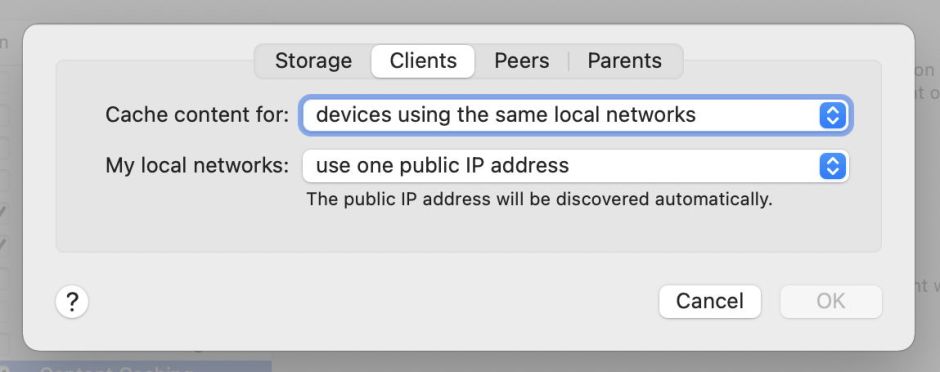
Tabs were made available if you held the Option key before clicking the Options button, which then became Advanced Options. That let you set up clients, as well as other servers functioning as peers or parents, on more extensive networks.

contentcaching03

These remain essentially the same today in Tahoe.

When Apple changed macOS updates in Big Sur, life became more complicated. When updating Apple silicon Macs, the first GB of macOS updates had to be downloaded direct from Apple’s servers, and it was only after that the remainder of the update could be obtained from a local caching server.

Apple has further extended the types of content that can be cached locally, to include

  • macOS updates normally obtained through Software Update or the command tool softwareupdate;
  • internet Recovery images from macOS 10.13.5 onwards when obtained in Recovery mode;
  • apps and their updates supplied through the Mac and iOS App Stores;
  • GarageBand downloadable content;
  • iCloud documents and data, including Photos libraries;
  • Apple Books;
  • downloadable components for Xcode.

Most recently Rosetta 2, screen savers, wallpaper and AI models have been added to the list. Apple’s reference document is here.

Advanced server configurations are catered for by the command tool AssetCacheManagerUtil which can also provide performance information, and there are two additional tools available, AssetCacheLocatorUtil and AssetCacheTetheratorUtil. On the server, performance information is most readily accessed in Activity Monitor’s Cache view, which provides summary statistics for the local cache.

cachingserver1

This includes the total size of data served for the last hour, 24 hours, 7 days, and 30 days. To view those graphically, the time period for the charts at the foot can be changed by using it as a popup menu.

cachingserver2

cachingserver3

These show what happened on my content caching server during the macOS 11.4 update in 2021, for which almost 30 GB still had to be downloaded from Apple’s servers, while just over 20 GB was served from its cache.

Over the last 20 years or so, Software Update and Content Caching services have been remarkably reliable, but in June 2022 there was a period during which updates to XProtect and XProtect Remediator failed to install correctly when attempted through a content caching server. Apple never explained what the cause of that was, but it was eventually fixed and hasn’t recurred since.

Then, out of the blue, iOS and iPadOS 26 introduced a new feature to identify and test a connected caching server.

To access this, in Settings > Wi-Fi tap the ⓘ button on your current active network, scroll to the bottom and tap Content Caches. Tap the active cache to see full details, together with a download test. Don’t bother looking for an equivalent feature in macOS 26 Tahoe, though, as it isn’t available yet. How odd.

When will macOS be updated in 2025-26?

No sooner have we recovered from upgrading and updating macOS to 26.0/15.7/14.8 than Apple has released the next round of betas. This article looks at what’s in store for us over the coming year, as far as macOS is concerned.

With pandemics hopefully behind us, Apple’s planned OS updates have settled into a more regular pattern. Release dates when Sonoma was the current version of macOS (2023-24) were:

  • 14.0 – 26 September
  • 14.1 – 25 October
  • 14.2 – 11 December
  • 14.3 – 22 January
  • 14.4 – 07 March
  • 14.5 – 13 May
  • 14.6 – 29 July
  • 14.7 – 16 September.

Over the last year (2024-25), Sequoia has been almost identical, allowing for the small vagaries resulting from our calendar:

  • 15.0 – 16 September
  • 15.1 – 28 October
  • 15.2 – 11 December
  • 15.3 – 27 January
  • 15.4 – 31 March
  • 15.5 – 12 May
  • 15.6 – 29 July
  • 15.7 – 15 September.

If Tahoe follows the same pattern, you can expect releases to occur on the following dates:

  • 26.0 – 15 September 2025
  • 26.1 – 27 October 2025
  • 26.2 – 15 December 2025
  • 26.3 – 26 January 2026
  • 26.4 – 30 March 2026
  • 26.5 – 11 May 2026
  • 26.6 – 27 July 2026
  • 26.7 – 14 September 2026.

If you’d like a week’s notice of scheduled updates, watch Apple’s Developer Releases newsfeed at feed://developer.apple.com/news/releases/rss/releases.rss for Release Candidates. For minor versions, those are normally released about a week before the intended final release, so RCs seen on 20 or 21 October are likely to be followed by the public release on about 27 October.

Those can of course slip a few days or even a week if there are serious problems remaining with a release candidate, and some may be rescheduled to coincide with hardware announcements. These are also the ‘minor’ version updates, and Apple is likely to intercalate ‘patch’ releases to fix any serious bugs or urgent security vulnerabilities. Those almost never go through beta-testing or release candidacy.

For those staying with Sequoia or Sonoma for the time being, those security updates are most likely on the same dates as those for Tahoe.

Finally, a reminder for those whose Macs are still running macOS 13 Ventura: the final security update to 13.7.8 was released on 20 August this year, and Ventura is no longer officially supported by Apple. If your Mac can run Sonoma or later, and you want continuing security updates, then you’ll need to upgrade it to Sonoma 14.8 or later.

Apple has just released an update to XProtect for all macOS

Apple has just released its weekly update to XProtect, bringing it to version 5316. As usual, it doesn’t release information about what security issues this update might add or change.

This version adds nine new detection signatures to its Yara file. These include five with novel names:

  • MACOS.SULFURSLAB.JS
  • MACOS.FOXTAIL.DEST
  • MACOS.FLAMINGOFEET.AR
  • MACOS.COMPLIANTPIRATE.DEFU
  • MACOS.TETRAGONE.FU

together with MACOS.ODYSSEY.SOBGO for the recently added Odyssey, and MACOS.SOMA.SEENB, MACOS.SOMA.SEENC and MACOS.SOMA.INGOBA for the prolific Amos/Soma family.

You can check whether this update has been installed by opening System Information via About This Mac, and selecting the Installations item under Software.

A full listing of security data file versions is given by SilentKnight and SystHist for El Capitan to Tahoe available from their product page. If your Mac hasn’t yet installed this update, you can force it using SilentKnight or at the command line.

If you want to install this as a named update in SilentKnight, its label is XProtectPlistConfigData_10_15-5316

Sequoia and Tahoe systems only

This update has already been released for Sequoia and Tahoe via iCloud. If you want to check it manually, use the Terminal command
sudo xprotect check
then enter your admin password. If that returns version 5316 but your Mac still reports an older version is installed, you may be able to force the update using
sudo xprotect update

Last Week on My Mac: Things that go bump in the night

It has been barely a year since XProtect changed from stalwart to bogeyman. Over the course of dozens of updates through to macOS Sonoma, if there was one security data update you could rely on, it was XProtectPlistConfigData containing the many rules for XProtect. They guarded us through the dangerous days of Flash Player, the perils of ransomware, and a succession of stealers.

Then in Sequoia that changed, and XProtect’s data became stored in two locations, each with its own update method. The traditional location in CoreServices continued to be updated through softwareupdated, while the copy in the new location in /var/protected/xprotect has been updated by XProtectUpdateService over a connection to iCloud.

With both locations in play, XProtect updates have become more complicated. Some updates only came for one location, such as versions 5273 and 5275 that were released only to Sequoia’s new location. To help us manage XProtect in its new location, Apple provided a command tool, xprotect. That can check which version is available via iCloud, and update that when the local copy was no longer the latest.

One valuable feature was that it could also use a copy in the traditional location to update the new location, in the event that version was more recent than that available from iCloud, but most recently that has been disabled. Now, if a Mac running Sequoia or Tahoe has successfully updated its traditional location but not the copy in the new location, the user is unable to do anything to rectify that, and has to wait until that update is made available from iCloud. Sometimes both are provided at the same time, but it’s also common for iCloud to lag the traditional version by an hour or more, sometimes even longer.

Last week, with the update to XProtect 5315, the day after many of us were preoccupied with macOS updates, something even stranger happened. At around 18:00 GMT on 16 September, softwareupdated became able to download and install that new version into its traditional location, enabling macOS versions up to Sonoma to update successfully. But no such update was made available via iCloud for Sequoia or newly upgraded Tahoe systems, not for another 24 hours. Over that period attempts to obtain or convert the update using xprotect update were unsuccessful.

However, some hours after the traditional update was installed by those who had upgraded to Tahoe, XProtect’s new location was silently updated to 5315. Its version number had gone bump in the night. But if the xprotect command tool couldn’t accomplish that for the user, how could macOS? Were these silent updates coming by telepathy or radio waves?

Although there was no record in any of the usual places, such as Installations in System Information, or even found by my app SystHist, the xprotect version command disclosed that my Mac mini had updated XProtect’s new location at 06:46 GMT on the morning of 17 September, enabling me to hunt that event down in the log.

That update had been accomplished by a background check scheduled and dispatched by DAS-CTS (I have corrected times here to GMT):
2025-09-17 06:46:42.615072 com.apple.duetactivityscheduler REQUESTING START: 0:com.apple.security.syspolicy.xprotect-update:7874AD

This in turn fired up XProtectUpdateService
2025-09-17 06:46:42.695517 com.apple.xprotect Connecting to XProtectUpdateService
2025-09-17 06:46:42.744182 com.apple.security.XProtectFramework.XProtectUpdateService XProtectUpdateService booting
2025-09-17 06:46:43.157255 com.apple.security.XProtectFramework.XProtectUpdateService Attempting to apply update: [private]
2025-09-17 06:46:43.191178 com.apple.security.XProtectFramework.XProtectUpdateService Update completed. Activated update [private]

So the XProtect update had been completed and activated at 06:46 that morning. But how, given that iCloud was still only offering the old version?
2025-09-17 06:46:43.193159 com.apple.syspolicy.activities Finished Xprotect update in 496.4100122451782 ms: Error Domain=XProtectUpdateError Code=2 "Activated update LocalUpdate[5315]" UserInfo={NSLocalizedDescription=Activated update LocalUpdate[5315]}
2025-09-17 06:46:43.193285 com.apple.syspolicy Sent CloudTelemetry event: Xprotectupdateresult

“Activated update LocalUpdate” can only mean one thing, that XProtectUpdateService did what xprotect update used to do, and used the copy of XProtect 5315 in the traditional location to update the new location, taking just under half a second. In addition, com.apple.syspolicy had sent news of that event to Apple via iCloud.

That didn’t work for my old iMac Pro, still running Sequoia, though, which had to wait for the iCloud version of XProtect data to be updated, and wasn’t using version 5315 until 20:17 GMT on 17 September, over 26 hours after its initial release.

Prior to Sequoia, all supported and many unsupported versions of macOS got the same XProtect updates, available immediately they were released through Apple’s software update servers. Just over a year later,

  • Macs running Sonoma and unsupported versions of macOS could be updated as soon as the softwareupdated update became available, in the traditional way;
  • Macs running Sequoia could only be updated 24 hours later, when the iCloud update was made available;
  • Macs running Tahoe could have been updated at any time after the traditional update had been installed, until the update was finally made available through iCloud.

I’m so looking forward to the time when I don’t need to use SilentKnight, the xprotect command and my log browser LogUI to track XProtect updates, and when those become timely again.

❌