Reading view

There are new articles available, click to refresh the page.

Create a bootable external disk for Apple silicon Macs in Tahoe

The Achilles heel of T2 Macs is booting from external storage. Although it’s simple to create a bootable external disk for a T2 Mac, to boot from it you have to allow the Mac to boot from any external disk, removing much of its boot security. Apple silicon Macs were designed to boot almost as securely from external disks as they do from the internal SSD, and that makes setting up a bootable external disk more complicated. This article explains how you can do that for macOS 26 Tahoe.

In this respect, Apple silicon Macs have two central principles:

  • They always start the boot process from their internal SSD. If that’s not functioning correctly, then they can’t boot at all.
  • They will only transfer the boot process to an external system when the user has access to a private key making them an Owner of that system, through the Mac’s LocalPolicy system. That’s the part that can cause problems.

Planning

There are alternatives to booting from external storage. If there’s sufficient space, you can install multiple versions of macOS on the internal SSD, or you can run macOS as a guest operating system in a virtual machine (VM). VMs are limited in some important respects, though, as they can’t run most apps from the App Store or use AI, although they can now access iCloud and iCloud Drive.

Like any other Mac, Apple silicon models can only boot from versions of macOS they’re compatible with. You can check which your Mac can run using Mactracker. A VM is the only solution for running older and incompatible versions of macOS, and it gets messy installing versions that are compatible but older than the currently installed major version of macOS. This is because its installer may be blocked by the more recent macOS, for which you’ll need to create a bootable installer disk and run the installation from that. Apple describes how to do that in this support article. For the remainder of this article, I assume that you’re installing a second or subsequent copy of the current version of macOS to an external disk.

Connect and prepare the external disk

First catch your disk, and connect it to one of the non-DFU ports on your Mac. For example, on my Mac mini M4, that’s either the left or right Thunderbolt port, as the middle one is its DFU port. On all other Apple silicon Mac minis, that’s either the centre or right port as you look from the rear, as their DFU port is the one on the left. If you try to install macOS to a drive connected to an Apple silicon Mac’s DFU port, then it’s doomed to fail, and that’s the most common cause of failure. More information on the DFU port is here.

Reformat that disk as you want to use it, with at least one APFS container containing a single APFS volume in regular APFS format, not encrypted.

Download and run the installer

Next catch your installer. Oddly, Apple seems to have stopped providing the current release of macOS through the App Store, so the simplest way to download it in the GUI is from the links provided by Mr. Macintosh, and there are many alternatives. You want a regular installer, not an IPSW image file that you might use to create virtual machines.

Run the installer app from your main Applications folder.

When it asks you whether you want to install macOS on your current system, click on Show All Disks…

Select your external disk from the list and click Continue. If your disk isn’t recognised or listed there, reformat it and start again.

Ownership

This is the important part of the installation; if it fails, the external disk won’t be bootable.

For the macOS system on your external disk to be bootable, it needs a LocalPolicy created for it on your Mac’s internal SSD. To ensure that only fully authorised users can configure and change LocalPolicy, those Image4 files are signed, and an Owner Identity Certificate (OIC) is attached to them. Creating and maintaining LocalPolicies requires a user to have access to the private Owner Identity Key (OIK) in the Secure Enclave, making that user an Owner.

Any user with access to the Volume Encryption Key for the internal storage also has access to the OIK, and has Ownership. By default, that includes all users added after FileVault encryption is enabled on a Data volume, for example. To be able to boot from that second OS, it requires a LocalPolicy with an OIC attached, and Ownership has to be handed off to an Install User created when that OS is installed.

Handing off Ownership to the Install User is more of a problem, as users are only created when the installation is complete. To accommodate that, macOS offers to copy a user from the current boot system as the Install User, and the primary admin user, on the second OS. Provided that you agree to that, the Install User created is actually a Key Encryption Key (KEK) for your password and hardware keys, which is then used to encrypt the OIK as it’s handed over to the new copy of macOS on the external disk. Thus, the installer requests that user’s password to gain access to the OIK for the new macOS in the Secure Enclave.

Following these steps should ensure that works correctly.

When prompted to select the user to be owner of the new boot volume group, pick the current admin user, and tick to copy their account settings.

You’ll then be prompted to enter that user’s password to authenticate as the owner.

Completing installation

Installation follows, and is (as ever) highly non-linear, and may even appear to stall. Persevere, and it will then close apps and restart to complete.

When you’re eventually prompted to Create a Computer Account, it’s simplest to create a local admin account for the owner. The new copy of macOS will then take you through personalising your new system, and, if you’ve added support for your Apple Account, it will do the 2FA dance for iCloud and Apple Account, and so on.

Once configured, you can share that external disk between Macs, but each time you boot from it on a different Mac, you can expect to repeat the 2FA dance for iCloud and Apple Account.

Updates

Once installed, you’ll almost certainly want to keep that external system up to date. To do that, start up from that disk, and use Software Update as normal. Although you could download that latest macOS installer and run that, that’s a much larger download and there’s always the risk it might run a clean install, forcing you to restore from your latest backup. Apple no longer provides downloadable updaters for macOS.

When you update macOS on that Mac, the firmware in it will be updated by the most recent version of macOS you have installed or updated it to, whether that’s on the internal or external disk. To update firmware, you have to install the appropriate macOS update on that Mac. If you update your external disk using another Mac, then that won’t update the firmware in your Mac. That can only be done by performing that update on that Mac.

Key steps

  • Consider alternatives, including an additional system on the internal SSD, or using a VM instead.
  • Connect the external storage to a non-DFU port and format it in APFS, not encrypted.
  • Download and run the appropriate full macOS installer. macOS Tahoe isn’t currently available from the App Store, though.
  • Select the external disk as the installation target.
  • Select the current admin user to be Owner of the new system, copy their account settings, and authenticate with that user’s password.
  • Create a local admin account for that user, if possible.
  • Complete 2FA to connect to the Apple Account, as necessary.
  • Update the external system when booted from it, using Software Update.

苹果造芯五年,Mac 怎么成了另一种电脑?|明日后视镜

20 年前,对于 Mac 团队「调教」别人的芯片这件事,Tim Millet 记忆犹新。

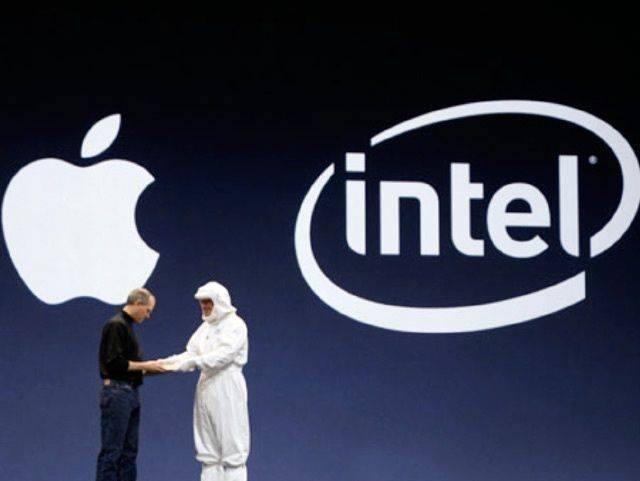
那时候 Mac 还活在英特尔的路线图上:macOS 团队常常像在黑箱外工作,性能优化做了一轮又一轮,却不知道产品最终会用哪颗 GPU,直到发布前的最后几个月才揭晓答案。

图形团队不得不写一套「谁都能用」但很难真正压榨硬件潜力的通用方案。

芯片在前,系统在后,Mac 像住进别人搭好的房子,只能在墙上挂挂画、挪挪家具。

今天的 Tim 坐在同一个园区,身份却完全反过来了——作为 Apple 平台架构副总裁,他负责造那颗芯片本身。

Apple Silicon 走过的这五年,就是 Mac 从「住别人家」到「自己盖房子」的故事:不用再等供应商定好菜单,而是从晶体管开始,为 Mac 这台机器量体裁衣。

现在图形软件团队可以和 Apple Silicon 团队提前几年一起工作。

在接受爱范儿的独家专访时,Tim 说,「芯片还在纸面上的时候,未来要跑的图形、游戏、内容就已经摆在桌上一起讨论了。」

五年来,从无风扇的 MacBook Air、到插电与电池性能完全一致的 MacBook Pro,再到重新被赋予存在感的 Mac mini,背后不仅仅来自苹果一贯的「软硬协同」,更建立在同一个前提上:

Mac 终于用上了为它而生的芯片。

Apple Silicon 如何重新发明电脑?

电脑的形态,已经很多年没有真正改变了——一块屏幕、一块键盘、一台主机,各司其职,彼此之间的关系像被时代写死的答案。

Apple Silicon 上线这五年,某种程度上改变了这个法则。

在过去,轻薄本几乎等同于妥协。当年那台搭载酷睿 M 的 12 英寸 MacBook 就是典型:极致轻薄、外观惊艳,但一遇到高负载就缴械投降。

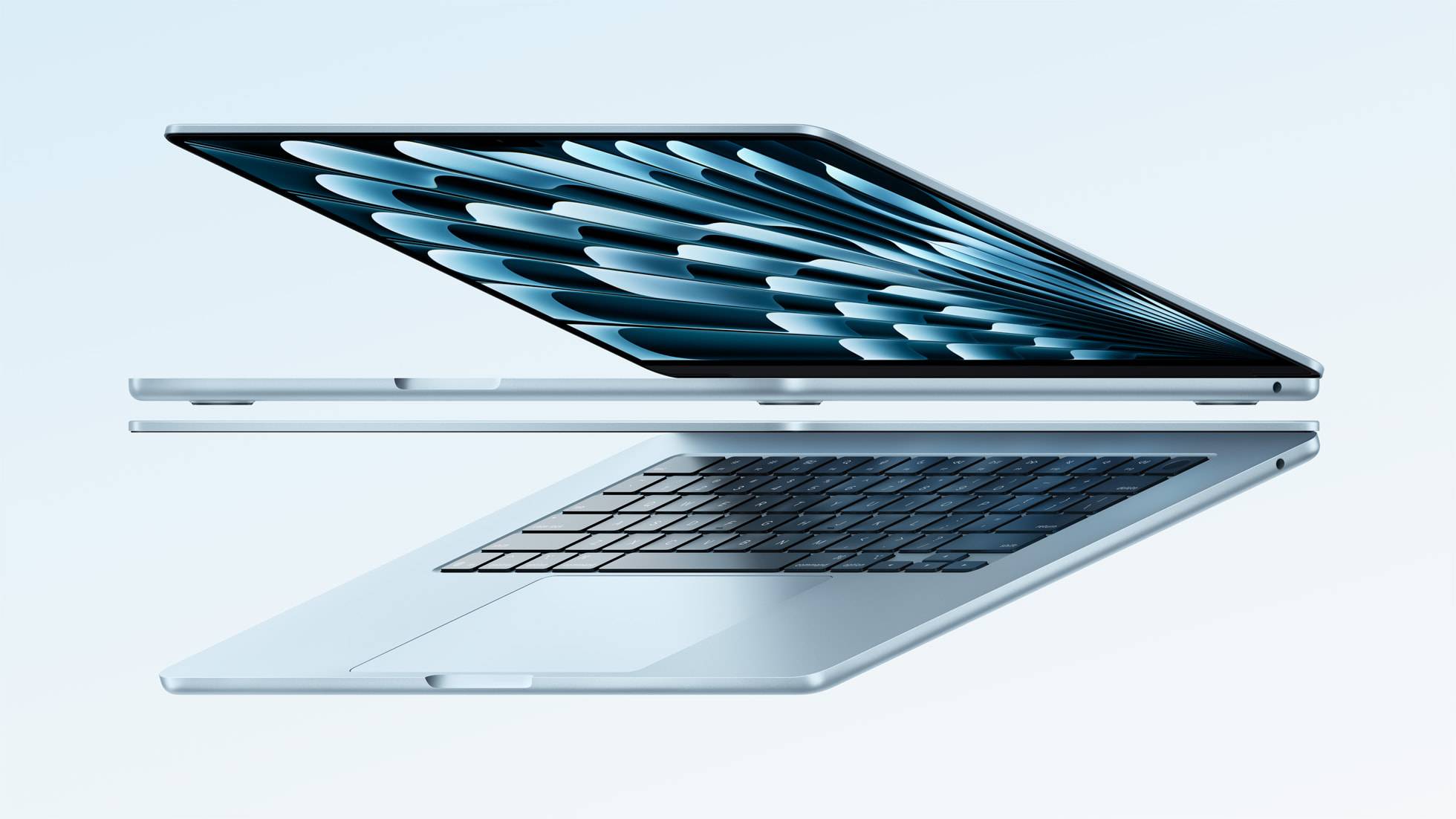
换上 Apple 芯片之后,无风扇 MacBook Air 的出现,第一次打破了这个等式。它依旧轻薄安静,却可以稳定应对 4K 剪辑、多轨音频、批量 RAW 修图这类过去需要「有风扇的电脑」才能安心交付的任务。

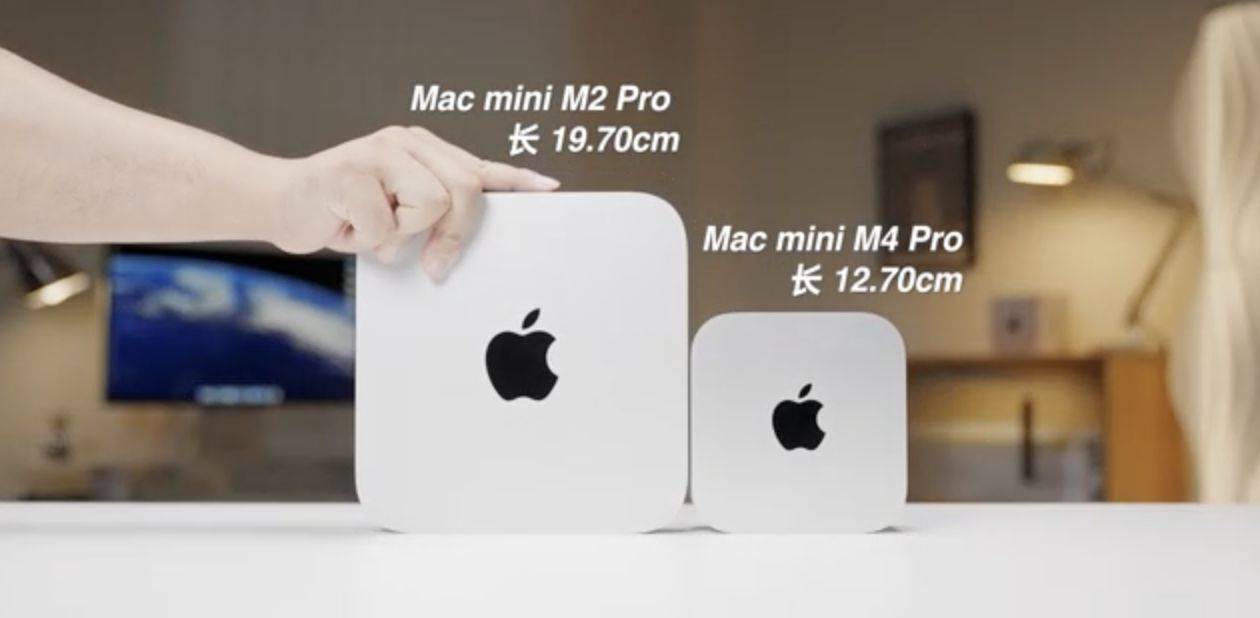
2024 年发布的 M4 Mac mini 则用另一种方式重写了桌面电脑的定义。它看起来像个电视盒子,骨子里却更像是一个缩小版工作站,挂上显示器、外接阵列和采集卡,就能撑起一整条内容生产线。

而在 MacBook Pro 这条产品线上,Apple Silicon 解决的是另一个长期痛点:过去的高性能笔记本像被电源线拴着,插电是「战斗模式」,拔电就得省着用。现在,插电和用电池时的性能曲线几乎重合,真正的移动生产力才得以实现。

Mac 与 iPad 产品营销副总裁 Tom Boger 认为,这便是 only Apple Silicon can do 的事情。如果没有 Apple 芯片,以前很难出现的产品形态得以成立。

我们不会先做出一块芯片,再让产品团队去想这块芯片能拿来干嘛。我们是为了产品,去设计这块芯片。

苹果芯片更大的意义,是架构上的统一,Mac 和 iPhone、iPad 终于共享了一套底层体系。

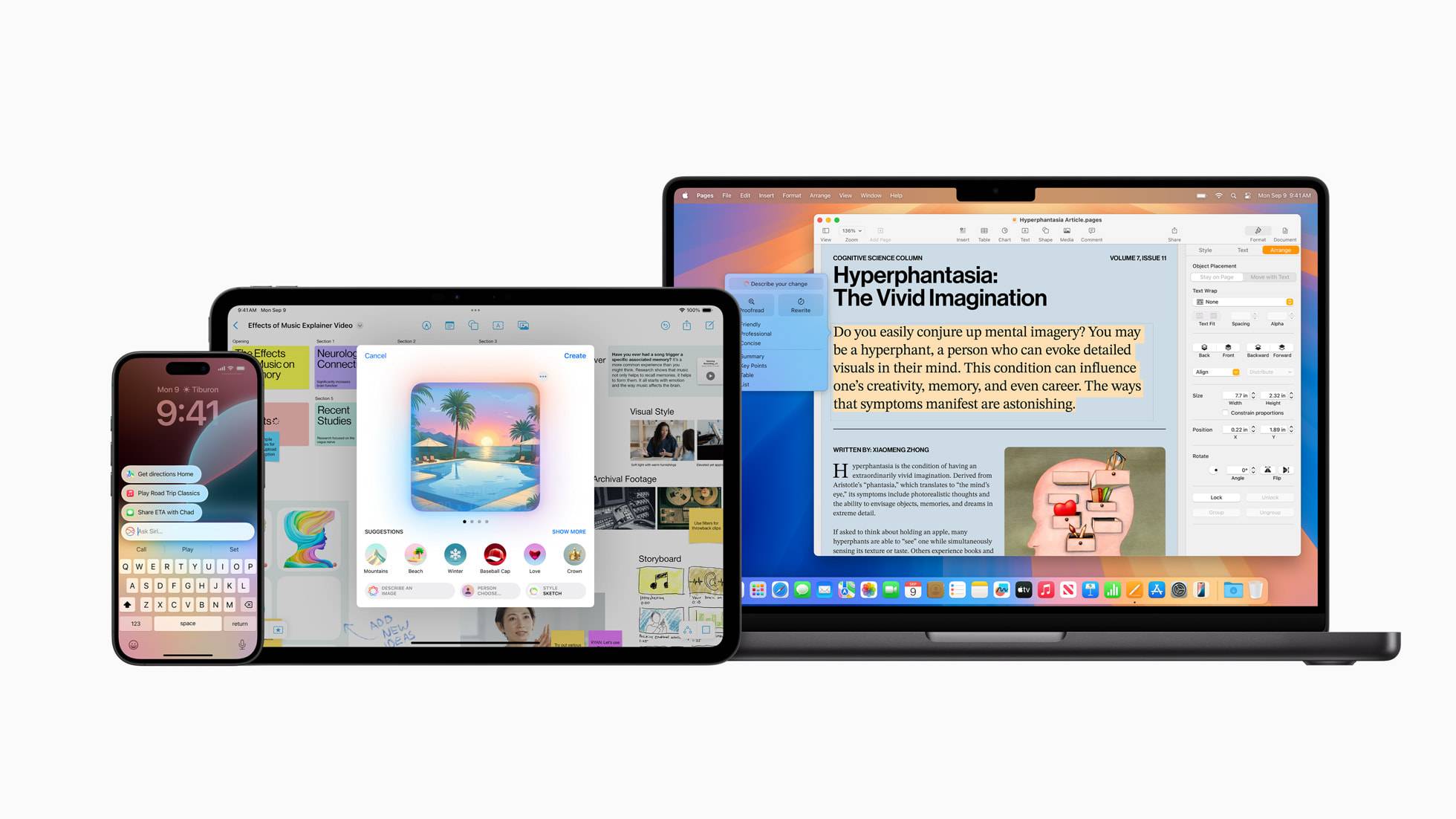
同一代 Apple Silicon 横跨手机、平板和电脑,系统团队在设计新功能时,可以从一开始就想好三块屏幕上的呈现方式,并且用同一套底层能力支撑。用户看到的,则是设备之间像魔法一样的联动。

苹果在设计 M 芯片时,首要考虑的是什么?

芯片设计,向来被称为「取舍的艺术」——晶体管预算有限,算力、能耗、特性与成本之间,永远在博弈。

但在 Tim 看来,Apple Silicon 的第一道取舍,甚至不在某一颗芯片本身,而在于这套架构能不能撑起整个 Mac 家族——scalability(可扩展性):

Mac 的产品线跨度非常大:入门机、轻薄本、mini、iMac,到另一端的 Pro 笔电和 Studio 级台式机,全都得涵盖。在这种前提下,我们最重要的决定,其实是让架构本身足够可扩展。

换句话说,要先把「一棵树」长出来,再去决定每一根枝、每一片叶子具体长到哪里。

有了可扩展的架构之后,每一代新增的晶体管,就有了更明确的去向:

往上延伸,可以堆给 Mac Studio、MacBook Pro 这类高端机型——更多 GPU 核心、更高内存带宽、更大统一内存,去抬高专业工作流的上限;

往下扩展,则可以用在能效、集成度和图形能力的平衡上,让 MacBook Air、入门 Mac mini 在它们各自的价位段里「看起来轻巧,用起来够狠」。

Tim 也提到,除了纯粹的算力分配,每一档产品还会被预留「个性位」:需要更强显示能力的机型,就会把资源倾斜给显示控制器和外接接口上;强调摄像头和音频体验的机型,就会为图像信号处理、媒体引擎单独开一笔支出。

「统一内存」的前瞻性

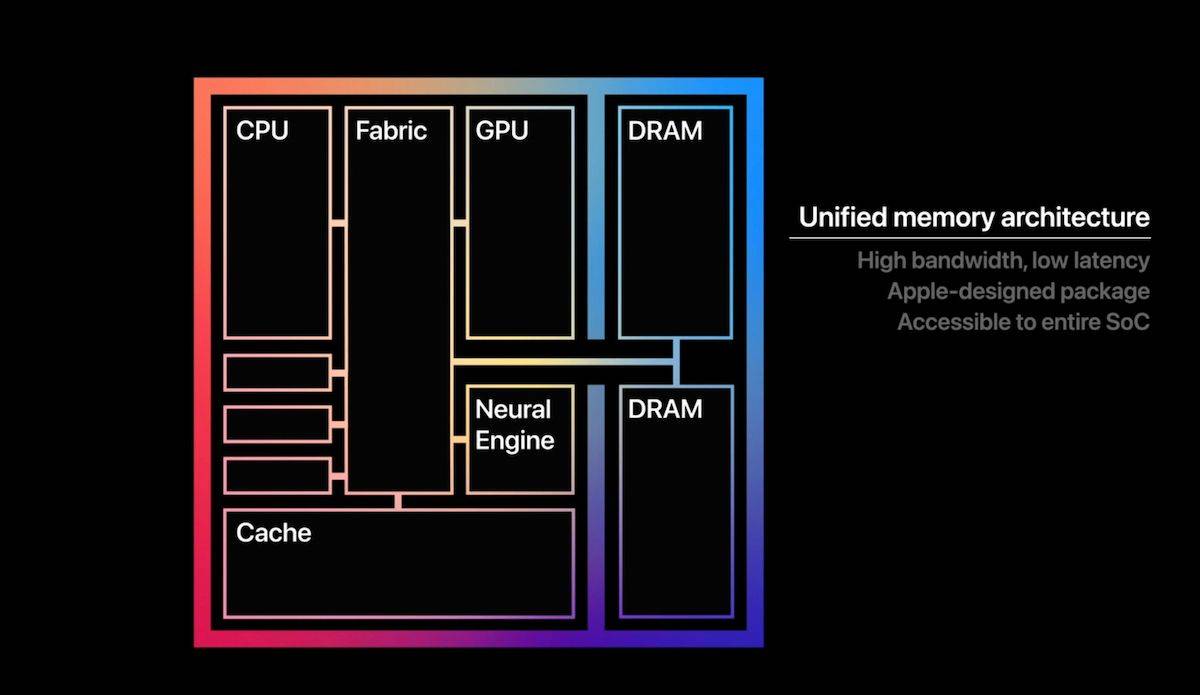
如果说可扩展架构是 Apple Silicon 的骨架,那统一内存就是流动其中的血液。

当年构思这些芯片的时候,我完全没想过,会有一天在自己面前这台机器上本地跑几十亿参数的模型。

但把时间拨回 M1 发布的 2020 年,会发现很多伏笔早已埋下:神经引擎在芯片中占据重要一席,统一内存架构也已就位。那时 AI 还远没有今天这么火热,但团队脑海里已经有了未来几年可能出现的工作负载。

在 Apple Silicon 之前,Mac 的内存世界是割裂的:

Mac 有一套容量很大的内存,但只有 CPU 能直接用;还有一套带宽很高的显存,归 GPU 使用,可容量就小得多。

Tim 说,「统一内存把高带宽和大容量绑在一起,让 GPU 第一次拥有了这种组合。之后在 AI 方向能走多远,很大程度上就是建立在这一步之上。」

统一内存的本质,是把「够大」和「够快」熔铸成一池活水,让 CPU、GPU、神经引擎在同一片水域里协作。

刚推出时,它更多被感知在视频剪辑、3D 渲染、跨设备协同这些场景里。而到了今天,当大家开始认真在本地跑模型,这条「水路」的真正意义才完全显现出来。

模型参数可以直接驻留在统一内存中,省去了数据在不同存储区域间的往返搬运。Mac Studio,尤其是 Ultra 配置,俨然成了一台桌面 AI 工作站。

Tom 用了一个经典的冰球比喻:

我们要滑向冰球将要去的地方,而不是它现在所在的位置。

在苹果的语境里,「过头」更像是一张提前写好的支票,只是兑现的场合和时间,要等用户和开发者一起发现。

如今,这张支票正在被花出去:在 Mac 上本地运行更大的生成式模型;在 Mac Studio 上处理超高分辨率的视频、批量生成图片,用 AI 帮忙写代码、审代码;在配备 Ultra 芯片的 Mac 上,将 AI 推理深度嵌入创作流程,让机器从单纯的工具进化为协作伙伴。

到了 M5,GPU 的身份变了

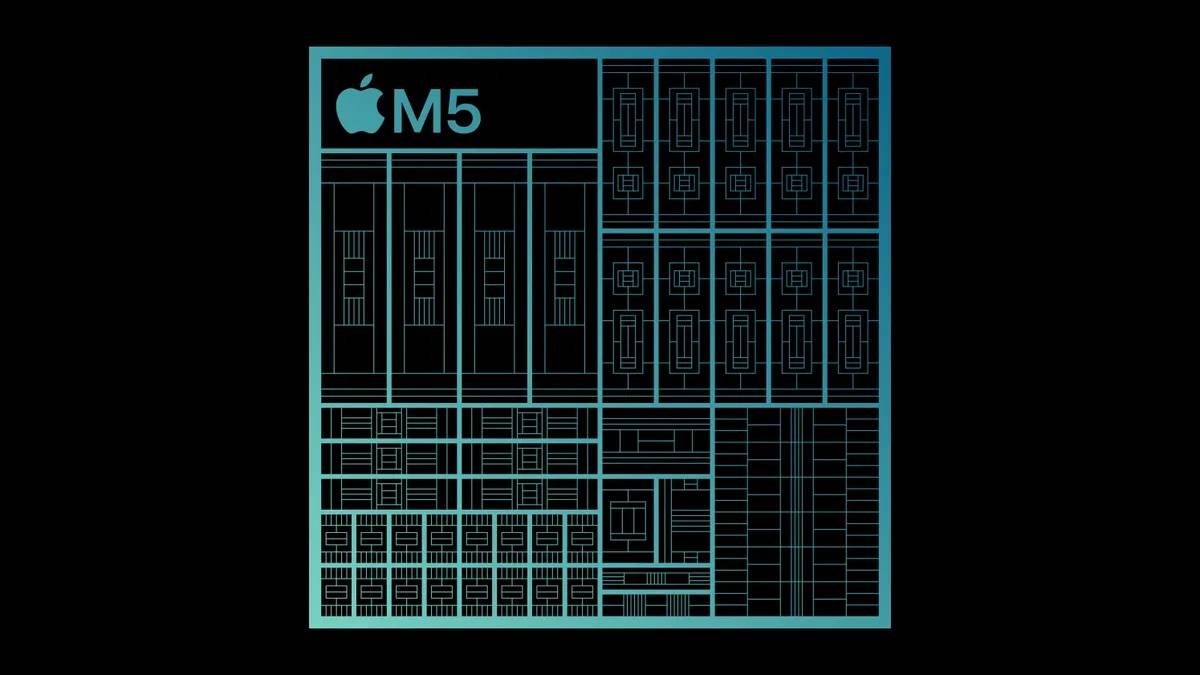
如果说 M1 是为 AI 打地基,M5 则是第一次认真重构了 GPU 在整个系统中的角色。

从这一代开始,苹果在 GPU 的每一个核心里,都植入了独立的神经加速单元。打破了传统 CPU/GPU/ 神经引擎分离的 AI 计算模式,犹如为图形单元装了专属 AI 引擎。

Omdia 研究经理 Kieren Jessop 认为,这是一种非常聪明的策略,既有专门的 Neural Engine,还在每个 GPU 核心还加入了神经加速器。这意味着企业和专业人士可以在本地运行大模型——数据不出设备,不担心隐私、云端成本和延迟问题。

Tim 认为,当前端侧 AI 存在三个瓶颈:算力、内存容量和内存带宽。而 Apple Silicon,几乎就是围绕这三点设计出来的。

在 M5 之前,像 Metal FX 这样的 AI 超分方案,是 GPU 和神经引擎合作完成的:游戏以较低分辨率渲染,再交给 AI 放大成高质量画面,于是帧率和画质都能讨到便宜。

现在,很多这类计算可以直接在 GPU 内部走完流程,数据不用来回折返,神经引擎则可以空出手来,去处理其他并行任务——比如你一边玩游戏,一边开着 Center Stage,摄像头用机器学习实时追着你动。

这一切的底层支撑,依然是那池统一内存:高带宽、大容量,加上 CPU、GPU、神经引擎和 GPU 内部 AI 单元的共同访问通路,让数据可以「就地处理」,避免了芯片间无谓的搬运损耗。

把视角再拉远一点:在 M5 这样的架构之上,Mac Studio、MacBook Pro Ultra 等高端型号,就自然而然变成了端侧 AI 的「重型设备」。模型实验、开发调试、推理部署,许多过去只能在云端或服务器上完成的流程,第一次有了落在用户桌面的可能。

AIGC 时代的价值选择

对话的最后,我们把问题抛向了一个更形而上的层面。

AIGC 带来的争议日益尖锐:一边是效率和规模的指数级增长,另一边是对人类创作尊严的忧虑。作为一家在骨子里看重审美和表达的公司,苹果会站在天平的哪一端?

Tom 的第一反应,是苹果那块标志性的路牌——科技和人文的十字路口。

「我们的角色,是尽力发明最强大的技术,然后交到人手里,让他们去做原本做不到的事。」在他的叙述中,Mac Studio、Ultra 级别的 Mac 当然会是 AI 工作流的理想载体,但故事不会在此终结——这些设备的使命始终围绕一个核心:帮助人把脑海中模糊的构想,转化为具体的作品。

但回顾科技史,会发现不止一次出现这样的时刻。现在确实又到了这样一个节点——大家觉得机器要来取代人了。

他接着说:

但每一次,人类的创造力最后都会把这些新技术收编进来,变成扩展自己能力的工具。它们不会把人挤走,反而会放大人的创造力。

在他看来,Mac 的角色其实没有变过:Mac 还会是它一直以来的样子——创作者离不开的那一件工具。苹果关心的是,在这个新工具箱里,人能否保持主动,而不是在算力的洪流里失去话语权。

▲ 音乐人苏诗丁借助 Mac Studio 搭建了一个极致纯净的家庭录音室

五年 Apple Silicon,把 Mac 从别人路线图上的一行变成了自己地图上的完整版图:

统一内存,让各个计算单元不再各自为政;可扩展的架构,让一整条产品线共享同一套思路;M1 埋下的 AI 伏笔,在 M5 身上得到更激进的演化;Mac Ultra、Mac Studio 则在 AI 时代,扮演起桌面端那台实力过剩的创作与推理机器。

但沿着技术曲线一路往下看,会发现苹果始终在护另一条看不见的线:算力提升、带宽翻倍、架构整合,最后都要落到一个很朴素的问题上——

用这台机器的人,能不能做得更多,能不能更心无旁骛。在这个前提下,芯片可以野心勃勃,语言可以安静克制,计算可以变得越来越像空气……

但创作这件事,还是应该牢牢握在人的手里。

从技术的旁观者与记录者,成为技术影响生活方式的实践者。

#欢迎关注爱范儿官方微信公众号:爱范儿(微信号:ifanr),更多精彩内容第一时间为您奉上。

爱范儿 | 原文链接 · 查看评论 · 新浪微博


Erase All Content and Settings does what it says

Erasing SSDs securely has been a longstanding problem that has been solved in Macs with T2 or Apple silicon chips, with the introduction of Erase All Content and Settings (EACAS) four years ago in macOS Monterey. This article explains how it works, what it does, and when you should use it.

Boot disk

While Intel Macs are simpler, the internal SSD of an Apple silicon Mac is divided into three APFS containers/partitions.

BootDiskStructureMSeq

Intel Macs have the same Apple APFS container with the Boot Volume Group in it, but the other two containers are replaced by a single small EFI partition.

macOS manages and uses the first two containers, ISC and Recovery, and that containing the Boot Volume Group is the one we’re concerned with. That includes the System and Data volumes, the former being made into a read-only snapshot that’s mounted as the Signed System Volume and contains macOS. Everything you install as a user, including apps and your Home folder, is in the Data volume, which is encrypted automatically even if you don’t have FileVault turned on.

Data volume

As the Data volume is invariably encrypted, the best way to securely erase its entire contents is to destroy its encryption key. Provided that can be performed robustly, so the key can never be recovered, no one will be able to decrypt its contents. (There is an expectation that one day it might be possible to break the encryption using quantum computing, but that’s not something you should be concerned with at present.)

The encryption key used to encrypt the Data volume is itself encrypted, and forms part of the mechanism used by FileVault when that’s enabled. To ensure that those encryption keys don’t leave the Secure Enclave, they’re encrypted again, and the key that’s destroyed by EACAS is one of those. macOS also employs anti-replay techniques to ensure that previous keys can’t be reused.

Additional features

In addition to destroying the encryption key for the Data volume, EACAS performs other useful tasks. These include signing out of your Apple Account, including iCloud and iCloud Drive, destroying all fingerprints used for Touch ID, and turning off Location Sharing to disable Find My and Activation Lock.

Although I can’t find any official account of additional data being erased by EACAS, I believe that all LocalPolicy records stored in Apple silicon Macs are also destroyed. LocalPolicy authorises access to external bootable disks, so those who have configured an external disk to boot their Mac are likely to be required to re-authorise it before it will boot that Mac again.

What EACAS doesn’t do, though, is sign you out of third-party cloud or other services such as Adobe’s Creative Cloud, or deauthorise that Mac for Apple media such as Music. Neither will it do anything to your Mac’s SSV: that’s left intact, still running the same version of macOS.

How to use EACAS

Start EACAS from System Settings > General > Transfer or Reset > Erase All Content and Settings…. In older versions of macOS still using System Preferences, open them and it’s offered as a command in the app menu.

eacas

If you continue, you should see one final warning before the contents of the Data volume are blown away into the great bit-bucket in the sky.

What’s left of your Data volume, shown here in Recovery mode, is a mere 300 MB or so.

When to use EACAS

If you want to wipe your Mac’s Data volume so you can reinstall its user(s), EACAS is the simplest and quickest way to do that, and doesn’t require starting up in Recovery. Its additional features ensure that, when you install its new primary user, everything should work properly and you don’t end up with ghost Macs left over from the past.

It’s the method of choice when preparing your Mac for disposal, particularly if you’re passing it on to someone else, as it ensures that no one can recover any of the data stored in your Home folder, or anywhere else on its Data volume. Performing that manually requires you to work through a list of additional procedures, almost all of which are automatic in EACAS.

The only time when you’re likely to prefer a different method is when you want to erase both the Data and System volumes, perhaps to return to an older version of macOS. Although you can do that using Disk Utility in Recovery mode, that doesn’t install the matching firmware. If you really want to return to factory-fresh conditions, the best way is to put that Mac into DFU mode, then restore it from the IPSW image file for that version of macOS. Although that does require a second Mac, it’s quick and comprehensive.

One other caution: never use EACAS on a macOS VM, as it’s unlikely to recover. It makes more sense just to delete the whole VM and be done with it.

Summary

  • EACAS performs a secure erase of the Data volume, as well as some useful extras.
  • It’s the method of choice for preparing your Mac for disposal.
  • It’s also suitable for wiping user data before setting your Mac up afresh, using its existing macOS.
  • If you want to wipe the System volume as well, to reinstall macOS, restore from an IPSW in DFU mode.

Last Week on My Mac: What do those CPU frequencies mean?

Having waded through dozens of CPU core frequencies for all current members of the M-series families of chips, you might be wondering what they mean for someone considering buying a new Mac. Is the M5 going to prove any faster than an M4, or should they wait until M5 Pro or Max variants become available?

All else being equal, a core that runs at a higher frequency should process instructions more quickly than a similar core running at a lower frequency. But these figures only apply to the CPU cores, and much of their most demanding code is now run on other co-processors and components, including the GPU and neural engine (ANE).

The M5 has specific enhancements to its GPU to accelerate its performance when running compute tasks that can be common in AI and other advanced code. That GPU runs Metal code, and because that’s compiled and prepared by the CPU cores, to obtain maximum performance from its enhanced GPU the CPU cores also need to perform well. CPU cores play other key roles in supporting specialist components, so matching their performance is essential to avoid bottlenecks and achieve balance. One consistently important factor is the speed of memory access: the faster everything goes, the faster data has to be moved around, and that’s why minimising movement using Unified Memory can prove so important, as is the M5’s faster bandwidth of 153 GB/s, compared with 120 GB/s in the base M4.

There’s also more to CPU core performance than just frequencies. Cores can execute instructions out of order, predict load addresses and values, and pull other tricks to ensure that best use is made of every clock cycle. For the M5, Apple has singled out claimed improvements in multithreaded performance, enabling a single core to run multiple threads significantly faster.

Looking just at CPU cores, the table above compares all the M-series chips released to date, ignoring ‘binned’ and other cut-price sub-variants. Columns labelled Σfn are a crude indicator of performance capacity for the whole CPU, obtained by totalling numbers of cores multiplied by their frequency,
(P x fP) + (E x fE)
where P and E are the numbers of P and E cores, and fP and fE are their respective maximum frequencies. It’s here worth mentioning what a monster the M3 Ultra is in comparison to any other M-series chip.

Because M5 core frequencies don’t currently include Pro or Max variants, those given are starting points. I’d expect to see P cores in the M5 Pro and Max variants reach a maximum frequency of at least 4.7 GHz, although their E cores may be restricted to a lower maximum than the 3.05 GHz of the base variant, to ensure they achieve good economy, as for the M4.

Base variants in Apple’s M-series chips have the fewest P cores in each family, only 4, typically half the number of their Pro variant. Although those should be ample for much of the time, when there are too many high priority (Quality of Service) threads running for user apps, some may overflow to be run on the E cores instead. This is where those frequency tables come into play, as those E cores will be run at higher frequencies to compensate. As the maximum frequency of the E cores in an M5 (3048 MHz) is significantly higher than that of a base M4 (2892 MHz), the base M5 should run those overflowed threads faster.

Another important aspect of the M5 that isn’t clear yet is which version of the Arm Instruction Set Architecture (ISA) it supports. The M4 surprised us with its support of the Armv9.2A ISA, and this year’s A19 and M5 chips are believed to support 9.4A or possibly 8.7. This is particularly relevant to security, as either of those should bring support for Arm’s Enhanced Memory Tagging Extension, which is required to support Apple’s new Memory Integrity Enforcement (MIE), already announced for the A19. Early reports are that the M5 does indeed support the required ISA and its extension, ready for the implementation of MIE in the coming months, if it’s not already built into macOS 26 Tahoe.

Like much else in the base M5 chip, frequencies and features are largely evolutionary, but its enhanced support for GPU compute, faster memory and improved multithreaded performance should deliver substantial improvements. If it’s also the first Mac chip to support Apple’s new security feature MIE, the base M4 is outclassed.

Updated CPU core frequencies for all current Apple silicon Macs

Thanks to your overwhelming response to my appeal for information about CPU core frequencies in M3 Ultra and M5 base chips, this article updates the data to cover those new models in addition to all previous M-series chips.

Performance (P) and Efficiency (E) CPU cores in Apple silicon Macs are run at a range of different frequencies so they can deliver optimum performance with a minimum power and energy use. Cores are grouped into clusters of 2-6, and macOS sets the frequency of each cluster according to workload, Quality of Service, power mode and thermal status. Maximum frequencies differ according to the family, variant within that family, and between E and P cores. Current values are:

  • M1 E 2064 MHz or 2.1 GHz; P 3228 MHz or 3.2 GHz;
  • M2 E 2424 MHz or 2.4 GHz; P 3696 MHz or 3.7 GHz;
  • M3 E 2748 MHz or 2.7 GHz; P 4056 MHz or 4.1 GHz;
  • M4 E 2892 MHz or 2.9 GHz; P 4512 MHz or 4.5 GHz.
  • M5 E 3048 MHz or 3.0 GHz; P 4608 MHz or 4.6 GHz (base variant only).

As Pro and Max variants may have higher frequencies than base variants, it’s likely that future M5 Pro or M5 Max chips will be able to run their P cores at a higher maximum frequency than today’s base M5 chip.

The full table of frequencies reported by powermetrics is:

This is available for download as a Numbers spreadsheet and in CSV format here: mxfreqs1025

Earlier this year I published a detailed analysis of frequencies in the M1 to M4 families. The only addition to those is the M3 Ultra, whose frequencies are the same as those of the M3 Max, so they haven’t changed. The remainder of this article concentrates on the base variant in each family, from M1 to M5, the chips that power the most popular models and set the standard for what most folk will experience.

Frequency range

Over the last five years and five families of chips, their frequencies have increased steadily, as shown in the charts below. Each bar in those charts spans the range of frequencies from minimum (idle) to maximum, for the base variant in that family.

Idle frequency in E cores has risen from 600 MHz to 972 MHz, a rise of over 60%, and their maximum frequency has risen from 2064 MHz to 3048 MHz, a rise of nearly 50%.

P cores have seen more substantial change. Their idle frequency has risen from 600 MHz to 1308 MHz, a much larger rise of nearly 120%, and their maximum frequency has risen from 3204 MHz to 4608 MHz, just under 50%. The M5 is notable for its greater rise in idle frequency, and lesser rise in maximum frequency.

Frequency steps

Rather than macOS set an arbitrary frequency, it selects one from a list of steps that are distinctive to that family and variant. Looking at the table of frequency steps it might be easy to assume those numbers are chosen arbitrarily, but when expressed appropriately I think you can see there’s more to them.

To look at frequency steps and the frequencies chosen for them, let me explain how I have converted raw frequencies to make them comparable.

First, I work out the steps as evenly spaced points along a line from 0.0, representing idle, to 1.0, representing the core’s maximum frequency. For each of those evenly spaced steps, I calculate a normalised frequency, as
(FmaxFstep)/(FmaxFidle)
where Fidle is the idle (lowest) frequency value, Fmax is the highest, and Fstep is the actual frequency set for that step.

For example, say a core has an idle frequency of 500 MHz, a maximum of 1,500 MHz, and only one step between those. Its steps will be 0.0, 0.5 and 1.0, and if the relationship is linear, then the frequency set by that intermediate step will be 1,000 MHz. If it’s greater than that, the relationship will be non-linear, tending to a higher frequency for that step. The following charts compare those normalised frequencies with steps evenly spaced between idle and maximum frequencies.

This chart shows normalised frequencies and steps for E cores in base M1 and M5 chips, the latter in red. It shows how, over those five years, the number of steps (available frequencies) has increased. In the M1, the frequency selected in the middle of its five steps was half-way between idle and maximum. Not only does the M5 have more intermediate frequencies available, six instead of three, but frequencies used in the upper half of its steps are higher than in the M1 (when normalised).

This tends to boost higher frequencies used for running threads that can’t be accommodated on P cores, while running background threads at slightly lower frequencies than would be expected when at frequencies close to idle, as they are.

These curves have undergone evolution across different families, as shown here in a composite of the curves for all five families. The red curve of the M5 deviates more from the M1’s straight line of identity than any of the others, particularly at the top end.

The equivalent comparison between frequencies of P cores in M1 and M5 chips shows a different picture. The M1 is again the simpler, being linear until it reaches a step of 0.8, while the M5 has higher frequencies in all except the top few values.

Shown here alongside curves for all earlier families, the red curve for the M5 has higher frequencies for every step apart from the last few.

Taken with the trends seen in the frequency ranges (bar charts above), these demonstrate that the M5 is designed to improve performance by increasing the frequencies used to run threads with higher Quality of Service, as opposed to background threads.

Conclusions

  • CPU core frequencies in the M3 Ultra are the same as the M3 Max.
  • The base M5 continues the trend for higher frequencies in both E and P cores, with a marked rise in P core idle frequency.
  • More subtle changes in intermediate frequencies boost them for higher frequencies of E cores, where they’re likely to improve performance of threads overflowed from P cores.
  • Intermediate core frequencies continue to be selected to optimise performance and power use.

Updating CPU frequencies for Apple silicon Macs

Apple silicon chips are designed to minimise the power and energy they use without compromising their performance. One of the many tricks they use is to run the cores in their CPUs at variable frequencies, and in more recent models to shut down those cores they don’t need. At the start of the year, thanks to the many who contributed information about their Macs, we were able to assemble a table of CPU core frequencies for all the M-series chips then available. Those demonstrated that frequencies differed between families such as M1 and M2, and between models within each family such as M2 Pro and Max, as well as between P and E cores.

Since then Apple has released two new chips, the M3 Ultra available in the current Mac Studio, and most recently the base M5 that has recently been impressing so many. This article briefly reviews what we know about CPU core frequencies, and appeals for information about those two new chips.

The best way to discover which frequencies are supported by the P and E cores in the CPU of an Apple silicon chip is using the output of the command tool powermetrics. This lists frequencies for P and E cores, and this article assumes that those it gives are correct. Although it’s most likely that these frequencies aren’t baked into silicon, so could be changed, I’ve seen no evidence to suggest that Apple has done that in any release Mac.

Frequencies

If powermetrics is to be believed, then the maximum frequencies of each of the CPU cores used in each generation differ from some of those you’ll see quoted elsewhere. Correct values should be:

  • M1 E 2064 MHz or 2.1 GHz; P 3228 MHz or 3.2 GHz;
  • M2 E 2424 MHz or 2.4 GHz; P 3696 MHz or 3.7 GHz;
  • M3 E 2748 MHz or 2.7 GHz; P 4056 MHz or 4.1 GHz;
  • M4 E 2892 MHz or 2.9 GHz; P 4512 MHz or 4.5 GHz.

However, not all variants within a family can use those maximum frequencies. The full table of frequencies reported by powermetrics is:

This is available for download as a Numbers spreadsheet and in CSV format here: mxfreqs

Why those frequencies?

Depending on workload, thread Quality of Service, power mode, and thermal status, macOS sets the frequency for each cluster of CPU cores. Those used range between the minimum or idle, and the maximum, usually given as the core’s ‘clock speed’ and an indication of its maximum potential performance. In between those are as many as 17 intermediate frequencies giving cores great flexibility in performance, power and energy use. Core design and development uses sophisticated models to select idle and maximum frequencies, and evidently to determine those in between.

Looking at the table, it would be easy to assume those numbers are chosen arbitrarily, but when expressed appropriately there are patterns. Apple’s engineers have clearly put considerable effort into picking optimised frequencies for each of the families and variants within them. If you think this is fine detail and only the maximum frequencies count, then bear in mind that both P and E cores spend a lot of their time running at those intermediate frequencies.

How to report frequencies

If you have a Mac Studio M3 Ultra or MacBook Pro M5 you can add to this collection, please open Terminal and run the command
sudo powermetrics -n 1 -s cpu_power
which then prompts you for your admin password. A few seconds later the window will fill with a single set of measurements looking like this:
mcorefreqsx

All I’d like is a copy containing 3 lines from that:

  • Machine model at the top, to tell me which Mac it is, thus which chip.
  • E-Cluster HW active residency, which contains a list of frequencies for the E cores.
  • P-Cluster HW active residency, which contains a longer list of frequencies for the P cores.

To help, I have highlighted those three lines in the screenshot above.

Thank you.

Gain access to a locked Mac with Recovery Assistant

All of us at some time or other find our mind has gone blank and we can’t remember the password we’ve typed in so often before. Or the person who did know that password may no longer be there to recall it for us. At times like these we may need to gain access to a locked Mac. This article looks at how you can do that in an Intel Mac with a T2 chip, or an Apple silicon Mac, running Big Sur or later, in particular macOS Tahoe. If you want information for an older Mac or macOS, this article should be more helpful.

Keyboard

If you’re certain you entered the correct password but it was refused, check the Caps Lock key isn’t on, and check the Mac is using the correct language keyboard in the menu at the top right.

Firmware password (Intel only)

Intel Macs can be protected using a firmware password set and removed in Recovery, and that can normally only be removed if you know the password. If you don’t, the most reliable way to achieve this is to take the Mac to an Apple store, together with proof of purchase or ownership, and ask them to remove the firmware password.

Further information is in this support note, and in Mr. Macintosh’s article.

Don’t just guess

Trying to guess a Mac’s password is doomed to failure: you only have ten attempts before you have to try in Recovery, and an absolute maximum of fifty attempts in total before access to its Data volume is permanently barred, and that Mac has to be restored in DFU mode. Time intervals are also added between attempts, starting at a minute after the third attempt, and rising to eight hours with the ninth.

Once you realise you don’t know the password, click on the ? to the right of the password entry box. If you keep trying to guess, your attempts will soon be delayed by lock periods that grow up to eight hours.

The Mac will then offer you the best option for resetting the password. If the Mac was opted into iCloud Recovery, you’ll then be asked for details of the Apple Account.

This is now handled by the Recovery Assistant, which also helps you use the Recovery Key if iCloud Recovery wasn’t chosen.

If you don’t have Apple Account details or the Recovery Key, the remaining option is to wipe the Mac. That’s offered in the Erase Mac command in Recovery Assistant’s menu.

For these the Mac needs an internet connection. Further details are in this support article. If you’ve forgotten your Apple Account password, Apple’s support article here should help.

Missing owner

Those methods all assume that you’re the owner/user, have simply forgotten your login password, and can recall your Apple Account details or Recovery Key. If the Mac belonged to someone who’s no longer there, and you don’t have access to their Apple Account, you won’t be able to use those options.

There are two further steps now available that you may find helpful. Provided your Apple Account has two-factor authentication enabled, if you’re unable to sign in or reset your password, you can ask Apple to perform account recovery. This isn’t immediate, but provided you can satisfy Apple that your request is genuine, it should prove possible.

As of macOS 12.1 and iOS/iPadOS 15.2, Apple has supported Legacy Contacts, but those must be set up before you need to use them. The Legacy Contact is then provided with an access key they can use in the event that you can’t because you’re dead. Apple also needs to see a copy of the death certificate before giving full access to the account for a period of three years. Full details are here.

Still no solution

If you want to access the Mac but not its contents, it’s straightforward to return Apple silicon and T2 models to factory condition by putting them into DFU mode and restoring them, as explained here. That may not always be a good step, though: when you try to set that Mac up again, it checks in with Apple. If it has been registered as stolen, you could find it becomes unusable.

If all else fails, get expert advice and help from Apple stores, authorised service providers, and from the many independent Mac technicians around the world who are often only too familiar with these problems.

Virtual machines

Depending on how they’re set up, macOS VMs can now support either iCloud Recovery, or a Recovery Key, provided the guest macOS can.

Explainer: FileVault

It has been 22 years since Apple’s first version of FileVault was introduced in Mac OS X 10.3 Panther. Since then it has changed beyond all recognition, and has been transformed from a questionable option to an essential feature of Apple silicon Macs. This article explains those changes, and how enabling FileVault is now a no-brainer.

The past

FileVault 1 was very different. For a start, it didn’t attempt to encrypt whole volumes, as that still isn’t built into HFS+ and only became possible in Mac OS X 10.7 Lion, when Apple added a logical volume manager, Core Storage. So this first effort stored your Home folder in an encrypted disk image, something that also proved easy to crack.

filevault2004

Apple’s second attempt at FileVault proved more successful, with Core Storage handling the encryption of whole HFS+ volumes. This required encryption and decryption to be performed in software, in the days when most CPUs didn’t have instructions to accelerate that. When you first enabled FileVault, macOS had to encrypt the entire contents of the boot volume, which before Catalina included the whole of the system as well as user data. Fortunately, Apple engineered this initial encryption to run in the background while you were still using your Mac. Even so, it could take several days before it was complete and FileVault became active.

filevault03

This improved with time. Intel CPUs gained instructions to accelerate encryption and decryption, storage and processors got faster, and Apple’s new file system APFS has encryption designed into it from the start. What transformed FileVault, though, was the introduction of the T2 chip in 2017.

The T2 chip was designed for FileVault, among its other accomplishments. It contains a Secure Enclave to isolate and protect encryption keys, and a hardware AES encryption/decryption engine that sits between the internal SSD controller and memory. Those ensure that the contents of the internal SSD can be encrypted for FileVault without any detectable overhead. From Big Sur onwards, these are used to encrypt the whole contents of the Data volume when it’s in internal storage, but not the System volume or the SSV from which the Mac boots.

FileVault base encryption

In Macs with T2 or Apple silicon chips when FileVault is disabled, everything in the Data volume stored on their internal SSD is still encrypted, but without any user password.

Generating the key used to encrypt the volume, the Volume Encryption Key or VEK, requires two huge numbers, a hardware key unique to that Mac, and the xART key generated by the Secure Enclave as a random number. The former ties the encryption to that Mac, and the latter ensures that an intruder can’t repeat generation of the same VEK even if it does know the hardware key. When you use Erase All Content and Settings (EACAS), the VEK is securely erased, rendering the encrypted data inaccessible, and there’s no means to either recover or recreate it.

This scheme lets the Mac automatically unlock decryption, but doesn’t put that in the control of the user, who therefore needs to enable FileVault to get full protection.

FileVault full encryption

Rather than trying to incorporate a user password or other key into the VEK, like many other encryption systems FileVault does this by encrypting the VEK using a Key Encryption Key or KEK, a process known as wrapping.

When you enter your FileVault password, that’s passed to the Secure Enclave, where it’s combined with the hardware key to generate the KEK, and that’s then used together with hardware and xART keys to decrypt or unwrap the VEK used for decryption/encryption. This means that the primary user’s FileVault password is the same as their regular login password. It doesn’t have to be long and complicated either, as it’s combined with the hardware key to create the KEK.

This has several important benefits. When you first turn FileVault on, no data encryption is needed, as the VEK remains the same, so FileVault’s protection is effective immediately. Because the KEK can be changed without producing a new VEK, the user password can be changed without the contents of the protected volume having to be fully decrypted and encrypted again.

Recovery keys

It’s also possible to generate multiple KEKs to support the use of recovery keys that can be used to unlock the VEK when the user’s password is lost or forgotten. Institutional keys can be created to unlock multiple KEKs and VEKs where an organisation might need access to protected storage in multiple Macs.

When you enable FileVault, you’re given the option of being provided with a recovery key, which you should keep a copy of in a safe place, or using iCloud recovery if you prefer.

In the recent past, some macOS updates have played games with recovery keys, issuing new ones when they weren’t expected. When you first get your recovery key, and any time it changes, you should check to see if it will work correctly. Once your Mac is running fully, open Terminal and type in the command
sudo fdesetup validaterecovery
After entering your admin password, you’ll then be prompted to enter the recovery key to be checked. Type or paste that in carefully, and you’ll be told whether it’s correct or not. Note that Terminal doesn’t display the key when you type or paste it in, and you’ll have to press Return without being able to see or check what you’ve entered. If that new key fails, repeat the command using your previous recovery key instead.

FileVault on other disks

The Secure Enclave and AES engine are only wired up to protect volumes on your Mac’s internal SSD. You can still enable FileVault on bootable external disks, and even in macOS virtual machines. But in those cases, volumes that are protected use Encrypted APFS in software, which does impose a small overhead. In the case of VMs, FileVault is the only effective way to safeguard data in that VM, and is recommended. For external disks you’ll need to weigh up the pros and cons.

Summary

  • FileVault in modern T2 and Apple silicon Macs is very different from in the past.
  • It now provides excellent cost-free protection to your data when stored on the internal SSD.
  • If you opt for a recovery key, check it then and whenever it has changed.
  • If your T2 or Apple silicon Mac doesn’t have FileVault enabled, why not?

How to migrate macOS virtual machines

Virtual Machines running macOS on Apple silicon Macs are more versatile than the host they run on. When you want to create a new VM, or modify an existing one, there are some powerful options available.

One of the most useful is to duplicate an existing VM: as APFS will do that using clone files, and the virtual disk in a VM is stored as a sparse file, that will use much less disk space than making a completely new VM. If you’re likely to need a supply of VMs running the same version of macOS, why not create a base VM using the IPSW for that version, duplicate it, then set up each clone as you require?

For even more flexibility, you can increase the size of the VM as I have already explained. The only remaining problem is how you can migrate the contents of one VM to another. Although my previous attempts to do this had been unsuccessful, Michael was kind enough to provide the solution, and this article explains how to use Migration Assistant in two VMs running concurrently to copy the contents of one VM to another, on the same host Mac. This should also enable you to migrate between a VM and a Mac.

To perform a successful migration, Migration Assistant needs to connect to a mounted Data volume on local storage, or over a network. It can’t use a VM shared folder on the host as the source (server). If your virtualiser supports root level access to USB storage, enabling it to mount an external disk in the VM, then you should be able to migrate from a Time Machine or other backup on that disk. Migration can be performed during initial setup and customisation of macOS, or by running Migration Assistant later. In this walkthrough, I’ll use the former.

You need

To do this, the virtualiser has two fundamental requirements:

  • it must be able to run two macOS VMs concurrently,
  • you must be able to assign them different MAC addresses.

Apple enforces a limit of two macOS VMs running concurrently on the same Mac, a rule written into the macOS license. Although that might seem stingy, macOS isn’t like Linux and you can’t run Tahoe on a single core with a mere 3-4 GB of memory. However, if you can spare at least 3 P cores and around 12 GB of memory for each, there should be ample to perform a migration. In practice, that means the host Mac should have a total of eight or more P cores, and at least 32 GB of memory.

MAC addresses are supposed to be unique. As the connection between these two VMs is over your local network, your DHCP server must allocate them two different IP addresses, or they won’t be able to migrate. The way to ensure that works is to assign each VM its own and different MAC address.

My own free Viable satisfies both requirements. Here I’ll use that to set up a new VM as the migration client, using an existing VM as the server. For the sake of simplicity, I’ll assume the MAC address of the server is the default, and won’t change that.

Procedure

This uses two macOS VMs running at the same time:

  • the destination for the migrated files is a new VM and is the migration client,
  • the source of those files is an existing VM and is the migration server.

Start by installing the IPSW to create your new VM. Rather than going straight on to its first run, at this stage open the server VM with the default MAC set, log into it, and locate Migration Assistant in /Applications/Utilities ready to run.

Now change the MAC address in Viable’s window to something different. I used d6:a7:58:8e:79:d4 instead of d6:a7:58:8e:78:d4. Then open the new VM, the migration client, and take it through its configuration, opting to migrate to it from another Mac.

When you reach the screen that sets that up, open Migration Assistant on the server VM, and set it to transfer data To another Mac. Then switch back to the client VM, and you should see that server offered as the source for your migration. Select it and perform the PIN authorisation so they can connect.

On the client, select the items you want to migrate to that VM, and proceed.

After a few minutes, the migration should complete, allowing the client to finish setting up with its new user account. You can then shut down the server and reset the MAC address and other settings in Viable.

Summary

Viable’s narrative documents the sequence:

  • Install the IPSW to create the new client VM.
  • Start up the server VM with 3 cores and 12 GB memory, and the default MAC of d6:a7:58:8e:78:d4.
  • Start up the client VM, with the same cores and memory, and a different MAC of d6:a7:58:8e:79:d4
  • When the new (client) VM reaches the Transfer information to this Mac window, open Migration Assistant on the server (old) VM and set it to transfer To another Mac.
  • Select the items to migrate on the new (client) Mac and proceed.

Apple’s instructions on migration are here.

Which firmware should your Mac be using? (version 10, Tahoe)

This article lists the firmware versions of Macs that have been successfully upgraded to run macOS 26.0 Tahoe.

Apple doesn’t provide an official list of the current firmware versions which should be installed on each model of Mac. Intel models with T2 chips consist of two parts, the second covering iBridge in the T2. Apple silicon Macs just give an iBoot version.

Macs still running older versions of macOS are covered by information at:

Apple silicon Macs

The current iBoot version is 13822.1.2.

Intel Macs with T2 chips

The current EFI version is 2092.0.0.0.0 and iBridge is 23.16.10350.0.0,0.

Apple Studio Display

The current version remains 17.0 (build 21A329).

How to check your Mac’s firmware version

The simplest way is to run my free tool SilentKnight, available from its product page.

Alternatively, use the About This Mac command at the top of the Apple menu; hold the Option key and click on the System Information command. In the Hardware Overview listing, this is given as the Boot ROM Version or System Firmware Version.

What to do if your Mac’s firmware is different from that shown

If the version is higher than that given here, it indicates that Mac has installed a more recent version of macOS, which has installed a later version of the firmware. This is almost invariably the result of installing a beta-release of the next version of macOS. This occurs even when the newer macOS is installed to an external disk.

If the installed version of firmware has a version lower than that shown, you can try installing macOS again to see if that updates the firmware correctly. If it still fails to update, you should contact Apple Support.

Firmware updaters are now only distributed as part of macOS updates and upgrades: Apple doesn’t provide them separately.

All T2 and Apple silicon models automatically check the integrity of their firmware in the early part of the boot process anyway. If any errors are found then, the Mac should be put into DFU mode and firmware restored from the current IPSW image file. In Sonoma and later this can be performed in the Finder, and no longer requires Apple Configurator 2. Full instructions are provided in this article. If you don’t have a second Mac or don’t feel that you can perform this yourself, it should be easy to arrange with an Apple store or authorised service provider.

(Last updated 19 September 2025)

❌