Reading view

There are new articles available, click to refresh the page.

How to restart Spotlight, and why you might want to

Most problems with Spotlight are assumed to be the result of it failing to index correctly. I’ve recently detailed how you can diagnose those, and explained why blindly rebuilding its indexes is often a waste of time and effort. Problems that aren’t the result of failed indexing are harder to diagnose and fix. This article describes one approach that doesn’t appear to have been used previously: restarting Spotlight.

Relaunch Spotlight

It turns out that it’s quick and easy to restart Spotlight without having to log out and back in. Open the Finder’s Settings, select the Advanced tool and toggle Show all filename extensions off and on (or on and off). While you’re doing that, watch the Spotlight icon at the right end of the menu bar, and you’ll see it vanish and reappear as Spotlight is relaunched.

This may seem strange, but is clear from the log entries.
0.727612 Finder sendAction:
marks when the checkbox was toggled by the user. Within 0.01 second, Spotlight announces it’s relaunching
0.733710 com.apple.spotlight Relaunching Spotlight to respond to user show extensions change.

Then follow log entries detailing Spotlight being shut down
0.741258 gui/501/com.apple.Spotlight [1183] exited due to exit(255), ran for 60931ms
0.741307 gui/501 [100019] service inactive: com.apple.Spotlight
0.742190 com.apple.launchservices DEATH: Received pid death for 1183, found application App:"Spotlight" asn:0x0-39039 pid:1183 refs=5 @ 0x8d0ef9080 in session "LSSession:id=100019 @ 0x102a996e0 Apps:43 ", which was not a LS launched process, so removing it.

This also takes out the StocksKit service, responsible for providing currency conversion rates and more
0.743045 pid/1183 [Spotlight] removing active service: com.apple.StocksKitService
and the Spotlight icon is removed from the menu bar
0.744222 com.apple.controlcenter Removing ephemeral displayable instance DisplayableId(4C3DBA87) from menu bar. No corresponding host (bid:com.apple.Spotlight-Item-0)

Almost immediately, a new Spotlight service is started up to replace that
0.751631 gui/501/com.apple.Spotlight [1185] service state: running
0.751651 gui/501/com.apple.Spotlight [1185] Successfully spawned Spotlight[1185] because semaphore

and its preferences are loaded ready
0.774661 Loading Preferences From User CFPrefsD
0.784283 com.apple.runningboard [osservice<com.apple.Spotlight(501)>:1185] reported to RB as running

following which there are many entries detailing Spotlight services being reinstated, and StocksKit reloading currency conversion rates.

Quite why Spotlight needs to be relaunched when you change the Show all filename extensions setting in the Finder is a mystery, but the same appears to happen in all versions of macOS from Ventura and probably earlier.

Errors

The reason I discovered this is that Adam Engst of TidBITS informed me that he sees an error message when that Finder setting is changed if Spotlight settings are also open. I’ve been unable to reproduce that, but think I can explain it, and why restarting Spotlight can be useful.

When Spotlight starts up again, it may encounter a problem with a Spotlight extension, something you’re unlikely to come across when logging in normally. That can be aided when Spotlight settings are open. If you see an error, open General settings, and Login Items & Extensions within that. At the foot of that, list Extensions By Category rather than By App, and you’ll see at the very end of the list the item named Spotlight.

Click on the ⓘ by that and review the Spotlight extensions your Mac can load. Turn off those you don’t need, click Done, then restart Spotlight again using the Finder’s Settings. That may help you to identify an extension that needs to be updated.

Summary

  • You can restart Spotlight by toggling Show all filename extensions in the Finder’s Settings.
  • This could resolve Spotlight problems that aren’t the result of indexing failure.
  • This could also help you identify incompatible Spotlight extensions.

Let me know if you find this useful, or just a curious quirk.

Diagnose Spotlight local search problems

Spotlight local search problems are common, and are all too often tackled blindly by forcing a volume’s indexes to be rebuilt. Although that can sometimes resolve the problem, without knowing its cause, it can just waste time and effort. In some cases rebuilding the indexes can worsen the problem, at least temporarily. This article explains how to use SpotTest and other tools to perform systematic testing and arrive at a diagnosis before hazarding a guess at its treatment.

1. Setting up

Before going any further, check that Spotlight settings are in order, and don’t exclude the volume or folder you’re trying to search, or the document type you’re looking for. In Spotlight settings,

  • check all Results from System are turned on, particularly Files and Folders,
  • click on Search Privacy… and remove any locations you want to include in search.

Then open Activity Monitor and watch its CPU % listing to verify that Spotlight isn’t currently in the process of reindexing or performing other maintenance to its indexes. If it is, delay testing until those have completed. Searching using Spotlight while it’s actively working on its indexes will give odd results, or none at all.

If you’re going to use SpotTest on any location with privacy control, such as your Home Documents folder or an external disk, add the app to the Full Disk Access list in Privacy & Security settings, before opening it.

2. Home folder test

Even if your interest is in a different volume, perform a basic test of a new test folder in your current Home folder, to establish a baseline and confirm that Spotlight is working there.

Open SpotTest and set it to defaults, with a Term of cattle, a Scope of [Home], and both Search Keywords and Search EXIF ticked.

Click the Create Tests tool (the leftmost of the tools) to create the folder of test files at the top level of your Home folder. Make a note of the time to the second that you do this.

About 10 seconds after that, click either the Run NSMetadata test or Run mdfind test tool. You should then see a list of files found, including those in the test folder ~/0_SpotTestFiles, including A, B, C, D, E, F, G, K, L, M.

If you don’t see those listed, open Mints and use the Log Window button in its Spotlight section to obtain a log extract from the time the test files were created, or use LogUI to do the same. You’ll then need to look at that log extract to see if there are clues as to why indexing didn’t take place in that period.

Leave the test folder where it is, and anything from 1 hour to 5 days later, repeat the search using either or both of those tools. Once additional indexing has been undertaken:

  • NSMetadata should now find A, B, C, D, E, F, G, I, K, L, M but not H
  • mdfind should now find A, B, C, D, E, F, G, H, I, K, L, M.

I is found using Live Text, and H by Visual Look Up, the latter only being found by the mdfind search.

These tests have demonstrated:

  • mdworker and mds indexing of files supported by system mdimporters;
  • delayed background mediaanalysisd image analysis and mds indexing of Live Text and Visual Look Up content.

To match test files with their importers, click the Check importers tool. Note that file L doesn’t use a plugin, and N uses a plugin but can’t be found because the search term is inside an image in the PDF document, which currently isn’t recoverable content.

3. Metadata indexing

If that test isn’t fully successful, or you’re uncertain whether indexing is complete, inspect the metadata of the test files. Open a Finder window on the contents of ~/0_SpotTestFiles, set it to Column View, and widen the window to provide a suitable Preview pane within it. Select each of three files in turn and confirm their metadata are shown correctly. To inspect all available metadata, click on any Show More text.

SpotTestC.pdf will have different datestamps, but the seven fields of metadata below those should be identical to those shown above.

SpotTestK.jpg will also have different datestamps, but the five fields below should be identical to those above.

SpotTestM.txt should include a final line of Keywords one, cattle, three.

You can also check all indexed metadata for those files in Terminal using the commands
mdls ~/0_SpotTestFiles/SpotTestC.pdf
mdls ~/0_SpotTestFiles/SpotTestK.jpg
mdls ~/0_SpotTestFiles/SpotTestM.txt

Missing metadata on those three files demonstrates that the test folder hasn’t been indexed correctly. You can try restarting your Mac, leaving it a few minutes to update its Spotlight indexes, then repeating the tests using SpotTest.

4. Custom mdimporter

Many apps come with their own custom mdimporter that provides Spotlight indexing support for document types not supported by macOS. In the past, these were normally installed in /Library/Spotlight, but more recent apps typically keep them inside the app bundle in Library/Spotlight. These can be tested easily.

Create and save one of those custom document types, so that it contains the word cattle in a way that should be searchable by Spotlight. Copy that document to the ~/0_SpotTestFiles folder, wait about 10 seconds, then repeat the test search. You may well notice that NSMetadata search doesn’t find your custom test document, but mdfind does, because of the difference in the search criteria they use.

You should also click the Check importers tool to check that the correct mdimporter was recognised and used for the custom document type.

5. Volume test

If Spotlight works correctly with the test folder in your Home folder, you may wish to progress to testing a different volume or location. Having created its test folder in ~/0_SpotTestFiles, copy that to the other location. Before you change the Scope of the search, click on the 🔄 button to list available volumes, then select the volume containing the copied test folder in the Scope menu.

When you perform the two types of search on that volume, the same rules should apply as to which will be found. Note though that finding files I and H can take much longer, or they may not appear at all.

6. Search term test

When you’re confident that a search term of cattle can be found reliably, you may wish to extend your testing to other terms. Take care when choosing custom terms, as you want to be confident that they should be found, but not in such numbers that the results are overwhelming. You will also need to create your own test files containing the custom term.

Diagnosis

SpotTest can thus provide key information on:

  • Delay or absence of find following creation of test files. If no indexing activity is seen in the log, that indicates indexing failure. If the test files are indexed promptly, it indicates search failure.
  • Delay or absence in finding files H and I, indicating an indexing failure.
  • Failure of a custom mdimporter to index a custom document type.
  • Failure to index another volume.

Those should fit in with the overall scheme used by Spotlight, as shown below.

spotlightsteps1

Happy hunting!

Viewing metadata in the Finder

The Finder can display more information about files than their size and datestamps, and for some types of file can extend to a lot of useful metadata. These are shown in the Preview pane containing the file’s QuickLook thumbnail, in the Get Info dialog, and some can be added to the columns shown in List View. This article explains where those come from, and how you can customise what the Finder displays.

Metadata collection

Within a second or two of a new file being created, or an existing file being saved, Spotlight’s indexing services analyse that file and extract both metadata and, where possible, content to be added to that volume’s indexes. Metadata that is common to most or all files, including datestamps, and the contents of any extended attributes, that might include titles and keywords, is indexed separately from that extracted from a file’s contents.

In between those are metadata embedded in file data. They’re specific to certain types of file, for example EXIF metadata that is commonly included in images, so are extracted by the specialist mdimporter for that file type, then incorporated into the indexes on that volume.

Finder display

When you select an item in a Finder window showing the Preview pane (typically in Column View), two chains of processes are started. One calls on QuickLook to return the thumbnail to be displayed in the upper section of the Preview pane, the other starts a metadata query at a high Quality of Service (25, userInitiated), which is passed to SpotlightServer, and access to that data is checked by TCC. Once approved, the metadata is returned from Spotlight to the Finder to populate the Information section below the thumbnail.

Information displayed in the Preview pane depends on that available in the indexes, the type of file, whether the list is set to show more or less, and the Finder’s settings in its Show Preview Options command in the View menu. That displayed in a Get Info dialog undergoes similar processing, to populate its More Info section in particular, although those don’t appear to come with any options.

Preview Options

To a degree, the user determines which fields are displayed in the Information shown in the Preview pane, although Apple doesn’t mention the key setting involved. Select the file, ensure the blue text to the right of Information is set to Show Less, then open its Preview Options using the Finder’s View menu.

Here are my current Preview Options for all Image files, which only include a single item from EXIF metadata, the Content Creator (which is duplicated in the list of options). While that window is open, those are the only items shown in the Preview pane.

When that Preview Options window is closed, the Finder immediately reverts to its comprehensive list, including many of those in the EXIF metadata, until you click on Show Less.

It’s only when the Preview pane is showing less information that your Preview Options are applied, and they’re now used the same for all types of Image.

These are the extensive Preview Options for this CorelDRAW document with a cdr extension, although here they’re claimed to be for a file archive because of a clash in extensions. This list is derived from the mdimporter provided, and correct for CorelDRAW files. Unfortunately, this window is too tall to be accommodated on the display, and doesn’t scroll.

When set to show more information, all non-empty fields appear in the list.

With less information showing, the list conforms to that set in its Preview Options.

To confirm the list of metadata, we can usually inspect what Spotlight should have indexed from that file.

Discovering metadata

In Terminal there are two ways to list the metadata for a file. The first is to interrogate Spotlight with the command
mdls filename
which should list all attributes with their values, except indexed content such as text tokens.

The other method using mdimport does something subtly different. Enter the command
mdimport -t -d2 filename
for a file with the path and name filename, and you’ll either see a long list of all its Spotlight metadata, or the command will crash. Although it’s easy to mistake this for the metadata stored in Spotlight’s indexes, it’s actually what should be stored there when that file is processed by the mdimporter named in the output. Its occasional crashes are a mystery, though, as it used to be reliable up to and including macOS Sonoma.

If there are metadata missing from mdls and mdimport‘s output and not shown in the Preview Pane when listing more information, you can only presume that they’re missing from Spotlight’s indexes, so won’t be discoverable in a Spotlight search.

Conclusions

  • The Finder populates the information in its Preview pane from the file’s metadata in that volume’s Spotlight indexes.
  • When showing more information, the list should include all non-empty metadata appropriate to that type of file.
  • The Finder’s View Options customise what’s shown for all files of that type when there’s less information being shown.
  • Use mdls to check those against metadata stored in Spotlight’s indexes, and mdimport is also helpful, if it doesn’t crash.
  • If metadata are missing from the Preview pane, mdls and mdimport, they’re likely to be missing from Spotlight’s indexes as well, and are unlikely to be discovered by Spotlight search.

Last Week on My Mac: Five Tahoe bugs

In the early years of this blog, I used to keep track of some of the more serious bugs in macOS. As that developed into what would have occupied me full-time, I’ve cut back to try to cover some of the most significant. What has surprised me with macOS 26.1 is the sudden rush of new bugs in an update that’s normally expected to fix more than it creates. To consider what might have gone wrong, here’s an overview of those I’ve been investigating so far.

macOS virtualisation (new in 26.1)

A macOS 26.1 guest assigns itself a serial number of zero for the VM, whether the VM has been installed from the 26.1 IPSW image file, or updated from a previous version of macOS. This results in features that rely on the VM’s serial number to fail, the most important being access to iCloud.

Further details.

Virtualisation is exceedingly complicated, and has suffered some previous accidents, such as the inability of M4 hosts running macOS 15.1 to virtualise guests with macOS earlier than 13.4. Although it’s easy to claim that better testing should detect these problems, the number of combinations of host Mac and macOS, and guest macOS increases their risk. Perhaps Apple should actively encourage third-party beta-testing in VMs.

Accessibility (new in 26.1)

macOS 26.1 introduces a new Appearance setting for Liquid Glass, but Apple hasn’t mentioned any change to the existing Reduce Transparency setting in Accessibility. However, that setting in 26.1 no longer disables Liquid Glass effects in sidebars and toolbars as it does in 26.0. User documentation for 26.1 is identical to that in macOS 15:
Make transparent items solid
Some windows and areas of the desktop, such as the Dock and menu bar, appear transparent by default. You can turn these transparent areas a solid grey to make it easier to distinguish them from the background.

This can be seen in the following screenshots.

This is 26.0 without Reduce Transparency.

This is 26.0 with Reduce Transparency turned on. Both the navigation sidebar and the window toolbar are completely opaque, and their contents are fully readable as a result.

This is 26.1 with Reduce Transparency turned on. Although the tools themselves are on opaque backgrounds, other areas remain partially transparent, and the toolbar in particular is visually cluttered and impairs accessibility.

Although this could be claimed to be intentional on Apple’s part, one visual feature that now appears when Reduce Transparency is turned on is the unreadable mess at the top of the System Settings window, where its search box overlays scrolling content in that sidebar.

If that’s intentional on Apple’s part, then macOS 26.1 is unsuitable for users with most forms of visual impairment, and many without.

Finder (new in 26.1)

In some Finder views, such as Column View, selecting an item at the left displays that item’s thumbnail and associated metadata. Below those are a selection of tools offering Finder services, such as Rotate Left, Markup, and more. Those are non-functional in 26.1, and if you want to use any of those services, you’ll have to use an alternative method, such as the contextual menu.

Further details.

This is a strange bug, as it doesn’t occur in macOS VMs, suggesting there’s something more complicated going on. However, it’s also obvious, easy to test, and should never have survived into a release version of macOS.

Clock (macOS 15 and 26)

In macOS 15 and 26, including 26.1, the Clock app offers Timers that are implemented using the mobiletimerd service. The latter appears to hoard every past timer in its property list until that grows too large for the service to run, following which the feature fails to function.

Further details.

According to Apple Support, an earlier bug in the mobiletimerd property list was fixed in macOS Sequoia. However, Apple is apparently unaware of the current problem. The current behaviour of mobiletimerd appears to be the result of poor design: if a service keeps adding more items to its property list, that will grow unconstrained, and sooner or later will cause this problem. It’s possible that fixing the previous bug may have resulted in the introduction of a new bug. Either way, this should have been detected long before it was released to the public.

Spotlight indexing (macOS 10.14 and later)

Since macOS Mojave, plain text files starting with certain characters don’t have their content indexed. Those files are correctly assigned to have their contents indexed by the macOS RichText mdimporter, according to their UTI. However, at the start of content indexing the text is checked for its ‘magic’ content. Those files that aren’t indexed because their opening bytes are recognised as being those of other types, and indexing is abandoned because of an error in the mdimporter. Examples of opening UTF-8 characters that can trigger this include the uncommon LG and HPA, and more common Draw.

Further details.

This is the strangest bug among these, as the Rich Text mdimporter is supposed to index content according to the UTI of the file being indexed, which is being recognised correctly. There should be no need to perform another less reliable method of file type recognition using the ‘magic’ rules that is then causing content indexing to fail. That appears to have been introduced over seven years ago, but never tested adequately against a suitable search corpus.

The same mdimporter had suffered another bug that failed to index the content of any Rich Text file that was also undetected for over six months in 2020-21. Without thorough testing of mdimporters, further bugs are likely to occur in release code and remain undetected for long periods.

Conclusions

  • Of these five serious bugs in macOS 26.1, three are new to 26.1, one inherited from macOS 15, and one dates back seven years to macOS 10.14.
  • At least two of the five appear to have been introduced when trying to fix earlier bugs.
  • All five should have become obvious during testing, and none should have remained in any public release of macOS.
  • Both of the bugs that were inherited from macOS 15 appear to reflect flawed design.
  • Only one of the bugs, that in virtualisation, is noted in Apple’s developer release notes for 26.1, and that wasn’t carried forward to its release notes for users.

Acknowledgements

I’m very grateful to Rich Trouton, Michele, Paul, Jürgen, Drew, aldous and others who have provided invaluable information about these bugs.

Last Week on My Mac: Why Spotlight can’t find some files

For the last seven years or so there have been many folk complaining that Spotlight local search hasn’t been finding the files they know are there. Many have resorted to repeatedly rebuilding its indexes, usually without success. Last week, thanks to Jürgen, Drew, aldous and others who have contributed, we have discovered one cause. A bug that appears to have been introduced in macOS Mojave, and is still present in Tahoe 26.0.1, that prevents Spotlight from indexing any of the contents of plain text files that start with certain characters.

Jürgen stumbled across the first example, with files starting with the two capital letters LG. At the time, that seemed extremely unusual and unlikely to affect many files. Then Drew added HPA and Draw to the list of forbidden characters. What looked like a rare event was becoming increasingly commonplace, and that list can only grow. How many indexing failures it could account for is impossible to guess.

Piecing together the evidence, it looks like this bug is inside the standard macOS RichText.mdimporter, now embedded in the Signed System Volume in /System/Library/Spotlight and at version 6.9 (350), as it has been since Sonoma (Ventura 13.7.8 has build 345.60.106, although that also suffers this bug). What happens is that saving a text file starting with forbidden characters correctly triggers Spotlight’s indexing service. That identifies the file as having the UTI public.plain-text and hands it over for its contents to be indexed. But the indexer inspects those first few characters, decides it’s a different type of file altogether, and promptly returns an error 4864 for an NSCoderReadCorruptError without going any further.

Apart from the text content not being added to Spotlight’s indexes, and a few lines buried in the Unified log, there are no indications of anything going wrong. If you test the importer using
mdimport -t -d3 filename
the file appears to import correctly, but that command doesn’t give any insight into the import of its contents, only standard attributes such as the filename that are indexed separately.

It was Drew who first suggested a plausible reason for this failure, confirmed by aldous: prior to attempting to index the text contents, Spotlight’s service was using a completely different method to check the type of the contents, the ‘magic’ database used by the file(1) command.

file(1) is an old Unix utility dating back to 1973 or earlier, operating independently of UTIs that were adopted in Mac OS X 10.4 Tiger 20 years ago. Rather than relying on a type assigned to a file, it ‘sniffs’ the contents, particularly the first few bytes of data, and uses a sprawling set of ad hoc rules to guess the file type. It turns out that files starting with the characters Draw were characteristic of a binary vector graphics format used by the !Draw app for RISC OS 2 in 1989. Rather than believing the file’s UTI for one of the most common types of files in macOS, Spotlight’s indexer therefore decided that it was trying to import file data that must now be as rare as hens’ teeth, and wouldn’t go any further.

If you’re sceptical about this coincidence, open the acorn magic data in /usr/share/file/magic in a text editor, and you’ll see the file opening string of Draw identified as RISC OS Draw file data. There are 332 other magic data files containing similar rules for identifying file types. I leave it as an exercise to the Unix wizard to build a list of all those that could cause similar problems with Spotlight indexing.

When this bug hunt started and it affected just LG and HPA, it was fairly esoteric and faintly amusing, at least as long as you didn’t write about your LG TV, high pressure air or Horizontal Pod Autoscaling. When Draw was added, and all those 333 magic files piled in, I realised how extensive this could be, and how little testing can be performed on Spotlight indexing and search.

Given that about eight years ago an Apple engineer wrote code for the RichText.mdimporter in macOS that introduced testing against some or all of the magic database, wouldn’t you have thought they’d test and debug that against test cases, such as text files starting with characters (mis)recognised by magic rules? And maybe occasionally over subsequent years and new versions of macOS, wouldn’t revised versions of the importer be tested again?

Apple likes Spotlight to be opaque to the user, for it to ‘just work’. There’s almost no documentation even for developers, and tools provided are strictly limited in what they can do, as demonstrated here in the case of mdimport. That’s all very well until Spotlight doesn’t work and no one outside Apple can do anything about it. Third-parties can’t even write custom mdimporters to do the job properly, as those bundled in macOS take priority.

If this was the first time that Spotlight indexing had let us down, I might feel more charitable. But between macOS Catalina 10.15.6 in July 2020 and Big Sur 11.3 in April 2021 macOS was incapable of indexing the content of any Rich Text files. There are still many documents that haven’t been indexed as a result. Those whose contents haven’t been indexed as a result of this bug will similarly be excluded from search until they too are reindexed by a fixed mdimporter. For Intel Macs that won’t be supported by macOS 27, that could well be forever.

Explainer: How does macOS recognise file types?

One of the most fundamental changes brought by the Mac was the ability to open and edit files without having to explicitly specify which app to use. Instead of typing in a command telling an app to open a file, we can simply double-click the file and the Mac already knows which app to use. This relies on every file having a type, and the association between file types and apps. This article explains how that is now accomplished in macOS.

History

Classic Mac OS relies on two four-character codes assigned to every file designating their creator and type. An app has a type of APPL, and a text file a type of TEXT. A text file created by the TeachText app might have a creator code of TTXT and a type code of TEXT. Double-click on that file and the Finder looks for the app (with a type code of APPL) with the creator code of TTXT, and asks that to open the file. Associations between app creator codes and file types are also built into the Finder’s Desktop databases to relate icons with file types, forming the heart of the Desktop metaphor.

Although Mac OS X retained type and creator codes, early versions relied on filename extensions to determine the type of files, a feature of older operating systems and NeXTSTEP. Apple therefore invented a new system for identification and classification of file types and more using Uniform Type Identifiers, introduced in Mac OS X 10.4 Tiger. They have since been incorporated into a generalised UTType structure in macOS 11 Big Sur.

UTI

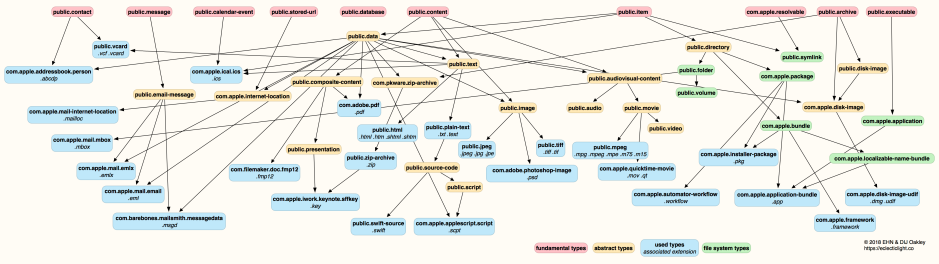
The standard system in macOS is based on a Uniform Type Identifier, or UTI, like public.plain-text for a plain text file, and public.jpeg for a JPEG image.

UTIs use a structured hierarchical taxonomy forming a vast interconnected tree. For example, when I write a file of Swift source code, the .swift file has the type public.swift-source, a specialised type of public.source-code, which is public.plain-text, which is public.text, and in turn both public.data and public.content. When I open that file, LaunchServices first looks for an editor for public.swift-source files, but can ascend the UTI tree as necessary and use an app designed to open text files of public.text more generally. Some of the more frequently encountered UTIs are shown in the diagram below, which you’ll probably need to expand to full screen to read clearly.

UTIs

Determining the UTI

It’s often claimed that macOS depends on filename extensions to determine different types of file, but that’s not correct: it’s more capable, and uses MIME types when downloading from the Internet, and ultimately relies on UTIs.

This is easily demonstrated in Terminal. Type the following command
touch notypefile
to create a new file in the current directory without any extension or other clue as to what it is. Then look in the Finder’s Get Info dialog, and you should see that macOS has already assigned it a default type associating it with a default editor. Inspect that file using my free utility Precize, and you’ll see that it has a UTI (listed in the Type entry) of public.data.

Now give it an extension unknown to macOS, such as .xyz, and inspect it again with Precize: its type has changed to something more cryptic like dyn.ah62d4rv4ge81u8p4. That’s a dynamic UTI, created on the fly by macOS to distinguish it as having a unique type, described in Get Info simply as a Document, but still with its default associated editor.

Every item in your Mac’s file system has a UTI to tell LaunchServices what to do when you try to open it, for instance by double-clicking its icon. You may find an exception to this, from a longstanding bug dating back to OS X 10.5 in 2007: some files may not return a UTI, but a NULL instead. This seems to be confined to sockets, which might appear to be files but aren’t really.

Discovering the UTI

Unfortunately, although discovering UTIs is key to dealing with documents which are treated as having the wrong type, there’s no easy way to find a file’s UTI in macOS. Thankfully you don’t need long reference lists to find out key information such as what a filename extension or MIME type represents in terms of a UTI: it’s all contained within macOS, if you know how to look using one of the tools listed below.

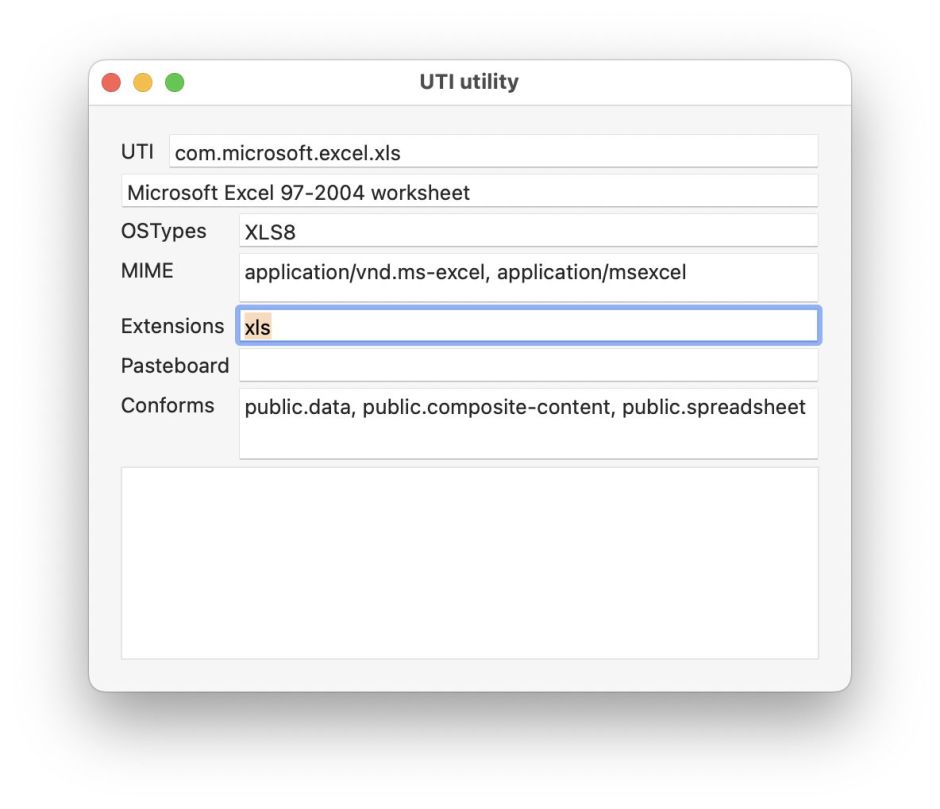
utilutil121

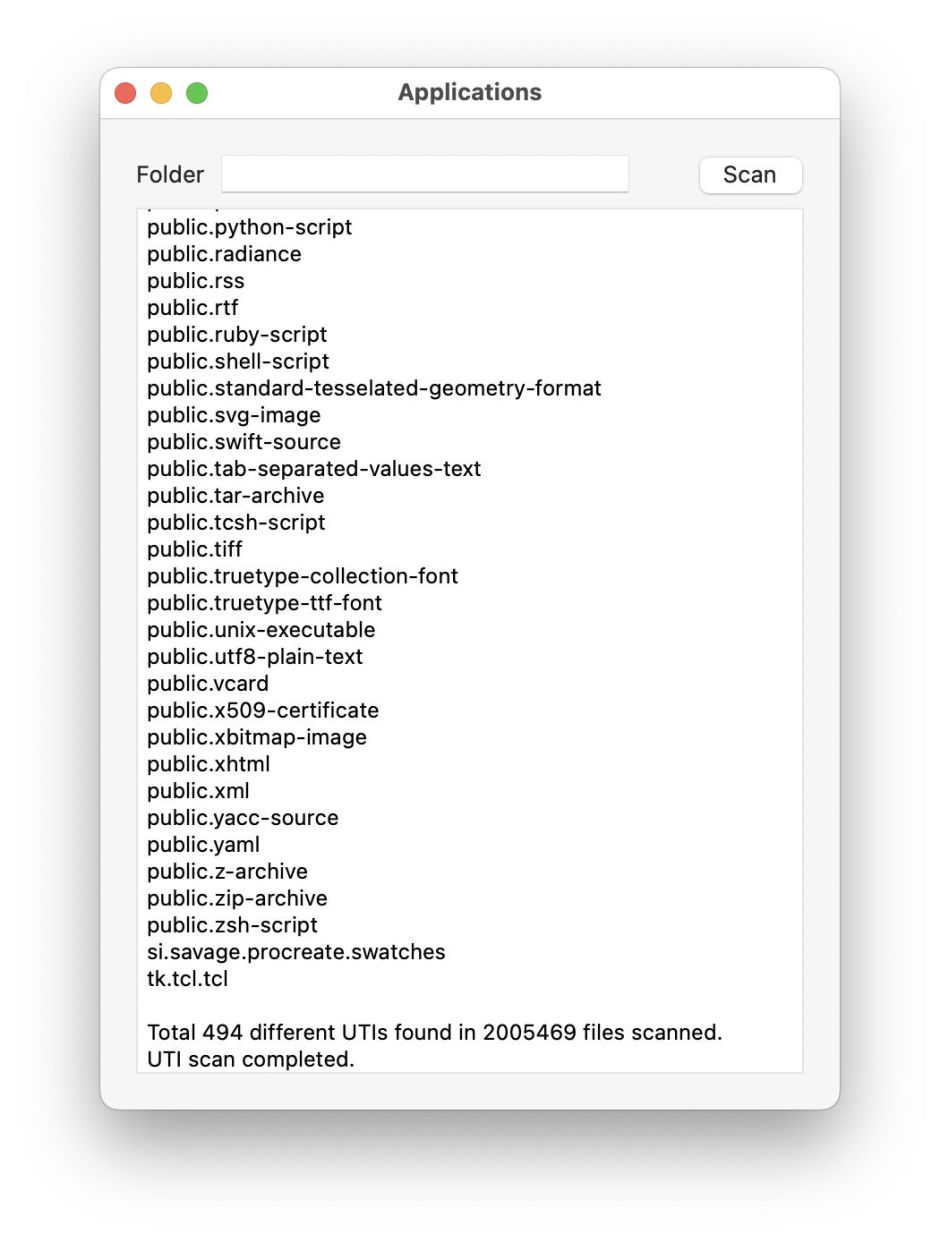
My own utility for working with UTIs is UTIutility. Its main window lets you enter an extension like xls, and tells you all macOS knows about that and its corresponding UTI. Alternatively, you can open its Crawler window and get it to list all the UTIs it comes across in the selected folder. That can take a long time to work through large folders, or those loaded with UTIs like /Applications, but its results are revealing.

utilutil122

The correct answer to the question of what determines a file’s type is therefore a whole list:

  • UTI, e.g. com.adobe.pdf,
  • filename extension, e.g pdf,
  • OSType, e.g. PDF,
  • MIME type, e.g. application/pdf, or
  • Pasteboard type, e.g. Apple PDF pasteboard type.

While you can change a file’s type directly by giving it a different UTI, it’s far simpler to do that indirectly by changing its extension to one correct for the type, such as txt or text for a text file. MIME types are mainly used for Internet file transfers, and Pasteboards are used when copying chunks of data using the Clipboard, which relies on the same basic system.

Other uses

In addition to LaunchServices making the association between the type of file you want to open and the app to use for that, UTIs are used extensively in macOS to determine how to handle different types of file. Among the more important are QuickLook, when deciding which generator to use to build a file’s thumbnail and preview, and Spotlight, when deciding which importer to use to index the contents of a file. Indeed, UTIs are so central to Spotlight that the command used in Terminal to inspect a file UTI is mdls, part of Spotlight.

Tools

Thomas Tempelmann’s free Launch Services features an excellent UTI browser.
Precize and UTIutility are free from their Product Page.

Apple documentation

UTI overview (archived)
Framework doc (current)
System-declared UTIs (current)
UTType (current).

A Spotlight bug affecting all recent macOS: the LG error

There’s a bug in Spotlight that can prevent it from indexing any of the contents of susceptible text files. This has been present since macOS 13 Ventura if not before, and is still present in Tahoe 26.0.1. I didn’t discover this myself, though: it was reported to me by Jürgen, to whom full credit is due. It’s also one of the strangest bugs I’ve come across, and all depends on two letters.

Demonstration

To demonstrate this bug, all you need is a single UTF-8 plain text file, created by TextEdit or any other app capable of saving plain text. Start the text with the two characters L and G, both in capitals. Then add one or more distinctive words, such as
LG syzygy

Save that file to a folder that you know is indexed and searched by Spotlight, then a few seconds later try searching for the word syzygy in its contents. Extend this as much as you want, maybe appending the whole of one of Charles Dickens’ novels, but no matter how you search for its contents, that file will never be found. If you want to get more serious, use that text file in my Spotlight test app SpotTest, and it will also be unable to find that file.

This only works with plain text files, not Rich Text, PDF or HTML. It’s also sensitive to those two letters. Set one of them in lowercase, preface them with a space, or substitute a different letter, and the contents of that file will then be indexed correctly and searchable as normal.

Affected macOS

I have tested this in virtual machines going back as far as macOS 13 Ventura, and it’s present in them all. If you have access to an earlier version of macOS, I’d be interested to know whether it affects that as well.

Cause

The two UTF-8 characters concerned, 4c 47, don’t appear to be anything special that could be misinterpreted.

Although it’s not easy to distinguish failure to index from search errors, saving a test file does result in repeated reports of an error that could cause Spotlight to fail when trying to index the file, for example the log entries
30.946740 mdwrite Decoding error: Error Domain=NSCocoaErrorDomain Code=4864 UserInfo={NSDebugDescription=[private]} for [private]
30.951004 mds Decoding error: Error Domain=NSCocoaErrorDomain Code=4864 UserInfo={NSDebugDescription=[private]} for [private]

Error code 4864 is NSCoderReadCorruptError, implying that the presence of those two characters at the start of a text file may be triggering a bug in RichText.mdimporter, the importer module shipped in macOS that’s responsible for indexing plain text files.

My current hypothesis is therefore that text files starting with the characters LG are failing to have their contents indexed correctly because of a bug in RichText.mdimporter.

History

This isn’t the first bug in the RichText.mdimporter. In macOS Catalina 10.15.6, the same mdimporter (then build 319.60.100) introduced a bug that broke indexing of Rich Text (RTF) files. That was perpetuated through early releases of Big Sur until it was finally fixed in RichText.mdimporter build 326.11 in Big Sur 11.3.

Because text files starting with the characters LG are exceedingly unusual, this bug appears to have been left in RichText.mdimporter for a great deal longer.

I will be reporting this to Apple in Feedback later this month. Please feel free to file your own Feedback if you can spare the time.

Summary

  • In macOS 13 to 26, plain text files starting with the characters LG cannot be searched for their contents.
  • This appears to be the result of a longstanding bug in RichText.mdimporter in macOS.
  • If those characters are altered, or prefixed by a space, indexing and search behave normally.

I’m very grateful to Jürgen for drawing this to my attention.

❌