Reading view

There are new articles available, click to refresh the page.

Explainer: How does macOS recognise file types?

One of the most fundamental changes brought by the Mac was the ability to open and edit files without having to explicitly specify which app to use. Instead of typing in a command telling an app to open a file, we can simply double-click the file and the Mac already knows which app to use. This relies on every file having a type, and the association between file types and apps. This article explains how that is now accomplished in macOS.

History

Classic Mac OS relies on two four-character codes assigned to every file designating their creator and type. An app has a type of APPL, and a text file a type of TEXT. A text file created by the TeachText app might have a creator code of TTXT and a type code of TEXT. Double-click on that file and the Finder looks for the app (with a type code of APPL) with the creator code of TTXT, and asks that to open the file. Associations between app creator codes and file types are also built into the Finder’s Desktop databases to relate icons with file types, forming the heart of the Desktop metaphor.

Although Mac OS X retained type and creator codes, early versions relied on filename extensions to determine the type of files, a feature of older operating systems and NeXTSTEP. Apple therefore invented a new system for identification and classification of file types and more using Uniform Type Identifiers, introduced in Mac OS X 10.4 Tiger. They have since been incorporated into a generalised UTType structure in macOS 11 Big Sur.

UTI

The standard system in macOS is based on a Uniform Type Identifier, or UTI, like public.plain-text for a plain text file, and public.jpeg for a JPEG image.

UTIs use a structured hierarchical taxonomy forming a vast interconnected tree. For example, when I write a file of Swift source code, the .swift file has the type public.swift-source, a specialised type of public.source-code, which is public.plain-text, which is public.text, and in turn both public.data and public.content. When I open that file, LaunchServices first looks for an editor for public.swift-source files, but can ascend the UTI tree as necessary and use an app designed to open text files of public.text more generally. Some of the more frequently encountered UTIs are shown in the diagram below, which you’ll probably need to expand to full screen to read clearly.
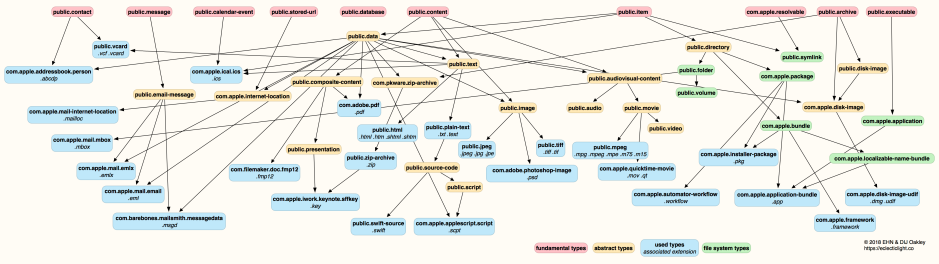
UTIs

Determining the UTI

It’s often claimed that macOS depends on filename extensions to determine different types of file, but that’s not correct: it’s more capable, and uses MIME types when downloading from the Internet, and ultimately relies on UTIs.

This is easily demonstrated in Terminal. Type the following command
touch notypefile
to create a new file in the current directory without any extension or other clue as to what it is. Then look in the Finder’s Get Info dialog, and you should see that macOS has already assigned it a default type associating it with a default editor. Inspect that file using my free utility Precize, and you’ll see that it has a UTI (listed in the Type entry) of public.data.

Now give it an extension unknown to macOS, such as .xyz, and inspect it again with Precize: its type has changed to something more cryptic like dyn.ah62d4rv4ge81u8p4. That’s a dynamic UTI, created on the fly by macOS to distinguish it as having a unique type, described in Get Info simply as a Document, but still with its default associated editor.

Every item in your Mac’s file system has a UTI to tell LaunchServices what to do when you try to open it, for instance by double-clicking its icon. You may find an exception to this, from a longstanding bug dating back to OS X 10.5 in 2007: some files may not return a UTI, but a NULL instead. This seems to be confined to sockets, which might appear to be files but aren’t really.

Discovering the UTI

Unfortunately, although discovering UTIs is key to dealing with documents which are treated as having the wrong type, there’s no easy way to find a file’s UTI in macOS. Thankfully you don’t need long reference lists to find out key information such as what a filename extension or MIME type represents in terms of a UTI: it’s all contained within macOS, if you know how to look using one of the tools listed below.
utilutil121

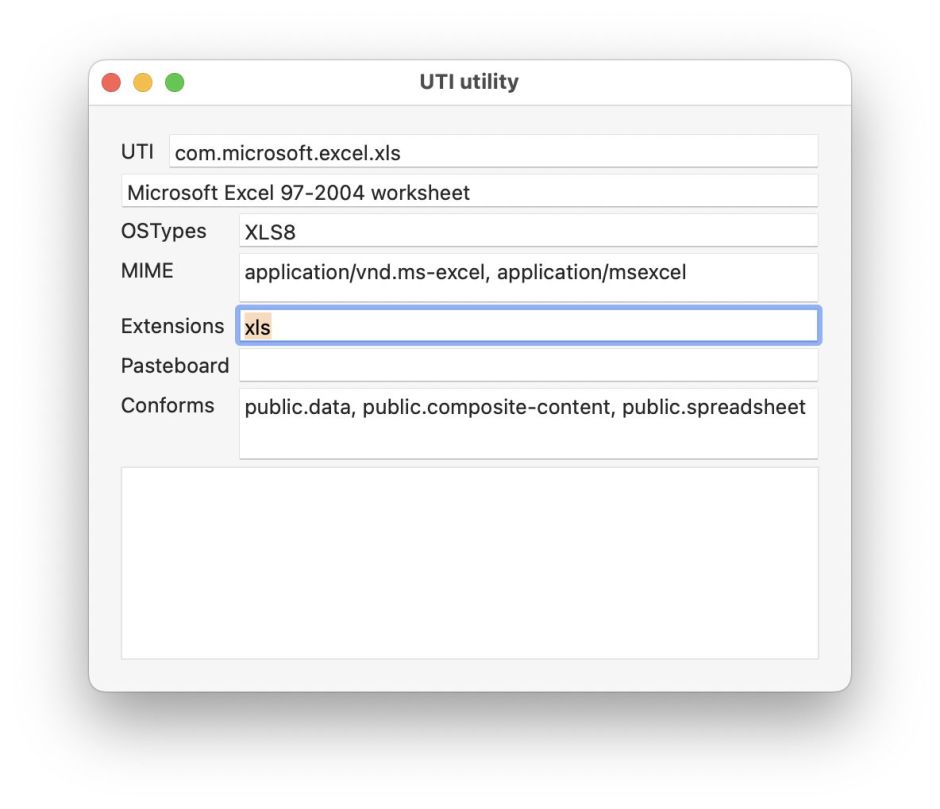
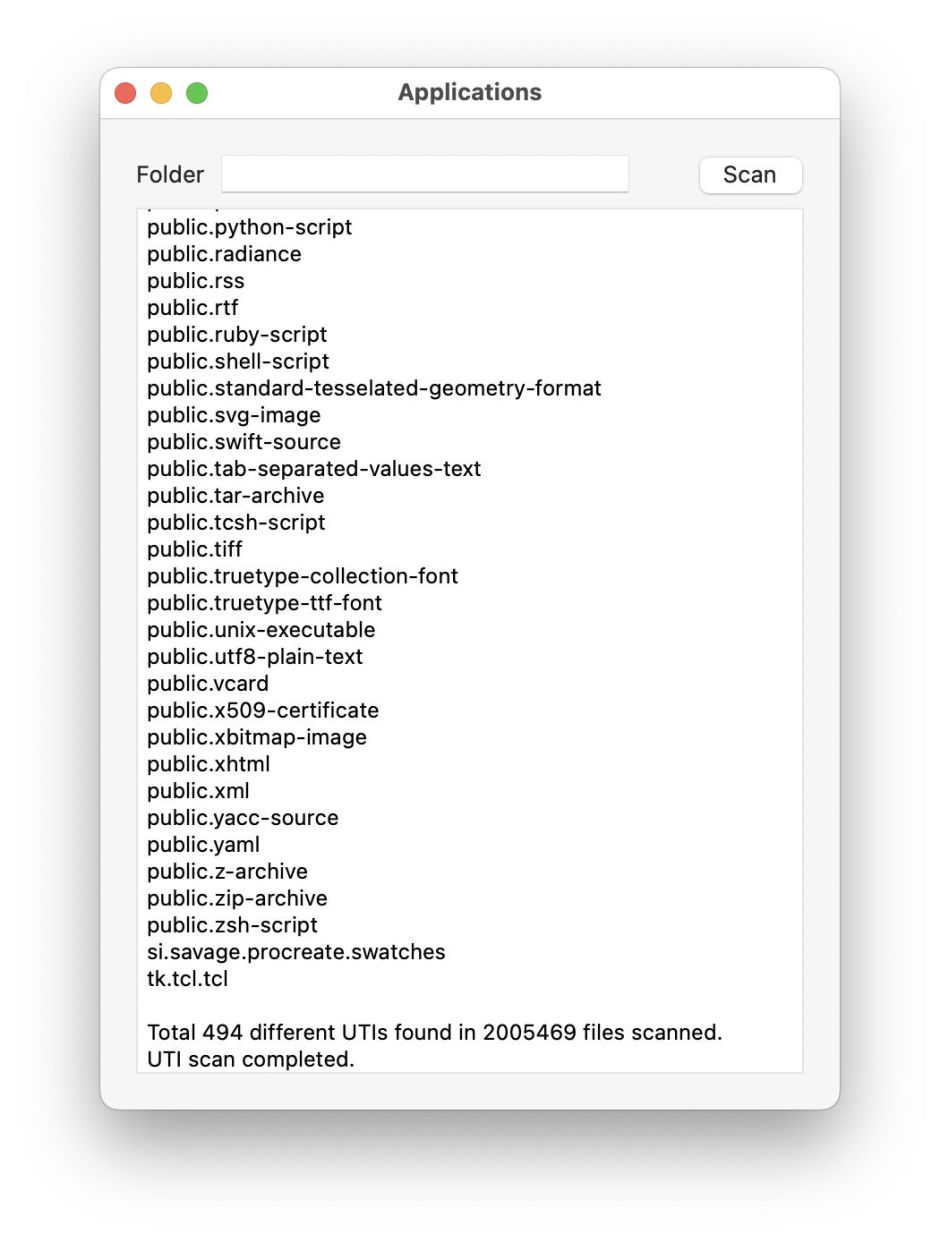
My own utility for working with UTIs is UTIutility. Its main window lets you enter an extension like xls, and tells you all macOS knows about that and its corresponding UTI. Alternatively, you can open its Crawler window and get it to list all the UTIs it comes across in the selected folder. That can take a long time to work through large folders, or those loaded with UTIs like /Applications, but its results are revealing.
utilutil122

The correct answer to the question of what determines a file’s type is therefore a whole list:

  • UTI, e.g. com.adobe.pdf,
  • filename extension, e.g pdf,
  • OSType, e.g. PDF,
  • MIME type, e.g. application/pdf, or
  • Pasteboard type, e.g. Apple PDF pasteboard type.

While you can change a file’s type directly by giving it a different UTI, it’s far simpler to do that indirectly by changing its extension to one correct for the type, such as txt or text for a text file. MIME types are mainly used for Internet file transfers, and Pasteboards are used when copying chunks of data using the Clipboard, which relies on the same basic system.

Other uses

In addition to LaunchServices making the association between the type of file you want to open and the app to use for that, UTIs are used extensively in macOS to determine how to handle different types of file. Among the more important are QuickLook, when deciding which generator to use to build a file’s thumbnail and preview, and Spotlight, when deciding which importer to use to index the contents of a file. Indeed, UTIs are so central to Spotlight that the command used in Terminal to inspect a file UTI is mdls, part of Spotlight.

Tools

Thomas Tempelmann’s free Launch Services features an excellent UTI browser.
Precize and UTIutility are free from their Product Page.

Apple documentation

UTI overview (archived)
Framework doc (current)
System-declared UTIs (current)
UTType (current).

Resolve a file’s path from its inode number

If you ever encounter an error when checking an APFS volume using First Aid in Disk Utility or fsck_apfs, you won’t be informed of the path and name of the item responsible, but given its inode number, in an entry like
warning: inode (id 402194151): Resource Fork xattr is missing for compressed file

The inode number given can only be resolved to a path and file/folder name if you also have a second number giving the volume for that item. As that will be for the volume being checked at the time, you should be able to identify that immediately. The only time that you might struggle to do that is with items in a snapshot; those should, I think, be the same as the volume they are taken from. However, as snapshots are read-only, there’s probably little point in pursuing errors in them.

To resolve these in my free utility Mints, open its inode Resolver using the Window / Data… / Inode menu command. Drag and drop another file from the same volume onto that window.

mints1151

The Resolver will then display that file’s volfs path, such as
/.vol/16777242/1241014

All you need do now is paste the inode number given in the warning or error message in Disk Utility or fsck_apfs, into the Inode Number box at the top of the Resolver window, and click the Resolve button. Mints then looks up information for that inode number on the same volume, using GetFileInfo, and displays it below.

mints1152

One drag and drop, a paste, and a click to discover what APFS is complaining about.

Command line

You’ll sometimes see Terminal’s find command with the option -inum recommended as a way to convert from an inode number to a regular path. Although you can do that, it’s easier to use the command GetFileInfo instead. For that you’ll need the full volfs path, including the volume number.

To find the volume number, use my free utility Precize, and open another file on the same volume. The second line in its window gives the full volfs path for that file. Copy the start of that, leaving the second number, the inode, such as
/.vol/16777238/

purgeable1

Alternatively, you can use the stat command as given below.

In Terminal, type
GetFileInfo
with a space at the end, and paste the text you copied from Precize. Then copy and paste the inode number given in the First Aid warning, to assemble the whole command, such as
GetFileInfo /.vol/16777238/402194151

Press Return, and after a few seconds, you should see something like
file: "/Users/hoakley/Library/Mobile Documents/com~apple~CloudDocs/backup1/0MintsSpotlightTest4syzFiles/SpotTestA.rtf"
type: "\0\0\0\0"
creator: "\0\0\0\0"
attributes: avbstclinmedz
created: 05/17/2023 08:45:00
modified: 05/17/2023 08:45:00

giving the full path and filename that you want.

GetFileInfo is one of the oldest commands in macOS, and has been deprecated as long as anyone can remember. I suspect that Apple is still trying to work out what can substitute for it.

Get a volfs path for a file

Use Precize to run this the other way around: open the file and read the path in that second line. To copy the whole of it, press Command-2.

The simplest ways of obtaining inode numbers and so building volfs paths in Terminal are using the -i option to the ls command, and for individual items using stat:
ls -i lists each item in the current directory, giving its inode number first, e.g.
22084095 00swift
13679656 Microsoft User Data
22075835 Wolfram Mathematica

and so on;
stat myfile.text returns
16777220 36849933 -rw-r--r-- 1 hoakley staff […] myfile.text
where the first number is the volume number, and the second is the inode number of that item, or /.vol/16777220/36849933.

Explainer: inodes and inode numbers

Every self-respecting file system identifies files and directories using numbered data structures. In most modern file systems, those data structures are known as inodes, and their numbers are inode numbers, sometimes shortened to inodes. The term is thought to be a contraction of index node, which certainly makes sense, but is lost in the mists of time.

In any file system, for example an individual APFS volume, the inode numbers uniquely identify each inode, and each object within that file system has its own inode. Whatever else the file system might do, the inode number identifies one and only one object within it. Thus one invariant way of identifying any file is by referencing the file system containing it, and its inode number.

HFS+

The Mac’s original native file systems, ending most recently in Mac OS Extended File System, or HFS+ from its origins in the Hierarchical File System, don’t use inodes as such, and don’t strictly speaking have inode numbers. Instead, the data structures for their files and folders are kept in Catalogue Nodes, and their numbers are Catalogue Node IDs, CNIDs.

With Mac OS X came Unix APIs, and their requirement to use inodes and inode numbers. As CNIDs are unique to each file and folder within an HFS+ volume, for HFS+ they are used as inode numbers, although in some ways they differ. CNIDs are unsigned 32-bit integers, with the numbers 0-15 reserved for system use. For example, CNID 7 is normally used as the Startup file’s ID.

Although not necessarily related to CNIDs, it’s worth noting that the Mac’s original file system MFS allowed a maximum of 4,094 files, its successor HFS was limited to 65,535, and HFS+ to 4,294,967,295. Those are in effect the maximum number of inode numbers or their equivalents allowed in that file system.

APFS

Unlike HFS+, APFS was designed from the outset to support standard Posix features, so has inodes numbered using unsigned 64-bit integers.

Strictly, the APFS inode number is the object identifier in the header of the file-system key. Not all unsigned 64-bit integers can be used as inode numbers, though, as a bit mask is used, and the number includes an encoded object type. APFS also makes special allowance for volume groups consisting of firmlinked System and Data volumes, to allow for their inode numbers to remain unique across both volumes. Officially, those allow for a maximum number of inode numbers of 9,223,372,036,854,775,808, either in single APFS file systems, or shared across two in a volume group.

fileobject1

Every file in APFS is required to have, at an absolute minimum, an inode and its associated attributes, shown above in blue, including a set of timestamps, permissions, and other essential information about that file.

There are also three optional types of component:

  • although some files may be dataless, most have data, for which they need file extents (green), records linking to the storage blocks containing that file’s data (pink);
  • smaller extended attributes (yellow), named metadata objects that are stored in a single record;
  • larger extended attributes (yellow), over 3,804 bytes in size, whose data is stored separately in a data stream.

Interpretation

When looking at inode numbers in volume groups, they can be used to determine which of the firmlinked file systems contains any given file. Both volumes share the same volume ID, and files in the System volume have very high inode numbers, while those in the Data volume are relatively low. I have given further details here.

Inode numbers are more generally useful in distinguishing files whose data appears identical, and the behaviour of various methods of linking files.

Copying a file within the same file system (volume) creates a new file with its own inode number, of course. However, duplicating a file within the same file system results in an APFS clone file, with a distinct inode, although it shares common data, so their inode numbers are also different.

fileobject3

Instead of duplicating everything, only the inode and its attributes (blue and pink) are duplicated, together with their file extent information. There’s a flag in each clone file’s attributes to indicate that cloning has taken place.

A symbolic link or symlink is merely a pointer to the linked file’s path, and doesn’t involve inode numbers at all. Because of that, changing the linked file’s name or path breaks its link. Finder aliases and their kindred bookmarks do contain inode numbers, so should be able to cope with changes to the linked file’s name or path, provided it remains in the same file system and doesn’t change inode number.

Hard links are more complex, and depend on the way in which the file system implements them, although the fundamental rule is that each object that’s hardlinked to the same file has the same inode number. According to Apple’s reference to APFS, this is how it handles hard links.

fileobject6

When you create a hard link to a file (blue), APFS creates two siblings (purple) with their own IDs and links, including different paths and names as appropriate. Those don’t replace the original inode, and there remains a single file object for the whole of that hardlinked file.

Inode attributes keep a count of the number of links they have to siblings in their link (or reference) count. Normally, when a file has no hard links that’s one, and there are no sibling files. When a file is to be deleted, if its link count is only 1, the file and all its associated components can be removed, subject to the requirements of any clones and applicable snapshots. If the link count is greater than 1, then only the sibling being removed is deleted.

Easy access

Inode numbers are readily accessed using command tools in Terminal. For example, ls -i lists items with their inode numbers shown. One free utility that displays full information about inode numbers and much more is Precize.

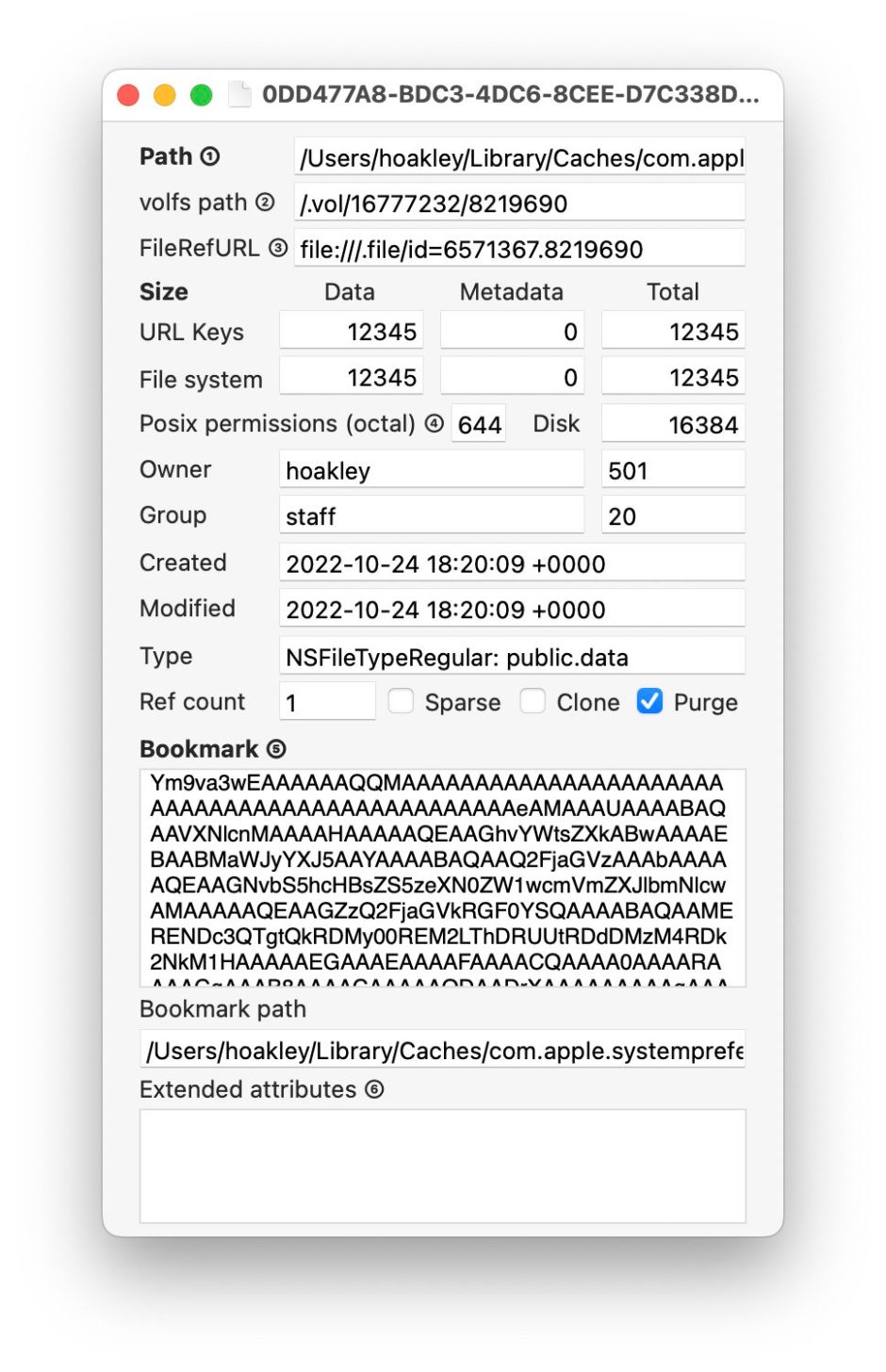
The volume ID is given as the first number in the volfs path, and the second is the inode number of that file within that. Note that the File Reference URL (FileRefURL) uses a different numbering system, and the Ref count of 1 indicates this file has no hard links.

❌