Reading view

There are new articles available, click to refresh the page.

How to install security updates without upgrading to Tahoe

macOS gives you the choice of upgrading to the latest version, but each year makes it easier to upgrade by mistake. For those wanting to stick with macOS 15 Sequoia this has become even harder to get right. This article shows how you can install security updates without risking the upgrade, using my free utility SilentKnight. If you prefer you can do essentially the same thing from the command line.

Check for updates

Run the latest version of SilentKnight (2.12) and it will show you all the updates waiting for your Mac, including the Tahoe upgrade. Don’t, whatever you do, click on the Install all updates button at this stage, or try installing individual updates. Quit SilentKnight and open Software Update in System Settings to install the security update to Sequoia first.

Update macOS

Although you can download and install macOS updates using SilentKnight, it’s far better if you use Software Update to do that. Open that in System Settings and read what it offers very carefully.

Although you know you don’t want to click on Upgrade Now, you should also avoid clicking on Update Now in the expectation that it will update Sequoia to 15.7.2. Instead, click on the ⓘ button next to it to ensure that you only update what you intend.

In this window, uncheck the Tahoe upgrade, and tick macOS Sequoia 15.7.2 and Safari, then click on Update Now. Make a mental note of the large size of the Tahoe upgrade, and when the download starts, check that isn’t being downloaded. If it is, cancel it if you can, quit all other open apps, and shut your Mac down. Leave it a few seconds before starting it up and trying again.

Once the Sequoia security update has been installed and your Mac restarts into 15.7.2, open SilentKnight and let it check for updates again.

Install remaining security updates

In most cases, almost all the outstanding security updates such as XPR should now be installed as part of that macOS update. However, the one you’re likely to have to install manually is XProtect, and you also want to change SilentKnight so it doesn’t put you at risk of inadvertently upgrading to Tahoe.

Open SilentKnight’s Settings and uncheck Allow Install All Updates. That removes the button from its main window that you could click accidentally and initiate an upgrade.

Now open Terminal to install the outstanding XProtect update. Type the following command
sudo xprotect update
press Return and enter your admin password. That update should then be installed from iCloud. Check that by opening SilentKnight one last time.

SilentKnight confirms that all your security updates have been installed successfully. Although the Tahoe upgrade is still waiting there to catch you unawares, there’s now no Install all updates button. When you want to install individual updates such as XProtect, use the Install Named Update… command in the File menu. Paste in the Label of the update, such as XProtectPlistConfigData_10_15-5323, check that it isn’t the Tahoe upgrade, and click the Install Named Update button for each security update you want to install.

skseq3

There’s one final trick you need to remember. When macOS keeps notifying you of the Tahoe upgrade, click on that notification away from its buttons to open Software Update, then close that window. That should ensure that macOS doesn’t try upgrading your Mac on the sly. If it does start downloading the Tahoe upgrade, quit all open apps and shut down. After a few seconds start up again and that upgrade should be forgotten. For a while, at least.

Explainer: How is XProtect’s data updated?

If there’s one topic that needs explanation currently, it’s how macOS updates XProtect’s data. Let me try.

Up to and including macOS Sonoma

Until this changed in Sequoia, updating XProtect has been straightforward: its data is stored in a bundle named XProtect.bundle, in the path /Library/Apple/System/Library/CoreServices, on the Data volume so it can readily be updated. When you or macOS downloads and installs an XProtect update, it simply replaces that bundle with the new one. This is shown in the diagram below.

xprotectupd3

The source of those updates is Apple’s Software Update Service, through the Software Update pane in System Preferences or System Settings, the softwareupdate command tool, or an app like SilentKnight. Left to its own devices, macOS normally checks for updates soon after starting up, and once every 24 hours running after that.

Early Sequoia

XProtect in macOS 15 prefers not to use the XProtect.bundle in its old location of /Library/Apple/System/Library/CoreServices, instead looking for XProtect.bundle in its new location, /var/protected/xprotect.

However, when you or your Mac use the old update system, including Software Update, softwareupdate or SilentKnight, that still installs the update in the old location, where it won’t normally be used by XProtect when making its checks. What was supposed to happen in early versions of Sequoia was that at least once a day, macOS checked whether there was a newer update in the old location. If there was, then it should have automatically prepared and moved that to the new location in /var/protected/xprotect for XProtect to use.

If you wanted that to happen immediately, then you could run the following command in Terminal:
sudo xprotect update
then enter your admin user’s password. The xprotect command tool would then complete the installation of that update from its old location into its new one.

There’s also a second way that XProtect in early Sequoia could be updated, and that’s over a connection to iCloud. If that was used, then the update was installed straight into its new location, and didn’t change the XProtect bundle in the old location at all. Although Apple had used that earlier, all XProtect updates since the release of Sequoia came using the old Software Update system, so needed to be completed using the xprotect command in Terminal.

This is shown in the diagram below. The blue boxes show the old Software Update system, and the pink boxes are the new parts that ensure the update is installed in the new location.

xprotectupd4

Later, that changed and Apple started releasing updates via iCloud. By about macOS 15.3, xprotect update was no longer able to install XProtect in the new location, and that was only possible once that update had been released to iCloud, from where xprotect update could download and install it to the new location.

Late Sequoia and Tahoe

With the release of macOS 26.0 Tahoe, this changed again. Macs running the latest versions of Sequoia and any version of Tahoe (after 26.0 release) continue to update the old location in /Library/Apple/System/Library/CoreServices as before.

Updating the new location in /var/protected/xprotect can occur by two methods. A background service XProtectUpdateService can:

  • ‘activate’ an update from the old location by installing a copy to the new location;
  • use CloudKit to download an update available in iCloud and install it directly to the new location.

That service is scheduled to run once every 24 hours.

The end result can appear confusing, but is summarised in the diagram below.

There are two routes for XProtect data to be updated in the new location:

  • XProtect in the old location is updated by softwareupdate, then XProtectUpdateService runs later and installs a copy of that update to the new location.
  • XProtectUpdateService runs and detects an update available from iCloud, so downloads and installs that in the new location. That occurs even when the old location hasn’t been updated yet, but depends on the update being offered in iCloud.

Both of those updates run silently, and the only ways to check that the new location has been updated are to:

  • check the version in /var/protected/xprotect,
  • run xprotect version,
  • use SilentKnight or Skint.

As far as the user is concerned:

  • Updating XProtect in the old location is worthwhile, as it should enable XProtectUpdateService to update the new location from that.
  • Running xprotect update in Terminal is only worthwhile if the new location hasn’t yet been updated, but that update has been released via iCloud, as confirmed using xprotect check.
  • Either of the new update mechanisms should be run automatically within 24 hours of an update being released.

Summary

  • In macOS Sonoma and earlier, XProtect updates come via Software Update, and are simple.
  • In macOS Sequoia and later, XProtect updates are more complex, but should happen as if by magic within about 24 hours of their release.

A brief history of content caching services

One of the many fine details in macOS is its built-in support for a content caching service, both as server and client. This can be used for local distribution of macOS and other system updates, App Store updates, Apple media content such as Music and movie purchases, and iCloud content.

This appears to have originated as one of the new services added to Mac OS X Server 10.4 Tiger in April 2005, initially confined to a Software Update server. Apple’s online services were growing rapidly at the time, with the iTunes Store opening in 2003, and the first of its App Stores for iOS launching in 2008. Those were followed by the iCloud service in 2011. To cater for those, Apple added a separate Content Caching server by OS X Server 2 in 2012.

This shows the Software Update service in OS X Server 2 in 2012, with a list of some of the updates it had in its cache at the time.

At that time, a client Mac’s Software Update pane in System Preferences had to be pointed at the local server for that to be used instead of Apple’s. However, that didn’t work with App Store caching, for which the /Library/Preferences/com.apple.SoftwareUpdate.plist file had to be edited manually on each client to add a new property specifying the IP address of the local server.

macOS Server 5 in 2015 extended this further.

softwareupdserver

Features of the Software Update server then included the ability to limit the server’s bandwidth in its link back to Apple’s servers, and to control local network bandwidth used to transfer updates from the server to clients.

Amazingly, its original documentation is still available online here, and instructions for setting up clients remain here.

cachingserver

The Caching service worked with all content and apps provided by the Mac App and iTunes Stores, which of course included OS X updates, and is explained here. By this time, Macs and iOS devices connected to the local network would automatically find a server when it was running; there was minimal configuration for the server, and none for the clients.

When macOS 10.13 High Sierra was released in 2017, that brought update and content caching services to client Macs, and no longer required macOS Server, which was already in its terminal decline. These were configured in a new Content Caching feature added to the Sharing pane in System Preferences.

In essence, you designated one or more Macs as ‘parents’, to serve their cached content to ‘children’, which can themselves host caching services, to allow tiered setups. Initially, parents also needed to share their internet connection, required a minimum of iOS 10.3 for iOS devices, required a wired Ethernet connection to your router, and couldn’t sleep, so had to be run on mains power.

Although the content caching service has become quite widely used since, it’s never been as popular as it deserves. It remains remarkably simple to set up, as seen in these screenshots from 2020.

contentcaching01

Clicking on the Options button let you set the cache location and its size.

contentcaching02

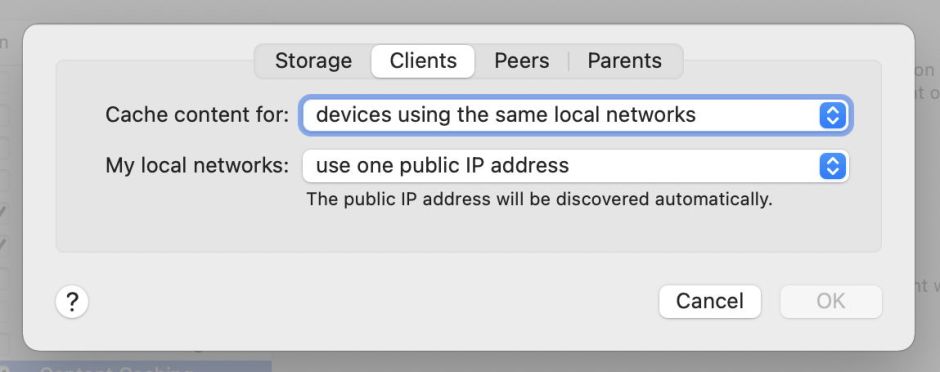
Tabs were made available if you held the Option key before clicking the Options button, which then became Advanced Options. That let you set up clients, as well as other servers functioning as peers or parents, on more extensive networks.

contentcaching03

These remain essentially the same today in Tahoe.

When Apple changed macOS updates in Big Sur, life became more complicated. When updating Apple silicon Macs, the first GB of macOS updates had to be downloaded direct from Apple’s servers, and it was only after that the remainder of the update could be obtained from a local caching server.

Apple has further extended the types of content that can be cached locally, to include

  • macOS updates normally obtained through Software Update or the command tool softwareupdate;
  • internet Recovery images from macOS 10.13.5 onwards when obtained in Recovery mode;
  • apps and their updates supplied through the Mac and iOS App Stores;
  • GarageBand downloadable content;
  • iCloud documents and data, including Photos libraries;
  • Apple Books;
  • downloadable components for Xcode.

Most recently Rosetta 2, screen savers, wallpaper and AI models have been added to the list. Apple’s reference document is here.

Advanced server configurations are catered for by the command tool AssetCacheManagerUtil which can also provide performance information, and there are two additional tools available, AssetCacheLocatorUtil and AssetCacheTetheratorUtil. On the server, performance information is most readily accessed in Activity Monitor’s Cache view, which provides summary statistics for the local cache.

cachingserver1

This includes the total size of data served for the last hour, 24 hours, 7 days, and 30 days. To view those graphically, the time period for the charts at the foot can be changed by using it as a popup menu.

cachingserver2

cachingserver3

These show what happened on my content caching server during the macOS 11.4 update in 2021, for which almost 30 GB still had to be downloaded from Apple’s servers, while just over 20 GB was served from its cache.

Over the last 20 years or so, Software Update and Content Caching services have been remarkably reliable, but in June 2022 there was a period during which updates to XProtect and XProtect Remediator failed to install correctly when attempted through a content caching server. Apple never explained what the cause of that was, but it was eventually fixed and hasn’t recurred since.

Then, out of the blue, iOS and iPadOS 26 introduced a new feature to identify and test a connected caching server.

To access this, in Settings > Wi-Fi tap the ⓘ button on your current active network, scroll to the bottom and tap Content Caches. Tap the active cache to see full details, together with a download test. Don’t bother looking for an equivalent feature in macOS 26 Tahoe, though, as it isn’t available yet. How odd.

❌