 Login
LoginBaby Steps
The antidote to our increasingly disembodied lives may lie in letting go of our inhibitions and dancing like kids do.


© Alyssa Schukar for The New York Times

© Eric Lee for The New York Times

© Kenny Holston/The New York Times

© Dolly Faibyshev for The New York Times

© Mohamed Sadek for The New York Times

© Ed Jones/Agence France-Presse — Getty Images

© Eric Lee for The New York Times

© Greg Fiume/Getty Images
Google is so helpful now when you ask it to solve a problem, such as how to free up space on your Mac. Not only can it make its own suggestions, but it can tap into those from AIs like ChatGPT and Grok. This article shows how that can bring you malware, thanks to the recent research of Stuart Ashenbrenner and Jonathan Semon at Huntress.
Please don’t try anything you see in this article, unless you want AMOS stealer malware on your Mac.
I started by entering a common search request, clear disk space on macOS, the sort of thing many Mac users might ask.

At the top of Google’s sponsored results is an answer from ChatGPT, giving its trusted web address. When I clicked on that, it took me to ChatGPT, where there’s a nice clear set of instructions, described impeccably just as you’d expect from AI.

This helpfully tells me how to open Terminal using Spotlight, very professional.

It then provides me with a command I can copy with a single click, and paste straight into Terminal. It even explains what that does.

When I press Return, I’m prompted for my password, which I enter.

Although I was a bit surprised to see this prompt, it looks genuine, so I allowed it.

Far from clearing space on my Mac, the malware, an AMOS stealer, has gone to work, saving a copy of the password I gave it, in the /tmp folder, and installing its payload named update.

Scripts like .agent are installed in my Home folder, and my (virtual) Mac is now well and truly owned by its attacker.
Full technical details are given in this post from Huntress.
As Ashenbrenner and Semon point out, this marks a new and deeply disturbing change, that we’re going to see much more of. We have learned to trust many of the steps that here turn out to lead us into trouble, and there’s precious little that macOS can do to protect us. This exploit relies almost entirely on our human weakness to put trust in what’s inherently dangerous.
First, distrust everything you see in search engines. Assess what they return critically, particularly anything that’s promoted. It’s promoted for a reason, and that’s money, so before you click on any link ask how that’s trying to make money from you. If that’s associated with AI, then be even more suspicious, and disbelieve everything it tells you or offers. Assume that it’s a hallucination (more bluntly, a lie), or has been manipulated to trap you.
Next, check the provenance and authenticity of where that click takes you. In this case, it was to a ChatGPT conversation that had been poisoned to trick you. When you’re looking for advice, look for a URL that’s part of a site you recognise as a reputable Mac specialist. Never follow a shortened link without unshortening it using a utility like Link Unshortener from the App Store, rather than one of the potentially malicious sites that claims to perform that service.
When you think you’ve found a solution, don’t follow it blindly, be critical. Never run any command in Terminal unless it comes from a reputable source that explains it fully, and you have satisfied yourself that you understand exactly what it does. In this case the command provided was obfuscated to hide its true action, and should have rung alarm bells as soon as you saw it. If you were to spare a few moments to read what it contains, you would have seen the command curl, which is commonly used by malware to fetch their payloads without any quarantine xattr being attached to them. Even though the rest of the script had been concealed by base-64 encoding, that stands out.
If you did get as far as running the malicious script, then there was another good clue that it wasn’t up to anything good: it prompted you for a System Password:. The correct prompt should just be Password:, and immediately following that should be a distinctive key character that’s generated by macOS for this purpose. Then as you typed your password in, no characters should appear, whereas this malware showed them in plain text as you entered them, because it was actually running a script to steal your password.
Why can’t macOS protect you from this? Because at each step you have been tricked into bypassing its protections. Terminal isn’t intended to be a place for the innocent to paste obfuscated commands inviting you to surrender your password and download executable code to exploit your Mac. curl isn’t intended to allow malware to arrive without being put into quarantine. And ad hoc signatures aren’t intended to allow that malicious code to be executed.
As I was preparing this article Google search ceased offering the malicious sponsored links, but I expect they’ll be back another time.
AI is certainly transforming our Macs, in this case by luring us to give away our most precious secrets. This isn’t a one-off, and we should expect to see more, and more sophisticated, attacks in the future. Now is the time to replace trust with suspicion, and be determined not to fall victim.

© Ana Brigida/Associated Press

© Doug Mills/The New York Times

© The New York Times

© Sandra Mickiewicz for The New York Times
Programs running in windowing environments, applications as we used to know them, have more complicated requirements than those run from a command line. Rather than embed all the resources they require for windows, menus and the rest in a single file, Mac OS broke new ground by putting those into resources stored in the app’s resource fork.

This is QuarkXPress version 4.11 from around 2000, with its resources displayed in the resource editor ResEdit. Executable code was also stored in CODE resources, and every file contained type and creator information to support the illusions created by the Finder.
When Mac OS X was designed, it switched to the bundle structure inherited from NeXTSTEP. Instead of this multitude of resources, apps consisted of a hierarchy of directories containing files of executable code, and those with what had in Mac OS been supporting resources. Those app bundles came to adopt a standard form, shown below.

The bundle name has the extension .app, and contains a single directory Contents. Within that, the executable code is in the MacOS directory, which may contain both the main executable for the GUI app and any bundled command tools provided. Another directory contains Resources, including the app’s custom icon, and components of its GUI. In some apps, there’s another directory of Frameworks containing dylibs (libraries).
There are also two important files, Info.plist and PkgInfo. The latter contains the same type and creator information inherited from Classic Mac OS, and apparently isn’t mandatory although it appears universal. The information property list is essential, as it specifies the names of the executable and its icon file in Resources, the minimum version of macOS required, type declarations of the app’s documents, version numbers, and more.
When running a command tool in macOS, its Mach-O executable is launched by launchd, whose purpose is to run code. Launching an app is more demanding, although the app’s executable is still launched by launchd. Before that can happen, macOS starts the launch process using LaunchServices and RunningBoard, which rely on information obtained from Info.plist and other components in the app bundle.
This structure remained stable until the introduction of code signatures in Mac OS X 10.5 Leopard in 2007. Accommodating those added a directory named _CodeSignature containing the signature in a CodeResources file. That includes code directory hashes (CDHashes) to check the integrity of the contents of the app bundle. Apps distributed by the App Store include a store receipt in another directory, _MASReceipt. Since 2018, when Apple introduced notarization, the ‘ticket’ issued by Apple can be ‘stapled’ into the app bundle as the file CodeResources.
Many apps come with additional items that might in the past have been installed by them in their Library/Application Support folders and elsewhere, but are now included in the app bundle. These can include the following directories:
You may also come across other components, including a version.plist in Apple’s apps.
This centralisation of components in the app bundle has brought several benefits. Being self-contained, apps are easier to install and update, and cleaner to remove. Their components are less likely to go missing, and most of all they’re held within the protection of the app’s signature and notarisation, an important improvement in security.
Assembling these into a diagram shows how the anatomy of an app has grown over the last few years.

Components shown in pale yellow are either mandatory or essentially universal. Those shown in green are found in apps distributed through the App Store, while that shown in blue is the stapled notarisation ticket (optional). You will also see additional folders and components such as Automator workflows, scripts, and others.
There is no difference in structure between apps built for current Intel and Arm architectures. That’s because binaries in the MacOS folder (and executable code in other directories like Frameworks, XPCServices and Plugins) contain platform-specific code in a single Mach-O executable. Thus, an app that’s Universal and runs native on both architectures includes code for both in its single ‘fat’ code file, and they even have separate signatures stored within common files.
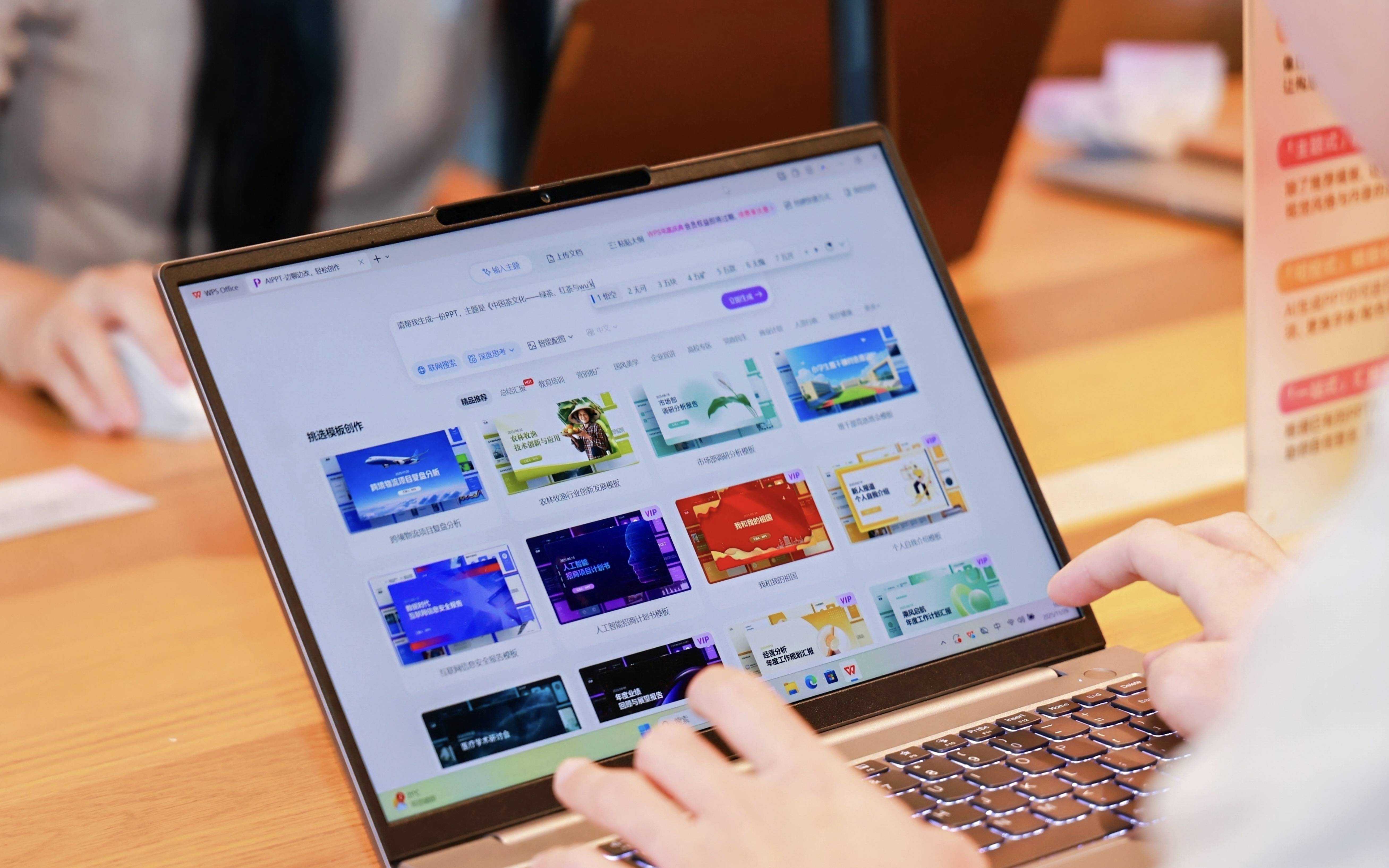
前段时间,Nano Banana Pro 发布,有网友在我们的留言区评论,说前端程序员已经不知道「死了」多少次了。
如果要把这两年职场人的心理变化画一条曲线,我想大概率是一条过山车,从最初的震惊与狂热,到中期的焦虑与恐慌,再到现在的……疲惫与祛魅。
是的,疲惫。
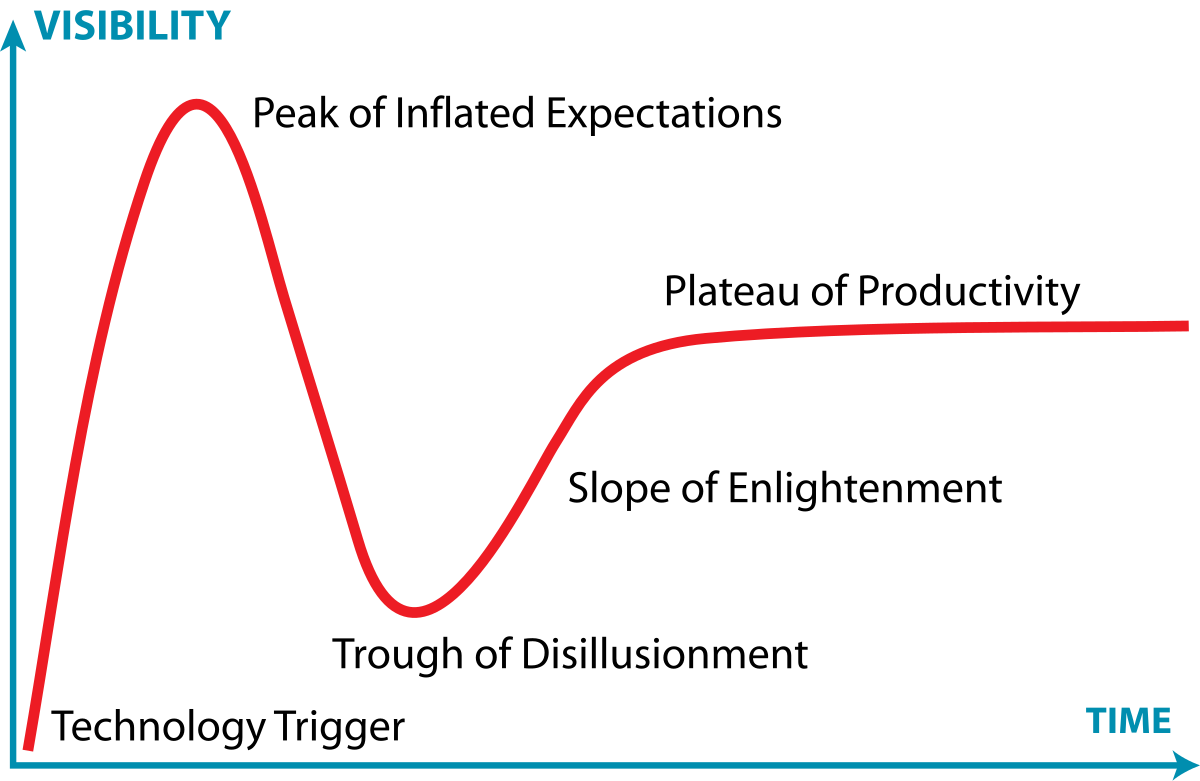
▲ 技术成熟度曲线
我们尝试着无数个声称能颠覆工作的 AI 工具,但回归到真实的周一上午,情况往往是这样的:你在一边狂敲提示词,在另一边小心翼翼地把生成的文本复制回文档,然后花半小时重新调整那个被毁得面目全非的表格格式 。
这种割裂感,真的很难让人把它和生产力三个字划等号。
很多时候,我们手里的 AI 更像是一个用来炫技的玩具,而不是那个能真正帮你把项目彻底搞定(DONE)的智能伙伴 。
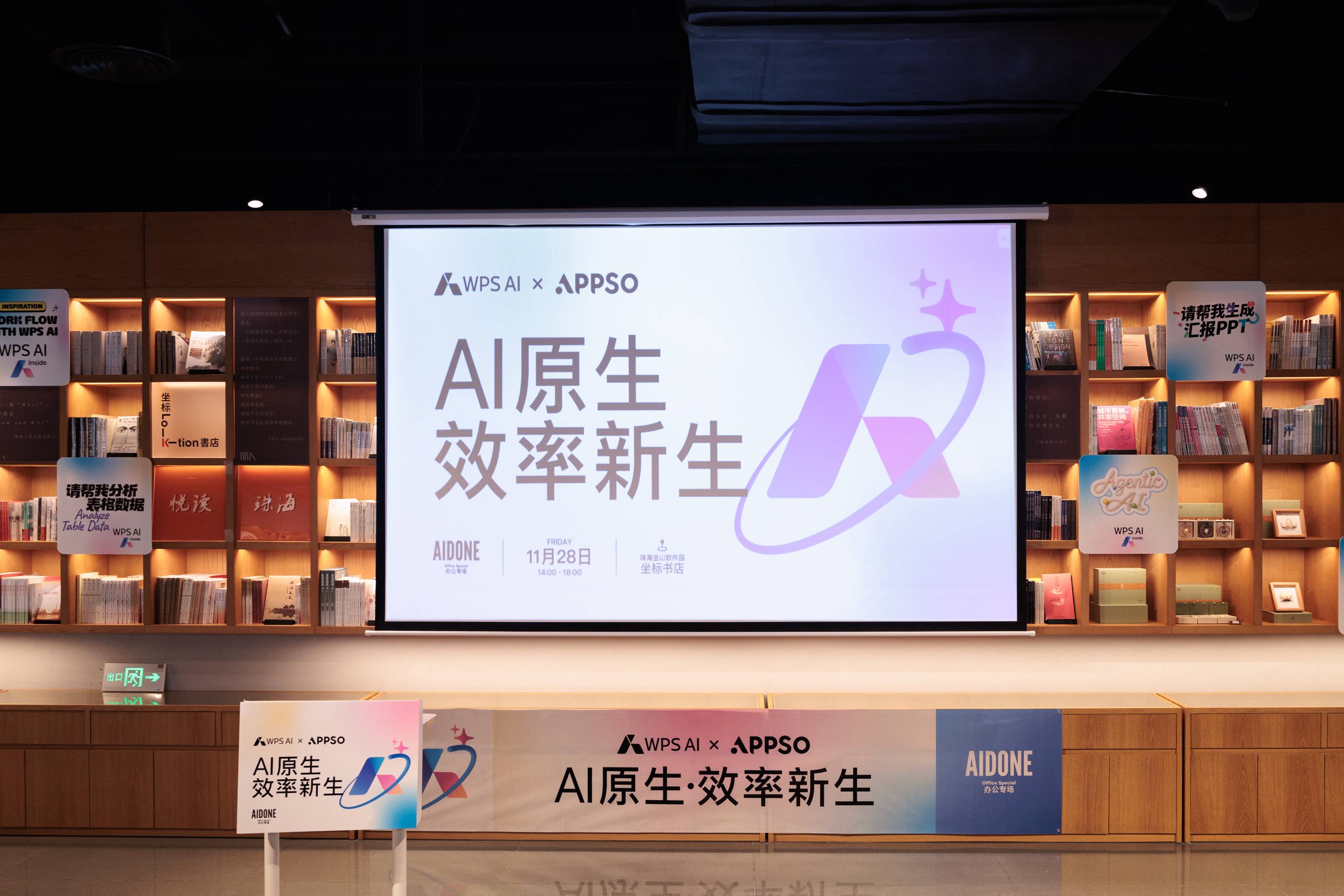
▲「AI 原生,效率新生」—— WPS AIDONE 办公专场活动
前几天,我们和 WPS AI 在珠海金山软件园一起举办了「AI原生· 效率新生- AIDONE办公专场」。爱范儿副主编、 APPSO 负责人李超凡,和金山办公 Office AI 负责人刘拓辰,在现场分享了他们对于 AI 原生与效率的看法,如何才能做到 AIDONE;还有 WPS AIPPT 的上手体验等。
从现场回来,我隐约意识到,可能我们之前打开 AI 的方式,都太累了。当 AI 和 Office 彻底融为一体之后,办公这件事完全可以从忙于交付,变成更专注思考。
什么是 AI-Native(AI 原生)?是会用 Midjourney 生成几张二次元图片?还是能熟练背诵某套万能提示词模版?又或者是用那些所谓的一句话生成产品,手搓一个项目 Demo。
我想这些都不是。
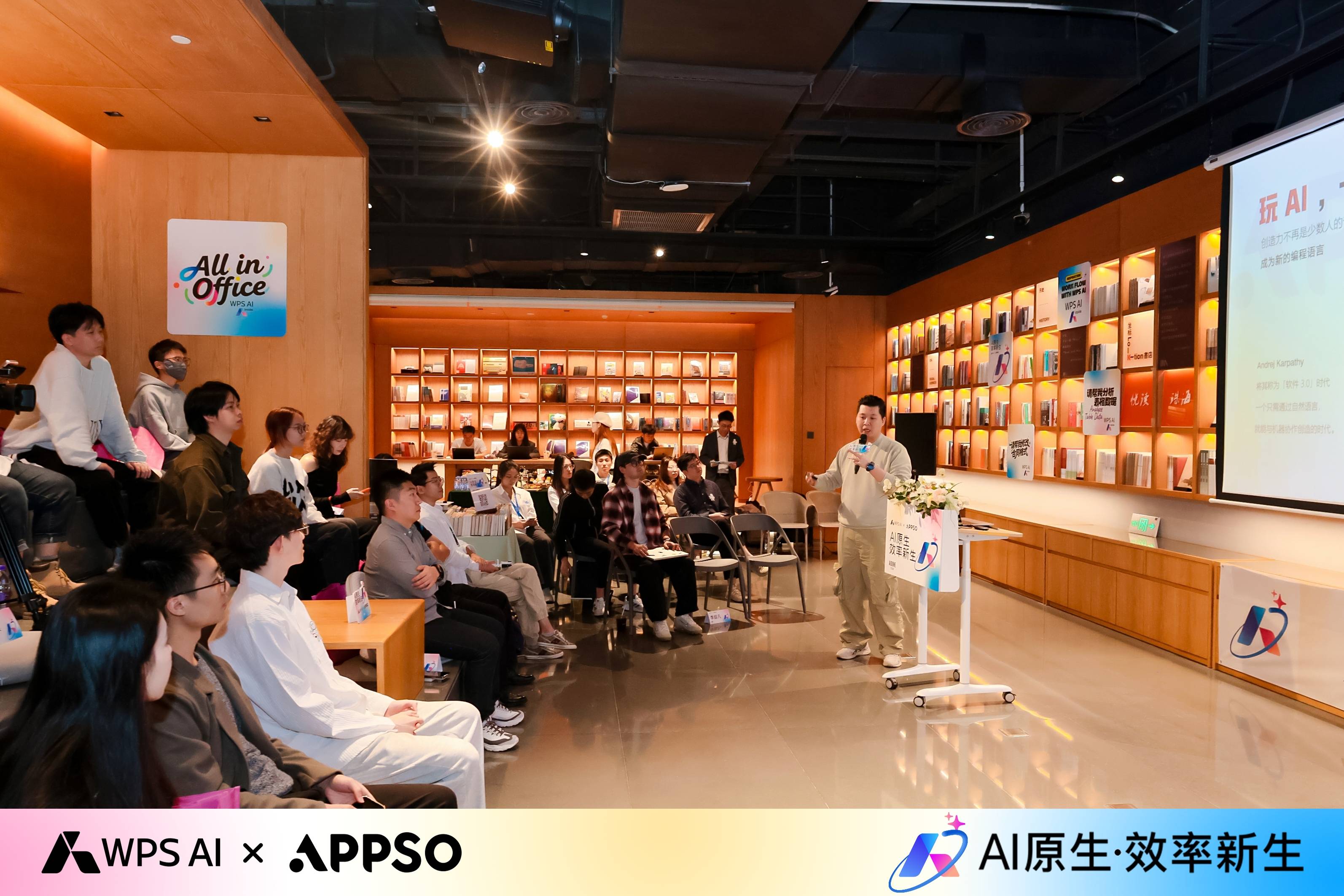
▲爱范儿副主编、APPSO 负责人李超凡主题演讲「如何成一个 AI- Native 职场人」
如同我们在现场分享的观点一样,AI 原生是一种「生物本能」,贯穿到我们工作的每一个环节。像是之前做 AI 编程的 Lovable 团队,他们整个公司只有 35 个人,成立短短 7 个月,年收入就做到了 8000 万美金。还有创作者顶流,用 AI 写深度长文,年收入达到了 400万美金的 Packy McCormick。
凭什么?就凭他们把 AI 变成了某种生物本能;他们不是雇了更多的员工,而是雇了更多的 AI。
对于真正的 AI Native 职场人来说,区别也不在于我们用了多贵的工具,而在于第一反应。遇到难题时,你的脑回路是「这事儿我该怎么熬夜肝出来」,还是「这事 AI 能帮我做吗?我该怎么指挥它?」。
但这里也有个巨大的悖论:如果指挥 AI 的成本,比我自己做还要高,那这种「本能」就是反人性的。
这恰恰是目前大多数 AI 产品的死穴,它们离我们的工作流太远了。经常是,我们得跳出文档,去浏览器里求助,然后再把结果搬运回来。这种反复横跳,足以打断任何珍贵的「心流」。
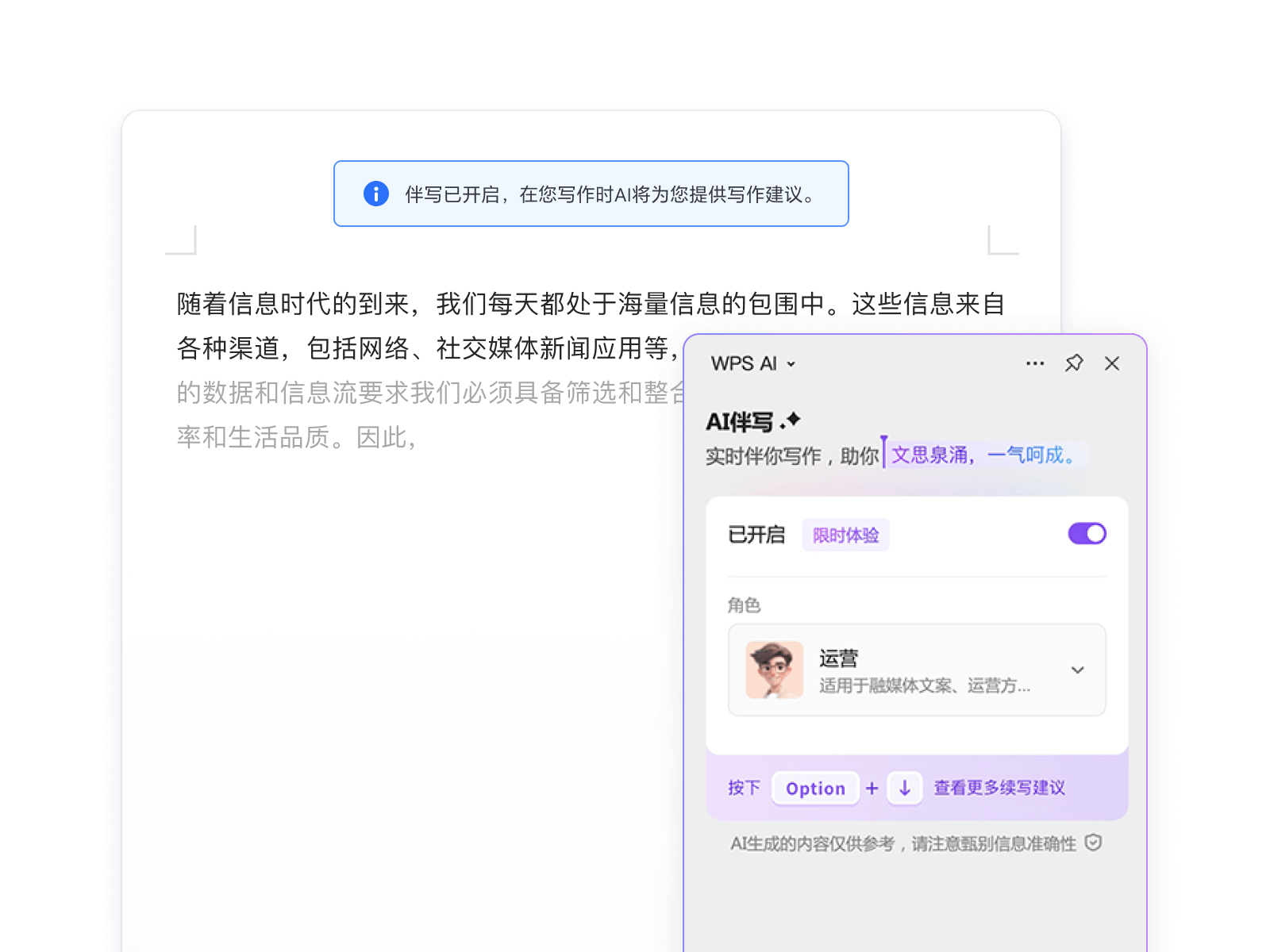
▲不打断心流的 AI 伴写
所以,AI-Native 该怎么实现。我们的判断是,在最熟悉的 Office 软件里「原生」地使用 AI,才是成为 AI-Native 职场人的最短路径。
如果说 AI 工具的割裂感是 AI-Native 的痛点,那么金山办公的 Office AI 负责人刘拓辰,则给出了解法。
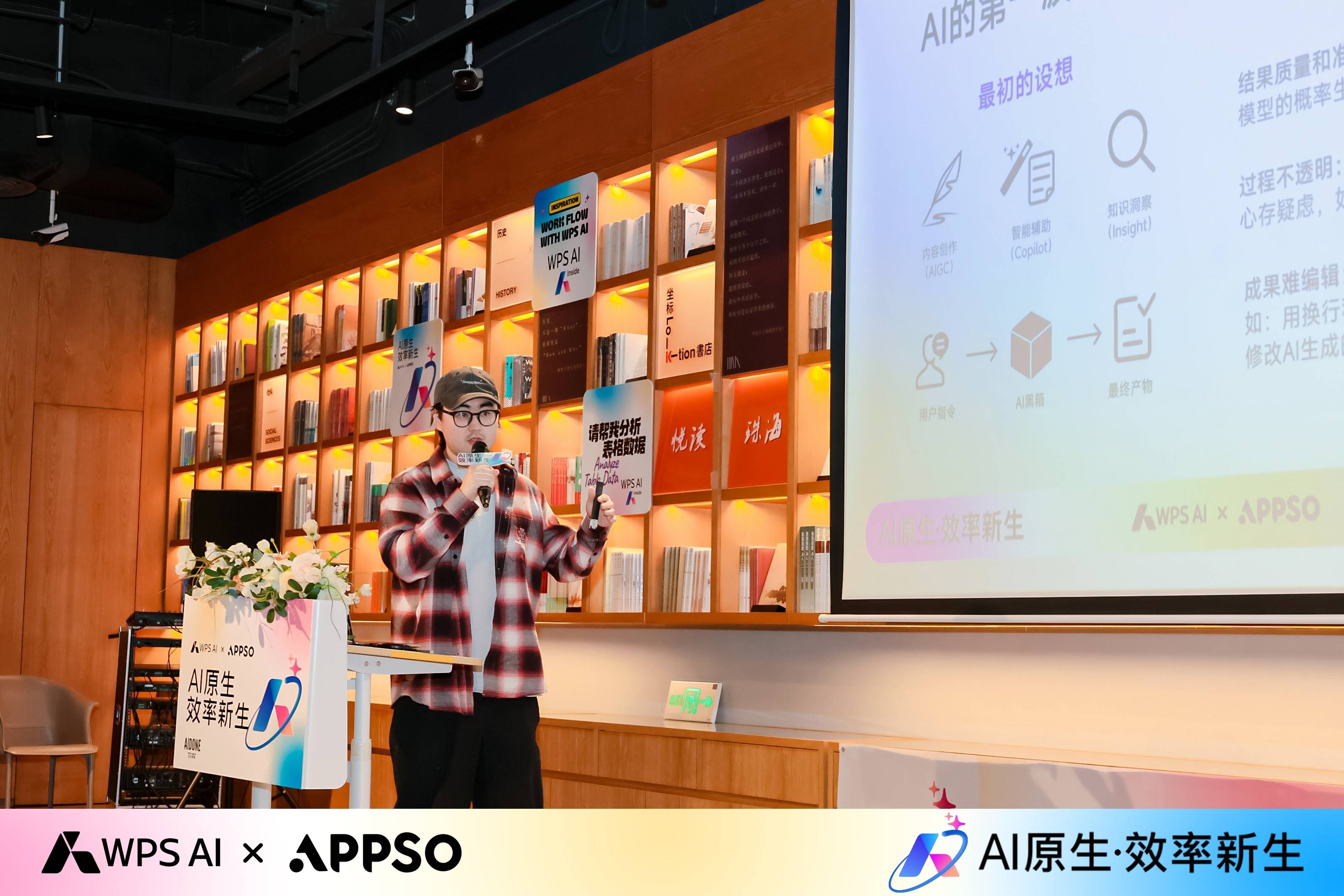
▲ 金山办公 Office AI 负责人主题演讲「原生 Office AI,从交互到交融」
他在现场提到了一个贯穿全场的关键词,「原生 Office AI」,而要做到原生 AI,他带来了一个更前沿的产品哲学:Agentic Software(智能体软件)。
这不只是一个新名词,本质上重新定义了 AI 在软件里的角色。在 WPS 的设计理念里,真正的 Agentic 应该像一个训练有素的助理,拥有两个关键能力:大脑和双手。
它得先有一个会思考的大脑,具备自主规划能力。 以往的模型是我们问一句它答一句,完全被动响应。而在 WPS AI 里,当我们抛出一个模糊的需求,比如「做一份年中复盘 PPT」。
AI 会先像人一样思考:复盘需要哪些模块?需要调用哪些数据?它会主动拆解任务路径,规划每一步怎么走,甚至在执行后进行反思;「我做出来的结果符合预期吗?如果不符合,我再重新规划修正」。
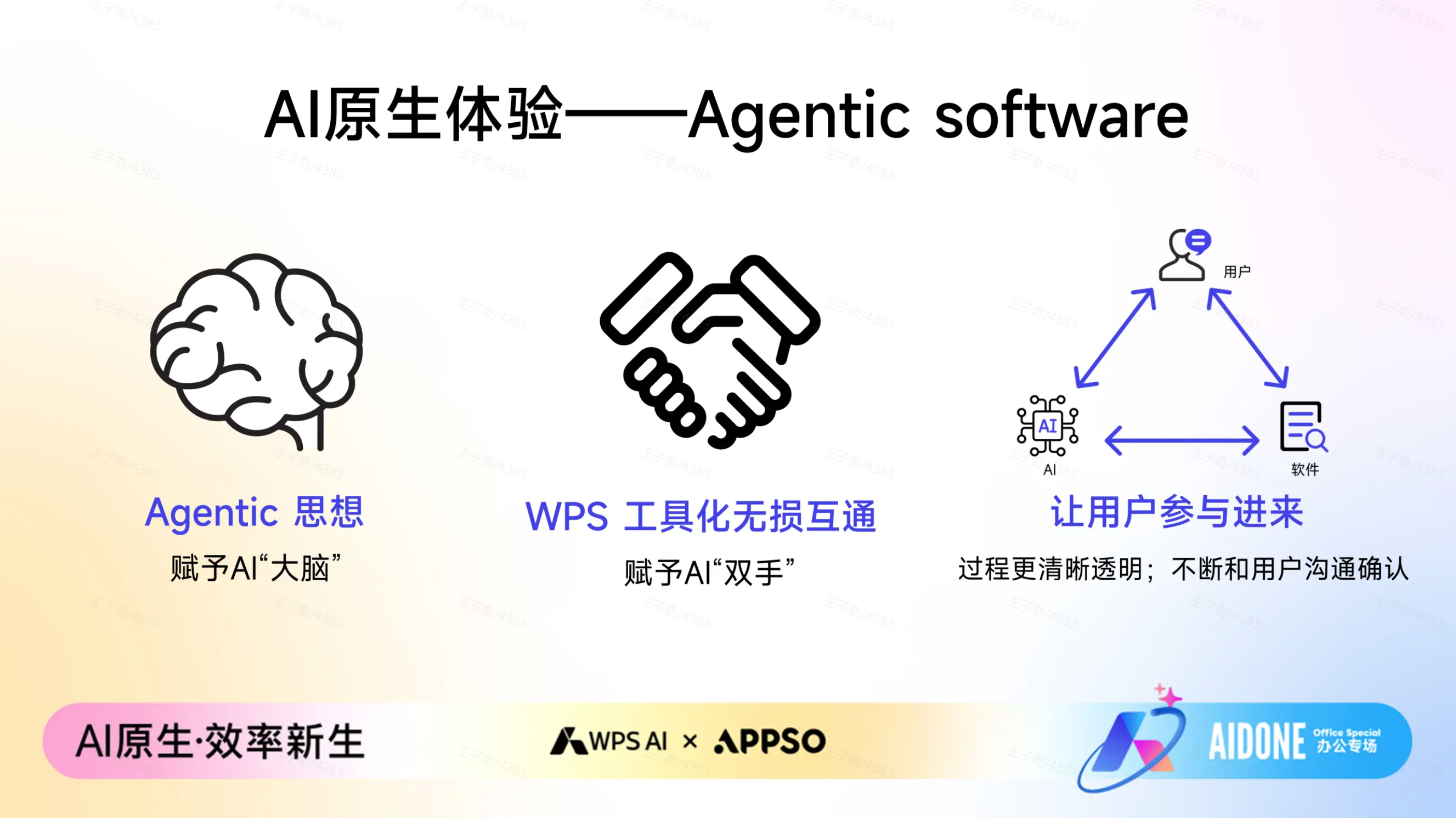
但光有想法还不够,它更需要一双干活的手,让它能无损调用各种工具。 这是金山办公 37 年,死磕办公文档底层技术的独家壁垒。
通用大模型也许能写出漂亮的文案,但它们是「没手」的,不能直接在最后交付的文档里面操作。 而 WPS 将内部最高频的核心功能,抽象成了 AI 能理解的工具,让它能理解怎么调整字号、怎么对齐表格、怎么插入文本框、实现各种样式效果。
区别于简单的懂格式,WPS 建立的这套工具化与双向无损互通的能力;做到了 AI 改完的文档,和我们亲手做的一模一样,没有乱七八糟的隐藏标签,格式完美保留。
而在这个 AI 办公过程中,我们用户的角色也开始发生了一些变化。
以往我们是操作者,每一个标点都要亲力亲为;现在,我们变成了决策者。 在 WPS AI 的执行过程中,从理解指令到拆解步骤,再到调用功能,全过程都是可视化的。我们就像坐在副驾驶,看着 AI 开车;它会告诉我们,「我打算先做数据清洗,再做图表分析」。
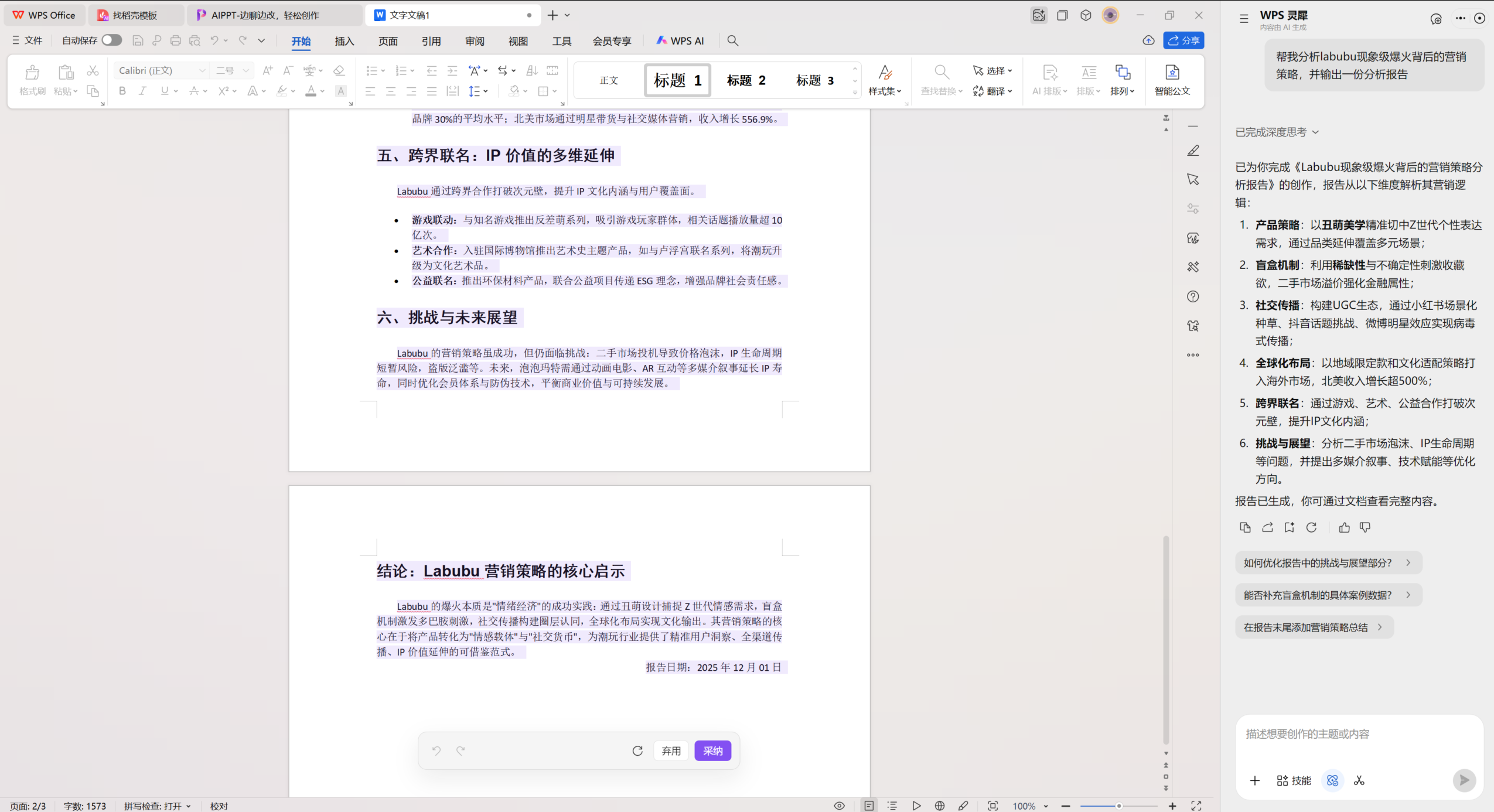
▲WPS AI 3.0 WPS灵犀 – 文字 Canvas:左侧文档编辑,右侧 AI 对话,用户与 AI 同屏协作
这种交互方式超越了简单的多轮对话,成为一种「过程可视化与实时干预」的全新范式。如果 AI 跑偏了,我们不需要推倒重来,只需在它思考的任意环节随时介入纠正,掌控权始终在我们手中。
过程透明不仅让我们更好地掌控方向,也让整个结果变得可验证、可信赖。「AI 负责规划与执行,人负责审核与决策」的模式,才是 AI 在职场真正落地的样子。
在现场的圆桌对话环节,嘉宾们还讨论了一个话题,「AI 是执行的终点,还是创意的起点?」我印象特别深的一句话是 AI 无法取代人的品味,比起执行,人的价值正在重新被凸显。
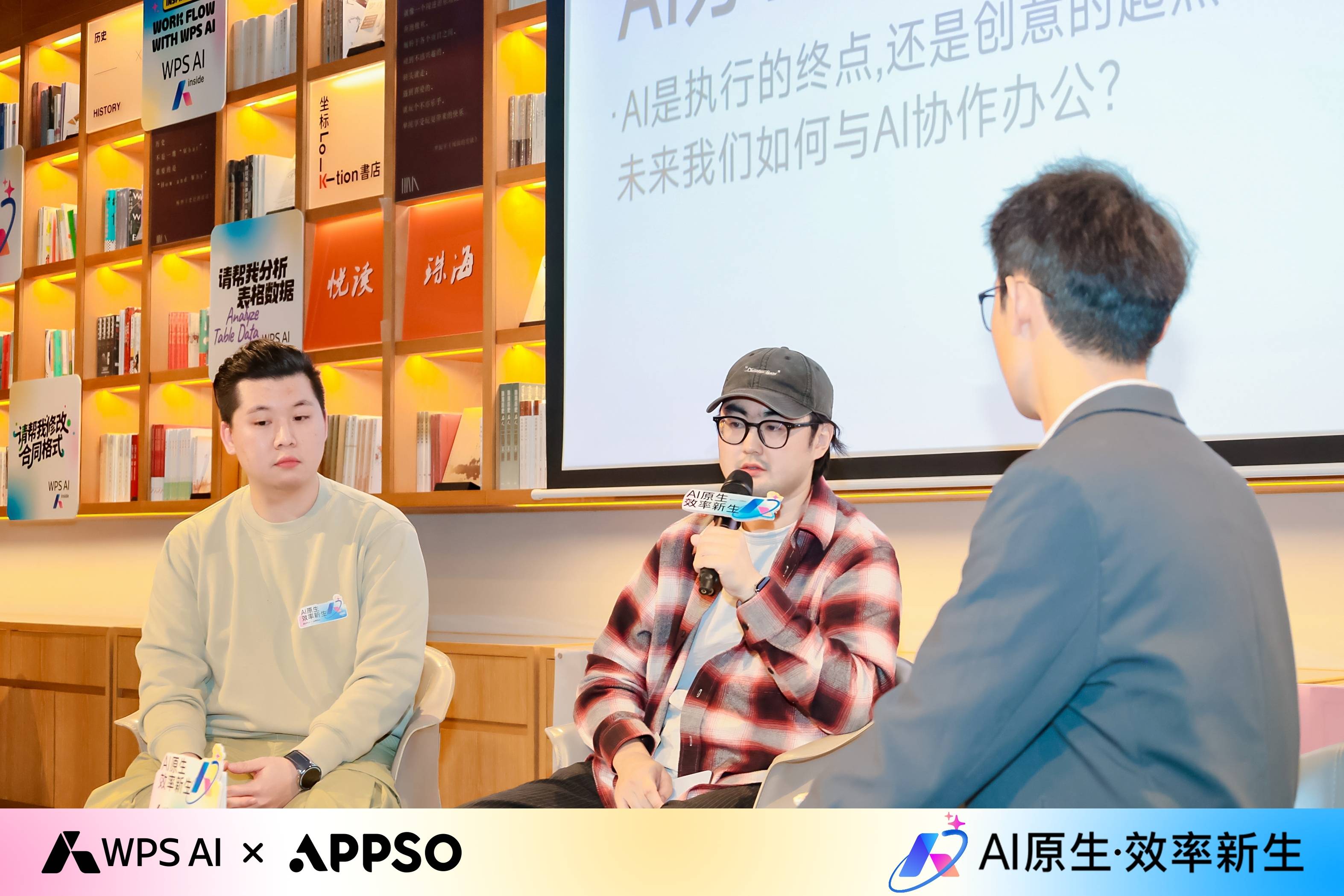
▲ 圆桌对话,探讨「AI 是执行的终点,还是创意的起点」以及「未来我们如何与 AI 写作办公」等前沿话题;左一李超凡,中间刘拓辰
AI 正在把必须做的工作自动化:排版、找图、格式、查资料、总结文档……而人类的工作,会变成:判断、提问、想法、审美、选择。这是一个更轻松、也更要求想得明白的时代。
而 WPS AI 正是在帮我们把那些繁琐的、流程化的任务都「搞定」,之后这些省下来的时间,是留给我们,可以拿来做一点真正有价值的思考和决策。
所以,AI 是终点还是起点呢,我想是因为 AI 帮我们走完了执行的终点,我们才终于有精力回到创意的起点。
在 WPS AIPPT 盲盒挑战环节,15 分钟做完 PPT 已经不是炫技,而是一种新的合作方式。用户给方向,AI 负责拆解结构、规划大纲;用户确认无误后,AI 再调用工具完成排版与美化。整个过程,WPS AI 的每一步思考都呈现在我们面前。
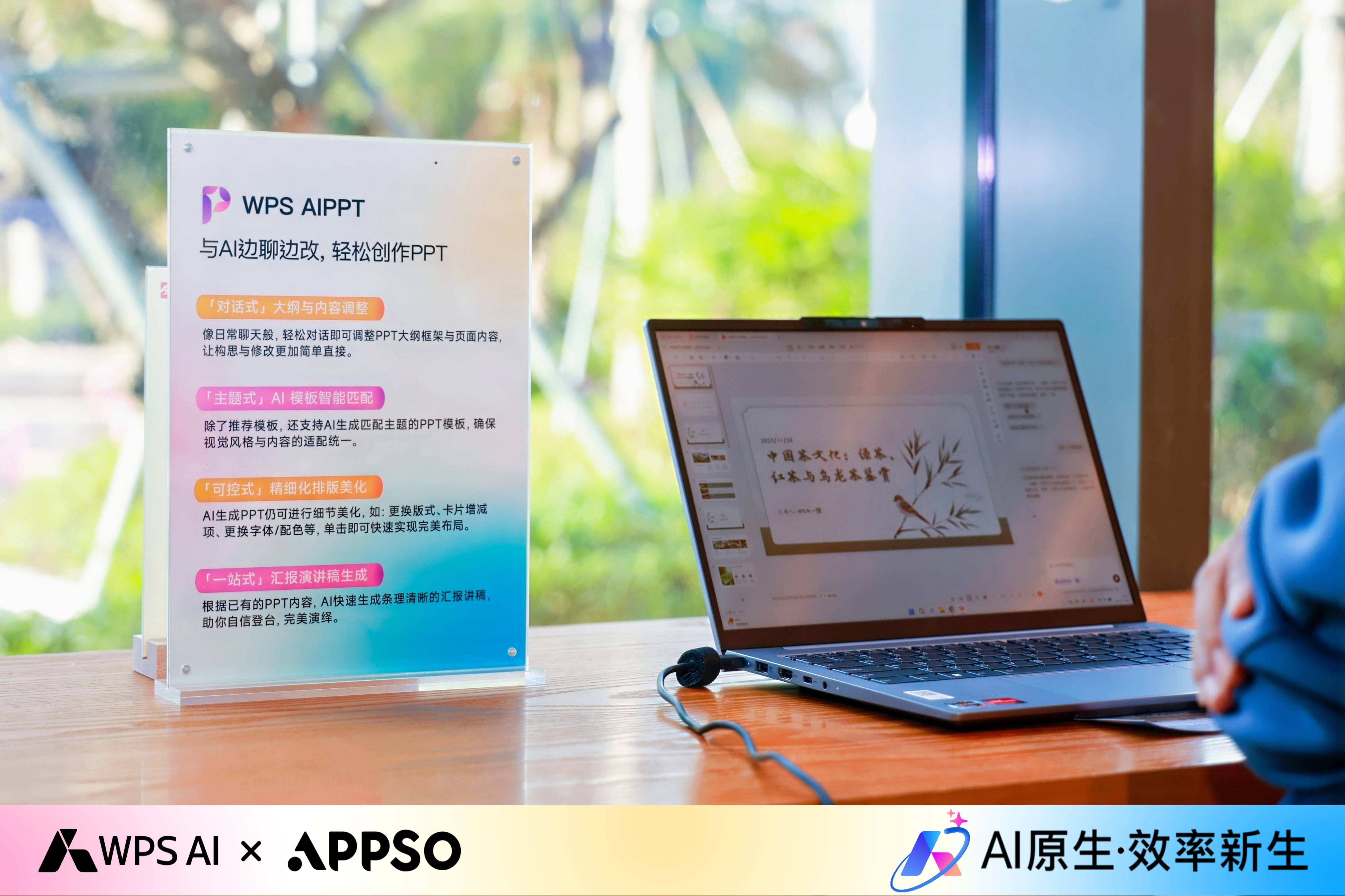
▲WPS AIPPT 盲盒挑战,参加活动的朋友正在使用 WPS AIPPT 制作
但我要说的重点不是它有多快,而在于一种新的心流,我们终于可以只专注内容,而不是被排版和格式绑架。这其实才是 Agentic Software 的意义,不是跳过工具,而是让工具的执行过程变得高效且透明。
以往做 PPT,我们处于一种左右脑互搏的焦虑中,既要像作家一样思考逻辑,又要像设计师一样纠结配色对齐。但在这次体验中,因为 AI 接管了找图、排版、美化这些繁琐的体力活,玩家只需要专注于我想讲什么。
这种不打断、不割裂、所想即所得的流畅感,恰恰验证了前面提到的理论,只有原生在文档里的 AI,才是真正的生产力。

▲ 输入主题就能得到 PPT,WPS AIPPT 官网,aippt.wps.cn
在活动现场,我不止一次听到有人感叹,「没想到 WPS 现在的 AI 已经做得这么深入了。」这句感叹背后,其实是用户对当前市面上大量「套壳 AI」的审美疲劳。
为什么 WPS AI 能给人不同的感觉?我认为核心在于金山办公对于「AI 与软件关系」的重构。正如刘拓辰所说,Agentic Software 绝不是简单的聊天机器人。智能体这个词在今年 Manus 爆火之后,就一直没有冷下来过,但对我们用户来说,一个好的 Agent 却仍然还在被定义中。
在 AI 的 1.0 时代,大多数产品是把 AI 当作一个「插件」挂在软件旁边,两套工具流,各玩各的。最近这两年,AI 工具更是百花齐放,但真正能改变工作方式的,从来不是功能升级,而是软件结构的变化。
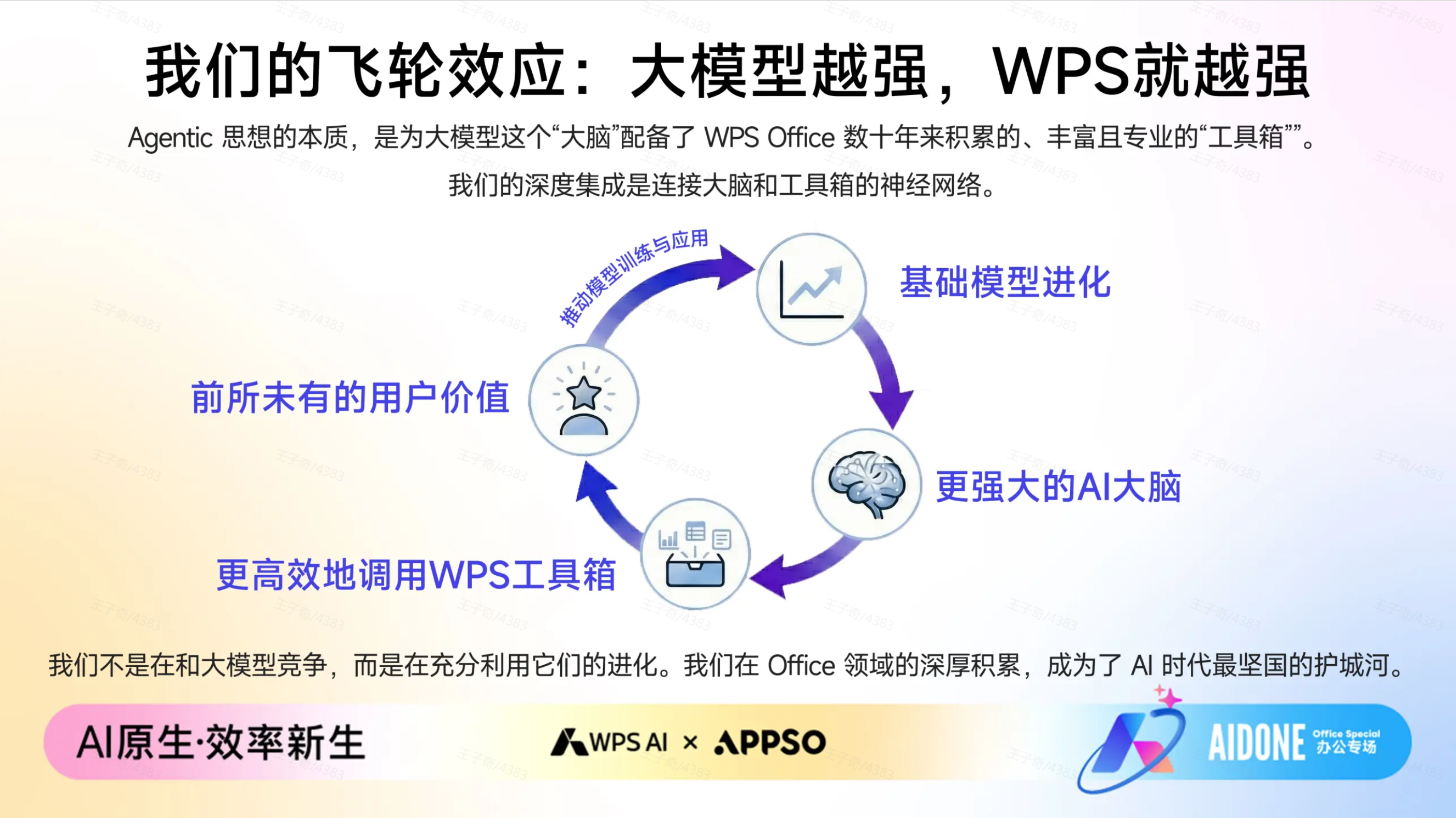
WPS AI 走的正是这条更难的路,彻底把 AI 融入软件设计;一方面,给 AI 一个独创的翻译引擎,让 AI 能读懂复杂的文档格式;另一方面,把拆解任务、调用工具的每一步都摊在台面上,我们看着 AI 干活,随时喊停纠正。
它不满足于仅仅生成一段文字,而是要成为一个能真正「交付结果(Get Things Done)」的智能体。无论是最近大火的「企业知识库」功能,还是这次演示的 WPS AIPPT,本质上都是这种「原生+智能体」思路的落地。
在 WPS AI 的体系里,AI 不是插件、不是外挂,也不是单纯的内容生成器。它是我们文档里的助手,是会议里的整理者,是灵感的第一落点,是 PPT 的合作者。
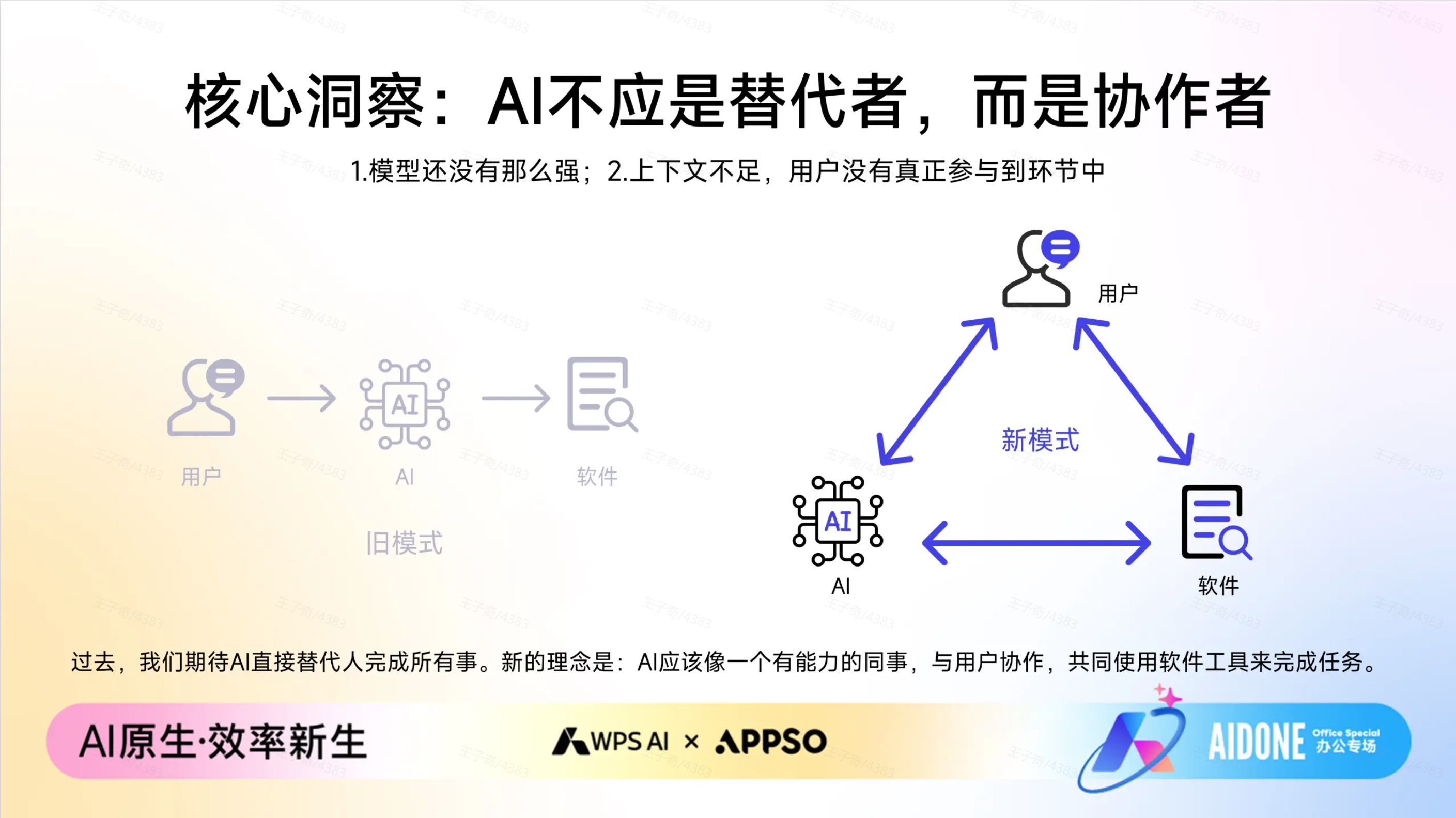
对于当前这个浮躁的 AI 时代来说,这其实是 WPS AI 一种克制与务实的长期主义。不去卷那些花哨的 C 端娱乐功能,而是死磕文档、知识库、企业大脑这些 Office 办公领域的基石;也让 WPS AI成为了目前市面上少有的、真正能被称为「生产力」的产品;懂文档、懂创作、更懂用户。
回想起文章开头提到的那个问题:我们还需要多久才能跨越 AI 的尝鲜期?答案也许就在你打开 WPS 的那一刻。
当你发现,原本需要一下午才能搞定的 PPT,现在喝杯咖啡的功夫就能出初稿;当你发现,你终于不再是软件的奴隶,而是 AI 的指挥官时;你就已经是一个 AI Native 职场人了。
不要让 AI 成为你的焦虑来源,去试着指挥它,去试着把那些「必须做」的繁琐交给它,让自己专注于「值得做」的事情 。
毕竟,只有当我们繁琐的操作真正隐形,创造力才能真正显现。
#欢迎关注爱范儿官方微信公众号:爱范儿(微信号:ifanr),更多精彩内容第一时间为您奉上。


