Apple has just released an update to XProtect, bringing it to version 5325. As usual, it doesn’t release information about what security issues this update might add or change.
This version adds five new Yara rules, four for the Soma/Amos family – MACOS.SOMA.DEENA, MACOS.SOMA.DEPEA, MACOS.SOMA.DETRA, and MACOS.SOMA.DELEA – and MACOS.ODYSSEY.DEENA for the Odyssey family.
You can check whether this update has been installed by opening System Information via About This Mac, and selecting the Installations item under Software.
A full listing of security data file versions is given by SilentKnight and SystHist for El Capitan to Tahoe available from their product page. If your Mac hasn’t yet installed this update, you can force it using SilentKnight or at the command line.
If you want to install this as a named update in SilentKnight, its label is XProtectPlistConfigData_10_15-5325
Sequoia and Tahoe systems only
This update has not yet been released for Sequoia and Tahoe via iCloud, but should be shortly. If you want to check it manually, use the Terminal command sudo xprotect check
then enter your admin password. If that returns version 5325 but your Mac still reports an older version is installed, you should be able to force the update using sudo xprotect update
Several of those who have already updated to macOS Tahoe 26.2 have remarked how much larger their download was than the 3.78 GB expected for Apple silicon Macs, with some reporting over 10 GB. Here I ponder how that could happen.
How is macOS now updated?
My understanding of the broad processes involved in current macOS updates is that the total downloaded for Macs of the same architecture starting from the same version should be identical.
Major components required for each update include:
contents of the System volume that have changed from the starting version for that update;
standard cryptexes containing Safari and its supporting components, and dyld caches. The latter differ between Intel Macs, which only receive Intel versions, and Apple silicon Macs, which receive Intel versions to support Rosetta 2 as well as their own Arm versions. Those probably account for much of the difference in size between Intel and Apple silicon updates. Note that Apple silicon Macs may also require updates to cryptexes used in AI, but those are most likely obtained outside the macOS update;
architecture-specific firmware;
new Recovery system;
the ‘update brain’ to run the update, including creation of the new SSV with its hash tree.
Those contrast with what’s required for a full installer upgrade (or reinstall), which consists of a single Universal app containing the whole contents of the SSV, cryptexes and firmware for both architectures, Recovery and the update brain.
Following decompression of the download, changed components are installed in the System volume, a snapshot made of that, and its hash tree is constructed. Updated cryptexes replace those from the previous version, the new Recovery system and firmware updates are installed.
For all Macs of both architectures being updated from the previous public release of macOS, creation of the new SSV should be identical, as their old SSVs are all signed with the same signature, as their contents are identical.
Combo updates
In any update, changed contents of the System volume depend greatly on the starting version of macOS installed. Updating from a previous beta can require different files to be replaced, compared with those from the last public release. In some cases, Apple may be able to provide a single updater that will convert both a Release Candidate and the last public release into the new version.
If that’s not feasible, Macs that are updating from a beta, or a public release before the last, will require what we used to call a Combo update, consisting of all changed contents since the last major version, in this case 26.0. Combo updates are inevitably significantly larger than single-step Delta updates from the last public release, but should remain smaller than a full installer.
Recent upgrades between major versions of macOS, such as 15.6 to 26.0, have tried to avoid full installers where possible, by adopting what’s effectively a Combo-style update, but slightly larger as a Combo+.
Thus, updates to 26.2 most probably consist of:
a Delta update from the last public release, 26.1, which might also be suitable for some beta releases;
a Combo update from 26.0, 26.0.1 or some beta releases.
a Combo+ update or full installer from earlier major versions of macOS.
As later minor versions are released, the size of the Combo update rises, as it’s required to incorporate more changes than for previous updates.
What would be surprising would be for two Macs of the same architecture updating from the same starting version of macOS to be provided with updates of significantly different size. I look forward to hearing from you if you consider that happened with the 26.2 update.
No BSI/RSR
What is puzzling about the 26.2 update is that it wasn’t preceded by a Background Security Improvement (BSI) or Rapid Security Response (RSR). Two of the top security vulnerabilities fixed in 26.2 (and in the Safari updates for 15.7.3 and 14.8.3) are both in WebKit, which is supplied in the Safari cryptex. These are for CVEs 2025-43529 and 2025-14174. Both were documented as already being exploited in older versions of macOS, in sophisticated attacks on targeted individuals. Both would appear to have been suitable for distribution prior to 26.2 in updated cryptexes, either by the existing RSR system or its replacement in Tahoe 26.1 of the BSI.
This appears to have been another missed opportunity for an RSR/BSI to have proved its value.
I hope that you enjoyed Saturday’s Mac Riddles, episode 338. Here are my solutions to them.
1: The first macOS from the mountains around Tahoe.
Click for a solution
Sierra
The first macOS (10.12 Sierra was the first of the new rebranding) from the mountains (named after the Sierra Nevada) around Tahoe (the mountains around Lake Tahoe).
2: The eighth came from the App Store with Mission Control and a mane.
Click for a solution
Lion
The eighth (MacOS X 10.7 was the eighth major version) came from the App Store (it was originally intended to be available only from the App Store) with Mission Control (introduced in 10.7) and a mane (distinctive of a lion).
3: The sixth came with a time machine and spots.
Click for a solution
Leopard
The sixth (Mac OS X 10.5 was the sixth major version) came with a time machine (it introduced Time Machine) and spots (distinctive of a leopard).
The common factor
Click for a solution
Following each of these came a version with the same name qualified: High Sierra, Mountain Lion and Snow Leopard.
Several of my utilities rely on being able to read log entries from your Mac. For most, this is the only way that you’re ever going to try to access the log. For a few this draws attention to potential problems, when the app discovers it can’t access the log and reports that as an error. This article explains what those errors mean, and what you can do to address them.
Log file layout
Files containing log entries are stored in two main locations in your Mac’s Data volume. The majority of them are in /var/db/diagnostics/, while additional and lengthier log data is stored in files named by UUID in /var/db/uuidtext/.
Those in /var/db/diagnostics/ are grouped into standard folders:
Persist holds tracev3 files that contain regular entries, the most important;
Special has similar files for shorter-life entries;
timesync contains files that enable the entries in tracev3 files to be matched with clock time;
Signpost holds tracev3 files for special entries for measuring performance;
HighVolume is normally empty, but might contain entries during periods when they’re particularly frequent.
Unlike traditional Unix log files, macOS doesn’t keep logs for a fixed period such as five days, but the logd process maintains them constantly to keep their total size within set limits that can’t be altered. Thus the period covered by log entries depends on how frequently entries are written to the log. In extreme cases, that can fall to just a few hours, or could extend to many days, although typically it should be at least 24 hours.
SilentKnight
My most popular app that’s also most frequently run, SilentKnight runs a single check that relies on being able to access the log, to look for XProtect Remediator scan reports.
Each time you run SilentKnight, as it prepares to display its window, it runs four checks on the log, those detailed below for LogUI and XProCheck. If any of those fail, rather than warning you in an alert, it simply disables its check for XProtect Remediator scans, and reports XPR scans not checked. If those pass correctly but it can’t find log entries for the scans, it reports no scans in the last 36 hours instead.
There are complications, though. SilentKnight will only check those scans once a day. If you run it more often than that, it won’t repeat those log checks on the XPR scans, and simply informs you XPR scans not checked. It’s only if you see that for the first check of the day that message suggests there may be a problem with the log. You can also disable checking for XProtect malware scans in the app’s settings.
If you see the message XPR scans not checked when you first run the app, and you haven’t disabled that check, then it’s worth running one of the other log utilities to discover why.
XProCheck, Mints, LogUI
Because these apps are all about inspecting log entries, they incorporate more extensive checks and report errors in more detail. To fetch entries from the log, Mints uses the log show command, while XProCheck and LogUI access them directly through macOS. They all run the following checks when the app is starting up, before its main window is displayed, and will warn you in an alert. When you dismiss that alert, the app will quit to allow you to fix the problem before running it again.
Tests used are:
Is the current user an admin user? If not, the alert below is displayed.
Are there any log files in the Persist folder? If not, report that it can’t find any log files.
Are there any timesync files? If not, report that it can’t find any log timesync files.
Can log show retrieve at least 1 log entry from the last 2 seconds? If it can’t, report that it can’t find any log entries on your Mac.
Mints runs another as well:
Can log show get times in the correct format? If it can’t, report the log time format is incorrect and advise the user to set time to 24-hour format.
Fixes
First, ensure that your Mac isn’t deleting log files in /var/db/diagnostics/ or /var/db/uuidtext/. Some ‘housekeeping’ utilities have taken to doing that, but it saves little space, usually well under 2 GB, and removes a mine of invaluable diagnostic information.
You can get fuller information about what’s in those folders with the Logs button in Mints, which also tells you the date of the oldest log entry. The same information is available in LogUI’s Diagnostics Tool.
The usual recommendation for Macs that aren’t writing any files into the Persist or timesync folders is to perform a clean reinstall of macOS or, for Apple silicon Macs, to restore the Mac in DFU mode. However, you’d be wise to contact Apple Support in the first instance, as this problem has occurred before.
If your log records only go back a few hours, there’s no simple way to reduce the rate at which new entries are written to the log. This article suggests some general approaches, and this article explains how to use custom logging profiles.
I suppose it had to happen that search engines and AI were exploited to deliver malware to the unsuspecting. As that article prompted a brief discussion of the usefulness and reliability of AI-based troubleshooting, I’ve been doing a little checking.
To examine this, I’ve posed Google’s AI some test questions. Rather than run through a long list, I’ve focussed on five that are reasonably frequent but have catches in them. Some are embedded in the question itself, others are inherent in the solution. My aim here isn’t to focus on the strengths of AI, but to understand its weaknesses better, just as you might with a human expert. After all, it doesn’t take much expertise to get the straightforward answers right.
1. How to reduce system data on mac
This question is framed carefully to reveal that the questioner has already used Storage settings, and has been confronted with a great deal of space being used by System Data, an unhelpful category and a situation that’s all too common, as I’ve considered here and elsewhere.
Google’s overview started well, telling me that “System Data includes caches, logs, and temporary files that build up over time and aren’t easily removable like regular documents.” Once it progressed to suggesting actions, though, it repeated a formula it seems to like, but is sadly well out of date: “Use Built-in Storage Management. Click the Apple menu () > About This Mac > Storage > Manage. Use recommendations like ‘Store in iCloud,’ ‘Optimize Storage,’ and ‘Empty Trash Automatically’.” If you try to follow those, you’ll immediately discover that Storage has moved elsewhere. Furthermore, those recommendations won’t tackle the problem framed in the question.
It continues on safer ground, with procedures to clear caches and logs, but those are conducted in Terminal, and there’s no mention of booting in Safe mode. It also directs the user to Terminal to remove snapshots using tmutil rather than Disk Utility. After that, it loses the direction in the question, recommending the user to “remove unused applications and files”, despite the fact that they aren’t included in System Data. Finally, and still off the subject, it mentions using DaisyDisk.
This demonstrates how Google’s AI can’t maintain a logical sequence in troubleshooting, and prefers to direct the user to command tools rather than familiar bundled utilities like Disk Utility, or one of the primary purposes of Safe mode.
2. How to reset home permissions on mac
This has long been a contentious issue, but for the last few years has been fairly settled, as explained here. We no longer reset or repair permissions.
This was Google’s most obvious disaster, as it advised: “To reset home folder permissions on a Mac, boot into Recovery Mode (Command-R), open Terminal, type resetpassword , and use the ‘Reset Home Directory Permissions and ACLs’ button in the utility to fix ownership and permissions for your user account, then restart. For newer macOS versions, Apple also suggests using the repairHomePermissions tool in Recovery, followed by a macOS reinstallation for a full fix, but the resetpassword utility is the primary way to reset the main permissions.”
Of course, Apple silicon Macs don’t use Command-R to enter Recovery Mode, and as you might expect, the resetpassword command opens Recovery Assistant where you can reset your password in the event that you forgot it. That has absolutely nothing to do with permissions, and demonstrates that Google hasn’t understood the question. There’s no such button in that utility, so it’s making things up. It’s also worth nothing that it later recommends that after running repairHomePermissions, you reinstall macOS.
Perhaps the fundamental problem here is the linked support content dating back to 2011, and a failure to recognise how this has changed in the years since. This suggests that its LLM doesn’t take time and change into account, which is deeply concerning when deriving advice on macOS.
3. How to identify clone files in macos
This has been a longstanding problem since the introduction of APFS. Note, though, that question isn’t posed to test whether two or more files are clones of one another, simply how to identify whether files are clones.
Google’s AI Overview is pretty good, and points out that “you need specialized tools or command-line tricks because Finder just sees copies”. However, the next section is titled “Using Finder (for general duplicates)” and gives a facile answer that’s completely inappropriate to that question. This demonstrates how AI always tries to answer, even when it doesn’t know an answer. After that it offers a Terminal solution that again finds duplicates but not clone files, as it doesn’t even check whether the files found have been cloned. It then suggests using specialised apps, including Precize and Sparsity, but lacks useful detail. It ends with pointing out the differences between hard links and clone files, but clearly hasn’t understood a word.
Humans are far more willing to admit they don’t know, and to ask follow-up questions to help them understand exactly what you’re asking.
4. How to run an unsigned app in macos
One of the well-known features of Apple silicon Macs is that, from their first release five years ago, they have only ever run code that has been signed, even if using just an ad-hoc signature, while Intel Macs remain able to run apps and code that has no signature at all. There’s also an important distinction between unsigned code, and code that has been signed by an ad-hoc signature rather than a developer signature.
Those are missed entirely by Google’s AI, as a result of which its answer is riddled with misunderstandings. It recommends what it terms ‘The Standard “Open Anyway”‘ method, which still can’t run unsigned code on Apple silicon. Its final recommendation is to use sudo spctl --master-disable, which disables Gatekeeper and XProtect checks but still doesn’t allow unsigned code to run on Apple silicon.
Given that LLMs are all about language rather than facts or knowledge, it’s surprising that it failed to see the distinction here. This topic was also widely discussed when Apple silicon Macs were introduced, so it’s puzzling that Google was unable to recall any discussion from that time.
5. How to remove com.apple.macl in macos
I’ve only recently revisited this topic, although it dates back to Catalina. This particular extended attribute is frequently added to files, and can have unpleasant consequences when opening or saving them is blocked. Unlike the ordinary quarantine xattr, when macOS applies this one it’s usually protected by SIP, which makes its removal fraught unless you know the trick.
Google AI’s answer made a promising start, writing that “you can use the xattr command in the Terminal, but you might need to use a specific approach depending on your macOS version and file location, as this attribute is often protected by System Integrity Protection (SIP) or file access permissions.” It then ignores the problems posed by SIP protection, and recommends trying the xattr command. As an alternative for “stubborn cases”, it recommends booting into Recovery, and using xattr from there, which should work if you can locate and access the file, which can be quite an achievement in Recovery.
In a bid to remain helpful, it next suggests granting the Terminal app Full Disk Access, although that’s irrelevant. It tries again with: “A common workaround involves moving the file using an application that doesn’t propagate the com.apple.macl attribute, or transferring it to a non-Mac file system.” It finally gets lost when trying to use iCloud Sync.
In common with other answers, Google’s AI started off well, as if it understood the heart of the problem, but quickly demonstrated that it was unable to recall a solution, and stopped making any sense.
Reproducibility
Before you rush off and try the same questions in your favourite AI, a word of warning: the answers you’ll be given will be different from mine, even if you use exactly the same words with Google. This is because randomisation is at the heart of AI, and each time you elicit a response from an LLM, it will differ. Sometimes those differences can be subtle and linguistic, others can manipulate different ‘facts’, or fabricate conflicting answers. This is, apparently, intentional, and hopefully never affects any human expert you consult.
Conclusions
These five questions have demonstrated that Google’s AI can produce some surprisingly accurate information that appears insightful and can match human expertise. In some cases, recommended solutions are sound and well-explained, but in others they appear based on outdated information that may conflict with the opening Overview. Where there aren’t readymade solutions it can quote, it will always try to be helpful in providing an answer, no matter how illogical or flawed that might be. In some cases those could lead an unsuspecting user into danger, and often ignore what was seeded in the original question.
The only way to use Google AI safely is to double-check everything carefully with authoritative sources before trying any of its suggestions, which surely removes much or all of its value.
macOS apps manage the contents of their own windows, drawing and refreshing them as needed. To assemble all those into what you see on the display requires the services of the master compositor, WindowServer. From the moment the login window appears during startup, WindowServer is hard at work, and remains so until you shut your Mac down. Without WindowServer there could be no GUI.
Open Activity Monitor, and you’ll see WindowServer close to the top of the lists of CPU, Memory and Energy users, and when it’s getting into trouble that’s always a good place to check what’s going on. You may also notice that it’s one of a pair of processes including distnoted with their own user, _windowserver. They’re part of a group of interconnected services that handle window management, compositing of windows into the display image, and event-routing for apps, with distnoted responsible for system message notification. In the log, WindowServer is often associated with the com.apple.SkyLight subsystem.
Compositing
You can get a good idea of what WindowServer does using screenshots. Using Command-Shift-4, then pressing the Space Bar and selecting a window, you’ll get a shot of an individual window, as shown in the examples below.
WindowServer then positions them according to their current locations on the whole display, and produces a layered composite, as you’ll see in a screenshot taken with Command-Shift-3.
That composite is then sent through the graphics driver to graphics output hardware.
With its central position in managing windows and compositing them, WindowServer is also responsible for handling Spaces (introduced in Mac OS X 10.5 Leopard), window tabs, multiple displays, and behaviours that stream or extract parts or all of a display image, such as taking screenshots. Because WindowServer knows which app’s windows are where, and which are at the front, it also routes events to each app. For example, when you click on a window it’s WindowServer that determines which app owns it, and passes the event to that app to handle.
Increasing demands
This has become more involved since the introduction of Catalyst apps from macOS 10.14 to 11, and more so since Apple silicon Macs have brought the ability to run iOS and iPadOS apps. iOS uses a series of -board services in its GUI, including SpringBoard as the Home Screen manager instead of the Finder, FrontBoard to manage the app’s scenes, and FuseBoard its menus, which are now run in macOS as well. RunningBoard, which manages the resources available to apps and processes, has been incorporated into macOS for some years.
The introduction of Stage Manager in macOS Ventura in 2022 has also been stretching WindowServer, and can substantially increase its demands on CPU and memory.
Troubleshooting
You can reduce WindowServer’s workload by closing tabs and windows, turning Stage Manager off, reducing the number of Spaces, and quitting non-essential apps. Even when window or tab contents aren’t visible, they still have to be managed.
If WindowServer stops working, for instance when it crashes, not only does everything on the display(s) freeze, but routing of input events such as clicks or taps also stops. Although in the past macOS has sometimes been able to log the current user out and restart WindowServer, fatal WindowServer problems are now most likely to result in a kernel panic or a complete freeze. If your Mac freezes rather than restarts, a forced shutdown may be your only way forward. Recurrent WindowServer crashes suggest a problem with the graphics driver or graphics hardware, and should always be reported to Apple via Feedback.
Summary
WindowServer works between app window management and display drivers to composite windows and on-screen items, producing the image to be displayed.
With distnoted it also routes events to apps, and manages system message notification.
Demands on its services are increased with Spaces and Stage Manager, and it works with the different expectations of Catalyst and iOS/iPadOS apps running in macOS.
When it fails, displays freeze and input responses cease. If those don’t precipitate a kernel panic and restart, a forced shutdown may be the only solution.
The update from macOS Tahoe 26.1 to 26.2 is fairly large, but appears to be largely routine maintenance, together with some important security updates.
At last, Apple has provided more detail of some of the improvements and changes in this summary. These include a new Edge Light feature to light your face during low-light video calls, Podcasts gaining automatic chapter generation, filters added to the Games library, AirDrop codes providing an additional means of verification with unknown contacts, and enhancements to Freeform tables.
Security release notes report a total of 46 vulnerabilities addressed. Among those are multiple WebKit vulnerabilities, including two that Apple believes have been exploited already “in an extremely sophisticated attack against specific targeted individuals” in earlier versions of iOS. Those alone make 26.2 a compelling early update.
The build number of macOS 26.2 is 25C56, it updates iBoot firmware to version 13822.61.10 on Apple silicon Macs and Intel firmware to 2094.40.1.0.0 (iBridge 23.16.12048.0.0,0). Note that Intel Macs only have an update to iBridge, and not their EFI firmware this time.
Significant changes seen in bundled apps include:
Freeform, to version 4.2
Music, to version 1.6.2
Passwords, to version 2.2
Safari, to version 26.2 (21623.1.14.11.9)
TV, to version 1.6.2.
Significant changes seen in /System/Library are relatively few, with many minor increments to build numbers. Notable changes include:
All AGX kernel extensions are updated
AppleDockConnect is a new kernel extension to accompany AppleDockChannel
AppleThunderboltRDMA is another new kernel extension
APFS is updated to version 2632.40.17, a tiny increment
the webcontentfilter kext has been removed
there is no change in the RichText.mdimporter for Spotlight indexing, implying that no bugs have been fixed in it.
The total number of bundles in that folder has only increased slightly, from 9785 to 9832.
One common criticism of the new Liquid Glass option added to Appearance settings in 26.1 is that Reduce transparency in Accessibility settings no longer reduces some transparency effects. There has been no change in that behaviour in 26.2, which continues to apply Liquid Glass effects in locations such as sidebars despite Reduce transparency being turned on. Our cries have clearly fallen on deaf ears.
I have also confirmed, as I suspected from the lack of change in the RichText.mdimporter, that the ‘LG bug’ in Spotlight remains, and still hasn’t been fixed.
Apple has just released the update to bring macOS Tahoe to version 26.2, and security updates to Sequoia and Sonoma to bring them to 15.7.3 and 14.8.3 respectively. The latter two should also have associated Safari updates.
The update to 26.2 is about 3.78 GB to download to an Apple silicon Mac, and 2.5 GB for an Intel Mac. Some Macs may require larger downloads, though, with some in excess of 10 GB.
Tahoe 26.2 introduces Edge Light to light your face during low-light video calls, improves Podcasts with automatic chapter generation, adds filters to the Games library, adds AirDrop codes as an additional verification with unknown contacts, enhances Freeform tables, and more. Fuller release notes are available here, and are a significant improvement in themselves.
Security release notes for Tahoe report a total of 46 vulnerabilities addressed. Among them are multiple WebKit vulnerabilities, including two that Apple believes have been exploited already “in an extremely sophisticated attack against specific targeted individuals” in earlier versions of iOS. Notes for Sequoia list 25, and those for Sonoma 21. The Safari update for Sequoia and Sonoma does address those critical vulnerabilities.
Its macOS build number is 25C56, it updates iBoot firmware to version 13822.61.10 on Apple silicon Macs and Intel firmware to 2094.40.1.0.0 (iBridge 23.16.12048.0.0,0), and brings Safari to version 26.2 (21623.1.14.11.9).
The Messages app is a wonderful way to keep in touch with friends and relatives no matter where they are, and share photos and videos. This article tries to answer the seemingly simple question as to where those are stored, and what this has to do with syndication. I’m grateful to Jack for asking.
Sharing in Messages
If you have more than one Mac or Apple device connected to iMessage, and share that via Messages in iCloud, you’ll no doubt have discovered that shared photos and videos sync across them reasonably well. Delete an image on one, and it should be removed on all the others so long as they’re running, awake and can sync with iCloud.
Those shared photos and videos don’t appear in your System Photo Library, though, unless you save them there. That System Photo Library can share its contents using iCloud Photos, Shared Albums and iCloud Shared Photo Library, but those are separate from sharing in Messages. Turn all Photos sharing off and that doesn’t affect those shared in Messages.
Unfortunately, information about those shared images and videos, and control over them, is primitive in macOS compared with iOS. On an iPhone, you can manage storage for Messages in iCloud in much greater detail, and can view those that are taking up most space. That isn’t offered in macOS 26 Tahoe, only the total space used by Messages in iCloud. Nor is there any Photos library or other location obvious on your Mac that appears to store them.
Syndication Photos Library
Jack isn’t the first to discover this, but if you care to look in ~/Library/Photos/Libraries you’ll find a hidden Photos library named Syndication.photoslibrary that has a similar if not identical structure to a regular photoslibrary. If you look inside that, in the path scopes/syndication/originals you’ll see folders numbered with a single hexadecimal digit, and inside those are many of the shared photos and videos from Messages.
Try copying or duplicating Syndication.photoslibrary into your Picture folder, then launch the Photos app with the Option key held so you’re asked to select a Photos library to open. There pick Syndication.photoslibrary and browse its contents. Although that should look similar to the images and videos still stored in your local Messages, you may well notice there are differences, with the Syndication Photos Library containing more, sometimes a great deal more, than Messages.
But there’s more
Checking on my iPhone, Settings there reports that Messages is currently using 523 MB for photos, 14.7 MB for videos, and 1.1 MB for GIFs and Stickers, making a total of just under 540 MB. Yet on my iMac Pro Syndication.photoslibrary is only 394.1 MB, nearly 150 MB smaller, and on my Mac mini M4 Pro it’s a huge 1.14 GB, although each of them should be storing the same photos and videos. Some users have reported Syndication.photoslibrary of huge size, sometimes tens of GB, suggesting that they either never perform housekeeping on shared images and video in Messages, or theirs have accumulated many orphaned items.
Those Syndication Photos Libraries are the location of photos and videos for Messages, though. Try deleting a photo or two in Messages, and you’ll see each of them update in synchrony.
There’s another puzzle too: if you have some older Photos Libraries, look inside them and you may well see photos and videos in folders in the path scopes/syndication/originals, just as you do in Syndication.photoslibrary. This suggests that the separate Syndication Photos Library may have originally been saved in the current System Photo Library rather than in ~/Library/Photos/Libraries/Syndication.photoslibrary.
My last mystery comes from the list of open files provided by Activity Monitor. With both Messages and Photos apps running, guess which has the database inside Syndication.photoslibrary open? No, not Messages, but Photos.
Conclusions
~/Library/Photos/Libraries/Syndication.photoslibrary is the Photos Library now used to store shared photos, videos, GIFs and Stickers for the Messages app.
Although it syncs changes promptly, some local copies appear to accumulate contents that aren’t removed by Messages.
As a result, some Syndication Photos Libraries grow far larger than required, but there’s no way to force them to purge unused contents.
Google is so helpful now when you ask it to solve a problem, such as how to free up space on your Mac. Not only can it make its own suggestions, but it can tap into those from AIs like ChatGPT and Grok. This article shows how that can bring you malware, thanks to the recent research of Stuart Ashenbrenner and Jonathan Semon at Huntress.
Please don’t try anything you see in this article, unless you want AMOS stealer malware on your Mac.
I started by entering a common search request, clear disk space on macOS, the sort of thing many Mac users might ask.
At the top of Google’s sponsored results is an answer from ChatGPT, giving its trusted web address. When I clicked on that, it took me to ChatGPT, where there’s a nice clear set of instructions, described impeccably just as you’d expect from AI.
This helpfully tells me how to open Terminal using Spotlight, very professional.
It then provides me with a command I can copy with a single click, and paste straight into Terminal. It even explains what that does.
When I press Return, I’m prompted for my password, which I enter.
Although I was a bit surprised to see this prompt, it looks genuine, so I allowed it.
Far from clearing space on my Mac, the malware, an AMOS stealer, has gone to work, saving a copy of the password I gave it, in the /tmp folder, and installing its payload named update.
Scripts like .agent are installed in my Home folder, and my (virtual) Mac is now well and truly owned by its attacker.
As Ashenbrenner and Semon point out, this marks a new and deeply disturbing change, that we’re going to see much more of. We have learned to trust many of the steps that here turn out to lead us into trouble, and there’s precious little that macOS can do to protect us. This exploit relies almost entirely on our human weakness to put trust in what’s inherently dangerous.
First, distrust everything you see in search engines. Assess what they return critically, particularly anything that’s promoted. It’s promoted for a reason, and that’s money, so before you click on any link ask how that’s trying to make money from you. If that’s associated with AI, then be even more suspicious, and disbelieve everything it tells you or offers. Assume that it’s a hallucination (more bluntly, a lie), or has been manipulated to trap you.
Next, check the provenance and authenticity of where that click takes you. In this case, it was to a ChatGPT conversation that had been poisoned to trick you. When you’re looking for advice, look for a URL that’s part of a site you recognise as a reputable Mac specialist. Never follow a shortened link without unshortening it using a utility like Link Unshortener from the App Store, rather than one of the potentially malicious sites that claims to perform that service.
When you think you’ve found a solution, don’t follow it blindly, be critical. Never run any command in Terminal unless it comes from a reputable source that explains it fully, and you have satisfied yourself that you understand exactly what it does. In this case the command provided was obfuscated to hide its true action, and should have rung alarm bells as soon as you saw it. If you were to spare a few moments to read what it contains, you would have seen the command curl, which is commonly used by malware to fetch their payloads without any quarantine xattr being attached to them. Even though the rest of the script had been concealed by base-64 encoding, that stands out.
If you did get as far as running the malicious script, then there was another good clue that it wasn’t up to anything good: it prompted you for a System Password:. The correct prompt should just be Password:, and immediately following that should be a distinctive key character that’s generated by macOS for this purpose. Then as you typed your password in, no characters should appear, whereas this malware showed them in plain text as you entered them, because it was actually running a script to steal your password.
Why can’t macOS protect you from this? Because at each step you have been tricked into bypassing its protections. Terminal isn’t intended to be a place for the innocent to paste obfuscated commands inviting you to surrender your password and download executable code to exploit your Mac. curl isn’t intended to allow malware to arrive without being put into quarantine. And ad hoc signatures aren’t intended to allow that malicious code to be executed.
As I was preparing this article Google search ceased offering the malicious sponsored links, but I expect they’ll be back another time.
AI is certainly transforming our Macs, in this case by luring us to give away our most precious secrets. This isn’t a one-off, and we should expect to see more, and more sophisticated, attacks in the future. Now is the time to replace trust with suspicion, and be determined not to fall victim.
Apple has just released an update to XProtect, bringing it to version 5324. As usual, it doesn’t release information about what security issues this update might add or change.
This version adds another new Yara rule in its TIMELYTURTLE series, for MACOS.TIMELYTURTLE.SWNOA, and amends the recent rules for MACOS.SOMA.AUENB and MACOS.DUBROBBER.CHBI. In the new XPScripts.yr file introduced in XProtect 5322, it reverses the order of the two rules and amends MACOS.OSASCRIPT.COTABR.
You can check whether this update has been installed by opening System Information via About This Mac, and selecting the Installations item under Software.
A full listing of security data file versions is given by SilentKnight and SystHist for El Capitan to Tahoe available from their product page. If your Mac hasn’t yet installed this update, you can force it using SilentKnight or at the command line.
If you want to install this as a named update in SilentKnight, its label is XProtectPlistConfigData_10_15-5324
Sequoia and Tahoe systems only
This update has already been released for Sequoia and Tahoe via iCloud. If you want to check it manually, use the Terminal command sudo xprotect check
then enter your admin password. If that returns version 5324 but your Mac still reports an older version is installed, you should be able to force the update using sudo xprotect update
The first thing I discovered when I started hunting provenance extended attributes (xattr) was a bug in my free utility xattred. This can result in the app crashing when using its Crawler to explore xattrs on items in a folder. I have fixed that in this new version 1.7, available below.
My hunt was by and large successful, with a great many com.apple.provenance xattrs caught. There are some interesting problems, though.
Looking through the contents of the main Applications folder, there are three groups of apps:
Those with Apple certificates, including bundled apps and those delivered through the App Store (which are all signed by Apple, not their developer), which have no provenance xattr as they don’t register with provenance tracking.
Apps with third-party certificates that have been installed simply, which have a single provenance xattr on the app bundle containing that app’s provenance ID.
Apps with third-party certificates that have been installed or updated using a third-party app such as their Sparkle update mechanism, whose entire contents have provenance xattrs attached by the installer/updater, so not bearing the app’s provenance ID.
Examining files in the ~/Documents folder, there are plenty with provenance xattrs, and a great many with quarantine xattrs bearing information about their history including origin. Although some of the provenance IDs on them don’t match with those of apps, there’s sufficient to provide useful information about many without accessing the ExecPolicy database’s Provenance Tracking table. Therefore I will proceed to code up Providable over the next couple of weeks.
This new version of xattred should fix that crashing bug in its Crawler feature, that enables you to scan folders for information about their xattrs.
I have also looked at an issue that I’ve experienced when editing some xattrs such as the new com.apple.icon.folder type used in Tahoe to customise the appearance of folders. When editing them, some of the double-quotation marks used in text content can become changed to ‘smart’ quotes, which isn’t in the least bit smart, as it prevents that xattr from functioning correctly. Although that feature is disabled for that text view, macOS seems to be ignoring its setting and substituting smart quotes regardless. Provided that you’re aware of this danger and take care to ensure that all quotation marks are non-smart, you can edit xattrs successfully. Hopefully this will be improved in the future.
xattred version 1.7 for macOS 11.5 or later is available from here: xattred17
from Downloads above, from its Product Page, and via its auto-update mechanism.
The Achilles heel of T2 Macs is booting from external storage. Although it’s simple to create a bootable external disk for a T2 Mac, to boot from it you have to allow the Mac to boot from any external disk, removing much of its boot security. Apple silicon Macs were designed to boot almost as securely from external disks as they do from the internal SSD, and that makes setting up a bootable external disk more complicated. This article explains how you can do that for macOS 26 Tahoe.
In this respect, Apple silicon Macs have two central principles:
They always start the boot process from their internal SSD. If that’s not functioning correctly, then they can’t boot at all.
They will only transfer the boot process to an external system when the user has access to a private key making them an Owner of that system, through the Mac’s LocalPolicy system. That’s the part that can cause problems.
Planning
There are alternatives to booting from external storage. If there’s sufficient space, you can install multiple versions of macOS on the internal SSD, or you can run macOS as a guest operating system in a virtual machine (VM). VMs are limited in some important respects, though, as they can’t run most apps from the App Store or use AI, although they can now access iCloud and iCloud Drive.
Like any other Mac, Apple silicon models can only boot from versions of macOS they’re compatible with. You can check which your Mac can run using Mactracker. A VM is the only solution for running older and incompatible versions of macOS, and it gets messy installing versions that are compatible but older than the currently installed major version of macOS. This is because its installer may be blocked by the more recent macOS, for which you’ll need to create a bootable installer disk and run the installation from that. Apple describes how to do that in this support article. For the remainder of this article, I assume that you’re installing a second or subsequent copy of the current version of macOS to an external disk.
Connect and prepare the external disk
First catch your disk, and connect it to one of the non-DFU ports on your Mac. For example, on my Mac mini M4, that’s either the left or right Thunderbolt port, as the middle one is its DFU port. On all other Apple silicon Mac minis, that’s either the centre or right port as you look from the rear, as their DFU port is the one on the left. If you try to install macOS to a drive connected to an Apple silicon Mac’s DFU port, then it’s doomed to fail, and that’s the most common cause of failure. More information on the DFU port is here.
Reformat that disk as you want to use it, with at least one APFS container containing a single APFS volume in regular APFS format, not encrypted.
Download and run the installer
Next catch your installer. Oddly, Apple seems to have stopped providing the current release of macOS through the App Store, so the simplest way to download it in the GUI is from the links provided by Mr. Macintosh, and there are many alternatives. You want a regular installer, not an IPSW image file that you might use to create virtual machines.
Run the installer app from your main Applications folder.
When it asks you whether you want to install macOS on your current system, click on Show All Disks…
Select your external disk from the list and click Continue. If your disk isn’t recognised or listed there, reformat it and start again.
Ownership
This is the important part of the installation; if it fails, the external disk won’t be bootable.
For the macOS system on your external disk to be bootable, it needs a LocalPolicy created for it on your Mac’s internal SSD. To ensure that only fully authorised users can configure and change LocalPolicy, those Image4 files are signed, and an Owner Identity Certificate (OIC) is attached to them. Creating and maintaining LocalPolicies requires a user to have access to the private Owner Identity Key (OIK) in the Secure Enclave, making that user an Owner.
Any user with access to the Volume Encryption Key for the internal storage also has access to the OIK, and has Ownership. By default, that includes all users added after FileVault encryption is enabled on a Data volume, for example. To be able to boot from that second OS, it requires a LocalPolicy with an OIC attached, and Ownership has to be handed off to an Install User created when that OS is installed.
Handing off Ownership to the Install User is more of a problem, as users are only created when the installation is complete. To accommodate that, macOS offers to copy a user from the current boot system as the Install User, and the primary admin user, on the second OS. Provided that you agree to that, the Install User created is actually a Key Encryption Key (KEK) for your password and hardware keys, which is then used to encrypt the OIK as it’s handed over to the new copy of macOS on the external disk. Thus, the installer requests that user’s password to gain access to the OIK for the new macOS in the Secure Enclave.
Following these steps should ensure that works correctly.
When prompted to select the user to be owner of the new boot volume group, pick the current admin user, and tick to copy their account settings.
You’ll then be prompted to enter that user’s password to authenticate as the owner.
Completing installation
Installation follows, and is (as ever) highly non-linear, and may even appear to stall. Persevere, and it will then close apps and restart to complete.
When you’re eventually prompted to Create a Computer Account, it’s simplest to create a local admin account for the owner. The new copy of macOS will then take you through personalising your new system, and, if you’ve added support for your Apple Account, it will do the 2FA dance for iCloud and Apple Account, and so on.
Once configured, you can share that external disk between Macs, but each time you boot from it on a different Mac, you can expect to repeat the 2FA dance for iCloud and Apple Account.
Updates
Once installed, you’ll almost certainly want to keep that external system up to date. To do that, start up from that disk, and use Software Update as normal. Although you could download that latest macOS installer and run that, that’s a much larger download and there’s always the risk it might run a clean install, forcing you to restore from your latest backup. Apple no longer provides downloadable updaters for macOS.
When you update macOS on that Mac, the firmware in it will be updated by the most recent version of macOS you have installed or updated it to, whether that’s on the internal or external disk. To update firmware, you have to install the appropriate macOS update on that Mac. If you update your external disk using another Mac, then that won’t update the firmware in your Mac. That can only be done by performing that update on that Mac.
Key steps
Consider alternatives, including an additional system on the internal SSD, or using a VM instead.
Connect the external storage to a non-DFU port and format it in APFS, not encrypted.
Download and run the appropriate full macOS installer. macOS Tahoe isn’t currently available from the App Store, though.
Select the external disk as the installation target.
Select the current admin user to be Owner of the new system, copy their account settings, and authenticate with that user’s password.
Create a local admin account for that user, if possible.
Complete 2FA to connect to the Apple Account, as necessary.
Update the external system when booted from it, using Software Update.
Quarantine extended attributes, xattrs named com.apple.quarantine, aren’t attached to all files downloaded to Macs. Although once described as a voluntary scheme, putting files into quarantine is determined by a set of rules. This article explains how those rules work in macOS 26 Tahoe.
The default rule for apps that don’t run in a sandbox is that all new files they create don’t have a quarantine xattr attached to them. This is simple to verify by creating a new file using an app that hasn’t been obtained from the App Store, and isn’t one of Apple’s. Although it’s likely to get a MACL xattr attached, no quarantine xattr should accompany that. The same should also apply to files created by sandboxed apps, including TextEdit.
Info.plist
Although some processes and apps may explicitly attach quarantine xattrs, for example in AirDrop, this is a behaviour normally delegated to macOS by a setting in the app’s Info.plist, LSFileQuarantineEnabled. When that’s set to true, all files created by that app should bear the xattr. You can verify that by inspecting the Info.plist file in apps that download items from the internet, such as Safari, where it’s normally listed immediately below the app’s LSApplicationCategoryType.
No changes can be made to the Info.plist in a signed app, as those would break its signature.
CoreTypes.bundle
If that setting in Info.plist is false, or it doesn’t appear in the Info.plist, then there are additional and overriding settings contained in Exceptions.plist in the CoreTypes bundle, at /System/Library/CoreServices/CoreTypes.bundle/Contents/Resources. That long list contains five dictionaries:
Additions, which assigns a lot of app categories, sets Java version requirements, and determines default settings for quarantine on files created by apps.
AppNapOverrides, which sets App Nap behaviours.
HighResolutionOverrides, which overrides High Res options for apps.
LaunchOverrides, which can disable specific version ranges of apps from being launched; these prevent older apps from being run.
MergeDocumentTypes, which merges some document types such as doc and docx for specific apps.
Overrides, which can override other settings.
Included in the Additions dictionary you should find overriding settings for the popular BitTorrent client Transmission, reading: <key>org.m0k.transmission</key>
<dict>
<key>LSApplicationCategoryType</key>
<string>public-category.internet</string>
<key>LSFileQuarantineEnabled</key>
<true/>
</dict>
Referring to the app by its ID of org.m0k.transmission, the first of those assigns the app to an app category of public-category.internet, then sets the app to attach the quarantine xattr to all documents that it creates, including everything that it downloads.
Among the existing overrides in Tahoe, for example, are org.pythonmac.unspecified.BitTorrent and org.xlife.Xtorrent, to ensure that Transmission, Xtorrent and PythonMac BitTorrent clients should write quarantine xattrs to all their downloaded files. Although this Exceptions property list doesn’t cover every client, it should ensure that most do protect their downloads by attaching a quarantine xattr.
The CoreTypes bundle isn’t in the Signed System Volume of macOS, but is protected from change. Thus, there’s no way the user can alter which apps add the quarantine xattr to new files they create.
Mach-O binaries
I don’t know how this system works with command tools, which are single file executables. They can have an Info.plist embedded in the executable, but this is rare unless they need to be notarized. The most popular tool for downloading files from the internet must be curl, used in commands of the form curl [URL] -o [localfile]
to download the file named in the URL to a local file named localfile. It’s simple to demonstrate that the download then doesn’t have any quarantine xattr attached to it, and those don’t gain the xattr when extracted from archives either.
While this does offer the user a way to download files that don’t have any quarantine xattr attached, it’s also almost universally used for the same purpose by malicious software.
Summary
By default, apps don’t normally attach the quarantine xattr to files they create.
Most apps that can download files from the internet opt to attach the xattr by setting LSFileQuarantineEnabled to true in their Info.plist.
Some of those that don’t, have that overridden in the Additions dictionary of Exceptions.plist in CoreTypes.bundle.
One notable exemption is the command tool curl, which is also used by malware to escape quarantine.
This week brought a timely revisit to remind myself just how common the three security extended attributes (xattr) have become, and to see whether we can make use of any of them for our own purposes.
How common?
Checking through one of my ~/Documents folders containing a modest 57,884 files, nearly 60% of them have at least one xattr. By far the most common is com.apple.quarantine on 48%, followed by com.apple.provenance at 14%. Some way behind those, but still one of the most frequent, is com.apple.macl on 2.8%.
Having explained what I think macOS does with all those xattrs, the next step is to ask whether we can use them for our direct benefit. Of the three, quarantine seems least useful to anything beyond Gatekeeper. MACL is like a boil on the bum, and the only time you’ll notice it is when it gets in your way. I can’t make sense from its contents either, but as it’s protected by SIP, there’s little a utility could do to alleviate our suffering, so we just have to learn to live with it. I’m surprised how uncommon it is in comparison with the nuisance it can cause.
Promising provenance
It’s the provenance xattr that looks most promising, and Koh M. Nakagawa has followed up his recent research into its function with an open-source command toolShowProvenanceInfo that can look up provenance IDs found on files, in the ExecPolicy database’s Provenance Tracking table, although that requires root privileges for access.
Apps and executable code signed by third-parties rather than Apple are added to that table when they’ve successfully completed their first run. Each is given a unique provenance ID number that is attached to them in a com.apple.provenance xattr. When they then perform any of 11 types of file operation, such as creating a file or opening one in write mode, that app’s provenance ID is attached to the file in its own provenance xattr.
As apps and other executables that have been entered into that table have their own provenance xattrs, it shouldn’t be too much of a burden to build an independent database from those, together with other information about the executable with that provenance ID. That can then be used to examine provenance xattrs on arbitrary files, to identify which app last worked with that file, the primary task of a new GUI utility I’ve already dubbed Providable.
In addition to telling you which app with a provenance ID last changed a document, there are other functions that Providable could perform. Those property lists forming the basis for Background Items listed in Login Items & Extensions settings are normally created and changed by their owning app. When a third-party app with a provenance ID does that, the property list gains a provenance xattr that can be used to identify the app responsible. That can in turn provide information that’s often sadly lacking from the list of extensions, including the location of the app rather than that of the property list.
One obvious hole in this plan is the fact that apps that are signed by Apple, including those bundled in macOS and everything installed from the App Store, don’t get assigned provenance IDs. They therefore can’t be traced and identified from the files they create or change, as they operate outside the provenance tracking system.
Providable
My outline design for Providable is therefore to inspect provenance IDs saved as xattrs to the apps in the Data volume, and to display their details in a list you can refer to. Alongside that, a window lets you drop files on it for checking. Each will be examined for a provenance xattr, and those that have one will then be associated with the app in the list, providing its path and other details.
Provenance IDs can also be assigned to command tools and other executables, and a later version will allow you to check those in popular locations, and add them to the database so files can be matched to them as well. I don’t currently know how useful that might be, but we should get a better idea once the first version of Providable is in use.
I invite your ideas and comments, please, before I start coding.
Numbers – as in maths, not Apple’s spreadsheet – were there at the dawn of computing, and have played a major part in hardware, system software and apps ever since. This article explains some of the numeric types used by your Mac, and how they can catch you out.
Numbers in computing fall into two broad classes: those represented exactly, which are mainly integers, and those normally approximated, including most floating point numbers.
Integers
These are the simplest to represent in binary and hexadecimal, and those that play the fewest tricks. They come in several varieties, determined by their size in bytes, and whether they can be negative rather than only positive. Some of us still remember when the standard integer was represented in just eight bits. The largest unsigned integer is then 1111 1111 in binary, or FF in hexadecimal, that’s 255 in regular decimal notation. If one of those bits is used to indicate whether they include negative values, they can only lie between -127 and +127.
Soon integers grew to 16 bits, then 32, and now the standard length of 64 bits, offering a range of numbers beyond our comprehension, or even the largest of distributed file systems.
Most problems that arise in integers do so from any of five causes:
the order of bytes, which can be ‘big-endian’ or ‘little-endian’ according to processor type and setting;
conversion between different lengths;
whether signed or unsigned;
overflow, in which the product of two integers requires a number larger than the maximum for their length;
arithmetic operations such as division, when performed by zero.
Together, these can result in quite complex errors. For example, suitably misinterpreted as a signed integer using the wrong byte order, the 32-bit unsigned integer for 65,535 (0000 FFFF) can become -2,147,418,112 (FFFF 0000).
Floating point numbers
Integers are fine for counting integral objects such as people and file sizes, but in the real world most things have to be measured in floating point or decimal numbers like 3.14159. In maths, those numbers come from a continuous range that has to include extremely large positive and negative values, and many very close to zero. They’re most familiar to us from engineering or scientific notation expressing them in terms of a number from 1.0 to almost 10.0, multiplied by a power of ten, e.g. 1.68301 x 10e-6, which is just above zero at 0.00000168301.
The most widely used form of floating point number in macOS is the Double, which uses 64 bits to encode a number using similar principles to engineering/scientific notation, only the powers used aren’t decimal but binary, making them more difficult to read and understand. In decimal notation, with the radix 10, 0.00000168301 has the significand of 1.68301 and the exponent of -6, making it 1.68301 x 10e-6. As a computer Double, the radix is 2 (binary), so it has a significand of 1.76476389376 and an exponent of -20, making it 1.76476389376e-20.
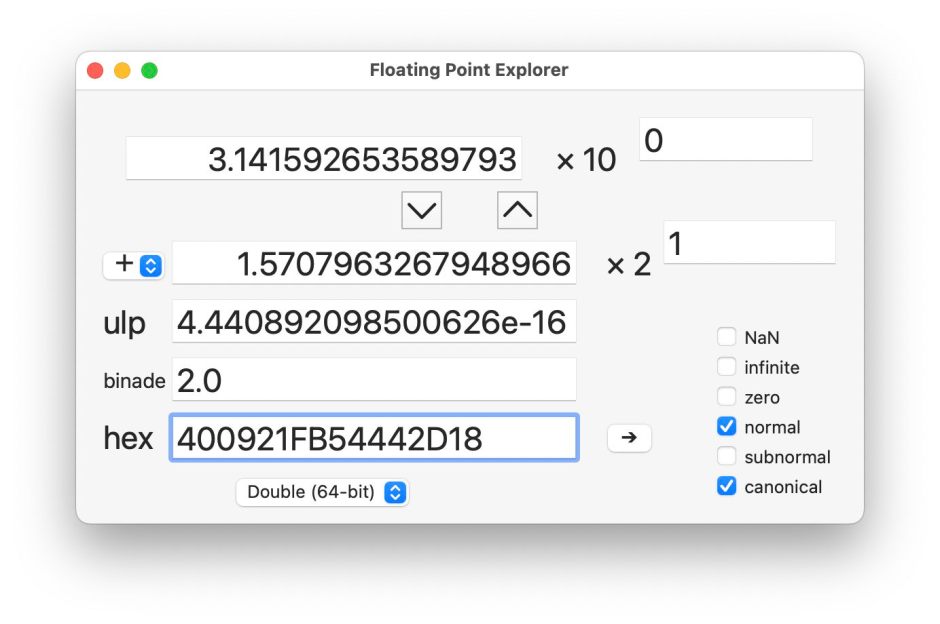
Some Doubles are exact expressions of the number they’re trying to represent. An obvious example is 1.0, represented as 1.0e0, but even fairly simple numbers like 71.3927 are confusing, with a representation of 1.1155109375e6 (radix 2). To convert between regular decimal floating point and 32- and 64-bit floating point numbers, and their hex representations, my free Mints has a Floating Point Explorer window. This is explained here.
Unlike mathematical numbers, there’s a finite number of different Doubles, and their distribution is far from even. The same Double representing 71.39270000000000 also represents 71.39270000000001, and all the numbers in between them, all but one of which is only an approximation. Around those numbers, there are roughly 70 trillion different floating point numbers per unit (1.0) step in number. These become more dense around zero, and less dense at the extreme ends of the number line. As Doubles become larger in absolute value (disregarding their sign), so they become less precise in absolute but not relative terms.
Errors
Because they’re only approximations, Doubles suffer several problems that can adversely affect calculating with them. These include rounding and cancellation errors.
Rounding errors occur because Doubles have fixed length, so the last place has to be rounded up or down to give the best approximation to the real number. The standard for floating point (IEEE 754) specifies no less than five different rounding functions, that can result in a Double being rounded up or down. Although the relative errors from rounding should be small, they can accumulate in long series of calculations to the point where they affect overall accuracy.
Cancellation errors can be very large, even when only the result of a single operation. This term refers to potentially highly inaccurate results from subtracting numbers that are very close in value. When almost all the digits of the result are lost, these errors can be catastrophic, and may cause the order of calculations to determine the result.
These can be illustrated by two simple calculations, each of which should return a result of exactly 0.0: ((10000000.001 - 10000000.000) - 0.001) * 1.0e8
and (10000000.001 - (10000000.000 + 0.001)) * 1.0e8
Yet using Swift Doubles, the first returns the incorrect result of 0.016391277311150754.
With a whole IEEE standard to themselves, floating point numbers have grown their own subdivision of errors and non-errors. The most commonly encountered of these is the NaN, Not a Number, which used to puzzle those plugging through spreadsheets when a formula attempted a heinous crime such as division by zero. The joy of NaNs is their propagation: once a NaN creeps into a calculation, it’s likely to turn the whole thing NaN. Then there are two different signed zeroes, +0 and -0, or if you really want a choice, why not have an unsigned zero too, and then decide whether you want all three to be equal or not.
Others
Some systems also support extended precision beyond Doubles. One of the advances brought by the first widely used maths coprocessor, Intel’s 8087, was the availability of 80-bit Extended calculations. Although valuable for some, in general, mixing precisions leads to further strange errors that can prove hard to trace. macOS tries to avoid those, and ARM processors don’t have any Extended features, which have to be implemented in additional libraries for those that need them.
Most recently, to accommodate AI using neural networks, smaller floating point numbers have become popular. bfloat16 numbers use only 16 bits of storage, but cover the same range as 32-bit floating point numbers with reduced precision. These promise huge gains in speed by allowing arithmetic instructions on twice the numbers at once, and are supported in CPUs in Apple’s M2 and later chips, and in GPUs.
You will occasionally come across other numeric formats, including fixed point and arbitrary precision. These don’t normally have any direct support in general purpose processors, but are implemented in libraries, making them considerably slower and non-transferable. And then there are arrays of numbers in vectors and matrices, complex numbers, and everything else that mathematicians have devised. There is no end.
Further reading
Start with Jean-Michel Muller et al (2018), Handbook of Floating-Point Arithmetic, 2nd ed, Birkhäuser, ISBN 978 3 319 76525 9. Then progress to Peter Kornerup and David W Matula (2010), Finite Precision Number Systems and Arithmetic, Cambridge UP, ISBN 978 0 521 76135 2. Complete the basics with Jean-Michel Muller (2006), Elementary Functions, Algorithms and Implementation, 3rd ed, Birkhäuser, ISBN 978 1 4899 7981 0. You can then progress to matrices, for which there is a huge literature.
Over the last few years, files and apps on our Macs have started to bristle with unfamiliar extended attributes (xattr). The oldest is the quarantine xattr, containing the quarantine flag, dating back to the introduction of Gatekeeper in 2012. Although its primary purpose is to determine which apps should undergo first run checks, it’s also to be found on many files. Then in macOS Catalina, the MACL xattr appeared and now seems to get attached to pretty well everything, no matter where it has come from. It was joined by the provenance xattr in macOS Ventura, and that too is spreading like wildfire on both apps and files. This article reviews why they’re there, and what you can do about them.
Quarantine
Since its introduction, Gatekeeper has drawn a distinction between apps that originated outside the Mac, and those that can be fully trusted, when performing security assessments on the first occasion. To enable that, apps that download items from the internet, or transfer them from another system on the same network, attach a quarantine xattr to every file that arrives on your Mac. When archives are decompressed, for example, the quarantine xattr is propagated to every file they contain. Gatekeeper then performs full first run checks on those apps, and in the right circumstances they may be run in translocation.
This com.apple.quarantine xattr is also attached to non-executable files, where its role isn’t clear, as they aren’t checked by Gatekeeper, and their quarantine flag isn’t cleared after they have been opened for the first time. However, you’ll find them on all items that have been downloaded by an app or tool that attaches them. As this xattr isn’t protected in any way, it’s straightforward to remove, although you should avoid doing so for apps whose origins could be suspicious, as that would prevent Gatekeeper from running its additional checks.
MACL
This is thought to be an abbreviation for Mandatory Access Control List, and might be intended to preserve privacy while allowing the user to open files. The com.apple.macl xattr is now probably the most common of all, as these get attached to any and every file, including apps, even if they were created on that Mac and never left its local storage.
This xattr contains 72 bytes of what could be two UUIDs, or just binary data. However, it’s protected by SIP, preventing any user from stripping it. This can be responsible for problems, for example files that can’t be opened in their default editor app, and some that can’t be saved. In the past one way of triggering this blocking behaviour was to set a document to be opened by default using an app other than its normal app, then saving it from that app before trying to open it again.
Perhaps the simplest way to remove this xattr is to copy the file to another volume, where the xattr is no longer protected by SIP, stripping it using my free editor xattred or the xattr command tool, then copying that back to its original location. Although it’s likely to be given another MACL xattr shortly, that should be less prone to cause problems.
Provenance
Most recent versions of macOS have what’s known as a Provenance Sandbox that enables the security system to track the origins of files, and trace which app has altered them. This has recently been detailed in full in Koh M. Nakagawa’s account of XProtect Remediator. It operates quite differently from the regular app sandbox, and doesn’t appear to impose any restrictions.
Apps that aren’t signed by Apple are assigned an 11-byte integer when they first clear Gatekeeper’s checks, and those are entered into the Provenance Tracking table in the ExecPolicy database, and attached to the app in the com.apple.provenance xattr. When that app performs operations like opening a file in write mode, or creating a new one, the same xattr with that app’s provenance ID is attached to the file. Thus, by checking the provenance ID on any file with the xattr, the app that last wrote to the file can be identified.
Provenance IDs and xattrs aren’t assigned to Apple’s own apps, or those installed from the App Store, but they are to apps that are signed using certificates other than Apple’s, and those that are notarised. When a file is created or changed by an app without a provenance ID, no xattr is attached to that file, and any existing xattr is left unchanged.
This is a powerful tool in gathering security intelligence. For example, suppose a Mac has just installed previously unknown malware that started to write files in one of the locations watched by behavioural XProtect under one of its Bastion rules. Those could be inspected, perhaps by one of the scanning modules in XProtect Remediator, the provenance ID checked against details in the Provenance Tracking table, and information forwarded to Apple for further investigation.
Evidence so far suggests that you don’t want to try to tamper with the provenance xattr, as it doesn’t appear to have any role in blocking access to files, and is working on our side. Like the MACL xattr, it’s now normally protected by SIP, so can’t be removed directly.
Summary
com.apple.quarantine is likely to be found on any app or file downloaded or transferred from another system, but appears harmless.
com.apple.macl is likely to be attached to most apps and files, even those that have remained local at all times. It can sometimes cause problems including blocking the file from being opened or saved, but is hard to remove as it’s protected by SIP.
com.apple.provenance is used to track which app has created or modified files. This can be important in security intelligence, so shouldn’t be removed, although it appears harmless and is working for our benefit.
Programs running in windowing environments, applications as we used to know them, have more complicated requirements than those run from a command line. Rather than embed all the resources they require for windows, menus and the rest in a single file, Mac OS broke new ground by putting those into resources stored in the app’s resource fork.
This is QuarkXPress version 4.11 from around 2000, with its resources displayed in the resource editor ResEdit. Executable code was also stored in CODE resources, and every file contained type and creator information to support the illusions created by the Finder.
Mac OS X
When Mac OS X was designed, it switched to the bundle structure inherited from NeXTSTEP. Instead of this multitude of resources, apps consisted of a hierarchy of directories containing files of executable code, and those with what had in Mac OS been supporting resources. Those app bundles came to adopt a standard form, shown below.
The bundle name has the extension .app, and contains a single directory Contents. Within that, the executable code is in the MacOS directory, which may contain both the main executable for the GUI app and any bundled command tools provided. Another directory contains Resources, including the app’s custom icon, and components of its GUI. In some apps, there’s another directory of Frameworks containing dylibs (libraries).
There are also two important files, Info.plist and PkgInfo. The latter contains the same type and creator information inherited from Classic Mac OS, and apparently isn’t mandatory although it appears universal. The information property list is essential, as it specifies the names of the executable and its icon file in Resources, the minimum version of macOS required, type declarations of the app’s documents, version numbers, and more.
When running a command tool in macOS, its Mach-O executable is launched by launchd, whose purpose is to run code. Launching an app is more demanding, although the app’s executable is still launched by launchd. Before that can happen, macOS starts the launch process using LaunchServices and RunningBoard, which rely on information obtained from Info.plist and other components in the app bundle.
macOS
This structure remained stable until the introduction of code signatures in Mac OS X 10.5 Leopard in 2007. Accommodating those added a directory named _CodeSignature containing the signature in a CodeResources file. That includes code directory hashes (CDHashes) to check the integrity of the contents of the app bundle. Apps distributed by the App Store include a store receipt in another directory, _MASReceipt. Since 2018, when Apple introduced notarization, the ‘ticket’ issued by Apple can be ‘stapled’ into the app bundle as the file CodeResources.
Many apps come with additional items that might in the past have been installed by them in their Library/Application Support folders and elsewhere, but are now included in the app bundle. These can include the following directories:
Library, containing folders of LaunchDaemons and LoginItems that would previously have been installed in either the main Library folder, or that in the user’s Home folder;
XPCServices, for executable code that the app uses to provide specific services;
Plugins, for some types of app extension (Appex);
Extensions, for other types of app extension, including app intents.
You may also come across other components, including a version.plist in Apple’s apps.
This centralisation of components in the app bundle has brought several benefits. Being self-contained, apps are easier to install and update, and cleaner to remove. Their components are less likely to go missing, and most of all they’re held within the protection of the app’s signature and notarisation, an important improvement in security.
Assembling these into a diagram shows how the anatomy of an app has grown over the last few years.
Components shown in pale yellow are either mandatory or essentially universal. Those shown in green are found in apps distributed through the App Store, while that shown in blue is the stapled notarisation ticket (optional). You will also see additional folders and components such as Automator workflows, scripts, and others.
There is no difference in structure between apps built for current Intel and Arm architectures. That’s because binaries in the MacOS folder (and executable code in other directories like Frameworks, XPCServices and Plugins) contain platform-specific code in a single Mach-O executable. Thus, an app that’s Universal and runs native on both architectures includes code for both in its single ‘fat’ code file, and they even have separate signatures stored within common files.
Many apps now use helpers and services to handle some of their work. Good reasons for this include needing to perform a task at a higher level of privilege, and for utilities installed into the menu bar. Background helpers can then be run as root, or provide a periodic service, split out from the main app. You manage them in System Settings, in the Login Items & Extensions part of General settings. This article looks at those set there to Open at Login, and others listed in App Background Activity. I’ll keep Extensions for another occasion.
Login Items
These are normally apps intended to be opened automatically when you log into your Mac, and most can be opened manually if you prefer. To add an app or remove it, use the + and – buttons.
To log in without any of those Login Items being started automatically, press and hold the Shift key when you click on the Log In button (at the right end of your password), and keep it held until the Dock appears. You may be asked to enter your password a second time, in which case once you have done that, press and hold the shift key again while clicking on the Log In button. Existing login items won’t then be opened until you log in again.
Background Items
Background items aren’t normally apps as such, but usually small binaries run by launchd as LaunchAgents or LaunchDaemons, in accordance with their property lists. Your control over them is limited: all you can do is turn them off and on.
If you try disabling some of them, you may see that they’re automatically re-enabled. Many appear unidentifiable, and a few have ⓘ Info buttons, to reveal where their property list is on your Mac, but many don’t. One useful piece of information given for some is whether that item affects all users, in other words is installed in a folder outside your Home folder, including the main Library and Applications folders.
Apple maintains a preference file containing details of many helpers and other executables used by major third-party apps. This may help you identify those that appear in LogIn and Background Items. This can be found at /System/Library/PrivateFrameworks/BackgroundTaskManagement.framework/Versions/A/Resources/attributions.plist
Safe mode
Diagnosing problems with helpers and services is extremely difficult, and made harder by the fact that most are now XPC services and only revealed by their entry in Activity Monitor’s lists. When they’re in trouble, they can cause almost anything, including:
unexpected or abnormal behaviour,
their entry in Activity Monitor can take high CPU and/or memory,
spinning beachballs and sluggish performance,
general instability.
The most important test to establish whether any such behaviour is likely to be the result of a third-party helper or service is to start up in Safe mode and demonstrate that the problem disappears then. This is because Safe mode blocks these helper apps and services from being launched. Unfortunately, Safe mode doesn’t help you establish the cause, nor what you should do about it.
Which Library?
In the past, most helper apps and services have been run by launchd on the basis of property lists in LaunchDaemons and LaunchAgents folders in the main Library folder, or in ~/Library/LaunchAgents. One good way to distinguish these is to create a new user account and see if the problem affects that too: if it doesn’t, then it’s more likely that helper or service is being launched from the Library folder in your Home folder rather than the main Library, in other words that the problem lies somewhere in your Home folder.
BTM dump
A better and more systematic approach is to obtain a detailed listing of all those Background Items, and uninstall or delete those you no longer need, or are just old and unnecessary. For this, you need a BTM dump, using an undocumented option to the sfltool command: sudo sfltool dumpbtm > ~/Documents/btmdump.text
to write it to the text file btmdump.text in your Documents folder. This file is also invaluable if you’re going to nuke Login Items in a reset, as it provides a record of what you might need to restore afterwards. This uses a command tool originally intended to manage the Shared File List, which has gained additional features covering Service Management, although its man page hasn’t caught up yet and the most help you’ll get is from its usage info.
This lists full Service Management information for every item currently being managed, by user ID. Normally, the two important user IDs would be 0 for root and 501 for the primary admin user, but here the first list, with a UID of -2, appears to be a composite covering most Background Items. You should also check those for the current user, such as 501. A typical entry might be: UUID: 9A087CA1-250D-4FA6-B00A-67086509C958
Name: Alfred 5.app
Developer Name: (null)
Team Identifier: XZZXE9SED4
Type: app (0x2)
Flags: [ ] (0)
Disposition: [enabled, allowed, not notified] (0x3)
Identifier: 2.com.runningwithcrayons.Alfred
URL: file:///Applications/Alfred%205.app/
Generation: 0
Bundle Identifier: com.runningwithcrayons.Alfred
This gives the location of the executable that is loaded. The Developer Name given is taken from the code signing certificate. The Disposition field is probably most relevant to identifying those causing problems, as it should reflect the status of that entry in the Login Items list, and whether the user has been notified. There’s currently no way to change or correct those, at least using the tools available.
BTM reset
The nuclear solution is to blow the whole lot away, and start from scratch, but if you don’t then delete old apps and their components, including property lists and support files tucked away in Application Support, LaunchAgents and LaunchDaemons folders, then many will return to haunt you. To remove all third-party Login Items and reset those and Background Items to installation defaults, you can use the undocumented command sudo sfltool resetbtm
following which you should restart the Mac.
Summary
Login Items are apps opened automatically when you log in, and are managed in Open at Login in Login Items & Extensions settings.
Background Items are small binaries run by launchd as LaunchAgents or LaunchDaemons, controlled in App Background Activity.
Hold the Shift key when clicking the Log In button to temporarily disable all Login Items.
Safe mode disables both Login and Background Items.
Use sudo sfltool dumpbtm to obtain a BTM dump detailing them all.
To blow them all away, perform a BTM reset using sudo sfltool resetbtm then restarting.
Most problems with Spotlight are assumed to be the result of it failing to index correctly. I’ve recently detailed how you can diagnose those, and explained why blindly rebuilding its indexes is often a waste of time and effort. Problems that aren’t the result of failed indexing are harder to diagnose and fix. This article describes one approach that doesn’t appear to have been used previously: restarting Spotlight.
Relaunch Spotlight
It turns out that it’s quick and easy to restart Spotlight without having to log out and back in. Open the Finder’s Settings, select the Advanced tool and toggle Show all filename extensions off and on (or on and off). While you’re doing that, watch the Spotlight icon at the right end of the menu bar, and you’ll see it vanish and reappear as Spotlight is relaunched.
This may seem strange, but is clear from the log entries. 0.727612 Finder sendAction:
marks when the checkbox was toggled by the user. Within 0.01 second, Spotlight announces it’s relaunching 0.733710 com.apple.spotlight Relaunching Spotlight to respond to user show extensions change.
Then follow log entries detailing Spotlight being shut down 0.741258 gui/501/com.apple.Spotlight [1183] exited due to exit(255), ran for 60931ms
0.741307 gui/501 [100019] service inactive: com.apple.Spotlight
0.742190 com.apple.launchservices DEATH: Received pid death for 1183, found application App:"Spotlight" asn:0x0-39039 pid:1183 refs=5 @ 0x8d0ef9080 in session "LSSession:id=100019 @ 0x102a996e0 Apps:43 ", which was not a LS launched process, so removing it.
This also takes out the StocksKit service, responsible for providing currency conversion rates and more 0.743045 pid/1183 [Spotlight] removing active service: com.apple.StocksKitService
and the Spotlight icon is removed from the menu bar 0.744222 com.apple.controlcenter Removing ephemeral displayable instance DisplayableId(4C3DBA87) from menu bar. No corresponding host (bid:com.apple.Spotlight-Item-0)
Almost immediately, a new Spotlight service is started up to replace that 0.751631 gui/501/com.apple.Spotlight [1185] service state: running
0.751651 gui/501/com.apple.Spotlight [1185] Successfully spawned Spotlight[1185] because semaphore
and its preferences are loaded ready 0.774661 Loading Preferences From User CFPrefsD
0.784283 com.apple.runningboard [osservice<com.apple.Spotlight(501)>:1185] reported to RB as running
following which there are many entries detailing Spotlight services being reinstated, and StocksKit reloading currency conversion rates.
Quite why Spotlight needs to be relaunched when you change the Show all filename extensions setting in the Finder is a mystery, but the same appears to happen in all versions of macOS from Ventura and probably earlier.
Errors
The reason I discovered this is that Adam Engst of TidBITS informed me that he sees an error message when that Finder setting is changed if Spotlight settings are also open. I’ve been unable to reproduce that, but think I can explain it, and why restarting Spotlight can be useful.
When Spotlight starts up again, it may encounter a problem with a Spotlight extension, something you’re unlikely to come across when logging in normally. That can be aided when Spotlight settings are open. If you see an error, open General settings, and Login Items & Extensions within that. At the foot of that, list Extensions By Category rather than By App, and you’ll see at the very end of the list the item named Spotlight.
Click on the ⓘ by that and review the Spotlight extensions your Mac can load. Turn off those you don’t need, click Done, then restart Spotlight again using the Finder’s Settings. That may help you to identify an extension that needs to be updated.
Summary
You can restart Spotlight by toggling Show all filename extensions in the Finder’s Settings.
This could resolve Spotlight problems that aren’t the result of indexing failure.
This could also help you identify incompatible Spotlight extensions.
Let me know if you find this useful, or just a curious quirk.
I hope that you enjoyed Saturday’s Mac Riddles, episode 336. Here are my solutions to them.
1: Interchange of wealthy words but not plain.
Click for a solution
rich text
Interchange (the format was intended for interchange of documents) of wealthy (rich) words (text) but not plain (not plain text).
2: Microsoft’s proprietary medical practitioner from 1983 until 2007.
Click for a solution
doc
Microsoft’s proprietary (although it has been reversed, it remains proprietary) medical practitioner (a doc) from 1983 until 2007 (although it has changed substantially over that period, it came with Word for MS-DOS in 1983, and was replaced by docx in Word 2007).
3: 2003-2007 = 1,050 afterword.
Click for a solution
WordML
2003-2007 (it was introduced in Microsoft Word 2003, and superseded by Office Open XML in Microsoft Word 2007) = 1,050 (ML in Roman numerals) afterword (after ‘Word’).
As promised last week, I have now produced a new version of Textovert that can extract text from PDF files and convert that to any of the nine formats supported by the app. Testing here suggests this could be generally useful, as the quality of output files appears good, and worth the small effort in conversion.
This new version offers the same conversions as the first, using textutil, but handles PDF files with a .pdf extension (case-insensitive) differently. When converting them to plain text, it loads the PDF and uses Quartz 2D’s PDF engine to extract the text for saving as a text file. When the output format is set to Rich Text (RTF), it uses the same engine to extract styled text and saves that as an RTF file. Note that doesn’t include layout information, but is generally a fairly faithful representation of the styles used in the original.
For the seven other output formats, Textovert first extracts styled text into a temporary RTF file, then hands that over to textutil to convert it to the selected output format.
Each PDF conversion is handled in a separate thread running at a high QoS in the background, to avoid blocking the main thread. As large conversions can take many seconds or even minutes to complete, Textovert’s window tracks how many are running at the moment. That’s most useful when converting batches of PDFs, when it’s easy to forget the last one or two that are still in progress.
Because each conversion gets its own thread, multiple simultaneous conversions will occupy as many CPU cores as are available, as shown in this CPU History for my seven heavyweight test PDFs. At the left of each chart the CPU % rises rapidly as all seven conversion threads are active. As those complete, the bursts of CPU activity diminish until they are from the single thread converting the largest of the PDFs.
To give you an idea of the quality of output, this is a tiny excerpt of the last of those in its original PDF:
And this is the webarchive output from Textovert viewed in Safari:
Converting PDFs does require significantly more memory than those performed by textutil alone. For most documents of more modest size, 100-500 MB is usual, but my monster test PDFs usually rise toward 5 GB during their conversion. I have checked this version for memory leaks, and although it can hold onto some memory longer than I would have expected, that doesn’t continue to rise, and no leak is apparent.
Because PDF conversions are more intricate, I have added extensive error-reporting. For example, if you try to convert a PDF containing scanned images without any recognised text, that won’t have any recoverable text available, as will be reported in the main window. Once conversion is complete, Textovert tries to delete the intermediate RTF file from temporary storage, and if that fails, you’ll be warned.
Textovert version 1.1 for macOS 14.6 and later is now available from here: textovert11
from Downloads above, and from its Product Page.
Cast your mind back to when you learned to drive, ride a bike, speak a foreign language, perform a tracheostomy, or acquire any other skill. Wasn’t confidence the key to your success? Whatever we do in life, confidence is always critical. If you run a business, one of the metrics that are likely to be collected is confidence in your business, as that’s such an important economic indicator. Confidence is every bit as important in computing.
Over the last few weeks I’ve been discovering problems that have been eroding confidence in macOS. From text files that simply won’t show up in Spotlight search, to Clock timers that are blank and don’t function, there’s one common feature: macOS encounters an error or fault, but doesn’t report that to the user, instead just burying it deep in the log.
When you can spare the time, the next step is to contact Apple Support, who seem equally puzzled. You’re eventually advised to reinstall macOS or, in the worst case, to wipe a fairly new Apple silicon Mac and restore it in DFU mode, but have no reason to believe that will stop the problem from recurring. You know that Apple Support doesn’t understand what’s going wrong, and despite the involvement of support engineers, they seem as perplexed as you.
One reason for this is that macOS so seldom reports errors, and when it does, it’s uninformative if not downright misleading. Here’s a small gallery of examples I’ve encountered over the last few years, to bring back unhappy memories.
Maybe you saved an important webpage in Safari 26.1 using its Web Archive format, then a couple of days later discovered you couldn’t open it. There’s no error message, just a blank window, so you try again with the same result. Another site shows the same problem, forcing you to conclude that it’s a bug in Safari. Are you now going to devote your time to obtaining sufficient information to report that to Apple using Feedback? Or to contact Apple Support and pursue its escalation to an engineer who might fortuitously discover the cause?
Silent failures like these are least likely to be reported to Apple. In most cases, we find ourselves a workaround, here to abandon Web Archives and switch to saving webpages as PDF instead. When someone else mentions they too have the same problem, we advise them that Web Archives are broken, and our loss of confidence spreads by contagion.
Honest and understandable error reporting is essential to confidence. It enables us to tackle problems rather than just giving up in frustration, assuming that it’s yet another feature we used to rely on that has succumbed in the rush to get the next version of macOS out of the door.
Eroding confidence is also a problem that the vendors of AI appear to have overlooked, or at least seriously underestimated. It’s all very well using the euphemism of hallucination to play down the severity of errors generated by LLMs. But those can only cause users to lose confidence, no matter how ‘intelligent’ you might think your AI is becoming. Go talk to the lawyers who have been caught out by courts submitting AI fabrications whether they still have full confidence in your product.
Yesterday’s explainer covered a range of text formats, but stopped short of one of the most popular formats for text documents, Adobe’s Portable Document Format, PDF. Its origins are as old as the Mac, and it hasn’t changed much since the start of this century, so PDF is very different from the more recent file formats, and from its antecedent PostScript.
PostScript
PostScript files, with the extension .ps, start with a prologue containing metadata such as %!PS-Adobe-3.0
%%Title: c:\output\online.dvi
%%Creator: DVIPSONE 0.8 1991 Nov 30 16:22:12 SN 102
%%CreationDate: 1992 Mar 26 10:04:36
They then largely consist of dictionaries of PostScript programs, instructions that are to be used to construct the page being described, such as %%Page: 3 4
dvidict begin bp % [3]
38811402 d U
-34996224 d u
-1582039 d U
29614244 r
f2(3)s O o
34996224 d u
-34340864 d u
8708260 r(of)s
185088 W(abstractions,)s
191757 X(such)S(as)S(\\mixed)S(blessing")S(and)S(\\retaliation,")T(in)S
(semantic)S(nets)S(that)s o
and so on. These place each item of text and graphics on that page. PDF is completely different in that it consists of a tree of objects, sometimes many hundreds or thousands of them.
PDF
To be recognised as a PDF file, the first line must start with the ‘magic’ characters and give the version used: %PDF-1.3
followed by a short line of non-ASCII bytes. It may appear surprising that macOS still writes a version that was defined in 1999, when the current version is 1.7 (before ISO standardisation) or 2.0 (standardised), and the Quartz 2D PDF engine may also report version 1.4. At least these ensure wide compatibility.
Then follows the main data, as a series of objects arranged in a flattened tree structure, starting like 3 0 obj
<< /Filter /FlateDecode /Length 158 >>
[…stream length 158…]
with a binary stream of data, which is here compressed using the Flate method (an improvement on LZW), terminated by endobj
which defines object number 3.
Some objects consist of code or definitions, such as 1 0 obj
<< /Type /Page /Parent 2 0 R /Resources 4 0 R /Contents 3 0 R /MediaBox [0 0 595 842]
>>
endobj
which is a Page dictionary.
Somewhere towards the end of the file, you’re likely to find an object containing metadata, such as details of the PDF engine that built the file: 11 0 obj
<< /Title (Untitled) /Producer (macOS Version 26.1 \(Build 25B78\) Quartz PDFContext)
/Creator (DelightEd) /CreationDate (D:20251126211410Z00'00') /ModDate (D:20251126211410Z00'00')
>>
endobj
Right at the end of the PDF file comes the cross reference, which starts like xref
0 12
0000000000 65535 f
0000000252 00000 n
and ends with a trailer trailer
<< /Size 12 /Root 8 0 R /Info 11 0 R /ID [
] >>
startxref
8785
%%EOF
and that EOF marker ends the PDF file.
Problems
Objects, as elements on the page, can be laid out almost randomly, something that often makes converting laid-out columns of text so infuriating. PDF can just drop in blocks of text and images in whatever order they come, which often doesn’t coincide with the original flow in the text. As a PDF file proceeds one page at a time, multiple columns laid out over several pages can be particularly disastrous to extract as text, or to reconstitute in any other way.
PDF files are extremely verbose, and their contents are now largely unreadable due to the extensive use of binary streams of data, and all their supporting information. A document containing a single character may thus result in a PDF file of 160 lines, making even expansive XML files look concise in comparison. The example file used in yesterday’s article takes 9 KB in storage, for a total of only 11 PDF objects.
When a PDF file is changed by annotation, the contents of each annotation are added to the file as further objects. To save apps from having to rewrite the whole PDF file every time a change is made, changes can be appended to the end of the main file contents. Those can then be incorporated into the body by rewriting the file in ‘flattened’ form.
It’s also important to remember how old the roots of PDF are. The first volume of the Unicode standard 1.0 wasn’t published until 1991, and its introduction into Mac OS was long delayed after that. Consequently, PDF remains based on 8-bit extended ASCII text, with the main characters in a PDF file still being original 7-bit ASCII. Handling characters is generally accomplished by specifying individual characters in a specific font. This is why font substitution in PDF documents so commonly results in incorrect characters being displayed, with characters outside the extended ASCII set being most vulnerable. In worst cases, this mojibake can render entire documents incomprehensible.
textutil, and Textovert its wrapper, convert between nine different formats, most of them in widespread use for documents that are largely based on text. This article explains a little about each of them, and its sequel tomorrow looks at how PDF differs. In each case, I give an example file size for a document containing the words This is a test.
in a total of 15 characters.
Plain text
Conventionally, plain text files in macOS are most usually encoded using Unicode UTF-8, requiring just 15 bytes for the hex bytes
54 68 69 73 20 69 73 20 61 20 74 65 73 74 2e. Of course that contains no font or layout information, just the raw content.
Rich Text (RTF)
This was introduced and its specification developed by Microsoft during the late 1980s and 90s, for cross-platform interchange, primarily between its own products. Support for this in Mac OS X came in Cocoa and its rich text editor TextEdit, inherited from NeXTSTEP. The format contains two main groups of features, styled text with fonts, and simple layout that has been extended to include the embedding of images and other non-text content.
RTF files consist of text, originally ASCII but now with Unicode support. Although not actually a mark-up language, its source code appears similar.
Each RTF file opens with the ‘magic’ characters {\rtf introducing information about conformity of the code. Following that is a preamble that is likely to contain platform-specific information, a font table and colour tables. The latter should include an expanded colour table for macOS. Then follows content, typically setting the font and size, with the paragraph content. For the example file, size is 378 bytes.
RTFD
RTF has several shortcomings, particularly in handling embedded images, so NeXTSTEP extended it to a bundle format, Rich Text Format Directory, RTFD, that transferred to Mac OS X. RTF content of a document is stored in a file named TXT.rtf, alongside separate files containing scalable images that can include PDF, and the whole directory is treated as if it was a single file. Although this works well in macOS, it never caught on in Windows, so hasn’t achieved the popularity it deserved. As the example file doesn’t have any images, its size as RTFD is also 378 bytes.
Microsoft Word
From its inception in 1983 until it switched to docx, Microsoft Word’s native file format has had the extension .doc. This is a binary format that has been successfully reversed for OpenOffice and LibreOffice open source, so incorporated into many products, including Cocoa and macOS.
From 2002, Microsoft Word has used a series of XML-based formats, since 2006 conforming to standards published first by Ecma then ISO/IEC, using the extension .docx, and known as Office Open XML. Support has been incorporated into macOS.
The .doc version of the example file requires 19 KB, while the .docx version takes only 4 KB.
HTML
This has evolved through a series of versions since its release in 1993, and is the markup language that dominates the web. Its structure should be well-known, and consists of an opening document type declaration followed by tagged elements containing metadata and content. Support for writing HTML is built into the Cocoa HTML Writer in macOS. This uses CSS to define styles in the header that are then applied to sections of the content, for example <body>
<p class="p1">This is a test.</p>
</body>
The example requires only 538 bytes of HTML.
webarchive
This format is proprietary to Apple and its Safari browser, and when viewed in a capable text editor such as BBEdit, is shown as consisting of the serialised contents of a displayed web page, in XML format. In fact, as fds corrects me below, “a .webarchive is better described as a collection of web resources serialized via NSKeyedArchiver into binary plist format, bundled together into a single file in yet another property list, also saved in the binary property list format.”
When viewed in an editor such as BBEdit, after its opening XML and document type declaration as a property list, this consists of a dictionary of key-value pairs, themselves including sub-dictionaries of Web Resources. The content of each, its WebResourceData, is encoded in Base-64, making it impossible to read in a text editor. Although these can be large, for the example only 778 bytes of storage is required, showing the efficiency of the binary property list format.
WordML
Between the original .doc and the Ecma .docx formats, Microsoft Word used an intermediate WordProcessingML (or WordML) format in XML. After a standard XML header, this declares
<?mso-application progid=”Word.Document”?>
followed by a list of schemas. Although of largely historical interest now, some old Word documents may remain in this format. The example file requires 1 KB of storage.
ODT
This is OpenDocument Text, another XML-based format that was developed around the same time as WordML, and supported by many free apps and ‘office’ suites. Its opening structure is similar to that of WordML, but references oasis and OpenDocument sources. The example here requires 2 KB of storage.
Pages
One significant omission from the list of text formats supported by textutil is that used by Apple’s own Pages. This proprietary format changed significantly in 2009. Currently, a .pages document is a Zipped bundle containing thumbnail JPEG previews of the document, and two folders of files. Content appears to be saved in Apple iWork Archive files with the .iwa extension, and quite unlike RTFD.

 Login
Login