Reading view

There are new articles available, click to refresh the page.

Gain access to a locked Mac with Recovery Assistant

All of us at some time or other find our mind has gone blank and we can’t remember the password we’ve typed in so often before. Or the person who did know that password may no longer be there to recall it for us. At times like these we may need to gain access to a locked Mac. This article looks at how you can do that in an Intel Mac with a T2 chip, or an Apple silicon Mac, running Big Sur or later, in particular macOS Tahoe. If you want information for an older Mac or macOS, this article should be more helpful.

Keyboard

If you’re certain you entered the correct password but it was refused, check the Caps Lock key isn’t on, and check the Mac is using the correct language keyboard in the menu at the top right.

Firmware password (Intel only)

Intel Macs can be protected using a firmware password set and removed in Recovery, and that can normally only be removed if you know the password. If you don’t, the most reliable way to achieve this is to take the Mac to an Apple store, together with proof of purchase or ownership, and ask them to remove the firmware password.

Further information is in this support note, and in Mr. Macintosh’s article.

Don’t just guess

Trying to guess a Mac’s password is doomed to failure: you only have ten attempts before you have to try in Recovery, and an absolute maximum of fifty attempts in total before access to its Data volume is permanently barred, and that Mac has to be restored in DFU mode. Time intervals are also added between attempts, starting at a minute after the third attempt, and rising to eight hours with the ninth.

Once you realise you don’t know the password, click on the ? to the right of the password entry box. If you keep trying to guess, your attempts will soon be delayed by lock periods that grow up to eight hours.

The Mac will then offer you the best option for resetting the password. If the Mac was opted into iCloud Recovery, you’ll then be asked for details of the Apple Account.

This is now handled by the Recovery Assistant, which also helps you use the Recovery Key if iCloud Recovery wasn’t chosen.

If you don’t have Apple Account details or the Recovery Key, the remaining option is to wipe the Mac. That’s offered in the Erase Mac command in Recovery Assistant’s menu.

For these the Mac needs an internet connection. Further details are in this support article. If you’ve forgotten your Apple Account password, Apple’s support article here should help.

Missing owner

Those methods all assume that you’re the owner/user, have simply forgotten your login password, and can recall your Apple Account details or Recovery Key. If the Mac belonged to someone who’s no longer there, and you don’t have access to their Apple Account, you won’t be able to use those options.

There are two further steps now available that you may find helpful. Provided your Apple Account has two-factor authentication enabled, if you’re unable to sign in or reset your password, you can ask Apple to perform account recovery. This isn’t immediate, but provided you can satisfy Apple that your request is genuine, it should prove possible.

As of macOS 12.1 and iOS/iPadOS 15.2, Apple has supported Legacy Contacts, but those must be set up before you need to use them. The Legacy Contact is then provided with an access key they can use in the event that you can’t because you’re dead. Apple also needs to see a copy of the death certificate before giving full access to the account for a period of three years. Full details are here.

Still no solution

If you want to access the Mac but not its contents, it’s straightforward to return Apple silicon and T2 models to factory condition by putting them into DFU mode and restoring them, as explained here. That may not always be a good step, though: when you try to set that Mac up again, it checks in with Apple. If it has been registered as stolen, you could find it becomes unusable.

If all else fails, get expert advice and help from Apple stores, authorised service providers, and from the many independent Mac technicians around the world who are often only too familiar with these problems.

Virtual machines

Depending on how they’re set up, macOS VMs can now support either iCloud Recovery, or a Recovery Key, provided the guest macOS can.

Resolve a file’s path from its inode number

If you ever encounter an error when checking an APFS volume using First Aid in Disk Utility or fsck_apfs, you won’t be informed of the path and name of the item responsible, but given its inode number, in an entry like
warning: inode (id 402194151): Resource Fork xattr is missing for compressed file

The inode number given can only be resolved to a path and file/folder name if you also have a second number giving the volume for that item. As that will be for the volume being checked at the time, you should be able to identify that immediately. The only time that you might struggle to do that is with items in a snapshot; those should, I think, be the same as the volume they are taken from. However, as snapshots are read-only, there’s probably little point in pursuing errors in them.

To resolve these in my free utility Mints, open its inode Resolver using the Window / Data… / Inode menu command. Drag and drop another file from the same volume onto that window.

mints1151

The Resolver will then display that file’s volfs path, such as
/.vol/16777242/1241014

All you need do now is paste the inode number given in the warning or error message in Disk Utility or fsck_apfs, into the Inode Number box at the top of the Resolver window, and click the Resolve button. Mints then looks up information for that inode number on the same volume, using GetFileInfo, and displays it below.

mints1152

One drag and drop, a paste, and a click to discover what APFS is complaining about.

Command line

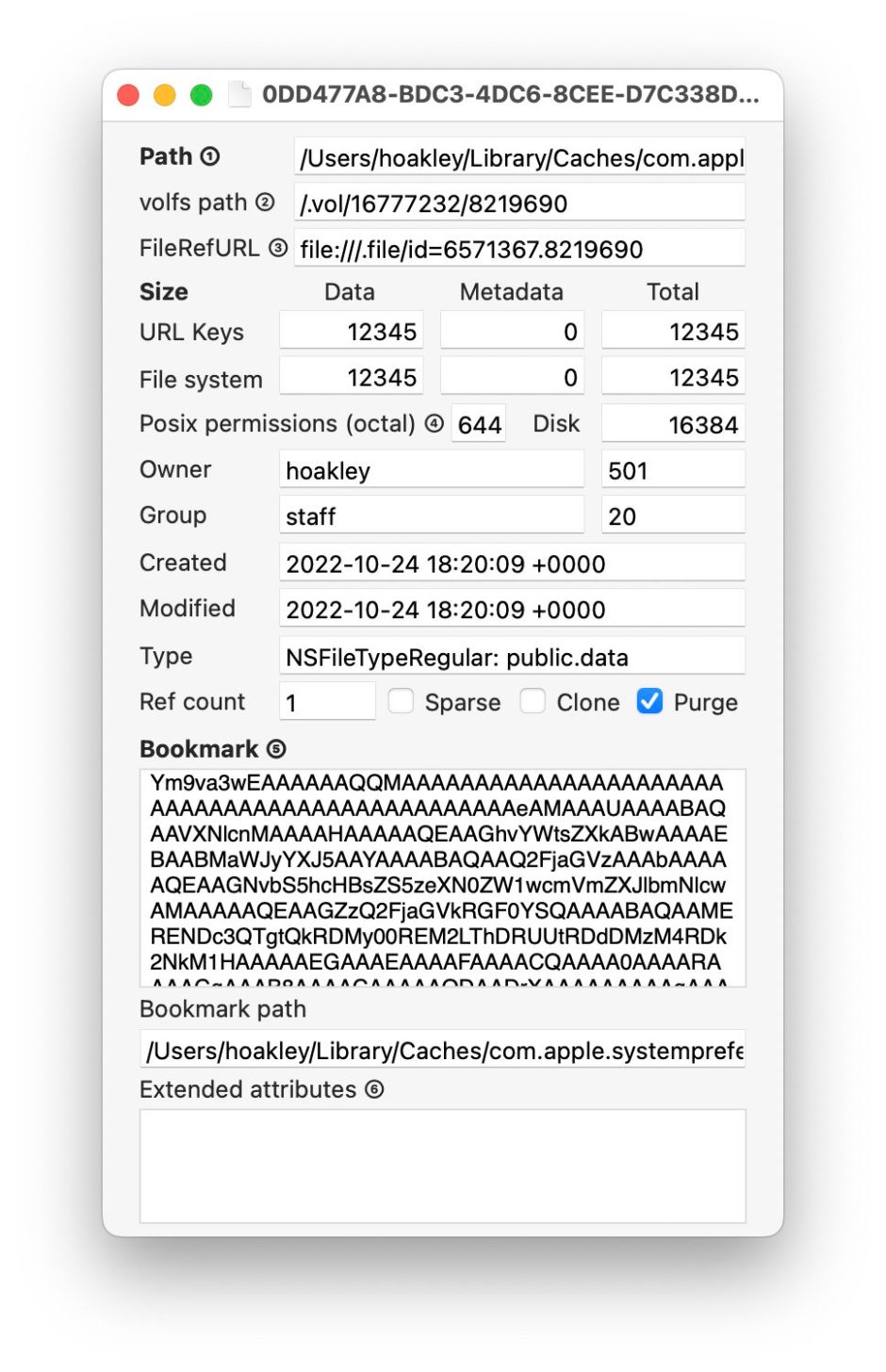
You’ll sometimes see Terminal’s find command with the option -inum recommended as a way to convert from an inode number to a regular path. Although you can do that, it’s easier to use the command GetFileInfo instead. For that you’ll need the full volfs path, including the volume number.

To find the volume number, use my free utility Precize, and open another file on the same volume. The second line in its window gives the full volfs path for that file. Copy the start of that, leaving the second number, the inode, such as
/.vol/16777238/

purgeable1

Alternatively, you can use the stat command as given below.

In Terminal, type
GetFileInfo
with a space at the end, and paste the text you copied from Precize. Then copy and paste the inode number given in the First Aid warning, to assemble the whole command, such as
GetFileInfo /.vol/16777238/402194151

Press Return, and after a few seconds, you should see something like
file: "/Users/hoakley/Library/Mobile Documents/com~apple~CloudDocs/backup1/0MintsSpotlightTest4syzFiles/SpotTestA.rtf"
type: "\0\0\0\0"
creator: "\0\0\0\0"
attributes: avbstclinmedz
created: 05/17/2023 08:45:00
modified: 05/17/2023 08:45:00

giving the full path and filename that you want.

GetFileInfo is one of the oldest commands in macOS, and has been deprecated as long as anyone can remember. I suspect that Apple is still trying to work out what can substitute for it.

Get a volfs path for a file

Use Precize to run this the other way around: open the file and read the path in that second line. To copy the whole of it, press Command-2.

The simplest ways of obtaining inode numbers and so building volfs paths in Terminal are using the -i option to the ls command, and for individual items using stat:
ls -i lists each item in the current directory, giving its inode number first, e.g.
22084095 00swift
13679656 Microsoft User Data
22075835 Wolfram Mathematica

and so on;
stat myfile.text returns
16777220 36849933 -rw-r--r-- 1 hoakley staff […] myfile.text
where the first number is the volume number, and the second is the inode number of that item, or /.vol/16777220/36849933.

What to do when APFS has problems

You’ve just run First Aid in Disk Utility, or fsck_apfs, and that reports warnings or errors. What should you do next?

Failure to unmount

By far the most frequent error encountered in Disk Utility’s checks results from its inability to unmount a volume before it can start testing. While this is reported as an error, and it prevents the checks from running, it can sometimes be solved by manually unmounting the volume in question. It normally doesn’t indicate anything sinister, and is simply frustrating.

Repeat in Recovery mode

If the warnings or errors were reported on your current boot Data volume and you ran that check in normal user mode, consider starting your Mac up in Recovery mode to repeat the check there.

Although macOS does an impressive job of performing checks on a live volume, it’s more reliable and more likely to be able to perform any repairs needed in Recovery mode, when the Data volume isn’t mounted and live. When there, if you prefer, you can still use fsck_apfs in Terminal.

diskutil05

diskutil06

The other case where checks may be best made in Recovery are those on an active Time Machine backup volume. That’s because those can be difficult to unmount before running the checks, although that is possible as long as a backup isn’t being made at the time, or Spotlight indexing taking place. The sure way to avoid those is to do so in Recovery mode.

Warnings or errors?

Any remarks about problems or irregularities encountered during checks should make explicit whether they are warnings or errors, and it’s essential to make a clear distinction between them.

Warnings are observations that could have significance, or might be perfectly normal in the circumstances. Only an APFS engineer is likely to be able to tell the difference. Among the commonest are those reporting missing xattrs for compressed files:
warning: inode (id 113812826): Resource Fork xattr is missing for compressed file
Experience is that those aren’t related to any consequent errors, and you should be able to leave those alone.

Errors are abnormalities that do have more significance, and might have the potential to cause further problems. Where possible, First Aid or fsck_apfs should attempt to repair those, most probably by performing “deferred repairs”. Those are normally minor errors that it already has plans to attend to when that volume is next mounted, the time that APFS normally performs its routine maintenance.

Snapshots

These are read-only copies of the file system metadata at a previous instant in time, and are associated with retained storage blocks. They aren’t part of the active volume, and their metadata are separate. As they’re read-only, any warnings or errors are most unlikely to be fixed, so you have a choice of leaving that snapshot to be deleted routinely by age, or deleting it early yourself.

Snapshots are made by backup utilities including Time Machine, which are required by Apple to have a mechanism that will delete them automatically after a set period. In the case of Time Machine, that’s when the snapshot is over 24 hours old. Snapshots aren’t backups, but augment regular backups, and stand in for them when backup storage isn’t available. In general, there seems little point in deleting a snapshot early just because there’s a reported warning or error for it, as that won’t affect the health of the active volume.

Identifying faulty items

Warnings and errors related to specific files or directories are normally given with an item id, which should be their inode number. To go any further, you’ll need to convert that to a path and file/directory name. You should therefore copy and paste all reports into a separate file as reference. Resolving an inode to a path and item name is detailed in this article.

In many cases involving items that can be resolved to an existing path, the faulty item is in one of the hidden folders such as .Spotlight-V100 for Spotlight indexes, or .DocumentRevisions-V100 for the document version database. In the former, rebuilding Spotlight’s indexes may resolve the problem, but you’re unlikely to be able to do anything about the latter.

If the inode resolves to a regular file, deleting that can remove the problem, but when you try restoring that file from a backup you may discover the backup has the same problem. Getting to the bottom of a recurrent file system error might require the knowledge and skills of an Apple engineer. Consider reporting this using Feedback, as it should then help iron out any remaining bugs in APFS.

You should also consider whether your Mac might be running old third-party software that is causing recurrent errors. Normally, products should work at a higher level that isolates them from the file system itself, but there are some surprising exceptions. If you can identify a cause, please inform the developers of that software so that it can be fixed.

Old versions of APFS

One potentially dangerous practice occurs when an older version of APFS changes a newer file system. APFS back in High Sierra and Mojave knew nothing of boot volume groups, firmlinks, or many of the features of more modern versions of APFS. If you really must run different versions of macOS on the same Mac, or shared external storage, avoid such version conflicts, and never run an older version of Disk Utility or fsck_apfs on a newer APFS container or volume.

❌