
 Login
LoginExplainer: Storage settings
Storage information provided in macOS has a chequered history. While that provided in Disk Utility has remained a benchmark, a separate Storage feature introduced some years ago in About This Mac quickly became notorious for its fragility and inaccuracy, with many reporting huge discrepancies. Over the last couple of years, and with its transfer to System Settings > General > Storage, it has become more reliable and useful. This article explains where it has reached in macOS Tahoe 26.2.
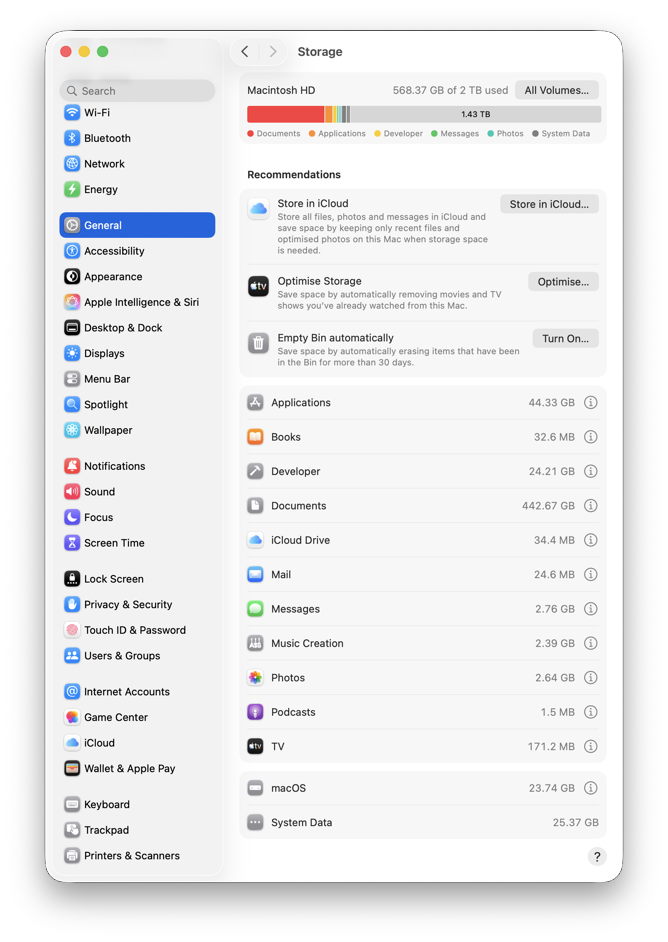
Its view has three sections.

At the top, the Storage Bar shows a breakdown of space used on the boot disk into categories, total used, and total free space that now correlate better with figures shown in Disk Utility. The All Volumes button extends that to cover other disks, but as no detailed information is provided for them, you’re still better off checking in Disk Utility.
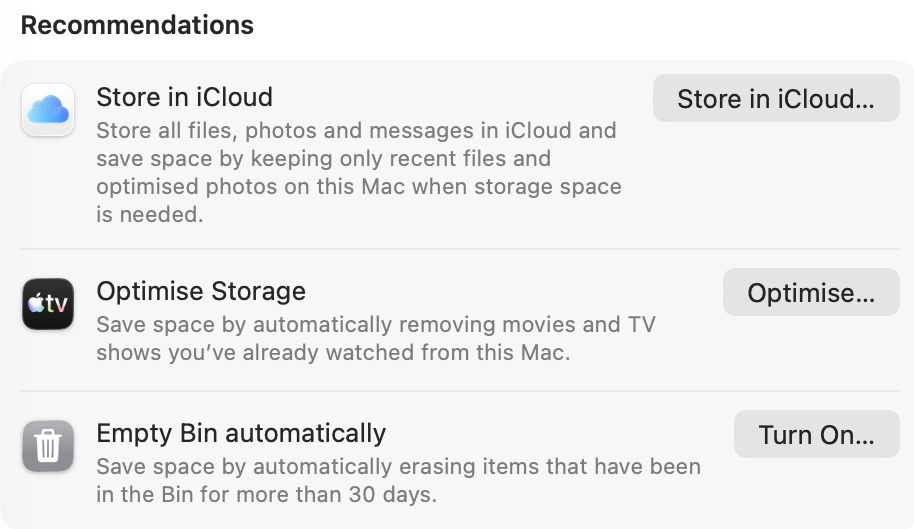
Recommendations
Below the Storage Bar comes a series of actions you could take to free up space. These operate across more than one category, but have limited usefulness:
- Store in iCloud includes standard options such as putting your Desktop and Documents folders into iCloud Drive, and enabling iCloud Photo Library, which you’ve probably already decided on.
- Optimise Storage isn’t the same as the Optimise Mac Storage option in iCloud Drive. What it does is remove the TV content that you’ve already watched from local storage.
- Empty Trash Automatically simply deletes anything left in the Trash after a period of 30 days, an option also offered in the Finder’s Settings. Some love it, others manage by themselves.

Categories
The remainder of the view is devoted to individual categories, most of which are used to label segments of the Storage Bar. For most there’s an ⓘ Info button at the right, and in some cases that offers useful tools.
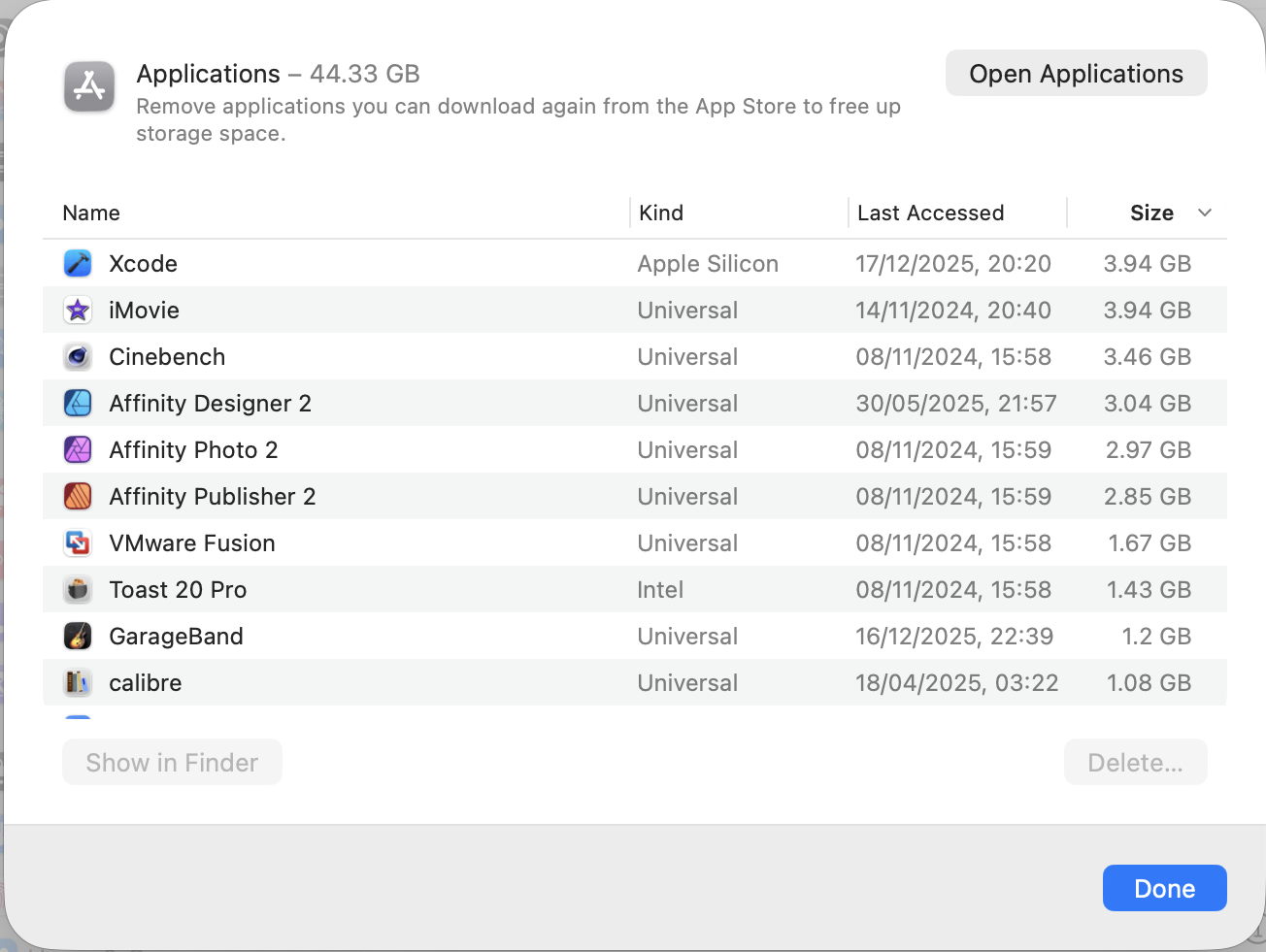
Applications can be listed by size or date of last access, making it easy to remove them. The total size given, and this list, excludes those apps bundled in the SSV, as they can’t be tampered with.
Books, Music, Music Creation and TV each let you delete local copies of content you have licensed, allowing you to download them later when you wish.
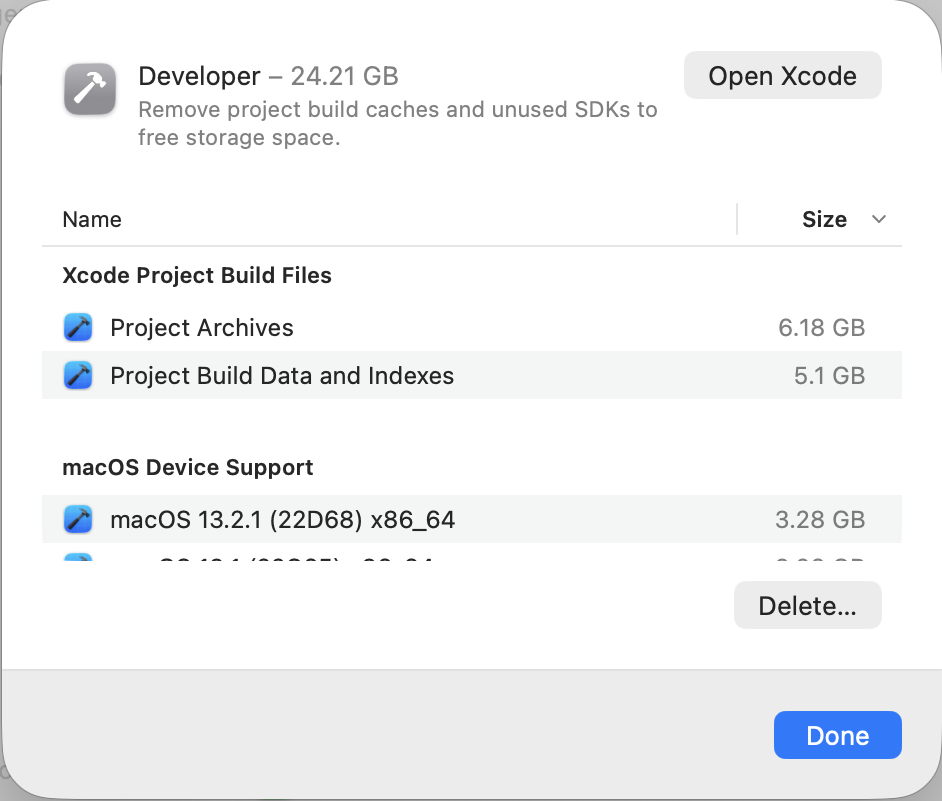
Developer can clean up some of the potentially redundant build and device support files accumulated by Xcode.
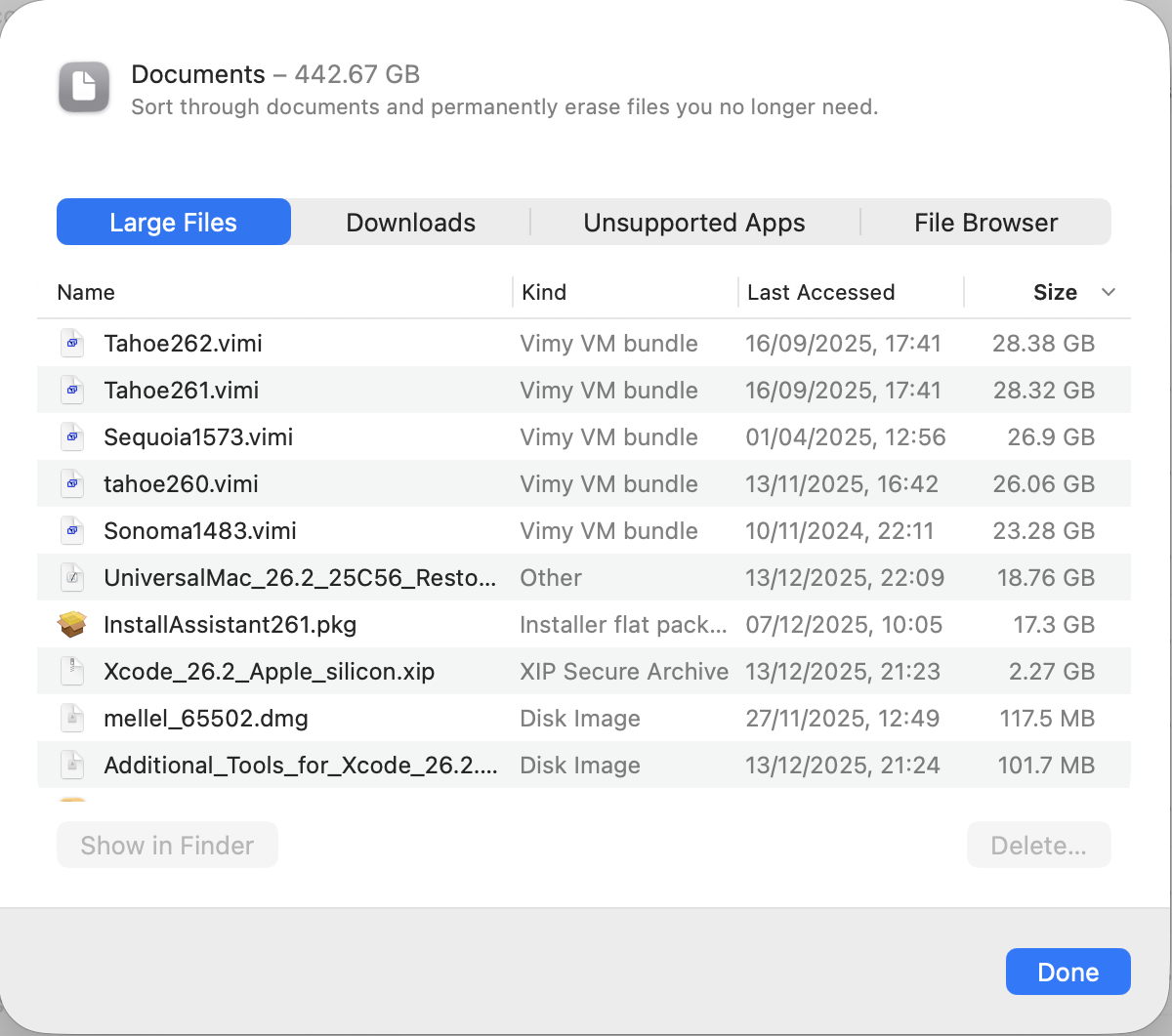
Documents offers lists of documents to show largest files, older downloads, unsupported 32-bit apps, and a file browser using column view sorting files by size. If you don’t want to use one of the third-party products that do this better, you may find this helpful, but it’s inferior to the likes of DaisyDisk and GrandPerspective.
Info offered for other categories includes:
- iCloud Drive to enable Desktop and Documents in iCloud, also offered in numerous other places.
- iOS files to remove unwanted device backups and firmware if you sync them with your Mac.
- Mail adds nothing.
- Messages is frustrating, as it lists large attachments, but when you try to preview them in the Finder, QuickLook refuses to oblige, so you can’t see what each is.
- Photos can enable iCloud Photos, as offered elsewhere. Note that, as far as this category is concerned, the size given is that of the current System Photo Library, and excludes all other Photos Libraries and images in the Pictures folder.
- Podcasts adds nothing.
- Trash (or localised equivalents) lists items there for you to delete them, much as the Trash itself does.
- Other Users & Shared covers Home folders of other users and any shared files.
- macOS reveals how much space is being used by components supporting AI.
- System Data is the one category that desperately needs further information, but doesn’t have a button. It’s discussed below.
Throughout these, Storage shows space actually taken on disk, rather than the nominal size. So a 100 GB VM stored as a sparse file might be shown as occupying only 62 GB, for example.
System Data

Storage appears to total all other categories up and account for the remainder of storage used in the category System Data. That doesn’t include the size of the System volume, or its snapshot, but can include temporary files like caches, snapshots, and anything else it can’t account for elsewhere.

In this case, System Data is by far the largest of all the categories, and accounts for half the space used on this SSD. This remains the greatest weakness in Storage settings, as the only way to discover and recover any of that space is to return to Disk Utility for its greater accuracy, its listing of snapshots, and of purgeable space. Even then, identifying what is using all that free space may end up as a process of elimination.
Let’s hope that Apple continues to improve Storage settings and provides more help to deal with System Data.

