To start this week I have a new app, Disclipper, and an update to Providable that’s recommended for anyone who reads its Help book.
Disclipper 1.0
If you have been following my recent series of articles about the Finder’s clipping files, you’ll be expecting this first release for macOS 14.6 or later.
This app analyses, displays and gives direct access to the contents of clipping files, including textClipping, pictClipping, webloc and mailloc files. It doesn’t work with their oldest versions, as they only contain information in their resources, but works with more recent clipping files from about 2015 that also store their data in the main body of the clipping file.
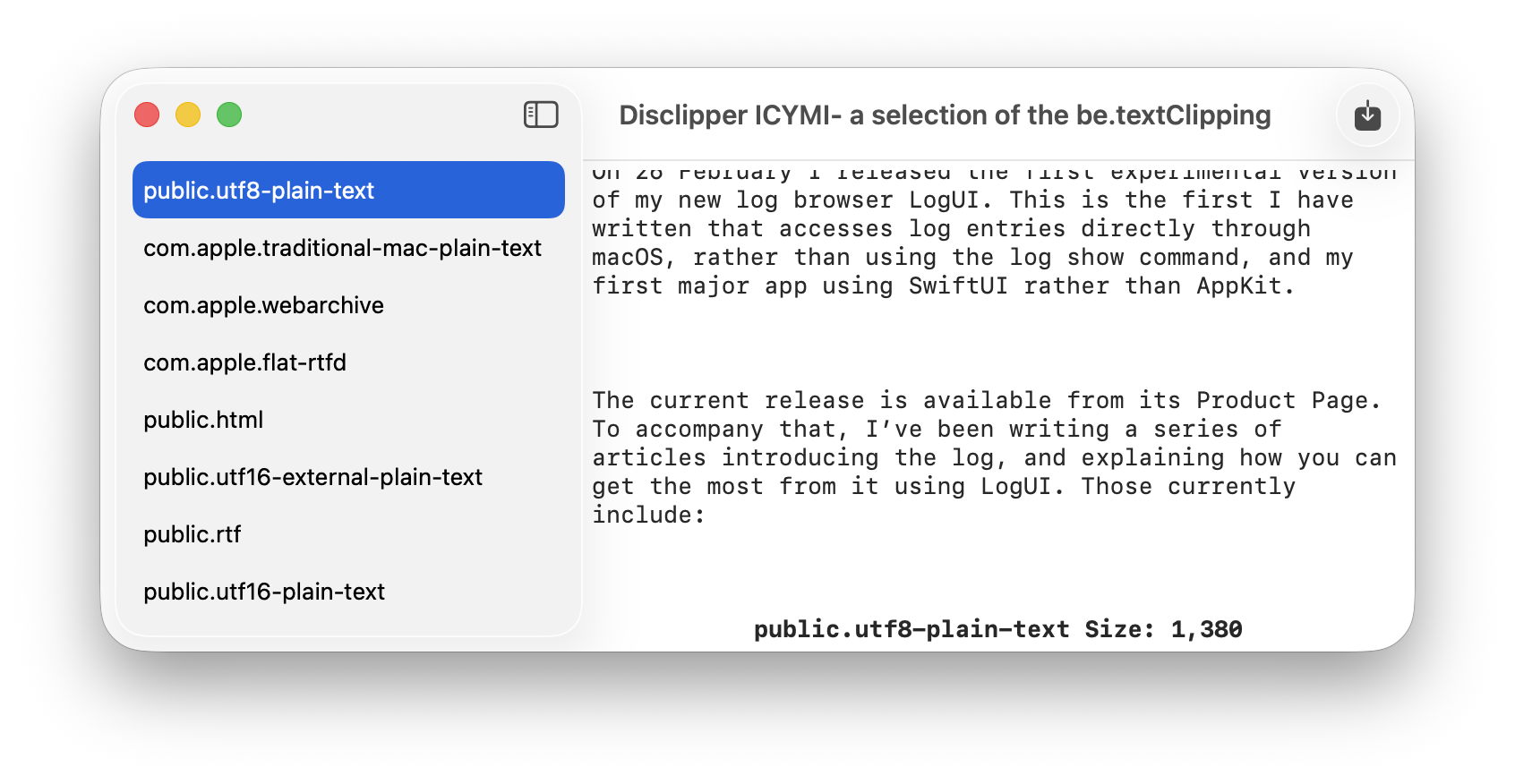
Simply drag and drop one of those clipping files onto its window, and Disclipper lists the data types it contains in its sidebar. Select one of those, and if it’s text-based the contents will be displayed in the main view in the window. If you only want to copy text, use the Copy command to do that, and you can paste the text into another document.
Where Disclipper comes into its own is saving files containing those types. textClippings made from a webpage in Safari, for example, normally offer at least WebArchive and RTFD, together with HTML and RTF. With the chosen type selected in the sidebar, click on the Write Clip to File tool and Disclipper creates a new WebArchive, RTFD, HTML or RTF document ready to open in another app.
There are only two shortcomings that I’m aware of in this version. I would have liked to display a preview of non-text types, but that appears to require saving them first before QuickLook can do that. I would also have liked to support multiple windows, but there seems to be something fragile in SwiftUI in that respect, I think in its current implementation of the NavigationSplitView used for the sidebar. That may change in a future release of the APIs used.
Disclipper currently supports all 12 data types that I have come across in clipping files, from simple link URLs to WebArchives and TIFF images.
Disclipper version 1.0 is now available from here: disclipper10
but only from this page until I’m satisfied that it’s working properly.
Providable 1.1
I released version 1.0 on Christmas Day, and haven’t had any reports of problems with it. However, its Help book repeatedly confuddles provenance with providence in a way that could confuse. This update puts that right, so you’ll no longer think it’s in the capital city of Rhode Island when it should be in a Napa Valley vineyard.
Providable version 1.1 is now available from here: providable11
and only from this page for the time being.
Many of the features we take for granted in macOS today have long histories. For the last week I’ve been looking at drag and drop using the Finder’s clipping files. Thanks to comments by theam27 and joethewalrus, we know this goes back over thirty years to the heady days of System 7. Before that, transfer of information between apps relied on the even older mechanism of copy and paste, one of the original features of the Mac in 1984.
Since System 7 Pro (7.1.1) and more generally in System 7.5 in September 1994, we’ve been able to drag text and other contents from open documents and drop them into the Finder to save them in a clipping file. That in turn can be dropped into a document to insert its contents there. It became highly popular in subsequent years, and different types of clippings proliferated. theam27 has identified four general types, with a further ten for internet location clippings.
Clipping files have proved long-term survivors. In Classic Mac OS their data was stored as resources in the resource fork of a file with an empty data fork. That survived the transition to Mac OS X, where it eventually became the com.apple.ResourceFork extended attribute. Since around 2015 clippings have also been written to the file’s main data as a binary property list. Although those changes have orphaned some old clipping files, drag, drop and clippings are still flourishing in macOS Tahoe, where the Finder supports them as well as ever. There’s excellent support built into SwiftUI as well as traditional AppKit APIs. Those are of course also required for drag and drop more generally, in addition to the Finder’s clipping files.
Sequoia and Tahoe now offer at least two types of general clippings, in textClipping and pictClipping, and two internet location types webloc and mailloc. My first task was to discover their structure, which I reported here for both resource and data formats. Although Apple has long since retired its Carbon API support for accessing what were formerly resource forks, opening up property list data is relatively straightforward, and the goal of my new app Disclipper, coming tomorrow.
Although similar to copy and paste, and often implemented alongside them, drag and drop works separately. For content in a document to be draggable, the app has to declare it so, and provide its data in one or more transferable formats. Those are generally standard representations, such as UTF-8 text, although an app can also use its own formats. Each is labelled with its UTI, to enable the drop destination app to know how to handle them.
The user selects the content they wish to drag, then drags and drops it onto the Desktop or inside a location in a Finder window. The textClipping or pictClipping is then assembled from all the transferable formats, and built into a binary property list (as well as a com.apple.ResourceFork extended attribute). The key for each of those is the UTI of the transfer format, with the content as its value, normally as either a String for text, or Data.
For example, when you drag rich text from my editor DelightEd, the textClipping file generated by the Finder contains its data represented as:
public.utf8-plain-text, the content as a UTF-8 string
public.utf16-plain-text and public.utf16-external-plain-text, two variants of UTF-16 as Data
com.apple.traditional-mac-plain-text, an old predecessor to UTF-8, probably Mac OS Roman, based on extended ASCII, but often truncated
public.rtf, the content as rich text, thus containing font and other styling information.
The Finder then uses those to provide previews and, in the case of plain and rich text, its own reader window.
When you drag that textClipping into another document to paste its contents there, the receiver app is given the choice of transferable formats from the file, and should pick the richest of those to convert into its own content and insert into the document. You can check the fidelity of the process in an app with both drag and drop support by dragging a textClipping from it, then dropping that back into a new empty document, and comparing that with the original.
Other types of content use different clipping files, with further references to the history of macOS. Select an area from a PNG image in GraphicConverter and drag it out to turn it into a clipping with the extension .pictClipping and both its com.apple.ResourceFork xattr and data fork contain complete PICT and TIFF versions of the original image. In the data fork, the latter appear as the values for the UTI-Data key, under the UTI keys of com.apple.pict and public.tiff. PICT is a long-dead graphics file format for Classic Mac OS QuickDraw graphics, but lives on in clippings and apps like GraphicConverter.
The receiver app decides which format to accept from the clipping file. Create a textClipping from a webpage in Safari, and it should contain representations of that page as a WebArchive and rich text in an RTFD, but drop that into TextEdit and it will probably choose the latter. You don’t get the option to use the WebArchive format. Disclipper changes that by saving the WebArchive version for you to use when you wish.
One type of view that currently doesn’t appear to be supported by textClipping or pictClipping files is PDF, perhaps because its format isn’t really suitable for this approach to its content.
Apple’s SF Symbols app is another interesting example, as its textClippings use private Unicode code points that are rendered as custom icons only when using one of the SF fonts normally only installed by developers. Those can substitute for what might otherwise be displayed using vector graphics.
If you already use clipping files, you should find Disclipper handy; if you don’t use them yet, they could be a fine New Year’s resolution.

 Login
Login