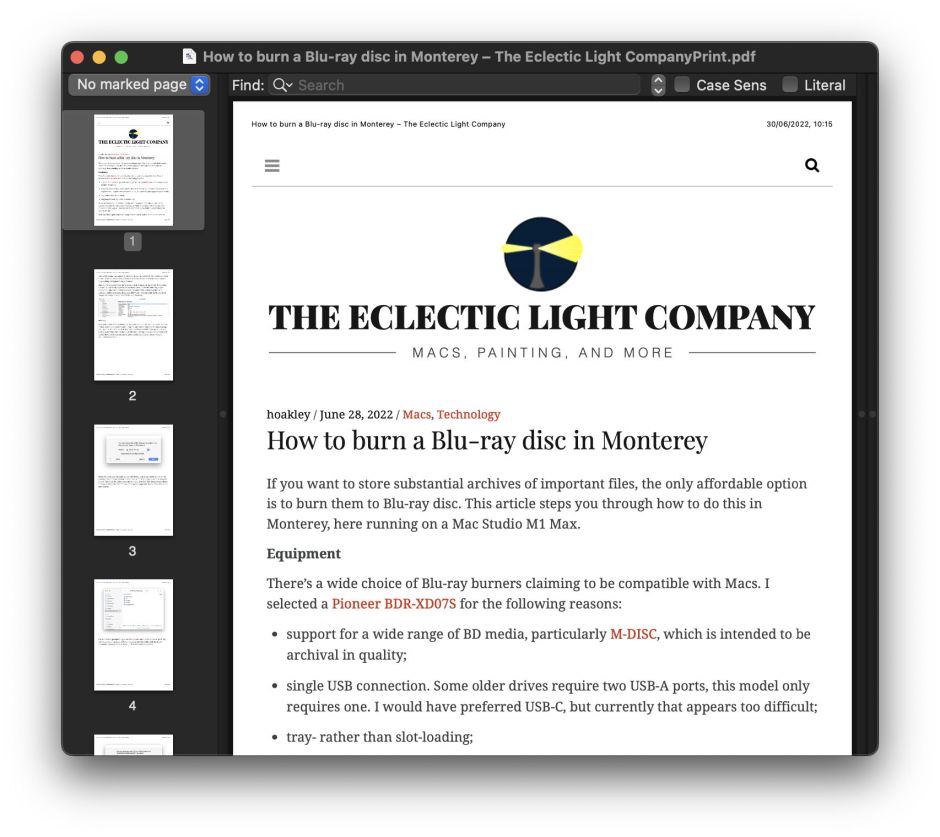
I first looked in detail at how to archive webpages in Safari over three years ago, when I concluded that exporting to PDF was best, and confirmed that when I revisited the question a couple of months ago. One of the snags with those methods is that they not only save the article you want to preserve, but along with it comes all the furniture, including menus, search, lists of archives, tags and more. Rather than making a replica with all that overhead, why not select just the article we want to save?
There are currently two ways to do that in Safari, either using a textClipping or Gildas Lormeau’s extension SingleFile for Safari, from the App Store. Here I explain how you can do that using this page as my example.
All the options built into Safari – Save As Web Archive, Save As Page Source, Save As PNG, and Export to PDF – include the page’s furniture, and some have other limitations, as explored previously. A full WebArchive file, including all the images, amounts to 2.7 MB, while a PDF is only 544 KB.
Now select just the contents of the article, by clicking just before the first letter of its title and dragging the selection down to the end. If you already have SingleFile installed, you can use the Save selection command in its menu to save that selection to a single 1.1 MB HTML file. That preserves its original layout faithfully, including its limited column width, but without any furniture.
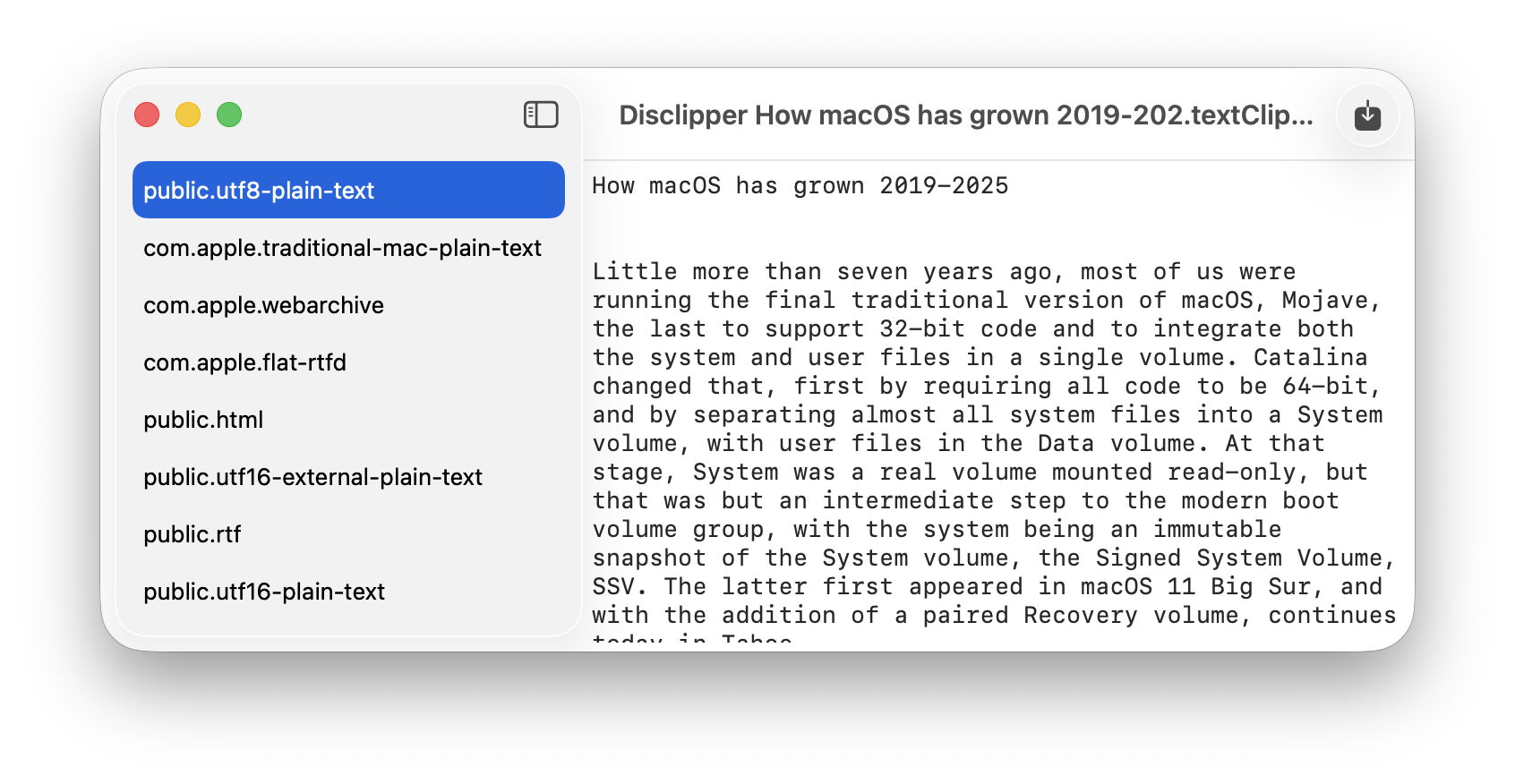
Drag the selection to the Desktop to create a textClipping file there, ready to extract its contents in different formats using Disclipper. That textClipping file weighs in at 3.5 MB.
It’s worth noting that this method of saving the article contents overcomes one of the problems that can affect whole page options. The latter are prone to omit images from the later part of the article unless you scroll through it before saving or exporting, as Safari loads those lazily. When you select the whole of the article contents, that automatically forces Safari to load its whole contents, so none will be omitted from the textClipping file.
Directly accessing that textClipping is disappointing. TextEdit, which is capable of opening WebArchive format, will open it only as an RTFD file, complete with its embedded images, but its font and layout are largely lost.
Surprisingly, Safari doesn’t appear to open textClipping files, despite creating them with WebArchive data inside.
Drop that textClipping file onto Disclipper’s window, and you’ll have the option to save its contents in several formats including WebArchive, RTFD and HTML. Try each of those:
Open the WebArchive in Safari, where it has changed styles but is complete with all images. This is 1.3 MB in size.
Open the RTFD in TextEdit, where it’s the same as opening the textClipping, and complete with images. This is only 272 KB.
Open the HTML in Safari, which then downloads its images from this website, so it isn’t suitable as a lasting archive, but is only 147 KB.
In this case, my preference is with the WebArchive version saved by Disclipper, although the similar RTFD version is a fifth of the size.
Should you want to extract just the text from the article, then using a textClipping should prove better than extracting it using Textovert, as the text saved to a textClipping should be that converted directly by Safari when it builds its transferrable data formats for a drag operation.
TextClipping files can thus be a useful intermediate when saving extracts of documents.
textutil, and Textovert its wrapper, convert between nine different formats, most of them in widespread use for documents that are largely based on text. This article explains a little about each of them, and its sequel tomorrow looks at how PDF differs. In each case, I give an example file size for a document containing the words This is a test.
in a total of 15 characters.
Plain text
Conventionally, plain text files in macOS are most usually encoded using Unicode UTF-8, requiring just 15 bytes for the hex bytes
54 68 69 73 20 69 73 20 61 20 74 65 73 74 2e. Of course that contains no font or layout information, just the raw content.
Rich Text (RTF)
This was introduced and its specification developed by Microsoft during the late 1980s and 90s, for cross-platform interchange, primarily between its own products. Support for this in Mac OS X came in Cocoa and its rich text editor TextEdit, inherited from NeXTSTEP. The format contains two main groups of features, styled text with fonts, and simple layout that has been extended to include the embedding of images and other non-text content.
RTF files consist of text, originally ASCII but now with Unicode support. Although not actually a mark-up language, its source code appears similar.
Each RTF file opens with the ‘magic’ characters {\rtf introducing information about conformity of the code. Following that is a preamble that is likely to contain platform-specific information, a font table and colour tables. The latter should include an expanded colour table for macOS. Then follows content, typically setting the font and size, with the paragraph content. For the example file, size is 378 bytes.
RTFD
RTF has several shortcomings, particularly in handling embedded images, so NeXTSTEP extended it to a bundle format, Rich Text Format Directory, RTFD, that transferred to Mac OS X. RTF content of a document is stored in a file named TXT.rtf, alongside separate files containing scalable images that can include PDF, and the whole directory is treated as if it was a single file. Although this works well in macOS, it never caught on in Windows, so hasn’t achieved the popularity it deserved. As the example file doesn’t have any images, its size as RTFD is also 378 bytes.
Microsoft Word
From its inception in 1983 until it switched to docx, Microsoft Word’s native file format has had the extension .doc. This is a binary format that has been successfully reversed for OpenOffice and LibreOffice open source, so incorporated into many products, including Cocoa and macOS.
From 2002, Microsoft Word has used a series of XML-based formats, since 2006 conforming to standards published first by Ecma then ISO/IEC, using the extension .docx, and known as Office Open XML. Support has been incorporated into macOS.
The .doc version of the example file requires 19 KB, while the .docx version takes only 4 KB.
HTML
This has evolved through a series of versions since its release in 1993, and is the markup language that dominates the web. Its structure should be well-known, and consists of an opening document type declaration followed by tagged elements containing metadata and content. Support for writing HTML is built into the Cocoa HTML Writer in macOS. This uses CSS to define styles in the header that are then applied to sections of the content, for example <body>
<p class="p1">This is a test.</p>
</body>
The example requires only 538 bytes of HTML.
webarchive
This format is proprietary to Apple and its Safari browser, and when viewed in a capable text editor such as BBEdit, is shown as consisting of the serialised contents of a displayed web page, in XML format. In fact, as fds corrects me below, “a .webarchive is better described as a collection of web resources serialized via NSKeyedArchiver into binary plist format, bundled together into a single file in yet another property list, also saved in the binary property list format.”
When viewed in an editor such as BBEdit, after its opening XML and document type declaration as a property list, this consists of a dictionary of key-value pairs, themselves including sub-dictionaries of Web Resources. The content of each, its WebResourceData, is encoded in Base-64, making it impossible to read in a text editor. Although these can be large, for the example only 778 bytes of storage is required, showing the efficiency of the binary property list format.
WordML
Between the original .doc and the Ecma .docx formats, Microsoft Word used an intermediate WordProcessingML (or WordML) format in XML. After a standard XML header, this declares
<?mso-application progid=”Word.Document”?>
followed by a list of schemas. Although of largely historical interest now, some old Word documents may remain in this format. The example file requires 1 KB of storage.
ODT
This is OpenDocument Text, another XML-based format that was developed around the same time as WordML, and supported by many free apps and ‘office’ suites. Its opening structure is similar to that of WordML, but references oasis and OpenDocument sources. The example here requires 2 KB of storage.
Pages
One significant omission from the list of text formats supported by textutil is that used by Apple’s own Pages. This proprietary format changed significantly in 2009. Currently, a .pages document is a Zipped bundle containing thumbnail JPEG previews of the document, and two folders of files. Content appears to be saved in Apple iWork Archive files with the .iwa extension, and quite unlike RTFD.
It’s both a joy and a curse that so many tell me of bugs they encounter. The joy is that it enables me to investigate and report them here, but the curse is when I can’t reproduce the problem. This week’s curse has been Safari’s webarchives, a topic that I had wisely avoided for several years. Search this blog using the tool at the top right of any page and you’ll see just four articles here that mention webarchives, and this is now the second in the last ten days.
While I’m writing about searching this blog, I should point out that tool doesn’t take you out to Google or any general search engine, but confines its scope to articles published here. Although precious few seem to use it, I find it invaluable when preparing articles, and strongly recommend it.
Not only had I avoided tackling this topic, but I see from my own local search that I have seldom used webarchives myself, although not as a result of any unreliability.
In principle, Safari’s webarchives should rarely cause a problem. They’re written by converting what Safari already holds in memory for a webpage into an XML property list, a process termed serialisation, and used effectively by a great many apps in more challenging circumstances. There may be occasions when this doesn’t quite work right, and it does require Safari to retain backward compatibility to ensure it can load and display property lists written some years ago. But by and large it should prove robust.
In practice, there are quite a few who appear unable to get this to work with many versions of Safari, yet I can’t repeat that here. For one reader, the most recent version of Safari that can reliably open their webarchives is 18.6, which is the only version I have experienced problems with. Running in macOS Ventura 13.7.8 here, that version appears unable to open the webarchives it creates, or those from later versions of Safari. Meanwhile Safari 26.1 running in macOS 26.1 has no trouble opening any webarchive I’ve tried from 2009 onwards.
For the last three years, Safari and its supporting libraries including WebKit have been provided to macOS in a cryptex, where they can’t be modified. The only way the user can go beyond Safari’s settings to change its behaviour is using Safari Extensions, which are controlled by Apple. There doesn’t appear to be any way for the user to prevent WebKit and Safari from loading webarchives correctly, intentionally or inadvertently.
Cursed by my inability to reproduce the problems reported, I have immersed myself in a couple of lengthy log extracts. One documents Safari 18.6 failing to open a webarchive it created, the other shows Safari 26.1 successfully opening the same webarchive.
Safari 18.6 seems to have been making good progress opening the webarchive until it came to loading the main frame. It then needed PolicyForNavigationAction before it could go any further: 01.154639 com.apple.WebKit Loading Safari WebKit 0x14c19b818 - [pageProxyID=21, webPageID=22, PID=596] WebPageProxy::decidePolicyForNavigationAction: listener called: frameID=24, isMainFrame=1, navigationID=26, policyAction=0, safeBrowsingWarning=0, isAppBoundDomain=0, wasNavigationIntercepted=0
01.154642 com.apple.WebKit Loading Safari WebKit 0x14c19b818 - [pageProxyID=21, webPageID=22, PID=596] WebPageProxy::receivedNavigationActionPolicyDecision: frameID=24, isMainFrame=1, navigationID=26, policyAction=0
01.154666 com.apple.WebKit Loading Safari WebKit 0x14c19b818 - [pageProxyID=21, webPageID=22, PID=596] WebPageProxy::isQuarantinedAndNotUserApproved: failed to initialize quarantine file with path.
01.154666 com.apple.WebKit Loading Safari WebKit 0x14c19b818 - [pageProxyID=21, webPageID=22, PID=596] WebPageProxy::receivedNavigationActionPolicyDecision: file cannot be opened because it is from an unidentified developer.
01.154799 Error Safari Safari Web view (pid: 596) did fail provisional navigation (Error Domain=NSURLErrorDomain Code=-999 "(null)")
So loading the main frame was halted with those chilling words “file cannot be opened because it is from an unidentified developer”, with which we’re only too familiar. The webarchive was in quarantine, it seems, and that put a stop to its loading. Only that isn’t quite accurate: there was no com.apple.quarantine xattr present, but one of those ubiquitous com.apple.macl xattrs instead. Safari had been stopped by its own security, didn’t even have the courtesy to inform us, and just sat there with an empty window going nowhere.
Safari 26.1 shows how it should have been done: 00.740168 com.apple.WebKit 0xa4bda0718 - [pageProxyID=19, webPageID=20, PID=1035] WebPageProxy::decidePolicyForNavigationAction: listener called: frameID=4294967298, isMainFrame=1, navigationID=25, policyAction=Use, isAppBoundDomain=0, wasNavigationIntercepted=0
00.740172 com.apple.WebKit 0xa4bda0718 - [pageProxyID=19, webPageID=20, PID=1035] WebPageProxy::receivedNavigationActionPolicyDecision: frameID=4294967298, isMainFrame=1, navigationID=25, policyAction=Use
00.740233 com.apple.WebKit 0xa4bda0718 - [pageProxyID=19, webPageID=20, PID=1035] WebPageProxy::receivedNavigationActionPolicyDecision: Swapping in non-persistent websiteDataStore for web archive.
From then, WebKit moves apace and the archived webpage is soon displayed.
This doesn’t of course mean that Safari’s failures to open and display webarchives successfully are all the result of NavigationActionPolicyDecisions that the webarchive can’t be opened because of this security problem, but I suspect this isn’t the only time this has occurred. The vagaries of com.apple.macl xattrs are well known, and their propensity to cause other innocent actions to be blocked is only too familiar. Unfortunately, the only reliable workaround is to knock a hole through macOS security by disabling SIP. But for this to happen without any information being displayed to the user is unforgivable.
Other apps that access Safari’s webarchives don’t appear tainted by this behaviour. Michael Tsai of C-Command Software tells me that his EagleFiler app hasn’t had such problems since its introduction in 2006. If you’ve been struggling to open webarchives in Safari, you might like to consider whether that could address those problems. In the meantime, I can see what I’ll be doing over Christmas.
I’m very grateful to Michael Tsai of C-Command Software for information and discussion.
Websites come and go, and although the Internet Archive’s Wayback Machine provides a unique service by preserving so many, saving your own copies of pages remains important to many of us. This article looks at how you can do that using Safari 26, the current release for supported versions of macOS. If you want to explore the pages saved in the Wayback Machine, then its Safari extension is available free in the App Store.
Safari now offers the following five options for saving a page:
File/Save As…/Page Source to save it as an HTML source file (169 KB).
File/Save As…/Web Archive to save it as a Webarchive file (2.7 MB).
File/Save As…/PNG to save it as a PNG image (43.5 MB).
File/Export As PDF… to save it as a PDF file, in display format (31.6 MB).
File/Print…/Save as PDF to save it as a PDF file, in print format (28.1 MB).
Sizes given are those for a test page with plenty of images from here.
Page source
This is the smallest and least complete version of the five, as it contains just the HTML source of the page, omitting all linked and similar generated content. For relatively plain pages containing text exclusively, this can be useful. The saved file can be opened in Safari or another browser, and so long as none of the linked content is missing or changed, you should see the original content reconstituted, but in a flattened layout without columns or styling. This is unlikely to be suitable as a lasting record, although it’s by far the most compact at 169 KB for the test page.
Web Archive
This saves to a single opaque webarchive file containing the entire contents of the page, including embedded images and other content, but not linked downloadable files. Although this format is peculiar to Safari, it has had limited support by some other apps, but I can’t find any other current software that can give access to its contents.
A webarchive file is a (binary) property list written as a serialisation of the web page content in Safari, in a series of WebResource objects. For example, a JPEG image would consist of:
WebResourceData in Base-64 containing the image data;
WebResourceMIMEType of image/jpeg;
WebResourceResponse in Base-64 data;
WebResourceURL containing the URL to the file.
Although in theory it should be possible to recover some of its contents separately, in practice that isn’t available at present. In the past access has been supported by the macOS API, but all those calls to work with Webarchive files are now marked as being deprecated by Apple. Current API support is limited to writing but not reading them from WKWebView from macOS 11 onwards, and there’s no sign of that being extended.
Webarchive format has changed over time, and compatibility with different versions of Safari is unpredictable. When testing in virtual machines, Safari 18.6 proved incapable of opening any webarchive test file, including its own, while Safari 26.0 and 26.1 loaded webarchives written by Safari 18.6, 26.0 and 26.1. There has also been a long history of problems reported with webarchive files. Recent versions of macOS can display QuickLook thumbnails and previews of webarchives, although thumbnails aren’t particularly faithful to their contents.
Although webarchives should contain embedded images shown in the original page, those appear to be saved at the resolution they’re displayed in. This helps limit the size of files; in the case of the test page used here, that required 2.7 MB, around 10% of the size of a PDF, making them the most efficient option apart from plain HTML.
When they work, Safari Web Archives can provide excellent snapshots of web pages, but longer-term compatibility concerns make them unsuitable for archival use.
PNG
Saving the page to a PNG graphics file is a relatively new option in Safari. For the example page, that generates a 2,622 x 32,364 pixel image of 43.5 MB size, making it the largest of all.
The PNG image is a faithful replica of the page as viewed, although it can be affected by lazy loading (see below). Disappointingly, its text contents don’t appear to be accessible to Live Text, limiting its usefulness.
PDF
Safari provides two routes for turning a webpage into a PDF document: directly using the Export As PDF… menu command, and indirectly via the Print… command then saving as PDF from the Print dialog. The results are different.
Exporting as PDF creates a document in which the entire web page is on a single PDF page, although it can spill over to one or two additional pages. The advantage of this is that the PDF is one continuous page without any breaks, and is a faithful representation of what you see in your browser, complete with its original layout and frames. The disadvantage is that this won’t print at all well, imposing page breaks in the most awkward of places. Very long pages can also prove ungainly, and difficult to manipulate in PDF utilities. The example page was 31.6 MB in size.
Printing to PDF breaks up the web page into printable pages, and splits up frames. What you end up with isn’t what you see online, but could at a push be reassembled into something close to the original. That isn’t too bad when the placement of frames isn’t important to their reading, but if two adjacent columns need to appear next to one another, this layout is likely to disappoint. It is the best, though, for printing, with headers and footers and page numbering as well. The example page was slightly smaller than the single-page version, at 28.1 MB.
While PDF is one of the preferred formats for archiving laid-out documents, it’s worth bearing in mind that standard macOS PDF isn’t compliant with any of the PDF/A standards for archival documents. You’d need a high-end PDF editor such as Adobe’s Acrobat (Pro) CC to prepare and save to any of those.
Despite being ancient and inefficient, PDF normally does a good job of preserving the original format and layout. Text content is preserved, if laid out erratically, making it ideal for content search. Thus, either of the PDF options is best-suited for archiving web pages from Safari.
Lazy loading
Recent versions of Safari appear to load pages lazily, only inserting some images and other included content when scrolled. If you save that page to PNG or PDF without scrolling to the end of the page, the resulting file may skip those images that haven’t yet been loaded. Check the file when it has been saved to ensure that all enclosures have been captured successfully.
Conclusions
Save As…/Page Source is of limited use, mainly for text-only pages without embedded content.
Save As…/Web Archive can be excellent for day-to-day use, being complete and faithful, but isn’t an open standard and can prove fragile. It’s therefore not recommended for critical or archival use.
Save As…/PNG is of limited use, as its images are largest and their content least accessible.
Export As PDF… is excellent for day-to-day use, complete and faithful, but for serious archival use needs to be converted to comply with an archival standard in the PDF/A series.
Print…/Save as PDF is an alternative more suitable if you want to print the document out.
Before saving to PDF or PNG ensure you scroll through the whole page, then afterwards check the saved document contains everything it should.

 Login
Login

 tool at the top right of any page and you’ll see just four articles here that mention webarchives, and this is now the second in the last ten days.