Reading view

There are new articles available, click to refresh the page.

Access and repair a broken disk image

Like any file, a disk image can become corrupt or damaged, and like any mountable disk its file systems can also become corrupt or damaged. Although those should be very infrequent, their results can disastrous, and render the contents of that disk image inaccessible. This article suggests some solutions you can try.

In theory, if the problem is in the image’s file systems, you should be able to mount its volumes and run First Aid in Disk Utility to check and repair them. In practice that seldom works out, as macOS usually refuses to mount the image. Unless you have ready access to a recent backup, all you can do then is resort to Terminal’s command line to attempt a recovery.

Gaining access to the contents of a disk image requires two steps to complete: first the image must be attached as a device, then after probing of the file systems it contains, those can be mounted.

dmgtrouble1

Read-only and compressed disk images have a checksum stored, and this is normally verified against the image file data first. If that proves invalid, then macOS will refuse to go any further.

dmgtrouble2

In the past, records of checksum verifications have been stored in extended attributes such as com.apple.diskimages.recentcksum, and sometimes deleting those, or a record of the file systems being checked using fsck in com.apple.diskimages.fsck, can allow the disk image to mount. More recently those appear to have fallen into disuse.

Next you should try to attach the disk image without verification or mounting. This is best done using a command such as
hdiutil attach -nomount -noverify diskImagePath
where diskImagePath is the full path to the disk image file, such as /Users/hoakley/VMs/myImage.dmg

If this succeeds, you’ll be rewarded with a list of the resulting devices, such as
/dev/disk4 GUID_partition_scheme
/dev/disk4s1 EFI
/dev/disk4s2 Apple_APFS
/dev/disk5 EF57347C-0000-11AA-AA11-0030654
/dev/disk5s1 41504653-0000-11AA-AA11-0030654

The first is the disk device disk4, and is followed by its two standard partitions disk4s1 and disk4s2. The latter is its APFS container disk5 with its single APFS volume disk5s1. You can now check and repair the last two of those, such as
fsck_apfs -y /dev/disk5s1
which should return a blow-by-blow account of the results. If the file system is HFS+ you may also be able to use third-party repair tools such as DiskWarrior.

When you’ve completed the required repairs, detach the disk image with a command like
hdiutil detach /dev/disk4

If that fails to make the disk image mountable, some have claimed success by converting the disk image to a different format, using a command like
hdiutil convert diskImagePath -format Uxxx -o outImagePath
where diskImagePath is the original disk image, outImagePath is the new image to be created, and Uxxx is the name of a disk image type, as listed in the Appendix.

If none of these gives access to the contents you require, then it’s almost certain that the only way ahead is to find the latest backup of that disk image, and use a copy of that.

Appendix: Supported disk image formats

  • UDRW – UDIF read/write, sparse file from macOS 12
  • UDRO – UDIF read-only
  • UDCO – UDIF ADC-compressed
  • UDZO – UDIF zlib-compressed
  • ULFO – UDIF lzfse-compressed (OS X 10.11)
  • ULMO – UDIF lzma-compressed (macOS 10.15)
  • UDTO – DVD/CD-R master for export
  • UDSP – sparse image, grows with content
  • UDSB – sparse bundle, grows with content, bundle-backed, Mac OS X 10.5
  • UFBI – UDIF entire image with MD5 checksum.
  • ASIF – sparse image, grows with content, macOS 15.

How can I now have two apps named Pages?

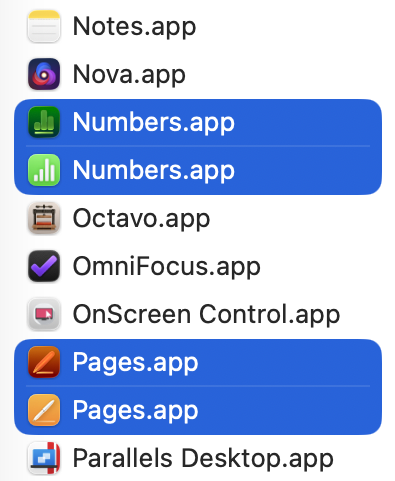
If you’ve installed Apple’s new Creator Studio versions of what used to be its iWork apps, I’m sure you noticed something odd in your Applications folder. For there, side by side, are apps with exactly the same names, two Keynote.apps, two Numbers.apps, and two Pages.apps. This article explains the trickery that went into that.

We take it for granted that what we see in the Finder is truthful, despite obvious trickery like hidden folders, and iCloud Drive which doesn’t really exist at all. When it comes to bundles like applications, the Finder doesn’t actually show the true folder name, but the bundle name set in that bundle’s Info.plist.

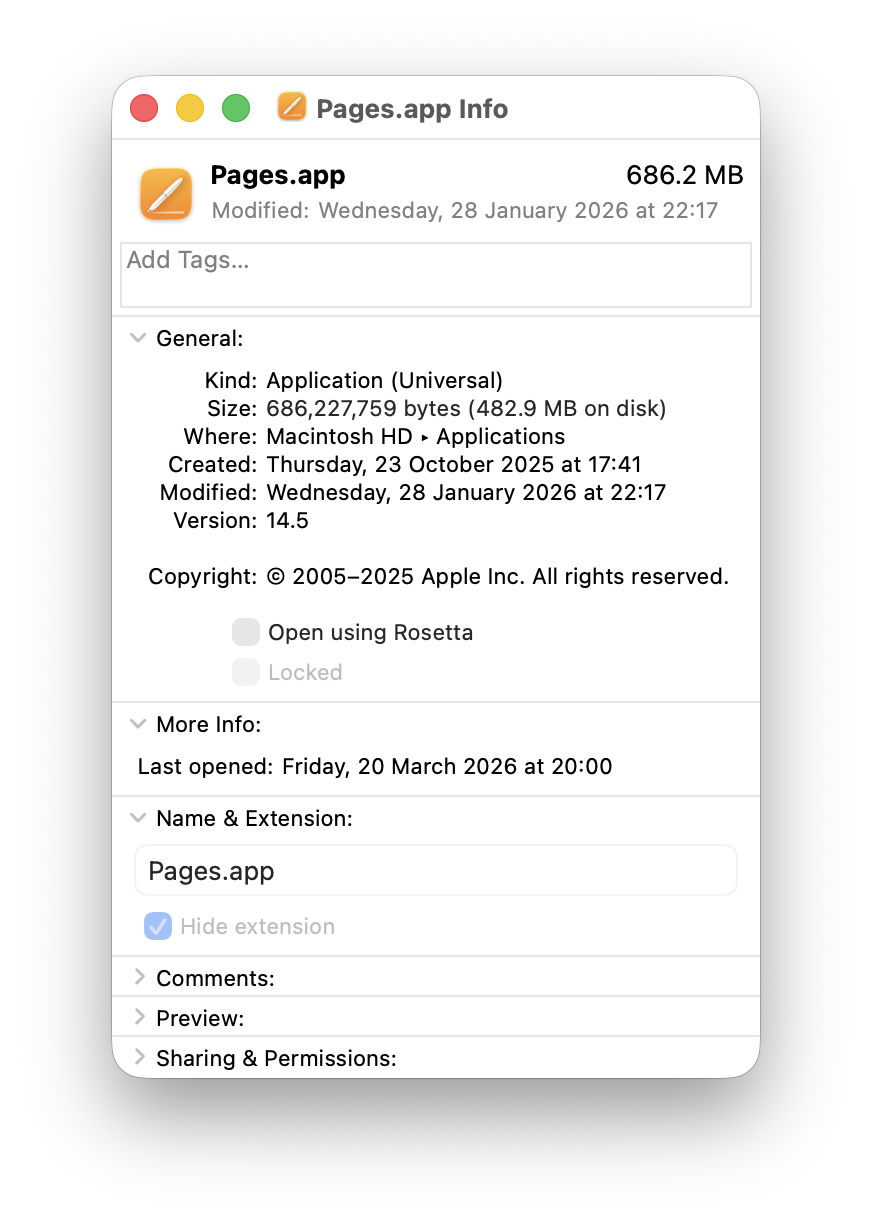
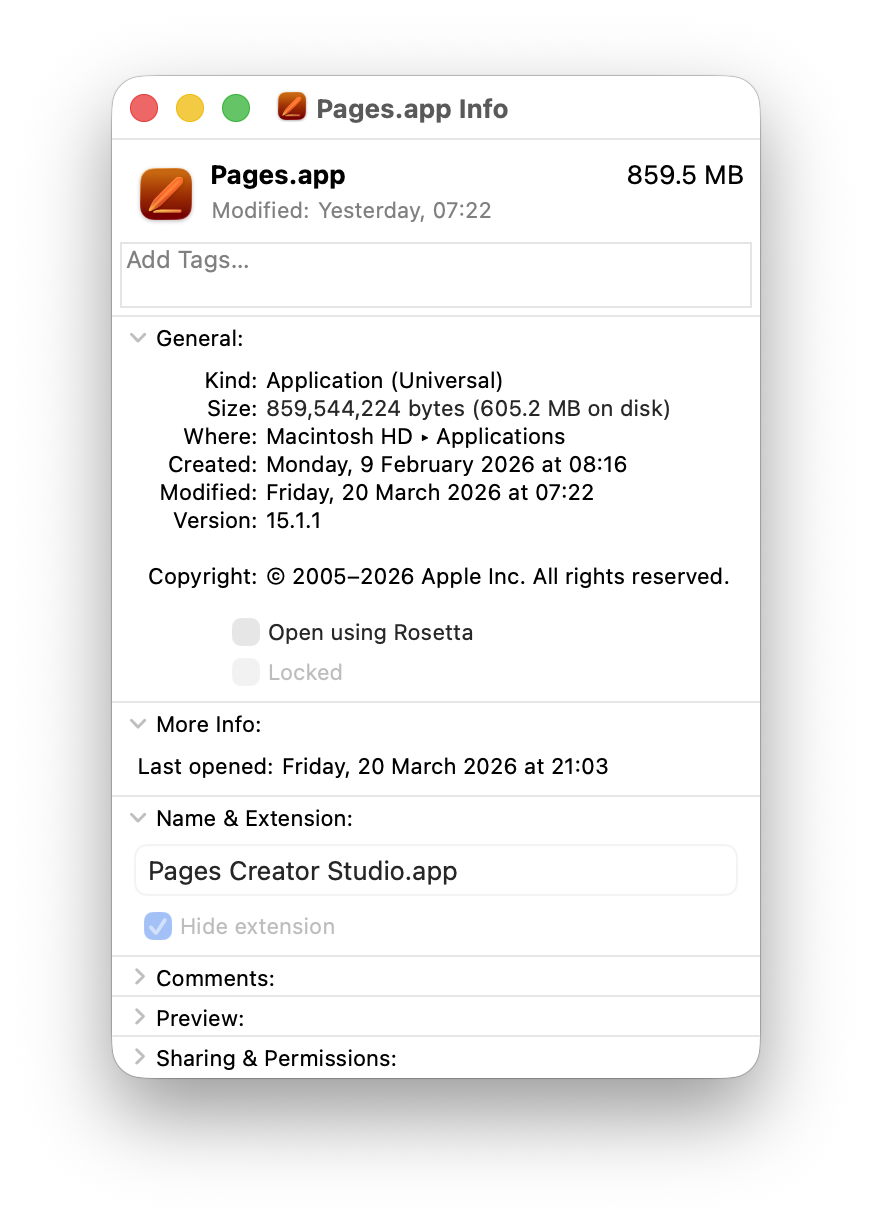
You can get an inkling of what’s going on by selecting the two Pages apps and opening Get Info on each.

The old Pages.app looks straight, giving its Name & Extension as Pages.app as you’d expect.

But the Name & Extension given for the new Pages.app turns out to be Pages Creator Studio.app, and that’s the real name of its app folder.

Check both using my free utility Precize and you’ll see they are completely different, with their own inode numbers and paths. Drag them into Terminal and that shows their true names in the file system, of Pages.app (old) and Pages Creator Studio.app (new).

If you have a property list or text editor handy, copy the Info.plist from inside each app bundle and inspect them side by side.

The old Pages app is still playing this straight:
CFBundleDisplayName = Pages
CFBundleName = Pages
CFBundleIdentifier = com.apple.iWork.Pages

By comparison, the new app is up to no good:
CFBundleAlternateNames = Pages
CFBundleDisplayName = Pages Creator Studio
CFBundleName = Pages
CFBundleIdentifier = com.apple.Pages

Apple provides further details of the contents of Info.plist in this developer article.

There’s a great deal more to accomplishing this with finesse as Apple has done here. Other locations in the app such as its About window and menus also need tweaking to ensure that nowhere breathes a word about the trick that has been pulled. And just to add a bit of spice, apps still using AppKit are quite different from those now using SwiftUI.

My only remaining question is why Apple would want to give the two apps identical names. The primary purpose of setting the CFBundleDisplayName is to accommodate better to the limited display area on devices. An app that has a long full name, like The Time Machine Mechanic, obviously needs to be shortened, and ellipses are a clumsy solution. By giving the app developer the opportunity to display something shorter it makes our iPhones look much neater.

Although it’s a clever trick to pull in macOS, I suspect it’s going to confuse more than it amazes.

Many thanks to Joe who asked this question.

What to do with APFS warnings and errors

This article explains how to deal with warnings and errors reported either when you run Disk Utility’s First Aid, or by the command tools fsck or fsck_apfs, on an APFS volume or container.

Keep a record

Even if the item is repaired successfully, it’s essential to keep a record of what happened. In Disk Utility, expand the First Aid window so you can see the full output of fsck_apfs, select its whole contents, copy and paste them into a text document, and save that. Do the same with the output in Terminal if that’s what you used.

You may also find two text log files of potential use: /var/log/fsck_apfs.log and /var/log/fsck_apfs_error.log, both accessible in Console or a text editor. Although errors may also be written to the Unified log, you’ll probably want to avoid going there.

Was this on the Data volume?

First Aid in Disk Utility will check and attempt to repair the current Data volume when running in normal user mode, by effectively freezing the Mac. However, that’s not as reliable as running the same procedure when your Mac is in Recovery mode. If you see warnings or errors reported from the current Data volume in normal user mode, before going any further start your Mac up in Recovery and repeat the checks in Disk Utility (or fsck_apfs) there, to confirm they are real, and give your Mac the best chance of making a successful repair.

diskutil06

This can also sometimes help when checking backup volumes, and any that have proved difficult to check because the volume can’t be unmounted in normal user mode.

Are these just warnings?

Read carefully through your copy of the output of fsck_apfs and check whether the comments there are warnings, or contain specific errors. Warnings aren’t uncommon, and are often of little consequence even when you can understand them. Among the commonest is
Resource Fork xattr is missing for compressed file
As there’s nothing you could or should do about that, keep the record and don’t worry about it.

You’ll occasionally see a report that “deferred repairs” were completed. These appear to be minor fixes that APFS keeps for a convenient moment. Provided they are fixed without further error, you should be able to ignore them safely.

If a line explicitly reports an error, and fsck_apfs was unable to repair it, then it’s something you should take more seriously, and try to pin down the site of the problem.

Identify the item

fsck_apfs identifies items with their inode number, an integer that can be very large. To make any sense of that, you need the volume number as well, and a means of converting the two into a path. My free utility Mints can do that in its inode Resolver window, from the Window/Data/Inode menu command, or you can do it yourself in Terminal with a command like
GetFileInfo /.vol/[volnumber]/[inode]
where volnumber is the volume number, and inode is the number given in the error or warning. This is explained in detail here.

mints1152

Now that you know which file or folder resulted in the error or warning, you need to decide whether you can do anything about it. This is most important when you keep seeing similar errors, so you can prevent them from happening in the first place.

Is the item in a snapshot?

Checking snapshot 2 of 23 (com.apple.TimeMachine.2023-08-27-072736.local)
warning: inode (id 113812826): Resource Fork xattr is missing for compressed file

Snapshots are a special case, as they’re intended to be read-only, so are most unlikely to be repairable. If this is a snapshot on a volume that is backed up by Time Machine or another utility, then the only way you’ll fix this is by deleting that snapshot. Don’t do that, though, if the snapshot is on the volume storing your backups, as you’d be deleting one of those backups.

If this problem recurs in other snapshots, then it most probably reflects a problem in the file in the snapshot. Is it perhaps a large virtual machine (VM) or something similar? Keep your VMs on a separate volume which you exclude from backups, because of the many problems they can cause. The best way to back up a VM is when it’s shut down, as a simple copy to a separate backup storage volume. You can do the same with any other file that seems to be the cause of repeated problems in snapshots: move it to a separate volume that’s in Time Machine’s list of excluded items, and make arrangements for that volume to be backed up separately when the files aren’t in use.

Is the item in a Spotlight index?

Several of those who report repeated warnings or errors in APFS trace them to part of the Spotlight indexes on that volume, which are stored at the top level of all indexed volumes, in the hidden folder .Spotlight-V100. If that’s the case, your next move is to force those indexes to be rebuilt, in the hope that fixes the problem.

To do that, open Spotlight settings, and click the Search Privacy button at the foot of its window. Use the + tool to add the volume on which the problems have been occurring, then close those settings. Leave your Mac for a minute or so, open those settings again, select the volume you just added to the list, and use the – tool to remove it. In the next ten minutes or so, check Activity Monitor’s CPU window, where you should see high levels of activity from indexing processes such as mds and mds_stores, that confirm those indexes are being rebuilt.

Is the item in another special folder?

There are other hidden folders with special roles that appear on volumes and could be the source of APFS errors. These include .DocumentRevisions-V100, containing the document version database. If the problem file is inside that, there isn’t much you can do about it. It may be possible to delete the whole folder, but that will destroy all saved versions of documents on that volume.

It’s just a regular file

If the volfs path resolves to a regular file, then maybe deleting that file will stop the problem from recurring. Don’t expect a backup copy of that file to be any different, though, as any problem with that file could easily recur. Getting to the bottom of a recurrent file system error might require the knowledge and skills of an Apple engineer. Consider reporting this using Feedback, as it should then help iron out any remaining bugs in APFS.

Is your Mac running anything that might break files?

As a final thought, you should consider whether any third-party software might be the root cause of the problem. Normally, such products should work at a higher level that isolates them from the file system itself, but there are some surprising exceptions. If you can identify a cause, please inform the developers of that software so that it can be fixed.

One potentially dangerous practice occurs when an older version of APFS changes a newer file system. APFS back in High Sierra and Mojave knew nothing of boot volume groups, firmlinks, or many of the features of more modern versions of APFS. If you really must run different versions of macOS on the same Mac, or shared external storage, avoid such version conflicts, and never run an older version of Disk Utility or fsck_apfs on a newer APFS container or volume.

Does Safe mode check the startup disk?

Look in Apple’s support note explaining Safe mode, and you’ll see a list of three things that mode is claimed to do:

  • “Prevents certain software from loading as your Mac starts up. This includes login items and extensions that aren’t required by macOS, and fonts that weren’t installed by macOS.”
  • “Performs a basic check of your startup disk, similar to the more comprehensive check performed by the First Aid feature of Disk Utility.”
  • “Clears some system caches, including font caches and the kernel cache, which are automatically created again as needed. This can temporarily make more storage space available on your startup disk.”

That note is well-maintained, and its US version was last updated on 5 December last year. This article examines what “basic check of your startup disk” is performed, how “similar” it is to the First Aid feature in Disk Utility, and whether it differs from checks performed during startup in normal mode. All testing has been performed in macOS 26.3 Tahoe on Apple silicon Macs.

Reporting

Disk checks made in Safe mode aren’t reported to the user in the GUI. There’s no notification that they have been completed, neither is there any record made in System Information. They are, though, reported in three more obscure places most folk won’t try accessing:

  • /var/log/fsck_apfs.log, accessible in Console or a text editor,
  • /var/log/fsck_apfs_error.log, accessible in Console or a text editor,
  • the Unified log, accessible using a log browser such as LogUI.

A typical entry in the first of those, for the Data volume, reads
/dev/rdisk3s5: fsck_apfs started at Mon Mar 2 06:46:45 2026
/dev/rdisk3s5: error: container /dev/rdisk3 is mounted with write access; please re-run with -l.
/dev/rdisk3s5: fsck_apfs completed at Mon Mar 2 06:46:45 2026

Seven of the volumes checked during startup report that same error, and the only two in the boot volume group that report completion of the check are the System volume, unmounted during normal running, and the Signed System Volume, which has its own error-checking and is a snapshot in any case. Those that do complete and provide further information uniformly report
/dev/rdisk7s3: ** QUICKCHECK ONLY; FILESYSTEM CLEAN

fsck_apfs_error.log contributes no useful information, as many of its entries are uninformative, for example
dev= uuid=00000000-0000-0000-0000-000000000000 vers=2632.80.1.0.1 default_ans=n result=0 fp=0 fl=-1 repairs=0 time=0 iter=1
fsck_apfs completed at Mon Mar 2 06:46:45 2026

which completely fails to identify the volume being reported.

Corresponding entries in the Unified log for the Data volume are similar to those in fsck_apfs.log:
06:46:45.153989 com.apple.DiskArbitration.diskarbitrationd probed disk, id = /dev/disk3s5, with apfs, ongoing.
06:46:45.175308 com.apple.DiskArbitration.diskarbitrationd fsck status 65 /dev/rdisk3s5
06:46:45.182032 com.apple.DiskArbitration.diskarbitrationd probed disk, id = /dev/disk3s5, with apfs, success.

Checks performed

It’s clear from those reports that fsck_apfs is performing a ‘quick check’ of each volume after it has been mounted ready for use. According to man fsck_apfs, that “causes fsck_apfs to quickly check whether the device is `clean’. If device is an APFS volume, fsck_apfs will quickly check the APFS container and the specified APFS volume.” A status code of 65 is well-known from First Aid in Disk Utility as indicating that the volume being checked was mounted for writing at the time, so no check has been performed, as that would require the volume to be unmounted first.

First Aid checks

Normally, running First Aid in Disk Utility on a volume causes that volume to be unmounted, and a full fsck_apfs to be performed, in which any errors found will be repaired if possible. In addition to checking that volume, any snapshots of it will also be checked, although they cannot normally be repaired. Checking snapshots is time consuming, and when using the command tool fsck_apfs can be skipped using the -S option, although that’s not available in Disk Utility, which automatically includes snapshot checks.

Normal startup

Exactly the same checks as those made in Safe mode are also performed at the same point when starting up in normal user mode, but not when starting up in Recovery mode. Reporting in fsck_apfs.log and the Unified log is identical, with the same volumes returning status 65 each time.

In this respect, Safe mode is no different to normal user mode.

History

Prior to the introduction of macOS Catalina in 2019, starting up in Safe mode resulted in a full scan of all volumes and snapshots using fsck_apfs in normal mode. As that could take an hour or more, and delayed startup for the whole of that period, checks changed in Catalina, since when they have only used quick checks. Despite that, Apple has continued to claim that one of Safe mode’s features is checking disks similarly to First Aid in Disk Utility.

Q&A

Does Safe mode perform “a basic check of your startup disk”?
Although quick checks are attempted during startup in Safe mode, because of the circumstances, they can’t be run on the Data volume, but they should complete on external volumes.

Is that check “similar to the more comprehensive check performed by the First Aid feature of Disk Utility”?
No. When it is able to complete, all it does is verify the file system is ‘clean’ and not already in need of repair. Checks in First Aid are more extensive, include any snapshots, and include any repairs found to be necessary.

Do the disk checks performed in Safe mode differ from those that occur during normal startup?
No. Safe mode doesn’t add any disk checks beyond those that already occur during normal startup.

Recommendations

If you want to check any of your Mac’s volumes or disks, don’t try using Safe mode. Instead, use First Aid in Disk Utility (or fsck_apfs). If you want to check one of the volumes in the current boot volume group, prefer doing so in Recovery mode.

macOS Tahoe no longer fully supports Time Capsules

Despite rumours that Time Capsules had lost support in macOS Tahoe, those still backing up to them have discovered they continue to work, at least to existing backup stores. I’m very grateful to Michael for telling me that Tahoe no longer lets you start a new backup on a Time Capsule, nor it appears to any other store requiring HFS+ (Mac Extended) format.

Time Capsule support is expected to end with macOS 26 Tahoe, as macOS 27 is unlikely to support AFP any more, so those Intel Macs compatible with Tahoe can continue backing up to Time Capsules until they’re replaced. Apple remains intentionally vague about this, stating only that AFP “won’t be supported in a future version of macOS”, and has been even less clear about support for backup stores on HFS+.

Apple’s documentation implies that has been dropped already. Since Big Sur, it has stated: “APFS or APFS Encrypted disks are the preferred format for a Time Machine backup disk. If you select a new backup disk that’s not already formatted as an APFS disk, you get the option to erase and reformat it. If the disk is a Mac OS Extended format disk that contains an existing Time Machine backup, you aren’t asked to erase and reformat the disk.” However, “Time Machine still supports backups on Mac OS Extended format (Journalled), Mac OS Extended (Case-sensitive, Journalled), and Xsan formatted disks.”

Other support documents are even less helpful. This one doesn’t even mention HFS+, while another, dated 5 December 2025 and detailing backup disks you can use with Time Machine, concentrates on AFP and implies that HFS+ remains fully supported on Time Capsules.

Unfortunately, in macOS Tahoe, the moment you erase your Time Capsule to start a fresh backup series, Time Machine considers that’s a new backup disk, and wants it to be in APFS format. As that’s not possible, it refuses, stating “Time Machine can only be used if it contains existing Time Machine backups for this Mac.”

Michael found an ingenious workaround on his MacBook Air M2, by installing Sequoia in its own container, starting up from that, and then creating the new backup store on his Time Capsule. When he restarted his Mac in Tahoe, Time Machine was perfectly happy to start a new backup set, as it already existed.

From this we can only conclude that macOS Tahoe:

  • fully supports Time Machine backups using AFP,
  • fully supports Time Machine backups to Time Capsules with backup stores already formatted in HFS+,
  • but refuses to create a new backup store on a Time Capsule,
  • also refuses to create a new backup store on local storage formatted in HFS+, but insists on reformatting that to APFS.

I don’t believe for a moment this behaviour is a bug, but is an intentional limitation that Apple hasn’t documented. While I have been warning since July 2021 that you should replace any Time Capsules, as they won’t be supported for much longer, this abrupt change is unwarranted.

If you’ve upgraded to macOS Tahoe and erase your Time Capsule’s backups, you’ll be unable to store any new backups on it, unless you revert to Sequoia. This is yet another compelling reason not to upgrade to macOS 26.

What happens in early kernel boot on Apple silicon?

Secure Boot on an Apple silicon Mac is unlike anything you’ve seen in the past, sequences that start from the Boot ROM, and progress through two levels of ‘firmware’ before even loading the kernel. This article tries to explain its main stages up to the point that OpenDirectory is started, about 10 seconds after pressing the Power button.

The first three stages are essentially the same, whether the Mac is starting up from macOS on its internal SSD, or from a copy installed on external storage:

  1. The Boot ROM, which is in the hardware, and can’t be changed. In this context, its most important task is to verify the executable for the next stage, load and run it. If that isn’t possible, then the fallback is to go into DFU mode and await a connection over USB.
  2. The Low-Level Bootloader, LLB, to verify and read stored security settings, and locate and verify the software for the next stage, then hand over to it. This is stored in dedicated Flash memory, and relies on LocalPolicy and other files stored in protected areas on the internal SSD.
  3. iBoot or iBoot Stage 2, popularly but incorrectly called the ‘firmware’, has to verify a set of hashes used to guarantee the integrity of key information, by comparing a stored copy of the hash against a hash of that hash, termed its signature. Among those is the root hash of the Signed System Volume (SSV), but iBoot doesn’t attempt to access the SSV or its hashes, merely passing on the verified root hash for the kernel to use later. Once it has completed those checks, iBoot verifies, loads and runs the macOS kernel.

Kernel boot (5.3 seconds)

These stages leave little evidence of what takes place, as they don’t write to the log. Instead they leave terse binary data known as breadcrumbs that may be found in NVRAM. The only log entries for them are the initial announcement, and the start of the kernel phase. Throughout this article, I quote these from macOS 26.2 in Full Security mode on a Mac mini M4 Pro, with the Power button being pressed at about 0.0 seconds.
0.24 === system boot: F5BD2102-F86A-4823-8FF9-A4535295F9FA
5.30 kprintf initialized

The kernel takes over from iBoot at about 5.3 seconds, and reports its version, in this case Darwin Kernel Version 25.2.0. The log stream is configured, and the iBoot versions are given. It then starts running up security systems, including CoreCrypto, and loads security policy with Apple Mobile File Integrity (AMFI) and Seatbelt sandbox policy (Sandbox).

Early hardware (5.6 seconds)

Then the kernel enters its main phase for starting hardware and its services. First are AppleT6041ANEHAL and IOAccessoryManager, followed by IOThunderboltFamily. Some of these are still security-related, including AppleCredentialManager and a long series of initialisation for the Secure Enclave, beginning with the detailed
5.696 "AppleSEPKeyStore":pid:0,:327: starting (BUILT: Nov 18 2025 20:56:29) ("normal" variant 🌽 , 2155.60.14)
KernelBluetoothFamily starts at about 5.7 seconds, and AppleT6040PCIeC shortly afterwards.

At 5.71 seconds AppleARMWatchdogTimer is started to keep an eye on processes that become unresponsive, and that’s followed by the traditional copyright notice that has been there since the first Mac OS X:
5.712 Copyright (c) 1982, 1986, 1989, 1991, 1993 The Regents of the University of California. All rights reserved
a reminder of long-past history.

That’s followed by the start of RTBuddy, AppleSMC and at 5.836 seconds AppleSEPManager. RTBuddy provides communications support to the real-time operating system RTKit that’s run on the co-processors and support cores within the SoC, believed to include the Apple Neural Engine (ANE), Display Coprocessor (DCP), NVMe controller, and System Management Controller (SMC). RTBuddy messages are then frequent throughout the log during the kernel phase.

CPU cores (6.1 seconds)

Up to this point, the kernel has been running on a single CPU core, but by about 6 seconds it’s time to start up all the CPU cores one by one. This occurs by cluster, starting with cluster 0 of E cores, followed by the P cluster(s) in numeric order.

Once those are running, APFS and NFS are loaded and started, the former in an entry giving version details:
6.130 apfs_module_start:3677: load: com.apple.filesystems.apfs, v2632.40.17, apfs-2632.40.17, 2025/11/18
Gatekeeper is enabled, and AppleSystemPolicy started. Despite the implications of its name, the Always-On Processor (AOP) is then readied with its SMC service.

File system (6.3 seconds)

At 6.315 seconds, APFS starts its work accessing the three containers in the SSD, disk0s1, disk0s2 and disk0s3. It then gets the boot device, declares it as BSD root: disk3s1 and starts to mount the SSV. That may seem paradoxical, as by this time the kernel from the SSV has been running for over a second, but that was loaded by iBoot, together with the kernel extensions it requires. Similarly, the NVRAM is prepared for use by deleting nonce seeds, writing breadcrumbs from the previous boot phases, etc.

APFS continues to mount volumes, including Recovery at disk3s3 and the macOS Base System. The OS run by the Secure Enclave Processor, SEP/OS, is declared alive at 6.37 seconds, and the SEP is then preparing.

Userspace boot (6.4 seconds)

This is declared at 6.375 seconds, and the kernel then attempts to load launchd. Additional volumes are mounted from 6.8 seconds, including VM, Preboot, Update, xART, ISCPreboot and Hardware.

With the SEP running, BiometricKit is started at 8.788 seconds. At about 9 seconds, APFS tries to mount the Data volume at disk3s5, but that can only be successful if FileVault isn’t enabled, so that fails, and has to await the loginwindow and the user password entered there. At 9.429 seconds, a long list of boot tasks is given.

At 9.875 seconds, OpenDirectory is started, followed by the first of two wallclock time adjustments
=== system wallclock time adjusted
at which point all log times are adjusted accordingly.

By this stage, 10 seconds after the Power button was pressed, the kernel and other processes that are just about to start up have access to the hidden containers and volumes, and the SSV, but not the Data volume (unless FileVault is disabled). Logs are most probably stored in memory until they can be written to the Data volume, and none of the settings or processes on that can be read. Those all require the user to unlock the Data volume.

There’s a superbly detailed account of security aspects in this article.

Which snapshots could you delete?

In last week’s Explainer on snapshots, I stated that “you can safely remove all Time Machine snapshots from that volume except the most recent, which is also the smallest.” This article explains the reasoning behind that.

Why delete snapshots?

Time Machine and other backup utilities make local snapshots on the volumes they back up in addition to copying all changes to backup storage, normally on a different device like an external disk. Because of that, local snapshots are a bonus not a backup. When a volume being backed up is running short of free space, one good method of freeing up space is therefore to delete some of those local snapshots.

Sometimes deleting just one snapshot can free up a lot of space, but estimating the amount likely to be returned is complicated, and to a degree not always readily predictable. If you know one of those snapshots has retained a very large file like a VM or macOS update, you may be able to get away with just deleting the single snapshot, but it’s more usual to need to delete as many as possible, typically just keeping one.

If you are going to retain one snapshot, then by far the smallest is likely to be the most recent, as that almost invariably contains the fewest changes from the current contents of the volume. The oldest snapshot is almost certain to contain much greater changes, so deleting it normally returns the greatest free space. So in terms of meeting your goal of freeing up space, the best strategy is to delete all snapshots except the most recent.

Why keep snapshots?

Although a bonus, a local snapshot is valuable if something goes wrong with a volume and its backup isn’t readily available, either because it’s in a different location or there’s a problem with backup storage. In those circumstances you’re most likely to want that snapshot to be the most recent made, rather than the oldest. So in terms of justifying the retention of any snapshot, the best strategy is to retain the most recent.

What does Time Machine use snapshots for?

Before APFS, Time Machine made the closest it could come to snapshots in HFS+ only when it was unable to perform a scheduled backup. That typically happened on Macs remote from their backup storage, and was intended as the best possible substitute for a proper backup. When Apple introduced APFS in macOS High Sierra, it explicitly stated how its snapshot feature would spare Time Machine from having to run its own code to imitate that.

In High Sierra and Mojave, Time Machine relied on snapshots to determine what needed to be backed up from an APFS volume. It made a snapshot at the start of each backup, and compared that with the snapshot made with the previous backup, a process known as snapshot diffing, and used those differences to determine what should be backed up. That relies on keeping the snapshot made at the time of the last backup; if that’s unavailable, Time Machine has to use another method, and in many cases ends up backing up a lot more than is necessary.

One major disadvantage of snapshot diffing is that it requires the snapshot made for the last backup to be retained until the next backup can be made. When backups are made regularly every hour, that was acceptable, but a Mac that couldn’t back up for several days could end up with an old snapshot occupying tens of GB. Since macOS Catalina Time Machine has therefore been relying on an older method, introduced with HFS+, using the FSEvents database maintained on each volume. That doesn’t require snapshots at all.

Currently, Time Machine will therefore use FSEvents to determine what needs to be backed up from each volume, but there are occasions when that isn’t possible, for example when that database becomes damaged. If that happens, and the snapshot made at the time of the last backup is available, then Time Machine may decide to use snapshot diffing. If that’s not possible, it may fall back to performing a much larger backup than is necessary.

To enable snapshot diffing to take place if needed, Macs that make regular hourly backups should retain their most recent local snapshot.

That becomes complicated and unpredictable in the case of Macs that may skip regular backups, so some snapshots match backups but others don’t. This is confounded by the rule applied for automatic deletion of local snapshots when they are more than 24 hours old, unless that snapshot is the last on that volume. Without matching each snapshot to its backup (or lack of backup), you can’t know which might need to be retained in case Time Machine needs to use snapshot diffing to determine what should be backed up in the future. Whatever you decide to do, if you delete any local snapshots there’s a risk that might result in the next backup being larger than necessary. But the chances are that Time Machine will still be able to use FSEvents rather than snapshot diffing.

Other backup utilities

Time Machine appears to be the only backup utility that can use snapshot diffing to determine what should be backed up. You should therefore be able to delete local snapshots made by other backup utilities without any penalty. If in any doubt, consult their documentation.

Conclusion

If you need to delete local snapshots to free up space in a volume, you can safely delete all except the most recent snapshot, when each snapshot is accompanied by a backup. Where some backups may have been skipped, that is still likely to prove the best overall strategy.

Explainer: snapshots

Snapshots are a simple concept that only becomes complex when you dig into the detail. One of the fundamental features introduced in APFS, they are now used extensively, to form the System volume for all versions of macOS since Big Sur, and in many backup systems including Time Machine.

As the name implies, a snapshot is a preserved copy of a volume at a moment in time. Creating one is both simple and lightning quick: APFS makes a copy of the file system metadata for that volume, and retains with it all the data of its files. From then on, the working copy of the file system metadata changes as files are modified, created and deleted. But all the original file data at the time the snapshot was made is retained. That enables you to roll back the live volume to the exact state it was in when the snapshot was made. The snapshot itself (its file system metadata) is kept in the same container as the live volume, and their file data overlaps.

Snapshots rely on another fundamental feature of APFS, a scheme called copy on write. When a file is changed, the data for that file isn’t changed in place in the same storage blocks, but written out to new blocks. This enables the snapshot to retain all the original data for its files, while the live volume consists of a mixture of old unchanged data, and replacements for those blocks that have changed since the snapshot was made.

Size

This leads to the biggest disadvantage of snapshots: when first made, the only additional storage space they require is for their copy of the file system metadata, which is relatively small. Over time, though, as more data blocks are changed in the live volume, the size of the data the snapshot must retain grows, and can after a few weeks become enormous, depending on how active the file system is in that volume. What was initially measured in MB quickly becomes GB, and if you forget about that snapshot, it will become hundreds of GB in size.

Management

While some operating systems allow users to create their own snapshots and maintain them, macOS doesn’t: apps that have the restricted entitlement to create snapshots are required by Apple to maintain them as well. That’s why apps that make snapshots are backup utilities, and are required to have a mechanism for automatically deleting their old snapshots to prevent them overwhelming storage.

Creating a snapshot is almost instantaneous, but deleting one is more complex and time-consuming. This is because the file system has to identify all the old retained data blocks that are no longer required, and allow them to be freed up for re-use. When that’s performed across the millions of files that could be in the snapshot’s file system metadata, it will inevitably take time. It’s also not entirely predictable, particularly when there may be multiple snapshots for that volume.

APFS snapshots are always of whole volumes, although some file systems can make snapshots of directory trees within a volume. Unlike Time Machine’s backup exclusions, each snapshot it makes of a volume it’s backing up contains every file in that volume. If you have large database or VM files, although Time Machine and other backup utilities can exclude them from taking up space in their backups, they can’t exclude them from their snapshots. If you do want to keep such large files, it’s usually better to put them in a volume that doesn’t get snapshots made of it.

Snapshots are also read-only, and once one is made, it can’t be changed. This is beneficial, as it ensures nothing can change the old files and their data. However, it also means that if something goes wrong in a snapshot and it starts throwing errors, you effectively can’t repair it. At present, you also can’t copy a snapshot, which makes it impossible to make a copy of your Time Machine backup storage, as that’s composed of snapshots.

Purposes

Your Mac uses snapshots in three ways:

  • local snapshots, typically made by Time Machine and its equivalents on the volumes they back up. Time Machine only keeps those for 24 hours before automatically deleting them for you, although third-party utilities are usually more flexible. You can normally access these, or roll back to them, by mounting the snapshot as a volume.
  • backup snapshots, only created by Time Machine and used to store each backup on your Mac’s backup storage. These are created during the backup process by assembling a copy of the local snapshot together with its changed data into a synthetic snapshot, which is how Time Machine makes its backups now.
  • the Signed System Volume, created during installation and updating of macOS on the System volume of your boot volume group. This is a snapshot of that System volume, and is mounted and used as the macOS system. Unlike all other snapshots, this has a tree of cryptographic hashes added to it, to verify and seal the SSV. If a single bit is changed in that snapshot, then that change propagates to the top of the tree, macOS will detect it, and invalidate that SSV.

Utilities

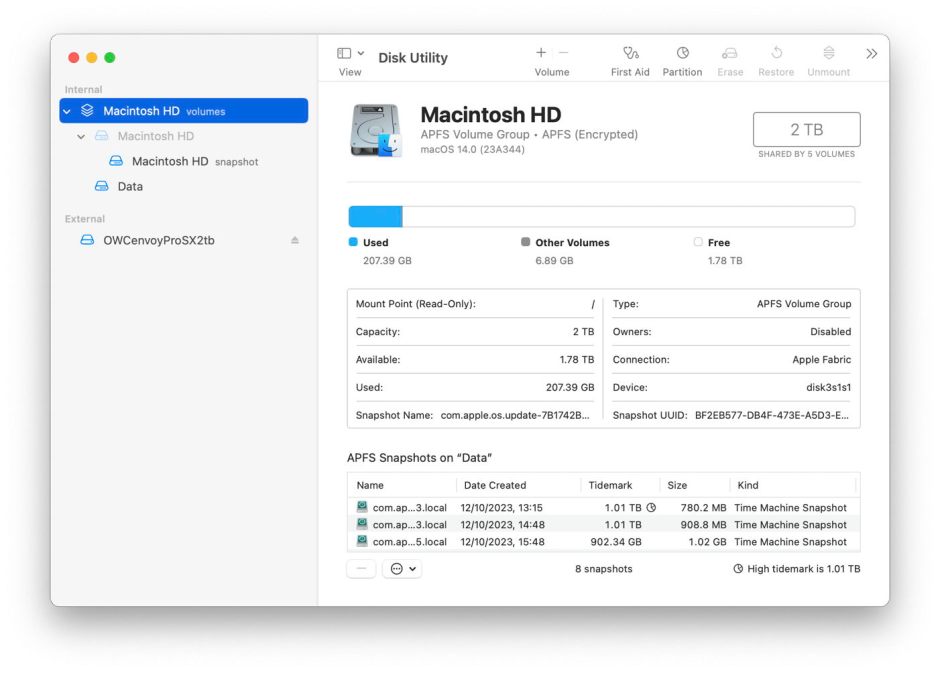
In addition to features provided by third-party backup utilities, you can manage snapshots using Disk Utility. Open its View menu and first enable Show All Devices, then Show APFS Snapshots. Select the Data or Macintosh HD – Data volume in the left of the window, and you’ll see a list of all APFS snapshots for that volume, together with an indication of the size of each.

diskutil14

To delete a snapshot in Disk Utility’s list, select it and use the Delete… command from the contextual menu (Control-click). Be careful, though, as there’s no undo. You can safely remove all Time Machine snapshots from that volume except the most recent, which is also the smallest. That latest snapshot is needed when that volume is next backed up by Time Machine. If you remove that too, then the next backup could be a full backup of everything on that Data volume, something best avoided if possible.

How to tell where a file or folder is

It might appear obvious how to tell where a file or folder is on your Mac: all you should need to do is select the item in the Finder and Get Info for it, where the full path is revealed. As I’m sure you’ll have guessed, that’s sometimes accurate, but sometimes conforms to the illusions the Finder creates. Allow me to demonstrate using my free utility Precize, which aims for complete accuracy.

We’ll start with an easy one, any of the apps you have installed in your main /Applications folder.

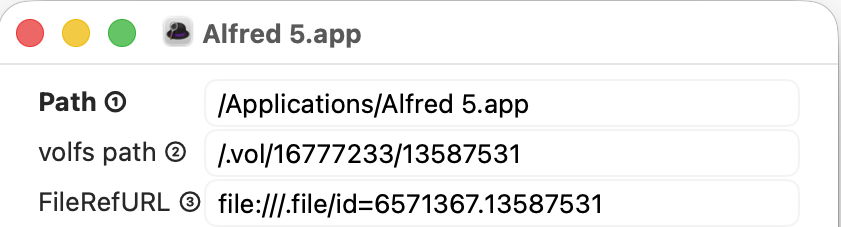
I picked Alfred, whose path is given as being in the main /Applications folder, which is on the Data volume, where I could install it. Look at the two lines below its path, and you’ll see its inode number, allocated by the file system, as the last on both lines, here 13587531. That’s relatively low, as we’ll see later, so confirms that it’s on the Data volume.

Now repeat that with one of the apps bundled with macOS.

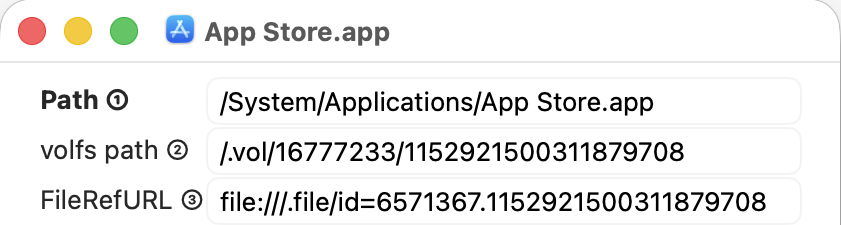
The App Store app has a different path, starting from /System, indicating that, although it might appear to be in the main /Applications folder, in fact that app is in the Signed System Volume (SSV) rather than the Data volume. The Finder agrees with this, and there’s added confirmation in the inode number of 1152921500311879708, which really is vast, and much larger than that of the Alfred app. As this app is part of the System, we can’t copy, move or remove it.

Now try Safari, another of the apps bundled with macOS.

Although the Finder tries to pretend this is alongside Alfred in the main /Applications folder, the path given by Precize is way off that, and gives its own clue that Safari is actually in the apps.dmg cryptex, which is here grafted into a folder in the Preboot volume, so in neither the System or Data volume. However, it has a very low inode number of 534152 indicating it has been grafted into that path. The other number, given before the inode number, is also different, and corresponds to the Preboot volume, rather than either of the volumes in the boot volume group.

For a finale, repeat this with one of your files stored in iCloud Drive.

While the Finder will continue its pretence that it’s in something called iCloud Drive, in fact it’s tucked away in a nest of folders inside your Home ~/Library folder. This means it’s on the Data volume, and it too has a low inode number of 341568 to confirm that, and the same volume reference number as Alfred and the App Store apps, but different from that of Safari. Of course, there’s also a copy of that file’s details and its data held in iCloud Drive, to which you don’t have direct access.

This isn’t just a trick or an exercise, though. The real location of a file or folder is important, as it tells you what you can do with it. You know that, subject to permissions, you should be able to move or remove items from your Data volume, including your iCloud Drive, but those in the SSV and cryptexes are immutable. You can run copies of apps from your Data volume, but not those in the SSV or a cryptex, which can’t be copied directly, and whose copies won’t launch. And if you need to access items in iCloud Drive from Terminal, you won’t find anything named iCloud Drive there, just a long path from your Home ~/Library folder.

You’ll never become lost in the file system again.

❌