Reading view

There are new articles available, click to refresh the page.

Why the macOS 26.4 update appears to freeze

Many discovered how long 5 minutes could last when they updated from macOS 26.3.1 to 26.4. Right at the end of its Preparation phase, Software Update showed there were only 5 minutes remaining for far longer. This article reveals what went wrong with that update.

My observations come from a Mac mini M4 Pro running a vanilla installation of macOS Tahoe, being updated from 26.3.1 (a) with the BSI installed, to 26.4. Times and details are taken from log extracts covering the final 14 minutes of the update, immediately prior to the reboot for its installation.

Preparation

At almost exactly 18:43:00, softwareupdated reported that the PREPARING_UPDATE phase was in progress, with 70% complete on the progress bar, and 20 minutes remaining. Periodic preparation activities were then reported in the log, mainly verifying components to be installed as part of the update. One of the longest of those, /usr/standalone/i386/Firmware.scap, took nearly 6.5 minutes alone, although you might wonder why that’s required on an Apple silicon Mac!

Eleven seconds later, softwareupdated changed the progress bar to display 10 minutes remaining, with 71% completed. Just 1.5 seconds later that changed again to display 5 minutes remaining with 94% complete. Six seconds after that, with 5 minutes still displayed, the log records 98.6% was complete.

The log and progress bar then remained stuck at 5 minutes remaining and 98.6% complete for the next 11 minutes and 47 seconds, before changing to 99.9% complete and no time remaining.

These are plotted in the chart below.
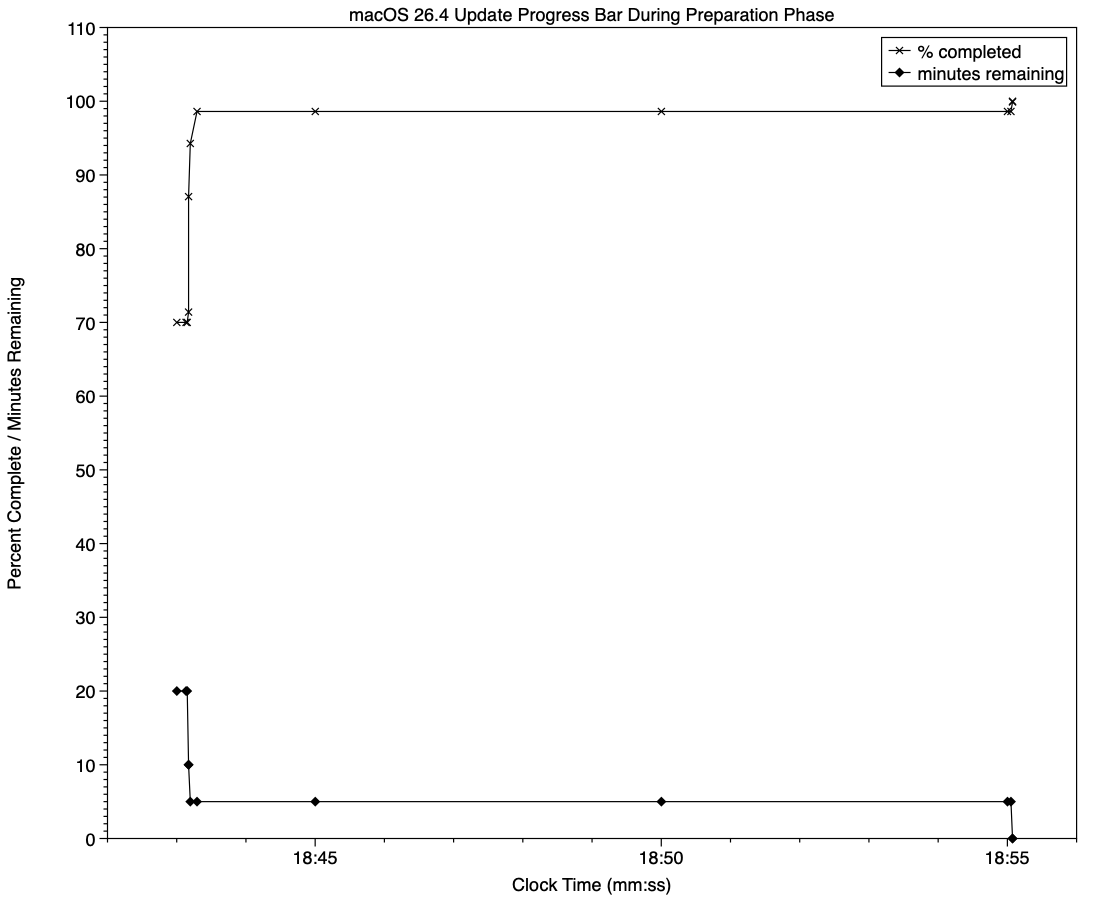
The final 5 minute period started at 18:43:12, and lasted until 18:55:04, as reflected in the long period of 98.6% completion (upper line) and 5 minutes remaining (lower line).

The “5 minutes” remaining actually took 12 minutes and 7 seconds, although log entries make it clear that preparation continued throughout that time, with further verifications and “Preparing system volume…”. Those details were reported as ActionText for progress monitoring, but curiously aren’t accessible to the user at the time.

Log entries record softwareupdated keeping detailed records of progress over this period, though. For example:
18:51:32.924688 softwareupdated PrepareUpdate PROGRESS (Continue) | state:{
ActionText = "Preparing system volume...";
ElapsedTime = 490;
ExpectedTime = 1335505;
PercentBytesComplete = "48.05373989419242";
PercentComplete = "4.701870471432042";
}

But those aren’t reflected in the progress bar.

Once the update had completed that preparation phase, extensive checks were performed to ensure it was correctly configured, and components were moved into place in the ‘stash’ to be used during installation. One second after successful completion, softwareupdated locked the controller state and waited for the reboot to start installation. Rebooting followed less than two minutes later.

What went wrong?

The macOS 26.4 update for Apple silicon Macs was large, and the work required to verify its contents and complete its preparation was incorrectly reported in both percent completion and time remaining. Even in smaller updates, some form of progress needs to be shown in the progress bar during these later stages of preparation, or users may be mislead into thinking the update has frozen or failed, and could for example restart their Mac to try updating again.

What should the user do?

When an update claims there’s only 5 minutes left, that could readily extend to longer, possibly on slower Macs as long as 30 minutes or more. Unless there’s evidence that the update has gone wrong at this stage, you should leave your Mac to complete it, as it almost certainly will. If you’re still in doubt and want to confirm that the update hasn’t frozen, open Activity Monitor and look for around 100% CPU from softwareupdated or related processes, and disk activity.

Unfortunately, there’s nothing the user can do to accelerate macOS updates.

Last Week on My Mac: Update progress

One of the longstanding jokes in computing is how misleading progress indicators can be, and last week most of us had a timely reminder when we updated macOS. However much we might like a perfectly accurate linear indicator for macOS updates, this is one of those situations where the best we can expect is a compromise, as I tried to explain here.

Showing progress

There are two types of progress indicator, determinate and indeterminate, depending on whether the task is quantifiable and progress is measurable. Determinate indicators are always preferred, as they inform the user whether they need only wait only a few moments, or they have time to enjoy a leisurely meal, but that requires quantifiability and measurability.

The simple example is copying a file from one disk to another: although macOS doesn’t know in advance how long that might take, it can quantify the task as the size of the file to be copied, then keep track of how much of that has already been completed. When half the size of the file has been copied, the progress bar can be set to half-way along its total length, so providing an accurate indication of progress.

However, with some copy operations that breaks down: when copying a sparse file between APFS volumes, for example, only the sparse data is copied, not the whole file size. As a result, copying sparse files often results in progress bars that jump from a low point to completion in the twinkling of an eye. This also relies on the quantities involved being linearly proportional to the time required, an assumption that often breaks down when downloading from a remote server.

macOS updates

Updating macOS consists of a series of many tasks (see references at the end), of which only one, downloading, is both quantifiable and has measurable progress, and even that may be far from linear. Apple therefore has a choice of:

  • Display multiple progress indicators, appropriate to each phase. While that might work well for the download phase, it can’t work for others, including preparation, which is likely to take a period of several minutes at least.
  • Combine those into a single progress bar, as at present.
  • Use an indeterminate progress indicator, such as a spinning wheel, which would be reliable but unhelpful.

As downloading is the one task that is quantifiable and its progress is measurable, I’ll start there.

For this, the progress bar starts an an arbitrary 15%, and softwareupdated assumes the total size of that download is the magnitude of that task.

When the download has been completed, the progress bar reaches an arbitrary 55%, and its caption then changes to reporting progress with preparation.

There is a weakness in the assumption that becomes obvious when downloading from a local Content Caching server, as the final 1 GB or so normally isn’t provided from the cache, but has to be freshly downloaded from Apple’s servers. However, that isn’t normally apparent when caching isn’t available and the whole of the download comes from the same remote source.

For the remainder of the progress bar, between 0%-15% and 55%-100%, the task is neither quantifiable nor measurable. Instead, softwareupdated divides it into a series of subtasks, each of which has a fixed progress level. One list of subtasks and levels obtained from the log is given in the Appendix at the end.

The disadvantage of that strategy is that time required by each subtask varies with the update and the Mac being updated. Inevitably, computationally intensive subtasks will proceed more rapidly on newer and faster Macs, while those mainly constrained by disk speed should be more uniform. Large updates should take significantly longer, and that will vary by subtask as well.

The last 5 minutes

A particular problem with some more recent macOS updates, including that from 26.3.1 to 26.4 last week, has been unmarked progress over the final “5 minutes” of preparation. While indeterminate progress indicators continue to move over that period, and reassure the user that the task hasn’t ground to a halt or frozen, the progress bar shown had no intermediate points, making it easy to misinterpret as failure to progress. If this is going to be a feature of future macOS updates, Apple needs to insert some intermediate points to let the user know that the update is still proceeding.

Conclusion

A progress bar that combines different measures of progress, such as download size and substages, can work well, but only if the user is aware of how to read it. As we only update macOS a few times each year, that isn’t sufficient exposure, and how it works needs to be made explicit.

Previously

How macOS 26 Tahoe updates 1
How macOS 26 Tahoe updates: 2 Finite state machines
How macOS 26 Tahoe updates: 3 Catalogues and preparing to download
How macOS 26 Tahoe updates: 4 Download, preparation and installation
Read the macOS update progress bar

Appendix

Progress bar percentages set for some subtasks during updating macOS 26.2 to 26.3 on an Apple silicon Mac:

  • 000.1 ACCEPTED
  • 000.2 STARTUP
  • 000.3 LOADING_PERSISTED
  • 000.5 PURGING
  • 000.6 CANCEL_SUCORE
  • 000.7 CANCEL_MSU
  • 000.8 CANCEL_STATE
  • 000.9 READY
  • 001.0 RELOADING_SU
  • 002.0 RELOADING_ROSETTA
  • 003.0 RELOADING_UPDATE_BRAIN
  • 004.0 DOWNLOADING_UPDATE_BRAIN
  • 007.0 PREFLIGHT_WAKEUP
  • 009.0 PREFLIGHT_PREREQUISITE
  • 010.0 PREFLIGHT_PERSONALIZE
  • 015.0 DOWNLOADING_ROSETTA
  • 016.0 DOWNLOADING_UPDATE
  • 054.0 DOWNLOADED_UPDATE
  • 055.0 PREFLIGHT_FDR_RECOVERY
  • 060.0 PREPARING_UPDATE
  • 099.0 PREPARED
  • 100.0 COMPLETED

Note the majority of the progress period (79%) is assigned to downloading (15%-55%) and preparing (60%-99%).

Read the macOS update progress bar

Updating macOS is a far more complex series of processes than it used to be, and the progress bar displayed in Software Update settings is complicated as a result. To capture all the phases that precede installation of an update, the progress bar moves through a series of stages, only one of which is downloading. This article identifies and explains them.

Start

When the Software Update pane offers a macOS update, it has already done a lot of the preliminary work, in fetching the catalogue of updates, checking through them to determine which could be installed, and working out what that would require. This enables it to provide a first estimate of how much needs to be downloaded. Note this is only an estimate at this stage, and may not include additional components such as an update to Rosetta 2.

Once you’ve agreed to install the update now, the progress bar is displayed.

Progress shown here covers many different processes, of which the most substantial are the download and preparation phases. Although progress shown during the download will vary depending on the speed of your Mac’s connection with Pallas, Apple’s software update servers, other sections are determined by the completion of tasks required for the installation, and may proceed in fits and starts.

Before the download can begin, softwareupdated has initial preparations to make, including reloading and downloading the Update Brain responsible for much of the task of installation. Following that are extensive preflight checks, and together those account for the first 15% of the progress bar shown. On a fast Apple silicon Mac, the progress bar may jump straight to that 15%.

Download

This starts at that arbitrary 15%, and is completed when the bar reaches 55%. In between those it should progress according to download speed, but that can be highly non-linear.

This displays a more accurate total size for the download, and the current amount that has already been downloaded. In this case, the bulk of this update is coming over the network from my Content Caching server, so its initial estimate is for a brief period of just 2 minutes. The progress bar then moves in proportion to the amount downloaded, not the time.

Although most of the download can be cached, for Apple silicon Macs the last 1 GB or so has to be obtained for each update from Pallas. As a result, the progress bar suddenly slows as it’s approaching 55%, and the estimated time remaining increases before decreasing again.

Preparing

As soon as the download is complete, there’s another preflight phase lasting from 55%-60%, then the downloads are prepared for installation. This phase doesn’t apparently involve their decompression, which is largely performed on the download stream during the download phase.

Preparations are arbitrarily assigned a period of 30 minutes to complete, but now seldom if ever require that long. As they’re allocated to the last 40% of the progress bar, this phase usually completes much quicker than the times given.

The final 5 minutes are often the slowest, and can take a few minutes longer than that, as the files for installation are gathered into a ‘stash’ ready for the Update Brain to install. Because the progress bar tends to jump straight from 95% complete to 100% this can make it look as if the update has frozen.

Installing

As soon as preparations are complete and reach 100% on the progress bar, the Mac prepares to restart into the installation phase, for which you’re given a 1 minute countdown before the screen goes black and installation happens.

Progress bar key phases

  • 0-15% preparation, preflight; usually brief
  • 15-55% download; on Apple silicon Macs, last 1 GB usually can’t be cached, so slower
  • 55-60% preflight; brief
  • 60-100% preparing; last 5 minutes may be longest.

I hope this helps you make sense of what you see during macOS updates, at least until the screen goes black and the installation starts.

❌