A Trump administration effort to gather documents from an old investigation had alarmed law enforcement officials, who feared it would be used to smear the Democratic lawmaker.
One of the features introduced in the new Unified log back in macOS Sierra was its ability to protect privacy by redacting potentially sensitive contents. Although a good thing, an extraordinary mistake in High Sierra, which revealed an encryption password in plain text, has led to many entries being so heavily redacted that they’re gutted of all meaning by <private>.
Another bone of contention has been the protection provided to key information about network connections. Originally that could be removed by setting the CFNETWORK_DIAGNOSTICS environment in Terminal. Following a vulnerability addressed in Ventura 13.4 that was protected by SIP, raising the barrier for that as well.
This Friday’s magic trick is one of the most complicated I have attempted yet, and is going to show how you can put meaning back into your log and discover where all those network connections are going. Because of the changes necessary, this is easiest to perform in a macOS VM, allowing you to discard the VM when you’re done.
Setting up
You don’t have to use a VM, but if you use a Mac it shouldn’t be your production system, and you’ll need to set it back to its original settings when you’ve finished.
I took a freshly updated VM with macOS Tahoe 26.3, duplicated that in the Finder, and used the duplicate so I could easily trash it.
I then installed the profile I have made available here to remove privacy in the log. Double-click the profile, then confirm in System Settings > General > Device Management that you want to add and enable it. From then until you remove that profile, all redactions in the log should cease.
To disable SIP, I started the VM up in Recovery mode, opened Startup Security Utility and downgraded boot security there. I then opened Terminal and disabled SIP using the command csrutil disable
If you want to, while you’re in Terminal you can run the command to enable network diagnostics launchctl setenv CFNETWORK_DIAGNOSTICS 3
noting that, in Recovery, there’s no sudo required or available. If you do this now, it should also apply when you restart.
Once that has been completed, restart back into normal mode and check the profile is still enabled. If you didn’t enable network diagnostics there, open Terminal and enter sudo launchctl setenv CFNETWORK_DIAGNOSTICS 3
Testing
Ensure the menu bar clock is displaying seconds, and just as it turns those to 00 seconds, run an app like SilentKnight that connects to remote sites. View the log for that period using LogUI (or whatever), and you should see the effects of both privacy removal and network diagnostics. The log is now a very different place, and far more informative.
Results
These are comparable log entries, before and after pulling this trick.
Privacy removal
Normal log entry: 00.541160 com.apple.launchservices Found application <private> to open application <private>
Privacy removed: 00.540882 com.apple.launchservices Found application SilentKnight to open application file:///Applications/SilentKnight.app/
restoring the app name and location that had been redacted to render the log entry meaningless.
Network diagnostics
Normal log entry: 01.240305 com.apple.network [C5 752CDB24-4E91-40B0-A837-9D7B9DE41B9E Hostname#7c4edf26:443 tcp, url hash: b62568a6, tls, definite, attribution: developer, context: com.apple.CFNetwork.NSURLSession.{AA60FF41-BA48-4332-B223-0C76A78CCEA7}{(null)}{Y}{2}{0x0} (private), proc: 9FC457E5-3273-37FA-BAEE-749A710F48E5, delegated upid: 0] start
which obfuscates the URL in a hash of b62568a6.
Network diagnostics: 01.103602 com.apple.network [C1 8BF615A6-CBEF-48D8-BE2F-CEF861B70BEE Hostname#99dda594:443 quic-connection, url: https://raw.githubusercontent.com/hoakleyelc/updates/master/applesilicon.plist, definite, attribution: developer, context: com.apple.CFNetwork.NSURLSession.{58709C77-3924-44EA-8563-4B44F0223AB6}{(null)}{Y}{2}{0x0} (private), proc: 06DF065F-71F6-36D9-BBAE-533B2D327BF4, delegated upid: 0] start
which reveals the full URL of https: // raw.githubusercontent.com/hoakleyelc/updates/master/applesilicon.plist, the property list on my Github containing firmware versions for Apple silicon Macs.
Remember
If you did this on a physical Mac, don’t forget to remove the profile, to enable SIP and return Startup Security Utility to Full Security, which should automatically disable network diagnostics.
Sometimes apparently simple things are truly simple, but more often than not they need us to turn detective to delve deeper. This has proved the case with local network privacy protection, introduced well over a year ago in macOS Sequoia, and largely glossed over since. As I was compiling my brief summary of what I had been able to discover about it, I had a feeling there was more to come, and there is.
Cast your mind back just over a year to the first couple of release versions of macOS Sequoia. Do you recall all the problems reported with its software firewall and networking? At the time I wrote of 15.0 “There have been widespread reports of problems with networking, many attributable to the software firewall. Products across a wide range of vendors are affected, and many simply can’t function properly in Sequoia.”
Most of those were addressed in 15.1, but their cause was never made clear unless you read Apple’s TN3179 carefully, where it’s mentioned in passing that “macOS 15.1 fixed a number of local network privacy bugs”. It’s no coincidence that macOS 15.0 was the first public release to feature that local network privacy protection.
Another clue came in the statement in that note that “on macOS there’s no way to reset your program’s Local Network privilege to the undetermined state”. This contrasts with pretty well every other category of privacy protection, which are handled by the dreaded TCC, Transparency Consent and Control. The major exception to those comes in Location Services, which are handled and implemented separately.
At this point I could hear the log calling me to take a look at what happens when a new app first requests access to the local network. Thanks to those of you who suggested candidates for this, I chose VideoLAN’s VLC running in a macOS 26.2 VM with bridged networking and a LAN available. I first drew a blank for TCC, as I had expected, which clearly knows nothing about local network privacy. Instead, it was the Network Extension framework that did all the work.
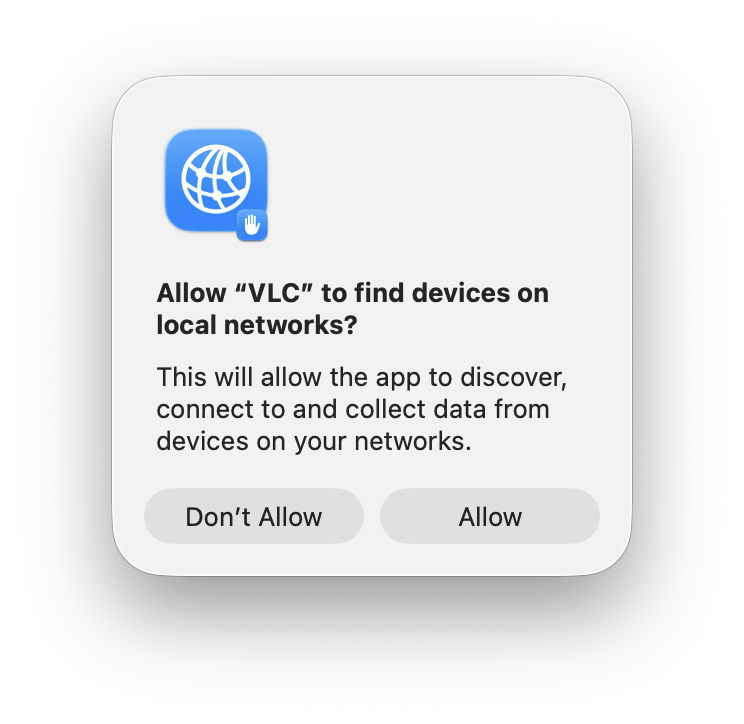
Once VLC had cleared Gatekeeper’s checks, it tried to query the local network, resulting in the standard request for consent.
This in itself is revealing, as it doesn’t appear to be constructed using a prompt string supplied in VLC, neither does it include VLC’s icon. It turns out that was all handled by the Network Extension framework: 06.249975 com.apple.networkextension Showing local network alert for org.videolan.vlc even though not in the foreground
06.249982 com.apple.networkextension Local network preference not yet set, prompting for VLC (org.videolan.vlc)
06.252939 com.apple.networkextension LocalNetwork icon configuration: notification dictionary option {
AlertHeader = "Allow \U201cVLC\U201d to find devices on local networks?";
AlertMessage = "This will allow the app to discover, connect to and collect data from devices on your networks.";
AlternateButtonTitle = "Don\U2019t Allow";
DefaultButtonTitle = Allow;
IconURL = "file:///System/Library/Frameworks/NetworkExtension.framework/Resources/LocalNetworkPrivacy.png";
SBUserNotificationDefaultButtonTag = 32; }
Less than four seconds later, I had clicked on the Allow button, and VLC got the green light: 10.015043 com.apple.mdns Local network alert policy status 'granted' for (org.videolan.vlc).
This added a new entry to the network privacy configuration: 10.023955 com.apple.networkextension NESMPathControllerSession[com.apple.preferences.networkprivacy-04DDB2F9-2C12-49BC-A4DE-B4CE6341E2B0:0C6F88E8-8AB2-4307-88AE-17E072232031]: handling configuration changed: {
name = <73-char-str>
identifier = 0C6F88E8-8AB2-4307-88AE-17E072232031
grade = 2
pathController = {
enabled = YES
pathRules = ( {
matchSigningIdentifier = PathRuleDefaultNonSystemIdentifier
matchDesignatedRequirement =
allowEmptyDesignatedRequirement = YES
noDivertDNS = NO
cellularBehavior = 0
denyCellularFallback = NO
denyMulticast = YES
multicastPreferenceSet = NO
isIdentifierExternal = NO
wifiBehavior = 0
denyAll = NO },
[other apps omitted]
{
matchSigningIdentifier = org.videolan.vlc
allowEmptyDesignatedRequirement = YES
noDivertDNS = NO
cellularBehavior = 0
denyCellularFallback = NO
denyMulticast = NO
multicastPreferenceSet = YES
isIdentifierExternal = NO
wifiBehavior = 0
denyAll = NO }, )
cellularFallbackFlags = 0
ignoreRouteRules = YES
ignoreFallback = YES } }
10.027741 com.apple.networkextension UUID: Found for org.videolan.vlc: ("07F0D29A-6013-3F29-81DC-15EAAB1C50D4")
The apps listed there extend well beyond those in the Local Network section of Privacy & Security settings, and it appears to include apps that don’t even attempt to make any network connection. It’s a useful list, though, that could be valuable if you’re trying to investigate a problem with local network connections. To elicit it, change its configuration and look for log entries from the com.apple.networkextension subsystem containing the word NESMPathControllerSession in the message field.
Knowing what the Network Extension framework can do, this makes it clear that local network privacy is implemented as a packet filter following those pathRules, which matches the statement in TN3179, that “the system implements these TCP and UDP checks deep in the networking stack, and thus they apply to all networking APIs.”
Summary
Local network privacy isn’t implemented through TCC, but as a packet filter in the Network Extension framework.
Prompts to allow access to local network features can be made without the app providing an information string.
A user’s Network Extension configuration contains path rules for apps that aren’t listed in the Local Network section of Privacy & Security settings.
The subsystem com.apple.networkextension may write its configuration to the log when it’s changed.
An app’s path rules are applied across all networking APIs.
Of all the privacy protections in macOS, those for local networking are among the most recent and the least understood. Introduced in macOS Sequoia, they’re related to protection introduced earlier in iOS and iPadOS version 14, but different, and could trip you up when you’re least expecting yet another privacy prompt.
Fundamental rule
Any process running on your Mac that tries to make a connection to a local network address, to send or receive network packets without being forwarded by a router, requires privilege to do so. Without that privilege being allowed, the system will block it.
That sounds draconian, but most common uses are subject to exemptions, as a result of which the Local Network section in Privacy & Security settings remains empty.
All non-exempted apps and other processes start without any privilege. Those that try to make a local network connection result in the user being prompted to allow or deny their access. Your decision is then recorded in that app’s new entry in the Local Network section, and you can then set that to allow or deny its future access. For that to happen, the responsible app needs an additional item in its property list to explain to you why it requires that access, something that should appear in any prompt for access.
As with other privacy controls in macOS, this is applied for each individual user.
Major exceptions
In macOS, the following are automatically given local network access and don’t appear in Local Network settings:
any daemon (except agents) started by launchd
any process running as root
command tools run from Terminal or using SSH, including their child processes; however, there are reports that closing Terminal while child processes are still running can lose their exemption, and cause their local connection to be broken
traffic from Safari and WebKit (WKWebView)
access to a local DNS server or network proxy
high-level services using Bonjour internally, including AirPlay, printing, device discovery and accessory setup.
Those exempt the majority of processes regular users are likely to run.
Listening for and accepting incoming TCP connections doesn’t require any privilege, nor does receiving an incoming UDP unicast. Resolving a local DNS name, ending in .local, does require privilege, though, as do all Bonjour operations other than those exempted above.
Known problems
A process with a short life that immediately fails if it can’t complete a local network operation may not trigger a user prompt, and can continue to fail repeatedly as it can’t be granted the privilege. Apple recommends changing the code so that it doesn’t exit immediately after failure, to allow the prompt to be displayed and access granted.
There’s currently no way to reset an app’s Local Network setting.
Prompts to grant the privilege of local network access can appear out of the blue when an app accesses certain third-party libraries. It can be hard to trace the origins of those, but if you can work out which app is most probably responsible, you can report this to its developer.
Local network privacy, like other similar protection, relies on tracking apps by their code signature, so works best with code signed with certificates issued by Apple, rather than ad hoc signatures. It also relies on the UUID of the main executable code; in some cases that may be absent, or shared with other code, and can then behave unpredictably. These should be raised with the app developer.
Key points
macOS Sequoia and Tahoe apply restrictions to local network connections. Although few are likely to encounter them, don’t be surprised to be prompted to allow or deny a local network connection. Control those in the Local Network section in Privacy & Security settings as necessary.

 Login
Login