With macOS Tahoe already more than half way through its cycle, and Apple’s WWDC announced, now is a good time to plan your Mac’s calendar. This article peeks at what lies ahead for macOS over the next six months.
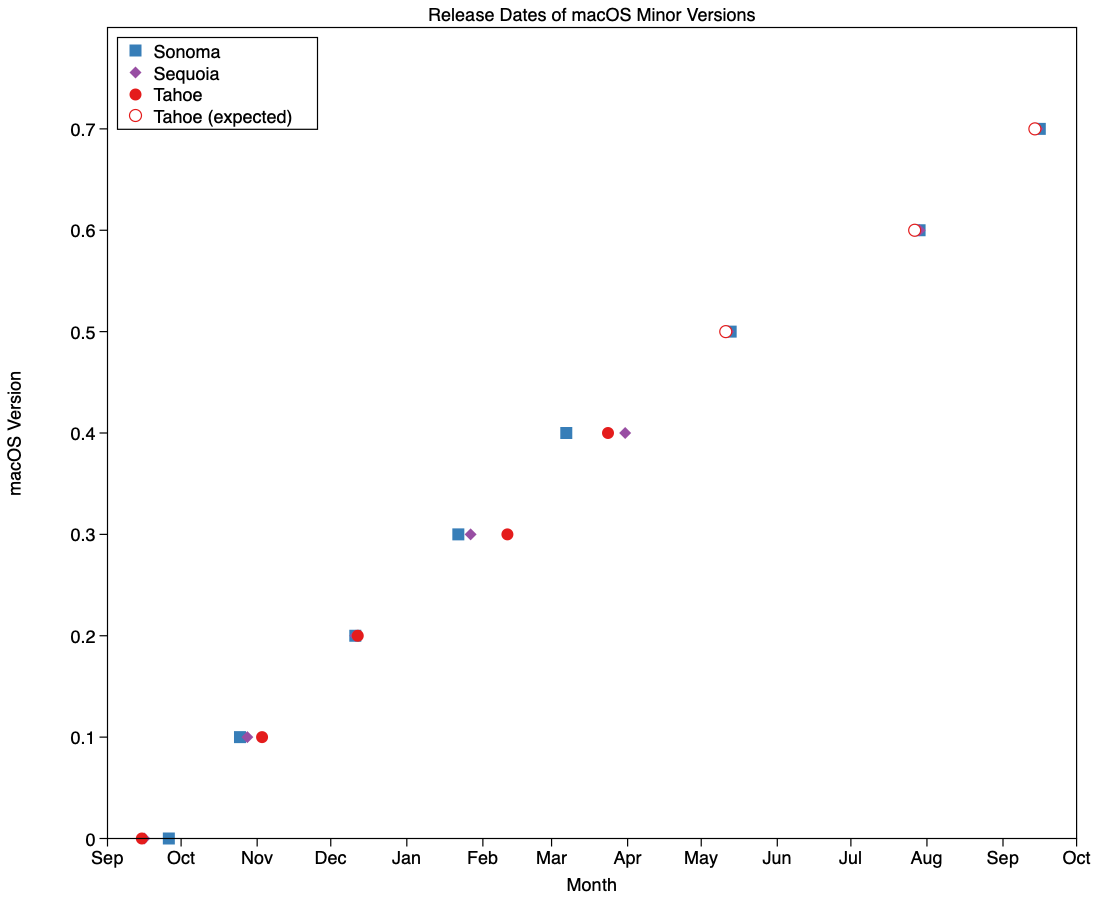
Since the pandemic disruption settled, minor version updates to macOS have become more regular. Looking across Sonoma, Sequoia and Tahoe, greatest variation in their timing has been in their x.3 and x.4 releases, that have varied between 22 Jan – 11 Feb, and 7 – 31 March, respectively. x.5 to x.7 have been more consistent, as they’re more tightly constrained by events including WWDC, the subsequent new beta season, and for some maybe even a vacation.
Those are summarised in the chart above, together with my predictions for the dates we should expect the remaining minor versions of Tahoe. Those should bring its cycle to look like:
26.0 – 15 September 2025
26.1 – 3 November 2025
26.2 – 12 December 2025
26.3 – 11 February 2026
26.4 – 24 March 2026
26.5 – 11 May 2026
26.6 – 27 July 2026
26.7 – 14 September 2026.
Where my forecasts are given in italics. Patch releases, such as 26.3.1, and BSIs occur outside that schedule. While we’re on the topic of BSIs, all indications are that Apple only intends to provide them for the current release of macOS, as it did with RSRs, which means that those Macs staying with Tahoe from 26.7 will no longer get them. It’s unclear how significant a loss that might prove.
WWDC this year is being held between 8-12 June, and will almost certainly bring the first developer beta release of macOS 27.0 (and all Apple’s other OSes). That’s likely to be made available to public beta-testers in early July. This is particularly significant this year, as it will be the first version of macOS to run exclusively on Apple silicon Macs.
For those with Intel Macs, or intending to remain with older versions of macOS, likely dates of release for scheduled security updates to Sonoma and Sequoia are:
15.7.6, 14.8.6 – 11 May 2026
15.7.7, 14.8.7 – 27 July 2026
15.7.8, 14.8.8 – 25 August 2026
15.8 – 14 September 2026.
The date at the end of August is possible, but less likely than the previous two. So far this year, security updates for Sonoma and Sequoia have been keeping reasonably close to those for Tahoe, in terms of vulnerabilities addressed, so the security gap between them has been rather less than in previous cycles.
However, the important message here is that it’s unlikely that Sonoma will receive any further security updates after the end of August this year. If your Mac is capable of being upgraded to Sequoia, now is the time to plan that, or it’ll all too quickly be September and your macOS will have lost its last support.
Similarly, if you’ve been holding back from upgrading to Tahoe in the hope that it will undergo interface improvements, I’m afraid that’s now looking increasingly unlikely. If it’s an Intel Mac capable of running Tahoe, there’s little point in avoiding making that decision any longer. There’s only limited time and scope left for improvement in macOS 26, with most engineers now more focussed on getting macOS 27 ready for WWDC.
Apple has just released its regular weekly update to XProtect, bringing it to version 5336. As usual it doesn’t release information about what security issues this update might address.
This version adds two new rules for MACOS.WANNABEWALLABY.IMA and MACOS.WANNABEWALLABY.STA, amends rules for MACOS.TIMELYTURTLE.DYHEOC, MACOS.SOMA.MAENA, and MACOS.SOMA.MAENB, and changes some rule UUIDs. In the Osascript rules in XPScripts.yr, it amends the rule for MACOS.OSASCRIPT.SYPR.
You can check whether this update has been installed by opening System Information via About This Mac, and selecting the Installations item under Software.
A full listing of security data file versions is given by SilentKnight and SystHist for El Capitan to Tahoe available from their product page. If your Mac hasn’t yet installed this update, you can force it using SilentKnight or at the command line.
If you want to install this as a named update in SilentKnight, its label is XProtectPlistConfigData_10_15-5336
Sequoia and Tahoe systems only
This update hasn’t yet been released for Sequoia and Tahoe via iCloud. If you want to check it manually, use the Terminal command sudo xprotect check
then enter your admin password. If that returns version 5336 but your Mac still reports an older version is installed, you should be able to force the update using sudo xprotect update
For those working with Rich Text without embedded images, my free editor DelightEd offers a suite of unique features. I wrote it when macOS Mojave introduced Dark appearance mode, with the primary purpose of composing Rich Text documents that work independent of appearance. For that it can set styled text on a background that ensures perfect readability in both Light and Dark modes.
Since then it has gained other unique features, including support for creating interlinear text, in which different translations or versions of the same document are interleaved line by line. It will also open PDF documents and automatically extract all their text content.
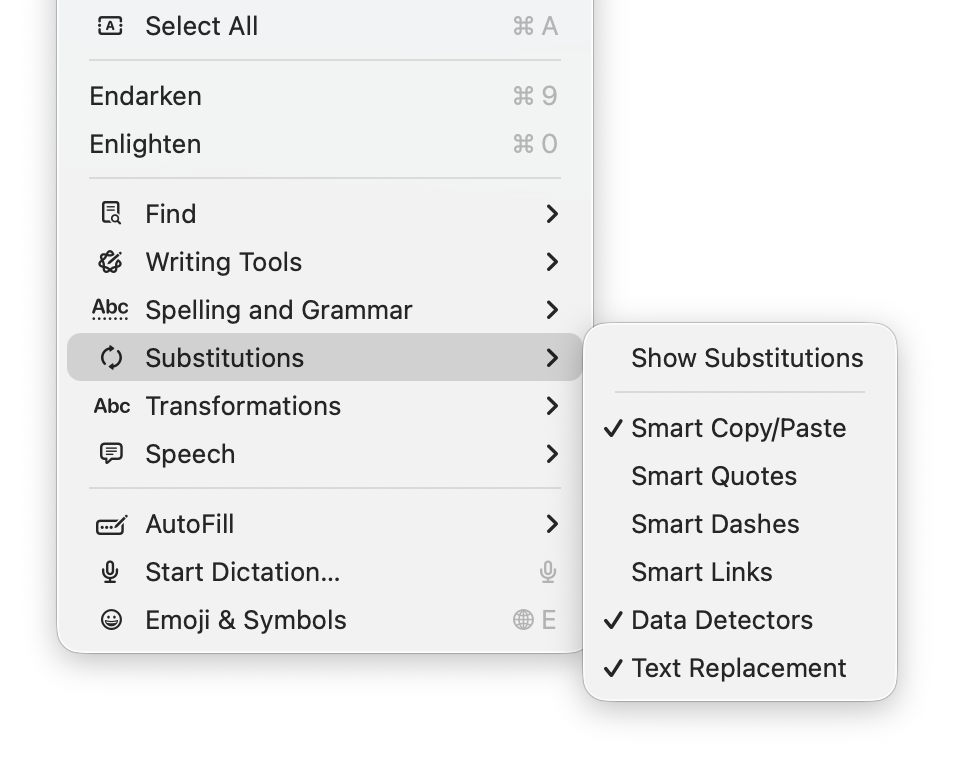
General features supported include Writing Tools (Apple silicon Macs), case transformations, and a full suite of substitutions. However, until this new version of DelightEd, substitution settings haven’t been saved in DelightEd’s app settings. Version 2.5 now puts that right: to set the app’s default substitutions, set them up using the Substitution command in its Edit menu, for instance enabling Smart Links.
Then save those to its settings using the Save Defaults command in the app’s menu. Each time you open DelightEd after that, its substitutions will start from those saved defaults.
DelightEd version 2.5 for macOS 11.5 Big Sur and later, including Tahoe, is now available from here: delighted25
from Downloads above, from its Product Page, and through its auto-update mechanism.
I’m very grateful to Manuel for asking for this to be fixed.
Many discovered how long 5 minutes could last when they updated from macOS 26.3.1 to 26.4. Right at the end of its Preparation phase, Software Update showed there were only 5 minutes remaining for far longer. This article reveals what went wrong with that update.
My observations come from a Mac mini M4 Pro running a vanilla installation of macOS Tahoe, being updated from 26.3.1 (a) with the BSI installed, to 26.4. Times and details are taken from log extracts covering the final 14 minutes of the update, immediately prior to the reboot for its installation.
Preparation
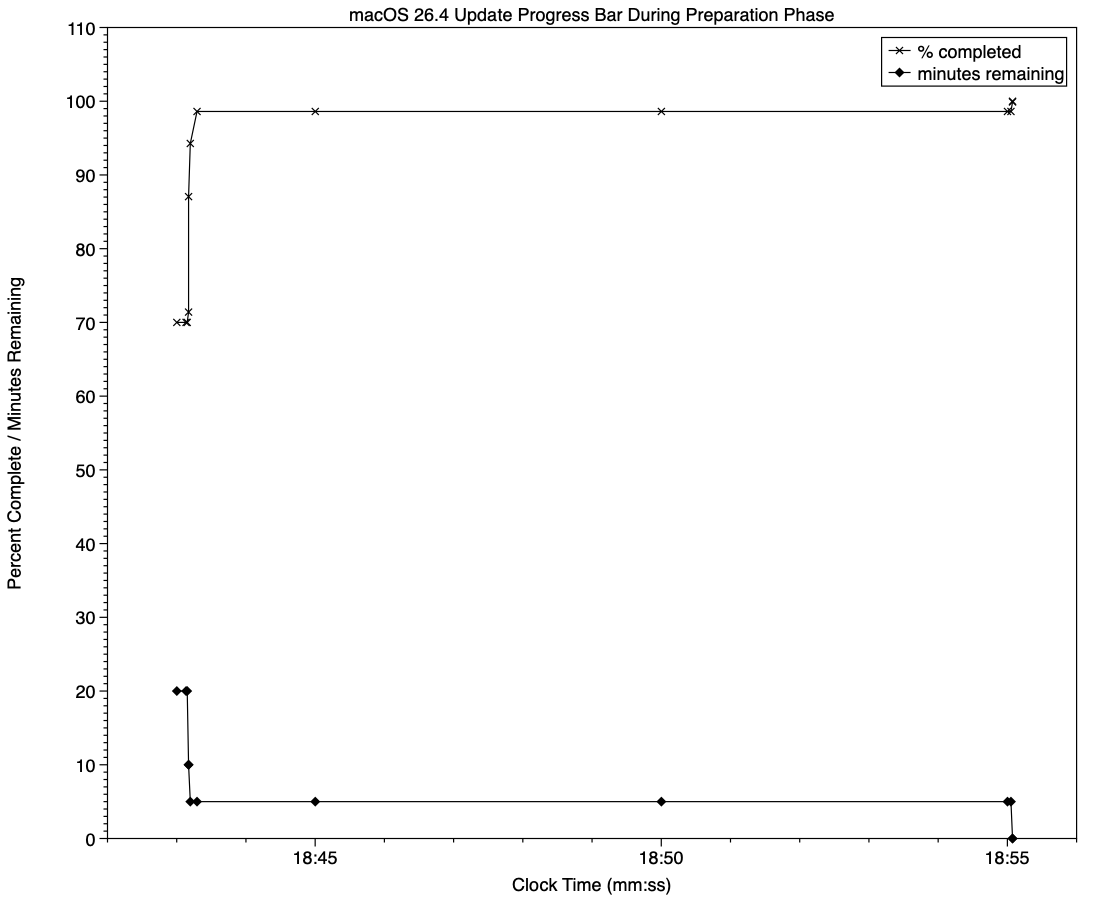
At almost exactly 18:43:00, softwareupdated reported that the PREPARING_UPDATE phase was in progress, with 70% complete on the progress bar, and 20 minutes remaining. Periodic preparation activities were then reported in the log, mainly verifying components to be installed as part of the update. One of the longest of those, /usr/standalone/i386/Firmware.scap, took nearly 6.5 minutes alone, although you might wonder why that’s required on an Apple silicon Mac!
Eleven seconds later, softwareupdated changed the progress bar to display 10 minutes remaining, with 71% completed. Just 1.5 seconds later that changed again to display 5 minutes remaining with 94% complete. Six seconds after that, with 5 minutes still displayed, the log records 98.6% was complete.
The log and progress bar then remained stuck at 5 minutes remaining and 98.6% complete for the next 11 minutes and 47 seconds, before changing to 99.9% complete and no time remaining.
These are plotted in the chart below.
The final 5 minute period started at 18:43:12, and lasted until 18:55:04, as reflected in the long period of 98.6% completion (upper line) and 5 minutes remaining (lower line).
The “5 minutes” remaining actually took 12 minutes and 7 seconds, although log entries make it clear that preparation continued throughout that time, with further verifications and “Preparing system volume…”. Those details were reported as ActionText for progress monitoring, but curiously aren’t accessible to the user at the time.
Log entries record softwareupdated keeping detailed records of progress over this period, though. For example: 18:51:32.924688 softwareupdated PrepareUpdate PROGRESS (Continue) | state:{
ActionText = "Preparing system volume...";
ElapsedTime = 490;
ExpectedTime = 1335505;
PercentBytesComplete = "48.05373989419242";
PercentComplete = "4.701870471432042";
}
But those aren’t reflected in the progress bar.
Once the update had completed that preparation phase, extensive checks were performed to ensure it was correctly configured, and components were moved into place in the ‘stash’ to be used during installation. One second after successful completion, softwareupdated locked the controller state and waited for the reboot to start installation. Rebooting followed less than two minutes later.
What went wrong?
The macOS 26.4 update for Apple silicon Macs was large, and the work required to verify its contents and complete its preparation was incorrectly reported in both percent completion and time remaining. Even in smaller updates, some form of progress needs to be shown in the progress bar during these later stages of preparation, or users may be mislead into thinking the update has frozen or failed, and could for example restart their Mac to try updating again.
What should the user do?
When an update claims there’s only 5 minutes left, that could readily extend to longer, possibly on slower Macs as long as 30 minutes or more. Unless there’s evidence that the update has gone wrong at this stage, you should leave your Mac to complete it, as it almost certainly will. If you’re still in doubt and want to confirm that the update hasn’t frozen, open Activity Monitor and look for around 100% CPU from softwareupdated or related processes, and disk activity.
Unfortunately, there’s nothing the user can do to accelerate macOS updates.
One of the longstanding jokes in computing is how misleading progress indicators can be, and last week most of us had a timely reminder when we updated macOS. However much we might like a perfectly accurate linear indicator for macOS updates, this is one of those situations where the best we can expect is a compromise, as I tried to explain here.
Showing progress
There are two types of progress indicator, determinate and indeterminate, depending on whether the task is quantifiable and progress is measurable. Determinate indicators are always preferred, as they inform the user whether they need only wait only a few moments, or they have time to enjoy a leisurely meal, but that requires quantifiability and measurability.
The simple example is copying a file from one disk to another: although macOS doesn’t know in advance how long that might take, it can quantify the task as the size of the file to be copied, then keep track of how much of that has already been completed. When half the size of the file has been copied, the progress bar can be set to half-way along its total length, so providing an accurate indication of progress.
However, with some copy operations that breaks down: when copying a sparse file between APFS volumes, for example, only the sparse data is copied, not the whole file size. As a result, copying sparse files often results in progress bars that jump from a low point to completion in the twinkling of an eye. This also relies on the quantities involved being linearly proportional to the time required, an assumption that often breaks down when downloading from a remote server.
macOS updates
Updating macOS consists of a series of many tasks (see references at the end), of which only one, downloading, is both quantifiable and has measurable progress, and even that may be far from linear. Apple therefore has a choice of:
Display multiple progress indicators, appropriate to each phase. While that might work well for the download phase, it can’t work for others, including preparation, which is likely to take a period of several minutes at least.
Combine those into a single progress bar, as at present.
Use an indeterminate progress indicator, such as a spinning wheel, which would be reliable but unhelpful.
As downloading is the one task that is quantifiable and its progress is measurable, I’ll start there.
For this, the progress bar starts an an arbitrary 15%, and softwareupdated assumes the total size of that download is the magnitude of that task.
When the download has been completed, the progress bar reaches an arbitrary 55%, and its caption then changes to reporting progress with preparation.
There is a weakness in the assumption that becomes obvious when downloading from a local Content Caching server, as the final 1 GB or so normally isn’t provided from the cache, but has to be freshly downloaded from Apple’s servers. However, that isn’t normally apparent when caching isn’t available and the whole of the download comes from the same remote source.
For the remainder of the progress bar, between 0%-15% and 55%-100%, the task is neither quantifiable nor measurable. Instead, softwareupdated divides it into a series of subtasks, each of which has a fixed progress level. One list of subtasks and levels obtained from the log is given in the Appendix at the end.
The disadvantage of that strategy is that time required by each subtask varies with the update and the Mac being updated. Inevitably, computationally intensive subtasks will proceed more rapidly on newer and faster Macs, while those mainly constrained by disk speed should be more uniform. Large updates should take significantly longer, and that will vary by subtask as well.
The last 5 minutes
A particular problem with some more recent macOS updates, including that from 26.3.1 to 26.4 last week, has been unmarked progress over the final “5 minutes” of preparation. While indeterminate progress indicators continue to move over that period, and reassure the user that the task hasn’t ground to a halt or frozen, the progress bar shown had no intermediate points, making it easy to misinterpret as failure to progress. If this is going to be a feature of future macOS updates, Apple needs to insert some intermediate points to let the user know that the update is still proceeding.
Conclusion
A progress bar that combines different measures of progress, such as download size and substages, can work well, but only if the user is aware of how to read it. As we only update macOS a few times each year, that isn’t sufficient exposure, and how it works needs to be made explicit.
Updating macOS is a far more complex series of processes than it used to be, and the progress bar displayed in Software Update settings is complicated as a result. To capture all the phases that precede installation of an update, the progress bar moves through a series of stages, only one of which is downloading. This article identifies and explains them.
Start
When the Software Update pane offers a macOS update, it has already done a lot of the preliminary work, in fetching the catalogue of updates, checking through them to determine which could be installed, and working out what that would require. This enables it to provide a first estimate of how much needs to be downloaded. Note this is only an estimate at this stage, and may not include additional components such as an update to Rosetta 2.
Once you’ve agreed to install the update now, the progress bar is displayed.
Progress shown here covers many different processes, of which the most substantial are the download and preparation phases. Although progress shown during the download will vary depending on the speed of your Mac’s connection with Pallas, Apple’s software update servers, other sections are determined by the completion of tasks required for the installation, and may proceed in fits and starts.
Before the download can begin, softwareupdated has initial preparations to make, including reloading and downloading the Update Brain responsible for much of the task of installation. Following that are extensive preflight checks, and together those account for the first 15% of the progress bar shown. On a fast Apple silicon Mac, the progress bar may jump straight to that 15%.
Download
This starts at that arbitrary 15%, and is completed when the bar reaches 55%. In between those it should progress according to download speed, but that can be highly non-linear.
This displays a more accurate total size for the download, and the current amount that has already been downloaded. In this case, the bulk of this update is coming over the network from my Content Caching server, so its initial estimate is for a brief period of just 2 minutes. The progress bar then moves in proportion to the amount downloaded, not the time.
Although most of the download can be cached, for Apple silicon Macs the last 1 GB or so has to be obtained for each update from Pallas. As a result, the progress bar suddenly slows as it’s approaching 55%, and the estimated time remaining increases before decreasing again.
Preparing
As soon as the download is complete, there’s another preflight phase lasting from 55%-60%, then the downloads are prepared for installation. This phase doesn’t apparently involve their decompression, which is largely performed on the download stream during the download phase.
Preparations are arbitrarily assigned a period of 30 minutes to complete, but now seldom if ever require that long. As they’re allocated to the last 40% of the progress bar, this phase usually completes much quicker than the times given.
The final 5 minutes are often the slowest, and can take a few minutes longer than that, as the files for installation are gathered into a ‘stash’ ready for the Update Brain to install. Because the progress bar tends to jump straight from 95% complete to 100% this can make it look as if the update has frozen.
Installing
As soon as preparations are complete and reach 100% on the progress bar, the Mac prepares to restart into the installation phase, for which you’re given a 1 minute countdown before the screen goes black and installation happens.
Progress bar key phases
0-15% preparation, preflight; usually brief
15-55% download; on Apple silicon Macs, last 1 GB usually can’t be cached, so slower
55-60% preflight; brief
60-100% preparing; last 5 minutes may be longest.
I hope this helps you make sense of what you see during macOS updates, at least until the screen goes black and the installation starts.
Apple has just released its regular weekly update to XProtect, bringing it to version 5335. As usual it doesn’t release information about what security issues this update might address.
This version adds two new Yara rules for MACOS.TIMELYTURTLE.OBDR and MACOS.SOMA.MAENB, and amends the existing rule for MACOS.SOMA.BYTE.SEQUENCE.B. In the Osascript rules in XPScripts.yr, it relocates those for TABUPA, REBUPA, DUVAST, DUCUHA and DUSTCO.
You can check whether this update has been installed by opening System Information via About This Mac, and selecting the Installations item under Software.
A full listing of security data file versions is given by SilentKnight and SystHist for El Capitan to Tahoe available from their product page. If your Mac hasn’t yet installed this update, you can force it using SilentKnight or at the command line.
If you want to install this as a named update in SilentKnight, its label is XProtectPlistConfigData_10_15-5335
Sequoia and Tahoe systems only
This update has already been released for Sequoia and Tahoe via iCloud. If you want to check it manually, use the Terminal command sudo xprotect check
then enter your admin password. If that returns version 5335 but your Mac still reports an older version is installed, you should be able to force the update using sudo xprotect update
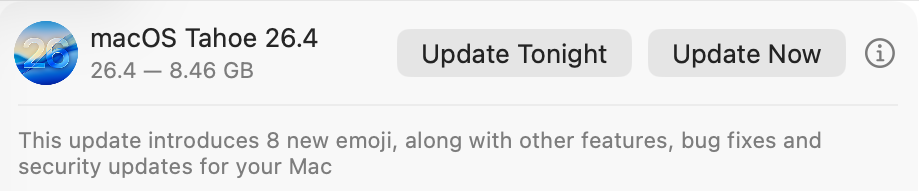
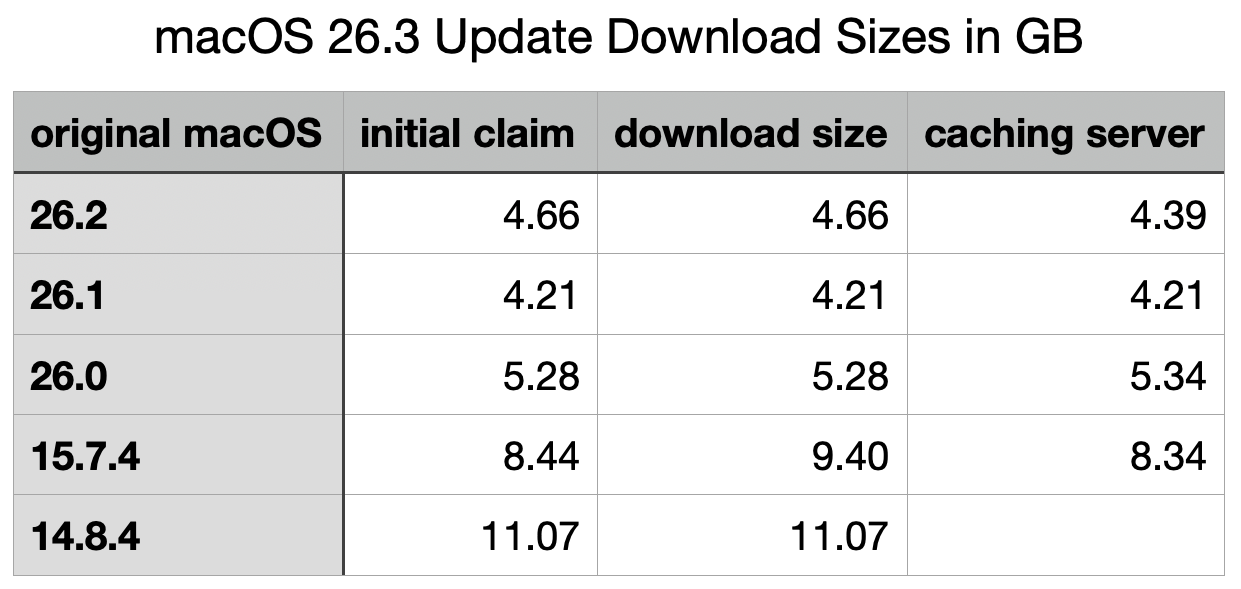
The update to bring macOS Tahoe up to version 26.4 is hefty at around 7.15 GB (more than double that if you’re unlucky), and reflects a great deal of bug fixes and improvements in almost every subsystem. Apple provides three good sets of release notes:
General release notes include the addition of an option to use compact tabs in Safari, Freeform’s new Creator Studio enhancements, and a facility for Purchase Sharing in Family Sharing. Oh, and the requisite eight new emoji.
Security release notes list over 70 fixes, many of which are significant, but none are reported as being known to be exploited in the wild at present.
The new build number of 26.4 is 25E246. The Darwin Kernel version is 25.4.0, and XNU 12377.101.15~1.
Apple silicon firmware is updated to a completely different version numbering system, and is now reported as mBoot version 18000.101.7. If you’re running SilentKnight older than version 2.14 (71), then it’s likely that it will crash as a result of this change in firmware version. Please use version 2.14 from here.
Firmware in Intel Macs with T2 chips remains with the previous system, and is updated from 2094.80.5.0.0 (iBridge 23.16.13120.0.0,0) to 2103.100.6.0.0 (iBridge 23.16.14242.0.0,0).
Looking through the bundled apps and /System/Library, there are a great many increments in build numbers reflecting the extensive changes made. Here are a few of the more substantial changes found.
In bundled apps:
Books goes from version 8.1 to 8.4
Freeform, version 4.3 to 4.4
iPhone Mirroring, version 1.5 to 1.6
Music, version 1.6.3 to 1.6.4
Safari, version 26.3.1 (21623.2.7.111.2) in BSI (a) to 26.4 (21624.1.16.11.4)
TV, version 1.6.3 to 1.6.4
Audio MIDI Setup, version 3.7 to 3.8
Digital Color Meter, version 6.10 to 6.11
Screen Sharing, version 6.2 (758.1) to 6.1 (760.4), note the reduction in version number.
In /System/Library:
AGX kernel extensions all have build increments
AppleDiskImages2 kext has a build increment
AppleEmbeddedAudio kext and its plugin kexts have build increments
AppleIntel Graphics kexts have version increments
AppleStorageDrivers kext and its plugin kexts have build increments
APFS is updated from 2632.80.1 to 2811.101.1, suggesting a substantial change has been made
new private frameworks include ASMExclaveSupport, AccelerateOpt, AlwaysOnExclavesDaemon, AnteroAgent, AppRemoteAssets, AudioPasscodeDSP, BNNSOdieDelegate, CookingData, CoreTransparency, DynamicPrefetching, InAppFeedback, NanoPassKit, PartnerVisualSearch, a whole family of Unilog frameworks, and a group of iCloudWeb frameworks
mdimporters updated include those for Application, CoreMedia, Mail, Office, iWork but not RichText.
After seeing the new CookingData private framework, I looked out for RecipeKit, but was disappointed not to see it.
This is probably going to be the last such substantial update to macOS Tahoe, as much of Apple’s engineering effort is transferring to make macOS 27 ready for release as a beta at WWDC in early June.
Freeform joins Creator Studio, with advanced tools and a premium content library
Purchase Sharing in Family Sharing
and eight new emoji.
Security release notes for 26.4 list over 70 fixes, those for Sequoia 15.7.5 list about 56, and those for Sonoma 14.8.5 list about 50. None are reported as being known to be exploited in the wild at present.
Firmware in Apple silicon Macs is updated to a new mBoot firmware version numbering system, with the current version given as 18000.101.7. The macOS build number is 25E246, and Safari is version 26.4 (21624.1.16.11.4). Firmware in Intel Macs with T2 chips is updated from 2094.80.5.0.0 (iBridge 23.16.13120.0.0,0) to 2103.100.6.0.0 (iBridge 23.16.14242.0.0,0).
If you’re running SilentKnight older than version 2.14 (71), then it’s likely that it will crash as a result of the change in firmware version. Please use version 2.14 from here.
I’ll be posting an analysis of what has changed later today.
Updated 09:15 25 March 2026 with firmware details for Intel Macs.
If there’s one thing I’ll remember macOS Tahoe for it’s brilliant engineering inside a shockingly flawed interface. Last week’s first Background Security Improvement was yet another example of that trend.
I had enthused about its predecessor the RSR three years ago, although it was sent to the naughty corner after an updated version of Safari told Facebook and other popular sites it wasn’t who they expected. After that trauma, most users shunned RSRs, and it seems engineers who dared mention them were strapped to the front of an F1 car and driven round until they recanted.
Thankfully, RSRs were only put on pause before being rebadged as Background Security Improvements or BSIs, an Orwellian turn of phrase that skilfully avoids the word update despite the fact that they’re still discovered, downloaded and installed by softwareupdated. Now I’ve had a chance to give a fair account of the first public BSI, I can consider what’s wrong with their current implementation.
Location
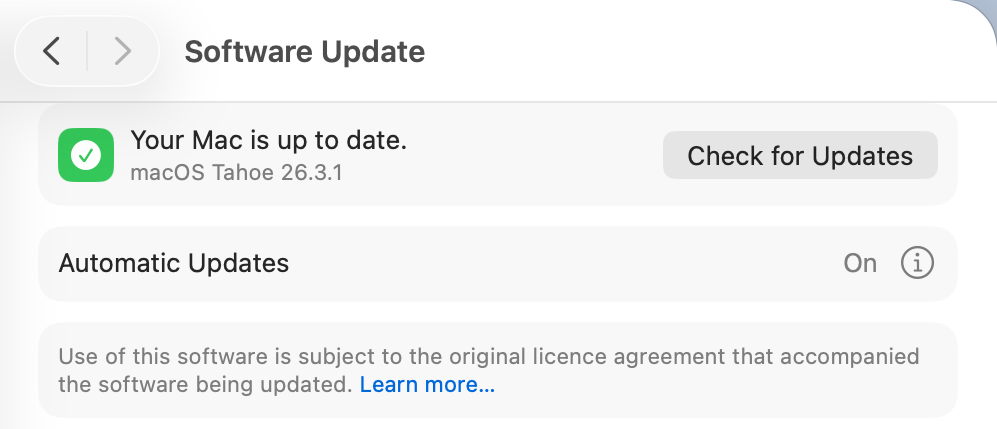
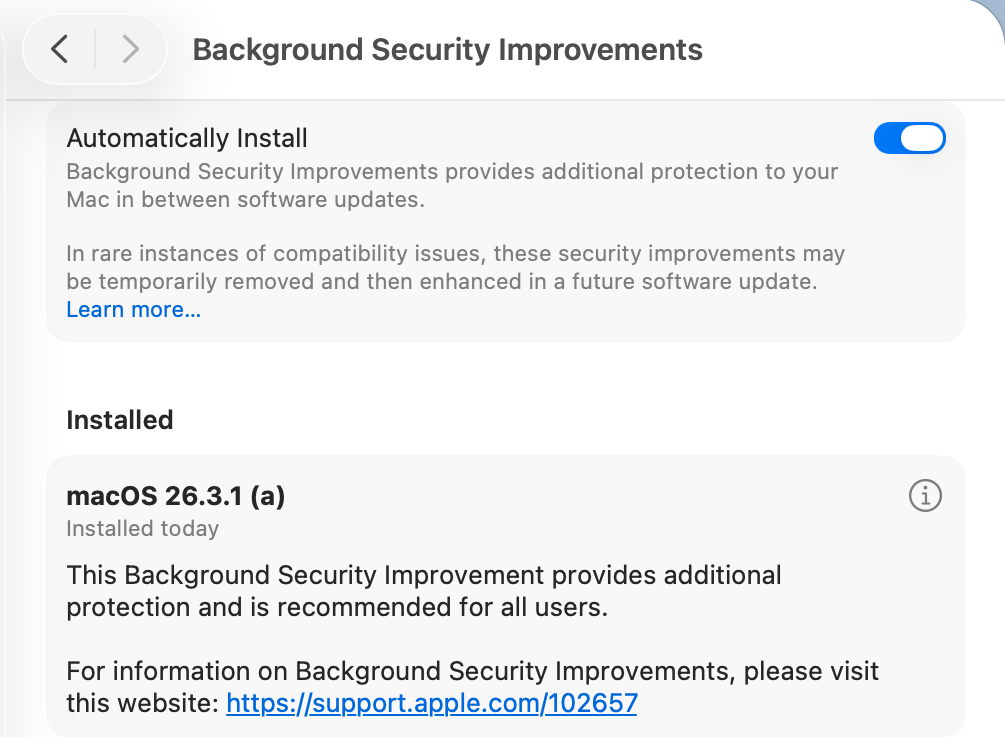
BSIs are controlled not in Software Update settings, but in their own section at the end of Privacy & Security. As such, they are the only macOS update there, and all others remain in Software Update where they belong. This misleads users, and Software Update reports that Your Mac is up to date when it isn’t, because there’s an outstanding BSI available.
Not only that, but users naturally assume that when Software Update settings have Install macOS updates disabled, no macOS updates will be installed automatically. Little do they realise they can still get a BSI without being asked.
BSIs are currently misplaced in System Settings, and their controls should be moved back to Software Update where RSRs were.
I fear the reasoning behind hiding BSIs among strangers in Privacy & Security was to ensure most Mac users would leave BSIs to be installed automatically. It’s no coincidence that, in addition to this hiding, the automatic installation of BSIs was enabled by default when upgrading to macOS Tahoe. This reeks of deliberate deception.
Control
There is a single on-off toggle provided, to Automatically Install BSIs. Apple explains that “if you choose to turn off this setting, your device will not receive these improvements until they’re included in a subsequent software update.” Thus the user is given a forced choice between macOS deciding when to install an available BSI, or not being notified about that BSI at all.
As with other macOS updates, the user must be given the option to be notified when a BSI is available, and to make their own choice whether and when to install it.
The alternative for users is to disable Automatically Install, watch for news of BSI releases, and, if they wish to receive one, to enable that setting, download and install the BSI, then disable the control again. For many Mac users, that appears to be the best option in the absence of better support.
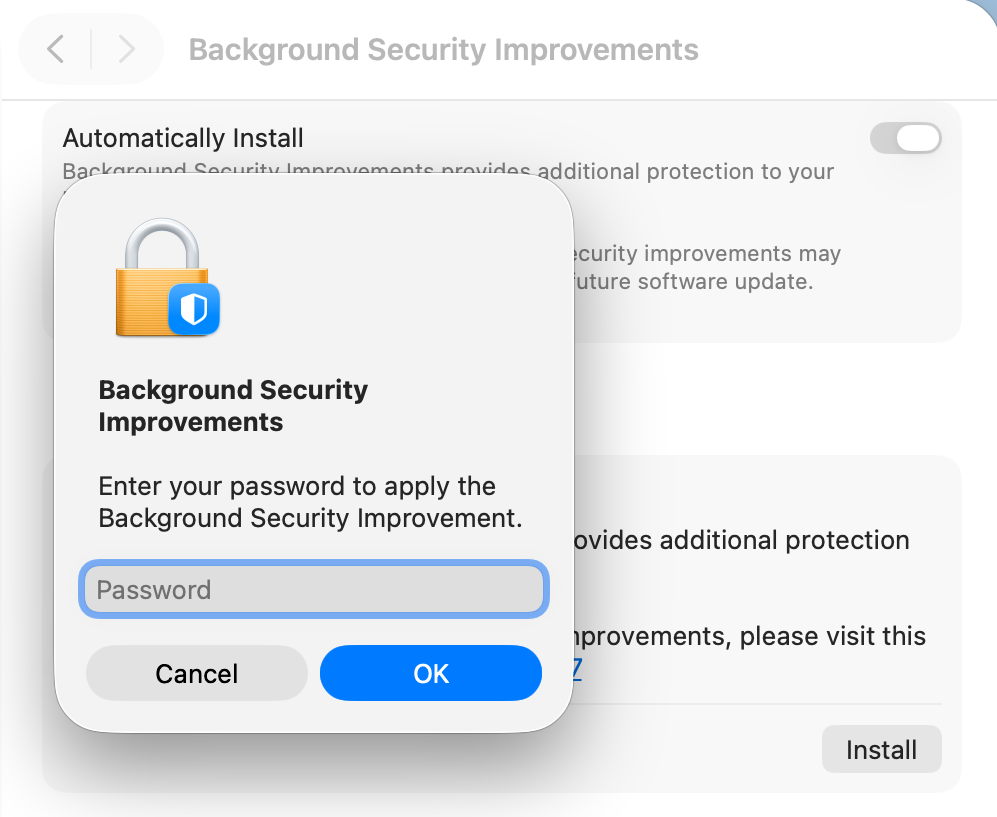
Although the control is titled Automatically Install, its behaviour is different. When a BSI is found to be available, macOS doesn’t automatically download and install it, but waits for the user to click on the Install button, then to authenticate.
However, if the user isn’t aware that BSI is available, or chooses to ignore it, automatic installation does appear to occur without the user being informed until the Mac is just about to restart, and no authentication seems necessary after all.
This behaviour is the greatest deterrent to users, as it effectively means that their Macs could restart unpredictably with almost no warning, resulting in data loss and disruption to their work. That’s completely unacceptable, and will ensure many will disable BSIs as a precaution to avoid the possibility of data loss. This aversion could be addressed simply by allowing the user full manual control over whether and when a BSI will be installed.
Progress
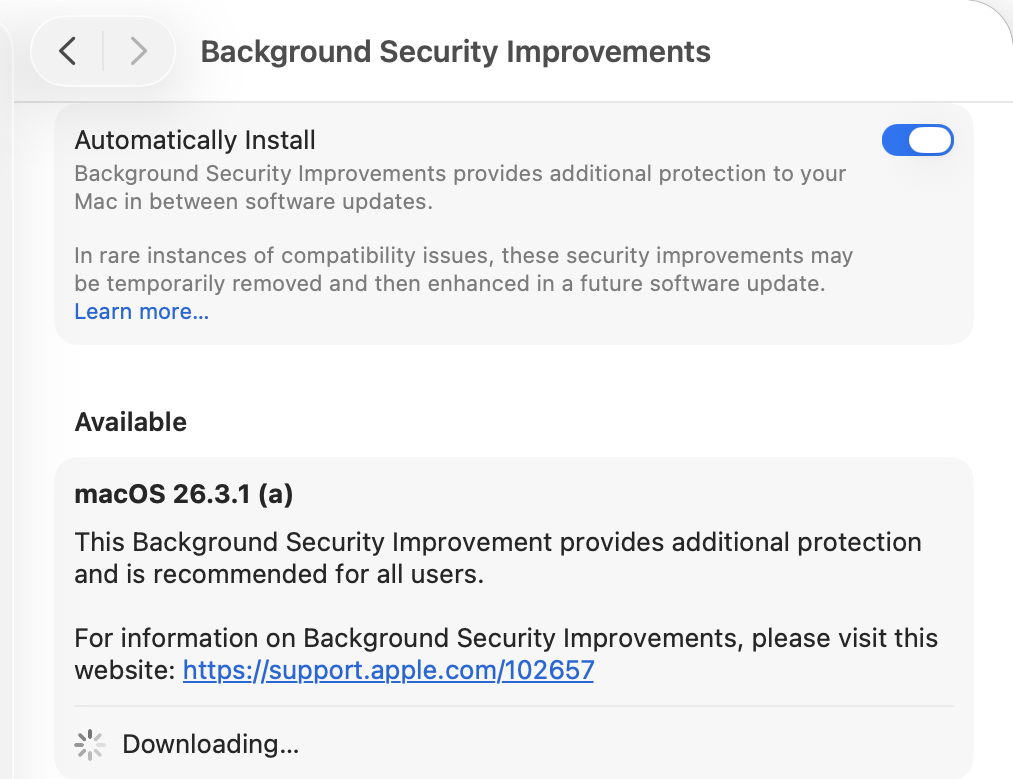
Despite softwareupdated monitoring progress through the download and preparation phases, the user is shown an indeterminate progress spinner, rather than a progress bar, which would at least give better warning of the restart that is coming. Although much briefer than a full macOS update, a progress bar should be displayed for the download and preparation phases of a BSI.
Restart warning
All previous RSRs, and this first BSI, have required restarts to complete the update. Yet at no time during this BSI was the user told that would be necessary. A notification was displayed a few seconds before the restart, but gave insufficient notice for the user to make any preparations.
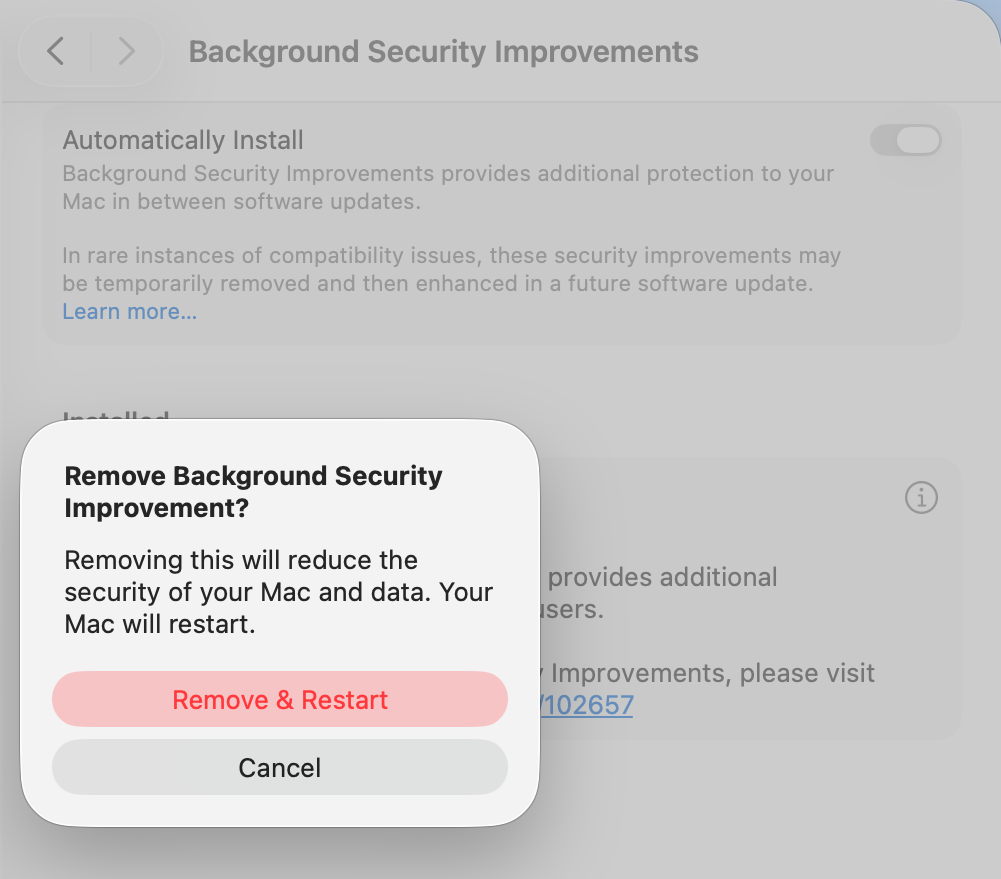
It’s essential that information given about the BSI states clearly if a restart will be necessary, and the user is given the same one-minute countdown provided in macOS updates. Bizarrely, the one place that a restart was mentioned is in the dialog to remove a BSI.
Information
Apple’s current support note on BSIs is woefully inadequate, as is obvious by the content of this article. What would appear to be additional information in the BSI settings, marked with the ⓘ Info button, isn’t informative at all, but provides the means to remove a BSI, which is at least an improvement on RSRs, which unaccountably hid removal in the About settings. A more appropriate button should be provided.
BSIs are also only currently covered in the US English version of Apple’s Platform Security Guide. All other localised versions, including British and Canadian English, still contain the outdated section on RSRs. Fortunately, as their content is almost identical, this is revealing rather than misleading.
Version numbering
Ignoring RSR and BSI version numbering, macOS has in recent years achieved clean and systematic version (and build) numbering, without the excesses of the past. By adopting a parenthesised letter as the identifier of a BSI, comparison is clumsy and prone to error. ProcessInfo.processInfo.operatingSystemVersion doesn’t contain a field for the BSI identifier, which is only offered as part of the full string in ProcessInfo.processInfo.operatingSystemVersionString. Version numbers like 26.3.1 (a) and build numbers of 25D771280a are irregular and unnecessary.
Recommendations
BSI controls should be removed from their hiding place in Privacy & Security and put alongside all other macOS updates in Software Update settings.
An option should be provided so that users are informed of the availability of BSIs without any obligation for them to be installed automatically.
Behaviour of the Automatically Install button should be described explicitly to the user. Does it automatically install, and if so, in what circumstances will the user not be so informed?
BSI download and preparation should be accompanied by a progress bar similar to that for a macOS update.
When a BSI requires a restart to complete its installation, the user must be informed of that before they consent to the BSI being downloaded.
When a BSI install is ready to restart the Mac, one minute’s warning notification should be given, just as in macOS updates.
The BSI support note should provide full details, not a sketchy outline.
The button to remove a BSI shouldn’t use the ⓘ Info symbol, but something more appropriate to its purpose.
Apple’s Platform Security Guide should be updated in all its online versions. Is it really that hard to translate from US English to British English?
Version and build numbering should be redesigned to be more consistent and better accessible in the API.
Despite having over three years to get them right, BSIs are a worse mess than RSRs were in Ventura. This is a great shame as their technology is still brilliant, but their current interface is shockingly flawed in so many respects.
Since the introduction of the Signed System Volume in Big Sur, the great majority of macOS has been strongly protected. So strongly that applying the smallest security patch has required the full might of a macOS update. There are times when something more lightweight enables Apple to promulgate urgent patches swiftly and efficiently, and that’s what a Background Security Improvement or BSI does.
This was set up when macOS Monterey introduced cryptexes to contain Safari, its WebKit supporting library, and the large dyld caches for general support in Frameworks. Cryptexes are cryptographically sealed disk images that aren’t mounted like other volumes, but are grafted into arbitrary locations in the file system. In Ventura they were used for Rapid Security Responses (RSR), in many ways indistinguishable from BSIs.
This week’s first BSI for macOS 26.3.1 is a good example: it fixes one serious vulnerability in WebKit. Rather than building that into a full update to 26.3.2, because it only requires changes in the cryptex containing Safari and WebKit, this BSI swaps out the existing App cryptex and replaces it with a patched one. For those who don’t want to install BSIs, those same vulnerabilities should be fixed in the next set of security updates to macOS.
Controls
Look in Software Update settings, and you’ll see no mention of any BSI, and that will claim your Mac is up to date, even though it’s not.
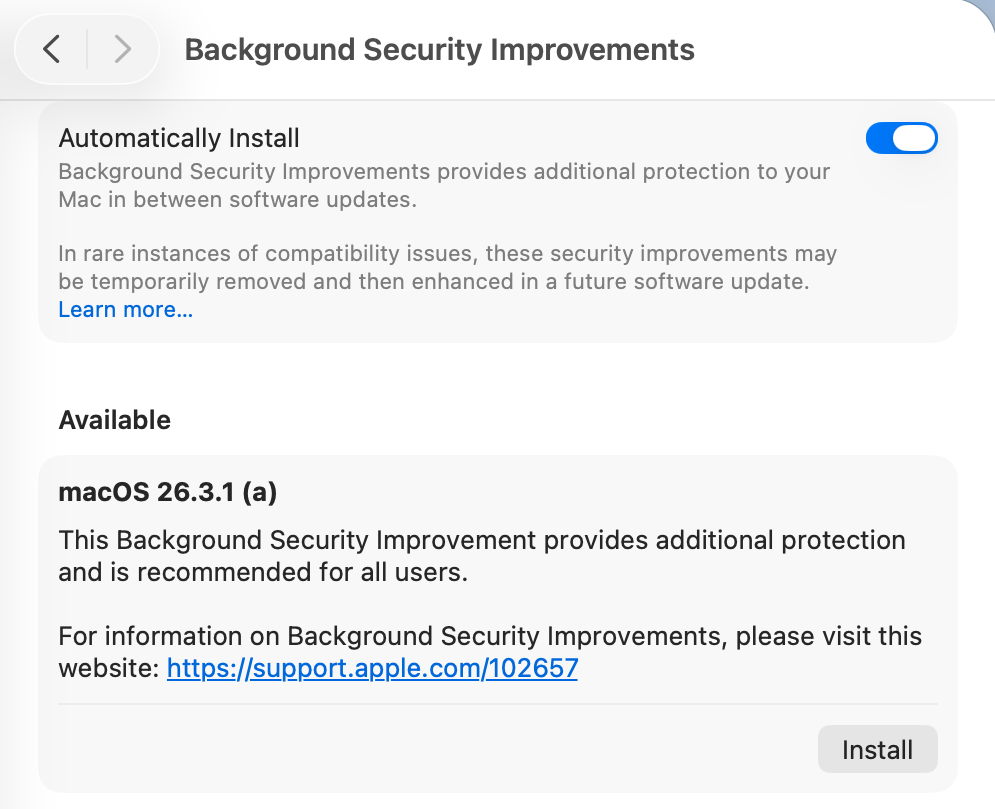
BSIs are controlled in their section listed close to the foot of Privacy & Security settings. If you want your Mac to be offered BSIs when they’re available, you must enable Automatically Install first. Despite those words, BSIs don’t appear to install in the least bit automatically, and you should be offered those available for the installed version of macOS. When you’ve chosen to download and install one and authenticated, you’ll see a progress spinner rather than a bar.
As soon as downloading and preparation are complete, you should be given a few seconds before your Mac restarts to complete the installation. This is all very brief, but once you’ve authenticated to start the process, it will run through to completion automatically.
Once your Mac has restarted, you always retain the option to remove any BSI and return to an unpatched cryptex. To see that, click on the ⓘ Info button on the right.
If you decide you want to remove the BSI, your Mac will need to be restarted.
Problems
If you know a BSI is available but Privacy & Security settings appear unable to find it, something I’ve encountered in Virtual Machines, try running SilentKnight. Although BSIs aren’t controlled in Software Update, they do still use the same softwareupdate system used by SilentKnight. Normally you shouldn’t try to install BSIs using SilentKnight, as installation will fail. However, you can turn this to your advantage when a BSI is being elusive.
Once SilentKnight has downloaded and failed to install the BSI, you should be notified of that failure. Restart your Mac, give it a couple of minutes to settle once you’ve logged back in, and open the BSI section in Privacy & Security settings again. The downloaded BSI should now be available, and shouldn’t even need to be downloaded.
If you think a BSI has caused another problem, such as instability in Safari, use the ⓘ Info button to remove that BSI.
Installing a BSI does weird things to the macOS version and build numbers, and those can break scripts and possibly some apps. While ProcessInfo.processInfo.operatingSystemVersion doesn’t contain a field for the BSI letter, ProcessInfo.processInfo.operatingSystemVersionString does return a full version description including the BSI letter and extended build number. In Terminal, sw_vers -productVersion returns the regular version number without BSI, while sw_vers -productVersionExtra returns the BSI designation alone.
Currently, SilentKnight and Skint ignore BSIs, and won’t inform you if you could have one installed except by listing it as an available installation, nor will they check whether your Mac is up to date with the latest BSI. Experience from RSRs in Ventura shows that trying to track lightweight updates like RSRs or BSIs is only going to annoy those who don’t want to install them, and as they can change in a short period, they are hard to track reliably. SilentKnight does report the full version and build number, and SystHist lists details of all BSIs that Mac has installed.
Limitations
Like the RSRs of Ventura, BSIs can only work for a limited range of patches. If a vulnerability needs a fix outside Safari, WebKit, and the dyld caches, then it will require a full macOS update to fix it. BSIs are only ever likely to be provided for the current version of the latest major version of macOS.
From its first account of RSRs, Apple has claimed that some RSRs and BSIs shouldn’t require a restart to apply their patches. However, every RSR and BSI to date has had to be completed by restarting that Mac, which is mildly disruptive and not as lightweight as we’d like.
If you disable Automatically Install in the BSI section of Privacy & Security settings, then your Mac won’t be informed about or have access to any BSIs.
Under the hood
Despite their control being part of Privacy & Security settings, BSIs are managed like all other macOS and related updates by softwareupdated. What is most remarkable about them is their speed of download, preparation and installation compared with macOS updates. From detection of a new BSI to logging back into the restarted Mac can take little more than five minutes.
Apple’s in-house term for BSIs is the same as it used for RSRs, Splat. You’ll also come across Semi-splat, which should be a transient state in which the Splat Restore Version is different from the Cryptex1 Restore Version. That’s normally rectified after the reboot.
softwareupdated checks specifically for BSIs by scanning the update server catalogue for Splat updates. In this case, for an App cryptex, the download size is given as 214 MB. There’s a brief preflight phase, followed by its download. Although no progress indicator is shown in Privacy & Security settings, softwareupdated does record progress, but using similar figures for a full macOS update. Under those, preparing the update is set at 60% progress.
Applying the update takes around 2.5 seconds, at which stage softwareupdated reports that Semi-splat is active because of unequal restore versions, and rollback objects are checked.
Once the Mac has restarted, property list paths are checked for six different Splat versions, enabling the restore versions to be rectified and Semi-splat is no longer active. A brief purge of update assets is performed, and softwareupdated checks once again for any available updates.
Is a BSI just an RSR in disguise?
Apart from the move of its control from Software Update to Privacy & Security settings, there appear to be few if any differences between them. This is even reflected in version numbering. Installing the first RSR for macOS 13.3.1 brought it to version 13.3.1 (a), with a build number of 22E772610a. This first BSI for macOS 26.3.1 brings it to version 26.3.1 (a), with a build number of 25D771280a.
Most telling, though, are the accounts of RSRs and BSIs given in Apple’s Platform Security Guide, which are almost word-for-word identical apart from their names. It seems most likely that a BSI is a rebranded RSR in a bid to move on from the loss of confidence in RSRs following unfortunate errors nearly three years ago.
Key points
If you’re running the current version of the latest major version of macOS, BSIs provide lightweight fixes for some vulnerabilities, including those in Safari and WebKit.
Enable them in Privacy & Security settings, in their section at the foot. If they aren’t enabled there, you won’t be offered them at all.
Control their installation in that section. Once you’ve agreed to install one and have authenticated, your Mac is likely to restart automatically soon after the BSI has been downloaded.
Remove and revert a troublesome BSI using the ⓘ Info button there.
Although the US English version of Apple’s Platform Security Guide has replaced its section on RSRs with an almost identical account of BSIs, most other localised versions of that guide still contain the old RSR version.
In my account of how Tahoe updates macOS, I had reached the stage when Rosetta and the main update had started downloading from Pallas, Apple’s software update server (see the Appendix at the end for further explanation of terms used).
Download
Currently, the main update download (at least) is compressed using Zip, and is decompressed as a stream during download, so there’s no delay decompressing during the preparation phase later.
In this case, downloading the main update was completed within 8 minutes. The source of the Zip archive was originally given as a path on [https://]updates.cdn-apple.com/2026WinterFCS/patches, and that was written to a local path on /System/Library/AssetsV2/com_apple_MobileAsset_MacSoftwareUpdate/ In my case, though, I have a local Content Caching Server running, and immediately before the download started com.apple.AssetCacheServices substituted a download URL on that server to ensure the update was obtained through the local caching server. At the same time, an Event Report was sent back to Apple, recording the start of download.
Progress was updated every second during the download, and brought the progress bar from 16% to 53.9% over the following 8 minutes, with little other activity taking place.
Preflight
Activity then changed to what is repeatedly referred to as Preflight FDR Recovery, and is the first entry point for the UpdateBrainService, downloaded for MobileSoftwareUpdate rather than softwareupdated.
This runs an Event Recorder and begins to perform preflight checks to “recover FDR SFR”, and to perform a “firmware-only update”. To prepare for that, it retrieves various nonces and their digests for LocalPolicy, RecoveryOS boot policy, and others. Following those is the first of many attempts to determine purgeable space, in preparation for installation of the update. Those are performed by com.apple.cache_delete.
Pallas was then checked to see if there was any more recent version of RecoveryOS UpdateBrain, but there wasn’t. A further check for any newer recoveryOS was also made, before the main macOS update was prepared, at a progress level of 60% as set previously.
Preparation
The first step of the main preparation phase is to purge staged assets with com.apple.cache_delete. With that complete, UpdateBrainService recalculates cryptex size requirement for the update, and the install target prepare size:
cryptex size is 1.2 times the app cryptex size = 60 MB, plus 1.2 times the system cryptex size = 7749 MB, a total of 7809 MB, as previously calculated;
prepare size is the sum of the snapshot installation size of 3785 MB, the cryptex size of 7809 MB, three ‘slack sizes’ for VW, Recovery and Preboot of 2048 + 1024 + 1024 = 4096 MB, the new template size of 991 MB, twice the update partition size totalling 600 MB, less the old template size of 363 MB. The grand total comes to 16,918 MB.
UpdateBrainService then checks volume free sizes, and confirms that they’re sufficient to complete the update. It next creates a ‘stash’, which is protected by keys in the stash keybag, handled by the Secure Enclave Processor. There is then another round of purging with com.apple.cache_delete.
Much of the preparation phase is spent verifying the protection of installation packages, cryptexes, then the contents of /System/Applications and /System/Library. As progress is about 64% complete, System volume preparations are started, and there’s another round of purging by com.apple.cache_delete. There’s surprisingly little log activity as progress passes 70% complete.
With progress reaching 84% complete, UpdateBrainService starts unarchiving files in parallel, taking just under 5 seconds to complete those. Following that, there’s another brief period unarchiving data files in parallel, then working with the contents of /System/Volumes/Update/mnt1/private/var/MobileAsset/PreinstalledAssetsV2 as progress reaches 87% complete.
When there’s 87.5% completed, UpdateBrainService reports it’s creating hard links in parallel, then is searching for new paths and verifying files, such as those in the Ruby framework. The Recovery volume is unmounted, and there’s yet another purge with com.apple.cache_delete. After those, key volume locations are checked.
The high water mark of disk usage during update is prepared. This reveals some of the steps to be undertaken during installation, including:
prepare source package,
patch cryptexes,
patch system volume,
extract to system volume,
install personalised.
There’s a further round of purging with cache_delete before declaring PrepareUpdate as successful, then suspending the update briefly. When update resumes, the Update volume is mounted and prepared, and there’s another round of purging. The System volume is then mounted, checked, and prepared. Progress is now at 98.5% complete, and once 100% is reached, the countdown to restarting the Mac is begun.
Installation
During the download and preparation phases, apart from repeated purging, the log is generally quiet. This changes dramatically once the Mac starts preparing for shutdown and installation. WebKit is cleaned up and shut down, as are many other processes. The ‘stash’ of update components is then committed, and final scans and checks are completed.
The update is then applied, followed by Rosetta, RecoveryOS, UpdateBrain and finally minor documentation. After that period of nearly 20 seconds, this phase is declared complete, and a restart is notified before waiting for the essential reboot.
Reboot
Once rebooting by root has been initiated, the boot chime is muted to ensure the update continues in silence. The last log message is written a few seconds later, and UpdateBrain then runs the update.
Less than 3 minutes later, the system boot is recorded in the log, and kprintf is initialised 5 seconds later. About 3 minutes afterwards softwareupdated is started up, and runs various clean-up routines to complete the update sequence in conjunction with ControllerSetup and a Finite State Machine.
Key points
The main update download is decompressed while streaming, to save preparation time later.
If a local Content Caching Server is connected, AssetCacheServices will substitute its IP address for that of the Pallas server to ensure the download is obtained through the cache.
Following download, extensive preflight checks are performed.
During preparation components are verified, paths checked, and some unarchiving is performed.
Prior to reboot and installation, processes including WebKit are shut down in readiness for reboot and install.
FDR is unknown, but appears associated almost exclusively with a preflight phase.
Pallas is the internal name for Apple’s software update server. This appears throughout log entries, where for example Pallas audience is jargon for the type of user, normally macOS Customer.
RecoveryOS appears to refer to the version of Recovery in the hidden container of the internal SSD, more widely known as Fallback Recovery.
SFR appears to refer to the version of Recovery in the Recovery volume of the active boot volume group, also known as Paired Recovery.
Splat, semi-splat and rollback objects all refer to cryptexes. Splat is the general term, while semi-splat refers to a cryptex-based update that might include rapid security responses (RSR) and background security improvements (BSI) implemented by replacing one or both cryptexes. Rollback objects are older versions of a cryptex that have been saved to allow a newer cryptex to be reverted to that older one, in the event that the newer cryptex causes problems.
UpdateBrain is the executable code supplied as part of an update that prepares and installs that specific update. There’s a separate UpdateBrainService for RecoveryOS.
Apple has just released its first public Background Security Improvement (BSI) for macOS 26.3.1 Tahoe, labelled as BSI (a)-25D771280a. Once installed, macOS will identify itself as version 26.3.1 (a), with a build number of 25D771280a.
You can install this through Privacy & Security Settings, in the Background Security Improvements section. It doesn’t appear listed in Software Update, although SilentKnight will offer it. Please don’t try to use SilentKnight to install this, though, as it will download successfully but fail to install unless you then use the BSI section in Privacy & Security settings, which will finish the job off.
Apple has now released details of the single vulnerability that this fixes, in WebKit. As a result it updates Safari from 26.3.1 (21623.2.7.11.7) to 26.3.1 (21623.2.7.111.2).
Following installation, your Mac will need to restart for the BSI to be applied.
Apple has just released its regular weekly update to XProtect, bringing it to version 5334. As usual it doesn’t release information about what security issues this update might address.
This version makes no changes to its main Yara rules. Changes to the OSASCRIPT rules in XPScripts.yr include amendments to more than a dozen of them, and two new rules are added for MACOS.OSASCRIPT.GEPEPA and MACOS.OSASCRIPT.TAPEPA. Several rules that previously added the property wide to their text now have wide ascii instead.
You can check whether this update has been installed by opening System Information via About This Mac, and selecting the Installations item under Software.
A full listing of security data file versions is given by SilentKnight and SystHist for El Capitan to Tahoe available from their product page. If your Mac hasn’t yet installed this update, you can force it using SilentKnight or at the command line.
If you want to install this as a named update in SilentKnight, its label is XProtectPlistConfigData_10_15-5334
Sequoia and Tahoe systems only
This update has now been released for Sequoia and Tahoe via iCloud. If you want to check it manually, use the Terminal command sudo xprotect check
then enter your admin password. If that returns version 5334 but your Mac still reports an older version is installed, you should be able to force the update using sudo xprotect update
I’d like to apologise to those of you who ended last week downloading two new versions of SilentKnight, instead of the one that I had intended. This article explains how the second came about.
SilentKnight is heavily dependent on discovering key facts about the Mac that it’s running on. One of the first it needs to know is whether it’s looking at a plain Intel Mac, one with a T2 chip, or an Apple silicon Mac, as that determines how it should go about checking which version of firmware it’s running, and much else.
Over the last five years, SilentKnight has relied on the command-line equivalent of the System Information app, system_profiler. Surprisingly that doesn’t have a single field that draws a clear distinction between those types of Mac. The closest it comes to doing that is the information shown for the Controller item, or system_profiler SPiBridgeDataType
in Terminal:
Intel Macs without a T2 chip return no information, as they’re not considered to have a controller in this sense.
Those with T2 chips return a Model Name of Apple T2 Security Chip.
Apple silicon Macs give the iBoot (or, from 26.4, mBoot) firmware version number.
While that has worked for five years, for SilentKnight version 2.13 I decided to slightly extend the text it looks for, to ” T2 ” to reduce the chance of false positives now that Apple silicon results are becoming more diverse. That worked fine on my two Intel Macs with T2 chips, but broke weirdly in a MacBook Pro tested by Jan, to whom I’m deeply grateful for the early report of this problem. Jan’s MacBook Pro was thoroughly confused, found and reported the correct T2 firmware but told them it should be running a more recent version of iBoot, for Apple silicon Macs.
It turned out that Jan’s MacBook Pro is running German as its primary language, so instead of reporting Apple T2 Security Chip in system_profiler it returned Apple T2-Sicherheits-Chip, and ” T2 ” couldn’t be found to confirm it wasn’t an Apple silicon Mac. The simple fix was to remove the trailing blank from the search term, which becomes ” T2″.
Although system_profiler can return its information in plain text, JSON or XML formats, its content is the same in all three, with localised text that’s dependent on that Mac’s primary language setting. Besides, its XML is exceptionally verbose, squeezing a few lines of information into 262. I was surprised by this five years ago, when I first came across it when trying to parse the list of Apple silicon security settings.
Here you can see those for a Mac using Dutch localisation. Instead of responses like Secure Boot: Full Security
using Dutch for your Mac’s primary language turns that into Secure Boot: Volledige beveiliging
When SilentKnight tries to work out whether your Mac is set to Full Security, that means it would have to look up the response in a dictionary containing every possible language.
Not only that, but these localised responses vary between different sections and data types.
The above responses to system_profiler with French set as the primary language demonstrate that has no effect on Hardware data, where core types are given in English, but changes those in Controller’s Boot Policy. To discover which change, you have to test with many different language settings, as none of this is documented, of course.
At that time I spent several days trying to get an unlocalised response by running system_profiler in an English environment, but that had no effect, and there was no way to bypass this localisation. As this language dependency limits the usefulness of the command tool, I argued that its output shouldn’t be localised at all.
Now, five years later, I have been bitten again, and apologise for putting you through two updates to SilentKnight when there should only have been one.
Apple silicon Macs are about to undergo change to the numbering of their firmware versions. Accounts from beta-testing of the next minor update to macOS 26 Tahoe, version 26.4, indicate that future firmware will no longer be numbered as iBoot 13822.101.6, but as mBoot 18000.101.6 instead. This has major consequences for my free utility SilentKnight, which checks and reports the version of firmware installed. Version 2.14 should address that change in readiness for the release of the 26.4 update, and is particularly recommended for use on Apple silicon Macs.
This change was first reported in macOS 26.4 beta 2, and has apparently been sustained in the two subsequent beta releases, confirming that it’s an intended change, and not a bug.
There are currently two places in System Information that report a Mac’s firmware version, either the main Hardware section (also accessible in system_profiler SPHardwareDataType), or the Controller item within that section (or system_profiler SPiBridgeDataType).
Intel Macs without a T2 chip don’t report anything for their Controller, but those with T2 or Apple silicon chips reveal that they have a T2 or give an iBoot firmware version there. All three types of Mac also give a System Firmware Version in the Hardware overview.
This can get more confusing if you update or install macOS to an external disk. That will normally update the Mac’s firmware if the version of macOS installed on the external disk comes with more recent firmware. For example, if your Apple silicon Mac is currently running macOS Tahoe 26.3.1, it should have an iBoot firmware version of 13822.81.10. If you were to install Tahoe 26.4 to an external disk, as that has a more recent version of iBoot firmware, that should update the version installed in your Mac, and that remains so even when you start it up from its internal SSD.
As far as I can tell at present, this can result in internally inconsistent reporting. When running 26.3.1 from its internal SSD, that Mac will report its old iBoot version in the Controller section, but its new mBoot version in the Hardware section. Although that could change by 26.4 release, it might remain in all older versions, so providing lasting confusion.
As Apple hasn’t documented this change, I don’t know whether this will apply to all Apple silicon Macs updated to macOS 26.4, or to those updated to the matching versions of Sequoia or Sonoma. Therefore this new version of SilentKnight doesn’t attempt to check these new mBoot versions, and merely reports those found as well as it can. Once I know more, I will endeavour to interpret the results.
SilentKnight version 2.14 for macOS 11.5 and later is now available from here: silentknight214
from Downloads above, from its Product Page, and via its auto-update mechanism.
Please let me know how you get on with these new firmware version numbers.
Note: version 2.14 now fixes a bug that failed to recognise T2 Macs correctly in certain localisations including German. Thanks to Jan for reporting this so promptly.
Apple has just released its regular weekly update to XProtect, bringing it to version 5333. As usual it doesn’t release information about what security issues this update might address.
This version changes the rules named InstallImitatorC to XProtect_MACOS_INSTALLIMITATOR_C, XProtect_snowdrift to XProtect_MACOS_SNOWDRIFT, and XProtect_MACOS_ADLOAD_INTRIN to XProtect_MACOS_ADLOAD_IN, and adds one new Yara rule for MACOS.SOMA.MAENA.
Changes to the OSASCRIPT rules in XPScripts.yr include the amendment of 9 existing rules by adding the property wide to their text, and the addition of one new rule for MACOS.OSASCRIPT.TABUPA.
You can check whether this update has been installed by opening System Information via About This Mac, and selecting the Installations item under Software.
A full listing of security data file versions is given by SilentKnight and SystHist for El Capitan to Tahoe available from their product page. If your Mac hasn’t yet installed this update, you can force it using SilentKnight or at the command line.
If you want to install this as a named update in SilentKnight, its label is XProtectPlistConfigData_10_15-5333
Sequoia and Tahoe systems only
This update has now been released for Sequoia and Tahoe via iCloud. If you want to check it manually, use the Terminal command sudo xprotect check
then enter your admin password. If that returns version 5333 but your Mac still reports an older version is installed, you should be able to force the update using sudo xprotect update
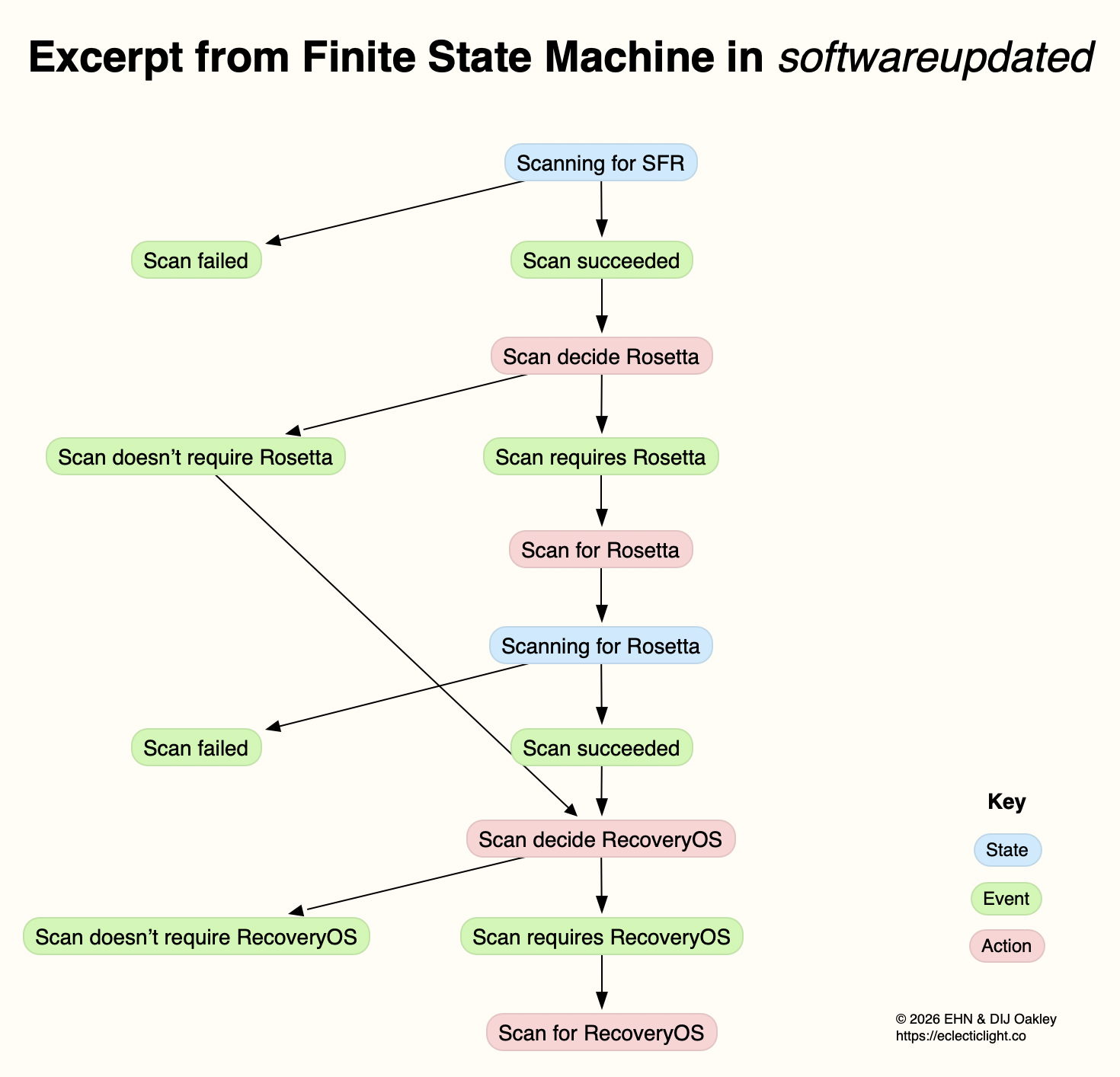
Following a general outline of what happens during a macOS 26 update, and a more detailed account of how it uses finite state machines and sends progress reports to Apple, this article describes what happens before Software Update downloads the main update. This was started by opening Software Update in System Settings of macOS 26.2 when the update to 26.3 was available, on a Mac mini M4 Pro. The Appendix at the end explains several in-house jargon terms used widely through these log entries.
Check for an update
In this case, checking for an update was instigated by opening Software Update in System Settings. That initiated a series of preliminary checks to:
determine whether that Mac and user are enrolled in a beta-test programme;
obtain the Pallas audience, in this case macOS Customer;
determine the time interval since the last scan for updates, and its result. As that was 632.8 seconds ago and there were no updates reported as being available then, a further scan is deemed acceptable;
set the base URL for Pallas of mesu.apple.com/assets/macos/.
A new scan for updates is started, with a UUID chosen to identify it. The UUID used is version 5, so is expected to be based on a hash of other identifiers, and is unique to this software update. The catalogue is downloaded from Pallas, and analysed for new versions being offered for download.
In this case there are two available:
macOS263Short comes with just an arm64e system cryptex at 6,458 MB, and a download size of 3.68 GB which unarchives to 4.36 GB;
macOS263Long comes with both arm64e and x86_64 system cryptexes at 6,458 + 2,312 MB, and a download size of 17.48 GB which unarchives to 18.14 GB.
Both of those use the Zip compression algorithm, and are designated as being ZipStreamable. macOS263Short is clearly the Delta update from 26.2, whose download size was then displayed in the Software Update panel. macOS263Long appears to be a full upgrade, equivalent to the macOS Installer app in terms of its contents.
A similar sequence of events occurs when you request a list of available macOS installers using the command softwareupdate --list-full-installers
Routine checks
The following checks are repeated at frequent intervals throughout scanning and preparation:
the presence of rollback objects, a rollback copy of cryptex1 in the Preboot volume;
whether semi-splat is active, by comparing the Splat RestoreVersion with the Cryptex1 RestoreVersion;
whether the root volume is sealed;
whether this is an emergency update;
battery level, even in Macs without a battery.
Sizing
Early estimates are made of the size required to prepare and apply the update. Prepare size consists of:
a cryptex size requirement, consisting of the sum of the sizes of the app and system cryptexes, multiplied by 1.2, in this case a total of 7,809 MB;
a snapshot prepare size, consisting of the snapshot installation size of 3,785 MB plus the cryptex size, for a total of 11,595 MB.
These total 11,595 MB when first calculated, but a little later the snapshot installation size was increased to 5,154, for a total of 12,963 MB.
The apply and reserve size consists of twice the update partition size plus the update APFS reserve of 700 MB, plus 231 MiB for volume sealing overhead, giving a total of 931 MB. Presumably any shortfall in free space available would be notified to the user at this stage, and the update cancelled.
The policy for updates is determined in detail, before Pallas is asked for a catalogue of MacSplatSoftwareUpdate, updates using cryptexes, probably including both older RSRs and their successor BSIs. In this case, that catalogue is empty.
Mobile asset catalogues
softwareupdated then takes a back seat for much of the following 15 seconds or so, as mobileassetd determines which mobile assets need to be updated. These are the multitude of components to support Siri, AI and other features. This too is run by a finite state machine, AutoControlManager, which downloads catalogues of these components to assemble its auto-stager. One catalogue alone lists 91 available for update, but thankfully many of those don’t need to be updated.
Once that’s complete, the progress bar is displayed and updated by softwareupdated.
Progress bar
This is divided into zones used for different stages of progress by softwareupdated. These can be summarised as:
0.0-0.9 prepare
1.0-7.0 reloading and downloading Update Brain
7.0-15.0 preflight
15.0-55.0 downloading
55.0-60.0 preflight FDR Recovery
60.0-100.0 preparing update
During the downloading and preparing stages, progress updates are made according to the amount of the stage that has been completed. Otherwise they are made when each stage has been achieved.
In practice, progress is most meaningful during the downloading and preparing stages, between percentages of 15-55 and 60-100. Time estimates are displayed for both of those separately, with download time remaining based on size transferred. Once downloading is complete, the final 40% of the bar is given a fixed period of 30 minutes to complete, although that’s never required now.
Initial preparation
softwareupdated determines and downloads the cryptex updates, any SFR software update, any Rosetta update, any RecoveryOS update and the RecoveryOS update ‘brain’ for that. These are set up with their own finite state machine that downloads the catalogue, determines what should be downloaded, and downloads it. The final phase handles the documentation for the update, in this case consisting of
release notes summary, 1,268 B
release notes, 1,243 B
licence agreement, 97,187 B.
There’s an irony here that the first two are so tiny by comparison with the last.
In this case, downloading the update was completed within 10 minutes of obtaining the first update catalogue from Pallas.
Summary
After preliminary checks on beta enrolment and the period since last check, a catalogue of available updates is obtained from the software update server.
That catalogue offers a short Delta update, and a long full update.
Downloaded updates are compressed using Zip, and decompressed as they are streamed in the download.
Sizes required for preparation and applying the update are checked and adjusted.
mobileassetd determines a potentially long list of mobile assets to be updated.
Progress is displayed according to a combination of downloading between 15-55%, and preparation between 60-100%. Other stages are defined by progress through required steps rather than time.
Appendix: Terms used
Pallas is the internal name for Apple’s software update server. This appears throughout log entries, where for example Pallas audience is jargon for the type of user, normally macOS Customer.
RecoveryOS appears to refer to the version of Recovery in the hidden container of the internal SSD, more widely known as Fallback Recovery.
SFR appears to refer to the version of Recovery in the Recovery volume of the active boot volume group, also known as Paired Recovery.
Splat, semi-splat and rollback objects all refer to cryptexes. Splat is the general term, while semi-splat refers to a cryptex-based update that might include rapid security responses (RSR) and background security improvements (BSI) implemented by replacing one or both cryptexes. Rollback objects are older versions of a cryptex that have been saved to allow a newer cryptex to be reverted to that older one, in the event that the newer cryptex causes problems.
Not too long ago, macOS usually only checked for system software updates once a day. If your Mac’s routines didn’t coincide with Apple’s release of updates, they might arrive a day or two late, and sometimes they were left a lot longer. When I started writing this blog over 11 years ago, one of my goals was to spread information about those updates, so we could all have confidence that our Macs were as well protected as possible and got bugs fixed promptly. In those days, those mostly involved vulnerabilities in Java and Adobe Flash Player.
At first, this was all about what Apple has always been worst at, communicating. In spite of the unsung efforts of its engineers, Apple has chosen to remain as silent as possible about bugs and security. The only time I’m aware that its silence was broken was back in July 2019, when it released an update to its Malware Removal Tool MRT to remove a hidden web server installed by Zoom’s installer, and even then the information was passed on furtively.
Just before Christmas 2016, I released the first version of LockRattler to check and report on security systems, among them the installed version of XProtect. That was widened to include firmware version checks in EFIcientC in July 2019, which quickly turned into SilentKnight.
SilentKnight, and its more basic cousin Skint, compare versions of security data installed on your Mac with lists of those current, a simple task until you realise that Apple doesn’t provide any list of current versions of XProtect and others, nor of Mac firmware. Instead of being able to check with Apple, SilentKnight has to look these up in databases that I maintain on my Github.
For example, the most active of those is XProtect, currently updated most weeks. I keep a watch on the availability of its updates using the same tools that you have: SilentKnight, and the xprotect command in Terminal. Rather than running them once a day, I do this whenever I suspect an update is imminent. Some days I only check once, just to be sure a surprise update hasn’t appeared, but when I think we’re due for an update, I may run them every hour or more frequently.
When SilentKnight strikes gold, I first install the update here, and analyse what it changes. This is straightforward for XProtect, which holds its content in five files in the Resources folder inside its bundle. Using BBEdit, I compare the contents of the update with the previous version, and summarise those. This is a little more complex with XProtect Remediator, as that not only contains executable binary scanning modules, but a set of Bastion rules used by the Behavioural XProtect.
Since the release of macOS Tahoe, XProtect has been installed in two locations, the newer of which is updated separately over an iCloud connection, so I now have to check the version available from there.
Once I know that new version is available, I update the skint1 and sysupdates property lists on Github, so your SilentKnight and Skint will know about the update when they next check. I then put together an article announcing the update with the details of what has changed, post it here, and announce that on X (formerly Twitter).
The last step is to add that information to the list of updates on SilentKnight’s product page, and my main page listing all updates, and update version numbers in separate pages for those still using LockRattler, which can’t check my databases.
How quickly that all happens depends on how quickly I can identify the update, and when I can download and analyse it. If Apple releases the update after I have gone to bed, I’m afraid I won’t be able to do that until the following morning, as happened earlier this week. But if you thought my system was run automatically from some database maintained by Apple, I’m afraid that’s not the case, as it’s all down to SilentKnight and me.
If your Mac installs an update before I have updated my databases, SilentKnight will inevitably expect your Mac still to be using the older version, as that’s what’s listed in the database. When it discovers that it’s using a newer version, it will report that as an error. Please bear with it, as I shouldn’t take long to install and analyse the update, and correct the version number in the database.
Checking firmware versions and updates is more complicated again, as I have to maintain separate lists of the latest versions for each model. You can see those in my Github as well.
Is it worth all this effort? If you want to ensure that your Mac is running the current version of its security data such as XProtect, I don’t know of any alternative. If you know, then please tell me, as it could save me and SilentKnight a lot of effort.
Finally, my Github data is open to all. If you want to use it in your own tools, then feel free. However, if you intend using it commercially, thus to make money from my labour, please discuss it with me first.
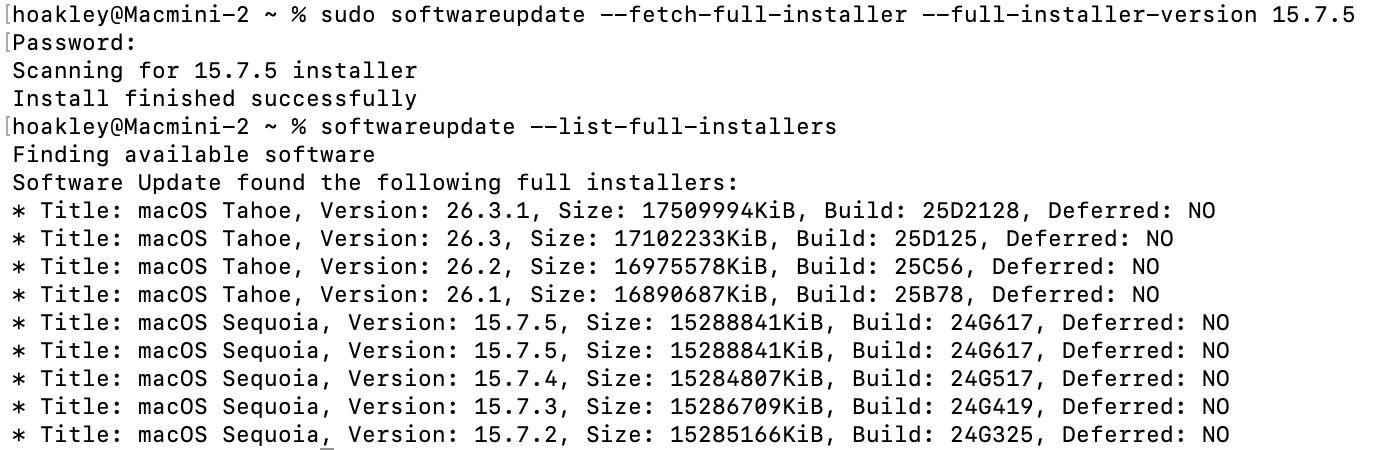
After reading today’s article here about fixing software update problems and the softwareupdate command tool, two eagle-eyed readers, Gurt and upstreamer, insisted that they were being offered two full installers for macOS Sequoia 15.7.5. Although for one of them this might have occurred because of previous membership in a beta-testing programme, that didn’t explain them both. I therefore checked again this evening, and was surprised to see the list of available updates does now offer two apparently identical full installers for macOS Sequoia 15.7.5 Build 24G617.
To find these yourself, simply enter the following in Terminal: softwareupdate --list-full-installers
If you fancy downloading either of them, use the command sudo softwareupdate --fetch-full-installer --full-installer-version 15.7.5
That should download the Installer app into your Applications folder.
Software Update doesn’t offer 15.7.5 as an update for Sequoia 15.7.4. There’s no mention of the release of 15.7.5 anywhere else, in particular Apple’s security release notes page, and I can’t see anyone else mentioning this as a newly released update. Has it been released prematurely by accident, perhaps? Or has someone forgotten to finish a job off?
Postscript
Apple has now rectified what had been an inadvertent public release of a release candidate for 15.7.5. Hopefully the next time it appears, it will be the final release.
Overnight, Apple released an update to XProtect, bringing it to version 5332. As usual, it doesn’t release information about what security issues this update might address.
This version adds one new Yara rule for MACOS.OSB and makes no changes to the OSASCRIPT rules in XPScripts.yr.
You can check whether this update has been installed by opening System Information via About This Mac, and selecting the Installations item under Software.
A full listing of security data file versions is given by SilentKnight and SystHist for El Capitan to Tahoe available from their product page. If your Mac hasn’t yet installed this update, you can force it using SilentKnight or at the command line.
If you want to install this as a named update in SilentKnight, its label is XProtectPlistConfigData_10_15-5332
Sequoia and Tahoe systems only
This update has already been released for Sequoia and Tahoe via iCloud. If you want to check it manually, use the Terminal command sudo xprotect check
then enter your admin password. If that returns version 5332 but your Mac still reports an older version is installed, you should be able to force the update using sudo xprotect update
What can you do when you know there’s an update available, but your Mac is pretending there isn’t? I’m here referring to those delivered through Software Update, so come from Apple’s software update servers. Although there are several ways to talk to it, all such updates rely on the softwareupdated service, giving you a choice of solutions.
Check the obvious
Before going any further, check that updates aren’t being blocked because there’s insufficient free space on your Mac’s startup disk, and a laptop has ample charge in its battery or is running on mains power.
Restart
Sometimes softwareupdated seems to lapse into a coma, and the best way to wake it up is to restart your Mac. Don’t expect it to jump into action as soon as you’ve logged in, but give it five minutes first.
Safe mode
If a standard restart doesn’t do the trick, start your Mac up in Safe mode, leave it five minutes, and try again. Although Apple no longer includes this as one of the purposes of Safe mode, by disabling third-party extensions it gives softwareupdated every opportunity to do what it’s there for.
SilentKnight
If you haven’t been using my free SilentKnight to check for updates, this is a good time to do so. Because it calls softwareupdated with an undocumented option, that sometimes kicks it into action. If all you want to do is download the latest XProtect or other security data update, SilentKnight can do that for you, even if you don’t want to update macOS.
While you can download and install macOS updates in SilentKnight, that doesn’t display a progress bar and lacks other features found in Software Update in System Settings. If SilentKnight’s checks find a macOS update you want to install, you’re therefore better off opening Software Update and obtaining the update from there.
Where it comes into its own is in dealing with concurrent macOS updates and security data updates, as it makes it easy for you to download and install single updates and leave others alone. That’s explained here.
XProtect in Sequoia and Tahoe
These most recent versions of macOS have to update two copies of XProtect, and inconveniently use different mechanisms for each. Their primary copy relies on the xprotect command tool, whose command sudo xprotect update
should obtain a copy via iCloud and install it in the right place, provided that Apple has released it through iCloud. Their secondary copy is updated in the normal way by SilentKnight, Software Update or softwareupdate.
softwareupdate
This command tool is the most direct interface to softwareupdated, and that used by SilentKnight, but you need to know its secret options if you’re going to get the best out of it.
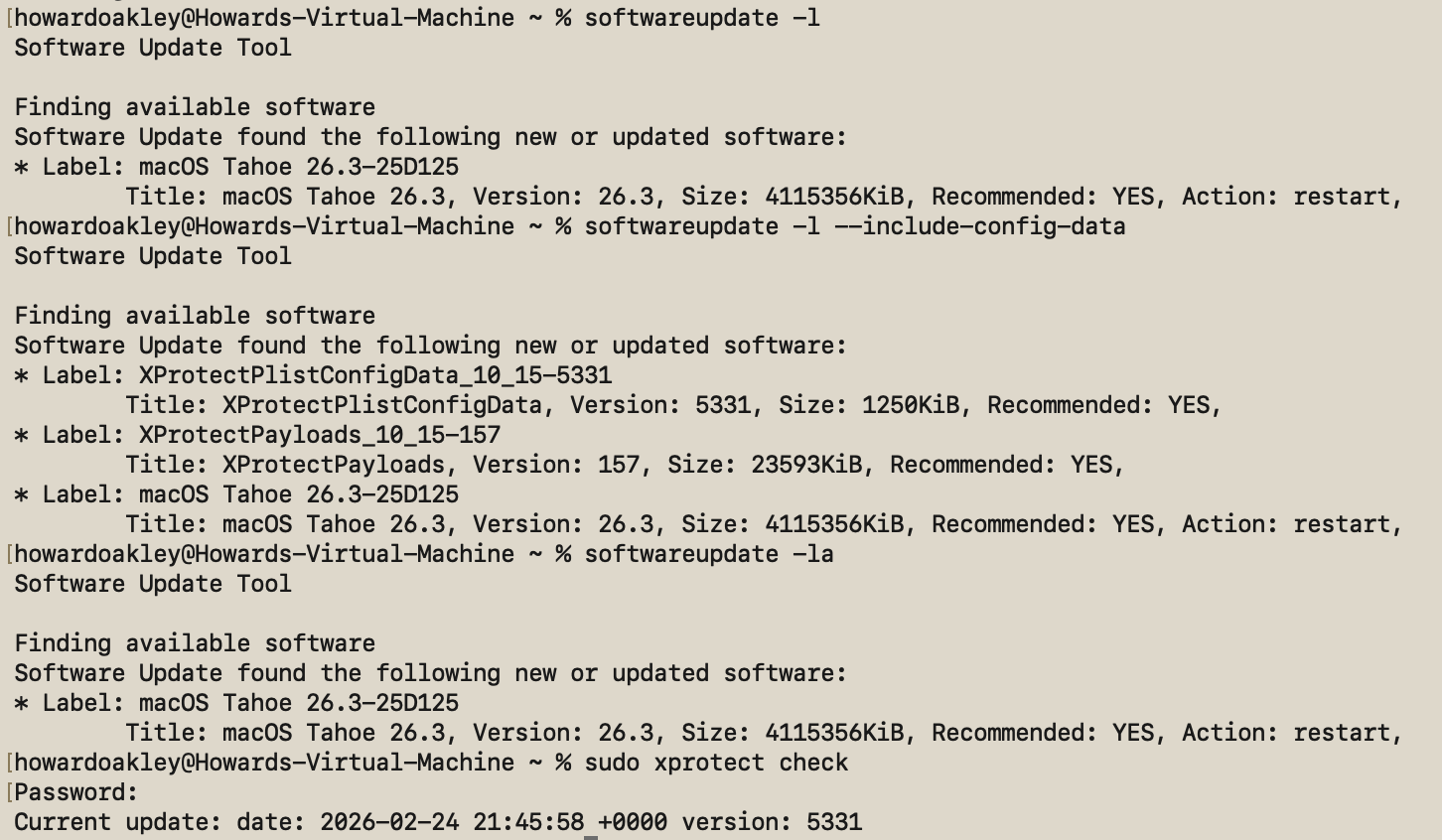
If all you want is a list of available macOS updates, softwareupdate -l
works fine, and using -la does much the same. Neither will display security data updates like those for XProtect or XProtect Remediator, though. To see those, use the undocumented option softwareupdate -l --include-config-data
and that should provide the full list. As you’ll probably want to download them individually, use the command softwareupdate -i --include-config-data updatename
where updatename is the word given as the Label in the listing.
Another invaluable feature of softwareupdate is its list of full installers available for direct download. That’s generated by softwareupdate --list-full-installers
The current list includes:
Tahoe 26.1, 26.2, 26.3
Sequoia 15.7.2, 15.7.3, 15.7.4
Sonoma 14.8.2, 14.8.3, 14.8.4
Ventura 13.7.8
Monterey 12.7.4, 12.7.6
Big Sur 11.7.10, 11.7.11
Catalina 10.15.6, 10.15.7 builds 19H2, 19H15
Mojave 10.14.6
High Sierra 10.13.6
but that given will include only those compatible with the Mac used to obtain the list. When you want to download one of them, use the command sudo softwareupdate --fetch-full-installer --full-installer-version 11.7.11
giving the version you want. If you want a different version, then check with one of the sites that provides links to a fuller list, such as Mr. Macintosh.
Avoid using the option to download but not install updates, based on softwareupdate -d, as downloads can go missing from /Library/Updates where you’d expect them, and this doesn’t work at all for macOS updates.
On Apple silicon Macs only, you can use the command sudo softwareupdate --install-rosetta --agree-to-license
to download and install Rosetta 2 and avoid its normal installation dialog.
Checklist
Check free space and (in laptops) power.
Restart and try again.
Start up in Safe mode and try there.
Try SilentKnight.
In Sequoia and Tahoe, XProtect also needs separate xprotect command.
softwareupdate -l --include-config-data
To install individual update softwareupdate -i --include-config-data updatename
Apple has released an update to macOS Tahoe bringing it to version 26.3.1. This adds support for its new Studio Display announced earlier this week. It’s also claimed to contain “bug fixes”, although none are detailed.
Download size for Apple silicon Macs is around 3 GB.
There are no published CVE entries for this update, so no publicly known security vulnerabilities are claimed to have been addressed.
This version has a build number of 25D2128, and there’s no change in iBoot firmware, which remains at 13822.81.10.
Looking at changes in bundled apps, there’s only one small increment in build and version numbers, in Passwords, which rises from version 2.3 to 2.3.1. Safari goes up a single build increment from 26.3 (21623.2.7.11.6) to 26.3.1 (21623.2.7.11.7).
In /System/Library, almost all the changes are in kernel extensions added to support the new Studio Displays. These include:
AGXFirmwareKextG17PRTBuddy and AGXFirmwareKextG17XRTBuddy, AGXG17P and AGXG17X, AGXMetalG17P and AGXMetalG17X
nine new AppleT6050 kexts, and an AppleT8080SOCTuner
three additional AppleT8140 kexts
an additional T6050TypeCPhy plugin to AppleTypeCPhy kext
AppleVL822FirmwareUpdater
AppleXHCFFirmwareDriver
WLANDriver kext
there’s an additional plugin to AppleEmbeddedAudio.
There’s also a new app in CoreServices, Medical Imaging Calibrator, and new DriverExtensions AppleCentauriAlpha, AppleCentauriBeta and AppleCentauriControl. Several private frameworks have been added, and others updated, presumably to provide access to the features of the new displays.
Clearly, Apple’s internal name for these new displays is Centauri.
If you are testing beta-releases of macOS Tahoe 26.4 and use SilentKnight, you will be aware that betas 2 and 3 cause it to crash on launch, on Apple silicon Macs. This is because the firmware version returned by these betas is completely different from all others for Apple silicon Macs for the last five years. As a result of that, SilentKnight doesn’t recognise them as Apple silicon Macs, and tries to obtain their firmware versions in a way that’s only compatible with older Intel Macs.
I’m very grateful to all those beta-testers who informed me of this problem, and those who sent me crash logs.
I have now incorporated a workaround into a new build of this version. Although this doesn’t attempt to interpret the new firmware version number, which will be reported as requiring updating, this has been tested against beta 3 and does now recognise Apple silicon Macs, and shouldn’t crash. Although this should also be compatible with all other Macs and macOS that support SilentKnight version 2.12 build 59, it’s only required on 26.4 beta 2 and later. It also won’t be offered through SilentKnight’s auto-update mechanism, so if you want it, please download build 61 from here: silentknight212v61
As Apple has never documented firmware version numbers, despite revealing them in System Information, I have absolutely no idea whether this change is intentional, whether it will be used in 26.4 release, or whether it’s simply a bug. I’m hoping the last of those, because changing firmware version numbering is a sure way to create havoc, as Apple should have learned from the past.
Script-based updaters were underpowered and too unreliable to build the Signed System Volume and other components of macOS in Big Sur and beyond. When Apple was designing the software update subsystem to be used for its new Macs, it chose to develop a modern design from scratch, built around finite state machines. The end result is seen today in the log entries made when updating macOS.
At first sight those appear to be examples of everything the Unified log shouldn’t be. From the initial entries reporting the softwareupdated service is checking for updates, there’s a succession of huge and apparently incomprehensible entries in the log that surely belong somewhere else. In fact we’re given a remarkable step-by-step account of some of the most elegant and successful engineering design in macOS that reveals its inner workings. It also shows how Apple is now able to detect and fix update problems in real-time.
Finite state machine
This is a formal model used widely in computing to design, describe and implement a machine or automaton that can only exist in one of a finite number of states. Its state changes in response to defined events, which result in actions that in turn determine its transition to its next state. Although some FSMs are non-deterministic and subject to chance, those in softwareupdated are governed by deterministic rules. This is illustrated in the excerpt below, extracted from a sequence of log entries for one of the FSMs run by softwareupdated when it’s working out what updates are required, early during macOS updating.
This FSM starts here in the top state shown in blue, where it’s scanning for an SFR update. If that’s successful (the event), its next action is to decide whether the update requires an update to Rosetta 2. If it does (the next event), then its action is to scan for Rosetta updates, and it then transitions to its next state of scanning for Rosetta. If that’s followed by the event that the scan succeeds, the next action is to decide whether an update to RecoveryOS is required, and so the FSM proceeds to work out what updates are required before starting to download and prepare them for installation.
This may appear long-winded, but FSMs can be described formally and from there implemented in code that is robust and correct, fundamental requirements for macOS updates. It also builds in flexibility to tailor each update to what that Mac requires.
Log documentation
The unified log is used by softwareupdated to document the operation of the several FSMs it runs. If an error occurs during software update, this enables its origin and causation to be established, one of the primary purposes of the log. Full detail has to be captured in entries at the time the FSM is running, as they can’t be recreated in retrospect.
As a result, every state transition, each event, and all actions are entered in full detail. The message field in those log entries identifies the FSM involved, reports its current state (S), the event (E), its action (A), and then provides full information about its current data. Those must enable the FSM to be recreated and run in the event that something goes wrong, to investigate and fix malfunction or failure.
Although those large and copious log entries are a challenge to browse, the architecture of the Unified log is designed to cope with them. Such long messages are stored separately in the warren of directories inside /var/db/uuidtext, and don’t burden the main log’s tracev3 log files.
FSMs
When softwareupdated checks for, discovers, downloads and prepares the macOS update from 26.2 to 26.3, the following named FSMs are identifiable in log entries:
SUMacControllerScanManager
scan[UUID]
SUMacControllerRecoveryOSManagerScan
update_downloader
SUMacControllerStateMachine
update[UUID]
SUMacControllerScanManager (again)
scan[UUID] (again)
SUMacControllerRecoveryOSManagerScan (again)
in the order in which they appear. In some cases, before the FSM is run, it’s loaded with Events that are detailed in the log, and provide further insight into what that FSM does.
The UUID used for FSMs and throughout softwareupdated is allocated at the start of these processes, before scanning for software updates. It’s referred to as “the SUCore SoftwareUpdate UUID”, and doesn’t appear to be the same as well-known UUIDs used elsewhere. However, as it’s a version 5 UUID it probably doesn’t contain any randomly generated content. This is worth bearing in mind, as it’s this UUID that is attached to Event Reports.
Real-time reporting
Many of us can recall macOS updates that have gone badly wrong, and some that had to be withdrawn or replaced because of their problems. Apple tackles that now using an event reporting system that provides real-time information about how every Mac being updated is progressing. This is anonymised, the only identifier being the UUID allocated to that software update by softwareupdated before starting to scan for updates.
At frequent stages during software update, softwareupdated updates its Event Report to reflect progress, and that’s automatically uploaded to Apple’s servers at an HTTPS address starting with xp.apple.com/report/ Although typically only just over 500 bytes in length, a typical Event Report contains the following named fields:
UUID, audienceType, batteryIsCharging, batteryLevel, currentBaseOSVersion, currentOSType, currentOSVersion, currentProductVersionExtra, dataFsCapacity, dataFsFree, deviceClass, deviceModel, event, eventTime, lowPowerMode, macPlatform, mandatoryUpdateEligible, mandatoryUpdateOptional, preSUStagingEnabled, preSUStagingMaxSize, preSUStagingOptionalSize, preSUStagingRequiredSize, preferredType, rampEnabled, rapidSecurityResponseCombo, rapidSecurityResponseInstalled, rapidSecurityResponseSemiSplat, reportVersion, result, storageCapacity, ucoreVersion, systemFsCapacity, systemFsFree, targetOSVersion, totalRequiredFreeSpace, updateType.
Most should be fairly self-explanatory, and in this case the event field was set to SUCoreOTAPreSUStagingDetermineStarted.
The first of these is sent less than one second after starting to scan for updates, when policy and sizing for the updates to be downloaded have just been determined, and that’s repeated after each significant stage until the Mac is rebooted to apply the update. I suspect there’s also a final Event Report sent once the Mac has booted into the updated macOS.
Apple is thus able to track progress for each UUID during the software update process. Should it detect a problem, for example a required component being unavailable, it should be able to take immediate action to address that, rather than having to wait for individual users to report errors or failures long after they occurred.
Summary
From Big Sur, software update uses a modern design based on finite state machines, completely replacing its old script-based system.
FSMs bring the greatly improved reliability necessary to install and build the Signed System Volume and other components of macOS.
The log contains detailed accounts of FSMs as they are run to accomplish the many phases of these complex software updates.
Those log entries could be used to recreate the FSM in the event of failure or error, e.g. as provided in a sysdiagnose.
Bulky message content in log entries is stored outside log files, in the /var/db/uuidtext directory.
Each software update is given its own UUID.
Update progress is reported to Apple frequently in Event Reports.
Event Reports can enable real-time detection and correction of problems in software updates.
Although the way that macOS updates itself has changed beyond all recognition over the last few years, we tend to assume that it still works much as it did in the past, downloading a single update file, decompressing and installing that. This series of articles takes a deeper dive into what actually happens, and tries to explain how it differs from previous package updates.
This account is primarily based on a detailed analysis of log entries obtained from updating 26.2 to 26.3 on a Mac mini M4 Pro, supported by additional information obtained from updating virtual machines to 26.3. macOS updates have changed considerably even since Big Sur, but I believe that their mechanisms have remained more similar than they differ from those before.
Download size
One of the most basic and striking observations about macOS updates is their variation in size. Although those reported on many Apple silicon Macs making the same single-step update are similar, some are considerably greater. As updates aren’t offered in standalone form, and are only provided via Software Update or its command line equivalent softwareupdate, the only practical way to assess this is to update a range of virtual machines.
Software Update also reports two update sizes to the user: the first is given as a promise prior to the user initiating the update, the other displayed above the progress bar during downloading, in the progress window. A third figure can also be derived by obtaining the update through a local Content Caching Server. Results obtained for the update to 26.3 are shown in the table below.
When originally performed on the host Mac, the initial claimed and reported download sizes were both smaller at 3.68 GB.
Although sizes for the update from 26.1 to 26.3 are surprisingly slightly less than those from 26.2, these demonstrate that the greater the difference between the original and destination versions, the larger will be the size of the download, as expected. However, there is no evidence that any of these shared the same download size: each is different, as if tailored to the requirements for the original macOS. This is very different from a system offering three types of installer for Delta and Combo updates, and a whole-system Installer for upgrades from an earlier major version.
Installation sizing
Prior to the update being applied, its download and preparation is largely controlled by softwareupdated and its associates. Before any downloading is initiated, that calculates the disk space required to download and prepare each of the components required for the update, a task it refers to as CalculatePrepareSize. This is critical if the update is to ensure that it won’t run out of free space during the update, and is checked repeatedly during the downloading sequence, as individual components are prepared for installation.
CalculatePrepareSize calculates the following values:
Cryptex size requirement, consisting of 60 MB being 1.2 times the size of the app cryptex, and 7,748 MB being 1.2 times the size of the system cryptex, for a total of 7,809 MB.
Snapshot preparation size, consisting of snapshot installation size of 3,785 MB plus the cryptex size, for a total of 11,595 MB.
Snapshot apply size, consisting of twice the update partition size plus the update APFS reserve for 700 MB, plus 231 MiB for sealing, for a total of 931 MB.
Snapshot preparation size, consisting of snapshot installation size of 5,154 MB (a significant increase from previously) plus the cryptex size, for a total of 12,963 MB.
For any given version of macOS (ignoring RSRs and BSIs that may later replace them), each hardware architecture is thought to have its own pair of cryptexes, and they aren’t thought to differ between Macs of the same architecture. Thus, no matter which their original version of macOS, all Apple silicon Macs updating to macOS 26.3 should be provided with the same app and system cryptexes, of the same sizes.
Sizes for snapshot update and installation clearly differ according to the original version of macOS. Although almost self-evident, it’s important to remember that updating macOS from a previous major version will normally require greater free disk space than updating by a single minor or patch version.
Given the sizes above, it’s also obvious that components downloaded for macOS updates are compressed to substantially smaller sizes, so have to be decompressed on the Mac being updated. Thus, the download sizes reported to the user are far smaller than the free disk space required to prepare and install the update.
Main stages
The overall sequence of stages is:
Identify update. Shortly after starting up, and at intervals of approximately 6 hours afterwards, softwareupdated tries to connect to Apple’s software update service to check whether there’s an update available for that Mac. Checks can also be initiated manually, or by apps like SilentKnight. If an update is found, the Mac and its current system are checked to determine whether it meets the requirements for that update.
Check update size. CalculatePrepareSize estimates space required. If free space is insufficient for the calculated requirements, the update is aborted.
Display progress. The progress window is displayed with its bar, and set points are allocated to stages of the finite state machine in softwareupdated to indicate to the user how far update download and preparation have progressed.
Initial preparations. These include detailed identification of components to be downloaded and installed, and preparation of persistent data.
Preflight. Download the ‘update brain’ used to perform the update phase, and perform preflight phases.
Update Rosetta. Download any update for Rosetta 2.
Update Recovery. Download any Recovery update.
Download snapshot update. This takes 38% of the progress bar, and includes streaming decompression of contents, and download and decompression of the two cryptexes.
Preflight Recovery.
Prepare update. This includes many checks, including hashes of firmware updates, cryptexes, and contents of the updates. This takes 39% of the progress bar, but doesn’t appear to involve any decompression.
Apply update. Reboot macOS into the control of the ‘update brain’ to install update including new firmware, create snapshot, build hash tree, seal and sign SSV, then continue the boot process from that.
Kernel boot into updated macOS.
Clean up and check for updates.
Because stage 11, applying the update, is run by the update brain, normal logging doesn’t take place, and no clear account can be made of what happens then.
From Big Sur onwards, the great majority of this is performed in what is effectively a single thread run on CPU Performance cores. This is readily seen when updating a virtual machine, for example. It’s thought that updates are constrained to use the equivalent of just a single P core to enable the user to continue working through a process that could take up to an hour. Thankfully, with the advent of faster models and continued engineering optimisations, this Mac mini took just 18 minutes from requesting the update to 26.3 until it was logged into and fully functional again.
In subsequent articles I will look in more detail at the stages listed above.
Conclusions
The greater the difference between the original and new macOS versions, the larger the update will be to download.
Updates are tailored to the individual requirements of the Mac being updated, and may differ considerably in size.
Detailed installation sizing is performed after the offer of the update, and is considerably larger than download size, as it includes all components after decompression.
Download and preparation account for just under 40% of the progress bar each. More than 20% is accounted for by other stages.
Applying the update is followed by kernel boot from the updated SSV.
If you keep your Mac up to date with the current version of macOS, at least half a dozen times a year you’ll install an update to bring it to the latest version. This article explains how those updates have worked in recent years.
Before Big Sur
Before we upgraded to Big Sur, macOS updates were relatively simple and based on Installer packages, structured collections of files that are copied to the boot volume in accordance with scripts, run by the Installer app. Once that copying is complete and the boot volume contains the files forming the new version of macOS, the Mac can be rebooted from those.
This system update in Mac OS X 10.1.3 in March 2002 was installed by the Installer app following authentication.
This became more complex with macOS 10.15 Catalina, as that was the first to divide what had previously been a single boot volume into two, System and Data. The diagram below shows in miniature what happened during the course of Catalina’s first two minor updates, as an example.
Upgrading from Mojave to Catalina 10.15.0 was performed using Installer packages that completely replaced everything in its system, created in a new System volume, as shown at the top. This was referred to as an upgrade, as the whole system was installed afresh.
Then (skipping a Supplemental Update) came the first minor update to 10.15.1 on 29 October 2019. For the sake of this example, consider that includes a new version of the cat command tool. Rather than that update containing the whole system all over again, it only contains and installs what has changed, including that new cat binary.
Then on 10 December 2019 Apple released the update to 10.15.2, containing another set of changed files, this time perhaps replacing the cp command tool. There are two ways to install that update, either as a delta update or a Combo. The delta update contains the changes from 10.15.1, here cp; the Combo update contains everything that has changed since 10.15.0, both that in 10.15.1, here cat, and in 10.15.2 with cp.
Combo updates tackled what was then a not uncommon problem, when a previous update hadn’t been installed correctly. If the update to 10.15.1 didn’t actually install the new cat and we then installed the delta update for 10.15.2, the latter may not have worked properly. As there was limited error checking in those old updaters, we would then be using a flawed installation of macOS. By installing the 10.15.2 Combo updater instead of the delta, the chance of errors like that were significantly reduced.
Because updates, whether delta or Combo, were Installer packages, Apple not only supplied and installed them using Software Update and its command tool equivalent softwareupdate, but they were also provided for download from webpages in Apple’s Support site. If you had more than one Mac to update, it made sense to download and use the update package.
Big Sur and the SSV
Catalina’s novel boot volume group, with its separate System and Data volumes, was only an intermediate step to Big Sur, which brought the greatest structural change in Mac operating systems since the introduction of Mac OS X twenty years earlier. The great majority of macOS now runs from a mounted snapshot with a read-only file system separate from that of user files on the paired Data volume, and requires a fundamentally different method of installation and updating.
In addition to updating the contents of the system, from Big Sur onwards installers and updaters have considerably more to do. Those tasks include creating the new snapshot to contain the bootable copy of the system, firmlinking that System snapshot with its paired Data volume, building a tree of cryptographic hashes so that the snapshot can be sealed, and verifying the signature of its seal against Apple’s requirement.
These changes can be seen by following Big Sur’s first couple of updates. On 14 December 2020, the update to 11.1.0 might have gone through similar changes to Catalina, with the replacement of its cat command tool. Once that had been installed on the System volume, a snapshot was made of that System volume, hashes were computed for all its contents, and assembled into a tree. At the top of the tree, a hash of all the hashes in the next layer down forms its seal, which is then hashed again to form the signature of the Signed System Volume (SSV). This signature is compared against that set by Apple for the whole volume, and only if they’re identical is the System snapshot accepted for use. There’s no room here for the slightest error if the signature on the SSV is going to match its requirement.
When that was updated again to 11.2.0 on 1 February 2021, perhaps with a new version of the cp tool, the new installer repeats this process of creating a new snapshot, building its tree of hashes, sealing them, creating the signature, and comparing that with Apple’s signature. This means that each and every update is verified to be perfect, and no errors are tolerated.
Safari and dyld caches
Not all the system is installed in the SSV. Apart from some separately updatable components such as XProtect, Apple decided to make Safari and its supporting WebKit components capable of being updated without going through the process of building a new SSV, so in Big Sur and Monterey they were installed on the Data volume. Accompanying those were large dyld caches containing frameworks and more. That changed in macOS Ventura, since when they have been delivered as cryptexes, sealed disk images that APFS can graft into the file system. Apple also used the same mechanism to deliver a few Rapid Security Responses (RSR), before discontinuing them.
dyld caches are one of the few parts of macOS that is single-platform. While Intel Macs are only provided with an Intel version, those on Apple silicon Macs include both architectures, to support Intel-only apps running in translation by Rosetta 2. The second set is largely responsible for the fact that Apple silicon Mac updates are invariably larger than those for Intel Macs.
Apple has since redeveloped its RSR mechanism, and has introduced them as Background Security Improvements (BSI) in Tahoe, although none has yet been released to the public.
Upgrades and updates
Installing a new major version of macOS to go from 10.13 to 10.14, for example, had been accomplished by Software Update downloading a full Installer app, which then replaced the whole of the old system with the new one. From macOS 12.3 that changed, and whenever possible macOS now effectively performs an update by replacing only changed files before it builds the new SSV. This has reduced both the download time required and that needed to decompress and prepare the update.
This has had the side-effect that ordinary non-admin users can now upgrade macOS from one major version to a later one, an action that previously required admin privileges.
Combo updates
In the new system from Big Sur onwards, Apple only provides Combo updates for those updating from versions of macOS older than the previous version, and only when required. If you were to update straight from 15.0 to 15.2, then your Mac downloads all that it requires for that update. If your Mac is already running 15.1, there’s no option to install the changes in 15.1 again, nor should you need to, as its installation in 15.1 has already been verified as being identical to Apple’s reference.
If you felt that wasn’t adequate, then the only option is to install the whole of 15.2 from scratch by running the Sequoia 15.2 Installer app. More recent installers are more likely to complete this without disturbing the Data volume, and requiring its migration from a backup.
Although these complexities may seem bewildering, macOS updates conceal all of this from the user and most commonly work transparently. However, it can explain why some updates can turn out to be significantly larger than expected.
If you’re still struggling to find your way around the log, or not even prepared to try, I have a new version of my log statistics and navigation utility Logistician that should help. This enhances its list of log files by adding further details, and adds a completely new graphical view to help identify periods of unusual log activity.
Log list
As I showed here a couple of days ago, Logistician opens the JSONL statistics files maintained by logd in /var/db/diagnostics, alongside folders containing the tracev3 log files. The list of those originally gave a minimum of information, and that has been increased to contain:
the start date and time of each file, in addition to the date and time it was closed
the period during which that file had entries added to it, in seconds
the size of log data within the file, in KB
the average rate at which log data was written to that file, in B/s
the path to that file, which reveals whether its type is Persist, Special or Signpost, hence the nature of its contents.
Start date and time are taken from those for the closing of its predecessor, so can’t be given for the first file of each type. They can also span a period during which the Mac was shut down, although that’s usually obvious from the low rate at which log data was written.
Point plot
The new window available plots point values for the whole series of log files in the current list.
This displays any of three different plots:
rate of log data written to Persist log files over the period for which log files are listed, in B/s;
amount of log data written to Persist log files over that period, in KB;
amount of log data written to Special log files over that period, in KB.
For the latter two, quantities shown are for the three processes that entered the largest data in that period. I have looked at identifying the processes concerned, but that’s far too complex to do here.
Signpost log files contain special types of entry intended to be used to assess performance, and contribute little to other analyses, so are excluded from these plots. Regular log entries are either saved to Persist or Special types, although it’s unclear as to which entries go to each. Some processes only appear to use one, although the entries for many processes can be saved to either. Although there are similarities in the patterns of Persist and Special files, they also differ in other respects. These three plots appear most suitable when looking for anomalies in the log.
Although these plots make it easy to identify the date of an anomaly such as the high outliers at the far right, for 11 February, they can’t tell you the time of the file you should analyse. For that, Logistician reports the time and date of the location that the pointer is hovering over. Place the pointer over the high rate value, for example, and you’ll see it occurred at about 20:14:00. This helps you identify which of the listed log files has that high peak rate, hence the time period to inspect using LogUI.
Traditionally, the moment you move the pointer from a chart area, hover information like that is removed. If that were done here, it would make it infuriatingly hard to refer to the list of log files. So these dates and times show those at the last moment the pointer was over that point plot. The knack is to hover over the point of interest, then move the pointer off that chart vertically, so as not to alter the time indicated. I’m looking at alternative methods of locking the time shown, to make that easier, but that presents more complex coding challenges, as do methods of zooming in on smaller periods of time.
In case you’re wondering, the overall period covered by these point plots, divided across the two log statistics files maintained, is approximately 6 weeks, as indicated by the X scales shown here.
Logistician version 1.1 is now available for Sonoma and later from here: logistician11a
and will shortly be getting its place in a Product Page and other listings here.
Enjoy!
Update: thanks to Jake for finding a divide by zero bug that could crash Logistician when opening a JSONL file. I have fixed this in build 14, now available above. Please download that and replace copies of the original build 12, so you shouldn’t encounter that crash. My apologies.
Apple has just released an update to XProtect, bringing it to version 5331. As usual, it doesn’t release information about what security issues this update might address.
This version adds two new Yara rules for additional SOMA/AMOS variants, MACOS.SOMA.FEENA and MACOS.SOMA.FEENB, and adds two more OSASCRIPT rules to XPScripts.yr, bringing its total to 19.
You can check whether this update has been installed by opening System Information via About This Mac, and selecting the Installations item under Software.
A full listing of security data file versions is given by SilentKnight and SystHist for El Capitan to Tahoe available from their product page. If your Mac hasn’t yet installed this update, you can force it using SilentKnight or at the command line.
If you want to install this as a named update in SilentKnight, its label is XProtectPlistConfigData_10_15-5331
Sequoia and Tahoe systems only
This update has already been released for Sequoia and Tahoe via iCloud. If you want to check it manually, use the Terminal command sudo xprotect check
then enter your admin password. If that returns version 5331 but your Mac still reports an older version is installed, you should be able to force the update using sudo xprotect update
Finally, for those testing macOS 26.4 beta 2, I am aware that SilentKnight currently crashes on launch, thanks to several of you who have been kind enough to email me. I can’t find an explanation for this in my code, so am hoping it will resolve in beta 3.
Most recently, I have learned of a shocking error in the beta 2 build that may well account for this. If you’re running beta 2, try checking the iBoot version in System Information, and you may be in for a big surprise!

 Login
Login