Reading view

There are new articles available, click to refresh the page.

Does disk storage speed limit macOS virtual machines?

In most respects, lightweight virtualisation of macOS on Apple silicon delivers almost the same performance as running code on the host. That’s the result of having direct access to CPU cores and the GPU. However, earlier implementations in Monterey and Ventura performed poorly when accessing the Data volume in the Virtual Machine, with read/write speeds measured at 4.4/0.7 and 5.4/0.7 GB/s respectively, without FileVault or other encryption. In macOS 26.3.1 both RAW and ASIF encrypted disk images show disappointing performance particularly when writing to them. This article therefore re-evaluates VM disk performance to see if that extends to VMs.

Methods

Tests were performed on two freshly made 100 GB VMs in RAW format using the macOS 26.4 IPSW, running on a Mac mini M4 Pro in macOS 26.4. VMs were given 5 CPU cores and 16 GB memory, didn’t connect to an Apple Account, and were built and run in Viable and Vimy, both of which use the standard macOS API for virtualisation.

Performance was measured using Stibium’s ‘Gold Standard’ with 5 rather than 10 test sets, reading and writing a total of 26 GB in 80 files ranging in size between 2 MB and 2 GB. Following an initial write test, the VM was restarted before performing the read test. The first VM was configured with FileVault enabled, and the second with it disabled. In addition to those, standard read/write performance was measured as before on a 100 GB RAW disk image on the host, and on a 100 GB ASIF image, both being encrypted using 256-bit AES.
Results

Measured read/write speeds were:

  • Native SSD, FileVault on – 6.57/7.66 GB/s
  • VM, FileVault off – 6.62/5.91 GB/s
  • VM, FileVault on – 4.66/3.11 GB/s
  • RAW disk image, 256-bit AES – 2.82/1.59 GB/s
  • ASIF disk image, 256-bit AES – 2.85/1.76 GB/s.

With FileVault disabled, performance in the VM was surprisingly close to that of the host’s internal SSD, with a small reduction in write speed from 7.66 to 5.91 GB/s. That’s a huge improvement on previous results, with writes being almost ten times faster.

Enabling FileVault did reduce performance significantly, particularly write speed which fell to about half. However, those are still good enough to be acceptable for most purposes.

No significant change was seen in host disk image performance from those measured in 26.3.1, though, which remains substantially slower than the VM with FileVault enabled.

Conclusions

VMs are vulnerable if they don’t have FileVault enabled. Without encryption, sensitive contents would be relatively easy to access if the VM were to fall into the hands of an attacker. Enabling FileVault is thus potentially more important for a VM.

Thankfully, with such great improvements in VM disk performance, those hosted on an Apple silicon Mac’s internal SSD are unlikely to be slowed much by their disk performance.

This makes it the more puzzling that encrypted RAW and ASIF disk images should perform so poorly, and it’s disappointing to see that continues in macOS 26.4. Over the same period that VM disk performance has increased so impressively, that of disk images has headed in the opposite direction.

VMs and BSIs

If you tried installing the recent Background Security Improvement (BSI) in a macOS 26.3.1 VM, you were probably disappointed. In this respect, the VM didn’t work as expected. I was unable to find the BSI in its section in Privacy & Security settings. What did help was downloading it using SilentKnight, although that can’t install BSIs successfully. Instead, I restarted the VM and Privacy & Security offered to install the BSI at last.
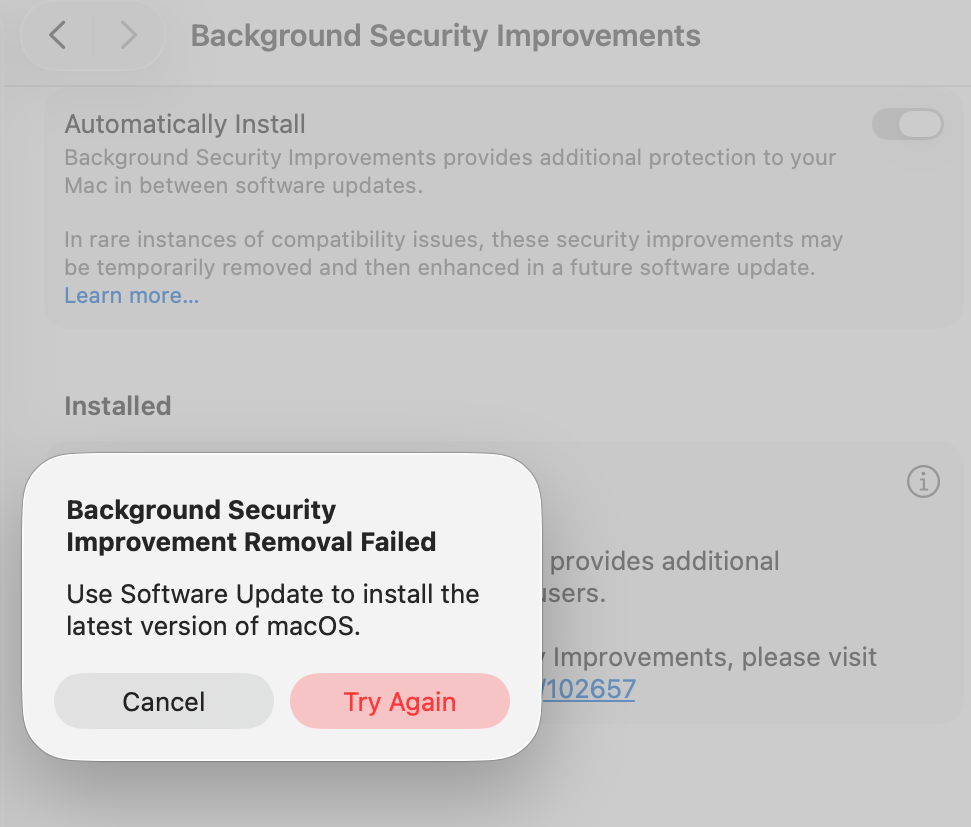
Once installed, Privacy & Security offered to remove the BSI, but failed to do so, with SecurityImprovementsExtension reporting:
Rollback failed: Error Domain=SUOSUErrorDomain Code=103 "Unable to remove Background Security Improvement" UserInfo={NSLocalizedDescription=Unable to remove Background Security Improvement, NSLocalizedRecoverySuggestion=Use Software Update to install the latest version of macOS.}

For the time being BSIs appear dysfunctional in VMs.

Access and repair a broken disk image

Like any file, a disk image can become corrupt or damaged, and like any mountable disk its file systems can also become corrupt or damaged. Although those should be very infrequent, their results can disastrous, and render the contents of that disk image inaccessible. This article suggests some solutions you can try.

In theory, if the problem is in the image’s file systems, you should be able to mount its volumes and run First Aid in Disk Utility to check and repair them. In practice that seldom works out, as macOS usually refuses to mount the image. Unless you have ready access to a recent backup, all you can do then is resort to Terminal’s command line to attempt a recovery.

Gaining access to the contents of a disk image requires two steps to complete: first the image must be attached as a device, then after probing of the file systems it contains, those can be mounted.

dmgtrouble1

Read-only and compressed disk images have a checksum stored, and this is normally verified against the image file data first. If that proves invalid, then macOS will refuse to go any further.

dmgtrouble2

In the past, records of checksum verifications have been stored in extended attributes such as com.apple.diskimages.recentcksum, and sometimes deleting those, or a record of the file systems being checked using fsck in com.apple.diskimages.fsck, can allow the disk image to mount. More recently those appear to have fallen into disuse.

Next you should try to attach the disk image without verification or mounting. This is best done using a command such as
hdiutil attach -nomount -noverify diskImagePath
where diskImagePath is the full path to the disk image file, such as /Users/hoakley/VMs/myImage.dmg

If this succeeds, you’ll be rewarded with a list of the resulting devices, such as
/dev/disk4 GUID_partition_scheme
/dev/disk4s1 EFI
/dev/disk4s2 Apple_APFS
/dev/disk5 EF57347C-0000-11AA-AA11-0030654
/dev/disk5s1 41504653-0000-11AA-AA11-0030654

The first is the disk device disk4, and is followed by its two standard partitions disk4s1 and disk4s2. The latter is its APFS container disk5 with its single APFS volume disk5s1. You can now check and repair the last two of those, such as
fsck_apfs -y /dev/disk5s1
which should return a blow-by-blow account of the results. If the file system is HFS+ you may also be able to use third-party repair tools such as DiskWarrior.

When you’ve completed the required repairs, detach the disk image with a command like
hdiutil detach /dev/disk4

If that fails to make the disk image mountable, some have claimed success by converting the disk image to a different format, using a command like
hdiutil convert diskImagePath -format Uxxx -o outImagePath
where diskImagePath is the original disk image, outImagePath is the new image to be created, and Uxxx is the name of a disk image type, as listed in the Appendix.

If none of these gives access to the contents you require, then it’s almost certain that the only way ahead is to find the latest backup of that disk image, and use a copy of that.

Appendix: Supported disk image formats

  • UDRW – UDIF read/write, sparse file from macOS 12
  • UDRO – UDIF read-only
  • UDCO – UDIF ADC-compressed
  • UDZO – UDIF zlib-compressed
  • ULFO – UDIF lzfse-compressed (OS X 10.11)
  • ULMO – UDIF lzma-compressed (macOS 10.15)
  • UDTO – DVD/CD-R master for export
  • UDSP – sparse image, grows with content
  • UDSB – sparse bundle, grows with content, bundle-backed, Mac OS X 10.5
  • UFBI – UDIF entire image with MD5 checksum.
  • ASIF – sparse image, grows with content, macOS 15.

Disk image performance: the cost of encryption rises

One of the biggest penalties in using disk images has been their performance, particularly when they’re encrypted. Although no longer offered in Disk Utility, UDSP sparse images encrypted using 256-bit AES typically read and write as slow as 500/100 MB/s when mounted from an SSD delivering 4.7/4.9 GB/s. In contrast, UDSB sparse bundles can achieve close to that native speed.

macOS Sequoia brought a new type of disk image, Apple Sparse Image Format or ASIF, intended to deliver the high performance of sparse bundles, with their efficient use of storage space, in a single file that can be hosted on file systems beyond APFS. As this is now well over 18 months old, this article considers whether it has achieved those goals, and should become the preferred type of disk image.

Methods

Each test image was created using Disk Utility 22.7 (2510) in macOS 26.3.1 (a) running on a Mac mini M4 Pro, on its internal SSD of 2 TB. Performance measurements were made using the ‘gold standard’ method in my free Stibium on disk images of 100 GB nominal size. This writes and reads a total of 53 GB in 160 files ranging in size between 2 MB and 2 GB. As performance is likely to change with use of the disk image, the following sequence of events was used:

  • Create disk image, which is mounted automatically, so unmount.
  • Mount disk image, measure write speed, then unmount.
  • Mount disk image, measure read speed, then delete the last 8 of 10 sets of test files, and unmount.
  • Mount disk image, measure write speed, then unmount.
  • Mount disk image, measure read speed, then delete all test files, and unmount.
  • Mount disk image, measure write speed, then unmount.
  • Mount disk image, measure read speed, and unmount.

These provide three pairs of read/write measurements:

  1. for an empty, unused 100 GB disk image;
  2. for a 100 GB disk image containing over 10 GB of existing files in addition to 53 GB of test files;
  3. for an empty 100 GB disk image that had previously contained about 66 GB of test files that had been deleted.

Disk image sizes were also measured when unmounted, using Precize or the Finder’s Get Info (for sparse bundles).

The three types of disk image tested were RAW (UDRW), UDSB (sparse bundle) and ASIF (sparse image). Each was tested fully when unencrypted, and test 1 was performed on an image encrypted using 256-bit AES.

Results

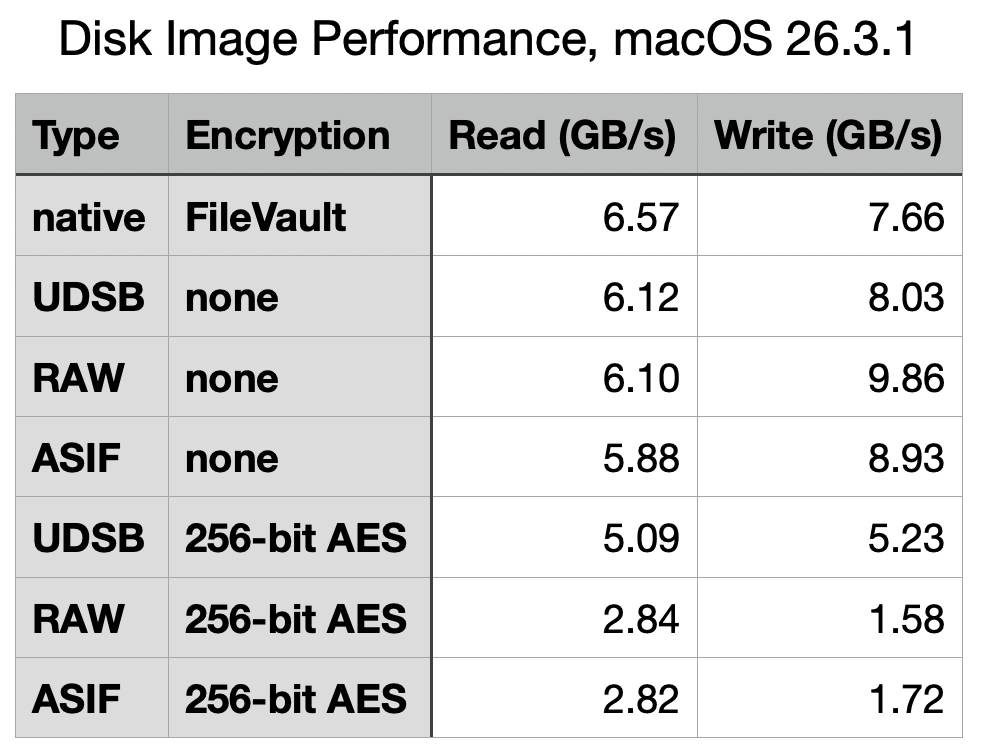
The best and most consistent performance was achieved by UDSB sparse bundles, as expected. Their read speeds were 6.13, 6.12 and 6.19 GB/s, and write 7.62, 8.03 and 7.79 GB/s for the three separate measurements, and 5.09/5.23 GB/s read/write when encrypted. When first created, the sparse bundle only occupied 32 MB on disk, but by the end had grown to 3.99 GB even though empty.

The RAW disk image, formerly known as UDRW, also largely performed as expected. Read speeds were 6.09, 6.10 and 6.08 GB/s, and write 10.11, 9.86 and 10.11 GB/s. Initially it only required 5.78 MB on disk, rising to 621 MB at the end. However, its performance when encrypted was disappointing, at 2.84/1.58 GB/s read/write.

ASIF disk images were good, but also ran into problems when encrypted. Unencrypted read speeds were 5.99, 5.88 and 5.85 GB/s, and write 9.55, 8.93 and 9.64 GB/s. When encrypted, those fell to 2.82/1.72 GB/s read/write, no better than the RAW disk image. The image file size started at 26.8 MB on disk when empty and unused, and returned to 954 MB when empty at the end.

To confirm that ASIF performance when encrypted wasn’t an anomaly, I repeated that pair of tests on a MacBook Pro M3 Pro running 26.3.1 (a), and obtained similar results at 2.63/1.52 GB/s read/write, using a 10 GB ASIF image with one-tenth of the tests, giving 3.32/1.65 GB/s, and using Blackmagic, which gave 2.92/1.15 GB/s read/write. Although there is variation, they appear remarkably similar.

Test 2 results are summarised in the table above, for ease of comparison, and with the earlier results from macOS 26.0 below.

What has gone wrong with encrypted writes?

Although most of the test results in macOS 26.3.1 are very similar to those from 26.0, performance when using 256-bit AES encryption has fallen for all three disk image types, and most significantly in write performance for RAW and ASIF images, which have reduced from 4.3 to 1.58 GB/s (RAW) and from 3.9 to 1.72 GB/s (ASIF). The magnitude of those reductions is sufficient to have obvious impact on their use. Compared to native write performance using FileVault of 7.66 GB/s, those two types of disk image are pedestrian in the extreme, turning that blisteringly fast SSD into the equivalent of 20 Gbps over USB 3.2 Gen 2×2.

It’s possible that this dramatic reduction in encryption performance may have resulted from a change to address a vulnerability, but I’ve been unable to identify an entry in Apple’s security release notes that might correspond to such an event. I will repeat these tests once the update to macOS 26.4 has been released, in the hope it might be reversed.

Which disk image type?

When their folder-based structure is acceptable, UDSB sparse images remain the disk image type of choice, for their consistent high performance even when encrypted.

There is little to choose between RAW and ASIF disk images when a single file solution is required. ASIF images are portable to other file systems that can’t support APFS native sparse files, although curiously they too are flagged in APFS as being sparse files. As their sparseness isn’t dependent on APFS trimming habits, they are now an alternative that can be used on network storage and NAS. However, those able to use sparse bundles should continue to do so, particularly if using encryption.

Explainer: Disk images

A disk image is a file, or a folder containing files, that stores the contents of a physical storage medium. In contemporary usage most can be mounted as a disk or volume, so giving access to their contents. Originally developed to aid the manufacture of floppy disks, they go back long before the Mac, and now see wide use in all parts of macOS and its apps.

Since they were used in Classic Mac OS, they have come in a multitude of different formats and variants, many of which are listed in the Appendix. They’re an essential part of macOS installers, home to Recovery mode, and the basis for cryptexes. They’ve been used to burn and replicate optical disks, to archive disk contents, extensively in network backups, and for the distribution of software.

History

As early as Mac OS 9 in 1999, variants of formats had become complex. Here, Disk Copy is configured to create a read-only compressed .img file containing the contents of a standard 1.4 MB floppy disk. In the upper window, it has completed validating the checksum on a self-mounting .smi disk image that’s part of a DiskSet. Those could also be signed using certificates issued not by Apple but by DigiSign.

Mac OS X 10.1 Puma in 2001 brought a new standard with Universal Disk Image Format (UDIF) used in DMG disk images. Support for compression options in Apple Data Compression (ADC) unified what had previously been two disk image types, and extended support for images larger than a floppy disk. This new format enabled disk images to represent entire storage devices, complete with a partition map and disk-based drivers.

Mac OS X 10.5 Leopard in 2007 introduced the sparse bundle format, with its folder of smaller band files containing data. These enable the image to grow and shrink in size, and became a popular means of storing mountable Mac file systems on servers using different file systems.

Use

In their most common use, Disk Utility or a third-party app such as DropDMG creates and mounts an empty container file, then copies a hierarchy of files and folders into its virtual file system. While the disk image remains mounted, it’s presented as a removable volume, and when unmounted it’s just a regular file that can be moved, copied and backed up like any other.

Its virtual file system can be any supported by macOS, but in recent years is most likely to be APFS. As the disk image can be hosted on a completely different file system, this enables you to store APFS volumes on systems that don’t themselves support APFS. This is essential for networked storage being hosted on a different file system such as Btrfs. SMB can then be used to access the contents of that disk image over the network.

Disk Utility offers a limited range of formats and variants, including RAW images (UDIF), sparse bundles (UDSB), optical disk masters (UDTO), and the new Apple Sparse Image (ASIF). They can be encrypted, and contain file systems in APFS, HFS+, FAT or ExFAT. Two command tools extend those formats and variants, diskutil with its image verb being the equivalent of Disk Utility, and hdiutil providing the most extensive support.

Opening a disk image in the Finder performs two distinct operations: first the file or bundle is attached, much in the way that you might attach physical storage. Once that has occurred, the image is probed by macOS for file structures and systems, and those that can be mounted are mounted as external file systems, normally in the path /Volumes. Cryptexes are an exception to this, as APFS will graft the image’s file system into arbitrary locations in the host file system.

Verification

Two types of verification can be performed during an attach-and-mount procedure. The first can compare the file’s checksum against a stored value to determine if the file has become corrupted, while the second is performed during probing and mounting of file structures and systems within the image. The command tools provide options to attach an image without mounting that can be used to attempt repairs on its file systems, although those seldom seem successful.

This ‘warning’ alert from 2020 illustrates one of the longstanding issues with disk images. Although integrity checking of disk images using checksums has been valuable, when an error is found there’s no possibility of repair or recovery as the image fails to attach, so its file system can’t be made accessible.

Properties

There are two other issues to consider before using disk images, their read-write performance, and use of storage space.

xferdiskimage24

This table summarises read and write performance of the most popular types of disk image prior to macOS Tahoe, and demonstrates how sparse bundles have consistently performed best and most consistently, and sparse images (now dropped from Disk Utility’s options) fare worst, particularly when encrypted.

The introduction of ASIF in Sequoia has added another option, although sparse bundles remain fastest overall. I will be re-examining these in the coming weeks, now that new format has had more time to mature.

Before macOS Monterey, sparse bundles and sparse images were the only formats that made efficient use of disk space, as they grow to accommodate their contents, and should shrink again when some or all of their contents are removed. Monterey is thought to be the first version in which UDIF read/write images (UDRW) have been stored in APFS sparse file format. This has transformed what had previously been space-inefficient disk images that retained empty storage, into a format that can prove almost as space-efficient as sparse bundles.

Summary

  • Disk images of various formats are widely used in macOS, as they are a file or folder containing a removable file system, like an external disk.
  • Basic tools for the most common formats and variants are provided in Disk Utility; third-party utilities such as DropDMG are more versatile. The command tool diskutil with its image verb extends those, and hdiutil is the most comprehensive.
  • Errors can and do occur, and may prevent a disk image from being mounted successfully. Those are hard to repair.
  • Sparse bundles remain fastest, most consistent, and most space-efficient.
  • UDIF read/write images generally perform well, and are now space-efficient too.
  • Experience with more recent ASIF images remains limited, although they show promise in both speed and efficiency.

Appendix: Disk image formats

Supported
  • UDRW – UDIF read/write, sparse file from macOS 12
  • UDRO – UDIF read-only
  • UDCO – UDIF ADC-compressed
  • UDZO – UDIF zlib-compressed
  • ULFO – UDIF lzfse-compressed (OS X 10.11)
  • ULMO – UDIF lzma-compressed (macOS 10.15)
  • UDTO – DVD/CD-R master for export
  • UDSP – sparse image, grows with content
  • UDSB – sparse bundle, grows with content, bundle-backed, Mac OS X 10.5
  • UFBI – UDIF entire image with MD5 checksum.
  • ASIF – sparse image, grows with content, macOS 15.
Unsupported
  • DC42 – Disk Copy 4.2 (Classic)
  • DART – compressed, for Disk Archive/Retrieval Tool (Classic)
  • Rdxx – read-only Disk Copy 6.0 formats
  • NDIF – Disk Copy 6.0, including IMG and self-mounting SMI
  • IDME – ‘Internet enabled’, on downloading post-processed to automatically copy visible contents into a folder, then move the image to the Trash. Now deemed highly insecure.
  • UDBZ – UDIF bzip2-compressed image (deprecated).

❌