Reading view

There are new articles available, click to refresh the page.

Does disk storage speed limit macOS virtual machines?

In most respects, lightweight virtualisation of macOS on Apple silicon delivers almost the same performance as running code on the host. That’s the result of having direct access to CPU cores and the GPU. However, earlier implementations in Monterey and Ventura performed poorly when accessing the Data volume in the Virtual Machine, with read/write speeds measured at 4.4/0.7 and 5.4/0.7 GB/s respectively, without FileVault or other encryption. In macOS 26.3.1 both RAW and ASIF encrypted disk images show disappointing performance particularly when writing to them. This article therefore re-evaluates VM disk performance to see if that extends to VMs.

Methods

Tests were performed on two freshly made 100 GB VMs in RAW format using the macOS 26.4 IPSW, running on a Mac mini M4 Pro in macOS 26.4. VMs were given 5 CPU cores and 16 GB memory, didn’t connect to an Apple Account, and were built and run in Viable and Vimy, both of which use the standard macOS API for virtualisation.

Performance was measured using Stibium’s ‘Gold Standard’ with 5 rather than 10 test sets, reading and writing a total of 26 GB in 80 files ranging in size between 2 MB and 2 GB. Following an initial write test, the VM was restarted before performing the read test. The first VM was configured with FileVault enabled, and the second with it disabled. In addition to those, standard read/write performance was measured as before on a 100 GB RAW disk image on the host, and on a 100 GB ASIF image, both being encrypted using 256-bit AES.
Results

Measured read/write speeds were:

  • Native SSD, FileVault on – 6.57/7.66 GB/s
  • VM, FileVault off – 6.62/5.91 GB/s
  • VM, FileVault on – 4.66/3.11 GB/s
  • RAW disk image, 256-bit AES – 2.82/1.59 GB/s
  • ASIF disk image, 256-bit AES – 2.85/1.76 GB/s.

With FileVault disabled, performance in the VM was surprisingly close to that of the host’s internal SSD, with a small reduction in write speed from 7.66 to 5.91 GB/s. That’s a huge improvement on previous results, with writes being almost ten times faster.

Enabling FileVault did reduce performance significantly, particularly write speed which fell to about half. However, those are still good enough to be acceptable for most purposes.

No significant change was seen in host disk image performance from those measured in 26.3.1, though, which remains substantially slower than the VM with FileVault enabled.

Conclusions

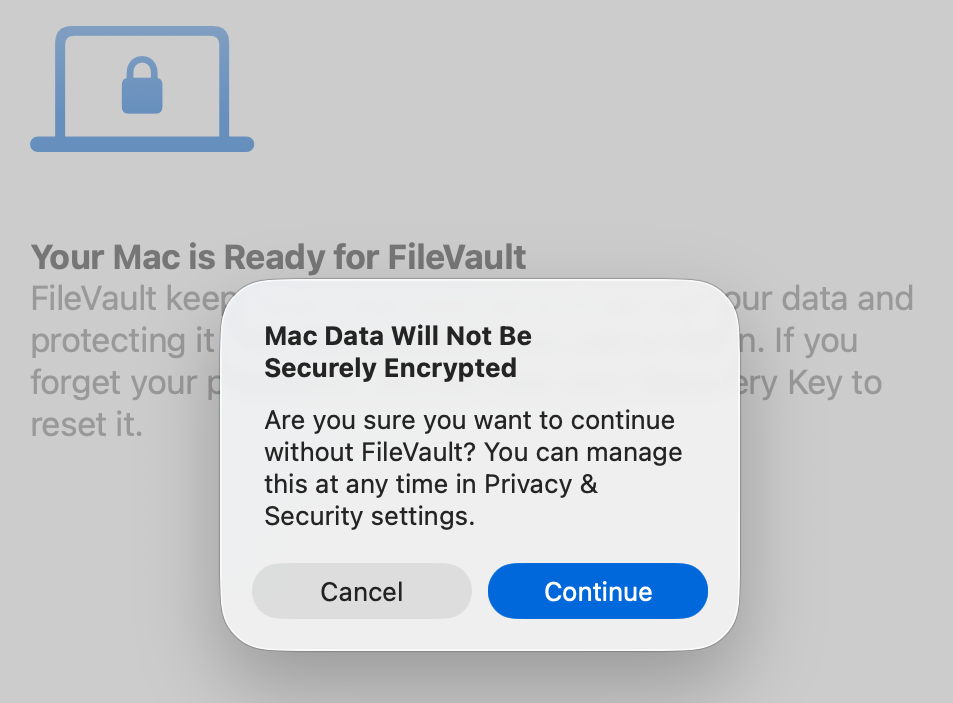
VMs are vulnerable if they don’t have FileVault enabled. Without encryption, sensitive contents would be relatively easy to access if the VM were to fall into the hands of an attacker. Enabling FileVault is thus potentially more important for a VM.

Thankfully, with such great improvements in VM disk performance, those hosted on an Apple silicon Mac’s internal SSD are unlikely to be slowed much by their disk performance.

This makes it the more puzzling that encrypted RAW and ASIF disk images should perform so poorly, and it’s disappointing to see that continues in macOS 26.4. Over the same period that VM disk performance has increased so impressively, that of disk images has headed in the opposite direction.

VMs and BSIs

If you tried installing the recent Background Security Improvement (BSI) in a macOS 26.3.1 VM, you were probably disappointed. In this respect, the VM didn’t work as expected. I was unable to find the BSI in its section in Privacy & Security settings. What did help was downloading it using SilentKnight, although that can’t install BSIs successfully. Instead, I restarted the VM and Privacy & Security offered to install the BSI at last.
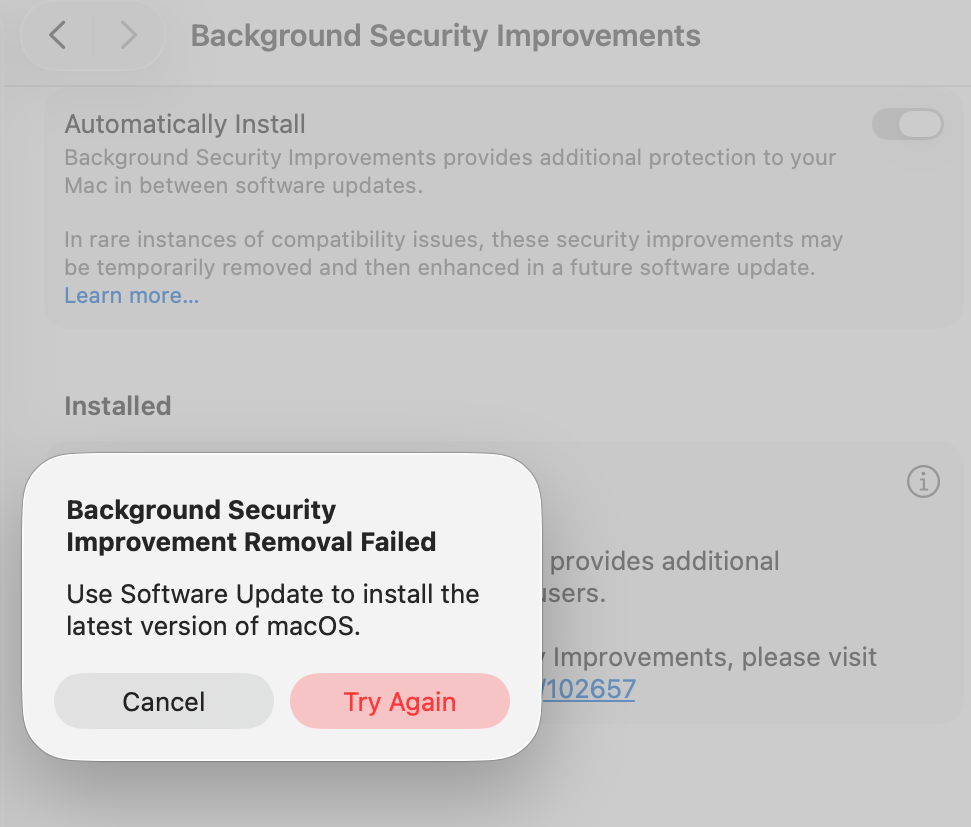
Once installed, Privacy & Security offered to remove the BSI, but failed to do so, with SecurityImprovementsExtension reporting:
Rollback failed: Error Domain=SUOSUErrorDomain Code=103 "Unable to remove Background Security Improvement" UserInfo={NSLocalizedDescription=Unable to remove Background Security Improvement, NSLocalizedRecoverySuggestion=Use Software Update to install the latest version of macOS.}

For the time being BSIs appear dysfunctional in VMs.

How to survive the loss of Rosetta

One of the new features coming in the next update to Tahoe, taking it to macOS 26.4, is a Rosetta warning. When you run Intel code on an Apple silicon Mac, macOS will start warning you that you won’t be able to do that in the future. At first, those will be infrequent, but as time passes their cadence will increase. This article explains why, and what you can do about it.

Virtualisation, emulation and translation

Although we’d all love to be able to run only native apps on Apple silicon, that isn’t always possible. Sometimes the app we need to use is only available for another platform, most commonly Intel. You can’t run code for a different processor in a virtual machine, though. VMs run at near-native speed only because the instructions they’re running are for the same processor. What they’re virtualising are the operating system calls, which are passed through to the host.

The traditional way to run code on a different processor is by emulation in a software engine that converts from one instruction set to another. That’s comparatively slow even on modern high-speed processors, so Rosetta 2 opts for a different approach that proved highly successful in the transition from PowerPC to Intel processors from 2006: it translates the code before running it natively. Rosetta 2 does this so well that the translated code often runs almost as fast as it would on the original processor.

Problems

One of the most common reasons for still requiring to run Intel code on Apple silicon stems from the fact that you can’t mix Arm and Intel code in the same process. Although an app might be Universal, and can run entirely on Arm, if it needs to load code modules that are still only available for Intel, then the whole app must be run for Intel, and be translated by Rosetta.

There are also two no-go areas that can’t be addressed by Rosetta: kernel extensions, and virtual machines running an operating systems for a different architecture. If you wanted to run an Intel version of Windows or Linux on your Apple silicon Macs, then you’d have to use emulation. Although this has been done for older Intel-only versions of macOS, it’s painfully slow and fragile.

One less common limitation of Rosetta 2 is that it doesn’t support AVX512 vector instructions, although it does support AVX and AVX2 instructions; that should affect very few apps.

Timescale

To help in forward planning, Apple has already set out its intentions:

  • Fall 2026, just 6 months away now, macOS 27 will run only on Apple silicon Macs, but will continue to enjoy full Rosetta 2 support. Security-only support will continue for Sequoia and Tahoe.
  • Fall 2027, macOS 28 will lose full Rosetta 2 support, although it will retain “a subset of Rosetta functionality aimed at supporting older unmaintained gaming titles, that rely on Intel-based frameworks”. Security-only support will continue for Tahoe.
  • Fall 2028, all support will cease for Intel versions of macOS.

Running Intel code in the future

If you do still depend on running Intel code, the best solution will be to replace that with an update that will run native on Arm. Apple’s increasing Rosetta warnings are intended to nudge us, and the few developers who haven’t yet produced Universal versions of apps, plug-ins, etc., to do so.

The most intractable problems are with code from developers who either can’t or won’t support Apple silicon. If their code is tied to hardware products that may never be addressed, and you may find the only solution is to keep some Intel Macs in service. But for most other situations, you should be able to continue running Intel code in a macOS virtual machine.

You can test this now using your favourite virtualisation app. Set up a suitable VM and install your app in it. In this example I opted to run my utility Mints using Rosetta rather than natively.

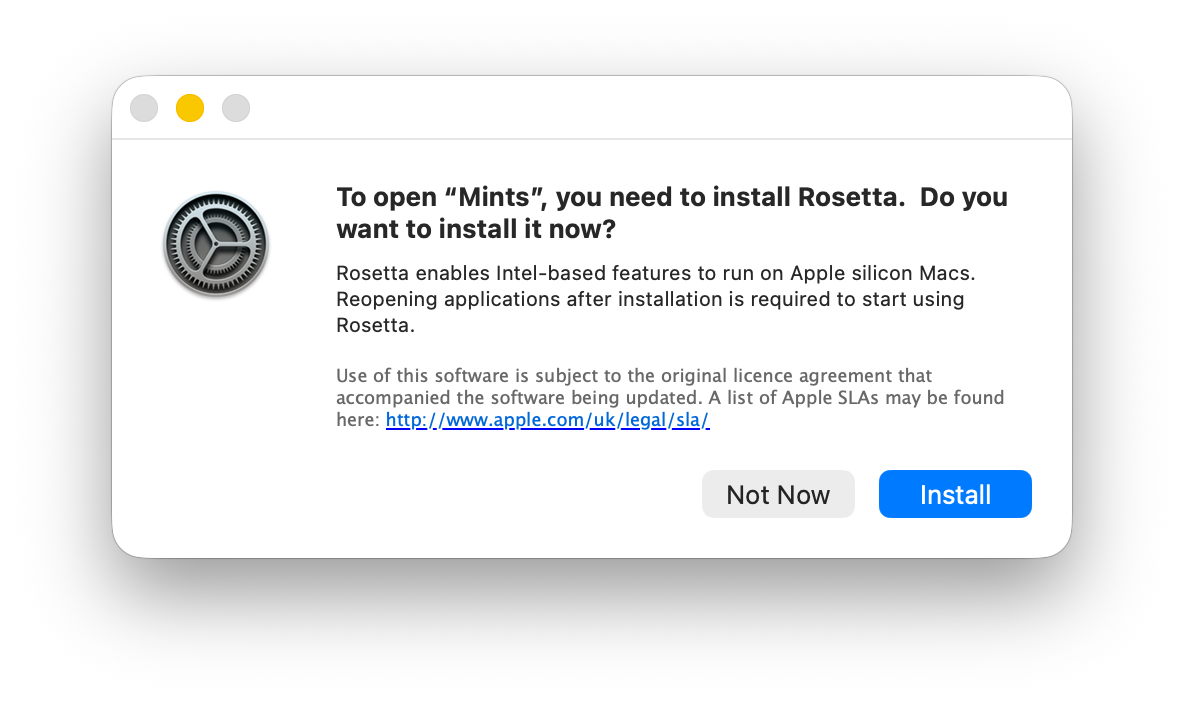
Just as in the host, when you first try to run the app, Rosetta will intervene and offer to translate it for you. The first time you do that, Rosetta will need to be downloaded first.

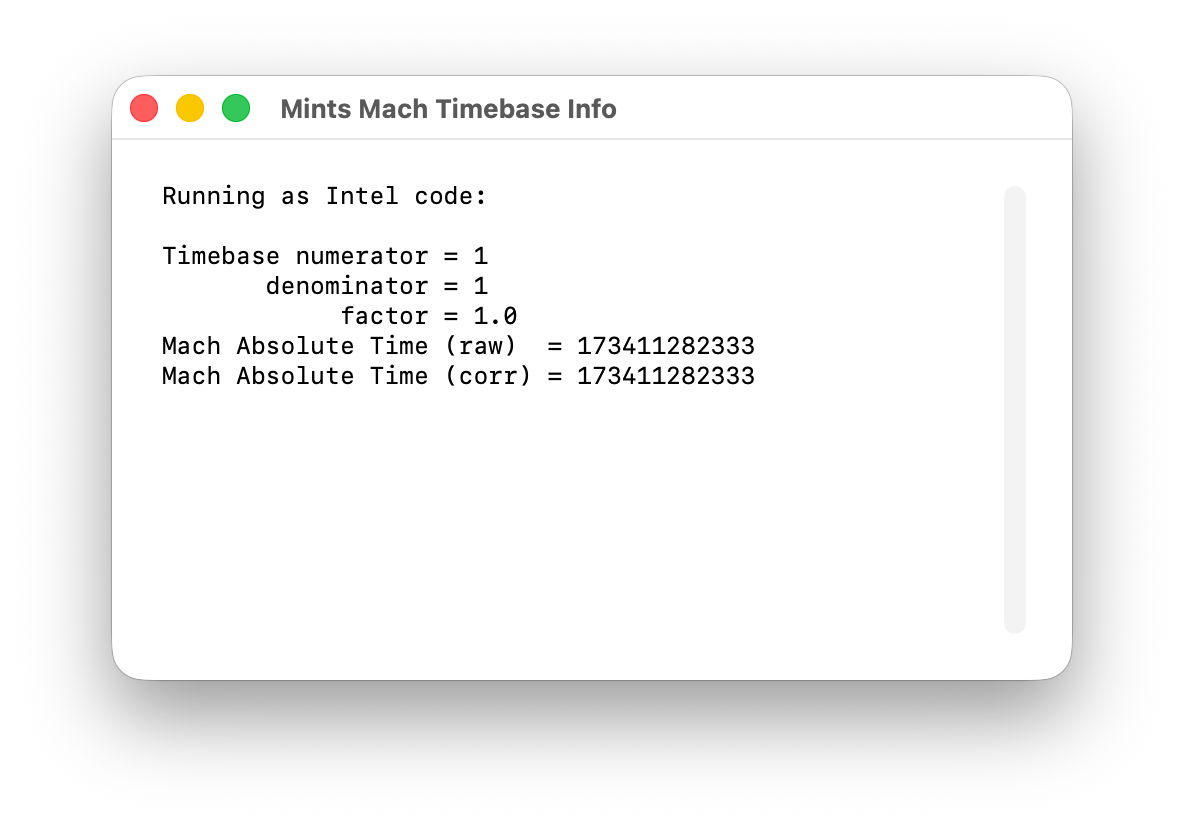
I chose Mints for this demonstration, as its Mach Absolute Time feature runs in Intel mode when Mints has been translated by Rosetta, as shown here.

Virtualising earlier versions of macOS doesn’t offer as wide a range of features, but if you can run your Intel-only app in Sonoma or later, using Rosetta translation, it should run very well in a VM of the same version of macOS, on a host running macOS 28 after full Rosetta support has been removed. And that should continue to work until a future version of macOS is no longer able to run such an old VM. Hopefully that will be long after 2028, but now is the time to try it.

Can you still run old App Store apps?

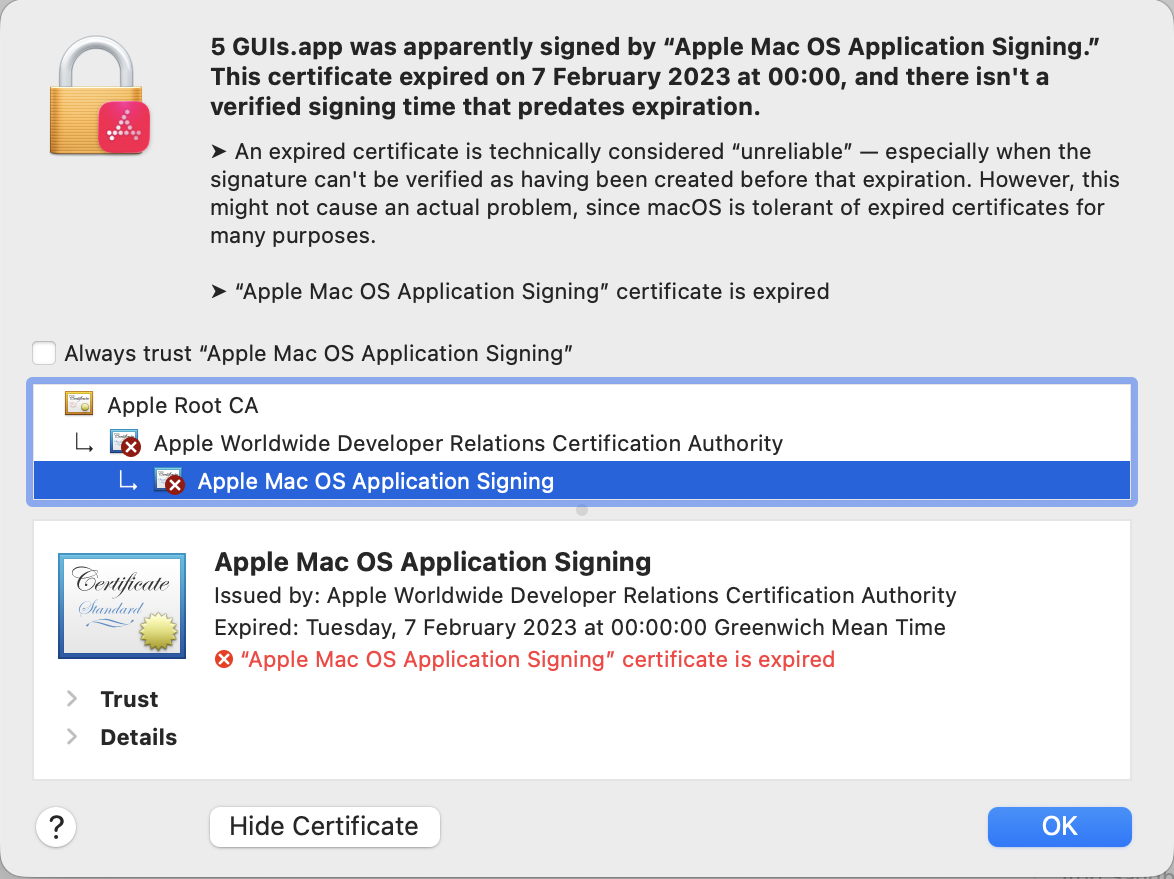
In my review of apps and the validity of certificates used to sign them, I dodged the thorny issue of those apps delivered from the App Store, writing that “their signatures will remain valid as long as the developer remains a member of its Developer Program.” If you care to take a look at some of those apps using Apparency, you’ll discover that many of them have certificates that expired on 7 February 2023 at 00:00:00 GMT. This article explains why, how they should still run, but may not in the future.

As I explained, the general rule for certificates is that, once they have expired by date, they’re no longer valid. However, to ensure that third-party apps and installers can still be used after their expiry, Apple usually includes a trusted timestamp in their signature. Provided the certificate was valid at the time the app or installer was signed, then macOS should accept it as still being valid, as long as it hasn’t been revoked. But App Store apps are different again.

For reasons unknown, Apple doesn’t sign App Store apps with trusted timestamps. As a result, when its certificate expires, that app’s signature should no longer be valid, and macOS should refuse to run it on that basis. What happens in practice is that it turns a blind eye to the certificate expiry, and runs the app regardless.

What you see in the log demonstrates that. At the start of its security checks by Apple Mobile File Integrity (AMFI), securityd discovers that its certificates no longer have “temporal validity”, and fail trust evaluation:
00.701706 com.apple.securityd cert[0]: TemporalValidity =(leaf)[]> 0
00.701753 com.apple.securityd cert[1]: TemporalValidity =(leaf)[]> 0
00.703344 com.apple.securityd Trust evaluate failure: [leaf TemporalValidity] [ca1 TemporalValidity]

Those entries are repeated multiply every time that app’s trust is evaluated, including by TCC. Despite that, the app passes its Gatekeeper evaluation “due to migration”:
00.718197 com.apple.syspolicy.exec GK evaluateScanResult: 2, PST: (path: c97bd5e74b98ed79), (team: 4GXF3JAMM4), (id: (null)), (bundle_id: (null)), 0, 0, 1, 0, 9, 0, 0
00.718213 com.apple.syspolicy.exec Allowing evaluation due to migration: PST: (path: c97bd5e74b98ed79), (team: 4GXF3JAMM4), (id: (null)), (bundle_id: (null))
00.718218 com.apple.syspolicy.exec Updating flags: [private], 513

As with all other apps, a ‘ticket check’ is performed on its CDHashes, first against the local ticket cache, then against records in the CKTicketStore via CloudKit. As App Store apps aren’t normally notarised as well, looking up their ticket in the CKTicketStore should be unsuccessful. In macOS Tahoe at least, there should be no XProtect scan or further checks, and the app should proceed to launch normally.

App Store apps are signed using an Apple Mac OS Application Signing certificate, relying on the intermediate Apple Worldwide Developer Relations Certification Authority, and back to the Apple Root CA. While the latter should expire on 9 February 2035, both the signing certificate and its intermediate have shorter lifetimes:

  • Older App Store apps should have an intermediate expiry of 7 February 2023, as explained here by Apple, and more recent apps that is likely to be 10 December 2030.
  • Older App Store apps are likely to have been signed with a certificate that expired on 7 February 2023, while more recent apps are likely to expire on 12 August 2026.

None of this should affect Intel Macs, although we’re likely to see increasing numbers of App Store apps that are Arm-only and won’t run on Intel systems. However, this will become more complicated with the retirement of Rosetta 2 next year.

Apple has stated its intention that full Rosetta translation support will end with macOS 27, although it intends to retain “a subset of Rosetta functionality aimed at supporting older unmaintained gaming titles” beyond that. In practice, that means most x86 apps and command tools will stop working in macOS 28, in the autumn/fall of 2027. Apple silicon Macs will therefore continue to run Intel-only App Store apps until they are upgraded to macOS 28.

Their fallback then is to run Intel-only code in a VM running macOS 27 or earlier, as that will still be able to provide full Rosetta 2 support. Given the performance of code translated by Rosetta, and that of VMs, that’s far better than might appear. There’s one remaining problem with that, though: some App Store apps can’t run in virtualisation, as it doesn’t support connections to the App Store. Some can, and as a matter of interest the five that I used in these tests all do, although not always reliably, but others can’t. I don’t know of any reliable way of testing this other than trying it out.

Summary

  • macOS security checks ignore the expiry of certificates (including intermediates) used to sign App Store apps, and allow the app to run regardless.
  • Many App Store apps have expired certificates.
  • This shouldn’t affect Intel Macs in the future.
  • Running Intel-only App Store apps is unlikely to be supported from macOS 28 onwards, except for a limited range of unmaintained gaming titles.
  • Some Intel-only App Store apps might not run in a VM with Rosetta 2 support either.

❌