Reading view

There are new articles available, click to refresh the page.

Explainer: I/O throttling

Input and output have long been key factors in computer performance, and capable of bringing everything to a crawl unless carefully managed. This is most obvious when foreground and background processes contend for common resources such as disk storage. A popular solution has been to impose delays on I/O performed for intensive background tasks, like backing up, so giving more important tasks preferential access to I/O. This policy is known as I/O throttling, and has come to determine hardware choice.

For example, folk wisdom is that there’s little point in wasting a faster drive to store your Time Machine backups, because when those backups are made, their write speed is throttled by macOS.

I/O Throttling

Documentation of I/O policy is in the man page for the getiopolicy_np() call in the Standard C Library, last revised in 2019, and prevailing settings are in sysctl’s debug.lowpri_throttle_* values. Those draw a distinction between I/O to local disks, being “I/O sent to the media without going through a network”, such as I/O “to internal and external hard drives, optical media in internal and external drives, flash drives, floppy disks, ram disks, and mounted disk images which reside on these media”, and those to “remote volumes” “that require network activity to complete the operation”. The latter are “currently only supported for remote volumes mounted by SMB or AFP.”

Inclusion of remote volumes is a relatively recent change, as in the previous version of this man page from 2006, they were explicitly excluded as “remote volumes mounted through networks (AFP, SMB, NFS, etc) or disk images residing on remote volumes.”

Five policy levels are supported for IOPOL_TYPE_DISK:

  • IOPOL_IMPORTANT, the default, where I/O is critical to system responsiveness.
  • IOPOL_STANDARD, which may be delayed slightly to allow IOPOL_IMPORTANT to complete quickly, and presumably referred to in sysctl as Tier 1.
  • IOPOL_UTILITY, for brief background threads that may be throttled to prevent impact on higher policy levels, in Tier 2.
  • IOPOL_THROTTLE, for “long-running I/O intensive background work, such as backups, search indexing, or file synchronization”, that will be throttled to prevent impact on higher policy levels, in Tier 3.
  • IOPOL_PASSIVE, for mounting files from disk images, and the like, intended more for server situations so that lower policy levels aren’t slowed by them.

However, the idea that throttled I/O is intentionally slowed at all times isn’t supported by the explanation of how throttling works: “If a throttleable request occurs within a small time window of a request of higher priority, the thread that issued the throttleable I/O is forced to a sleep for a short period. This slows down the thread that issues the throttleable I/O so that higher-priority I/Os can complete with low-latency and receive a greater share of the disk bandwidth.”

Settings in sysctl for Tier 3 give the window duration as 500 milliseconds, and the sleep period as 200 ms, except for SSDs, whose sleep period is considerably shorter at just 25 ms. Those also set a maximum size for I/O at 131,072 bytes. You can view those settings in the debug section of Mints’ sysctl viewer.

Some years ago it was discovered that the user can globally disable IOPOL_THROTTLE and presumably all other IOPOL_TYPE_DISK policy with the command
sudo sysctl debug.lowpri_throttle_enabled=0
although that doesn’t persist across restarts, and isn’t documented in the man page for sysctl. This is provided in an option in St. Clair Software’s App Tamer, to “Accelerate Time Machine backups”, for those who’d rather avoid the command line.

Apple silicon Macs

Since the man page for getiopolicy_np() was last revised, Apple silicon Macs have changed I/O. Most is now handled in some way through specialised Arm cores within the chip, and CPU cores come in two (now three) types, Efficiency and Performance (and Super in the M5 family). Background threads such as those performing the work associated with IOPOL_THROTTLE are now most likely to be running on Efficiency (or M5 Performance) CPU cores.

If you wanted to do away with all throttling, you not only have to change the debug.lowpri_throttle_enabled setting, but you’d need to move those background threads to run them on Performance (M5 Super) CPU cores, which isn’t possible unless you have control over the code. There is evidence that macOS may do this anyway when performing the first full Time Machine backup, which achieves significantly faster speeds than subsequent incremental backups.

Dangers

The big disadvantage of completely disabling I/O throttling policy is this can only be applied globally, so including I/O for Spotlight indexing, file synchronisation, and other background tasks, as well as those needing high-priority access to I/O. Leaving the policy disabled in normal circumstances could readily lead to adverse side-effects, allowing Spotlight indexing threads to swamp important user storage access, for example.

Conclusions

Even when Macs were simpler and all CPU cores were the same, disabling I/O throttling was at best experimental, and ran the risk of compromising higher priority I/O. In Apple silicon Macs, relocating threads from E to P cores isn’t possible, except when running them in a virtual machine. Without that, there seems little if any benefit from disabling I/O throttling. However, the claim that there’s no performance benefit to be obtained from faster backup storage media is demonstrably false. Perhaps it’s time to return I/O throttling to the obscurity it deserves.

How macOS 26 Tahoe updates: 4 Download, preparation and installation

In my account of how Tahoe updates macOS, I had reached the stage when Rosetta and the main update had started downloading from Pallas, Apple’s software update server (see the Appendix at the end for further explanation of terms used).

Download

Currently, the main update download (at least) is compressed using Zip, and is decompressed as a stream during download, so there’s no delay decompressing during the preparation phase later.

In this case, downloading the main update was completed within 8 minutes. The source of the Zip archive was originally given as a path on [https://]updates.cdn-apple.com/2026WinterFCS/patches, and that was written to a local path on /System/Library/AssetsV2/com_apple_MobileAsset_MacSoftwareUpdate/ In my case, though, I have a local Content Caching Server running, and immediately before the download started com.apple.AssetCacheServices substituted a download URL on that server to ensure the update was obtained through the local caching server. At the same time, an Event Report was sent back to Apple, recording the start of download.

Progress was updated every second during the download, and brought the progress bar from 16% to 53.9% over the following 8 minutes, with little other activity taking place.

Preflight

Activity then changed to what is repeatedly referred to as Preflight FDR Recovery, and is the first entry point for the UpdateBrainService, downloaded for MobileSoftwareUpdate rather than softwareupdated.

This runs an Event Recorder and begins to perform preflight checks to “recover FDR SFR”, and to perform a “firmware-only update”. To prepare for that, it retrieves various nonces and their digests for LocalPolicy, RecoveryOS boot policy, and others. Following those is the first of many attempts to determine purgeable space, in preparation for installation of the update. Those are performed by com.apple.cache_delete.

Pallas was then checked to see if there was any more recent version of RecoveryOS UpdateBrain, but there wasn’t. A further check for any newer recoveryOS was also made, before the main macOS update was prepared, at a progress level of 60% as set previously.

Preparation

The first step of the main preparation phase is to purge staged assets with com.apple.cache_delete. With that complete, UpdateBrainService recalculates cryptex size requirement for the update, and the install target prepare size:

  • cryptex size is 1.2 times the app cryptex size = 60 MB, plus 1.2 times the system cryptex size = 7749 MB, a total of 7809 MB, as previously calculated;
  • prepare size is the sum of the snapshot installation size of 3785 MB, the cryptex size of 7809 MB, three ‘slack sizes’ for VW, Recovery and Preboot of 2048 + 1024 + 1024 = 4096 MB, the new template size of 991 MB, twice the update partition size totalling 600 MB, less the old template size of 363 MB. The grand total comes to 16,918 MB.

UpdateBrainService then checks volume free sizes, and confirms that they’re sufficient to complete the update. It next creates a ‘stash’, which is protected by keys in the stash keybag, handled by the Secure Enclave Processor. There is then another round of purging with com.apple.cache_delete.

Much of the preparation phase is spent verifying the protection of installation packages, cryptexes, then the contents of /System/Applications and /System/Library. As progress is about 64% complete, System volume preparations are started, and there’s another round of purging by com.apple.cache_delete. There’s surprisingly little log activity as progress passes 70% complete.

With progress reaching 84% complete, UpdateBrainService starts unarchiving files in parallel, taking just under 5 seconds to complete those. Following that, there’s another brief period unarchiving data files in parallel, then working with the contents of /System/Volumes/Update/mnt1/private/var/MobileAsset/PreinstalledAssetsV2 as progress reaches 87% complete.

When there’s 87.5% completed, UpdateBrainService reports it’s creating hard links in parallel, then is searching for new paths and verifying files, such as those in the Ruby framework. The Recovery volume is unmounted, and there’s yet another purge with com.apple.cache_delete. After those, key volume locations are checked.

The high water mark of disk usage during update is prepared. This reveals some of the steps to be undertaken during installation, including:

  • prepare source package,
  • patch cryptexes,
  • patch system volume,
  • extract to system volume,
  • install personalised.

There’s a further round of purging with cache_delete before declaring PrepareUpdate as successful, then suspending the update briefly. When update resumes, the Update volume is mounted and prepared, and there’s another round of purging. The System volume is then mounted, checked, and prepared. Progress is now at 98.5% complete, and once 100% is reached, the countdown to restarting the Mac is begun.

Installation

During the download and preparation phases, apart from repeated purging, the log is generally quiet. This changes dramatically once the Mac starts preparing for shutdown and installation. WebKit is cleaned up and shut down, as are many other processes. The ‘stash’ of update components is then committed, and final scans and checks are completed.

The update is then applied, followed by Rosetta, RecoveryOS, UpdateBrain and finally minor documentation. After that period of nearly 20 seconds, this phase is declared complete, and a restart is notified before waiting for the essential reboot.

Reboot

Once rebooting by root has been initiated, the boot chime is muted to ensure the update continues in silence. The last log message is written a few seconds later, and UpdateBrain then runs the update.

Less than 3 minutes later, the system boot is recorded in the log, and kprintf is initialised 5 seconds later. About 3 minutes afterwards softwareupdated is started up, and runs various clean-up routines to complete the update sequence in conjunction with ControllerSetup and a Finite State Machine.

Key points

  • The main update download is decompressed while streaming, to save preparation time later.
  • If a local Content Caching Server is connected, AssetCacheServices will substitute its IP address for that of the Pallas server to ensure the download is obtained through the cache.
  • Following download, extensive preflight checks are performed.
  • During preparation components are verified, paths checked, and some unarchiving is performed.
  • Prior to reboot and installation, processes including WebKit are shut down in readiness for reboot and install.
  • The boot chime is muted.
  • Once rebooted, clean-up is performed.

Previously

How macOS 26 Tahoe updates 1
How macOS 26 Tahoe updates: 2 Finite state machines
How macOS 26 Tahoe updates: 3 Catalogues and preparing to download

Appendix: Terms used

  • FDR is unknown, but appears associated almost exclusively with a preflight phase.
  • Pallas is the internal name for Apple’s software update server. This appears throughout log entries, where for example Pallas audience is jargon for the type of user, normally macOS Customer.
  • RecoveryOS appears to refer to the version of Recovery in the hidden container of the internal SSD, more widely known as Fallback Recovery.
  • SFR appears to refer to the version of Recovery in the Recovery volume of the active boot volume group, also known as Paired Recovery.
  • Splat, semi-splat and rollback objects all refer to cryptexes. Splat is the general term, while semi-splat refers to a cryptex-based update that might include rapid security responses (RSR) and background security improvements (BSI) implemented by replacing one or both cryptexes. Rollback objects are older versions of a cryptex that have been saved to allow a newer cryptex to be reverted to that older one, in the event that the newer cryptex causes problems.
  • UpdateBrain is the executable code supplied as part of an update that prepares and installs that specific update. There’s a separate UpdateBrainService for RecoveryOS.

How to survive the loss of Rosetta

One of the new features coming in the next update to Tahoe, taking it to macOS 26.4, is a Rosetta warning. When you run Intel code on an Apple silicon Mac, macOS will start warning you that you won’t be able to do that in the future. At first, those will be infrequent, but as time passes their cadence will increase. This article explains why, and what you can do about it.

Virtualisation, emulation and translation

Although we’d all love to be able to run only native apps on Apple silicon, that isn’t always possible. Sometimes the app we need to use is only available for another platform, most commonly Intel. You can’t run code for a different processor in a virtual machine, though. VMs run at near-native speed only because the instructions they’re running are for the same processor. What they’re virtualising are the operating system calls, which are passed through to the host.

The traditional way to run code on a different processor is by emulation in a software engine that converts from one instruction set to another. That’s comparatively slow even on modern high-speed processors, so Rosetta 2 opts for a different approach that proved highly successful in the transition from PowerPC to Intel processors from 2006: it translates the code before running it natively. Rosetta 2 does this so well that the translated code often runs almost as fast as it would on the original processor.

Problems

One of the most common reasons for still requiring to run Intel code on Apple silicon stems from the fact that you can’t mix Arm and Intel code in the same process. Although an app might be Universal, and can run entirely on Arm, if it needs to load code modules that are still only available for Intel, then the whole app must be run for Intel, and be translated by Rosetta.

There are also two no-go areas that can’t be addressed by Rosetta: kernel extensions, and virtual machines running an operating systems for a different architecture. If you wanted to run an Intel version of Windows or Linux on your Apple silicon Macs, then you’d have to use emulation. Although this has been done for older Intel-only versions of macOS, it’s painfully slow and fragile.

One less common limitation of Rosetta 2 is that it doesn’t support AVX512 vector instructions, although it does support AVX and AVX2 instructions; that should affect very few apps.

Timescale

To help in forward planning, Apple has already set out its intentions:

  • Fall 2026, just 6 months away now, macOS 27 will run only on Apple silicon Macs, but will continue to enjoy full Rosetta 2 support. Security-only support will continue for Sequoia and Tahoe.
  • Fall 2027, macOS 28 will lose full Rosetta 2 support, although it will retain “a subset of Rosetta functionality aimed at supporting older unmaintained gaming titles, that rely on Intel-based frameworks”. Security-only support will continue for Tahoe.
  • Fall 2028, all support will cease for Intel versions of macOS.

Running Intel code in the future

If you do still depend on running Intel code, the best solution will be to replace that with an update that will run native on Arm. Apple’s increasing Rosetta warnings are intended to nudge us, and the few developers who haven’t yet produced Universal versions of apps, plug-ins, etc., to do so.

The most intractable problems are with code from developers who either can’t or won’t support Apple silicon. If their code is tied to hardware products that may never be addressed, and you may find the only solution is to keep some Intel Macs in service. But for most other situations, you should be able to continue running Intel code in a macOS virtual machine.

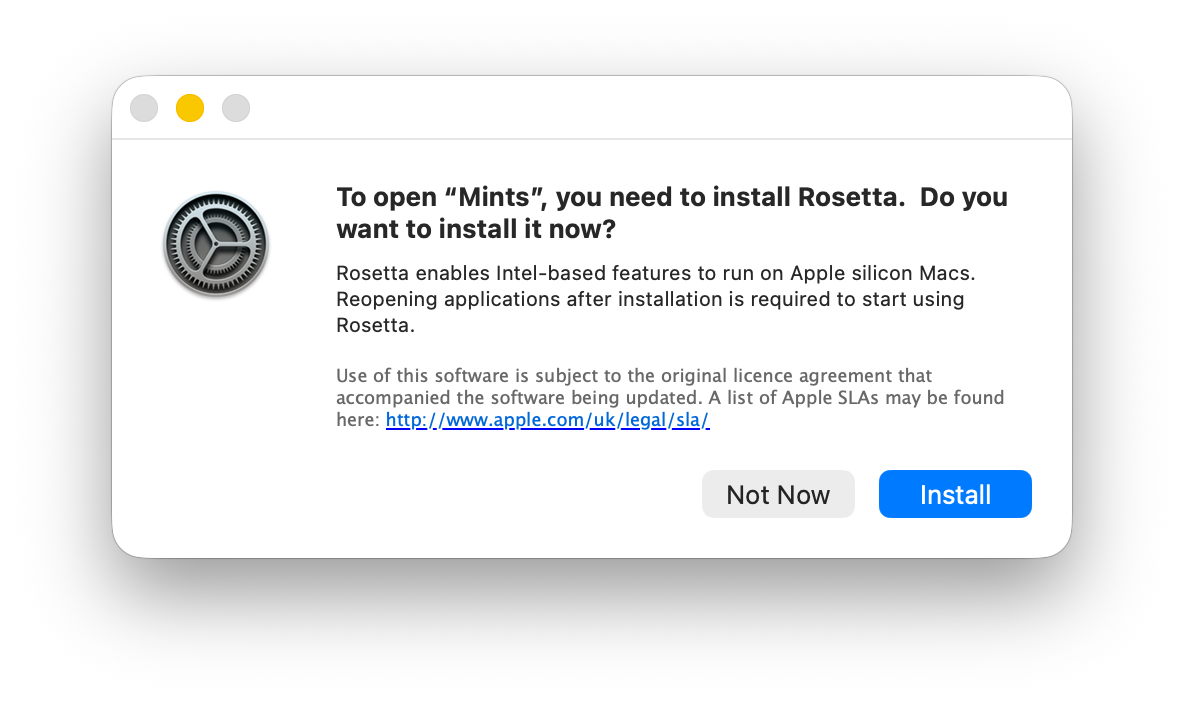
You can test this now using your favourite virtualisation app. Set up a suitable VM and install your app in it. In this example I opted to run my utility Mints using Rosetta rather than natively.

Just as in the host, when you first try to run the app, Rosetta will intervene and offer to translate it for you. The first time you do that, Rosetta will need to be downloaded first.

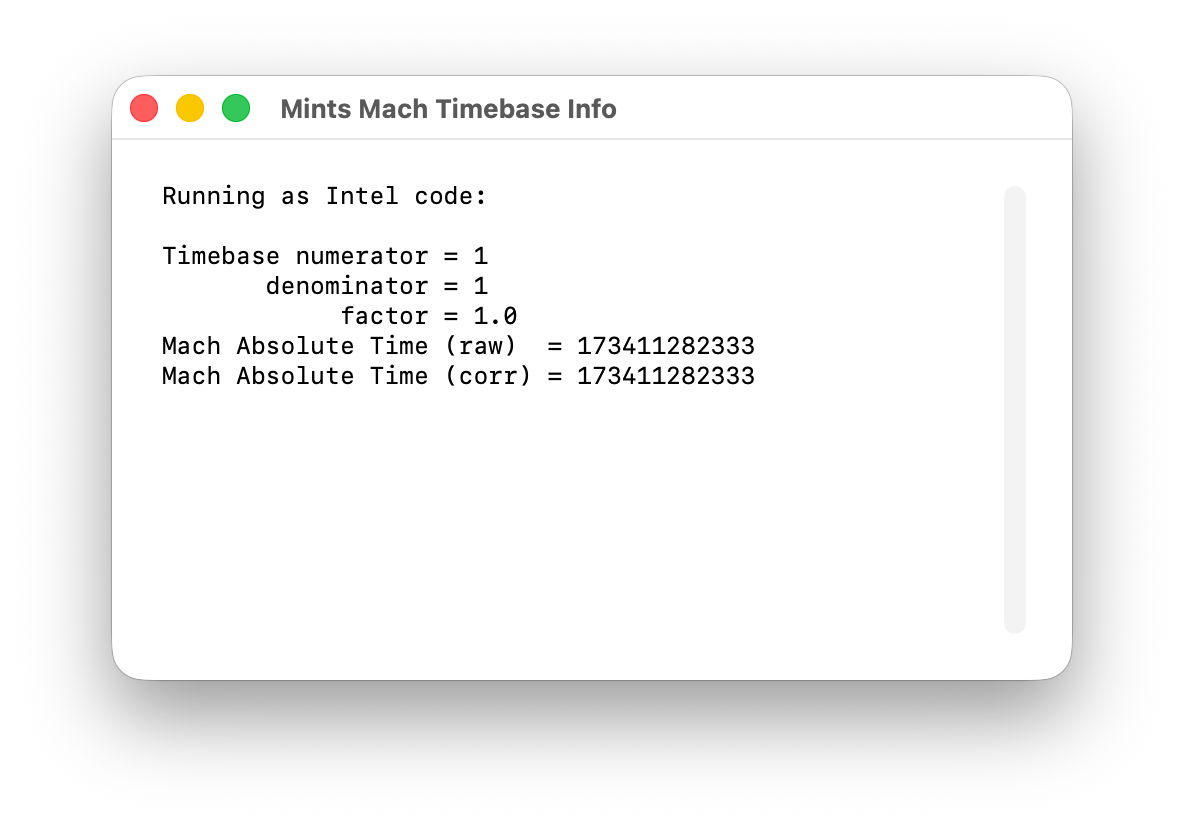
I chose Mints for this demonstration, as its Mach Absolute Time feature runs in Intel mode when Mints has been translated by Rosetta, as shown here.

Virtualising earlier versions of macOS doesn’t offer as wide a range of features, but if you can run your Intel-only app in Sonoma or later, using Rosetta translation, it should run very well in a VM of the same version of macOS, on a host running macOS 28 after full Rosetta support has been removed. And that should continue to work until a future version of macOS is no longer able to run such an old VM. Hopefully that will be long after 2028, but now is the time to try it.

SilentKnight 2.14 is ready for new firmware versions

Apple silicon Macs are about to undergo change to the numbering of their firmware versions. Accounts from beta-testing of the next minor update to macOS 26 Tahoe, version 26.4, indicate that future firmware will no longer be numbered as iBoot 13822.101.6, but as mBoot 18000.101.6 instead. This has major consequences for my free utility SilentKnight, which checks and reports the version of firmware installed. Version 2.14 should address that change in readiness for the release of the 26.4 update, and is particularly recommended for use on Apple silicon Macs.

This change was first reported in macOS 26.4 beta 2, and has apparently been sustained in the two subsequent beta releases, confirming that it’s an intended change, and not a bug.

There are currently two places in System Information that report a Mac’s firmware version, either the main Hardware section (also accessible in system_profiler SPHardwareDataType), or the Controller item within that section (or system_profiler SPiBridgeDataType).

Intel Macs without a T2 chip don’t report anything for their Controller, but those with T2 or Apple silicon chips reveal that they have a T2 or give an iBoot firmware version there. All three types of Mac also give a System Firmware Version in the Hardware overview.

This can get more confusing if you update or install macOS to an external disk. That will normally update the Mac’s firmware if the version of macOS installed on the external disk comes with more recent firmware. For example, if your Apple silicon Mac is currently running macOS Tahoe 26.3.1, it should have an iBoot firmware version of 13822.81.10. If you were to install Tahoe 26.4 to an external disk, as that has a more recent version of iBoot firmware, that should update the version installed in your Mac, and that remains so even when you start it up from its internal SSD.

As far as I can tell at present, this can result in internally inconsistent reporting. When running 26.3.1 from its internal SSD, that Mac will report its old iBoot version in the Controller section, but its new mBoot version in the Hardware section. Although that could change by 26.4 release, it might remain in all older versions, so providing lasting confusion.

As Apple hasn’t documented this change, I don’t know whether this will apply to all Apple silicon Macs updated to macOS 26.4, or to those updated to the matching versions of Sequoia or Sonoma. Therefore this new version of SilentKnight doesn’t attempt to check these new mBoot versions, and merely reports those found as well as it can. Once I know more, I will endeavour to interpret the results.

SilentKnight version 2.14 for macOS 11.5 and later is now available from here: silentknight214
from Downloads above, from its Product Page, and via its auto-update mechanism.

Please let me know how you get on with these new firmware version numbers.

Note: version 2.14 now fixes a bug that failed to recognise T2 Macs correctly in certain localisations including German. Thanks to Jan for reporting this so promptly.

Recover files from a sick Mac

Gone are the days when you could pop the hard drive out of a sick Mac and connect it to another to recover its contents. This article explains how you may be able to transfer some or all of the contents of a modern Mac’s internal SSD to another Mac.

Any Mac: Thunderbolt

As long as you can get your Mac up and running, the fastest way to transfer files from its internal storage is back-to-back Thunderbolt networking, easily set up in Network settings. All you need is another Mac with a free Thunderbolt port and a suitable cable to connect them directly.

Apple silicon: Share Disk

If you can get an Apple silicon Mac to start up in Recovery mode, or Fallback Recovery, then you’ve got a good chance of salvaging whatever you need from its internal SSD.

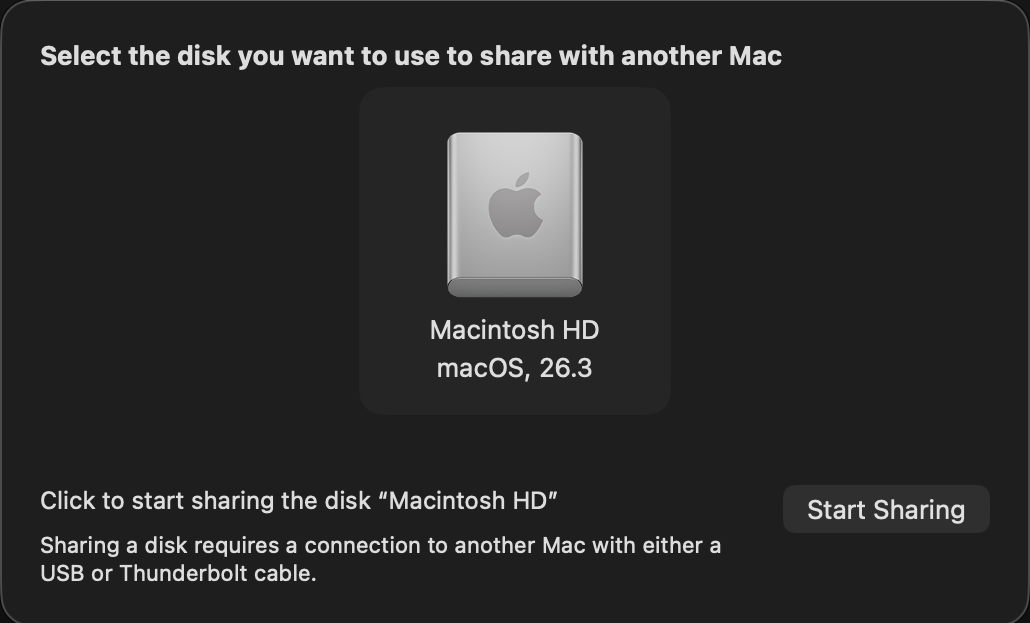
Connect it back-to-back with another Mac using a Thunderbolt 4 (or 3) cable. Start the sick Mac up in Recovery, pass through to Options and authenticate as necessary. In the Utilities menu there select the Share Disk command.

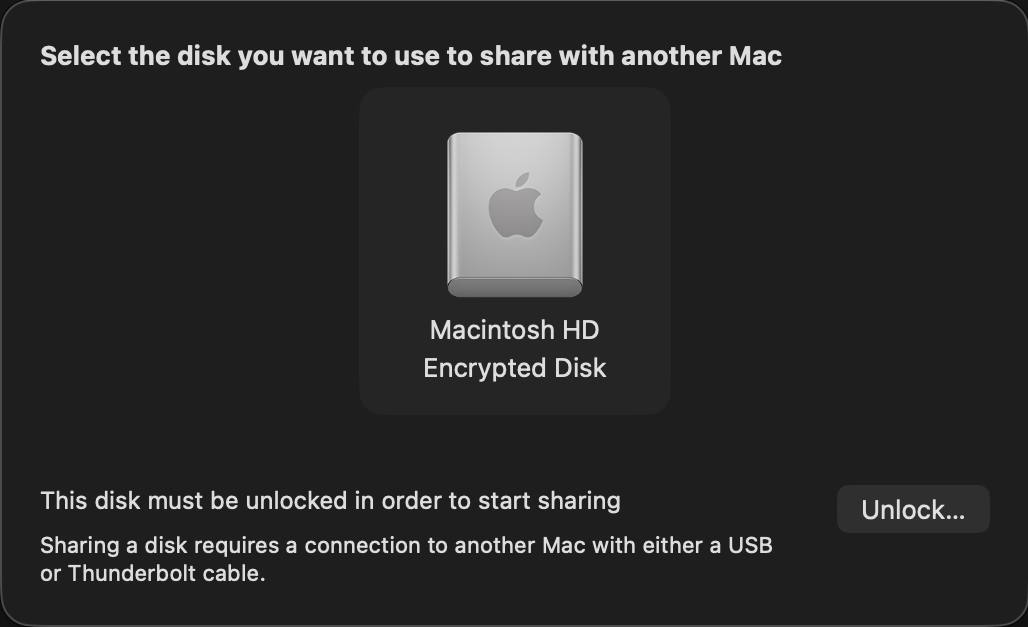
Select the volume you want to share, and when necessary unlock it with the password required for its encryption.

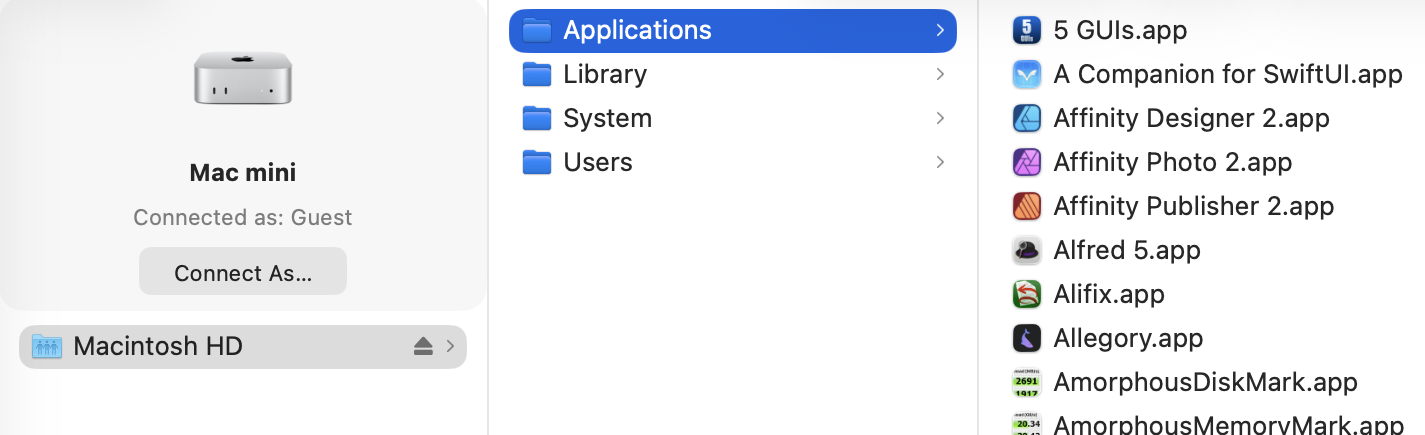
On the other Mac, that shared volume should appear as a networked device, connected as Guest, or on the Desktop. Despite that, you should have full access to its contents. This connection uses SMB, so listing large folders in the Finder will be surprisingly slow.

Now you can copy across all the files you want to your other Mac. That’s impressively quick, and can read them at about 3 GB/s, as you’d expect from a fast locally attached SSD. However, because of the SMB overhead, copying many small files is noticeably slower.

This can also get a bit kludgy when you’ve finished and want to disconnect. Trying to eject the shared volume may not work, and even when you stop sharing on the Mac in Recovery, and disconnect the cable, you may find the other Mac just won’t let go of it.

This only works with a single volume at a time. If you have added volumes to your Mac’s internal SSD, then you’ll have to repeat the process to access files on a different volume. But it does allow you to choose which volume to share.

Apple silicon: DFU mode

If you’re unable to put your sick Mac into Recovery, or Fallback Recovery, it’s still possible it has entered DFU mode, or could do so when started up to engage that mode. This is explored in more detail in this article, but doesn’t give you access to the contents of the Mac’s internal storage. You could try reviving it rather than performing a full Restore, though, as that isn’t destructive of its contents.

Intel T2: Target Disk

There are now two ways to enter Target Disk Mode on an Intel Mac with a T2 chip: if the Mac is already up and running (and not near-dead at all), you can opt for this in System Settings > General > Startup Disk, although I’m not sure why you would want to. If the Target really is sick, the only way you’re likely to engage this mode is to hold the T key during startup until the Thunderbolt symbol appears on its display.

The Target and Host must now be connected using a Thunderbolt 3 or 4 cable, although between Macs that are both running Catalina or earlier, a USB or USB-C cable could be used instead.

Shortly after they’re connected and ready, the Target’s internal Data volume should mount in the Host’s Finder. You should then be prompted for its FileVault password, and gain access to its contents. As with Apple silicon Macs, you can also copy files from the Host to the Target. To disconnect the Host and Target, eject the Target’s volume from the Host, then press and hold the Power button on the Target to shut it down.

Note that Target Disk Mode doesn’t offer a choice of volume.

Any Mac: External Boot Disk

If an Intel Mac with a T2 chip already has its boot security set (using Startup Security Utility) to allow it boot from an external disk, you may be able to get that to work, then mount the internal SSD to allow you to recover its contents to that or another external disk.

This is unlikely to work with an Apple silicon Mac, though, as it must always start the boot process from its internal SSD before it can continue booting from a system installed on an external bootable disk.

Summary

  • Cable: Thunderbolt 4 (or 3) connecting the two Macs back-to-back.
  • Apple silicon Mac: Recovery mode, Utilities menu, Share Disk.
  • Intel T2 Mac: T key held during startup.
  • Eject the Target’s disk on completion.
  • Apple silicon Mac: disconnect button, then shut down.
  • Intel T2 Mac: hold the Power button to shut down.

How macOS 26 Tahoe updates: 3 Catalogues and preparing to download

Following a general outline of what happens during a macOS 26 update, and a more detailed account of how it uses finite state machines and sends progress reports to Apple, this article describes what happens before Software Update downloads the main update. This was started by opening Software Update in System Settings of macOS 26.2 when the update to 26.3 was available, on a Mac mini M4 Pro. The Appendix at the end explains several in-house jargon terms used widely through these log entries.

Check for an update

In this case, checking for an update was instigated by opening Software Update in System Settings. That initiated a series of preliminary checks to:

  • determine whether that Mac and user are enrolled in a beta-test programme;
  • obtain the Pallas audience, in this case macOS Customer;
  • determine the time interval since the last scan for updates, and its result. As that was 632.8 seconds ago and there were no updates reported as being available then, a further scan is deemed acceptable;
  • set the base URL for Pallas of mesu.apple.com/assets/macos/.

A new scan for updates is started, with a UUID chosen to identify it. The UUID used is version 5, so is expected to be based on a hash of other identifiers, and is unique to this software update. The catalogue is downloaded from Pallas, and analysed for new versions being offered for download.

In this case there are two available:

  • macOS263Short comes with just an arm64e system cryptex at 6,458 MB, and a download size of 3.68 GB which unarchives to 4.36 GB;
  • macOS263Long comes with both arm64e and x86_64 system cryptexes at 6,458 + 2,312 MB, and a download size of 17.48 GB which unarchives to 18.14 GB.

Both of those use the Zip compression algorithm, and are designated as being ZipStreamable. macOS263Short is clearly the Delta update from 26.2, whose download size was then displayed in the Software Update panel. macOS263Long appears to be a full upgrade, equivalent to the macOS Installer app in terms of its contents.

A similar sequence of events occurs when you request a list of available macOS installers using the command
softwareupdate --list-full-installers

Routine checks

The following checks are repeated at frequent intervals throughout scanning and preparation:

  • the presence of rollback objects, a rollback copy of cryptex1 in the Preboot volume;
  • whether semi-splat is active, by comparing the Splat RestoreVersion with the Cryptex1 RestoreVersion;
  • whether the root volume is sealed;
  • whether this is an emergency update;
  • battery level, even in Macs without a battery.

Sizing

Early estimates are made of the size required to prepare and apply the update. Prepare size consists of:

  • a cryptex size requirement, consisting of the sum of the sizes of the app and system cryptexes, multiplied by 1.2, in this case a total of 7,809 MB;
  • a snapshot prepare size, consisting of the snapshot installation size of 3,785 MB plus the cryptex size, for a total of 11,595 MB.

These total 11,595 MB when first calculated, but a little later the snapshot installation size was increased to 5,154, for a total of 12,963 MB.

The apply and reserve size consists of twice the update partition size plus the update APFS reserve of 700 MB, plus 231 MiB for volume sealing overhead, giving a total of 931 MB. Presumably any shortfall in free space available would be notified to the user at this stage, and the update cancelled.

The policy for updates is determined in detail, before Pallas is asked for a catalogue of MacSplatSoftwareUpdate, updates using cryptexes, probably including both older RSRs and their successor BSIs. In this case, that catalogue is empty.

Mobile asset catalogues

softwareupdated then takes a back seat for much of the following 15 seconds or so, as mobileassetd determines which mobile assets need to be updated. These are the multitude of components to support Siri, AI and other features. This too is run by a finite state machine, AutoControlManager, which downloads catalogues of these components to assemble its auto-stager. One catalogue alone lists 91 available for update, but thankfully many of those don’t need to be updated.

Once that’s complete, the progress bar is displayed and updated by softwareupdated.

Progress bar

This is divided into zones used for different stages of progress by softwareupdated. These can be summarised as:

  • 0.0-0.9 prepare
  • 1.0-7.0 reloading and downloading Update Brain
  • 7.0-15.0 preflight
  • 15.0-55.0 downloading
  • 55.0-60.0 preflight FDR Recovery
  • 60.0-100.0 preparing update

During the downloading and preparing stages, progress updates are made according to the amount of the stage that has been completed. Otherwise they are made when each stage has been achieved.

In practice, progress is most meaningful during the downloading and preparing stages, between percentages of 15-55 and 60-100. Time estimates are displayed for both of those separately, with download time remaining based on size transferred. Once downloading is complete, the final 40% of the bar is given a fixed period of 30 minutes to complete, although that’s never required now.

Initial preparation

softwareupdated determines and downloads the cryptex updates, any SFR software update, any Rosetta update, any RecoveryOS update and the RecoveryOS update ‘brain’ for that. These are set up with their own finite state machine that downloads the catalogue, determines what should be downloaded, and downloads it. The final phase handles the documentation for the update, in this case consisting of

  • release notes summary, 1,268 B
  • release notes, 1,243 B
  • licence agreement, 97,187 B.

There’s an irony here that the first two are so tiny by comparison with the last.

In this case, downloading the update was completed within 10 minutes of obtaining the first update catalogue from Pallas.

Summary

  • After preliminary checks on beta enrolment and the period since last check, a catalogue of available updates is obtained from the software update server.
  • That catalogue offers a short Delta update, and a long full update.
  • Downloaded updates are compressed using Zip, and decompressed as they are streamed in the download.
  • Sizes required for preparation and applying the update are checked and adjusted.
  • mobileassetd determines a potentially long list of mobile assets to be updated.
  • Progress is displayed according to a combination of downloading between 15-55%, and preparation between 60-100%. Other stages are defined by progress through required steps rather than time.

Appendix: Terms used

  • Pallas is the internal name for Apple’s software update server. This appears throughout log entries, where for example Pallas audience is jargon for the type of user, normally macOS Customer.
  • RecoveryOS appears to refer to the version of Recovery in the hidden container of the internal SSD, more widely known as Fallback Recovery.
  • SFR appears to refer to the version of Recovery in the Recovery volume of the active boot volume group, also known as Paired Recovery.
  • Splat, semi-splat and rollback objects all refer to cryptexes. Splat is the general term, while semi-splat refers to a cryptex-based update that might include rapid security responses (RSR) and background security improvements (BSI) implemented by replacing one or both cryptexes. Rollback objects are older versions of a cryptex that have been saved to allow a newer cryptex to be reverted to that older one, in the event that the newer cryptex causes problems.

Explainer: Mac firmware version numbering

Firmware engineering must be among the least glamorous of the specialities, but it’s literally among the most fundamental. As regular users seldom need to come into contact with firmware and its versions, how those are numbered is kept as a dark secret. This article reveals what I have gathered.

Although you will come across different usage elsewhere, I here draw the distinction between:

  • True ROM, including Macintosh ROM (Classic Macs) and Apple silicon Boot ROM, is set in the factory and normally can’t be changed;
  • Firmware that can be updated in place includes Mac OS ROM (PowerPC), EFI Boot ROM or bootloader, and LLB/iBoot (Apple silicon);
  • The operating system including any kernel, in Mac OS, Mac OS X, OS X and macOS, which are usually updated repeatedly.

PowerPC: Open Firmware

Classic Macs using Motorola 68K processors have their own Macintosh ROM with opaque hexadecimal versions. After the introduction of PowerPC models in 1994, that changed with the Power Macintosh 9500 of 1995 to support Apple’s version of Open Firmware.

firmware2002

Their ROM and firmware version numbering is elaborate, with a ROM revision, here shown as $77D.45F6, a Boot ROM version of $0004.25f1, and a Mac OS ROM file version of 8.4, for this Power Mac G4 running Mac OS 9.2.1 in 2002. Of those, Mac OS ROM file updates were provided as needed, and appear to have followed a plain major and minor numbering system.

Intel: EFI

When Apple transitioned from PowerPC to the Intel architecture in 2006, Open Firmware was replaced by the Extensible Firmware Interface (EFI), already on its way to become Unified as UEFI. Each Intel model thus has an EFI version number, from 1.0 upwards, and a firmware version number such as IM41.0055.B08, that of the early 2006 iMac.

firmware2017

Back in late 2017, this iMac17,1 was reported as running Boot ROM version IM171.0105.B26.

This consists of the following elements:

  1. A model type given as 2-3 letters, such as IM for iMac, MM for Mac mini, MBP for MacBook Pro, or XS for Xserve.
  2. An individual model within that type given as 2-3 decimal digits, here 41 for the two iMac variants introduced in early 2006, while the mid-2006 iMac is 42, and the late-2006 iMac is 51 or 52. Those are commonly combined in a more accessible model identifier, such as iMac4,1 or iMac17,1.
  3. A major version number given as four hexadecimal digits.
  4. A minor version number given as three hexadecimal digits. With High Sierra, Apple ceased using the minor version number, leaving it set to either B00 or 00B.

Just for fun, many models also have a completely different SMC firmware version that was updated separately.

These were replaced in October 2018, in Macs that have been updated to macOS 10.14.1, High Sierra Security Update 2018-002, or Sierra 2018-005. Those updated EFI firmware to use a different version numbering system, with five decimal numbers separated by dots, such as 1037.140.50.0.0. Those differ between individual model types, making conversion from firmware version to model identifier impossible. The only way to determine whether any given firmware version is the most recent for a given model is thus to use a lookup table.

Intel: T2

Apple introduced the first MacBook Pro models with T1 chips in 2016-2017, but it wasn’t until the T2 models at the end of 2017 that there was any change in the format of firmware version numbers. Therefore MacBook Pro models with T1 chips continue to report just a plain EFI firmware version.

Intel Macs with T2 chips report two complete firmware versions, that for their Intel side as an EFI firmware version, and an iBridge or BridgeOS version for the firmware installed in the T2 chip. For example, 1037.147.1.0.0 (iBridge: 17.16.16065.0.0,0) gives 1037.147.1.0.0 as its new-style EFI firmware, and 17.16.16065.0.0,0 as that for the T2. However, in return for that added complexity, all Intel Macs with T2 chips give the same firmware versions when running the same version of macOS, so there’s no need for a model-based lookup table.

At this stage, Intel Macs can have one of three firmware versions:

  • old-style EFI firmware, such as IM171.0105.B26, when they haven’t had a firmware update from October 2018 or later;
  • new-style EFI firmware, such as 1037.140.50.0.0, when their firmware dates from October 2018 or later, and they don’t have a T2 chip;
  • T2 models with EFI and iBridge firmware, such as 1037.147.1.0.0 (iBridge: 17.16.16065.0.0,0).

Apple silicon

Strictly speaking, Apple silicon Macs have two distinct firmware version numbers, one for the Low-Level Bootloader (LLB, stage one) and the other for iBoot (stage two), but I can’t recall ever seeing the two differ in any release version of macOS. Both bring the sanity of a standard numbering system consisting of three numbers [major].[minor].[patch], and so far all models have remained in synchrony with the same numbers for each release of macOS since Big Sur 11.

Version numbers are composed of:

  1. A major version number of 4-5 decimal digits set by the current major macOS. These have been 67xx (macOS 11), 74xx (12), 84xx (13), 10151 (14), 11881 (15), and for macOS 26 it’s currently 13822.
  2. A minor version number in decimal that increments for each minor version of macOS. Although this varies between major versions, a recent sequence might run: 1 (macOS x.0), 41 (x.1), 61 (x.2), 81 (x.3), 101 (x.4), 121 (x.5) and 141 (x.6, if it precedes the next major version of macOS).
  3. A patch version number in decimal that usually varies from 1-10, and has even reached 96.

For example, 13822.81.10 is installed in macOS 26.3, 15.7.4 and 14.8.4, which were released simultaneously.

Most recently, version numbers reported by beta-test releases of 26.4 have been completely different, of the form mBoot-18000.100.10.0.1. It’s not yet known whether this is a bug, or the harbinger of yet another change in firmware version numbering.

What firmware engineers might lack in glamour they seem to compensate for by turning what should be simple and consistent into great complexity.

Further reading

A brief history of Mac firmware
Pre-2018 Intel firmware version numbering

How macOS 26 Tahoe updates: 2 Finite state machines

Script-based updaters were underpowered and too unreliable to build the Signed System Volume and other components of macOS in Big Sur and beyond. When Apple was designing the software update subsystem to be used for its new Macs, it chose to develop a modern design from scratch, built around finite state machines. The end result is seen today in the log entries made when updating macOS.

At first sight those appear to be examples of everything the Unified log shouldn’t be. From the initial entries reporting the softwareupdated service is checking for updates, there’s a succession of huge and apparently incomprehensible entries in the log that surely belong somewhere else. In fact we’re given a remarkable step-by-step account of some of the most elegant and successful engineering design in macOS that reveals its inner workings. It also shows how Apple is now able to detect and fix update problems in real-time.

Finite state machine

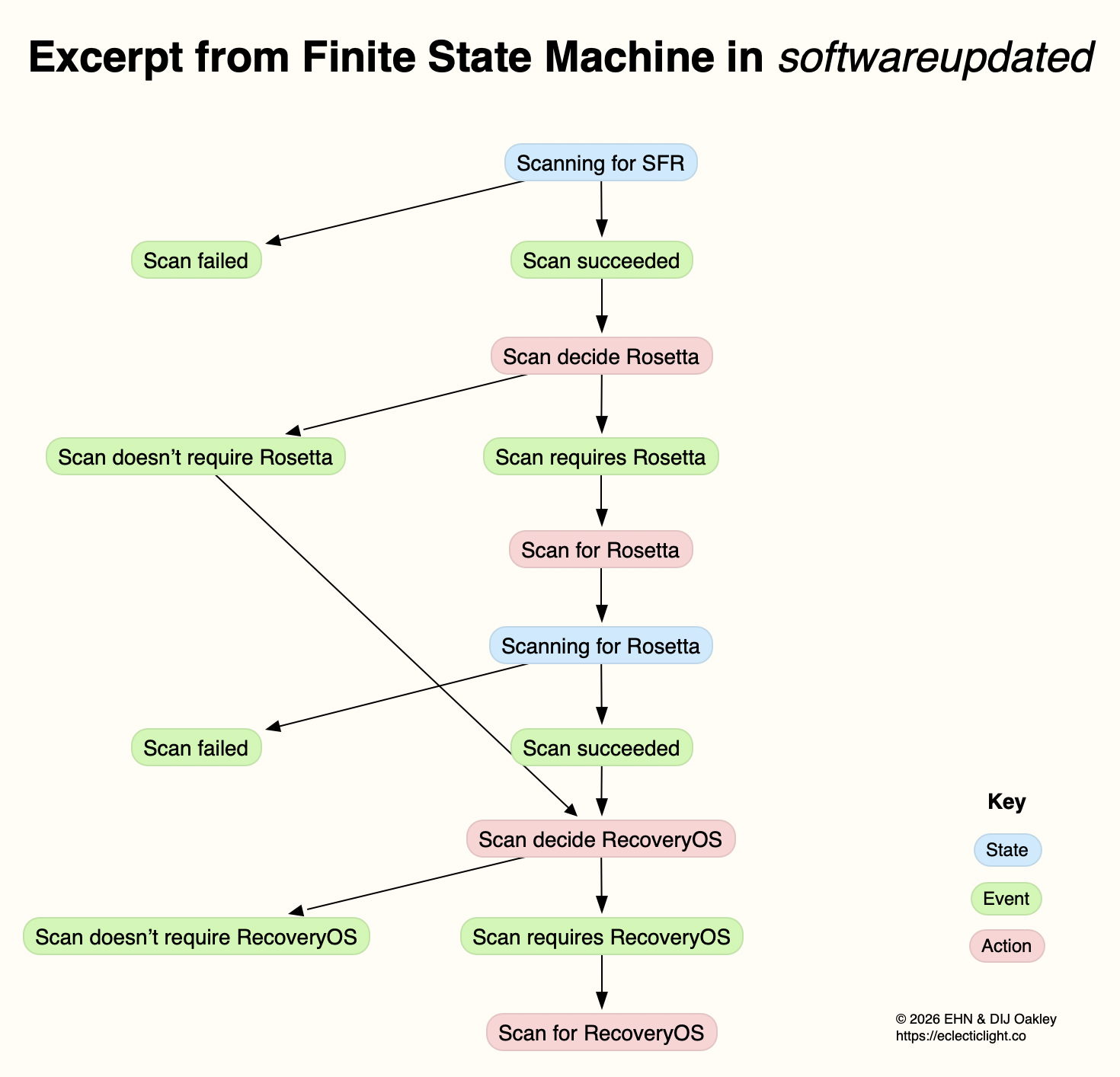
This is a formal model used widely in computing to design, describe and implement a machine or automaton that can only exist in one of a finite number of states. Its state changes in response to defined events, which result in actions that in turn determine its transition to its next state. Although some FSMs are non-deterministic and subject to chance, those in softwareupdated are governed by deterministic rules. This is illustrated in the excerpt below, extracted from a sequence of log entries for one of the FSMs run by softwareupdated when it’s working out what updates are required, early during macOS updating.

This FSM starts here in the top state shown in blue, where it’s scanning for an SFR update. If that’s successful (the event), its next action is to decide whether the update requires an update to Rosetta 2. If it does (the next event), then its action is to scan for Rosetta updates, and it then transitions to its next state of scanning for Rosetta. If that’s followed by the event that the scan succeeds, the next action is to decide whether an update to RecoveryOS is required, and so the FSM proceeds to work out what updates are required before starting to download and prepare them for installation.

This may appear long-winded, but FSMs can be described formally and from there implemented in code that is robust and correct, fundamental requirements for macOS updates. It also builds in flexibility to tailor each update to what that Mac requires.

Log documentation

The unified log is used by softwareupdated to document the operation of the several FSMs it runs. If an error occurs during software update, this enables its origin and causation to be established, one of the primary purposes of the log. Full detail has to be captured in entries at the time the FSM is running, as they can’t be recreated in retrospect.

As a result, every state transition, each event, and all actions are entered in full detail. The message field in those log entries identifies the FSM involved, reports its current state (S), the event (E), its action (A), and then provides full information about its current data. Those must enable the FSM to be recreated and run in the event that something goes wrong, to investigate and fix malfunction or failure.

Although those large and copious log entries are a challenge to browse, the architecture of the Unified log is designed to cope with them. Such long messages are stored separately in the warren of directories inside /var/db/uuidtext, and don’t burden the main log’s tracev3 log files.

FSMs

When softwareupdated checks for, discovers, downloads and prepares the macOS update from 26.2 to 26.3, the following named FSMs are identifiable in log entries:

  • SUMacControllerScanManager
  • scan[UUID]
  • SUMacControllerRecoveryOSManagerScan
  • update_downloader
  • SUMacControllerStateMachine
  • update[UUID]
  • SUMacControllerScanManager (again)
  • scan[UUID] (again)
  • SUMacControllerRecoveryOSManagerScan (again)

in the order in which they appear. In some cases, before the FSM is run, it’s loaded with Events that are detailed in the log, and provide further insight into what that FSM does.

The UUID used for FSMs and throughout softwareupdated is allocated at the start of these processes, before scanning for software updates. It’s referred to as “the SUCore SoftwareUpdate UUID”, and doesn’t appear to be the same as well-known UUIDs used elsewhere. However, as it’s a version 5 UUID it probably doesn’t contain any randomly generated content. This is worth bearing in mind, as it’s this UUID that is attached to Event Reports.

Real-time reporting

Many of us can recall macOS updates that have gone badly wrong, and some that had to be withdrawn or replaced because of their problems. Apple tackles that now using an event reporting system that provides real-time information about how every Mac being updated is progressing. This is anonymised, the only identifier being the UUID allocated to that software update by softwareupdated before starting to scan for updates.

At frequent stages during software update, softwareupdated updates its Event Report to reflect progress, and that’s automatically uploaded to Apple’s servers at an HTTPS address starting with xp.apple.com/report/ Although typically only just over 500 bytes in length, a typical Event Report contains the following named fields:
UUID, audienceType, batteryIsCharging, batteryLevel, currentBaseOSVersion, currentOSType, currentOSVersion, currentProductVersionExtra, dataFsCapacity, dataFsFree, deviceClass, deviceModel, event, eventTime, lowPowerMode, macPlatform, mandatoryUpdateEligible, mandatoryUpdateOptional, preSUStagingEnabled, preSUStagingMaxSize, preSUStagingOptionalSize, preSUStagingRequiredSize, preferredType, rampEnabled, rapidSecurityResponseCombo, rapidSecurityResponseInstalled, rapidSecurityResponseSemiSplat, reportVersion, result, storageCapacity, ucoreVersion, systemFsCapacity, systemFsFree, targetOSVersion, totalRequiredFreeSpace, updateType.

Most should be fairly self-explanatory, and in this case the event field was set to SUCoreOTAPreSUStagingDetermineStarted.

The first of these is sent less than one second after starting to scan for updates, when policy and sizing for the updates to be downloaded have just been determined, and that’s repeated after each significant stage until the Mac is rebooted to apply the update. I suspect there’s also a final Event Report sent once the Mac has booted into the updated macOS.

Apple is thus able to track progress for each UUID during the software update process. Should it detect a problem, for example a required component being unavailable, it should be able to take immediate action to address that, rather than having to wait for individual users to report errors or failures long after they occurred.

Summary

  • From Big Sur, software update uses a modern design based on finite state machines, completely replacing its old script-based system.
  • FSMs bring the greatly improved reliability necessary to install and build the Signed System Volume and other components of macOS.
  • The log contains detailed accounts of FSMs as they are run to accomplish the many phases of these complex software updates.
  • Those log entries could be used to recreate the FSM in the event of failure or error, e.g. as provided in a sysdiagnose.
  • Bulky message content in log entries is stored outside log files, in the /var/db/uuidtext directory.
  • Each software update is given its own UUID.
  • Update progress is reported to Apple frequently in Event Reports.
  • Event Reports can enable real-time detection and correction of problems in software updates.

苹果发布两款新 MacBook:AI 性能破纪录,最强显示器卖两万五

正如期待那样,苹果刚刚通过「官网直接上架」+「新闻稿」的方式,推出了最新的 M5 Pro/Max 款 MacBook Pro 和一大堆 Mac 更新。

这次上新的 MacBook Pro 相比昨天发布的「闹人」iPhone 17e,让人兴奋的元素少了一些。

毕竟它和爱范儿去年测试过的 M5 MacBook Pro 的唯一区别,就是处理器新增了 M5 Pro 和 M5 Max 两种规格,除此之外再无变化

▲ 图|Apple

而这次的 M5 Pro 与 M5 Max 处理器,的确有一些可以让人刮目相看的资质。

M5 Pro/Max 相比标准版 M5,差异最大的自然是核心数量。

根据爱范儿去年基于标准版 M5 处理器的评测,哪怕仅仅 10+10 核心的 M5,在很多追求本地算力的应用中已经可以追平当年的「巨无霸」M1 Max 了。

而规模更大的 M5 Pro 与 M5 Max,毫无疑问将会成为 2026 年 Mac 家族中的性能标杆。

目前我们看到,M5 Pro 的起步配置为 15 核 CPU + 16 核 GPU,最高可选配 18 核 CPU + 20 核 GPU 的组合:

而 M5 Max 的核心配置则来到了 18 核 CPU + 32 核 GPU 起步、18 核 CPU + 40 核 GPU 封顶的规模。

鉴于本次 N3P 工艺的进步,双端性能再创新高不是梦:

同时,本次 M5 家族的神经网络加速器规模同样不容小觑。

去年的标准版 M5 上,苹果就为每颗 GPU 核心都内置了「新一代神经网络加速器」,让 Msty Studio 和 VidHex 之类本地 AI 工具取得了不俗的效果:

▲ 在 Msty Studio 中使用相同指令测试首词元响应速度

而相同的神经网络加速器应用到 M5 Pro 与 M5 Max 规模更加庞大的 GPU 核心之后,其在本地机器学习和 AI 加速方面的表现只会更加出色——

根据苹果的介绍,M5 Pro 在 LLM 提示词中「相比 M1 Pro 可以实现 6.9 倍的提升」,M5 Max 则相比 M1 Max 实现了 6.6 倍的飞跃:

同时我们也能看到,在代码编译场景下,M5 Pro 不仅相比 M1 有接近 2.5 倍的提升,其表现甚至比 M4 Pro 都有了约 25% 的进步:

这种进步幅度可不是单纯堆砌 GPU 规模或者盲目提频能够实现的,台积电 N3P 工艺和改良过的架构设计在其中都功不可没。

同时,今年的 M5 Pro/Max 上还首次应用了一套「全新融合架构」,可以「将两颗芯片集成到单个 Soc 中」——

不出意料的话,这就是此前爆料中提到过的台积电 SoIC-MH 工艺,让不同架构的处理器单元可以更灵活地在晶片上排布。

MacBook Air:提速!

此外,本次处理器升级的不止 MacBook Pro,大半年没有更新的 MacBook Air 终于迎来了处理器升级。

按照计划,MacBook Air 从 M4 升级到了 M5,有 10+8 核与 10+10 核两种规模,依然为 16、24 和 32GB 三款内存:

最重要的好消息在于,这一代 MacBook Air 的硬盘起步配置来到了 512GB,价格 8499 元起(13 寸)。

并且过去几年「硬盘掉速」的问题终于得到了苹果的重视,根据官网上的说法,新版 MacBook Air 换用了新的 SSD,读写速度提升了两倍。

苹果显示器:影分身!

整整五年没更新的 Studio Display 终于在这个春天得到了新生,并且还夺舍了自家大哥 Pro Display XDR——

是的,你没看错,Pro Display XDR 没有了,现在官网只剩下 Studio Display 和 Studio Display XDR:

与预测的相同,新款用上了之前 CES 上 LG 展示的那块高刷 5K 面板(或类似物),让 Studio Display XDR 解锁了 ProMotion 能力。

只不过等级森严的传统不能丢,虽然 Studio Display XDR 更新了 120Hz 刷新率,但新 Studio Display 依然是 60Hz。

但 5K 120Hz 绝不是个轻松的参数,以至于苹果官网自己都要标明:

搭载 M1、M1 Pro、M1 Max、M1 Ultra、M2 和 M3 芯片的 Mac 机型搭配 Studio Display XDR 使用时,刷新率最高达 60Hz 。

而在软件方面,Studio Display XDR 还带来了一样新东西:DICOM 医学影像校准。根据官网的介绍:

Apple 发布了全新的 DICOM 医学影像预设和医学影像校准器,使放射科医生能够直接在 Studio Display XDR 上查看诊断图像,为单一用途的医学影像显示器提供了一种多功能替代方案,并支持无缝显示模式切换。

还记得医院墙上那个用来看 CT 的背光板吗?现在 Studio Display XDR 可以借助自己 2000 尼特的峰值 HDR 亮度来给医生帮忙了:

新版 Studio Display XDR 和 Studio Display 的起售价分别为 24,999 元和 11,999 元。

存储价格:还得涨!

对于 2026 年那个逃不开的话题,新 Mac 产品家族的各项存储规格也值得大家更密切的关注。

以最具代表性的 MacBook Pro 来说,本次 M5 Pro/Max 处理器依然提供 24、36、48、64、128GB 共五种可选的内存规格。

但与上代的 M4 Pro/Max 面临的问题一样,M5 Pro/Max 的内存依然是严重「叉着卖」的。

换句话说,基础 15+16 核心的 M5 Pro 只有 24 和 48GB 两种规格可选。想要升级到 36GB 内存,就必须加 2000 元选择 18+20 核心的才行。

为了让大家看得更直观,我们制作了这个对照表来帮大家理解:

相比劈叉的统一内存,新 MacBook Pro 的硬盘反而单纯了许多,还是熟悉的 1TB、2TB、4TB、8TB 组合,以前的 512GB 选项被取消了:

苹果或许能够在体量相对比较小的 iPhone 17e 上「加量不加价」。但对于 512GB 起步、8TB 封顶的 MacBook Pro 来说,存储价格压力依然不容小觑。

比较好玩的是,目前苹果官网的预购页面上,仍然提供 Final Cut Pro 与 Logic Pro 的买断制选项。

在顶上,苹果只用一行不起眼的小字列出了 Apple Creator Studio 服务:

▲ 图|Apple

需要注意:根据苹果此前的说法,通过 ACS 订阅的那些工具软件(包括创意工具和 iWork 三件套)和此前买断的版本,后续在功能性和 AI 能力上会产生版本差异。

如果你计划后面三五年都持续使用苹果创意全家桶的话,还是直接订阅 Apple Creator Studio 更省事一些。

▲ 图|Apple

考虑到 M5 Pro 和 M5 Max 是眼下整条 Mac 线中「无可争议的性能之巅」,对于那些需要 MacBook Pro 出外勤去现场剪辑、临时编译、移动调色的「prosumer」来说,这个价格相比之前其实没什么大区别

也应了爱范儿之前的选购建议:

明确需求,该买就买,买新不买旧。

毕竟 MacBook Pro 作为一款工具属性拉满的产品,对于大多数人来说,如果你买它不是为了挣钱的话,那么大概率是没有必要买的。

▲ 图|AppleInsider

同时记得关注爱范儿,我们将在后续为大家带来 M5 Pro/Max 款 MacBook Pro,以及本次苹果春季发布会上其他重点新品的完整评测。

#欢迎关注爱范儿官方微信公众号:爱范儿(微信号:ifanr),更多精彩内容第一时间为您奉上。

爱范儿 | 原文链接 · 查看评论 · 新浪微博


How long will my Mac’s SSD last?

It’s not that long ago that our Macs came with internal storage that could readily be replaced when it failed. Memories of big hard disks that died almost as soon as their warranty ran out, and of keeping a bootable clone ready in a Mac Pro, aren’t easily forgotten. So isn’t it high risk to buy a modern Mac that won’t even boot if its internal SSD has failed? Are you left wondering whether that SSD will last five years, or even three?

SSDs aren’t like hard disks

Hard disks are amazingly engineered electro-mechanical devices that spin platters at high speeds incredibly close to read-write heads. Before you even consider all the faults that can occur in their magnetic storage, there are many horrible ways they can die through mechanical disaster. Visit a data recovery shop and they’ll show you heads fused to platters, and shards of what had been storing terabytes of data before the platter shattered. And like all mechanical devices they wear out physically, no matter how carefully you care for them.

By comparison, an SSD in a Mac that has good mains power filtering, ideally a proper uninterruptible power supply (UPS), leads a sheltered life. Like other solid-state devices, so long as its power supply is clean and it doesn’t get too hot, it’s most likely to fail in the first few weeks of use, and as it’s reaching the end of its working life, in a U-shaped curve. Modern quality control has greatly reduced the number of early failures, so what we’re most concerned about is how long it will be until it wears out, as it approaches its maximum number of erase-write cycles.

Predicting wear

The theory goes that the memory cells used in SSDs can only work normally for a set number of erase-write cycles. This appears to hold good in practice, although there’s always a small number that suffer unpredictable electronic failure before they reach that. What’s more controversial is how many erase-write cycles each SSD should be capable of. Manufacturers make various claims based on accelerated ageing tests, and I suspect most come with a large dash of marketing sauce. Apple doesn’t offer figures for the SSDs it equips Macs with, but conservative estimates are around 3,000 cycles in recent models.

To work out how long you can expect your Mac’s internal SSD to last before it reaches that cycle limit, all you need do is to measure how much data is written to it, and once that is 3,000 times the capacity of the SSD, you should expect it to fail through wear. Fortunately, SSDs keep track of the amount of data written to them over their lifetime. This can be accessed through better SSD utilities like DriveDx, and I even have a feature in Mints that will do that for most internal SSDs.

Example

My iMac Pro is now well over 7 years old, as it was bought new in December 2018. It has a 1 TB internal SSD (I wanted 2 TB, but couldn’t wait for a BTO), and has run pretty well 24/7 since I got it. As I work every day, even over Christmas, and it has been my main production system, it has probably been in use for over 2,500 days now.

According to the SSD’s records, over that period its 1 TB SSD has written about 150 TB in total, from its total expected lifetime of 3,000 TB, if it reaches 3,000 erase-write cycles. At current usage rates that would take another century, or 133 years if you want to be precise. In reality, it’s generally believed that most SSDs will cease functioning after about 10 years in any case.

It’s worth noting here that, had I got the iMac Pro with my preferred 2 TB SSD, its total expected lifetime would have been 6,000 TB, and instead of lasting a total of 140 years it would in theory have gone twice that period before it wore out.

What wears out SSDs?

For an SSD to wear out when it reaches its limit of erase-write cycles, wear across its memory must be even. If that memory were to be largely full of static data, and the SSD was only able to write to 10% of its memory, then it would wear out ten times quicker than the whole SSD would. To ensure that doesn’t happen, all modern SSDs incorporate wear-levelling, which incurs its own overhead in erase-write cycles, but should ensure that the whole SSD wears out at the same rate. You can help that, and maintain faster write speeds, by keeping ample storage space free. My current target for my iMac Pro is an absolute minimum of 10% free, and 15% as much as possible.

Given that my iMac Pro has averaged about 21 TB written to its SSD each year, that works out at just under 60 GB per day. For those who are worried that the Unified log adds significantly to SSD wear, it’s not hard to estimate that’s only likely to write around 250-500 MB each day even if you leave your Mac awake and running 24/7, less than 1% of my Mac’s daily write load.

Unless you work with huge media files, by far your worst enemy is swap space used for virtual memory. When the first M1 Macs were released, base models with just 8 GB of memory and 128 GB internal SSDs were most readily available, with custom builds following later. As a result, many of those who set out to assess Apple’s new Macs ended up stress-testing those with inadequate memory and storage for the tasks they ran. Many noticed rapid changes in their SSD wear indicators, and some were getting worryingly close to the end of their expected working life after just three years.

So the best way to get a long working life from your Mac’s internal SSD is to ensure that it has sufficient memory as to never use swap space in its VM volume. Although my iMac Pro only has a 1 TB internal SSD, which is more cramped than I’d like, it has 32 GB of memory, and almost never uses swap.

Key points

  • SSDs wear out differently from hard disks.
  • Protect your Mac and its internal SSD with good mains power filtering, preferably using a UPS.
  • Expect modern Mac internal SSDs to wear out after at least 3,000 erase-write cycles.
  • To monitor wear, measure the total data written to the SSD.
  • Expect an internal SSD to wear out when that total reaches 3,000 times the total capacity of the SSD.
  • For a given amount of data written to an SSD, the larger the total capacity of the SSD, the slower it will wear out.
  • Keep at least 10% of the SSD free at all times, with 15-25% even better.
  • Ensure your Mac has sufficient memory to never use VM swap space.

Use Fallback Recovery on Apple silicon Macs

If you need features in Recovery, but can’t get an Intel Mac to enter that mode, your next step is to start it up with the Command, Option and R keys held for Remote or Internet Recovery. But you can’t do that with an Apple silicon Mac. Instead you should try Fallback Recovery, the subject of this article.

When Apple silicon Macs first came out and ran Big Sur, they only had one Recovery system, installed in a dedicated container named Apple_APFS_Recovery. If that didn’t work, the best you could hope for was that Refreshing or Reviving in DFU mode might fix it. That changed in Big Sur 11.6.1 and Monterey. Since then, most Apple silicon Macs have had two Recovery systems:

  • Primary or Paired Recovery is stored in the Recovery volume associated with each macOS boot volume group, and inside the same container.
  • Fallback Recovery is an older version of the Recovery system that has been moved from a paired Recovery volume and is now stored in the hidden Apple_APFS_Recovery container in the internal SSD.

In the diagram above, Paired Recovery is the green volume disk3s3, and Fallback Recovery is disk2s1 in the yellow Apple_APFS_Recovery container.

Start up in Fallback Recovery

Where Fallback Recovery has been installed by macOS, a Mac may start up automatically in Fallback Recovery if you try to start up in Paired Recovery using a long press on the Power button, but that fails. You can also elect to start up in Fallback Recovery by pressing the Power button once, immediately pressing it again and holding that until the display informs you that options are loading. The cadence of the presses is like the Morse ‘di-da’, with a pause of no more than a second between them.

What’s missing from Fallback

From its outset, one standard feature of Recovery doesn’t work in Fallback: Startup Security Utility. You can’t therefore use it to change your Mac’s security settings or disable loading of third-party kernel extensions. For those you must use Paired Recovery. Apple also warns that Device Recovery Assistant may not be available in Fallback Recovery either.

Most importantly, though, Fallback Recovery can only offer the features that come with Recovery in that version of macOS. For example, at present it’s likely that Macs running Tahoe will have Fallback Recovery systems from Sequoia. Where they do, the new Repair Assistant isn’t available in Fallback Recovery, as that will still run Apple Diagnostics from Sequoia.

How it works

Since macOS installers and updaters for Big Sur 11.6.1 and Monterey, when the Paired Recovery system is updated, the installer may opt to copy the contents of the old Paired Recovery volume to the Fallback Recovery volume. This is presumably pre-determined in each updater and installer, and intended to ensure the fallback is as reliable as possible, even though its features are a little out of date. The user is given no option.

This may mean that a brand new Apple silicon Mac doesn’t come with Fallback Recovery, and that isn’t installed until the Mac has undergone its first macOS update.

Apple provides a bare minimum of documentation. Indeed, it’s most detailed account in its Platform Security Guide hasn’t been updated since May 2022, and contains an error in which it claims that Fallback Recovery starts the Mac up using Paired Recovery, exactly the same as for Paired Recovery.

Check Fallback Recovery

If you have never started your Mac up in Fallback Recovery, it’s a good learning exercise to do so when you have a few moments. You can then tackle the question of how to tell whether the Recovery mode your Mac is in is Paired or Fallback. There are three simple signs to look for:

  • If Fallback is an older version of macOS, then the Reinstall macOS feature will offer that older version.
  • Startup Security Utility will warn you that you can’t make any changes if you open it in Fallback mode.
  • Opening Terminal and typing the sw_vers command will tell you the version of macOS running.

You can also check whether Fallback Recovery is available, and its version, in my free utility Mints. In its main window click on the Software Update button to view a list of software update settings. Within those:

  • sfrProductVersion is the version of Paired Recovery available,
  • recoveryOSProductVersion is the version of Fallback Recovery available.

In both my active Apple silicon Macs running macOS 26.3 Tahoe, Fallback Recovery is currently macOS 15.6 Sequoia, although both have been through 26.0 and every release update since. This could of course indicate that Tahoe’s updates haven’t yet installed a new version of Recovery since that supplied with 26.0.

Recovery isn’t available

If neither Paired nor Fallback Recovery are available, you can try reinstalling macOS in normal user mode. As you have no option to try that in Recovery, if that fails you’ll have to put that Mac into DFU mode, connect it to another recent Mac using a USB-C cable, then Revive its firmware. Reviving firmware isn’t destructive, and should leave both macOS System and your Data volumes intact. If that too doesn’t work, the only remaining option is to perform a full Restore, which will wipe absolutely everything on the internal SSD.

Firmware updates for macOS Tahoe, Sequoia and Sonoma

Of all the important features of Macs, firmware must be among the dullest, although it’s also one of the Mac’s major benefits. Because Mac hardware, firmware, and its operating system are all made by Apple, the firmware in our Macs should always remain secure, robust and up to date.

That wasn’t always the case, though. Older Intel Macs could be difficult and sometimes impossible to update their firmware. Some particular configurations were notorious, and most became unreliable if you replaced their internal storage. After a long campaign with tools like eficheck, switching first to T2 then Apple silicon chips has proved decisive. With firmware updates distributed in and installed by macOS updates and upgrades, it’s almost unheard of now for a recent model to be running out of date firmware, unless it’s also running out of date macOS.

This has been important for system stability, where flaws in firmware can turn the most stable Mac into a series of kernel panics and crashes, and essential for security. All the user has to do to secure their Mac’s firmware is to keep macOS up to date. Vulnerabilities in PC firmware are relatively frequent and notoriously hard to address.

Now that support for Intel Macs is waning, and there are only a couple of iMac variants lacking T2 chips that are still fully supported, keeping track of firmware updates is far simpler. Last week’s release of macOS updates brought firmware updates all round, for the iMac19,1 and iMac19,2, as well as T2 and Apple silicon models.

The iMac19,1 and iMac19,2 (4K and 5K 2019) have firmware updates to take them from 2075.100.3.0.3 to 2094.80.5.0.0, the same EFI version found in T2 models. That’s the first update for them since last Spring (March).

Intel models with T2 chips have the same EFI version update to 2094.80.5.0.0, as well as their iBridge firmware, which changes from 23.16.12048.0.0,0 to 23.16.13120.0.0,0.

Currently all Apple silicon Macs from the first base M1 to those with the latest M4 and M5 chips, run common firmware, and that too has been updated from 13822.61.10 to 13822.81.10.

Version numbering of iBoot in Apple silicon Macs seems to have stabilised, with

  • A major version number set by the current major macOS. For macOS 14 that was 10151, for macOS 15 it was 11881, and for macOS 26 it’s currently 13822.
  • A minor version number that increments for each minor version of macOS. This runs in the sequence 1 (macOS x.0), 41 (x.1), 61 (x.2), 81 (x.3), 101 (x.4), 121 (x.5) and 141 (x.6).
  • A patch version number that varies from 1-10, and has once reached 96.

The iBoot update released with security updates to the older two supported versions of macOS should be the same as that for the current version. Thus, the next iBoot update should bring its version number to 13822.101.x, in macOS 26.4, 15.7.5 and 14.8.5. We’ll see how close that gets.

I maintain separate lists of current firmware versions for all three supported versions of macOS:

In the background: Putting threads to work

To take best advantage of background processing, multiple cores, and different core types, apps have to be designed to run efficiently in multiple threads that co-operate with one another and with macOS. This article explains the basics of how that works in Apple silicon Macs.

Single thread

Early apps, and many current command tools, run as simple sequences of instructions. Cast your mind back to days of learning to code in a first language like Basic, and you’d effectively write something like
BEGIN
handle any options passed in command
process data or files until all done
report any errors
END

There are still plenty of command tools that work like that, and run entirely in a single thread. One example is the tar command, which dates back to 1979, and its current version in macOS remains single-threaded. As a result it can’t benefit from any additional cores, and runs at essentially the same speed on base, Pro, Max and Ultra variants of an M chip family.

Multiple threads

Since apps gained windowed interfaces, rather than running from BEGIN to END and quitting, they’re primarily driven by the user. The app itself sits in an event loop waiting for you to tell it what to do through menu commands, tools or other controls. When you do that, the app hands that task over to the required code to handle, and returns to its main event loop. This is much better, as you see an app that remains responsive at all times, even though it may have other threads that are working frantically in the background on tasks you have given them.

We’ve now divided that simple linear code up into at least two parts: a foreground main thread that the user interacts with and farms work out to worker threads that run in the background. When run on a single core with multitasking, that ensures the main thread appears responsive at all times, and we could use that with a Stop command, as has been commonly implemented with ⌘-., to signal the worker thread to halt its processing.

Threads come into their own, though, with multiple CPU cores. If the worker code can be implemented so more than one thread can be processing a job at any time, then each core can run a separate thread, and complete that job more quickly. For example, instead of compressing an image one row of pixels at a time, the image could be divided up into rectangles, and each farmed out to be compressed by a separate thread. Alternatively, the compression process could be designed in stages, each of which runs in a separate thread, with image data fed through their pipeline.

Using multiple threads has its own limitations, and there are trade-offs as the number of threads increases, and more work has to be done moving data between threads and the cores they’re running on.

These can be seen in a little demonstration involving CPU-intensive floating point computations in a tight loop:

  • running the computation in a single thread, on a single CPU core, normally processes 0.25 billion loops per second
  • splitting the total work to be performed into 2 threads increases that to 0.48 billion/s
  • in 10 threads, it rises to 2.1 billion/s
  • in 20 threads, it reaches a peak of 4.2 billion/s
  • in 50 threads, overhead has a negative impact on performance, and the rate falls to 3.3 billion/s.

Those are for the 10 P and 4 E cores in an M4 Pro, at high Quality of Service, so run preferentially on its P cores. In this case, picking the optimum number of threads could accelerate its performance by a factor of 16.8.

Core allocation

CPUs with one core type normally try to balance load across their cores, and coupled with a scheme for software to indicate the priority of its threads, aren’t as complex as those with two or more core types with contrasting performance characteristics. For its Alder Lake CPUs, Intel uses an elaborate Hardware Feedback Interface, marketed as Intel Thread Director, that works with operating systems such as Windows 11 and recent Linux kernels to allocate threads to cores.

With its long experience managing P and E cores in iPhones and iPads, Apple has chosen a scheme based on a Quality of Service (QoS) metric, together with software management of core cluster frequency. The developer API is simplified to offer a limited number of values for QoS:

  • QoS 9 (binary 001001), named background and intended for threads performing maintenance, which don’t need to be run with any higher priority.
  • QoS 17 (binary 010001), utility, for tasks the user doesn’t track actively.
  • QoS 25 (binary 011001), userInitiated, for tasks that the user needs to complete to be able to use the app.
  • QoS 33 (binary 100001), userInteractive, for user-interactive tasks, such as handling events and the app’s interface.

There’s also a ‘default’ value between 17 and 25, an unspecified value, and you might come across others used by macOS.

As a general rule, threads assigned a QoS of background and below will be allocated to run on E cores, while those of utility and above will be allocated to run on P cores when they’re available. Those higher QoS threads may also be run on E cores when P cores are already fully committed, but low QoS threads are seldom if ever promoted to run on P cores.

Internally, QoS uses a different, finer-grained metric, taking into account other factors, but those values aren’t exposed to the developer. QoS provided by the developer and set in their code is considered a request to guide macOS, and not an absolute determinant of which cores that code will be run on.

Cluster frequency

P and E cores are operated at a wide range of frequencies, that are determined by macOS according to more complex heuristics also involving QoS. In broad terms, when P cores are running threads they do so at frequencies close to their maximum, as are E cores when they’re running high QoS threads that should have been run on P cores. However, when E cores are only running low QoS threads, they do so at a frequency close to that of idle for maximum efficiency.

One significant exception to that are the two E cores in M1 Pro and M1 Max chips. To compensate for the fact that there are only two of them, when they’re running two or more threads of low QoS they have higher frequency. Frequency control in P cores in M4 Pro chips is also more complicated, as their frequency is progressively reduced as they’re loaded with more threads, presumably to constrain heat generated when running at those higher loads.

There are times when internal conditions, such as Low Power Mode, override a request for code to be run as userInteractive. You can experience that yourself if you try running apps that would normally be given P cores on a laptop with little remaining in its battery. All threads are then diverted to E cores to eke out the remaining battery life, and their cluster frequency is reduced to little more than idle.

Summary

  • Developers determine the performance of their code according to how it’s divided into threads, and their QoS.
  • QoS advises macOS of the performance expectation for each thread, and is a request not a requirement.
  • macOS uses QoS and other factors to allocate threads to specific core types and clusters.
  • macOS applies more complex heuristics to determine the frequency at which to run each cluster.
  • System-wide policy such as Low Power Mode can override QoS.

An illustrated guide to Recovery on Apple silicon Macs 2.0

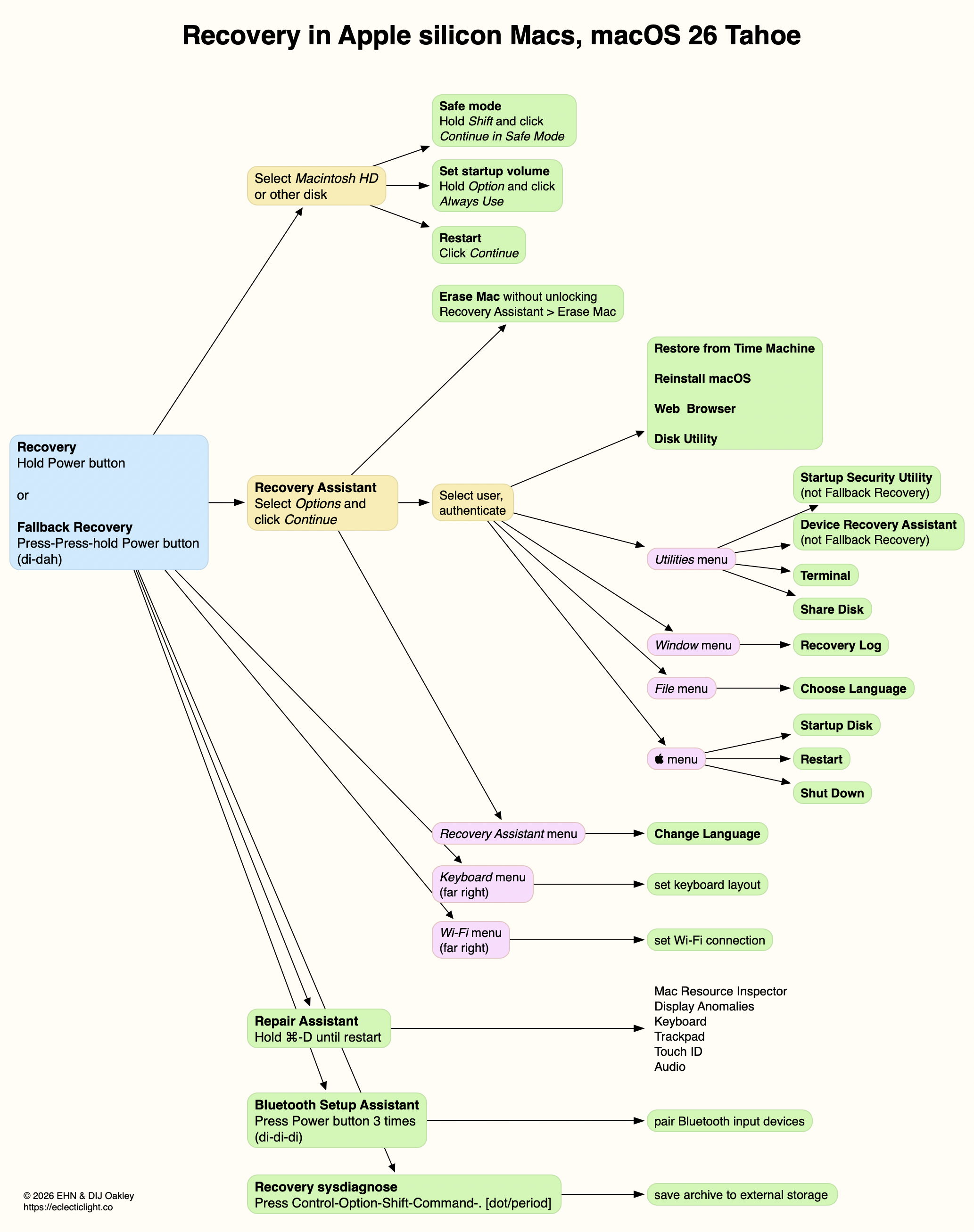
There have been substantial changes made to Recovery for Apple silicon Macs in recent versions of macOS. This article guides you through its increasing complexities, using the road map below.

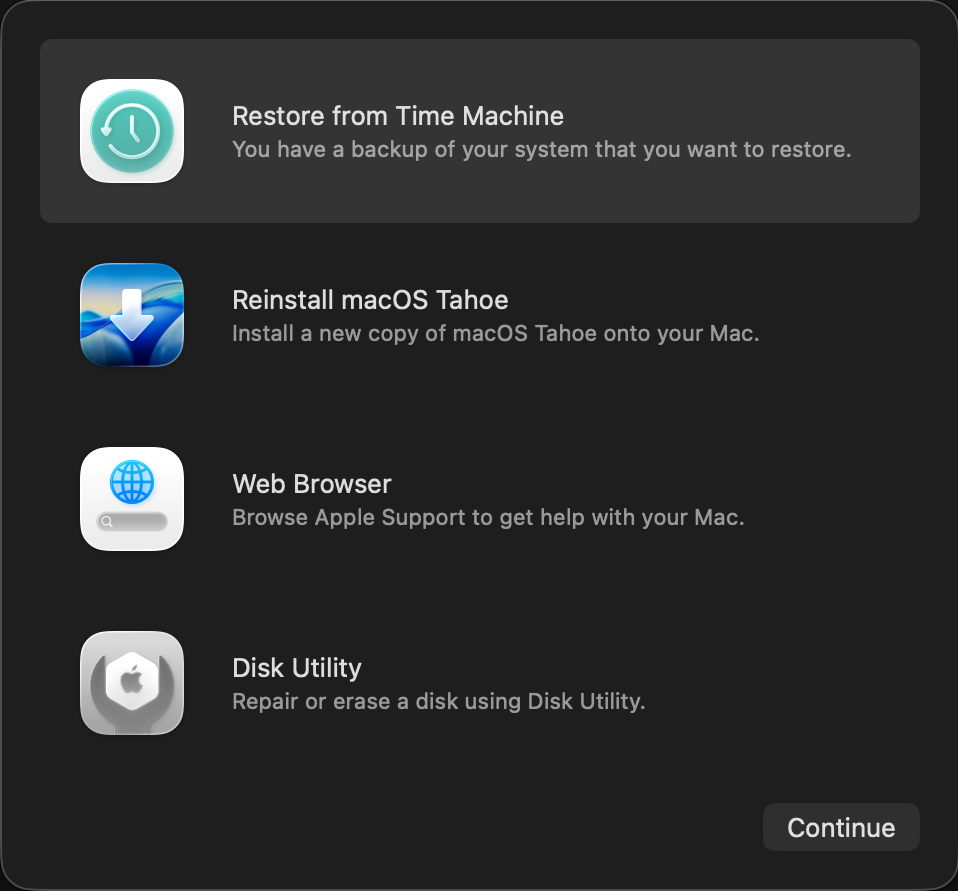
There’s one overriding caution: you will come across two different features with the same name. When you click on Options in the opening screen, that opens Recovery Assistant, where you select the user and authenticate to gain access to the Recovery app with its window of four options. If you open the Utilities menu in that, you’ll see a command Recovery Assistant, which opens another app that calls itself Device Recovery Assistant, but is generally referred to simply as Recovery Assistant, although it’s not the same as the other Recovery Assistant at all.

That’s also available as a downloadable PDF: RecoveryMap26

Apple’s current guide is surprisingly incomplete.

Enter Recovery Mode

To enter Recovery Mode on an Apple silicon Mac, press and hold the Power button until the display shows Loading Startup Options, then release it.

If a Mac running Tahoe has problems starting up correctly, it should automatically restart and open Device Recovery Assistant.

If your Mac has a second boot volume group, it has Recovery volumes paired with each of those bootable systems. As they may have different versions of Recovery, you should prefer to start up in the Recovery paired with a bootable system you want to repair. That should happen if you first start up from that boot system, shut down, and then start up in Recovery. However, this is no longer necessary when changing boot security, as you’re given a choice as to which bootable system to apply changes to.

If there’s a problem with Recovery Mode and your Mac has previously had a macOS update installed, you may instead be able to enter Fallback Recovery Mode. Press the Power button twice in rapid succession, and on the second of those presses hold the button until the display shows Loading Startup Options, then release it. The only drawback with this is that Startup Security Utility can’t be used to make changes to boot security, and Device Recovery Assistant may not be available either.

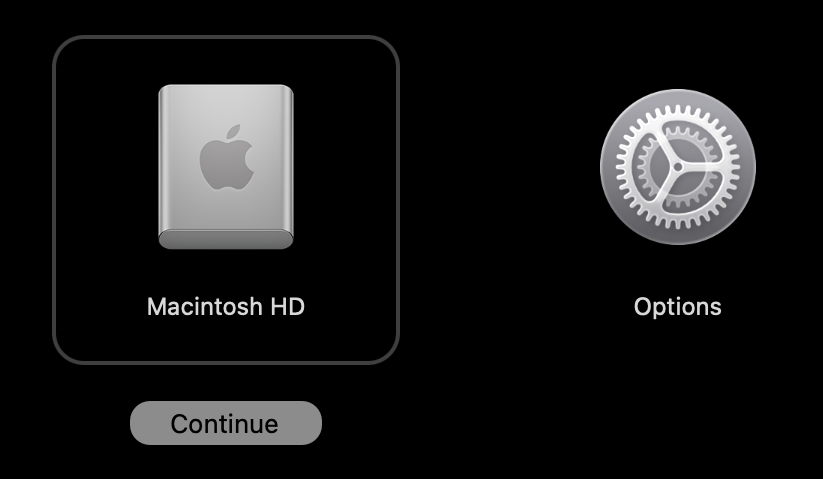
Startup Options

Language & Wi-Fi settings

To change the keyboard language and layout, use the Keyboard menu at the far right.

To set the Wi-Fi connection, use the Wi-Fi menu at the far right. Its icon indicates connection status and strength of signal.

To change the language used throughout, look for a Change Language command in the menus at the left, for example in the Recovery Assistant menu, where offered.

Bluetooth Setup Assistant

To pair Bluetooth devices using this assistant, press the Power button three times in rapid succession, with no more than one second between each press.

Recovery sysdiagnose

To perform a sysdiagnose when experiencing problems with Recovery, press Control-Option-Shift-Command-. (the dot or period key). This requires the resulting archive to be saved to external storage, which needs to be connected for this purpose.

Startup disk

To restart in Safe Mode, select the disk which you wish to boot from in Safe Mode, press and hold the Shift key then click Continue in Safe Mode underneath it. The Mac then starts up in Safe mode from that disk.

To set the default startup volume, select the disk you wish to make the default boot disk, press and hold the Option key then click Always Use underneath it. The Mac then starts up in normal mode from that disk.

To start up in normal user mode, select the disk you wish to start up from and click Continue underneath it. The Mac then starts up in normal mode from that disk.

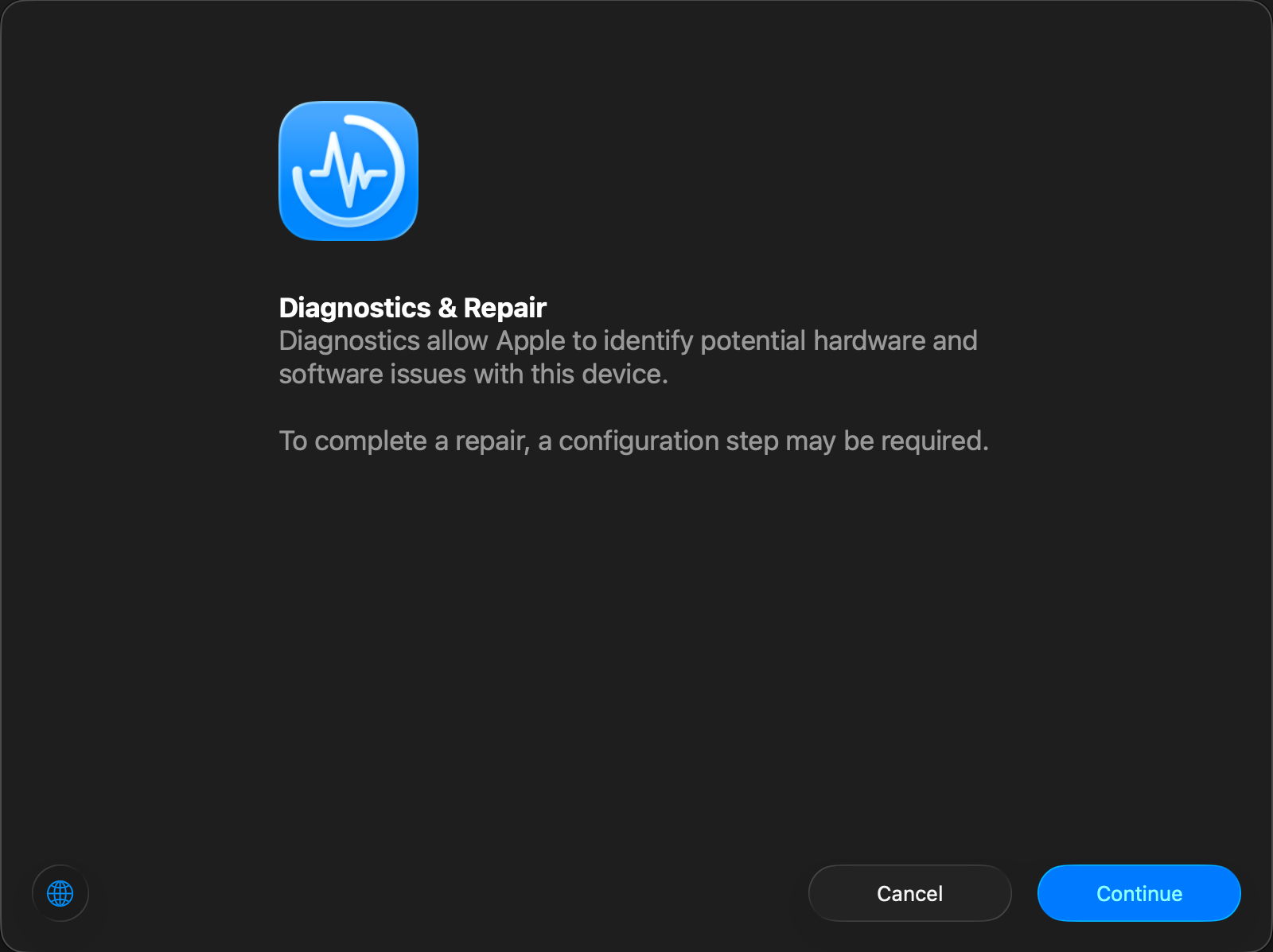
Repair Assistant

Press and hold the Command ⌘ and D keys until you hear the startup chime indicating the Mac has restarted into Repair Assistant.

Repair Assistant offers a choice of tests from the available diagnostic suites according to your Mac’s hardware, including:

  • Mac Resource Inspector, to test the main Mac hardware over a period of 1-7 minutes;
  • Display Anomalies, for any built-in LCD panel;
  • Keyboard, only when built-in;
  • Trackpad, only when built-in;
  • Touch ID, for any built-in Touch ID sensor;
  • Audio, to verify audio output using a set of test tones.

Once a test has completed, it’s marked with a green ✅ to indicate success, or a warning triangle or error symbol if the test couldn’t be attempted (power supply when not connected to a laptop), or problems were discovered. Individual tests and their results are listed from each test’s ⓘ button.
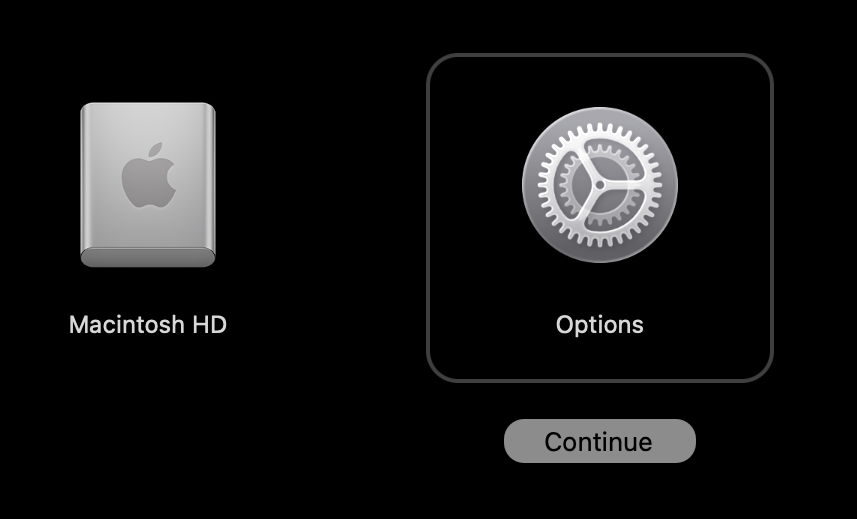
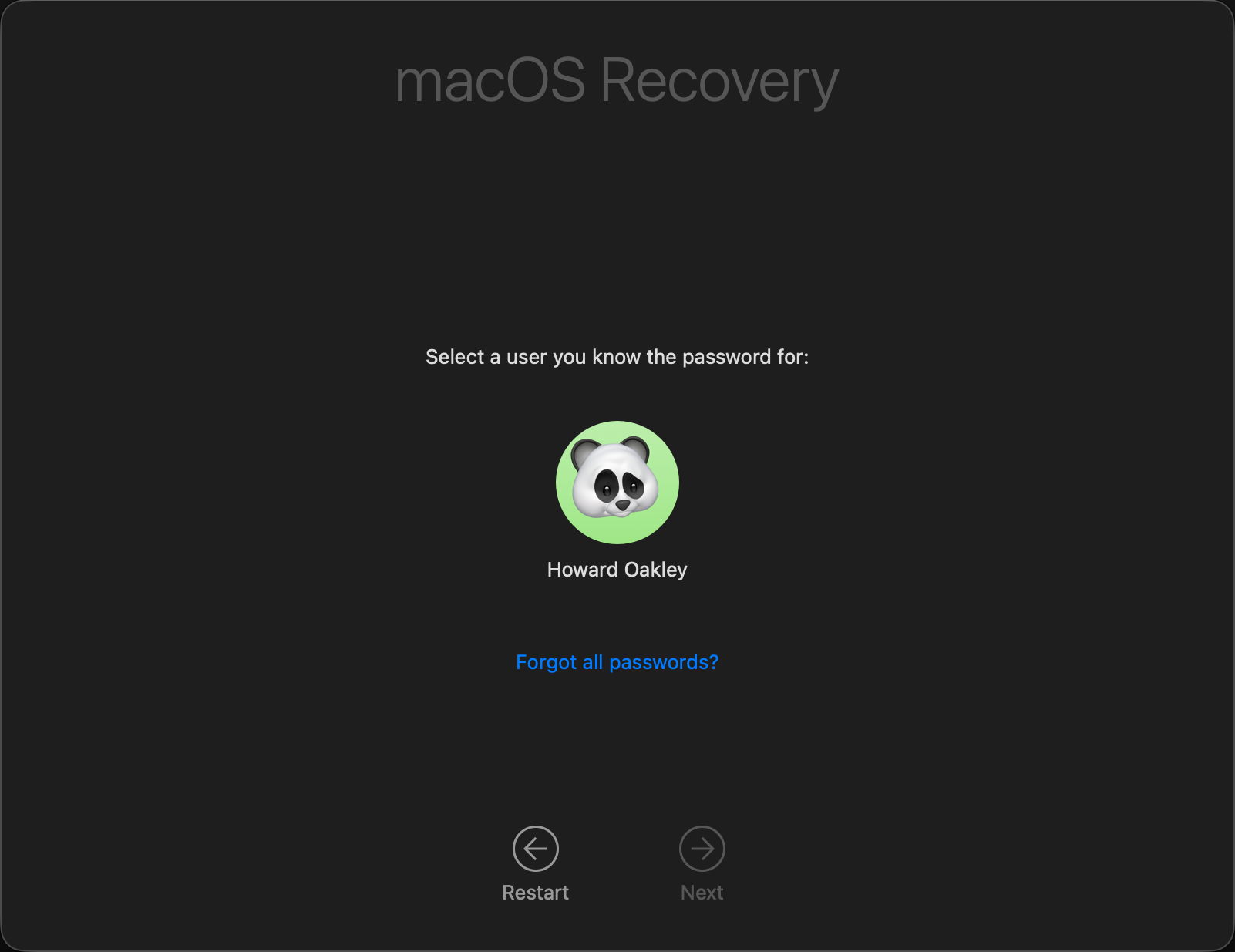
Repair Assistant’s substitute for an About window provides details of your Mac, including its serial number, also provided as a QR code, and the version of macOS.

Recovery Assistant

Select the Options icon and click Continue underneath it. You will then be prompted to select a user you know the password for. Do that and click on Next. Enter the password for that user and click Continue.

Erase Mac

To erase the Mac fully without unlocking it, select that command from the Recovery Assistant menu. This completely erases all boot volume groups on the Mac’s internal SSD, ready to reinstall macOS, for which it requires an internet connection.

Recovery Window

To restore from a Time Machine backup, select that item and click Continue.

If your backup is on external storage, this is the time to connect it and locate the backup you want to restore from.

To reinstall macOS, select that item and click Continue. You’ll then pass through the licence agreement and can select which disk to reinstall macOS on, but you don’t get a choice of which version to install.

To read Apple’s help information on Recovery Mode and its tools, or browse the web, select Web Browser and click Continue.

To check and repair volumes, and perform other storage management, select Disk Utility and click Continue.

Recovery Utilities

Access these through the Utilities menu in Recovery.

Startup Security Utility

To change the Security Policy for a boot volume group, open Startup Security Utility and select the boot volume group whose policy you want to inspect or change. Click Unlock and enter the password for that.

This should normally be at Full Security.

To run that boot volume group at Reduced Security, for example to allow the loading of third-party kernel extensions, select Reduced Security instead, then tick the option you want and click OK.

To reduce security further, for example when disabling SIP, select Reduced Security then use Terminal to disable SIP.

Device Recovery Assistant

Use the Recovery Assistant command in the Utilities menu. Note that its app menu identifies itself as Device Recovery Assistant. This requires an internet connection to function. If you’re asked to choose a connection, opt for a Wi-Fi network if possible.

Distinctive to DRA’s opening window is its first aid symbol ⊕. Click on the Continue button to move on.

The next window invites you to send data to Apple for diagnostic purposes. Make your choice as you move on.

If your startup Data volume is protected by FileVault, you’ll then be prompted for the password to unlock it. Once that has been provided, DRA attempts to perform a recovery.

At the end of that, you should see one of three outcomes:

  • no problems were found, and you can restart your Mac back into normal mode;
  • problems were found and repaired successfully, so you can restart your Mac back into normal mode;
  • problems were found but aren’t fully repaired.

When your Mac restarts, it may show a notification that you need to recover iCloud data. If so, open System Settings and you should see a new item in its sidebar to Recover iCloud Data.

To shut down or restart your Mac, use the commands in the Apple  menu. The only way to return to any of the options offered in the initial screen, such as starting up in Safe mode, is to shut down and enter Recovery Mode again.

Miscellaneous

To open Terminal to run commands there, open Terminal from the Utilities menu. Note that you currently get bash rather than zsh, and run as root.

To put that Mac’s disk into Shared Disk mode, select the Share Disk… command from the Utilities menu and follow the instructions.

To browse the Recovery log, select that command from the Window menu.

Leave Recovery

The Apple  menu offers three exit routes: Startup Disk to change that and restart, Restart from the current startup disk, and Shut Down.

Last Week on My Mac: Repair Assistant has replaced Diagnostics

Life without documentation can get quite exciting, particularly when you discover a feature that changed beyond all recognition last September, with the release of macOS 26 Tahoe. I’m referring of course to what used to be Apple Diagnostics, but only in Apple silicon Macs. If you’re running Tahoe on an Intel Mac, then I’m afraid you’ll just have to be struggle along with what you’ve been using for the last few years.

Apple Diagnostics used to be the only part of Recovery that still relied on a keystroke command in Apple silicon Macs, and that hasn’t changed. Before starting your Mac up, if it’s a laptop connect its mains power adaptor if possible, and that will be included in the tests. Then press and hold the Power button until Recovery starts loading. Once it appears, press and hold the Command ⌘ and D keys until you hear the startup chime indicating the Mac has rebooted into Repair Assistant.

This is the welcome window, explaining how Repair Assistant can run diagnostics, as well as being used to complete hardware repairs.

Then comes the inevitable privacy policy.

Unfortunately that’s as far as a virtual machine can get. On a real Apple silicon Mac you’ll then be invited to choose from the available diagnostic suites according to your Mac’s hardware, from:

  • Mac Resource Inspector, to test the main Mac hardware over a period of 1-7 minutes;
  • Display Anomalies, for any built-in LCD panel;
  • Keyboard, only when built-in;
  • Trackpad, only when built-in;
  • Touch ID, for any built-in Touch ID sensor;
  • Audio, to verify audio output using a set of test tones.

Currently these are run individually and there’s no means to run them all in sequence.

Once a test has completed, it’s marked with a green ✅ to indicate success, or a warning triangle or error symbol if the test couldn’t be attempted (power supply when not connected to a laptop) or problems were discovered. Individual tests and their results are listed from each test’s ⓘ button. After all these years, Apple is finally trusting us to know what tests have been performed, and not just giving us a cryptic code at the end.
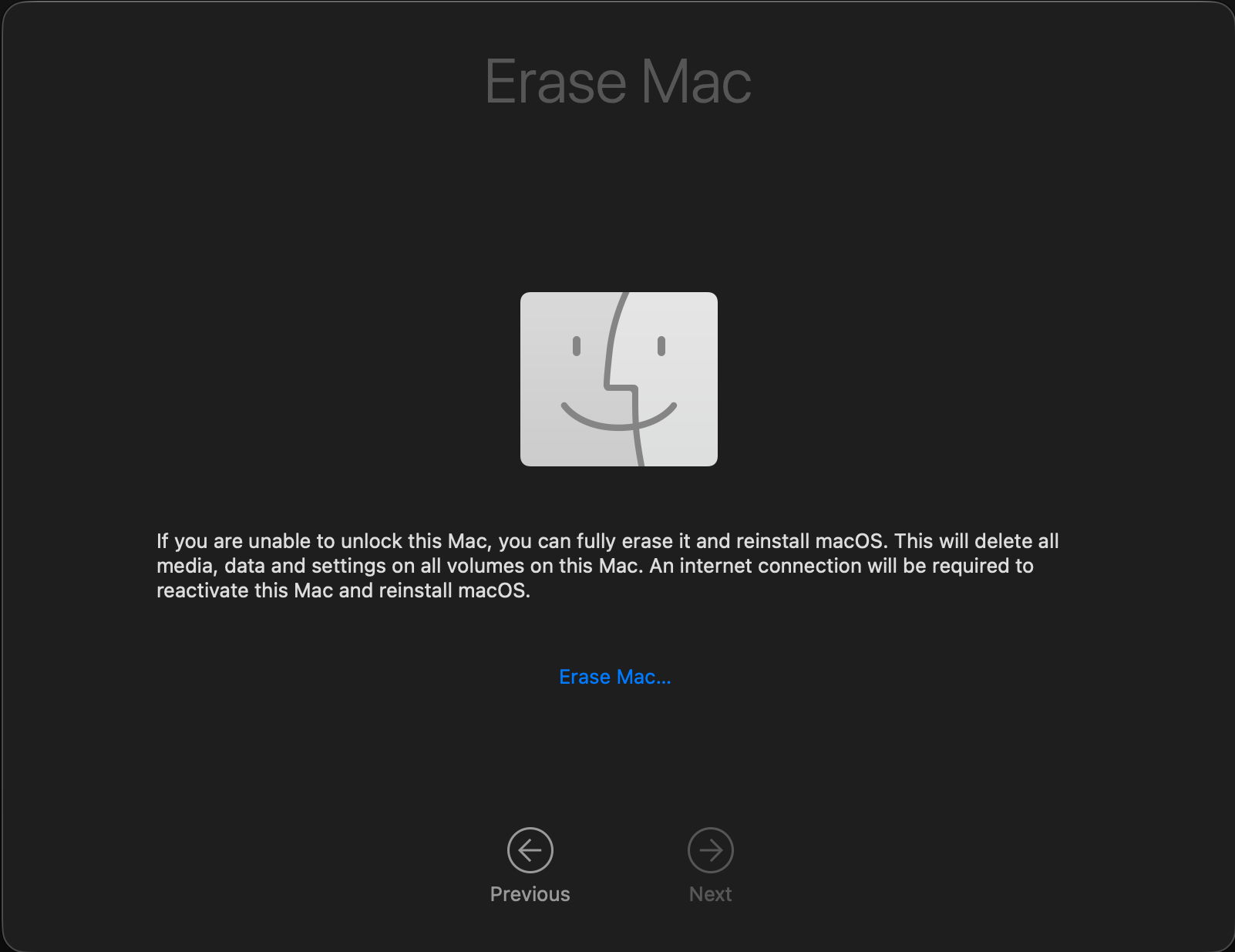
Repair Assistant’s substitute for an About window provides details of your Mac, including its serial number, and the version of macOS. Its QR code (lightly defaced here) simply provides the serial number in an accessible way.

This is a huge improvement on Apple Diagnostics, but there’s one slight glitch. Previous results from diagnostic testing were recorded in the Diagnostics section of System Information, but not those from Repair Assistant.

I was very surprised to come across this in macOS 26.3 when only intending to take a quick screenshot of Diagnostics. Although I was aware that a Repair Assistant had been rumoured prior to the release of Tahoe, I had thought that was only intended to help service engineers authorise some replacement parts that needed to be recognised by the Mac. I can still find no mention of how Repair Assistant replaced Apple Diagnostics five months ago.

Apple’s own documentation is as unhelpful as ever and unusually vague. It does refer to the version of Apple Diagnostics used depending “on your Mac, the version of macOS that it’s using, and whether certain parts of your Mac have been repaired or replaced”, but complete replacement was unexpected. The closest that note comes to its description is that “in macOS Tahoe 26 and later, you’re asked to choose a specific diagnostic to run, such as a diagnostic for your built-in display, keyboard, or trackpad. In earlier versions of macOS, this is automatic.”

It’s almost as if the author of that note had never used or seen Repair Assistant, and was basing that account on something overhead in passing. And that article is dated 19 December 2025.

Although Apple forgot to tell you about it five months ago, let me break the news that macOS 26 Tahoe brings a completely new and redesigned replacement for Apple Diagnostics in Apple silicon Macs. I’m impressed with it, and sorry I’ve only just caught up.

Explainer: % CPU in Activity Monitor

The faster and more sophisticated the CPUs in our Macs get, the more anguished we get over their activity and performance. While there are alternatives that can display measurements of CPU activity in the menu bar and elsewhere, the most available tool is Activity Monitor. This article explains what it displays as % CPU, and how that needs careful interpretation.

Activity Monitor

The CPU view in Activity Monitor samples CPU and GPU activity over brief periods of time, displays results for the last sampling period, and updates those every 1-5 seconds. You can change the sampling period used in the Update Frequency section of the View menu, and that should normally be set to Very Often, for a period of 1 second.

This was adequate for many purposes with older M-series chips, but thread mobility in more recent chips can be expected to move threads from core to core, and between whole clusters, at a frequency similar to available sampling periods. That loses detail as to what’s going on in cores and clusters, and may give the false impression that a single thread is running simultaneously on multiple cores.

However, sampling frequency also determines how much % CPU is taken by Activity Monitor itself. While periods of 0.1 second and less are feasible with the command tool powermetrics, in Activity Monitor they would start to affect its results. If you need to see finer details, then you’ll need to use Xcode Instruments or powermetrics instead.

% CPU

The heart of the CPU view is what Activity Monitor refers to as % CPU, defined as the “percentage of CPU capability that’s being used by processes”. As far as I can tell, this is essentially the same as active residency in powermetrics, and it’s central to understanding its strengths and shortcomings.

Take a CPU core that’s running at 1 GHz. Every second it ‘ticks’ forward one billion times. If an instruction were to take just one clock cycle, then it could execute a billion of those every second. In any given second, that core is likely to spend some time idle and not executing any instructions. If it were to execute half a billion instructions in any given second, and spend the other half of the time idle, then it has an idle residency of 50% and an active residency of 50%, and that would be represented by Activity Monitor as 50% CPU. So a CPU core that’s fully occupied executing instructions, and doesn’t idle at all, has an active residency of 100%.

Expressed more formally, residency is the percentage of time a core is in a specific state. Idle residency is thus the percentage of time that core is idle and not processing instructions. Active residency is the percentage of time it isn’t idle, but is actively processing instructions. Down residency, a feature of more recent cores, is the percentage of time the core is shut down. All these are independent of the core’s frequency or clock speed.

To arrive at the % CPU figures shown in Activity Monitor, the active residency of all the CPU cores is added together. If your Mac has four P and four E cores and they’re all fully occupied with 100% active residency each, then the total % CPU shown will be 800%.

Cautions

There are two situations where this can be misleading if you’re not careful.

Intel CPUs feature Hyper-threading, where each physical core acquires a second, virtual core that can also run at another 100% active residency. In the CPU History window those virtual cores are shown with even numbers, and in % CPU they double the total percentage. So an 8-core Intel CPU then has a total of 16 cores, and can reach 1,600% when running flat out with Hyper-threading.

coremanintel

This eight-core Intel Xeon runs a short burst with full Hyper-threading, during which it gains the eight virtual cores seen on the right. According to the % CPU in Activity Monitor shown below, it was then running at over 1,000%.

cpuendstop

The other situation affects Apple silicon chips, as their CPU cores can be run at a wide range of different frequencies under the control of macOS. However, Activity Monitor makes no allowance for their frequency. When it shows a core or total % CPU, that could be running at a frequency as low as 600 MHz in the M1, or as high as 4,512 MHz in the M4, nine times as fast. Totalling these percentages also makes no allowance for the different processing capacity of Performance and Efficiency cores.

Thus an M4 chip’s CPU cores could show a total of 400% CPU when all four E cores are running at 1,020 MHz with 100% active residency, or when four of its P cores are running at 4,512 MHz with 100% active residency. Yet the P cores would have an effective throughput of as much as six times that of the E cores. Interpreting % CPU isn’t straightforward, as nowhere does Activity Monitor provide core frequency data.

tuneperf1

In this example from an M4 Pro, the left of each trace shows the final few seconds of four test threads running on the E cores, where they took 99 seconds to complete at a frequency of around 1,020 MHz, then in the right exactly the same four test threads completed in 23 seconds on P cores running at nearer 4,000 MHz. Note how lightly loaded the P cores appear, although they’re executing the same code at almost four times the speed.

Threads and more

For most work, you should display all the relevant columns in the CPU view, including Threads and GPU.

tuneperf2

Threads are particularly important for processes to be able run on multiple cores simultaneously, as they’re fairly self-contained packages of executable code that macOS can allocate to a core to run. Processes that consist of just a single thread may get shuffled around between different cores, but can’t run on more than one of them at a time.

Another limitation of Activity Monitor is that it can’t tell you which threads are running on each core, or even which type of core they’re running on. When there are no other substantial threads active, you can usually guess which threads are running where by looking in the CPU History window, but when there are many active threads on both E and P cores, you can’t tell which process owns which thread.

Beachballing

A common mistake is to assume that high % CPU is somehow related to the appearance of a spinning beachball pointer. Although they can be related, they tell you different things about threads, processes and apps.

spinningbeachball

If you look in the Force Quit Applications window when an app is spinning a beachball, it doesn’t tell you anything about how much % CPU the app is taking, merely that the app is unresponsive. The most common cause of that is when the app’s main thread is too busy with a task to check in with macOS periodically.

All apps have a main thread, and many also have additional threads that handle time-consuming or computationally-intensive work. In most cases, well-written apps will avoid the main thread getting bogged down and unresponsive. One of the most common examples of this is with connections to remote sites. If those are handled in the main thread, then the whole app could be waiting for a slow-responding server to deliver its data, during which the app will be unresponsive, and macOS displays the spinning beachball.

The solution there is to handle the Internet connection asynchronously, allowing the main thread to get on with interacting with the user. When a background thread receives its data from the remote server, it can then update the main thread with that information.

Sometimes time-consuming tasks have to be handled in the main thread, and there may be no way to avoid unresponsiveness, but those are unusual if not exceptional now. At the same time, the appearance of the spinning beachball doesn’t mean that app has crashed or frozen, and it may well just be trying to get on with its work as well as it can in the circumstances.

It’s easy for an app to spin the beachball when it’s taking far less than 100% CPU, and many apps that can take over 500% in the right circumstances should remain fully responsive throughout.

Key points

  • % CPU is the percentage of time that CPU core isn’t idle, but is actively processing instructions. It takes no account of core type or frequency.
  • Total % CPU is the total of all individual values for CPU cores, and a maximum of 100% times the number of cores. For a chip with 8 cores, maximum total % CPU is 800%.
  • This can become confused in Intel CPUs with Hyper-threading, as that adds another set of virtual cores.
  • Apple silicon CPU cores operate at a wide range of frequencies, which aren’t taken into account in % CPU.
  • High % CPU is completely different from what happens when an app spins the beachball, which is the result of the app’s main thread becoming unresponsive.
  • An app can spin the beachball when its total % CPU is relatively low, and an app with a high total % CPU may remain highly responsive.

Last Week on My Mac: Why E cores make Apple silicon fast

If you use an Apple silicon Mac I’m sure you have been impressed by its performance. Whether you’re working with images, audio, video or building software, we’ve enjoyed a new turn of speed since the M1 on day 1. While most attribute this to their Performance cores, as it goes with the name, much is in truth the result of the unsung Efficiency cores, and how they keep background tasks where they should be.

To see what I mean, start your Apple silicon Mac up from the cold, and open Activity Monitor in its CPU view, with its CPU History window open as well. For the first five to ten minutes you’ll see its E cores are a wall of red and green with Spotlight’s indexing services, CGPDFService, mediaanalysisd, BackgroundShortcutRunner, Siri components, its initial Time Machine backup, and often an XProtect Remediator scan. Meanwhile its P cores are largely idle, and if you were to dive straight into using your working apps, there’s plenty of capacity for them to run unaffected by all that background mayhem.

handecpuhistory

It’s this stage that scares those who are still accustomed to using Intel Macs. Seeing processes using more than 100% CPU is terrifying, because they know that Intel cores can struggle under so much load, affecting user apps. But on an Apple silicon Mac, who notices or cares that there’s over a dozen mdworker processes each taking a good 50% CPU simultaneously? After all, this is what the Apple silicon architecture is designed for. Admittedly the impression isn’t helped by a dreadful piece of psychology, as those E cores at 100% are probably running at a frequency a quarter of those of P cores shown at the same 100%, making visual comparison completely false.*

This is nothing new. Apple brought it to the iPhone 7 in 2016, in its first SoC with separate P and E cores. That’s an implementation of Arm’s big.LITTLE announced in 2011, and development work at Cray and elsewhere in the previous decade. What makes the difference in Apple silicon Macs is how threads are allocated to the two different CPU core types on the basis of a metric known as Quality of Service, or QoS.

As with so much in today’s Macs, QoS has been around since OS X 10.10 Yosemite, six years before it became so central in performance. When all CPU cores are the same, it has limited usefulness over more traditional controls like Posix’s nice scheduling priority. All those background tasks still have to be completed, and giving them a lower priority only prolongs the time they take on the CPU cores, and the period in which the user’s apps are competing with them for CPU cycles.

With the experience gained from its iPhones and other devices, Apple’s engineers had a better solution for future Macs. In addition to providing priority-based queues, QoS makes a fundamental distinction between those threads run in the foreground, and those of the background. While foreground threads will be run on P cores when they’re available, they can also be scheduled on E cores when necessary. But background threads aren’t normally allowed to run on P cores, even if they’re delayed by the load on the E cores they’re restricted to. We know this from our inability to promote existing background threads to run on P cores using St. Clair Software’s App Tamer and the command tool taskpolicy.

This is why, even if you sit and watch all those background processes loading the E cores immediately after starting up, leaving the P cores mostly idle, macOS won’t try running them on its P cores. If it did, even if you wanted it to, the distinction between foreground and background, P and E cores would start to fall apart, our apps would suffer as a consequence, and battery endurance would decline. Gone are the days of crashing mdworker processes bringing our Macs to their knees with a spinning beachball every few seconds.

If seeing all those processes using high % CPU can look scary, the inevitable consequence in terms of software architecture might seem terrifying. Rather than building monolithic apps, many of their tasks are now broken out into discrete processes run in the background on demand, on the E cores when appropriate. The fact that an idle Mac has over 2,000 threads running in over 600 processes is good news, and the more of those that are run on the E cores, the faster our apps will be. The first and last M-series chips to have only two E cores were the M1 Pro and Max, since when every one has had at least four E cores, and some as many as six or eight.

Because Efficiency cores get the background threads off the cores we need for performance.

* For the record, I have measured those frequencies using powermetrics. For an M4 Pro, for example, high QoS threads running on the P cores benefit from frequencies close to the P core max of 4,512 MHz. Low QoS threads running on the E cores are run at frequencies close to idle, typically around 1,050 MHz. However, when the E cores run high QoS threads that have overflowed from the P cores, the E cores are normally run at around their maximum of 2,592 MHz. By my arithmetic, 1,050 divided by 4,512 is 0.233, which is slightly less than a quarter. Other M-series chips are similar.

Apple silicon Macs have 2 types of Thunderbolt ports

If you have an Apple silicon Mac, take a look at its Thunderbolt ports and you’ll see that, other than being marked with the Thunderbolt lightning symbol, they all look identical. In fact they’re not: one of them is different from the others, although nothing in or on your Mac will tell you that. One of them is the DFU port, and works differently.

Why two types?

Apple designed these new Macs to provide two important features that depend on how their Thunderbolt ports work:

  • the ability to start up in a special Boot ROM mode to allow them to connect to another Mac and have the entire contents of their internal SSD replaced, giving them a new set of firmware and setting them back to factory condition in a Restore process;
  • the ability to start up from a bootable external disk while remaining in Full Security mode.

Neither of those is available in Intel Macs with T2 chips.

Because starting up using the Boot ROM alone can only support a plain USB-C and not Thunderbolt connection, that Device Firmware Update or DFU mode uses a Thunderbolt port that also supports DFU. However, as a result that port isn’t able to operate fully with a bootable external disk. Hence, every Apple silicon Mac has one Thunderbolt port designated as its DFU port. That’s used to connect it to another Mac when in DFU mode, but can’t be used to install or update macOS on a bootable external disk.

Apple hasn’t explained how the DFU port is different. My speculation is that the Boot ROM directly runs a simple protocol over USB-C for compactness of code, and to ensure it’s less prone to hacking using malicious devices such as those available for Thunderbolt. In contrast, secure protocols using LocalPolicy to enable starting up from an external system could rely on features that are intentionally blocked for DFU mode. The end result is that, while the DFU port works fine in all other respects, and has full USB4 and Thunderbolt 4/5 support, it can’t be used to make an external disk bootable, nor to update macOS on an external disk that’s already bootable.

Identification

The DFU port appears identical to other USB-C ports and has no marking.

System Information and other utilities in macOS don’t provide any information about DFU ports.

The Mac User Guide provided in the Tips app describes the ports on different Macs without making any mention of the DFU port. It contains no relevant information about creating a bootable external disk (except as a bootable installer), or the use of DFU mode.

Apple has published a support note aiming to identify DFU ports on both Apple silicon and T2 Macs, its current version dating from 4 November 2025. However, the information given in that may not be correct, at least for the MacBook Pro 16-inch 2024. According to Apple, the DFU port on a MacBook Pro 16-inch is “the USB-C port furthest to the left when you’re facing the left-hand side of the Mac”. However, Jeff Johnson has reported the DFU Port on his MacBook Pro M4 Pro 16-inch 2024 appears to be on the right side of its case, not the left.

The original version of that support note appears to have been published on 9 December 2024, four years after the release of the first Apple silicon Macs, and almost seven years after the first Intel Macs with T2 chips. When I discovered it in January 2025, I found it internally inconsistent, “for instance, it shows the DFU port as being that on the left of the left side of a MacBook Pro, but states in the text that on a MacBook Pro 14-inch 2024 with an M4 chip, the DFU port is that on the right of the left side instead.” It has since been updated.

There may be an empirical method of discovering the DFU port using System Information, though. This has been tested on at least a dozen different Apple silicon Macs and has held good so far. In the Hardware section, select the Thunderbolt/USB4 item to list each of its buses. In that list at the top, select Bus 0, and below that you should see its details, including those of the Port, where there will be a Receptacle number, starting from 1. As far as I can tell, Receptacle 1 is normally that for the DFU port.

Having identified which of the buses feeds Receptacle 1, the remaining task is to correlate that with the physical port on your Mac. If you already have a device connected to Receptacle 1, you can identify that from the details given below. On my Mac mini, its backup SSD is connected to Receptacle 1, making it simple to see on the case which is the DFU port.

Use

When connecting an Apple silicon Mac in DFU mode using a USB-C cable, that must be connected to the DFU port on that Mac. If a different port is used, the connection is almost certain to fail.

When connecting an external boot disk to an Apple silicon Mac, for that to work fully as expected, it must be connected to a port other than the DFU port. Although the Mac can still boot from an external disk connected to the DFU port, that can’t be used when installing or updating macOS on the external disk, including when creating it, or in other procedures where LocalPolicy for that disk may need to be created or changed.

Intel Macs with T2 chips

DFU ports aren’t unique to Apple silicon Macs, and are also designated for Intel models with T2 chips. However, their impact is then more limited:

  • DFU mode is used more rarely, and only to restore current firmware, rather than perform the full restore process available on Apple silicon Macs;
  • external bootable disks don’t rely on LocalPolicy, and are installed and used differently as a result.

Recommendations

  • Discover which of your Apple silicon Mac’s Thunderbolt ports is its DFU port.
  • Use that port to connect it in DFU mode.
  • Use any other port when creating a bootable external disk, installing or updating macOS on it, or performing any operation that might create or change LocalPolicy. When possible, it’s simplest to avoid connecting the disk to the DFU port.
  • Apple should check and correct, as necessary, information on the DFU port on the MacBook Pro M4 Pro 16-inch 2024.
  • System Information should explicitly identify the DFU port on all Apple silicon Macs.
  • Future Macs should identify the DFU port on their case.

Is your Mac dead, in DFU mode, or alive?

You pressed the Power button on your Mac, and nothing happened. It didn’t show signs of starting up, so is it dead, or just pretending? The distinction might seem obvious until you consider DFU mode.

Power reaching the Mac, no sign of life

Simple mains/AC power problems have caught many out: if your Mac isn’t showing any signs of life when it should, ensure that power is reaching it in the first place. Never put yourself at any risk of coming into contact with any live cable, though. Good checks are to verify that the mains socket/receptacle delivers power correctly to another system, and that the Mac’s power cable also does its job. If you’re in any doubt about the electrical safety of either, stop immediately, make everything safe, and obtain professional advice.

If you’re confident that power is going into your Mac, the next and more difficult question is whether the Mac’s hardware is dead, or it has entered DFU mode. DFU mode is the fallback for all Apple silicon Macs that encounter a problem early in the boot process, whether it’s in ROM or later stages before the kernel starts. This also applies to Intel T2 Macs that encounter problems when loading iBridge firmware for their T2 chip, as explained below.

Is it in DFU mode?

Most Apple silicon Macs and T2 models that have entered DFU mode show no obvious signs of life. This is even true of MacBook Pro models with MagSafe 3 power cables: in DFU mode, their LED doesn’t light up. Neither will a notebook keyboard light, nor is there normally any indication that a built-in display has power. Built-in trackpads also feel dead.

Notable exceptions to this are:

  • Mac Studio and Mac mini, whose power status indicator light should display amber;
  • Mac Pro, whose status indicator light should display amber and may flash.

For all models, once they have connected successfully to a second Mac in DFU mode, you should see the Apple logo and a progress bar on any connected display during IPSW download.

For the Mac Pro, the status indicator light will flash amber in different patterns as a result of memory, PCIe card and other faults. Apple explains those separately for the Mac Pro 2019 and Mac Pro 2023.

DFU mode is detailed by Apple in this support note.

Spontaneously entering DFU mode should be a very rare event, but in most cases the only way to determine whether it has happened is to connect the Mac using an appropriate USB cable to another Mac running recent macOS, which should then connect to the Mac that’s in DFU mode. If that’s suspected, try a firmware Refresh in the first instance to see if that occurs, as that’s non-destructive of the internal SSD’s contents.

Connecting the Macs requires attention to detail. The cable used should be capable of transferring data via USB-C but not Thunderbolt. This is a limitation imposed by DFU mode, and must be observed if the Macs are to connect. That should be connected to the DFU port on the dead Mac, one of its USB-C+Thunderbolt ports. Apple lists those here, and they’re given in MacTracker.

If you aren’t sure, or can’t connect a suitable Mac, it may be best to assume that it’s in DFU mode, and shut it down with a 10 second press of the Power button. On a laptop, DFU mode should use very little power, as there’s normally only one CPU core running and little else. However, as that Mac can’t be charged in DFU mode, this could eventually lead to discharge of the battery.

Not in DFU mode

If there are no signs of life and the Mac isn’t in DFU mode, then it has most probably suffered a fatal hardware failure, and needs the attention of an authorised Apple service provider. If it shows no signs of life in response to a normal press of the Power button, then it’s extremely unlikely to start up in Recovery mode to let you run Diagnostics there.

Signs of life

If the Mac shows signs of life, the next question is how far it proceeds with the boot process:

  • It doesn’t reach the login window
    • because it freezes and fails to make any further progress, perhaps displaying the Apple logo and progress bar, but no further;
    • because it enters a boot loop, in which a kernel panic occurs during boot, forcing the Mac to restart, or to shut down, only to repeat the same sequence.
  • It reaches the login window, but sticks there.
  • The login window allows user selection and password entry, but refuses any further progress.
  • Login is successful, but the Mac freezes or reboots shortly afterwards.
  • Login is successful, and problems occur later.

That determines whether you can get it to start up in Recovery mode, and gain access to the tools it provides.

Boot processes

BootProcess

Once a T2 Mac has performed its Power-On Self-Test (POST) and initialised the SMC, the T2 sub-system establishes the level of Secure Boot in force, and, if that’s Full or Medium Security, boot.efi is checked before being loaded, and that leads through to the rest of the boot process. Apple provides a key to the different screens that can appear during these stages.

Boot security in Apple silicon Macs aims to provide a verified chain of trust through each step in the boot process to the loading of macOS, that can’t be exploited by malicious components. Booting an M-series Mac thus starts with the immutable Boot ROM in the hardware, whose most important task is to verify the executable for the next stage, then load and run it. If that isn’t possible, then the fallback is to go into DFU mode and await a connection over USB.

SecureBootM1v2fw

In the event of early boot failure, the only recourse seems to be to abandon the process, and leave the Mac in DFU mode, although Macs running Tahoe could now enter Recovery Assistant to try to fix the problem.

What happens in early kernel boot on Apple silicon?

Secure Boot on an Apple silicon Mac is unlike anything you’ve seen in the past, sequences that start from the Boot ROM, and progress through two levels of ‘firmware’ before even loading the kernel. This article tries to explain its main stages up to the point that OpenDirectory is started, about 10 seconds after pressing the Power button.

The first three stages are essentially the same, whether the Mac is starting up from macOS on its internal SSD, or from a copy installed on external storage:

  1. The Boot ROM, which is in the hardware, and can’t be changed. In this context, its most important task is to verify the executable for the next stage, load and run it. If that isn’t possible, then the fallback is to go into DFU mode and await a connection over USB.
  2. The Low-Level Bootloader, LLB, to verify and read stored security settings, and locate and verify the software for the next stage, then hand over to it. This is stored in dedicated Flash memory, and relies on LocalPolicy and other files stored in protected areas on the internal SSD.
  3. iBoot or iBoot Stage 2, popularly but incorrectly called the ‘firmware’, has to verify a set of hashes used to guarantee the integrity of key information, by comparing a stored copy of the hash against a hash of that hash, termed its signature. Among those is the root hash of the Signed System Volume (SSV), but iBoot doesn’t attempt to access the SSV or its hashes, merely passing on the verified root hash for the kernel to use later. Once it has completed those checks, iBoot verifies, loads and runs the macOS kernel.

Kernel boot (5.3 seconds)

These stages leave little evidence of what takes place, as they don’t write to the log. Instead they leave terse binary data known as breadcrumbs that may be found in NVRAM. The only log entries for them are the initial announcement, and the start of the kernel phase. Throughout this article, I quote these from macOS 26.2 in Full Security mode on a Mac mini M4 Pro, with the Power button being pressed at about 0.0 seconds.
0.24 === system boot: F5BD2102-F86A-4823-8FF9-A4535295F9FA
5.30 kprintf initialized

The kernel takes over from iBoot at about 5.3 seconds, and reports its version, in this case Darwin Kernel Version 25.2.0. The log stream is configured, and the iBoot versions are given. It then starts running up security systems, including CoreCrypto, and loads security policy with Apple Mobile File Integrity (AMFI) and Seatbelt sandbox policy (Sandbox).

Early hardware (5.6 seconds)

Then the kernel enters its main phase for starting hardware and its services. First are AppleT6041ANEHAL and IOAccessoryManager, followed by IOThunderboltFamily. Some of these are still security-related, including AppleCredentialManager and a long series of initialisation for the Secure Enclave, beginning with the detailed
5.696 "AppleSEPKeyStore":pid:0,:327: starting (BUILT: Nov 18 2025 20:56:29) ("normal" variant 🌽 , 2155.60.14)
KernelBluetoothFamily starts at about 5.7 seconds, and AppleT6040PCIeC shortly afterwards.

At 5.71 seconds AppleARMWatchdogTimer is started to keep an eye on processes that become unresponsive, and that’s followed by the traditional copyright notice that has been there since the first Mac OS X:
5.712 Copyright (c) 1982, 1986, 1989, 1991, 1993 The Regents of the University of California. All rights reserved
a reminder of long-past history.

That’s followed by the start of RTBuddy, AppleSMC and at 5.836 seconds AppleSEPManager. RTBuddy provides communications support to the real-time operating system RTKit that’s run on the co-processors and support cores within the SoC, believed to include the Apple Neural Engine (ANE), Display Coprocessor (DCP), NVMe controller, and System Management Controller (SMC). RTBuddy messages are then frequent throughout the log during the kernel phase.

CPU cores (6.1 seconds)

Up to this point, the kernel has been running on a single CPU core, but by about 6 seconds it’s time to start up all the CPU cores one by one. This occurs by cluster, starting with cluster 0 of E cores, followed by the P cluster(s) in numeric order.

Once those are running, APFS and NFS are loaded and started, the former in an entry giving version details:
6.130 apfs_module_start:3677: load: com.apple.filesystems.apfs, v2632.40.17, apfs-2632.40.17, 2025/11/18
Gatekeeper is enabled, and AppleSystemPolicy started. Despite the implications of its name, the Always-On Processor (AOP) is then readied with its SMC service.

File system (6.3 seconds)

At 6.315 seconds, APFS starts its work accessing the three containers in the SSD, disk0s1, disk0s2 and disk0s3. It then gets the boot device, declares it as BSD root: disk3s1 and starts to mount the SSV. That may seem paradoxical, as by this time the kernel from the SSV has been running for over a second, but that was loaded by iBoot, together with the kernel extensions it requires. Similarly, the NVRAM is prepared for use by deleting nonce seeds, writing breadcrumbs from the previous boot phases, etc.

APFS continues to mount volumes, including Recovery at disk3s3 and the macOS Base System. The OS run by the Secure Enclave Processor, SEP/OS, is declared alive at 6.37 seconds, and the SEP is then preparing.

Userspace boot (6.4 seconds)

This is declared at 6.375 seconds, and the kernel then attempts to load launchd. Additional volumes are mounted from 6.8 seconds, including VM, Preboot, Update, xART, ISCPreboot and Hardware.

With the SEP running, BiometricKit is started at 8.788 seconds. At about 9 seconds, APFS tries to mount the Data volume at disk3s5, but that can only be successful if FileVault isn’t enabled, so that fails, and has to await the loginwindow and the user password entered there. At 9.429 seconds, a long list of boot tasks is given.

At 9.875 seconds, OpenDirectory is started, followed by the first of two wallclock time adjustments
=== system wallclock time adjusted
at which point all log times are adjusted accordingly.

By this stage, 10 seconds after the Power button was pressed, the kernel and other processes that are just about to start up have access to the hidden containers and volumes, and the SSV, but not the Data volume (unless FileVault is disabled). Logs are most probably stored in memory until they can be written to the Data volume, and none of the settings or processes on that can be read. Those all require the user to unlock the Data volume.

There’s a superbly detailed account of security aspects in this article.

Clean install macOS

Back in the days when macOS had just a single volume containing both the system and user data, clean installing (or re-installing) macOS was popular, and often performed when upgrading to the next major version of macOS. Since then we’ve been given separate but firmlinked System and Data volumes, and in Apple silicon Macs two extra hidden containers. This article explains how you can make the best use of your Mac’s features to perform a clean install.

What do you want to ‘clean’?

Before going any further, you have to decide exactly what you want to ‘clean’ when installing. Choose one or more of the following:

  • Data volume
  • System volume (SSV)
  • firmware (Apple silicon).

If there are problems with user data or settings, then the first may well suffice. If you also want to return to a fresh copy of macOS, which might be an older version, then you’ll need to perform the first two. If you want to go the whole hog, then on Apple silicon Macs you can also install a fresh set of firmware. You also need to take into account whether the new version of macOS will be the same major version, or you want to revert to an older version of macOS, in a downgrade.

As each of these methods will wipe all your user data, prepare by making at least one full backup, then de-authorising that Mac for Apple media in one of the media apps like Music or TV. When you’re happy you’ve got everything you need to restore your documents and data, proceed as described below.

Data volume alone

Provided your Mac has a T2 or Apple silicon chip, destroying the current data volume is both quick and simple using EACAS. Open System Settings > General > Transfer or Reset and Erase All Content and Settings. That works by destroying the volume encryption key for the Data volume, so occurs almost instantly, and without adding many erase-write cycles to age your Mac’s SSD. Once that’s complete, starting your Mac up will take you through personalisation and setup, as if it were new, and the opportunity to migrate your user data from a backup or copy.

System and Data volumes

If this is an Apple silicon Mac, and you have a second Mac and a suitable cable, first consider performing a Restore in DFU mode (below), as that often proves quicker and simpler.

If it’s an Intel Mac, or you can’t, or don’t want to, restore in DFU mode, then you can still erase the System and Data volumes of the boot volume group in Recovery mode. Erasing those volumes is straightforward in Disk Utility: select the volume group, normally named Macintosh HD, and click on the Erase tool.

cleaninstall1

You’ll then be warned that you’re about to erase a volume group, and invited to set its new name and format. Once that has completed, the procedure differs according to whether this is an Intel or Apple silicon model. For Intel Macs with T2 chips, you should proceed to install macOS in Recovery mode. Apple recommends a slightly different procedure for Apple silicon Macs, where you should be invited to Erase and Restart. Once it has restarted, the Mac will try to activate itself over its Wi-Fi with Apple, then you should return to Recovery Utilities where you can install macOS.

Note this procedure doesn’t wipe and reinstall the Preboot or Recovery volumes in the boot volume group; to do that, you’ll need to restore in DFU mode.

You should never try to erase either the System or Data volume alone, because of their mutual firmlinks. If you want to install a fresh System, then start your Mac up in Recovery mode and use the Reinstall macOS feature there to install a fresh copy. However, that will be bit-for-bit identical to any other copy of that version of macOS, whether it has been installed using the Installer app, updated from a previous version, or installed as part of a restore in DFU mode. That’s guaranteed by its signature, and checked every time your Mac starts up.

System downgrade

Installing the same major version of macOS that was installed previously can be performed directly. In the case of the current release of macOS, that’s readily available in Recovery mode. Apple provides the following rules for the version that should then be installed.

For Apple silicon Macs,

  • the current version of the most recently installed major version of macOS
  • if you have just upgraded macOS, then erased the boot volume group in Recovery, “you may get” the version of macOS that was running before that upgrade.

For Intel Macs,

  • if you entered Recovery using Command-R, the current version of the most recently installed major version of macOS
  • if you entered using Command-Option-R, “you may get” the latest version of macOS compatible with that Mac
  • if you entered using Command-Option-Shift-R, “you may get” the version of macOS installed when your Mac was new, or the closest version now available.

Installer apps for previous major versions of macOS often can’t be run from within a more recent version. The way to work around that is to create a bootable installer disk, most commonly a ‘thumb’ drive, although a partition on a hard disk or SSD may be more convenient. That still needs to be formatted as an HFS+ volume, and Apple provides detailed instructions in this article. Before trying that with an Intel Mac with a T2 chip you’ll need to start it up in Recovery, open Startup Security Utility, and enable it to start up from external disks.

External bootable installers work differently with Apple silicon Macs, as they don’t actually perform a full boot from them, but will run and install them from Recovery mode.

Deep clean

On an Apple silicon Mac, you can install fresh firmware and wipe and replace both System and Data volumes using a DFU Restore, described here. Apple has improved that from Sonoma onwards, as it’s no longer necessary to use Apple Configurator 2 on the Mac that’s performing this, but it can all be done in the Finder. To do that, you’ll need another Mac to perform the restore process, and a USB-C data cable to connect the two of them. Don’t try using a Thunderbolt cable, though, as it won’t work. Another secret for success is to plug that cable into the target Mac’s DFU port, that designated to support DFU connections.

Restoring in DFU mode replaces the Mac’s firmware, erases the boot volume group, and installs the bundled version of macOS, leaving that Mac in the same condition in which it was delivered to its first user, with a fresh copy of macOS ready to be personalised and set up. Although that part of the process is fairly quick, full migration is then required before user applications and documents are available. The great advantage of restoring is that you can pick which version of macOS and its firmware are installed from the list provided by Mr. Macintosh, and elsewhere.

Summary

  • Decide how extensive the cleaning should be, Data or System volumes, or firmware.
  • When possible, use EACAS to wipe the Data volume.
  • On an Apple silicon Mac, if you want to clean deeper, consider restoring in DFU mode.
  • In other cases, erase the System and Data volumes in Recovery mode.
  • If downgrading macOS to an older major version, you may need to install that from an external bootable installer.

Should you restart or cold boot?

There are two ways to restart a Mac that’s already running: you can either use the Apple menu command Restart (or an equivalent in Terminal), or you can shut it down, leave it a few seconds, and start it up afresh in what’s known as a cold boot. This article examines whether there’s any difference, and which you should prefer.

Differences

When a desktop Mac starts up from cold, its power supply starts providing power to its internal components, and when the boot process starts they are all initialised from their power-off state. There’s one small exception to that in the internal clock, possibly part of the Always On Processor (AOP) in Apple silicon Macs.

It’s commonly held that a regular (or warm) restart doesn’t interrupt the power supplied to internal components, as Intel Macs may not undergo power-on self-testing (POST) when only restarted. That doesn’t appear to be correct, though, as it’s easily demonstrated that Intel Macs with T2 chips do undertake a POST during a restart. Apple silicon Macs don’t appear to perform a similar form of POST. Neither does there appear to be any difference for peripherals, which are shut down before being started up again whether the Mac is booted warm or cold.

It’s also most unusual to attempt a true cold boot, particularly in a laptop. To remove all power from a desktop Mac requires it to be disconnected from its mains power supply, and for a laptop the internal battery also needs to be isolated or removed, something only performed during service by a technician.

What is clear is that the period during which power is turned off is very different: during a warm restart that’s only a second or two.

Received wisdom is that this allows data to be retained in memory through a warm restart, but that it’s wiped clean after a cold boot. This was first documented by Alex Halderman and others, who used it to perform ‘cold boot’ attacks to recover encryption keys. They demonstrated that RAM contents were still recoverable many seconds after shutting down, and could be used to recover encryption keys and other critically secure data. A great deal has changed since that research was undertaken. As far as the protection of secrets is concerned, all modern Macs have secure enclaves and use Extended Anti-Replay Technology (xART) to prevent that.

It’s thus plausible that there could be some differences in hardware between a restart and a cold boot, but careful comparison of log entries during booting from a Mac’s internal SSD fails to reveal any significant differences there.

How long to wait?

There appears to be no useful evidence for recent and current Macs to determine how long you should wait between shutdown and a cold boot. Periods given range widely, from a few seconds to a minute or more.

Experience

There are many reports of cold boots resolving problems that weren’t affected by a warm restart, but those are generally if not exclusively for Intel Macs, and most usually those without T2 chips.

I have only once experienced a problem in an Apple silicon Mac that required a cold boot, and that occurred a couple of years ago with a dual-boot setup that wouldn’t restart into its primary macOS on its internal SSD, but would do so when started up with a cold boot.

Cold booting is sometimes recommended following more severe problems, such as a freeze or kernel panic. As the normal way to recover from a frozen Mac is to force shutdown using the Power button, there is no option other than a cold boot. Kernel panics should normally result in an automatic restart, the behaviour that demonstrates that a panic took place, and only after that restart is the panic confirmed in an alert, from where the panic log can be accessed. There is no option to perform a cold boot until after the restart. Apple silicon Macs are almost invariably cold booted into Recovery or Safe mode, as those require a long hold of the Power button.

Thus the choice between a restart and a cold boot is usually determined by the problem that has occurred.

Summary

  • Perform a cold boot by shutting down, waiting at least ten seconds, then starting up again.
  • A cold boot may sometimes be more effective at fixing problems than a restart.
  • If you have tried restarting your Mac to address a problem and that didn’t help, try a cold boot.
  • Cold booting may be more effective at addressing problems with external boot disks, or possibly with other peripherals.
  • We don’t fully understand why a cold boot might differ in effect from a restart, but it could.
  • There is no evidence that a Mac should always, or usually, be cold-booted rather than restarted.

Can you still run old App Store apps?

In my review of apps and the validity of certificates used to sign them, I dodged the thorny issue of those apps delivered from the App Store, writing that “their signatures will remain valid as long as the developer remains a member of its Developer Program.” If you care to take a look at some of those apps using Apparency, you’ll discover that many of them have certificates that expired on 7 February 2023 at 00:00:00 GMT. This article explains why, how they should still run, but may not in the future.

As I explained, the general rule for certificates is that, once they have expired by date, they’re no longer valid. However, to ensure that third-party apps and installers can still be used after their expiry, Apple usually includes a trusted timestamp in their signature. Provided the certificate was valid at the time the app or installer was signed, then macOS should accept it as still being valid, as long as it hasn’t been revoked. But App Store apps are different again.

For reasons unknown, Apple doesn’t sign App Store apps with trusted timestamps. As a result, when its certificate expires, that app’s signature should no longer be valid, and macOS should refuse to run it on that basis. What happens in practice is that it turns a blind eye to the certificate expiry, and runs the app regardless.

What you see in the log demonstrates that. At the start of its security checks by Apple Mobile File Integrity (AMFI), securityd discovers that its certificates no longer have “temporal validity”, and fail trust evaluation:
00.701706 com.apple.securityd cert[0]: TemporalValidity =(leaf)[]> 0
00.701753 com.apple.securityd cert[1]: TemporalValidity =(leaf)[]> 0
00.703344 com.apple.securityd Trust evaluate failure: [leaf TemporalValidity] [ca1 TemporalValidity]

Those entries are repeated multiply every time that app’s trust is evaluated, including by TCC. Despite that, the app passes its Gatekeeper evaluation “due to migration”:
00.718197 com.apple.syspolicy.exec GK evaluateScanResult: 2, PST: (path: c97bd5e74b98ed79), (team: 4GXF3JAMM4), (id: (null)), (bundle_id: (null)), 0, 0, 1, 0, 9, 0, 0
00.718213 com.apple.syspolicy.exec Allowing evaluation due to migration: PST: (path: c97bd5e74b98ed79), (team: 4GXF3JAMM4), (id: (null)), (bundle_id: (null))
00.718218 com.apple.syspolicy.exec Updating flags: [private], 513

As with all other apps, a ‘ticket check’ is performed on its CDHashes, first against the local ticket cache, then against records in the CKTicketStore via CloudKit. As App Store apps aren’t normally notarised as well, looking up their ticket in the CKTicketStore should be unsuccessful. In macOS Tahoe at least, there should be no XProtect scan or further checks, and the app should proceed to launch normally.

App Store apps are signed using an Apple Mac OS Application Signing certificate, relying on the intermediate Apple Worldwide Developer Relations Certification Authority, and back to the Apple Root CA. While the latter should expire on 9 February 2035, both the signing certificate and its intermediate have shorter lifetimes:

  • Older App Store apps should have an intermediate expiry of 7 February 2023, as explained here by Apple, and more recent apps that is likely to be 10 December 2030.
  • Older App Store apps are likely to have been signed with a certificate that expired on 7 February 2023, while more recent apps are likely to expire on 12 August 2026.

None of this should affect Intel Macs, although we’re likely to see increasing numbers of App Store apps that are Arm-only and won’t run on Intel systems. However, this will become more complicated with the retirement of Rosetta 2 next year.

Apple has stated its intention that full Rosetta translation support will end with macOS 27, although it intends to retain “a subset of Rosetta functionality aimed at supporting older unmaintained gaming titles” beyond that. In practice, that means most x86 apps and command tools will stop working in macOS 28, in the autumn/fall of 2027. Apple silicon Macs will therefore continue to run Intel-only App Store apps until they are upgraded to macOS 28.

Their fallback then is to run Intel-only code in a VM running macOS 27 or earlier, as that will still be able to provide full Rosetta 2 support. Given the performance of code translated by Rosetta, and that of VMs, that’s far better than might appear. There’s one remaining problem with that, though: some App Store apps can’t run in virtualisation, as it doesn’t support connections to the App Store. Some can, and as a matter of interest the five that I used in these tests all do, although not always reliably, but others can’t. I don’t know of any reliable way of testing this other than trying it out.

Summary

  • macOS security checks ignore the expiry of certificates (including intermediates) used to sign App Store apps, and allow the app to run regardless.
  • Many App Store apps have expired certificates.
  • This shouldn’t affect Intel Macs in the future.
  • Running Intel-only App Store apps is unlikely to be supported from macOS 28 onwards, except for a limited range of unmaintained gaming titles.
  • Some Intel-only App Store apps might not run in a VM with Rosetta 2 support either.

Which cryptexes does macOS Tahoe load?

Since macOS Ventura, if not in late releases of Monterey, macOS has been loading Safari and other parts of the operating system, including dyld caches, in cryptexes, instead of installing them in the Data volume. In addition to those, Apple silicon Macs with AI enabled load additional cryptexes to support its features. I detailed those for macOS 15.5 last summer; this article updates that information for macOS Tahoe 26.2.

Cryptexes

These first appeared on Apple’s customised iPhone, its Security Research Device, which uses them to load a personalised trust cache and a disk image containing corresponding content. Without the cryptex, engineering those iPhones would have been extremely difficult. According to its entry in the File Formats Manual from five years ago (man cryptex), ‘A cryptex is a cryptographically-sealed archive which encapsulates a well-defined filesystem hierarchy. The host operating system recognizes the hierarchy of the cryptex and extends itself with the content of that hierarchy. The name cryptex is a portmanteau for “CRYPTographically-sealed EXtension”.’

In practice, a cryptex is a sealed disk image containing its own file system, mounted at a chosen location within the root file system during the boot process. Prior to mounting the cryptex, macOS verifies it matches its seal, thus confirming it hasn’t been tampered with. Managing these cryptexes is the task of the cryptexd service with cryptexctl. Because cryptexes aren’t mounted in the usual way, they’re not visible in mount lists such as that produced by mount(8).

System cryptexes

Once kernel boot is well under way, APFS mounts containers and volumes in the current boot volume group, followed by others to be mounted at startup. When those are complete, it turns to mounting and grafting the three standard system cryptexes, os.dmg containing system components such as dyld caches, app.dmg containing Safari and its supporting components including WebKit, and os.clone.dmg a clone of os.dmg that shares its data blocks with os.dmg. Grafting all three takes around 0.034 seconds, and typically occurs over 15 seconds after APFS is started, and around 25 seconds after the start of boot.

AI cryptex collection

About 5 seconds after the system cryptexes have been grafted, APFS checks and grafts a series of cryptexes primarily involved with Apple Intelligence features. These are handled one at a time in succession, and are listed in the Appendix. Typical time required to complete this collection is less than 0.5 seconds.

Ten new AI cryptexes have been added in Tahoe, and five of Sequoia’s have been removed, bringing the total including the PKI trust store from 23 to 28. Notable among the additions are:

  • language instruction support for image tokenisation
  • support for drafting replies in Messages
  • suggesting action items in Reminders
  • support for Shortcuts
  • suggesting recipe items.

Conclusions

  • Apple silicon Macs running macOS 26.2 with AI enabled load 28 additional cryptexes to support AI.
  • One cryptex is a secure PKI trust store, whose volume name starts with Creedence.
  • These cryptexes are installed and updated as part of macOS updates, although they could also be installed or updated separately, for example when AI is enabled.
  • If a Mac shows an unusual mounted volume with a name starting with Creedence or Revival, that’s almost certainly the respective disk image, which should normally be hidden and not visible in the Finder.

Appendix

Disk image names for the main AI cryptex collection in macOS 26.2 (Apple silicon):

  • UC_FM_CODE_GENERATE_SAFETY_GUARDRAIL_BASE_GENERIC_H16S_Cryptex.dmg
  • UC_FM_CODE_GENERATE_SMALL_V1_BASE_GENERIC_H16_Cryptex.dmg
  • UC_FM_LANGUAGE_INSTRUCT_300M_ADM_PROMPT_REWRITING_DRAFT_GENERIC_GENERIC_H16S_Cryptex.dmg
  • UC_FM_LANGUAGE_INSTRUCT_300M_BASE_GENERIC_GENERIC_H16S_Cryptex.dmg
  • UC_FM_LANGUAGE_INSTRUCT_300M_IMAGE_TOKENIZER_GENERIC_GENERIC_H16S_Cryptex.dmg
  • UC_FM_LANGUAGE_INSTRUCT_3B_AUTONAMING_MESSAGES_DRAFT_GENERIC_GENERIC_H16S_Cryptex.dmg
  • UC_FM_LANGUAGE_INSTRUCT_3B_BASE_GENERIC_GENERIC_H16S_Cryptex.dmg
  • UC_FM_LANGUAGE_INSTRUCT_3B_CONCISE_TONE_DRAFT_GENERIC_GENERIC_H16S_Cryptex.dmg
  • UC_FM_LANGUAGE_INSTRUCT_3B_FM_API_GENERIC_DRAFT_GENERIC_GENERIC_H16S_Cryptex.dmg
  • UC_FM_LANGUAGE_INSTRUCT_3B_FRIENDLY_TONE_DRAFT_GENERIC_GENERIC_H16S_Cryptex.dmg
  • UC_FM_LANGUAGE_INSTRUCT_3B_MAGIC_REWRITE_DRAFT_GENERIC_GENERIC_H16S_Cryptex.dmg
  • UC_FM_LANGUAGE_INSTRUCT_3B_MAIL_REPLY_DRAFT_GENERIC_GENERIC_H16S_Cryptex.dmg
  • UC_FM_LANGUAGE_INSTRUCT_3B_MESSAGES_ACTION_DRAFT_GENERIC_GENERIC_H16S_Cryptex.dmg
  • UC_FM_LANGUAGE_INSTRUCT_3B_MESSAGES_REPLY_DRAFT_GENERIC_GENERIC_H16S_Cryptex.dmg
  • UC_FM_LANGUAGE_INSTRUCT_3B_PHOTOS_MEMORIES_ASSET_CURATION_OUTLIER_DRAFT_GENERIC_GENERIC_H16S_Cryptex.dmg
  • UC_FM_LANGUAGE_INSTRUCT_3B_PHOTOS_MEMORIES_TITLE_DRAFT_GENERIC_GENERIC_H16S_Cryptex.dmg
  • UC_FM_LANGUAGE_INSTRUCT_3B_PROFESSIONAL_TONE_DRAFT_GENERIC_GENERIC_H16S_Cryptex.dmg
  • UC_FM_LANGUAGE_INSTRUCT_3B_PROOFREADING_REVIEW_DRAFT_GENERIC_GENERIC_H16S_Cryptex.dmg
  • UC_FM_LANGUAGE_INSTRUCT_3B_REMINDERS_SUGGEST_ACTION_ITEMS_DRAFT_GENERIC_GENERIC_H16S_Cryptex.dmg
  • UC_FM_LANGUAGE_INSTRUCT_3B_SHORTCUTS_ASK_AFM_ACTION_3B_DRAFT_GENERIC_GENERIC_H16S_Cryptex.dmg
  • UC_FM_LANGUAGE_INSTRUCT_3B_SHORTCUTS_ASK_AFM_ACTION_3B_V2_DRAFT_GENERIC_GENERIC_H16S_Cryptex.dmg
  • UC_FM_LANGUAGE_INSTRUCT_3B_SUGGEST_RECIPE_ITEMS_DRAFT_GENERIC_GENERIC_H16S_Cryptex.dmg
  • UC_FM_LANGUAGE_INSTRUCT_3B_SUMMARIZATION_DRAFT_GENERIC_GENERIC_H16S_Cryptex.dmg
  • UC_FM_LANGUAGE_INSTRUCT_3B_TEXT_EVENT_EXTRACTION_DRAFT_GENERIC_GENERIC_H16S_Cryptex.dmg
  • UC_FM_LANGUAGE_INSTRUCT_3B_TEXT_PERSON_EXTRACTION_DRAFT_GENERIC_GENERIC_H16S_Cryptex.dmg
  • UC_FM_VISUAL_IMAGE_DIFFUSION_V1_BASE_GENERIC_H16S_Cryptex.dmg
  • UC_IF_PLANNER_NLROUTER_BASE_EN_GENERIC_H16S_Cryptex.dmg

New cryptexes are shown in bold. When these are mounted, their volume names add the prefix RevivalB13M202xxx where xxx are ID digits for that cryptex. That prefix replaces RevivalB13M201xxx used in macOS 15.5.

Additionally, a volume is mounted as a PKI trust store, as Creedence11M6270.SECUREPKITRUSTSTOREASSETS_SECUREPKITRUSTSTORE_Cryptex.

The following cryptexes found in macOS 15.5 appear to have been removed from 26.2:

  • UC_FM_LANGUAGE_INSTRUCT_3B_DRAFTS_GENERIC_GENERIC_H16S_Cryptex.dmg
  • UC_FM_LANGUAGE_INSTRUCT_3B_TEXT_EVENT_EXTRACTION_MULTILINGUAL_DRAFT_GENERIC_GENERIC_H16S_Cryptex.dmg
  • UC_FM_LANGUAGE_INSTRUCT_3B_TEXT_PERSON_EXTRACTION_MULTILINGUAL_DRAFT_GENERIC_GENERIC_H16S_Cryptex.dmg
  • UC_FM_LANGUAGE_INSTRUCT_3B_URGENCY_CLASSIFICATION_DRAFT_GENERIC_GENERIC_H16S_Cryptex.dmg
  • UC_FM_LANGUAGE_SAFETY_GUARDRAIL_BASE_GENERIC_GENERIC_H16S_Cryptex.dmg

What’s happening with code signing and future macOS?

This year marks the twentieth anniversary of Apple’s announcement of the introduction of code signing, although it wasn’t unleashed until Mac OS X 10.5 Leopard the following year (2007). I doubt whether there’ll be crowds gathering to celebrate the occasion, but 2026 also marks the parting of the ways for Intel and Apple silicon Macs, as Tahoe is the last version of macOS to run on Intel processors. There have already been rumours that will bring changes to code signing and what code will run on Arm cores.

Apple had long maintained that users would remain able to run unsigned code in macOS, but that changed in November 2020 with the first Apple silicon models. Since then, all executable code run on those new Macs has to be signed. What hasn’t been mandatory is the use of a developer certificate for the signature. Instead, all build systems now sign code using an ad hoc signature by default, when no developer certificate is available. This enables ordinary users to build their own apps and command tools locally, and run them on their own Macs, as many continue to do. The same applies to codeless apps such as Web Apps introduced in Sonoma, which are automatically signed ad hoc by macOS.

Those who develop apps and command tools for distribution to others have been told to sign their code using their developer certificate, then to get it notarised by Apple. Although that’s by no means universal, and there are still a few apps that don’t fit the process well, the great majority of those distributed outside the App Store should now come signed with a developer certificate and notarised.

Unlike some other operating systems, the only developer certificates recognised by macOS are those issued by Apple, but they’re provided free as one of the benefits of its $99 annual subscription to be a registered developer, as are unlimited notarisations.

The next concern for many is what happens when a developer certificate expires. On other systems, certificate expiry can result in apps suddenly becoming unusable, but that isn’t the case with macOS. So long as the certificate was valid at the time it was signed, macOS will recognise it as being valid at any time in the future. This isn’t the case, though, with developer installer certificates, used to sign installer packages: those must be valid at the time of installation, and the same applies to Apple’s own macOS and other installers. That continues to catch out both developers and users.

So as far as Intel Macs are concerned, the arrival of macOS 27 this coming autumn/fall won’t affect their access to apps, provided they’re supplied in Universal format, with x86 code. Many major software vendors have aligned their support period with Apple’s, so those apps should remain fully supported on Intel Macs until Apple’s support for macOS 26 ends in the autumn/fall of 2028. The sting here is that depends on upgrading to Tahoe: stick with Sequoia and that support is likely to end a year earlier, in 2027.

If you’ve switched to Apple silicon, you may be concerned as to when macOS will cease providing Rosetta 2 support for the few remaining apps that aren’t already Universal. Apple has stated its intention that full Rosetta translation support will end with macOS 27, although it intends to retain “a subset of Rosetta functionality aimed at supporting older unmaintained gaming titles” beyond that. In practice, that means most x86 apps and command tools will stop working in macOS 28, in the autumn/fall of 2027.

From then on, if you want to be able to run x86 code using Rosetta 2 translation, that will have to be in a virtual machine running macOS 27 or earlier. For once, the continuing inability of macOS VMs to run most App Store apps should have little or no effect. For installers whose installer certificate has expired, this may be a blessing, as it’s easier and less disruptive to set the clock back in a VM.

Apple has given no warnings, yet, of any changes to requirements for developer certificates, notarisation, or ad hoc code signing to come in macOS 27 or beyond. Given the time required for the adoption of code signing and notarisation, those would appear unlikely in the foreseeable future.

Key dates

All events occur with the autumn/fall release of the new version of macOS.

2026 (this year)

Intel Macs: Tahoe enters security-only support; new versions of some 3rd party products may be Arm-only
Apple silicon Macs: first single architecture macOS.

2027

Intel Macs: Sequoia becomes unsupported
Apple silicon Macs: full Rosetta 2 support ends.

2028

Intel Macs: Tahoe becomes unsupported; major 3rd party products likely to lose support.

Further reading

A brief history of code signing on Macs

Apple’s Inside Code Signing series for developers:
TN3125 Provisioning Profiles
TN3126 Hashes
TN3127 Requirements
TN3161 Certificates

❌