Reading view

There are new articles available, click to refresh the page.

How long does the log keep entries?

One of the most contentious questions arising from yesterday’s critical examination of ChatGPT’s recommendations, is how long does the Unified log keep entries before they’re purged? ChatGPT seemed confident that some at least can be retained for more than a month, even as long as a year. Can they?

Traditional text logs are removed after a fixed period of time. One popular method is to archive the past day’s log in the early hours of each morning, as part of routine housekeeping. Those daily archives are then kept for several days before being deleted during housekeeping. That’s far too simple and restrictive for the Mac’s Unified log.

Apple’s logs, in macOS and all its devices, are stored in proprietary tracev3 files, sorted into three folders:

  • Persist, containing the bulk of log entries, retained to keep their total size to about 525 MB in about 50-55 files;
  • Special, including fault and error categories, whose entries are slowly purged over time until none remain in the oldest log files, so have a variable total size and number.
  • Signpost, used for performance measurements, which also undergo slow purging until they vanish.

One simple way to estimate the period for which log entries are retained is to find the date of creation of the oldest log file in each of those folders. On a Mac mini M4 Pro run largely during the daytime, those dates were

  • Persist, earliest date of creation 7 March 2026 at 16:54
  • Special, 9 February 2026 at 19:41
  • Signpost, 3 March 2026 at 16:41

when checked on 10 March. Those indicate a full log record is available for the previous 3 days, followed by a steady decline with age to the oldest entry 31 days ago. That compares with statistical data available in my app Logistician going back as far as 14 January, although all entries between then and 9 February have now been removed and lost.

Retrieving old log entries

The real test of how many log entries have been retained is to try to retrieve them. Although the oldest Special log file was created on 9 February, the oldest log entry I could retrieve was the start of the boot process on 11 February, in Special log files returning a total of over 44,000 entries for that day. However, no further log entries could be found after those until the morning of 24 February, a gap of over ten days.
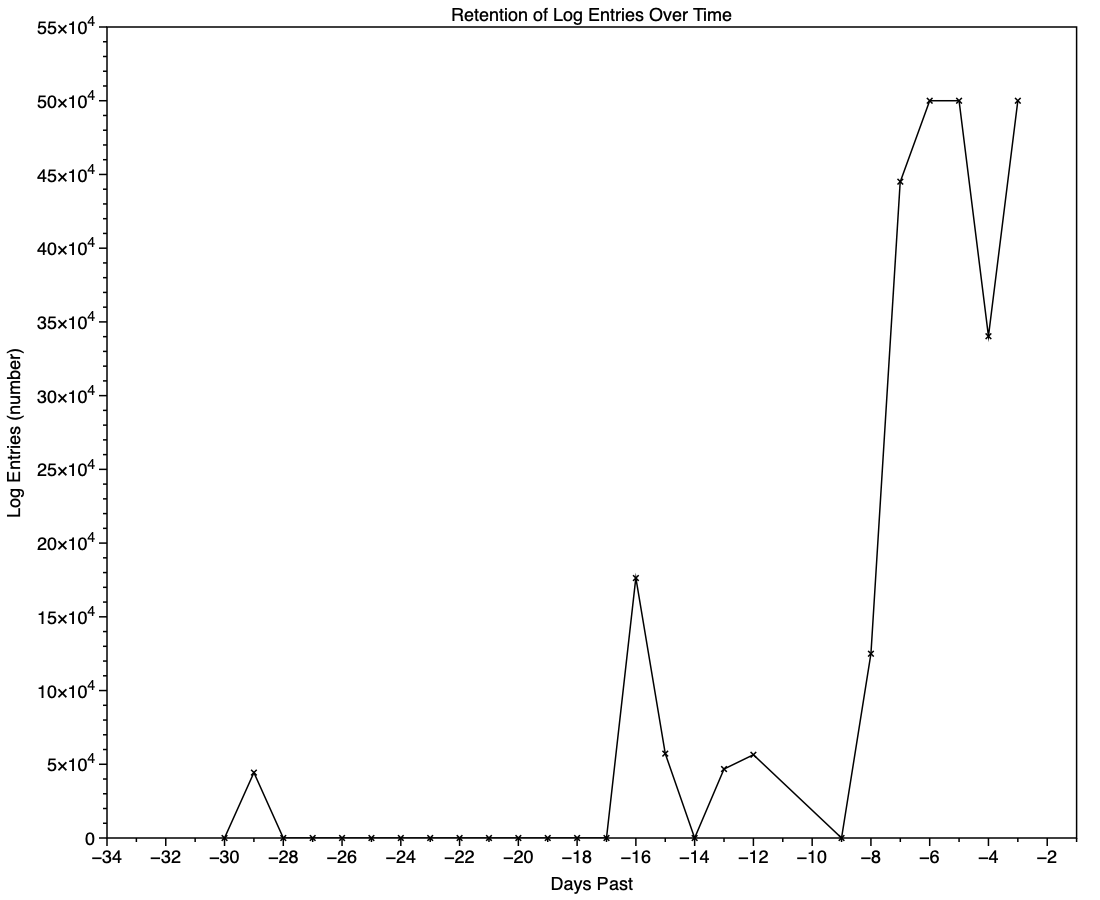
This chart shows the numbers of log entries that could be found and read at intervals over previous days. Where a total of 500,000 is shown, that means over 500,000 for that 24 hour period. I checked these using two different methods of access, using the OSLog API in LogUI, and via the log show command in Ulbow. In all cases, log show returned slightly fewer than OSLog.

It’s clear that with only 3 days of full Persist log files, very few entries have been retained from earlier than 7 days ago, and beyond that retention numbers are erratic.

Over the period prior to the oldest Persist file, when entries could only be coming from Special log files, those included both regular and boundary types, and categories were diverse, including fault, error, notice and info, and weren’t confined to the first two of those categories. Most subsystems were represented, but very few entries were made by the kernel. There is thus no obvious pattern to the longer retention of entries in Special files.

Ephemeral entries

Log entries are initially written to memory, before logd writes most of them to permanent storage in tracev3 log files on disk.

mul102LogdFlow

The first substantial purging of entries thus occurs when logd decides which are ephemeral and won’t be retained on disk. This can be seen by following the number of entries in a short period of high activity in the log, over time, and is shown in the chart below for a sample period of 3 seconds.

When fetched from the log within a minute of the entries being written, a total of 22,783 entries were recovered. Five minutes later there were only 82% of those remaining. Attrition of entries then continued more slowly, leaving 80% after 8 hours. Analysis suggests that over this period in which there were about 6,100 log entries per second written to disk, approximately 1,700 log entries per second were only kept in memory and never written to disk. That suggests about 22% were ephemeral, a proportion that’s likely to vary according to the origin and nature of log entries.

Summary

  • A fifth of log entries are likely to be ephemeral, and lost from the log within the first minutes after they’re written.
  • Most retained log entries are written in Persist logs, where tracev3 files are removed by age to keep their total size to just over 500 MB. Those should preserve the bulk of log entries for hours or days after they’re written.
  • Entries stored in Special log files may be retained for significantly longer, here up to a maximum of 29 days. Although those may contain fault and error categories, retention doesn’t follow an obvious pattern, making their period of retention impossible to predict.
  • In practice, the period in which a fairly complete log record can be expected is that applied to Persist files, which varies according to the rate of writing log entries. In most cases now that’s unlikely to be longer than 5 days, and could be less than 12 hours.
  • You can’t draw conclusions from the apparent absence of certain log entries from the log prior to the earliest entries in Persist log files, as it’s likely that those entries will have been removed.
  • Expecting to retrieve log entries from earlier than 5 days ago is almost certain to fail.

Lost in the log? Here’s Logistician 1.1

If you’re still struggling to find your way around the log, or not even prepared to try, I have a new version of my log statistics and navigation utility Logistician that should help. This enhances its list of log files by adding further details, and adds a completely new graphical view to help identify periods of unusual log activity.

Log list

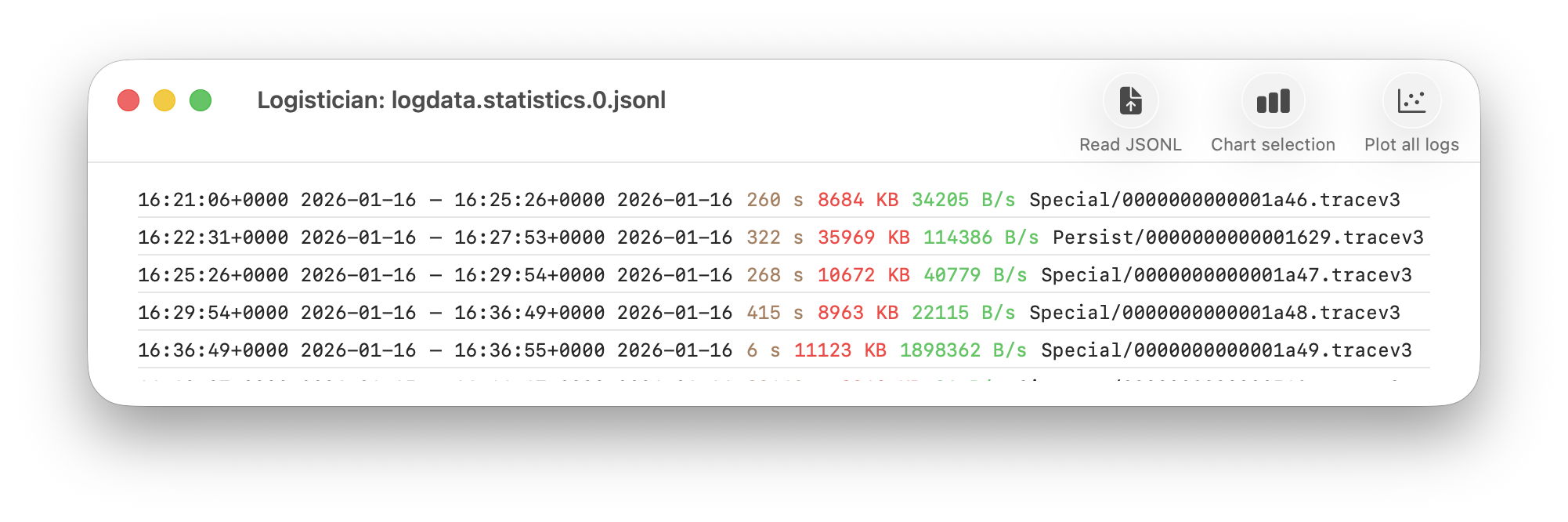
As I showed here a couple of days ago, Logistician opens the JSONL statistics files maintained by logd in /var/db/diagnostics, alongside folders containing the tracev3 log files. The list of those originally gave a minimum of information, and that has been increased to contain:

  • the start date and time of each file, in addition to the date and time it was closed
  • the period during which that file had entries added to it, in seconds
  • the size of log data within the file, in KB
  • the average rate at which log data was written to that file, in B/s
  • the path to that file, which reveals whether its type is Persist, Special or Signpost, hence the nature of its contents.

Start date and time are taken from those for the closing of its predecessor, so can’t be given for the first file of each type. They can also span a period during which the Mac was shut down, although that’s usually obvious from the low rate at which log data was written.

Point plot

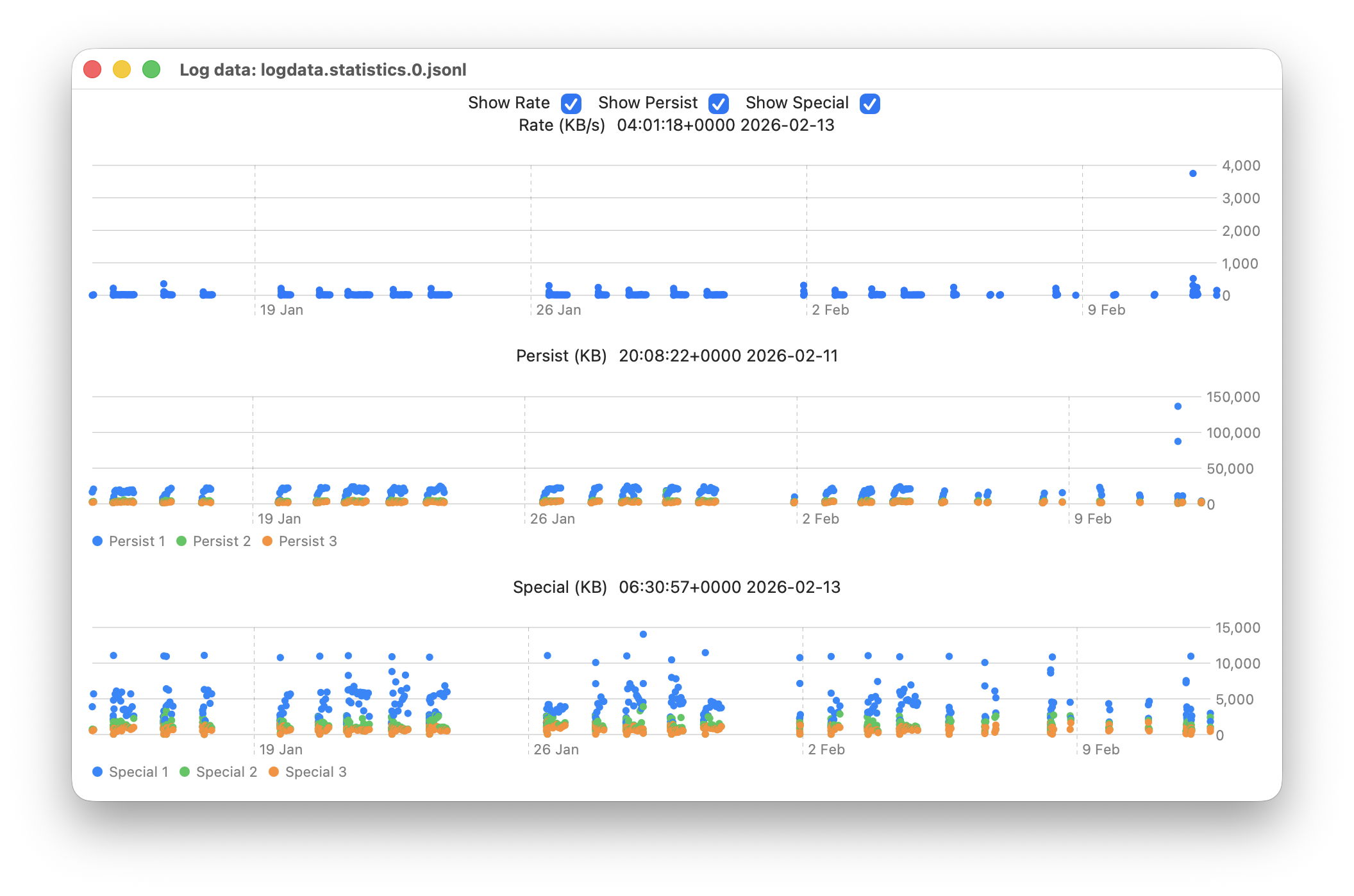
The new window available plots point values for the whole series of log files in the current list.

This displays any of three different plots:

  • rate of log data written to Persist log files over the period for which log files are listed, in B/s;
  • amount of log data written to Persist log files over that period, in KB;
  • amount of log data written to Special log files over that period, in KB.

For the latter two, quantities shown are for the three processes that entered the largest data in that period. I have looked at identifying the processes concerned, but that’s far too complex to do here.

Signpost log files contain special types of entry intended to be used to assess performance, and contribute little to other analyses, so are excluded from these plots. Regular log entries are either saved to Persist or Special types, although it’s unclear as to which entries go to each. Some processes only appear to use one, although the entries for many processes can be saved to either. Although there are similarities in the patterns of Persist and Special files, they also differ in other respects. These three plots appear most suitable when looking for anomalies in the log.

Although these plots make it easy to identify the date of an anomaly such as the high outliers at the far right, for 11 February, they can’t tell you the time of the file you should analyse. For that, Logistician reports the time and date of the location that the pointer is hovering over. Place the pointer over the high rate value, for example, and you’ll see it occurred at about 20:14:00. This helps you identify which of the listed log files has that high peak rate, hence the time period to inspect using LogUI.

Traditionally, the moment you move the pointer from a chart area, hover information like that is removed. If that were done here, it would make it infuriatingly hard to refer to the list of log files. So these dates and times show those at the last moment the pointer was over that point plot. The knack is to hover over the point of interest, then move the pointer off that chart vertically, so as not to alter the time indicated. I’m looking at alternative methods of locking the time shown, to make that easier, but that presents more complex coding challenges, as do methods of zooming in on smaller periods of time.

In case you’re wondering, the overall period covered by these point plots, divided across the two log statistics files maintained, is approximately 6 weeks, as indicated by the X scales shown here.

Logistician version 1.1 is now available for Sonoma and later from here: logistician11a
and will shortly be getting its place in a Product Page and other listings here.

Enjoy!

Update: thanks to Jake for finding a divide by zero bug that could crash Logistician when opening a JSONL file. I have fixed this in build 14, now available above. Please download that and replace copies of the original build 12, so you shouldn’t encounter that crash. My apologies.

Investigate a past event in the log

We don’t always notice something is wrong within a few hours of the event that caused a problem. Sometimes it can take days or weeks before we realise that we need to check something in the log. By that time all trace has vanished, as the active log will have rolled those log entries long before we go looking for them. This article shows how to recover and analyse events from the more distant past, using a Time Machine backup and my free utilities LogUI and Logistician. My target is the macOS 26.3 Tahoe update installed on my Mac mini M4 Pro on 11 February, and I performed this analysis 11 days later, on 22 February.

When was the event?

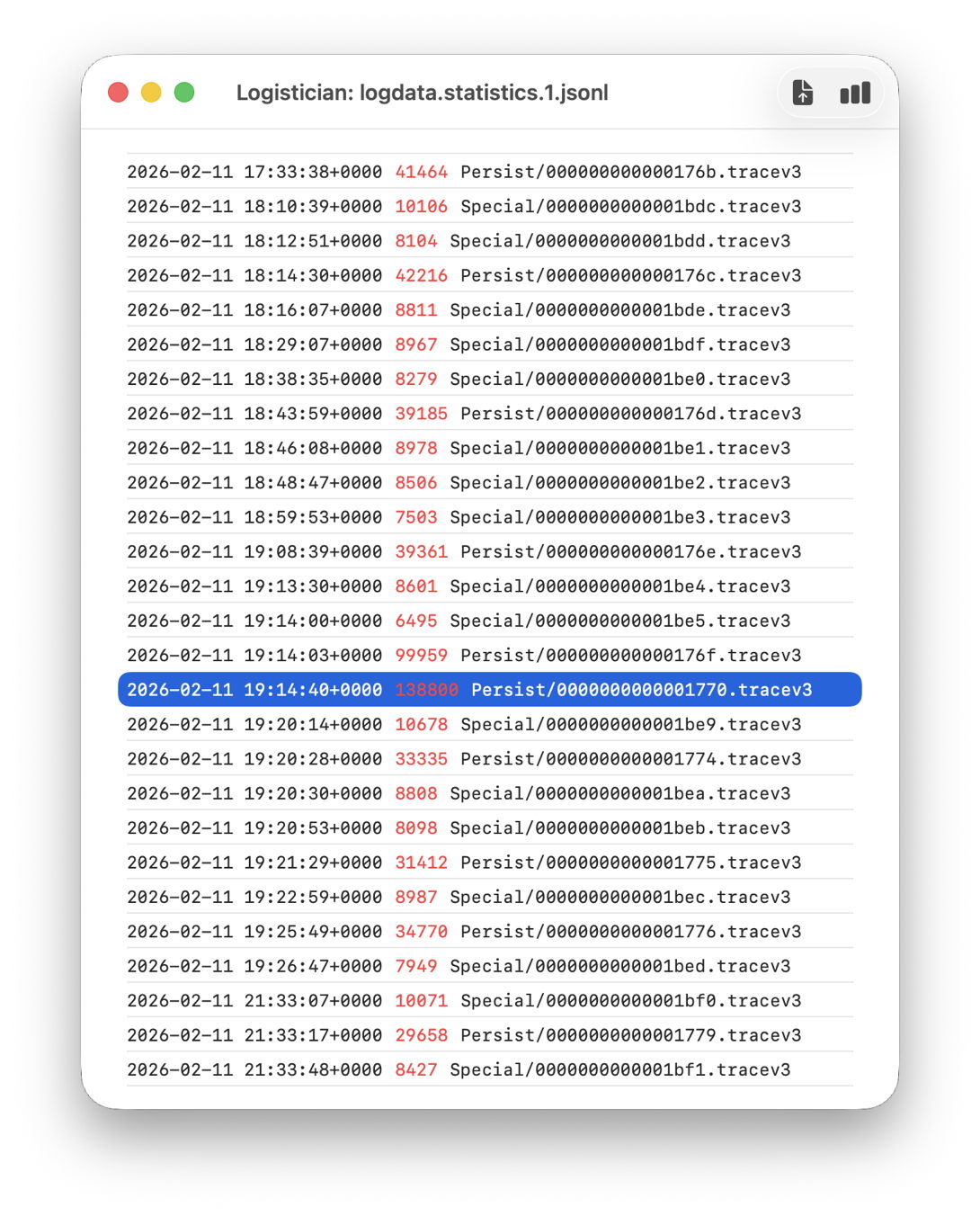
In this case I remember updating at around 18:30-19:30 on 11 February, but I don’t even need to recall the date. I first copied the logdata.statistics.1.jsonl file from my active log in /var/db/diagnostics to a working folder in ~/Documents, then opened it using Logistician.

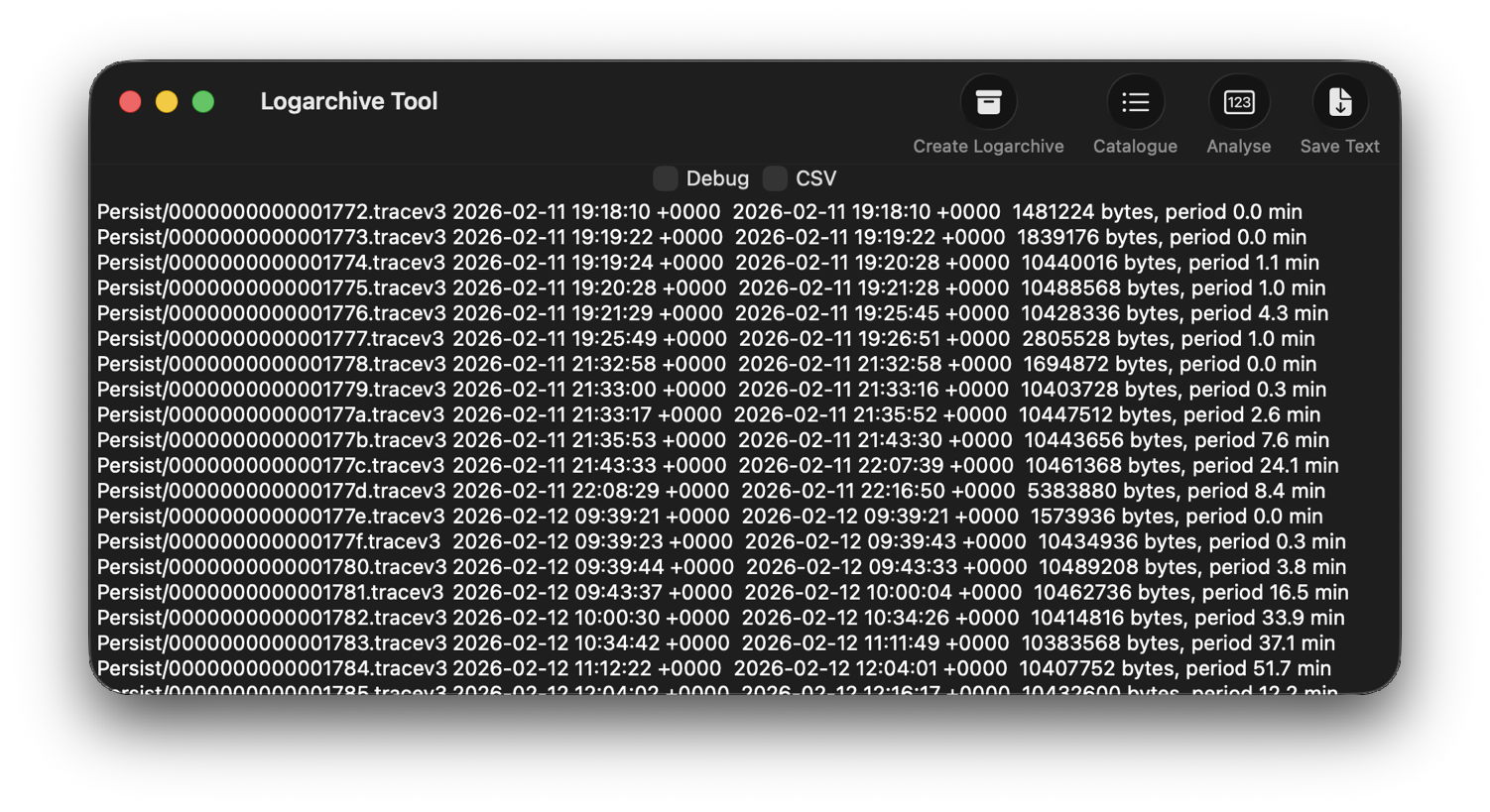
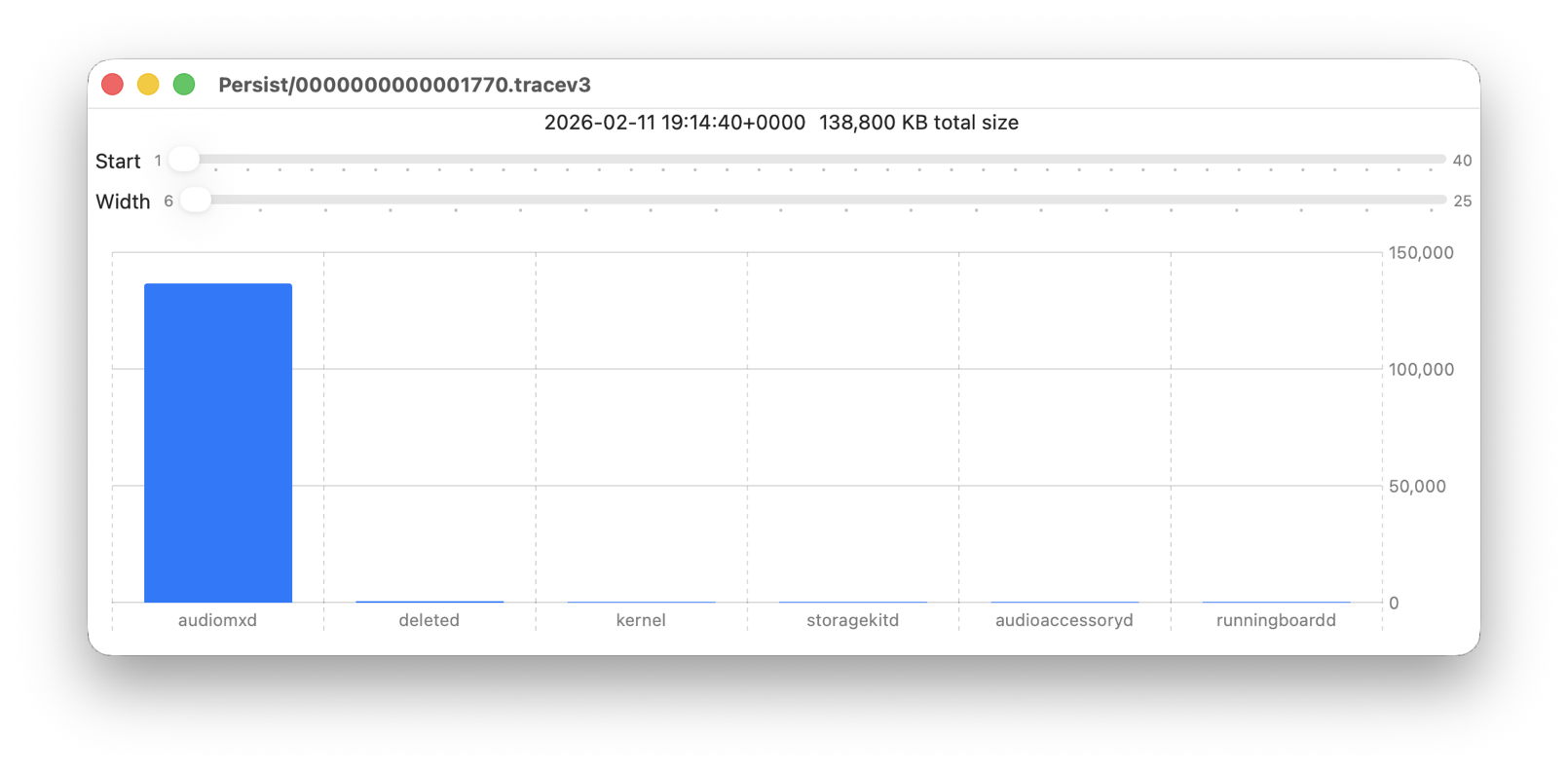
The log file listing between 18:10:39 and 19:26:47 on 11 February 2026 shows a remarkably rapid turnover of log files that’s an obvious marker of that update. Highlighted here is a Persist file that’s exceptionally large at 139 MB of log entries for a collection period of just 37 seconds, although like other tracev3 log files in the Persist folder that only takes 10.5 MB of disk space.

Retrieve the log

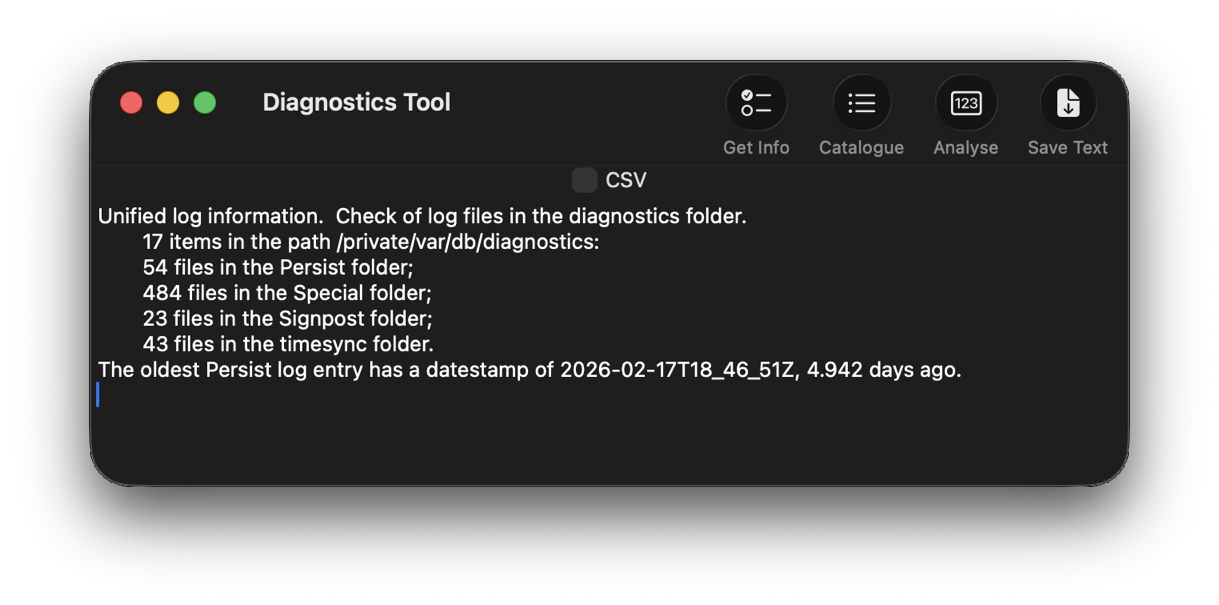
Although I’m confident those logs were removed many days ago, I open LogUI, then select its Diagnostics Tool from the Window menu. I click the Get Info tool and select my active log in /var/db/diagnostics. That tells me that the oldest log entry there dates from 17 February, so there’s no point in trying to find those entries in that log.

Like all good backup utilities, Time Machine also backs up the whole of the log folders, and I can use those to create a logarchive file for analysis. I therefore locate the next backup made after those log entries were written, on 12 February, and copy the /var/db/diagnostics and /var/db/uuidtext folders into a new folder in my working folder, ready to turn them into a logarchive.

In LogUI, I open its Logarchive Tool from the Window menu and use that to turn those folders into a logarchive I can access using LogUI. I check that freshly created logarchive using the Catalogue tool to confirm that it contains the log files I want to browse.

Identify the event

With the historical log safely preserved in a logarchive and a defined time of interest, my next task is to identify the event I want to investigate. In this case, I could probably go straight ahead and look at all entries for a few seconds, but in other circumstances you may need to know which entries to look for.

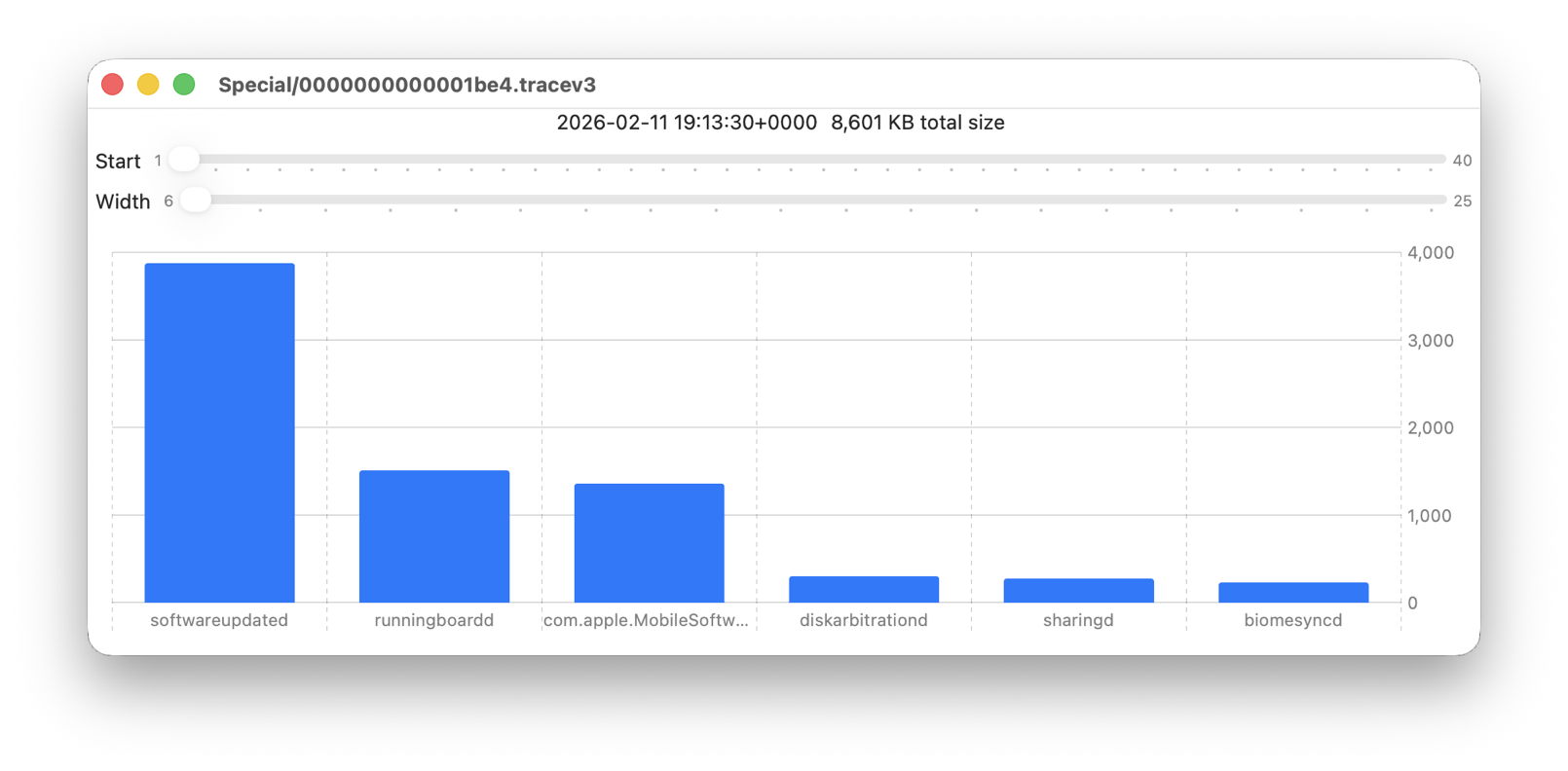
Back in Logistician, I select that extraordinary Persist log file and view it in a Chart. Most of the other log files over this period look like this:

with large quantities of entries from softwareupdated, com.apple.MobileSoftwareUpdate and similar processes. But the huge Persist file that filled in only 37 seconds is exceptional.

Almost all its entries are from audiomxd, and all other entries are dwarfed by its size.

Browse the event

By default when you click on LogUI’s Get Log tool it will fetch those log entries from the active log. To switch that source to my logarchive file, I click on the Use Logarchive tool and select the logarchive I just created in my Documents folder. To remind me that it’s no longer looking in the active log, that window then displays a red-letter caution of !! Logarchive to the left of the Start control. That also reminds me to use dates and times within the range covered by that logarchive.

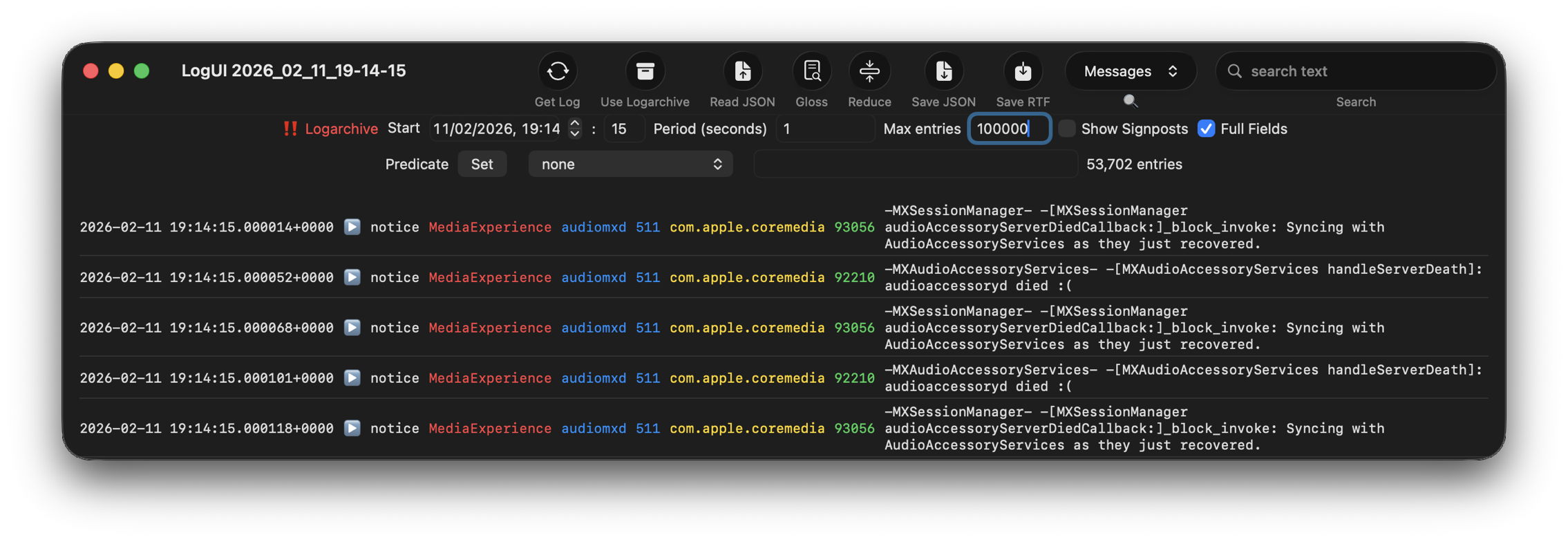
I set the Start to ten seconds into the collection period of that large Persist file, a period of 1 second, and the maximum number of entries to 100,000, then click on the Get Log tool.

This is one of the most remarkable log extracts I have ever seen: in this 1 second period, the audiomxd process in com.apple.coremedia wrote about 53,000 entries to the log. Over the 37 seconds of log records in that single Persist file, audiomxd must have written at least 1.5 million log entries. These are all apparently the result of the ‘death’ of the AudioAccessory service audioaccessoryd, and its recovery after updating macOS.

Summary

  1. Identify approximate time of event from /var/db/diagnostics/logdata.statistics.1.jsonl using Logistician.
  2. Check in LogUI whether that falls within the period of the active log.
  3. If not, retrieve /var/db/diagnostics and /var/db/uuidtext from the next backup made after the event.
  4. Convert those folders into a logarchive using LogUI’s Logarchive tool, and check it contains the period of the event.
  5. Identify the processes involved using Logistician’s chart.
  6. Set LogUI to use that logarchive, enter the correct date and time, and get log entries for the required processes.

Last Week on My Mac: A log statistician

If you don’t know exactly what you’re looking for, and when it happened, the log has been a hostile place. Doom-scrolling through tens of thousands of log entries in the hope of stumbling across a clue is tedious, and the odds have been stacked against you. So last week I’ve been doing something to redress the balance and shorten those odds, and I’m delighted to offer its first version in Logistician. This has nothing to do with logistics, but is all about log statistics.

Alongside folders containing your Mac’s Unified log files, in /var/db/diagnostics, you’ll see files with names starting with logdata.statistics. A couple are text files that only go back a day or two, and others have the extension jsonl. If you were privileged to test some beta-releases of macOS Tahoe, you may have some database files as well, but here it’s those jsonl files I’m concerned with.

Inside them are basic statistical summaries of every log file that’s been saved in your Mac for the last few weeks or months. Even though the original log files have long since been deleted, summaries of their contents are still available in files like logdata.statistics.1.jsonl, and those are opened up by Logistician.

As the files in /var/db/diagnostics are still live, and may be changed as logd does its housekeeping, copy those jsonl files to somewhere in your Home folder, like a folder in ~/Documents. Open Logistician, click on its Read JSONL tool, select one of those copies and open it.

Logistician’s window displays the file’s contents in a list, with the oldest at the top. It gives the date and time that file was saved, just after the last log entry was written to it, its size in KB, whether it was a Persist (regular log), Special (longer supplementary log entries) or Signpost (performance measurements) collection, and the name of the file.

Select one of those file entries and click on the Chart selection tool at the top right to see its data plotted out in the Chart view.

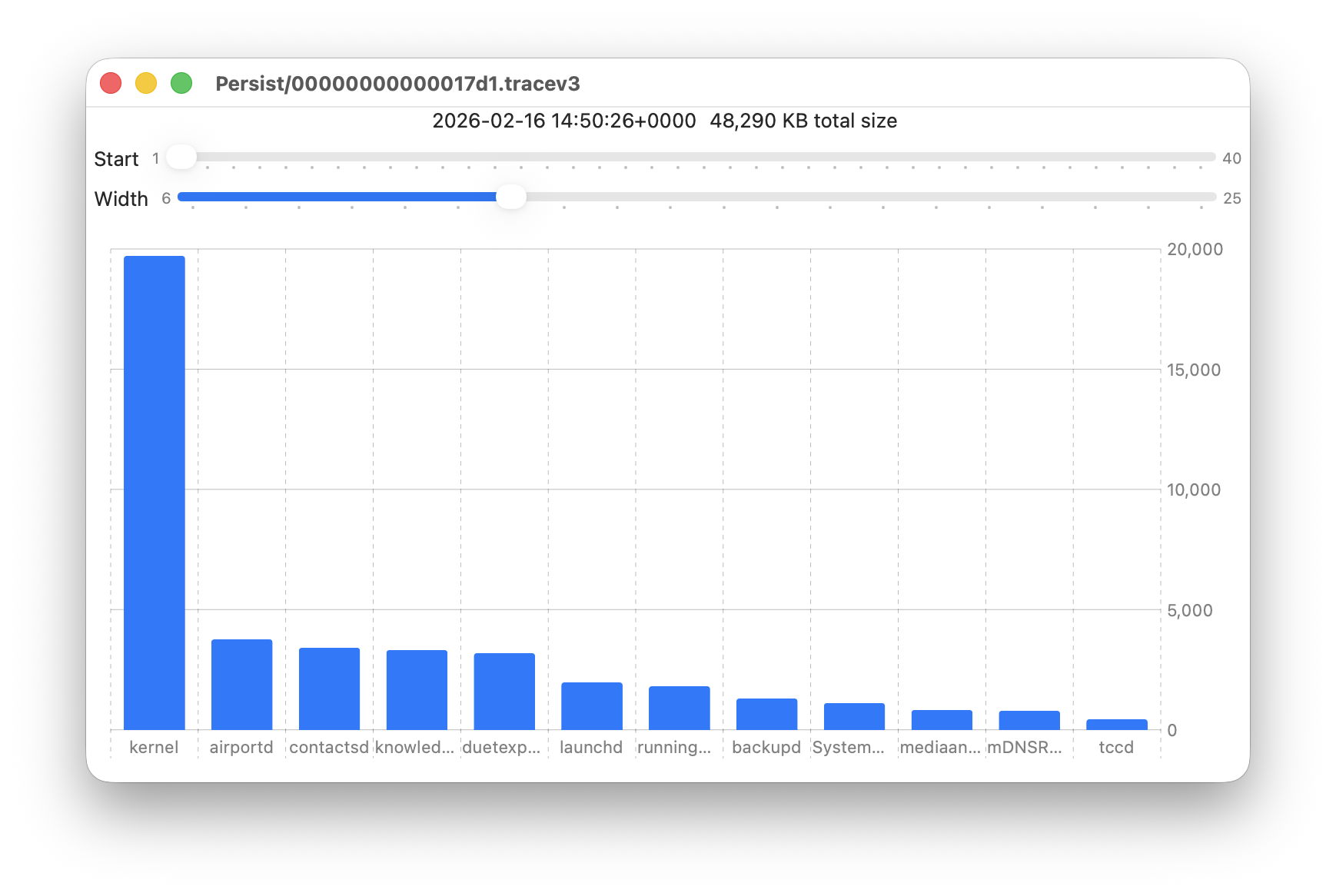
Data provided for each log file listed includes a breakdown of the total size of log entries from that process or subsystem, and Logistician’s Chart view displays those data as a bar chart. The height of each bar represents the total size in KB of log entries made by that process in that specific log file. As there are a 50 bars available, two sliders set the size and location of that window on the data:

  • Start sets the number of the first bar on the left, beginning at 1 for the greatest size, usually the kernel, and increasing to 40 for a process with very few log entries, just ten from the smallest.
  • Width sets the number of bars to display, ranging from 6 to 25. The more shown, the harder it is to read the names of processes at the foot of each bar, and the less precisely you can read the size of their log data at the right.

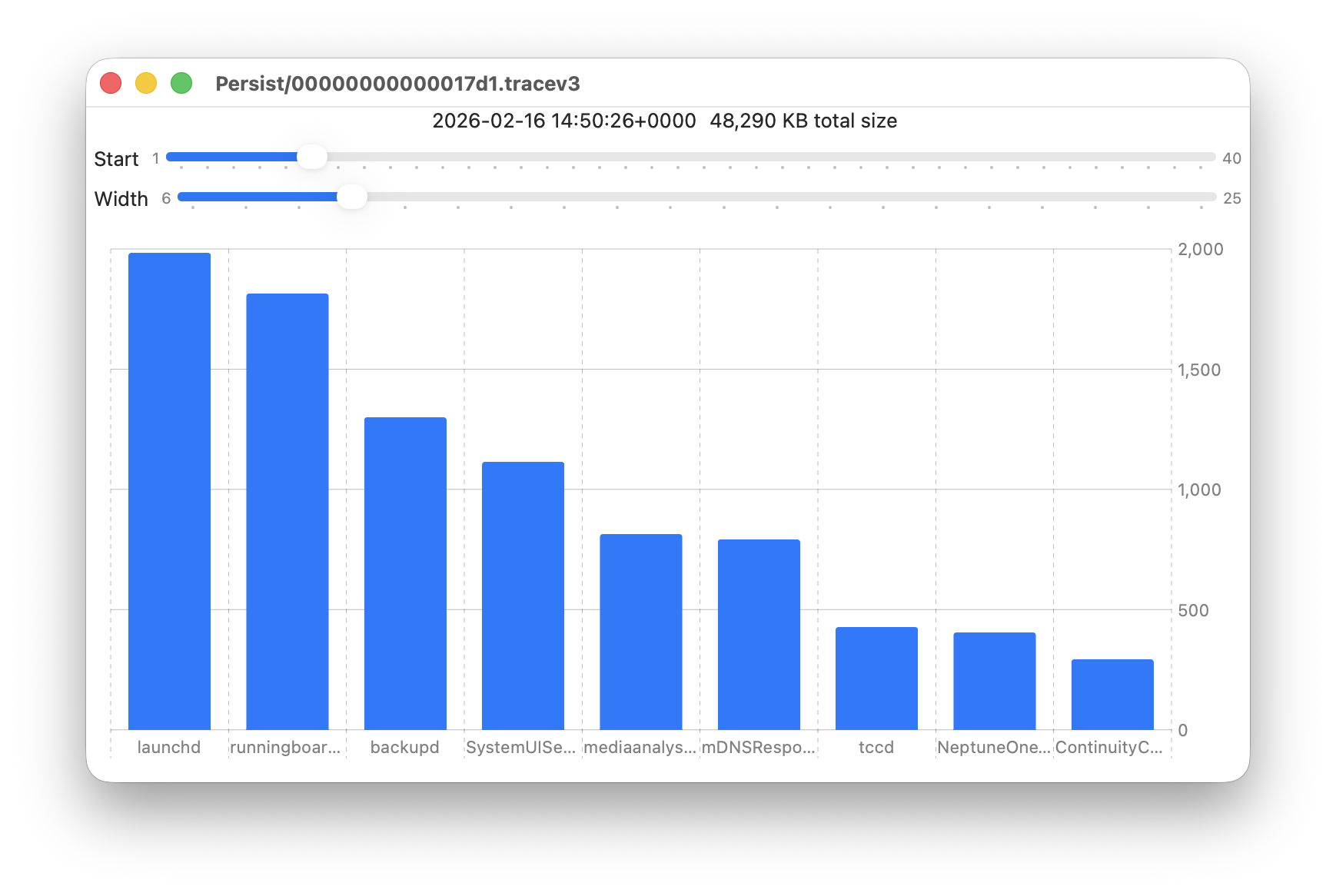
These sliders are set to show 9 bars from number 6 at the left (the sixth highest log data, written by launchd) to number 14 at the right (14th highest, written by ContinuityCaptureAgent). Of interest here are around 400 KB of log entries from NeptuneOneWallpaper.

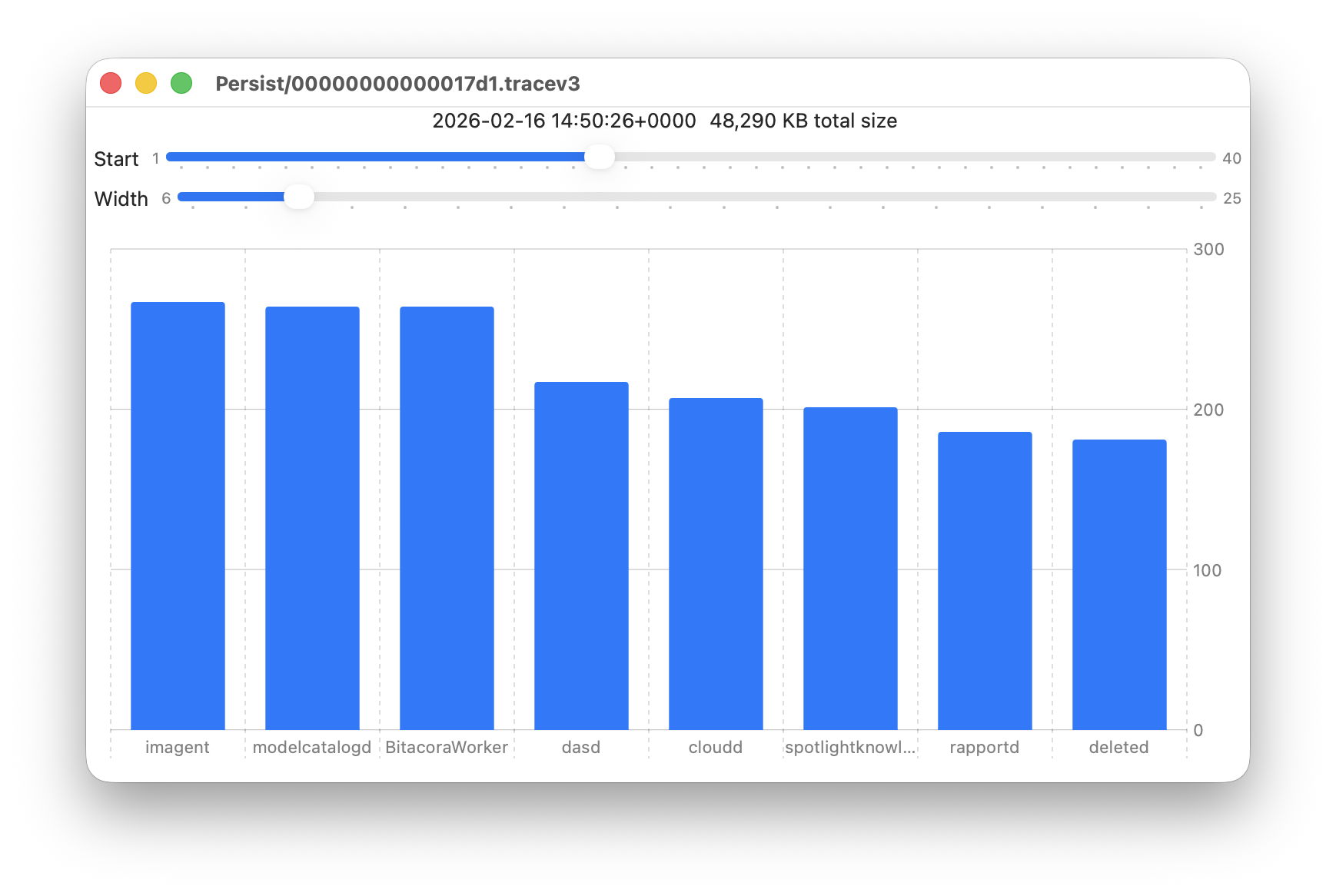
Here are 8 bars from 17 to 24, with smaller quantities written to the log of around 200 KB each. They include the DAS service dasd and cloudd for iCloud.

It’s easy to flip quickly through a series of log files: click on the next file you want to view in the main list, click on the Chart selection tool and values will be displayed immediately.

Fascinating though that might be, it doesn’t in itself answer many questions. Add a log browser like LogUI, though, and the combination helps you locate and identify unusual activity, problems, and specific events.

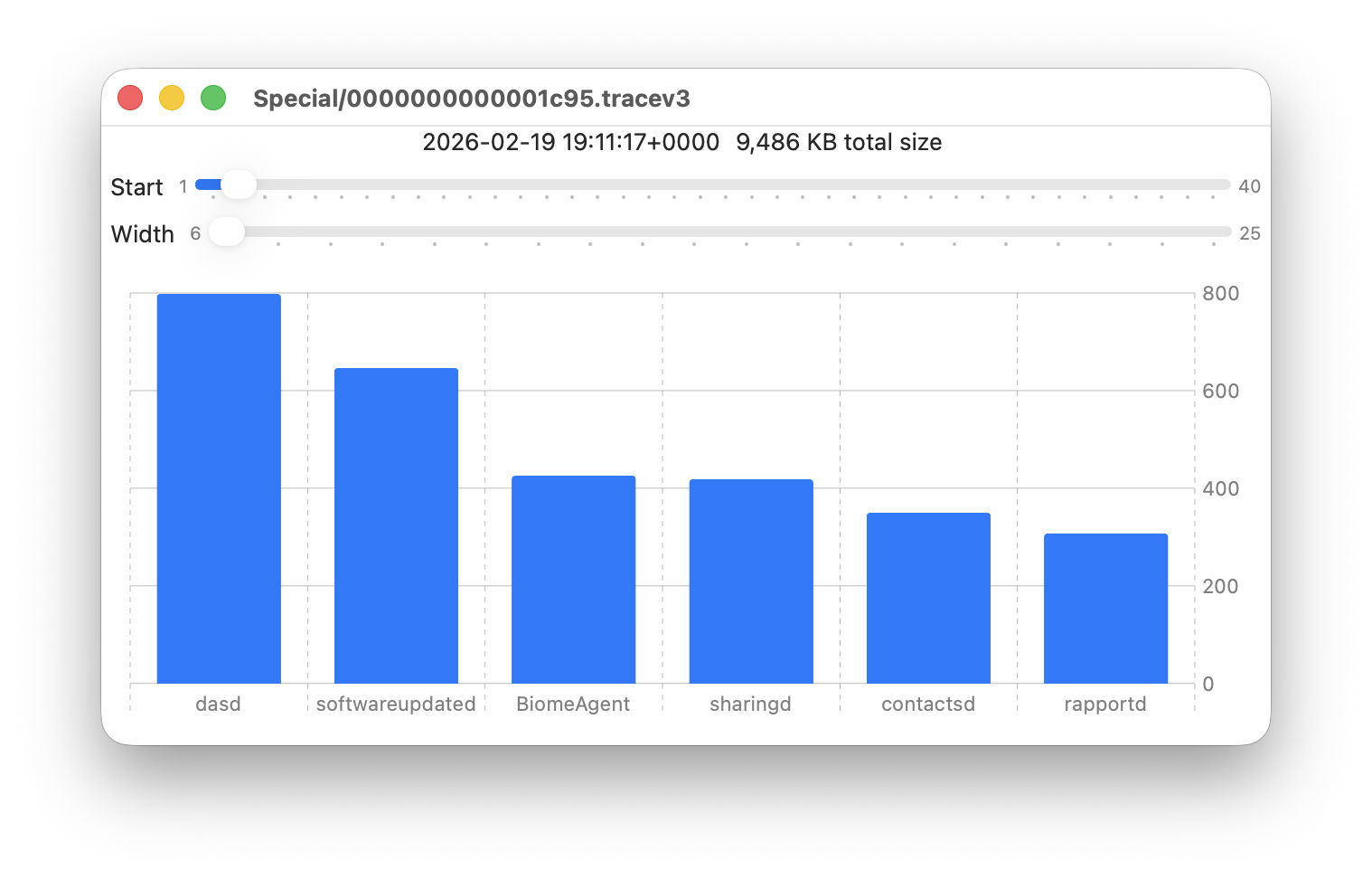
I happened to notice one Special log file that was closed at 19:11:17 on 19 February has high log data from softwareupdated. The previous Special log file was closed at 18:20:04, so somewhere between those times my Mac checked for software updates.

To ensure the full entries were still available in the log, I opened LogUI’s Diagnostics Tool to confirm that its earliest entries were a couple of days earlier.

I then set LogUI to a Start time of 18:20:04 with a Period of 600 seconds, and a Predicate set to a processImagePath of softwareupdated, to look for entries from that process. My first check located all the softwareupdated entries around 18:29:25, when I had apparently run SilentKnight. As a bonus, I discovered from those that SilentKnight was stuck in app translocation, so have been able to fix that (again).

Logistician version 1.0 build 7 for macOS Sonoma and later is now available from here: logistician106
I will add it to other pages here when I’m more confident that this initial version is stable and does what it claims in its detailed Help book.

Enjoy!

Last Week on My Mac: Seconds out

In 1657, one of the great scientists of the Dutch Golden Age, Christian Huygens, invented the pendulum clock, the first timekeeping device accurate enough to make a second hand worthwhile, as it typically only lost about 15 seconds per day. It was another century before John Harrison developed his marine chronometer, a clock sufficiently accurate to enable precise determinations of longitude. Another hundred years later, with the coming of railways across Europe, ordinary people started synchronising clocks so they caught their train, and our ancestors soon became the first slaves to time.

I’m beginning to wonder whether Apple intends reversing that history. Have you not noticed something odd about setting times in more recent Mac apps, how few allow you to set the seconds? You can see what has happened over the last few years in my log browsers, Ulbow and LogUI.

Most of Ulbow’s interface was written using AppKit seven years ago, and it uses a standard Date Picker with elements containing the year, month, day, hour, minute and second. Given that you can get more than 10,000 log entries in a second, I would have preferred to offer decimal seconds, but that isn’t possible within the standard AppKit picker.

LogUI was written from the start using Apple’s more recent substitute for AppKit, SwiftUI, eighteen months ago. That doesn’t use the AppKit Date Picker, but has its shiny new DatePicker instead. Components available in macOS are there limited to year, month, day, hour and minute. To be able to include seconds your code must be written for an Apple Watch, as macOS, iOS and iPadOS don’t allow seconds at all. That’s why you have to enter them in a separate TextField, although that could perhaps allow the use of decimal seconds.

When I wanted to obtain higher resolution timestamps for log entries in LogUI, I discovered that standard date formatting in macOS only resolves to milliseconds (10^-3 second), and couldn’t stretch to microseconds (10^-6 second), let alone the nanoseconds (10^-9 second) that can be obtained from Mach absolute time, as used internally in parts of macOS. Even that reference has recently become lower resolution, as each ‘tick’ in Apple silicon Macs occurs every 41.67 nanoseconds, rather than once every nanosecond as in Intel Macs.

There’s another difference between Ulbow and LogUI with regard to timestamps that you’re less likely to be aware of: Ulbow obtains its log records indirectly using the log show command, which can include the Mach absolute time of each entry. Instead, LogUI accesses those entries direct through the more recent OSLog API, which doesn’t currently expose such precise times.

Lest this appear too far removed from the world of the user, look in the menu bar clock’s settings, and you’ll see Display the time with seconds is an option, but not the default. When the clock is shown on the Lock Screen or screensaver, it only displays hours and minutes, never seconds, neither can any of the digital clock widgets supplied with macOS. While the Clock app does support decimal seconds, that’s only permitted in its Stopwatch where hundredths are displayed, as they are on an Apple Watch and other devices.

This becomes stranger still when you consider the methods used to synchronise internal clocks. Since High Sierra, macOS has used its own timed service, which Apple describes as “synchronizing the clock with reference clocks via technologies like NTP”, that’s the Internet service provided by time.apple.com as in Date & Time settings. When accessed over the Internet, it’s generally accepted that NTP should be accurate to within tens of milliseconds, although that can at times worsen to 100 milliseconds or more.

As far as I’m aware, no Mac has ever had a GPS receiver built into it, but every iPhone apart from the earliest, and those iPads with cellular support, include assisted GPS and GLONASS. Those are capable of providing time accurate to about 100 and 200 nanoseconds respectively. Even my 11-year-old car corrects its clock using GPS.

Although our Macs and devices can share almost everything else now, my Macs appear unable to adjust their clocks to the more accurate time that should be available to my iPhone. But as iOS is so shy about displaying seconds anywhere, it makes me wonder whether iPhones make full use of GPS time, or mostly rely on that obtained from the nearest cellular mast.

I’m curious whether this is a deliberate campaign to abolish seconds wherever possible, or just the result of doing what looks sufficient. Maybe I’m a mere slave to time, and the Time Lords in Apple Park are on a mission to cure me by travelling back four centuries.

Last Week on My Mac: Signs of distress

Over the last few weeks, I’ve been posed a series of questions that can only be resolved using the log, such as why Time Machine backups are failing to complete. The common confounding factor is that something has gone wrong at an unknown time, but if you don’t know exactly what you’re looking for, nor when to look, the Unified log is a hostile place, no matter which tool you use to browse its constant deluge of entries.

This is compounded by the fact that errors seldom come singly, but often propagate into tens of thousands of consequential log entries, and those not only make the cause harder to find, but can shorten the period covered by the log. In the worst case, by the time you get to look for them, the entries you needed to find are lost and gone forever.

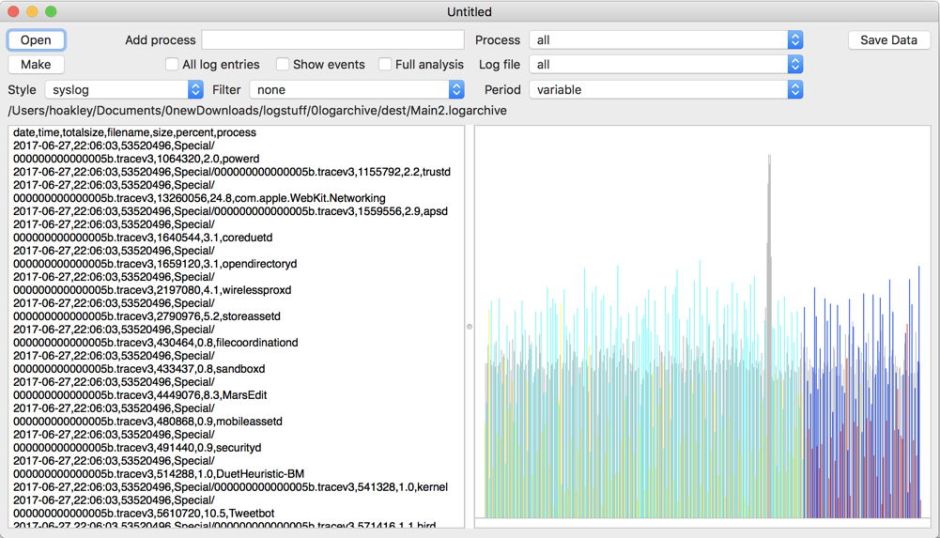
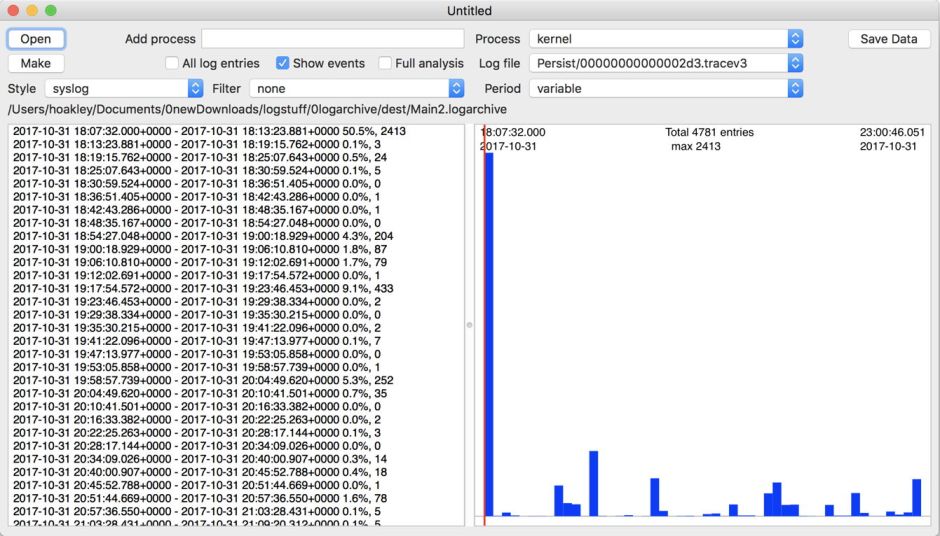
In late 2017, I experimented with a log browser named Woodpile that approached the log differently, starting from a histogram of frequencies of log entries from different processes.

keychainopen05

Viewed across the whole of a log file, this could draw attention to periods with frequent entries indicating potential problems.

keychainopen06

The user could then zoom into finer detail before picking a time period to browse in full detail. Of course, at that time the Unified log was in its early days, and entries were considerably less frequent than they are now today.

logchart05

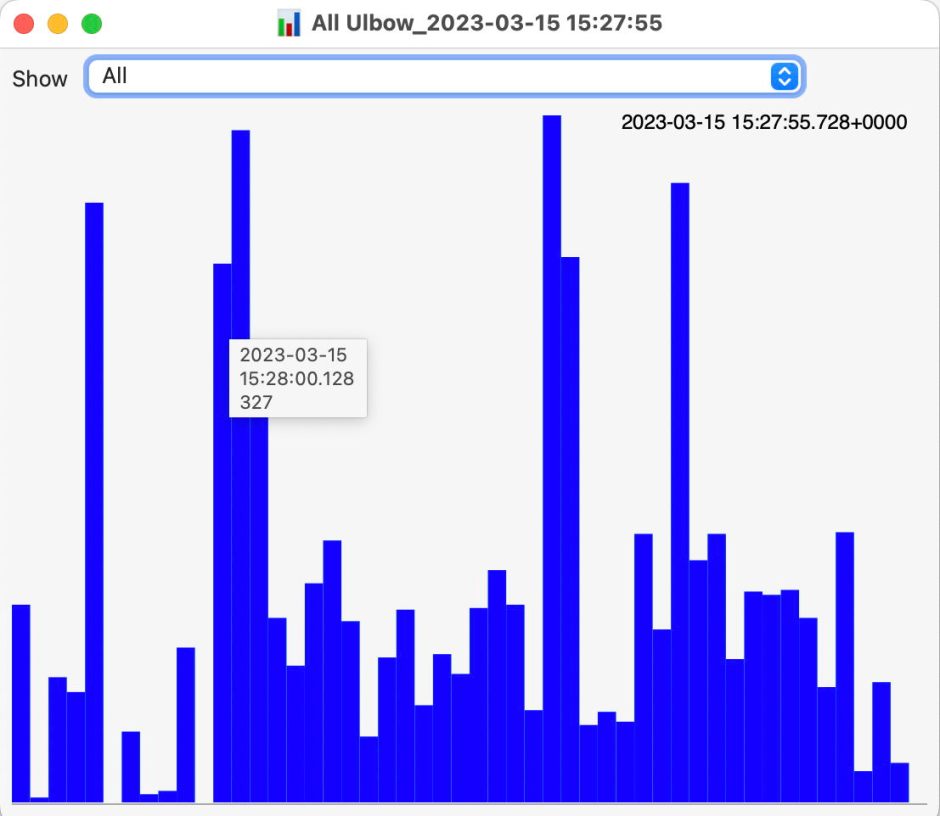
A related feature in my later Ulbow log browser provides similar insights over the briefer periods covered, but like Woodpile that view seems little used, and isn’t offered in LogUI.

Another concern is that a great deal of importance can be recorded in the log, but the user is left in the dark unless they hunt for it. I documented that recently for Time Machine backups, and note from others that this isn’t unusual. Wouldn’t it be useful to have a utility that could monitor the log for signs of distress, significant errors or failure? To a degree, that’s what The Time Machine Mechanic (T2M2) sets out to do, only its scope is limited to Time Machine backups, and you have to run it manually.

Given the sheer volume and frequency of log entries, trying to monitor them continuously in real time would have a significant impact on a Mac, even if this were to be run as a background process on the E cores of an Apple silicon Mac. In times of distress, when this would be most critical, the rate of log entries can rise to thousands per second, and any real-time monitor would be competing for resources just when they were most needed for other purposes.

A better plan, less likely to affect either the user or the many background services in macOS, would be to survey log events in the background relatively infrequently, then to look more deeply at periods of concern, should they have arisen over that time. The log already gives access to analysis, either through the log statistics command, or in the logdata.statistics files stored alongside the folders containing the log’s tracev3 files. Those were used by Woodpile to derive its top-level overviews.

Those logdata.statistics files are provided in two different formats, plain text and JSON (as JSON lines, or jsonl). Text files are retained for a shorter period, such as the last four days, but JSON data are more extensive and might go back a couple of weeks. I don’t recall whether JSON was provided eight years ago when I was developing Woodpile, but that app parses the current text format.

Keeping an eye on the log in this way overlaps little with Activity Monitor or other utilities that can tell you which processes are most active and using most memory, but nothing about why they are, unless you run a spindump. Those also only show current figures, or (at additional resource cost) a few seconds into the past. Reaching further back, several hours perhaps, would require substantial data storage. For log entries, that’s already built into macOS.

I can already see someone at the back holding up a sign saying AI, and I’m sure that one day LLMs may have a role to play in interpreting the log. But before anyone starts training their favourite model on their Mac Studio M3 Ultras with terabytes of log entries, there’s a lot of basic work to be done. It’s also worth bearing in mind Claude’s recent performance when trying to make sense of log entries.

What do you think?

❌