Login
LoginAn illustrated guide to Recovery on Apple silicon Macs 2.0
There have been substantial changes made to Recovery for Apple silicon Macs in recent versions of macOS. This article guides you through its increasing complexities, using the road map below.
There’s one overriding caution: you will come across two different features with the same name. When you click on Options in the opening screen, that opens Recovery Assistant, where you select the user and authenticate to gain access to the Recovery app with its window of four options. If you open the Utilities menu in that, you’ll see a command Recovery Assistant, which opens another app that calls itself Device Recovery Assistant, but is generally referred to simply as Recovery Assistant, although it’s not the same as the other Recovery Assistant at all.
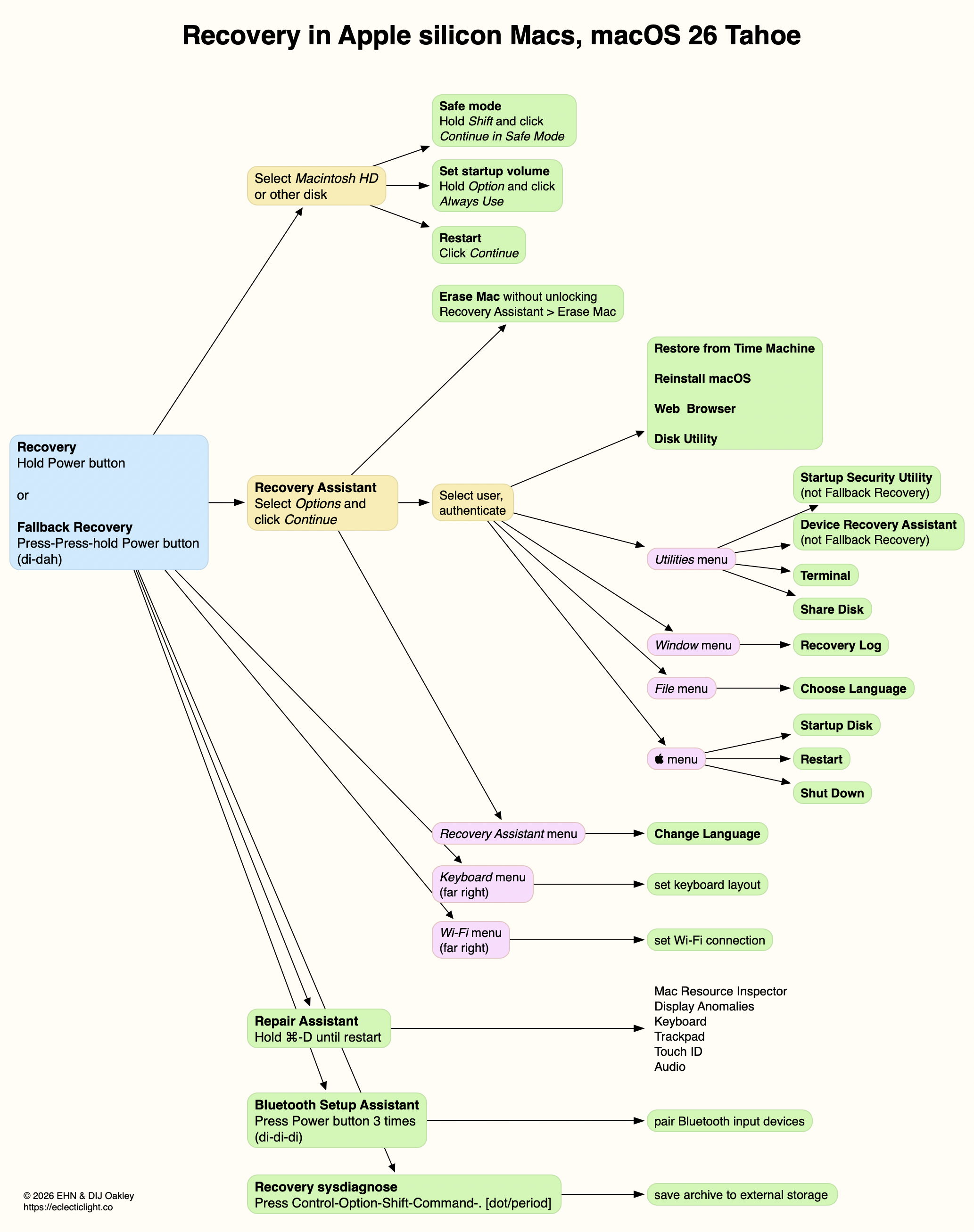
That’s also available as a downloadable PDF: RecoveryMap26
Apple’s current guide is surprisingly incomplete.
Enter Recovery Mode
To enter Recovery Mode on an Apple silicon Mac, press and hold the Power button until the display shows Loading Startup Options, then release it.
If a Mac running Tahoe has problems starting up correctly, it should automatically restart and open Device Recovery Assistant.
If your Mac has a second boot volume group, it has Recovery volumes paired with each of those bootable systems. As they may have different versions of Recovery, you should prefer to start up in the Recovery paired with a bootable system you want to repair. That should happen if you first start up from that boot system, shut down, and then start up in Recovery. However, this is no longer necessary when changing boot security, as you’re given a choice as to which bootable system to apply changes to.
If there’s a problem with Recovery Mode and your Mac has previously had a macOS update installed, you may instead be able to enter Fallback Recovery Mode. Press the Power button twice in rapid succession, and on the second of those presses hold the button until the display shows Loading Startup Options, then release it. The only drawback with this is that Startup Security Utility can’t be used to make changes to boot security, and Device Recovery Assistant may not be available either.
Startup Options
Language & Wi-Fi settings
To change the keyboard language and layout, use the Keyboard menu at the far right.
To set the Wi-Fi connection, use the Wi-Fi menu at the far right. Its icon indicates connection status and strength of signal.
To change the language used throughout, look for a Change Language command in the menus at the left, for example in the Recovery Assistant menu, where offered.
Bluetooth Setup Assistant
To pair Bluetooth devices using this assistant, press the Power button three times in rapid succession, with no more than one second between each press.
Recovery sysdiagnose
To perform a sysdiagnose when experiencing problems with Recovery, press Control-Option-Shift-Command-. (the dot or period key). This requires the resulting archive to be saved to external storage, which needs to be connected for this purpose.
Startup disk
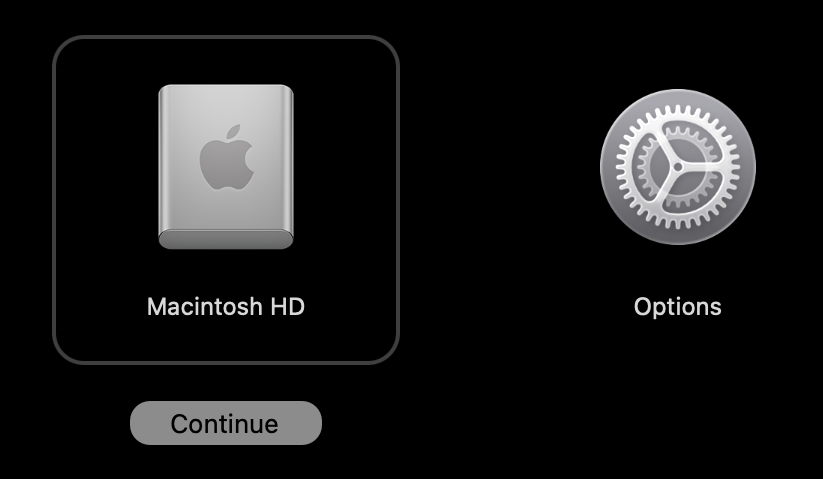
To restart in Safe Mode, select the disk which you wish to boot from in Safe Mode, press and hold the Shift key then click Continue in Safe Mode underneath it. The Mac then starts up in Safe mode from that disk.
To set the default startup volume, select the disk you wish to make the default boot disk, press and hold the Option key then click Always Use underneath it. The Mac then starts up in normal mode from that disk.
To start up in normal user mode, select the disk you wish to start up from and click Continue underneath it. The Mac then starts up in normal mode from that disk.
Repair Assistant
Press and hold the Command ⌘ and D keys until you hear the startup chime indicating the Mac has restarted into Repair Assistant.
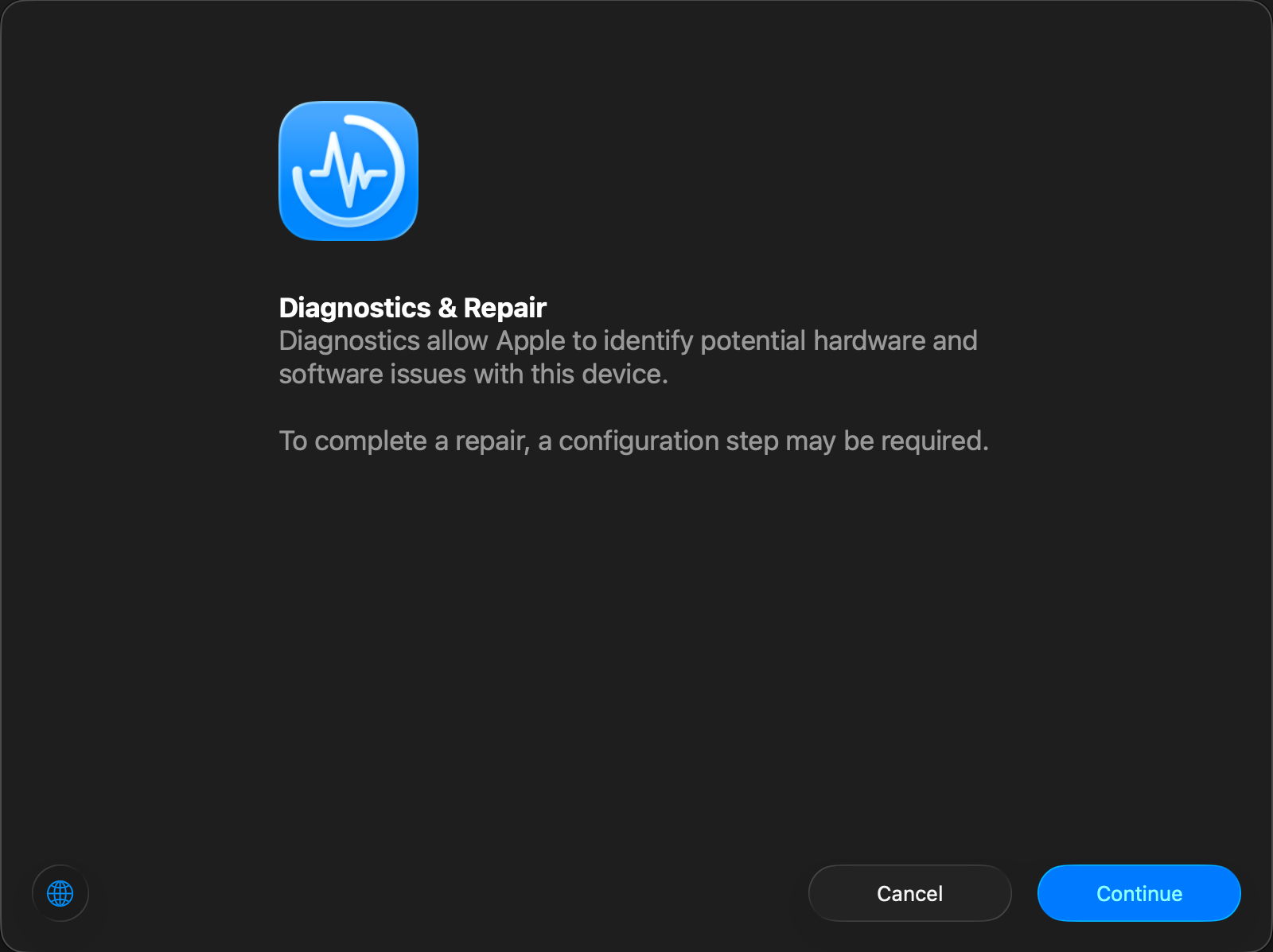
Repair Assistant offers a choice of tests from the available diagnostic suites according to your Mac’s hardware, including:
- Mac Resource Inspector, to test the main Mac hardware over a period of 1-7 minutes;
- Display Anomalies, for any built-in LCD panel;
- Keyboard, only when built-in;
- Trackpad, only when built-in;
- Touch ID, for any built-in Touch ID sensor;
- Audio, to verify audio output using a set of test tones.
Once a test has completed, it’s marked with a green  to indicate success, or a warning triangle or error symbol if the test couldn’t be attempted (power supply when not connected to a laptop), or problems were discovered. Individual tests and their results are listed from each test’s ⓘ button.
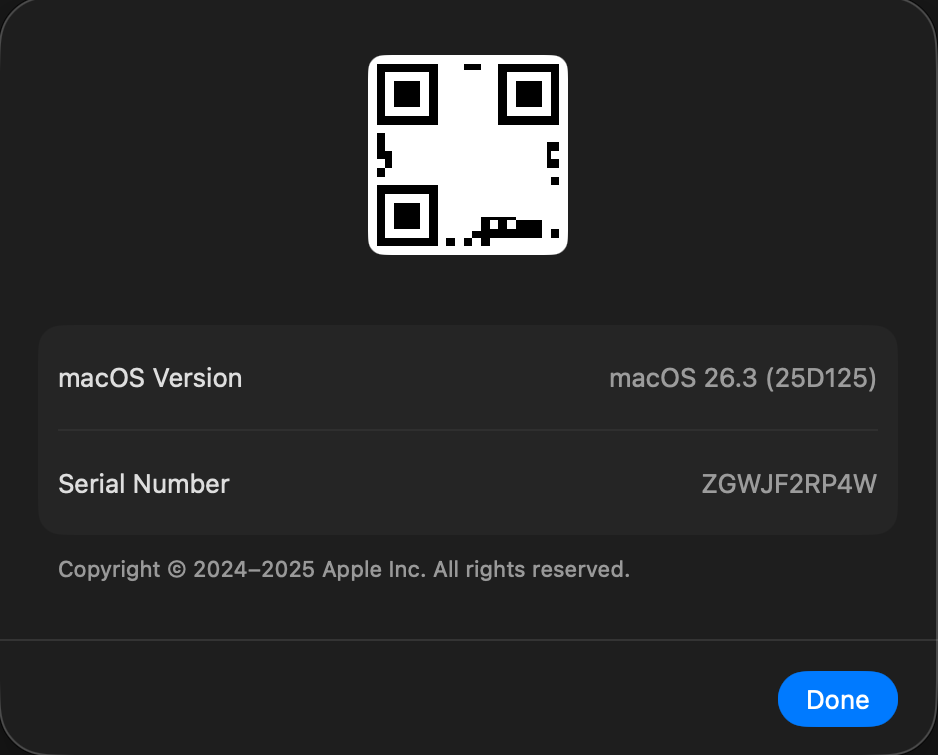
Repair Assistant’s substitute for an About window provides details of your Mac, including its serial number, also provided as a QR code, and the version of macOS.
Recovery Assistant
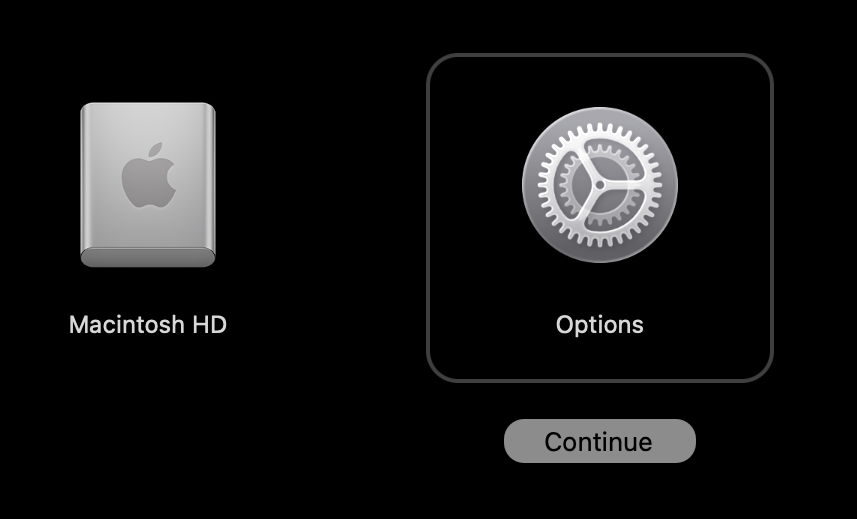
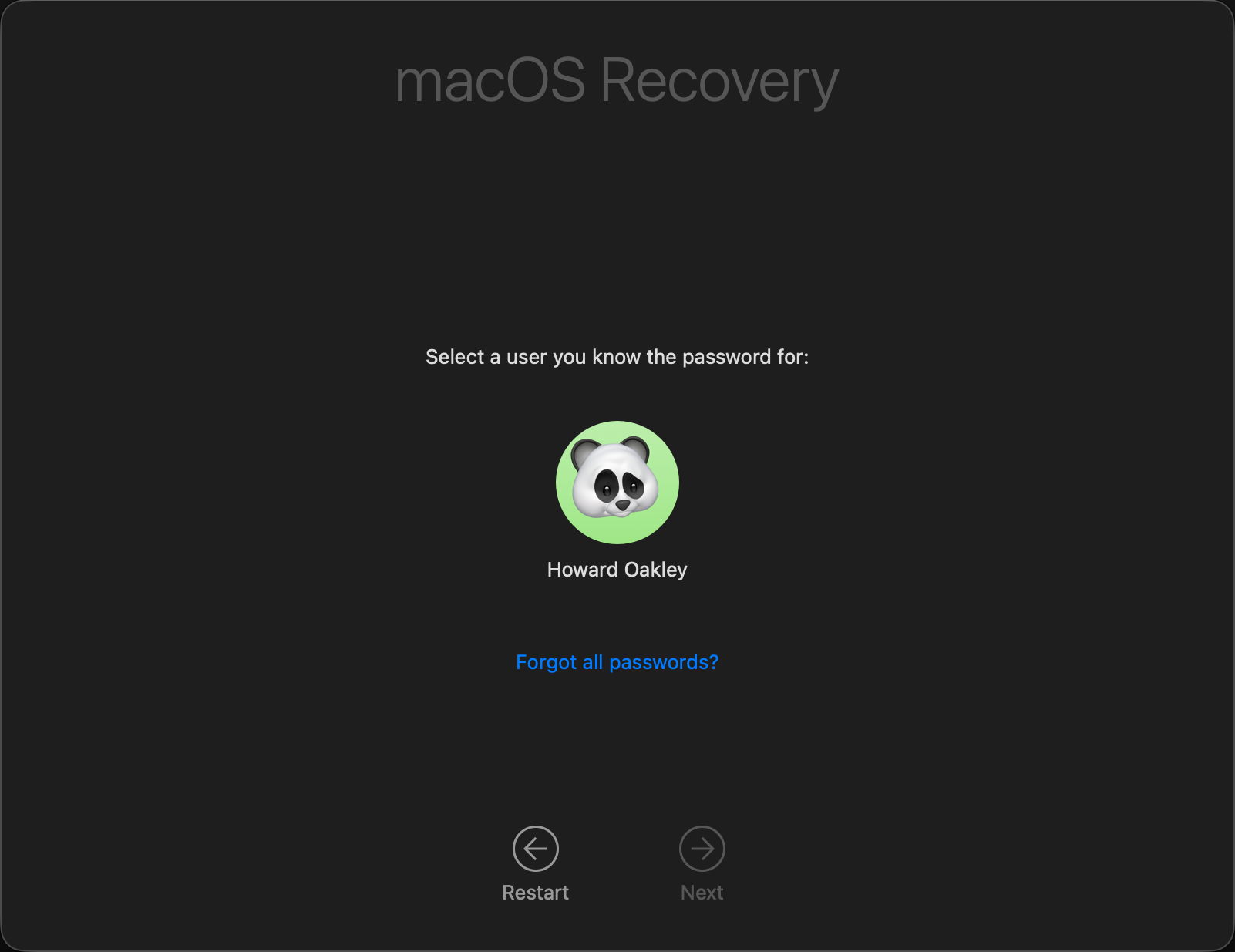
Select the Options icon and click Continue underneath it. You will then be prompted to select a user you know the password for. Do that and click on Next. Enter the password for that user and click Continue.
Erase Mac
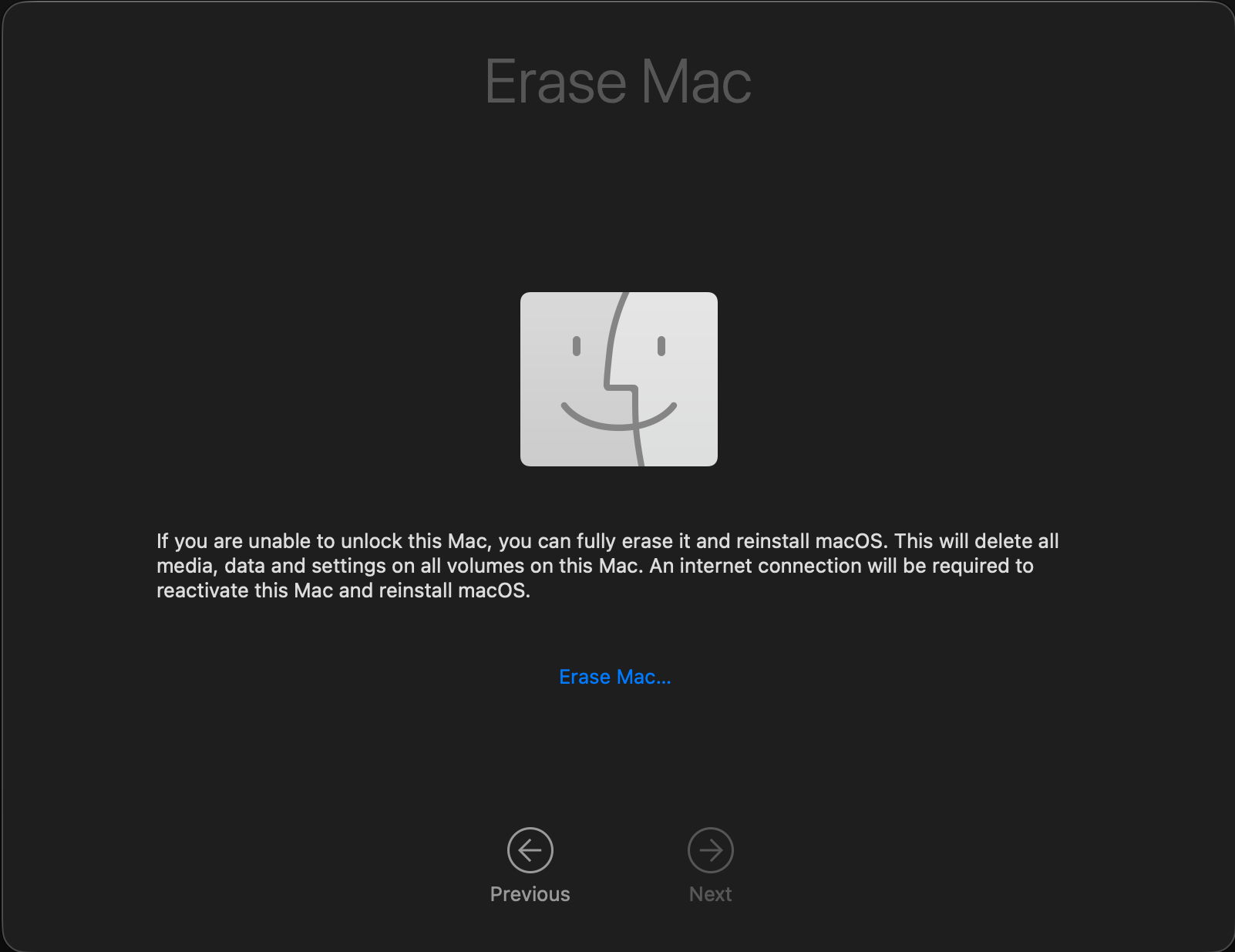
To erase the Mac fully without unlocking it, select that command from the Recovery Assistant menu. This completely erases all boot volume groups on the Mac’s internal SSD, ready to reinstall macOS, for which it requires an internet connection.
Recovery Window
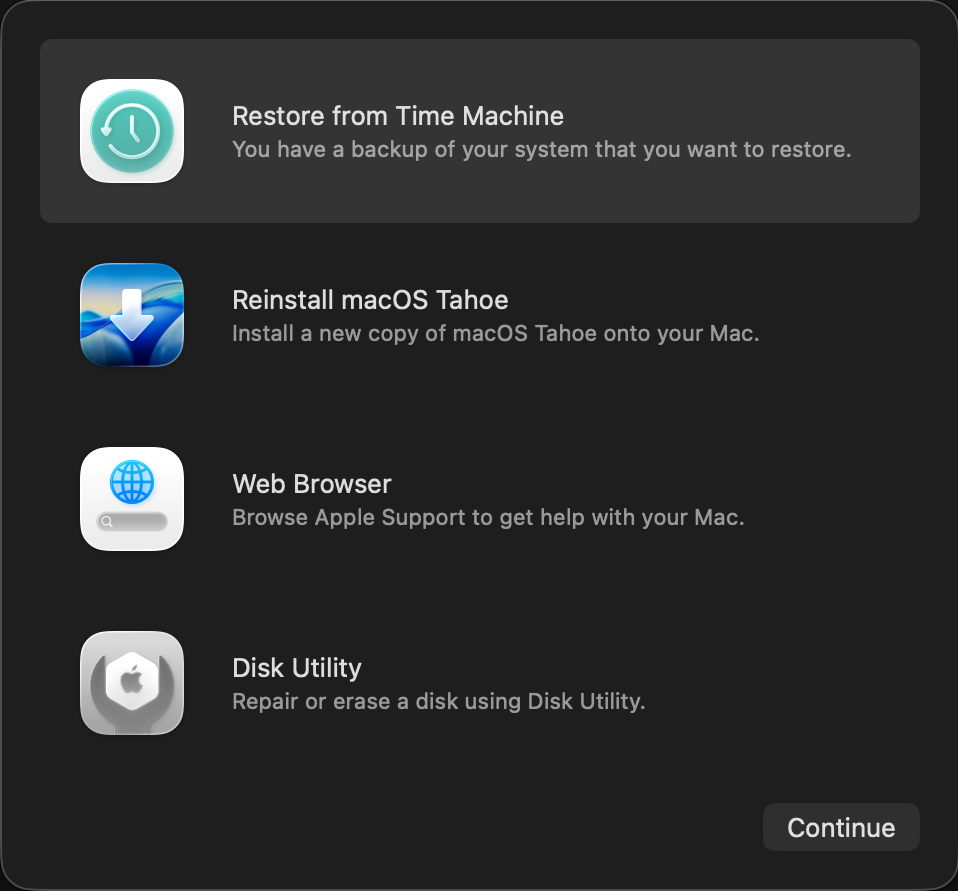
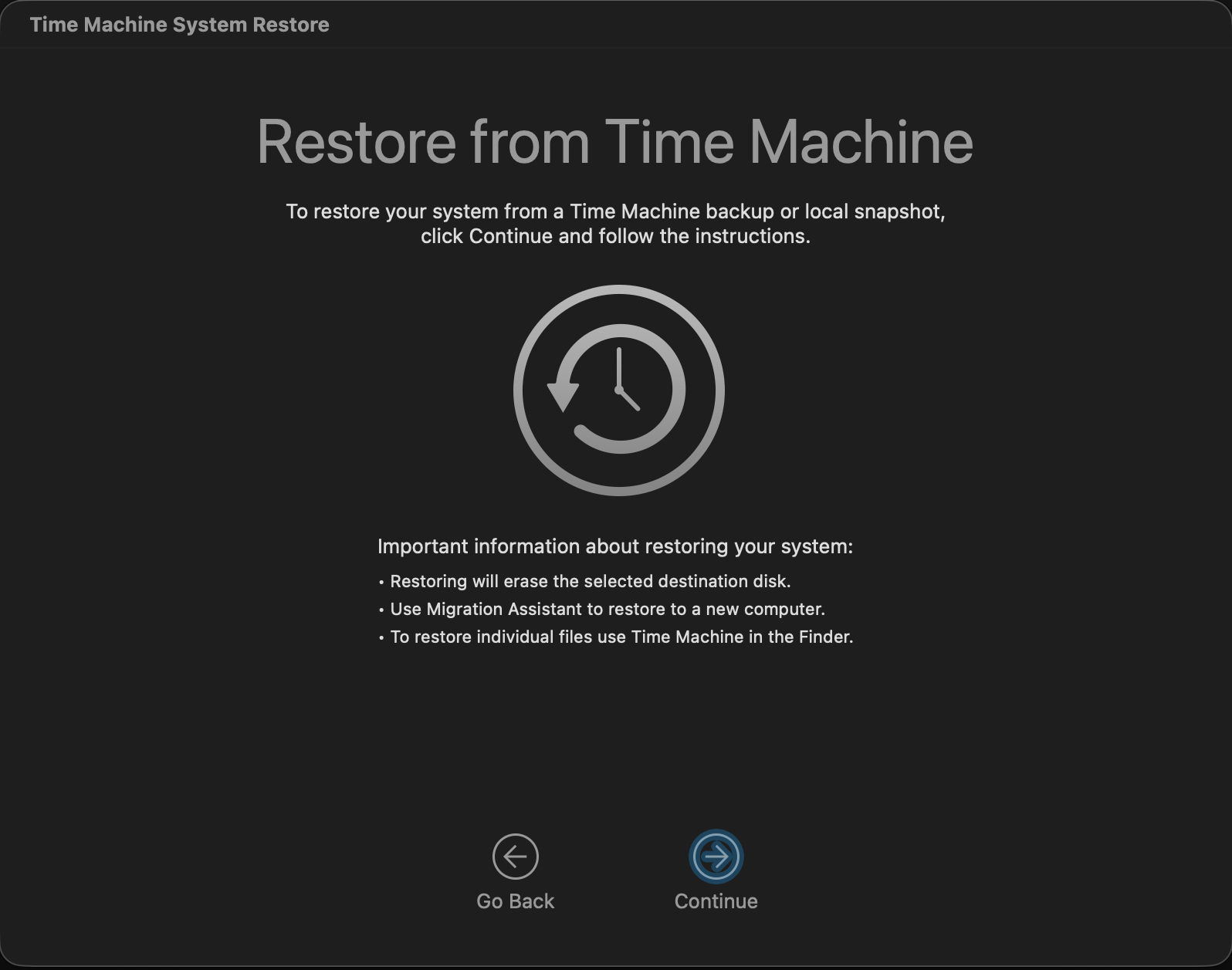
To restore from a Time Machine backup, select that item and click Continue.
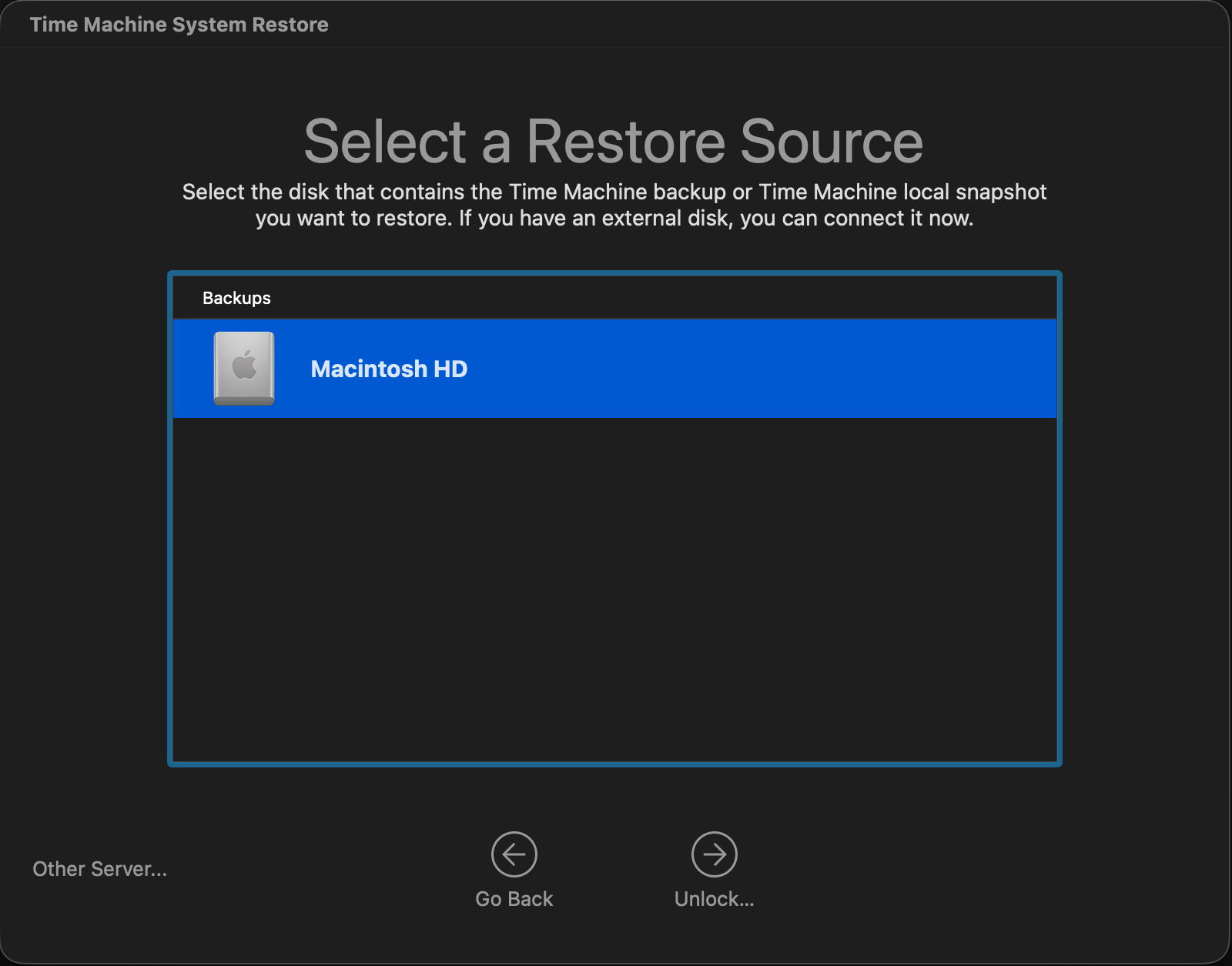
If your backup is on external storage, this is the time to connect it and locate the backup you want to restore from.
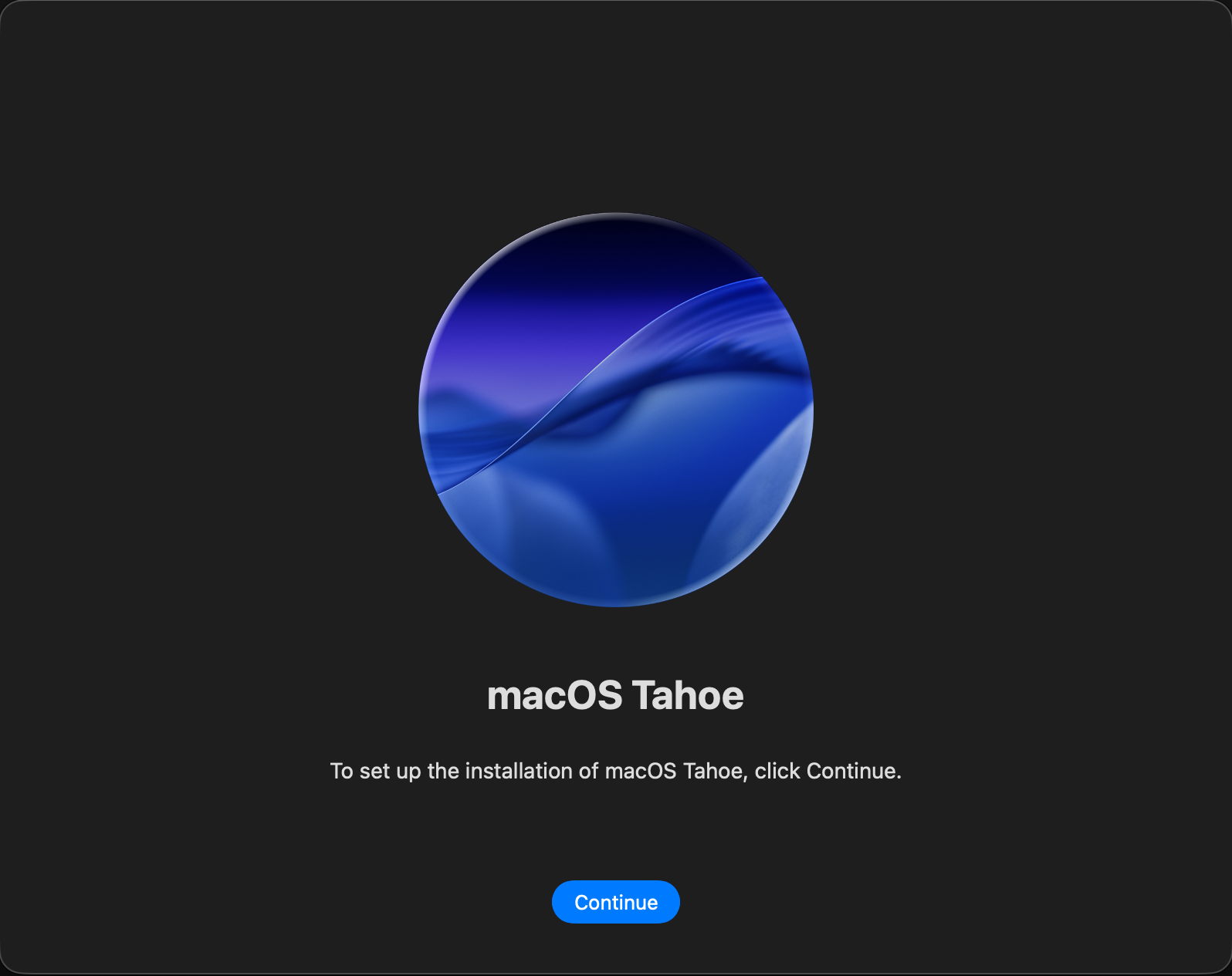
To reinstall macOS, select that item and click Continue. You’ll then pass through the licence agreement and can select which disk to reinstall macOS on, but you don’t get a choice of which version to install.
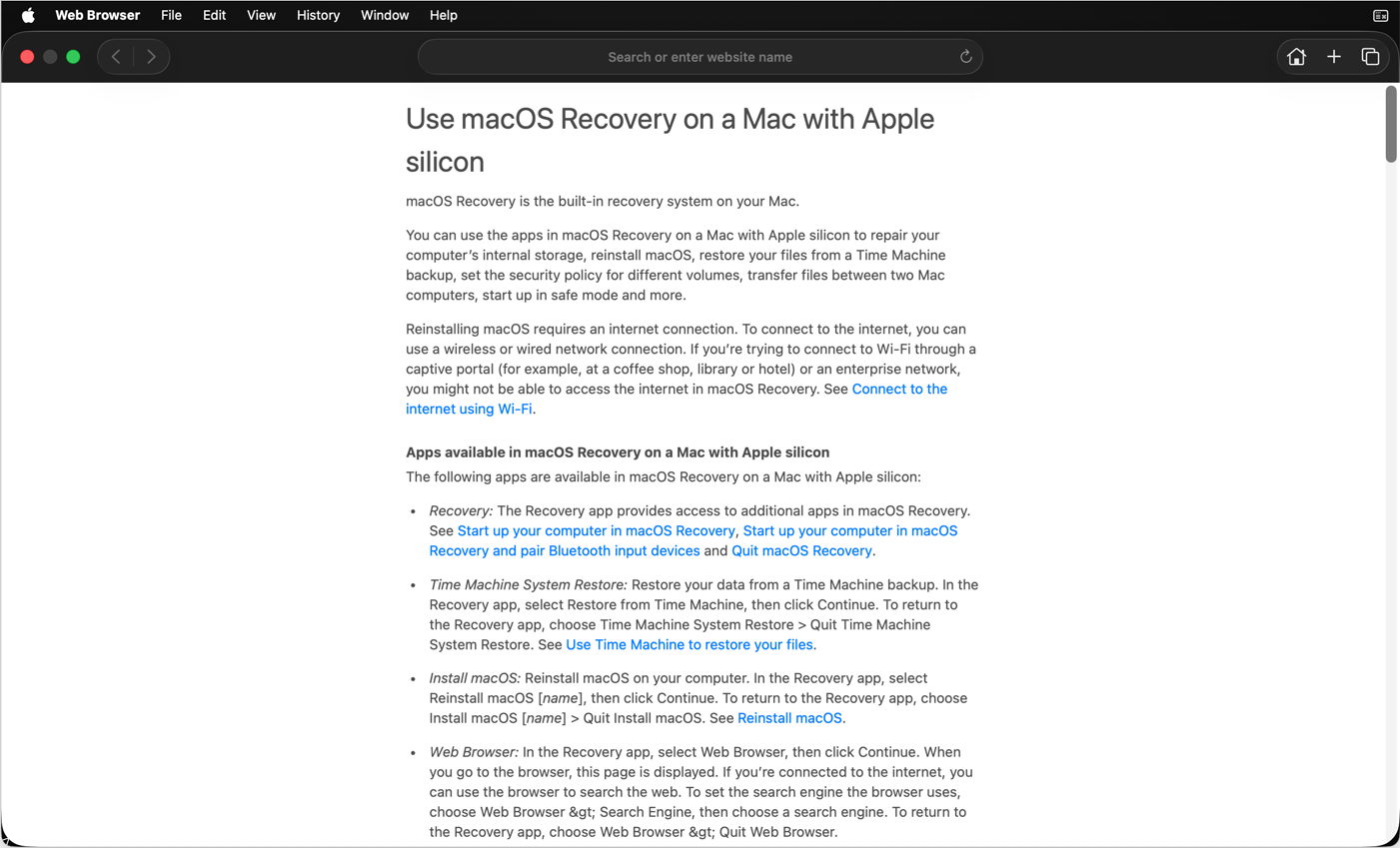
To read Apple’s help information on Recovery Mode and its tools, or browse the web, select Web Browser and click Continue.
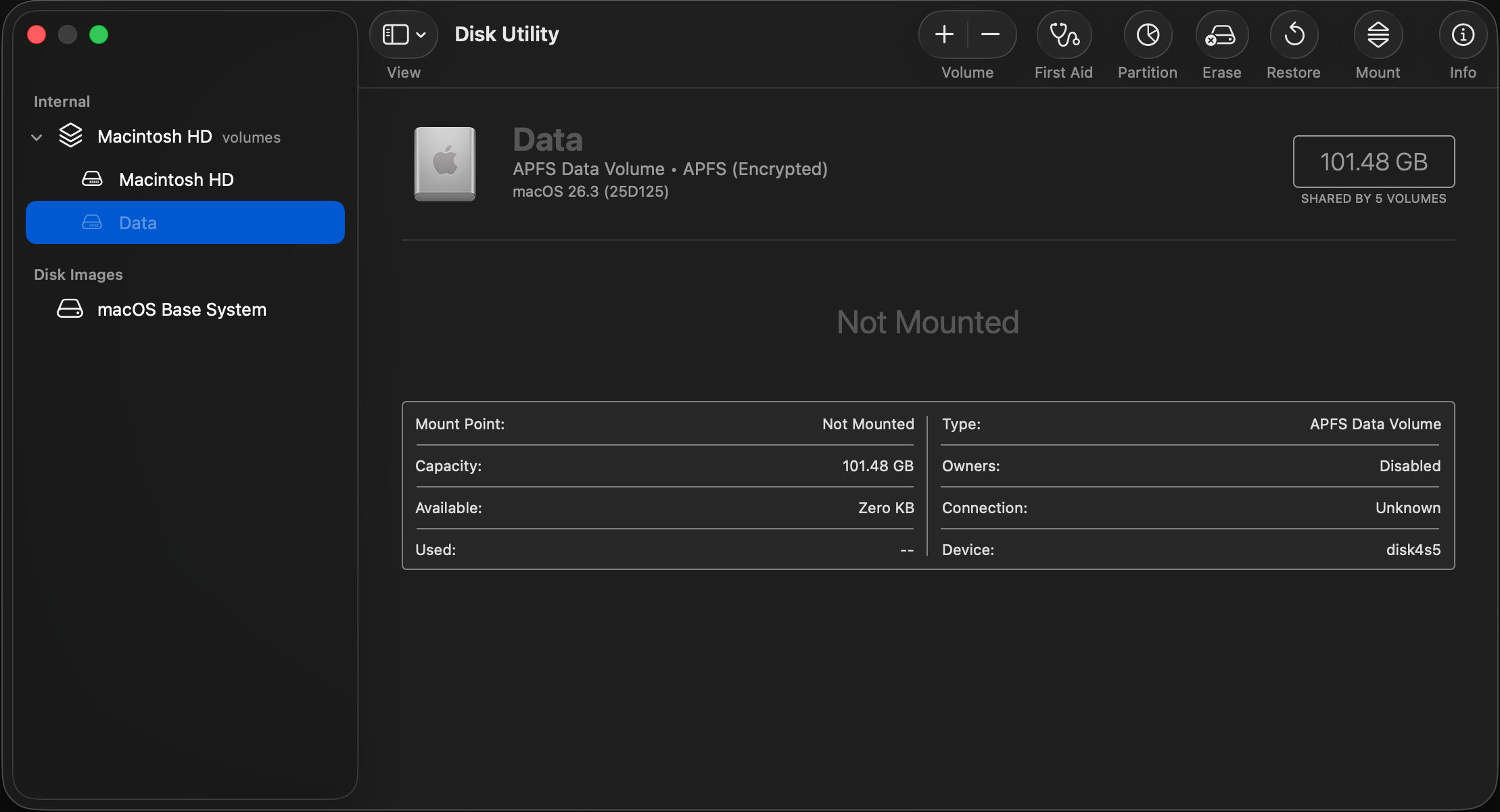
To check and repair volumes, and perform other storage management, select Disk Utility and click Continue.
Recovery Utilities
Access these through the Utilities menu in Recovery.
Startup Security Utility
To change the Security Policy for a boot volume group, open Startup Security Utility and select the boot volume group whose policy you want to inspect or change. Click Unlock and enter the password for that.
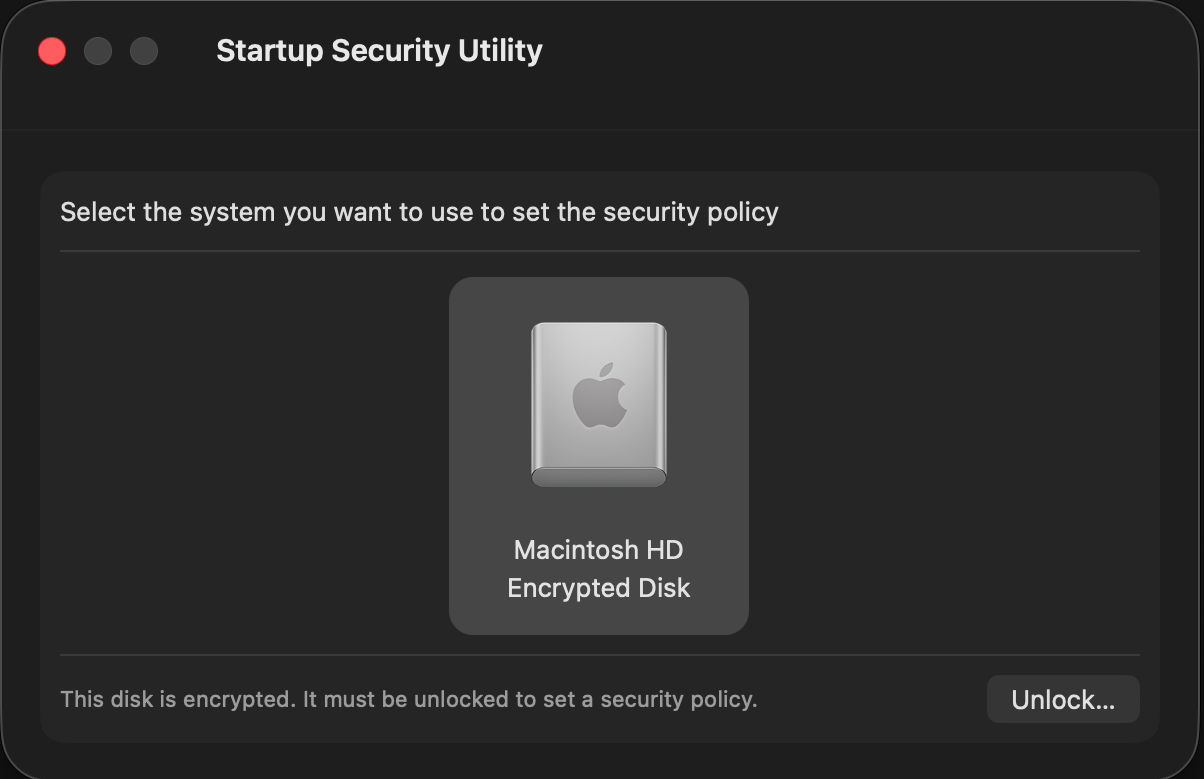
This should normally be at Full Security.
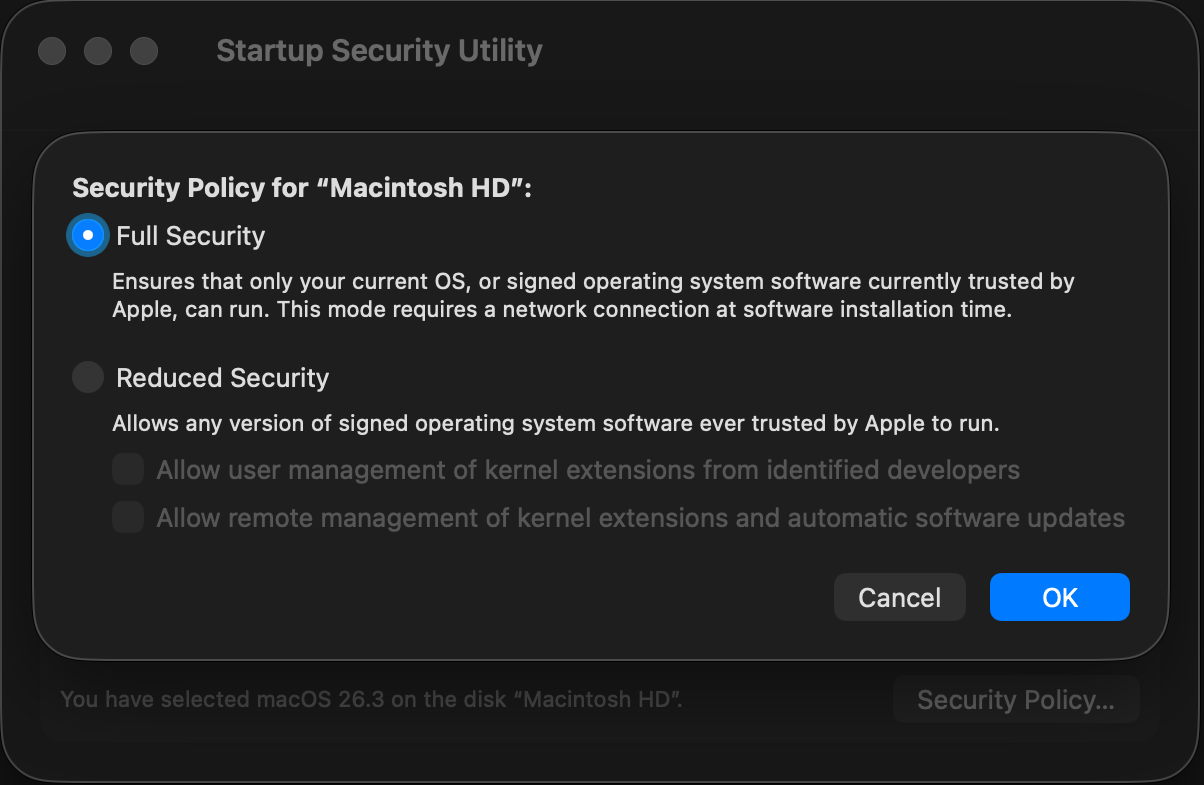
To run that boot volume group at Reduced Security, for example to allow the loading of third-party kernel extensions, select Reduced Security instead, then tick the option you want and click OK.
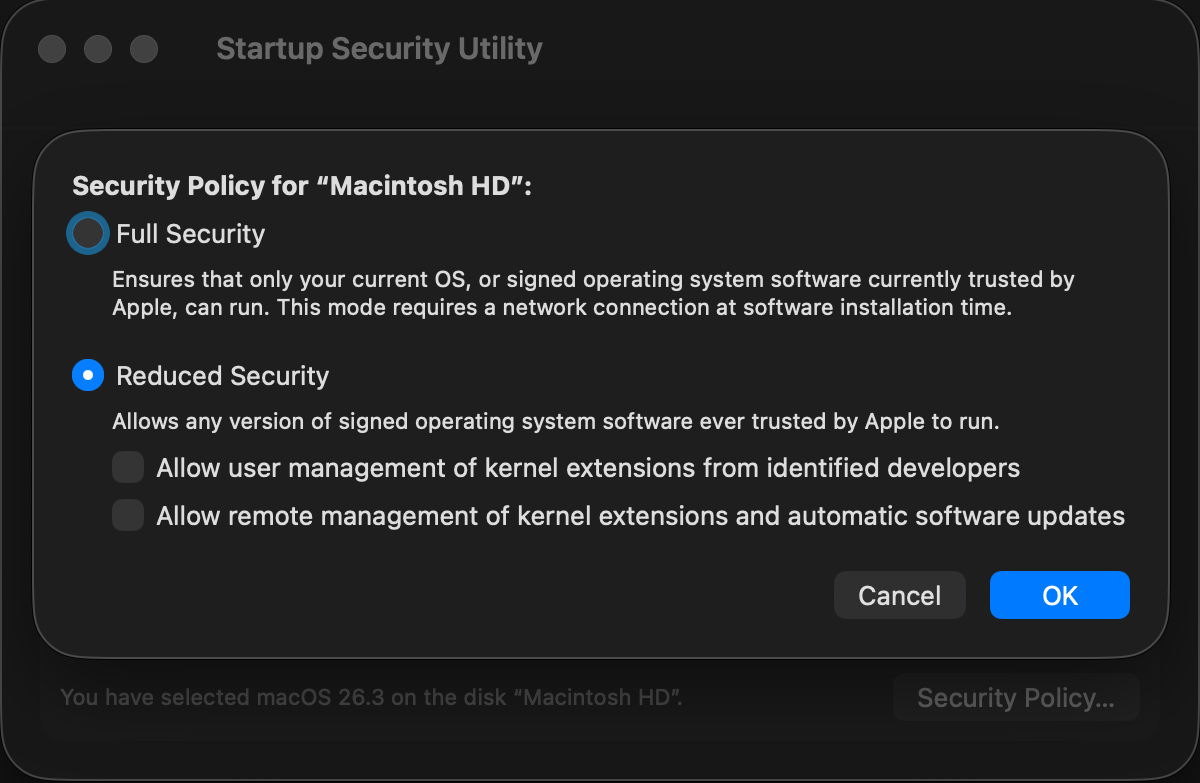
To reduce security further, for example when disabling SIP, select Reduced Security then use Terminal to disable SIP.
Device Recovery Assistant
Use the Recovery Assistant command in the Utilities menu. Note that its app menu identifies itself as Device Recovery Assistant. This requires an internet connection to function. If you’re asked to choose a connection, opt for a Wi-Fi network if possible.

Distinctive to DRA’s opening window is its first aid symbol ⊕. Click on the Continue button to move on.

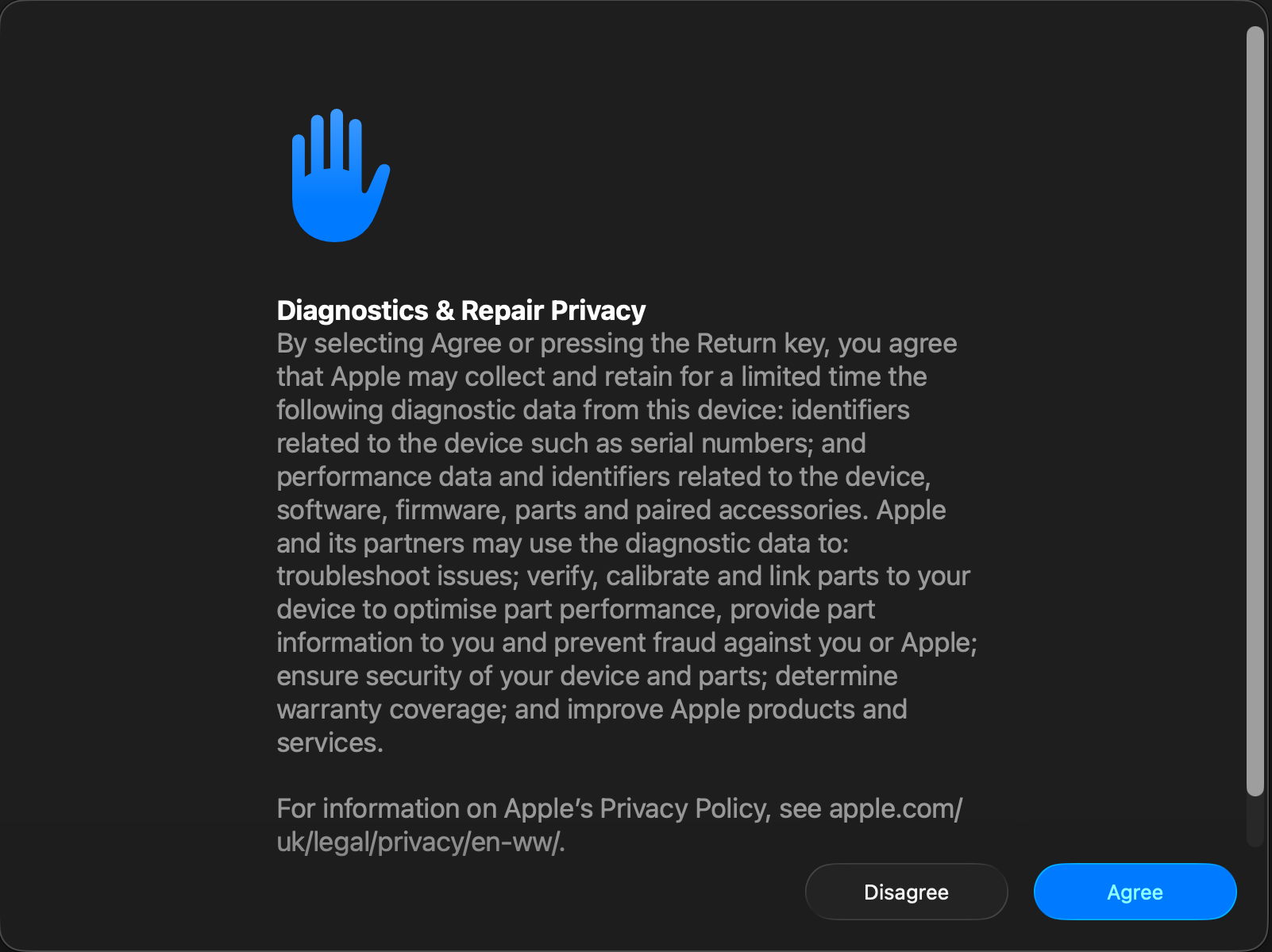
The next window invites you to send data to Apple for diagnostic purposes. Make your choice as you move on.

If your startup Data volume is protected by FileVault, you’ll then be prompted for the password to unlock it. Once that has been provided, DRA attempts to perform a recovery.

At the end of that, you should see one of three outcomes:
- no problems were found, and you can restart your Mac back into normal mode;
- problems were found and repaired successfully, so you can restart your Mac back into normal mode;
- problems were found but aren’t fully repaired.
When your Mac restarts, it may show a notification that you need to recover iCloud data. If so, open System Settings and you should see a new item in its sidebar to Recover iCloud Data.
To shut down or restart your Mac, use the commands in the Apple menu. The only way to return to any of the options offered in the initial screen, such as starting up in Safe mode, is to shut down and enter Recovery Mode again.
Miscellaneous
To open Terminal to run commands there, open Terminal from the Utilities menu. Note that you currently get bash rather than zsh, and run as root.
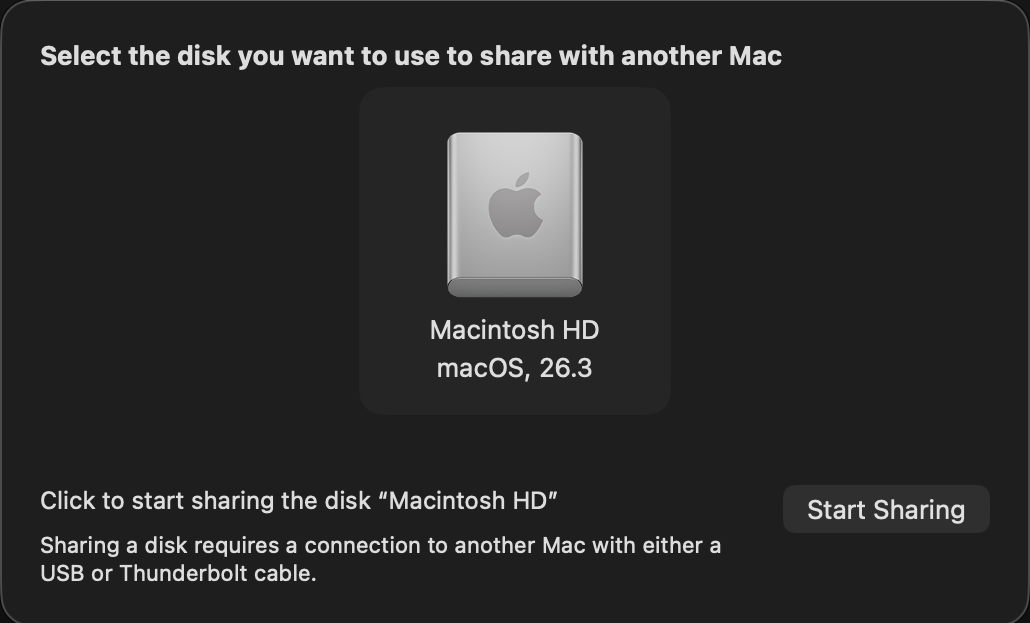
To put that Mac’s disk into Shared Disk mode, select the Share Disk… command from the Utilities menu and follow the instructions.
To browse the Recovery log, select that command from the Window menu.
Leave Recovery
The Apple menu offers three exit routes: Startup Disk to change that and restart, Restart from the current startup disk, and Shut Down.