Reading view

There are new articles available, click to refresh the page.

In the background: Identification

Processes and their threads running in the background can be hard to identify. When they’re having problems, or you just want to discover what WardaSynthesizer is, it can be frustrating trying to obtain more information. In some cases you’ll end up referring to the list of background items in Login Items & Extensions, in General settings. Many of its entries should be self-explanatory, or aided by the information revealed in their 🔍 button, but some cryptically refer to Item from unidentified developer, for example.

This article suggests where to go next, and where to look when a background process doesn’t appear in that list.

Activity Monitor

Switch Activity Monitor’s view to CPU, ensure the View menu is set to show All Processes, then locate and select the process you’re interested in. Click the ⓘ button in the toolbar to see the path to the executable, its parent process and other useful information.

However, Activity Monitor only lists active processes, and those that have quit won’t appear until they’re active again.

BTM dump

Many background processes, including those listed in Login Items & Extensions, are now managed by macOS Background Task Management (BTM), which maintains a detailed list of them in its store in /var/db/com.apple.backgroundtaskmanagement/BackgroundItems-v16.btm. Although not documented in any man page, you can obtain that as a BTM dump, using the command
sudo sfltool dumpbtm > ~/Documents/btmdump.text
to write it to the text file btmdump.text in your Documents folder. This uses sfltool, originally intended to manage the Shared File List (hence the sfl), that has gained additional features covering Service Management, although its man page hasn’t caught up yet and the most help you’ll get is from Apple’s account in its Platform Deployment Guide.

The BTM dump lists full Service Management information for every item currently being managed, by user ID. Normally, the two important user IDs would be 0 for root and 501 for the primary admin user, but here the first list, with a UID of -2, appears to be a composite covering most Background Items. You should also check those for the current user, such as 501. A typical entry might be:
UUID: 9A087CA1-250D-4FA6-B00A-67086509C958
Name: Alfred 5.app
Developer Name: (null)
Team Identifier: XZZXE9SED4
Type: app (0x2)
Flags: [ ] (0)
Disposition: [enabled, allowed, not notified] (0x3)
Identifier: 2.com.runningwithcrayons.Alfred
URL: file:///Applications/Alfred%205.app/
Generation: 0
Bundle Identifier: com.runningwithcrayons.Alfred

This gives the location of the executable that is loaded. The Developer Name given is taken from its code signing certificate. The Disposition field is probably most relevant to identifying those causing problems, as it should reflect the status of that entry in the Login Items list, and whether the user has been notified.

BTM attributions

Apple also maintains a property list containing details of many helpers and other executables used by major third-party apps. This can be found at /System/Library/PrivateFrameworks/BackgroundTaskManagement.framework/Versions/A/Resources/attributions.plist

In nearly 4,000 lines of dictionaries, Apple lists many of the more common background and helper apps you’re likely to encounter, from Adobe Creative Cloud services to ZoomDaemon. Among the useful information given about each are its associated bundle identifiers, the path to its executable, and the developer’s Team Identifier for their signing certificate. Although the identities of most of those should be obvious, if you’re confronted by the sort of fragmentary information that System Settings can offer, this can be a great help.

Log entries

The BTM subsystem is identified in the log as com.apple.backgroundtaskmanagement. One simple way to observe its activity is to obtain a full log extract for a period of interest using LogUI, then set the popup to the left of its search box to Subsystems, enter com.apple.background in the search box and press Return.

Key points

  • In Activity Monitor select the process and press the ⓘ button;
  • sudo sfltool dumpbtm for a BTM dump;
  • attributions.plist in /System/Library/PrivateFrameworks/BackgroundTaskManagement.framework;
  • log subsystem com.apple.backgroundtaskmanagement.

In the background: Putting threads to work

To take best advantage of background processing, multiple cores, and different core types, apps have to be designed to run efficiently in multiple threads that co-operate with one another and with macOS. This article explains the basics of how that works in Apple silicon Macs.

Single thread

Early apps, and many current command tools, run as simple sequences of instructions. Cast your mind back to days of learning to code in a first language like Basic, and you’d effectively write something like
BEGIN
handle any options passed in command
process data or files until all done
report any errors
END

There are still plenty of command tools that work like that, and run entirely in a single thread. One example is the tar command, which dates back to 1979, and its current version in macOS remains single-threaded. As a result it can’t benefit from any additional cores, and runs at essentially the same speed on base, Pro, Max and Ultra variants of an M chip family.

Multiple threads

Since apps gained windowed interfaces, rather than running from BEGIN to END and quitting, they’re primarily driven by the user. The app itself sits in an event loop waiting for you to tell it what to do through menu commands, tools or other controls. When you do that, the app hands that task over to the required code to handle, and returns to its main event loop. This is much better, as you see an app that remains responsive at all times, even though it may have other threads that are working frantically in the background on tasks you have given them.

We’ve now divided that simple linear code up into at least two parts: a foreground main thread that the user interacts with and farms work out to worker threads that run in the background. When run on a single core with multitasking, that ensures the main thread appears responsive at all times, and we could use that with a Stop command, as has been commonly implemented with ⌘-., to signal the worker thread to halt its processing.

Threads come into their own, though, with multiple CPU cores. If the worker code can be implemented so more than one thread can be processing a job at any time, then each core can run a separate thread, and complete that job more quickly. For example, instead of compressing an image one row of pixels at a time, the image could be divided up into rectangles, and each farmed out to be compressed by a separate thread. Alternatively, the compression process could be designed in stages, each of which runs in a separate thread, with image data fed through their pipeline.

Using multiple threads has its own limitations, and there are trade-offs as the number of threads increases, and more work has to be done moving data between threads and the cores they’re running on.

These can be seen in a little demonstration involving CPU-intensive floating point computations in a tight loop:

  • running the computation in a single thread, on a single CPU core, normally processes 0.25 billion loops per second
  • splitting the total work to be performed into 2 threads increases that to 0.48 billion/s
  • in 10 threads, it rises to 2.1 billion/s
  • in 20 threads, it reaches a peak of 4.2 billion/s
  • in 50 threads, overhead has a negative impact on performance, and the rate falls to 3.3 billion/s.

Those are for the 10 P and 4 E cores in an M4 Pro, at high Quality of Service, so run preferentially on its P cores. In this case, picking the optimum number of threads could accelerate its performance by a factor of 16.8.

Core allocation

CPUs with one core type normally try to balance load across their cores, and coupled with a scheme for software to indicate the priority of its threads, aren’t as complex as those with two or more core types with contrasting performance characteristics. For its Alder Lake CPUs, Intel uses an elaborate Hardware Feedback Interface, marketed as Intel Thread Director, that works with operating systems such as Windows 11 and recent Linux kernels to allocate threads to cores.

With its long experience managing P and E cores in iPhones and iPads, Apple has chosen a scheme based on a Quality of Service (QoS) metric, together with software management of core cluster frequency. The developer API is simplified to offer a limited number of values for QoS:

  • QoS 9 (binary 001001), named background and intended for threads performing maintenance, which don’t need to be run with any higher priority.
  • QoS 17 (binary 010001), utility, for tasks the user doesn’t track actively.
  • QoS 25 (binary 011001), userInitiated, for tasks that the user needs to complete to be able to use the app.
  • QoS 33 (binary 100001), userInteractive, for user-interactive tasks, such as handling events and the app’s interface.

There’s also a ‘default’ value between 17 and 25, an unspecified value, and you might come across others used by macOS.

As a general rule, threads assigned a QoS of background and below will be allocated to run on E cores, while those of utility and above will be allocated to run on P cores when they’re available. Those higher QoS threads may also be run on E cores when P cores are already fully committed, but low QoS threads are seldom if ever promoted to run on P cores.

Internally, QoS uses a different, finer-grained metric, taking into account other factors, but those values aren’t exposed to the developer. QoS provided by the developer and set in their code is considered a request to guide macOS, and not an absolute determinant of which cores that code will be run on.

Cluster frequency

P and E cores are operated at a wide range of frequencies, that are determined by macOS according to more complex heuristics also involving QoS. In broad terms, when P cores are running threads they do so at frequencies close to their maximum, as are E cores when they’re running high QoS threads that should have been run on P cores. However, when E cores are only running low QoS threads, they do so at a frequency close to that of idle for maximum efficiency.

One significant exception to that are the two E cores in M1 Pro and M1 Max chips. To compensate for the fact that there are only two of them, when they’re running two or more threads of low QoS they have higher frequency. Frequency control in P cores in M4 Pro chips is also more complicated, as their frequency is progressively reduced as they’re loaded with more threads, presumably to constrain heat generated when running at those higher loads.

There are times when internal conditions, such as Low Power Mode, override a request for code to be run as userInteractive. You can experience that yourself if you try running apps that would normally be given P cores on a laptop with little remaining in its battery. All threads are then diverted to E cores to eke out the remaining battery life, and their cluster frequency is reduced to little more than idle.

Summary

  • Developers determine the performance of their code according to how it’s divided into threads, and their QoS.
  • QoS advises macOS of the performance expectation for each thread, and is a request not a requirement.
  • macOS uses QoS and other factors to allocate threads to specific core types and clusters.
  • macOS applies more complex heuristics to determine the frequency at which to run each cluster.
  • System-wide policy such as Low Power Mode can override QoS.

In the background: software update, backup & XProtect Remediator

Among the other activities you may see shortly after you’ve logged in to macOS Tahoe are a check for system software updates available from Apple’s servers, an initial Time Machine backup, and sometimes a set of XProtect Remediator scans. This article explains how those are dispatched by Duet Activity Scheduler and Centralised Task Scheduling, the DAS-CTS system.

DAS

Shortly after user login, DAS starts gathering its budgets enabling it to score activities, including thermal policies, shared memory and energy. It then loads saved activities by group, and solicits activities for resubmission and inclusion in its lists to be dispatched and run. It then periodically evaluates the activities in those lists, to determine which should and should not be run at that time.

In the early minutes after login, it may only have around 126 candidates in its lists, some of which it identifies as ‘passengers’, and doesn’t evaluate for the time being. For those activities it does evaluate, it arrives at a score between 0 and 1, and decides which it should dispatch next.

SoftwareUpdate

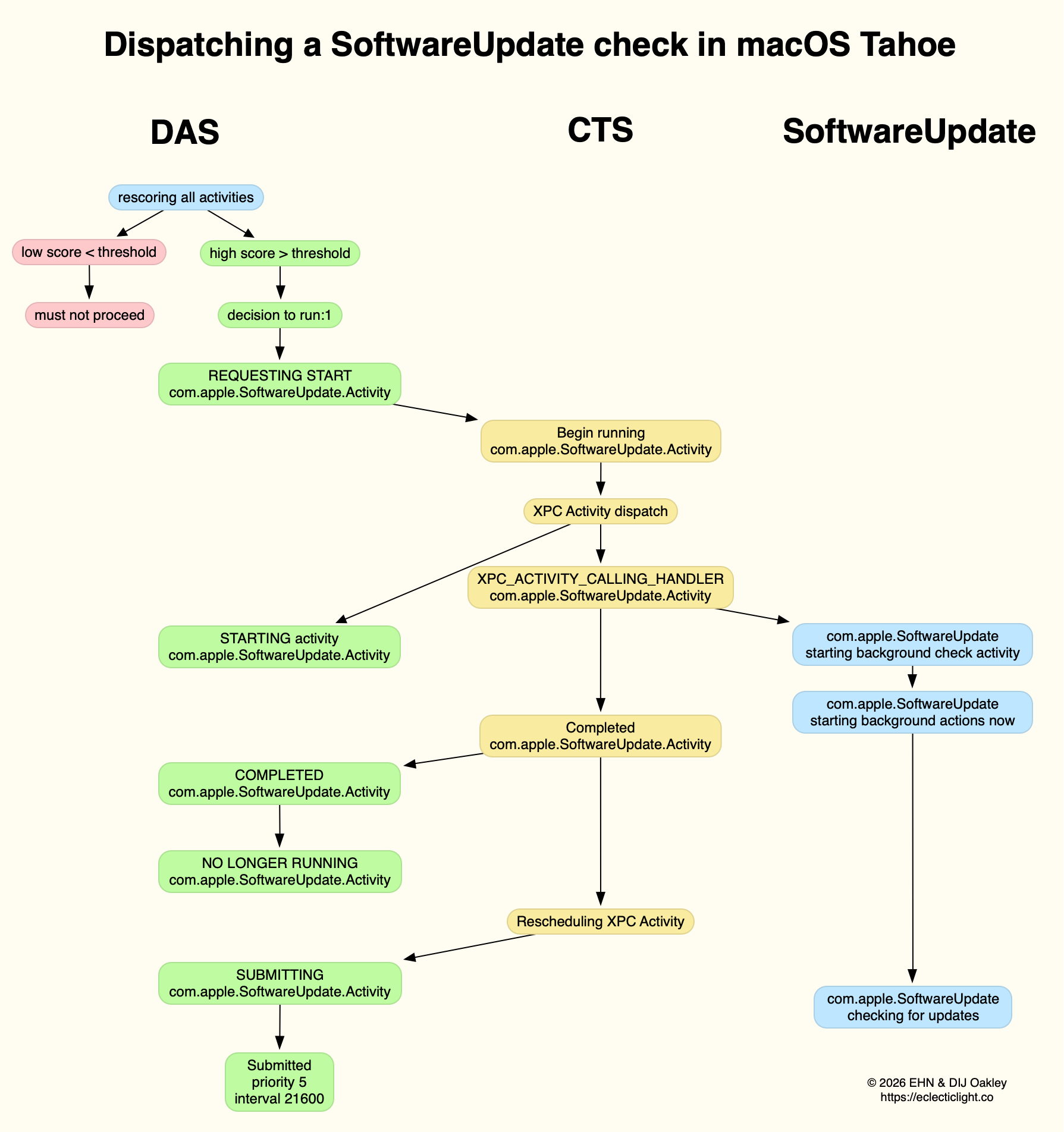
This normally reaches a score sufficient to be dispatched in the first few minutes after user login. That DecisionToRun is recorded in the log, and DAS requests CTS to start com.apple.SoftwareUpdate.Activity as root via XPC. This starts a dialogue between DAS and CTS, leading to the handler com.apple.SoftwareUpdate being called. That in turn starts its background check, and proceeds to check for updates.

CTS considers that activity is completed, and informs DAS of the fact. The activity is then rescheduled with DAS, in this case with a priority of 5, at an interval of 21,600 seconds, or 6 hours. Thus, SoftwareUpdate should check for new system updates approximately every 6 hours when your Mac is running, although the exact time of its dispatch by DAS will vary according to other activities and general conditions such as temperature and resource availability.

This is summarised in the diagram below.

In practice, the time between DAS deciding to run SoftwareUpdate and it running is likely to be less than 0.1 second, and online checks should be initiated within a further 0.1 second.

Time Machine backup

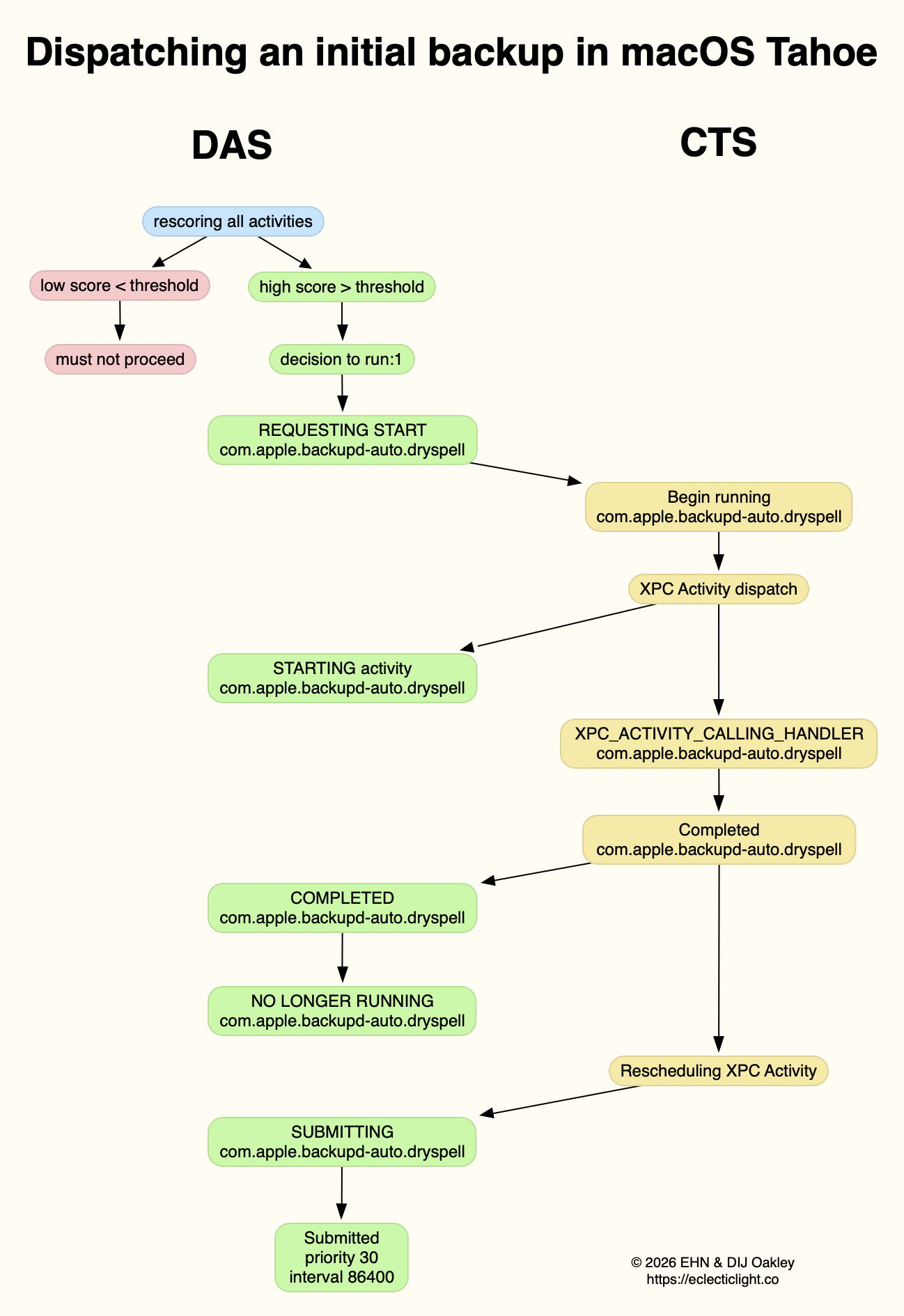
Automatic backups are normally delayed for the first 5 minutes after startup, and during that time DAS should decide not to proceed to dispatch them. When it does give them the go ahead, the activity dispatched is known as com.apple.backupd-auto.dryspell, indicating that it’s the initial backup made after startup. This too is run as root.

A similar dialogue between DAS and CTS is established, as shown in the diagram below.

What is distinctive here is that com.apple.backupd-auto.dryspell doesn’t result in the immediate initiation of a backup, but instead runs backupd-helper, and that can be delayed significantly before backupd itself is run to perform the backup. Although backupd-helper should be running within 0.2 seconds of DAS deciding to run the sequence, it may be a further 10 seconds before backupd itself is actively backing up. This is presumably because of other sustained and intense activities competing for resources at that time.

Dispatch of com.apple.backupd-auto.dryspell thus differs from the diagram below, showing dispatch of an ordinary automatic backup after the initial one, in macOS Sequoia.

com.apple.backupd-auto.dryspell is rescheduled by DAS at a priority of 30, and an interval of 86,400 seconds, or 24 hours, so it should work neatly for Macs that are powered up each day.

XProtect Remediator

Dispatch of a set of XPR scans is less predictable, as they’re likely to occur at roughly 24 hour intervals, but only when the Mac is running on mains power, and when it’s otherwise lightly loaded. If that happens to be the period of relative calm ten minutes or more after logging in, then background activity will be prolonged as the set of XPR scans is run.

By the time XPR was ready to scan here, DAS had a total of 600 pending activities, of which 254 were considered to be ‘passengers’. It therefore evaluated 74 activities, two of which were com.apple.XProtect.PluginService.daemon.scan, to be run as root, and com.apple.XProtect.PluginService.agent.scan as user. On some occasions, DAS will hold one of those from dispatch until the other is complete, but in this case it approved both to run simultaneously. Those went through a similar dialog between DAS and CTS, resulting in com.apple.XProtectFramework starting both as timed scans with standard priority, within less than 0.2 seconds of the decision by DAS to dispatch them.

As those were both timed scans, when XPR’s timers expired they were cancelled before fully completing. However, once a week XPR scans should be run without that timer, allowing them to finish all their scans.

XPC Activity states

If you follow CTS log entries for XPC activity, you’ll come across numeric states ranging between 0-5, such as
32.474139 com.apple.xpc.activity _xpc_activity_set_state: com.apple.SoftwareUpdate.Activity (0xb8ac3a080), 2
Those are documented in Apple’s source code as:

  • 0 XPC_ACTIVITY_STATE_CHECK_IN, check-in has been completed;
  • 1 XPC_ACTIVITY_STATE_WAIT, waiting to be dispatched and run;
  • 2 XPC_ACTIVITY_STATE_RUN, now eligible to be run;
  • 3 XPC_ACTIVITY_STATE_DEFER, to be placed back in its wait state with unchanged times;
  • 4 XPC_ACTIVITY_STATE_CONTINUE, will continue its operation beyond the return of its handler block, and used to extend an activity to include asynchronous operations;
  • 5 XPC_ACTIVITY_STATE_DONE, the activity has completed.

I hope this had given insight into what your Mac is up to during the first few minutes after you log in, why Apple silicon Macs show such high CPU % for their Efficiency cores, and how this results from important background activities.

Related

Explainer: XPC
In the background: Spotlight indexing

In the background: Spotlight indexing

If you’ve ever watched Activity Monitor shortly after logging in to your Mac, you’ll have seen how busy it is for the first ten minutes or more. Apple silicon Macs are different here, because their sustained high % CPU is largely restricted to the Efficiency cores. This is commonly attributed to Spotlight indexing files, and may appear worrying. This article tries to describe what’s going on over that period, and why it doesn’t necessarily mean there’s a problem with Spotlight.

On-the-fly indexing

When new files are created, or existing ones changed, Spotlight indexes them very quickly. The first mdworker process is spawned within a second, and others are added to it. They’re active for about 0.2 seconds before the new posting lists they create are ready to be added to that volume’s indexes. They may later be followed by CGPDFService and mediaanalysisd running similar image analysis to that performed in Live Text. Text extracted from the files is then compressed by mds_stores before adding it to that volume’s Spotlight indexes, within seven seconds or so of file creation.

These steps are summarised in the diagram above, where those in blue update metadata indexes, and those in yellow and green update content indexes. It’s most likely that each file to be added to the indexes has its own individual mdworker process that works with a separate mdimporter.

Spotlight indexes

The indexes used in search services are conventionally referred to as inverted, because of the way they work, and those would normally be largely static. Spotlight’s have to accommodate constant change as files are altered and saved, new files are created, and others are deleted. To enable its main inverted indexes to remain well-structured and efficient, Spotlight stores appear to use separate transient posting tables to hold recently acquired metadata and content. Periodically data from those is assimilated into its more static tables. Similarly, when files are deleted their indexed metadata and contents aren’t removed immediately, but when the store next undergoes housekeeping.

Image analysis and text extraction performed by CGPDFServices and mediaanalysisd, introduced in macOS Sonoma, are computationally intensive, and normally deferred until they can be performed with minimal disruption to the user. When completed, that text also needs to be incorporated in Spotlight’s content indexes.

Startup sequence

I gathered 15 log extracts each covering all entries (excluding Signposts) for periods of 3 seconds during the 11 minutes of high Spotlight process activity after user login, on a Mac mini M4 Pro running macOS 26.2 Tahoe. Those show Spotlight processes running in phases, starting from an arbitrary time zero when their activity was first seen reaching a peak:

  • 00:00 – mdworker processes were indexing files for periods of 1-4 seconds each; Spotlight indexes were being maintained, with a journal reset and sync;
  • 02:40 – CGPDFService started;
  • 04:10 – mediaanalysisd started running its Live Text extraction on files, with photoanalysisd activity; then coremanagedspotlightd maintained indexes, replaying journals;
  • 07:20 – mediaanalysisd continued Live Text extraction;
  • 10:40 – mdworker returned to indexing as before; index maintenance occurred again with a journal reset and sync, following which index file permissions were set;
  • 10:45 – caches were deleted and there was general tidying up before background processes tailed off.

Times are given as MM:SS following the arbitrary start. After about 5 minutes had elapsed, Activity Monitor and the log also showed substantial activity for the initial Time Machine backup, and running the daily complete set of XProtect Remediator scans.

All Spotlight processes appeared to run in the background, at low QoS and on Efficiency cores, apart from those of mediaanalysisd. That process was run at a QoS of Utility rather than Background or Maintenance, and confirmed by the MADServiceTextProcessing being called with a QoS numeric value of 17 instead of 9 or less. That would normally be scheduled on Performance cores, although little was seen on those in Activity Monitor’s CPU History window. Text extraction run by mediaanalysisd typically took about 0.25 seconds for each file processed. mediaanalysisd ran repeatedly for about 6 minutes, between 04:10 and about 10:40.

Abnormally prolonged indexing

Several macOS upgrades in recent years appear to have caused Spotlight indexing at startup to take prolonged periods, in some cases reported as several days, and comparable to the time required to rebuild all indexes from scratch. Given the paucity of log entries recording index maintenance, this can be difficult to confirm, although text extraction by mediaanalysisd is easier to identify. In most cases, it seems preferable to allow prolonged maintenance to run to completion, by allowing that Mac to run without sleeping. In Apple silicon Macs, as those maintenance processes should run almost exclusively on E cores, this should have limited impact on the user.

Forcing a full reindex of a volume is likely to take longer than allowing maintenance to complete.

Key points

  • Spotlight indexes new and changed files rapidly to supplementary journals rather than main indexes.
  • Macs that are shut down daily perform extensive indexing and index maintenance shortly after the user logs in.
  • Macs that remain running should perform the same maintenance periodically during light use.
  • Maintenance includes the incorporation of supplementary journals into main indexes
  • Text extraction from images by mediaanalysisd is performed at the same time, and can take a long time.
  • Although image analysis may be run on P cores, almost all Spotlight indexing and maintenance is performed in the background on E cores.
  • Prolonged indexing and maintenance isn’t necessarily a bad sign, and may well be normal.
  • Disrupting Spotlight routine maintenance may affect search results.

❌