Reading view

There are new articles available, click to refresh the page.

Last Week on My Mac: Brilliant engineering in a flawed interface

If there’s one thing I’ll remember macOS Tahoe for it’s brilliant engineering inside a shockingly flawed interface. Last week’s first Background Security Improvement was yet another example of that trend.

I had enthused about its predecessor the RSR three years ago, although it was sent to the naughty corner after an updated version of Safari told Facebook and other popular sites it wasn’t who they expected. After that trauma, most users shunned RSRs, and it seems engineers who dared mention them were strapped to the front of an F1 car and driven round until they recanted.

Thankfully, RSRs were only put on pause before being rebadged as Background Security Improvements or BSIs, an Orwellian turn of phrase that skilfully avoids the word update despite the fact that they’re still discovered, downloaded and installed by softwareupdated. Now I’ve had a chance to give a fair account of the first public BSI, I can consider what’s wrong with their current implementation.

Location

BSIs are controlled not in Software Update settings, but in their own section at the end of Privacy & Security. As such, they are the only macOS update there, and all others remain in Software Update where they belong. This misleads users, and Software Update reports that Your Mac is up to date when it isn’t, because there’s an outstanding BSI available.
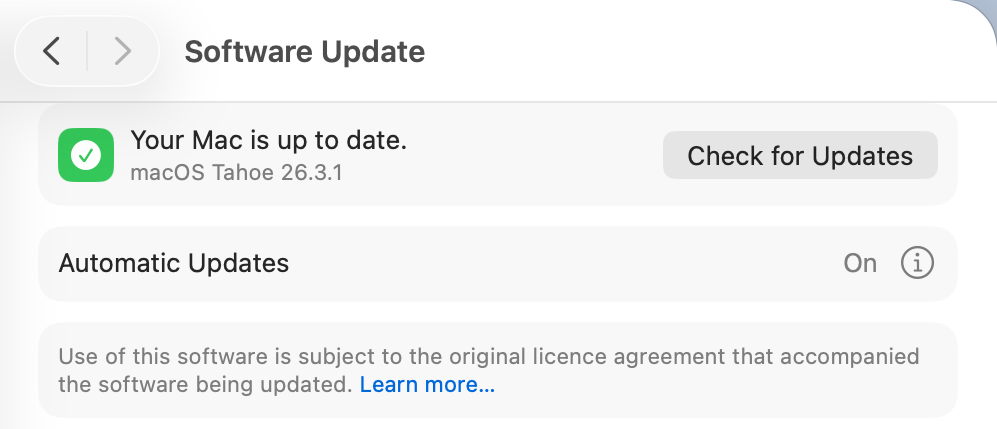
Not only that, but users naturally assume that when Software Update settings have Install macOS updates disabled, no macOS updates will be installed automatically. Little do they realise they can still get a BSI without being asked.

BSIs are currently misplaced in System Settings, and their controls should be moved back to Software Update where RSRs were.

I fear the reasoning behind hiding BSIs among strangers in Privacy & Security was to ensure most Mac users would leave BSIs to be installed automatically. It’s no coincidence that, in addition to this hiding, the automatic installation of BSIs was enabled by default when upgrading to macOS Tahoe. This reeks of deliberate deception.

Control

There is a single on-off toggle provided, to Automatically Install BSIs. Apple explains that “if you choose to turn off this setting, your device will not receive these improvements until they’re included in a subsequent software update.” Thus the user is given a forced choice between macOS deciding when to install an available BSI, or not being notified about that BSI at all.

As with other macOS updates, the user must be given the option to be notified when a BSI is available, and to make their own choice whether and when to install it.

The alternative for users is to disable Automatically Install, watch for news of BSI releases, and, if they wish to receive one, to enable that setting, download and install the BSI, then disable the control again. For many Mac users, that appears to be the best option in the absence of better support.

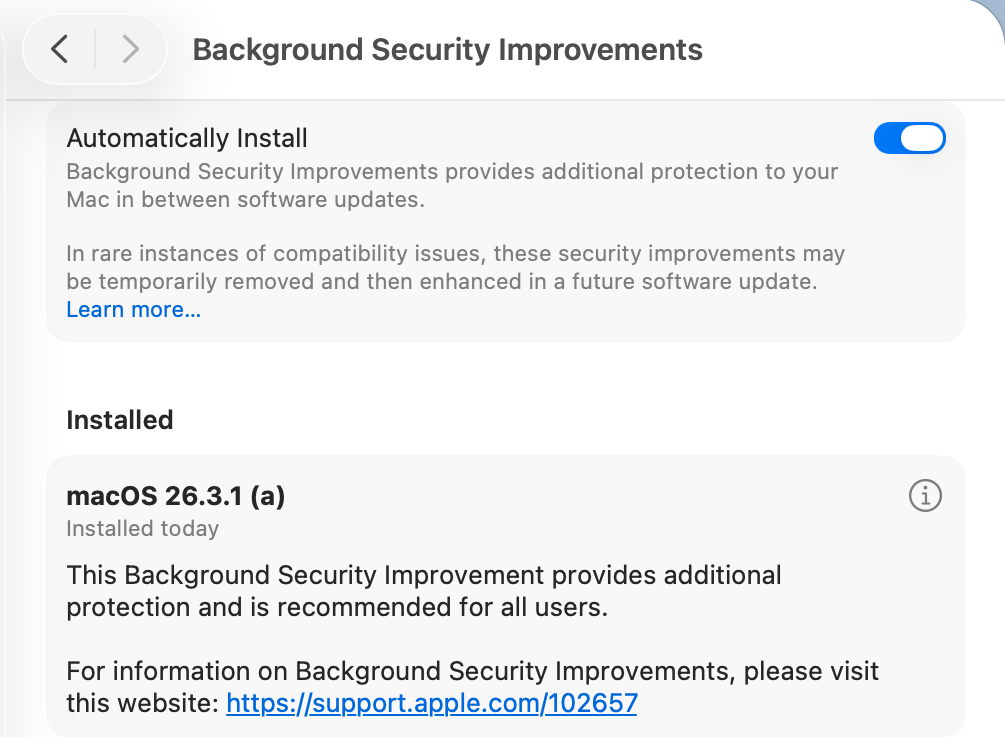
Although the control is titled Automatically Install, its behaviour is different. When a BSI is found to be available, macOS doesn’t automatically download and install it, but waits for the user to click on the Install button, then to authenticate.
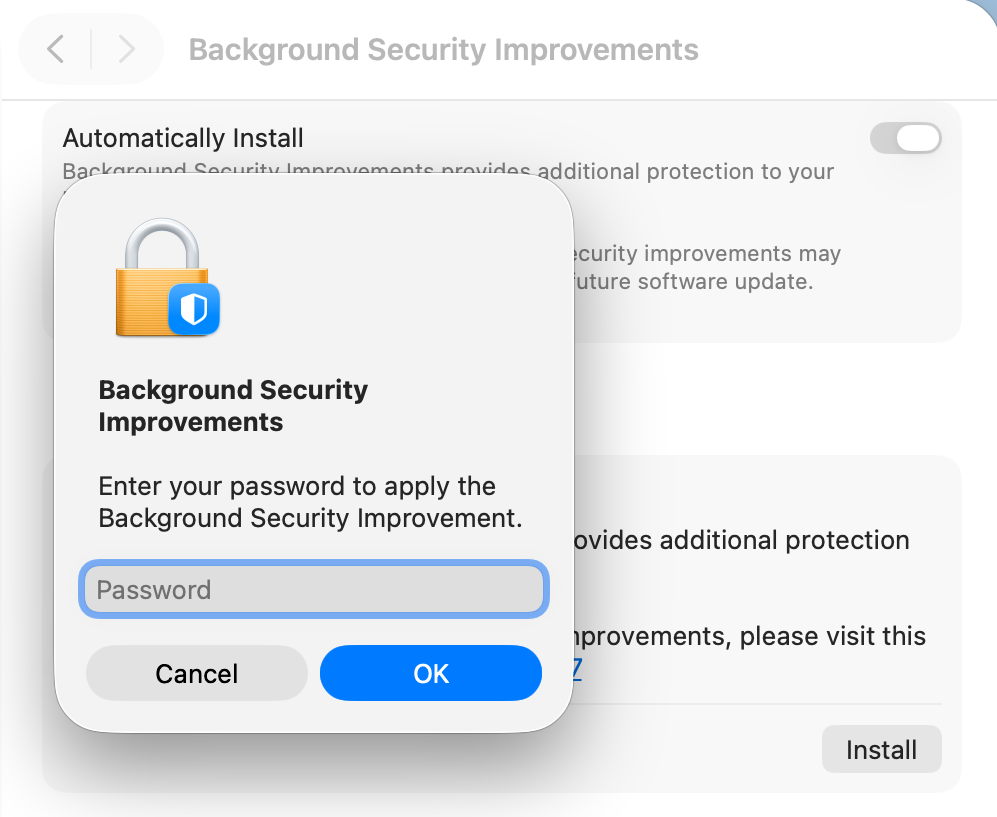
However, if the user isn’t aware that BSI is available, or chooses to ignore it, automatic installation does appear to occur without the user being informed until the Mac is just about to restart, and no authentication seems necessary after all.

This behaviour is the greatest deterrent to users, as it effectively means that their Macs could restart unpredictably with almost no warning, resulting in data loss and disruption to their work. That’s completely unacceptable, and will ensure many will disable BSIs as a precaution to avoid the possibility of data loss. This aversion could be addressed simply by allowing the user full manual control over whether and when a BSI will be installed.

Progress

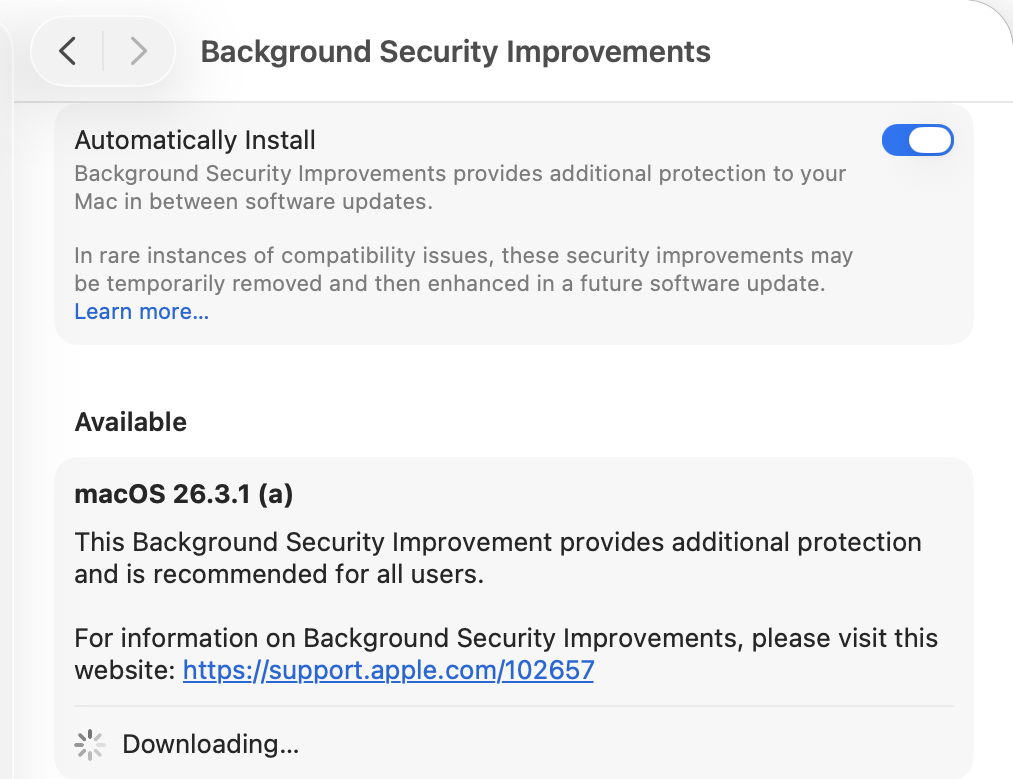
Despite softwareupdated monitoring progress through the download and preparation phases, the user is shown an indeterminate progress spinner, rather than a progress bar, which would at least give better warning of the restart that is coming. Although much briefer than a full macOS update, a progress bar should be displayed for the download and preparation phases of a BSI.

Restart warning

All previous RSRs, and this first BSI, have required restarts to complete the update. Yet at no time during this BSI was the user told that would be necessary. A notification was displayed a few seconds before the restart, but gave insufficient notice for the user to make any preparations.
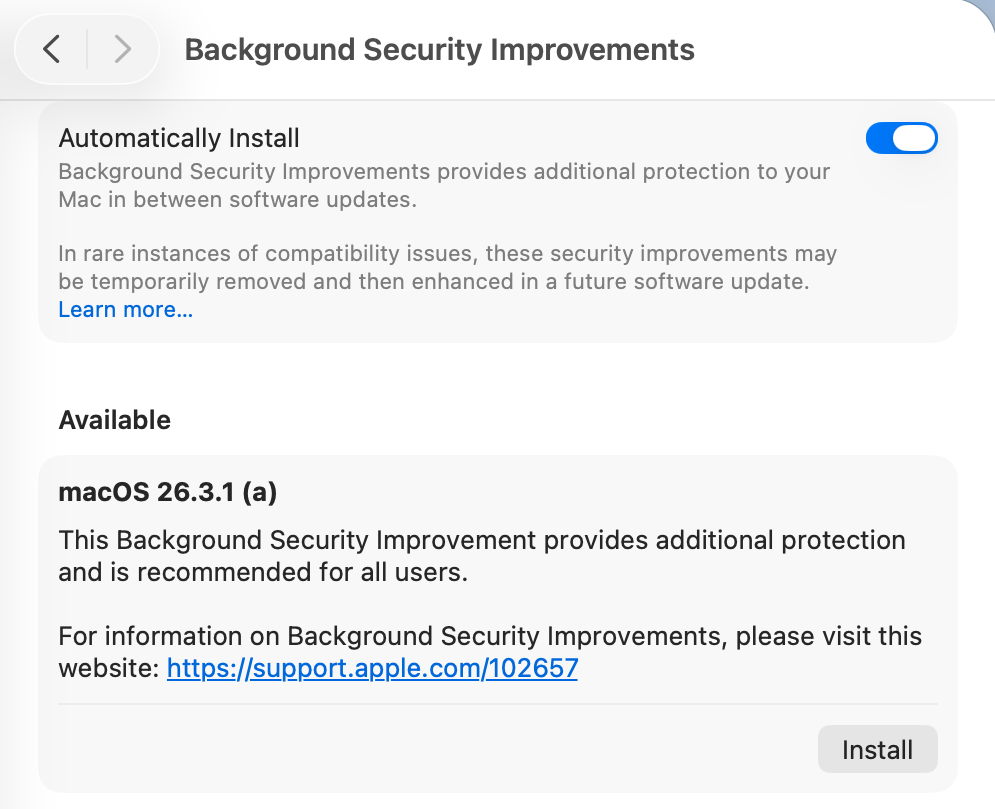
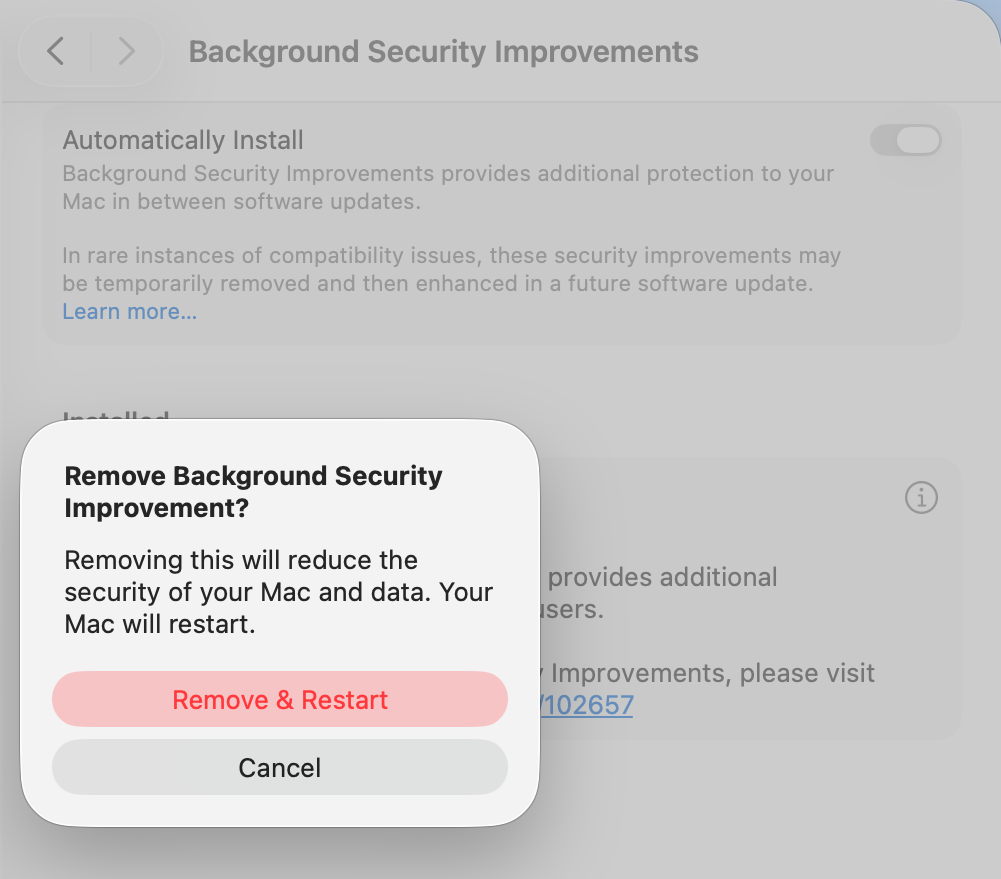
It’s essential that information given about the BSI states clearly if a restart will be necessary, and the user is given the same one-minute countdown provided in macOS updates. Bizarrely, the one place that a restart was mentioned is in the dialog to remove a BSI.
Information

Apple’s current support note on BSIs is woefully inadequate, as is obvious by the content of this article. What would appear to be additional information in the BSI settings, marked with the ⓘ Info button, isn’t informative at all, but provides the means to remove a BSI, which is at least an improvement on RSRs, which unaccountably hid removal in the About settings. A more appropriate button should be provided.
BSIs are also only currently covered in the US English version of Apple’s Platform Security Guide. All other localised versions, including British and Canadian English, still contain the outdated section on RSRs. Fortunately, as their content is almost identical, this is revealing rather than misleading.

Version numbering

Ignoring RSR and BSI version numbering, macOS has in recent years achieved clean and systematic version (and build) numbering, without the excesses of the past. By adopting a parenthesised letter as the identifier of a BSI, comparison is clumsy and prone to error. ProcessInfo.processInfo.operatingSystemVersion doesn’t contain a field for the BSI identifier, which is only offered as part of the full string in ProcessInfo.processInfo.operatingSystemVersionString. Version numbers like 26.3.1 (a) and build numbers of 25D771280a are irregular and unnecessary.

Recommendations

  • BSI controls should be removed from their hiding place in Privacy & Security and put alongside all other macOS updates in Software Update settings.
  • An option should be provided so that users are informed of the availability of BSIs without any obligation for them to be installed automatically.
  • Behaviour of the Automatically Install button should be described explicitly to the user. Does it automatically install, and if so, in what circumstances will the user not be so informed?
  • BSI download and preparation should be accompanied by a progress bar similar to that for a macOS update.
  • When a BSI requires a restart to complete its installation, the user must be informed of that before they consent to the BSI being downloaded.
  • When a BSI install is ready to restart the Mac, one minute’s warning notification should be given, just as in macOS updates.
  • The BSI support note should provide full details, not a sketchy outline.
  • The button to remove a BSI shouldn’t use the ⓘ Info symbol, but something more appropriate to its purpose.
  • Apple’s Platform Security Guide should be updated in all its online versions. Is it really that hard to translate from US English to British English?
  • Version and build numbering should be redesigned to be more consistent and better accessible in the API.
  • Despite having over three years to get them right, BSIs are a worse mess than RSRs were in Ventura. This is a great shame as their technology is still brilliant, but their current interface is shockingly flawed in so many respects.

Reference

Support note about BSIs

What is a Background Security Improvement, and how does it work?

Since the introduction of the Signed System Volume in Big Sur, the great majority of macOS has been strongly protected. So strongly that applying the smallest security patch has required the full might of a macOS update. There are times when something more lightweight enables Apple to promulgate urgent patches swiftly and efficiently, and that’s what a Background Security Improvement or BSI does.

This was set up when macOS Monterey introduced cryptexes to contain Safari, its WebKit supporting library, and the large dyld caches for general support in Frameworks. Cryptexes are cryptographically sealed disk images that aren’t mounted like other volumes, but are grafted into arbitrary locations in the file system. In Ventura they were used for Rapid Security Responses (RSR), in many ways indistinguishable from BSIs.

This week’s first BSI for macOS 26.3.1 is a good example: it fixes one serious vulnerability in WebKit. Rather than building that into a full update to 26.3.2, because it only requires changes in the cryptex containing Safari and WebKit, this BSI swaps out the existing App cryptex and replaces it with a patched one. For those who don’t want to install BSIs, those same vulnerabilities should be fixed in the next set of security updates to macOS.

Controls

Look in Software Update settings, and you’ll see no mention of any BSI, and that will claim your Mac is up to date, even though it’s not.

BSIs are controlled in their section listed close to the foot of Privacy & Security settings. If you want your Mac to be offered BSIs when they’re available, you must enable Automatically Install first. Despite those words, BSIs don’t appear to install in the least bit automatically, and you should be offered those available for the installed version of macOS. When you’ve chosen to download and install one and authenticated, you’ll see a progress spinner rather than a bar.

As soon as downloading and preparation are complete, you should be given a few seconds before your Mac restarts to complete the installation. This is all very brief, but once you’ve authenticated to start the process, it will run through to completion automatically.

Once your Mac has restarted, you always retain the option to remove any BSI and return to an unpatched cryptex. To see that, click on the ⓘ Info button on the right.

If you decide you want to remove the BSI, your Mac will need to be restarted.

Problems

If you know a BSI is available but Privacy & Security settings appear unable to find it, something I’ve encountered in Virtual Machines, try running SilentKnight. Although BSIs aren’t controlled in Software Update, they do still use the same softwareupdate system used by SilentKnight. Normally you shouldn’t try to install BSIs using SilentKnight, as installation will fail. However, you can turn this to your advantage when a BSI is being elusive.

Once SilentKnight has downloaded and failed to install the BSI, you should be notified of that failure. Restart your Mac, give it a couple of minutes to settle once you’ve logged back in, and open the BSI section in Privacy & Security settings again. The downloaded BSI should now be available, and shouldn’t even need to be downloaded.

If you think a BSI has caused another problem, such as instability in Safari, use the ⓘ Info button to remove that BSI.

Installing a BSI does weird things to the macOS version and build numbers, and those can break scripts and possibly some apps. While ProcessInfo.processInfo.operatingSystemVersion doesn’t contain a field for the BSI letter, ProcessInfo.processInfo.operatingSystemVersionString does return a full version description including the BSI letter and extended build number. In Terminal, sw_vers -productVersion returns the regular version number without BSI, while sw_vers -productVersionExtra returns the BSI designation alone.

Currently, SilentKnight and Skint ignore BSIs, and won’t inform you if you could have one installed except by listing it as an available installation, nor will they check whether your Mac is up to date with the latest BSI. Experience from RSRs in Ventura shows that trying to track lightweight updates like RSRs or BSIs is only going to annoy those who don’t want to install them, and as they can change in a short period, they are hard to track reliably. SilentKnight does report the full version and build number, and SystHist lists details of all BSIs that Mac has installed.

Limitations

Like the RSRs of Ventura, BSIs can only work for a limited range of patches. If a vulnerability needs a fix outside Safari, WebKit, and the dyld caches, then it will require a full macOS update to fix it. BSIs are only ever likely to be provided for the current version of the latest major version of macOS.

From its first account of RSRs, Apple has claimed that some RSRs and BSIs shouldn’t require a restart to apply their patches. However, every RSR and BSI to date has had to be completed by restarting that Mac, which is mildly disruptive and not as lightweight as we’d like.

If you disable Automatically Install in the BSI section of Privacy & Security settings, then your Mac won’t be informed about or have access to any BSIs.

Under the hood

Despite their control being part of Privacy & Security settings, BSIs are managed like all other macOS and related updates by softwareupdated. What is most remarkable about them is their speed of download, preparation and installation compared with macOS updates. From detection of a new BSI to logging back into the restarted Mac can take little more than five minutes.

Apple’s in-house term for BSIs is the same as it used for RSRs, Splat. You’ll also come across Semi-splat, which should be a transient state in which the Splat Restore Version is different from the Cryptex1 Restore Version. That’s normally rectified after the reboot.

softwareupdated checks specifically for BSIs by scanning the update server catalogue for Splat updates. In this case, for an App cryptex, the download size is given as 214 MB. There’s a brief preflight phase, followed by its download. Although no progress indicator is shown in Privacy & Security settings, softwareupdated does record progress, but using similar figures for a full macOS update. Under those, preparing the update is set at 60% progress.

Applying the update takes around 2.5 seconds, at which stage softwareupdated reports that Semi-splat is active because of unequal restore versions, and rollback objects are checked.

Once the Mac has restarted, property list paths are checked for six different Splat versions, enabling the restore versions to be rectified and Semi-splat is no longer active. A brief purge of update assets is performed, and softwareupdated checks once again for any available updates.

Is a BSI just an RSR in disguise?

Apart from the move of its control from Software Update to Privacy & Security settings, there appear to be few if any differences between them. This is even reflected in version numbering. Installing the first RSR for macOS 13.3.1 brought it to version 13.3.1 (a), with a build number of 22E772610a. This first BSI for macOS 26.3.1 brings it to version 26.3.1 (a), with a build number of 25D771280a.

Most telling, though, are the accounts of RSRs and BSIs given in Apple’s Platform Security Guide, which are almost word-for-word identical apart from their names. It seems most likely that a BSI is a rebranded RSR in a bid to move on from the loss of confidence in RSRs following unfortunate errors nearly three years ago.

Key points

  • If you’re running the current version of the latest major version of macOS, BSIs provide lightweight fixes for some vulnerabilities, including those in Safari and WebKit.
  • Enable them in Privacy & Security settings, in their section at the foot. If they aren’t enabled there, you won’t be offered them at all.
  • Control their installation in that section. Once you’ve agreed to install one and have authenticated, your Mac is likely to restart automatically soon after the BSI has been downloaded.
  • Remove and revert a troublesome BSI using the ⓘ Info button there.

Apple’s documentation

Support note about BSIs
List of BSIs by date
Security release notes for BSIs

Although the US English version of Apple’s Platform Security Guide has replaced its section on RSRs with an almost identical account of BSIs, most other localised versions of that guide still contain the old RSR version.

Previously

What is a Rapid Security Response (RSR)?
How an RSR went badly wrong

Apple has just released the first Background Security Improvement for macOS Tahoe

Apple has just released its first public Background Security Improvement (BSI) for macOS 26.3.1 Tahoe, labelled as BSI (a)-25D771280a. Once installed, macOS will identify itself as version 26.3.1 (a), with a build number of 25D771280a.

You can install this through Privacy & Security Settings, in the Background Security Improvements section. It doesn’t appear listed in Software Update, although SilentKnight will offer it. Please don’t try to use SilentKnight to install this, though, as it will download successfully but fail to install unless you then use the BSI section in Privacy & Security settings, which will finish the job off.

Apple has now released details of the single vulnerability that this fixes, in WebKit. As a result it updates Safari from 26.3.1 (21623.2.7.11.7) to 26.3.1 (21623.2.7.111.2).

Following installation, your Mac will need to restart for the BSI to be applied.

❌