Reading view

There are new articles available, click to refresh the page.

Access and repair a broken disk image

Like any file, a disk image can become corrupt or damaged, and like any mountable disk its file systems can also become corrupt or damaged. Although those should be very infrequent, their results can disastrous, and render the contents of that disk image inaccessible. This article suggests some solutions you can try.

In theory, if the problem is in the image’s file systems, you should be able to mount its volumes and run First Aid in Disk Utility to check and repair them. In practice that seldom works out, as macOS usually refuses to mount the image. Unless you have ready access to a recent backup, all you can do then is resort to Terminal’s command line to attempt a recovery.

Gaining access to the contents of a disk image requires two steps to complete: first the image must be attached as a device, then after probing of the file systems it contains, those can be mounted.

dmgtrouble1

Read-only and compressed disk images have a checksum stored, and this is normally verified against the image file data first. If that proves invalid, then macOS will refuse to go any further.

dmgtrouble2

In the past, records of checksum verifications have been stored in extended attributes such as com.apple.diskimages.recentcksum, and sometimes deleting those, or a record of the file systems being checked using fsck in com.apple.diskimages.fsck, can allow the disk image to mount. More recently those appear to have fallen into disuse.

Next you should try to attach the disk image without verification or mounting. This is best done using a command such as
hdiutil attach -nomount -noverify diskImagePath
where diskImagePath is the full path to the disk image file, such as /Users/hoakley/VMs/myImage.dmg

If this succeeds, you’ll be rewarded with a list of the resulting devices, such as
/dev/disk4 GUID_partition_scheme
/dev/disk4s1 EFI
/dev/disk4s2 Apple_APFS
/dev/disk5 EF57347C-0000-11AA-AA11-0030654
/dev/disk5s1 41504653-0000-11AA-AA11-0030654

The first is the disk device disk4, and is followed by its two standard partitions disk4s1 and disk4s2. The latter is its APFS container disk5 with its single APFS volume disk5s1. You can now check and repair the last two of those, such as
fsck_apfs -y /dev/disk5s1
which should return a blow-by-blow account of the results. If the file system is HFS+ you may also be able to use third-party repair tools such as DiskWarrior.

When you’ve completed the required repairs, detach the disk image with a command like
hdiutil detach /dev/disk4

If that fails to make the disk image mountable, some have claimed success by converting the disk image to a different format, using a command like
hdiutil convert diskImagePath -format Uxxx -o outImagePath
where diskImagePath is the original disk image, outImagePath is the new image to be created, and Uxxx is the name of a disk image type, as listed in the Appendix.

If none of these gives access to the contents you require, then it’s almost certain that the only way ahead is to find the latest backup of that disk image, and use a copy of that.

Appendix: Supported disk image formats

  • UDRW – UDIF read/write, sparse file from macOS 12
  • UDRO – UDIF read-only
  • UDCO – UDIF ADC-compressed
  • UDZO – UDIF zlib-compressed
  • ULFO – UDIF lzfse-compressed (OS X 10.11)
  • ULMO – UDIF lzma-compressed (macOS 10.15)
  • UDTO – DVD/CD-R master for export
  • UDSP – sparse image, grows with content
  • UDSB – sparse bundle, grows with content, bundle-backed, Mac OS X 10.5
  • UFBI – UDIF entire image with MD5 checksum.
  • ASIF – sparse image, grows with content, macOS 15.

Disk image performance: the cost of encryption rises

One of the biggest penalties in using disk images has been their performance, particularly when they’re encrypted. Although no longer offered in Disk Utility, UDSP sparse images encrypted using 256-bit AES typically read and write as slow as 500/100 MB/s when mounted from an SSD delivering 4.7/4.9 GB/s. In contrast, UDSB sparse bundles can achieve close to that native speed.

macOS Sequoia brought a new type of disk image, Apple Sparse Image Format or ASIF, intended to deliver the high performance of sparse bundles, with their efficient use of storage space, in a single file that can be hosted on file systems beyond APFS. As this is now well over 18 months old, this article considers whether it has achieved those goals, and should become the preferred type of disk image.

Methods

Each test image was created using Disk Utility 22.7 (2510) in macOS 26.3.1 (a) running on a Mac mini M4 Pro, on its internal SSD of 2 TB. Performance measurements were made using the ‘gold standard’ method in my free Stibium on disk images of 100 GB nominal size. This writes and reads a total of 53 GB in 160 files ranging in size between 2 MB and 2 GB. As performance is likely to change with use of the disk image, the following sequence of events was used:

  • Create disk image, which is mounted automatically, so unmount.
  • Mount disk image, measure write speed, then unmount.
  • Mount disk image, measure read speed, then delete the last 8 of 10 sets of test files, and unmount.
  • Mount disk image, measure write speed, then unmount.
  • Mount disk image, measure read speed, then delete all test files, and unmount.
  • Mount disk image, measure write speed, then unmount.
  • Mount disk image, measure read speed, and unmount.

These provide three pairs of read/write measurements:

  1. for an empty, unused 100 GB disk image;
  2. for a 100 GB disk image containing over 10 GB of existing files in addition to 53 GB of test files;
  3. for an empty 100 GB disk image that had previously contained about 66 GB of test files that had been deleted.

Disk image sizes were also measured when unmounted, using Precize or the Finder’s Get Info (for sparse bundles).

The three types of disk image tested were RAW (UDRW), UDSB (sparse bundle) and ASIF (sparse image). Each was tested fully when unencrypted, and test 1 was performed on an image encrypted using 256-bit AES.

Results

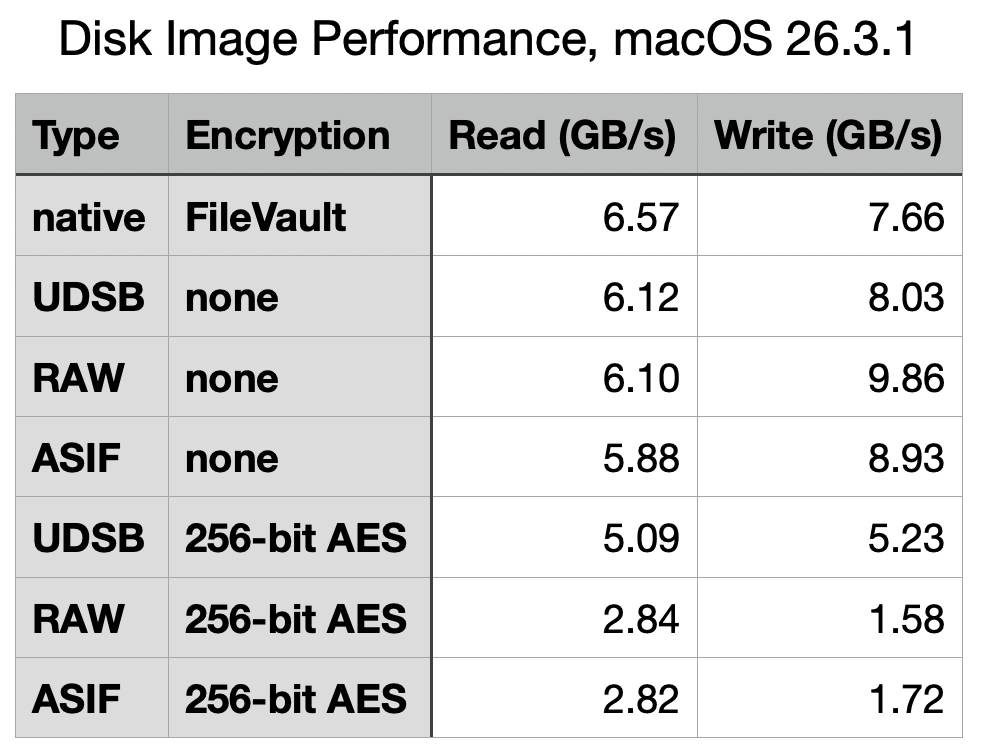
The best and most consistent performance was achieved by UDSB sparse bundles, as expected. Their read speeds were 6.13, 6.12 and 6.19 GB/s, and write 7.62, 8.03 and 7.79 GB/s for the three separate measurements, and 5.09/5.23 GB/s read/write when encrypted. When first created, the sparse bundle only occupied 32 MB on disk, but by the end had grown to 3.99 GB even though empty.

The RAW disk image, formerly known as UDRW, also largely performed as expected. Read speeds were 6.09, 6.10 and 6.08 GB/s, and write 10.11, 9.86 and 10.11 GB/s. Initially it only required 5.78 MB on disk, rising to 621 MB at the end. However, its performance when encrypted was disappointing, at 2.84/1.58 GB/s read/write.

ASIF disk images were good, but also ran into problems when encrypted. Unencrypted read speeds were 5.99, 5.88 and 5.85 GB/s, and write 9.55, 8.93 and 9.64 GB/s. When encrypted, those fell to 2.82/1.72 GB/s read/write, no better than the RAW disk image. The image file size started at 26.8 MB on disk when empty and unused, and returned to 954 MB when empty at the end.

To confirm that ASIF performance when encrypted wasn’t an anomaly, I repeated that pair of tests on a MacBook Pro M3 Pro running 26.3.1 (a), and obtained similar results at 2.63/1.52 GB/s read/write, using a 10 GB ASIF image with one-tenth of the tests, giving 3.32/1.65 GB/s, and using Blackmagic, which gave 2.92/1.15 GB/s read/write. Although there is variation, they appear remarkably similar.

Test 2 results are summarised in the table above, for ease of comparison, and with the earlier results from macOS 26.0 below.

What has gone wrong with encrypted writes?

Although most of the test results in macOS 26.3.1 are very similar to those from 26.0, performance when using 256-bit AES encryption has fallen for all three disk image types, and most significantly in write performance for RAW and ASIF images, which have reduced from 4.3 to 1.58 GB/s (RAW) and from 3.9 to 1.72 GB/s (ASIF). The magnitude of those reductions is sufficient to have obvious impact on their use. Compared to native write performance using FileVault of 7.66 GB/s, those two types of disk image are pedestrian in the extreme, turning that blisteringly fast SSD into the equivalent of 20 Gbps over USB 3.2 Gen 2×2.

It’s possible that this dramatic reduction in encryption performance may have resulted from a change to address a vulnerability, but I’ve been unable to identify an entry in Apple’s security release notes that might correspond to such an event. I will repeat these tests once the update to macOS 26.4 has been released, in the hope it might be reversed.

Which disk image type?

When their folder-based structure is acceptable, UDSB sparse images remain the disk image type of choice, for their consistent high performance even when encrypted.

There is little to choose between RAW and ASIF disk images when a single file solution is required. ASIF images are portable to other file systems that can’t support APFS native sparse files, although curiously they too are flagged in APFS as being sparse files. As their sparseness isn’t dependent on APFS trimming habits, they are now an alternative that can be used on network storage and NAS. However, those able to use sparse bundles should continue to do so, particularly if using encryption.

Explainer: Disk images

A disk image is a file, or a folder containing files, that stores the contents of a physical storage medium. In contemporary usage most can be mounted as a disk or volume, so giving access to their contents. Originally developed to aid the manufacture of floppy disks, they go back long before the Mac, and now see wide use in all parts of macOS and its apps.

Since they were used in Classic Mac OS, they have come in a multitude of different formats and variants, many of which are listed in the Appendix. They’re an essential part of macOS installers, home to Recovery mode, and the basis for cryptexes. They’ve been used to burn and replicate optical disks, to archive disk contents, extensively in network backups, and for the distribution of software.

History

As early as Mac OS 9 in 1999, variants of formats had become complex. Here, Disk Copy is configured to create a read-only compressed .img file containing the contents of a standard 1.4 MB floppy disk. In the upper window, it has completed validating the checksum on a self-mounting .smi disk image that’s part of a DiskSet. Those could also be signed using certificates issued not by Apple but by DigiSign.

Mac OS X 10.1 Puma in 2001 brought a new standard with Universal Disk Image Format (UDIF) used in DMG disk images. Support for compression options in Apple Data Compression (ADC) unified what had previously been two disk image types, and extended support for images larger than a floppy disk. This new format enabled disk images to represent entire storage devices, complete with a partition map and disk-based drivers.

Mac OS X 10.5 Leopard in 2007 introduced the sparse bundle format, with its folder of smaller band files containing data. These enable the image to grow and shrink in size, and became a popular means of storing mountable Mac file systems on servers using different file systems.

Use

In their most common use, Disk Utility or a third-party app such as DropDMG creates and mounts an empty container file, then copies a hierarchy of files and folders into its virtual file system. While the disk image remains mounted, it’s presented as a removable volume, and when unmounted it’s just a regular file that can be moved, copied and backed up like any other.

Its virtual file system can be any supported by macOS, but in recent years is most likely to be APFS. As the disk image can be hosted on a completely different file system, this enables you to store APFS volumes on systems that don’t themselves support APFS. This is essential for networked storage being hosted on a different file system such as Btrfs. SMB can then be used to access the contents of that disk image over the network.

Disk Utility offers a limited range of formats and variants, including RAW images (UDIF), sparse bundles (UDSB), optical disk masters (UDTO), and the new Apple Sparse Image (ASIF). They can be encrypted, and contain file systems in APFS, HFS+, FAT or ExFAT. Two command tools extend those formats and variants, diskutil with its image verb being the equivalent of Disk Utility, and hdiutil providing the most extensive support.

Opening a disk image in the Finder performs two distinct operations: first the file or bundle is attached, much in the way that you might attach physical storage. Once that has occurred, the image is probed by macOS for file structures and systems, and those that can be mounted are mounted as external file systems, normally in the path /Volumes. Cryptexes are an exception to this, as APFS will graft the image’s file system into arbitrary locations in the host file system.

Verification

Two types of verification can be performed during an attach-and-mount procedure. The first can compare the file’s checksum against a stored value to determine if the file has become corrupted, while the second is performed during probing and mounting of file structures and systems within the image. The command tools provide options to attach an image without mounting that can be used to attempt repairs on its file systems, although those seldom seem successful.

This ‘warning’ alert from 2020 illustrates one of the longstanding issues with disk images. Although integrity checking of disk images using checksums has been valuable, when an error is found there’s no possibility of repair or recovery as the image fails to attach, so its file system can’t be made accessible.

Properties

There are two other issues to consider before using disk images, their read-write performance, and use of storage space.

xferdiskimage24

This table summarises read and write performance of the most popular types of disk image prior to macOS Tahoe, and demonstrates how sparse bundles have consistently performed best and most consistently, and sparse images (now dropped from Disk Utility’s options) fare worst, particularly when encrypted.

The introduction of ASIF in Sequoia has added another option, although sparse bundles remain fastest overall. I will be re-examining these in the coming weeks, now that new format has had more time to mature.

Before macOS Monterey, sparse bundles and sparse images were the only formats that made efficient use of disk space, as they grow to accommodate their contents, and should shrink again when some or all of their contents are removed. Monterey is thought to be the first version in which UDIF read/write images (UDRW) have been stored in APFS sparse file format. This has transformed what had previously been space-inefficient disk images that retained empty storage, into a format that can prove almost as space-efficient as sparse bundles.

Summary

  • Disk images of various formats are widely used in macOS, as they are a file or folder containing a removable file system, like an external disk.
  • Basic tools for the most common formats and variants are provided in Disk Utility; third-party utilities such as DropDMG are more versatile. The command tool diskutil with its image verb extends those, and hdiutil is the most comprehensive.
  • Errors can and do occur, and may prevent a disk image from being mounted successfully. Those are hard to repair.
  • Sparse bundles remain fastest, most consistent, and most space-efficient.
  • UDIF read/write images generally perform well, and are now space-efficient too.
  • Experience with more recent ASIF images remains limited, although they show promise in both speed and efficiency.

Appendix: Disk image formats

Supported
  • UDRW – UDIF read/write, sparse file from macOS 12
  • UDRO – UDIF read-only
  • UDCO – UDIF ADC-compressed
  • UDZO – UDIF zlib-compressed
  • ULFO – UDIF lzfse-compressed (OS X 10.11)
  • ULMO – UDIF lzma-compressed (macOS 10.15)
  • UDTO – DVD/CD-R master for export
  • UDSP – sparse image, grows with content
  • UDSB – sparse bundle, grows with content, bundle-backed, Mac OS X 10.5
  • UFBI – UDIF entire image with MD5 checksum.
  • ASIF – sparse image, grows with content, macOS 15.
Unsupported
  • DC42 – Disk Copy 4.2 (Classic)
  • DART – compressed, for Disk Archive/Retrieval Tool (Classic)
  • Rdxx – read-only Disk Copy 6.0 formats
  • NDIF – Disk Copy 6.0, including IMG and self-mounting SMI
  • IDME – ‘Internet enabled’, on downloading post-processed to automatically copy visible contents into a folder, then move the image to the Trash. Now deemed highly insecure.
  • UDBZ – UDIF bzip2-compressed image (deprecated).

What to do with APFS warnings and errors

This article explains how to deal with warnings and errors reported either when you run Disk Utility’s First Aid, or by the command tools fsck or fsck_apfs, on an APFS volume or container.

Keep a record

Even if the item is repaired successfully, it’s essential to keep a record of what happened. In Disk Utility, expand the First Aid window so you can see the full output of fsck_apfs, select its whole contents, copy and paste them into a text document, and save that. Do the same with the output in Terminal if that’s what you used.

You may also find two text log files of potential use: /var/log/fsck_apfs.log and /var/log/fsck_apfs_error.log, both accessible in Console or a text editor. Although errors may also be written to the Unified log, you’ll probably want to avoid going there.

Was this on the Data volume?

First Aid in Disk Utility will check and attempt to repair the current Data volume when running in normal user mode, by effectively freezing the Mac. However, that’s not as reliable as running the same procedure when your Mac is in Recovery mode. If you see warnings or errors reported from the current Data volume in normal user mode, before going any further start your Mac up in Recovery and repeat the checks in Disk Utility (or fsck_apfs) there, to confirm they are real, and give your Mac the best chance of making a successful repair.

diskutil06

This can also sometimes help when checking backup volumes, and any that have proved difficult to check because the volume can’t be unmounted in normal user mode.

Are these just warnings?

Read carefully through your copy of the output of fsck_apfs and check whether the comments there are warnings, or contain specific errors. Warnings aren’t uncommon, and are often of little consequence even when you can understand them. Among the commonest is
Resource Fork xattr is missing for compressed file
As there’s nothing you could or should do about that, keep the record and don’t worry about it.

You’ll occasionally see a report that “deferred repairs” were completed. These appear to be minor fixes that APFS keeps for a convenient moment. Provided they are fixed without further error, you should be able to ignore them safely.

If a line explicitly reports an error, and fsck_apfs was unable to repair it, then it’s something you should take more seriously, and try to pin down the site of the problem.

Identify the item

fsck_apfs identifies items with their inode number, an integer that can be very large. To make any sense of that, you need the volume number as well, and a means of converting the two into a path. My free utility Mints can do that in its inode Resolver window, from the Window/Data/Inode menu command, or you can do it yourself in Terminal with a command like
GetFileInfo /.vol/[volnumber]/[inode]
where volnumber is the volume number, and inode is the number given in the error or warning. This is explained in detail here.

mints1152

Now that you know which file or folder resulted in the error or warning, you need to decide whether you can do anything about it. This is most important when you keep seeing similar errors, so you can prevent them from happening in the first place.

Is the item in a snapshot?

Checking snapshot 2 of 23 (com.apple.TimeMachine.2023-08-27-072736.local)
warning: inode (id 113812826): Resource Fork xattr is missing for compressed file

Snapshots are a special case, as they’re intended to be read-only, so are most unlikely to be repairable. If this is a snapshot on a volume that is backed up by Time Machine or another utility, then the only way you’ll fix this is by deleting that snapshot. Don’t do that, though, if the snapshot is on the volume storing your backups, as you’d be deleting one of those backups.

If this problem recurs in other snapshots, then it most probably reflects a problem in the file in the snapshot. Is it perhaps a large virtual machine (VM) or something similar? Keep your VMs on a separate volume which you exclude from backups, because of the many problems they can cause. The best way to back up a VM is when it’s shut down, as a simple copy to a separate backup storage volume. You can do the same with any other file that seems to be the cause of repeated problems in snapshots: move it to a separate volume that’s in Time Machine’s list of excluded items, and make arrangements for that volume to be backed up separately when the files aren’t in use.

Is the item in a Spotlight index?

Several of those who report repeated warnings or errors in APFS trace them to part of the Spotlight indexes on that volume, which are stored at the top level of all indexed volumes, in the hidden folder .Spotlight-V100. If that’s the case, your next move is to force those indexes to be rebuilt, in the hope that fixes the problem.

To do that, open Spotlight settings, and click the Search Privacy button at the foot of its window. Use the + tool to add the volume on which the problems have been occurring, then close those settings. Leave your Mac for a minute or so, open those settings again, select the volume you just added to the list, and use the – tool to remove it. In the next ten minutes or so, check Activity Monitor’s CPU window, where you should see high levels of activity from indexing processes such as mds and mds_stores, that confirm those indexes are being rebuilt.

Is the item in another special folder?

There are other hidden folders with special roles that appear on volumes and could be the source of APFS errors. These include .DocumentRevisions-V100, containing the document version database. If the problem file is inside that, there isn’t much you can do about it. It may be possible to delete the whole folder, but that will destroy all saved versions of documents on that volume.

It’s just a regular file

If the volfs path resolves to a regular file, then maybe deleting that file will stop the problem from recurring. Don’t expect a backup copy of that file to be any different, though, as any problem with that file could easily recur. Getting to the bottom of a recurrent file system error might require the knowledge and skills of an Apple engineer. Consider reporting this using Feedback, as it should then help iron out any remaining bugs in APFS.

Is your Mac running anything that might break files?

As a final thought, you should consider whether any third-party software might be the root cause of the problem. Normally, such products should work at a higher level that isolates them from the file system itself, but there are some surprising exceptions. If you can identify a cause, please inform the developers of that software so that it can be fixed.

One potentially dangerous practice occurs when an older version of APFS changes a newer file system. APFS back in High Sierra and Mojave knew nothing of boot volume groups, firmlinks, or many of the features of more modern versions of APFS. If you really must run different versions of macOS on the same Mac, or shared external storage, avoid such version conflicts, and never run an older version of Disk Utility or fsck_apfs on a newer APFS container or volume.

Does Safe mode check the startup disk?

Look in Apple’s support note explaining Safe mode, and you’ll see a list of three things that mode is claimed to do:

  • “Prevents certain software from loading as your Mac starts up. This includes login items and extensions that aren’t required by macOS, and fonts that weren’t installed by macOS.”
  • “Performs a basic check of your startup disk, similar to the more comprehensive check performed by the First Aid feature of Disk Utility.”
  • “Clears some system caches, including font caches and the kernel cache, which are automatically created again as needed. This can temporarily make more storage space available on your startup disk.”

That note is well-maintained, and its US version was last updated on 5 December last year. This article examines what “basic check of your startup disk” is performed, how “similar” it is to the First Aid feature in Disk Utility, and whether it differs from checks performed during startup in normal mode. All testing has been performed in macOS 26.3 Tahoe on Apple silicon Macs.

Reporting

Disk checks made in Safe mode aren’t reported to the user in the GUI. There’s no notification that they have been completed, neither is there any record made in System Information. They are, though, reported in three more obscure places most folk won’t try accessing:

  • /var/log/fsck_apfs.log, accessible in Console or a text editor,
  • /var/log/fsck_apfs_error.log, accessible in Console or a text editor,
  • the Unified log, accessible using a log browser such as LogUI.

A typical entry in the first of those, for the Data volume, reads
/dev/rdisk3s5: fsck_apfs started at Mon Mar 2 06:46:45 2026
/dev/rdisk3s5: error: container /dev/rdisk3 is mounted with write access; please re-run with -l.
/dev/rdisk3s5: fsck_apfs completed at Mon Mar 2 06:46:45 2026

Seven of the volumes checked during startup report that same error, and the only two in the boot volume group that report completion of the check are the System volume, unmounted during normal running, and the Signed System Volume, which has its own error-checking and is a snapshot in any case. Those that do complete and provide further information uniformly report
/dev/rdisk7s3: ** QUICKCHECK ONLY; FILESYSTEM CLEAN

fsck_apfs_error.log contributes no useful information, as many of its entries are uninformative, for example
dev= uuid=00000000-0000-0000-0000-000000000000 vers=2632.80.1.0.1 default_ans=n result=0 fp=0 fl=-1 repairs=0 time=0 iter=1
fsck_apfs completed at Mon Mar 2 06:46:45 2026

which completely fails to identify the volume being reported.

Corresponding entries in the Unified log for the Data volume are similar to those in fsck_apfs.log:
06:46:45.153989 com.apple.DiskArbitration.diskarbitrationd probed disk, id = /dev/disk3s5, with apfs, ongoing.
06:46:45.175308 com.apple.DiskArbitration.diskarbitrationd fsck status 65 /dev/rdisk3s5
06:46:45.182032 com.apple.DiskArbitration.diskarbitrationd probed disk, id = /dev/disk3s5, with apfs, success.

Checks performed

It’s clear from those reports that fsck_apfs is performing a ‘quick check’ of each volume after it has been mounted ready for use. According to man fsck_apfs, that “causes fsck_apfs to quickly check whether the device is `clean’. If device is an APFS volume, fsck_apfs will quickly check the APFS container and the specified APFS volume.” A status code of 65 is well-known from First Aid in Disk Utility as indicating that the volume being checked was mounted for writing at the time, so no check has been performed, as that would require the volume to be unmounted first.

First Aid checks

Normally, running First Aid in Disk Utility on a volume causes that volume to be unmounted, and a full fsck_apfs to be performed, in which any errors found will be repaired if possible. In addition to checking that volume, any snapshots of it will also be checked, although they cannot normally be repaired. Checking snapshots is time consuming, and when using the command tool fsck_apfs can be skipped using the -S option, although that’s not available in Disk Utility, which automatically includes snapshot checks.

Normal startup

Exactly the same checks as those made in Safe mode are also performed at the same point when starting up in normal user mode, but not when starting up in Recovery mode. Reporting in fsck_apfs.log and the Unified log is identical, with the same volumes returning status 65 each time.

In this respect, Safe mode is no different to normal user mode.

History

Prior to the introduction of macOS Catalina in 2019, starting up in Safe mode resulted in a full scan of all volumes and snapshots using fsck_apfs in normal mode. As that could take an hour or more, and delayed startup for the whole of that period, checks changed in Catalina, since when they have only used quick checks. Despite that, Apple has continued to claim that one of Safe mode’s features is checking disks similarly to First Aid in Disk Utility.

Q&A

Does Safe mode perform “a basic check of your startup disk”?
Although quick checks are attempted during startup in Safe mode, because of the circumstances, they can’t be run on the Data volume, but they should complete on external volumes.

Is that check “similar to the more comprehensive check performed by the First Aid feature of Disk Utility”?
No. When it is able to complete, all it does is verify the file system is ‘clean’ and not already in need of repair. Checks in First Aid are more extensive, include any snapshots, and include any repairs found to be necessary.

Do the disk checks performed in Safe mode differ from those that occur during normal startup?
No. Safe mode doesn’t add any disk checks beyond those that already occur during normal startup.

Recommendations

If you want to check any of your Mac’s volumes or disks, don’t try using Safe mode. Instead, use First Aid in Disk Utility (or fsck_apfs). If you want to check one of the volumes in the current boot volume group, prefer doing so in Recovery mode.

How to erase your Apple silicon Mac

Erasing the contents of the internal SSD in an Apple silicon Mac might seem a simple task, until you consider what’s on it in addition to the user files in its Data volume. Not only is that paired with the System volume, a mounted snapshot, but there are two additional containers that you don’t normally see.

This article explains how you can erase the following:

  • the Data volume, shown in blue
  • the Boot Volume Group, consisting of the Data and System (pink), and their accessory volumes (green)
  • all volumes in the Apple_APFS container (red)
  • the entire SSD, including the other two containers (pale yellow).

Assuming that you’re going to install something in their place, it’s up to you to choose, and that will in turn determine how you can install macOS and anything else required to allow your Mac to start up and run again.

Before you try any of these, you should de-authorise that computer in one of Apple’s media apps, and ensure you have a thorough and reliable backup of all the user files.

Data volume

Erase the Data volume by destroying its encryption key using EACAS, Erase All Content and Settings. This doesn’t so much delete anything, as render it inaccessible, so is most economical on SSD use, and quickest without compromising on security. This affects all user accounts with Home folders stored on the internal SSD.

Open System Settings, General, Transfer or Reset, and click Erase All Content and Settings.

eacas

If you continue, you should see one final warning before the contents of the Data volume are blown away into the great bit-bucket in the sky.

When that has completed, your Mac will start up for personalisation, configuration, and creation of its new primary admin user, just as it did when it was new. However, it will still be running the same macOS installation as before you used EACAS.

Boot Volume Group

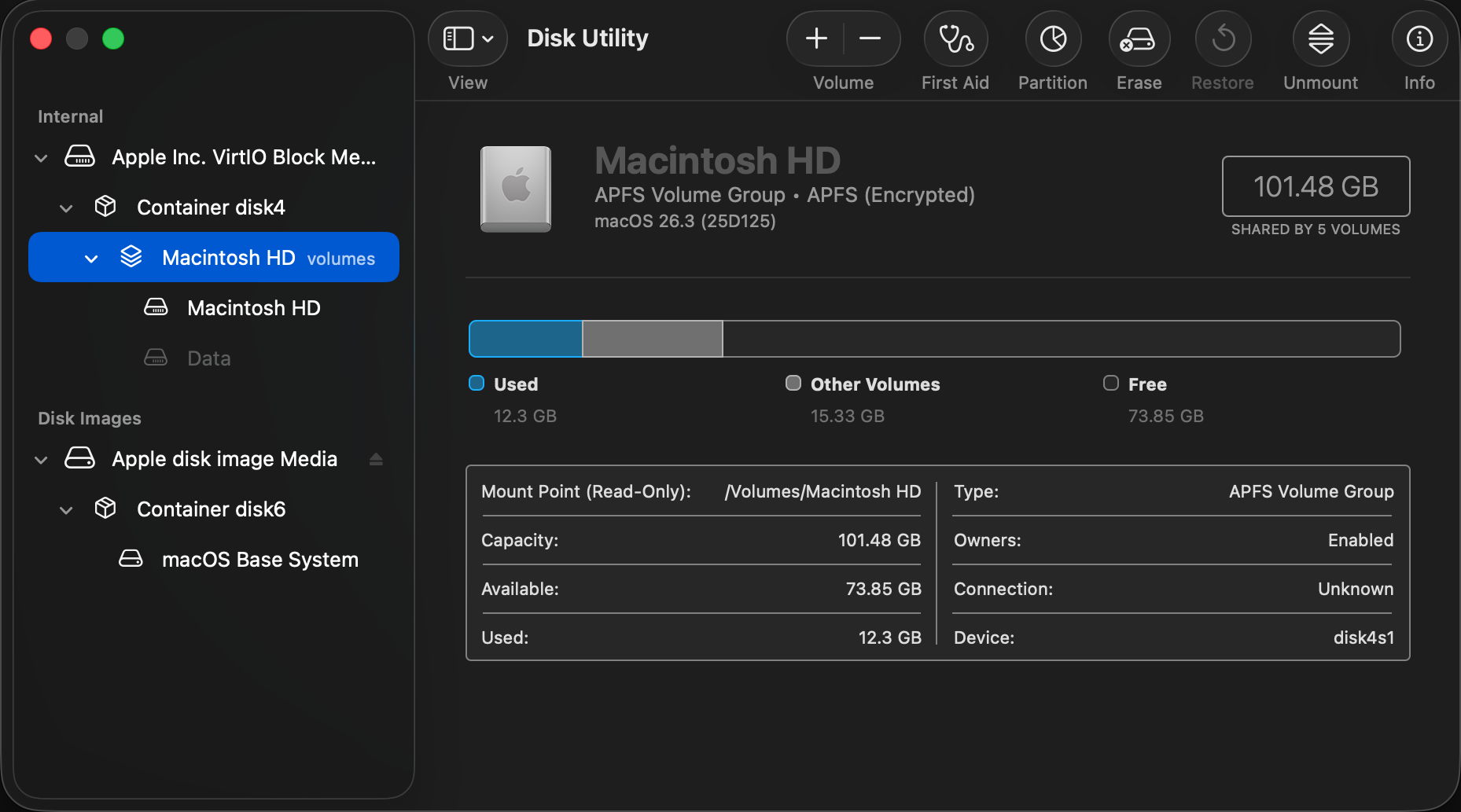
Erase the current Boot Volume Group using Disk Utility in Recovery. Put your Mac into Recovery by starting it up with the Power button held, select Options, select a user and authenticate as that user to display the Recovery window. There select Disk Utility and click Continue.

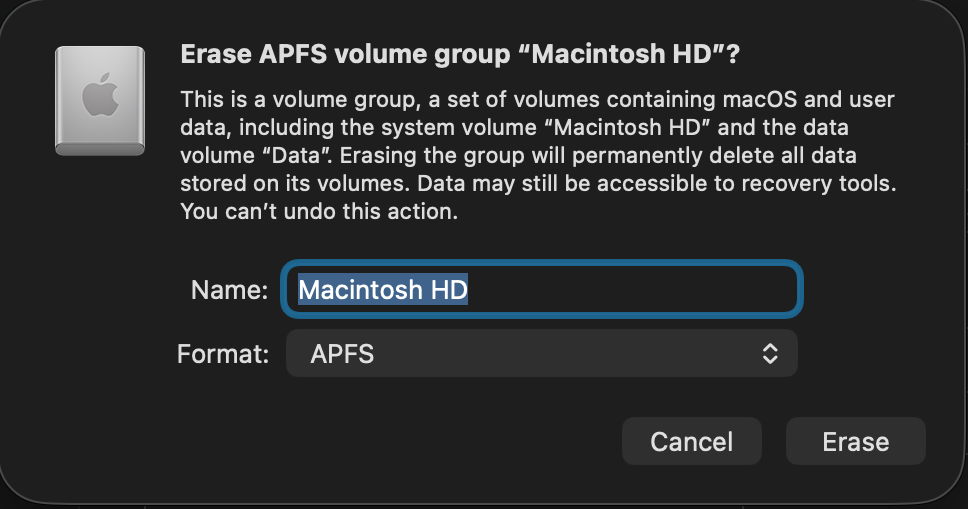
Select Macintosh HD at the left and click the Erase tool at the top of the window. Enter a name for the volume such as Macintosh HD, select APFS as the format, and click the Erase or Erase Volume Group button.

You might be asked to Erase and Restart, which will lead to a restart and following that your Mac will try to activate over a network.

On completion, quit Disk Utility, select Reinstall macOS if necessary, click Continue and follow the instructions to download and install fresh macOS. Note this procedure doesn’t wipe and reinstall the Preboot or Recovery volumes in the Boot Volume Group.

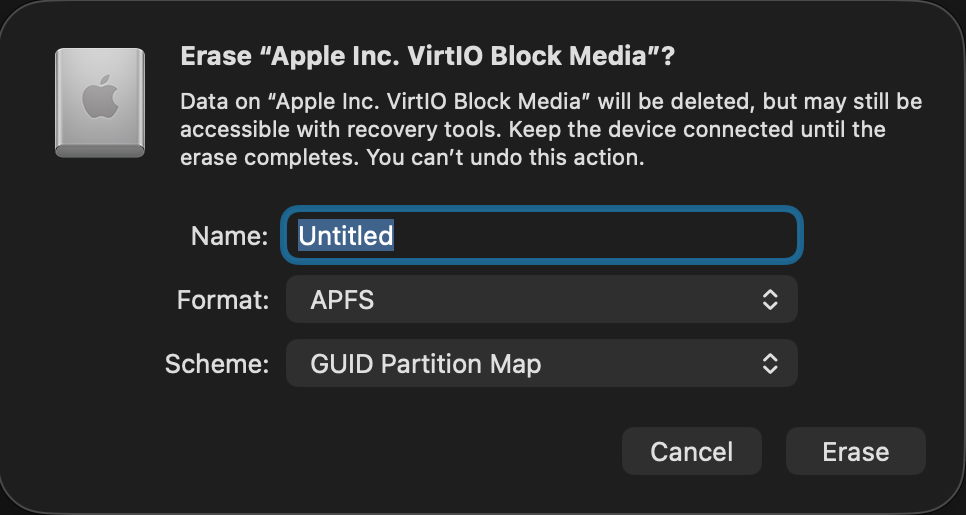
Some instead select the disk at the top of the list at the left, here named Apple Inc. VirtIO Block Media because it’s running in a VM. In theory that should completely reformat the internal SSD, wiping all three of its containers, and so require a more extensive reinstallation. In many cases, it’s preferable to Restore in DFU mode, to ensure the whole of the firmware is replaced at the same time.

Apple_APFS container

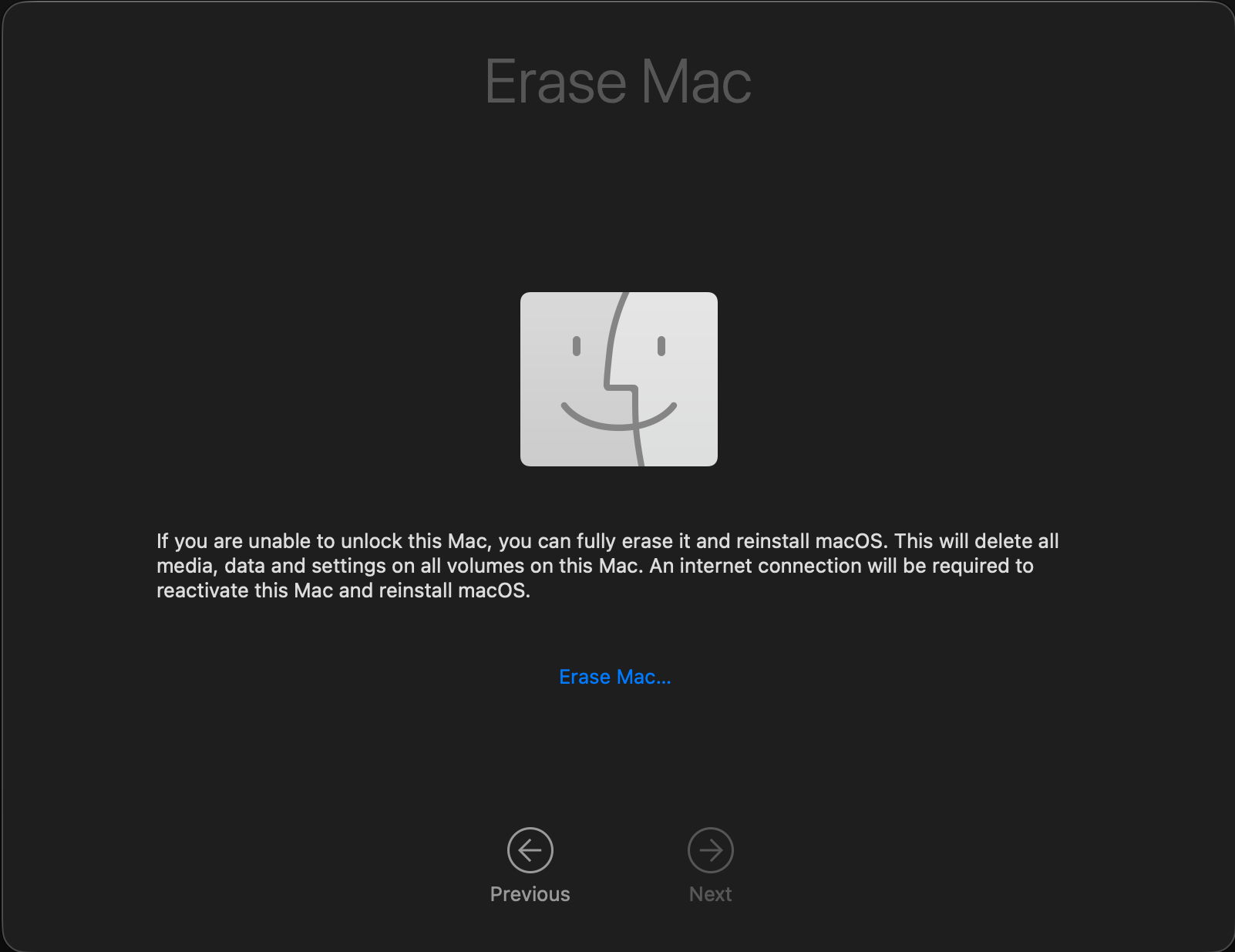
Erase the whole of the Apple_APFS container using Erase Mac in Recovery, which should erase all Boot Volume Groups within that container.

Enter Recovery as normal using the Power button, select Options, and click Continue. Then instead of selecting a known user, use the Erase Mac command in the Recovery Assistant menu. This completely erases all Boot Volume Groups in the Mac’s internal SSD, ready to reinstall macOS, for which it requires an internet connection.

This has the advantage that it can be performed when you don’t know the password to unlock the Data volume (FileVault).

Entire SSD

Erase the entire contents of the internal SSD by formatting it and installing its contents afresh from another Mac, using Restore in DFU mode.

This is described here. Apple has improved that from Sonoma onwards, as it’s no longer necessary to use Apple Configurator 2 on the Mac that’s performing this, but it can all be done in the Finder. To do that, you’ll need another Mac to perform the restore process, and a USB-C data cable to connect the two of them. Don’t try using a Thunderbolt cable, though, as it won’t work. Another secret for success is to plug that cable into the target Mac’s DFU port, that designated to support DFU connections, as detailed here.

Restoring in DFU mode replaces the Mac’s firmware, erases the boot volume group, and installs the bundled version of macOS, leaving that Mac in the same condition in which it was delivered to its first user, with a fresh copy of macOS ready to be personalised and set up. Although that part of the process is fairly quick, full migration is then required before user applications and documents are available. The great advantage of restoring is that you can pick which version of macOS and its firmware are installed.

Which version of macOS will be installed?

When restoring in DFU mode, you can choose which version of macOS will be installed according to the IPSW image you use, making it the method of choice when you intend downgrading that Mac to an older version of macOS.

Methods that obtain new macOS from Apple should install:

  • the current version of the most recently installed major version of macOS
  • if you have just upgraded macOS, then erased the Boot Volume Group in Recovery, Apple warns that “you may get” the version of macOS that was running before that upgrade.

Explainer: snapshots

Snapshots are a simple concept that only becomes complex when you dig into the detail. One of the fundamental features introduced in APFS, they are now used extensively, to form the System volume for all versions of macOS since Big Sur, and in many backup systems including Time Machine.

As the name implies, a snapshot is a preserved copy of a volume at a moment in time. Creating one is both simple and lightning quick: APFS makes a copy of the file system metadata for that volume, and retains with it all the data of its files. From then on, the working copy of the file system metadata changes as files are modified, created and deleted. But all the original file data at the time the snapshot was made is retained. That enables you to roll back the live volume to the exact state it was in when the snapshot was made. The snapshot itself (its file system metadata) is kept in the same container as the live volume, and their file data overlaps.

Snapshots rely on another fundamental feature of APFS, a scheme called copy on write. When a file is changed, the data for that file isn’t changed in place in the same storage blocks, but written out to new blocks. This enables the snapshot to retain all the original data for its files, while the live volume consists of a mixture of old unchanged data, and replacements for those blocks that have changed since the snapshot was made.

Size

This leads to the biggest disadvantage of snapshots: when first made, the only additional storage space they require is for their copy of the file system metadata, which is relatively small. Over time, though, as more data blocks are changed in the live volume, the size of the data the snapshot must retain grows, and can after a few weeks become enormous, depending on how active the file system is in that volume. What was initially measured in MB quickly becomes GB, and if you forget about that snapshot, it will become hundreds of GB in size.

Management

While some operating systems allow users to create their own snapshots and maintain them, macOS doesn’t: apps that have the restricted entitlement to create snapshots are required by Apple to maintain them as well. That’s why apps that make snapshots are backup utilities, and are required to have a mechanism for automatically deleting their old snapshots to prevent them overwhelming storage.

Creating a snapshot is almost instantaneous, but deleting one is more complex and time-consuming. This is because the file system has to identify all the old retained data blocks that are no longer required, and allow them to be freed up for re-use. When that’s performed across the millions of files that could be in the snapshot’s file system metadata, it will inevitably take time. It’s also not entirely predictable, particularly when there may be multiple snapshots for that volume.

APFS snapshots are always of whole volumes, although some file systems can make snapshots of directory trees within a volume. Unlike Time Machine’s backup exclusions, each snapshot it makes of a volume it’s backing up contains every file in that volume. If you have large database or VM files, although Time Machine and other backup utilities can exclude them from taking up space in their backups, they can’t exclude them from their snapshots. If you do want to keep such large files, it’s usually better to put them in a volume that doesn’t get snapshots made of it.

Snapshots are also read-only, and once one is made, it can’t be changed. This is beneficial, as it ensures nothing can change the old files and their data. However, it also means that if something goes wrong in a snapshot and it starts throwing errors, you effectively can’t repair it. At present, you also can’t copy a snapshot, which makes it impossible to make a copy of your Time Machine backup storage, as that’s composed of snapshots.

Purposes

Your Mac uses snapshots in three ways:

  • local snapshots, typically made by Time Machine and its equivalents on the volumes they back up. Time Machine only keeps those for 24 hours before automatically deleting them for you, although third-party utilities are usually more flexible. You can normally access these, or roll back to them, by mounting the snapshot as a volume.
  • backup snapshots, only created by Time Machine and used to store each backup on your Mac’s backup storage. These are created during the backup process by assembling a copy of the local snapshot together with its changed data into a synthetic snapshot, which is how Time Machine makes its backups now.
  • the Signed System Volume, created during installation and updating of macOS on the System volume of your boot volume group. This is a snapshot of that System volume, and is mounted and used as the macOS system. Unlike all other snapshots, this has a tree of cryptographic hashes added to it, to verify and seal the SSV. If a single bit is changed in that snapshot, then that change propagates to the top of the tree, macOS will detect it, and invalidate that SSV.

Utilities

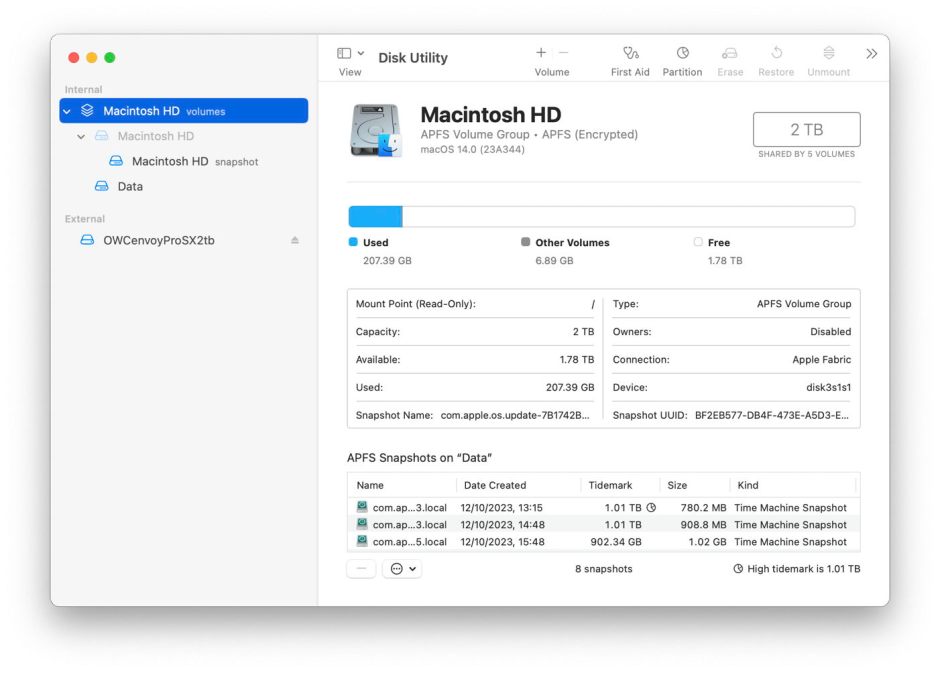
In addition to features provided by third-party backup utilities, you can manage snapshots using Disk Utility. Open its View menu and first enable Show All Devices, then Show APFS Snapshots. Select the Data or Macintosh HD – Data volume in the left of the window, and you’ll see a list of all APFS snapshots for that volume, together with an indication of the size of each.

diskutil14

To delete a snapshot in Disk Utility’s list, select it and use the Delete… command from the contextual menu (Control-click). Be careful, though, as there’s no undo. You can safely remove all Time Machine snapshots from that volume except the most recent, which is also the smallest. That latest snapshot is needed when that volume is next backed up by Time Machine. If you remove that too, then the next backup could be a full backup of everything on that Data volume, something best avoided if possible.

❌