Reading view

There are new articles available, click to refresh the page.

In the background: Spotlight indexing

If you’ve ever watched Activity Monitor shortly after logging in to your Mac, you’ll have seen how busy it is for the first ten minutes or more. Apple silicon Macs are different here, because their sustained high % CPU is largely restricted to the Efficiency cores. This is commonly attributed to Spotlight indexing files, and may appear worrying. This article tries to describe what’s going on over that period, and why it doesn’t necessarily mean there’s a problem with Spotlight.

On-the-fly indexing

When new files are created, or existing ones changed, Spotlight indexes them very quickly. The first mdworker process is spawned within a second, and others are added to it. They’re active for about 0.2 seconds before the new posting lists they create are ready to be added to that volume’s indexes. They may later be followed by CGPDFService and mediaanalysisd running similar image analysis to that performed in Live Text. Text extracted from the files is then compressed by mds_stores before adding it to that volume’s Spotlight indexes, within seven seconds or so of file creation.

These steps are summarised in the diagram above, where those in blue update metadata indexes, and those in yellow and green update content indexes. It’s most likely that each file to be added to the indexes has its own individual mdworker process that works with a separate mdimporter.

Spotlight indexes

The indexes used in search services are conventionally referred to as inverted, because of the way they work, and those would normally be largely static. Spotlight’s have to accommodate constant change as files are altered and saved, new files are created, and others are deleted. To enable its main inverted indexes to remain well-structured and efficient, Spotlight stores appear to use separate transient posting tables to hold recently acquired metadata and content. Periodically data from those is assimilated into its more static tables. Similarly, when files are deleted their indexed metadata and contents aren’t removed immediately, but when the store next undergoes housekeeping.

Image analysis and text extraction performed by CGPDFServices and mediaanalysisd, introduced in macOS Sonoma, are computationally intensive, and normally deferred until they can be performed with minimal disruption to the user. When completed, that text also needs to be incorporated in Spotlight’s content indexes.

Startup sequence

I gathered 15 log extracts each covering all entries (excluding Signposts) for periods of 3 seconds during the 11 minutes of high Spotlight process activity after user login, on a Mac mini M4 Pro running macOS 26.2 Tahoe. Those show Spotlight processes running in phases, starting from an arbitrary time zero when their activity was first seen reaching a peak:

  • 00:00 – mdworker processes were indexing files for periods of 1-4 seconds each; Spotlight indexes were being maintained, with a journal reset and sync;
  • 02:40 – CGPDFService started;
  • 04:10 – mediaanalysisd started running its Live Text extraction on files, with photoanalysisd activity; then coremanagedspotlightd maintained indexes, replaying journals;
  • 07:20 – mediaanalysisd continued Live Text extraction;
  • 10:40 – mdworker returned to indexing as before; index maintenance occurred again with a journal reset and sync, following which index file permissions were set;
  • 10:45 – caches were deleted and there was general tidying up before background processes tailed off.

Times are given as MM:SS following the arbitrary start. After about 5 minutes had elapsed, Activity Monitor and the log also showed substantial activity for the initial Time Machine backup, and running the daily complete set of XProtect Remediator scans.

All Spotlight processes appeared to run in the background, at low QoS and on Efficiency cores, apart from those of mediaanalysisd. That process was run at a QoS of Utility rather than Background or Maintenance, and confirmed by the MADServiceTextProcessing being called with a QoS numeric value of 17 instead of 9 or less. That would normally be scheduled on Performance cores, although little was seen on those in Activity Monitor’s CPU History window. Text extraction run by mediaanalysisd typically took about 0.25 seconds for each file processed. mediaanalysisd ran repeatedly for about 6 minutes, between 04:10 and about 10:40.

Abnormally prolonged indexing

Several macOS upgrades in recent years appear to have caused Spotlight indexing at startup to take prolonged periods, in some cases reported as several days, and comparable to the time required to rebuild all indexes from scratch. Given the paucity of log entries recording index maintenance, this can be difficult to confirm, although text extraction by mediaanalysisd is easier to identify. In most cases, it seems preferable to allow prolonged maintenance to run to completion, by allowing that Mac to run without sleeping. In Apple silicon Macs, as those maintenance processes should run almost exclusively on E cores, this should have limited impact on the user.

Forcing a full reindex of a volume is likely to take longer than allowing maintenance to complete.

Key points

  • Spotlight indexes new and changed files rapidly to supplementary journals rather than main indexes.
  • Macs that are shut down daily perform extensive indexing and index maintenance shortly after the user logs in.
  • Macs that remain running should perform the same maintenance periodically during light use.
  • Maintenance includes the incorporation of supplementary journals into main indexes
  • Text extraction from images by mediaanalysisd is performed at the same time, and can take a long time.
  • Although image analysis may be run on P cores, almost all Spotlight indexing and maintenance is performed in the background on E cores.
  • Prolonged indexing and maintenance isn’t necessarily a bad sign, and may well be normal.
  • Disrupting Spotlight routine maintenance may affect search results.

Can you disable Spotlight and Siri in macOS Tahoe?

For some, Spotlight and even Siri are indispensable, for others they’re just a waste of CPU and storage space. If you want to disable them, how is that best achieved?

Siri

The only documented way to turn Siri off is in its section in System Settings, where you should disable Siri Requests.

Although Siri will then be essentially inactive, it still doesn’t disappear. During startup, siriactionsd runs, and siriknowledged and some other of its services remain listed in Activity Monitor.

Spotlight

If you disable every item in Spotlight’s section in System Settings, that doesn’t disable Spotlight, nor stop it from indexing mounted volumes. Indeed, you may find it slows some Finder operations. Traditionally there have been two commands used in Terminal to try to disable Spotlight, depending on which of its features you want to stop.

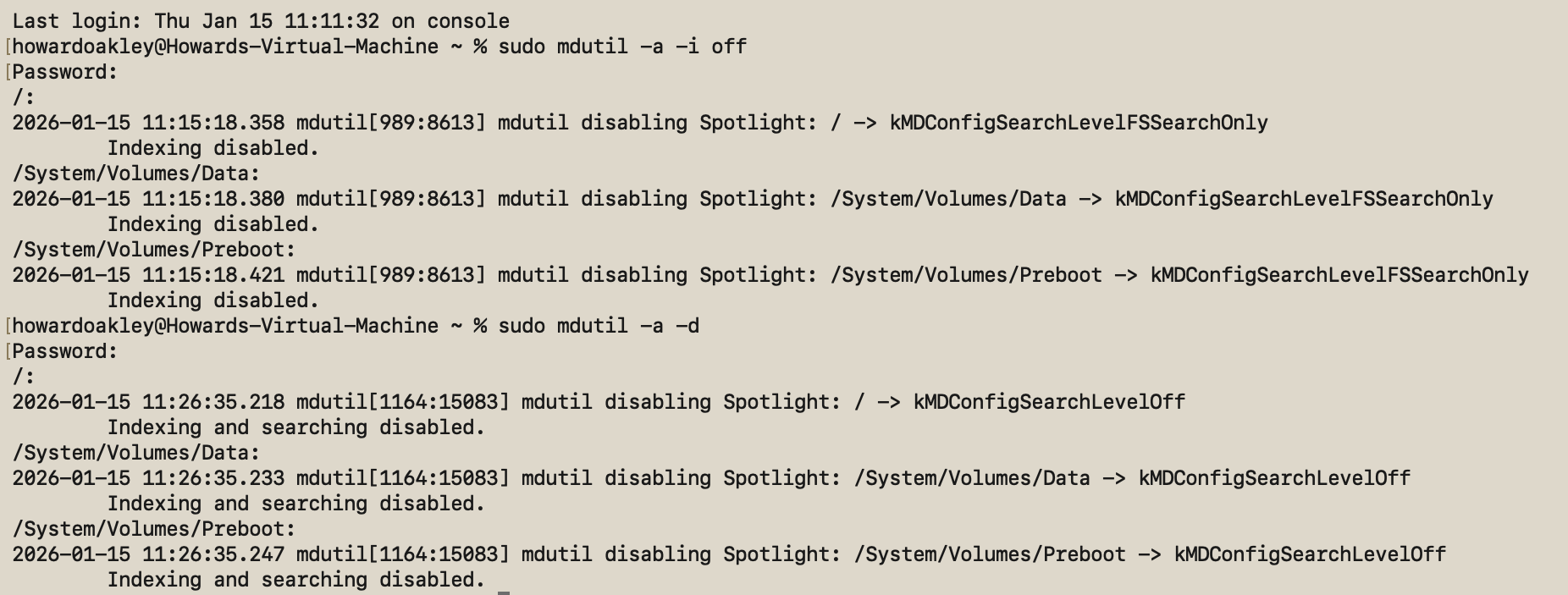
The most common recommendation is to use
sudo mdutil -a -i off
to disable Spotlight indexing, but that doesn’t stop its searches, and it may not even do that on the current Data volume. When you run that command, mdutil should inform you that indexing is disabled on each mounted volume, and Spotlight has been switched to kMDConfigSearchLevelFSSearchOnly. Although that’s reported for the root volume / and the Data volume at /System/Volumes/Data, I was still able to search and find files in the latter after running that command.

This might be related to previously reported problems disabling just the Data volume, which could require use of the explicit path /System/Volumes/Data.

The alternative is to use
sudo mdutil -a -d
as that disables both Spotlight searches and Spotlight indexing, and appears to be effective on the current Data volume. mdutil will then inform you that indexing and searching are disabled on each mounted volume, and Spotlight has been switched to kMDConfigSearchLevelOff. That ensures all attempts to search will fail to return any hits.

Look carefully, though, and Spotlight hasn’t gone anywhere, and is still present in Activity Monitor’s list of processes. During startup you’ll still see its related daemons mediaanalysisd and photoanalysisd run briefly, and mds, Spotlight and spotlightknowledged are still present in the list of processes. Volumes will also have their hidden .Spotlight-V100 folder, although after mdutil -a -d its Store-V2 folder should remain completely empty.

Should you wish to enable Spotlighting indexing again, regardless of which command was used to disable it, use
sudo mdutil -a -i on
which should report that indexing has been enabled on each mounted volume.

Conclusions

It’s not possible in macOS Tahoe to completely disable either Siri or Spotlight, not without resorting to system surgery and running with SIP disabled. However, you can reduce them to an absolute minimum by:

  • turning Siri Requests off in Siri settings;
  • running the command sudo mdutil -a -d in Terminal.

But using sudo mdutil -a -i off isn’t as thorough or reliable.

Providable 1.2 works on non-English systems, and why it didn’t previously

If you have been trying to use my free utility Providable on a non-English system and have been unable to get it to list apps installed there, you will want to download and use this new version 1.2, which should address that problem.

It’s available from here: providable12
and will shortly be getting its own place in a Product Page, and in Downloads above.

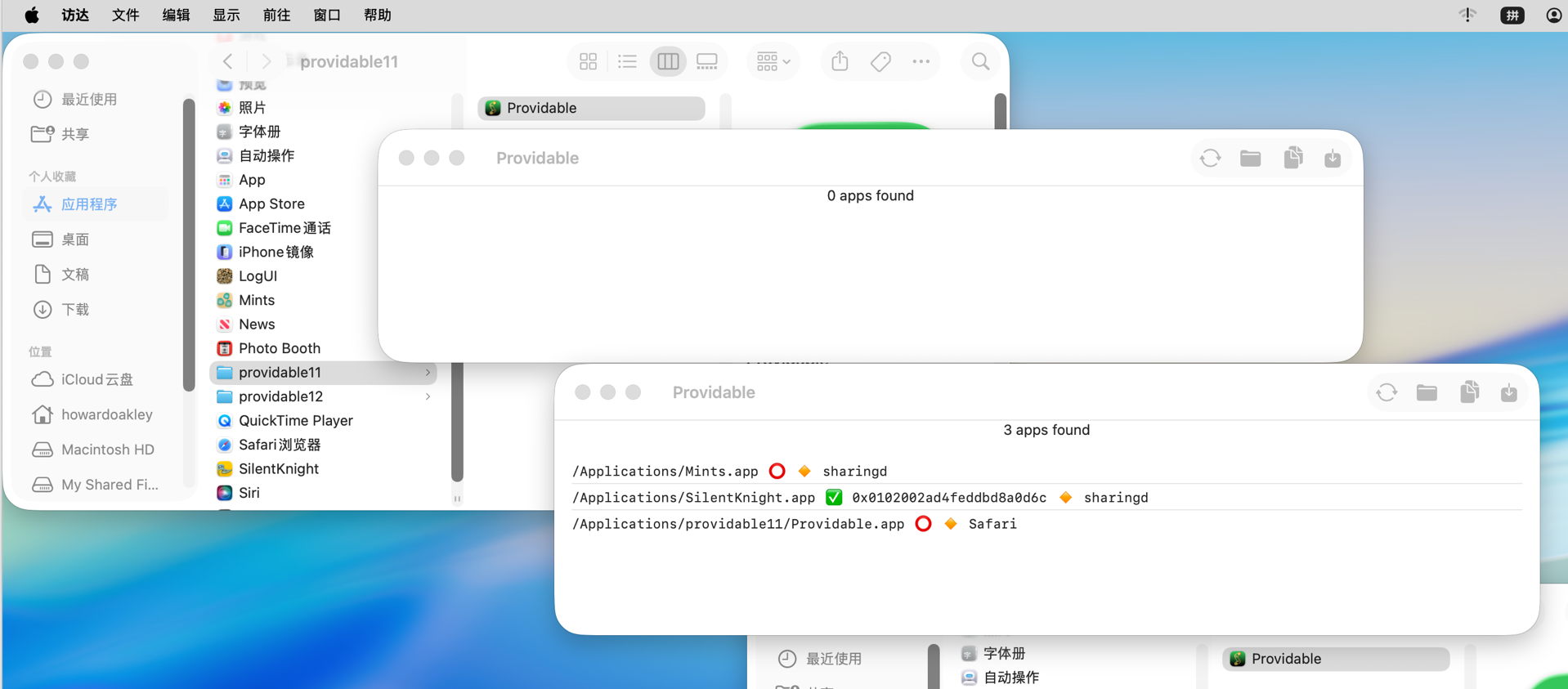
Just to demonstrate that Providable 1.2 does list apps correctly in non-English systems, here’s a screenshot of version 1.1 in the upper left showing no apps found, and 1.2 in the lower right with the three apps it should have identified. That’s in Tahoe 26.2 with Chinese set as the primary language.

The rest of this article explains why previous versions failed to list installed apps on non-English systems, why that has more general significance, and how it’s bad behaviour.

Listing apps

It’s curiously difficult to obtain a comprehensive list of apps installed on a Mac. If you look at proposed solutions, many involve iterating through popular locations such as Applications folders, or other time-consuming schemes. This turns out to be duplicated effort, as Spotlight already does that when indexing, and provides indexes you can search far more quickly.

The common recommendation is to use the mdfind command in the form
mdfind "kMDItemKind == 'Application'"
which should find all items that Spotlight has indexed as being of the kind Application. There’s an equivalent available in the Finder’s Find window that demonstrates how well this can work.

As Apple doesn’t appear to explain any further about how Spotlight classifies items into these ‘kinds’, it’s reasonable to assume they are categories with standard names, although that proves to be incorrect when you try the same on a non-English system. You then realise that a ‘kind’ is just an arbitrary string that may be localised. Run that command in macOS localised to Chinese, and you won’t find any Application at all, and when localised to Italian you’ll need to use Applicazione instead.

The textbook solution to localisation problems like this is to provide a set of localised strings, and to pick the correct one depending on the current localisation setting. That may work when you have specialist teams, and can achieve comprehensive cover of all the possibilities, but here it’s impractical, as it would be when writing a script that uses that search command. It’s much better to cheat.

The most obvious way around this is to use a criterion that’s localisation-invariant such as a UTI. You can then search for .app bundles with the UTI of com.apple.application-bundle. I was disappointed to discover that too isn’t as simple as it could be, as UTIs are available in kMDItemContentType, but according to current documentation that returns a complete UTI ‘pedigree’, for an app something like com.apple.application-bundle/com.apple.application/com.apple.localizable-name-bundle/com.apple.package. That may not be correct, though, as using mdls to list metadata shows that the full pedigree is given in kMDItemContentTypeTree rather than kMDItemContentType.

Preparing for both cases, the correct search command should then be
mdfind "kMDItemContentType == 'com.apple.application-bundle*'"

And that is exactly what Providable 1.2 does now.

Does Spotlight reindex when changing localisation?

My next question is what Spotlight actually indexes for kMDItemKind: is the string localised or not? As we don’t have direct access to those indexes, the closest we can come to inspecting them is by dumping metadata using mdls. Using Italian and English as my examples, when running with English as the primary language, kMDItemKind for an app is given as Application, but with Italian primary, it’s given as Applicazione instead.

This is the only metadata that appears localisation-dependent in this way, so either mdls is lying by returning a localised string, or Spotlight is rebuilding its index for kMDItemKind when the primary language changes. Neither behaviour is documented or expected.

Localisation overreach

This isn’t the first time that I’ve run into problems with localisation in command tools. If you use SilentKnight on Apple silicon Macs running non-English systems, you’ll be only too aware of my previous and apparently insoluble issue, where a major command tool can only return strings in localised form, effectively making their interpretation impossible. In that case it’s one of the many modules in system_profiler, returning key information about an Apple silicon Mac’s security status that isn’t readily available anywhere else.

Localisation is wonderful, and vital for many of us using macOS, but in some cases is now being applied too early. I wonder how anyone scripting with mdfind can possibly make use of kMDItemKind across different localisations. If its kinds were drawn from a set of non-localised strings, there would be no such problems. It makes good sense to localise the strings used in its GUI equivalent, but not for the command tool.

There are many examples of where localisation doesn’t take place, for example in UTIs, and in filename extensions. Can you imagine the consequences of localising the latter?

I’m very grateful to Hill-98 for helping me uncover these problems.

❌