Reading view

There are new articles available, click to refresh the page.

In the background: software update, backup & XProtect Remediator

Among the other activities you may see shortly after you’ve logged in to macOS Tahoe are a check for system software updates available from Apple’s servers, an initial Time Machine backup, and sometimes a set of XProtect Remediator scans. This article explains how those are dispatched by Duet Activity Scheduler and Centralised Task Scheduling, the DAS-CTS system.

DAS

Shortly after user login, DAS starts gathering its budgets enabling it to score activities, including thermal policies, shared memory and energy. It then loads saved activities by group, and solicits activities for resubmission and inclusion in its lists to be dispatched and run. It then periodically evaluates the activities in those lists, to determine which should and should not be run at that time.

In the early minutes after login, it may only have around 126 candidates in its lists, some of which it identifies as ‘passengers’, and doesn’t evaluate for the time being. For those activities it does evaluate, it arrives at a score between 0 and 1, and decides which it should dispatch next.

SoftwareUpdate

This normally reaches a score sufficient to be dispatched in the first few minutes after user login. That DecisionToRun is recorded in the log, and DAS requests CTS to start com.apple.SoftwareUpdate.Activity as root via XPC. This starts a dialogue between DAS and CTS, leading to the handler com.apple.SoftwareUpdate being called. That in turn starts its background check, and proceeds to check for updates.

CTS considers that activity is completed, and informs DAS of the fact. The activity is then rescheduled with DAS, in this case with a priority of 5, at an interval of 21,600 seconds, or 6 hours. Thus, SoftwareUpdate should check for new system updates approximately every 6 hours when your Mac is running, although the exact time of its dispatch by DAS will vary according to other activities and general conditions such as temperature and resource availability.

This is summarised in the diagram below.
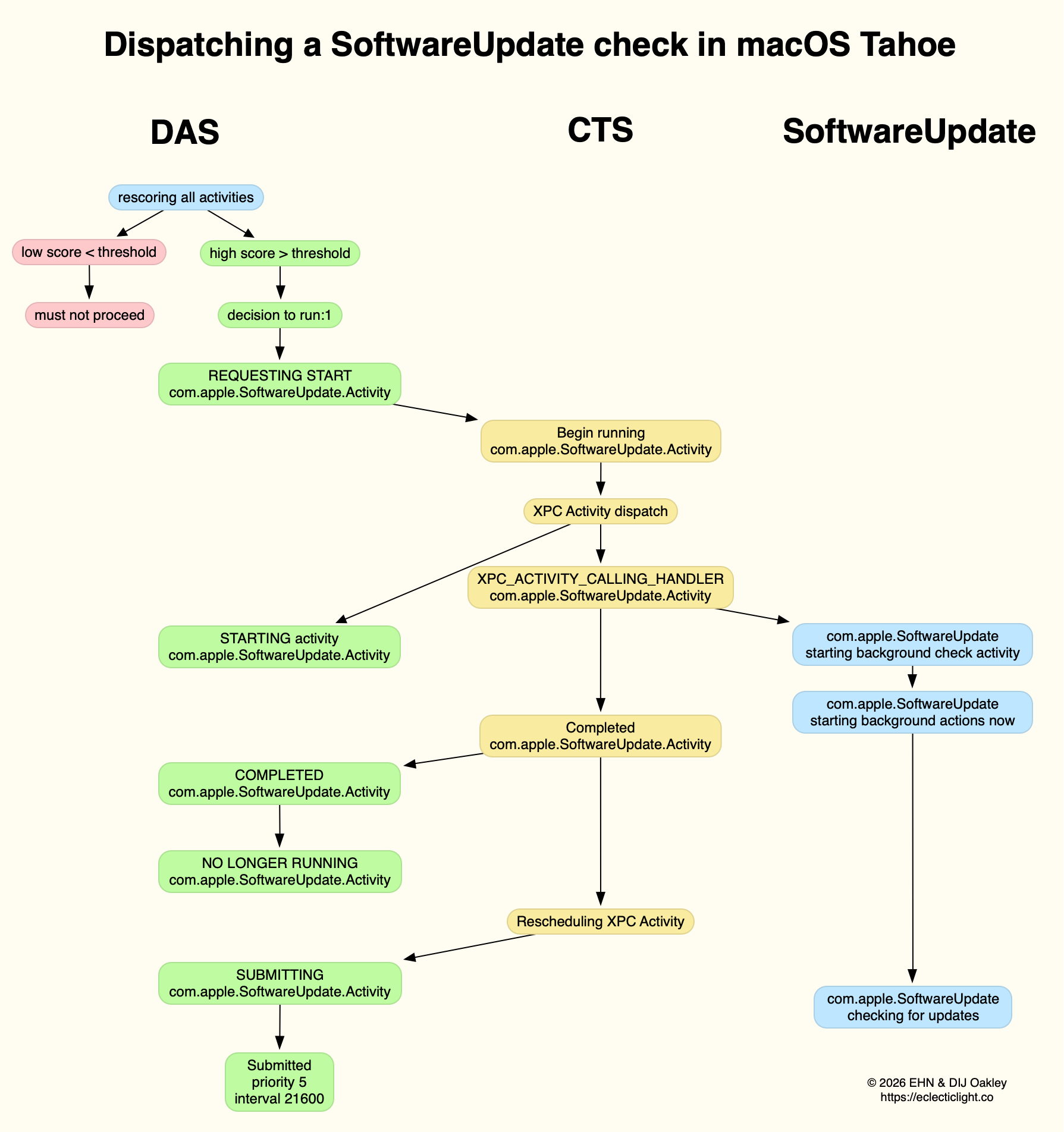
In practice, the time between DAS deciding to run SoftwareUpdate and it running is likely to be less than 0.1 second, and online checks should be initiated within a further 0.1 second.

Time Machine backup

Automatic backups are normally delayed for the first 5 minutes after startup, and during that time DAS should decide not to proceed to dispatch them. When it does give them the go ahead, the activity dispatched is known as com.apple.backupd-auto.dryspell, indicating that it’s the initial backup made after startup. This too is run as root.

A similar dialogue between DAS and CTS is established, as shown in the diagram below.
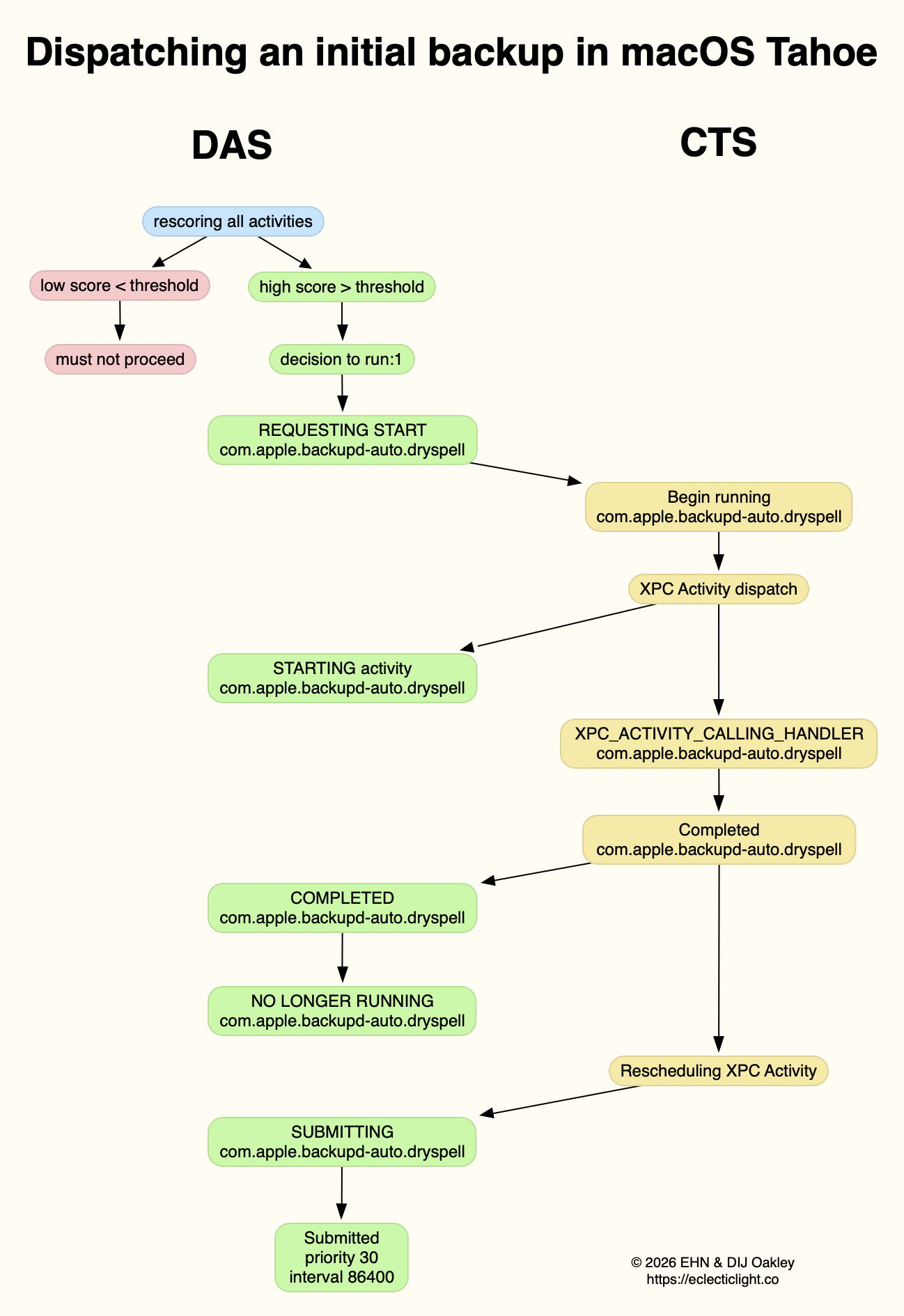
What is distinctive here is that com.apple.backupd-auto.dryspell doesn’t result in the immediate initiation of a backup, but instead runs backupd-helper, and that can be delayed significantly before backupd itself is run to perform the backup. Although backupd-helper should be running within 0.2 seconds of DAS deciding to run the sequence, it may be a further 10 seconds before backupd itself is actively backing up. This is presumably because of other sustained and intense activities competing for resources at that time.

Dispatch of com.apple.backupd-auto.dryspell thus differs from the diagram below, showing dispatch of an ordinary automatic backup after the initial one, in macOS Sequoia.

com.apple.backupd-auto.dryspell is rescheduled by DAS at a priority of 30, and an interval of 86,400 seconds, or 24 hours, so it should work neatly for Macs that are powered up each day.

XProtect Remediator

Dispatch of a set of XPR scans is less predictable, as they’re likely to occur at roughly 24 hour intervals, but only when the Mac is running on mains power, and when it’s otherwise lightly loaded. If that happens to be the period of relative calm ten minutes or more after logging in, then background activity will be prolonged as the set of XPR scans is run.

By the time XPR was ready to scan here, DAS had a total of 600 pending activities, of which 254 were considered to be ‘passengers’. It therefore evaluated 74 activities, two of which were com.apple.XProtect.PluginService.daemon.scan, to be run as root, and com.apple.XProtect.PluginService.agent.scan as user. On some occasions, DAS will hold one of those from dispatch until the other is complete, but in this case it approved both to run simultaneously. Those went through a similar dialog between DAS and CTS, resulting in com.apple.XProtectFramework starting both as timed scans with standard priority, within less than 0.2 seconds of the decision by DAS to dispatch them.

As those were both timed scans, when XPR’s timers expired they were cancelled before fully completing. However, once a week XPR scans should be run without that timer, allowing them to finish all their scans.

XPC Activity states

If you follow CTS log entries for XPC activity, you’ll come across numeric states ranging between 0-5, such as
32.474139 com.apple.xpc.activity _xpc_activity_set_state: com.apple.SoftwareUpdate.Activity (0xb8ac3a080), 2
Those are documented in Apple’s source code as:

  • 0 XPC_ACTIVITY_STATE_CHECK_IN, check-in has been completed;
  • 1 XPC_ACTIVITY_STATE_WAIT, waiting to be dispatched and run;
  • 2 XPC_ACTIVITY_STATE_RUN, now eligible to be run;
  • 3 XPC_ACTIVITY_STATE_DEFER, to be placed back in its wait state with unchanged times;
  • 4 XPC_ACTIVITY_STATE_CONTINUE, will continue its operation beyond the return of its handler block, and used to extend an activity to include asynchronous operations;
  • 5 XPC_ACTIVITY_STATE_DONE, the activity has completed.

I hope this had given insight into what your Mac is up to during the first few minutes after you log in, why Apple silicon Macs show such high CPU % for their Efficiency cores, and how this results from important background activities.

Related

Explainer: XPC
In the background: Spotlight indexing

Explainer: XPC

Apps you run have the user’s level of privileges, and must never be run as root. That poses a problem if that app needs to be able to do something requiring elevated privileges, such as those of the root user. The best solution to that is for the code that needs to be run as root to do so inside a completely separate process, a helper, specially created for that purpose. That in turn requires the app and its helper to communicate, so the app can pass its requests, and receive the responses when the helper has performed them – and that’s what XPC does.

XPC stands for cross-Process Communication, and is based on Inter-Process Communication (ICP), part of macOS’s Mach inheritance. XPC works between a client, often an app although it could be any suitable binary executable like a command tool, and a service. Services are run by launchd, either according to a property list for a Launch Agent or Launch Daemon, or when requested by the client. While some services are helpers that work at higher privileges, most perform all sorts of other tasks that are more conveniently provided as a service.

The client and service communicate by sending one another data structured in dictionaries. Typically, the client starts with a request, perhaps for the service to obtain some information that’s only accessible from a process with elevated privileges or with certain entitlements. The service might call a macOS API to fetch that, then returns the result to the client.

The traditional arrangement of components put property lists for Launch Agents and Launch Daemons into their respective folders in /Library or ~/Library, but those are now most likely to remain inside the app bundle. That not only makes apps more self-contained and easier to handle, but it keeps those property lists within the protection of the whole app. Other XPC services for an app are kept within the app bundle in a dedicated XPCServices folder.

macOS provides its own XPC services that are extensively used by all apps. A fine example is the Open and Save panel used by the great majority of those that handle documents. That’s run as a separate XPC process, transparently to the app’s code. The client app passes it the specifications to use in the panel such as the type of document, and the Open and Save Panel Service returns the URL of the file selected by the user in that dialog. You can see that in the list of processes in Activity Monitor, where all active panels will be listed as Open and Save Panel Service followed by the name of the client.

Services accessed using XPC inevitably run asynchronously with the client app, and on Apple silicon Macs can be run in the background on their Efficiency cores. This makes them ideal for maintenance and other tasks that are likely to be time-consuming. macOS has a whole scheduling and dispatch system built around XPC, in Duet Activity Scheduler and Centralised Task Scheduling, DAS-CTS, which manages Time Machine backups and over 500 other activities.

This is all relatively straightforward in a world you can trust, but many XPC services are ripe for exploitation. Consider a service that has privileged access to passwords or other sensitive information: wouldn’t that be an ideal target for stealer malware to abuse? As a result, good XPC services and their communications may need to go to lengths to ensure that they’re not abused, and only work with their intended client(s). For this, the service must verify the identity of the client, check its code signature is valid, that it’s using the hardened runtime, and doesn’t have entitlements that could bypass that, before accepting any XPC request. Plenty of apps have been found to fall short of being suitably robust.

XPC and the services it connects are at the heart of macOS.

Further reading

XPC framework, Apple
XPC Programming on macOS, Karol Mazurek (Medium)
Abusing & Securing XPC in macOS apps, slides from a presentation at OBTSv3 by Wojciech Reguła

Can you slim macOS down?

Open Activity Monitor when your Mac isn’t doing a great deal and you’ll see hundreds of processes listed there. Even in a virtual machine with a minimum of services there are at least 500, and in a vanilla setup with no apps open a real Mac can exceed 700. Clearly some of those like WindowServer are essential, but aren’t there plenty we could do without? That’s a question I’m asked repeatedly, which this article tries to answer.

One of the first problems when trying to identify which processes we could do without is knowing what each does, and how they’re interrelated. I doubt whether any individual in Apple knows them all, and trying to establish what some do would be a challenge. If we assume that we need to identify just 500 candidates, and each takes an average of one week to research, that would take over 10 person-years, by which time they would all have changed again. Studying 500 targets that are ever-changing simply isn’t practical.

When problems get difficult, it’s often best to cheat, so I’m going to go for the low-hanging fruit and consider a well-known group of processes, those making Time Machine backups. I’ve been following these since macOS Sierra, and frequently study them in the log. They’re also good candidates for removal, as many folk don’t back up using Time Machine but use one of its alternatives. So some already have good reason to want to be rid of backupd and its relatives. They’re also relatively discrete: although they depend on other processes to function, I don’t know of any other subsystems that require Time Machine, making it potentially disposable.

Set up a basic VM in maOS 26.2 and, even though Time Machine has never been enabled, you’ll see its processes listed in Activity Monitor.

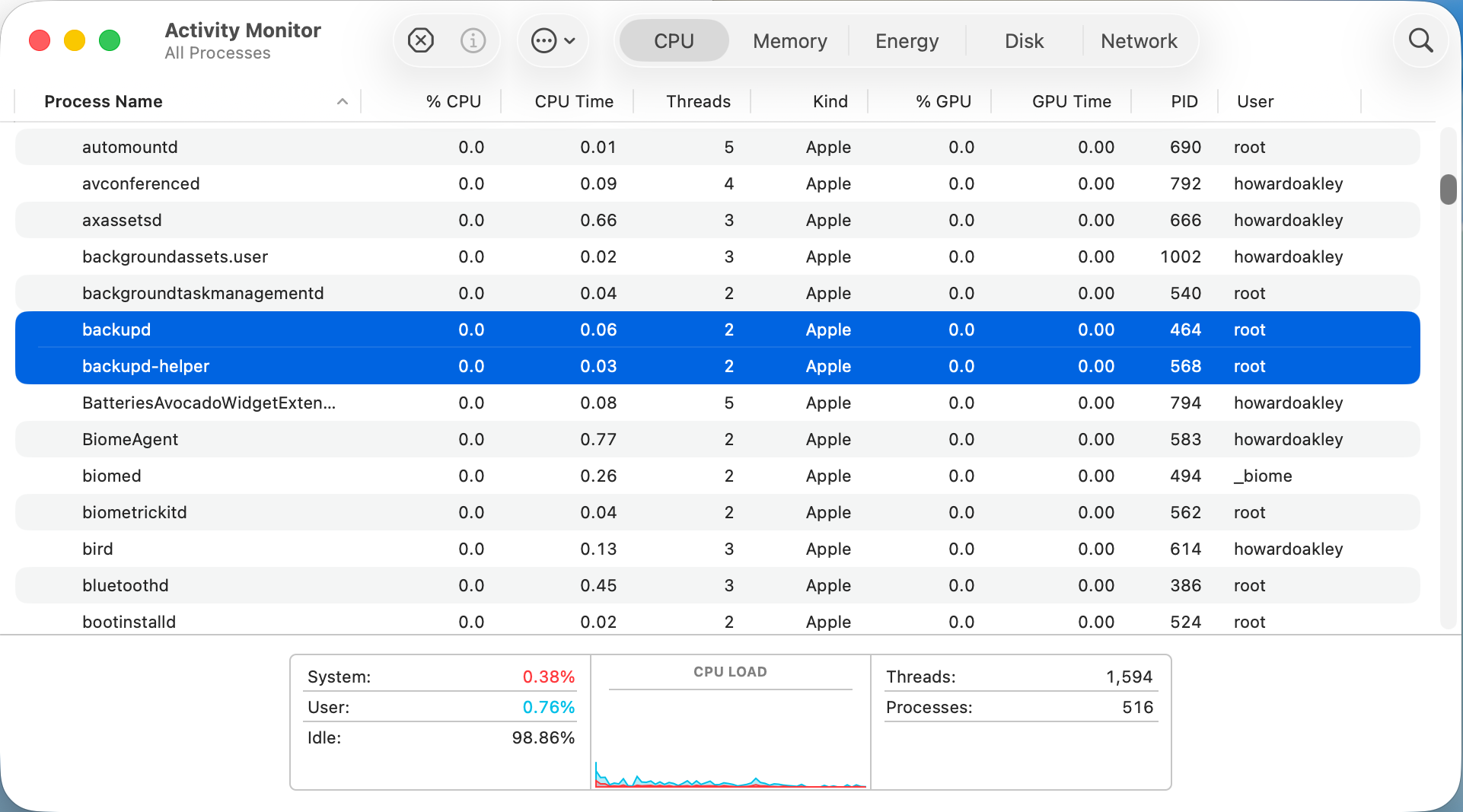
Here are backupd and backupd-helper showing they still take a little % CPU even when Time Machine is completely disabled.

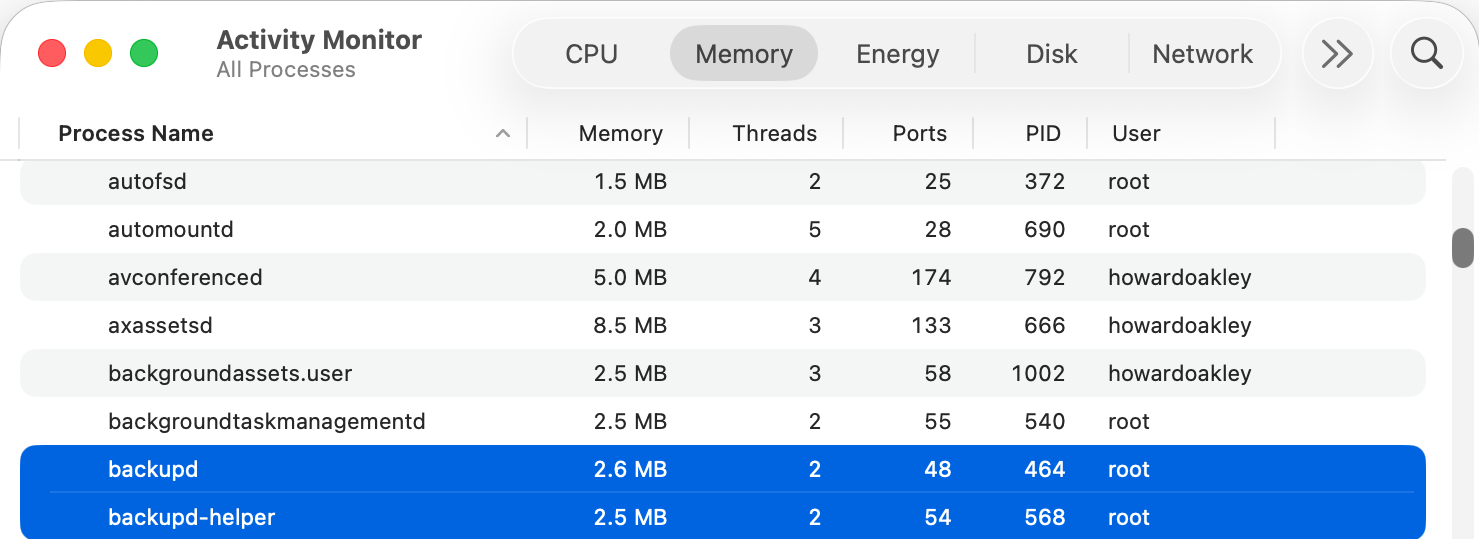
They also take a little memory, here a total of 5.1 MB. While that isn’t much, added up over 500 processes it becomes worth caring about.

Those two processes are controlled by LaunchDaemons stored in /System/Library/LaunchDaemons, in property lists named com.apple.backupd-helper.plist and com.apple.backupd.plist. Here’s our first problem, as those are located in the Signed System Volume (SSV), so we can’t change them in any way. The same applies to the other 417 LaunchDaemons and 460 LaunchAgents that account for most of the processes listed by Activity Monitor. In the days before the SSV it was possible to edit their property lists to prevent them from being launched, but that isn’t possible any more when running modern macOS.

If we can’t stop the backupd-auto process from being run, is there any other way we could block it? To answer that we need to understand how it’s scheduled and dispatched.

Until macOS Sierra, Time Machine backups were run from launchd as timed events, but since then their scheduling and dispatch has been performed jointly by Duet Activity Scheduler (DAS) and Centralised Task Scheduling (CTS), using lightweight inter-process communication (XPC). DAS manages a huge list of activities including com.apple.backupd-auto, and decides when to dispatch it to CTS to run. For example, it won’t do that for the first five minutes after a Mac starts up, to allow other processes to run first.

Once that time is up, DAS decides to run the backup:
38.738 DAS 0:com.apple.backupd-auto:2052A3, Decision: CP Score: 0.949374}
38.738 DAS '0:com.apple.backupd-auto:2052A3' CurrentScore: 0.949374, ThresholdScore: 0.068531 DecisionToRun:1
38.762 DAS REQUESTING START: 0:com.apple.backupd-auto:2052A3

CTS then proceeds with the dispatch via XPC:
38.762 CTS-XPC DAS told us to run com.apple.backupd-auto (0xb671bcc80)
38.844 CTS-XPC Initiating: com.apple.backupd-auto (0xb671bcc80)
38.846 CTS-XPC _xpc_activity_dispatch: beginning dispatch, activity name com.apple.backupd-auto, seqno 0
38.846 CTS-XPC _xpc_activity_begin_running: com.apple.backupd-auto (0x7a9014280) seqno: 0.
38.878 CTS-XPC Running (PID 537): com.apple.backupd-auto (0xb671bcc80)
38.879 DAS STARTING <_DASActivity: "0:com.apple.backupd-auto:2052A3", Utility, 60s, [1/19/26, 8:50:43 PM - 1/19/26, 9:10:43 PM], Started at 1/19/26, 9:10:38 PM, Group: com.apple.dasd.default, PID: 537>

This is in a VM with Time Machine disabled, though, so Time Machine reports:
38.879 Time Machine Skipping scheduled Time Machine backup: Automatic backups disabled

However, com.apple.backupd-auto has now completed, and that’s passed back through CTS-XPC:
38.879 CTS-XPC _xpc_activity_set_state: send new state to CTS: com.apple.backupd-auto (0x7a9014280), 5
38.880 CTS-XPC Completed: com.apple.backupd-auto (0xb671bcc80)

The next run is then scheduled in DAS following an interval of at least 30 minutes, and ideally in about an hour:
38.881 CTS-XPC Rescheduling: com.apple.backupd-auto (0xb671bcc80)
38.881 DAS SUBMITTING: 0:com.apple.backupd-auto:B293AE
38.882 DAS Submitted: 0:com.apple.backupd-auto:B293AE at priority 30 with interval 1800 (Mon Jan 19 21:25:38 2026 - Mon Jan 19 21:40:43 2026)

So, even with Time Machine disabled in a VM, DAS-CTS continues to schedule automatic runs of Time Machine at hourly intervals. And, because DAS-CTS is isolated from all user controls, there’s nothing we can do to prevent that scheduling and dispatch. Does that matter, though? This whole sequence was completed in 0.144 seconds, using lightweight inter-process communication with negligible use of resources, and only repeats hourly.

To the Unix purist, this might appear wasteful and unnecessary, but macOS isn’t, and never has been, Unix. It’s a closed-source proprietary operating system designed for use by millions of consumers and regular users. Rather than configuring it using config files or its thousands of property lists, its controls are largely exposed in System Settings, with a few settings hidden away and only accessible through the defaults command.

macos914

Classic Mac OS was more modular, with optional installs that the user could pick and choose, as shown above in Mac OS 9.1. These days with the SSV, choice is more limited from the start, with the only real options being whether to install the cryptexes used in AI, and the x86 code translator Rosetta 2. The latter is transient, though, and likely to go away next year.

Like it or not, modern macOS isn’t designed or implemented to give the user much choice in which processes it runs, and architectural features including the SSV and DAS-CTS prevent you from paring its processes down to any significant degree.

白金Curidas钢笔(ft. 百乐capless)

日本白金今年初发布了最新的按压式钢笔Curidas,原计划2月28日上市的,后来延期到4月中,根据官网的说法是因为零件厂商的供货问题,应该也跟疫情有关吧,这个2020年一切的不正常都很正常。

我是2月份在台湾一家钢笔商店预定的,最近收到了。

价钱

按新台币换算成人民币大约530块左右,加上顺丰快递费,大概560左右,比淘宝大概贵100块,但淘宝上都要5月初才能发货。

特性

按压式钢笔比较出名的是百乐capless,从名字上就能看出“没笔盖”是最大特性,与圆珠笔一样按压伸出笔尖,再次按压收回笔尖。与普通钢笔相比使用方便,尤其是与旋盖钢笔相比方便太多了,而且也不必担心笔盖会弄丢。

当然缺点也很明显,因为多了机械结构,所以墨囊做的比较小,百乐的capless上墨器比自家标准上墨器容量小很多。

而白金Curidas用的是自家标准上墨器,也就是具有与3776等型号一样的续航能力,当然代价就是比百乐capless粗了也长了很多。

题外话,最新款的百乐capless LS改为按压出尖,旋转收尖了,机械部分更为复杂。

优点

  1. 外观不错,虽然是塑料,但质感不错,适合抚摸。
  2. 拿到手虽然感觉很粗,但实际握感不错,长时间使用没问题。
  3. 相比百乐capless黑武士要轻一点,重心位置也比较合适,不压手。
  4. 白金标准的上墨器,续航有保证。
  5. 日本三大钢笔厂商里白金的笔尖书写感受还是最适合我的。
  6. 厂商号称此钢笔也具备白金传统的良好气密性,一年不用也能一笔出水。(从我对3776的经验,我相信肯定没问题)

缺点

  1. 确实有点大了。
  2. 虽然笔杆塑料质感不错,但非常容易产生划痕。
  3. 最不满意的是机械部分的设计,与百乐capless比太不简洁了。
  4. 笔尖无法单独更换,需要整个总成一起更换,可玩性降低。(当然,这个是由于机械特性决定的。)
  5. 按键部分“键程”太长,尤其是按下去的前段,手感及其廉价。
  6. 笔尖包围处的那一段笔杆轻轻旋转居然能动,不清楚是旋上去的还是粘上去的,时间久了担心是否会脱落。
  7. 我买的F尖,实际比3776的F尖还细。

拆开来与百乐capless对比

看得出来,上个墨水都要比百乐capless多拆点东西。

开盖图

可以看出,盖子是先于笔尖打开的,正常情况下不用担心笔尖会与前盖摩擦,不过上墨后笔尖往笔杆里塞的时候明显感觉“顶住”了什么东西,这点比百乐capless也差一些。

两个牌子的笔到底怎么选?

当然是两个都要啦。

❌