An emerging Republican plan to skirt a Democratic filibuster and fund an entire department without congressional appropriations would be the latest example of surrendering power to the White House.
Border Patrol agents in Minneapolis in early January. Using the complex budget process known as reconciliation to fund the entire Homeland Security Department, as Republicans are suggesting, would be a significant departure from traditional congressional practice.
At least 120,000 law enforcement officers who work for the agency have continued to collect paychecks throughout the funding lapse. But tens of thousands of workers have gone without pay.
Apple has just released its regular weekly update to XProtect, bringing it to version 5336. As usual it doesn’t release information about what security issues this update might address.
This version adds two new rules for MACOS.WANNABEWALLABY.IMA and MACOS.WANNABEWALLABY.STA, amends rules for MACOS.TIMELYTURTLE.DYHEOC, MACOS.SOMA.MAENA, and MACOS.SOMA.MAENB, and changes some rule UUIDs. In the Osascript rules in XPScripts.yr, it amends the rule for MACOS.OSASCRIPT.SYPR.
You can check whether this update has been installed by opening System Information via About This Mac, and selecting the Installations item under Software.
A full listing of security data file versions is given by SilentKnight and SystHist for El Capitan to Tahoe available from their product page. If your Mac hasn’t yet installed this update, you can force it using SilentKnight or at the command line.
If you want to install this as a named update in SilentKnight, its label is XProtectPlistConfigData_10_15-5336
Sequoia and Tahoe systems only
This update hasn’t yet been released for Sequoia and Tahoe via iCloud. If you want to check it manually, use the Terminal command sudo xprotect check
then enter your admin password. If that returns version 5336 but your Mac still reports an older version is installed, you should be able to force the update using sudo xprotect update
Mayor Zohran Mamdani is lifting the ban on governmental use of the social media app, one of a handful that the mayor used to amplify his campaign messaging.
A memo that President Trump signed on Friday ordering the Department of Homeland Security to pay T.S.A. officers did not specify whether they would be paid on a regular schedule.
Airport security officials have been sharing passenger data with immigration agents, but the program received little attention until videos captured a woman and her daughter being detained at San Francisco’s airport.
The Transportation Security Administration began sharing passenger information with immigration officials a year ago, highlighting fliers who were on a list of people to be deported.
The hourslong waits appeared to be easing as Transportation Security Administration officers received their first pay in weeks. But with no funding deal, the lines could return.
Security lines at airports across the country generally shrank on Monday after President Trump signed an order to pay Transportation Security Administration officers on Friday.
Transportation Security Agency officers have called out of work or quit after weeks of not getting paid during a partial government shutdown. ICE agents have begun to fill their roles.
Transportation safety officers are set to be paid on Monday, but Tom Homan, the White House’s border czar, said ICE agents may stay where there are shortages.
Tom Homan contended on Sunday that wait times had decreased at airports since ICE agents arrived, doing identification checks and “plugging the security holes.”
Transportation safety officers are set to be paid on Monday, but Tom Homan, the White House’s border czar, said ICE agents may stay where there are shortages.
Tom Homan contended on Sunday that wait times had decreased at airports since ICE agents arrived, doing identification checks and “plugging the security holes.”
Apple has just released its regular weekly update to XProtect, bringing it to version 5335. As usual it doesn’t release information about what security issues this update might address.
This version adds two new Yara rules for MACOS.TIMELYTURTLE.OBDR and MACOS.SOMA.MAENB, and amends the existing rule for MACOS.SOMA.BYTE.SEQUENCE.B. In the Osascript rules in XPScripts.yr, it relocates those for TABUPA, REBUPA, DUVAST, DUCUHA and DUSTCO.
You can check whether this update has been installed by opening System Information via About This Mac, and selecting the Installations item under Software.
A full listing of security data file versions is given by SilentKnight and SystHist for El Capitan to Tahoe available from their product page. If your Mac hasn’t yet installed this update, you can force it using SilentKnight or at the command line.
If you want to install this as a named update in SilentKnight, its label is XProtectPlistConfigData_10_15-5335
Sequoia and Tahoe systems only
This update has already been released for Sequoia and Tahoe via iCloud. If you want to check it manually, use the Terminal command sudo xprotect check
then enter your admin password. If that returns version 5335 but your Mac still reports an older version is installed, you should be able to force the update using sudo xprotect update
The update to bring macOS Tahoe up to version 26.4 is hefty at around 7.15 GB (more than double that if you’re unlucky), and reflects a great deal of bug fixes and improvements in almost every subsystem. Apple provides three good sets of release notes:
General release notes include the addition of an option to use compact tabs in Safari, Freeform’s new Creator Studio enhancements, and a facility for Purchase Sharing in Family Sharing. Oh, and the requisite eight new emoji.
Security release notes list over 70 fixes, many of which are significant, but none are reported as being known to be exploited in the wild at present.
The new build number of 26.4 is 25E246. The Darwin Kernel version is 25.4.0, and XNU 12377.101.15~1.
Apple silicon firmware is updated to a completely different version numbering system, and is now reported as mBoot version 18000.101.7. If you’re running SilentKnight older than version 2.14 (71), then it’s likely that it will crash as a result of this change in firmware version. Please use version 2.14 from here.
Firmware in Intel Macs with T2 chips remains with the previous system, and is updated from 2094.80.5.0.0 (iBridge 23.16.13120.0.0,0) to 2103.100.6.0.0 (iBridge 23.16.14242.0.0,0).
Looking through the bundled apps and /System/Library, there are a great many increments in build numbers reflecting the extensive changes made. Here are a few of the more substantial changes found.
In bundled apps:
Books goes from version 8.1 to 8.4
Freeform, version 4.3 to 4.4
iPhone Mirroring, version 1.5 to 1.6
Music, version 1.6.3 to 1.6.4
Safari, version 26.3.1 (21623.2.7.111.2) in BSI (a) to 26.4 (21624.1.16.11.4)
TV, version 1.6.3 to 1.6.4
Audio MIDI Setup, version 3.7 to 3.8
Digital Color Meter, version 6.10 to 6.11
Screen Sharing, version 6.2 (758.1) to 6.1 (760.4), note the reduction in version number.
In /System/Library:
AGX kernel extensions all have build increments
AppleDiskImages2 kext has a build increment
AppleEmbeddedAudio kext and its plugin kexts have build increments
AppleIntel Graphics kexts have version increments
AppleStorageDrivers kext and its plugin kexts have build increments
APFS is updated from 2632.80.1 to 2811.101.1, suggesting a substantial change has been made
new private frameworks include ASMExclaveSupport, AccelerateOpt, AlwaysOnExclavesDaemon, AnteroAgent, AppRemoteAssets, AudioPasscodeDSP, BNNSOdieDelegate, CookingData, CoreTransparency, DynamicPrefetching, InAppFeedback, NanoPassKit, PartnerVisualSearch, a whole family of Unilog frameworks, and a group of iCloudWeb frameworks
mdimporters updated include those for Application, CoreMedia, Mail, Office, iWork but not RichText.
After seeing the new CookingData private framework, I looked out for RecipeKit, but was disappointed not to see it.
This is probably going to be the last such substantial update to macOS Tahoe, as much of Apple’s engineering effort is transferring to make macOS 27 ready for release as a beta at WWDC in early June.
Freeform joins Creator Studio, with advanced tools and a premium content library
Purchase Sharing in Family Sharing
and eight new emoji.
Security release notes for 26.4 list over 70 fixes, those for Sequoia 15.7.5 list about 56, and those for Sonoma 14.8.5 list about 50. None are reported as being known to be exploited in the wild at present.
Firmware in Apple silicon Macs is updated to a new mBoot firmware version numbering system, with the current version given as 18000.101.7. The macOS build number is 25E246, and Safari is version 26.4 (21624.1.16.11.4). Firmware in Intel Macs with T2 chips is updated from 2094.80.5.0.0 (iBridge 23.16.13120.0.0,0) to 2103.100.6.0.0 (iBridge 23.16.14242.0.0,0).
If you’re running SilentKnight older than version 2.14 (71), then it’s likely that it will crash as a result of the change in firmware version. Please use version 2.14 from here.
I’ll be posting an analysis of what has changed later today.
Updated 09:15 25 March 2026 with firmware details for Intel Macs.
Since the introduction of the Signed System Volume in Big Sur, the great majority of macOS has been strongly protected. So strongly that applying the smallest security patch has required the full might of a macOS update. There are times when something more lightweight enables Apple to promulgate urgent patches swiftly and efficiently, and that’s what a Background Security Improvement or BSI does.
This was set up when macOS Monterey introduced cryptexes to contain Safari, its WebKit supporting library, and the large dyld caches for general support in Frameworks. Cryptexes are cryptographically sealed disk images that aren’t mounted like other volumes, but are grafted into arbitrary locations in the file system. In Ventura they were used for Rapid Security Responses (RSR), in many ways indistinguishable from BSIs.
This week’s first BSI for macOS 26.3.1 is a good example: it fixes one serious vulnerability in WebKit. Rather than building that into a full update to 26.3.2, because it only requires changes in the cryptex containing Safari and WebKit, this BSI swaps out the existing App cryptex and replaces it with a patched one. For those who don’t want to install BSIs, those same vulnerabilities should be fixed in the next set of security updates to macOS.
Controls
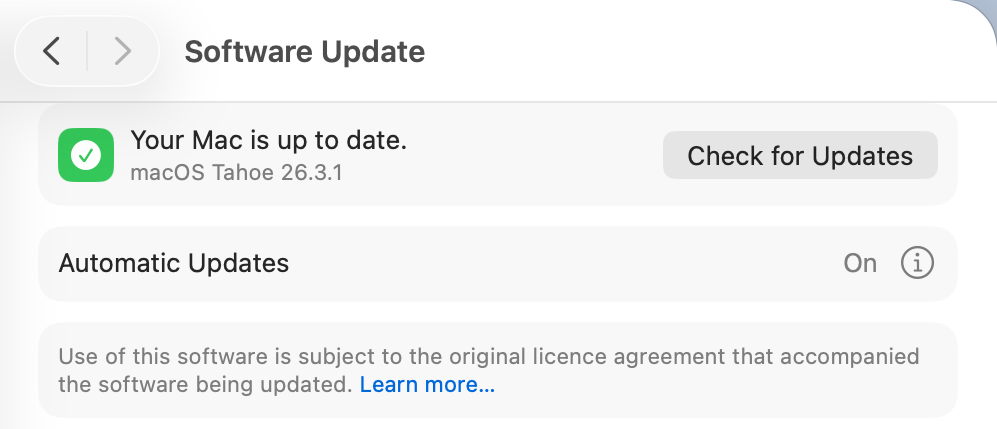
Look in Software Update settings, and you’ll see no mention of any BSI, and that will claim your Mac is up to date, even though it’s not.
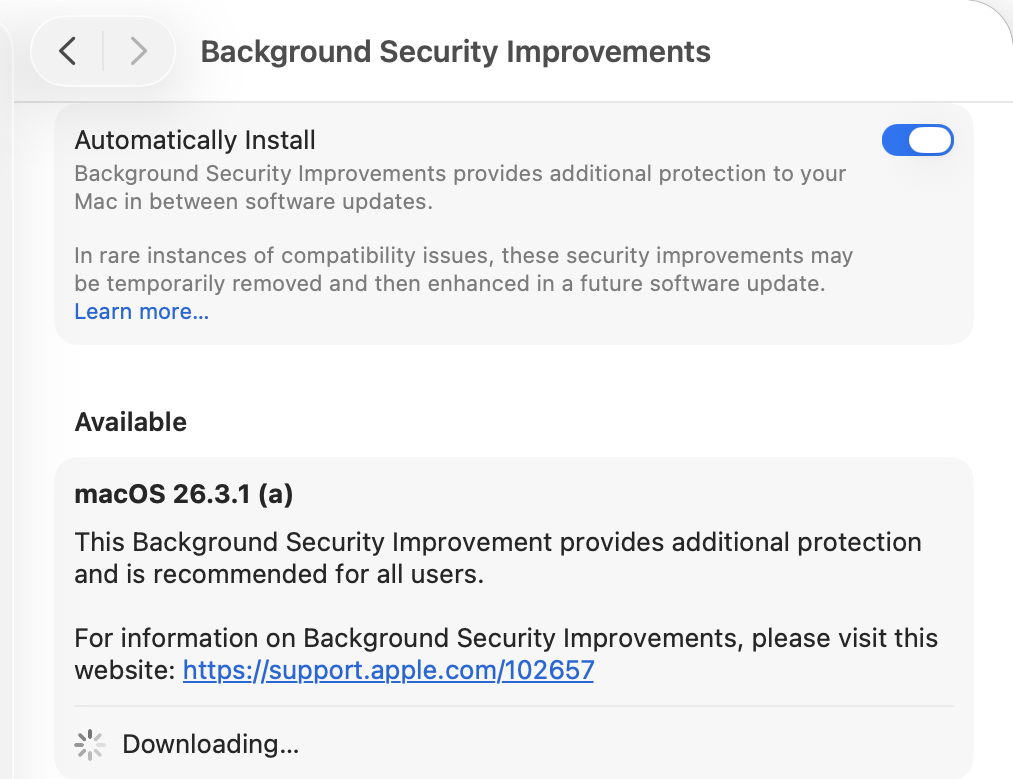
BSIs are controlled in their section listed close to the foot of Privacy & Security settings. If you want your Mac to be offered BSIs when they’re available, you must enable Automatically Install first. Despite those words, BSIs don’t appear to install in the least bit automatically, and you should be offered those available for the installed version of macOS. When you’ve chosen to download and install one and authenticated, you’ll see a progress spinner rather than a bar.
As soon as downloading and preparation are complete, you should be given a few seconds before your Mac restarts to complete the installation. This is all very brief, but once you’ve authenticated to start the process, it will run through to completion automatically.
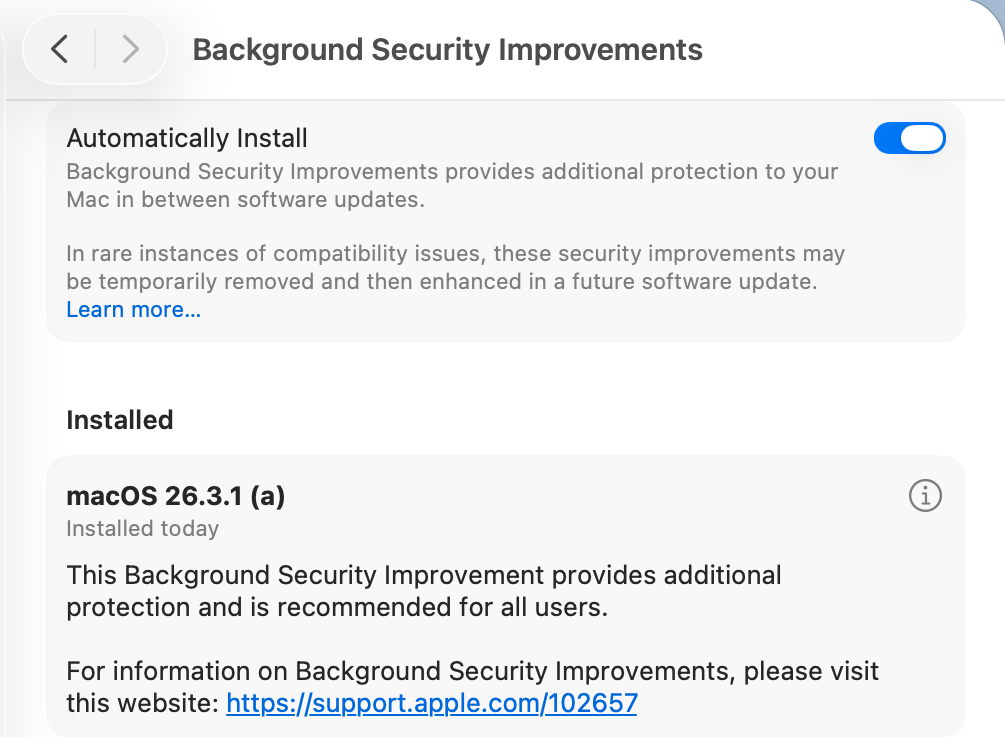
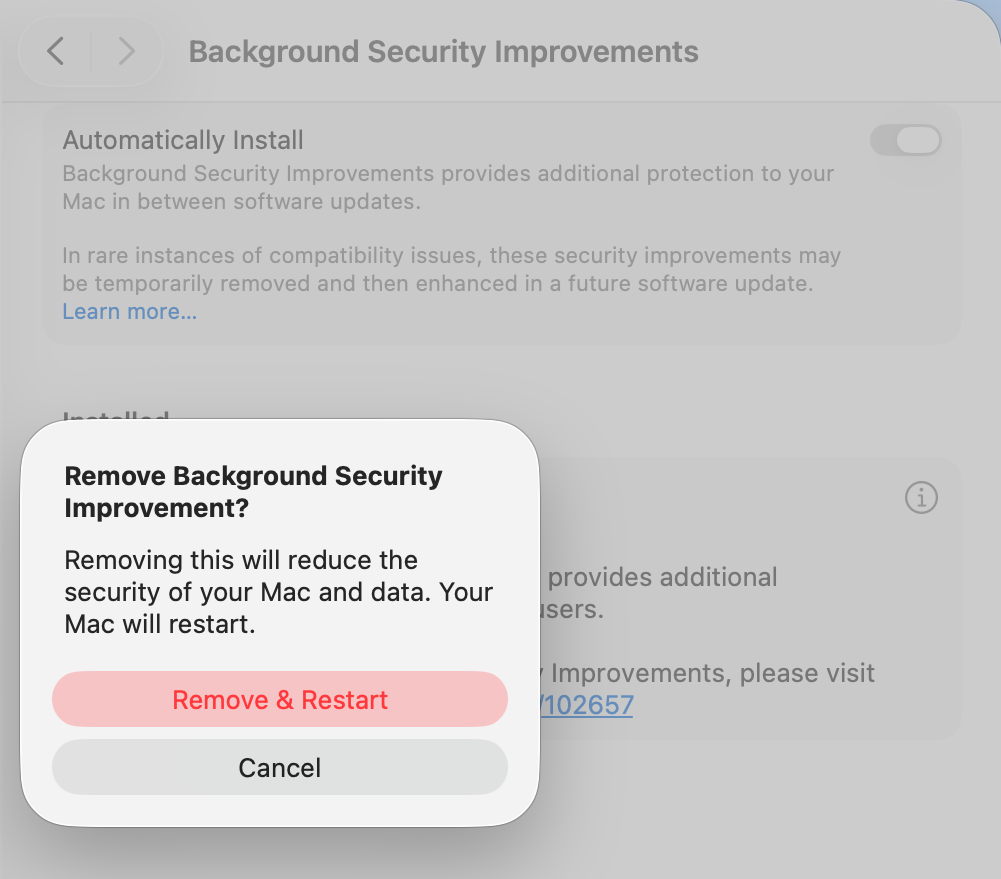
Once your Mac has restarted, you always retain the option to remove any BSI and return to an unpatched cryptex. To see that, click on the ⓘ Info button on the right.
If you decide you want to remove the BSI, your Mac will need to be restarted.
Problems
If you know a BSI is available but Privacy & Security settings appear unable to find it, something I’ve encountered in Virtual Machines, try running SilentKnight. Although BSIs aren’t controlled in Software Update, they do still use the same softwareupdate system used by SilentKnight. Normally you shouldn’t try to install BSIs using SilentKnight, as installation will fail. However, you can turn this to your advantage when a BSI is being elusive.
Once SilentKnight has downloaded and failed to install the BSI, you should be notified of that failure. Restart your Mac, give it a couple of minutes to settle once you’ve logged back in, and open the BSI section in Privacy & Security settings again. The downloaded BSI should now be available, and shouldn’t even need to be downloaded.
If you think a BSI has caused another problem, such as instability in Safari, use the ⓘ Info button to remove that BSI.
Installing a BSI does weird things to the macOS version and build numbers, and those can break scripts and possibly some apps. While ProcessInfo.processInfo.operatingSystemVersion doesn’t contain a field for the BSI letter, ProcessInfo.processInfo.operatingSystemVersionString does return a full version description including the BSI letter and extended build number. In Terminal, sw_vers -productVersion returns the regular version number without BSI, while sw_vers -productVersionExtra returns the BSI designation alone.
Currently, SilentKnight and Skint ignore BSIs, and won’t inform you if you could have one installed except by listing it as an available installation, nor will they check whether your Mac is up to date with the latest BSI. Experience from RSRs in Ventura shows that trying to track lightweight updates like RSRs or BSIs is only going to annoy those who don’t want to install them, and as they can change in a short period, they are hard to track reliably. SilentKnight does report the full version and build number, and SystHist lists details of all BSIs that Mac has installed.
Limitations
Like the RSRs of Ventura, BSIs can only work for a limited range of patches. If a vulnerability needs a fix outside Safari, WebKit, and the dyld caches, then it will require a full macOS update to fix it. BSIs are only ever likely to be provided for the current version of the latest major version of macOS.
From its first account of RSRs, Apple has claimed that some RSRs and BSIs shouldn’t require a restart to apply their patches. However, every RSR and BSI to date has had to be completed by restarting that Mac, which is mildly disruptive and not as lightweight as we’d like.
If you disable Automatically Install in the BSI section of Privacy & Security settings, then your Mac won’t be informed about or have access to any BSIs.
Under the hood
Despite their control being part of Privacy & Security settings, BSIs are managed like all other macOS and related updates by softwareupdated. What is most remarkable about them is their speed of download, preparation and installation compared with macOS updates. From detection of a new BSI to logging back into the restarted Mac can take little more than five minutes.
Apple’s in-house term for BSIs is the same as it used for RSRs, Splat. You’ll also come across Semi-splat, which should be a transient state in which the Splat Restore Version is different from the Cryptex1 Restore Version. That’s normally rectified after the reboot.
softwareupdated checks specifically for BSIs by scanning the update server catalogue for Splat updates. In this case, for an App cryptex, the download size is given as 214 MB. There’s a brief preflight phase, followed by its download. Although no progress indicator is shown in Privacy & Security settings, softwareupdated does record progress, but using similar figures for a full macOS update. Under those, preparing the update is set at 60% progress.
Applying the update takes around 2.5 seconds, at which stage softwareupdated reports that Semi-splat is active because of unequal restore versions, and rollback objects are checked.
Once the Mac has restarted, property list paths are checked for six different Splat versions, enabling the restore versions to be rectified and Semi-splat is no longer active. A brief purge of update assets is performed, and softwareupdated checks once again for any available updates.
Is a BSI just an RSR in disguise?
Apart from the move of its control from Software Update to Privacy & Security settings, there appear to be few if any differences between them. This is even reflected in version numbering. Installing the first RSR for macOS 13.3.1 brought it to version 13.3.1 (a), with a build number of 22E772610a. This first BSI for macOS 26.3.1 brings it to version 26.3.1 (a), with a build number of 25D771280a.
Most telling, though, are the accounts of RSRs and BSIs given in Apple’s Platform Security Guide, which are almost word-for-word identical apart from their names. It seems most likely that a BSI is a rebranded RSR in a bid to move on from the loss of confidence in RSRs following unfortunate errors nearly three years ago.
Key points
If you’re running the current version of the latest major version of macOS, BSIs provide lightweight fixes for some vulnerabilities, including those in Safari and WebKit.
Enable them in Privacy & Security settings, in their section at the foot. If they aren’t enabled there, you won’t be offered them at all.
Control their installation in that section. Once you’ve agreed to install one and have authenticated, your Mac is likely to restart automatically soon after the BSI has been downloaded.
Remove and revert a troublesome BSI using the ⓘ Info button there.
Although the US English version of Apple’s Platform Security Guide has replaced its section on RSRs with an almost identical account of BSIs, most other localised versions of that guide still contain the old RSR version.
Apple has just released its first public Background Security Improvement (BSI) for macOS 26.3.1 Tahoe, labelled as BSI (a)-25D771280a. Once installed, macOS will identify itself as version 26.3.1 (a), with a build number of 25D771280a.
You can install this through Privacy & Security Settings, in the Background Security Improvements section. It doesn’t appear listed in Software Update, although SilentKnight will offer it. Please don’t try to use SilentKnight to install this, though, as it will download successfully but fail to install unless you then use the BSI section in Privacy & Security settings, which will finish the job off.
Apple has now released details of the single vulnerability that this fixes, in WebKit. As a result it updates Safari from 26.3.1 (21623.2.7.11.7) to 26.3.1 (21623.2.7.111.2).
Following installation, your Mac will need to restart for the BSI to be applied.
Apple has just released its regular weekly update to XProtect, bringing it to version 5334. As usual it doesn’t release information about what security issues this update might address.
This version makes no changes to its main Yara rules. Changes to the OSASCRIPT rules in XPScripts.yr include amendments to more than a dozen of them, and two new rules are added for MACOS.OSASCRIPT.GEPEPA and MACOS.OSASCRIPT.TAPEPA. Several rules that previously added the property wide to their text now have wide ascii instead.
You can check whether this update has been installed by opening System Information via About This Mac, and selecting the Installations item under Software.
A full listing of security data file versions is given by SilentKnight and SystHist for El Capitan to Tahoe available from their product page. If your Mac hasn’t yet installed this update, you can force it using SilentKnight or at the command line.
If you want to install this as a named update in SilentKnight, its label is XProtectPlistConfigData_10_15-5334
Sequoia and Tahoe systems only
This update has now been released for Sequoia and Tahoe via iCloud. If you want to check it manually, use the Terminal command sudo xprotect check
then enter your admin password. If that returns version 5334 but your Mac still reports an older version is installed, you should be able to force the update using sudo xprotect update
Excitement about A.I. assistant tools is running into growing concerns about the security risks of software that operates autonomously on user’s devices.
Apple has just released its regular weekly update to XProtect, bringing it to version 5333. As usual it doesn’t release information about what security issues this update might address.
This version changes the rules named InstallImitatorC to XProtect_MACOS_INSTALLIMITATOR_C, XProtect_snowdrift to XProtect_MACOS_SNOWDRIFT, and XProtect_MACOS_ADLOAD_INTRIN to XProtect_MACOS_ADLOAD_IN, and adds one new Yara rule for MACOS.SOMA.MAENA.
Changes to the OSASCRIPT rules in XPScripts.yr include the amendment of 9 existing rules by adding the property wide to their text, and the addition of one new rule for MACOS.OSASCRIPT.TABUPA.
You can check whether this update has been installed by opening System Information via About This Mac, and selecting the Installations item under Software.
A full listing of security data file versions is given by SilentKnight and SystHist for El Capitan to Tahoe available from their product page. If your Mac hasn’t yet installed this update, you can force it using SilentKnight or at the command line.
If you want to install this as a named update in SilentKnight, its label is XProtectPlistConfigData_10_15-5333
Sequoia and Tahoe systems only
This update has now been released for Sequoia and Tahoe via iCloud. If you want to check it manually, use the Terminal command sudo xprotect check
then enter your admin password. If that returns version 5333 but your Mac still reports an older version is installed, you should be able to force the update using sudo xprotect update
In his National Cybersecurity Strategy, President Trump sought an expanded role for private firms in cyberwarfare. He did not take on China or Russia in the document.
Not too long ago, macOS usually only checked for system software updates once a day. If your Mac’s routines didn’t coincide with Apple’s release of updates, they might arrive a day or two late, and sometimes they were left a lot longer. When I started writing this blog over 11 years ago, one of my goals was to spread information about those updates, so we could all have confidence that our Macs were as well protected as possible and got bugs fixed promptly. In those days, those mostly involved vulnerabilities in Java and Adobe Flash Player.
At first, this was all about what Apple has always been worst at, communicating. In spite of the unsung efforts of its engineers, Apple has chosen to remain as silent as possible about bugs and security. The only time I’m aware that its silence was broken was back in July 2019, when it released an update to its Malware Removal Tool MRT to remove a hidden web server installed by Zoom’s installer, and even then the information was passed on furtively.
Just before Christmas 2016, I released the first version of LockRattler to check and report on security systems, among them the installed version of XProtect. That was widened to include firmware version checks in EFIcientC in July 2019, which quickly turned into SilentKnight.
SilentKnight, and its more basic cousin Skint, compare versions of security data installed on your Mac with lists of those current, a simple task until you realise that Apple doesn’t provide any list of current versions of XProtect and others, nor of Mac firmware. Instead of being able to check with Apple, SilentKnight has to look these up in databases that I maintain on my Github.
For example, the most active of those is XProtect, currently updated most weeks. I keep a watch on the availability of its updates using the same tools that you have: SilentKnight, and the xprotect command in Terminal. Rather than running them once a day, I do this whenever I suspect an update is imminent. Some days I only check once, just to be sure a surprise update hasn’t appeared, but when I think we’re due for an update, I may run them every hour or more frequently.
When SilentKnight strikes gold, I first install the update here, and analyse what it changes. This is straightforward for XProtect, which holds its content in five files in the Resources folder inside its bundle. Using BBEdit, I compare the contents of the update with the previous version, and summarise those. This is a little more complex with XProtect Remediator, as that not only contains executable binary scanning modules, but a set of Bastion rules used by the Behavioural XProtect.
Since the release of macOS Tahoe, XProtect has been installed in two locations, the newer of which is updated separately over an iCloud connection, so I now have to check the version available from there.
Once I know that new version is available, I update the skint1 and sysupdates property lists on Github, so your SilentKnight and Skint will know about the update when they next check. I then put together an article announcing the update with the details of what has changed, post it here, and announce that on X (formerly Twitter).
The last step is to add that information to the list of updates on SilentKnight’s product page, and my main page listing all updates, and update version numbers in separate pages for those still using LockRattler, which can’t check my databases.
How quickly that all happens depends on how quickly I can identify the update, and when I can download and analyse it. If Apple releases the update after I have gone to bed, I’m afraid I won’t be able to do that until the following morning, as happened earlier this week. But if you thought my system was run automatically from some database maintained by Apple, I’m afraid that’s not the case, as it’s all down to SilentKnight and me.
If your Mac installs an update before I have updated my databases, SilentKnight will inevitably expect your Mac still to be using the older version, as that’s what’s listed in the database. When it discovers that it’s using a newer version, it will report that as an error. Please bear with it, as I shouldn’t take long to install and analyse the update, and correct the version number in the database.
Checking firmware versions and updates is more complicated again, as I have to maintain separate lists of the latest versions for each model. You can see those in my Github as well.
Is it worth all this effort? If you want to ensure that your Mac is running the current version of its security data such as XProtect, I don’t know of any alternative. If you know, then please tell me, as it could save me and SilentKnight a lot of effort.
Finally, my Github data is open to all. If you want to use it in your own tools, then feel free. However, if you intend using it commercially, thus to make money from my labour, please discuss it with me first.
Overnight, Apple released an update to XProtect, bringing it to version 5332. As usual, it doesn’t release information about what security issues this update might address.
This version adds one new Yara rule for MACOS.OSB and makes no changes to the OSASCRIPT rules in XPScripts.yr.
You can check whether this update has been installed by opening System Information via About This Mac, and selecting the Installations item under Software.
A full listing of security data file versions is given by SilentKnight and SystHist for El Capitan to Tahoe available from their product page. If your Mac hasn’t yet installed this update, you can force it using SilentKnight or at the command line.
If you want to install this as a named update in SilentKnight, its label is XProtectPlistConfigData_10_15-5332
Sequoia and Tahoe systems only
This update has already been released for Sequoia and Tahoe via iCloud. If you want to check it manually, use the Terminal command sudo xprotect check
then enter your admin password. If that returns version 5332 but your Mac still reports an older version is installed, you should be able to force the update using sudo xprotect update
Apple has just released an update to XProtect, bringing it to version 5331. As usual, it doesn’t release information about what security issues this update might address.
This version adds two new Yara rules for additional SOMA/AMOS variants, MACOS.SOMA.FEENA and MACOS.SOMA.FEENB, and adds two more OSASCRIPT rules to XPScripts.yr, bringing its total to 19.
You can check whether this update has been installed by opening System Information via About This Mac, and selecting the Installations item under Software.
A full listing of security data file versions is given by SilentKnight and SystHist for El Capitan to Tahoe available from their product page. If your Mac hasn’t yet installed this update, you can force it using SilentKnight or at the command line.
If you want to install this as a named update in SilentKnight, its label is XProtectPlistConfigData_10_15-5331
Sequoia and Tahoe systems only
This update has already been released for Sequoia and Tahoe via iCloud. If you want to check it manually, use the Terminal command sudo xprotect check
then enter your admin password. If that returns version 5331 but your Mac still reports an older version is installed, you should be able to force the update using sudo xprotect update
Finally, for those testing macOS 26.4 beta 2, I am aware that SilentKnight currently crashes on launch, thanks to several of you who have been kind enough to email me. I can’t find an explanation for this in my code, so am hoping it will resolve in beta 3.
Most recently, I have learned of a shocking error in the beta 2 build that may well account for this. If you’re running beta 2, try checking the iBoot version in System Information, and you may be in for a big surprise!
Apple has just released updates to XProtect for all supported versions of macOS, bringing it to version 5330, and to XProtect Remediator for all macOS from Catalina onwards, to version 157. As usual, Apple doesn’t release information about what security issues these updates might add or change.
Yara definitions in this version of XProtect add two new detection rules for MACOS.BONZAI.RECO and MACOS.BONZAI.FAGOBNCO. The XPScripts.yr scripting rules make several amendments to the criteria for MACOS.OSASCRIPT.DUST.
XProtect Remediator doesn’t change the list of scanner modules.
The Bastion rules appear to correct a group of typos in the definition for bastion-common-system-binary, but don’t have any other changes.
You can check whether these updates have been installed by opening System Information via About This Mac, and selecting the Installations item under Software.
A full listing of security data file versions is given by SilentKnight and SystHist for El Capitan to Tahoe available from their product page. If your Mac hasn’t yet installed this update, you can force it using SilentKnight or at the command line.
If you want to install these as named updates in SilentKnight, their labels are XProtectPayloads_10_15-157 and XProtectPlistConfigData_10_15-5330.
Sequoia and Tahoe systems only
This XProtect update has now been released for Sequoia and Tahoe via iCloud. If you want to check it manually, use the Terminal command sudo xprotect check
then enter your admin password. If that returns version 5330 but your Mac still reports an older version is installed, you should be able to force the update using sudo xprotect update
For once, Apple’s bland statement that “this update provides important bug fixes and security updates” may be the best overview of what has changed in macOS Tahoe 26.3. There are few version changes that stand out, but a lot of smallish build increments that suggest some bugs, at least, have been fixed.
Security is another matter, with around 52 vulnerabilities addressed and listed here. Those include one that Apple reports has been exploited in a sophisticated attack against an older version of iOS. For that alone, this update is compelling if you’ve already upgraded to Tahoe.
There are three entries in Apple’s release notes for enterprise, although none should affect those outside enterprise environments.
What Apple doesn’t reveal is that it has improved, if not fixed, the shortcomings in Accessibility’s Reduced Transparency setting. When that’s enabled, at least some of the visual mess resulting from Liquid Glass, for example in the Search box in System Settings, is now cleaned up, as the sidebar header is now opaque. It’s a small step, but does address one of the most glaring faults in 26.2.
The build number of the release version of 26.3 is 25D125. There are firmware updates all round, bringing iBoot to 13822.81.10, and Intel T2 firmware to 2094.80.5.0.0 with iBridge 23.16.13120.0.0,0.
Significant version increments in bundled applications include:
Freeform from 4.2 (630.61.2) to 4.3 (630.81.1)
Music from 1.6.2 to 1.6.3
Passwords from 2.2 (21623.1.14.11.9) to 2.3 (21623.2.7.11.6)
Safari from 26.2 (21623.1.14.11.9) to 26.3 (21623.2.7.11.6)
TV from 1.6.2 to 1.6.3.
Significant changes seen in /System/Library include:
PosterBoard app has been removed from CoreServices
Kernel extensions in the AGX family have substantial changes in build numbers
AppleT6022CLPCServer has been added as a new kext
There are two new kexts to support Thunderbolt, AppleThunderboltUSBType2DownAdapter and AppleThunderboltUSBType2UpAdapter, perhaps to support new hardware features in future M5 models?
APFS from version 2632.40.17 to 2632.80.1
MPSHost, a new framework for Metal performance shaders, has been added
New private frameworks include BinaryAssetTag
Spotlight mdimporters updated to new build numbers include Application, Automator, CoreMedia and Mail, but not RichText.
I look forward to hearing of any fixes or improvements you find.
Postscript:
I’m grateful to @Remo_Pr0 for drawing my attention to the fact that the updated version of OpenSSH included writes a scary warning about post-quantum key exchange algorithms when a connection is made to a system that doesn’t support post-quantum methods.
Apple has released updates to macOS, to bring Tahoe to version 26.3, and security updates for Sequoia to version 15.7.4, and Sonoma to 14.8.4.
The Tahoe update downloads in around 3.7 GB for an Apple silicon Mac, and 2.5 GB for an Intel Mac.
Apple seems to have forgotten what 26.3 fixes or improves, writing just “this update provides important bug fixes and security updates”.
Security release notes for Tahoe 26.3 are here, and list around 52 vulnerabilities addressed, including one that has been previously used in an attack on iOS. Sequoia 15.7.4 has about 30 fixes listed here, and Sonoma 14.8.4 has about 36 listed here.
The build number of 26.3 is 25D125, and iBoot firmware is updated to version 13822.81.10. Safari is version 26.3 (21623.2.7.11.6).
I’ll update this post with further information as I get it. and will later provide details of significant changes in version numbers.
Apple has just released an update to XProtect, bringing it to version 5329, from the previous release of 5327. As usual, it doesn’t release information about what security issues this update might address.
This version adds one new Yara rule for MACOS.SOMA.CLBIFEA, yet another SOMA/AMOS variant, and adds three more OSASCRIPT rules to XPScripts.yr, bringing its total to 17.
You can check whether this update has been installed by opening System Information via About This Mac, and selecting the Installations item under Software.
A full listing of security data file versions is given by SilentKnight and SystHist for El Capitan to Tahoe available from their product page. If your Mac hasn’t yet installed this update, you can force it using SilentKnight or at the command line.
If you want to install this as a named update in SilentKnight, its label is XProtectPlistConfigData_10_15-5329
Sequoia and Tahoe systems only
This update has now been released for Sequoia and Tahoe via iCloud. If you want to check it manually, use the Terminal command sudo xprotect check
then enter your admin password. If that returns version 5329 but your Mac still reports an older version is installed, you should be able to force the update using sudo xprotect update
Apps you run have the user’s level of privileges, and must never be run as root. That poses a problem if that app needs to be able to do something requiring elevated privileges, such as those of the root user. The best solution to that is for the code that needs to be run as root to do so inside a completely separate process, a helper, specially created for that purpose. That in turn requires the app and its helper to communicate, so the app can pass its requests, and receive the responses when the helper has performed them – and that’s what XPC does.
XPC stands for cross-Process Communication, and is based on Inter-Process Communication (ICP), part of macOS’s Mach inheritance. XPC works between a client, often an app although it could be any suitable binary executable like a command tool, and a service. Services are run by launchd, either according to a property list for a Launch Agent or Launch Daemon, or when requested by the client. While some services are helpers that work at higher privileges, most perform all sorts of other tasks that are more conveniently provided as a service.
The client and service communicate by sending one another data structured in dictionaries. Typically, the client starts with a request, perhaps for the service to obtain some information that’s only accessible from a process with elevated privileges or with certain entitlements. The service might call a macOS API to fetch that, then returns the result to the client.
The traditional arrangement of components put property lists for Launch Agents and Launch Daemons into their respective folders in /Library or ~/Library, but those are now most likely to remain inside the app bundle. That not only makes apps more self-contained and easier to handle, but it keeps those property lists within the protection of the whole app. Other XPC services for an app are kept within the app bundle in a dedicated XPCServices folder.
macOS provides its own XPC services that are extensively used by all apps. A fine example is the Open and Save panel used by the great majority of those that handle documents. That’s run as a separate XPC process, transparently to the app’s code. The client app passes it the specifications to use in the panel such as the type of document, and the Open and Save Panel Service returns the URL of the file selected by the user in that dialog. You can see that in the list of processes in Activity Monitor, where all active panels will be listed as Open and Save Panel Service followed by the name of the client.
Services accessed using XPC inevitably run asynchronously with the client app, and on Apple silicon Macs can be run in the background on their Efficiency cores. This makes them ideal for maintenance and other tasks that are likely to be time-consuming. macOS has a whole scheduling and dispatch system built around XPC, in Duet Activity Scheduler and Centralised Task Scheduling, DAS-CTS, which manages Time Machine backups and over 500 other activities.
This is all relatively straightforward in a world you can trust, but many XPC services are ripe for exploitation. Consider a service that has privileged access to passwords or other sensitive information: wouldn’t that be an ideal target for stealer malware to abuse? As a result, good XPC services and their communications may need to go to lengths to ensure that they’re not abused, and only work with their intended client(s). For this, the service must verify the identity of the client, check its code signature is valid, that it’s using the hardened runtime, and doesn’t have entitlements that could bypass that, before accepting any XPC request. Plenty of apps have been found to fall short of being suitably robust.
XPC and the services it connects are at the heart of macOS.

 Login
Login