Reading view

There are new articles available, click to refresh the page.

Explainer: snapshots

Snapshots are a simple concept that only becomes complex when you dig into the detail. One of the fundamental features introduced in APFS, they are now used extensively, to form the System volume for all versions of macOS since Big Sur, and in many backup systems including Time Machine.

As the name implies, a snapshot is a preserved copy of a volume at a moment in time. Creating one is both simple and lightning quick: APFS makes a copy of the file system metadata for that volume, and retains with it all the data of its files. From then on, the working copy of the file system metadata changes as files are modified, created and deleted. But all the original file data at the time the snapshot was made is retained. That enables you to roll back the live volume to the exact state it was in when the snapshot was made. The snapshot itself (its file system metadata) is kept in the same container as the live volume, and their file data overlaps.

Snapshots rely on another fundamental feature of APFS, a scheme called copy on write. When a file is changed, the data for that file isn’t changed in place in the same storage blocks, but written out to new blocks. This enables the snapshot to retain all the original data for its files, while the live volume consists of a mixture of old unchanged data, and replacements for those blocks that have changed since the snapshot was made.

Size

This leads to the biggest disadvantage of snapshots: when first made, the only additional storage space they require is for their copy of the file system metadata, which is relatively small. Over time, though, as more data blocks are changed in the live volume, the size of the data the snapshot must retain grows, and can after a few weeks become enormous, depending on how active the file system is in that volume. What was initially measured in MB quickly becomes GB, and if you forget about that snapshot, it will become hundreds of GB in size.

Management

While some operating systems allow users to create their own snapshots and maintain them, macOS doesn’t: apps that have the restricted entitlement to create snapshots are required by Apple to maintain them as well. That’s why apps that make snapshots are backup utilities, and are required to have a mechanism for automatically deleting their old snapshots to prevent them overwhelming storage.

Creating a snapshot is almost instantaneous, but deleting one is more complex and time-consuming. This is because the file system has to identify all the old retained data blocks that are no longer required, and allow them to be freed up for re-use. When that’s performed across the millions of files that could be in the snapshot’s file system metadata, it will inevitably take time. It’s also not entirely predictable, particularly when there may be multiple snapshots for that volume.

APFS snapshots are always of whole volumes, although some file systems can make snapshots of directory trees within a volume. Unlike Time Machine’s backup exclusions, each snapshot it makes of a volume it’s backing up contains every file in that volume. If you have large database or VM files, although Time Machine and other backup utilities can exclude them from taking up space in their backups, they can’t exclude them from their snapshots. If you do want to keep such large files, it’s usually better to put them in a volume that doesn’t get snapshots made of it.

Snapshots are also read-only, and once one is made, it can’t be changed. This is beneficial, as it ensures nothing can change the old files and their data. However, it also means that if something goes wrong in a snapshot and it starts throwing errors, you effectively can’t repair it. At present, you also can’t copy a snapshot, which makes it impossible to make a copy of your Time Machine backup storage, as that’s composed of snapshots.

Purposes

Your Mac uses snapshots in three ways:

  • local snapshots, typically made by Time Machine and its equivalents on the volumes they back up. Time Machine only keeps those for 24 hours before automatically deleting them for you, although third-party utilities are usually more flexible. You can normally access these, or roll back to them, by mounting the snapshot as a volume.
  • backup snapshots, only created by Time Machine and used to store each backup on your Mac’s backup storage. These are created during the backup process by assembling a copy of the local snapshot together with its changed data into a synthetic snapshot, which is how Time Machine makes its backups now.
  • the Signed System Volume, created during installation and updating of macOS on the System volume of your boot volume group. This is a snapshot of that System volume, and is mounted and used as the macOS system. Unlike all other snapshots, this has a tree of cryptographic hashes added to it, to verify and seal the SSV. If a single bit is changed in that snapshot, then that change propagates to the top of the tree, macOS will detect it, and invalidate that SSV.

Utilities

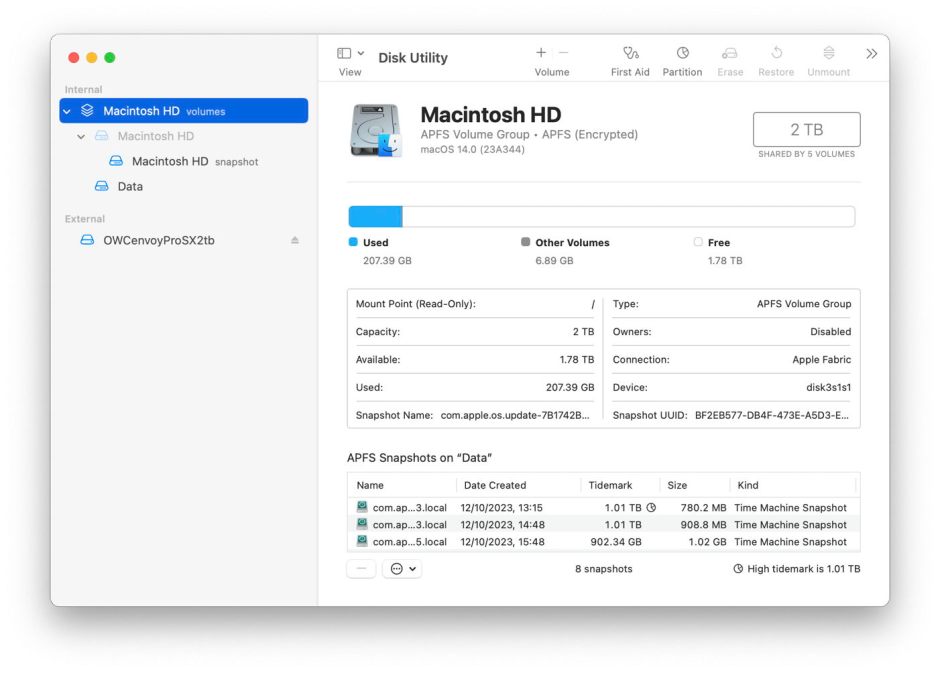
In addition to features provided by third-party backup utilities, you can manage snapshots using Disk Utility. Open its View menu and first enable Show All Devices, then Show APFS Snapshots. Select the Data or Macintosh HD – Data volume in the left of the window, and you’ll see a list of all APFS snapshots for that volume, together with an indication of the size of each.
diskutil14

To delete a snapshot in Disk Utility’s list, select it and use the Delete… command from the contextual menu (Control-click). Be careful, though, as there’s no undo. You can safely remove all Time Machine snapshots from that volume except the most recent, which is also the smallest. That latest snapshot is needed when that volume is next backed up by Time Machine. If you remove that too, then the next backup could be a full backup of everything on that Data volume, something best avoided if possible.

How to tell where a file or folder is

It might appear obvious how to tell where a file or folder is on your Mac: all you should need to do is select the item in the Finder and Get Info for it, where the full path is revealed. As I’m sure you’ll have guessed, that’s sometimes accurate, but sometimes conforms to the illusions the Finder creates. Allow me to demonstrate using my free utility Precize, which aims for complete accuracy.

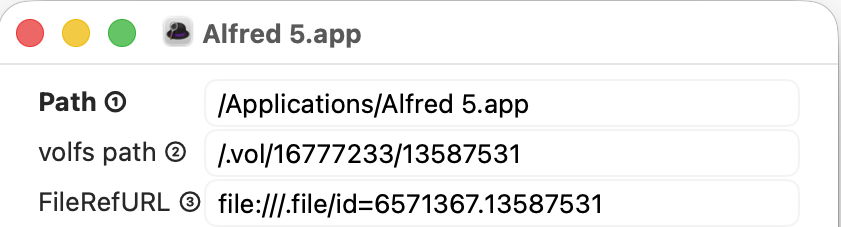
We’ll start with an easy one, any of the apps you have installed in your main /Applications folder.

I picked Alfred, whose path is given as being in the main /Applications folder, which is on the Data volume, where I could install it. Look at the two lines below its path, and you’ll see its inode number, allocated by the file system, as the last on both lines, here 13587531. That’s relatively low, as we’ll see later, so confirms that it’s on the Data volume.

Now repeat that with one of the apps bundled with macOS.

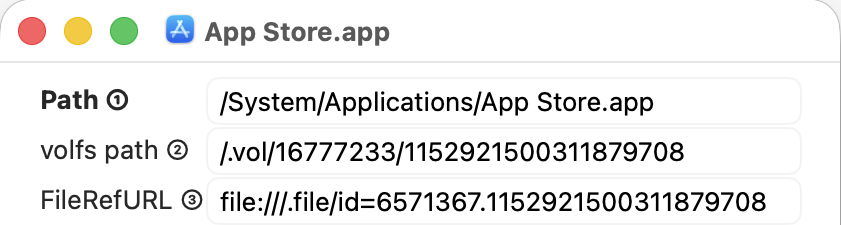
The App Store app has a different path, starting from /System, indicating that, although it might appear to be in the main /Applications folder, in fact that app is in the Signed System Volume (SSV) rather than the Data volume. The Finder agrees with this, and there’s added confirmation in the inode number of 1152921500311879708, which really is vast, and much larger than that of the Alfred app. As this app is part of the System, we can’t copy, move or remove it.

Now try Safari, another of the apps bundled with macOS.

Although the Finder tries to pretend this is alongside Alfred in the main /Applications folder, the path given by Precize is way off that, and gives its own clue that Safari is actually in the apps.dmg cryptex, which is here grafted into a folder in the Preboot volume, so in neither the System or Data volume. However, it has a very low inode number of 534152 indicating it has been grafted into that path. The other number, given before the inode number, is also different, and corresponds to the Preboot volume, rather than either of the volumes in the boot volume group.

For a finale, repeat this with one of your files stored in iCloud Drive.

While the Finder will continue its pretence that it’s in something called iCloud Drive, in fact it’s tucked away in a nest of folders inside your Home ~/Library folder. This means it’s on the Data volume, and it too has a low inode number of 341568 to confirm that, and the same volume reference number as Alfred and the App Store apps, but different from that of Safari. Of course, there’s also a copy of that file’s details and its data held in iCloud Drive, to which you don’t have direct access.

This isn’t just a trick or an exercise, though. The real location of a file or folder is important, as it tells you what you can do with it. You know that, subject to permissions, you should be able to move or remove items from your Data volume, including your iCloud Drive, but those in the SSV and cryptexes are immutable. You can run copies of apps from your Data volume, but not those in the SSV or a cryptex, which can’t be copied directly, and whose copies won’t launch. And if you need to access items in iCloud Drive from Terminal, you won’t find anything named iCloud Drive there, just a long path from your Home ~/Library folder.

You’ll never become lost in the file system again.

Can you slim macOS down?

Open Activity Monitor when your Mac isn’t doing a great deal and you’ll see hundreds of processes listed there. Even in a virtual machine with a minimum of services there are at least 500, and in a vanilla setup with no apps open a real Mac can exceed 700. Clearly some of those like WindowServer are essential, but aren’t there plenty we could do without? That’s a question I’m asked repeatedly, which this article tries to answer.

One of the first problems when trying to identify which processes we could do without is knowing what each does, and how they’re interrelated. I doubt whether any individual in Apple knows them all, and trying to establish what some do would be a challenge. If we assume that we need to identify just 500 candidates, and each takes an average of one week to research, that would take over 10 person-years, by which time they would all have changed again. Studying 500 targets that are ever-changing simply isn’t practical.

When problems get difficult, it’s often best to cheat, so I’m going to go for the low-hanging fruit and consider a well-known group of processes, those making Time Machine backups. I’ve been following these since macOS Sierra, and frequently study them in the log. They’re also good candidates for removal, as many folk don’t back up using Time Machine but use one of its alternatives. So some already have good reason to want to be rid of backupd and its relatives. They’re also relatively discrete: although they depend on other processes to function, I don’t know of any other subsystems that require Time Machine, making it potentially disposable.

Set up a basic VM in maOS 26.2 and, even though Time Machine has never been enabled, you’ll see its processes listed in Activity Monitor.

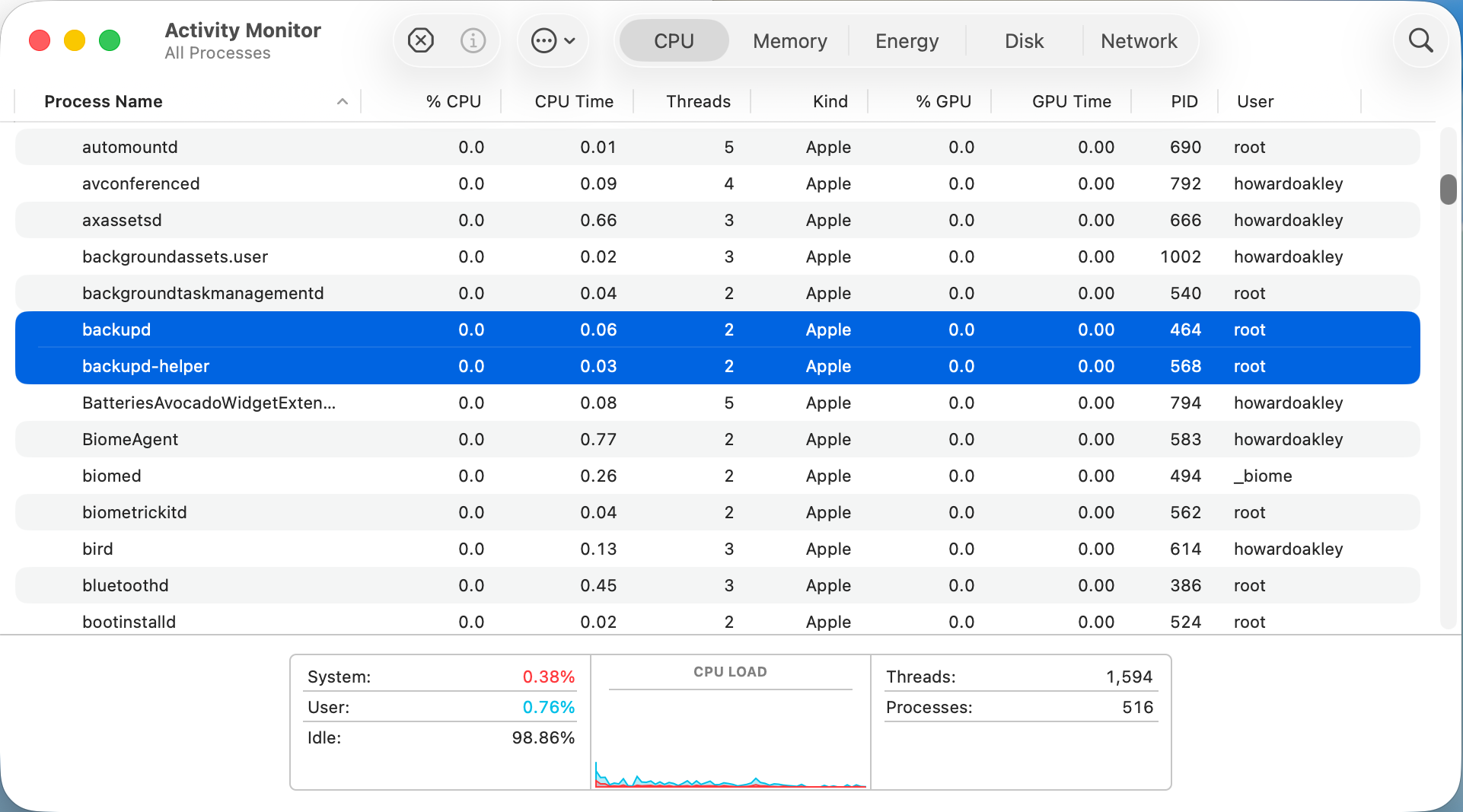
Here are backupd and backupd-helper showing they still take a little % CPU even when Time Machine is completely disabled.

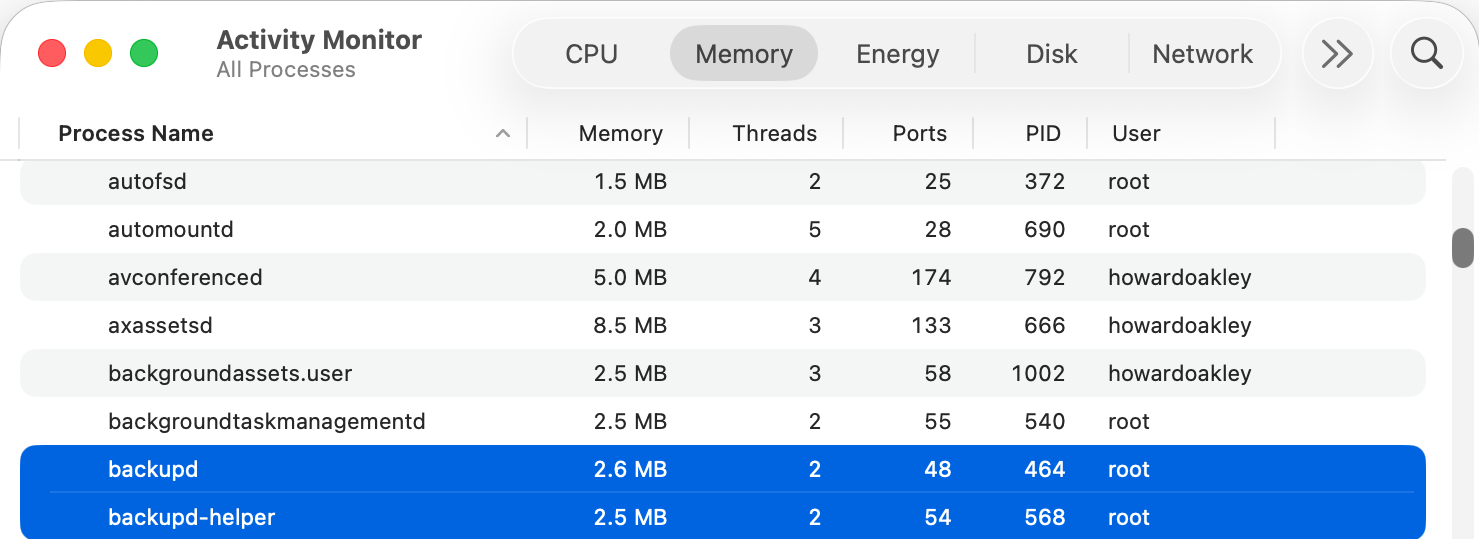
They also take a little memory, here a total of 5.1 MB. While that isn’t much, added up over 500 processes it becomes worth caring about.

Those two processes are controlled by LaunchDaemons stored in /System/Library/LaunchDaemons, in property lists named com.apple.backupd-helper.plist and com.apple.backupd.plist. Here’s our first problem, as those are located in the Signed System Volume (SSV), so we can’t change them in any way. The same applies to the other 417 LaunchDaemons and 460 LaunchAgents that account for most of the processes listed by Activity Monitor. In the days before the SSV it was possible to edit their property lists to prevent them from being launched, but that isn’t possible any more when running modern macOS.

If we can’t stop the backupd-auto process from being run, is there any other way we could block it? To answer that we need to understand how it’s scheduled and dispatched.

Until macOS Sierra, Time Machine backups were run from launchd as timed events, but since then their scheduling and dispatch has been performed jointly by Duet Activity Scheduler (DAS) and Centralised Task Scheduling (CTS), using lightweight inter-process communication (XPC). DAS manages a huge list of activities including com.apple.backupd-auto, and decides when to dispatch it to CTS to run. For example, it won’t do that for the first five minutes after a Mac starts up, to allow other processes to run first.

Once that time is up, DAS decides to run the backup:
38.738 DAS 0:com.apple.backupd-auto:2052A3, Decision: CP Score: 0.949374}
38.738 DAS '0:com.apple.backupd-auto:2052A3' CurrentScore: 0.949374, ThresholdScore: 0.068531 DecisionToRun:1
38.762 DAS REQUESTING START: 0:com.apple.backupd-auto:2052A3

CTS then proceeds with the dispatch via XPC:
38.762 CTS-XPC DAS told us to run com.apple.backupd-auto (0xb671bcc80)
38.844 CTS-XPC Initiating: com.apple.backupd-auto (0xb671bcc80)
38.846 CTS-XPC _xpc_activity_dispatch: beginning dispatch, activity name com.apple.backupd-auto, seqno 0
38.846 CTS-XPC _xpc_activity_begin_running: com.apple.backupd-auto (0x7a9014280) seqno: 0.
38.878 CTS-XPC Running (PID 537): com.apple.backupd-auto (0xb671bcc80)
38.879 DAS STARTING <_DASActivity: "0:com.apple.backupd-auto:2052A3", Utility, 60s, [1/19/26, 8:50:43 PM - 1/19/26, 9:10:43 PM], Started at 1/19/26, 9:10:38 PM, Group: com.apple.dasd.default, PID: 537>

This is in a VM with Time Machine disabled, though, so Time Machine reports:
38.879 Time Machine Skipping scheduled Time Machine backup: Automatic backups disabled

However, com.apple.backupd-auto has now completed, and that’s passed back through CTS-XPC:
38.879 CTS-XPC _xpc_activity_set_state: send new state to CTS: com.apple.backupd-auto (0x7a9014280), 5
38.880 CTS-XPC Completed: com.apple.backupd-auto (0xb671bcc80)

The next run is then scheduled in DAS following an interval of at least 30 minutes, and ideally in about an hour:
38.881 CTS-XPC Rescheduling: com.apple.backupd-auto (0xb671bcc80)
38.881 DAS SUBMITTING: 0:com.apple.backupd-auto:B293AE
38.882 DAS Submitted: 0:com.apple.backupd-auto:B293AE at priority 30 with interval 1800 (Mon Jan 19 21:25:38 2026 - Mon Jan 19 21:40:43 2026)

So, even with Time Machine disabled in a VM, DAS-CTS continues to schedule automatic runs of Time Machine at hourly intervals. And, because DAS-CTS is isolated from all user controls, there’s nothing we can do to prevent that scheduling and dispatch. Does that matter, though? This whole sequence was completed in 0.144 seconds, using lightweight inter-process communication with negligible use of resources, and only repeats hourly.

To the Unix purist, this might appear wasteful and unnecessary, but macOS isn’t, and never has been, Unix. It’s a closed-source proprietary operating system designed for use by millions of consumers and regular users. Rather than configuring it using config files or its thousands of property lists, its controls are largely exposed in System Settings, with a few settings hidden away and only accessible through the defaults command.

macos914

Classic Mac OS was more modular, with optional installs that the user could pick and choose, as shown above in Mac OS 9.1. These days with the SSV, choice is more limited from the start, with the only real options being whether to install the cryptexes used in AI, and the x86 code translator Rosetta 2. The latter is transient, though, and likely to go away next year.

Like it or not, modern macOS isn’t designed or implemented to give the user much choice in which processes it runs, and architectural features including the SSV and DAS-CTS prevent you from paring its processes down to any significant degree.

❌