Login
LoginLast Week on My Mac: Consent, intent and privacy
Privacy protection changed radically in macOS Mojave and Catalina, but in the last couple of weeks I have realised how seven years later it’s still commonly misunderstood. While most can see how it protects access to hardware resources like the camera, and app data such as calendars, when it comes to Files & Folders and Full Disk Access, many remain hopelessly lost. This compromises our privacy, as all too often we end up giving an app Full Disk Access when it doesn’t need it.
Much of this confusion is the result of inadequate explanation, or to be more blunt, total absence of information. Apple’s otherwise commendable account of privacy controls barely mentions Macs and concentrates almost exclusively on iPhones, which don’t have Full Disk Access, and whose Files & Folders control is primitive by comparison. The Platform Security Guide also has remarkably little of relevance to say. Perhaps the closest we have to a conceptual account is that given by Kelly Yancey in his section of the Advances in macOS Security presentation at WWDC19.
Perhaps the most prevalent mystery is why a user’s Documents folder should be protected, and why so many apps need to ask for access to that folder? Before answering that, we need to understand two underlying concepts, of consent and intent.
It’s precisely because the Documents folder is so popular for our documents that it needs protection. A rogue app with uncontrolled access might be able to acquire tax and financial details, as well as having access to much of your personal information. So we need control over which apps can access which files there.
When we want to open a document, we express our intent to access its contents when we open that document in a File Open dialog, using Open Recent or a similar command, or by double-clicking the document. We choose the app we trust with the document’s contents, and the document, in our intent.
When an app wants to open a document without our direct involvement there’s the danger that, no matter what the file’s permissions might say, we don’t want a page layout app looking through our tax returns. For those apps we trust to have direct access to files in our Documents folder we thus give our consent to that action. If the app asks for access and we don’t trust it, then we refuse our consent, and the app is locked out.
Thus, the only ways that an app can open documents in the Documents folder are by our intent, or by giving our consent, and those involve different processes.
To help understand this more clearly, I’ve put together a little app Insent, a portmanteau of the words intent and consent. I also thought you might appreciate the Hallowe’en pumpkin in its icon.
Here I’ll use just two of its six buttons to draw the distinction between intent and consent. Once you’ve unarchived Insent’s folder, drag the app from there to one of your Applications folders, or somewhere similar, to run it. Open the app, click through its standard notarisation dialog, and you’ll see its main window.
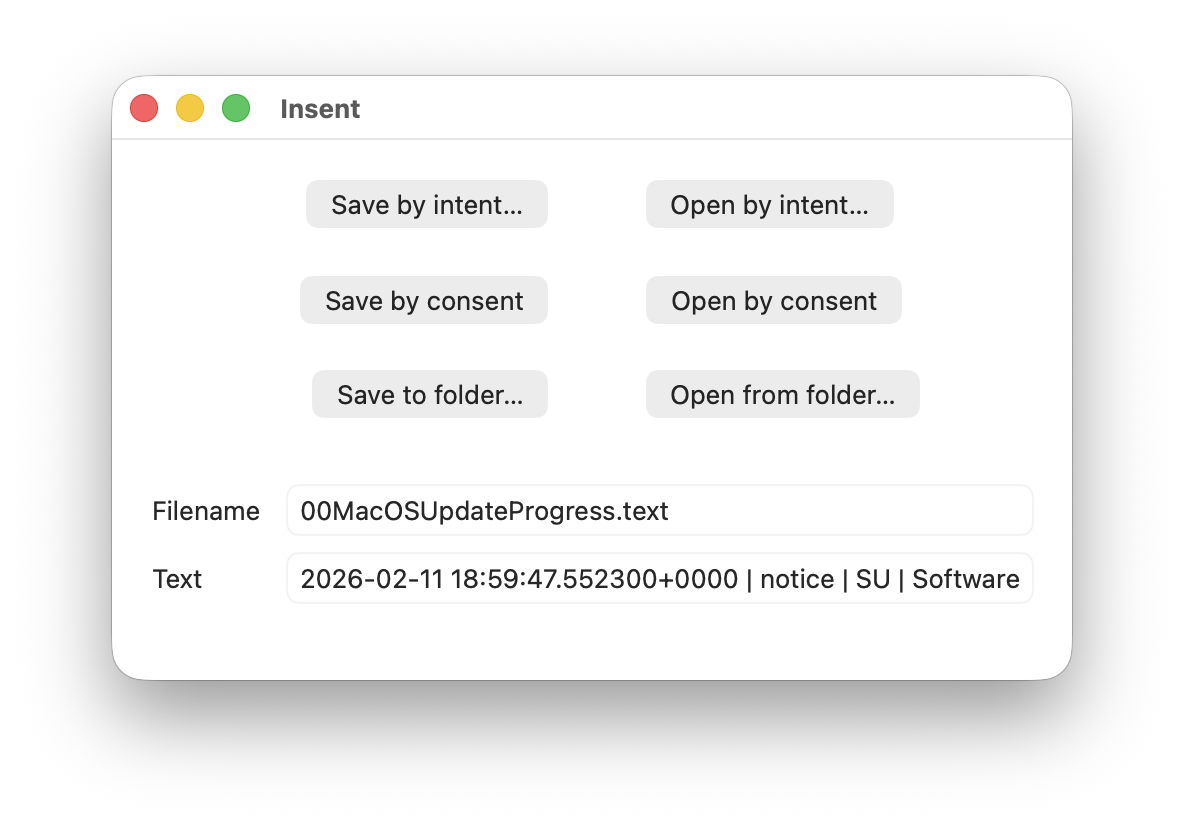
Insent can read and write text files with the extensions .txt or .text. Confirm that it can open one in a protected location like your Desktop or Downloads folder by clicking on its Open by intent… button at the top right. You’ll see a standard File Open dialog in which you can select and open that file, and its filename and the opening characters of that file will be shown in the text boxes below. There will be no request to give access to that protected folder (consent) as you have expressed your intent to open that file.
Next, ensure that your Documents folder has at least one text file accessible at its top level. Then click on the Open by consent button. Instead of asking you which file to open, Insent now chooses that by itself, picking a text file at random from inside your Documents folder.
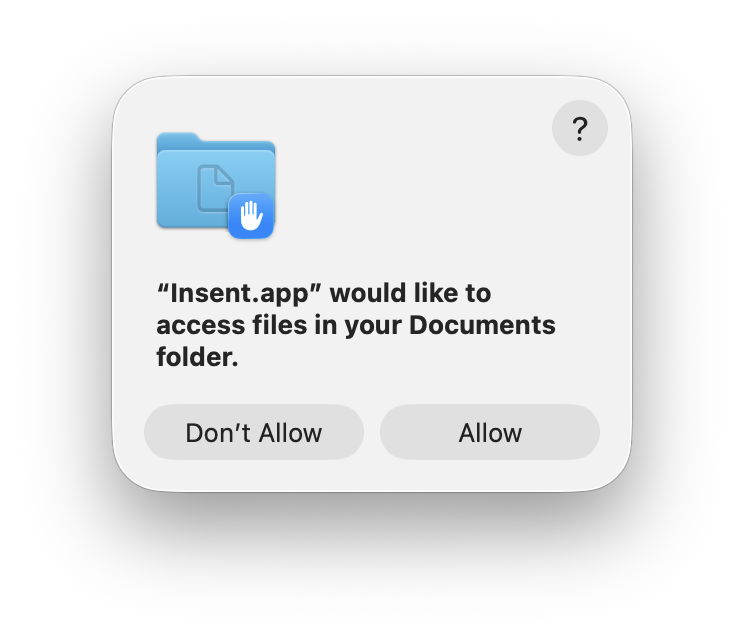
You should now see this dialog requesting your consent to allow that access to go ahead. Click on the Allow button, and the filename and text will then be displayed in those two text boxes, confirming Insent was given access.
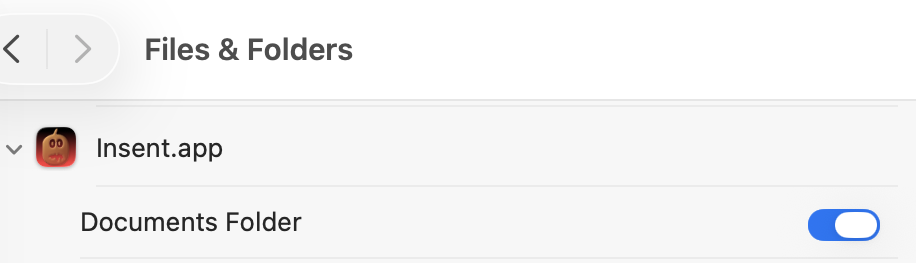
You’ll also see Insent has been added to the Files & Folders section in Privacy & Security settings, with access specifically to the Documents folder.
Confirm that control does what it claims by quitting Insent, turning access to the Documents folder off, opening Insent, and clicking on Open by consent again. Now instead of seeing the filename, you’ll see the message that Insent [Couldn't get contents of Documents folder], because you withdrew your consent.
With that privacy control still disabled, try clicking on the Save by consent… button. This writes a brief text file whose name starts with Insent followed by a UUID into your Documents folder – the same folder you’ve withdrawn consent from, and where it can’t read a text file. But if you click on Open by intent… and select that same file there, so expressing your intent to open it, it should still open normally.
These few minutes have shown:
- Folders including ~/Documents are protected to restrict reading not writing files.
- Apps retain the ability to read files in protected folders by user intent, when explicitly opening the file.
- Apps themselves can only open files in protected folders with express user consent.
- Each consent in Folders & Files is limited to the app and the protected folder.
- Consent will be sought automatically when an app tries to access a protected folder.
- When consent has been given and is then disabled, the app will be denied access to files in that protected folder.
So the next time you’re invited to give an app access to a protected folder, you’ll know that it’s trying to access its contents. If you don’t think that app should have free access to the files in that folder, deny that request, and don’t whatever you do be persuaded to give the app Full Disk Access just to have a quieter time, or because Support recommends it.
Insent version 1.0 for macOS 13.5 or later is available from here: insent10
and I’ll be returning to it later next week.