Apple has released its regular weekly update to XProtect for all versions of macOS, bringing it to version 5346. As usual it doesn’t release information about what security issues this update might address.
This version removes 11 Yara rules for MACOS.f3edc61, MACOS.d1e06b8, OSX.Bundlore.D, OSX.OpinionSpy, OSX.DevilRobber.A, OSX.DevilRobber.B, OSX.Mdropper.i, OSX.FkCodec.i, MACOS.d4735e3, MACOS.HONKBOX.B, and MACOS.FLUFFYFERRET.CT, and many of the component rules for MACOS.ADLOAD. There are no changes in the Osascript rules in XPScripts.yr.
You can check whether this update has been installed by opening System Information via About This Mac, and selecting the Installations item under Software.
A full listing of security data file versions is given by SilentKnight and SystHist for El Capitan to Tahoe available from their product page. If your Mac hasn’t yet installed this update, you can force it using SilentKnight or at the command line.
If you want to install this as a named update in SilentKnight, its label is XProtectPlistConfigData_10_15-5346
Sequoia and Tahoe systems only
This update has already been released for Sequoia and Tahoe via iCloud. If you want to check it manually, use the Terminal command sudo xprotect check
then enter your admin password. If that returns version 5346 but your Mac still reports an older version is installed, you should be able to force the update using sudo xprotect update
Apple has released its regular weekly update to XProtect for all versions of macOS, bringing it to version 5345. As usual it doesn’t release information about what security issues this update might address.
This version adds one new Yara rule for MACOS.SILLYSTRAW.IMA, which appears to be a new genus, and in the Osascript rules in XPScripts.yr it adds a new rule for MACOS.OSASCRIPT.TADE and amends the existing rule for MACOS.OSASCRIPT.SYPR.
You can check whether this update has been installed by opening System Information via About This Mac, and selecting the Installations item under Software.
A full listing of security data file versions is given by SilentKnight and SystHist for El Capitan to Tahoe available from their product page. If your Mac hasn’t yet installed this update, you can force it using SilentKnight or at the command line.
If you want to install this as a named update in SilentKnight, its label is XProtectPlistConfigData_10_15-5345
Sequoia and Tahoe systems only
This update has already been released for Sequoia and Tahoe via iCloud. If you want to check it manually, use the Terminal command sudo xprotect check
then enter your admin password. If that returns version 5345 but your Mac still reports an older version is installed, you should be able to force the update using sudo xprotect update
How would you cope if you started your Mac up to find every datestamp on every file had been set to 1 January 1970 at 00:00? Or that every Finder Tag had vanished? What if all the Exif information for your images had been wiped out? Metadata like those aren’t optional extras we can afford to lose, although other metadata, like Finder Info and the URL from which a file was downloaded, are more ephemeral.
Xattr flags
Back in 2013, when iCloud was just two years old, Apple’s engineers implemented a scheme to determine how metadata stored as extended attributes (xattrs) should be copied, to take into account its permanence. This was important at that time to ensure only the right xattrs were preserved when files were stored in iCloud Drive. They did this by adding flags to the xattr’s name to indicate which actions should result in preservation of that type of xattr, and the metadata it contains.
Apple provides an extensive suite of xattr types to store metadata such as author names, keywords and comments, whose names all start with com.apple.metadata:. These are matched by corresponding metadata attribute keys, for example the xattr com.apple.metadata:kMDItemKeywords bears the metadata content accessed by the key kMDItemKeywords. Rather than appending flags to them all, this scheme laid down a table of default flags to be applied.
Being exemplary engineers, this was all detailed in the source code for copyfile, which is also open source. However, as this was just after Apple stopped creating much of its technical documentation, and little has ever been published about iCloud Drive, that’s as far as that information went.
For iCloud Drive, the relevant flag is S, XATTR_FLAG_SYNCABLE, defined as “This indicates that the extended attribute should be copied when the file is synced on services like iCloud Drive. Sync services may enforce additional restrictions on the acceptable size and number of extended attributes.”
Default flags set for xattr types com.apple.metadata:* (except for five of the less used types) are PS to preserve them during copy, save, sync and backup. You can read the macOS 26 version of those source files in Apple’s Open Source GitHub.
FileProvider
For the next decade or so, iCloud Drive mostly respected those behaviours, although without documentation it all appeared puzzling until you read the copyfile source. Then Apple decided to modernise it by implementing its FileProvider framework, a major architectural change for the better. Although the framework is intended to be common to all cloud storage services, there remains ample scope for iCloud Drive to offer enhancements.
Current FileProvider documentation for developers states:
“The extended file attributes are part of the item’s metadata. The system sets extended attributes on dataless files, and preserves them on files that it renders dataless. The system decides which attributes to sync. To sync an attribute, it calls the xattr_name_with_flags(_:_:) method and passes the XATTR_FLAG_SYNCABLE flag. Some older attributes are also synced.”
While FileProvider appears intended to conform to the xattr flag scheme, there’s no mention of the tables of default flags listed in the copyfile source code.
Implementation
Last week I set out to test and document how well iCloud Drive manages metadata, following the xattr flag system and copying up all those invaluable com.apple.metadata:* xattrs, only to discover it doesn’t any more. Of Apple’s many standard xattrs, the only ones I found that synced reliably over iCloud Drive in macOS 26.4.1 were:
com.apple.metadata:_kMDItemUserTags (Finder Tag)
com.apple.lastuseddate#PS
com.apple.quarantine
com.apple.TextEncoding
The good news is that iCloud Drive through FileProvider does respect the S flag, but only where it’s explicit, rather than being set in that table of defaults. For those of us who have our own xattr types, such as those used for integrity checking by Dintch, Fintch and cintch, can still rely on iCloud Drive to sync those, provided they bear that S flag.
The bad news is that none of the most popular metadata-bearing xattrs are synced, apart from Finder Tags. All those com.apple.metadata:kMDItem* xattrs are blocked, as FileProvider doesn’t recognise them as having their default PS flags.
Workarounds
I have since looked at two workarounds, explicitly adding the S flag to those types that should be accorded it by default, and changing the xattr names from com.apple.metadata:kMDItem* to com.apple.metadata:_kMDItem*.
Adding xattrs like com.apple.metadata:kMDItemKeywords#S with an explicit S flag does ensure FileProvider syncs those xattrs. However, as neither Spotlight indexing nor the Finder appear to understand that flag isn’t really part of the type name, those preserved xattrs are of no use: they aren’t recognised by Spotlight for indexing, nor are they displayed in the Finder’s Get Info dialog or Preview pane.
Inserting an underscore into the xattr’s name was even worse, as it didn’t lead to their preservation, and was ignored by Spotlight indexing and the Finder.
This raises another interesting issue, in that there doesn’t appear to be a way to extend Spotlight indexing to encompass additional xattr types. There are extensive third-party type libraries, such as org.openmetainfo:* from Tom Andersen of Ironic Software and OpenMeta. But those appear to require their own indexing, search and presentation support.
Error
When I first realised the impact on metadata in iCloud Drive, I assumed this arose because the engineers implementing FileProvider, or those porting iCloud Drive to use that framework, had’t been aware of the xattr flag system and its primary purpose. But if that had been true, they couldn’t have respected explicit use of the S flag. Thus, I’m left with two plausible explanations:
Apple’s FileProvider/iCloud Drive engineers are unaware of the system defaults table in copyfile, so assumed that com.apple.metadata:* xattrs weren’t intended to be preserved when syncing.
Apple decided to end default sync support for com.apple.metadata:* xattrs in iCloud Drive.
The second of those is even more erroneous than the first, as it reduces iCloud Drive support for metadata to a level common with third-party cloud providers. In this respect, users will see no difference from the behaviour of Dropbox or Microsoft OneDrive, which isn’t the marketing choice I’d have expected from Apple.
Conclusion
iCloud Drive no longer syncs much metadata stored in xattrs, in particular that stored in com.apple.metadata:* xattrs, apart from Finder Tags. There is no workaround, and unless Apple restores that feature, it limits the use of iCloud Drive with Macs.
Apple has released an update to XProtect for all versions of macOS, bringing it to version 5344. Version 5343 doesn’t appear to have been released. As usual it doesn’t release information about what security issues this update might address.
This version makes minor amendments to the Yara rules for MACOS.SHEEPSWAP.OBF.C, MACOS.SHEEPSWAP.OBFE.COMMON and MACOS.ADLOAD. There has been no change in the Osascript rules in XPScripts.yr.
You can check whether this update has been installed by opening System Information via About This Mac, and selecting the Installations item under Software.
A full listing of security data file versions is given by SilentKnight and SystHist for El Capitan to Tahoe available from their product page. If your Mac hasn’t yet installed this update, you can force it using SilentKnight or at the command line.
If you want to install this as a named update in SilentKnight, its label is XProtectPlistConfigData_10_15-5344
Sequoia and Tahoe systems only
This update has already been released for Sequoia and Tahoe via iCloud. If you want to check it manually, use the Terminal command sudo xprotect check
then enter your admin password. If that returns version 5344 but your Mac still reports an older version is installed, you should be able to force the update using sudo xprotect update
The update bringing macOS Tahoe to version 26.5 is modest in size and, apart from its security fixes, seems largely routine maintenance.
The only release notes worth reading are those listing vulnerabilities fixed, available here. Among the 69 listed there are 9 in the kernel, which must be the highest number in any recent macOS update. I wonder whether those have been swelled by AI, and one of the kernel bugs is credited to a researcher “with Claude and Anthropic Research”. There could of course be fixes resulting from early use of Mythos, but they’re unlikely to appear in a public list. None of the fixes listed are reported as being known to exist in the wild.
The new build number for 26.5 is 25F71. Apple silicon Macs have a firmware update bringing them to mBoot 18000.120.36, and Intel Macs with T2 chips are updated to 2103.100.6.0.0 (iBridge 23.16.15067.0.0,0).
Bundled apps have routine increments in version numbers:
Books, from version 8.4 to 8.5
Freeform, 4.4 to 4.5
Music, 1.6.4 to 1.6.5
News, 11.4 to 11.5
Passwords, 2.4 to 2.5
Safari, 26.4 (21624.1.16.11.4) to 26.5 (21624.2.5.11.4)
Stocks, 8.4 to 8.5
TV, 1.6.4 to 1.6.5.
Although there are abundant increments in build numbers reflecting routine maintenance, there are few substantial changes apparent in /System/Library, including:
In kernel extensions, the whole AGX series has a substantial change in version, as does AppleUSBAudio, and smbfs is updated to version 6.0.1
APFS is incremented to version 2811.120.14
There’s a new AppleAccountTransparency in private frameworks.
Apple has released the update to bring macOS Tahoe to version 26.5, and security updates for Sequoia and Sonoma to bring them to 15.7.7 and 14.8.7.
If you were expecting 15.7.6 or 14.8.6, then you’ll be as surprised as I was that Apple appears to have skipped those and gone straight on to x.x.7. I haven’t seen any explanation for this curious change in version numbering.
Download size for the 26.5 update on an Apple silicon Mac is around 3.8 GB, and the last 5 minutes of preparation takes maybe a tad longer than that. Intel Macs should download around 2.9 GB instead.
In Apple silicon Macs, firmware is updated to mBoot 18000.120.36, while Intel firmware is updated to 2103.100.6.0.0 (iBridge 23.16.15067.0.0,0).
Release notes are the bland and unhelpful statement that “This update includes enhancements, bug fixes, and security updates for your Mac.”
Security release notes are here for Tahoe with around 69 vulnerabilities fixed including more kernel bugs than I’ve ever seen in a single update, here for Sequoia with around 45, and here for Sonoma with a mere 43 or so.
Apple still hasn’t posted any enterprise release notes here but might think of something to report later.
Apple has released an update to XProtect for all versions of macOS, bringing it to version 5342. As usual it doesn’t release information about what security issues this update might address.
This version doesn’t appear to bring any additions or amendments to either the main Yara rules, or for Osascript rules in XPScripts.yr, but there has been extensive reformatting, tidying, and relabeling of lists.
You can check whether this update has been installed by opening System Information via About This Mac, and selecting the Installations item under Software.
A full listing of security data file versions is given by SilentKnight and SystHist for El Capitan to Tahoe available from their product page. If your Mac hasn’t yet installed this update, you can force it using SilentKnight or at the command line.
If you want to install this as a named update in SilentKnight, its label is XProtectPlistConfigData_10_15-5342
Sequoia and Tahoe systems only
This update has now been released for Sequoia and Tahoe via iCloud. If you want to check it manually, use the Terminal command sudo xprotect check
then enter your admin password. If that returns version 5342 but your Mac still reports an older version is installed, you should be able to force the update using sudo xprotect update
Apple has released an update to XProtect for all versions of macOS, bringing it to version 5341; the previous public release was 5338. As usual it doesn’t release information about what security issues this update might address.
This version amends the Yara rule for MACOS.PIRRIT.TWEN, and adds new rules for MACOS.AIRPIPE.IM, MACOS.EIGER.SUNOTO, MACOS.EIGER.BA and MACOS.MONCH.BA. Osascript rules in XPScripts.yr have amendments to those for MACOS.OSASCRIPT.BOZO, MACOS.OSASCRIPT.BOWISP and MACOS.OSASCRIPT.GEPEPA, and new rules added for MACOS.OSASCRIPT.DUCACI, MACOS.OSASCRIPT.DUCOOB and MACOS.OSASCRIPT.AMSCLUCL.
You can check whether this update has been installed by opening System Information via About This Mac, and selecting the Installations item under Software.
A full listing of security data file versions is given by SilentKnight and SystHist for El Capitan to Tahoe available from their product page. If your Mac hasn’t yet installed this update, you can force it using SilentKnight or at the command line.
If you want to install this as a named update in SilentKnight, its label is XProtectPlistConfigData_10_15-5341
Sequoia and Tahoe systems only
This update has now been released for Sequoia and Tahoe via iCloud. If you want to check it manually, use the Terminal command sudo xprotect check
then enter your admin password. If that returns version 5341 but your Mac still reports an older version is installed, you should be able to force the update using sudo xprotect update
Overnight, Apple has released its regular weekly update to XProtect, bringing it to version 5338. As usual it doesn’t release information about what security issues this update might address.
This version adds four new Yara rules for MACOS.BONZAIBREEZE, MACOS.BONZAIBUFFOON, MACOS.BONZAIBOOMER and BONZAIBUNNY, additions to the Bonzai family of what appear to be clickfix stealers. To accompany those are four new entries in the Osascript rules in XPScripts.yr, for MACOS.OSASCRIPT.BOPADO, MACOS.OSASCRIPT.BOSTA, MACOS.OSASCRIPT.BOMSPAA and MACOS.OSASCRIPT.BOMSPAB.
You can check whether this update has been installed by opening System Information via About This Mac, and selecting the Installations item under Software.
A full listing of security data file versions is given by SilentKnight and SystHist for El Capitan to Tahoe available from their product page. If your Mac hasn’t yet installed this update, you can force it using SilentKnight or at the command line.
If you want to install this as a named update in SilentKnight, its label is XProtectPlistConfigData_10_15-5338
Sequoia and Tahoe systems only
This update has now (as of 1700 GMT 10 April) been released for Sequoia and Tahoe via iCloud. If you want to check it manually, use the Terminal command sudo xprotect check
then enter your admin password. If that returns version 5338 but your Mac still reports an older version is installed, you should be able to force the update using sudo xprotect update
Apple has just released an update to macOS Tahoe, bringing it to version 26.4.1.
Apple’s Enterprise release notes reveal that this resolves “an issue where MacBook Air with M5 and MacBook Pro with M5 Pro or M5 Max failed to join 802.1X Wi-Fi networks while using content filter extensions.” Otherwise, this update has no published CVE entries, and no general user release notes.
The download is about 2.13 GB for Apple silicon Macs.
The build number is 25E253, just 7 builds since 26.4, and there don’t appear to be any firmware updates.
There are no changes in bundled app version or build numbers, even in Safari, and the only change in /System/Library is in the Private Framework for Icon Services in SwiftUI. I suspect that the bug fixed is in one or more binaries elsewhere in the SSV. However, this may fix more than that single bug, as iOS and iPadOS 26 also had a patch update yesterday for unidentified “bug fixes”.
Apple has overnight released its out-of-cycle update to XProtect for macOS prior to Sequoia, bringing it to version 5337. This update has already been released for macOS Sequoia and Tahoe, and this update provides the same version for those Macs still using on the older bundle location.
This version removes the Yara rule for MACOS.SOMA.MAENB, and makes no changes to the Osascript rules in XPScripts.yr.
You can check whether this update has been installed by opening System Information via About This Mac, and selecting the Installations item under Software.
A full listing of security data file versions is given by SilentKnight and SystHist for El Capitan to Tahoe available from their product page. If your Mac hasn’t yet installed this update, you can force it using SilentKnight or at the command line.
If you want to install this as a named update in SilentKnight, its label is XProtectPlistConfigData_10_15-5337
Sequoia and Tahoe systems only
This update has already been released for Sequoia and Tahoe via iCloud. If you want to check it manually, use the Terminal command sudo xprotect check
then enter your admin password. If that returns version 5337 but your Mac still reports an older version is installed, you should be able to force the update using sudo xprotect update
Apple has just released an out-of-cycle update to XProtect for macOS Sequoia and Tahoe only, bringing it to version 5337. As usual it doesn’t release information about what security issues this update might address.
This version removes the Yara rule for MACOS.SOMA.MAENB, and makes no changes to the Osascript rules in XPScripts.yr.
You can check whether this update has been installed by opening System Information via About This Mac, and selecting the Installations item under Software.
A full listing of security data file versions is given by SilentKnight and SystHist for El Capitan to Tahoe available from their product page.
Currently this update is only available for Macs running Sequoia or Tahoe. Those running earlier versions of macOS can only update to XProtect version 5336 via softwareupdate.
This update has only been released for Sequoia and Tahoe via iCloud. If you want to check it manually, use the Terminal command sudo xprotect check
then enter your admin password. If that returns version 5337 but your Mac still reports an older version is installed, you should be able to force the update using sudo xprotect update
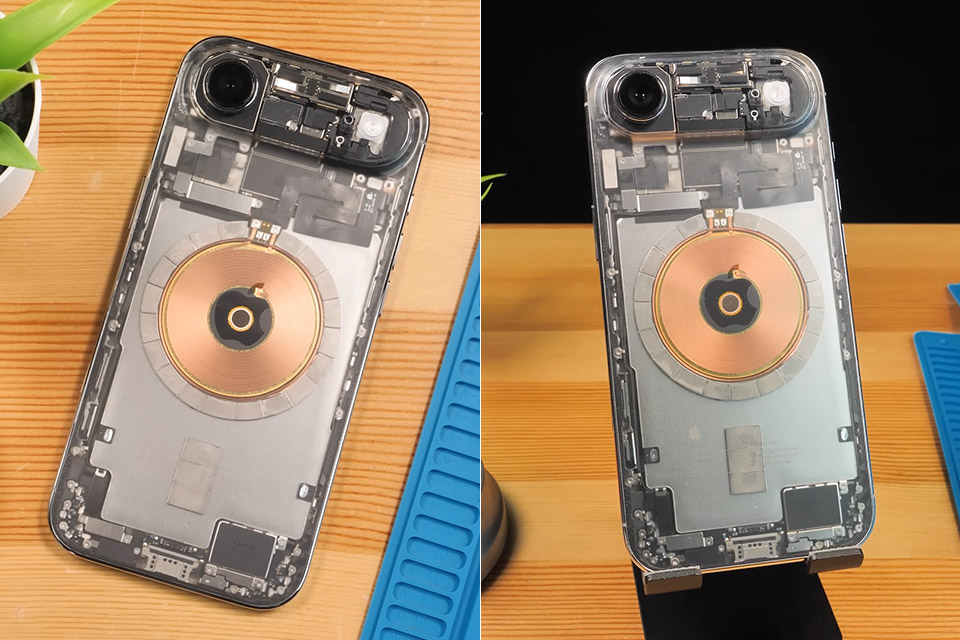
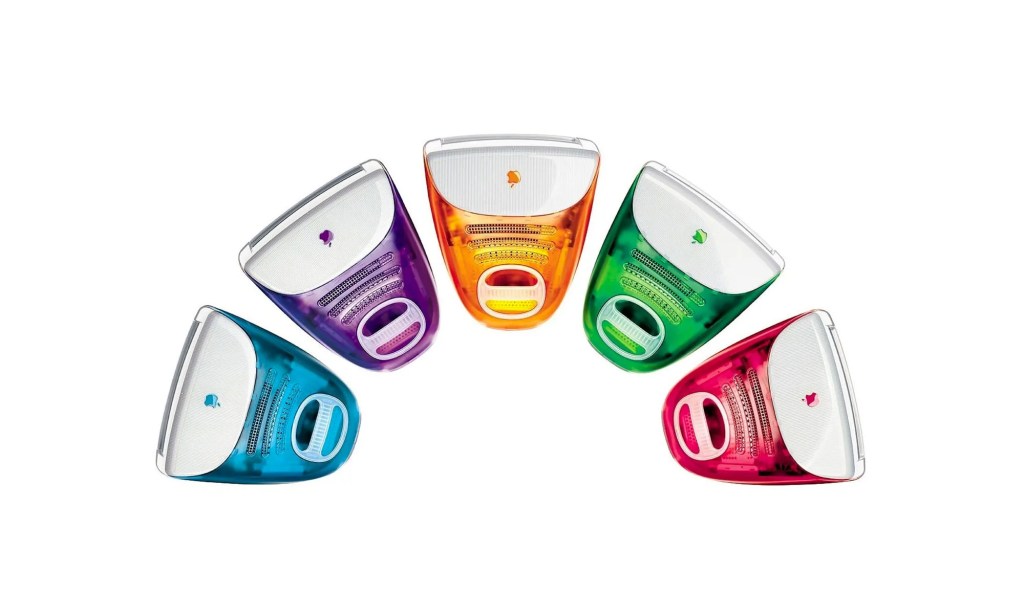
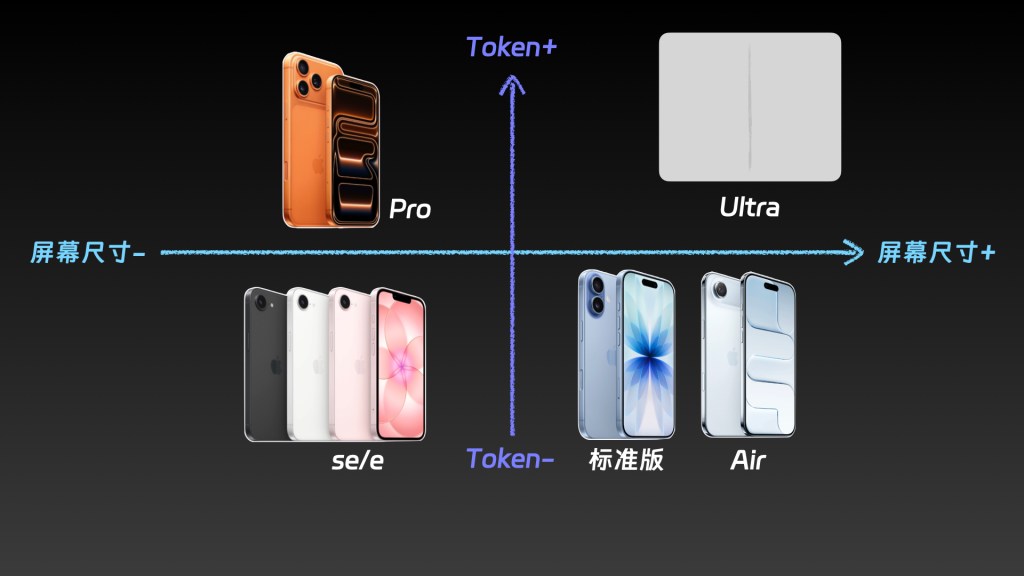
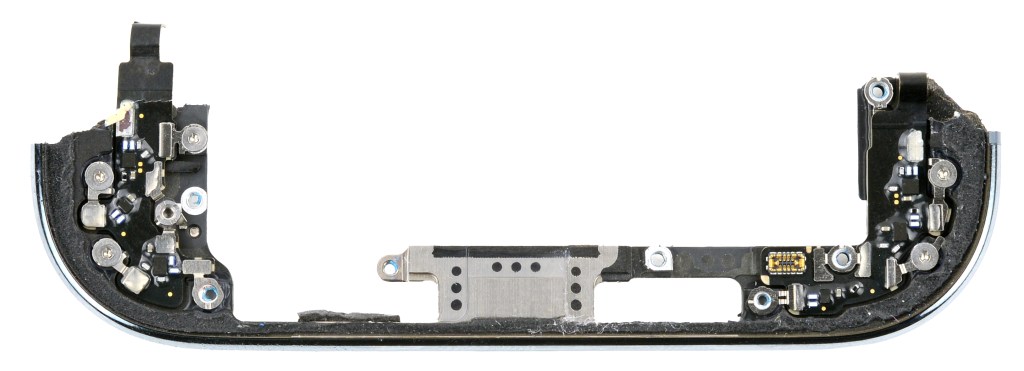
但是,直接剥离背板油漆露出内部精密零件,真的是一种很酷的极客审美,还是对工业设计的一种糟糕误解 ?本期节目,我们将穿过这场透明风波,去扒一扒 iPhone Air 玻璃背板下真正隐藏的极端工程追求 。同时,我们也将借此一窥,在 AI 开始接管物理世界的今天,科技巨头们到底在暗中筹划着一个怎样的未来 ?
Apple has just released its regular weekly update to XProtect, bringing it to version 5336. As usual it doesn’t release information about what security issues this update might address.
This version adds two new rules for MACOS.WANNABEWALLABY.IMA and MACOS.WANNABEWALLABY.STA, amends rules for MACOS.TIMELYTURTLE.DYHEOC, MACOS.SOMA.MAENA, and MACOS.SOMA.MAENB, and changes some rule UUIDs. In the Osascript rules in XPScripts.yr, it amends the rule for MACOS.OSASCRIPT.SYPR.
You can check whether this update has been installed by opening System Information via About This Mac, and selecting the Installations item under Software.
A full listing of security data file versions is given by SilentKnight and SystHist for El Capitan to Tahoe available from their product page. If your Mac hasn’t yet installed this update, you can force it using SilentKnight or at the command line.
If you want to install this as a named update in SilentKnight, its label is XProtectPlistConfigData_10_15-5336
Sequoia and Tahoe systems only
This update hasn’t yet been released for Sequoia and Tahoe via iCloud. If you want to check it manually, use the Terminal command sudo xprotect check
then enter your admin password. If that returns version 5336 but your Mac still reports an older version is installed, you should be able to force the update using sudo xprotect update
Apple has just released its regular weekly update to XProtect, bringing it to version 5335. As usual it doesn’t release information about what security issues this update might address.
This version adds two new Yara rules for MACOS.TIMELYTURTLE.OBDR and MACOS.SOMA.MAENB, and amends the existing rule for MACOS.SOMA.BYTE.SEQUENCE.B. In the Osascript rules in XPScripts.yr, it relocates those for TABUPA, REBUPA, DUVAST, DUCUHA and DUSTCO.
You can check whether this update has been installed by opening System Information via About This Mac, and selecting the Installations item under Software.
A full listing of security data file versions is given by SilentKnight and SystHist for El Capitan to Tahoe available from their product page. If your Mac hasn’t yet installed this update, you can force it using SilentKnight or at the command line.
If you want to install this as a named update in SilentKnight, its label is XProtectPlistConfigData_10_15-5335
Sequoia and Tahoe systems only
This update has already been released for Sequoia and Tahoe via iCloud. If you want to check it manually, use the Terminal command sudo xprotect check
then enter your admin password. If that returns version 5335 but your Mac still reports an older version is installed, you should be able to force the update using sudo xprotect update
The update to bring macOS Tahoe up to version 26.4 is hefty at around 7.15 GB (more than double that if you’re unlucky), and reflects a great deal of bug fixes and improvements in almost every subsystem. Apple provides three good sets of release notes:
General release notes include the addition of an option to use compact tabs in Safari, Freeform’s new Creator Studio enhancements, and a facility for Purchase Sharing in Family Sharing. Oh, and the requisite eight new emoji.
Security release notes list over 70 fixes, many of which are significant, but none are reported as being known to be exploited in the wild at present.
The new build number of 26.4 is 25E246. The Darwin Kernel version is 25.4.0, and XNU 12377.101.15~1.
Apple silicon firmware is updated to a completely different version numbering system, and is now reported as mBoot version 18000.101.7. If you’re running SilentKnight older than version 2.14 (71), then it’s likely that it will crash as a result of this change in firmware version. Please use version 2.14 from here.
Firmware in Intel Macs with T2 chips remains with the previous system, and is updated from 2094.80.5.0.0 (iBridge 23.16.13120.0.0,0) to 2103.100.6.0.0 (iBridge 23.16.14242.0.0,0).
Looking through the bundled apps and /System/Library, there are a great many increments in build numbers reflecting the extensive changes made. Here are a few of the more substantial changes found.
In bundled apps:
Books goes from version 8.1 to 8.4
Freeform, version 4.3 to 4.4
iPhone Mirroring, version 1.5 to 1.6
Music, version 1.6.3 to 1.6.4
Safari, version 26.3.1 (21623.2.7.111.2) in BSI (a) to 26.4 (21624.1.16.11.4)
TV, version 1.6.3 to 1.6.4
Audio MIDI Setup, version 3.7 to 3.8
Digital Color Meter, version 6.10 to 6.11
Screen Sharing, version 6.2 (758.1) to 6.1 (760.4), note the reduction in version number.
In /System/Library:
AGX kernel extensions all have build increments
AppleDiskImages2 kext has a build increment
AppleEmbeddedAudio kext and its plugin kexts have build increments
AppleIntel Graphics kexts have version increments
AppleStorageDrivers kext and its plugin kexts have build increments
APFS is updated from 2632.80.1 to 2811.101.1, suggesting a substantial change has been made
new private frameworks include ASMExclaveSupport, AccelerateOpt, AlwaysOnExclavesDaemon, AnteroAgent, AppRemoteAssets, AudioPasscodeDSP, BNNSOdieDelegate, CookingData, CoreTransparency, DynamicPrefetching, InAppFeedback, NanoPassKit, PartnerVisualSearch, a whole family of Unilog frameworks, and a group of iCloudWeb frameworks
mdimporters updated include those for Application, CoreMedia, Mail, Office, iWork but not RichText.
After seeing the new CookingData private framework, I looked out for RecipeKit, but was disappointed not to see it.
This is probably going to be the last such substantial update to macOS Tahoe, as much of Apple’s engineering effort is transferring to make macOS 27 ready for release as a beta at WWDC in early June.
Freeform joins Creator Studio, with advanced tools and a premium content library
Purchase Sharing in Family Sharing
and eight new emoji.
Security release notes for 26.4 list over 70 fixes, those for Sequoia 15.7.5 list about 56, and those for Sonoma 14.8.5 list about 50. None are reported as being known to be exploited in the wild at present.
Firmware in Apple silicon Macs is updated to a new mBoot firmware version numbering system, with the current version given as 18000.101.7. The macOS build number is 25E246, and Safari is version 26.4 (21624.1.16.11.4). Firmware in Intel Macs with T2 chips is updated from 2094.80.5.0.0 (iBridge 23.16.13120.0.0,0) to 2103.100.6.0.0 (iBridge 23.16.14242.0.0,0).
If you’re running SilentKnight older than version 2.14 (71), then it’s likely that it will crash as a result of the change in firmware version. Please use version 2.14 from here.
I’ll be posting an analysis of what has changed later today.
Updated 09:15 25 March 2026 with firmware details for Intel Macs.
If there’s one thing I’ll remember macOS Tahoe for it’s brilliant engineering inside a shockingly flawed interface. Last week’s first Background Security Improvement was yet another example of that trend.
I had enthused about its predecessor the RSR three years ago, although it was sent to the naughty corner after an updated version of Safari told Facebook and other popular sites it wasn’t who they expected. After that trauma, most users shunned RSRs, and it seems engineers who dared mention them were strapped to the front of an F1 car and driven round until they recanted.
Thankfully, RSRs were only put on pause before being rebadged as Background Security Improvements or BSIs, an Orwellian turn of phrase that skilfully avoids the word update despite the fact that they’re still discovered, downloaded and installed by softwareupdated. Now I’ve had a chance to give a fair account of the first public BSI, I can consider what’s wrong with their current implementation.
Location
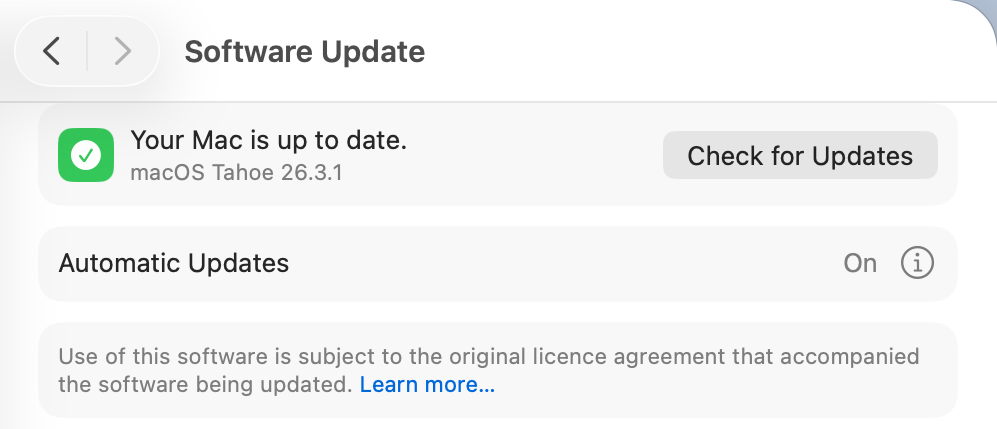
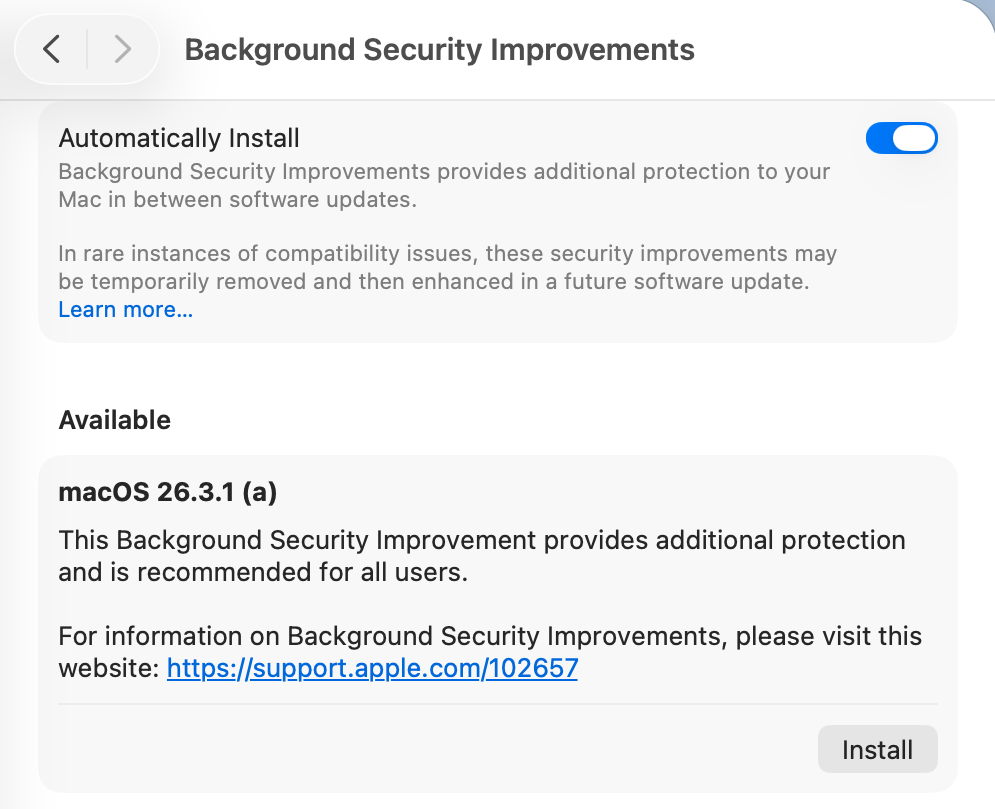
BSIs are controlled not in Software Update settings, but in their own section at the end of Privacy & Security. As such, they are the only macOS update there, and all others remain in Software Update where they belong. This misleads users, and Software Update reports that Your Mac is up to date when it isn’t, because there’s an outstanding BSI available.
Not only that, but users naturally assume that when Software Update settings have Install macOS updates disabled, no macOS updates will be installed automatically. Little do they realise they can still get a BSI without being asked.
BSIs are currently misplaced in System Settings, and their controls should be moved back to Software Update where RSRs were.
I fear the reasoning behind hiding BSIs among strangers in Privacy & Security was to ensure most Mac users would leave BSIs to be installed automatically. It’s no coincidence that, in addition to this hiding, the automatic installation of BSIs was enabled by default when upgrading to macOS Tahoe. This reeks of deliberate deception.
Control
There is a single on-off toggle provided, to Automatically Install BSIs. Apple explains that “if you choose to turn off this setting, your device will not receive these improvements until they’re included in a subsequent software update.” Thus the user is given a forced choice between macOS deciding when to install an available BSI, or not being notified about that BSI at all.
As with other macOS updates, the user must be given the option to be notified when a BSI is available, and to make their own choice whether and when to install it.
The alternative for users is to disable Automatically Install, watch for news of BSI releases, and, if they wish to receive one, to enable that setting, download and install the BSI, then disable the control again. For many Mac users, that appears to be the best option in the absence of better support.
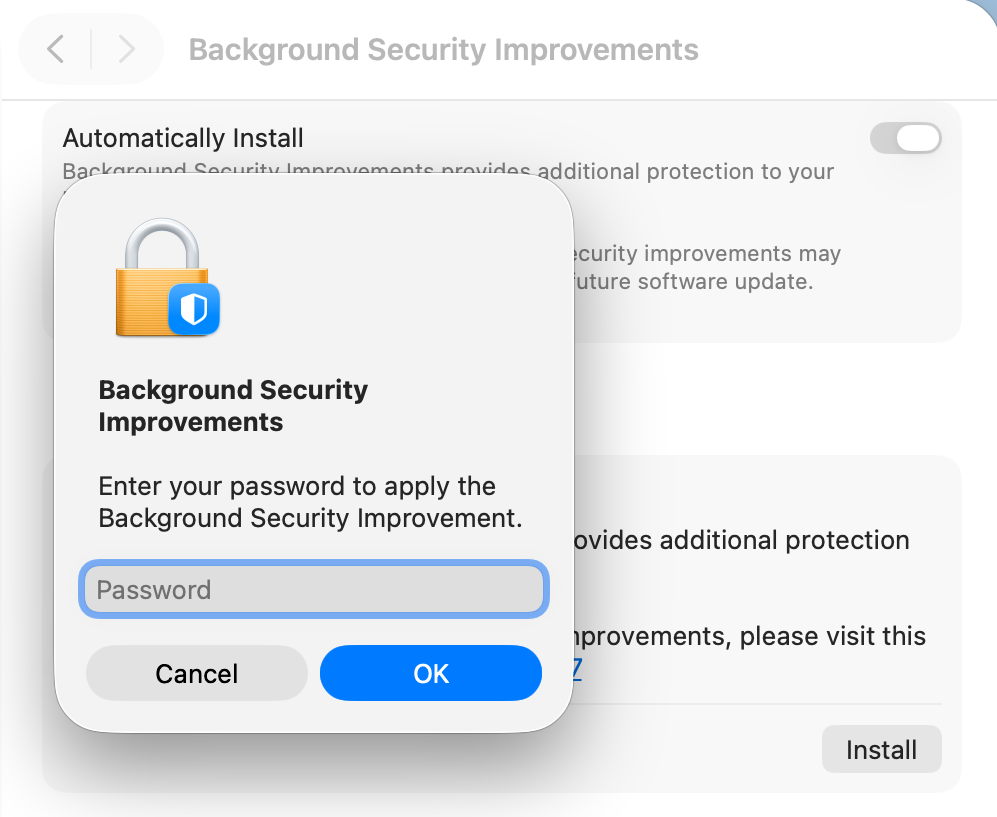
Although the control is titled Automatically Install, its behaviour is different. When a BSI is found to be available, macOS doesn’t automatically download and install it, but waits for the user to click on the Install button, then to authenticate.
However, if the user isn’t aware that BSI is available, or chooses to ignore it, automatic installation does appear to occur without the user being informed until the Mac is just about to restart, and no authentication seems necessary after all.
This behaviour is the greatest deterrent to users, as it effectively means that their Macs could restart unpredictably with almost no warning, resulting in data loss and disruption to their work. That’s completely unacceptable, and will ensure many will disable BSIs as a precaution to avoid the possibility of data loss. This aversion could be addressed simply by allowing the user full manual control over whether and when a BSI will be installed.
Progress
Despite softwareupdated monitoring progress through the download and preparation phases, the user is shown an indeterminate progress spinner, rather than a progress bar, which would at least give better warning of the restart that is coming. Although much briefer than a full macOS update, a progress bar should be displayed for the download and preparation phases of a BSI.
Restart warning
All previous RSRs, and this first BSI, have required restarts to complete the update. Yet at no time during this BSI was the user told that would be necessary. A notification was displayed a few seconds before the restart, but gave insufficient notice for the user to make any preparations.
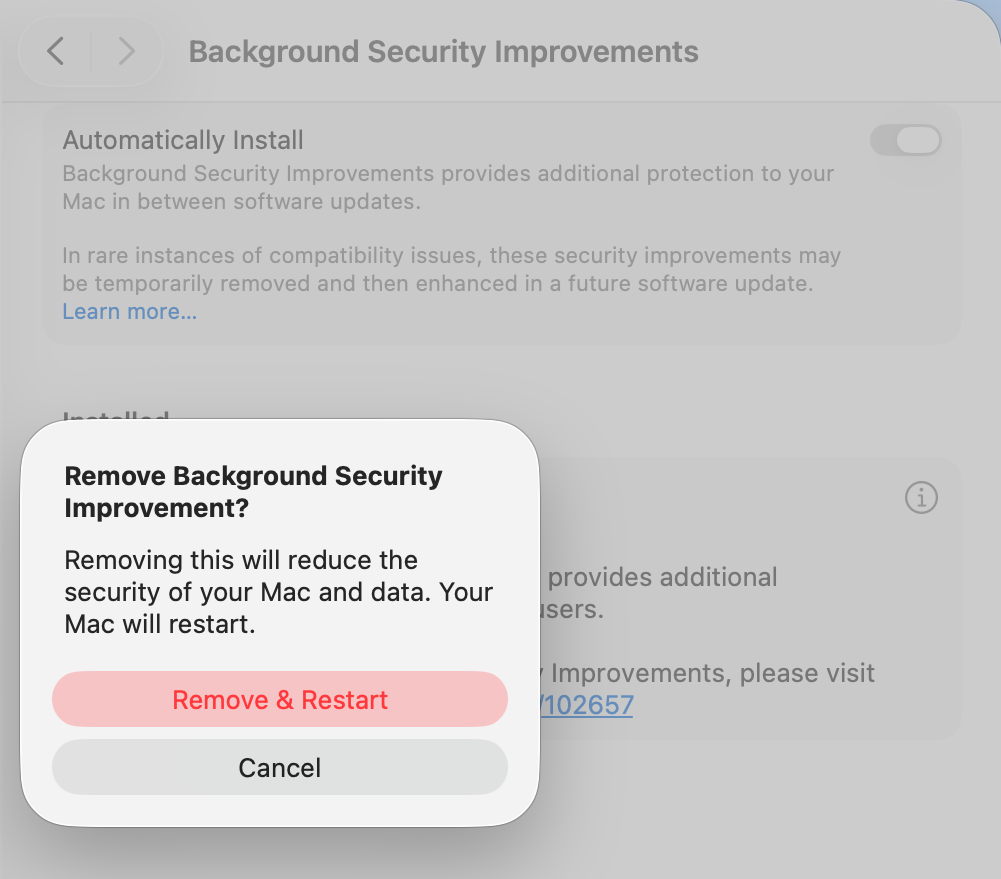
It’s essential that information given about the BSI states clearly if a restart will be necessary, and the user is given the same one-minute countdown provided in macOS updates. Bizarrely, the one place that a restart was mentioned is in the dialog to remove a BSI.
Information
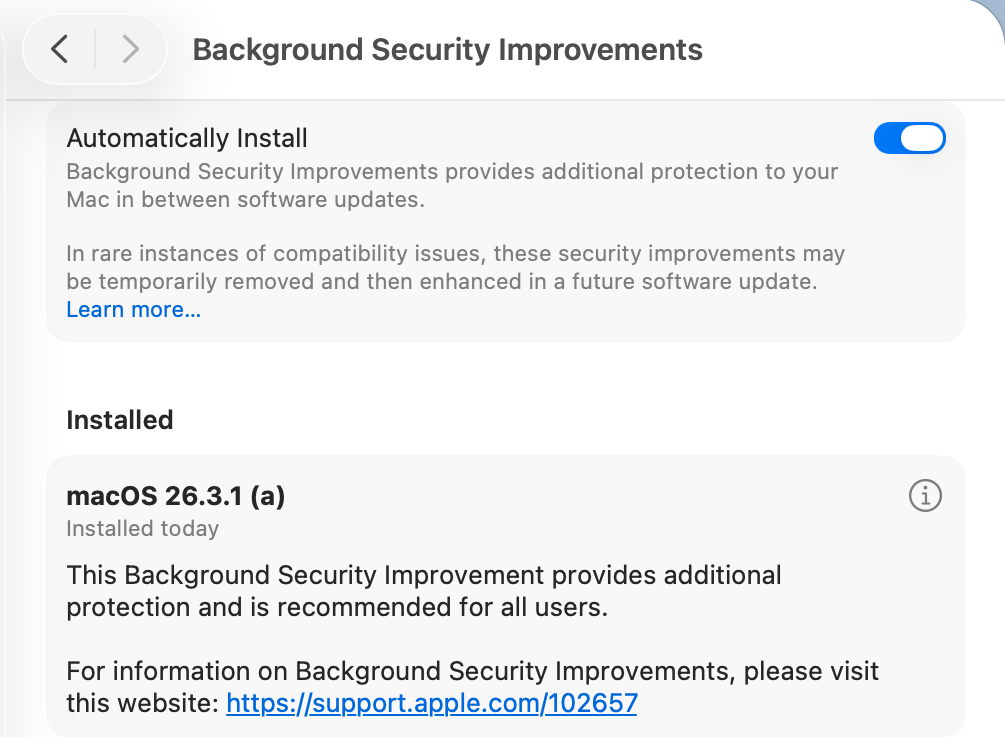
Apple’s current support note on BSIs is woefully inadequate, as is obvious by the content of this article. What would appear to be additional information in the BSI settings, marked with the ⓘ Info button, isn’t informative at all, but provides the means to remove a BSI, which is at least an improvement on RSRs, which unaccountably hid removal in the About settings. A more appropriate button should be provided.
BSIs are also only currently covered in the US English version of Apple’s Platform Security Guide. All other localised versions, including British and Canadian English, still contain the outdated section on RSRs. Fortunately, as their content is almost identical, this is revealing rather than misleading.
Version numbering
Ignoring RSR and BSI version numbering, macOS has in recent years achieved clean and systematic version (and build) numbering, without the excesses of the past. By adopting a parenthesised letter as the identifier of a BSI, comparison is clumsy and prone to error. ProcessInfo.processInfo.operatingSystemVersion doesn’t contain a field for the BSI identifier, which is only offered as part of the full string in ProcessInfo.processInfo.operatingSystemVersionString. Version numbers like 26.3.1 (a) and build numbers of 25D771280a are irregular and unnecessary.
Recommendations
BSI controls should be removed from their hiding place in Privacy & Security and put alongside all other macOS updates in Software Update settings.
An option should be provided so that users are informed of the availability of BSIs without any obligation for them to be installed automatically.
Behaviour of the Automatically Install button should be described explicitly to the user. Does it automatically install, and if so, in what circumstances will the user not be so informed?
BSI download and preparation should be accompanied by a progress bar similar to that for a macOS update.
When a BSI requires a restart to complete its installation, the user must be informed of that before they consent to the BSI being downloaded.
When a BSI install is ready to restart the Mac, one minute’s warning notification should be given, just as in macOS updates.
The BSI support note should provide full details, not a sketchy outline.
The button to remove a BSI shouldn’t use the ⓘ Info symbol, but something more appropriate to its purpose.
Apple’s Platform Security Guide should be updated in all its online versions. Is it really that hard to translate from US English to British English?
Version and build numbering should be redesigned to be more consistent and better accessible in the API.
Despite having over three years to get them right, BSIs are a worse mess than RSRs were in Ventura. This is a great shame as their technology is still brilliant, but their current interface is shockingly flawed in so many respects.
Apple has just released its first public Background Security Improvement (BSI) for macOS 26.3.1 Tahoe, labelled as BSI (a)-25D771280a. Once installed, macOS will identify itself as version 26.3.1 (a), with a build number of 25D771280a.
You can install this through Privacy & Security Settings, in the Background Security Improvements section. It doesn’t appear listed in Software Update, although SilentKnight will offer it. Please don’t try to use SilentKnight to install this, though, as it will download successfully but fail to install unless you then use the BSI section in Privacy & Security settings, which will finish the job off.
Apple has now released details of the single vulnerability that this fixes, in WebKit. As a result it updates Safari from 26.3.1 (21623.2.7.11.7) to 26.3.1 (21623.2.7.111.2).
Following installation, your Mac will need to restart for the BSI to be applied.
Apple has just released its regular weekly update to XProtect, bringing it to version 5334. As usual it doesn’t release information about what security issues this update might address.
This version makes no changes to its main Yara rules. Changes to the OSASCRIPT rules in XPScripts.yr include amendments to more than a dozen of them, and two new rules are added for MACOS.OSASCRIPT.GEPEPA and MACOS.OSASCRIPT.TAPEPA. Several rules that previously added the property wide to their text now have wide ascii instead.
You can check whether this update has been installed by opening System Information via About This Mac, and selecting the Installations item under Software.
A full listing of security data file versions is given by SilentKnight and SystHist for El Capitan to Tahoe available from their product page. If your Mac hasn’t yet installed this update, you can force it using SilentKnight or at the command line.
If you want to install this as a named update in SilentKnight, its label is XProtectPlistConfigData_10_15-5334
Sequoia and Tahoe systems only
This update has now been released for Sequoia and Tahoe via iCloud. If you want to check it manually, use the Terminal command sudo xprotect check
then enter your admin password. If that returns version 5334 but your Mac still reports an older version is installed, you should be able to force the update using sudo xprotect update

 Login
Login



 点击图片播放视频
 本期关联播客