Most states have had a woman serve as governor, but California is in the minority despite its progressive-minded electorate. Women who have reached the top elsewhere saw familiar roadblocks.
One of the most common and frustrating problems with apps is when they crash as soon as you try to open them. Before that app has even had a chance to display its menu bar or splash screen, it has vanished, leaving you without a clue as to why. How could its developer release an app that can’t even run? Where do you look for clues as to what happened when the app was only there for an instant? Fortunately, this is when examining the crash log can be useful, and could help solve the problem.
Common causes include:
macOS intentionally crashed the app because of an error in code signing, or another serious security failure;
the app failed because it was in translocation;
the app couldn’t open a damaged or incompatible document;
the app had a problem with its Preferences.
Signs and logs
Depending on the type of Mac, the version of macOS it’s running, and the nature of the crash, you may see nothing at all, a simple notification, or a full crash report.
While panic logs can be impossible to recover if you miss them, app crash reports are almost invariably saved to disk, normally in the path ~/Library/Logs/DiagnosticReports, although in some cases you’ll have to look a bit harder there, or in /Library/Logs/DiagnosticReports. As the report’s name should start with the app name, they’re easy to identify, and double-clicking them opens the report in Console (one of its good uses).
Reading the crash log
In the upper Translated Report look for the following:
Path – check whether this is a long semi-random path typical of app translocation.
Code Type – on an Apple silicon Mac, check whether the app is running native on Arm, or translated by Rosetta 2.
Exception Type – this could be EXC_BAD_ACCESS (SIGKILL (Code Signature Invalid)) if macOS has crashed the app because of a code signing problem.
Termination Reason – this may be given as Namespace CODESIGNING, Code 2 Invalid Page or similar for code signature problems.
An exception type of EXC_CRASH (SIGKILL) indicates macOS terminated the app, and its crash report should give a Termination Reason with a code explaining the reason for the crash. Apple silicon Macs running recent versions of macOS are less likely to crash apps with signature problems, as they now tend to handle these in a dialog reporting the app is damaged and offering to remove it. Intel Macs with older macOS are more likely to crash the app and leave you wondering.
If you want to learn more about crash reports, they’re well documented for developers, starting from this master page. Worth reading are:
One recent and innocent cause of signing and notarisation errors occurs in apps that update themselves, normally using the popular Sparkle method. If an app had worked fine before it updated itself and then can’t start up, it may not have updated its code signature or notarisation correctly. This is easy to fix, by deleting the broken app and downloading a fresh copy of the current version. If that still crashes with a signature error, contact its developer as it may have a bigger problem.
Apparency, free from Mothers Ruin, is the definitive app for checking code signing and notarisation problems. It doesn’t just identify the problem, but explains it in careful detail.
If you’re absolutely certain that the app doesn’t contain any malicious code, you may be able to work around code signing errors by re-signing the app. Doing this to an app that might be malicious would be extremely dangerous, so you require great confidence in the app’s integrity.
Before proceeding any further, you might need to add Terminal to the list in the App Management section of Privacy & Security settings, otherwise your commands could be unable to make any changes to the app. Once you’ve done that, open Terminal and use the command codesign --remove-signature MyApp.app
to strip the existing signature from the app MyApp.app. Note that two hyphens precede remove-signature. When that’s done, use the command codesign --sign - MyApp.app
to sign that app with an ad hoc signature. Ad hoc signatures provide only limited security, as they don’t use an Apple-issued certificate for verification against a chain of trust. They’re widely used by malware as a result, and easily exploited.
If that doesn’t work you’ll need to refer the problem to the app’s developer, who should in any case be informed of any problems with their app’s code signature, notarisation or security checks.
App translocation
There are some circumstances in which perfectly good apps may prove unable to run as expected when they’ve been translocated, and some become stuck in translocation, continuing to crash each time you try to run them. If you’ve looked at the crash log, the Path given there should make it obvious if that app is being run in translocation.
The best solution is to try reinstalling the app. Delete the current copy, and download the app again from its source on the internet. If it comes as a compressed archive, decompress it, then move the app from the folder it came in to one of your Applications folders before trying to run it. Do this one app at a time, rather than as one of several, and ensure it doesn’t remain in the folder it came in. If that doesn’t help, contact its developer.
A more hazardous option is to strip the quarantine extended attribute from the download, but you should only consider that as a last resort as it reduces the security checks made by macOS.
Failed to open document
If the app was last quit with a document still open, and that document now has a serious incompatibility with the app, that can cause the app to crash when it’s next opened, and tries to re-open that document. The same effect can occur when an app is opened by opening one of its documents. Try opening the app alone before opening the document. If necessary you can enable Close windows when quitting an application, in the Windows section of Desktop & Dock settings, or move the offending document to a different volume so that app loses track of it.
Preference file problems
Apps that use Property List files stored in ~/Library/Preferences, or an equivalent in the app’s folder in the ~/Library/Containers folder, open them during app startup. If that preference file is malformed or corrupted, it can cause the app to crash when it tries reading it. This may not be easy to recognise in a crash log, although references there to cfprefsd, the path to the preference file, or UserDefaults are useful clues.
The best way to address this is to delete the app’s preference file, forcing the app to create a fresh default preference file, and open normally again. Although you can do this by locating the correct file and dragging it to the Trash, it’s more reliable to use the defaults command in Terminal, as that should delete the right copy and avoid overwriting it and causing the problem to recur. For this you’ll need the app’s formal ID, available from Apparency or taking a peek at the value for the CFBundleIdentifier key in its Info.plist. It should be in the form of a reverse URL like com.mothersruin.Apparency.
The command that you need to enter into Terminal is of the form defaults delete com.developer.appname
where com.developer.appname is the app’s ID or CFBundleIdentifier.
You should then be able to open the app, which will have to recreate its default settings, hopefully without crashing again.
Other causes
Most other potential causes tend to prolong app opening rather than causing it to crash. Apps that check for updates over the internet usually do so soon after opening, but should perform that check without blocking or crashing the app. Similarly, apps needing to connect to an external authorisation service more usually hang, leaving their Dock icon bouncing indefinitely.
Any damaged or incompatible app may well crash during opening. If you suspect that, check with the app’s support site that the version you are trying to run is the latest that’s compatible with your Mac and macOS. If in doubt, re-install the app.
Just over six months ago a series of weird bugs came to light in Spotlight indexing. The first report was that plain text files beginning with the characters LG are never indexed, so their contents can never be found by Spotlight search. The mystery deepened when the same was discovered for text files beginning with the characters NPA or Draw. It was appropriately Drew who worked out the common factor behind this apparently bizarre connected behaviour: all three files are identified as not being text by the old Unix utility file(1), used to recognise file types by ‘sniffing’ their contents.
You can verify that by creating a plain text file with any of those three sets of characters at its start, then running the command file on that file. In the case of one beginning with Draw, file will identify it as RISC OS Draw file data, even though the file has an extension of txt or text and a UTI of public.plain-text. At that the RichText mdimporter, which analyses all text-based files for metadata to enter into Spotlight’s indexes, throws its hands up in horror and refuses to index the file’s contents. Change those opening characters in that file, perhaps by adding a leading space, and all of a sudden the mdimporter works as expected.
Following our collaborative effort here, particularly Drew’s insight, we realised this bug has been silently blocking the indexing of seemingly random text files for the last three years or more. What remained unanswered at the time was what that mdimporter was doing running file(1) on files whose UTI made it clear that they were in plain text, not some long-forgotten binary vector graphics format from 1989. I believe I now have an answer, thanks to my recent work on QuickLook’s qlgenerators.
QuickLook’s generators take advantage of the hierarchical structure of UTIs. Rather than accepting the most specific UTIs such as public.jpeg, Image.qlgenerator works with all files whose UTI conforms to the generic UTI of public.image, and then undertakes its own format detection. This enables it to generate correct thumbnails and previews of HEIC images that have been given the incorrect extension of jpg, for instance.
Similarly, a Swift source-code file with the extension of swift and the UTI of public.swift-source is handled by the Text.qlgenerator because public.swift-source conforms to public.plain-text, the UTI required for use of that generator.
What if Spotlight’s mdimporters were to work the same?
We know the built-in RichText.mdimporter is used to extract metadata for a wide range of files containing text, which all conform to the generic UTI of public.text. It then classifies them on the basis of their contents to work out what to index. What if that’s performed using file(1), so rejecting perfectly valid text files as ancient binary vector graphics files, and so on?
We can’t get the same direct evidence from the log that I obtained for QuickLook, as Spotlight is far less informative in its log entries. We can get clues from looking at output from mdimport and mdls, though. While a non-deviant text file contains a metadata attribute extracted by its importer as kMDItemTextContent containing the text in the file’s data, that’s missing from a text file starting with any of the three known triggers. In turn that’s associated with the attribute _kMDItemPrimaryTextEmbedding containing ‘vec_data’ listed by mdls, which is also missing for the deviant files.
There is hope that a third party might be able to undercut RichText.mdimporter by providing a bug-free importer for public.plain-text, but that relies on the built-in importer targeting public.text rather than public.plain-text. The best solution would be for Apple to fix the identification of text files instead of relying on file(1), which dates from 1973. Given that these deviant files work perfectly with QuickLook’s generator, it appears Apple has already solved this problem there. So I suspect this bug in RichText.mdimporter will never be fixed in Sequoia or Tahoe.
With the first beta-release of macOS 27 just a couple of weeks away, this leaves those using the last Intel Macs stuck with Spotlight indexing that will never work on some text files, assuming that at some point in the not too distant future this bug is finally fixed in an Arm-only macOS. This is all sadly familiar from the loss of 32-bit support in the transition from Mojave to Catalina, when little if any effort was devoted to making Mojave as free of bugs as possible before it was abandoned in the rush forward to 64-bit.
It would have been far better to be able to look back in fondness with macOS that worked better, than looking back in anger at what never got fixed.
One last thing to remember is that, when Apple does fix this bug, you’ll have to force Spotlight indexes to be rebuilt on each of your Mac’s volumes to ensure that the contents of these files are incorporated. We learned that last time there was a serious bug in the same importer, which failed to index the contents of RTF files.
How will the next governor make housing more affordable? The top five Democratic candidates in California discuss this issue at a forum moderated by Ezra Klein.
How would Katie Porter, a Democratic candidate for California governor, navigate the billionaire-backed California Forever project if elected? She discusses her approach with the Opinion columnist Ezra Klein during a live forum.
Spotlight can only search the metadata it has entered in its indexes. As I demonstrated a couple of days ago in two test cases, some metadata may be present in a file and available for indexing, but may not be added to those indexes. This normally occurs because of a problem or bug in the mdimporter responsible for extracting metadata and passing it for storage in the indexes. Fortunately, macOS provides a method of identifying that, using two command tools.
Commands
The first command mdimport -t -d2 filename
lists all its known metadata recognised by the mdimporter used. Currently, that may crash persistently for some types of file such as images.
The second command mdls filename
lists all indexed metadata for that file, and shouldn’t crash.
mdimport – aspirations
Output from mdimport is a long catalogue of all the metadata attached to and associated with that file. This starts with a statement of the file examined, tells you its type as a UTI, and reveals which mdimporter was used: Imported '/Users/hoakley/Documents/0xattrtests/testtext1.text' of type 'public.plain-text' with plugIn /System/Library/Spotlight/RichText.mdimporter.
It then tells you how many metadata attributes it found 35 attributes returned
Those are listed, starting with those found in extended attributes, prefaced by :EA: ":EA:kMDItemLastUsedDate" = "2026-05-04 18:52:32 +0000";
Then come standard file metadata ":MD:kMDItemPath" = "/Users/hoakley/Documents/0xattrtests/testtext1.text";
"_kMDItemContentChangeDate" = "2026-05-04 11:34:50 +0000";
The main body lists all the rest with the prefix kMDItem common to metadata kMDItemContentCreationDate = "2026-05-04 11:34:49 +0000";
Among those are the UTI of the file, and its more general types in the UTI tree. These can explain why a file appears to have been processed by the wrong mdimporter kMDItemContentType = "public.plain-text";
kMDItemContentTypeTree = ("public.plain-text", "public.text", "public.data", "public.item", "public.content");
There’s a long series of entries giving the long form of the file type in multiple languages kMDItemKind = {en = "Plain Text Document"; };
Text content that has been indexed isn’t given in this form of the command, but a summary is: kMDItemTextContent = "<<< Text content of 4968 characters >>>";
Those are the metadata that should then be passed to Spotlight to be stored in its indexes, but not necessarily what does get stored. To discover that, we need the mdls output. Note that additional metadata obtained by mediaanalysisd and the CGPDF Service aren’t included in this, as they operate separately from mdimporters and normally after significant delay.
mdls – reality
This output is far shorter, and contains entries in Spotlight’s indexes for that file, except for indexed text content. The only way to assess that is by searching for text it should contain.
This should match metadata attributes seen in the mdimport output, such as _kMDItemDisplayNameWithExtensions = "testtext1.text"
kMDItemContentCreationDate = 2026-05-04 11:34:49 +0000
kMDItemContentType = "public.plain-text"
kMDItemKind = "Plain Text Document"
The last four are those obtained from the (absent) Info metadata embedded in the file data, and conflict with those from four of the extended attributes.
These reveal that Spotlight’s indexes captured four of the five extended attributes, and ignored the null values for the Info metadata. However, kMDItemAuthors is missing, presumably because of a bug in the mdimporter.
I’m considering whether it might be useful to add these to SpotTest, to help diagnose problems.
When I was researching yesterday’s article about storing and managing metadata, I encountered some unexpected behaviour that merited deeper investigation. This article explains how that can lead to macOS ignoring and hiding metadata.
Spotlight is about more than just search, as it runs the metadata services for macOS. Those ingest information about files, contents of their extended attributes, metadata extracted from file data such as EXIF in images, and indexed text content. When the Finder needs to populate the fields of a Get Info dialog, or those shown in a Preview pane, it calls on Spotlight’s volume indexes to provide the data. The process of analysing and extracting metadata is thus important to a wider range of features beyond search, and it’s concerning when metadata known to be present is unexpectedly missing.
To determine what might be going wrong, I took six test files in macOS 26.4.1:
two plain text files, indexed by /System/Library/Spotlight/RichText.mdimporter
one RTF file, indexed by /System/Library/Spotlight/RichText.mdimporter
one PDF file, indexed by /System/Library/Spotlight/PDF.mdimporter
one JPEG and one PNG screenshot, indexed by /System/Library/Spotlight/Image.mdimporter.
To each I attached five xattrs containing distinctive test text:
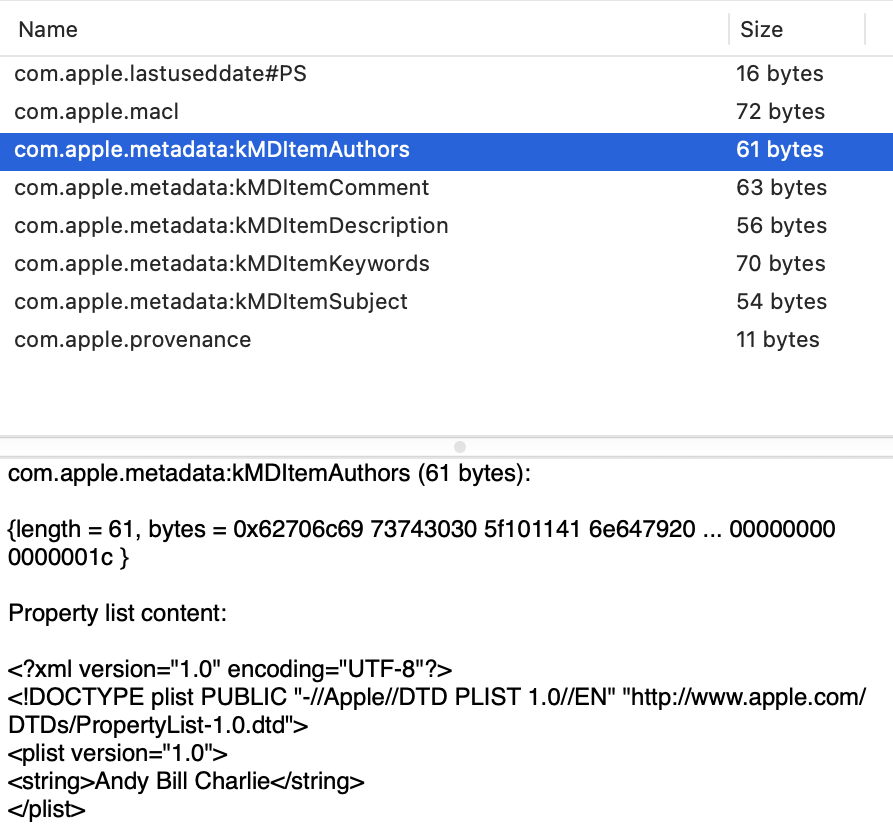
com.apple.metadata:kMDItemAuthors, known in the Finder’s Find search terms as Authors;
com.apple.metadata:kMDItemComment, known as Comment, and distinct from Finder or Spotlight Comment;
com.apple.metadata:kMDItemDescription, known as Description;
com.apple.metadata:kMDItemKeywords, known as Keywords;
com.apple.metadata:kMDItemSubject, known as Subject of this item.
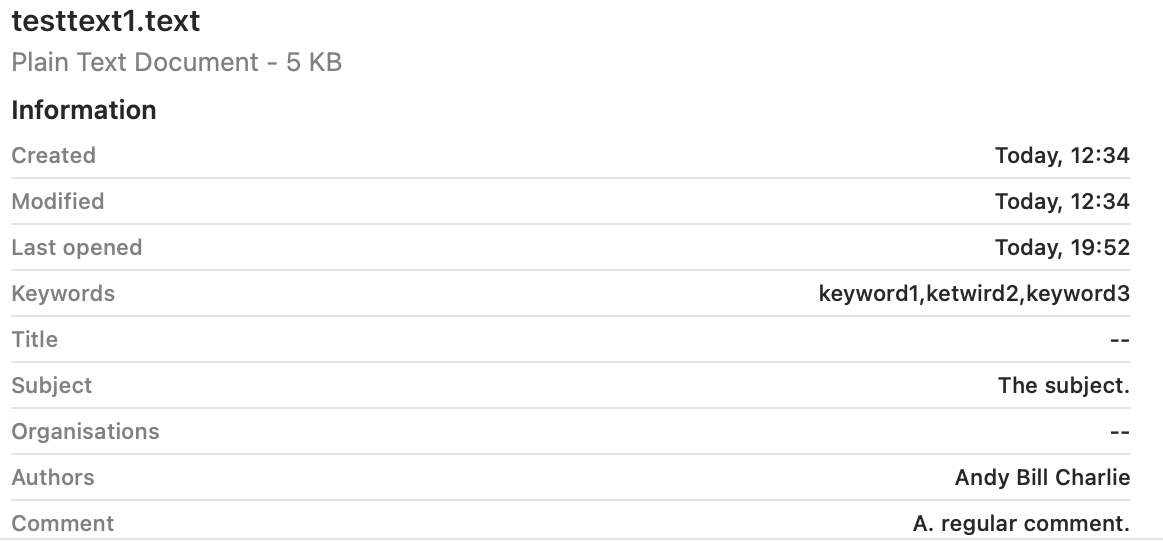
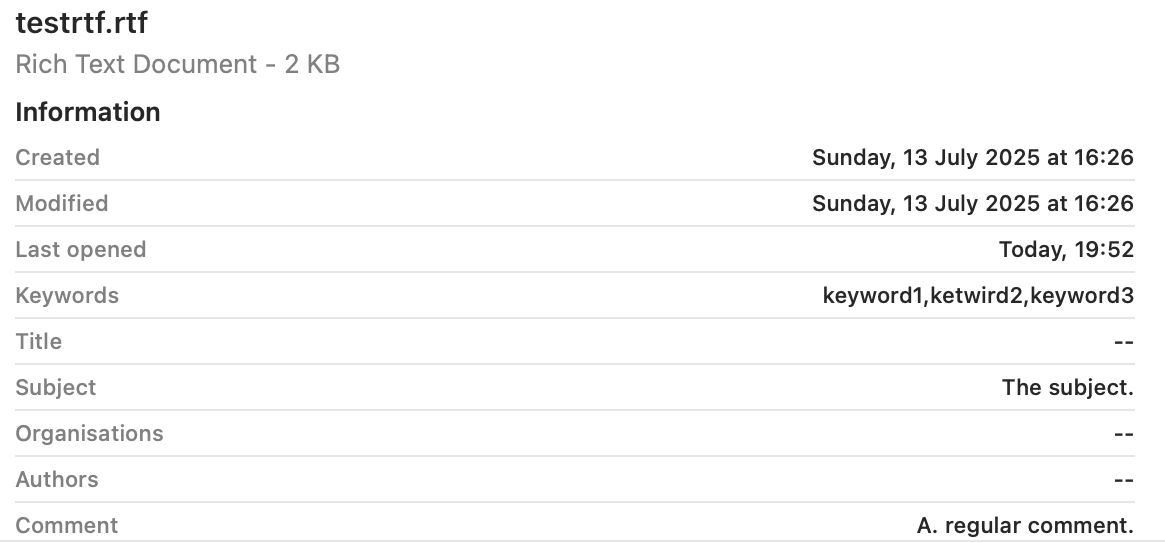
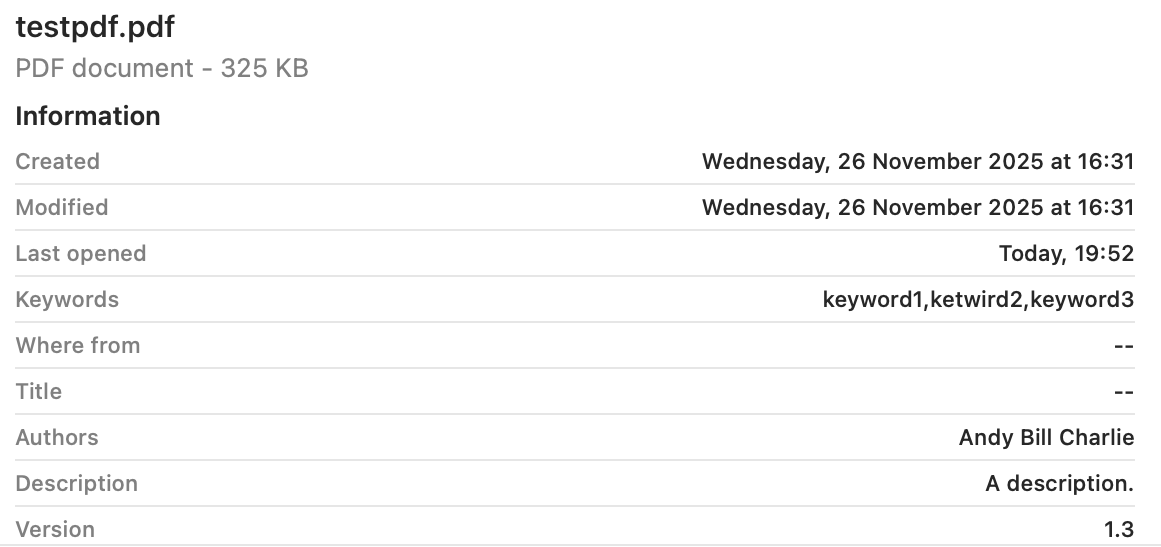
I then used the Finder’s Find window to search for part of the contents of each of the extended attributes for each of the test files. I also viewed each file in a Preview pane, with maximal display of information, as described here, and in a Get Info dialog.
For each file, I ran the following two commands: mdimport -t -d2 filename
to list all its known metadata recognised by mdimporter. That crashed for both the image files, a bug that has been long present. I also ran mdls filename
to list indexed metadata, which didn’t crash.
Search results
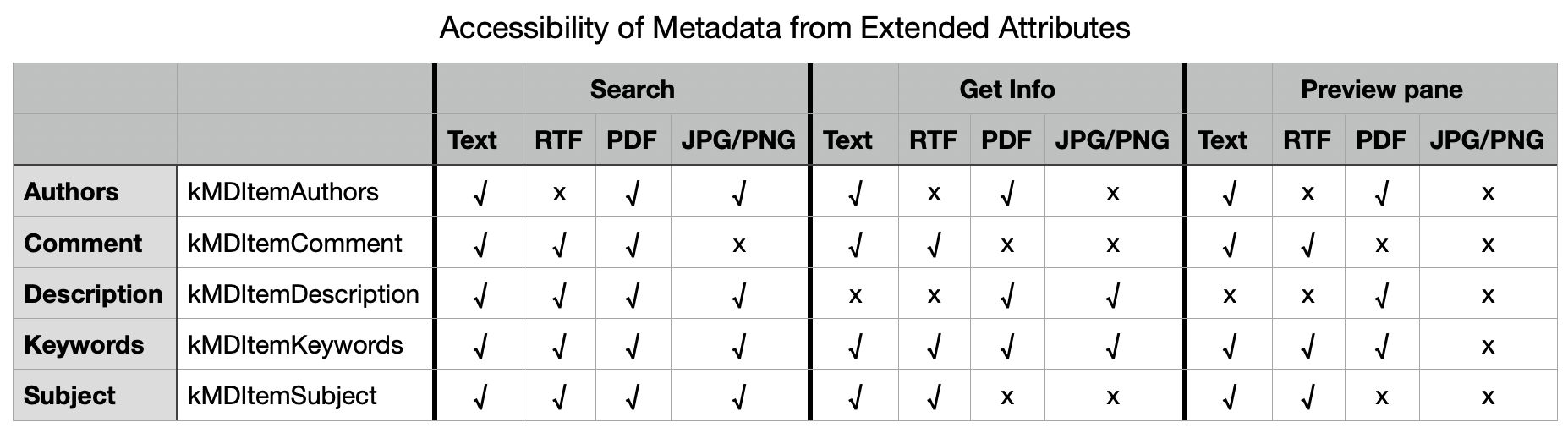
Search worked as expected and proved successful for all files with Description, Keywords and Subject. However, I was unable to find Authors metadata for the RTF file, and Comment metadata couldn’t be found for the JPEG or PNG images.
Finder preview pane
The two image formats displayed none of the metadata used. Otherwise Keywords was shown in each, Subject and Comment were omitted from PDF, and Authors and Description omitted from RTF.
These are summarised in the table below.
There are two serious failures shown here, failure to index Authors metadata correctly in the RTF file, and failure to index Comment metadata correctly in the JPG and PNG files. Otherwise all failures appear to be the result of design decisions over which types of metadata should be displayed in the Finder.
Failure to index Authors in RTF
From the mdimport listings, all five xattrs were recognised correctly and should have been indexed. However, there were additional [null] listings for four of them, including Authors, presumably derived from the absent RTF Info section, an optional feature in the format and often absent. Separate testing revealed that, for the Authors metadata alone, the content extracted from the Info section of the RTF overrode that obtained from the xattr, even when it was null. Adding the authors to the Author (note the singular) entry in Info restored its indexing and search, but using the text in RTF Info rather than the xattr.
There are thus two related bugs here:
The Author field from RTF Info metadata should be indexed into its own field, to avoid conflict with any com.apple.metadata:kMDItemAuthors xattr present.
Only com.apple.metadata:kMDItemAuthors xattr content should be indexed into Authors.
Failure to index Comment in JPG/PNG
No mdimport listing was available for these image files because of the tool crashing persistently. However, it’s clear that the contents of Comment was taken not from the xattr, but from the EXIF UserComment, which had been set by macOS to Screenshot when that screenshot had been made. That metadata should surely have been indexed into a separate category such as a new kMDItemUserComment to avoid such collisions.
There are again two related bugs:
The UserComment field from EXIF metadata shouldn’t be indexed into Comment, but into its own field.
Only com.apple.metadata:kMDItemComment xattr content should be indexed into Comment.
Conclusions
There appear to be indexing bugs in /System/Library/Spotlight/RichText.mdimporter and /System/Library/Spotlight/Image.mdimporter. This is the third bug I have investigated in RichText.mdimporter.
Those can lead to incorrect indexing in kMDItemAuthors (Authors) and kMDItemComment (Comment) respectively.
They limit significantly the usefulness of those xattrs as metadata in macOS.
Of the five metadata xattrs tested here, only one, kMDItemKeywords (Keywords), appears both reliable for search and displayed generally in the Finder.
kMDItemDescription or Description, and kMDItemSubject or Subject are reliable for search, but aren’t displayed well in the Finder.
Aside from these bugs, poor display coverage in the Finder limits the usefulness of these xattrs.
Investigating bugs in Spotlight mdimporters can be challenging, particularly when mdimport is so prone to crash.

 Login
Login