Reading view

There are new articles available, click to refresh the page.

Fun with UTIs, QuickLook and Spotlight

In case you haven’t got the message from the last few weeks looking at Spotlight and QuickLook, UTIs (Uniform Type Identifiers) are important, but not always as critical as they could be. To understand how macOS copes with misleading UTIs, I have a little demonstration you can try in the privacy of your own Mac.

All you need for this is an image with some Exif metadata. Those taken by an iPhone are particularly suitable, as they usually contain rich Exif information about which model took that image, focal length, aperture, exposure time and more. In my case, the image is in HEIC format. If you have my apps UTIutility and SpotTest, you can also explore UTIs more thoroughly, and inspect the metadata from images that gets indexed by Spotlight, but those are optional extras.

A file with the extension HEIC or heic is assumed to have the UTI public.heic, which conforms to public.heif-standard, and that in turn conforms to public.image, the parent of most image formats in macOS. The Help book for UTIutility shows these in a dense diagram.

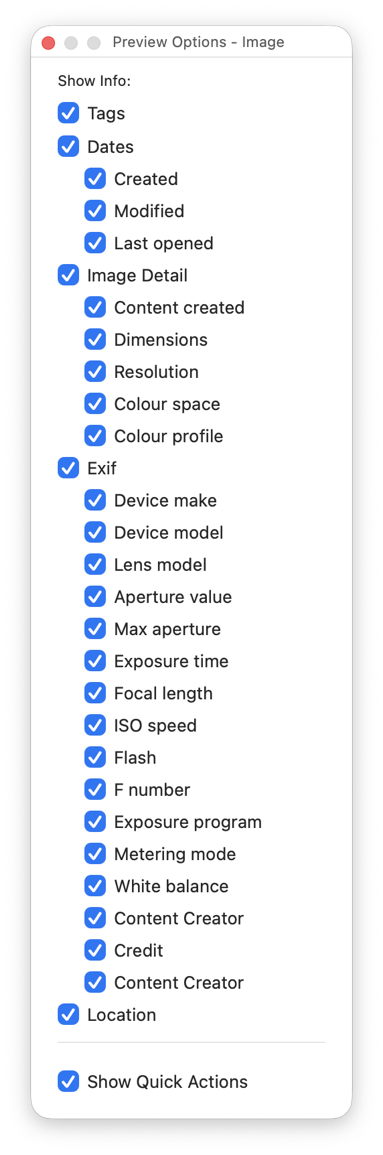
Select that image in the Finder’s Column view to inspect its public metadata. While the image is selected, open Show Preview Options in the View menu and enable all the metadata listed there to be shown in previews.
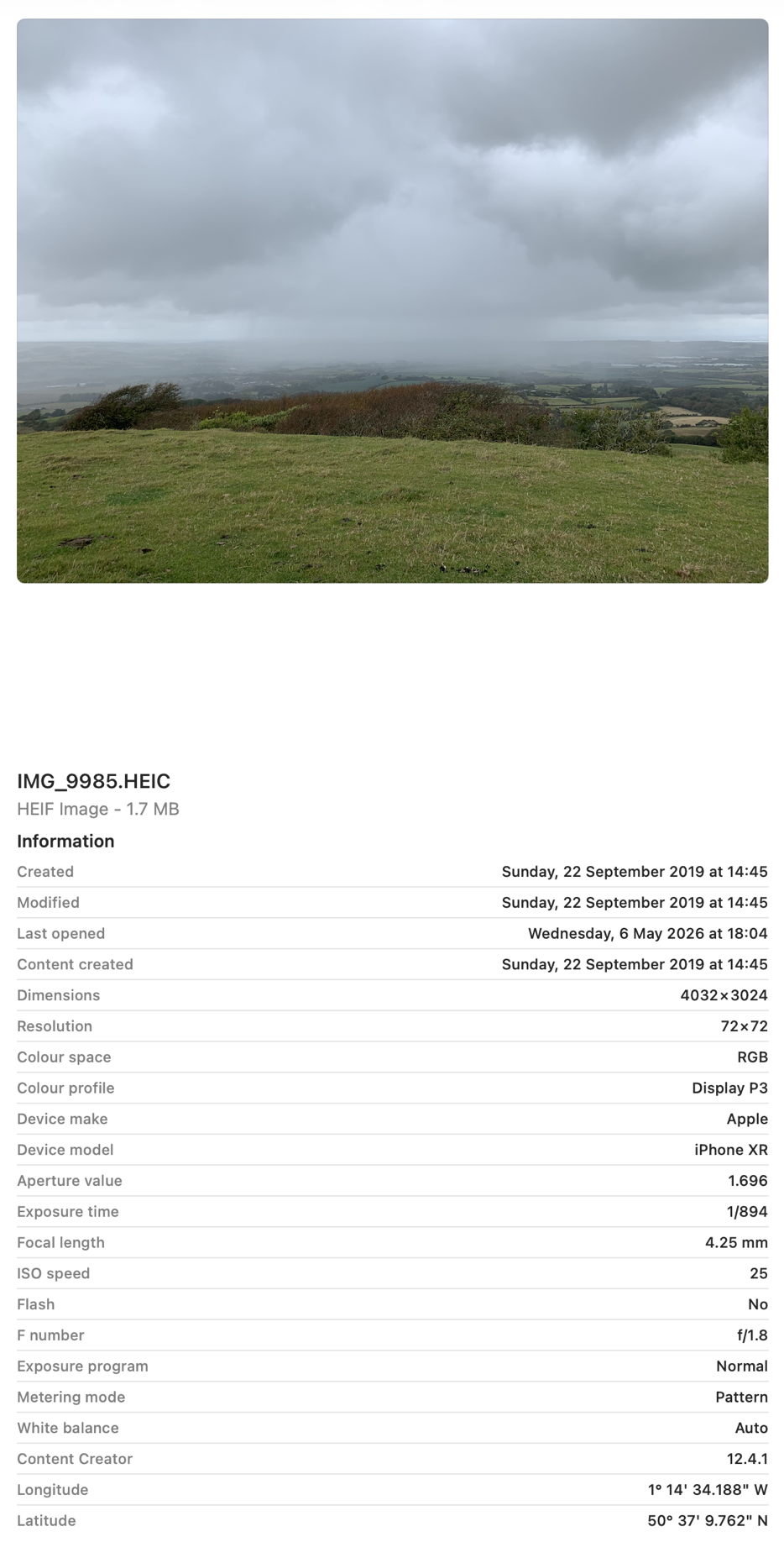
You should then have a good preview pane with lots of metadata below it.
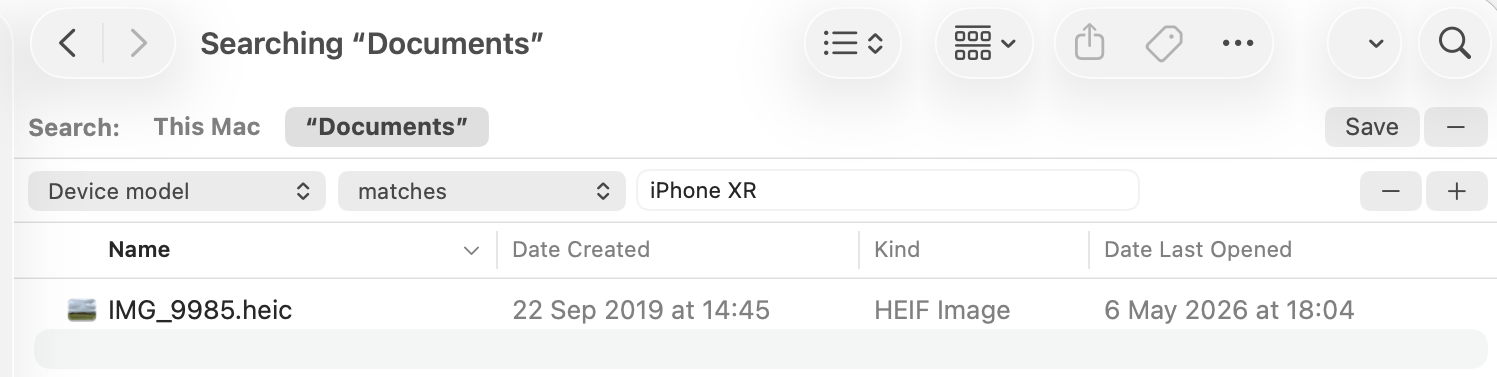
Next open a new Finder window and set it to Find. Using the search criterion popup menu, enable the Device model attribute, or another your image has metadata for, and search for that attribute, here iPhone XR, and you should see your image among the hits.
If you have SpotTest to hand, drop your image on its Drop Window. Being an image, it will crash mdimport, so the information you’ll see will be the metadata fields from Spotlight’s indexes, which should include the Device model as kMDItemAcquisitionModel.

So far, everything has worked as expected, but we’re now going to throw a spanner in the works by changing the extension on that image from HEIC to jpg, which changes the image’s UTI to public.jpeg, although that still conforms to public.image.

Its basic thumbnail icon now changes to a generic JPEG icon, so we’ve managed to confuse the basic thumbnailing scheme in QuickLook. But it’s still shown in the preview pane correctly, with all its metadata intact.

This is because that image has its larger thumbnails and previews generated by the qlgenerator for public.image, and that goes out of its way to parse the file data correctly, and recognise this is really a HEIC not a JPEG. If you’ve left the Finder Find window open, you’ll see that continues to find the image as if nothing had happened, as Spotlight also imports metadata using a common mdimporter for public.image, rather than relying on the more specific UTIs of public.jpeg or public.heic.

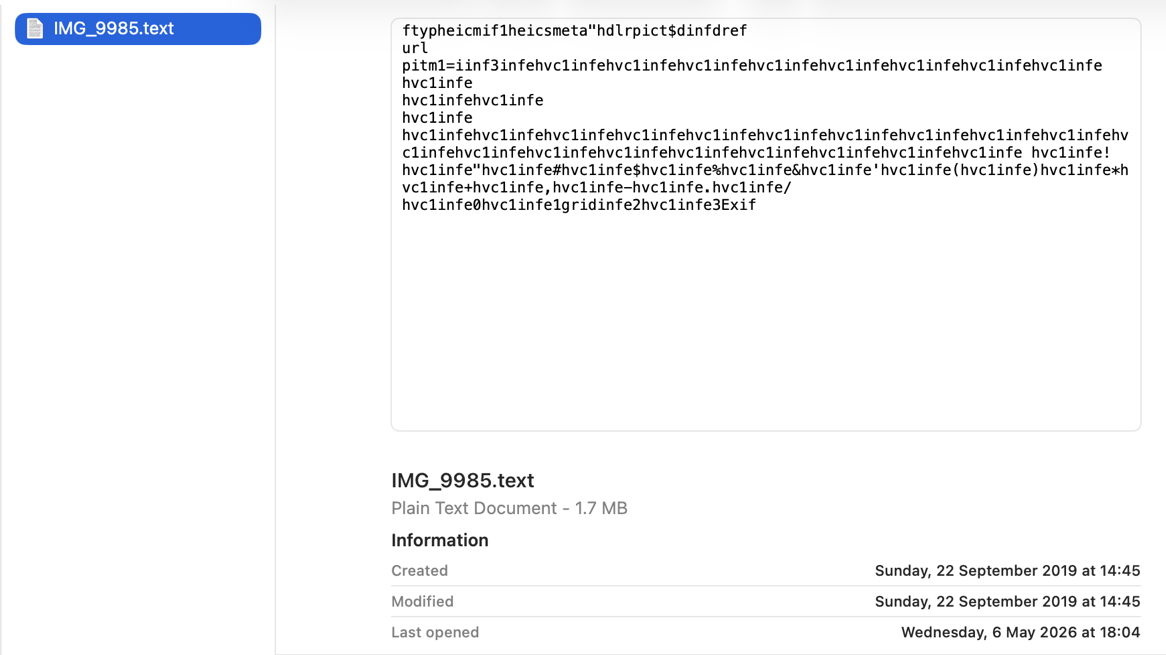
Finally, change the file’s extension to text, and you’ll see a preview of its text content, and it vanishes from the Find window too. That’s because text files are handled by their UTI of public.text, which includes public.rtf and others. Those don’t check the file data to ensure they’re not images, so the file is now being handled by the wrong qlgenerator and mdimporter, and won’t make any sense. As public.text formats don’t support Exif data, that isn’t extracted either, as you can see in SpotTest.
Change the extension back to heic, and you’ll see how quickly the right qlgenerator and mdimporter correct its thumbnails, previews, and search discovery, thanks to UTIs.

Last Week on My Mac: Syncing metadata in iCloud Drive

How would you cope if you started your Mac up to find every datestamp on every file had been set to 1 January 1970 at 00:00? Or that every Finder Tag had vanished? What if all the Exif information for your images had been wiped out? Metadata like those aren’t optional extras we can afford to lose, although other metadata, like Finder Info and the URL from which a file was downloaded, are more ephemeral.

Xattr flags

Back in 2013, when iCloud was just two years old, Apple’s engineers implemented a scheme to determine how metadata stored as extended attributes (xattrs) should be copied, to take into account its permanence. This was important at that time to ensure only the right xattrs were preserved when files were stored in iCloud Drive. They did this by adding flags to the xattr’s name to indicate which actions should result in preservation of that type of xattr, and the metadata it contains.

Apple provides an extensive suite of xattr types to store metadata such as author names, keywords and comments, whose names all start with com.apple.metadata:. These are matched by corresponding metadata attribute keys, for example the xattr com.apple.metadata:kMDItemKeywords bears the metadata content accessed by the key kMDItemKeywords. Rather than appending flags to them all, this scheme laid down a table of default flags to be applied.

Being exemplary engineers, this was all detailed in the source code for copyfile, which is also open source. However, as this was just after Apple stopped creating much of its technical documentation, and little has ever been published about iCloud Drive, that’s as far as that information went.

For iCloud Drive, the relevant flag is S, XATTR_FLAG_SYNCABLE, defined as “This indicates that the extended attribute should be copied when the file is synced on services like iCloud Drive. Sync services may enforce additional restrictions on the acceptable size and number of extended attributes.”

Default flags set for xattr types com.apple.metadata:* (except for five of the less used types) are PS to preserve them during copy, save, sync and backup. You can read the macOS 26 version of those source files in Apple’s Open Source GitHub.

FileProvider

For the next decade or so, iCloud Drive mostly respected those behaviours, although without documentation it all appeared puzzling until you read the copyfile source. Then Apple decided to modernise it by implementing its FileProvider framework, a major architectural change for the better. Although the framework is intended to be common to all cloud storage services, there remains ample scope for iCloud Drive to offer enhancements.

Current FileProvider documentation for developers states:
“The extended file attributes are part of the item’s metadata. The system sets extended attributes on dataless files, and preserves them on files that it renders dataless. The system decides which attributes to sync. To sync an attribute, it calls the xattr_name_with_flags(_:_:) method and passes the XATTR_FLAG_SYNCABLE flag. Some older attributes are also synced.”

While FileProvider appears intended to conform to the xattr flag scheme, there’s no mention of the tables of default flags listed in the copyfile source code.

Implementation

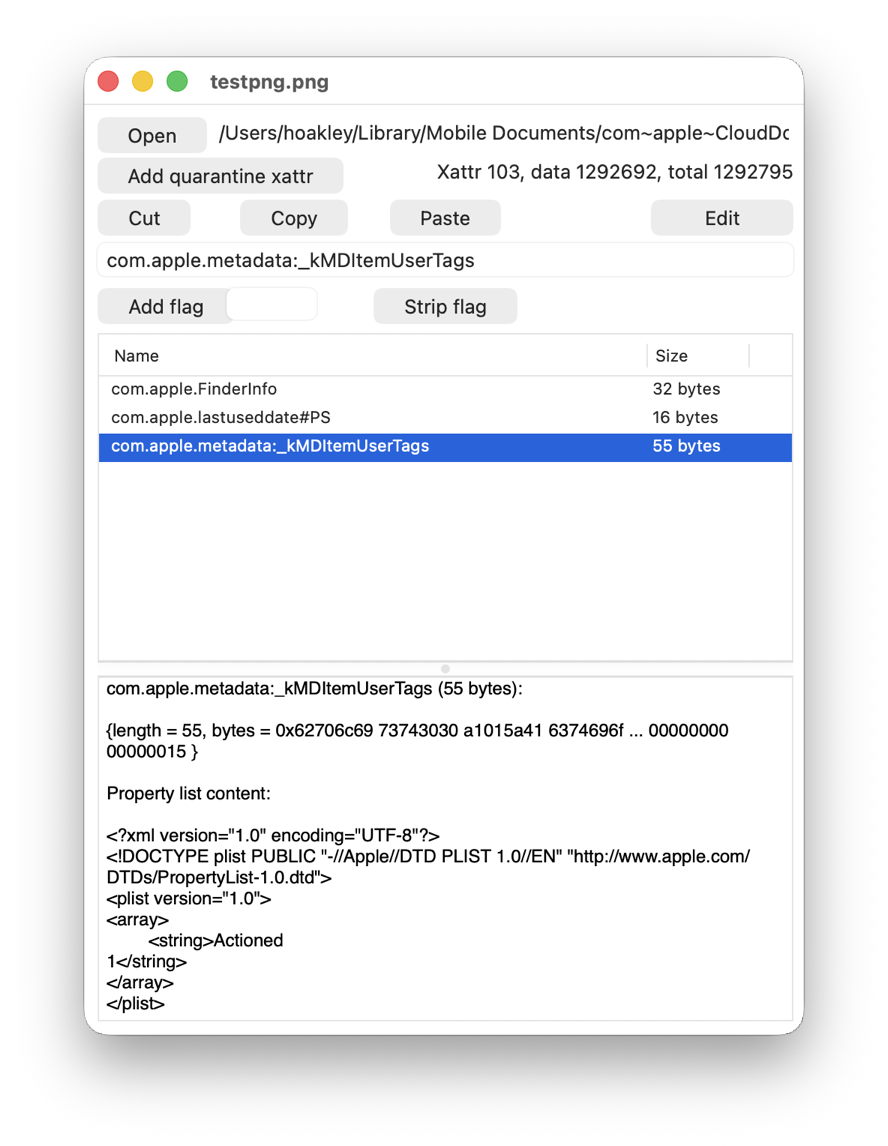
Last week I set out to test and document how well iCloud Drive manages metadata, following the xattr flag system and copying up all those invaluable com.apple.metadata:* xattrs, only to discover it doesn’t any more. Of Apple’s many standard xattrs, the only ones I found that synced reliably over iCloud Drive in macOS 26.4.1 were:

  • com.apple.metadata:_kMDItemUserTags (Finder Tag)
  • com.apple.lastuseddate#PS
  • com.apple.quarantine
  • com.apple.TextEncoding

The good news is that iCloud Drive through FileProvider does respect the S flag, but only where it’s explicit, rather than being set in that table of defaults. For those of us who have our own xattr types, such as those used for integrity checking by Dintch, Fintch and cintch, can still rely on iCloud Drive to sync those, provided they bear that S flag.

The bad news is that none of the most popular metadata-bearing xattrs are synced, apart from Finder Tags. All those com.apple.metadata:kMDItem* xattrs are blocked, as FileProvider doesn’t recognise them as having their default PS flags.

Workarounds

I have since looked at two workarounds, explicitly adding the S flag to those types that should be accorded it by default, and changing the xattr names from com.apple.metadata:kMDItem* to com.apple.metadata:_kMDItem*.

Adding xattrs like com.apple.metadata:kMDItemKeywords#S with an explicit S flag does ensure FileProvider syncs those xattrs. However, as neither Spotlight indexing nor the Finder appear to understand that flag isn’t really part of the type name, those preserved xattrs are of no use: they aren’t recognised by Spotlight for indexing, nor are they displayed in the Finder’s Get Info dialog or Preview pane.

Inserting an underscore into the xattr’s name was even worse, as it didn’t lead to their preservation, and was ignored by Spotlight indexing and the Finder.

This raises another interesting issue, in that there doesn’t appear to be a way to extend Spotlight indexing to encompass additional xattr types. There are extensive third-party type libraries, such as org.openmetainfo:* from Tom Andersen of Ironic Software and OpenMeta. But those appear to require their own indexing, search and presentation support.

Error

When I first realised the impact on metadata in iCloud Drive, I assumed this arose because the engineers implementing FileProvider, or those porting iCloud Drive to use that framework, had’t been aware of the xattr flag system and its primary purpose. But if that had been true, they couldn’t have respected explicit use of the S flag. Thus, I’m left with two plausible explanations:

  • Apple’s FileProvider/iCloud Drive engineers are unaware of the system defaults table in copyfile, so assumed that com.apple.metadata:* xattrs weren’t intended to be preserved when syncing.
  • Apple decided to end default sync support for com.apple.metadata:* xattrs in iCloud Drive.

The second of those is even more erroneous than the first, as it reduces iCloud Drive support for metadata to a level common with third-party cloud providers. In this respect, users will see no difference from the behaviour of Dropbox or Microsoft OneDrive, which isn’t the marketing choice I’d have expected from Apple.

Conclusion

iCloud Drive no longer syncs much metadata stored in xattrs, in particular that stored in com.apple.metadata:* xattrs, apart from Finder Tags. There is no workaround, and unless Apple restores that feature, it limits the use of iCloud Drive with Macs.

Chinese whispers in PDF metadata

Chinese whispers is an old children’s game where everyone sits in a circle, and one child whispers into the ear of the next on their right a sentence like Send reinforcements, we’re going to advance. That child then whispers the message they heard to the child on their right, until it reaches the one who started it, who says out loud what they heard, classically Send three-and-fourpence, we’re going to a dance, as a demonstration of how messages can so easily become corrupted. What this has to do with China remains one of childhood’s mysteries. I should also explain that three-and-fourpence was idiomatic British English in the days before our currency was ‘decimalised’, and meant three shillings and four (old) pence, about 17 (new) pence, sufficient at one time to enjoy a good night out.

In this article I’m going to do much the same with metadata for a PDF document, tracing what gets indexed by Spotlight, so becoming discoverable by search, and what is displayed in the Finder. This relies on several of my utilities, most of which are available from this page.

Source PDF

I prepared a completely unrelated PDF using my favourite PDF editor, PDF Expert, by adding metadata to be saved in the file’s data. As you might expect, there are several ways that could be stored in the PDF format, including XMP metadata, but in this case for simplicity they were added in the document information dictionary.

I inspected that in a source view in Podofyllin, which found the following fields:
/Author (Author name in pdf)
/Creator (Pages)
/Keywords (keyword1 pdf)
/Subject (Subject in pdf)
/Title (0PDFtest1accessdefault)

When rendered in macOS, those are ‘flattened’ by its Quartz PDF engine, to
/Author (Author name in pdf)
/Creator (Pages)
/Keywords (keyword1 pdf)
/AAPL:Keywords [(keyword1 pdf)]
/Subject (Subject in pdf)
/Title (0PDFtest1accessdefault)

Note the copying of keywords into a new attribute AAPL:Keywords.

Extended attributes

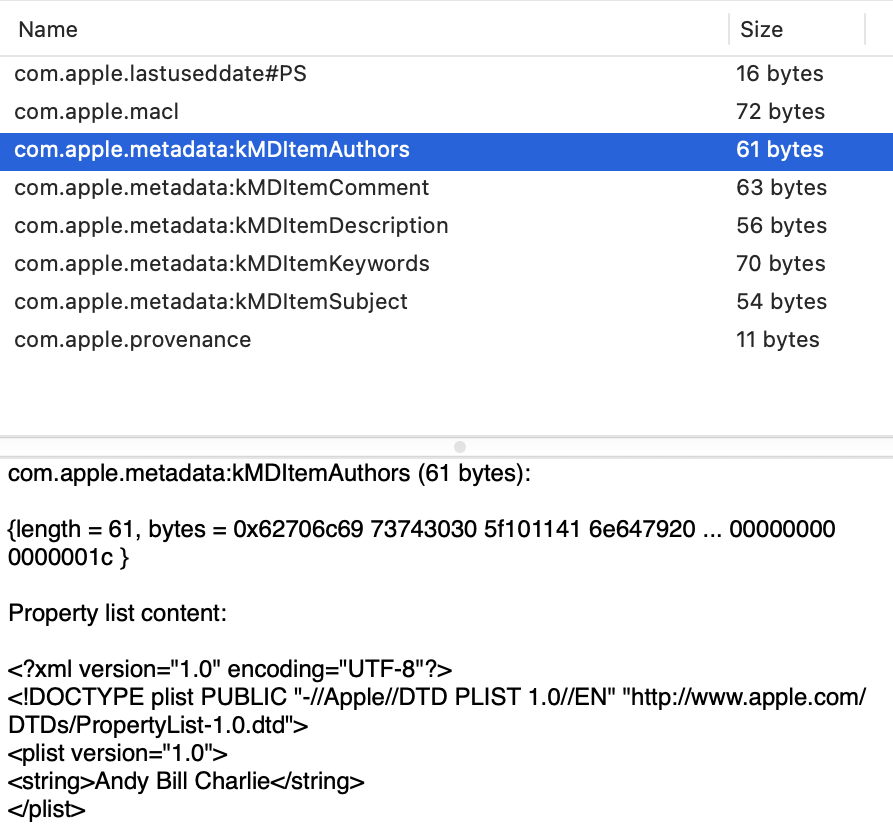
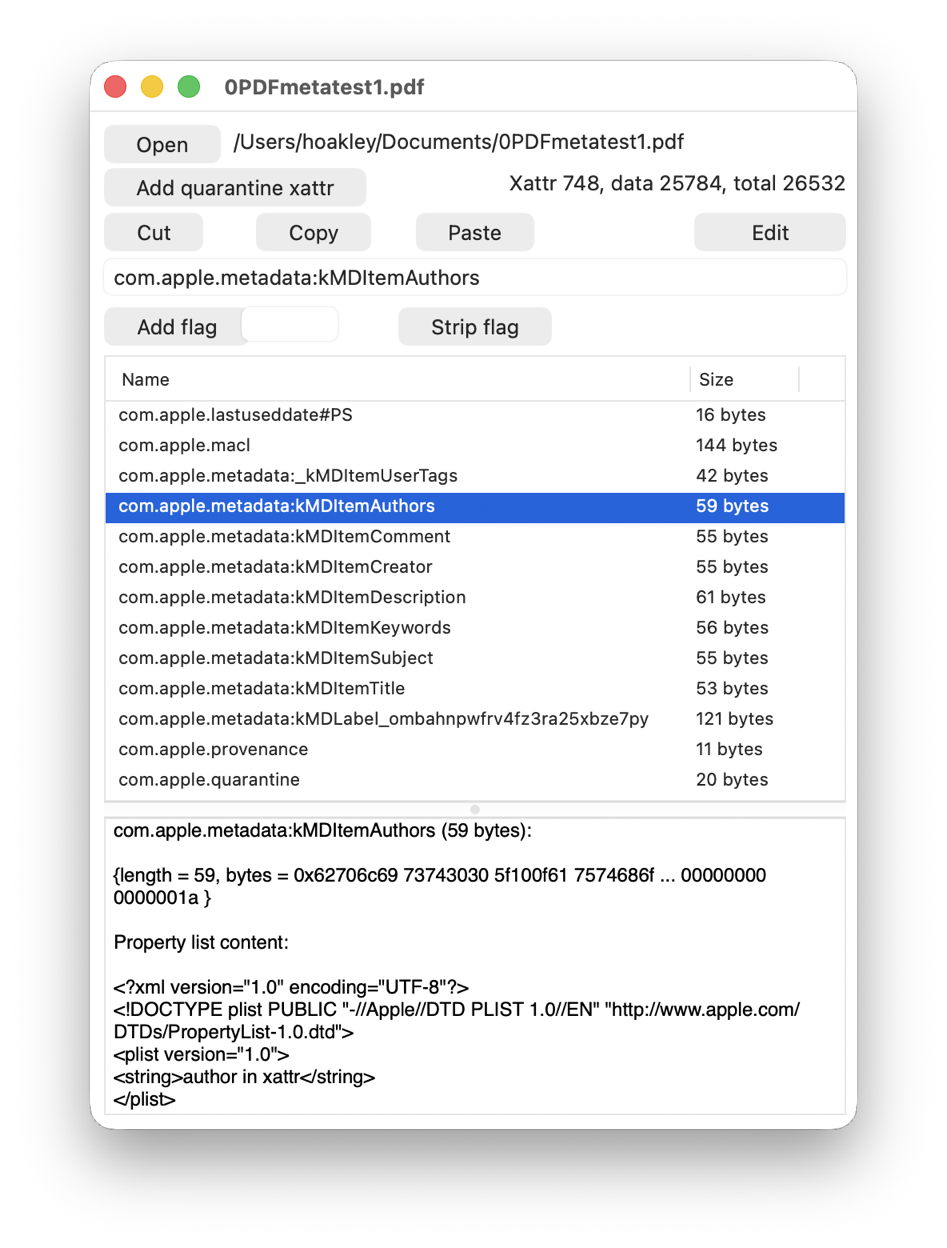
I then added seven extended attributes using Metamer, with names such as com.apple.metadata:kMDItemAuthors, as shown below in xattred.

Spotlight import

I then inspected the file in SpotTest’s new Drop Window, which reported the following attributes found by mdimport:
":EA:kMDItemAuthors" = "author in xattr";
":EA:kMDItemComment" = "xattr comment";
":EA:kMDItemCreator" = "xattr creator";
":EA:kMDItemDescription" = "xattr description";
":EA:kMDItemKeywords" = "keyword1,xattr";
":EA:kMDItemSubject" = "xattr subject";
":EA:kMDItemTitle" = "xattr title";

all from the extended attributes, while those derived from the PDF data were
kMDItemAuthors = (Pages);
kMDItemCreator = Pages;
kMDItemDescription = "Subject in pdf";
kMDItemKeywords = ("keyword1 pdf");
kMDItemTitle = 0PDFtest1accessdefault;

Those attributes have already changed, with PDF Subject becoming kMDItemDescription, Creator being duplicated into kMDItemAuthors, and the loss of PDF Author.

Spotlight indexes

Attributes reported by mdls changed again to
kMDItemAuthors = (Pages)
kMDItemComment = "xattr comment"
kMDItemCreator = "Pages"
kMDItemDescription = "Subject in pdf"
kMDItemKeywords = ("keyword1,xattr")
kMDItemSubject = "xattr subject"
kMDItemTitle = "0PDFtest1accessdefault"

This has lost the xattr attributes kMDItemAuthors, kMDItemCreator, kMDItemDescription and kMDItemTitle, and the PDF kMDItemKeywords. That list of 7 attributes should then be searchable using Spotlight.

The Finder

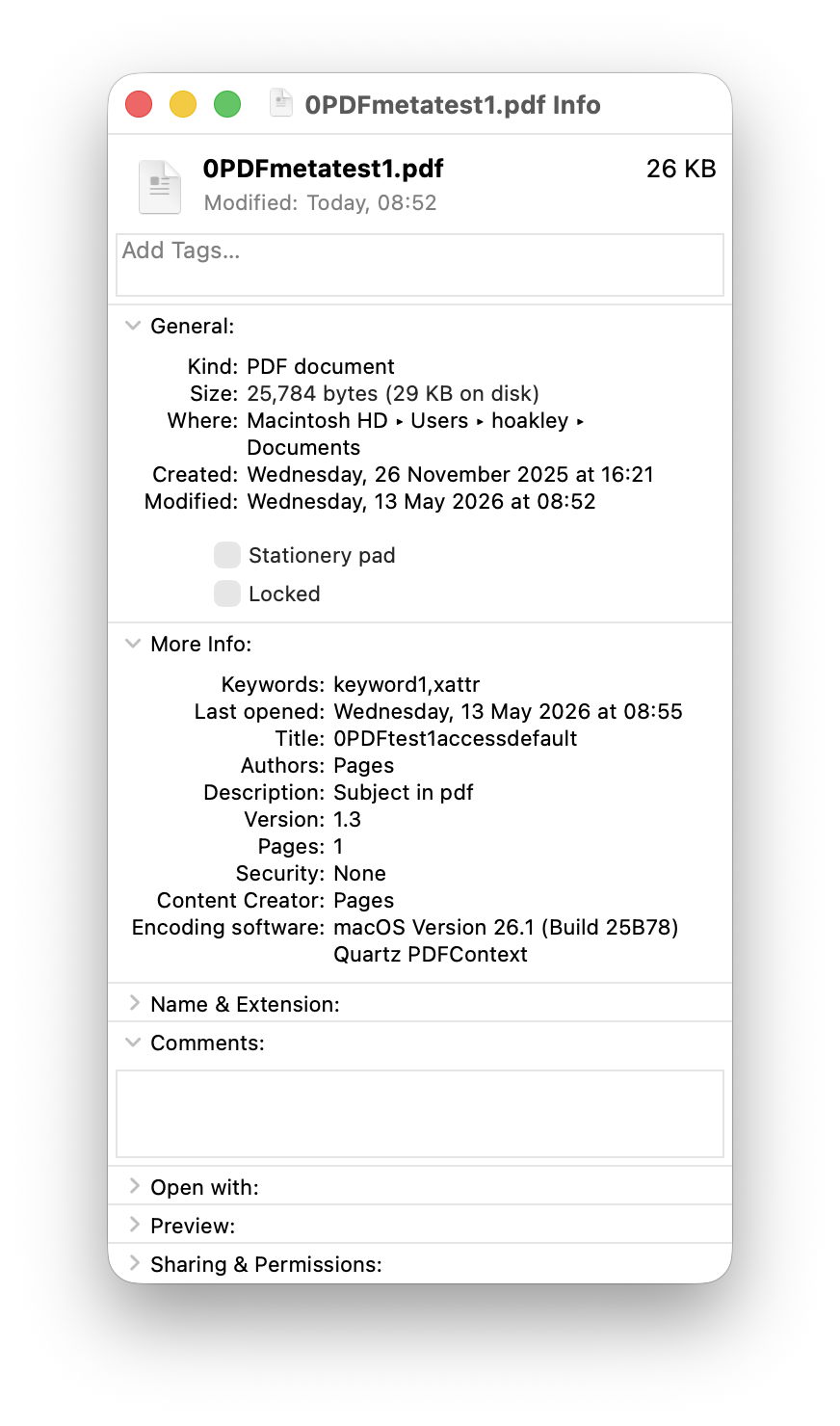
The final step was to discover which of those could be displayed in the Finder, either in its Get Info dialog, or in the Preview panel of a Finder window.

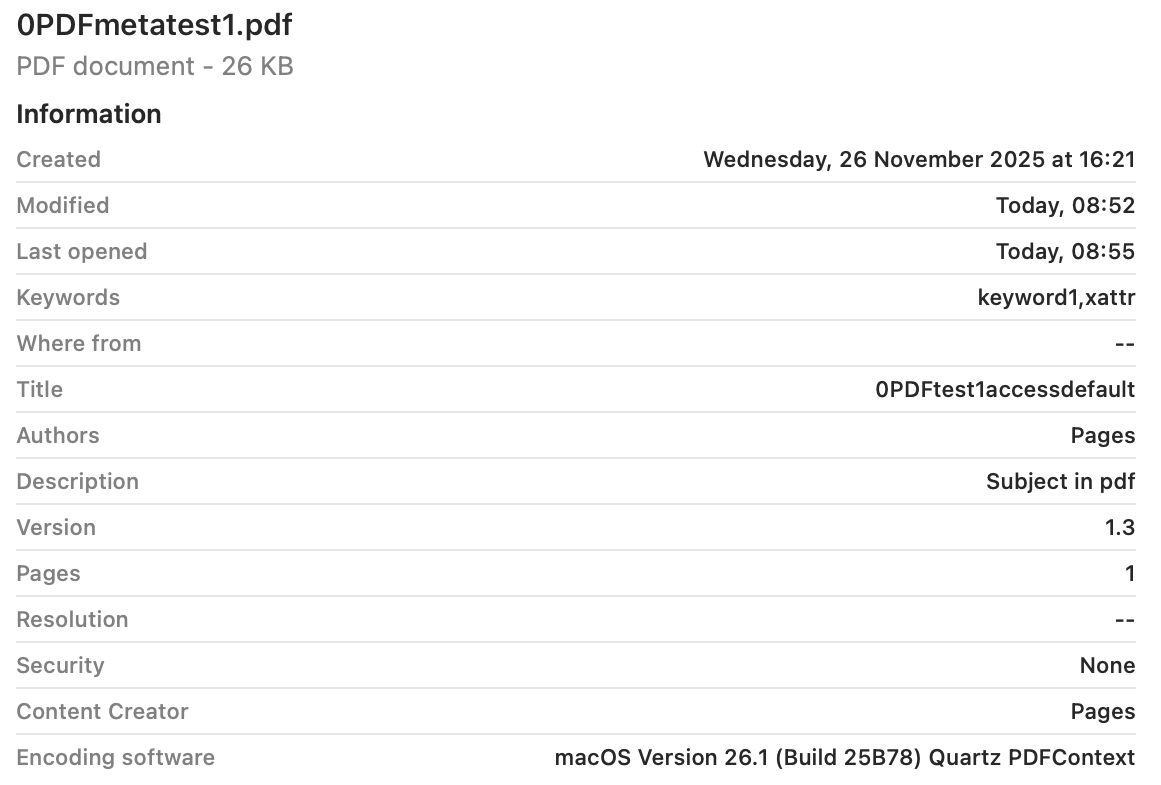
Only 5 of those attributes survived in the Finder, and were given as
Authors: Pages
Content Creator: Pages
Description: Subject in pdf
Keywords: keyword1,xattr
Title: 0PDFtest1accessdefault

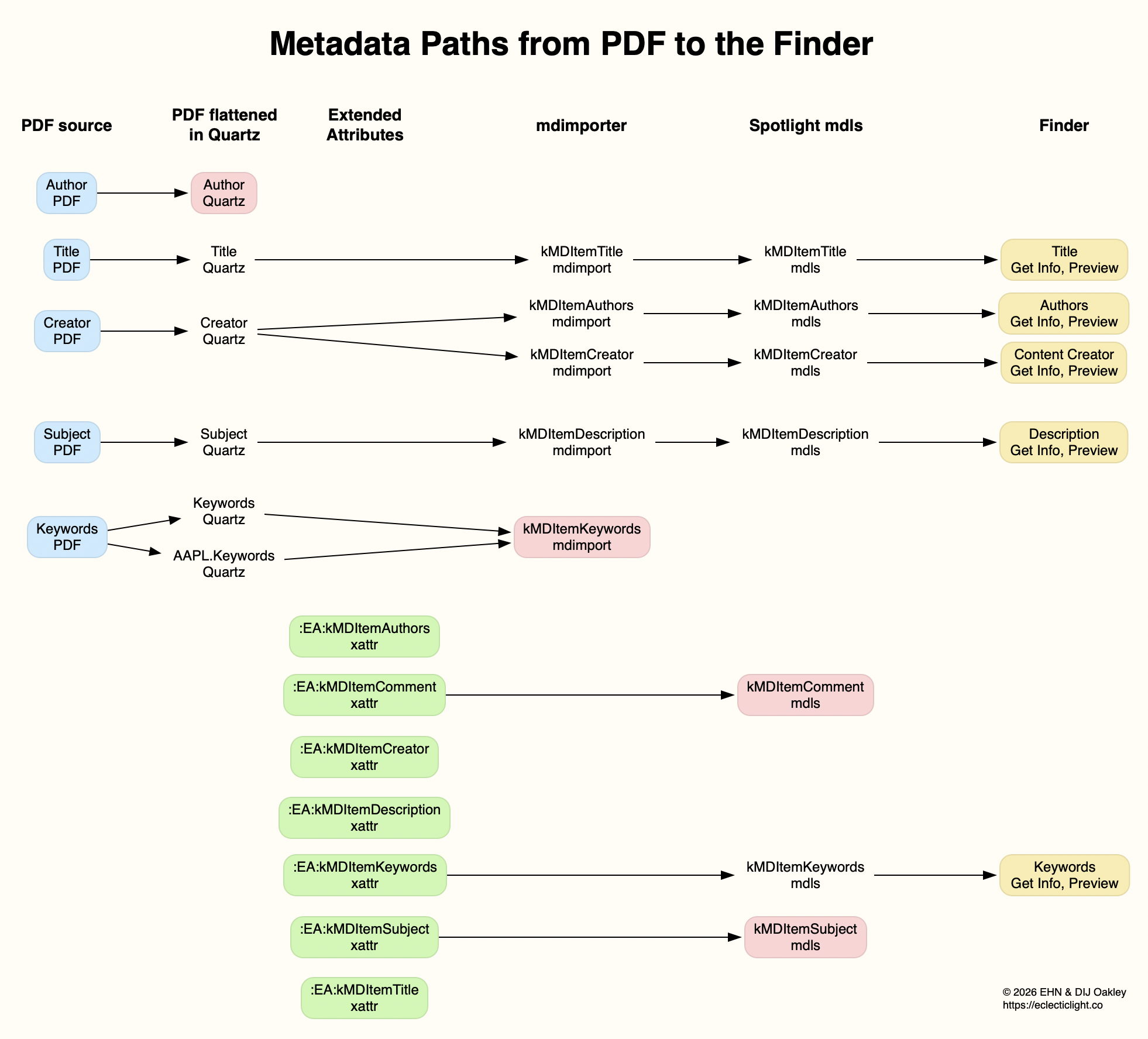
Of those, 4 are taken from the metadata in the PDF file, and only the Keywords were taken from its extended attribute. The attribute named as Authors contains a duplicate of what had originally been in the PDF Creator field, but neither of the PDF Author or xattr kMDItemAuthors fields. Those paths are traced in the diagram below.

Conclusions

Of the total of 12 distinct metadata attributes added in the PDF data and extended attributes, only 6 different items were indexed by Spotlight, and 4 were displayed in the Finder (allowing for the duplication of Authors and Content Creator).

Before relying on metadata for search and access in the Finder, it’s essential to verify that the attributes you intend using are successfully indexed and displayed. Choose the wrong attributes and you’ll never find anything.

Does iCloud Drive now lose almost all metadata?

Cloud services have long differed in how they handle metadata, particularly that stored in extended attributes (xattrs). The one service you would expect to get this right is Apple’s own iCloud Drive, but it seems to have silently changed policy without rhyme or reason. It has been almost three years since I last tested iCloud Drive to assess which metadata it does preserve, and I’ve been shocked to discover that it now preserves almost no xattrs at all.

Testing

This used a Mac mini M4 Pro and a MacBook Pro M3 Pro, both running macOS 26.4.1 Tahoe, and connected to the same iCloud+ account, with a local Content Caching server active. On both Macs, iCloud Drive was configured in nonreplicating mode, with Optimise Mac Storage turned on. All files were downloaded locally when necessary before use.

A test suite of files with extensive metadata content in xattrs was moved to a folder in iCloud Drive on the Mac mini, and ample time was allowed for them to sync up to iCloud. Each was inspected on the Mac mini, then on the MBP, and their metadata was compared using xattred.

Results

All metadata was preserved in the original files that were stored locally on the Mac mini, even after evicting them and downloading their data to reconstitute them. There was no evidence that large xattrs were removed by eviction, as they have been in the past.

Only the following metadata was synced down from iCloud Drive to the MBP:

  • com.apple.metadata:_kMDItemUserTags (Finder Tag), which transferred complete with its custom label
  • com.apple.lastuseddate#PS
  • com.apple.quarantine
  • com.apple.TextEncoding
  • co.eclecticlight.dintch.hash#S and co.eclecticlight.dintch.time#S, custom xattrs used by Dintch and its relatives to check file integrity.

Metadata stored within a file’s data such as EXIF was also preserved, as would be expected.

Finder Comments were not synced to the MBP, either in their primary .DS_Store location, or as a xattr.

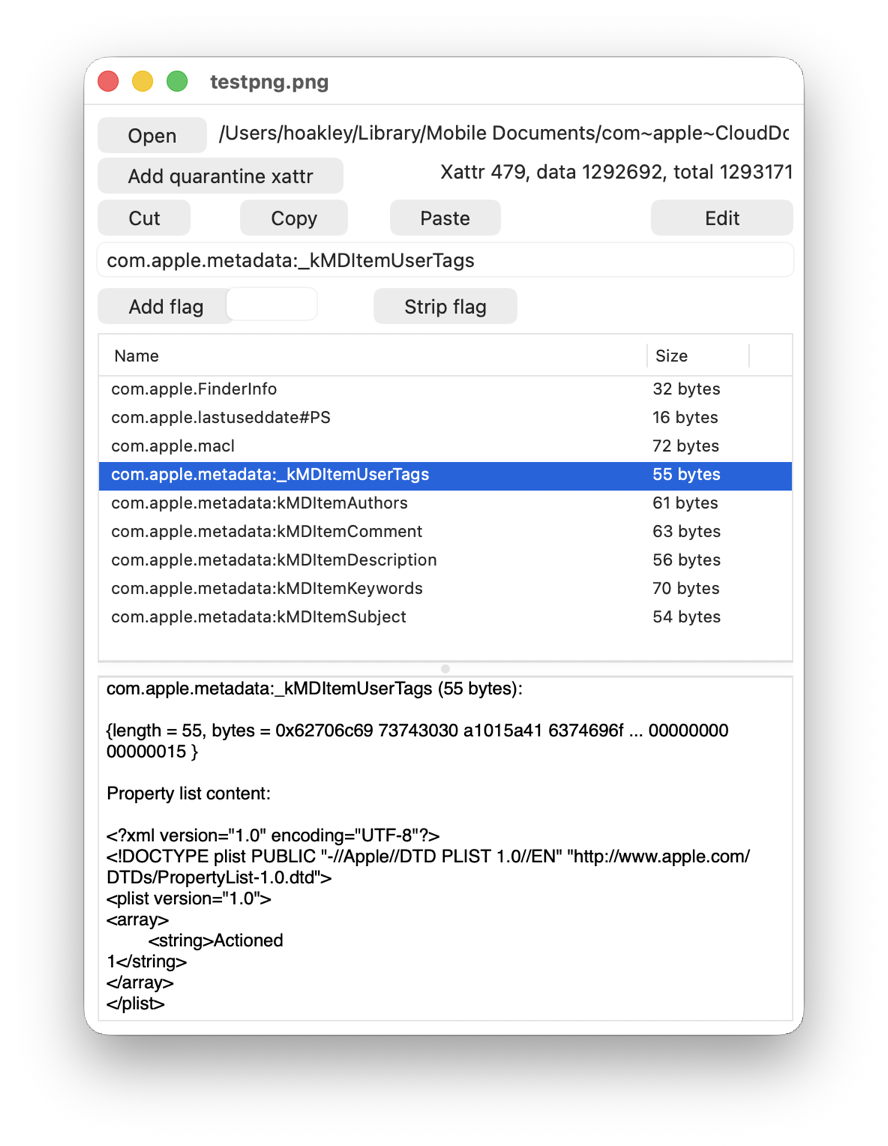
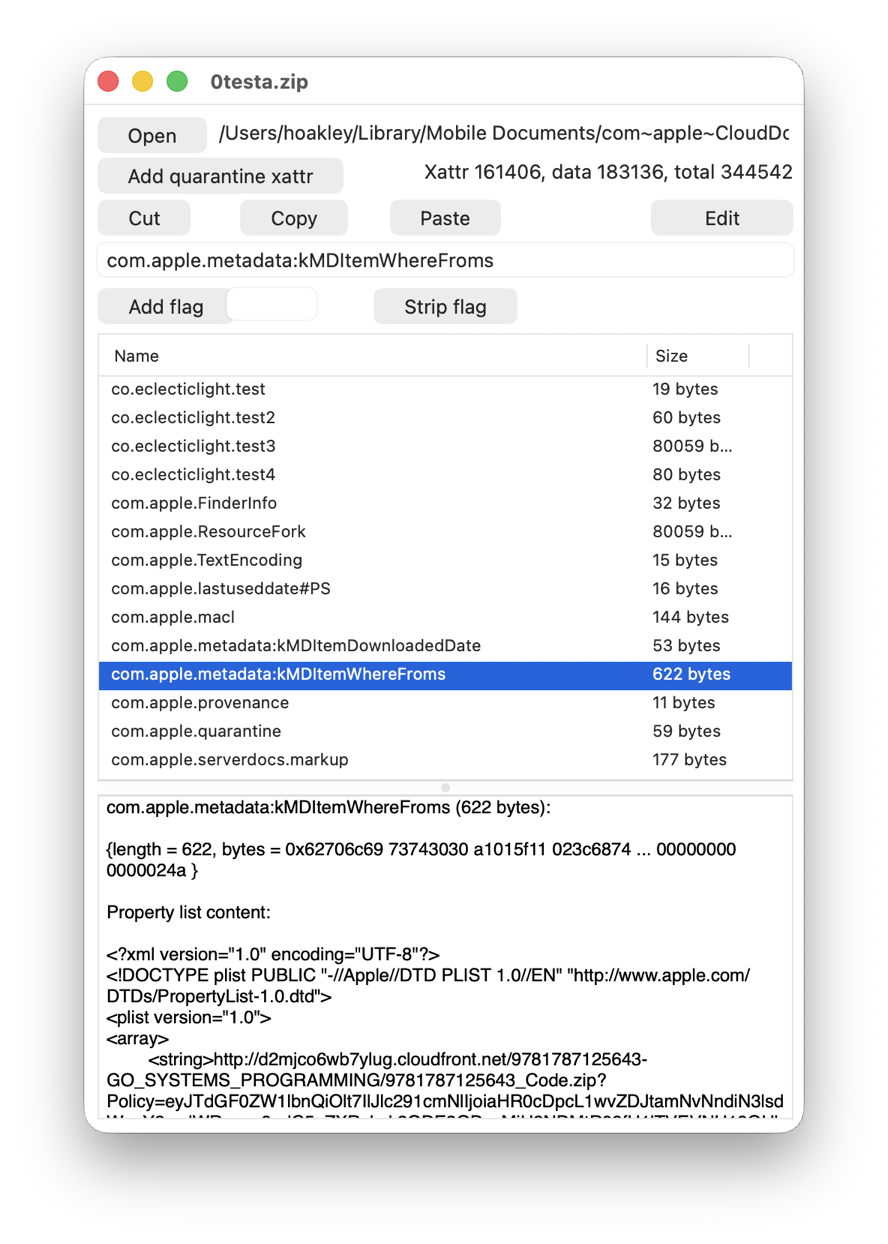
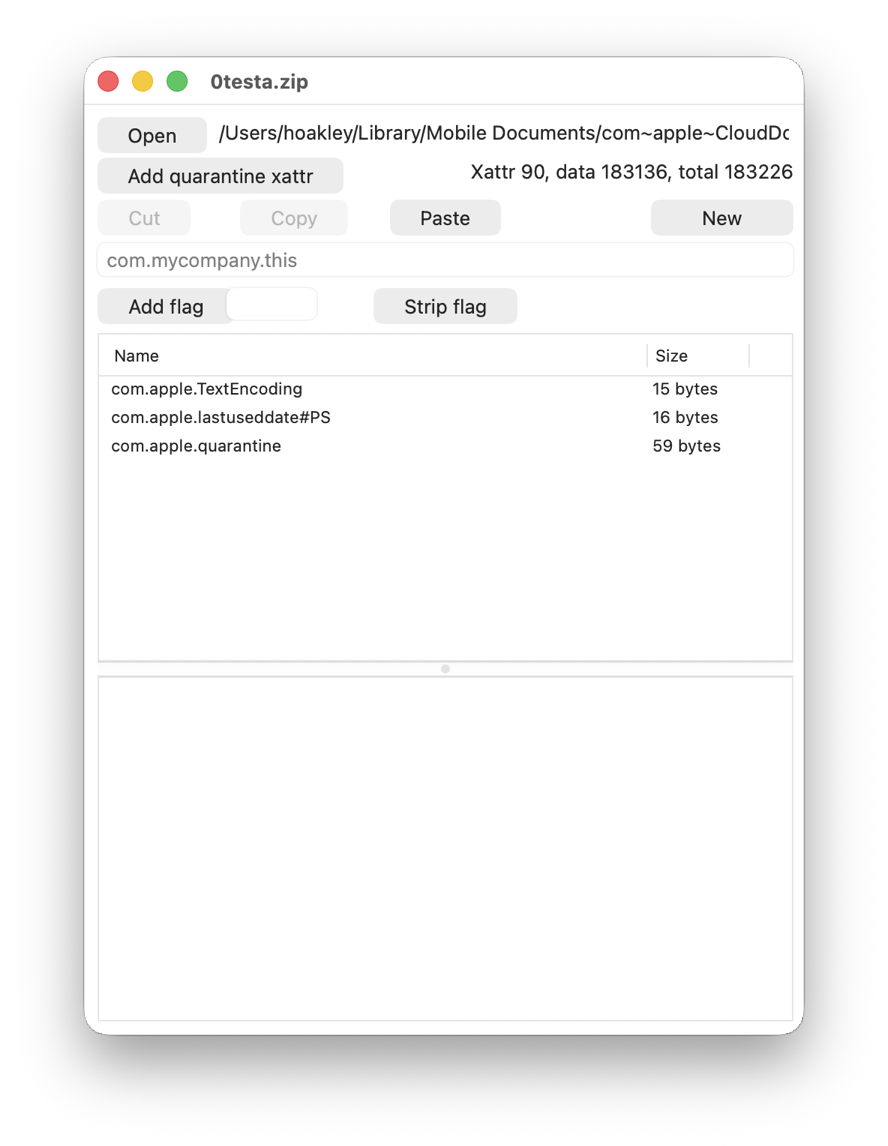
Two of the more obvious examples viewed in xattred are:

This is one of the test files I used recently when looking at xattrs suitable for metadata, with a Finder Tag added. Above is the original on the Mac mini, and below is the synced copy on the MBP. Every single com.apple.metadata: xattr has been stripped, except for com.apple.metadata:_kMDItemUserTags.

This is a crafted test suite that I have used for some years, above in its original on the Mac mini, and below as synced to the MBP, where just three xattrs have survived passage through iCloud Drive.

What should happen?

Policy for iCloud Drive appears to have changed over the last few years. When I first tested this between Sierra and High Sierra in 2018, few xattrs were synced, and even Finder Tags were stripped. Just over a year later, we realised this should be controlled by xattr flags, and when I tested this formally in a late version of macOS Sonoma in July 2023, com.apple.metadata: xattrs were preserved if they weren’t too large. However, eviction caused all large xattrs to be stripped even from the original source Mac.

Since then, iCloud Drive has continued to adopt the new File Provider framework, and Apple has further extended xattr flags, now described here. At no stage, though, does Apple appear to have documented which metadata and extended attributes should be preserved in iCloud Drive, so we can only speculate what it intends should happen.

Why has this changed?

Apple doesn’t appear to have made any relevant changes to the xattr flag system as detailed in the source of copyfile. Under that, almost all com.apple.metadata: xattrs should be treated as if they have PS flags attached, so should be “preserved during syncing with services such as iCloud Drive”.

One possible explanation is that the File Provider framework doesn’t respect xattr flags as laid out in copyfile, possibly because it doesn’t use copyfile but has its own independent mechanism. That would be in accord with Dropbox, which only appears to support syncing a few types of xattr. Information for Microsoft OneDrive is too vague for comparison, though.

Consequences

You should expect all metadata stored in xattrs to be stripped when synced via iCloud Drive. The exceptions to that include Finder Tags and those explicitly assigned an S flag, such as the custom integrity xattrs used here. Unfortunately, appending #S to well-known xattr types is likely to cause problems, as few apps handle those flags correctly, so won’t recognise the xattr type.

If you want to preserve that metadata, then you’ll either need to archive files using a method that preserves xattrs, or transfer it using a more conventional network method such as AirDrop, which does preserve almost all xattrs.

Currently, as far as metadata is concerned, iCloud Drive has no advantage over third-party cloud storage such as Dropbox.

Conclusions

  • When synced via iCloud Drive, expect all metadata stored in xattrs, with the exception of Finder Tags and those explicitly assigned an S flag, to be stripped when accessed from another Mac.
  • Xattrs and other metadata are faithfully preserved when moved between Macs using AirDrop. If you want to preserve their metadata, use that instead of iCloud Drive.

How macOS can ignore and hide metadata

When I was researching yesterday’s article about storing and managing metadata, I encountered some unexpected behaviour that merited deeper investigation. This article explains how that can lead to macOS ignoring and hiding metadata.

Spotlight is about more than just search, as it runs the metadata services for macOS. Those ingest information about files, contents of their extended attributes, metadata extracted from file data such as EXIF in images, and indexed text content. When the Finder needs to populate the fields of a Get Info dialog, or those shown in a Preview pane, it calls on Spotlight’s volume indexes to provide the data. The process of analysing and extracting metadata is thus important to a wider range of features beyond search, and it’s concerning when metadata known to be present is unexpectedly missing.

To determine what might be going wrong, I took six test files in macOS 26.4.1:

  • two plain text files, indexed by /System/Library/Spotlight/RichText.mdimporter
  • one RTF file, indexed by /System/Library/Spotlight/RichText.mdimporter
  • one PDF file, indexed by /System/Library/Spotlight/PDF.mdimporter
  • one JPEG and one PNG screenshot, indexed by /System/Library/Spotlight/Image.mdimporter.

To each I attached five xattrs containing distinctive test text:

  • com.apple.metadata:kMDItemAuthors, known in the Finder’s Find search terms as Authors;
  • com.apple.metadata:kMDItemComment, known as Comment, and distinct from Finder or Spotlight Comment;
  • com.apple.metadata:kMDItemDescription, known as Description;
  • com.apple.metadata:kMDItemKeywords, known as Keywords;
  • com.apple.metadata:kMDItemSubject, known as Subject of this item.

I then used the Finder’s Find window to search for part of the contents of each of the extended attributes for each of the test files. I also viewed each file in a Preview pane, with maximal display of information, as described here, and in a Get Info dialog.

For each file, I ran the following two commands:
mdimport -t -d2 filename
to list all its known metadata recognised by mdimporter. That crashed for both the image files, a bug that has been long present. I also ran
mdls filename
to list indexed metadata, which didn’t crash.

Search results

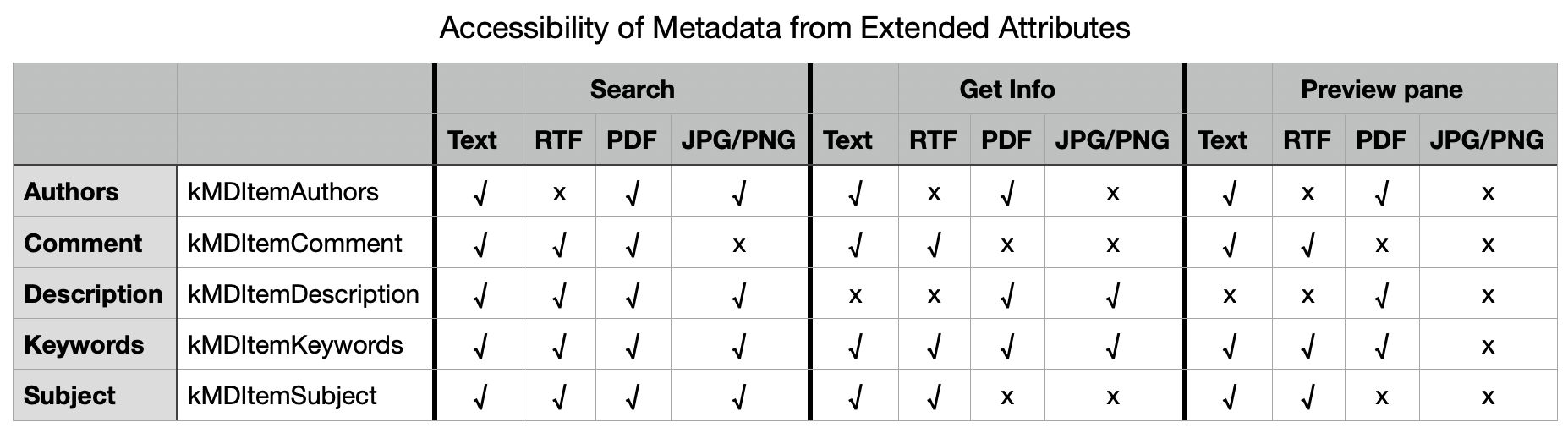
Search worked as expected and proved successful for all files with Description, Keywords and Subject. However, I was unable to find Authors metadata for the RTF file, and Comment metadata couldn’t be found for the JPEG or PNG images.

Finder preview pane

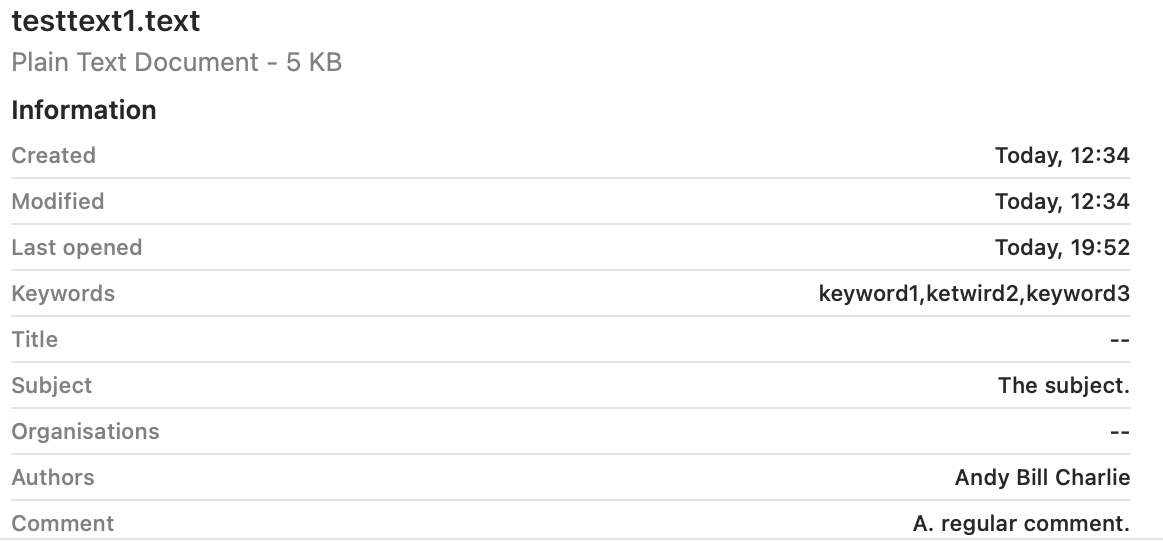
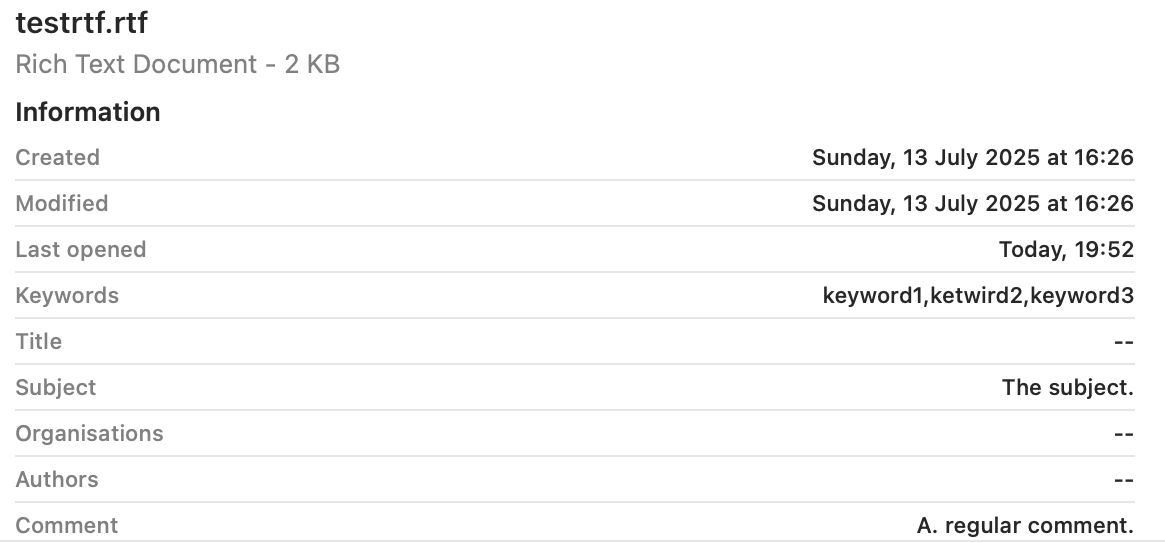
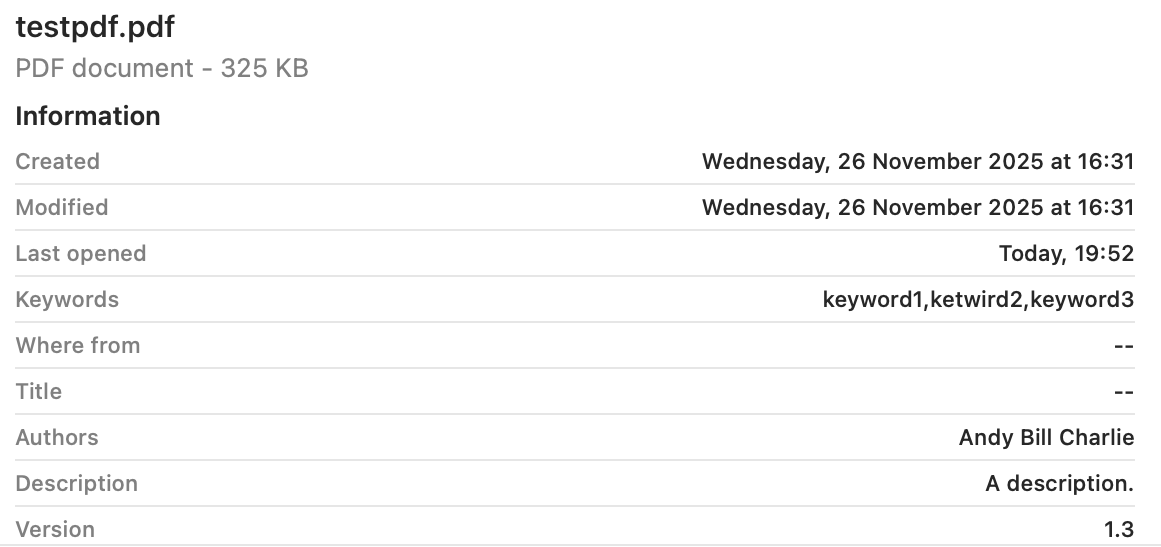
The two image formats displayed none of the metadata used. Otherwise Keywords was shown in each, Subject and Comment were omitted from PDF, and Authors and Description omitted from RTF.


These are summarised in the table below.

There are two serious failures shown here, failure to index Authors metadata correctly in the RTF file, and failure to index Comment metadata correctly in the JPG and PNG files. Otherwise all failures appear to be the result of design decisions over which types of metadata should be displayed in the Finder.

Failure to index Authors in RTF

From the mdimport listings, all five xattrs were recognised correctly and should have been indexed. However, there were additional [null] listings for four of them, including Authors, presumably derived from the absent RTF Info section, an optional feature in the format and often absent. Separate testing revealed that, for the Authors metadata alone, the content extracted from the Info section of the RTF overrode that obtained from the xattr, even when it was null. Adding the authors to the Author (note the singular) entry in Info restored its indexing and search, but using the text in RTF Info rather than the xattr.

There are thus two related bugs here:

  • The Author field from RTF Info metadata should be indexed into its own field, to avoid conflict with any com.apple.metadata:kMDItemAuthors xattr present.
  • Only com.apple.metadata:kMDItemAuthors xattr content should be indexed into Authors.

Failure to index Comment in JPG/PNG

No mdimport listing was available for these image files because of the tool crashing persistently. However, it’s clear that the contents of Comment was taken not from the xattr, but from the EXIF UserComment, which had been set by macOS to Screenshot when that screenshot had been made. That metadata should surely have been indexed into a separate category such as a new kMDItemUserComment to avoid such collisions.

There are again two related bugs:

  • The UserComment field from EXIF metadata shouldn’t be indexed into Comment, but into its own field.
  • Only com.apple.metadata:kMDItemComment xattr content should be indexed into Comment.

Conclusions

  • There appear to be indexing bugs in /System/Library/Spotlight/RichText.mdimporter and /System/Library/Spotlight/Image.mdimporter. This is the third bug I have investigated in RichText.mdimporter.
  • Those can lead to incorrect indexing in kMDItemAuthors (Authors) and kMDItemComment (Comment) respectively.
  • They limit significantly the usefulness of those xattrs as metadata in macOS.
  • Of the five metadata xattrs tested here, only one, kMDItemKeywords (Keywords), appears both reliable for search and displayed generally in the Finder.
  • kMDItemDescription or Description, and kMDItemSubject or Subject are reliable for search, but aren’t displayed well in the Finder.
  • Aside from these bugs, poor display coverage in the Finder limits the usefulness of these xattrs.
  • Investigating bugs in Spotlight mdimporters can be challenging, particularly when mdimport is so prone to crash.

How to store and manage metadata in macOS

One of the design features of macOS is that a file’s metadata can be stored separately from that file’s data. This is normally achieved by extended attributes, xattrs, and to aid that there’s a rich and extendable range of them. This article explains what you can and can’t do with them, as of macOS 26.4.1.

More generally, most metadata are stored within a file’s data, to accommodate operating systems and file systems that don’t have such rich features. Most image formats, for example, incorporate standard collections of metadata such as EXIF information, which are saved with the image data. PDF and Word documents have similar features. These have the disadvantage that changing the metadata results in the file data being altered, and that makes it difficult to track and to guarantee the data’s integrity. This can result in damage or corruption to the data in a PDF file during editing of comment metadata, for example. When possible it’s far better to separate metadata.

Distinguishing between data and metadata can also be tricky at times. This is easiest with non-verbal data like images and audio, where text is clearly separate from data, but it can appear more arbitrary with written documents. Some content such as copyright information or an index is universally accepted as metadata, but abstracts and appendixes may vary. Some types of document, such as official standards, draw explicit distinctions, using qualifiers like normative and informative, to assist.

Finder Comments and Tags

These are the two standard types of metadata currently best supported in macOS, both being readily accessible in the Finder and applicable to any file or folder.

The main problem with Finder Comments is that they are primarily stored separately in the hidden .DS_Store file in the same directory as the item, although a secondary copy is written to a xattr attached to that file/folder. They’re easily accessed in the Finder’s Get Info dialog, and can be shown in List view windows, although that doesn’t work for multi-line comments. On balance, their strange storage makes them fragile and unsuitable for many uses.

Finder Tags are stored properly in a xattr, and are most widely distinguished by the coloured tag displayed. Although they can be repurposed to store text, their main value remains in categorisation. There’s a practical limit of 20-25 characters before their text label is cropped in most views, and labels for multiple items can only be shown in the Finder’s List view layout. For the majority, they are best used for allocating items to a limited number of categories, distinguished foremost by their tag colour, and aren’t suitable for more substantial text like even a brief summary.

Properties

To be generally suitable for storing text metadata for a file or folder in macOS, these should:

  • be attached to the file or folder as a xattr;
  • be capable of storing and displaying up to 3,804 bytes of UTF-8 text, the upper limit of data stored alongside the xattr;
  • use xattr flags to control their persistence;
  • be indexed by Spotlight so their contents can be searched;
  • be preserved in iCloud Drive, and when copied to a different volume;
  • be displayed and edited easily, ideally in the Finder, without the need for third-party software.

Which xattrs?

Of the dozens of xattrs available, I’m aware of just three that come closest to meeting all those requirements:

  • com.apple.metadata:kMDItemComment, known in Spotlight search menu as Comment, and different from Spotlight Comment, which is synonymous with Finder Comment;
  • com.apple.metadata:kMDItemKeywords, Spotlight Keywords;
  • com.apple.metadata:kMDItemSubject, Spotlight Subject.

These are sufficiently persistent as to be preserved in iCloud Drive, and when transferred between Macs using AirDrop. Although they can be displayed in the Finder, they each require third-party software for creation and management. As explained below, this doesn’t apply to image files, which are expected to store their metadata in EXIF information within the file, and not in xattrs.

Management

All three can be created and managed using my free Metamer, as well as with the more extensive features of xattred.

metamer131

Metamer is a lightweight drag-and-drop utility to create, edit and view many different types of xattr, including the three recommended. It uses a Combo box offering 16 of the most commonly used xattrs, and you can enter the full name of any other if you need. Although it can be used to edit multi-line text, it’s designed to work best with single lines.

xattred is a general xattr editor with more extensive capabilities, and ideal for checking all the xattrs attached to a file or folder. It doesn’t offer the conveniences of Metamer, though.

Display

Each of these three xattrs is displayed in the More Info section of the Get Info dialog, and depending on settings, they can also be shown in the Finder’s preview pane when enabled in Preview Options for that file type. The latter is explained in more detail here, and can appear counter-intuitive at times. However, they can only be added and displayed for supported file types. For example, JPEG and PNG image files can’t display these three xattrs in Get Info dialogs or in the preview pane, but PDF, RTF, text and many other file types can.

None of the three can be listed for multiple files in any of the Finder’s view layouts.

Spotlight

All three are available in the list of search terms available in the Other item at the foot of the search term menu in a Finder Find window, as listed above.

But

When researching this article, I discovered some odd behaviours that render some xattrs both invisible and undiscoverable by Spotlight search. I hope to describe those fully tomorrow if I can get my head around them.

Use Finder tags for categories

Finder tags are a simple and accessible way of categorising files and folders by attaching one or more of seven colours to them, together with a text label. This article explains how they work, and how to get the best from them.

Tag metadata

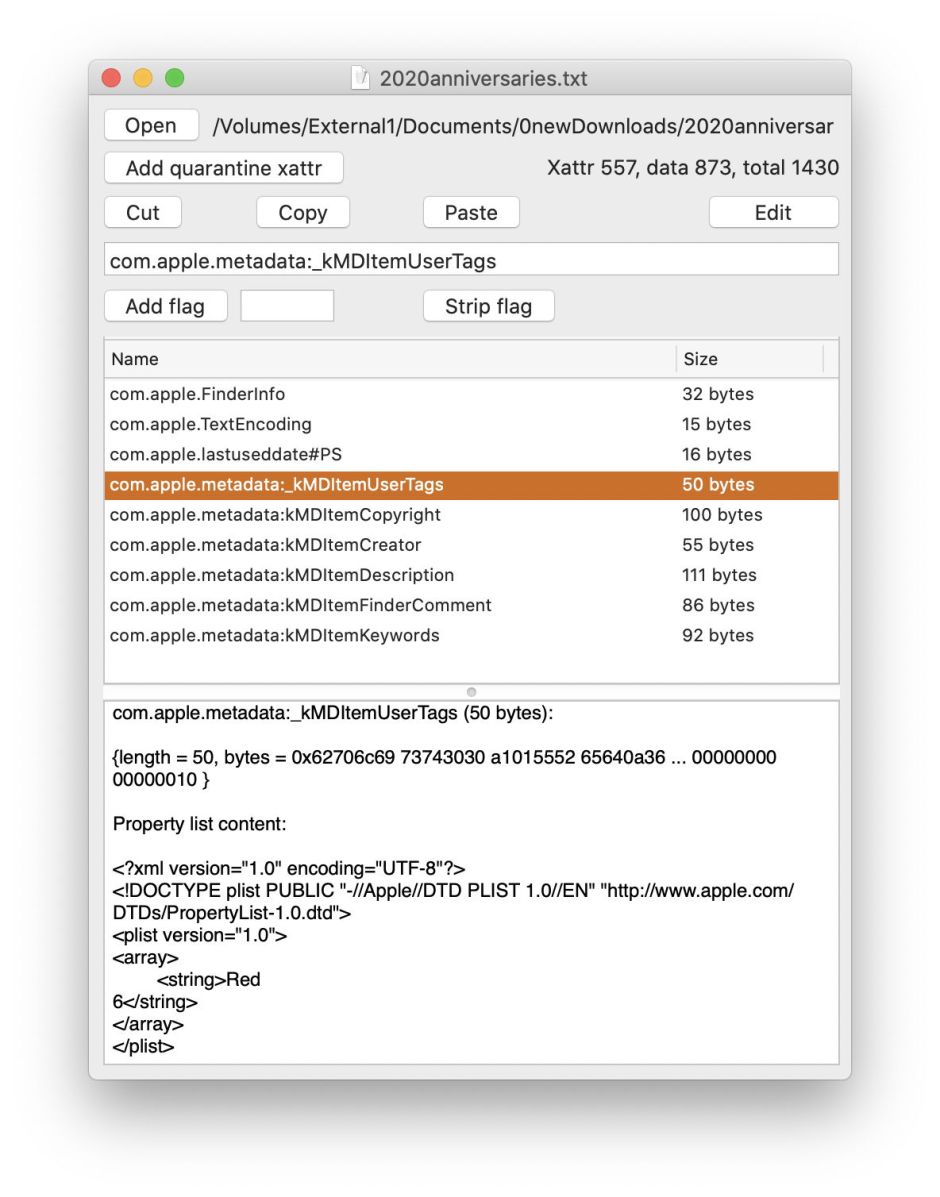
Finder tags are stored in extended attributes of type com.apple.metadata:_kMDItemUserTags. They consist of a binary property list containing a little UTF-8 text. This is an array of strings, each containing a tag name, followed by the newline character, followed by the colour number (0-7). The array can be empty, which usually indicates a tag had been attached, but has now been removed.

tags04

Colour numbers used are:

  • none, 0
  • grey, 1
  • green, 2
  • purple, 3
  • blue, 4
  • yellow, 5
  • red, 6
  • orange, 7.

Thus a tag name might read Red\n6, or Orange\n7 Green\n2 for two colours, where \n represents the newline character 0a. As the user can assign (almost) arbitrary text to labels, those could equally be Urgent\n6, or Important\n7 Project\n2. When in a location indexed by Spotlight, the text content prior to the newline character (excluding the digit) in each tag is indexed.

When the Finder writes a tag extended attribute to an item, it also adds a null com.apple.FinderInfo xattr of 32 bytes length, if that isn’t already present.

Tagging

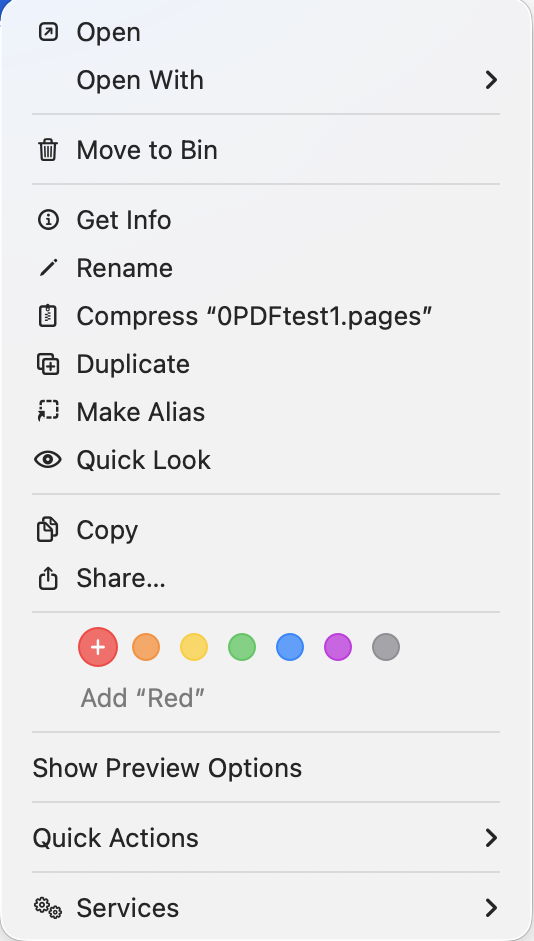
Tags are easily added to a file or folder in the Finder by selecting the item and using the command in the contextual menu. The menu lists the seven favourite tags, as selected in the Finder’s settings, by colour.

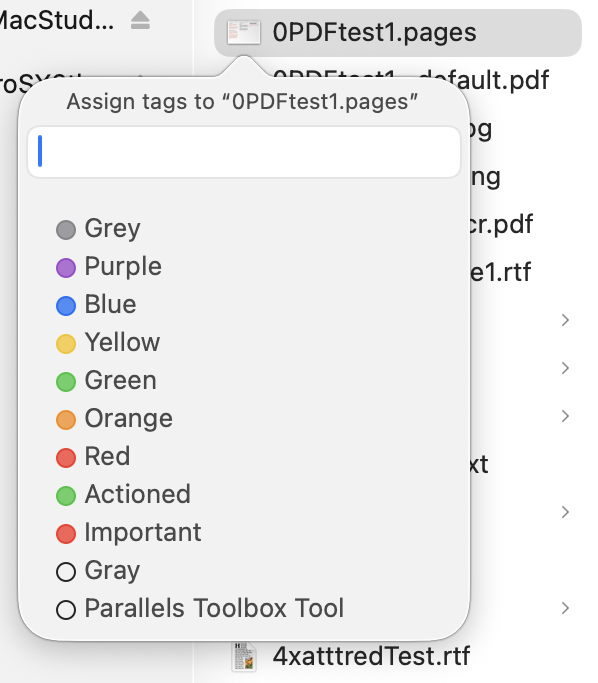
A separate command opens a floating window offering all tags instead, giving access to others in addition to the seven favourites.

Tags are removed from items using the same tools, either to remove one of the seven favourite tags, or any other that has been attached.

Once attached to a file or folder, the colours of its tags are displayed in the Name section of each type of Finder window. List view can be set to display the text label as well, although that’s not available in other window types. In macOS Tahoe, tagged folders are also coloured according to the last of the tags attached to them, when that option is enabled in the Finder’s settings.

Tags are widely supported in the Finder, macOS tools, and apps. When you show Tags in the Finder’s sidebar, you can view items with only a specific tag by selecting that tag in the sidebar. The same feature works in file Open and Save dialogs in all apps using the standard macOS dialog too. You can further refine tag-based listings by opting to sort those files in date or other orders, and you can group by tags as well.

Editing and management

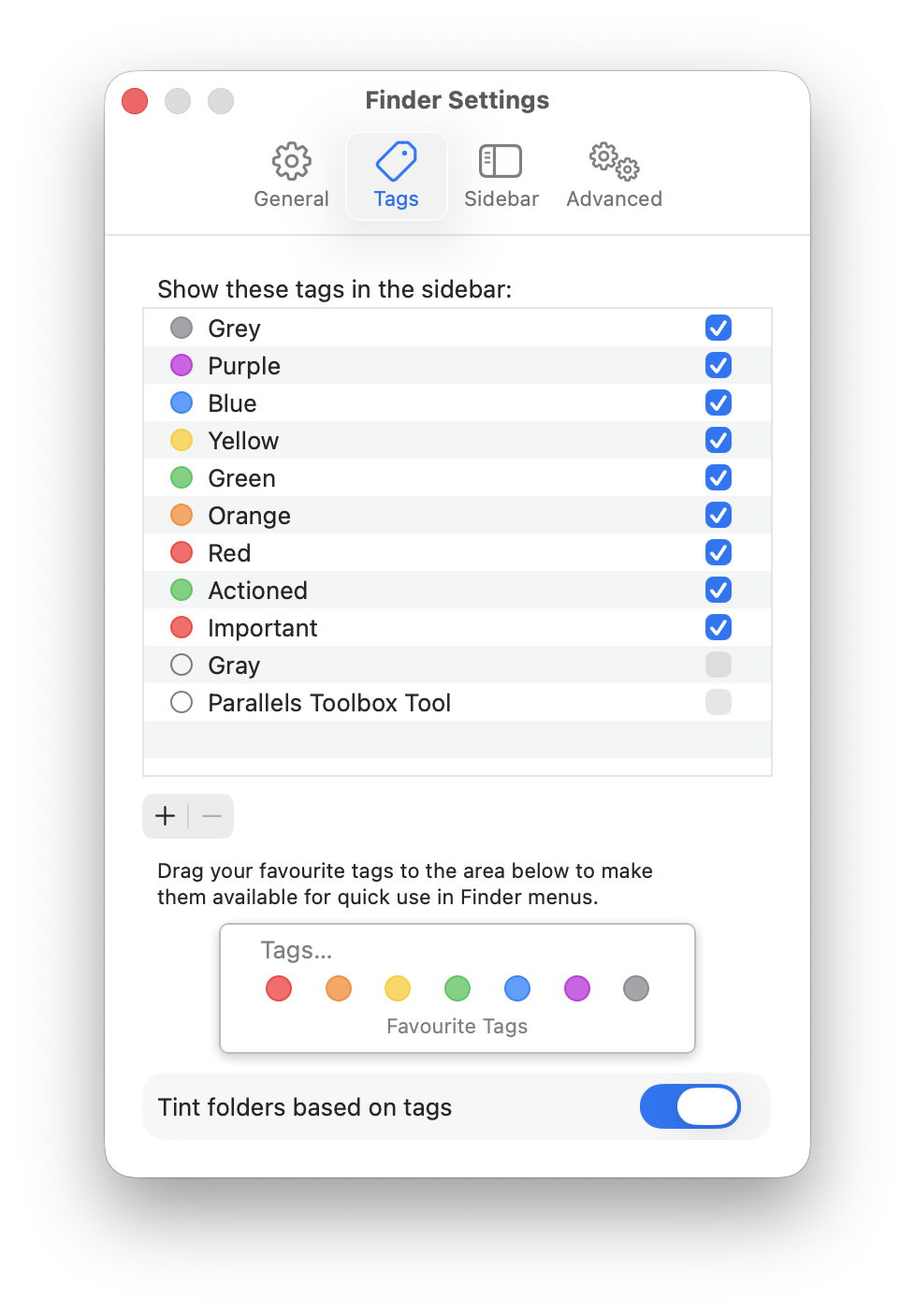
Tags and their text labels are managed in the Finder’s settings, in the Tags tool.

This allows you to add and remove tags from the main list, to edit the label of each (either in the same way you rename files in the Finder, or using the contextual menu), to delete a tag, and to set which tags appear in the list of seven favourites at the foot. If you customise one of the standard tags by changing its name, say from Red to Urgent, then the Finder automatically changes all items marked with that tag to show that new label.

Similarly, deleting an existing tag from this list removes it and its label from all files and folders tagged with them, throughout that Mac’s storage. This behaviour can sometimes catch users unaware of those extensive consequences.

Each tag and label remains associated with that file or folder: when you copy it across to another Mac, the tag remains attached, and on that second system should continue to show the same colour and label. This also applies to any custom tags you add. The important exception to this is if the item is moved using a method that doesn’t preserve its extended attributes, which occurs on some file systems such as NFS, and when using some command line tools. Some backup methods may also not preserve extended attributes, and will strip all your tags; Time Machine preserves them all.

Categories and labels

There are only seven different tag colours, and although many different labels can be associated with each colour, in practice Finder tags work best when tags and labels are matched one-to-one. Note that you can’t associate two different coloured tags with the same label.

Tagging is simplest when each colour only has a single label associated with it, as colours and labels are then fully interchangeable. Labels can also work well when used to qualify categories, for example using red tags for those tasks due this week, with text specifying the day. Broadening the range of labels for a given tag can quickly lead to confusion: imagine the consequences of using a red tag with emails that are labelled Important, and those marked as Junk.

For example, if you want to classify your photos into no more than seven categories, such as social, travel, parties, and so on, they should work well with tags. If you want to add the names of people in each image, or their locations, then tags are likely to be the wrong type of metadata for that. Another example is tagging projects: if you need no more than seven different project tags, then Finder tags should serve well. If you need a dozen or more, then they’ll quickly prove inadequate.

Labels aren’t intended to contain longer text, as they’re not displayed in a way that would make that easy to read. If you want to attach structured or free text to files and folders, use other extended attributes including Keywords, Comment (not Finder comment, though), Description, Subject and Information. Although these are also indexed by Spotlight and can be searched for, there is still no option to display them in Finder windows.

Spotlight search

Finder tags can also be used as a criterion in Spotlight searches, although those are based not on the tag colour but its label, such as Important for a red tag labelled Important. You’ll need to add the Tags item to the Finder’s list of search criteria before you can use it to find items in the Finder’s Find window.

Happy tagging!

Finder comments, steganography and malware

Parts of macOS go back a long way, and have scars to prove it. Among those are Finder comments: text you can easily add to a file’s metadata in the Finder’s Get Info dialog. Like all good metadata, it’s also searchable in Spotlight, so can be used to organise and categorise your documents. However, there are some catches that can make that unreliable.

Finder comment

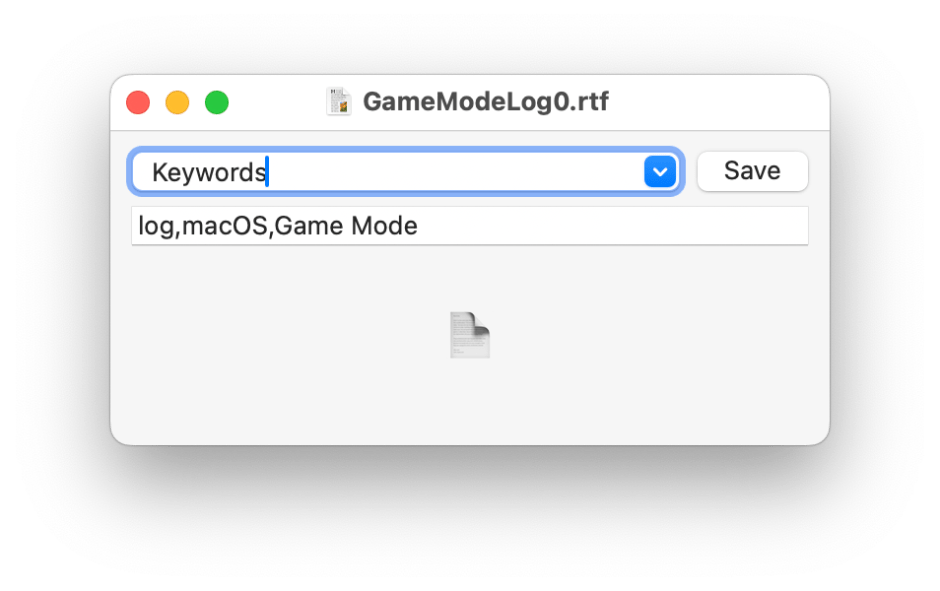
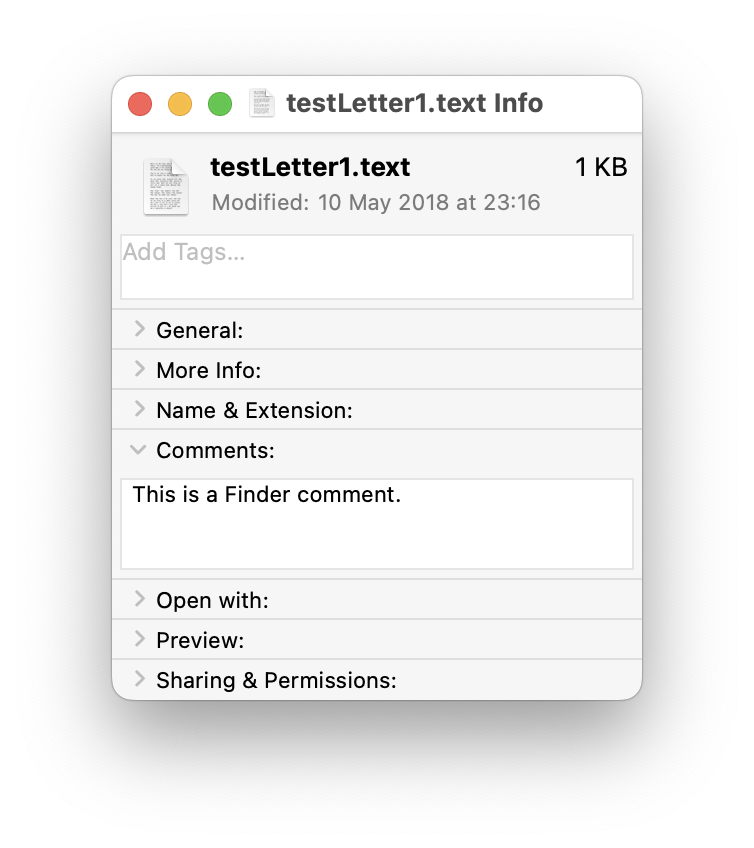
To see what I mean, you’ll need an app like my free Metamer, a simple metadata editor, or xattred, to display extended attributes. Pick an old file you can sacrifice for this purpose. Select it in the Finder, and Get Info for it. In the Comments section, type in a comment.

comment1

Open that file in Metamer, and select the FinderComment item in its combo box menu.

comment2

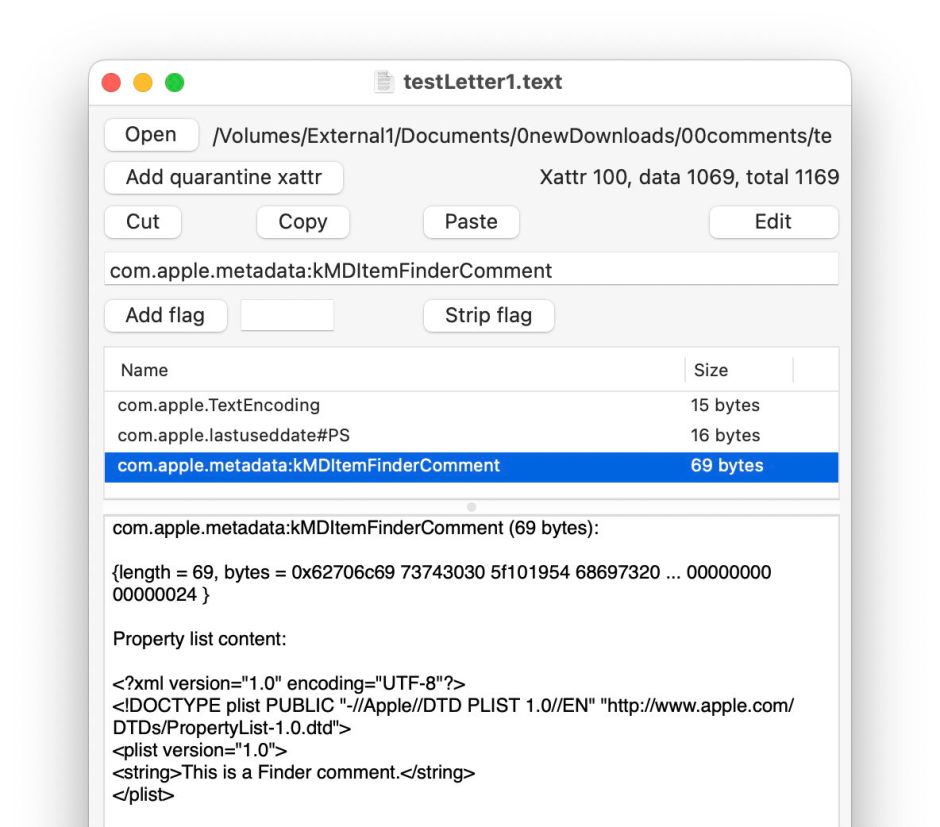
Your freshly written Finder Comment has already been added as an extended attribute.

Open the file in xattred, and you’ll see that text as a String in a property list for that extended attribute.

comment3

Now change the name of that file, perhaps by adding a short suffix. Get Info and the Finder Comment is still there.

comment4

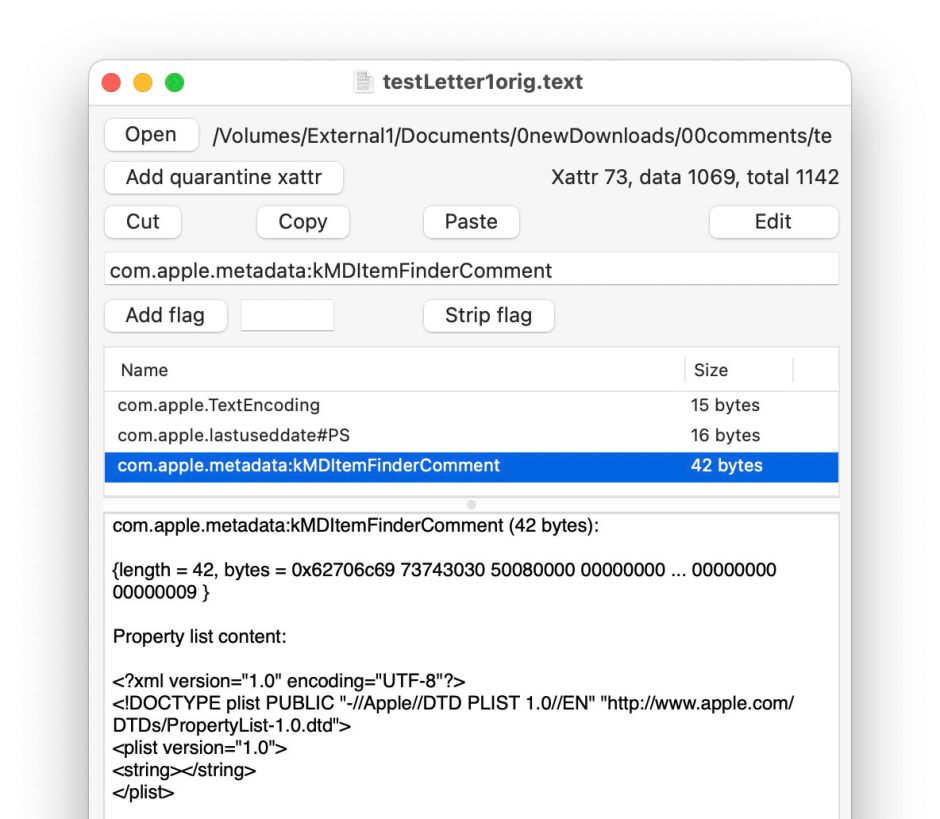
Look at the extended attribute using Metamer or xattred, and you’ll see that the String in the property list has been deleted, and the extended attribute no longer contains the text still displayed in the Get Info dialog.

comment5

This is because

  • the primary copy of the Finder Comment goes into the hidden .DS_Store file in the same folder as the document, and that’s the one used by the Finder;
  • a secondary copy is saved in a xattr of type com.apple.metadata:kMDItemFinderComment for the file, which the Finder knows nothing about.

You can experience other strange effects from this dissociation between those two copies, and their different behaviours. As a result I don’t recommend use of Finder comments, because of their unreliability.

Steganography

Finder comments and other metadata provide a scheme for steganography in macOS. This was first used by Wdef, one of the original viruses that affected Classic Mac OS in about 1990, and was resurrected 30 years later in 2020, when Phil Stokes of Sentinel Labs reported a Bundlore variant abusing the Resource fork, then as now an extended attribute of type com.apple.ResourceFork.

Just recently, William Charles Gibson and Ryan Conry of Cisco Talos have described how a similar technique could be used “to stage payloads in a way that evades static file analysis”. They propose using a payload script, encoded using Base64, and written to Finder comment metadata.

Writing the malicious Finder comment is simple to achieve using the AppleScript code
set comment of newFile to "$PAYLOAD"
and retrieval, decoding and execution by the command
mdls -name kMDItemFinderComment -raw ~/Desktop/remote_test.txt | base64 -D | bash
also run from within AppleScript.

There are three disadvantages in using a Finder comment for this purpose, its fragility as shown above, its visibility to the user in the Finder’s Get Info dialog, and reliance on Spotlight indexing and search. If you want to use file metadata for steganography, then you’re better off using an extended attribute directly, accessing it with the xattr command tool, which is robust, remains with the file rather than in a hidden .DS_Store file, and doesn’t need to be indexed by Spotlight or found using mdls.

That also gives you a wider choice of extended attribute. If traceability isn’t important, a custom xattr can be used with the PS flags to ensure its persistence in copies, saves, syncs and backups. There’s a long list of those supported in macOS, including kMDItemProjects, which is stored in the com.apple.metadata:kMDItemProjects xattr and treated as having PS flags, and most importantly isn’t exposed to the user in the Finder’s Get Info dialog.

At this stage you might want to check how thoroughly your malware protection checks extended attributes for malicious content. As a rough guess, I suspect the answer is not at all.

❌