Reading view

There are new articles available, click to refresh the page.

What happens in the log when an app crashes as it starts up?

In yesterday’s guide to dealing with apps that crash immediately you open them, I carefully avoided mentioning what you might find in the log. This article puts that right.

The list of common causes I gave is:

  • macOS intentionally crashed the app because of an error in code signing, or another serious security failure;
  • the app failed because it was in translocation;
  • the app couldn’t open a damaged or incompatible document;
  • the app had a problem with its Preferences.

Investigating these in the log is among the simplest tasks for those learning to access it, providing the app crashes reliably. Show the seconds value in the menu bar clock, and open the Applications folder containing the app. Select it as the seconds reach about 45, to allow time for its icon to be displayed, then double-click the app to run it as the seconds reach 00, but not a moment earlier. Don’t touch the mouse/trackpad or keyboard for at least 5 seconds, by which time the crash should have occurred and the notification or crash log should have been displayed.

Then open LogUI (or a substitute), and set it to extract and display all the entries for 5 seconds from 00 seconds. If you open a new window in LogUI the start time will be preset to the time you opened the app, all ready to get the log extract.

The double-click is easy to spot in the log, as it’s marked by four almost identical Activity entries with a yellow 🥎 softball emoji, each reading something like
AppKit Finder sendAction:
short entries that are quick to locate. Entries following the fourth of those then report what happened next.

Code signing errors

These are normally easy to recognise, as they start with a call to verify the signature,
00.940943 Finder sendAction:
00.963228 syspolicyd SecTrustEvaluateIfNecessary
00.963982 trustd SecKeyVerifySignature

that’s followed by an error that’s repeated many times,
00.981296 lsd com.apple.securityd MacOS error: -67030

Follow those down a bit further and you’ll see this reported in other subsystems
01.013084 com.apple.launchservices Error -67030 validating the signing information for [private], error=Error Domain=NSOSStatusErrorDomain Code=-67030 "(null)" UserInfo={SecCSArchitecture=arm64}

Normally, this will be checked again by AMFI (Apple Mobile File Integrity)
01.030162 amfid Entering OSX path for /Users/hoakley/Documents/000aa/DelightEd.app/Contents/MacOS/DelightEd
01.031629 amfid SecKeyVerifySignature
01.036291 amfid com.apple.securityd MacOS error: -67030
01.048491 error amfid com.apple.MobileFileIntegrity.framework Code failed basic validity check (error: -67030): Error Domain=NSOSStatusErrorDomain Code=-67030 UserInfo={SecCSArchitecture=[private]}
01.048857 amfid /Users/hoakley/Documents/000aa/DelightEd.app/Contents/MacOS/DelightEd not valid: Error Domain=AppleMobileFileIntegrityError Code=-420 "The signature on the file is invalid" UserInfo={NSURL=file:///Users/hoakley/Documents/
000aa/DelightEd.app/Contents/MacOS/DelightEd, NSLocalizedDescription=The signature on the file is invalid}

That’s confirmed and actioned by the kernel
01.048950 kernel AMFI: code signature validation failed.
01.052968 amfid com.apple.MobileFileIntegrity [private]: Broken signature with Team ID fatal.
01.053043 kernel AMFI: When validating /Users/hoakley/Documents/000aa/DelightEd.app/Contents/MacOS/DelightEd: The code contains a Team ID, but validating its signature failed. Please check your system log.
01.053052 kernel mac_vnode_check_signature: /Users/hoakley/Documents/000aa/DelightEd.app/Contents/MacOS/DelightEd: code signature validation failed fatally: When validating /Users/hoakley/Documents/000aa/DelightEd.app/Contents/MacOS/DelightEd: The code contains a Team ID, but validating its signature failed. Please check your system log.
01.053059 kernel validation of code signature failed through MACF policy: 1
01.053061 kernel check_signature[pid: 2718]: error = 1
01.053066 kernel proc 2718: load code signature error 4 for file "DelightEd"
01.053461 kernel AMFI: hook..execve() killing xpcproxy (pid 2718): Attempt to execute completely unsigned code (must be at least ad-hoc signed).
01.053624 kernel ASP: Sleep interrupted: ref 29, signal 0x100, pid: 2718

with the conclusion
01.053627 kernel ASP: Security policy would not allow process: 2718, /Users/hoakley/Documents/000aa/DelightEd.app/Contents/MacOS/DelightEd

You’re not likely to miss those.

Common error codes from signature validation include:

  • -2147409652 CSSMERR_TP_CERT_REVOKED, the certificate has been revoked
  • -67007 resource envelope is obsolete (version 1 signature)
  • -67008 unsealed contents present in the root directory of an embedded framework
  • -67013 resource envelope is obsolete (custom omit rules)
  • -67021 nested code is modified or invalid
  • -67023 invalid resource directory (directory or signature have been modified)
  • -67030 invalid Info.plist (plist or signature have been modified)
  • -67054 a sealed resource is missing or invalid
  • -67056 code has no resources but signature indicates they must be present
  • -67061 invalid signature (code or signature have been modified)
  • -67062 code object is not signed at all, which is by far the most common.

In this case, I had changed a single character in the app’s Info.plist, which broke its CDHashes, and resulted in the correct error code of -67030.

App translocation

In this case, you’re looking for two related pieces of evidence, that a process mentions the act of translocation, and that the app is run from a translocation location. Again, these normally aren’t hard to find.

Shortly after the double-click,
00.968186 Finder sendAction:
you should see mention of the creation of the translocation directory
01.040587 lsd com.apple.securityd SecTranslocateCreateSecureDirectoryForURL: created /private/var/folders/x4/
x00kny5x0_5dsnmmxhtw6hc80000gn/T/AppTranslocation/B9651238-6B8C-4750-BFAC-E0D1A327768C/d/DelightEd.app

A little further down the log you’ll see the app being referenced in that long path
01.069877 amfid Entering OSX path for /private/var/folders/x4/x00kny5x0_5dsnmmxhtw6hc80000gn/T/AppTranslocation/
B9651238-6B8C-4750-BFAC-E0D1A327768C/d/DelightEd.app/Contents/MacOS/DelightEd
01.090927 com.apple.runningboard _executablePath = /private/var/folders/x4/x00kny5x0_5dsnmmxhtw6hc80000gn/T/AppTranslocation/
B9651238-6B8C-4750-BFAC-E0D1A327768C/d/DelightEd.app/Contents/MacOS/DelightEd

and so on.

If you’re struggling to find those, select the Messages item at the right end of the toolbar in LogUI, type the app name into the search box there and press Return, to filter entries.

Failed to open document

Of the four common causes of early app crashes, these are hardest to find evidence in the log. This is because the only process likely to know what went wrong is the app itself, and few third-party apps write anything useful to the log. You might find a useful entry or two by setting that menu at the right end of LogUI’s toolbar to Processes, entering the app name into the search box, and pressing Return. However, in many cases there will be little or no useful information.

Preference file problems

My previous article referred only to standard preferences that are handled by cfprefsd. Some apps run their own preferences using their own code, and neither cfprefsd nor the defaults command covers them. If they have a problem when accessing those custom files, it’s most unlikely to be recorded in the log.

In other apps, you should look for evidence that the crash happened shortly after the cfprefsd service is connected to the app, to support the standard features.

Starting once again with the double-click
01.579559 Finder sendAction:
it may take some time for the opening stages to complete. You should then see the XPC connection between the app and cfprefsd being set up for both root and the user
01.638428 DelightEd com.apple.xpc [0x102cf6980] activating connection: mach=true listener=false peer=false name=com.apple.cfprefsd.daemon
01.638504 DelightEd com.apple.xpc [0x102cf7960] activating connection: mach=true listener=false peer=false name=com.apple.cfprefsd.agent
01.638563 cfprefsd com.apple.xpc [0xa252bdb00] activating connection: mach=false listener=false peer=true name=com.apple.cfprefsd.daemon.peer[2910].0xa252bdb00
01.638659 cfprefsd com.apple.xpc [0x86f2d3600] activating connection: mach=false listener=false peer=true name=com.apple.cfprefsd.agent.peer[2910].0x86f2d3600

The app will normally crash during or shortly after the loading of preferences, marked by entries like
01.641152 DelightEd Loading Preferences From User CFPrefsD
01.706158 DelightEd Loading Preferences From System CFPrefsD

These too can be found more easily by setting the menu at the right end of LogUI’s toolbar to Processes, entering the app name into the search box, and pressing Return.

Happy hunting!

How to fix an app that crashes as it starts up

One of the most common and frustrating problems with apps is when they crash as soon as you try to open them. Before that app has even had a chance to display its menu bar or splash screen, it has vanished, leaving you without a clue as to why. How could its developer release an app that can’t even run? Where do you look for clues as to what happened when the app was only there for an instant? Fortunately, this is when examining the crash log can be useful, and could help solve the problem.

Common causes include:

  • macOS intentionally crashed the app because of an error in code signing, or another serious security failure;
  • the app failed because it was in translocation;
  • the app couldn’t open a damaged or incompatible document;
  • the app had a problem with its Preferences.

Signs and logs

Depending on the type of Mac, the version of macOS it’s running, and the nature of the crash, you may see nothing at all, a simple notification, or a full crash report.

crashreport2

crashreport1

While panic logs can be impossible to recover if you miss them, app crash reports are almost invariably saved to disk, normally in the path ~/Library/Logs/DiagnosticReports, although in some cases you’ll have to look a bit harder there, or in /Library/Logs/DiagnosticReports. As the report’s name should start with the app name, they’re easy to identify, and double-clicking them opens the report in Console (one of its good uses).

Reading the crash log

In the upper Translated Report look for the following:

  • Path – check whether this is a long semi-random path typical of app translocation.
  • Code Type – on an Apple silicon Mac, check whether the app is running native on Arm, or translated by Rosetta 2.
  • Exception Type – this could be EXC_BAD_ACCESS (SIGKILL (Code Signature Invalid)) if macOS has crashed the app because of a code signing problem.
  • Termination Reason – this may be given as Namespace CODESIGNING, Code 2 Invalid Page or similar for code signature problems.

An exception type of EXC_CRASH (SIGKILL) indicates macOS terminated the app, and its crash report should give a Termination Reason with a code explaining the reason for the crash. Apple silicon Macs running recent versions of macOS are less likely to crash apps with signature problems, as they now tend to handle these in a dialog reporting the app is damaged and offering to remove it. Intel Macs with older macOS are more likely to crash the app and leave you wondering.

If you want to learn more about crash reports, they’re well documented for developers, starting from this master page. Worth reading are:

Code signing errors

One recent and innocent cause of signing and notarisation errors occurs in apps that update themselves, normally using the popular Sparkle method. If an app had worked fine before it updated itself and then can’t start up, it may not have updated its code signature or notarisation correctly. This is easy to fix, by deleting the broken app and downloading a fresh copy of the current version. If that still crashes with a signature error, contact its developer as it may have a bigger problem.

Apparency, free from Mothers Ruin, is the definitive app for checking code signing and notarisation problems. It doesn’t just identify the problem, but explains it in careful detail.

If you’re absolutely certain that the app doesn’t contain any malicious code, you may be able to work around code signing errors by re-signing the app. Doing this to an app that might be malicious would be extremely dangerous, so you require great confidence in the app’s integrity.

Before proceeding any further, you might need to add Terminal to the list in the App Management section of Privacy & Security settings, otherwise your commands could be unable to make any changes to the app. Once you’ve done that, open Terminal and use the command
codesign --remove-signature MyApp.app
to strip the existing signature from the app MyApp.app. Note that two hyphens precede remove-signature. When that’s done, use the command
codesign --sign - MyApp.app
to sign that app with an ad hoc signature. Ad hoc signatures provide only limited security, as they don’t use an Apple-issued certificate for verification against a chain of trust. They’re widely used by malware as a result, and easily exploited.

If that doesn’t work you’ll need to refer the problem to the app’s developer, who should in any case be informed of any problems with their app’s code signature, notarisation or security checks.

App translocation

There are some circumstances in which perfectly good apps may prove unable to run as expected when they’ve been translocated, and some become stuck in translocation, continuing to crash each time you try to run them. If you’ve looked at the crash log, the Path given there should make it obvious if that app is being run in translocation.

The best solution is to try reinstalling the app. Delete the current copy, and download the app again from its source on the internet. If it comes as a compressed archive, decompress it, then move the app from the folder it came in to one of your Applications folders before trying to run it. Do this one app at a time, rather than as one of several, and ensure it doesn’t remain in the folder it came in. If that doesn’t help, contact its developer.

A more hazardous option is to strip the quarantine extended attribute from the download, but you should only consider that as a last resort as it reduces the security checks made by macOS.

Failed to open document

If the app was last quit with a document still open, and that document now has a serious incompatibility with the app, that can cause the app to crash when it’s next opened, and tries to re-open that document. The same effect can occur when an app is opened by opening one of its documents. Try opening the app alone before opening the document. If necessary you can enable Close windows when quitting an application, in the Windows section of Desktop & Dock settings, or move the offending document to a different volume so that app loses track of it.

Preference file problems

Apps that use Property List files stored in ~/Library/Preferences, or an equivalent in the app’s folder in the ~/Library/Containers folder, open them during app startup. If that preference file is malformed or corrupted, it can cause the app to crash when it tries reading it. This may not be easy to recognise in a crash log, although references there to cfprefsd, the path to the preference file, or UserDefaults are useful clues.

The best way to address this is to delete the app’s preference file, forcing the app to create a fresh default preference file, and open normally again. Although you can do this by locating the correct file and dragging it to the Trash, it’s more reliable to use the defaults command in Terminal, as that should delete the right copy and avoid overwriting it and causing the problem to recur. For this you’ll need the app’s formal ID, available from Apparency or taking a peek at the value for the CFBundleIdentifier key in its Info.plist. It should be in the form of a reverse URL like com.mothersruin.Apparency.

The command that you need to enter into Terminal is of the form
defaults delete com.developer.appname
where com.developer.appname is the app’s ID or CFBundleIdentifier.

You should then be able to open the app, which will have to recreate its default settings, hopefully without crashing again.

Other causes

Most other potential causes tend to prolong app opening rather than causing it to crash. Apps that check for updates over the internet usually do so soon after opening, but should perform that check without blocking or crashing the app. Similarly, apps needing to connect to an external authorisation service more usually hang, leaving their Dock icon bouncing indefinitely.

Any damaged or incompatible app may well crash during opening. If you suspect that, check with the app’s support site that the version you are trying to run is the latest that’s compatible with your Mac and macOS. If in doubt, re-install the app.

Settings, preferences and defaults

Most apps rely on settings that persist each time you use them, whether they’re exposed to the user in a Settings dialog or just records of the size and placement of their windows. In Classic Mac OS those were often saved to the app’s resources or those of its documents. In Unix there are plain text config files that may serve similar purposes. Mac OS X inherited a novel alternative from NeXTSTEP, a human-readable property list to store serialised objects.

Mac OS X replaced the old format of those preference files with two formatting schemes, with XML the standard for app preferences. Those property lists consist of a dictionary of key-value pairs, such as
<dict>
<key>metricUnits</key>
<true/>
<key>filePrefix</key>
<string>MyFile</string>
</dict>
to set metricUnits to true and filePrefix to the string “MyFile”. At first those were stored in plain text, but by Mac OS X 10.4 they had become stored in a more efficient binary format, the binary property list, or bplist.

Defaults and their server

As these preference files became near-universal, Apple built support for them into Mac OS X, as User Defaults. With settings as preferences and now defaults, the next step was to provide a defaults server, cfprefsd, to automatically open an app’s preferences as that app started up, and make those key-value pairs available to the app when it’s running. Instead of each app having to do that for itself, macOS provides it as a service with a standard API for fetching and saving those key-value pairs.

cfprefsd is transparent to the developer, whose code simply accesses key-value pairs as they are required. cfprefsd may opt to keep the whole preference file in memory, and manages it however it sees fit. Thus the property list’s contents on disk may not represent those held in memory for the app, and any changes to the property list file may be overwritten when cfprefsd saves changed values from memory.

For a simple app, working with cfprefsd should be straightforward. The app’s preference property list is opened by cfprefsd shortly after the app is launched, and the app’s code works through UserDefaults to make any changes to key-value pairs while the app is running. As the app is shutting down, cfprefsd updates the preference file, and the user is once again free to change or delete that property list as they wish. However, there’s ample scope for that to become more complicated, or to misuse it.

Problems

Many apps today aren’t that simple in their structure, and use helper apps and other executable code that may still be running with access to the app’s preferences even though the main app is shut down. When the user thinks it’s safe to modify the contents of that property list, it may still be in the care of cfprefsd. The preferred approach then is to use the defaults command tool, which should work with cfprefsd rather than competing against it.

In the past, UserDefaults and cfprefsd weren’t always reliable, and some developers worked around their problems with a combination of the official API and performing their own direct manipulation of preference files. Those dangerous practices should have died out now.

Because an app’s preferences are accessed early as it’s being launched, any bugs or incompatibilities in those key-value pairs can have fatal effects before the app is fully open. For example, if a new version of an app reuses an existing preference key with a different data type, if it reads an old version of its preferences, that will throw an error. If that’s not handled well, that can cause the new version of the app to crash when launched.

Fortunately, all apps have to be able to create their own preference file when they’re first run. There’s scope for further bugs there, when the file created isn’t updated to work with changed key-value pairs in a newer version of the app. That may result in an app that crashes when launched even when there’s no existing preference file saved, a problem for which there’s no workaround.

Finally, many apps have multiple preference files. If they run in a sandbox, the copy they use normally is in the Data/Library/Preferences folder in their container, in ~/Library/Containers. But they may also have a different property list in ~/Library/Preferences, and sometimes a master copy in /Library/Preferences as well. While I’m sure cfprefsd knows which to access, you may need to check by inspecting each file’s timestamps.

Changing settings

There are only two safe and robust ways to change settings in preference files or user defaults: an app like Prefs Editor that works through cfprefsd, or the command tool defaults which does much the same.

If you’re certain that no app or other process might still be accessing its preferences, so they will have been safely saved to disk, you should be able to open a preferences file and edit it using a good text editor that can work with bplists, such as BBEdit, or remove the file altogether to force the app to create a new one.

defaults should be simple to use in most circumstances, although it can get complicated if you need to specify hosts, or to manipulate complex data types. Start by identifying the domain name of an app with saved preferences, which should look like a URL reversed, such as co.eclecticlight.Consolation2. This is the preferences file name, less its extension. To list all the key-value pairs for that preference file use the command
defaults read co.eclecticlight.Consolation2

What that listing doesn’t tell you is the data type of those values. Those in double quotation marks “” are strings of plain text, but numbers without quotation marks can be Booleans, integers or real numbers. If in doubt, use a command like
defaults read-type co.eclecticlight.Consolation2 textStartTime
to tell you the data type for the key textStartTime.

Check an individual key-value pair by specifying the key in a command like
defaults read co.eclecticlight.Consolation2 textStartTime
to return the value
08:16:13
which must be a string because of its contents.

To change that value, use a command like
defaults write co.eclecticlight.Consolation2 textStartTime "18:10:43"
and check that’s been written correctly by repeating the defaults read command.

To set data types other than strings you must specify the type explicitly, as in
defaults write co.eclecticlight.Consolation2 noUpdateCheck -bool "TRUE"
where you can use TRUE, FALSE, YES or NO for the new value.

The final essential defaults commands let you remove complete key-value pairs, as in
defaults delete co.eclecticlight.Consolation2 noUpdateCheck
or the whole preference file
defaults delete co.eclecticlight.Consolation2

If you make a mess of the preferences file, don’t be afraid to restore it from a recent backup, or to delete the whole thing and let the app build a new one from scratch.

Finally, these days with the threat of ClickFix malware, never copy and paste any command into Terminal without understanding exactly what it does, and checking it thoroughly before pressing Return.

Key points

  • Don’t mess with preferences files carelessly.
  • Use a preferences editor that works with cfprefsd, or the defaults command in Terminal.
  • For more simple tasks, using the defaults command should be straightforward.
  • If a simple app isn’t running, you should be able to get away with editing or deleting its preferences file directly, if you pick the correct one.
  • Never blindly paste any command into Terminal. Beware ClickFix!

Further reading

man defaults in Terminal for its documentation
UserDefaults (Apple)
Preferences and Settings Programming Guide (Apple) from 2013
Preferences: Property lists and their use, this blog
Thomas Tempelmann’s Prefs Editor works with cfprefsd

Control what gets written to the log

One of the first things that strikes you when you look at a log extract from a Mac, is the number of entries that have some or all of their contents censored with <private>. Another is the sheer number of entries; even when your Mac is doing little, there’s a constant stream of them. This article explains how you can get control of both.

Logging preferences

The keys to controlling what gets written to the log in macOS are property lists stored inside /Library/Preferences/Logging. By default you’re likely to see few files there, which may include a high-level policy in com.apple.system.logging.plist. If present, that’s likely to set just two keys, Enable-Logging to true, and Locked to true as well. But that property list doesn’t tell the whole story.

To discover full top-level policy, you need to enter the command
sudo log config --status
which is likely to return
System mode = INFO

Step one down from there with
sudo log config --status --subsystem com.apple.system.logging
and that might report
INFO PERSIST_DEFAULT
or could extend to include
SIGNPOST_PERSISTED_OFF SIGNPOST_ENABLED_ON SIGNPOST_BACKTRACE_ENABLED_OFF OVERSIZE_ENABLED_OFF
as well.

Now try a more specific subsystem with
sudo log config --status --subsystem com.apple.network
and you’re likely to see something similar, unless there’s a property listed named com.apple.network.plist in the Subsystems folder there, in which case it should reflect the settings in that.

Those settings largely concern two features:

  • Levels of log entry recorded, set as default, info or debug. The first of those includes all entries of default or higher level, the second of info, default or higher, and the third of debug, info, default or higher. Default global level is normally info, so that debug entries don’t appear in the log.
  • Whether the entries are saved to persistent storage (disk), using the same hierarchy of levels.

Thus INFO PERSIST_DEFAULT means that all log entries of info level and above, but not debug, will be collected, and the default setting is used to determine which get written to disk.

Apple explains those basic settings in man log, and its documentation for developers.

Signpost and Oversize settings aren’t explained there, but are in man 5 os_log. Signpost log entries are intended for use by developers to assess performance, and are rarely of any use to others. Oversize log entries can be many pages long, and are stored separately when enabled.

Controlling logging preferences

There are three ways to control logging preferences, which all converge on those same property lists:

  • The log config command, as used above. This is quick and simple, but limited, and perhaps best used to check effective settings for individual subsystems and processes.
  • Write your own property lists and install them in the appropriate folder in /Library/Preferences/Logging. Although this is powerful, as there’s limited guidance on what can be included, you’ll probably want to start from existing property lists. There’s further information in Peter Steinberger’s post and man 5 os_log.
  • Install a custom log profile, which you can also use as a model to develop your own property lists and profiles.

Custom logging preferences take effect almost immediately, and don’t require restarting, but they only apply to log entries written once they have been applied, never retrospectively.

Limiting log entries by level

As the Unified log discards old log entries to constrain the space occupied by the logs, the only way to extend the period covered by stored log entries is to limit the rate at which fresh entries are added to the log. You can do this by careful assessment of which subsystems are writing most entries, and changing their logging preferences.

However, that only applies when there’s an excess of log entries at debug or info levels. When there is, adding or modifying the preferences for that subsystem to store entries at a level of default or info should extend the period they cover. Be cautious, though: that excess of entries could reflect a problem, and by excluding them you may well conceal its cause and extent.

Custom log profiles

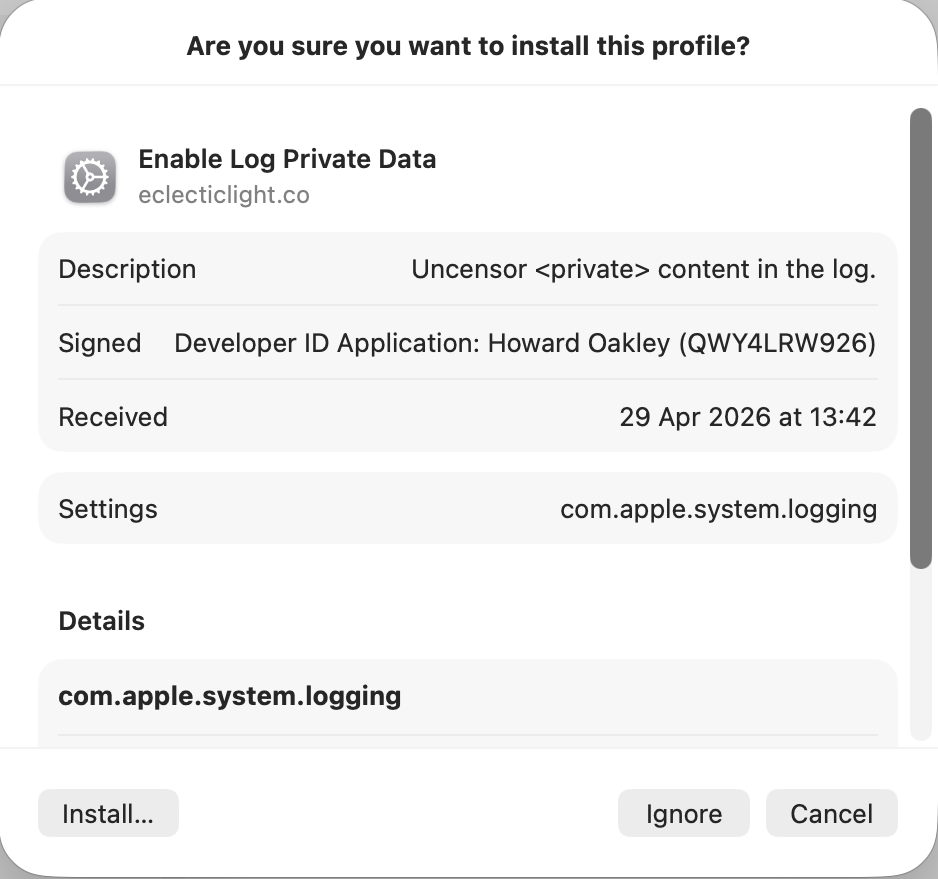
The simplest alternative is to install a Configuration Profile containing the saved settings to be applied to the property lists in /Library/Preferences/Logging. I provide a signed profile to remove all that <private> censorship in enablelogprivatedata.

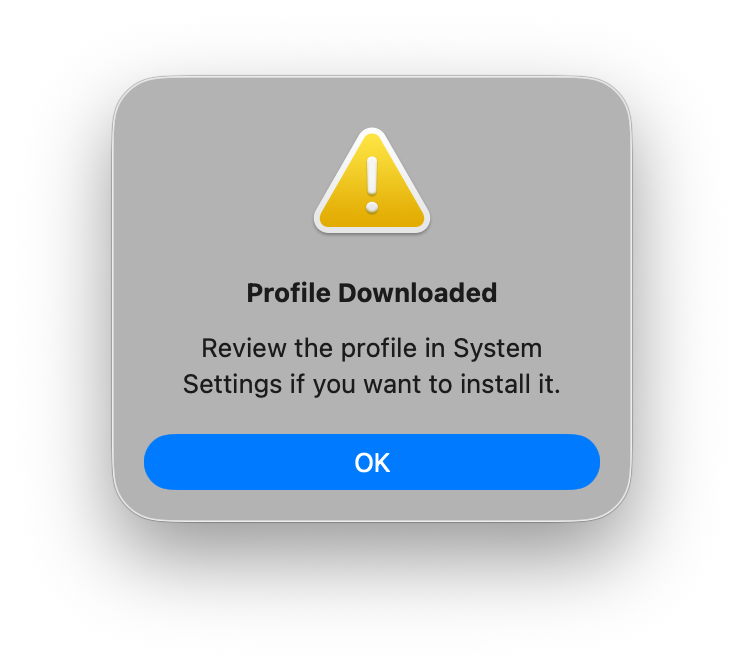
To install the profile unzip the archive into a convenient folder and double-click it. You’ll be prompted to review the profile to install it.

Open System Settings > General & Device Management, and inspect it by double-clicking the profile there.

Click on the Install button to accept and install the profile.

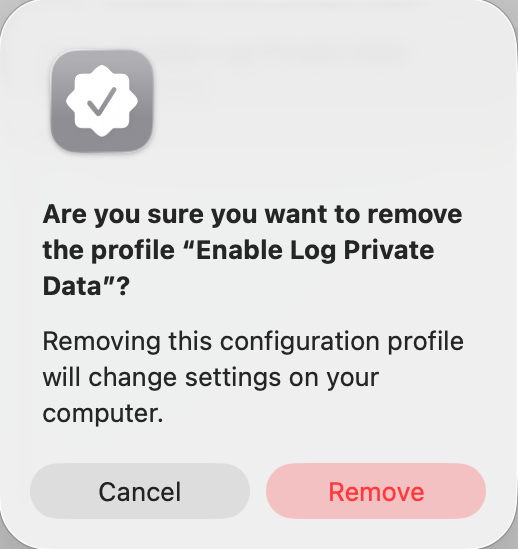
To remove it, select the profile and click the – tool below.

If you watch the contents of com.apple.system.logging.plist in /Library/Preferences/Logging you’ll see that change, with the setting of the key Enable-Private-Data to true. If you then run
sudo log config --status
with that profile installed, it should report something like
System mode = INFO PRIVATE_DATA
to confirm that private data is being shown in log entries, and that’s the best way to gain access to their full contents. Remember to remove the profile as soon as you’re done, or your log will continue to leak sensitive data.

There’s a collection of custom log profiles to gather log extracts about specific features in macOS (and Apple’s other OSes). Although they’re listed here, you can only download them if you have a developer (or equivalent) account with Apple. What’s more, Apple describes these as confidential, and explicitly forbids their use or disclosure without its permission. So much as I’d love to explain the undocumented features they use, I regret that I can’t.

❌