Reading view

There are new articles available, click to refresh the page.

Privacy: How locations are protected

Ten days ago, I drew attention to anomalies in privacy protection of locations that could mislead, in that Privacy & Security settings could claim an app didn’t have access to a protected folder when it did. This article proposes an explanation, and provides further details of protected locations and their behaviour. This is based on my test app Insent version 1.2, which you can use to explore these behaviours in the comfort of your own Mac.

Procedures

For the avoidance of any doubt, Insent is a simple macOS app that doesn’t run in an App Sandbox, doesn’t have any entitlements, but is notarized. Its two features of greatest interest here are Open by consent, and Open from folder buttons:

  • Open by consent constructs a folder path as a string without involving user action in an Open and Save Panel, then calls FileManager.default.contentsOfDirectory() to list files within that folder. If that’s successful, it randomly selects a text file from those, opens it, and displays the opening part of the text contents. This is opening that file by consent, as the app is given access to that folder by user consent through TCC’s privacy controls, by consenting to the standard dialog.
  • Open from folder displays an Open and Save Panel (NSOpenPanel) asking the user to select a folder. The URL returned from that is then used to call FileManager.default.contentsOfDirectory() to list files within that folder. If that’s successful, it randomly selects a text file from those, opens it, and displays the opening part of the text contents. This is opening that file by user intent, as the user has chosen that folder to be used. As a result, this doesn’t invoke TCC’s privacy controls.

Consent

The mechanism used to list the contents of a protected folder and open a file from among those is the more obvious, and better documented. Even though the app itself isn’t running in an App Sandbox, the call is intercepted by sandboxd and passed to TCC for it to check whether current privacy policy for that app should allow the request. TCC first checks whether kTCCServiceSystemPolicyAllFiles applies, with the app being given Full Disk Access. If it does, then sandboxd is advised and the call to list the directory proceeds.

If kTCCServiceSystemPolicyAllFiles doesn’t apply, TCC checks for the location-specific service, including

  • kTCCServiceSystemPolicyDesktopFolder
  • kTCCServiceSystemPolicyDocumentsFolder
  • kTCCServiceSystemPolicyDownloadsFolder
  • kTCCServiceSystemPolicyRemovableVolumes
  • kTCCServiceSystemPolicyNetworkVolumes
  • kTCCServiceFileProviderDomain.

If that has been given, sandboxd is advised and the call proceeds.
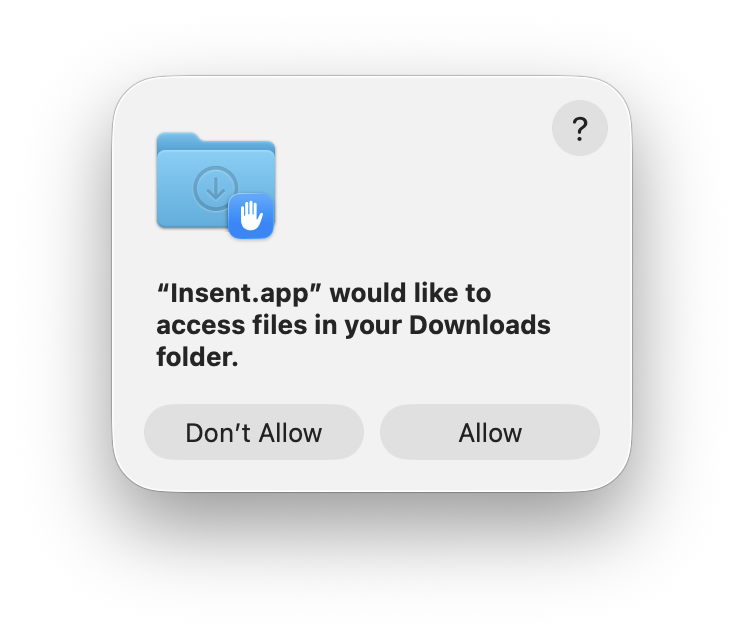
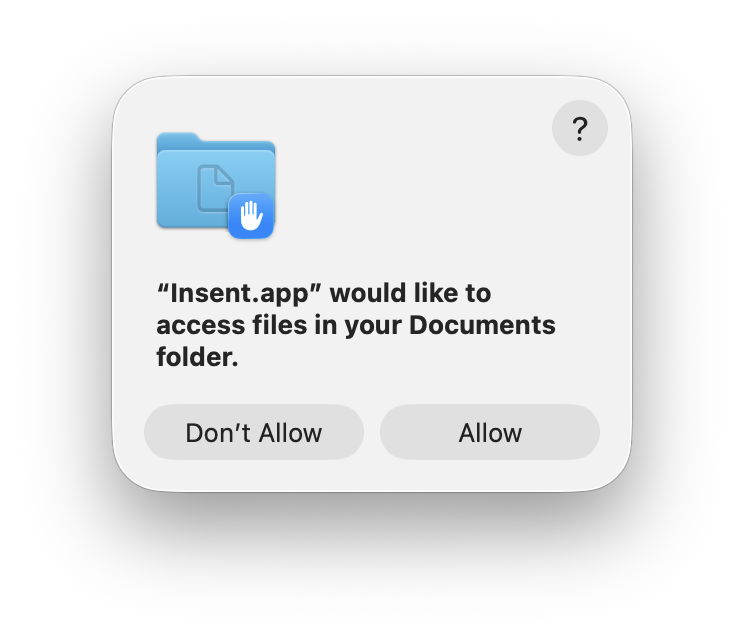
If neither of those applies, then a standard consent dialog will be displayed. If the user allows that, then the location-specific service is granted, and sandboxd advised to proceed. As these steps are all documented in detail in the log, there’s no difficulty in following them there, and diagnosing their problems.

Intent

Although the log contains details of the use of the Open and Save Panel to select a folder, when a protected folder is listed by intent, there are no informative log entries at all. For example,
0.812549 Insent sendAction:
0.812607 Insent: trying to list files in /Users/hoakley/Desktop
0.813297 Insent: trying to look in /Users/hoakley/Desktop for text files
0.813373 Insent: trying to read from: /Users/hoakley/Desktop/00vlutest1pm.text
1.173727 Insent: read from: /Users/hoakley/Desktop/00vlutest1pm.text

where the first four are written consecutively in the log.

To understand what’s going on here we have to consider how sandbox behaviour might apply. This has been explained clearly for the App Sandbox by Mark Rowe, and the most relevant section there is about Mandatory Access Control in the kernel, towards the end: “The macOS kernel (XNU) provides a Mandatory Access Control Framework (MACF) that exposes around 300 policy hooks that can be used to approve or deny specific operations at a fine-grained level. Most of the policy hooks correspond to specific system calls or operations on the kernel’s file system abstraction (VFS). As the name implies, these policy hooks are mandatory and are applied to all clients that use the system calls or perform file system operations.”

So when Insent calls FileManager.default.contentsOfDirectory() to list files within a folder, its corresponding policy hook is called with a context including the directory and the caller.

This is where the next component comes into play: any com.apple.macl extended attribute saved to that directory. We still know remarkably little about those xattrs, despite them being so common. Here I turn to Adam Chester’s early account of how they’re used for protection by user intent. These Mandatory Access Control Lists (MACL) enable the sandbox to determine whether the request to list the contents of the directory should be approved. Because this all takes place within the kernel and its sandbox extension, no entries appear in the log.

The only evidence of this happening is the MACL xattr saved to the protected directory, and making sense of that isn’t easy. Each MACL is 72 bytes, and multiple MACLs can be concatenated into a single xattr as necessary. They’re protected by SIP, so can’t be stripped in place while that’s enabled.

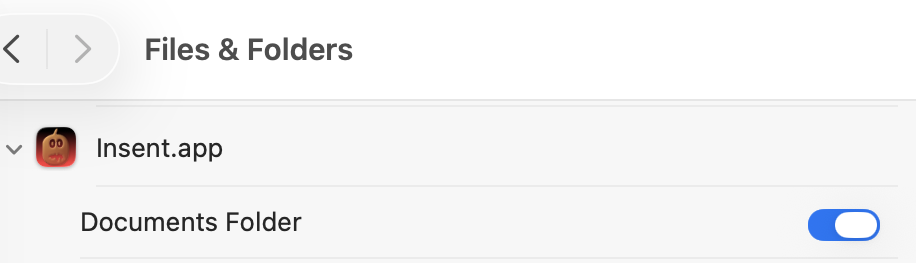
Because this mechanism remains within the kernel and sandbox, it’s invisible to TCC, and to its controls in Privacy & Security. If an app has gained access to a protected location by intent, then that takes precedent over TCC’s controls, and results in the contradiction seen in Files & Folders, whereby access is disabled but still takes place. This isn’t a bug, but a feature of access by intent.

Mechanisms

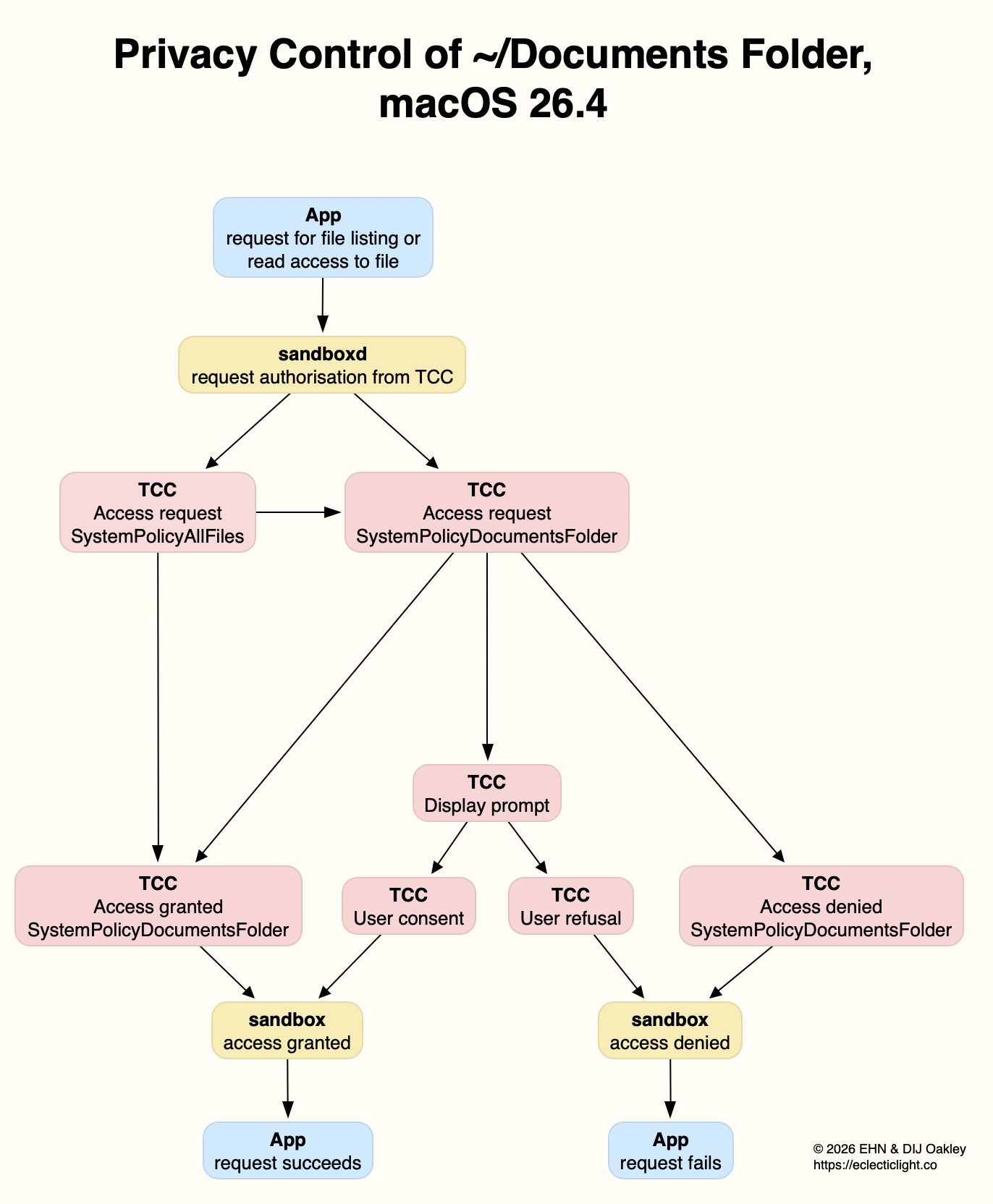
The following diagram summarises how I think these two mechanisms operate.
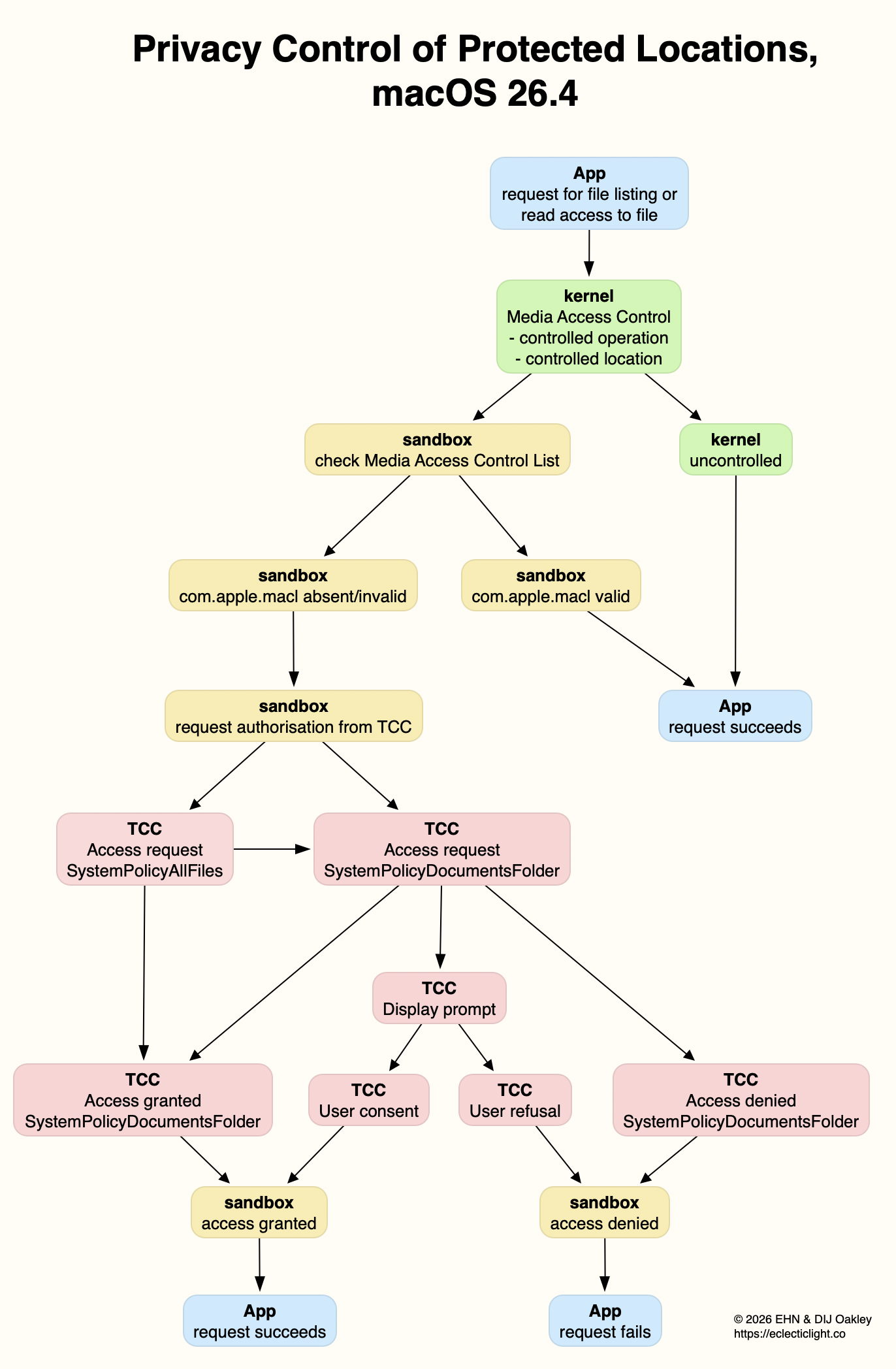
For the sake of simplicity, I have omitted the final step between access being granted/denied by the sandbox, and the app, where of course it’s the kernel that either permits the app’s request for the operation, or blocks it and returns an error. (I’m grateful to Csaba Fitzl for drawing my attention to that.)

This explains why Apple has been so reluctant to document any of this, and why MACLs are so opaque. If an app were capable of creating its own functional MACLs, they would enable it to bypass TCC’s controls and gain access to any protected location. Unfortunately, the side effect is that TCC isn’t allowed insight into what the sandbox is up to, and there’s no transparency for the user.

Overview

Even using a known and simple app like Insent, behaviours aren’t always consistent, and are susceptible to order effects and maybe even cosmic rays! There are also subtle differences between protected locations that can make generalisation unreliable. However, after extensive checks with Insent the following table gives an overview of protected locations in macOS 26.4.
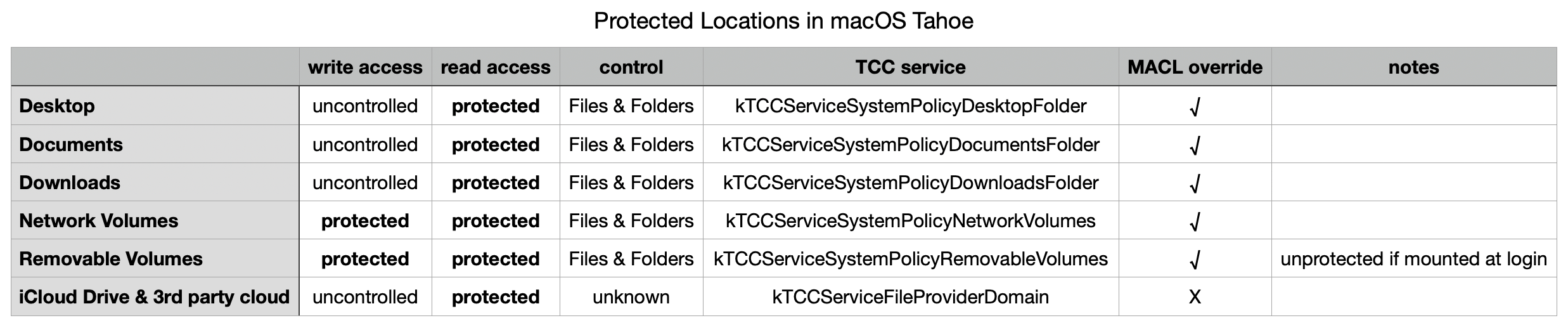
The three common local folders ~/Desktop, ~/Documents and ~/Downloads are most consistent, with controlled read access, GUI controls in Files & Folders, and can be overridden by intent using MACL xattrs. Network volumes also appear to protect write access.

External volumes that are mounted automatically during startup don’t appear to count as being removable, but any that are mounted later have similar protection for both read and write, and can be overridden by intent using MACLs.

iCloud Drive and third-party cloud storage using the FileProvider API are more difficult to investigate, as I’ve still been unable to find any GUI control. It also doesn’t appear to be overridden by intent using MACLs, although its directories can still have com.apple.macl xattrs attached to them.

In addition to using any controls in Files & Folders, all TCC controls can be reset using tccutil, for example in
tccutil reset All co.eclecticlight.Insent
and that takes immediate effect, without a restart.

Restarting may be the best and perhaps only way (without disabling SIP) to reset MACLs. Although they can appear to persist at times, and the xattrs themselves don’t change, Adam Chester points out that tokens used by the sandbox are invalidated on rebooting, so maybe existing MACLs may not remain effective following a restart.

Explainer: sandboxes

For a computer to be really secure, it mustn’t run any untrusted code. In macOS that would mean banning all third-party apps, which would severely limit the usefulness of a Mac. One way round this is to run all untrusted code in a tightly restricted environment, denying it the ability to access memory, storage or other resources outside those dedicated to it by its sandbox, managed by macOS.

Even that’s too restrictive for the vast majority of apps. You expect an image editor to be able to open and save images in folders you control, such as ~/Documents, those in your Pictures folder or Photos Library. So having put an app into its sandbox, the next thing you need to do is provide it ways to ease some of those restrictions. In Apple’s operating systems, those are granted according to entitlements burned into the app’s signature.

Considering our hypothetical sandboxed image editor, those entitlements are likely to include com.apple.security.files.user-selected.read-write, giving the app read and write access to files the user has selected in a standard macOS Open or Save dialog.

This overlaps with privacy protection controlled by TCC. The standard user folder for images is ~/Pictures, so to gain read and write access to that the app needs an entitlement for com.apple.security.assets.pictures.read-write as well. Then there’s the desire to gain direct access to any built-in or external camera to capture movies and still images, requiring com.apple.security.device.camera, another entitlement overlapping with those to protect privacy.

What started off as an app running entirely within its sandbox is gradually being allowed to do more, and that sandbox is becoming less effective as the app gains access to more outside resources. Although this might appear increasingly pointless, balanced compromises can be reached that limit an app’s attack surface without frustrating users.

Apple requires all apps distributed through its App Store to run in their app sandbox, something marked in the app by another entitlement com.apple.security.app-sandbox, and explained here.

macOS also applies sandbox features to apps that aren’t marked to be run in a sandbox, most notably to implement privacy protection. By default, when any app tries to list the contents of a protected folder, the sandbox blocks that unless the privacy controller TCC authorises access. Unfortunately that can lead to complex interactions between sandboxing and TCC.

The Finder and other bundled utilities in macOS don’t reveal the entitlements claimed by sandboxed apps, indeed they don’t even tell you whether an app runs in a sandbox in the first place, a curious omission. For that you’ll need a third-party tool such as Mothers Ruin’s Apparency. Some sandboxed apps have such long lists of entitlements that they seem allowed to do almost anything, and you might wonder how effective that sandbox would be at preventing malicious behaviour from affecting your Mac.

Entitlements aren’t necessarily an indicator that an app is sandboxed, either: com.apple.security.app-sandbox is the tell-tale sign. Apple also uses entitlements to grant access to certain restricted features in macOS, like snapshots. Look at the entitlements of apps like Carbon Copy Cloner that have access to snapshots and you’ll see com.apple.developer.vfs.snapshot there for that purpose, even though that app isn’t sandboxed.

Because entitlements, including that to sandbox the app, are burned into an app’s signature, the only way to remove any of them is to strip the app’s signature altogether, and remove the whole lot. You would then have to re-sign the app using an ad hoc signature, and you’re pretty well guaranteed that your doctored app won’t run at all. So there’s no practical way out of sandboxing and entitlements for those apps requiring them.

Another distinctive feature of a sandboxed app is its named container folder, in ~/Library/Containers, where its sandboxed storage is located. An app’s container is created automatically by macOS when that app is run for the first time, but isn’t cleaned up when the app is removed, so can become orphaned and merit careful manual removal.

As App Store apps have to be sandboxed, but notarized apps supplied outside the App Store don’t, it might be tempting to see them as alternatives, or complementary to one another, but they’re very different. A few apps like BBEdit are both sandboxed and notarized, but that’s usually even harder than it sounds, and quite an accomplishment when it works well. But the restrictions of the sandbox make it impossible for many apps to do their jobs, so there will always be a need for those that don’t run in a sandbox.

Why you can’t trust Privacy & Security

In this Friday’s magic demonstration, I’m going to show how what you see in Privacy & Security settings can be misleading, when it tells you that an app doesn’t have access to a protected folder, but it really does.

Although it appears you can achieve this using several ordinary apps, to make things simpler and clearer I’ve written a little app for this purpose, Insent, available from here: insent11

I’m working in macOS Tahoe 26.4, but I suspect you should see much the same in any version from macOS 13.5 onwards, as supported by Insent.

For this magic demo, I’m only going to use two of Insent’s six buttons:

  • Open by consent, which results in Insent choosing a random text file from the top level of your Documents folder, and displaying its name and the start of its contents below. As it does this without involving the user in the process, the macOS privacy system TCC requires it to obtain the user’s consent to list and access the contents of that protected folder.
  • Open from folder, which opens an Open and Save Panel where you select a folder. Insent then picks a random text file from the top level of that folder, and displays its name and the start of its contents below. Because you expressed your intent to access that protected folder, TCC considers that is good enough to give access without requiring any consent.

Demonstration

Once you have downloaded Insent, extracted it from its archive, and dragged the app from that folder into one of your Applications folders, follow this sequence of actions:

  1. Open Insent, click on Open by consent, and consent to the prompt to allow it to access your Documents folder. Shortly afterwards, Insent will display the opening of one of the text files in Documents. Quit Insent.
  2. Open Privacy & Security settings, select Files & Folders, and confirm that Insent has been given access to Documents.
  3. Open Insent, click on Open by consent, and confirm it now gains access to a text file without asking for consent. Quit Insent.
  4. Open Privacy & Security settings, select Files & Folders, and disable Documents access in Insent’s entry there using the toggle.
  5. Open Insent, click on Open by consent, and confirm that it can no longer open a text file, but displays [Couldn't get contents of Documents folder].
  6. Click on Open from folder and select your Documents folder there. Confirm that works as expected and displays the name and contents of one of the text files in Documents.
  7. Click on Open by consent, and confirm that now works again.
  8. Confirm that Documents access for Insent is still disabled in Files & Folders.
  9. Whatever you do now, the app retains full access to Documents, no matter what is shown or set in Files & Folders.

Indeed, the only way you can protect your Documents folder from access by Insent is to run the following command in Terminal:
tccutil reset All co.eclecticlight.Insent
then restart your Mac. That should set Insent’s privacy settings back to their default.

You can also demonstrate that this behaviour is specific to one protected folder at a time. If you select a different protected folder like Desktop or Downloads using the Open from folder button, then Insent still won’t be able to list the contents of the Documents folder, as its TCC settings will function as expected.

How does this work?

Insent is an ordinary notarised app, and doesn’t run in a sandbox or pull any clever tricks. When System Integrity Protection (SIP) is enabled some of its operations are sandboxed, though, including attempts to list or access the contents of locations that are protected by TCC.

When you click on its Open by consent button, sandboxd intercepts the File Manager call to list the contents of Documents, as a protected folder. It then requests approval for that from TCC, as seen in the following log entries:
1.204592 Insent sendAction:
1.205160 Insent: trying to list files in ~/Documents
1.205828 sandboxd request approval
1.205919 sandboxd tcc_send_request_authorization() IPC

TCC doesn’t have authorisation for that access by Insent, either by Full Disk Access or specific access to Documents, so it prompts the user for their consent. If that’s given, the following log entries show that being passed back to the sandbox, and the change being notified to com.apple.chrono, followed by Insent actioning the original request:
3.798770 com.apple.sandbox kTCCServiceSystemPolicyDocumentsFolder granted by TCC for Insent
3.802225 com.apple.chrono appAuth:co.eclecticlight.Insent] tcc authorization(s) changed
3.809558 Insent: trying to look in ~/Documents for text files
3.809691 Insent: trying to read from: /Users/hoakley/Documents/asHelp.text
3.842101 Insent: read from: /Users/hoakley/Documents/asHelp.text

If you then disable Insent’s access to Documents in Privacy & Security settings, TCC denies access to Documents, and Insent can’t get the list of its contents:
1.093533 com.apple.TCC AUTHREQ_RESULT: msgID=440.109, authValue=0, authReason=4, authVersion=1, desired_auth=0, error=(null),
1.093669 com.apple.sandbox kTCCServiceSystemPolicyDocumentsFolder denied by TCC for Insent
1.094007 Insent: couldn't get contents of ~/Documents

If you then access Documents by intent through the Open and Save Panel, sandboxd no longer intercepts the request, and TCC therefore doesn’t grant or deny access:
0.897244 Insent sendAction:
0.897318 Insent: trying to list files in ~/Documents
0.900828 Insent: trying to look in ~/Documents for text files
0.901112 Insent: trying to read from: /Users/hoakley/Documents/T2M2_2026-01-06_13_03_00.text
0.904101 Insent: read from: /Users/hoakley/Documents/T2M2_2026-01-06_13_03_00.text

Thus, access to a protected folder by user intent, such as through the Open and Save Panel, changes the sandboxing applied to the caller by removing its constraint to that specific protected folder. As the sandboxing isn’t controlled by or reflected in Privacy & Security settings, that allows TCC, in Files & Folders, to continue showing access restrictions that aren’t applied because the sandbox isn’t applied.

Conclusion

Access restrictions shown in Privacy & Security settings, specifically those to protected locations in Files & Folders, aren’t an accurate or trustworthy reflection of those that are actually applied. It’s possible for an app to have unrestricted access to one or more protected folders while its listing in Files & Folders shows it being blocked from access, or for it to have no entry at all in that list.

Is this likely to occur?

Most apps that want access to protected folders like Documents appear to seek that during their initialisation, and before any user interaction that could result in intent overriding the need for consent. However, many users report that apps appear to have access to Documents but aren’t listed in Files & Folders, suggesting that at some time that sequence of events does occur.

To be effectively exploited this would need careful sequencing, and for the user to select the protected folder in an Open and Save Panel, so drawing attention to the manoeuvre.

Most concerning is the apparent permanence of the access granted, requiring an arcane command in Terminal and a restart in order to reset the app’s privacy settings. It’s hard to believe that this was intended to trap the user into surrendering control over access to protected locations. But it can do.

I’m very grateful to Richard for drawing my attention to this.

Privacy: Files & Folders or Full Disk Access?

Alongside RunningBoard, TCC and privacy protection are among the greatest contributors to the Unified log, although they’ve been a little less loquacious more recently. This article sheds light on what they do when an app tries to access the contents of a protected folder. Log extracts were obtained from Insent 1.1 running in macOS 26.4 on a Mac mini M4 Pro, and concentrate on what happens when Insent tries to ‘open by consent’, first listing the contents of ~/Documents, then picking a text file at random and displaying some of its contents.

Relevant entries from the log are given in the Appendix at the end of this article.

Accessing ~/Documents by consent

When the Open by consent button is clicked, Insent first tries to obtain a listing of the Documents folder. That request is considered to be sandboxed, so the sandbox service requests authorisation to proceed from TCC.

When it receives that request from sandboxd, TCC first checks whether the requesting app has been granted Full Disk Access, formally the kTCCServiceSystemPolicyAllFiles service. An early step in that sequence is to establish the attribution chain, so TCC can check the correct process, in this case Insent’s executable code.

A second check is then started, to determine whether the requesting app has been granted the more restricted service of kTCCServiceSystemPolicyDocumentsFolder. Those requests are followed by many validation checks on the Insent executable.

The simplest outcome is that Insent has kTCCServiceSystemPolicyAllFiles, in which case access is granted to the sandbox, and the Documents folder is listed as requested.

If Insent doesn’t have that, TCC considers kTCCServiceSystemPolicyDocumentsFolder:

  • if that has already been granted, TCC tells the sandbox to grant access;
  • if that has neither been granted nor denied, TCC displays the dialog requesting user consent, and acts accordingly;
  • if that had been granted but has been disabled (denied) in Privacy & Security, TCC denies access without seeking any consent.

This demonstrates an important difference in the behaviour of Full Disk Access (kTCCServiceSystemPolicyAllFiles) and locations protected by Files & Folders (here kTCCServiceSystemPolicyDocumentsFolder). Disabling Full Disk Access doesn’t deny access, it just doesn’t enable it. Disabling a specific protected location in Files & Folders will deny that app access to that location.

If you want to return an app’s Files & Folders settings to the default, so you will be prompted to consent for access, you therefore need to remove that app’s entry from Files & Folders, and might also need to log out and back in, or restart, to ensure that’s put into effect.

These are summarised in the diagram above. For the sake of simplicity, access granted under SystemPolicyAllFiles isn’t shown separately, but merged with that under SystemPolicyDocumentsFolder.

Interactions between Full Disk Access and individual access in Files & Folders can appear complicated, even random at times, but are actually the result of logical decisions. They are also reflected faithfully in Privacy & Security settings. For example:

  • Remove all settings for Insent from both Files & Folders and Full Disk Access.
  • Open Insent, click on Open by consent, and agree to add the app to Files & Folders with Documents access.
  • Quit Insent, and disable its Documents access in Files & Folders but don’t remove it. Then add Insent to the Full Disk Access list.
  • Confirm that Open by consent still functions correctly, because its Full Disk Access setting overrides Files & Folders, as shown in the latter settings. Quit Insent.
  • Remove Insent from the Full Disk Access list, and it will be listed in Files & Folders with access to Documents disabled once again.

Summary

  • If the app at the head of the attribution chain has been given Full Disk Access, access to list and read files will be given.
  • If not, then location-specific access in Files & Folders will be applied.
  • If there’s no setting for that app and location, the user is asked for consent.
  • If that app has already been given consent for that location, access to list and read files will be given.
  • If that app has consent denied or disabled, access to list and read files will be denied.
  • None of these controls apply to access by user intent in a File Open dialog, or to writing files.

Open and Save Panel access

As I have made clear, when a user expresses their intent to open a file by selecting it using the Open and Save Panel, that doesn’t trigger the same system of access rules. However, the request is still considered by TCC, this time using the Attribution Chain to examine the app rather than that panel service.

When looking briefly at log entries for that sequence, I noticed something odd: instead of the TCC access request being made for a location-related policy such as SystemPolicyDocumentsFolder, it’s recorded as kTCCServiceScreenCapture. Whether that’s a bug or intended behaviour, the request was authorised, and access proceeded.

The first time I saw that, I was so surprised that I repeated the test using Insent to confirm that I wasn’t misunderstanding the log entries. Exactly the same happened a second time, despite Insent having nothing whatsoever to do with making screenshots.

Previously

Consent, intent and privacy
Privacy: protected folders

Appendix: Log Extracts

Each entry is prefaced with the clock time in seconds.

Request, dialog and approval:

In this case, Insent hadn’t made any prior request to access the Documents folder in that session, so had no entry in Privacy & Security settings. When its access dialog was displayed, consent was granted, allowing access to proceed. As with other extracts, this starts with the event marking the button click in Insent.

1.204592 Insent sendAction:
1.205160 Insent: trying to list files in ~/Documents
1.205828 sandboxd request approval
1.205919 sandboxd tcc_send_request_authorization() IPC
1.206291 com.apple.TCC SEND: 0/7 synchronous to com.apple.tccd.system: request: msgID=440.94, function=TCCAccessRequest, service=kTCCServiceSystemPolicyAllFiles,
1.207414 com.apple.TCC AttributionChain: accessing={TCCDProcess: identifier=co.eclecticlight.Insent, pid=2232, auid=501, euid=501, binary_path=/Applications/Insent.app/Contents/MacOS/Insent}, requesting={TCCDProcess: identifier=com.apple.sandboxd, pid=440, auid=0, euid=0, binary_path=/usr/libexec/sandboxd},
1.235893 com.apple.TCC SEND: 0/7 synchronous to com.apple.tccd: request: msgID=440.95, function=TCCAccessRequest, service=kTCCServiceSystemPolicyDocumentsFolder,

[TCC then makes various checks on Insent]
1.261591 com.apple.TCC AUTHREQ_PROMPTING: msgID=440.95, service=kTCCServiceSystemPolicyDocumentsFolder, subject=Sub:{co.eclecticlight.Insent}Resp:{TCCDProcess: identifier=co.eclecticlight.Insent, pid=2232, auid=501, euid=501, binary_path=/Applications/Insent.app/Contents/MacOS/Insent},
1.265001 com.apple.TCC No usage string found (key:NSDocumentsFolderUsageDescription) for client[2232] in bundle:[private]
1.265006 com.apple.TCC display_prompt: called for [private] for service kTCCServiceSystemPolicyDocumentsFolder

[The access dialog is displayed, and consent given]
3.798770 com.apple.sandbox kTCCServiceSystemPolicyDocumentsFolder granted by TCC for Insent
3.802225 com.apple.chrono appAuth:co.eclecticlight.Insent] tcc authorization(s) changed
3.809558 Insent: trying to look in ~/Documents for text files
3.809691 Insent: trying to read from: /Users/hoakley/Documents/asHelp.text
3.842101 Insent: read from: /Users/hoakley/Documents/asHelp.text

Request after approval:

In this case, Insent had already been granted consent to access the Documents folder, as recorded in Privacy & Security settings.

0.911529 Insent sendAction:
0.912220 Insent: trying to list files in ~/Documents
0.913379 sandboxd request approval
0.913482 sandboxd tcc_send_request_authorization() IPC
0.913953 com.apple.TCC SEND: 0/7 synchronous to com.apple.tccd.system: request: msgID=440.100, function=TCCAccessRequest, service=kTCCServiceSystemPolicyAllFiles,
0.915394 com.apple.TCC AttributionChain: accessing={TCCDProcess: identifier=co.eclecticlight.Insent, pid=2255, auid=501, euid=501, binary_path=/Applications/Insent.app/Contents/MacOS/Insent}, requesting={TCCDProcess: identifier=com.apple.sandboxd, pid=440, auid=0, euid=0, binary_path=/usr/libexec/sandboxd},
0.949736 com.apple.TCC SEND: 0/7 synchronous to com.apple.tccd: request: msgID=440.101, function=TCCAccessRequest, service=kTCCServiceSystemPolicyDocumentsFolder,

[TCC then makes various checks on Insent]
0.970955 com.apple.TCC AUTHREQ_RESULT: msgID=440.101, authValue=2, authReason=2, authVersion=1, desired_auth=0, error=(null),
0.971072 com.apple.sandbox kTCCServiceSystemPolicyDocumentsFolder granted by TCC for Insent
0.973350 Insent: trying to look in ~/Documents for text files
0.973532 Insent: trying to read from: /Users/hoakley/Documents/piklisting.text
1.035508 Insent: read from: /Users/hoakley/Documents/piklisting.text

Request denied:

In this case, Insent had previously been given access to the Documents folder, but that was then disabled.

1.033344 Insent sendAction:
1.034069 Insent: trying to list files in ~/Documents
1.035189 sandboxd request approval
1.035299 sandboxd tcc_send_request_authorization() IPC
1.035820 com.apple.TCC SEND: 0/7 synchronous to com.apple.tccd.system: request: msgID=440.108, function=TCCAccessRequest, service=kTCCServiceSystemPolicyAllFiles,
1.037404 com.apple.TCC AttributionChain: accessing={TCCDProcess: identifier=co.eclecticlight.Insent, pid=2303, auid=501, euid=501, binary_path=/Applications/Insent.app/Contents/MacOS/Insent}, requesting={TCCDProcess: identifier=com.apple.sandboxd, pid=440, auid=0, euid=0, binary_path=/usr/libexec/sandboxd},
1.071652 com.apple.TCC SEND: 0/7 synchronous to com.apple.tccd: request: msgID=440.109, function=TCCAccessRequest, service=kTCCServiceSystemPolicyDocumentsFolder,

[TCC then makes various checks on Insent]
1.093533 com.apple.TCC AUTHREQ_RESULT: msgID=440.109, authValue=0, authReason=4, authVersion=1, desired_auth=0, error=(null),
1.093669 com.apple.sandbox kTCCServiceSystemPolicyDocumentsFolder denied by TCC for Insent
1.094007 Insent: couldn't get contents of ~/Documents

Open and Save Panel Oddity:

In this case, the Open from folder button in Insent was used to select the Documents folder, ready to allow the app access by intent. This extract shows what happened after the button in the Open and Save Panel was clicked.

8.800555 com.apple.appkit.xpc.openAndSavePanelService trackMouse send action on mouseUp
8.802062 com.apple.appkit.xpc.openAndSavePanelService tcc_send_request_authorization() IPC
8.802140 com.apple.TCC SEND: 0/7 synchronous to com.apple.tccd.system: request: msgID=2259.2, function=TCCAccessRequest, service=kTCCServiceScreenCapture,
8.802469 com.apple.TCC AttributionChain: responsible={TCCDProcess: identifier=co.eclecticlight.Insent, pid=2255, auid=501, euid=501, responsible_path=/Applications/Insent.app/Contents/MacOS/Insent, binary_path=/Applications/Insent.app/Contents/MacOS/Insent}, requesting={TCCDProcess: identifier=com.apple.appkit.xpc.openAndSavePanelService, pid=2259, auid=501, euid=501, binary_path=/System/Library/Frameworks/AppKit.framework/Versions/C/XPCServices/com.apple.appkit.xpc.openAndSavePanelService.xpc/Contents/MacOS/com.apple.appkit.xpc.openAndSavePanelService},
8.809596 com.apple.TCC Handling access request to kTCCServiceScreenCapture, from Sub:{co.eclecticlight.Insent}Resp:{TCCDProcess: identifier=co.eclecticlight.Insent, pid=2255, auid=501, euid=501, responsible_path=/Applications/Insent.app/Contents/MacOS/Insent, binary_path=/Applications/Insent.app/Contents/MacOS/Insent}, ReqResult(Auth Right: Unknown (None), promptType: 1,DB Action:None, UpdateVerifierData)
8.809609 com.apple.TCC AUTHREQ_RESULT: msgID=2259.2, authValue=1, authReason=5, authVersion=1, desired_auth=0, error=(null),

❌