Reading view

There are new articles available, click to refresh the page.

What happens in the log when an app crashes as it starts up?

In yesterday’s guide to dealing with apps that crash immediately you open them, I carefully avoided mentioning what you might find in the log. This article puts that right.

The list of common causes I gave is:

  • macOS intentionally crashed the app because of an error in code signing, or another serious security failure;
  • the app failed because it was in translocation;
  • the app couldn’t open a damaged or incompatible document;
  • the app had a problem with its Preferences.

Investigating these in the log is among the simplest tasks for those learning to access it, providing the app crashes reliably. Show the seconds value in the menu bar clock, and open the Applications folder containing the app. Select it as the seconds reach about 45, to allow time for its icon to be displayed, then double-click the app to run it as the seconds reach 00, but not a moment earlier. Don’t touch the mouse/trackpad or keyboard for at least 5 seconds, by which time the crash should have occurred and the notification or crash log should have been displayed.

Then open LogUI (or a substitute), and set it to extract and display all the entries for 5 seconds from 00 seconds. If you open a new window in LogUI the start time will be preset to the time you opened the app, all ready to get the log extract.

The double-click is easy to spot in the log, as it’s marked by four almost identical Activity entries with a yellow 🥎 softball emoji, each reading something like
AppKit Finder sendAction:
short entries that are quick to locate. Entries following the fourth of those then report what happened next.

Code signing errors

These are normally easy to recognise, as they start with a call to verify the signature,
00.940943 Finder sendAction:
00.963228 syspolicyd SecTrustEvaluateIfNecessary
00.963982 trustd SecKeyVerifySignature

that’s followed by an error that’s repeated many times,
00.981296 lsd com.apple.securityd MacOS error: -67030

Follow those down a bit further and you’ll see this reported in other subsystems
01.013084 com.apple.launchservices Error -67030 validating the signing information for [private], error=Error Domain=NSOSStatusErrorDomain Code=-67030 "(null)" UserInfo={SecCSArchitecture=arm64}

Normally, this will be checked again by AMFI (Apple Mobile File Integrity)
01.030162 amfid Entering OSX path for /Users/hoakley/Documents/000aa/DelightEd.app/Contents/MacOS/DelightEd
01.031629 amfid SecKeyVerifySignature
01.036291 amfid com.apple.securityd MacOS error: -67030
01.048491 error amfid com.apple.MobileFileIntegrity.framework Code failed basic validity check (error: -67030): Error Domain=NSOSStatusErrorDomain Code=-67030 UserInfo={SecCSArchitecture=[private]}
01.048857 amfid /Users/hoakley/Documents/000aa/DelightEd.app/Contents/MacOS/DelightEd not valid: Error Domain=AppleMobileFileIntegrityError Code=-420 "The signature on the file is invalid" UserInfo={NSURL=file:///Users/hoakley/Documents/
000aa/DelightEd.app/Contents/MacOS/DelightEd, NSLocalizedDescription=The signature on the file is invalid}

That’s confirmed and actioned by the kernel
01.048950 kernel AMFI: code signature validation failed.
01.052968 amfid com.apple.MobileFileIntegrity [private]: Broken signature with Team ID fatal.
01.053043 kernel AMFI: When validating /Users/hoakley/Documents/000aa/DelightEd.app/Contents/MacOS/DelightEd: The code contains a Team ID, but validating its signature failed. Please check your system log.
01.053052 kernel mac_vnode_check_signature: /Users/hoakley/Documents/000aa/DelightEd.app/Contents/MacOS/DelightEd: code signature validation failed fatally: When validating /Users/hoakley/Documents/000aa/DelightEd.app/Contents/MacOS/DelightEd: The code contains a Team ID, but validating its signature failed. Please check your system log.
01.053059 kernel validation of code signature failed through MACF policy: 1
01.053061 kernel check_signature[pid: 2718]: error = 1
01.053066 kernel proc 2718: load code signature error 4 for file "DelightEd"
01.053461 kernel AMFI: hook..execve() killing xpcproxy (pid 2718): Attempt to execute completely unsigned code (must be at least ad-hoc signed).
01.053624 kernel ASP: Sleep interrupted: ref 29, signal 0x100, pid: 2718

with the conclusion
01.053627 kernel ASP: Security policy would not allow process: 2718, /Users/hoakley/Documents/000aa/DelightEd.app/Contents/MacOS/DelightEd

You’re not likely to miss those.

Common error codes from signature validation include:

  • -2147409652 CSSMERR_TP_CERT_REVOKED, the certificate has been revoked
  • -67007 resource envelope is obsolete (version 1 signature)
  • -67008 unsealed contents present in the root directory of an embedded framework
  • -67013 resource envelope is obsolete (custom omit rules)
  • -67021 nested code is modified or invalid
  • -67023 invalid resource directory (directory or signature have been modified)
  • -67030 invalid Info.plist (plist or signature have been modified)
  • -67054 a sealed resource is missing or invalid
  • -67056 code has no resources but signature indicates they must be present
  • -67061 invalid signature (code or signature have been modified)
  • -67062 code object is not signed at all, which is by far the most common.

In this case, I had changed a single character in the app’s Info.plist, which broke its CDHashes, and resulted in the correct error code of -67030.

App translocation

In this case, you’re looking for two related pieces of evidence, that a process mentions the act of translocation, and that the app is run from a translocation location. Again, these normally aren’t hard to find.

Shortly after the double-click,
00.968186 Finder sendAction:
you should see mention of the creation of the translocation directory
01.040587 lsd com.apple.securityd SecTranslocateCreateSecureDirectoryForURL: created /private/var/folders/x4/
x00kny5x0_5dsnmmxhtw6hc80000gn/T/AppTranslocation/B9651238-6B8C-4750-BFAC-E0D1A327768C/d/DelightEd.app

A little further down the log you’ll see the app being referenced in that long path
01.069877 amfid Entering OSX path for /private/var/folders/x4/x00kny5x0_5dsnmmxhtw6hc80000gn/T/AppTranslocation/
B9651238-6B8C-4750-BFAC-E0D1A327768C/d/DelightEd.app/Contents/MacOS/DelightEd
01.090927 com.apple.runningboard _executablePath = /private/var/folders/x4/x00kny5x0_5dsnmmxhtw6hc80000gn/T/AppTranslocation/
B9651238-6B8C-4750-BFAC-E0D1A327768C/d/DelightEd.app/Contents/MacOS/DelightEd

and so on.

If you’re struggling to find those, select the Messages item at the right end of the toolbar in LogUI, type the app name into the search box there and press Return, to filter entries.

Failed to open document

Of the four common causes of early app crashes, these are hardest to find evidence in the log. This is because the only process likely to know what went wrong is the app itself, and few third-party apps write anything useful to the log. You might find a useful entry or two by setting that menu at the right end of LogUI’s toolbar to Processes, entering the app name into the search box, and pressing Return. However, in many cases there will be little or no useful information.

Preference file problems

My previous article referred only to standard preferences that are handled by cfprefsd. Some apps run their own preferences using their own code, and neither cfprefsd nor the defaults command covers them. If they have a problem when accessing those custom files, it’s most unlikely to be recorded in the log.

In other apps, you should look for evidence that the crash happened shortly after the cfprefsd service is connected to the app, to support the standard features.

Starting once again with the double-click
01.579559 Finder sendAction:
it may take some time for the opening stages to complete. You should then see the XPC connection between the app and cfprefsd being set up for both root and the user
01.638428 DelightEd com.apple.xpc [0x102cf6980] activating connection: mach=true listener=false peer=false name=com.apple.cfprefsd.daemon
01.638504 DelightEd com.apple.xpc [0x102cf7960] activating connection: mach=true listener=false peer=false name=com.apple.cfprefsd.agent
01.638563 cfprefsd com.apple.xpc [0xa252bdb00] activating connection: mach=false listener=false peer=true name=com.apple.cfprefsd.daemon.peer[2910].0xa252bdb00
01.638659 cfprefsd com.apple.xpc [0x86f2d3600] activating connection: mach=false listener=false peer=true name=com.apple.cfprefsd.agent.peer[2910].0x86f2d3600

The app will normally crash during or shortly after the loading of preferences, marked by entries like
01.641152 DelightEd Loading Preferences From User CFPrefsD
01.706158 DelightEd Loading Preferences From System CFPrefsD

These too can be found more easily by setting the menu at the right end of LogUI’s toolbar to Processes, entering the app name into the search box, and pressing Return.

Happy hunting!

Control what gets written to the log

One of the first things that strikes you when you look at a log extract from a Mac, is the number of entries that have some or all of their contents censored with <private>. Another is the sheer number of entries; even when your Mac is doing little, there’s a constant stream of them. This article explains how you can get control of both.

Logging preferences

The keys to controlling what gets written to the log in macOS are property lists stored inside /Library/Preferences/Logging. By default you’re likely to see few files there, which may include a high-level policy in com.apple.system.logging.plist. If present, that’s likely to set just two keys, Enable-Logging to true, and Locked to true as well. But that property list doesn’t tell the whole story.

To discover full top-level policy, you need to enter the command
sudo log config --status
which is likely to return
System mode = INFO

Step one down from there with
sudo log config --status --subsystem com.apple.system.logging
and that might report
INFO PERSIST_DEFAULT
or could extend to include
SIGNPOST_PERSISTED_OFF SIGNPOST_ENABLED_ON SIGNPOST_BACKTRACE_ENABLED_OFF OVERSIZE_ENABLED_OFF
as well.

Now try a more specific subsystem with
sudo log config --status --subsystem com.apple.network
and you’re likely to see something similar, unless there’s a property listed named com.apple.network.plist in the Subsystems folder there, in which case it should reflect the settings in that.

Those settings largely concern two features:

  • Levels of log entry recorded, set as default, info or debug. The first of those includes all entries of default or higher level, the second of info, default or higher, and the third of debug, info, default or higher. Default global level is normally info, so that debug entries don’t appear in the log.
  • Whether the entries are saved to persistent storage (disk), using the same hierarchy of levels.

Thus INFO PERSIST_DEFAULT means that all log entries of info level and above, but not debug, will be collected, and the default setting is used to determine which get written to disk.

Apple explains those basic settings in man log, and its documentation for developers.

Signpost and Oversize settings aren’t explained there, but are in man 5 os_log. Signpost log entries are intended for use by developers to assess performance, and are rarely of any use to others. Oversize log entries can be many pages long, and are stored separately when enabled.

Controlling logging preferences

There are three ways to control logging preferences, which all converge on those same property lists:

  • The log config command, as used above. This is quick and simple, but limited, and perhaps best used to check effective settings for individual subsystems and processes.
  • Write your own property lists and install them in the appropriate folder in /Library/Preferences/Logging. Although this is powerful, as there’s limited guidance on what can be included, you’ll probably want to start from existing property lists. There’s further information in Peter Steinberger’s post and man 5 os_log.
  • Install a custom log profile, which you can also use as a model to develop your own property lists and profiles.

Custom logging preferences take effect almost immediately, and don’t require restarting, but they only apply to log entries written once they have been applied, never retrospectively.

Limiting log entries by level

As the Unified log discards old log entries to constrain the space occupied by the logs, the only way to extend the period covered by stored log entries is to limit the rate at which fresh entries are added to the log. You can do this by careful assessment of which subsystems are writing most entries, and changing their logging preferences.

However, that only applies when there’s an excess of log entries at debug or info levels. When there is, adding or modifying the preferences for that subsystem to store entries at a level of default or info should extend the period they cover. Be cautious, though: that excess of entries could reflect a problem, and by excluding them you may well conceal its cause and extent.

Custom log profiles

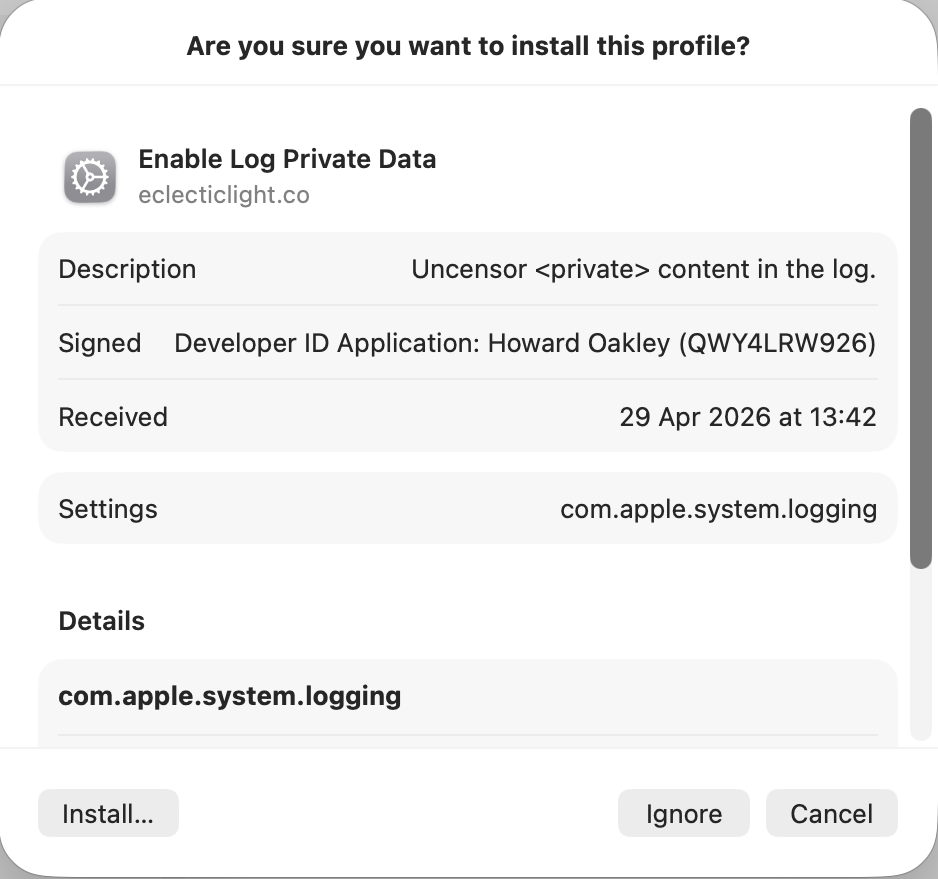
The simplest alternative is to install a Configuration Profile containing the saved settings to be applied to the property lists in /Library/Preferences/Logging. I provide a signed profile to remove all that <private> censorship in enablelogprivatedata.

To install the profile unzip the archive into a convenient folder and double-click it. You’ll be prompted to review the profile to install it.

Open System Settings > General & Device Management, and inspect it by double-clicking the profile there.

Click on the Install button to accept and install the profile.

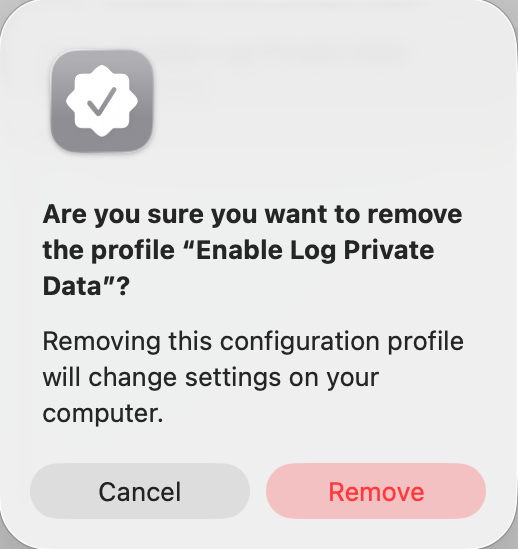
To remove it, select the profile and click the – tool below.

If you watch the contents of com.apple.system.logging.plist in /Library/Preferences/Logging you’ll see that change, with the setting of the key Enable-Private-Data to true. If you then run
sudo log config --status
with that profile installed, it should report something like
System mode = INFO PRIVATE_DATA
to confirm that private data is being shown in log entries, and that’s the best way to gain access to their full contents. Remember to remove the profile as soon as you’re done, or your log will continue to leak sensitive data.

There’s a collection of custom log profiles to gather log extracts about specific features in macOS (and Apple’s other OSes). Although they’re listed here, you can only download them if you have a developer (or equivalent) account with Apple. What’s more, Apple describes these as confidential, and explicitly forbids their use or disclosure without its permission. So much as I’d love to explain the undocumented features they use, I regret that I can’t.

我一点也不想要 OpenAI 手机|AI 器物志

智能手机统治了过去十几年的数字生态,它是注意力的黑洞,是我们最私密的随身之物。但手机从设计之初就是为「人盯着它」而生的——它的全部逻辑,都止于屏幕。

AI 的需求却恰恰相反:它需要持续感知物理世界——见你所见,听你所闻,随时在场,而非等你解锁屏幕才醒来。

当 AI 真正成为一种基础能力,它迟早要从屏幕里破壳而出,寻找属于它自己的形状。这将是一个漫长的探索和演化过程。

「AI 器物志」栏目由此而来,爱范儿想和你一起持续观察:AI 如何改变硬件设计,如何重塑人机交互,以及更重要的——AI 将以怎样的形态进入我们的日常生活?

这是「AI 器物志」的第 10 篇文章。

全世界体量最大的人工智能厂商之一 OpenAI,要脱离虚拟领域,开始造手机了。

根据天风国际证券著名分析师郭明錤发布的调研报告:OpenAI 正与联发科和高通接洽生产手机处理器的事宜,拟由立讯精密协助设计和生产,预计 2028 年正式量产。

这款手机最大的不同在于:OpenAI 意图将它打造成一个为 AI Agent 模式特化的产品,郭明錤是这样介绍的:

用戶的目的不是使用一堆 App,而是透過手機執行任務並滿足各種需求,這從根本上推翻現在對手機的認知。

基于已经掌握的信息,郭明錤还设计了一张这种 AI Agent 手机可能的用户界面:

图|X @mingchikuo

在郭明錤的设想图中我们可以看到,在 AI Agent 的操作逻辑中,原本熟悉的「桌面 – App」模式会被一种「Agent 任务流」所取代——

不同功能的 App 图标会变成不同功能的 Agent、软件入口会变成更加具体的任务信息(比如从微信图标变成「发送一条朋友圈」按钮)、网格化排列的桌面 UI 也会直接变成任务信息的瀑布流。

就像 Niagara Launcher 一样|Android Authority

实话说,OpenAI 要造 AI 手机这件事本身并不稀奇。

它设想的很多场景我们其实在曾经的豆包手机上都体验得七七八八了,两者的本质都是希望给 AI 更高的自由度和自主权,以拓宽使用场景。

只不过相比「O 包手机」,反而是郭明錤提到的那个「纯粹基于 AI Agent 交互模式的手机 UI 」更加令我们感到不安。

在过去一段的 AI 产品中,无论是传统大模型,还是不同形状的 OpenClaw,我们都观察到了一种趋势:

现在 AI 的用户界面(UI)越来越向着以 Agent 为主导的方向发展,最激进的形态就是启动后只显示一个对话框。

图|Google

这种交互模式看上去人畜无害,但背后却暗含着一个汇聚了所有 AI 工具使用场景的「思维模式陷阱」——

AI 正在将人类异化成为机器。

正因如此,爱范儿在这里邀请你与我们共同进行一场小小的思想实验,来尝试理解 AI 将人异化的危险性。

Agent UI 最终会消灭 UI

OpenAI 手机所期望的那种纯粹的「Agent 使用模式」最表层的问题,是 Agent UI 对于「用户界面」中「用户」部分的忽视。

而这种忽视最明显的表征,就是上面所展示的那种任务瀑布流 UI,以及很多预制式 OpenClaw 客户端的裸露对话框。

更具体的说,任务瀑布流实际上是将交互界面从我们熟悉的「以应用为中心」(app-centric)转向了「以意图为中心」(intent-centric):

这些 AI 建议就是以意图为中心的

这就导致了一个问题:UI 全部由不停更新的任务信息构成,某个特定的界面没有一个固定的入口。

比如打开顺丰 app,映入眼帘的只有每秒不停更新的在途快递进度,却找不到「修改寄件地址」的按钮。

这在心理学上被称为「客体恒常性」的缺失,相当于「我知道这个开关是做什么用的」—— Agent UI 的界面只会让人感觉到在面对一堵随时变化的墙,没有一个可以熟悉的落脚点。

另一方面,纯粹目的性导向的 Agent UI 在实质上剥夺了用户的「主动探索」空间,将使用过程变成了一种纯粹的 AI 对于用户的预判。

最简单的例子就是:在淘宝 app 上买东西的时候,我们经常是边逛边选、偶尔刷到一些没见过的好货;而 Agent UI 直接帮你跳过了「淘」宝的过程,你只是那个控制支付宝付款的人肉 ATM 而已。

更退一步说,这相当于无论用户想要做什么,AI 手机始终在催促着用户进入「赶快完成任务」的生产模式——这种粗暴的接管,本质上是对于用户权利的消解。

归根结底,Agent UI 的逻辑,其实是将人给「零件化」。

它粗暴地假设用户是一个理性的、追求效率最大化的任务处理机,打开手机的唯一目的就是要解决任务列表里面的工作。

同时,它又忽略了人作为感性的、需要审美愉悦和情感缓冲的生命体的本质。

AI 最终会促成更多 AI

除了 Agent UI 本身对于「人」的基本需求的蔑视,我们同时也要理解:是什么样的环境促成了这种「唯效率论」的 UI 设计趋势的出现——

将人的一切使用行为,压缩成一条看不到尽头的任务列表,人与机器的唯一主动交互方式被简化进一个闪烁的对话框,背后的 AI 不可见、不可知、不可碰触。

这不是 AI 辅助生活,这是向克苏鲁献祭 token。

仅就上面提到的 Agent UI 来说,这种现象其实很像是一种从 GUI 到 CLI 的倒退:

我们花了几十年完善图形技术,又在一夜间回归到了最原始的用嘴发布命令。

这种由 Agent UI 所代表的「GUI 倒车」,深深根植于幕后的技术效率至上主义。

其中一个最简单的例子,就是游戏。

虽然如今本地计算仍然是主流,花钱买显卡就能享受到精美的画面,但我们完全可以想象这样的场景:

未来,云端计算成为主流之后,更有可能出现的情况是厂商根本不再出售图形算力,因为它们赚得没有文字/代码模型多。

甚至不只是手机和电脑的 GUI、以及游戏画面,我们消费的一切内容本身都会在这种对于效率的追逐中,退化成一种湮灭美学、纯粹的精神刺激工具。

图|网络

更讽刺的是,我们对于 AI 原本的愿景是「让 AI 处理琐事,让人类去作诗」。

但如今我们看到的却是 AI 工具泛化导致了效率主义极权的泛滥,人类对「美」的感知退化只是其中的附带伤害而已。

最让人无法接受的是,Agent UI、AI 手机、Agent 行为模式的设计背后,都存在着一种先入为主式的傲慢。

这些 AI 工具的生产者认为人类只关心「结果」,所以用生成式 AI、Agentic AI 将人从「过程」中去除,却忽略了人类的「存在感」本身就来源于我们对于行为过程的认知。

用更惨淡一点的说法就是:如果我不需要参与 AI 的一切决策,只是看个结果,那还需要我做什么?

最需要警惕人变成 AI

进行到这一步,很多人会有疑问:

这不就是个想象中的手机界面嘛,至于上升到存在主义哲学的高度吗?

这句话本身并没有问题,上面提到的所谓 Agent UI 的设想图,仅仅是郭明錤基于 OpenAI 手机的产品思路,给出的一种设想方案。

⚠ 图片使用 AI 技术生成|X @birdabo

但现代社会——尤其是 AI 加速过的现代社会——的危险性就在于:如果你自己不考虑存在主义哲学,就会有很多人乐于帮你考虑,然后再朝你收钱。

前面提到的 AI Agent 的确在非常多的层面上都可以帮助人们在工作中实现更高的效率,问题在于没有人一天 24 小时都在工作,但我们一天 24 小时都会带着手机。

这种纯粹基于待办任务流的 Agent UI、纯粹由执行效率驱动的 AI 产品,会借助「手机」这个不离身的媒介,从工作侵入到你的生活,让你的生活节奏、思维节奏去习惯 AI 的步调——

不太好理解?想想那些每天黑白颠倒抓紧时间抢 Token「谷电」时间的程序员们吧。

这还只是现阶段 AI 对人类作息的初步影响。长此以往下去,用户无论在工作时间还是非工作时间,都不再是一个具有主观意志的「人」——

当我们下班累瘫在沙发上,喊 AI 手机随便帮我们点个外卖当晚饭的时候,就相当于放弃了主动思考的权利,当这种放弃成为习惯,生活的每一个环节就都会成为一个别人的商机。

换句话说,AI 手机、Agent UI 现在看上去或许人畜无害,可一旦人类习惯跟随了 AI 的节奏和方式,就会暴露出巨大的危险性。

图|Futurama

德国哲学家马丁·海德格尔在《对技术的追问》中提到了一种观点,即现代技术有一种「促迫」(challenging-forth)的特性,指的是现代技术不仅制造机器,技术本身也拥有越来越强的主体性、会「强迫」自然界交出能量和资源。

同时,促迫也可以被看作一种人看待世界的方式,海德格尔认为:当人类用「促迫」的眼光看待自然时,人类最终也会把自己看作一种可以被技术索取的资源。

是不是很耳熟,没错,人力资源(Human Resources)就是这个意思。放到现在的 AI 环境里,则是简单的一句话:

去叫人力,给这个 Opus 4.7 账号配个员工。

糟糕的是,现在的 AI 技术,以及全世界的 AI FOMO(错失恐惧症),就是这种模式的完美复现。

Agent UI 那种瀑布流式待办任务界面不仅是帮你,同时也是在 PUA 你:

这种互相加速的现象(海德格尔称之为座架 Gestell),最终会导致人类调整自己的思维模式去适配机器的吞吐速率——

为了让 Agent 更好地工作,你会下意识地让自己的需求变得更明确、更单一、更具逻辑性,相当于人类主动将自己异化(alienation)成了机器。

这就是我们在现代技术中,最需要警惕的一点:人的机器化。

伴随着 AI 越来越侵入我们工作之外的生活,我们也在潜移默化地将自己降格为一种适配机器的存在。当人为了适配 AI 的高效而放弃了「临时起意」和「无目的漫游」时,你已经从逻辑上被机器同化了。

这种机器化的下一步,就是软性淘汰——

人不会像《黑客帝国》那样变成生物电池(暂时不会),只会被炼成一个 skill。

毕竟现实证明:生物机器在效率上永远无法媲美金属机器。

人在追求效率的同时,主动或被动地将自己异化成一种生物机器,最终的结局必然是被金属的或者硅基的机器淘汰。

人类的社会生产持续追求「0 摩擦」的完美效率时,本质上是在追求一个「去人化」的过程。

而无论 Agent UI、Agent AI 还是通用智能,都只是这个过程中的加速剂而已。

当我们在参与社会生产的过程中,主动切除了所有属于人的部分,好让自己在这个以 AI 为出发点、为工具、为最终目的的系统中跑得更顺滑。

直到切除剩下的那些部分,可以被另一段代码完美地替代。

图|Youtube @Moviefone

当然,在这个小小的思想实验之外,我们都知道郭明錤的预测只是一种预测,没人说 OpenAI 手机的交互方式真的就是一个纯粹的任务瀑布流。

但人作为感性动物,我们的思维模式就是在与客体世界的不断交互中形成的。

如果一个占据我们每天 24 个小时的工具正在走向纯粹机器性的交互,那我们距离被异化成机器后淘汰的结局,也的确不远了。

#欢迎关注爱范儿官方微信公众号:爱范儿(微信号:ifanr),更多精彩内容第一时间为您奉上。

Last Week on My Mac: Didn’t macOS have a GUI?

Each week brings news of more ClickFix atttacks. Last week’s, dubbed Mach-O Man by Mauro Eldritch and detailed on ANY.RUN’s blog, tricks targets into “fixing” a fake connection problem by pasting a malicious command into Terminal. I have previously argued that these attacks are preventable by changing user behaviour. Here I consider the role of macOS and its increasing reliance on the command line.

This was inspired by Apple’s recent warning to administrators of forthcoming changes in network security, where Apple instructs them to copy and paste a near-unintelligible command in what mimics a ClickFix attack. Although a brief explanation of that command is given, this is bad practice. The reason it’s deemed necessary is that the utility provided in macOS for the last ten years to access the log, Console, simply isn’t up to the task.

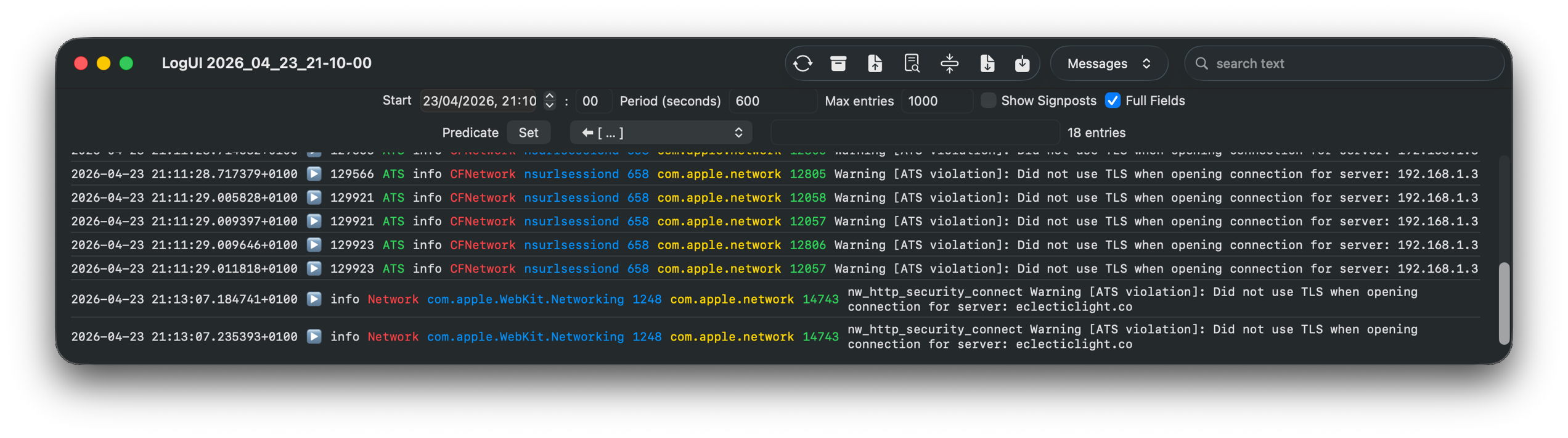
I took the lengthy predicate recommended in Apple’s article
"p=appstoreagent|appstored|managedappdistributionagent|managedappdistributiond|ManagedClient|ManagedClientAgent|
mdmclient|mdmd|mdmuserd|MuseBuddyApp|NanoSettings|Preferences|profiled|profiles|RemoteManagementAgent|
remotemanagementd|Setup|'Setup Assistant'|'System Settings'|teslad|TVSettings|TVSetup|XPCAcmeService AND s=com.apple.network AND m:'ATS Violation'|'ATS FCPv2.1 violation'"

and broke it down into the far more understandable
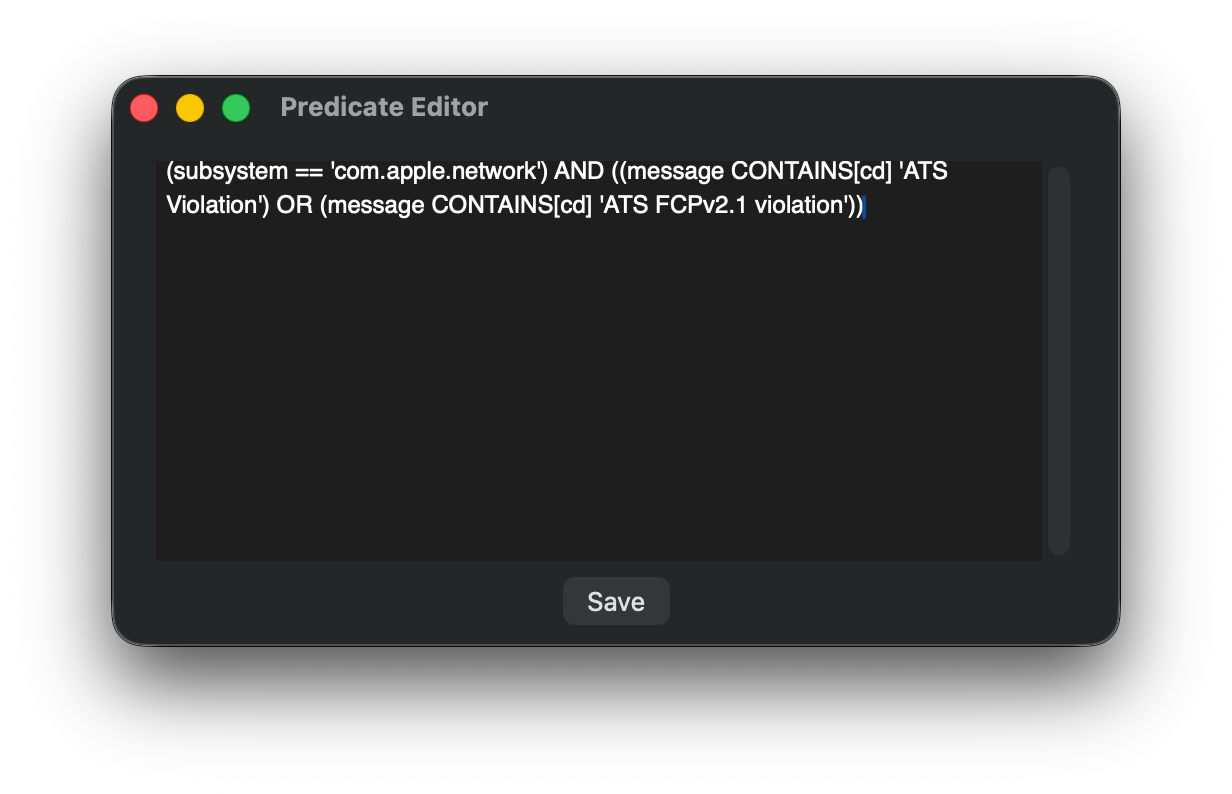
(subsystem = 'com.apple.network') AND ((message CONTAINS[cd] 'ATS Violation') OR (message CONTAINS[cd] 'ATS FCPv2.1 violation'))
and pasted that to use as a one-off predicate in LogUI.

Over a ten-minute period of network access, that returned a workably small number of log entries for further checking.

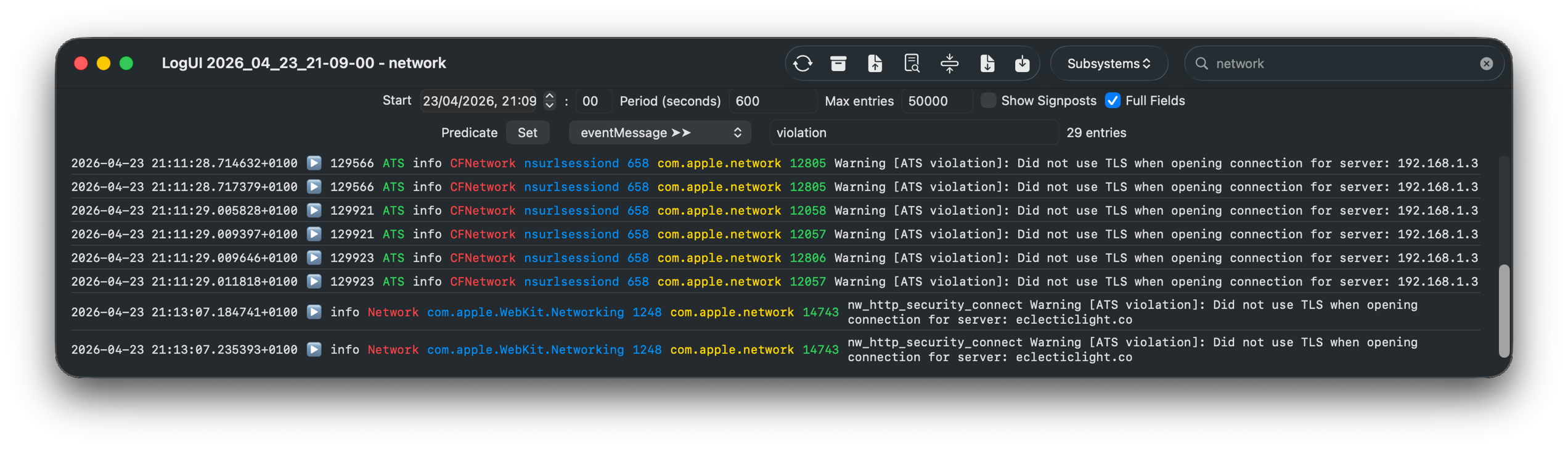
A little careful thought suggested a more logical approach, effectively using the predicate
(message CONTAINS[cd] 'violation')
using LogUI’s popup predicate menu, then filtering those few entries using the word network in their subsystem field, with exactly the same results.

It really isn’t that hard to come up with a log browser that can handle such tasks far better than the command line ever could. But from the start it has been clear that Console isn’t intended to assist browsing the Unified log, only to discourage it.

Few of those now working for Apple can remember that for the first 17 years of Macs, until the arrival of Mac OS X, there was no command line at all. We got by with utilities crafted by Apple like ResEdit.
prefsresedit

Here ResEdit is displaying the resources of QuarkXPress version 4.11 from around 2000. The app icons shown are stored in a resource of type BNDL, a ‘bundle’, but not in the later sense of the term.

serveradmin

I feel sure that more engineers will recall the GUI provided in Mac OS X Server, in its Server Admin app that wrapped many of its tricky tasks in a familiar interface, making administration a true joy. One weak area was DNS management, for which there were third-party alternatives including that from Men&Mice, now part of BlueCat.

serverstarted

In later, more consumer-oriented versions, Server.app was more concise but remained rich in function. Its sidebar let you manage users and groups, monitor your server, control its services, manage hardware, and control system, network and storage settings. Below that the Next Steps button provided access to help topics and useful suggestions.

In the years since, Apple has steadily stripped out many of those utilities that provided ordinary users with an alternative to the command line.

Ping a remote site in Network Utility for a quick check of connectivity.

Network Utility contained a friendly front-end to a suite of valuable tools to help diagnose network problems. It was deprecated in Big Sur, then removed, with Apple explicitly advising the use of command tools instead.

Other utilities have followed a similar pattern. Initially, some of their more advanced features are removed, then the app is hidden away in /System/Library/CoreServices/Applications to discourage its use, in preparation for telemetry to justify its removal on the grounds of lack of use. Once it has gone all we have left is a clumsy conglomeration of options in a *util command tool, and users forced to copy and paste in training for a ClickFix attack.

This is good news for indie developers like Michael Tsai at C-Command, and Bryan Christianson, who can then build replacement apps such as DropDMG and WhatRoute, and some of my own utilities like Spundle. But they can only reach a limited audience, and the majority are left to rehearse for ClickFix.

At the same time that Apple has been normalising the use of the command line, it has invested heavily in app security, from Gatekeeper and quarantine, to XProtect and notarisation. Predictably, ClickFix attacks sidestep past those and exploit the behaviour that its victims have been conditioned to because macOS doesn’t provide the apps needed for its administration and maintenance.

ClickFix is thus largely self-inflicted by a modern macOS that places greater priority on apps that generate income, and design fads like Liquid Glass.
Explainer: AppKit and SwiftUI

Look across a range of third-party apps on your Mac and you’ll see how different their interfaces are. Casting aside those based on cross-platform frameworks like Electron, most of the best either use traditional AppKit, or its more recent successor SwiftUI. This article explains how those have come about, and how they differ.
AppKit is descended from the UI framework in NeXTSTEP, and has been at the core of Mac OS X from the start. For much of the last 26 years, it has provided the interface for the Finder and Apple’s own apps. When Apple designed iOS and iPadOS, they were given equivalents in UIKit, which isn’t as extensive, and hasn’t facilitated cross-platform development.

Although AppKit apps can construct their interface procedurally, most rely on Interface Builder, a GUI tool built into Xcode that separates the design of menus, windows, their views and controls from the largely procedural or imperative code used to drive them. You can often tell apart apps using AppKit by their use of Storyboard files in the Resources folder in their app bundle.

SwiftUI was announced at WWDC in June 2019, and first became available in macOS 10.15 Catalina. One of its primary goals is make it easier for apps to run across multiple Apple operating systems. It adopts a declarative approach, so rather than separating interface design into a graphical editor, its windows, their views and controls are built from data structures as in the example given in the Appendix below. Their code can then be previewed in real-time, but there’s no direct manipulation in those previews, which are developed iteratively in code.

For example, to increase the size of an AppKit text entry box in Interface Builder, the developer can either drag the box to its new size, or adjust its dimensions in a control, and see the result immediately. In SwiftUI, those dimensions are edited in the code defining that box within its view and window, which is then converted into a graphical preview. Although this difference may appear subtle, it’s fundamental. Apps that use SwiftUI without AppKit don’t have Storyboards in the Resources folder in their app bundle.

The two come from different eras in human interfaces.

AppKit presents a more static approach, where the contents of its views are their dynamic, as demonstrated in SilentKnight version 2 below.

sk221

SwiftUI is thoroughly dynamic, reconfiguring its look using animations and transitions in layouts that adapt to their purpose, as shown in a prototype for SilentKnight version 3 below. Although AppKit is thoroughly accessible from Swift code, it was developed for Objective-C, while as its name implies, SwiftUI is thoroughly Swift-oriented.

silentknight32

While there are still many fine apps that only use AppKit, SwiftUI remains work in progress, and it’s common for apps still to dip into AppKit to handle tasks that can’t be achieved in SwiftUI alone. Among many examples remaining is the display of PDF documents, which is still only achievable from an AppKit view. This is improving as SwiftUI evolves, but that in turn poses problems with macOS support.

For example, one of the most substantial changes in SwiftUI has been the move from its Observable Object protocol to the Observable macro, which affects the back end of apps. But the Observable macro is only available in apps written for macOS 14 or iOS 17 or later, which explains why so many apps using SwiftUI require a minimum of macOS 14.6, so they can take advantage of this architectural change. It’s not just the more obvious features in new versions of macOS that limit backward compatibility of apps.

Among the archipelago of delights brought in SwiftUI are its List View, and Swift Charts.

AppKit has excellent support for Attributed Strings that are essentially their underlying data for Rich Text. Log entries shown in my AppKit-based log browser Ulbow demonstrate how its NSTextView can handle tens of thousands of lines of Attributed String data representing log entries.

In LogUI, I have replaced that with a SwiftUI List View, which is far more versatile, but doesn’t use Attributed Strings.

Although in recent versions of macOS this readily copes with tens or even hundreds of thousands of lines, it’s still prone to displaying blank areas when scrolling.

Implementing charts in Logistician relies entirely on the capabilities of Swift Charts, but those are only available in macOS 13 and later.

Although it might appear that Mac developers are now spoilt for choice between AppKit and SwiftUI, there are many occasions when they’d prefer taking the best bits of each and building something more coherent and comprehensive, and better tailored to the desktop rather than the device.

Appendix: Example SwiftUI code

struct ContentView: View {
    @State private var messageInfo = Logger()
    
    var body: some View {
        let _ = messageInfo.getMessages()
        if (self.messageInfo.logList.count > 0) {
            VStack {
                List(self.messageInfo.logList) { line in
                MessageRow(line: line)
                }
            }
            .frame(minWidth: 900, minHeight: 200, alignment: .center)
        } else {
            Text("No results returned from the log for your query.")
                .font(.largeTitle)
        }
    }
}

struct MessageRow: View {
    let line: LogEntry

    var body: some View {
        HStack {
            Text(line.date + "  ")
            if #available(macOS 14.0, *) {
                Text("\(line.type)")
                    .foregroundStyle(.red)
            } else {
                Text("\(line.type)")
                    .foregroundColor(.red)
            }
            if !line.activityIdentifier.isEmpty {
                Text(line.activityIdentifier)
            }
//          etc.
            Text(line.composedMessage)
            }
        }
    }

How long does the log keep entries?

One of the most contentious questions arising from yesterday’s critical examination of ChatGPT’s recommendations, is how long does the Unified log keep entries before they’re purged? ChatGPT seemed confident that some at least can be retained for more than a month, even as long as a year. Can they?

Traditional text logs are removed after a fixed period of time. One popular method is to archive the past day’s log in the early hours of each morning, as part of routine housekeeping. Those daily archives are then kept for several days before being deleted during housekeeping. That’s far too simple and restrictive for the Mac’s Unified log.

Apple’s logs, in macOS and all its devices, are stored in proprietary tracev3 files, sorted into three folders:

  • Persist, containing the bulk of log entries, retained to keep their total size to about 525 MB in about 50-55 files;
  • Special, including fault and error categories, whose entries are slowly purged over time until none remain in the oldest log files, so have a variable total size and number.
  • Signpost, used for performance measurements, which also undergo slow purging until they vanish.

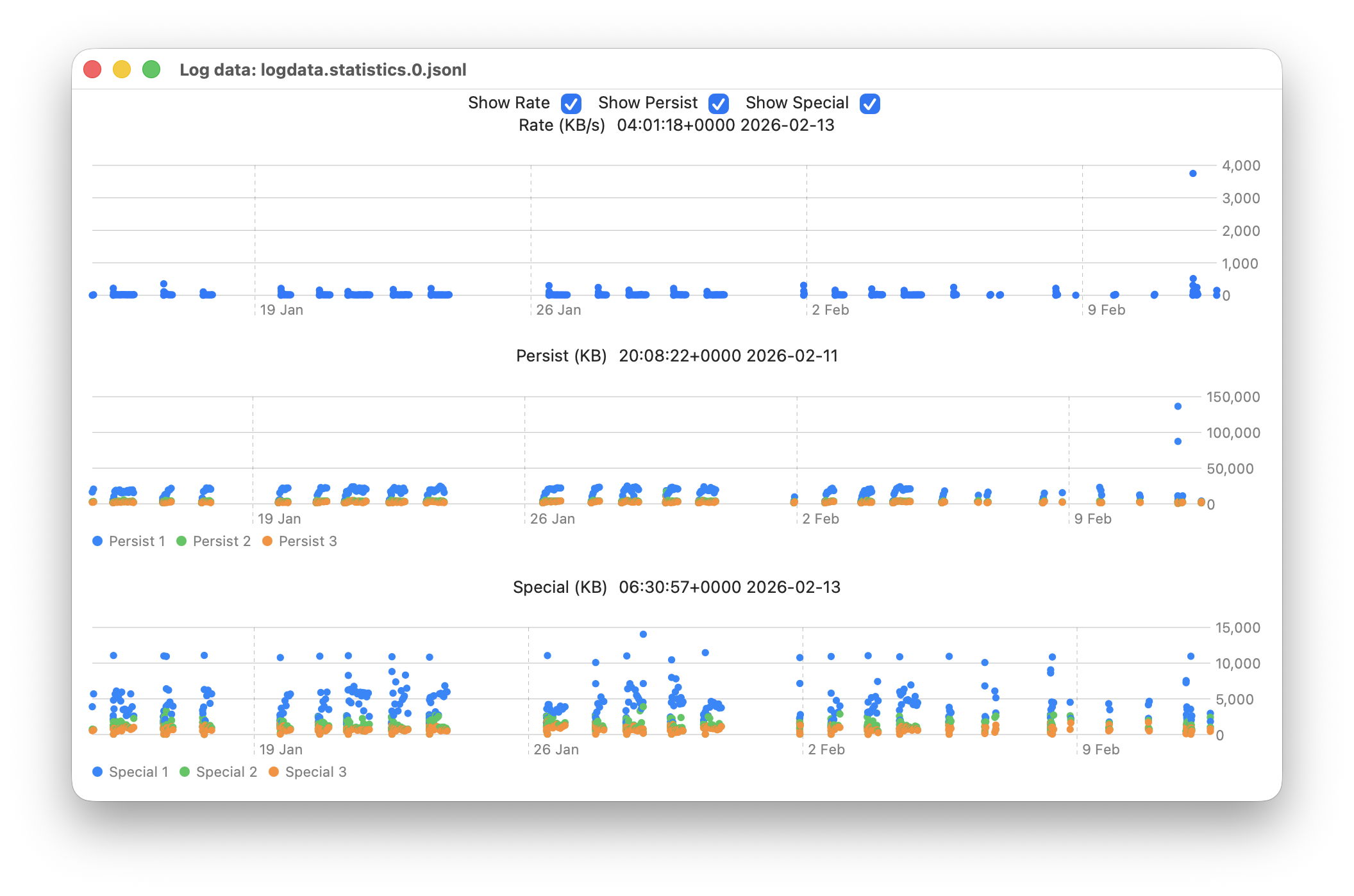
One simple way to estimate the period for which log entries are retained is to find the date of creation of the oldest log file in each of those folders. On a Mac mini M4 Pro run largely during the daytime, those dates were

  • Persist, earliest date of creation 7 March 2026 at 16:54
  • Special, 9 February 2026 at 19:41
  • Signpost, 3 March 2026 at 16:41

when checked on 10 March. Those indicate a full log record is available for the previous 3 days, followed by a steady decline with age to the oldest entry 31 days ago. That compares with statistical data available in my app Logistician going back as far as 14 January, although all entries between then and 9 February have now been removed and lost.

Retrieving old log entries

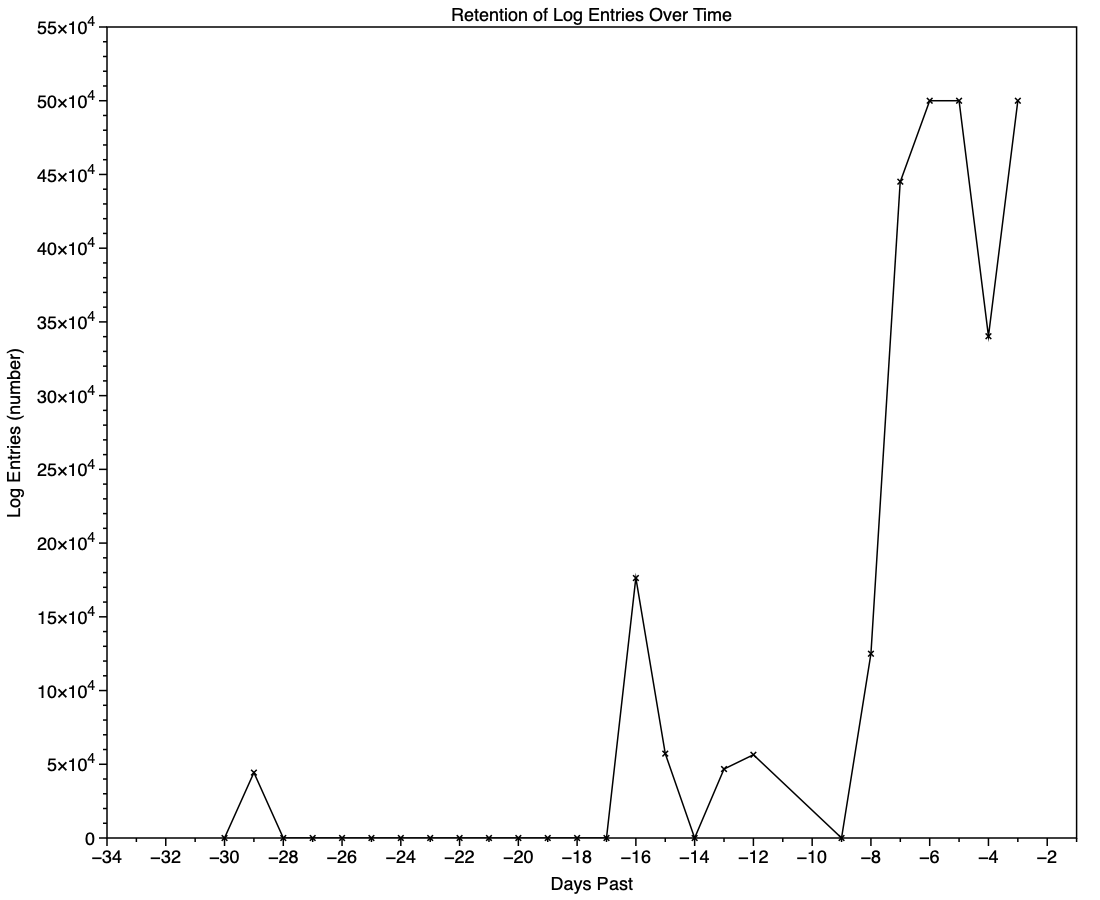
The real test of how many log entries have been retained is to try to retrieve them. Although the oldest Special log file was created on 9 February, the oldest log entry I could retrieve was the start of the boot process on 11 February, in Special log files returning a total of over 44,000 entries for that day. However, no further log entries could be found after those until the morning of 24 February, a gap of over ten days.

This chart shows the numbers of log entries that could be found and read at intervals over previous days. Where a total of 500,000 is shown, that means over 500,000 for that 24 hour period. I checked these using two different methods of access, using the OSLog API in LogUI, and via the log show command in Ulbow. In all cases, log show returned slightly fewer than OSLog.

It’s clear that with only 3 days of full Persist log files, very few entries have been retained from earlier than 7 days ago, and beyond that retention numbers are erratic.

Over the period prior to the oldest Persist file, when entries could only be coming from Special log files, those included both regular and boundary types, and categories were diverse, including fault, error, notice and info, and weren’t confined to the first two of those categories. Most subsystems were represented, but very few entries were made by the kernel. There is thus no obvious pattern to the longer retention of entries in Special files.

Ephemeral entries

Log entries are initially written to memory, before logd writes most of them to permanent storage in tracev3 log files on disk.

mul102LogdFlow

The first substantial purging of entries thus occurs when logd decides which are ephemeral and won’t be retained on disk. This can be seen by following the number of entries in a short period of high activity in the log, over time, and is shown in the chart below for a sample period of 3 seconds.

When fetched from the log within a minute of the entries being written, a total of 22,783 entries were recovered. Five minutes later there were only 82% of those remaining. Attrition of entries then continued more slowly, leaving 80% after 8 hours. Analysis suggests that over this period in which there were about 6,100 log entries per second written to disk, approximately 1,700 log entries per second were only kept in memory and never written to disk. That suggests about 22% were ephemeral, a proportion that’s likely to vary according to the origin and nature of log entries.

Summary

  • A fifth of log entries are likely to be ephemeral, and lost from the log within the first minutes after they’re written.
  • Most retained log entries are written in Persist logs, where tracev3 files are removed by age to keep their total size to just over 500 MB. Those should preserve the bulk of log entries for hours or days after they’re written.
  • Entries stored in Special log files may be retained for significantly longer, here up to a maximum of 29 days. Although those may contain fault and error categories, retention doesn’t follow an obvious pattern, making their period of retention impossible to predict.
  • In practice, the period in which a fairly complete log record can be expected is that applied to Persist files, which varies according to the rate of writing log entries. In most cases now that’s unlikely to be longer than 5 days, and could be less than 12 hours.
  • You can’t draw conclusions from the apparent absence of certain log entries from the log prior to the earliest entries in Persist log files, as it’s likely that those entries will have been removed.
  • Expecting to retrieve log entries from earlier than 5 days ago is almost certain to fail.

预言在应验:五年前所讨论的未来人机交互的新范式_6.ylog

从 2024 年的今天,回望 2019 年的 Apple 和 Ive 团队,我们会发现有些变化和趋势似乎是早已注定的。在过往的观察和分析中,我们所预言的事情正在成为现实和主流。常言道以史为镜可以知兴替,今天再看当时的 Apple 和 Ive 团队,关于产品的演进思路和设计策略的变化都早有端倪,也能预见在 AI 席卷的浪潮下,Apple 将会如何应对。

在这一期,你会听到:

—- 二十年前的专利文件:通体透光的 iPhone

—- 国产厂商和 Apple 在设计上的差异

—- 成功的设计:AirPods 只是剪掉线的 EarPods

—- 塑料手机的设计巅峰:iPhone 5c

—- 刘海与机器视觉:早早布局的 AI 伏笔

—- 未来十年的人机交互:人和人之间怎么交互?

—- 设计策略上的「S型曲线」体现在哪里?

—- 产品路径上迷路的 iPad

—- 光洁的划痕:是矫情还是哲学?

—- 史上最佳手机壳:iPhone 5c 的多彩硅胶壳

—- 拟物化的残党,现在理解扁平化的先进性了吗?

|相关图片|

首款 Unibody 设计于 2008 年 10 月发布
截图来自:Designed by Apple in California

查看更多图片和设计讨论:Mac Pro 2019

|拓展阅读|

如何评价 iPhone X 的工业设计?

交互的王,时代的狂!万字详解灵动岛的今生来世!

十年轮回?经典进化!工业设计师深入解读 iPhone12!

从技术寿命 S 曲线,看阳极氧化铝的设计

抽象的产品,用户「界面」的设计

如何看待 Evans Hankey 从 Apple 设计团队离职?

注定会离职的 Jonathan Ive 和科技产品的设计趋势

|登场人物|

苏志斌:工业设计师,车联网智能硬件产品经理 / 联创,《设以观复》作者

王汉洋:AI 行业从业者,多档播客主播,《拯救东北1910》《山有虎》作者

|相关链接|

若你所使用的播客客户端未能完整显示插图,或遇网络问题未能正常播放,请访问:

荒野楼阁 WildloG 的地址:https://suithink.me/zlink/podcast/

阅读设计相关的各类文章:https://suithink.me/zlink/idea/

|其他社交网络媒体|

苏志斌 @ 知乎|SUiTHiNK @ 即刻 / 微博

苏志斌SUiTHiNK @ Bilibili / YouTube / 小红书

|联络邮箱|

suithink.su@gmail.com

欢迎在 小宇宙、Spotify、YouTube、Apple Podcast 收听本节目,期待你的留言。

面向产品设计的 Web 前端分享会(分享会记录)

最近听说部门里面的产品或本地化运营对 Web 前端相关的内容比较感兴趣,正好我有相关的实践经验,所以在公司做了一个 Web 前端相关的分享会。分享内容包含:

  1. 使用 Devtools:介绍 Chrome 浏览器内的模拟、编辑和审查工具;
  2. 网页和部署:介绍 HTML, CSS, JavaScript, React,以及网站的部署和托管;
  3. 网页性能指标:介绍网页性能常用指标和测量工具;
  4. 资源分享:分享浏览器插件、网站和课程推荐。

与以往不同的是,这次分享会中加入了互动环节。我做了一个代码 Playground,尝试帮助观众了解 React,以及 React Props 的概念,并留了两个小任务,给观众尝试去实践对 React 项目进行编码。

完整的分享内容内容请继续浏览本文。

使用 Devtools

这个章节主要介绍 Chrome Devtools 一些可能不为人知的功能,来帮助我们提高日常工作中的效率和解决一些问题。先介绍 Devtool 里面「模拟」相关的功能。

模拟设备和屏幕尺寸

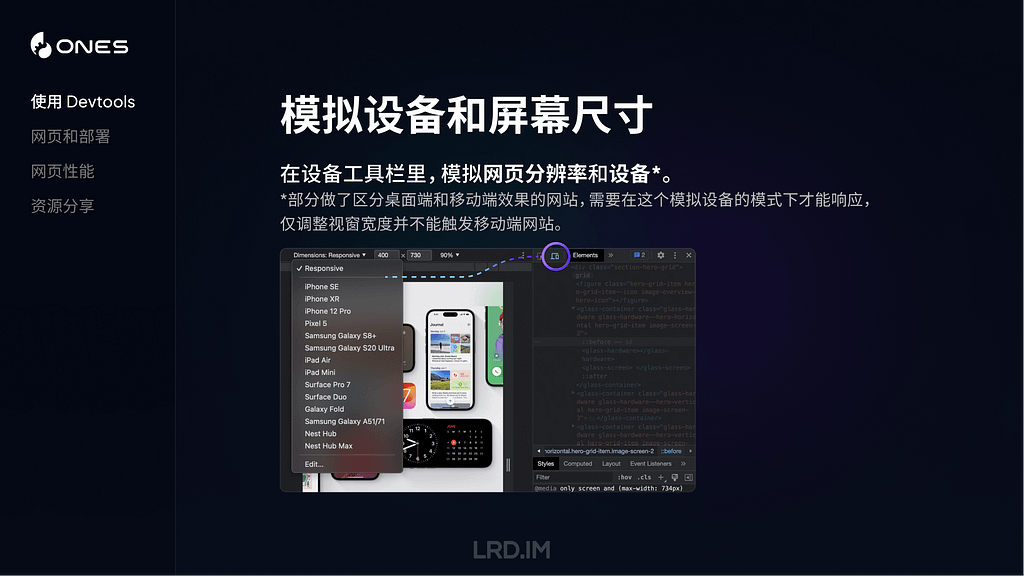
在 Devtool 里打开设备工具栏,在这里除了能够自由调整网页宽高,还能够模拟各种主流设备的屏幕。

甚至还能读取到网页里面的断点样式,提供快捷切换各种断点的方式。

需要注意的是,这里模拟的设备是会带上 UA 的,所以如果想在电脑里调试一些做了移动端特化处理的网站(比如访问主域名时,判断到是手机设备,则会跳到移动端的专门网站),是需要用到这个功能的。

模拟伪类

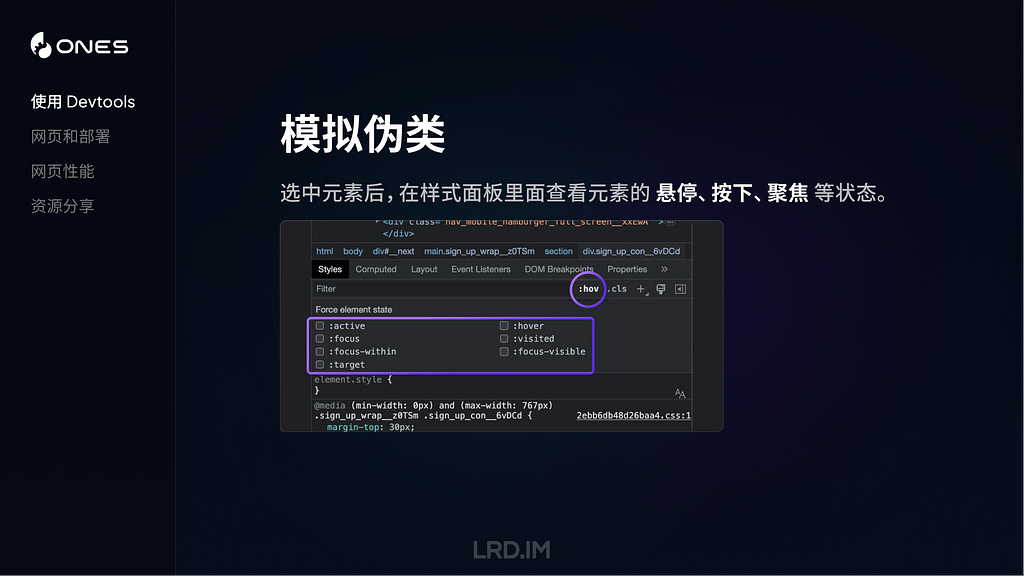
Devtools 还可以帮助我们排查各种交互状态下的样式问题,最常用的是,比如说我们想仔细排查某个元素的悬停和按下状态的样式,则可以在选中元素之后,勾选对应的伪类选项。

模拟媒体

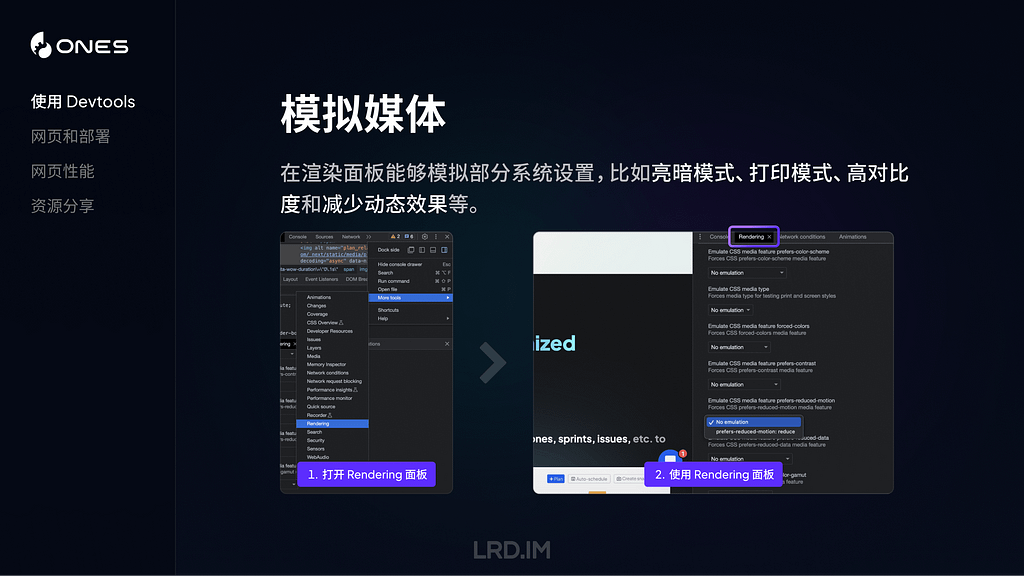
在渲染面板(需要手动开启,浏览器默认是没有打开这个面板的)能够模拟部分系统设置,比如亮暗模式、打印模式、高对比度和减少动态效果等。

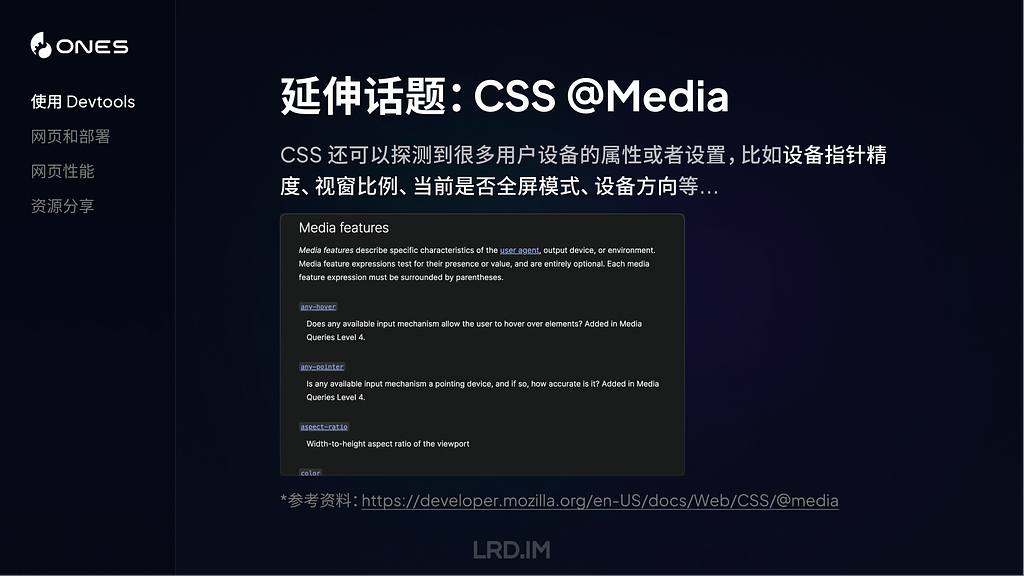
与之对应地,可以扩展一个概念叫做 CSS 的媒体查询,CSS 还可以探测到很多用户设备的属性或者设置,比如设备指针精度、视窗比例、当前是否全屏模式、设备方向等…

能探测的内容很多,但实际能用起来的可能只有寥寥数个,最全面的信息可以取 MDN 上查看。

编辑网页文字样式

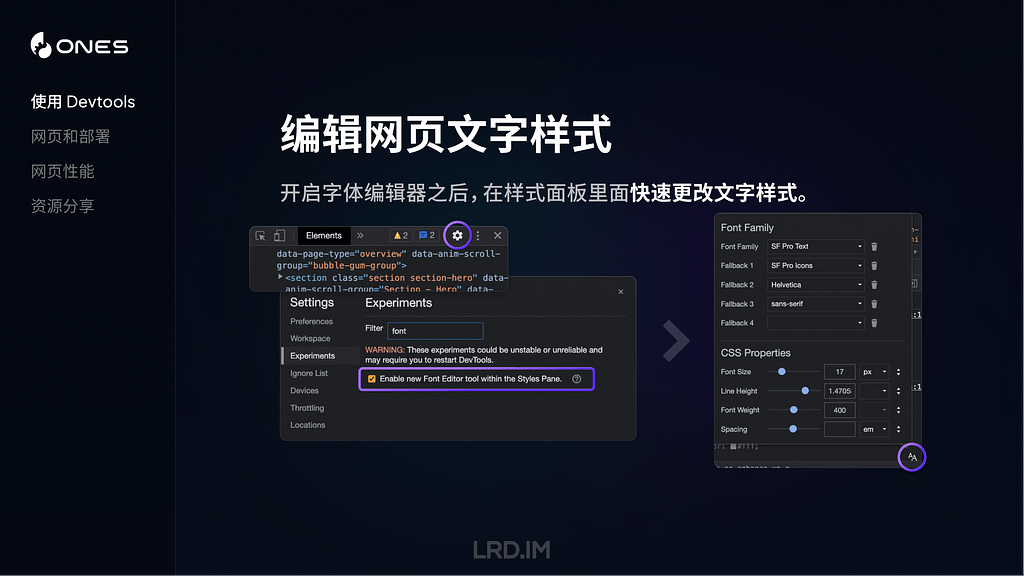
Devtools 还提供了一个新的字体编辑器,能够让我们实时更改网页中的字体家族、字体大小、字重等属性。

编辑网页内容

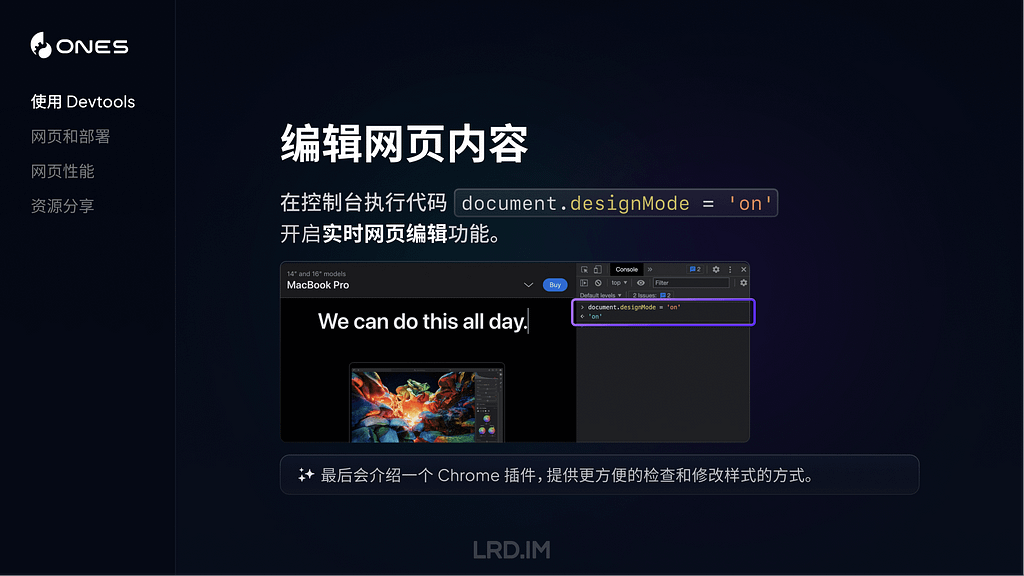
我们在 Devtools 控制台里面执行代码document.designMode = 'on' 后,就可以实时在本地修改网页文字内容了,就跟平常打字一样。很适合用在测试文案长度的场景。最后也会分享一个浏览器插件,能够对网页做更多的编辑。

审查 React 组件

最后介绍一个审查 React 组件的方法,有时候我们想看某个元素是不是用的组件库,或者这个组件包含了什么属性之类的,可以下载 React Developer Tools,然后点选网页中的任意元素,进行审查。

网页和部署

接下来我介绍一下网页构成和网站部署相关的内容。

通常来说,HTML, CSS, JavaScript 是构成网站的三个要素。其中:

  • HTML 用来用于定义网页的结构和内容,可以用来创建网站的各个部分,比如标题、段落、图片、链接等。
  • CSS 用来定义网页的样式和布局,这个可能会是咱们设计师比较熟悉的部分,我们能够利用 CSS 来定义 HTML 元素的各种样式,控制它们的布局和位置。
  • JavaScript 用来实现各种功能逻辑和操作交互。比如响应点击事件、动态修改网页内容,根据条件执行动画效果或展示特定内容等。

CSS 预处理器

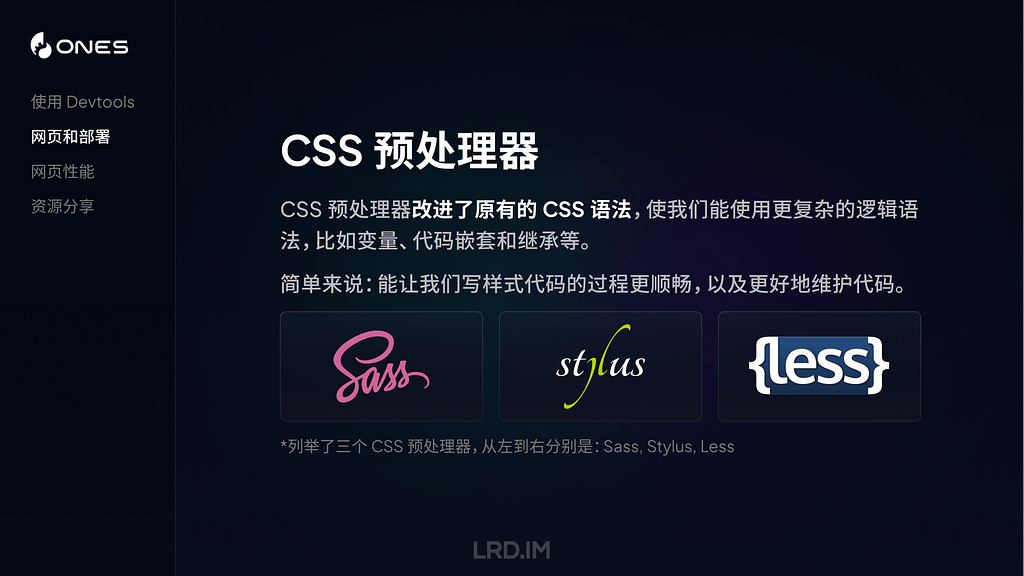
上述的三种语言,都有各自对应的语法规则。而 CSS 预处理器,则改进了原有的 CSS 语法,使我们能使用更复杂的逻辑语法,比如使用变量、代码嵌套和继承等。

简单来说,CSS 预处理器能让我们写样式代码的过程更顺畅,使代码有更良好的可读性和扩展性,帮助我们更好地维护代码。

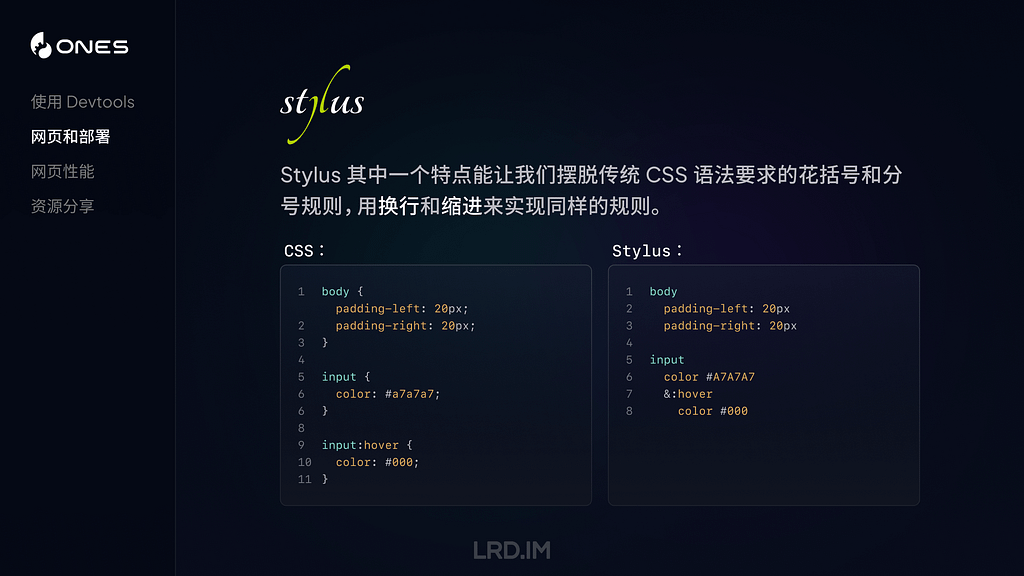
举个简单的例子,比如原本的 CSS 语法中要求我们给每一个元素写样式时,必须以花括号开始和结尾,而且每一条样式规则直接都要以分号隔开,而 Stylus 则能够让我们跳出这个限制。直接用换行和缩进来代替。

CSS 框架

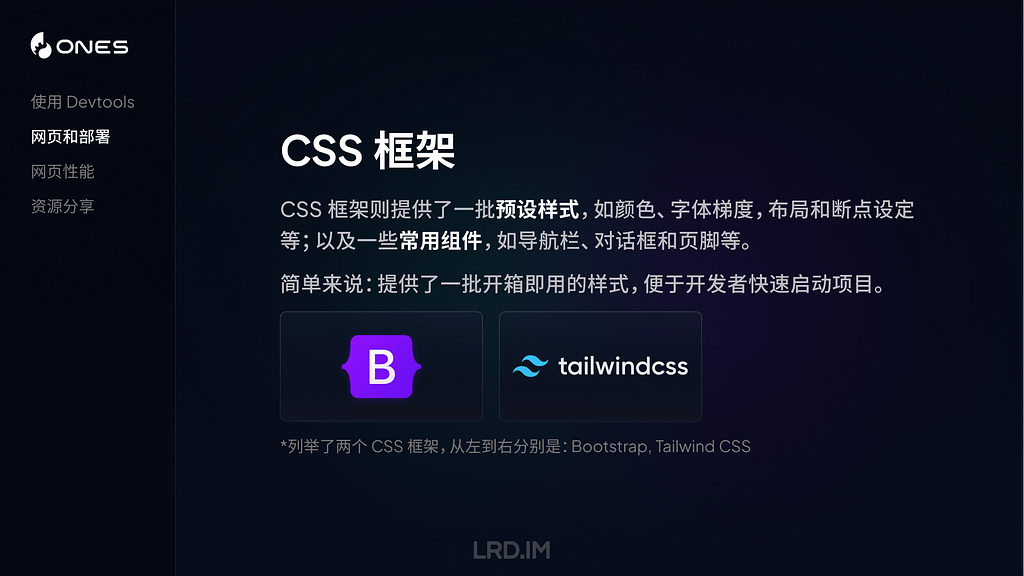
另一个值得一提的概念是 CSS 框架。CSS 框架则提供了一套预设样式,比如颜色板、字体梯度,布局和断点设定等;以及一些常用组件,如导航栏、对话框和页脚等。

简单来说,就是提供了一批开箱即用的样式,便于开发者快速启动项目,同时也会保留高度自定义的空间,用于支持各种各样的需求。通常 CSS 框架都会包含使用某个 CSS 预处理器,甚至内置了一些图标库,主打一个 “开箱即用”。

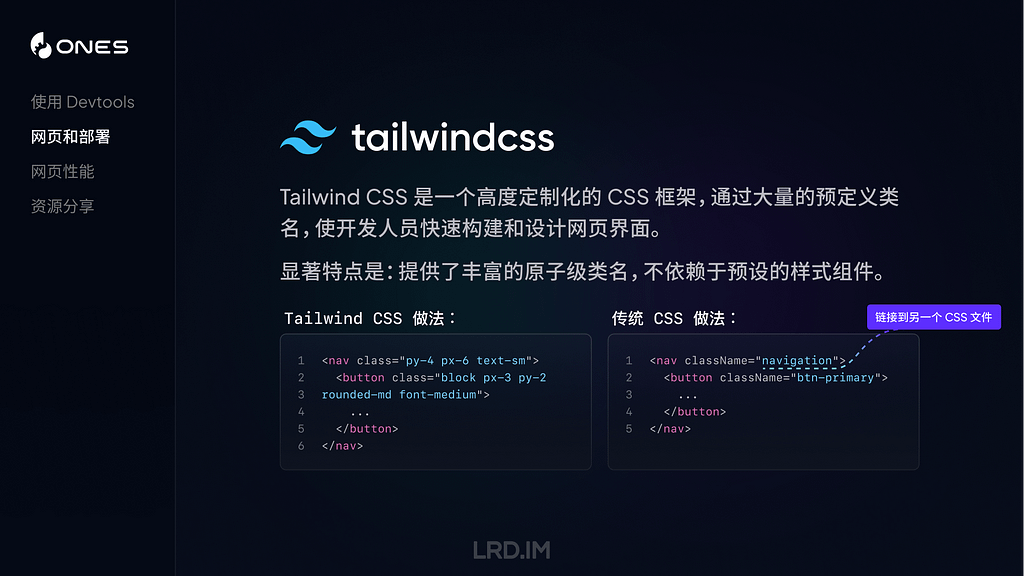
这里稍微介绍一下一个 CSS 框架:Tailwind CSS。是一个高度定制化的 CSS 框架,通过大量的预定义类名,使开发人员快速构建和设计网页界面。

与其他 CSS 框架相比,有一个显著的特点是 Tailwind CSS 本身不会包装一个组件出来,比如按钮、输入框的样式,没有预设好的。取而代之的是,Tailwind CSS 将各种原子级的 CSS 类名包装起来,比如:

  • 设置左右两边的 Padding,用 px-[...] 类名来实现;
  • 设置一个元素为块级元素, 用block 类名来实现…

如果想要在 TailwindCSS 中,使用打包好的组件,达到开箱即用的效果,可以通过各种官方/非官方的模版或组件生态来进行。比如:

React

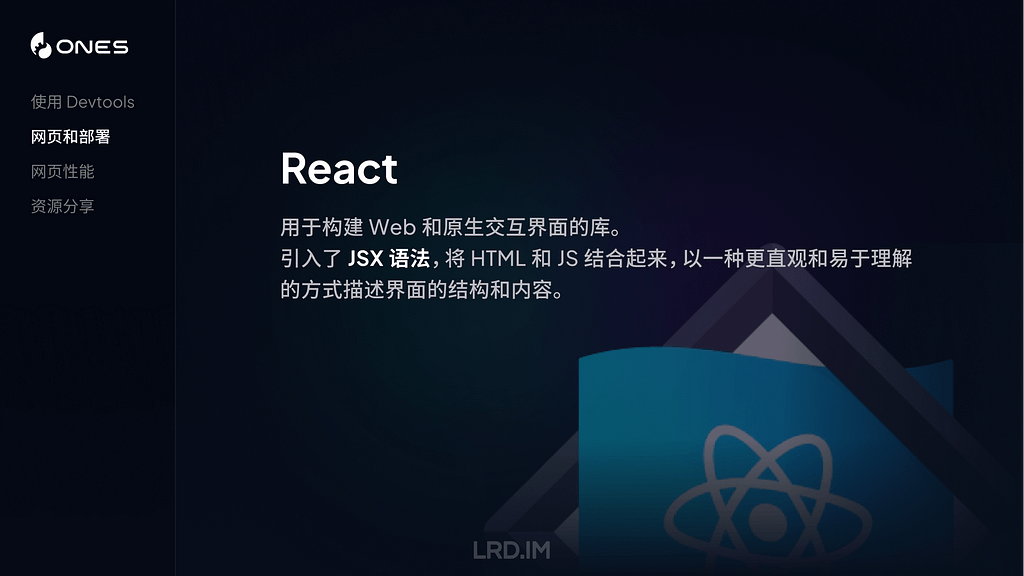
接下来介绍另一个概念:React。这是一个用于构建 Web 和原生交互界面的库(是的,它能够用来做 App,不仅仅是网页)。而且引入了 JSX 语法,将 HTML 和 JS 结合起来,以一种更直观和易于理解的方式描述界面的结构和内容。

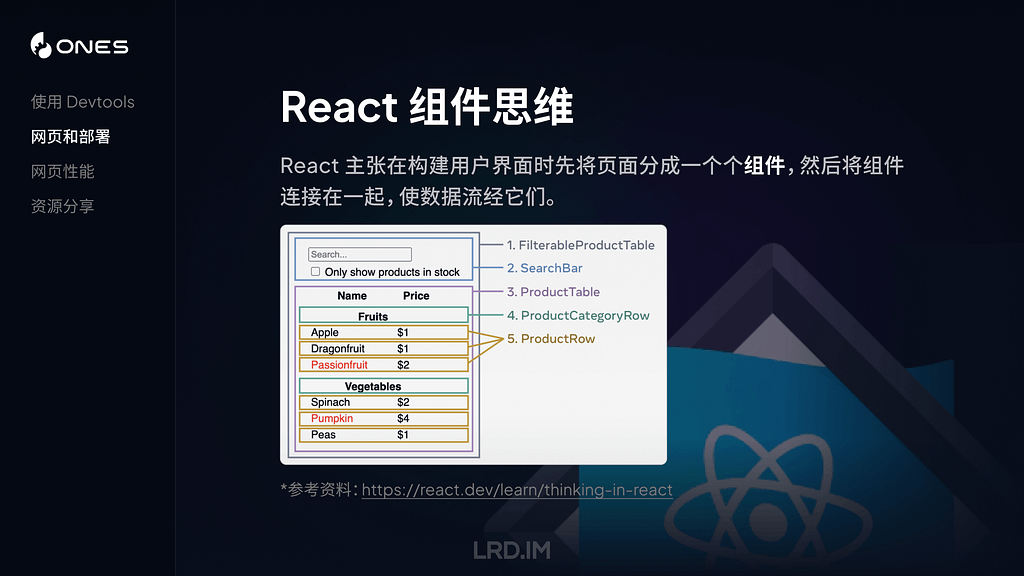
React 有一点和我们的设计稿很像,就是它的组件思维。在构建用户界面时,React 主张先把内容分解成一个个可以复用的组件(把具体的交互、功能逻辑写在组件里面)。然后在页面中将各个组件连接起来,使数据流经它们。

下图引用了官网中的一个例子,其中:

  1. 完整的应用,可以理解为由多个组件拼接成的完成网页;
  2. 搜索组件,用来获取用户输入;
  3. 数据列表,会根据用户搜索来过滤和展示内容;
  4. 每个列表的表头;
  5. 表格内每条数据。

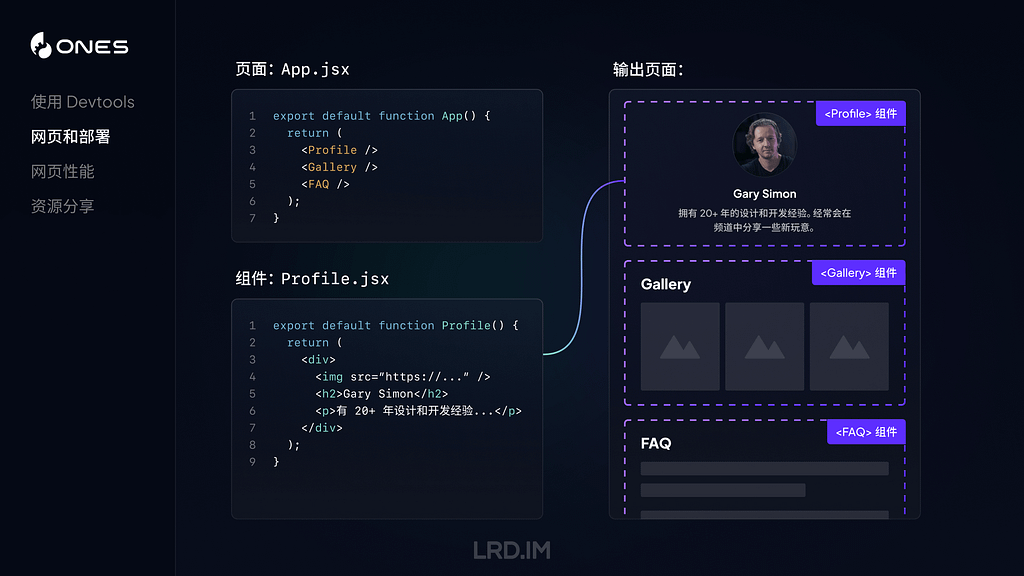
现在我们用一个具体例子来简单介绍下 React 的组件。

在上图中,展示了一个页面页面 App.jsx 包含了 Profile、Gallery 和 FAQ 组件,以及 Profile.jsx 组件的代码。右侧是输出页面,展示了三个组件拼接而成的页面效果示意图,其中 Profile 组件模块里展示的内容,是和 Profile.jsx 文件内代码一一对应的。

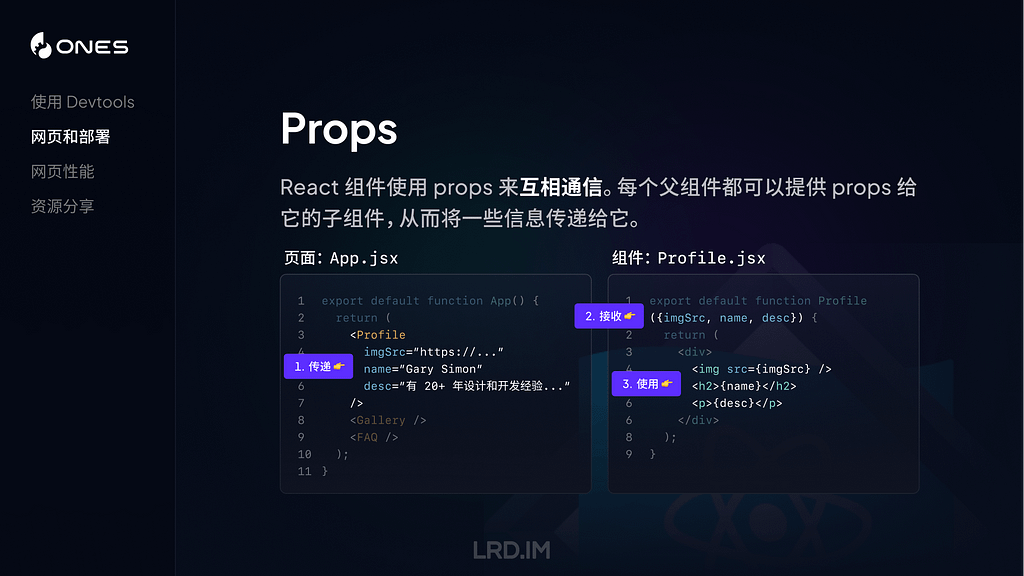
上述的组件只是将一个模块包装起来,使其能够被其他地方复用。但组件内容是固定的。接下来会为大家展示如何向组件传递 Props,实现上文提到的一句话 “使数据流经他们” 。

在上图中,我们先将一些 Props 传递给组件 Profile(比如这里传递了图片的地址、人物姓名和描述),然后在 Profile 组件内接收这些 Props,并在组件代码内使用这些数据。

现在,我们就做出了一个可以复用的组件了,可以根据不同的内容来展示相关的人物信息。

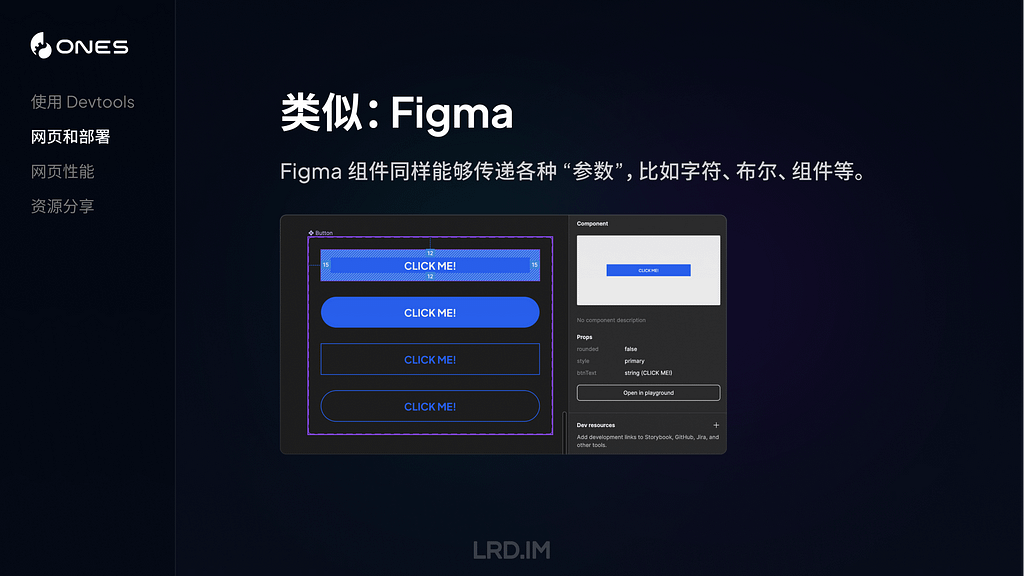
大家有没有觉得这种做法有点熟悉?是的,在 Figma 中,我们的组件里面也有类似的做法。Figma 组件同样同样传递字符串、布尔和组件等内容。

实际上 React 组件可以传递的参数不仅仅只是上面例子中的字符串和布尔值,还能传递数值、函数、对象、Node 类型甚至另一个组件等。

我做了一个简单的 Playground,提前封装好了一个 Profile 组件,会传递一些字符串、布尔值(是否展示网站标签)以及数值(圆角大小),帮助大家更好地理解。

🛝 Playground

我做了一个 🛝 Playground ,大家可以在里面看到这个组件的具体的情况,实际看一遍代码可能会帮助理解 React 的组建和 Props 概念。

同时我也写了两个小任务给到大家去尝试,大家可以在上面的编辑器中自由尝试。

发布网站

到了这里,相信大家对构建一个网站已经有了初步的认识,接下来我为大家介绍下如何将构建好的网站发布的互联网当中,能够真正地被世界各地的人们浏览。

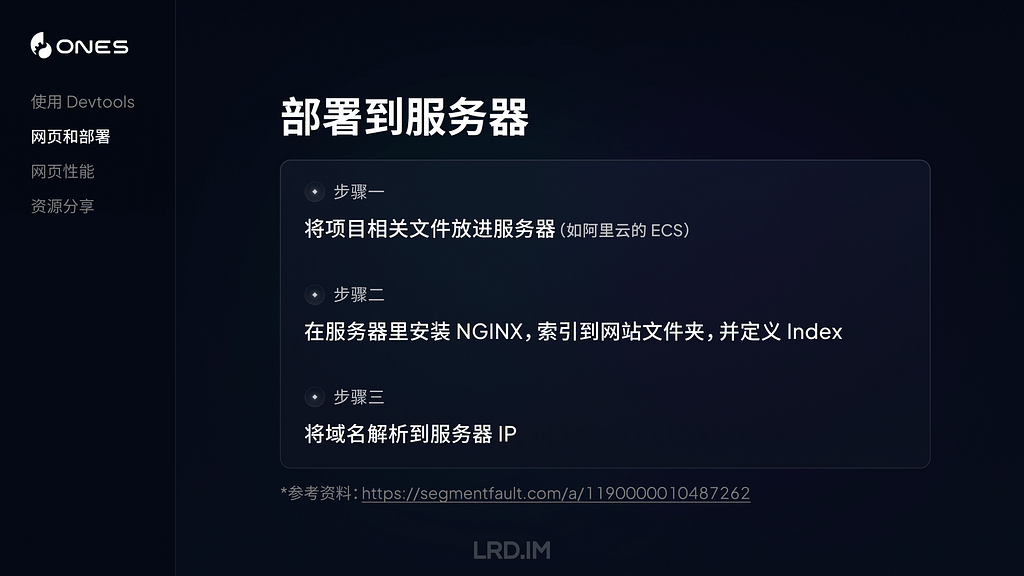
方法一:部署到服务器

这是比较传统的方法,先将项目相关的文件放进服务器里面(比如阿里云 ECS,或轻量服务器等)。然后在服务器内安装 NGINX,索引到项目文件夹,定义好首页、端口、404 等场景,最后将域名解析到服务器 IP。之后我们的网站就能在互联网上被人们访问了。

方法二:托管到服务商

这种是相对省心的方法,将我们项目所在的 GitHub 仓库,链接到服务商的托管服务当中。等于是由服务商来帮我们部署、发布项目,不用自己来配置服务器的各种内容了。下图列举了几种常见的网站托管服务商,分别是:Vercel,Github Pages 和 Netlify。

以 Vercel 来举例,除了能够托管网站之外,对每一次发布进行管理,甚至能够是对不同代码分支进行独立发布,还能收集网站访问数据等。

网页性能

接下来为大家介绍网页性能相关的内容。通常一个网站性能好不好,我们能够在体验时主观地感受到,比如打开时很慢、滚动时卡顿,或者点击按钮后很久才响应等等。但如果要准确地判断到网页的性能到底如何,是需要依赖具体指标的。

下面介绍三个常用的指标,分别是:FCP(首次内容绘制)、LCP(最大内容绘制)以及 CLS(积累布局偏移)。

FCP(首次内容绘制)

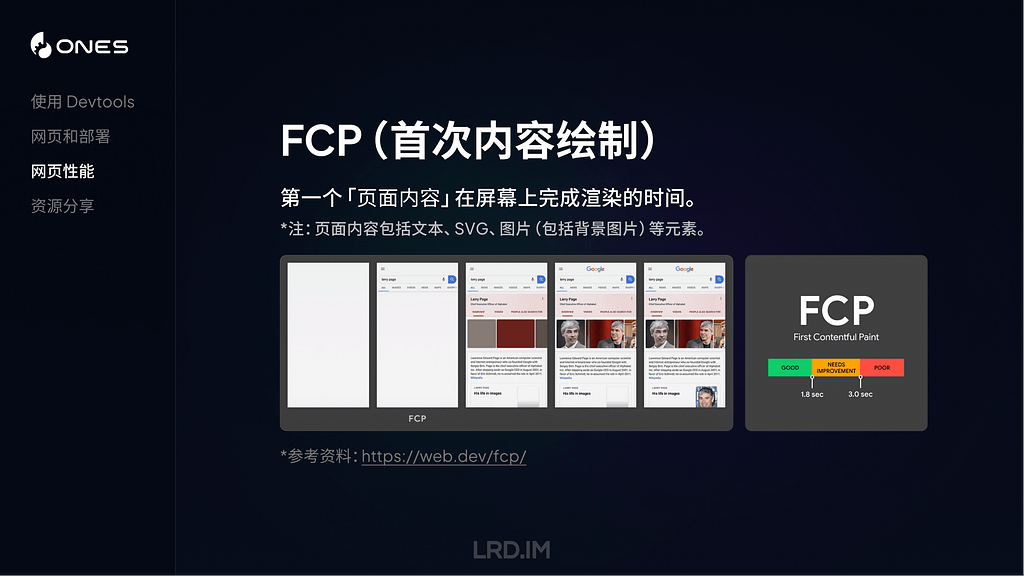
FCP 是一个关键指标,用来测量页面从开始加载到第一个页面内容在屏幕上完成渲染的时间。越快的 FCP 时间能够让用户感知到网页有在正常运行,而不是停滞、无响应。

这里提到的 “内容” ,指的是文本、图像(包括背景图像)、<svg>元素或非白色的<canvas>元素。如下图所示,FCP 出现在第二帧。

LCP(最大内容绘制)

LCP 指的从页面开始加载到可视区域内可见的「最大图像」或「文本块」完成渲染的时间。

这里提到的「最大图像」或「文本块」,具体来说是包含<img>元素、内嵌在<svg>元素内的<image>元素、块级文本等。

而测量方式,则是在页面加载过程中,记录视窗内的元素的渲染大小,取尺寸最大的元素,回溯这个元素被完整渲染的时间。注意,如果元素的有一部分在视窗外,在视窗外的部分不会参与到尺寸比较当中。

如下图所示,LCP 发生在第二帧,因为这个时候渲染尺寸最大的文本块被渲染出来了。后续帧当中,可能渲染出了一些图片,但尺寸都比文本块小,所以文本块依然是这个视窗内的最大元素。

CLS(积累布局偏移)

CLS 是指可视区域内发生的最大布局偏移分数。简单来说就是测量页面在加载时,元素的位置出现意外的偏移情况,如果元素尺寸大,而且位置偏移比较远,那么 CLS 分数就会显著增高。

这个指标会跟实际的用户操作或者体验有直接相关,所以应该也会是咱们设计师需要重点关注的内容,因为有时候布局偏移,是会比较影响用户获取信息、或者进行操作,甚至引发一些不可挽回的损失。

然后我来介绍一下测量网页性能的工具吧。我自己用过这两个,发现其实没啥差别,大家看喜好使用即可:

两个工具都能模拟桌面设备或者移动设备,记录多项关键指标的数据,并给出改进建议。

观察页面性能情况,不仅仅是前端技术人员要做的事情,了解到设计师也是可以参与到其中的。

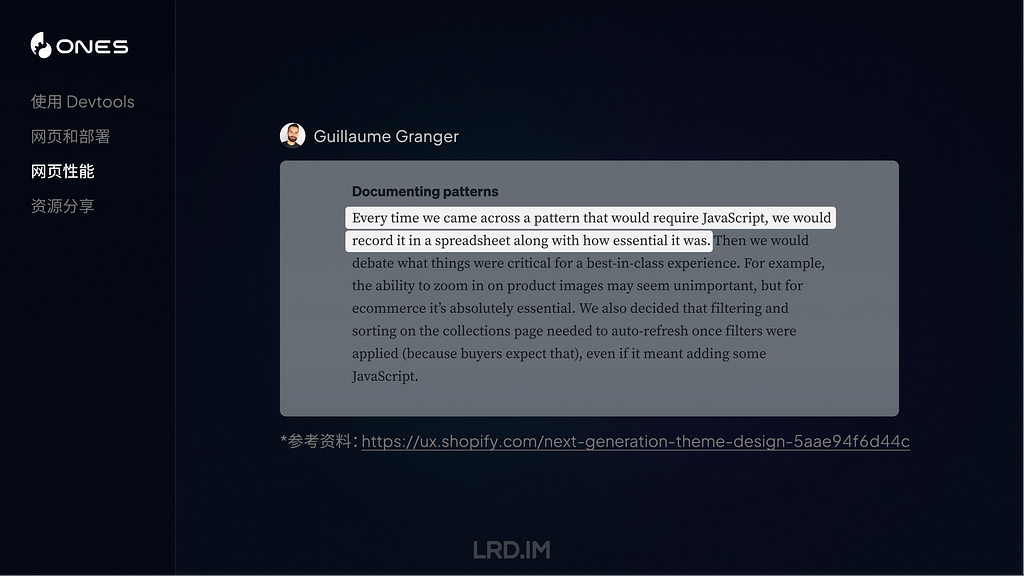
比如 Guillaume Granger,他会比较想控制页面中 JavaScript 的数量,所以它提到,他会将所有用了 JavaScript 相关信息记录在表格当中。之后每次在网页中使用 JavaScript 时,都会跟之前的记录进行比对,判断重要性,决定是否在这个位置上使用 JavaScript。

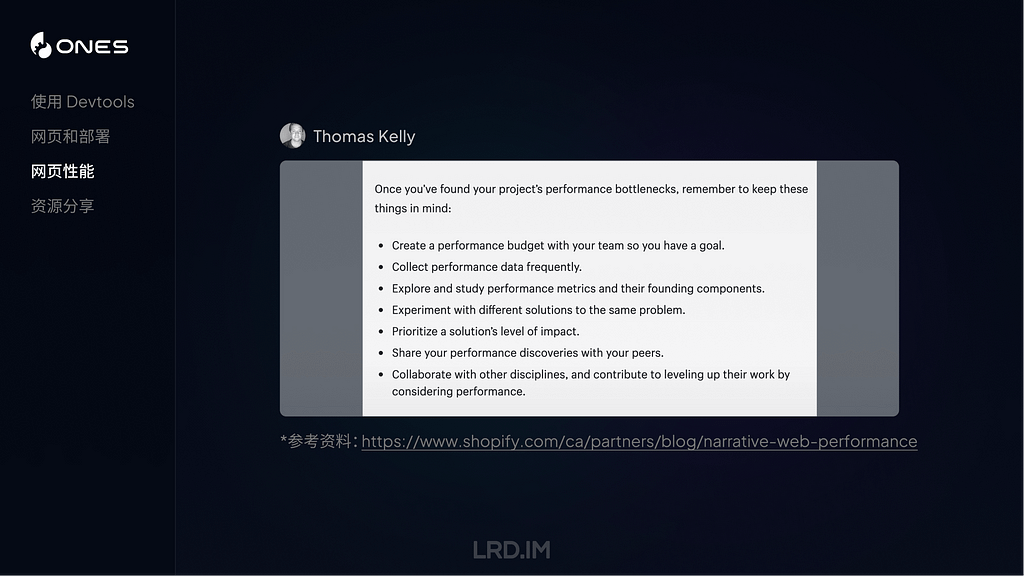
开发者 Thomas Kelly 则提出了当意识到页面性能出现瓶颈时,需要做的事情,比如:

  • 制定一个目标,团队一起往这个目标前进;
  • 高频收集页面性能数据;
  • 尝试用不同方式来解决同一个问题;
  • 与同伴分享对性能的一些新发现…

资源分享

最后来分享一下相关的资源吧,包含两个插件、三个学习网站以及一个 React 课程。

插件:VisBug

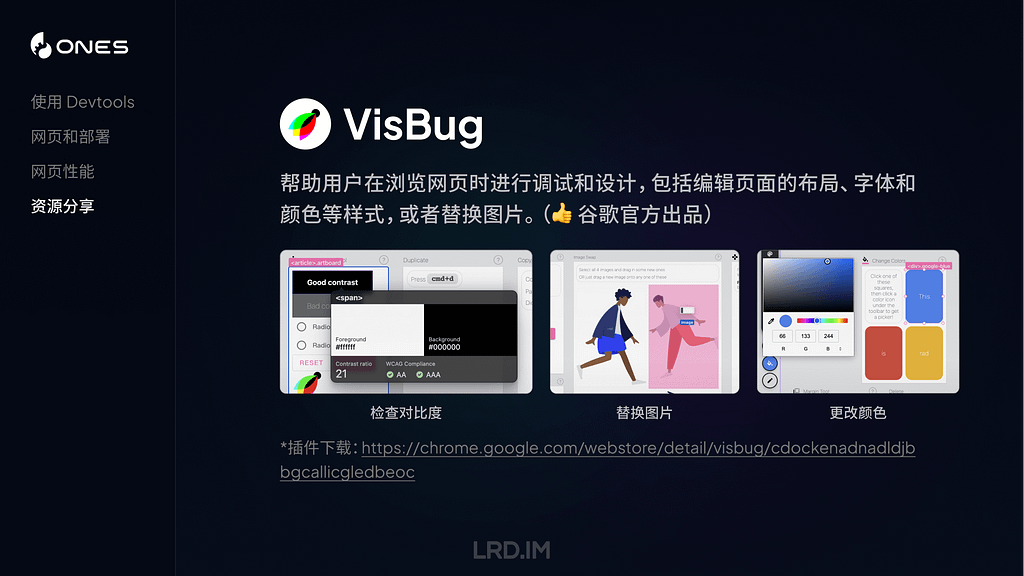
介绍一个谷歌官方出品的插件:VisBug,主要用来帮助用户在浏览网页时进行调试和设计,包括编辑和可视化页面的 CSS,尺寸和字体等元素。

插件:Motion DevTools

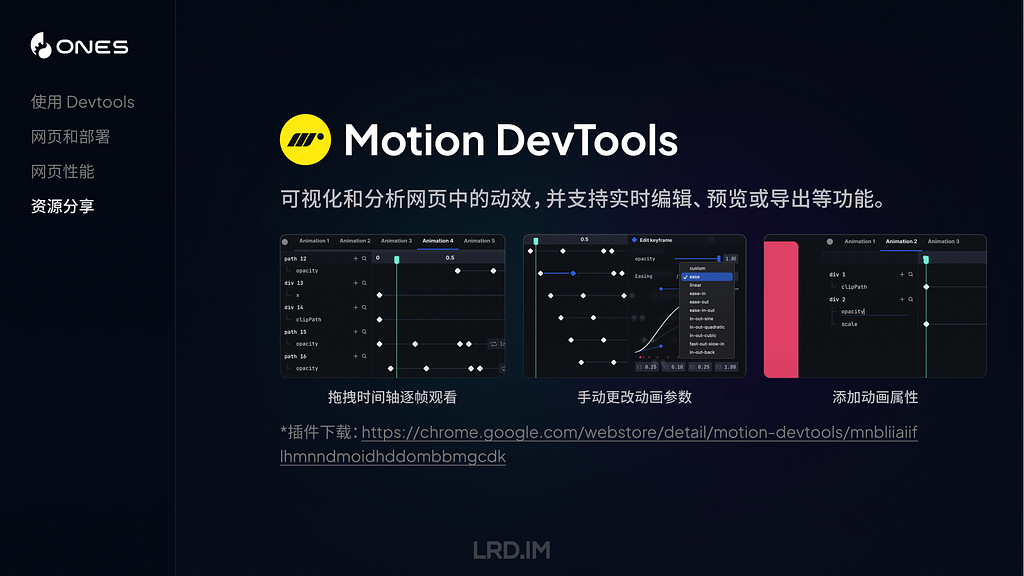
Motion DevTools 是一个检查网页动效的插件,可视化和分析用户交互设计中的滚动、动画效果,并支持实时编辑、预览或导出等功能。

网站推荐

接下来介绍三个在国内外拥有较高知名度和影响力的设计师和开发人员。他们的观点、经验分享往往能给我带来一些新的启发。尤其是他们对钻研新技术的热情,是非常强烈的。

课程推荐

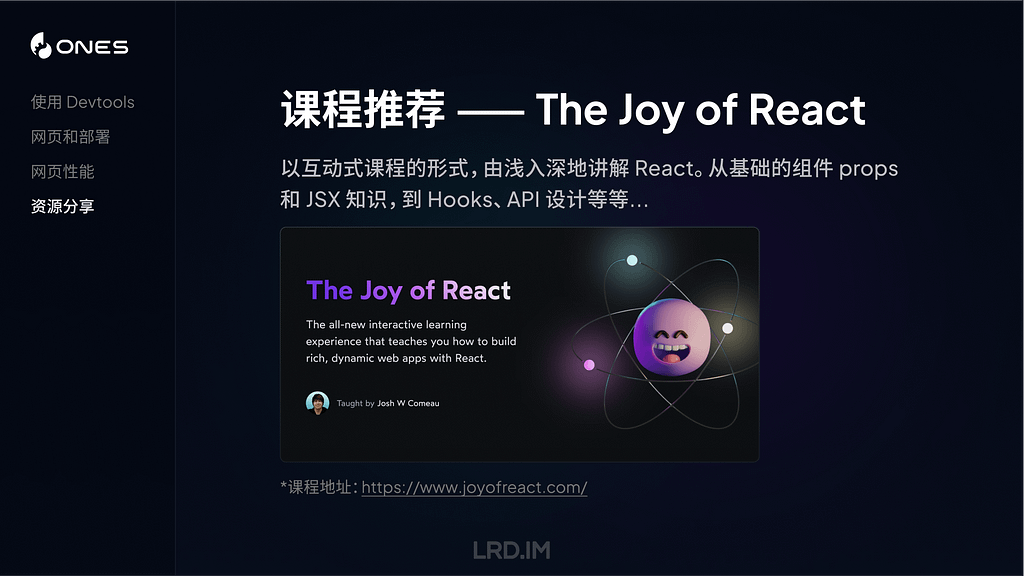
最后强烈推荐一门 React 课程——The Joy of React,这个课程我在年初的文章也有提到过,是以互动式课程的形式,由浅入深地讲解 React。从基础的组件 props 和 JSX 知识,到 Hooks、API 设计等等,讲述非常清晰,强烈推荐。

分享会感想

分享完之后感觉效果可能还不错,大家都有各自的收获。而且分享会中也不时有人提出相关问题,我也一一进行解答了。

或者也有对我分享内容的一些补充,比如我在分享完 Devtools 环节的时候,有同事也分享了一个在 Application — Cookie 面板里快速切换网页语言的方法。

后面了解到大家对于 CSS 和 React 那块听的比较迷糊,因为原本没有实践过的话,会对这些没有什么概念。而且大家好像对 🛝Playground 没有什么兴趣,并没有人对里面的内容有什么提问和看法之类的,可能到这一步都比较迷糊?🤔

指标那块倒是有不少同事关心,问了几个问题,比如有哪些方法来去改进几个指标的数据,或者在设计过程中是否可以提前避免性能问题等等。

总体来说和之前的分享会相比,这次分享会的参与度比较不错。

MIUI稳定版12.0直升12.5开发版方法

从网络反馈来看,最新的 MIUI 12.5 无论是在系统流畅性上还是隐私保护上,都有非常明显的提升,我在升级之后的第一感受就是系统真的很流畅,比我上一个 MIUI 12.0.7 稳定版有非常大的提升。MIUI 12.5 虽然是测试版系统,但是稳定性和完成度上都很高,推荐大家都升级。关于 MIUI 12.5 的官方介绍页面:https://home.miui.com/MIUI 测试版系统的常规升级方法,是需要去官方申请内测或公测名额。但是现在官方内测和公测通道都已经关闭,想借用别人已经有权限的小米账号,又有隐私泄露的风险。这里就介绍一个非常规方法,也被很多人戏称为替换安装包的「偷渡法」。【方法及步骤简介】1、下载好可以升级的 MIUI 12.5 内测版安装包(A包);这是小米官方 MIUI 安装包的 GitHub 下载页面:https://github.com/mooseIre/

❌