Normal view

There are new articles available, click to refresh the page.
Before yesterdayMain stream

Last Week on My Mac: Syncing metadata in iCloud Drive

By: hoakley
17 May 2026 at 15:00

How would you cope if you started your Mac up to find every datestamp on every file had been set to 1 January 1970 at 00:00? Or that every Finder Tag had vanished? What if all the Exif information for your images had been wiped out? Metadata like those aren’t optional extras we can afford to lose, although other metadata, like Finder Info and the URL from which a file was downloaded, are more ephemeral.

Xattr flags

Back in 2013, when iCloud was just two years old, Apple’s engineers implemented a scheme to determine how metadata stored as extended attributes (xattrs) should be copied, to take into account its permanence. This was important at that time to ensure only the right xattrs were preserved when files were stored in iCloud Drive. They did this by adding flags to the xattr’s name to indicate which actions should result in preservation of that type of xattr, and the metadata it contains.

Apple provides an extensive suite of xattr types to store metadata such as author names, keywords and comments, whose names all start with com.apple.metadata:. These are matched by corresponding metadata attribute keys, for example the xattr com.apple.metadata:kMDItemKeywords bears the metadata content accessed by the key kMDItemKeywords. Rather than appending flags to them all, this scheme laid down a table of default flags to be applied.

Being exemplary engineers, this was all detailed in the source code for copyfile, which is also open source. However, as this was just after Apple stopped creating much of its technical documentation, and little has ever been published about iCloud Drive, that’s as far as that information went.

For iCloud Drive, the relevant flag is S, XATTR_FLAG_SYNCABLE, defined as “This indicates that the extended attribute should be copied when the file is synced on services like iCloud Drive. Sync services may enforce additional restrictions on the acceptable size and number of extended attributes.”

Default flags set for xattr types com.apple.metadata:* (except for five of the less used types) are PS to preserve them during copy, save, sync and backup. You can read the macOS 26 version of those source files in Apple’s Open Source GitHub.

FileProvider

For the next decade or so, iCloud Drive mostly respected those behaviours, although without documentation it all appeared puzzling until you read the copyfile source. Then Apple decided to modernise it by implementing its FileProvider framework, a major architectural change for the better. Although the framework is intended to be common to all cloud storage services, there remains ample scope for iCloud Drive to offer enhancements.

Current FileProvider documentation for developers states:
“The extended file attributes are part of the item’s metadata. The system sets extended attributes on dataless files, and preserves them on files that it renders dataless. The system decides which attributes to sync. To sync an attribute, it calls the xattr_name_with_flags(_:_:) method and passes the XATTR_FLAG_SYNCABLE flag. Some older attributes are also synced.”

While FileProvider appears intended to conform to the xattr flag scheme, there’s no mention of the tables of default flags listed in the copyfile source code.

Implementation

Last week I set out to test and document how well iCloud Drive manages metadata, following the xattr flag system and copying up all those invaluable com.apple.metadata:* xattrs, only to discover it doesn’t any more. Of Apple’s many standard xattrs, the only ones I found that synced reliably over iCloud Drive in macOS 26.4.1 were:

  • com.apple.metadata:_kMDItemUserTags (Finder Tag)
  • com.apple.lastuseddate#PS
  • com.apple.quarantine
  • com.apple.TextEncoding

The good news is that iCloud Drive through FileProvider does respect the S flag, but only where it’s explicit, rather than being set in that table of defaults. For those of us who have our own xattr types, such as those used for integrity checking by Dintch, Fintch and cintch, can still rely on iCloud Drive to sync those, provided they bear that S flag.

The bad news is that none of the most popular metadata-bearing xattrs are synced, apart from Finder Tags. All those com.apple.metadata:kMDItem* xattrs are blocked, as FileProvider doesn’t recognise them as having their default PS flags.

Workarounds

I have since looked at two workarounds, explicitly adding the S flag to those types that should be accorded it by default, and changing the xattr names from com.apple.metadata:kMDItem* to com.apple.metadata:_kMDItem*.

Adding xattrs like com.apple.metadata:kMDItemKeywords#S with an explicit S flag does ensure FileProvider syncs those xattrs. However, as neither Spotlight indexing nor the Finder appear to understand that flag isn’t really part of the type name, those preserved xattrs are of no use: they aren’t recognised by Spotlight for indexing, nor are they displayed in the Finder’s Get Info dialog or Preview pane.

Inserting an underscore into the xattr’s name was even worse, as it didn’t lead to their preservation, and was ignored by Spotlight indexing and the Finder.

This raises another interesting issue, in that there doesn’t appear to be a way to extend Spotlight indexing to encompass additional xattr types. There are extensive third-party type libraries, such as org.openmetainfo:* from Tom Andersen of Ironic Software and OpenMeta. But those appear to require their own indexing, search and presentation support.

Error

When I first realised the impact on metadata in iCloud Drive, I assumed this arose because the engineers implementing FileProvider, or those porting iCloud Drive to use that framework, had’t been aware of the xattr flag system and its primary purpose. But if that had been true, they couldn’t have respected explicit use of the S flag. Thus, I’m left with two plausible explanations:

  • Apple’s FileProvider/iCloud Drive engineers are unaware of the system defaults table in copyfile, so assumed that com.apple.metadata:* xattrs weren’t intended to be preserved when syncing.
  • Apple decided to end default sync support for com.apple.metadata:* xattrs in iCloud Drive.

The second of those is even more erroneous than the first, as it reduces iCloud Drive support for metadata to a level common with third-party cloud providers. In this respect, users will see no difference from the behaviour of Dropbox or Microsoft OneDrive, which isn’t the marketing choice I’d have expected from Apple.

Conclusion

iCloud Drive no longer syncs much metadata stored in xattrs, in particular that stored in com.apple.metadata:* xattrs, apart from Finder Tags. There is no workaround, and unless Apple restores that feature, it limits the use of iCloud Drive with Macs.

What gets synced in iCloud Drive?

By: hoakley
12 May 2026 at 14:30

Following yesterday’s surprise about syncing of extended attributes via iCloud Drive, this article summarises what does and does not get synced in iCloud Drive in macOS Tahoe.

Attributes and data

File attributes are generally synced correctly and retained locally through eviction and download of each file. As those are saved in the inode data that is stored locally even when a file is dataless, they should remain reliable.

File data, complete with any embedded metadata such as EXIF fields and the optional Info section in RTF files, is retained and kept in sync with the copy in iCloud Drive while that file is kept downloaded. That is the only option when Optimise Mac Storage is turned off, and iCloud Drive is operating in replicated mode. When in nonreplicated mode, data is removed if the file is evicted from local storage, and synced down from iCloud Drive when it’s downloaded or materialised.

Extended attributes

As demonstrated in yesterday’s article, only the following xattrs are expected to sync down from iCloud Drive:

  • com.apple.metadata:_kMDItemUserTags (Finder Tag)
  • com.apple.lastuseddate#PS
  • com.apple.quarantine
  • com.apple.TextEncoding
  • other xattrs explicitly assigned the S flag, with #S appended to their name.

Other xattrs including those with names starting with com.apple.metadata:kMDItem aren’t likely to sync down from iCloud Drive without explicit use of the S flag.

Versions

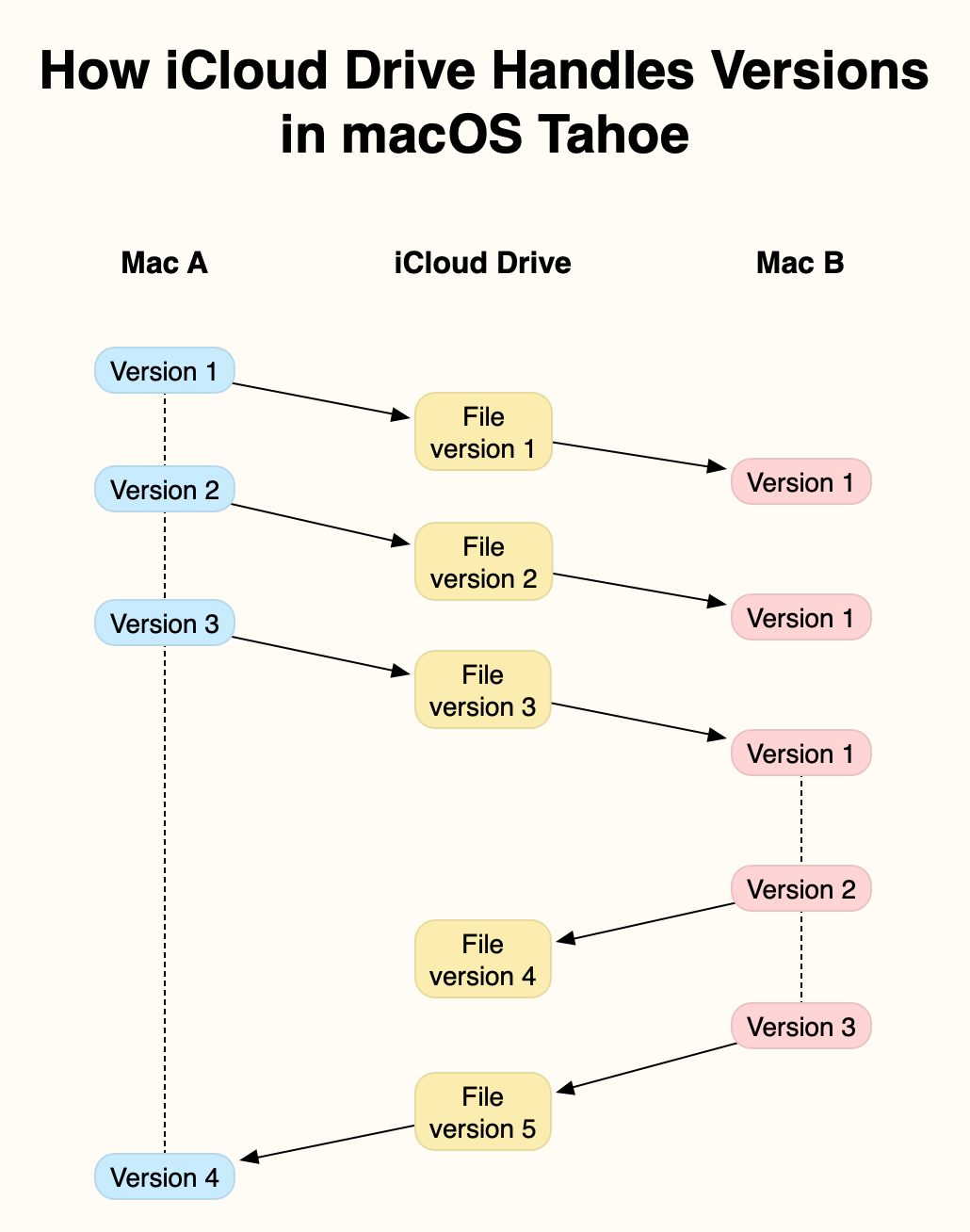
Document versions saved in that volume’s version database in the hidden .DocumentRevisions-V100 folder will normally only be saved locally, when the local copy of that file is saved, and aren’t synced up to iCloud Drive at all. This has complicated effects best illustrated in the example below.

In this example, two Macs, A and B, are connected to the same iCloud Drive. At the start, Mac A creates and saves a new file, locally Version 1, in an iCloud Drive folder. This is synced up to iCloud Drive, from where it syncs down to Mac B, as the first version of that file.

Mac A then edits that file, saving it in two further versions. Each of those is synced up to iCloud Drive, and synced down to Mac B. However, as none of those versions is saved locally on Mac B, each is shown as the current and only version until the next one arrives.

Mac A is shut down after it has saved its version 3 of the file, and that has been synced up to iCloud Drive. Once that has synced down to Mac B, the document is edited there, and two versions are added to the first. Mac B’s Version 3 of that file is synced up to iCloud Drive, Mac B is shut down, and the file is opened and saved on Mac A, where that becomes its local Version 4.

At that stage, Mac A’s version database contains 4 versions, but no copy of Mac B’s Version 2. Mac B has 3 saved versions, including its Version 2 that isn’t saved in Mac A. iCloud Drive only has a single version, its Version 5, the same as Mac A’s Version 4 and Mac B’s Version 3.

The rules are simple:

  • Each Mac only adds a version to its own local version database when that file is saved locally.
  • At any moment, only the latest version is stored in iCloud Drive.

However, the behaviour can appear baffling, particularly when a document is observed in its QuickLook thumbnail as it’s being edited and saved on another Mac. You can then see its contents evolving with each save, but none of those are added to that Mac’s version database unless that version is saved there.

The end result is an incomplete version history on each Mac. The only way to unify those is in a third-party utility such as Versatility or Revisionist to consolidate them. As this doesn’t require any intervention by the File Provider framework, this is likely to be similar in third-party cloud services using that framework, such as Dropbox and Microsoft OneDrive.

Spotlight index content

No indexes from Spotlight are synced across iCloud Drive, but once a file has been synced down from iCloud Drive, its contents should be indexed locally, on the Data volume. Those indexed contents should remain accessible to search even when the file has been evicted from local storage.

QuickLook previews

QuickLook thumbnails and previews are also generated and stored locally. Those that have been cached to local storage remain accessible even when the file has been evicted. When there’s no cached version available, a generic icon for that file type will be displayed until an evicted file has been downloaded again. At one time, selecting an evicted file and calling for its thumbnail or preview was a simple way to force the file to be downloaded, but that has now been fixed.

Does iCloud Drive now lose almost all metadata?

By: hoakley
11 May 2026 at 14:30

Cloud services have long differed in how they handle metadata, particularly that stored in extended attributes (xattrs). The one service you would expect to get this right is Apple’s own iCloud Drive, but it seems to have silently changed policy without rhyme or reason. It has been almost three years since I last tested iCloud Drive to assess which metadata it does preserve, and I’ve been shocked to discover that it now preserves almost no xattrs at all.

Testing

This used a Mac mini M4 Pro and a MacBook Pro M3 Pro, both running macOS 26.4.1 Tahoe, and connected to the same iCloud+ account, with a local Content Caching server active. On both Macs, iCloud Drive was configured in nonreplicating mode, with Optimise Mac Storage turned on. All files were downloaded locally when necessary before use.

A test suite of files with extensive metadata content in xattrs was moved to a folder in iCloud Drive on the Mac mini, and ample time was allowed for them to sync up to iCloud. Each was inspected on the Mac mini, then on the MBP, and their metadata was compared using xattred.

Results

All metadata was preserved in the original files that were stored locally on the Mac mini, even after evicting them and downloading their data to reconstitute them. There was no evidence that large xattrs were removed by eviction, as they have been in the past.

Only the following metadata was synced down from iCloud Drive to the MBP:

  • com.apple.metadata:_kMDItemUserTags (Finder Tag), which transferred complete with its custom label
  • com.apple.lastuseddate#PS
  • com.apple.quarantine
  • com.apple.TextEncoding
  • co.eclecticlight.dintch.hash#S and co.eclecticlight.dintch.time#S, custom xattrs used by Dintch and its relatives to check file integrity.

Metadata stored within a file’s data such as EXIF was also preserved, as would be expected.

Finder Comments were not synced to the MBP, either in their primary .DS_Store location, or as a xattr.

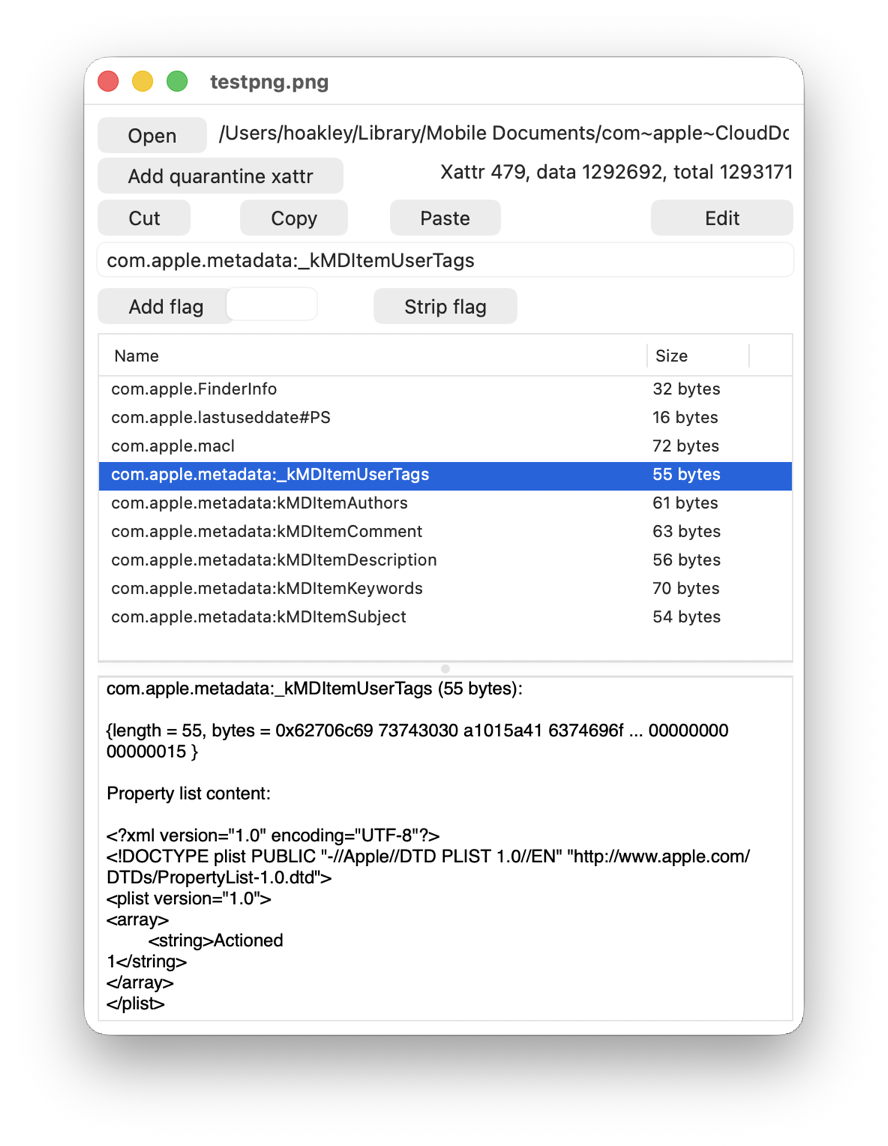
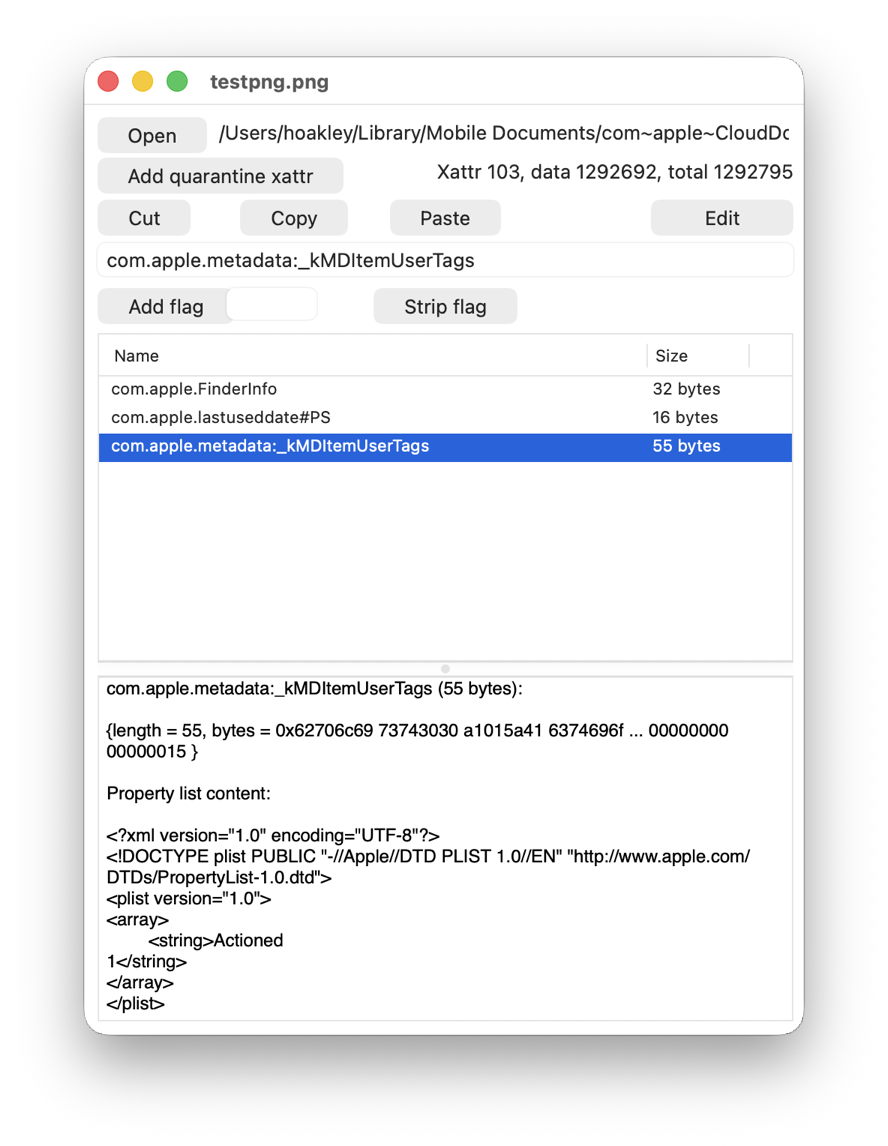
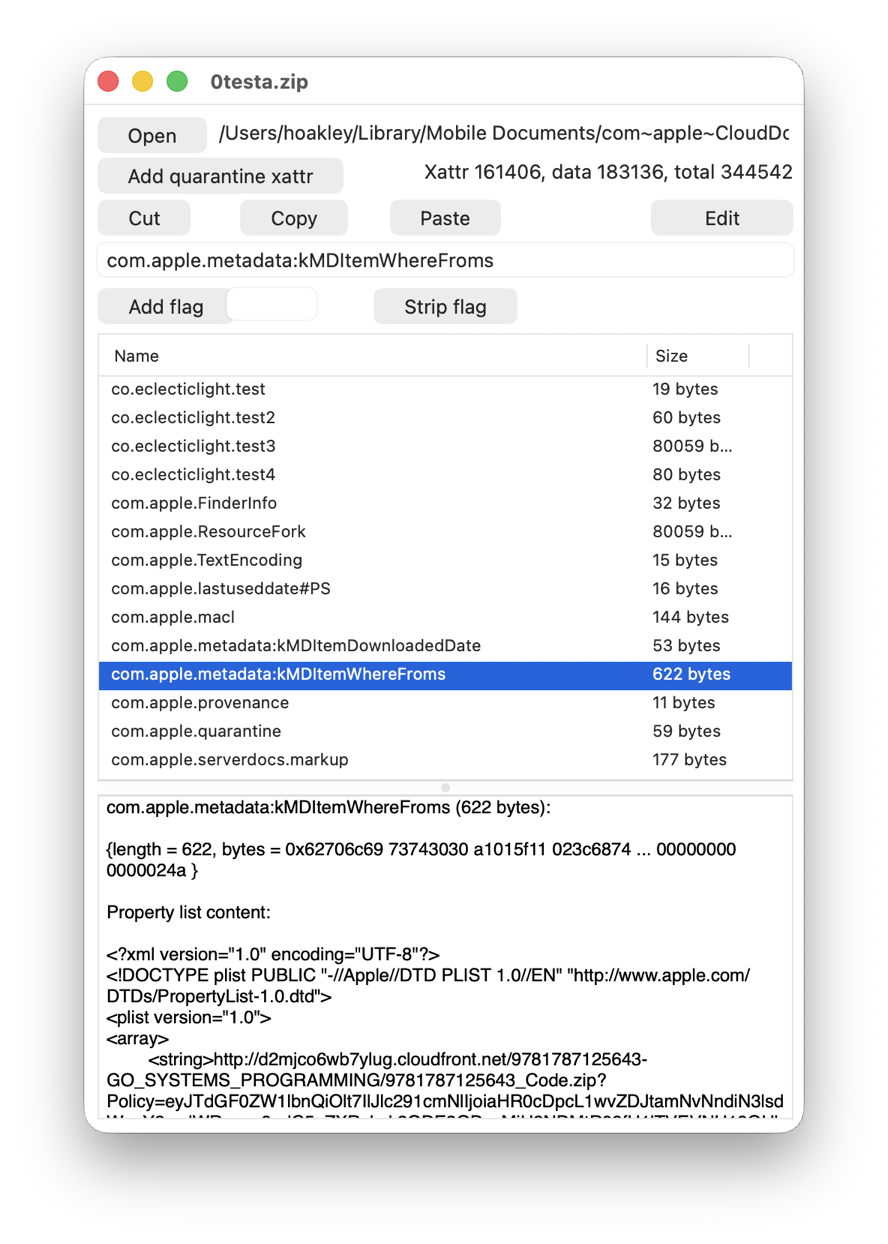
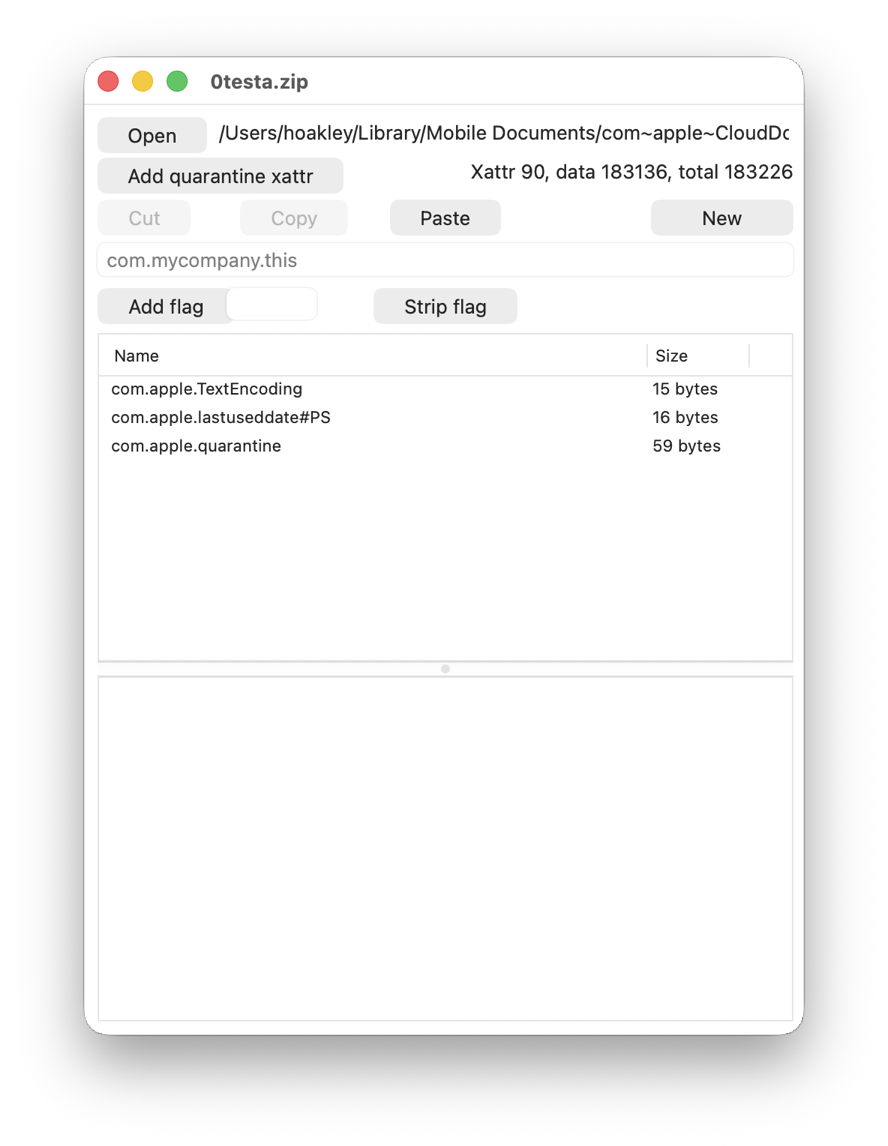
Two of the more obvious examples viewed in xattred are:

This is one of the test files I used recently when looking at xattrs suitable for metadata, with a Finder Tag added. Above is the original on the Mac mini, and below is the synced copy on the MBP. Every single com.apple.metadata: xattr has been stripped, except for com.apple.metadata:_kMDItemUserTags.

This is a crafted test suite that I have used for some years, above in its original on the Mac mini, and below as synced to the MBP, where just three xattrs have survived passage through iCloud Drive.

What should happen?

Policy for iCloud Drive appears to have changed over the last few years. When I first tested this between Sierra and High Sierra in 2018, few xattrs were synced, and even Finder Tags were stripped. Just over a year later, we realised this should be controlled by xattr flags, and when I tested this formally in a late version of macOS Sonoma in July 2023, com.apple.metadata: xattrs were preserved if they weren’t too large. However, eviction caused all large xattrs to be stripped even from the original source Mac.

Since then, iCloud Drive has continued to adopt the new File Provider framework, and Apple has further extended xattr flags, now described here. At no stage, though, does Apple appear to have documented which metadata and extended attributes should be preserved in iCloud Drive, so we can only speculate what it intends should happen.

Why has this changed?

Apple doesn’t appear to have made any relevant changes to the xattr flag system as detailed in the source of copyfile. Under that, almost all com.apple.metadata: xattrs should be treated as if they have PS flags attached, so should be “preserved during syncing with services such as iCloud Drive”.

One possible explanation is that the File Provider framework doesn’t respect xattr flags as laid out in copyfile, possibly because it doesn’t use copyfile but has its own independent mechanism. That would be in accord with Dropbox, which only appears to support syncing a few types of xattr. Information for Microsoft OneDrive is too vague for comparison, though.

Consequences

You should expect all metadata stored in xattrs to be stripped when synced via iCloud Drive. The exceptions to that include Finder Tags and those explicitly assigned an S flag, such as the custom integrity xattrs used here. Unfortunately, appending #S to well-known xattr types is likely to cause problems, as few apps handle those flags correctly, so won’t recognise the xattr type.

If you want to preserve that metadata, then you’ll either need to archive files using a method that preserves xattrs, or transfer it using a more conventional network method such as AirDrop, which does preserve almost all xattrs.

Currently, as far as metadata is concerned, iCloud Drive has no advantage over third-party cloud storage such as Dropbox.

Conclusions

  • When synced via iCloud Drive, expect all metadata stored in xattrs, with the exception of Finder Tags and those explicitly assigned an S flag, to be stripped when accessed from another Mac.
  • Xattrs and other metadata are faithfully preserved when moved between Macs using AirDrop. If you want to preserve their metadata, use that instead of iCloud Drive.

Explainer: File Provider and cloud services

By: hoakley
9 May 2026 at 15:00

Following the iPhone’s launch in 2007, as it was taking the world by storm, cloud services started to become popular. Apple released MobileMe in 2008 and followed it with iCloud in 2011; Microsoft OneDrive was initially released as SkyDrive in 2007, and Dropbox was launched in 2008. Since then cloud services have become increasingly important to mobile devices with their limited storage capacity, and have proved a good source of revenue for Apple and others.

For the first decade, each cloud service did its own thing, and integrated more or less with macOS. That started to change in 2019, and since 2021 Apple has encouraged the adoption of its new File Provider framework in macOS and its other OSes. iCloud Drive adopted it fully in macOS Sonoma in 2023, and most major cloud services have migrated to it now. This framework concerns itself with cloud-based file storage, branded by Apple as iCloud Drive, rather than shared databases such as Calendar and Contacts.

The File Provider framework brings consistency to the ways that users and their apps access files that are stored remotely in the cloud. All that is expected of the cloud service provider is to implement one or two extensions to interface between macOS and their servers. Apple describes these for developers in its documentation.

There are two models provided for this, depending on whether local copies are maintained of all files stored in the cloud:

  • Replicated file providers are responsible for keeping local copies of all files that are also stored in the cloud, by syncing their contents. This requires them to upload any changes made locally, and to download all those changes made to the remote copy. In iCloud Drive, this applies when Optimise Mac Storage is turned off.
  • Nonreplicated file providers have similar responsibilities, but full local copies of files aren’t required, allowing the user to remove some or all files from local storage. Those that are removed are then retained in local placeholders, whose management is also the file provider’s responsibility. In iCloud Drive, this is used when Optimise Mac Storage is turned on, and files can be evicted from local storage to leave just the placeholders.

Before iCloud Drive migrated to being a file provider, it used local stub files as placeholders when operating in nonreplicated mode. Those have since been replaced with dataless files and folders consisting only of file attributes and extended attributes, with no file extents containing the file’s data. The file provider is then responsible for downloading and restoring the data for those placeholders when required.

iCloudDriveFileSummary4

When a dataless placeholder file is to be used locally again, its data has to be downloaded from the cloud service, and the local dataless file is materialised by adding that back. Because that local file never lost its metadata, those remain intact, as should any locally stored versions. Although the APFS Reference details flags for dataless snapshots, it doesn’t contain any information about dataless files, which do have a flag to mark that state in their attributes, as explained here.

A file provider can offer additional features, including the ability to mark certain files and folders so they aren’t evicted from local storage, a feature commonly known as pinning, and originally offered by iCloud’s competitors.

iCloud Drive adopted the File Provider framework in 2023, and after initial trauma among some users who had come to rely on bugs in its previous implementation, it has brought general improvement. Third parties were reluctant at first, but once they had produced File Provider extensions and their bugs were ironed out, it has ensured better integration with apps and other services, as intended.

Understanding and testing iCloud

By: hoakley
6 April 2026 at 14:30

iCloud has changed a great deal in the nearly 15 years since its introduction, and now provides many discrete services. These include synchronisation of app databases using CloudKit, file storage and sharing using iCloud Drive, update and support services for macOS and Apple’s other OSes, and a loose group of miscellaneous services including Private Relay.

Well-known examples of those include:

  • CloudKit – shared calendars, address books and notes;
  • iCloud Drive – folders and files in the Finder’s iCloud Drive location;
  • macOS support – XProtect updates for Sequoia and Tahoe, optional language support and additional dictionaries downloaded on demand;
  • miscellaneous – iCloud+ Private Relay, Find My.

One of the most common confusions is to assume that a problem with one service cause problems with others. Although they can, that all depends on where the fault lies.

There are also two major online services provided by Apple that are separate from iCloud: its software update servers to deliver OS updates as well as security data and other system support through Software Update; Private Cloud Compute to deliver off-device AI services.

Network basics

All iCloud services have their own local client, such as CloudKit for syncing shared data, which in turn relies on low-level network services in macOS. Those communicate through your network’s router, and so pass out to the Internet to connect with a remote server. Although Apple does have at least one of its own data centres, much of iCloud is thought to be hosted on Amazon Web Services (AWS) and/or Google Cloud Platform.

These are important details when investigating iCloud problems. There’s no point in fiddling with local iCloud settings if the problem results from any link in this chain beyond your Mac. One of the most valuable early steps is to point your browser at Apple’s local service status page and check whether that service is reported as working normally. If that loads briskly, works as expected, and claims the iCloud service you’re having problems with should be working normally, you can turn your attention to what might be going wrong in your Mac.

One important factor to be taken into account is whether a local Content Caching server is in use. Unless iCloud content is excluded, a local server should cache changes in iCloud data, enabling other Macs and devices to sync within the local network. Enabling a Content Caching server can itself address some iCloud problems, and is well worth considering.

Testing

The most common fault with iCloud’s services is failure to sync local contents with those stored in iCloud. Failures are hard to investigate even in a controlled test, as there’s no way for a user to tell directly what’s going on in iCloud without relying on another Mac or device syncing (or the iCloud.com web service updating). The following tests are relatively quick and simple, and can provide helpful information about the state of iCloud services on your Mac.

CloudKit

The only controls provided for CloudKit are those in the iCloud section of your Apple Account settings, and any in apps that use CloudKit. For each service you use, ensure that Sync this Mac is enabled before going any further.

To test syncing of Notes, open the app on your test Mac and other Macs and devices. Write one note in the test app and wait for it to sync to the others. On one of the other systems, write another note, and wait for that to sync to the test Mac. Syncing isn’t immediate even if you’re using a local Caching server, but it should occur within a couple of minutes when there are good connections to iCloud.

There are times when syncing can take much longer. To ensure that CloudKit server resources are shared fairly, CloudKit imposes limits on transfers, and can throttle traffic. Throttling is likely to occur when a CloudKit app issues many requests over a short period, or uses CloudKit inappropriately, perhaps triggering simultaneous peaks in request rates from several devices at the same time. In some situations, where you suspect that one or more CloudKit-based apps are causing throttling or hitting limits, you can disable their syncing to see if that enables other apps to sync better.

The definitive way to investigate CloudKit problems is in the log, and is a fearsome task even for developers, as detailed here.

iCloud Drive

The most important control over iCloud Drive is in the Drive item of the iCloud section of Apple Account settings, where Sync this Mac must be enabled. You should also check syncing in the list of apps there.

The Optimise Mac Storage control determines how iCloud Drive works. In the past, it relied on its own features in macOS, and for many those were flawed. Evicting a file from local storage left a local stub file as a place-marker, but in 2021-23 iCloud migrated to use a new FileProvider framework common to all cloud services.

Since then, iCloud Drive has worked in either of two distinct modes:

  • When Optimise Mac Storage is turned off, iCloud Drive is a replicating FileProvider, and maintains complete local copies of all files stored in iCloud servers. This prevents you or macOS from removing their downloaded data.
  • When Optimise Mac Storage is turned on, iCloud Drive is a non-replicating FileProvider, and can remove the downloaded data of local files, a process known as eviction. Rather than leaving stub files, the same files remain but they are dataless. You and macOS can thus choose whether to evict files or download them, and you can opt to keep them downloaded, or ‘pinned’ locally.

iCloud Drive syncing is also believed to be subject to throttling to prevent servers from being overwhelmed, although that appears infrequent and lasts but a few hundred milliseconds if it does occur. Files for transfer are divided into chunks of just over 15 KB, although the system maximum may be as large as 28 MB or even 33 MB. Some iCloud servers may also impose a maximum limit on the number of connections.

The simplest way to test iCloud Drive syncing reproducibly is using the Test Upload feature available in the Window menu of Cirrus. This transfers a 1 MB file named co.eclecticlight.Cirrus.data, which should appear almost instantly at the top level of the iCloud Drive folder, so is readily visible on Macs and devices connected to the same iCloud Drive account. There’s also a Clean up Test command to delete that test file.

Having established that your iCloud Drive does sync promptly using that test file, the more difficult problem is to discover why some files appear to be stuck. Unfortunately, the best way to identify them is from the log.

macOS support updates

Testing updates is harder, unless your Mac is running Sequoia or later and isn’t yet running the current version of XProtect. You can check that by comparing the version installed given by
xprotect version
with that available from iCloud, revealed by the command
sudo xprotect check
If the second version is greater than the first, then running
sudo xprotect update
should download and install the update, a worthwhile procedure in any case.

Tests work, but iCloud still doesn’t

iCloud is one area where you shouldn’t simply follow the adage of “try turning it off and back on”. Repeatedly changing its settings without good cause can make problems worse rather than solving them. The best reset or off switch for iCloud is to shut a Mac or device down, to allow iCloud services to shut down as normally as possible, then for them to be re-established when starting up again.

This applies most particularly to the Optimise Mac Storage setting. As that changes the type of FileProvider used, it can take many hours or days to sync correctly to a new setting. Although not specifically recommended, starting up in Safe mode, leaving the Mac to settle for several minutes or longer, then restarting back into normal user mode, can sometimes help.

During the transition from the old iCloud Drive to the new FileProvider mechanism, some users found it necessary to leave their Macs syncing with iCloud Drive for several days. That can still be a worthwhile strategy for what appear to be otherwise intractable problems with syncing.

Persistent problems should be taken to Apple Support, as only they have access to specialist iCloud engineers.

❌
❌