Normal view

There are new articles available, click to refresh the page.
Yesterday — 13 December 2025Main stream

What has changed in macOS Tahoe 26.2?

By: hoakley
13 December 2025 at 05:58

The update from macOS Tahoe 26.1 to 26.2 is fairly large, but appears to be largely routine maintenance, together with some important security updates.

At last, Apple has provided more detail of some of the improvements and changes in this summary. These include a new Edge Light feature to light your face during low-light video calls, Podcasts gaining automatic chapter generation, filters added to the Games library, AirDrop codes providing an additional means of verification with unknown contacts, and enhancements to Freeform tables.

Security release notes report a total of 46 vulnerabilities addressed. Among those are multiple WebKit vulnerabilities, including two that Apple believes have been exploited already “in an extremely sophisticated attack against specific targeted individuals” in earlier versions of iOS. Those alone make 26.2 a compelling early update.

The build number of macOS 26.2 is 25C56, it updates iBoot firmware to version 13822.61.10 on Apple silicon Macs and Intel firmware to 2094.40.1.0.0 (iBridge 23.16.12048.0.0,0). Note that Intel Macs only have an update to iBridge, and not their EFI firmware this time.

Significant changes seen in bundled apps include:

  • Freeform, to version 4.2
  • Music, to version 1.6.2
  • Passwords, to version 2.2
  • Safari, to version 26.2 (21623.1.14.11.9)
  • TV, to version 1.6.2.

Significant changes seen in /System/Library are relatively few, with many minor increments to build numbers. Notable changes include:

  • All AGX kernel extensions are updated
  • AppleDockConnect is a new kernel extension to accompany AppleDockChannel
  • AppleThunderboltRDMA is another new kernel extension
  • APFS is updated to version 2632.40.17, a tiny increment
  • the webcontentfilter kext has been removed
  • there is no change in the RichText.mdimporter for Spotlight indexing, implying that no bugs have been fixed in it.

The total number of bundles in that folder has only increased slightly, from 9785 to 9832.

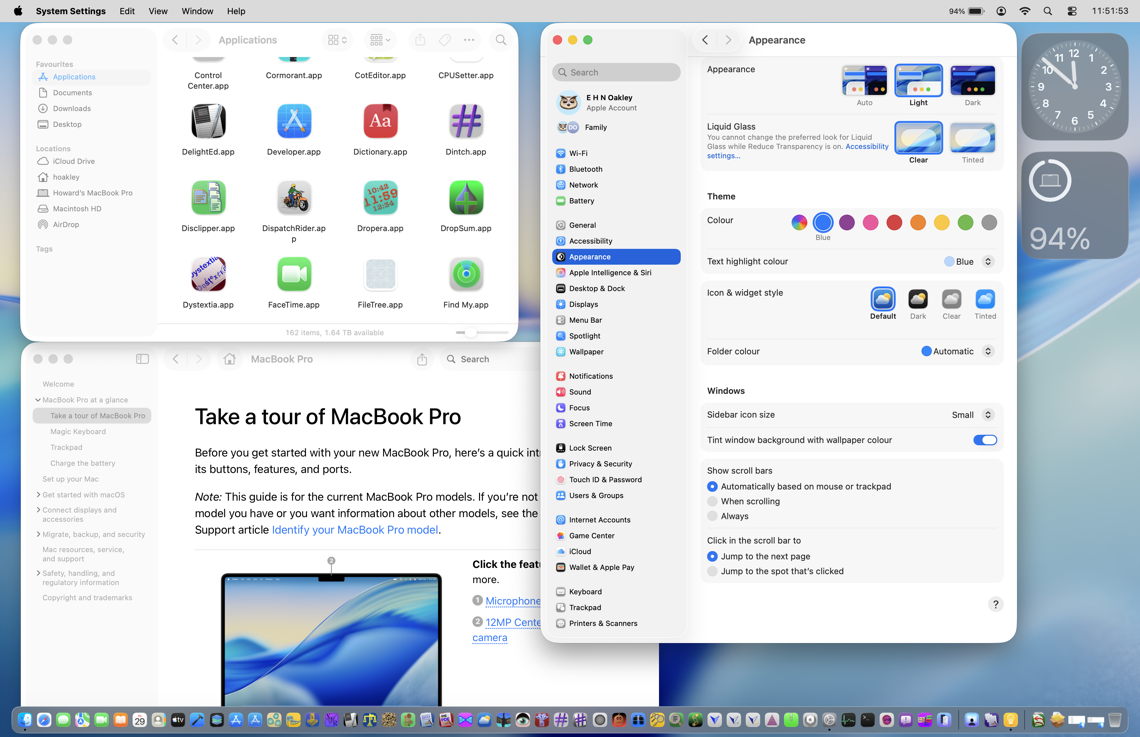
One common criticism of the new Liquid Glass option added to Appearance settings in 26.1 is that Reduce transparency in Accessibility settings no longer reduces some transparency effects. There has been no change in that behaviour in 26.2, which continues to apply Liquid Glass effects in locations such as sidebars despite Reduce transparency being turned on. Our cries have clearly fallen on deaf ears.

I have also confirmed, as I suspected from the lack of change in the RichText.mdimporter, that the ‘LG bug’ in Spotlight remains, and still hasn’t been fixed.

Before yesterdayMain stream

Last Week on My Mac: Five Tahoe bugs

By: hoakley
16 November 2025 at 16:00

In the early years of this blog, I used to keep track of some of the more serious bugs in macOS. As that developed into what would have occupied me full-time, I’ve cut back to try to cover some of the most significant. What has surprised me with macOS 26.1 is the sudden rush of new bugs in an update that’s normally expected to fix more than it creates. To consider what might have gone wrong, here’s an overview of those I’ve been investigating so far.

macOS virtualisation (new in 26.1)

A macOS 26.1 guest assigns itself a serial number of zero for the VM, whether the VM has been installed from the 26.1 IPSW image file, or updated from a previous version of macOS. This results in features that rely on the VM’s serial number to fail, the most important being access to iCloud.

Further details.

Virtualisation is exceedingly complicated, and has suffered some previous accidents, such as the inability of M4 hosts running macOS 15.1 to virtualise guests with macOS earlier than 13.4. Although it’s easy to claim that better testing should detect these problems, the number of combinations of host Mac and macOS, and guest macOS increases their risk. Perhaps Apple should actively encourage third-party beta-testing in VMs.

Accessibility (new in 26.1)

macOS 26.1 introduces a new Appearance setting for Liquid Glass, but Apple hasn’t mentioned any change to the existing Reduce Transparency setting in Accessibility. However, that setting in 26.1 no longer disables Liquid Glass effects in sidebars and toolbars as it does in 26.0. User documentation for 26.1 is identical to that in macOS 15:
Make transparent items solid
Some windows and areas of the desktop, such as the Dock and menu bar, appear transparent by default. You can turn these transparent areas a solid grey to make it easier to distinguish them from the background.

This can be seen in the following screenshots.

This is 26.0 without Reduce Transparency.

This is 26.0 with Reduce Transparency turned on. Both the navigation sidebar and the window toolbar are completely opaque, and their contents are fully readable as a result.

This is 26.1 with Reduce Transparency turned on. Although the tools themselves are on opaque backgrounds, other areas remain partially transparent, and the toolbar in particular is visually cluttered and impairs accessibility.

Although this could be claimed to be intentional on Apple’s part, one visual feature that now appears when Reduce Transparency is turned on is the unreadable mess at the top of the System Settings window, where its search box overlays scrolling content in that sidebar.

If that’s intentional on Apple’s part, then macOS 26.1 is unsuitable for users with most forms of visual impairment, and many without.

Finder (new in 26.1)

In some Finder views, such as Column View, selecting an item at the left displays that item’s thumbnail and associated metadata. Below those are a selection of tools offering Finder services, such as Rotate Left, Markup, and more. Those are non-functional in 26.1, and if you want to use any of those services, you’ll have to use an alternative method, such as the contextual menu.

Further details.

This is a strange bug, as it doesn’t occur in macOS VMs, suggesting there’s something more complicated going on. However, it’s also obvious, easy to test, and should never have survived into a release version of macOS.

Clock (macOS 15 and 26)

In macOS 15 and 26, including 26.1, the Clock app offers Timers that are implemented using the mobiletimerd service. The latter appears to hoard every past timer in its property list until that grows too large for the service to run, following which the feature fails to function.

Further details.

According to Apple Support, an earlier bug in the mobiletimerd property list was fixed in macOS Sequoia. However, Apple is apparently unaware of the current problem. The current behaviour of mobiletimerd appears to be the result of poor design: if a service keeps adding more items to its property list, that will grow unconstrained, and sooner or later will cause this problem. It’s possible that fixing the previous bug may have resulted in the introduction of a new bug. Either way, this should have been detected long before it was released to the public.

Spotlight indexing (macOS 10.14 and later)

Since macOS Mojave, plain text files starting with certain characters don’t have their content indexed. Those files are correctly assigned to have their contents indexed by the macOS RichText mdimporter, according to their UTI. However, at the start of content indexing the text is checked for its ‘magic’ content. Those files that aren’t indexed because their opening bytes are recognised as being those of other types, and indexing is abandoned because of an error in the mdimporter. Examples of opening UTF-8 characters that can trigger this include the uncommon LG and HPA, and more common Draw.

Further details.

This is the strangest bug among these, as the Rich Text mdimporter is supposed to index content according to the UTI of the file being indexed, which is being recognised correctly. There should be no need to perform another less reliable method of file type recognition using the ‘magic’ rules that is then causing content indexing to fail. That appears to have been introduced over seven years ago, but never tested adequately against a suitable search corpus.

The same mdimporter had suffered another bug that failed to index the content of any Rich Text file that was also undetected for over six months in 2020-21. Without thorough testing of mdimporters, further bugs are likely to occur in release code and remain undetected for long periods.

Conclusions

  • Of these five serious bugs in macOS 26.1, three are new to 26.1, one inherited from macOS 15, and one dates back seven years to macOS 10.14.
  • At least two of the five appear to have been introduced when trying to fix earlier bugs.
  • All five should have become obvious during testing, and none should have remained in any public release of macOS.
  • Both of the bugs that were inherited from macOS 15 appear to reflect flawed design.
  • Only one of the bugs, that in virtualisation, is noted in Apple’s developer release notes for 26.1, and that wasn’t carried forward to its release notes for users.

Acknowledgements

I’m very grateful to Rich Trouton, Michele, Paul, Jürgen, Drew, aldous and others who have provided invaluable information about these bugs.

Last Week on My Mac: Tahoe 26.1 disappointments

By: hoakley
9 November 2025 at 16:00

You may have heard my deep sigh of disappointment last week when I looked through macOS Tahoe 26.1. Despite its bumper crop of 90 fixes for security vulnerabilities, as a scheduled update it has two major flaws. It is at once an opportunity ignored, and a failure to learn from history.

Liquid Glass

Ever since the first beta-release of Tahoe reached developers in June, its human interface has been lambasted like no other. Apple has had a torrent of objections to several of its new features, including the gross rounding of corners of windows and controls, its bland and indistinguishable icons, interference between overlaid content, and its uniform bleached-out tone. In those five months, there has been no shortage of suggestions as to what needs to be improved.

Apple’s response is a Liquid Glass control in Appearance settings that purports to provide a “tinted” variant that “increases opacity and adds more contrast”. As I demonstrated early last week, it does neither, and in Light mode in the great majority of Apple’s own apps, this “tinted” variant doesn’t make a blind difference.

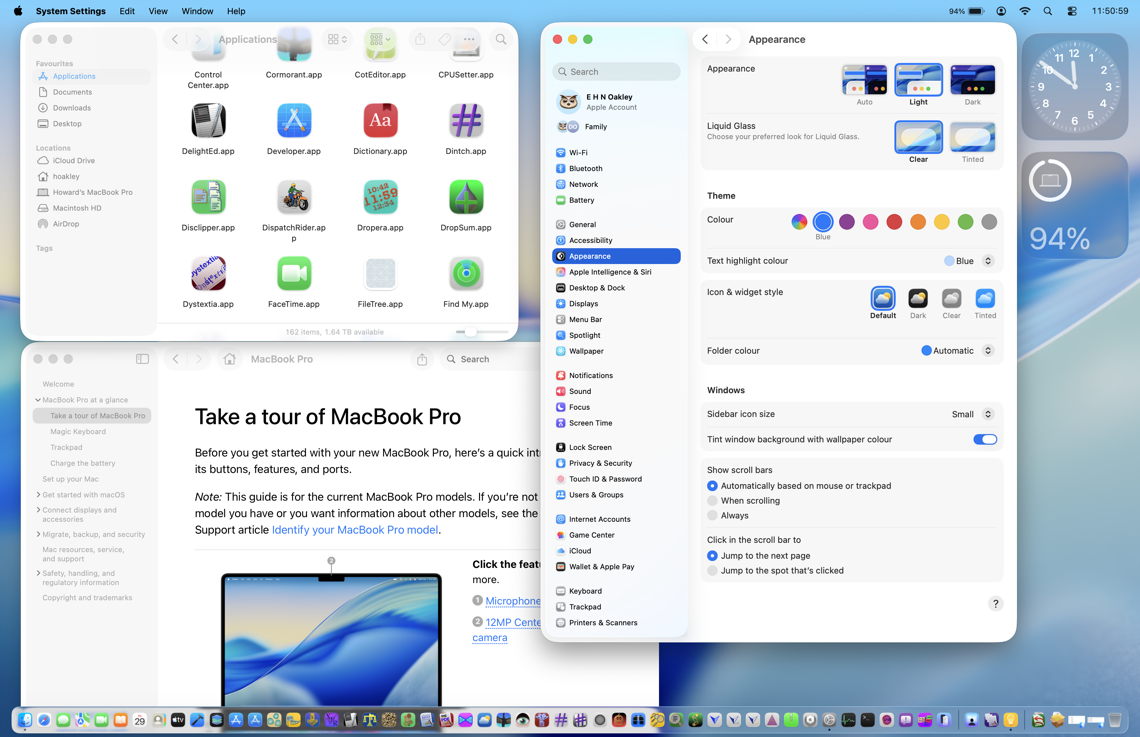
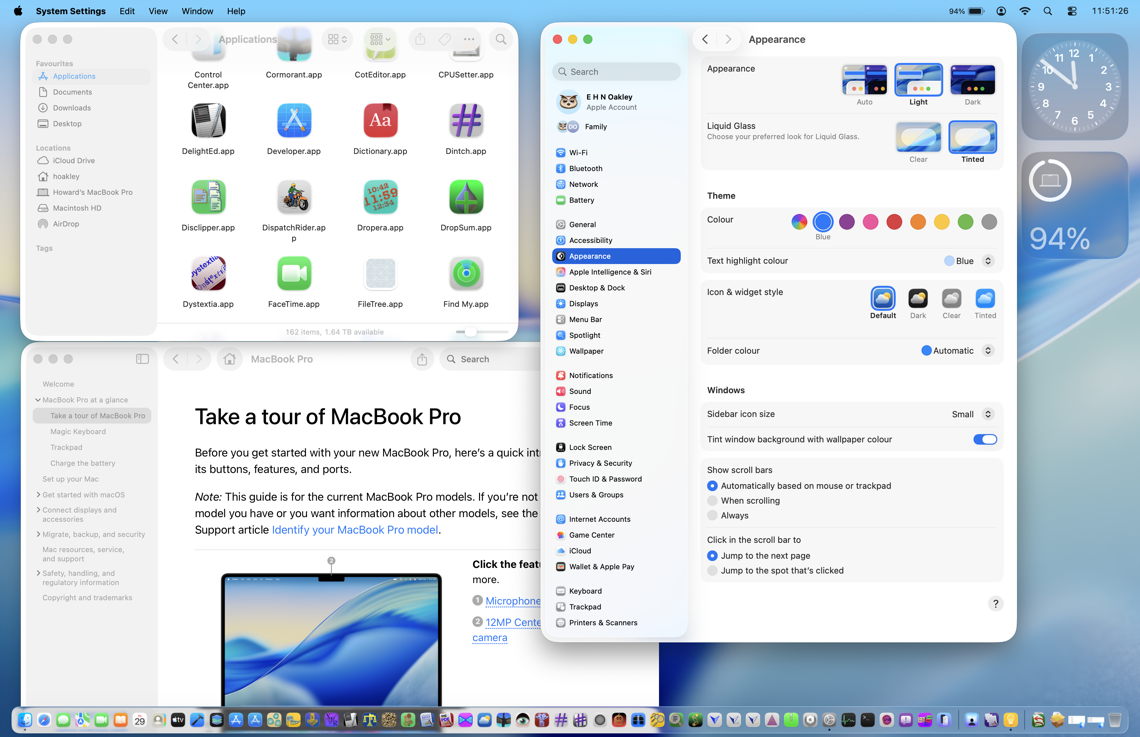
Above is Light mode, Liquid Glass set Clear, without Accessibility. Below is the same, but with Liquid Glass set to Tinted.

After many attempts to find some difference between Clear and Tinted in the bundled apps I use most often, I’ve decided that they are visually identical. And where the Liquid Glass effect results in optical interference between layers, Tinted doesn’t alter opacity to eliminate that interference.

This is illustrated in the defaced search box at the top left of System Settings, where the blurred contents of the navigation sidebar at the left remain visible underneath the window’s search box. I can’t understand how any designer could see that released to the public, and providing the new Liquid Glass setting is farting into a hurricane.

Background Security Improvements

Although Apple went out of its way not to let us know, I’m actually glad to see the return of Rapid Security Responses (RSR), even if they’ve been given this sanitised name. What disappoints me deeply is that the BSI shows no sign that Apple has learned from its past mistakes with RSRs just over two years ago.

RSRs, which have never been officially declared dead, were downloaded through Software Update, and gave the user the choice of installing them automatically, downloading and installing them when they chose to, or ignoring them and waiting for the next macOS update. Not only that, but once installed, they could be removed and macOS reverted to its previous state.

rsr2

What Apple never did get right is how to number the macOS version once an RSR had been installed. Rather than extend version numbers consistently with a fourth digit, Apple decided to append a letter in parentheses, making 13.4.1 become 13.4.1 (a) when its first RSR had been installed. When the first RSR was released on 1 May 2023, Safari’s build number was changed, but not its version number. But with the second RSR on 10 July, someone mistakenly changed Safari’s version number from 16.5.1 to 16.5.2 (a), and that was therefore given as its User Agent, and promptly broke many major websites including Facebook.

Because that RSR could be removed by the user, there was an immediate solution, and Apple delivered a revised RSR a couple of days later.

From this, we learned that:

  • RSRs undergo very little testing before release, as they’re supposed to be issued quickly.
  • Because they undergo such little testing, their chances of significant incompatibilities are greater.
  • Giving the user the option to delay installing an RSR saves many from being caught out by flawed RSRs.
  • Giving the user the option to uninstall an RSR is essential in the event that one proves to be flawed.
  • Knowing when an RSR is being installed is essential if users are going to be able to identify the cause of problems arising from them.
  • Numbering of macOS versions needs to be restructured to accommodate RSRs.

Now, over two years later, it seems Apple has forgotten those lessons. It won’t even describe these as security updates, but “improvements”, won’t include them in the release notes for 26.1, hides their single control at the very bottom of a long list in Privacy & Security settings, rather than in Software Update, provides no manual option, and no means to uninstall them.

I wonder how long it will be before we all regret those decisions, and have to repeat past mistakes before we can learn from them.

Appearance revisited: Get Tahoe 26.1 looking in better shape

By: hoakley
5 November 2025 at 15:30

When Apple released macOS 26 Tahoe I published an article exploring how you can configure its redesigned interface, using its additional variations to appearance modes and its new Liquid Glass effects. When Tahoe 26.1 was released a couple of days ago, it changed those by adding a new control for those Liquid Glass visual effects. This article shows how that might change your options.

There are now four sets of controls:

  • Appearance mode, Light or Dark, in Appearance settings;
  • Liquid Glass setting, Clear or Tinted, in Appearance settings;
  • Display variations to Reduce transparency or Increase contrast, in Accessibility settings;
  • Icon & widget style, in Appearance settings.

Apple’s descriptions of the two states for Liquid Glass read:

  • “Clear is more transparent, revealing the content beneath.”
  • “Tinted increases opacity and adds more contrast.”

Those terms indicate an overlap with Accessibility settings. However, if either of the Accessibility settings is enabled, then the Liquid Glass setting is unavailable. I also presume that the word tinted here refers to the faint colouration that might be seen in what would otherwise be a transparent view, rather than any more generalised addition of colour.

Light mode

There are four overall variations of light mode, depending on Liquid Glass and Accessibility settings.

The starting point and default is in light mode, Liquid Glass clear, without Accessibility, and icon & widget style set to Default. Note the effects of transparency on the menu bar, widgets, the Liquid Glass effect in the left side of the Dock, and the upper row of icons in the Finder window. If you like those, you don’t have to change any settings.

This is the same, but with Liquid Glass set to Tinted. I’m unable to see any difference between those settings in this example.

This is light mode with Reduce transparency enabled in Accessibility settings. This disables all Liquid Glass effects and restores the traditional menu bar and Dock. The effect on Desktop widgets is perhaps less beneficial.

In light mode with Increase contrast (automatically coupled with Reduce transparency) enabled, the predominant effect is the outlining of controls within each window, rather than any change in contrast. Colours used by the system, such as the traffic light controls at the top left of each window, and those in themes, are darker, but those elsewhere, as in icons, aren’t changed. The effect here is to make controls clearer rather than actually changing contrast.

Dark mode

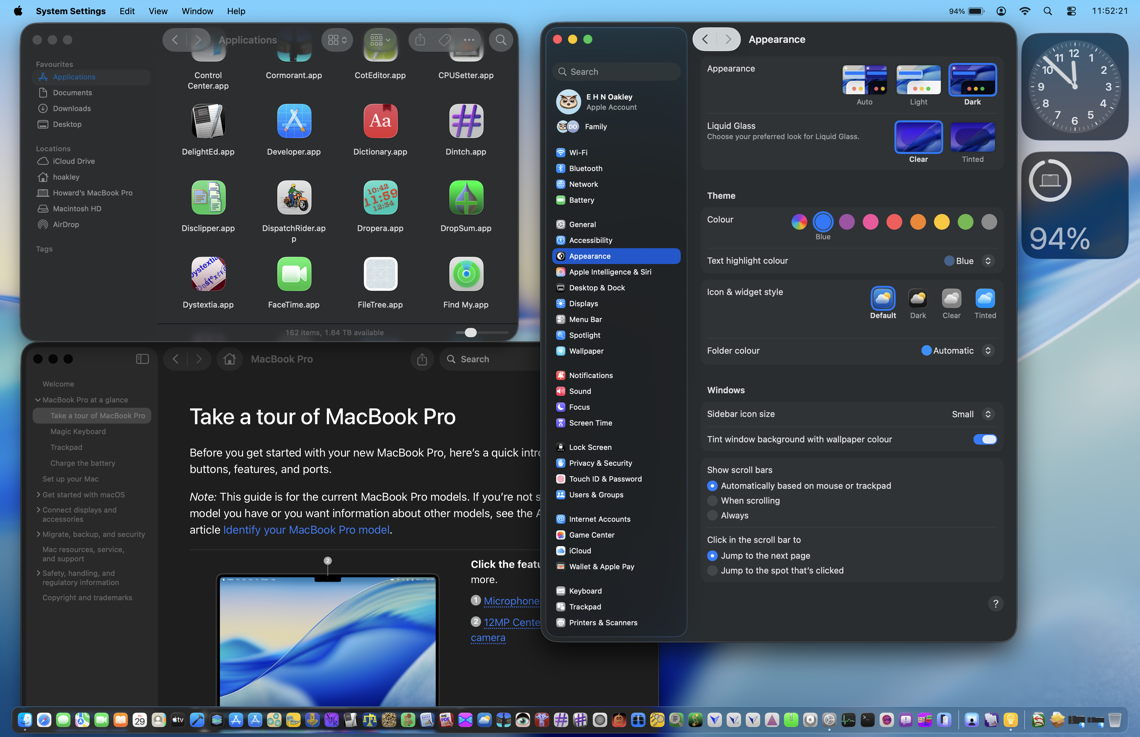
Without changing Accessibility and leaving Icon & widget style set to Default, and Liquid Glass set to Clear, dark mode shows transparency and Liquid Glass effects as you expect. These are again most visible in the menu bar, Dock, and the upper row of icons in the Finder window.

This is the same, but with Liquid Glass set to Tinted. Two most obvious differences are seen in the back-forward controls by the title of the Appearance settings, which oddly appears white, and the widgets, which are much darker. There are some inconsistent differences in the toolbar of the Finder and Tips windows, but they are more subtle.

With Reduce transparency enabled in Accessibility settings those transparency and Liquid Glass effects are removed.

Enabling Increase contrast outlines controls clearly, but any changes in system colours are more variable than in light mode.

Icon & widget style

This is new to Tahoe and only affects the rendering of icons and widgets. Liquid Glass settings don’t appear to have any effect on these.

Using light mode without any Accessibility changes, the Default setting for Icon & widget style is the baseline, showing icons in their ‘normal’ state.

Dark icon settings in light mode contrasts more but their readability may suffer.

When Icon & widget style is set to Clear, most are decolourised, making them significantly harder to read, and impossible to distinguish in the sidebar of System Settings.

The final option is for Icon & widget style to be Tinted (no relation to the Liquid Glass setting Tinted), where they’re rendered in monochrome using a colour of your choice, selected from the popup menu below. On iPhones and other devices that are available in several case colours, some have decided to set tinting to match the case, something you might like to try with an Apple silicon iMac, for example.

However, be careful in both Clear and Tinted styles, as it’s easy to end up making many icons unreadable and almost indistinguishable, here by setting the last of those to Graphite colour. This is one of the obvious drawbacks in Tahoe’s flexibility, in that many combinations of appearance mode, Accessibility settings and icon and widget style degrade its human interface rather than enhancing it. At least you now know what not to try, and how to return it to its defaults.

Summary of controls

  • Appearance mode, Light or Dark, in Appearance settings;
  • Liquid Glass, Clear or Tinted, in Appearance settings;
  • Display variations to Reduce transparency or Increase contrast, in Accessibility settings, but those automatically override Liquid Glass settings;
  • Icon & widget styles, in Appearance settings, with Icon, widget & folder colour when appropriate.

WWDC25 设计课程合集【中英字幕】

By: Steven
13 June 2025 at 21:40

因为想了解苹果对 Liquid Glass 的定义和执行,以及对设计和开发的建议和约束,通过这些来进一步分析这套全新的设计语言究竟意味着什么,所以在翻看官方资料的过程中也顺便就把这些视频给翻译(用 AI 辅助)了。我集中上传到了自己的B站主页,为了方便其他人,我也在 blog 这里建立一个合集页面。

这六条并不是设计相关内容的全部视频,官方课程中还有其他视频,只是这六条是我自己比较关心的部分,和我后续的视频要分析的东西相关,因此挑选了这六条。如果你有其他关心的主题,可以前往以下官方页面寻找对应的内容。

https://developer.apple.com/videos/wwdc2025/

WWDC25新设计-01|了解新的设计系统 Get to know the new design system

深入了解新的设计系统,探索视觉设计、信息架构和核心系统组件的关键变化。了解该系统如何重塑界面与内容之间的关系,让您能够创建动态、和谐且跨设备、屏幕尺寸和输入模式一致的设计。

WWDC25新设计-02|认识液态玻璃 Meet Liquid Glass

Liquid Glass 统一了 Apple 平台的设计语言,同时提供了更具活力、更富表现力的用户体验。了解 Liquid Glass 的设计原理,探索其核心的光学和物理特性,并了解它的适用场景和使用原因。

WWDC25新设计-03|从创意到界面的设计基础 Design foundations from idea to interface

优秀的应用给人以清晰、直观、使用便捷的感觉。在本课程中,您将探索应用设计如何提升功能性、传达目标、引导用户浏览内容,以及如何巧妙地运用组件,在保持简洁体验的同时又不失影响力。本课程面向各种技能水平的设计师和开发者,以及所有对设计感兴趣的人士。

WWDC25新设计-04|设计交互式片段 Design interactive snippets

代码片段是由 App Intent 调用的紧凑视图,用于显示来自您 App 的信息。现在,代码片段可以让您的 App 为 Siri、Spotlight 和快捷指令 App 带来更多功能,方法是在 Intent 中包含按钮和状态信息,从而提供额外的交互性。在本课程中,您将学习设计代码片段的最佳实践,包括布局、排版、交互和 Intent 类型的指导。

WWDC25新设计-05|迎接应用图标的新外观 Say hello to the new look of app icons

概览 iOS、iPadOS 和 macOS 的全新 app 图标外观,包括明暗色调和清晰选项。学习如何运用雾面和半透明效果,让你的 app 图标更加鲜明、动感、富有表现力,以及如何确保你的图标与镜面高光完美契合。

WWDC25新设计-06|使用 Composer 创建图标 Create icons with Icon Composer

了解如何使用 Icon Composer 为 iOS、iPadOS、macOS 和 watchOS 制作更新的 app 图标。了解如何从您选择的设计工具中导出素材,将它们添加到 Icon Composer,应用实时玻璃属性和其他效果,以及如何预览并根据不同的平台和外观模式进行调整。

❌
❌