
Normal view

There are new articles available, click to refresh the page.
Before yesterdayMain stream

How QuickLook provides thumbnails and previews

By: hoakley
18 May 2026 at 14:30

Throughout macOS, objects like files, folders and apps are displayed as icons, which are managed and delivered by Icon Services. Although many of those are generic to that class of object, the Finder and many apps use thumbnail images to represent specific objects. Zip archives and Installer packages are denoted by type-specific icons, images by individual thumbnails, and text files can use either depending on their context. In addition to those, the Finder and some apps can display the rendered contents of some types of file in previews, providing more detail and features such as annotation and text recognition.

Custom thumbnails and previews are the product of the QuickLook subsystem, and this article explains how they’re provided to Icon Services, here for use by the Finder, although the same mechanisms are available to other apps.

Caches

The success of Icon Services depends on speed of delivery as well as providing icons that are as faithful as possible for their size. Speed is achieved by maintaining a Thumbnail Cache containing those icons most likely to be needed, the primary purpose of iconservicesd. That cache is divided between memory and multiple locations on disk. The latter include a main store locked away from all access at /Library/Caches/com.apple.iconservices.store, and com.apple.iconservices and com.apple.dock.iconcache databases in private/var/folders/[2 chars]/…/C/, where … is a long alphanumeric name.

Generation

Fidelity of custom thumbnails and previews is ensured by many generators specific to the types of data to be rendered. There are currently a total of 19 bundled in macOS, in /System/Library/QuickLook, each of which will generate both thumbnails and previews. Data types are specified by UTI, thus PDF files with the UTI of com.adobe.pdf are handled by PDF.qlgenerator, while iWork.qlgenerator handles 15 different UTI types for documents written by Keynote, Numbers and Pages.

Custom UTI types that aren’t handled by any of those bundled qlgenerators can be turned into thumbnails and previews by appexes supplied by third-party app bundles. For example, Scapple documents with the UTI com.literatureandlatte.scapple.scap can have thumbnails generated by ScappleThumbnail.appex, while ScapplePreview.appex will generate previews for them. Both appexes are supplied in the Scapple app’s PlugIns folder inside the app’s bundle, as has been expected in recent macOS.

Selection of generator takes advantage of the hierarchical structure of UTIs. QuickLook’s dictionary of UTIs supported by generators normally contains no entry for the UTI public.jpeg, the most specific UTI for JPEG images, but it does for public.image, the more general type that public.jpeg conforms to. In the absence of a more specific generator, QuickLook uses Image.qlgenerator to produce thumbnails for JPEG images. This allows a third party to implement a better generator for JPEG images using their public.jpeg UTI, rather than public.image. The same is used by PreviewCode to generate thumbnails and previews of Swift source code using its specific UTI of public.swift-source, while the macOS Text.qlgenerator goes no more specific than public.plain-text, to which public.swift-source conforms.

QuickLook offers two strategies for generating thumbnails:

  • Best possible quality, which may take significant time to create large thumbnail images from large original files.
  • Multiple resolutions, which creates low resolution images quickly, then replaces them with higher resolution when it can.

You can see the latter in action sometimes when thumbnails are being generated for large Gallery view windows in the Finder.

App and bundle thumbnails

In contrast to files, app- and bundle-specific icons aren’t generated from file data, but taken from an icon located in the bundle’s Resources. When first viewed in a Finder window, if app icons haven’t already been cached, they will initially be displayed using placeholder icons. Each app is then looked up by LaunchServices in its records, and Icon Services adds its icon to the app icon section of the Thumbnail Cache.

Placeholder icons

When there’s a delay in generating or fetching a file’s specific icon, a placeholder icon is used by Icon Services instead. These are specific to the UTI type of that file, and will remain if no more specific icon can be generated.

Placeholders are used permanently for file types which don’t have specific content-based thumbnails generated for them, such as Apple Archives with the extension aar, with a UTI of com.apple.archive. The icon displayed is then based on that for public.archive, with the letters AAR added to indicate they’re Apple Archives.

Placeholders are also used in other circumstances. A common example is for text files listed in a Finder Column view, where all files with the UTI of public.plain-text are displayed using a generic icon, although they’re shown in the Preview pane as a fully rendered preview. The same applies to Rich Text files with a UTI of public.rtf, which use the same Text.qlgenerator, but not for PDF files.

QuickLook providing a thumbnail

To cover the range of actions more fully, this account is a composite based on what happens when you open a folder in the Finder’s column view, extending to cover the principles for the display of contents in a Preview pane.

The initial request from the Finder is to retrieve the icon from the Thumbnail Cache. If it’s not found there, what happens next depends on what the icon represents.

For app and similar bundle icons, LaunchServices searches app records, the icon is found, and Icon Services add it as a new indexed store entry.

For files, if it already has a placeholder image, as a type icon, and its contents can be rendered into a thumbnail, QuickLook UI will create and load a QLPreviewDocument such as a QLTextDisplayBundle, for the Finder to display in the Preview pane.

Otherwise the Thumbnailing Daemon queues a thumbnail request. First the memory cache is checked, then the disk cache. If the thumbnail can’t be found in those, then a new thumbnail is generated locally for that file. The first step in that process is for QuickLook Support to check the file’s UTI, and ascend through the UTIs that conforms to, as its more generic types. This determines which generator will be called to generate the thumbnail image. If that fails to generate an image, the Thumbnailing Daemon will generate that deemed ‘most representative’, usually a placeholder icon.

The generated icon is then added as a new store entry and indexed by Icon Services, and that’s written from the memory cache to the disk cache.

This is summarised in the following diagram.
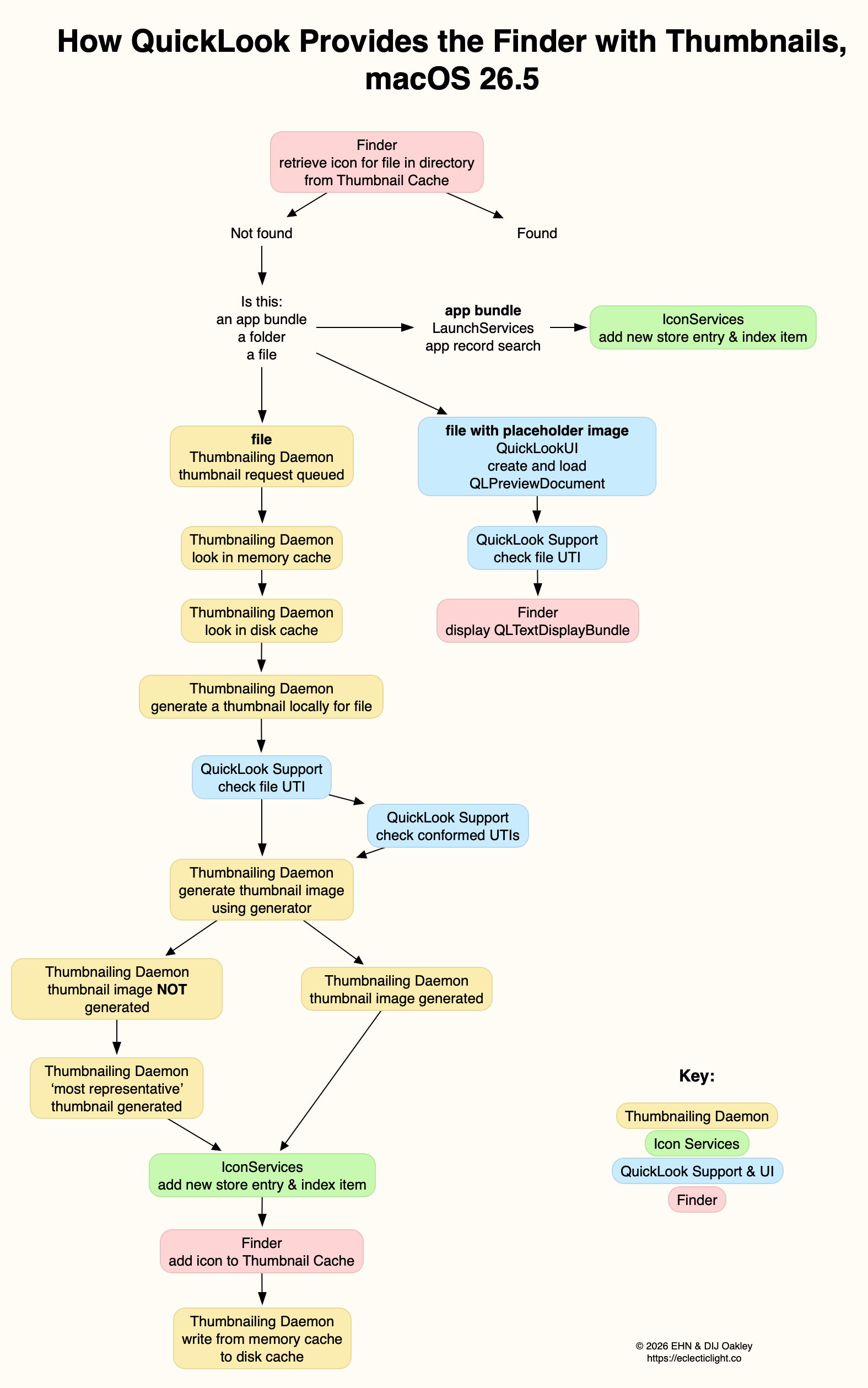
available here as a PDF: QuickLook265a

References

Apple’s developer docs on QuickLook thumbnailing.
Apple’s developer docs on QuickLook preview generation
Apple’s Developer docs on QuickLook UI and previews

Explainer: QuickLook

By: hoakley
16 May 2026 at 15:00

QuickLook, or Quick Look, is the part of macOS responsible for generating custom Thumbnails and Previews of items in the Finder and elsewhere. Although it was only introduced in 2007, with Mac OS X 10.5 Leopard, its origins go back to 1988-91 when image Thumbnails could be saved in a file’s ICN# resource. A similar system arrived in Mac OS X, and was replaced by the first version of QuickLook in 2007, which has recently undergone revision, over the period 2019-25.

Resource-based Thumbnails in Classic Mac OS were relatively straightforward. Each type of file had its own icon, an association made in the hidden Desktop database. Image and video files often overrode that default by providing their own Thumbnail image as a resource, and had to update those when the file’s data was changed. Amazingly that’s still supported in modern macOS 35 years later.

QuickLook took on the task of generating Thumbnail images, and added larger Previews in which the whole document can be inspected without opening it in an app. This came with built-in Thumbnail and Preview generation for a wide range of common document types, extending to QuickTime media including audio and video. Apps are different, though, as they use icon image (icns) files stored in their bundle’s Resources folder, harking back to Classic icon resources.

Display of Thumbnails used the QuickLook framework documented here. This enabled third-parties to extend coverage to their own document types using QuickLook generators with the extension qlgenerator. Initially, they were installed into /Library/QuickLook from each app bundle.

Unlike Spotlight indexes and document versions, QuickLook stores all its files in the current Data volume, rather than locally on individual volumes. Normally, when QuickLook generated a Thumbnail or Preview, that was stored in its cache database kept in a temporary directory in the path C/com.apple.QuickLook.thumbnailcache/. Those could give revealing insights into images and other documents accessed recently, and Wojciech Regula and Patrick Wardle discovered that, in High Sierra and earlier, it was easy for malicious software to examine that cache. Apple addressed that in macOS 10.14 Mojave by making that cache completely inaccessible.

In-memory caching of Thumbnails has also proved controversial in more recent versions of macOS. To deliver smooth scrolling of Thumbnails in the Finder’s Gallery views in particular, the Finder has taken to caching them in memory for up to two days, sometimes using several GB in the process.

I described how QuickLook Thumbnails worked in early 2019, in the days before the SSV.

getdocicon01

When you selected a document in the Finder, a dialog, or somewhere else where you expect its icon to be shown, the Finder passed details of the document path and its type (UTI) to IconServices, to fetch the appropriate icon. This called on its main service, iconservicesd in /System/Library/CoreServices, to check its icon cache.

Although the main icon store is locked away in /Library/Caches/com.apple.iconservices.store, there was additional data in a folder on a path based on /private/var/folders/…/C/com.apple.iconservices, where … is an unreadable alphanumeric name. For icons used in the Dock, their cache was at /private/var/folders/…/C/com.apple.dock.iconcache. If the icon should be replaced by a QuickLook Thumbnail, such as in a Finder column view, QuickLook is asked to provide that thumbnail. That in turn may be cached in its protected cache at /private/var/folders/…/C/com.apple.QuickLook.thumbnailcache.

QuickLook then relied on there being an appropriate qlgenerator to create a thumbnail of that document type; if the qlgenerator was flawed or could’t cope with the document’s contents, that could easily fall over. For example, if you renamed a text file with a .jpeg extension so that macOS considered it was a JPEG image, the bundled qlgenerator might have simply resulted in the display of a busy spinner, rather than resolving to a generic JPEG document icon. IconServices should then deliver the appropriate icon back to the Finder to display it.

In macOS 10.15 Catalina (2019), Apple started replacing this system with a new framework named QuickLook Thumbnailing, documented here. That replaces qlgenerators with QuickLook preview extensions, in particular Thumbnail Extensions, as explained to developers at WWDC in 2019.

macOS 15.0 Sequoia finally removed support for third-party qlgenerators, resulting in the unfortunate loss of custom Thumbnails and Previews for document types of apps that are still reliant on qlgenerators, and haven’t yet got round to providing equivalent app extensions.

When you now select a file in a view which should result in the display of its thumbnail in the Preview pane in that window, the Finder requests it from the QuickLookThumbnailingDaemon. That queues the request until the daemon can look for the image in its memory cache. If it can’t find it there it then looks in the disk cache, first at low quality 20 x 20 icon mode. If it still can’t find it, it queues a request for a fresh thumbnail to be generated. That uses the file data together with the appropriate code to create a Thumbnail, which is then returned and cached.

There’s at least one exception to this, the directory at ~/Library/Messages/Attachments/. For files inside that, and any others for which a Thumbnail can’t be generated, a generic icon is returned as the “most representative thumbnail”.

While third parties have been replacing their old qlgenerators with modern Thumbnail and Preview extensions (appexes), macOS still provides its standard qlgenerators in /System/Library/QuickLook. Third party appexes normally come in PlugIns folders in app bundles. Mints can provide a full listing of those installed. If a document type isn’t being thumbnailed as you’d expect, the first task is to discover its type as a UTI. You can then look up which qlgenerator or appex should be responsible for generating Thumbnails or Previews of that document type using Mints. By far the most common cause at present is an old third-party qlgenerator that hasn’t been replaced by an appex.

How to preserve versions, and how to create versioned PDFs

By: hoakley
13 May 2026 at 14:30

Keeping previous versions of a document you’re working on can be a great timesaver. Although I seldom restore files from backups, it’s far more frequent that I look back in a file’s versions to recover changed or removed contents. In most cases, those had changed so rapidly that even hourly backups didn’t capture them. Had those versions not been saved automatically by macOS, I would have wasted time trying to recreate them from scratch.

Although a great many apps now come with built-in version support, macOS doesn’t preserve those versions as well as it could. Duplicate a document with versions, save it as another document, or move it to a different volume, and all its versions are blown away. As I explained yesterday, versions don’t transfer in iCloud Drive either. This article explains how you can work around all those, how to ensure versions get backed up, and how you can create PDF documents with versions.

How versions work

Opening the version browser from the File menu.

Many apps now have built-in support to automatically save versions of documents you edit with them. The tell-tale sign is when the app has a Revert To command in its File menu, which opens the current document in a version browser resembling the Time Machine app.

revisions1

Each time you save a document in those apps, the existing document is saved to a hidden and locked-down database at the root level of that volume, in the .DocumentRevisions-V100 folder. When you use the Revert To command to browse all versions, you can look back at all the versions of that document saved to that volume. You can then revert to an older version, or copy contents from an older version to the current one. As long as that document remains in its current volume, those versions will remain accessible. However, if that document is moved to a different volume, even on the same disk, those versions don’t move with it, but will be retained in the original volume until it’s deleted from there.

If you’ve been editing a document in your Documents folder and move it into iCloud Drive, which is actually a folder inside your Home Library folder, its versions will be preserved when you access it from the same Mac. However, other Macs connected to the same iCloud account won’t see those versions, as they remain on the original Mac and don’t get synced to iCloud Drive.

How to extend versions

Apps can’t access stored versions directly, but have to do that via macOS. The most compatible way for them to do that is to fetch previous versions from the volume version database. They can then save each version as a separate file, and reconstitute a document complete with its versions by adding those files back to a document’s versions in the volume’s database. That’s exactly what my free utilities Versatility and Revisionist do. Versatility is the simpler of the two to use here, while Revisionist adds more features including checking documents to see how many versions they already have stored in their volume database.

Archive versions

Simply drag and drop a file with saved versions onto Versatility’s window, and it will extract all its versions and save them as a series of numbered files in a folder. You can then copy or move that folder to any other location, where you can reconstitute the original document with all its versions intact.

Unarchive versions

Simply drag and drop a folder containing archived version files onto Versatility’s window, and it will reconstitute the original document with all its previous versions.

Versions in iCloud Drive

To preserve all versions in iCloud Drive and make them available to all that connect to that folder, move the document from its existing location in your Home folder, to the correct folder in iCloud Drive. Once it’s there:

  1. Perform any editing necessary.
  2. Archive. Drop the document onto Versatility’s window, and save that archive folder to the same location.
  3. Move the original document elsewhere.

When you want to edit that document, particularly on another Mac, on that Mac:

  1. Unarchive. Drop the archive folder onto Versatility’s window, and save the document to the same location.
  2. Edit the document, saving whenever you want to create a new version.
  3. When you’ve finished, save for the last time, and close the document.
  4. Archive. Drop the document onto Versatility’s window, and save that archive folder to the same location.
  5. Tidy up old archive folders and files.

That leaves the most recent archive folder, with composite versions written in the correct order, with the right timestamps, ready to be unarchived on the next Mac to edit that document. This may appear complicated, but once you have tried it out, it’s really a simple sequence to unarchive-edit-save-archive and hand over to the next editor.

Backing up versions

I’m not aware of any backup utility for macOS, including Time Machine, that backs up and preserves versions, although they are stored in local volume snapshots. However, all you have to do is archive the versions of important files into folders using Versatility, and back up those folders. When you want to restore the original document with all its versions, simply unarchive that folder using Versatility.

PDF versions

One of the lesser-known features of the PDF format are incremental updates, which can provide a primitive form of versioning within a single file. In practice it catches users out when they publish a PDF containing old edited content they thought had been removed.

Few PDF editors and viewers support the macOS version system, but Preview does, and Versatility can be used to assemble a PDF document with versions.

For my example, rather than edit a PDF, I generated a series from an archived RTF, converting each file into a consecutively numbered PDF, starting from 000.pdf and rising to 010.pdf. I then dropped that folder onto Versatility’s window and it unarchived those into a single PDF document with all those versions.

Key points

  • Archive a file with saved versions to a folder by dropping it onto Versatility’s window.
  • Unarchive a folder containing version files to a file with saved versions by dropping it onto Versatility’s window.
  • In iCloud Drive, unarchive-edit-save-archive to preserve versions for the next editor.
  • Wherever you want to preserve versions, archive the file using Versatility.

刚刚,姚顺雨腾讯首秀来了!三个月重建混元新模型,实测到底什么水平

By: 张子豪
23 April 2026 at 17:08

这周,中国大模型的更新让人窒息。前脚阿里最强旗舰 Qwen 3.6 Max刚发布,月之暗面的 Kimi 2.6 就马上登场,DeepSeek V4 也箭在弦上。

刚刚,混元的 Hy3 Preview 也正式亮相,这是腾讯首席 AI 科学家姚顺雨主导的一个模型。

姚顺雨表示,Hy3 preview是混元大模型重建的第一步。他希望通过这次开源和发布,不断提升 Hy3 正式版的实用性,以及模型在真实场景中的综合表现,并开始探索特色模型能力。

从去年年底姚顺雨加入腾讯,入职首席 AI 科学家,并负责 AI Infra 及大语言模型,1 月底开始启动模型训练,三个月的时间完成了从训练到上线。

这个大版本升级的混元模型,在短时间内,不仅对底层基础设施进行了系统性重建,还包括预训练和强化学习在内的底层框架,全部推倒重来。

最后的答卷是一个快慢思考融合的 MoE(混合专家)语言模型,总参数 295B,激活参数 21B,最大支持 256K 上下文长度。

在这个行业动辄吹嘘万亿(1T+)参数的时代,Hy3 preview 的数据显得有些克制。但这个参数很明显是兼顾了性能和成本之间的平衡,让模型能更好落地在不同场景。

而 300B 这个量级,复杂的数理推理、长上下文理解和指令遵循能力都已经被充分激活;如果继续强行扩大规模到万亿参数,一边是训练时间加倍,在实际的表现上,也容易出现通信延迟、吞吐瓶颈和推理成本翻倍等问题。

不过,姚顺雨也提到,他们在继续扩大预训练和强化学习的规模,提升模型的智能上限。

在多个真实生产和生活场景 benchmark,以及腾讯混元的 CL-bench 上表现对比前代,提升幅度明显。

因此,Hy3 preview 这次的定位非常明确,要到真实世界去解决复杂工程问题。

为了验证 Hy3 preview 是否能在真实世界去解决各种问题,具体的模型表现如何,APPSO 也提前拿到了内测资格,在元宝 App 和 WorkBuddy 桌面端应用了实测了一段时间。

编程和 Agent,混元开始接住真实的工程需要

编程能力目前还是各家大模型发力的重点,前几天还有外媒报道,谷歌正在成立一个新的团队,专攻 AI Coding。

这次的腾讯混元新一代大模型 Hy3 preview 同样在通用能力的提升基础上,能够适用于编程和现在热门的智能体场景。

例如我们用之前 GPT 5.4 模型发布时使用的编程测试案例,来看看 Hy3 preview 的具体表现。

▲提示词:创建一个超写实的旧金山金门大桥交互式 3D 体验,允许我自由飞翔环绕。环境需包含真实的照明、水体、雾气、大气效果、悬索、车流、周边海岸线及城市背景,并具备电影级的尺度感和细节。让我能通过直觉式的飞行控制和多视角(包括近距离结构穿梭和大场景俯瞰)平滑地进行场景导航。核心要求是真实感、沉浸感和视觉忠实度。在测试运行时,务必从多个距离和角度环绕大桥飞行,验证导航的平稳性与稳定性,并确保场景无论远近都极具说服力。你可以利用 imagegen 技能生成建模所需的初始资产。视觉效果绝不能有任何“方块感”或“廉价感”,必须达到高保真、极度平滑、近乎照片的质感。桥面上应有真实的车辆通行。不必急于求成,如果需要,即使耗时一小时也可以。请不断迭代,直至完美。

虽然最后的结果并不是非常写实,主要差距还是在于所使用的工具限制。但整个体验还是非常流畅和丝滑,我们能使用 WASD 键来控制自己第一人称视角的飞行,同时 Hy3 preview 也自动写了一些默认视角。

而在让它写一些简单的小游戏时,像是同样来自 GPT-5.4 的提示词,做一个游乐场的经营类小游戏。

▲提示词:创建一个可以在浏览器中构建并导航的交互式等轴测 (isometric ) 主题公园模拟游戏。利用 imagegen 确立整体视觉风格,并生成全套游戏资产,包括游乐设施、路径、地形、树木、水体、食品摊位、装饰物、建筑、图标以及 UI 插画。游戏世界必须具备高度的统一感、精致度以及丰富的视觉表现,艺术风格需高端且适配等轴测视角。允许平滑地铺设或拆除路径、添加景点、布置景观并环绕公园移动,同时能够监控游客活动、设施状态以及公园的发展情况。系统需包含可信的游客移动算法,以及简单的公园管理系统(如资金、清洁度、排队和满意度)。确保整体体验充满趣味、逻辑清晰且完整,而非粗糙的原型。在优先级上,趣味性、易读性以及出色的游戏手感高于写实度。在进行玩法测试时,务必通过多轮操作来构建并扩张公园。验证设施放置与导航是否顺畅,确认游客对公园布局及景点的反应,并确保视觉效果、UI 以及交互体验稳定且统一。

还是不可免俗的使用了「渐变紫」的套装,只能说界面审美这一块,除了编程能力的提升,还是需要额外的一些微调。

好在整个游戏是能玩的,我们可以真实的经营这个游乐场,通过铺路、放置新的游乐设施以及服务设施等场地,来赚取收入,控制人流。

而经典的「骑自行车的鹈鹕」测试,我们把它换成了更难一点的,开着汽车的长颈鹿。生成的 SVG 画面是动态的,太阳、云朵和车子都在移动,基础的 SVG 元素都能做到。

这些关于编程能力的测试,我们都是在腾讯前段时间推出的智能体应用 WorkBuddy 内完成。

而除了代码开发的任务,我们还可以使用 WorkBuddy 进行文档处理、数据分析可视化、深度研究等方面的日常办公。

由于 WorkBuddy 也是一个本地 Agent 产品,和 Claude Code、Codex 之类的应用一样,我们可以让它直接访问本地文件夹的文件。

要求它访问电脑上 Hy3 文件夹里面的全部文件,并根据文件的内容,创建一个类似于 Wiki 的网页,能够直接索引到不同的文件。

WorkBuddy 读到了我们创建的不同项目,例如要求它完成的落地页、3D 金门大桥、个人博客、运营游戏等项目,并分类总结好。

再要求它把其中一个香港国际电影节的 PDF 文件转成 HTML,要求它 1:1 复刻精美的杂志效果,显然太为难它,但是 Hy3 preview还是能在非常规排版的 PDF 文件里,准确定位到信息,并整理成网页。

而在深度研究的调研任务上,我们要求他写一份关于内存市场洞察报告,给出的文档内容详细,使用的数据来源也全是权威机构。

继续用 WorkBuddy 内的数据分析及可视化任务来测试时,要求 Hy3 preview 基于联合国人口司的数据,做一次全球人口结构变迁的可视化分析,Hy3 preview 花了非常长的时间进行调研,最后给出的研究报告,可以说能直接拿过来用。

▲部分可视化图表截图

这些编程和智能体的能力,配合 WorkBuddy 能发挥到最大。在元宝 App 内,现在我们也可以让它生成一些小型的网页游戏,在对话框里就能预览打开。

闲聊,要做到「活人感」不容易

前段时间,一个短视频在网上传播,视频内容是一位乘客看到前排的司机,在手机上和 AI 助手聊天,他告诉 AI 自己一天收入,AI 会给他一些反馈。

有网友在下面留言,说以前这些聊天都是 200 块一小时的心理咨询,现在手机发条消息就能做到。

无论模型在代码开发、解数学题、科学研究上取得了多少成功,大多数人用 AI 的场景,占比较多的还是各种类型的角色扮演。

我们也测试了腾讯混元新一代大模型 Hy3 preview 在日常聊天以及创意写作上的表现。

没有「不躲不逃不藏的只用最直接」的方式跟我说,有的是真实地能解决问题的文字。打开元宝 App,点击深度/快速思考,选择模型 Hy3 Preview,问它「为什么我在广州找不到爱情」。

它的回复是客观和主观两方面并行的,会分析除我之外的原因,也会告诉我应该要怎么做。

在聊到一些可能找到明显原因的困惑时,Hy3 preview 还会自动生成对应的表格,来解释 AI 并不是只会顺从。

创意写作的任务上,Hy3 preview 模型的表现,也要比前代更有文采和个性化风格,即便是简单的生活文案,人情味也更明显了。

我们找了一些基础的风格模仿任务、叙事节奏的续写、语言的创作力和情绪张力等题目,来测试它。

生成的写作结果,在独特性、执行精确度,以及风格稳定性上的表现,确实要更符合我们人类写作的特点,没有 AI 那种明显的套话。

那道经典的走路去还是开车去洗车问题,Hy3 preview 也答上来了。

当所有人在做一套卷子,混元开始出卷

过去两年多,中国 AI 行业有一种集体焦虑:所有人都在做同一件事。同样的架构,同样的训练范式,同样的榜单,同样的新闻稿模板。模型发布会的 PPT 换个 logo 就能通用,「全球领先」「性能登顶」这些词被用到通货膨胀。

腾讯曾经也在这个队列里。别人打榜它也打榜,别人堆参数它也堆参数,别人做什么功能它追什么功能。结果是混元的技术投入不少,但市场感知始终模糊。你问用户「混元跟别家有什么区别」,大概率答不上来。

Hy3 preview 的意义,可能恰恰在于腾讯终于不追求打榜了。这也是姚顺雨带给混元最大的变化。

此前晚点一篇报道就转述了姚顺雨在腾讯内部会上的判断:模型过度追逐榜单成绩,将打榜语料放入训练集,数据被污染了。模型很会答题,到了真实场景却不稳定。

榜单衡量的是能力上限,用户感知的是能力下限。MMLU 上领先两个百分点,用户在实际使用中几乎感知不到;反过来,指令遵循稍差、格式不稳定、幻觉率偏高,用户体验会断崖式下降。

所以在 Hy3 preview 上, 就能看到混元开始把这个逻辑翻了过来:不追榜单,追场景。

▲去年一份报告就曾指出, AI 在各类基准测试上的分数一路飙升,benchmark 过于饱和,这些成绩往往并不能真实反映它对现实世界的实际影响。

295B 的参数量说明它不打算在模型尺寸上硬碰硬。不上公开榜单说明它不打算在刷分上继续内卷。Co-design 的研发模式说明它开始把注意力从「别人做了什么」转向「我的用户需要什么」。

这里就不得不来看看腾讯这家公司的核心业务场景,社交、游戏、广告、企业服务,每一个都有极强的领域特殊性。微信的对话流是碎片化的、高密度的;游戏需要模型根据实时局势做即时反应;企业微信和腾讯会议需要基于私有文档的精准分析。

▲ Hy3 preview 已在腾讯云、元宝、ima、CodeBuddy、WorkBuddy、QQ、QQ浏览器、腾讯文档、腾讯乐享等首发上线,微信公众号、和平精英、腾讯新闻、腾讯自选股、腾讯客服、微信读书等多个主线产品也在陆续上线。

这些场景对模型的要求,跟通用智能榜单上考核的那些指标并不完全匹配。一个在 MMLU 上排名前三但在微信群聊里读不懂语境的模型,对腾讯来说毫无意义。

换句话说,腾讯可能是中国大厂里最不应该去追通用榜单的那一个。它手里攥着的场景足够独特、足够复杂、足够有商业价值,完全可以走出一条自己的路。

Co-design 就是这条路的起点。模型在真实业务里跑,业务用真实数据反哺模型,腾讯对 AI 的巨额投入能得到场景的快速验证,同时获得商业上的闭环。这个飞轮一旦转起来,产生的壁垒比榜单上的排名坚固得多。

当所有人都在比谁的模型更「全能」的时候,谁的模型在自己的场景里最「好用」,可能才是真正的胜负手。

当然,「找到节奏」和「赢下比赛」之间还隔着相当的距离。

Hy3 preview 是混元重整后的第一个模型,三个月的研发周期说明执行力在线,但也意味着大量的优化空间。55% 到 56% 的盲评胜率说明它够用,距离拉开差距还早。更大尺寸的模型在路上,正式版还在根据 Preview 阶段的用户反馈持续打磨。

但至少有一件事变了:混元不再追着别人的地图跑了。它开始画自己的地图,标自己的路。

大模型竞争走到今天,同质化才是最大的风险。当所有人都在用同一把尺子量身高的时候,有人开始造自己的尺子,量自己真正需要的维度。

这件事本身,比任何一榜单参数都值得关注。

#欢迎关注爱范儿官方微信公众号:爱范儿(微信号:ifanr),更多精彩内容第一时间为您奉上。

❌
❌